In this article, I will configure a batch script that automatically cleans the temporary files in a user's TEMP directory with Task Scheduler at the intervals I define. The aim is to empty the TEMP content regularly without manual intervention and to recover the space taken on the disk by unnecessary files that build up.
The TEMP directory is where the operating system and applications keep the temporary files they create while they run. Some of these files are cleaned automatically when the process ends. However, when an application closes unexpectedly or its own clean-up mechanism does not run, the files are left behind and can consume a significant amount of space over time. On systems that run many applications, this build-up is quite fast. The real gain here is disk space. Instead of expecting a general "performance increase", it is more accurate to focus on the concrete benefit of freeing space on a disk that is close to full.
There is 1 point to be careful about: some of the files in the TEMP directory may be in use by processes that are running at that moment. Files that are in use are locked, so they cannot be deleted and are skipped during the clean-up. This is expected behaviour. When the relevant process releases the file, these files are also cleaned on the next run.
TEMP files that are in use are locked, so they cannot be deleted and are skipped. This is normal. When the file is released, it is cleaned on the next run.
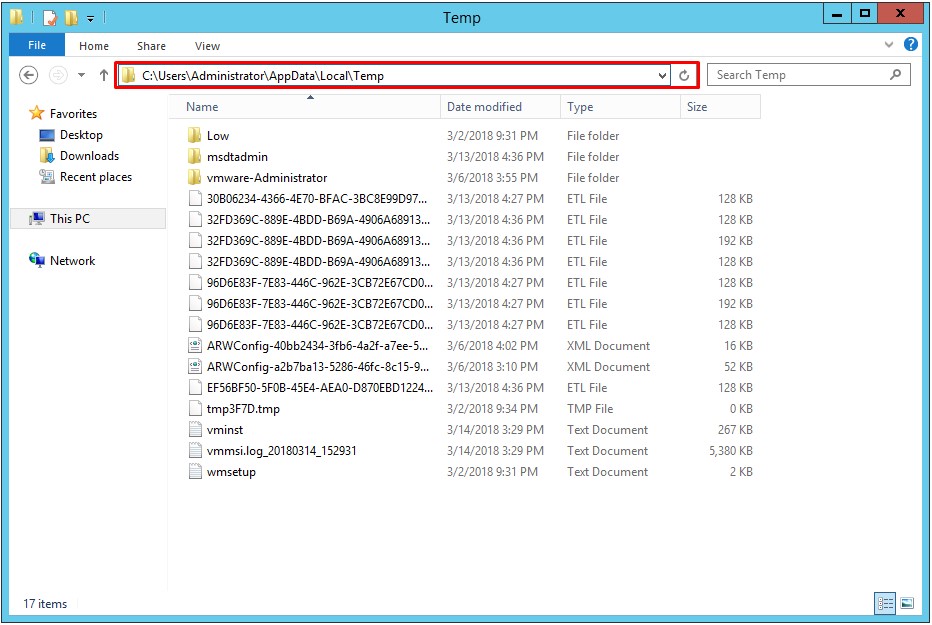
In this procedure, I will link the deletion of the temporary files in the C:\Users\User Name\AppData\Local\Temp directory to a schedule with Task Scheduler, so that they are deleted regularly at the intervals I define. The TEMP directory I will clean, C:\Users\Administrator\AppData\Local\Temp, is shown below.
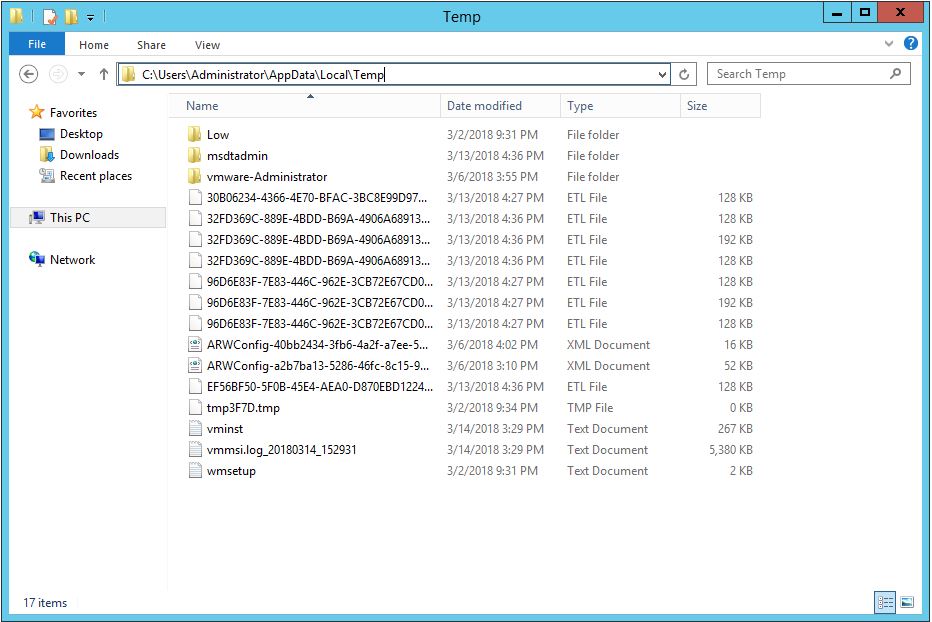
Before I link the content of this directory to a schedule, I need the command lines that delete the content. The command I will use is as follows:
set "folder=C:\Users\Administrator\AppData\Local\Temp"
cd /d "%folder%"
for /F "delims=" %%i in ('dir /b') do (rmdir "%%i" /s /q || del "%%i" /q)
Let us look at what the command does, line by line. Line 1 assigns the target directory to the folder variable. Using the quotation marks in the form set "folder=..." here prevents the directory path from being stored in the variable together with the quotation marks, and makes later uses more reliable. The cd /d "%folder%" statement on line 2 changes to the target directory and also changes the drive if required. The for /F loop on line 3 takes each item at the root level one by one from the dir /b output. For each item, it first tries to delete a folder with rmdir /s /q. If the item is a file, this command fails, and because of the || operator, del /q runs and deletes the file.
This command permanently deletes the entire content of the directory specified in the folder variable. Always confirm that the path is correct before you run it. A wrong directory causes serious data loss.
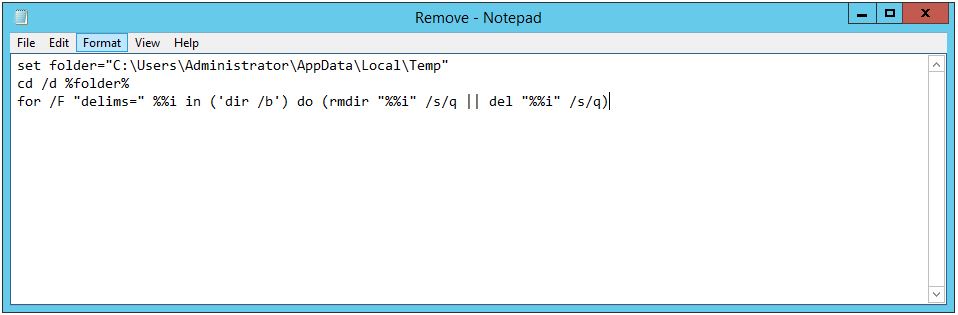 I copy these command lines into a Text file, name it RemoveFolderContent, and prepare it by changing the .txt extension to .bat.
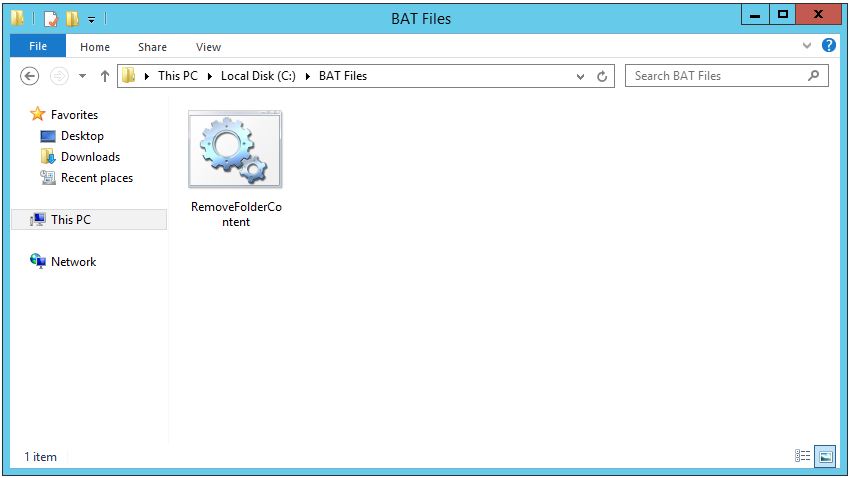
Assigning the .BAT (Batch) File to Task Scheduler
Instead of running the .bat file I prepared manually, I will trigger it automatically on specific days and at specific times with Task Scheduler, the built-in Windows tool. In this way, the clean-up runs as a recurring task without user intervention. On the Task Scheduler side, there are 2 points to be careful about: which account the task runs with, and whether it runs with sufficient privileges. If the directory to be deleted is the TEMP directory of the account that runs the task, some files stay locked while that account is active, so a complete clean-up is not guaranteed. I will make this clear in the steps below.
The next step is to assign the .bat file I created to Task Scheduler. For this, I open Task Scheduler.
1- In Task Scheduler, I right-click Task Scheduler (Local) and select Create Task....
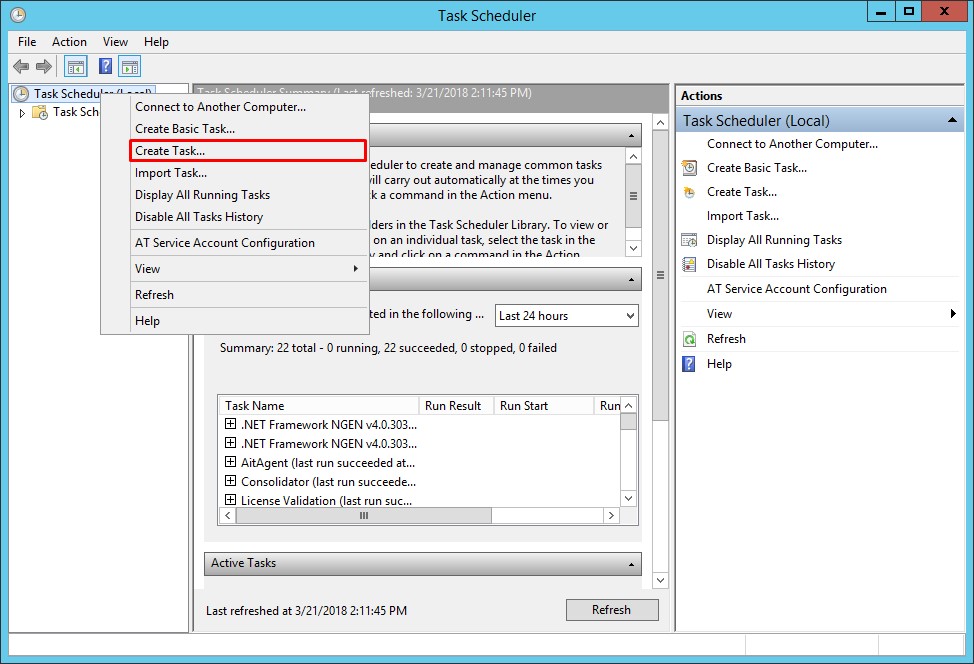
2- In the Create Task window that opens, I make the following configurations.
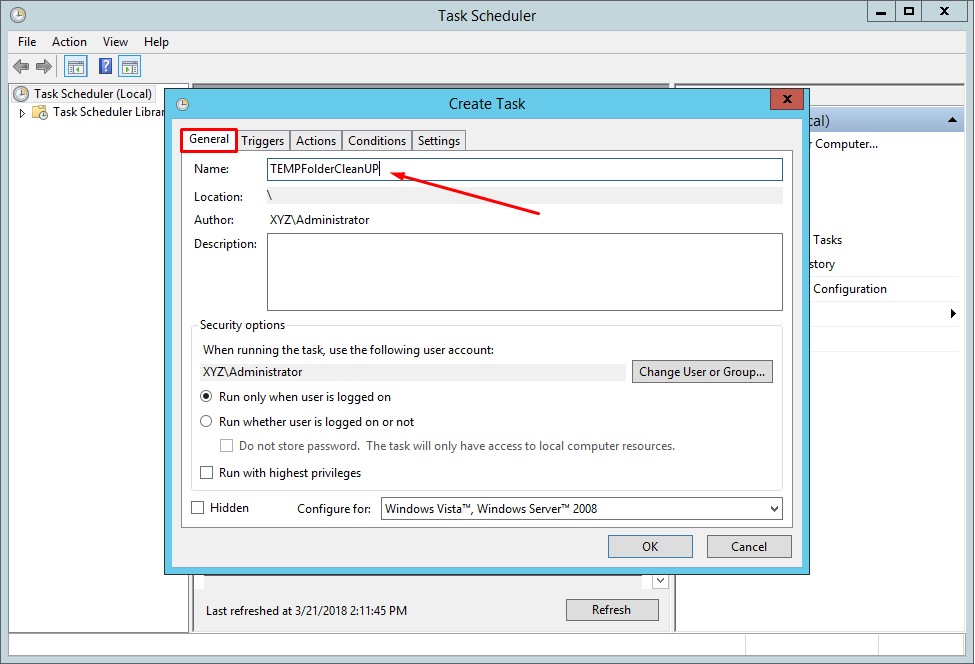
2.1- On the General tab, I set a name for my scheduled task. I give it the name TEMPFolderCleanUP, the same name as my .bat file. The Security Options area is important in this scenario: I select the Run with highest privileges option so that the clean-up runs with sufficient privileges on the directory. If the task must run even when no session is open, Run whether user is logged on or not must be selected. Also, choose the account that runs the task deliberately: if the target directory is the TEMP directory of that account, some files stay locked while the account is active, so a partial clean-up can occur.
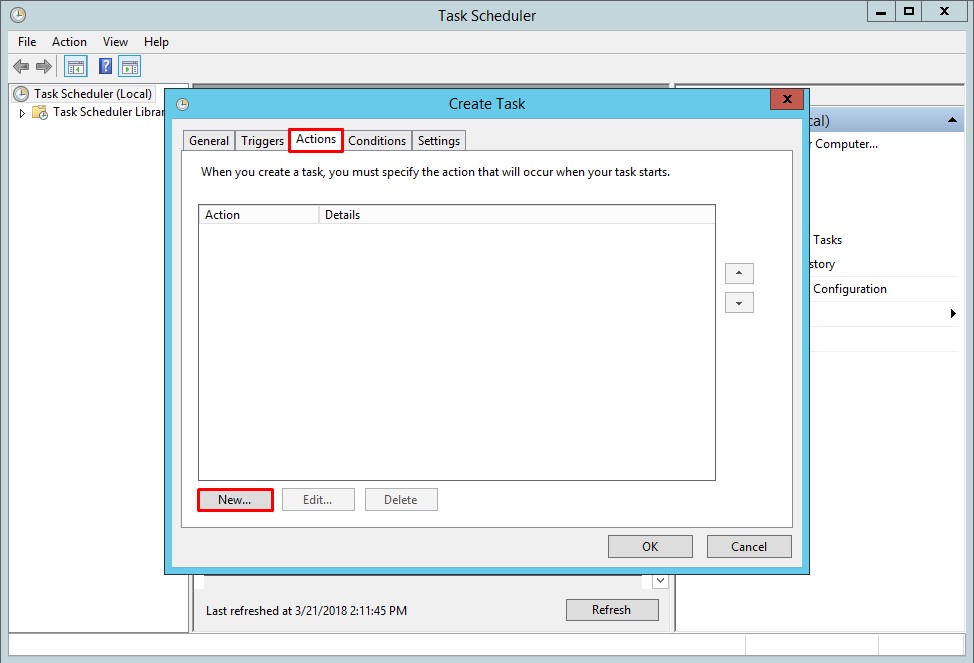
2.2- On the Actions tab, I need to define the path of the .bat file that my scheduled task will run. On this tab, I click the New... button.
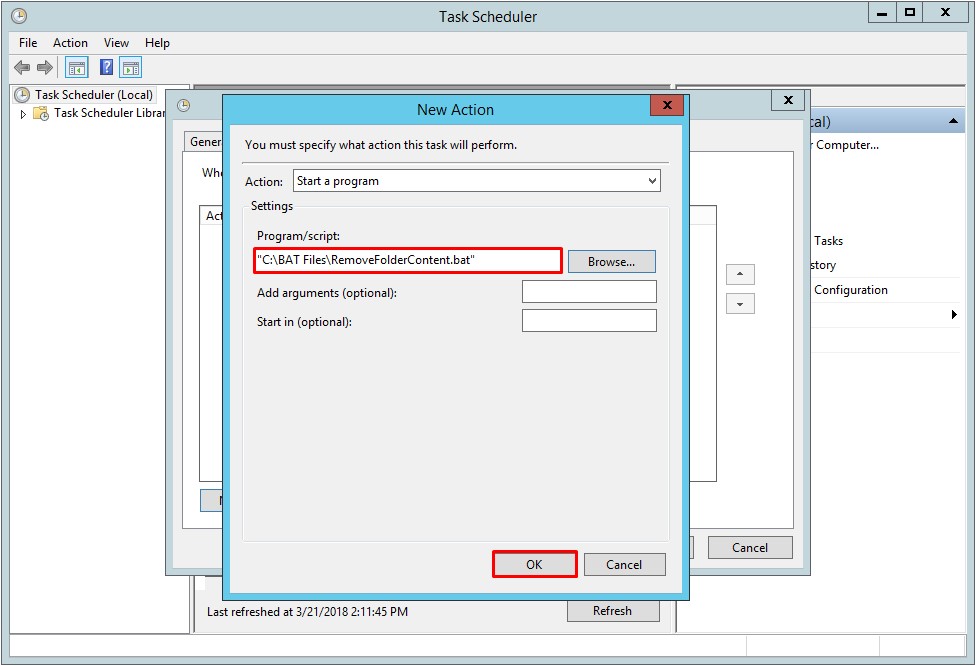
2.3- In the New Action window, I configure the Action and Program/script fields.
2.3.1- Under Action, I select the Start a program option.
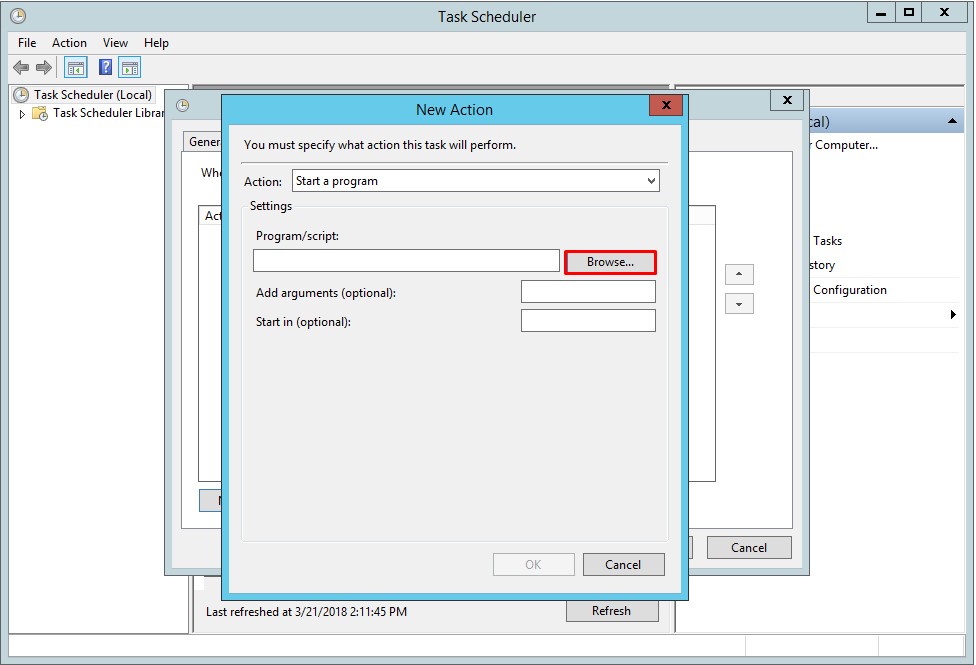
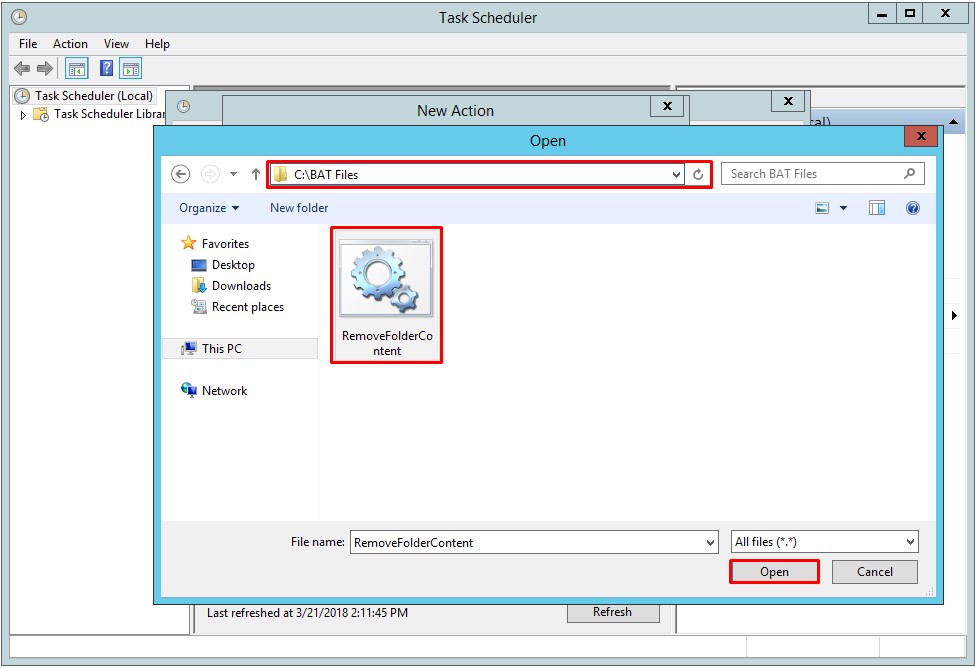
2.3.2- In the Program/script field, I specify the path of the .bat file.
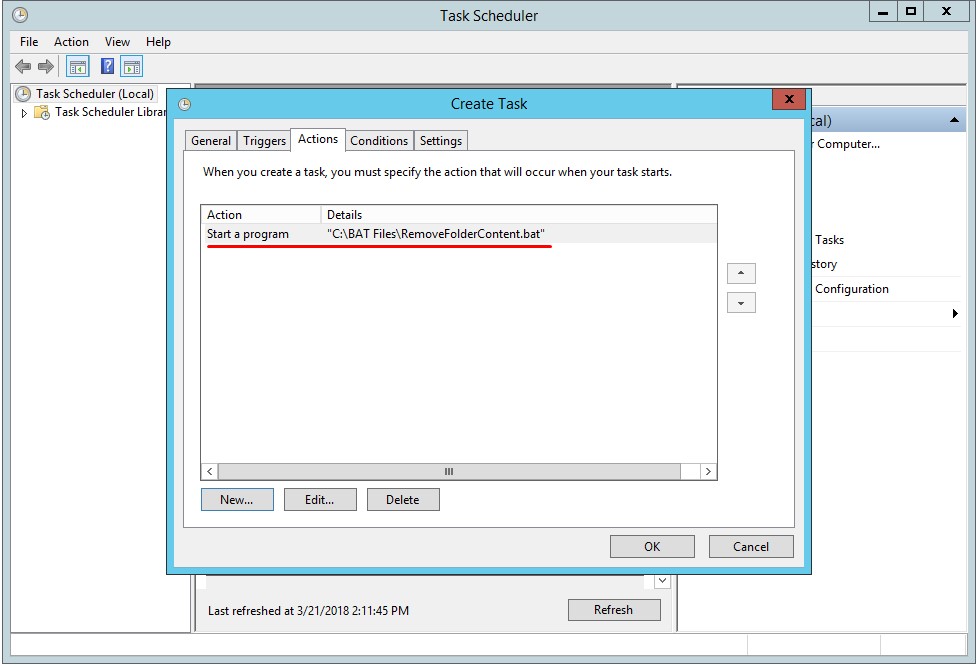
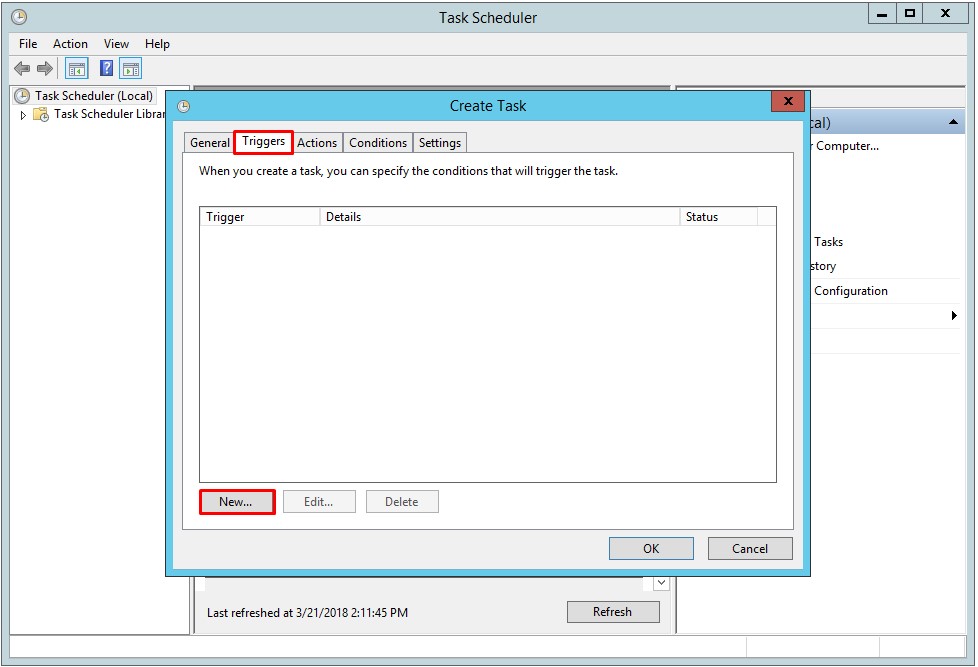
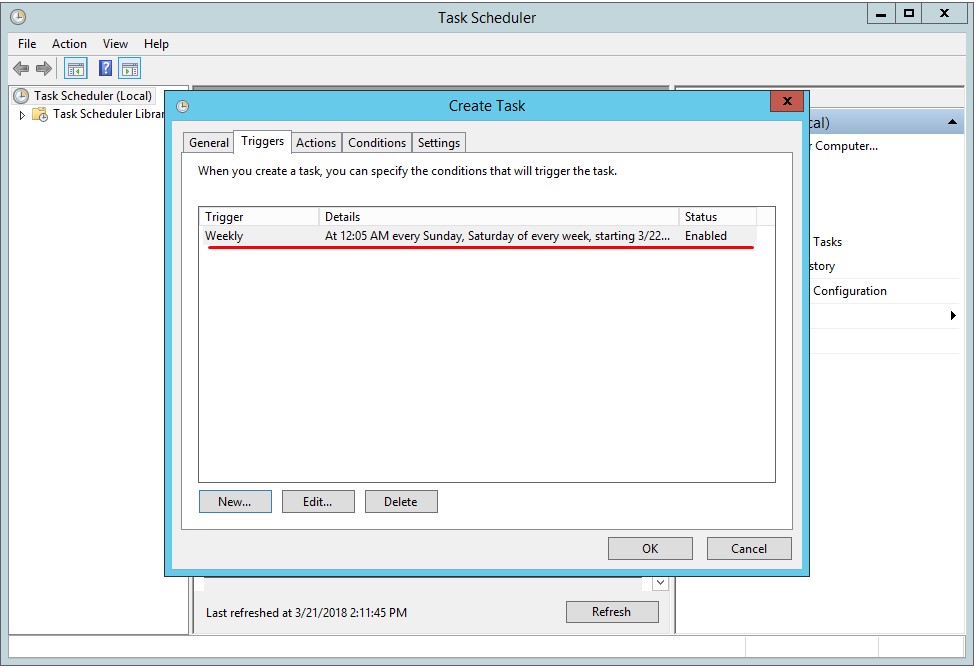
2.4- On the Triggers tab, I need to define when the .bat file, whose path I defined on the Actions tab, will run. For this, I click the New... button.
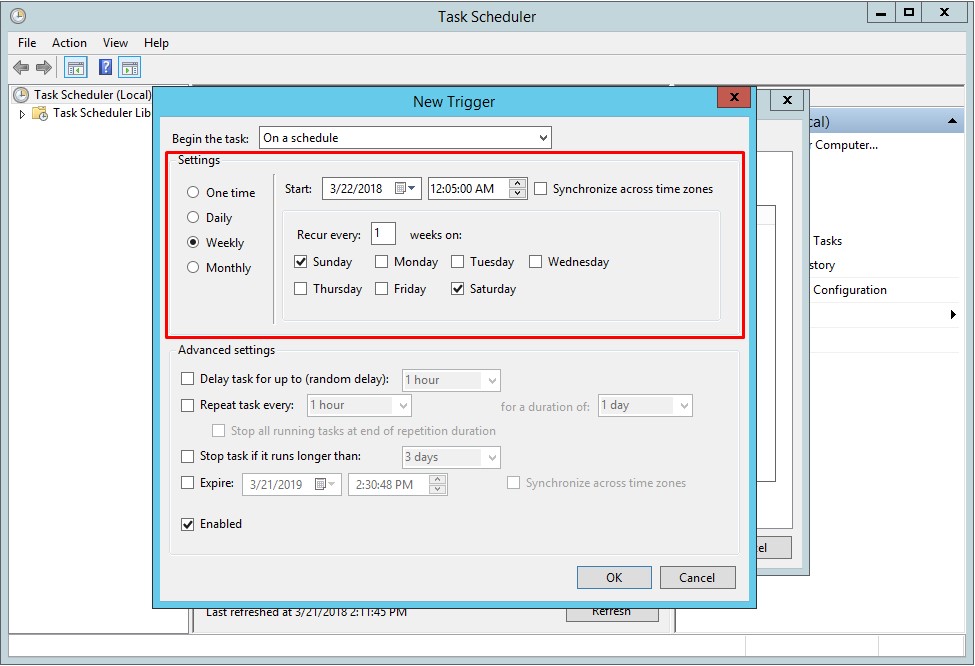
2.5- In the New Trigger window, I set the trigger time of the file to 00:05 on Saturday and Sunday every week.
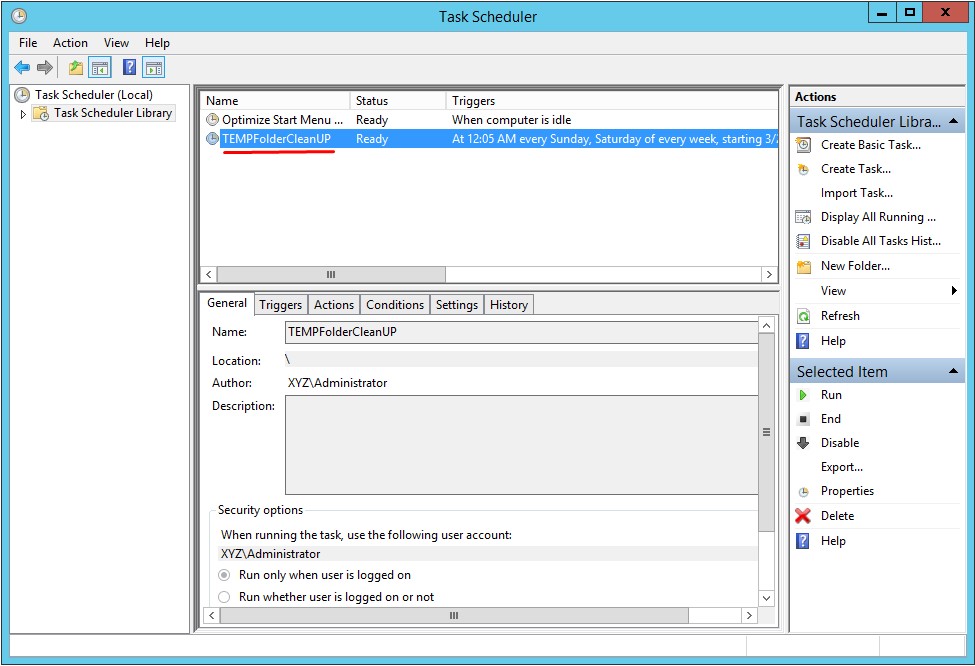
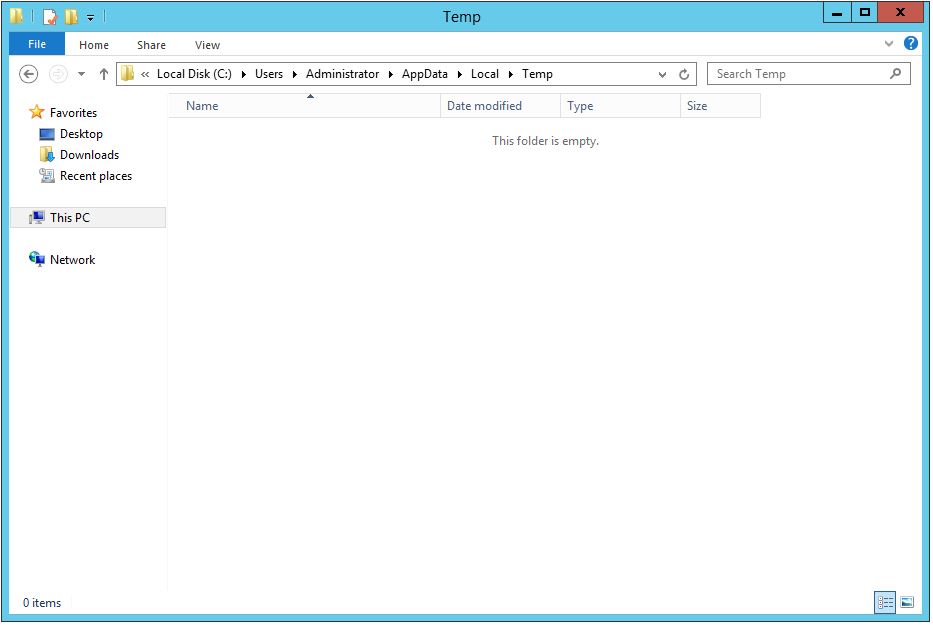
3- The temporary files in the C:\Users\Administrator\AppData\Local\Temp directory are shown below.
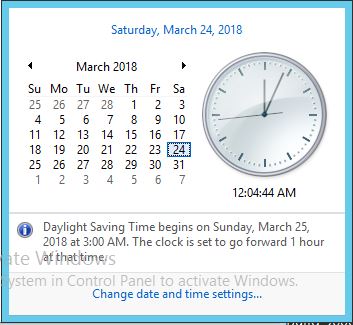
4- I had set the trigger time to 00:05 on Saturday and Sunday every week. At exactly 00:05, my .bat file ran and deleted the temp files in the directory I specified. If there are files in use, they may have been skipped because they are locked, as I stated earlier.
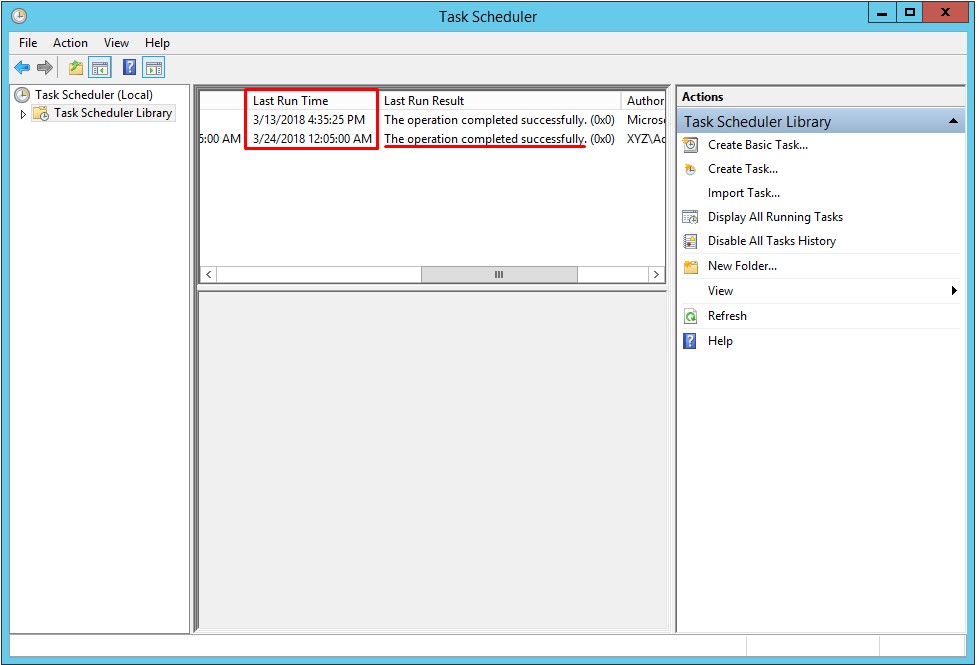
In this way, I linked the deletion of the TEMP directory content to a schedule with Task Scheduler, so that it is deleted regularly at the intervals I defined.
Deleting folder contents automatically with a .bat file is a practical way to run a recurring maintenance job without manual intervention. The value of this approach is that it limits the operation to a single directory: it does not touch any location other than the path specified in the folder variable, so when it is configured correctly, it does not cause an unwanted effect across the system. For this reason, the directory path must always be verified carefully.
Whether it is for the regular clean-up of temporary files or for keeping disk space under control, this method provides low-cost and reliable automation.
I hope you find it useful...
Feel free to share your thoughts and questions about this article in the comments below. Every contribution helps the content reach more people and makes for a more useful discussion.