Microsoft Entra Connect Sync (formerly Azure AD Connect) is the tool that synchronises on-premises Active Directory objects with Microsoft Entra ID. User accounts and group memberships that are created, changed or deleted in the on-premises environment are reflected in Entra ID, and users access Microsoft 365 and other Microsoft cloud services with the same identity. Where authentication takes place is a separate decision. With Password Hash Synchronization (PHS), a derivative of the password hash is moved to the cloud and authentication takes place in Entra ID. With Pass-through Authentication (PTA), authentication is left to Active Directory through an Authentication Agent that runs on a domain-joined server. With AD FS, authentication takes place on the on-premises federation server. Today Microsoft recommends the combination of PHS or PTA with Seamless SSO instead of AD FS in most scenarios, because AD FS brings additional servers, certificates and operational overhead.
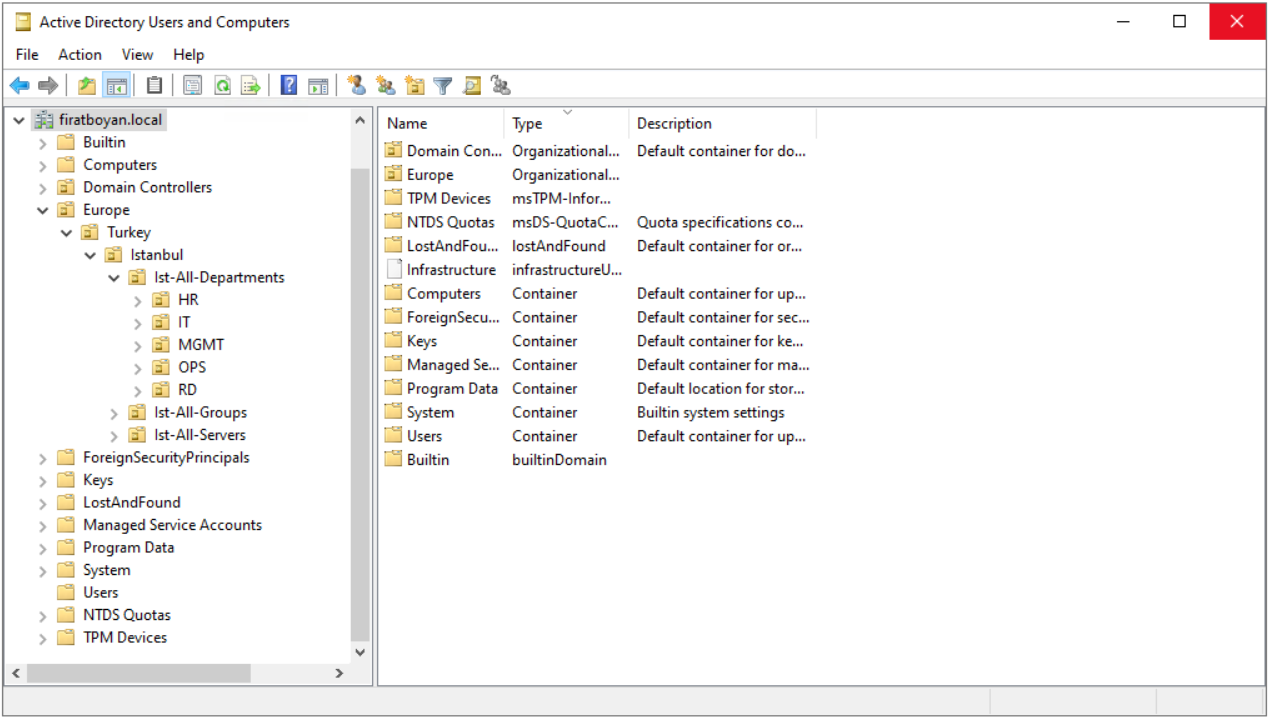
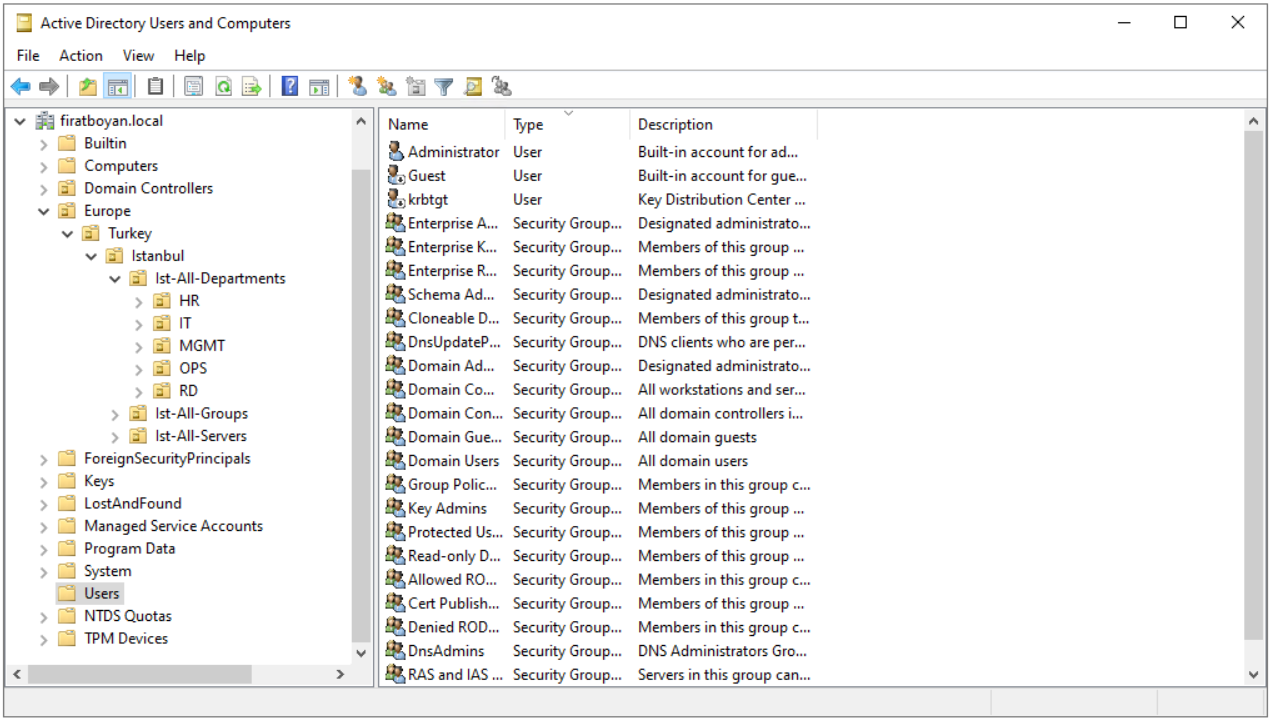
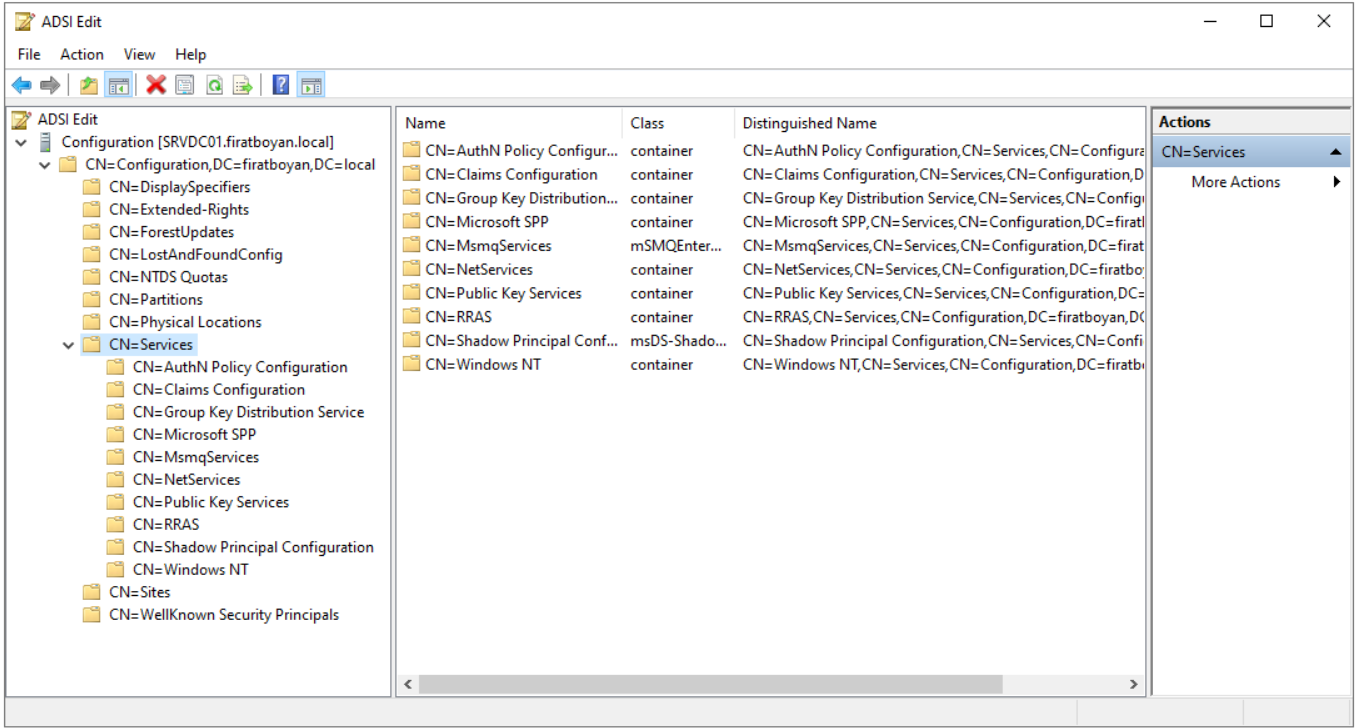
This article consists of 2 parts. In this part I cover the preparation before the installation: which version to install, the requirements the server must meet, accounts and permissions, the TLS 1.2 configuration, port tests and the endpoints that must be opened on the firewall. In Microsoft Entra Connect Installation - Part 2, I go through the wizard screen by screen and show what each choice changes.
PART 1: PREPARATION                        PART 2: INSTALLATION
----------------------------------------   ----------------------------------------
Version and dates                          Wizard screens (1-17)
Pre-installation checklist                 Initial synchronisation and verification
TLS 1.2, port test, firewall and proxy     Post-installation checklist
Which Version Should Be Installed?
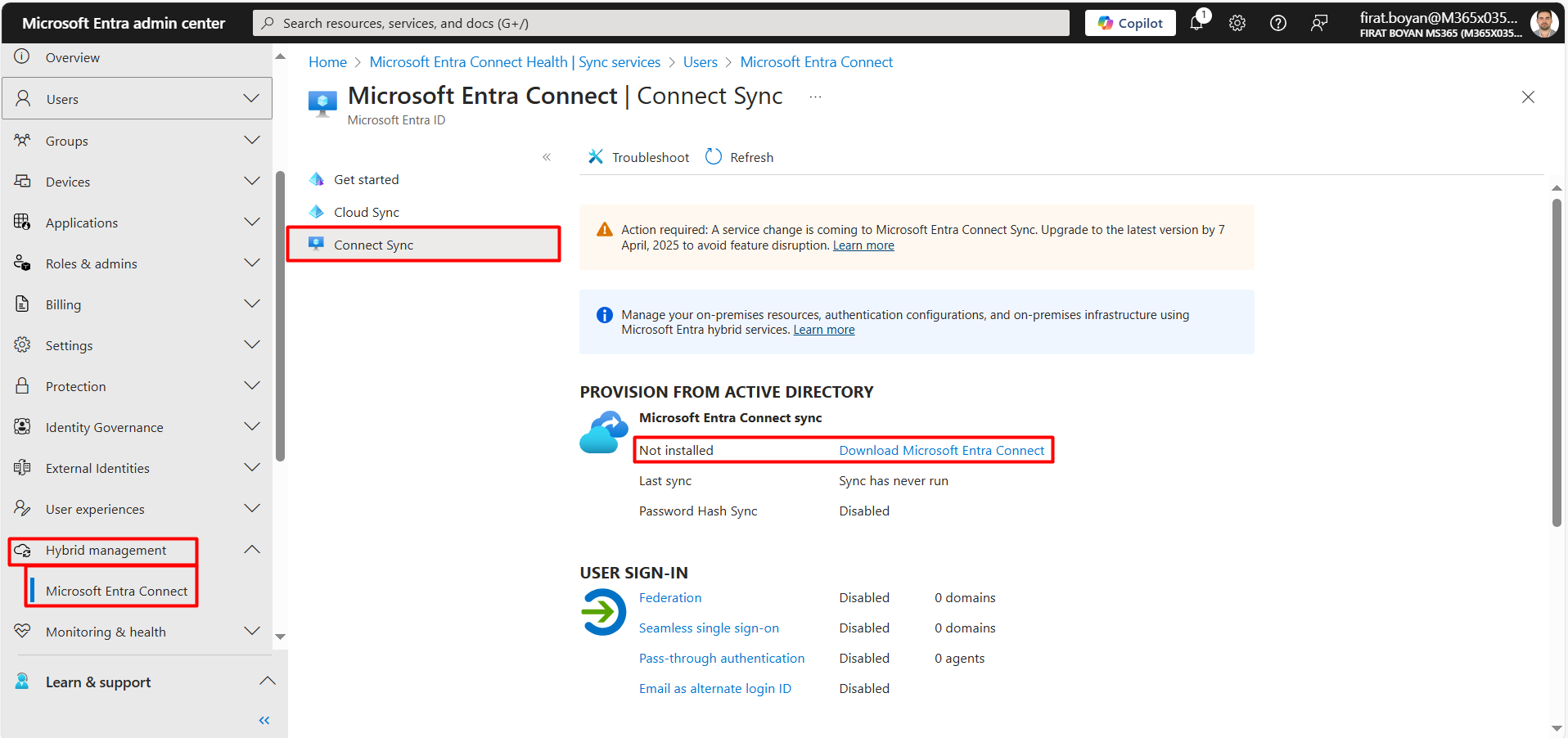
I updated this article in October 2026. At that date the latest version is 2.6.92.0, released on 23 September 2026. The installation file is now downloaded only from the Microsoft Entra admin center; distribution through the Microsoft Download Center has ended. The version of an existing server is checked from the Programs and Features list or from the opening screen of the wizard. I collected the dates you need to know about versions in the table below.
|
Date |
What Happens |
Action Required |
|
23 September 2026 |
2.6.92.0 was released. |
New installations use this version. |
|
30 September 2026 |
No synchronisation service works on versions below 2.5.79.0. |
A server in this state does not synchronise until it is upgraded to the current version. |
|
23 October 2026 |
Support for version 2.5.79.0 itself ends. |
Servers that remain on this version are upgraded. |
|
7 April 2027 |
The old method that connects with the user name and password of the Sync_ account will stop working. |
The server must be on version 2.6.84.0 or later and must be configured with Application-Based Authentication. The transition does not happen automatically. |
Pre-Installation Checklist
Before I start the wizard, I go through the table below from start to finish. Each row shows a requirement, how to verify it and the step in Part 2 where it comes up. The details of the rows are in the later sections of this article.
|
Topic |
Requirement |
How to Verify |
Step in Part 2 |
|
Operating system |
Windows Server 2025 or 2022 is recommended. Domain-joined, full GUI, not Server Core. |
winver and systeminfo output. |
2- Starting the Installation |
|
Active Directory infrastructure |
At least 1 writable domain controller, a domain name that is not a dotted NetBIOS name, schema and forest functional level of at least Windows Server 2003. |
Get-ADForest and Get-ADDomainController -Filter * output. |
7- Connect your directories |
|
Hardware and database |
CPU, RAM and disk according to the number of objects. Full SQL Server above 100,000 objects. |
Number of objects with (Get-ADObject -Filter * -SearchBase (Get-ADDomain).DistinguishedName).Count. |
4- Install required components |
|
.NET Framework |
4.7.2 or later. 4.8 or later is recommended. |
The Release value in the registry (I give the command in this article). |
2- Starting the Installation |
|
TLS 1.2 |
Must be explicitly enabled at the SChannel and .NET layers. |
The Check-TLS-1.2.ps1 script. |
2- Starting the Installation |
|
Entra ID account |
Cloud-only, Hybrid Identity Administrator or Global Administrator, with the role assigned directly. |
Entra admin center, Roles and administrators. |
6- Connect to Microsoft Entra ID |
|
Active Directory accounts |
Enterprise Admin (if the wizard creates the account) or a Connector account prepared in advance. Domain Administrator for Seamless SSO. |
Account and group memberships with ADUC or Get-ADPrincipalGroupMembership. |
8- AD forest account
14- Enable single sign-on |
|
Tenant limits and data quality |
The object limit is 300,000 after domain verification. UPN, character and format errors cleaned up with IdFix. |
IdFix report. |
9- Microsoft Entra sign-in configuration |
|
Port access |
The ports in Table 1 are open from the Connect server to the domain controllers. |
The Test-NetConnection.ps1 script. |
7- Connect your directories |
|
Firewall and proxy |
TCP 80 and 443 outbound open, Microsoft endpoints on the allow list, SSL inspection disabled. |
Firewall rule and proxy bypass list. |
16- Configuring |
1- Operating System Requirements
For the sync engine and its related services to run, Entra Connect Sync needs specific Windows Server versions, domain membership and a full GUI environment. The wizard directly rejects an unsupported configuration such as an installation on Server Core.
1.1- Supported Operating Systems
|
Windows Server Version |
Support Status |
Notes |
|
Windows Server 2025 |
✅ Recommended |
There was a known issue on Windows Server 2025 that affected the DirSync control. The KB5070773 update dated 20 October 2025 (or a later one) must be installed and the server must be restarted. |
|
Windows Server 2022 |
✅ Recommended |
The other version that Microsoft recommends. |
|
Windows Server 2019 |
⚠️ Extended Support |
Installation is supported; a paid support programme may be required when support is needed. |
|
Windows Server 2016 |
⚠️ Extended Support |
Installation is supported; a paid support programme may be required when support is needed. |
|
Windows Server Essentials 2019 |
✅ Supported |
This is the Essentials version that Microsoft explicitly supports. |
|
Windows Server Essentials (before 2019) |
❌ Not supported |
Installation is not possible on older Essentials versions. |
|
Small Business Server (all versions) |
❌ Not supported |
Installation is not supported on any SBS version. |
Microsoft Entra Connect Sync and Microsoft Entra Cloud Sync are not the same product. Windows Server 2025 or 2022 is also recommended for the Cloud Sync agent, and the same KB5070773 condition applies on Windows Server 2025. This article covers Connect Sync.
1.2- Active Directory Infrastructure Requirements
In addition to the operating system version, the Active Directory environment that the server connects to must also meet the conditions below.
|
Condition |
Description |
|
Domain membership |
The server must be joined to the domain before the installation starts. |
|
Writable domain controller |
At least 1 of the domain controllers that Connect Sync communicates with must be writable. Synchronisation cannot run through an RODC; Connect Sync does not follow the write redirect mechanism of an RODC. |
|
NetBIOS name |
If the forest or domain NetBIOS name contains a dot (dotted NetBIOS), this structure is not supported. |
|
Schema and functional level |
The AD schema version and the forest functional level must be at least Windows Server 2003. |
|
GUI |
The server must be installed with the full GUI. Installation on Windows Server Core is not supported. |
|
PowerShell execution policy |
The installation runs signed PowerShell scripts. The recommended execution policy is RemoteSigned. |
2- Hardware and Database Requirements
The resources of the Entra Connect Sync server are sized according to the number of objects in Active Directory. As the number of objects increases, the ADSync database grows; the database engine and the disk capacity are selected accordingly. The minimum values published by Microsoft are in the table below.
|
Number of Objects |
CPU |
RAM |
Disk |
Database |
|
Fewer than 10,000 |
1.6 GHz |
6 GB |
70 GB |
SQL Server Express LocalDB is sufficient. |
|
10,000 - 50,000 |
1.6 GHz |
6 GB |
70 GB |
SQL Server Express LocalDB is sufficient. |
|
50,000 - 100,000 |
1.6 GHz |
16 GB |
100 GB |
SQL Server Express LocalDB can be used; the 10 GB limit is approached. |
|
100,000 - 300,000 |
1.6 GHz |
32 GB |
300 GB |
Full SQL Server is required. |
|
300,000 - 600,000 |
1.6 GHz |
32 GB |
450 GB |
Full SQL Server is required. |
|
600,000 or more |
1.6 GHz |
32 GB |
500 GB |
Full SQL Server is required. |
The values in the table apply to Connect Sync only. If SQL Server runs on the same server, additional CPU, RAM and disk are required, and the maximum memory that SQL can use must be limited.
The figures in the table are a starting reference. The actual resource requirement changes according to the number of attributes in the synchronisation scope, custom sync rules, enabled features such as Password Hash Sync and Password Writeback, and the total number of forests. In my own installations I allocate at least 2 vCPUs to the virtual machine and prefer SSD for the disk; in large environments, disk speed is the component that determines the duration of Full Import and Full Synchronization.
The default installation uses SQL Server Express LocalDB, and this engine is sufficient for small and medium-sized environments. Because of the 10 GB database limit of SQL Server Express, Microsoft requires the Standard or Enterprise edition in environments that exceed approximately 100,000 objects. In installations that approach this limit, continuing on Express leads to silent sync failures and database size errors later. The database is selected in the 4- Install required components step in Part 2. For performance, it is preferable for SQL Server to run on the same server as Connect Sync; if a separate server is used, Microsoft requires additional resources because of the heavy traffic between the sync engine and the database.
The Entra Connect Sync server is a Tier 0 (Control Plane) asset and must be protected at the same level as a domain controller. The server holds the Connector account that reads password hashes and the application identity that writes to Entra ID; if it is compromised, both the on-premises and the cloud identity infrastructure are affected. Access must be limited to Tier 0 administrators and to a Privileged Access Workstation.
3- .NET Framework Requirement
The sync engine, the wizard and the PowerShell modules run on .NET Framework. Microsoft's prerequisites page gives 2 values: a minimum of 4.6.2 as the general installation requirement, and 4.7.2 in the mandatory upgrade notice for the current version. Because I install the current version, I take 4.7.2 as the baseline; Microsoft recommends 4.8 or later for accessibility and performance. I check the installed version with the command below; if the Release value is 461808 or higher, 4.7.2 is installed, and if it is 528040 or higher, 4.8 is installed.
Get-ItemProperty "HKLM:\SOFTWARE\Microsoft\NET Framework Setup\NDP\v4\Full" | Select-Object Version, Release
4- Accounts and Permissions
Connect Sync needs specific permission levels in both on-premises Active Directory and Entra ID. A role assigned with the wrong scope causes the installation to fail or causes components such as the health agent to be disabled silently.
4.1- On-Premises Active Directory Accounts
There are 2 separate accounts on the Active Directory side: the account that the wizard uses during the installation, and the AD DS Connector account that runs the synchronisation. The table below shows which account is required and when.
|
Scenario |
Required Account |
Description |
|
Create new AD account |
Enterprise Admin |
The wizard uses this account only to create the Connector account that starts with MSOL_ and to assign its permissions. The Enterprise Admin account does not run the synchronisation. |
|
Use existing AD account |
A normal user object prepared in advance |
An Enterprise Admin or Domain Admin account is not required; the wizard does not accept these accounts as the Connector account in any case. The account is given at least the Read, Replicating Directory Changes and Replicating Directory Changes All permissions. Each additional feature that is enabled (Password Writeback, Exchange Hybrid, mS-DS-ConsistencyGuid) requires write permission. The permissions are assigned with Microsoft's ADSyncConfig PowerShell module. |
|
Seamless SSO |
Domain Administrator |
It is entered once in each forest to create the AZUREADSSOACC computer account and is not stored. The account must not be a member of the Protected Users group. |
The creation of the Connector account and the assignment of permissions with the ADSyncConfig module are covered in the 8- AD forest account step in Part 2, and the Seamless SSO account is covered in the 14- Enable single sign-on step.
4.2- Microsoft Entra ID Account
|
Condition |
Description |
|
Role |
The installation can be completed with the Hybrid Identity Administrator role. Global Administrator can also be used. |
|
Role assignment |
The role must be assigned directly to the user; a role granted through group membership is not supported for the installation. |
|
Account type |
It must be a work or school account; a personal Microsoft account cannot be used. Microsoft recommends that accounts synchronised from on-premises are not used for role assignments; a cloud-only account in the tenant's onmicrosoft.com domain is preferred. |
|
Connect Health |
If the installation is done with Hybrid Identity Administrator, the health agent is installed but remains disabled. If the health agent is going to be used, the installation is done with Global Administrator; after the installation the role can be lowered with PIM or directly. |
|
Federation |
If AD FS or PingFederate is going to be configured, the account must either be a Global Administrator or hold the Hybrid Identity Administrator and Domain Name Administrator roles together. |
|
MFA |
If MFA is enabled on the account, verification is completed in the sign-in window that the wizard opens. For this, the https://secure.aadcdn.microsoftonline-p.com address must be in the Trusted Sites list on the server; if it is missing, the wizard offers to add it. |
The account is selected in the 6- Connect to Microsoft Entra ID step in Part 2.
4.3- Tenant and Directory Preparation
|
Topic |
Description |
|
Verified domain |
The domain that users sign in with (for example firatboyan.com) must be added and verified in Entra ID. Otherwise objects are created with the onmicrosoft.com suffix. |
|
Object limit |
By default the tenant accepts 50,000 objects; after the domain is verified, the limit rises to 300,000. Above 500,000, a Microsoft 365, Entra ID P1/P2 or EMS licence is required and the limit is raised with a support ticket. |
|
Data quality |
IdFix is run before the installation to clean up duplicate UPNs, invalid characters and format errors. If this step is skipped, it is normal to see sync errors for hundreds of objects in the first sync cycle. |
|
Recycle Bin |
Microsoft recommends enabling the Active Directory Recycle Bin; restoring an accidentally deleted object preserves the match on the Entra ID side. |
5- TLS 1.2 Configuration
Connect Sync uses only TLS 1.2 to communicate with Entra ID. TLS 1.0 and 1.1 are not supported from version 2.0 onwards; if TLS 1.2 is not enabled, the installation does not complete. Until the TLS 1.3 transition on the Microsoft Entra ID side is complete, it is sufficient to make sure that TLS 1.2 is explicitly enabled instead of enforcing TLS 1.3.
To check whether TLS 1.2 is enabled I use the Check-TLS-1.2.ps1 script, and to enable it I use the Set-TLS-1.2.ps1 script, both of which I share on GitHub.
5.1- Checking the Current State
When I run the Check-TLS-1.2.ps1 script, it reports the protocol states of the SChannel and .NET Framework layers on the server. In the first output, both the Server and the Client side show Not configured (OS default) for the SSL 2.0, SSL 3.0, TLS 1.0, TLS 1.1, TLS 1.2 and TLS 1.3 protocols. This shows that the relevant registry keys under the SChannel path below are not explicitly defined as either Enabled or DisabledByDefault, and that the protocol behaviour is left to the operating system default.
HKLM:\SYSTEM\CurrentControlSet\Control\SecurityProviders\SCHANNEL\Protocols
The Not configured (OS default) output does not mean that TLS 1.2 is disabled, but it also does not mean that it is definitely enabled. Because Connect Sync runs on .NET Framework, the SystemDefaultTlsVersions and SchUseStrongCrypto values must be explicitly set to 1; otherwise a GPO baseline change or a cipher suite update can cause unexpected sync failures.
5.2- Enabling TLS 1.2
I run the Set-TLS-1.2.ps1 script. The script applies the registry configuration that Microsoft recommends for Connect Sync servers at 2 layers. On the SChannel side, it writes the Enabled = 1 and DisabledByDefault = 0 values for TLS 1.2 to the Server and Client paths below.
HKLM:\SYSTEM\CurrentControlSet\Control\SecurityProviders\SCHANNEL\Protocols\TLS 1.2\Server
HKLM:\SYSTEM\CurrentControlSet\Control\SecurityProviders\SCHANNEL\Protocols\TLS 1.2\Client
On the .NET Framework side, it sets the SystemDefaultTlsVersions and SchUseStrongCrypto values to 1 for both the 64-bit and the 32-bit hives. The WOW6432Node configuration must not be skipped; the wizard and some dependent components make calls through the 32-bit .NET runtime even when the server is 64-bit, and these calls read from the 32-bit registry hive.
HKLM:\SOFTWARE\Microsoft\.NETFramework\v4.0.30319
HKLM:\SOFTWARE\WOW6432Node\Microsoft\.NETFramework\v4.0.30319
The server must be restarted for the registry changes to take effect. SChannel and LSASS read these keys only during boot; if the wizard is started without a restart, TLS errors such as "Could not connect to Microsoft Entra ID" can occur.
5.3- Verification
After the server restarts, I run the Check-TLS-1.2.ps1 script again. This time TLS 1.2 is reported as Explicitly Enabled on both the Server and the Client side, and both values under .NET Framework and WOW6432Node are reported as 1. This output is the pre-flight verification that shows the TLS configuration is complete before the installation starts.
Set-TLS-1.2.ps1 only enables TLS 1.2; it does not disable TLS 1.0 and 1.1. In environments that want to disable the old protocols, it must first be verified in a test environment whether this change affects other components such as WSUS, the SCCM client or the old SQL Native Client.
6- Port Requirements and Connectivity Test
The ports that must be open between the Connect Sync server and the domain controllers are in the table below. The table is based on Table 1 in Microsoft's Hybrid Identity port reference.
|
Protocol |
Port |
Usage |
|
DNS |
53 (TCP/UDP) |
Name resolution for the target forest. |
|
Kerberos |
88 (TCP/UDP) |
Kerberos authentication against the forest. |
|
MS-RPC |
135 (TCP) |
The wizard's initial connection to the forest and password synchronisation. |
|
LDAP |
389 (TCP/UDP) |
Data retrieval from Active Directory. Data is encrypted with Kerberos Sign & Seal. |
|
SMB |
445 (TCP) |
Computer account creation by Seamless SSO and Password Writeback. |
|
LDAP/SSL |
636 (TCP/UDP) |
Data retrieval from Active Directory when TLS is used. |
|
RPC Dynamic |
49152-65535 (TCP) |
The wizard's initial connection and password synchronisation. If the dynamic range has been changed, the new range is opened. |
|
Global Catalog |
3268 (TCP) |
Seamless SSO queries the global catalog before it creates the computer account. |
|
WinRM |
5985 (TCP) |
Only if AD FS is installed with the wizard by using a gMSA. |
|
AD DS Web Services |
9389 (TCP) |
Only if AD FS is installed with the wizard by using a gMSA. |
Before I start the installation, I verify that these ports are actually open. If a block caused by a firewall, proxy or network segmentation is not detected at this stage, the error appears in the middle of the installation and is logged as a failure at the connector level. The same Test-NetConnection cmdlet is used for the fixed ports and for the RPC dynamic range; because the dynamic range covers thousands of ports, it is called in a loop. For this test I use the Test-NetConnection.ps1 script that I share on GitHub.
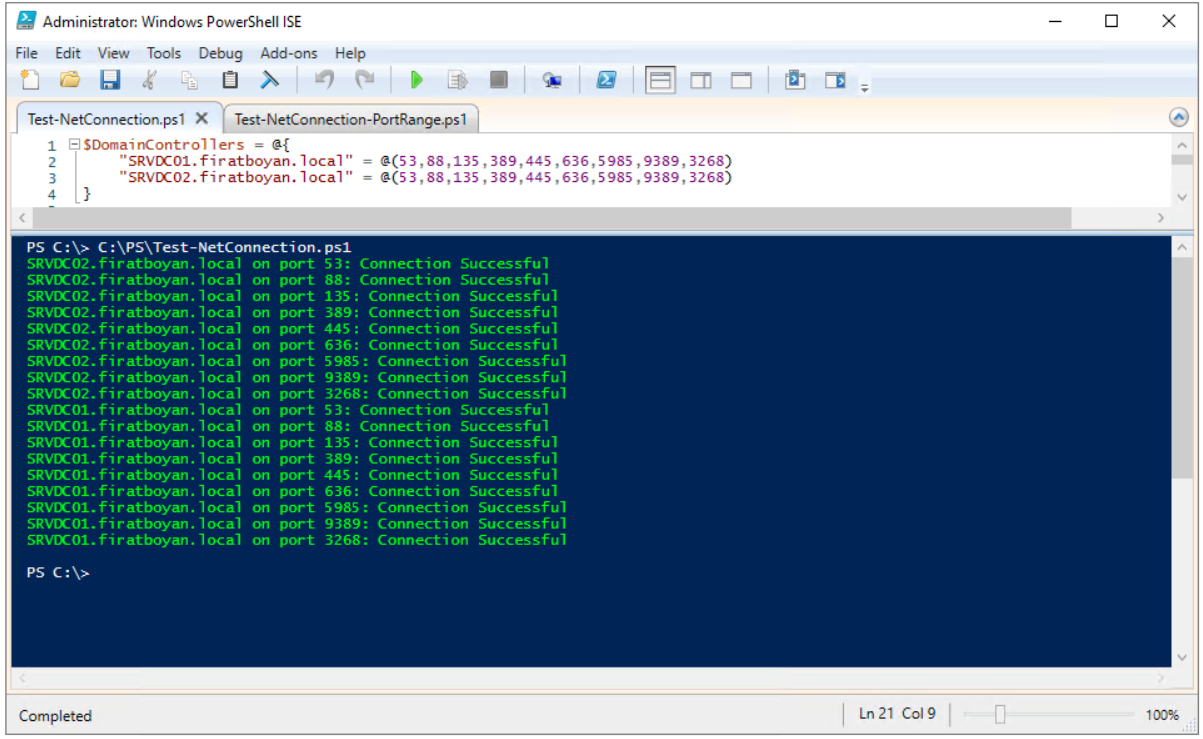
In the output, all of ports 53, 88, 135, 389, 445, 636, 3268, 5985 and 9389 towards both domain controllers (SRVDC01, SRVDC02) returned Connection Successful. This result shows that full connectivity can be established at Layer 3 and Layer 4 between the Connect Sync server and the domain controllers. 5985 and 9389 are not required in my environment because there is no AD FS; they were tested because they are in the script.
Test-NetConnection tests whether the target port is listening at that moment. Even if the port is open on the firewall, Connection Failed can be returned if no active service is listening on the target.
7- Firewall and Proxy Configuration
Connect Sync initiates all traffic to Microsoft services itself. For this reason the firewall configuration is defined in the outbound direction only; no rule, NAT or public endpoint is required in the inbound direction. The direction rules and the proxy rules are in the table below.
|
Rule |
Description |
|
Outbound |
Outbound rules are opened for TCP 80 (CRL and OCSP) and TCP 443 (sync, sign-in, MFA). The destination is the FQDNs in the endpoint tables below. |
|
Inbound |
Connect Sync does not offer a service to the outside and does not listen for connections from the internet. No inbound rule, NAT, port forwarding or public IP assignment is made; because the server is a Tier 0 asset, being reachable from the internet is a security risk. |
|
FQDN-based matching |
Because the IP ranges of Microsoft endpoints change often, the allow list is defined by FQDN. If an IP-based restriction is preferred, a mechanism is set up that updates the list automatically from the Microsoft 365 Endpoint Web Service. |
|
SSL inspection |
Intercepting and inspecting the traffic between Connect Sync and Entra ID is not supported. The relevant FQDNs are bypassed on the proxy. |
|
Authenticated proxy |
It is supported, but it requires additional configuration: the ADSync service account must be in the domain, the installation must be done through the Customize path with a custom service account specified, and a proxy definition that contains useDefaultCredentials="true" must be added to the machine.config file. |
|
Proxy idle timeout |
Entra ID can take up to 5 minutes to respond to a synchronisation request. The connection idle timeout of the proxy must be at least 6 minutes. |
Firewall Outbound Rule
The traffic from the Connect Sync server to the Microsoft endpoints is defined on the firewall with the parameters below.
🎯 Source
|
Parameter |
Value |
|
Server |
The server on which Microsoft Entra Connect Sync is installed |
|
Direction |
Outbound |
|
Protocol |
TCP |
|
Action |
Allow |
🎯 Destination
|
Parameter |
Value |
|
Endpoints |
Identity and Service, CRL and OCSP endpoints (FQDN-based) |
|
Ports |
80 (TCP), 443 (TCP) |
8- Microsoft Outbound Endpoint List
Opening ports on the firewall is not sufficient; the Microsoft endpoints that are reached over these ports are also defined. Microsoft updates this list monthly. 2 official sources must be followed: the Hybrid Identity required ports and protocols page contains the port and protocol requirements, and the Microsoft 365 URLs and IP address ranges page contains the current FQDNs and IP ranges of all Microsoft 365 services; the Entra ID endpoints are under the Identity category on this page.
Identity and Service Endpoints (TCP 443)
They are required for Entra ID directory operations, sync, MFA, sign-in, discovery and Hybrid Join processes.
|
URL |
Port |
Description |
|
*.microsoftonline.com |
TCP 443 |
Entra directory operations, sync and core Microsoft Online services. |
|
*.microsoftonline-p.com |
TCP 443 |
MFA and admin portal resources. |
|
*.auth.microsoft.com |
TCP 443 |
Authentication endpoints. |
|
*.msauth.net |
TCP 443 |
Authentication CDN and redirect endpoints. |
|
*.msauthimages.net |
TCP 443 |
MFA branding and image resources. |
|
*.msftauth.net |
TCP 443 |
Authentication endpoints. |
|
*.msftauthimages.net |
TCP 443 |
MFA branding and image resources. |
|
*.msftidentity.com |
TCP 443 |
Identity service endpoints. |
|
*.msidentity.com |
TCP 443 |
Identity service endpoints. |
|
*.aadcdn.microsoftonline-p.com |
TCP 443 |
Microsoft Entra CDN. |
|
secure.aadcdn.microsoftonline-p.com |
TCP 443 |
MFA and admin portal CDN (sign-in screens). If MFA is used in the wizard, it must also be in the Trusted Sites list on the server. |
|
*.msecnd.net |
TCP 443 |
Azure CDN, Microsoft Entra and MFA assets. |
|
*.phonefactor.net |
TCP 443 |
Azure MFA service (the old PhoneFactor domain, still active). |
|
*.hip.live.com |
TCP 443 |
Microsoft Authenticator and phone-based authentication services. |
|
login.microsoft.com |
TCP 443 |
Microsoft Entra sign-in. |
|
login.microsoftonline.com |
TCP 443 |
Microsoft Entra sign-in. |
|
login.microsoftonline-p.com |
TCP 443 |
Microsoft Entra sign-in (federation). |
|
login.windows.net |
TCP 443 |
Sign-in endpoint used in the Entra registration process. |
|
login-us.microsoftonline.com |
TCP 443 |
US-specific sign-in endpoint. |
|
logincert.microsoftonline.com |
TCP 443 |
Certificate-based authentication. |
|
loginex.microsoftonline.com |
TCP 443 |
Extended sign-in endpoints. |
|
ccs.login.microsoftonline.com |
TCP 443 |
Cloud Credential Service. |
|
device.login.microsoftonline.com |
TCP 443 |
Device authentication and registration. |
|
adminwebservice.microsoftonline.com |
TCP 443 |
Discovery endpoint (Connect Sync). |
|
provisioningapi.microsoftonline.com |
TCP 443 |
Discovery endpoint (Connect Sync). |
|
clientconfig.microsoftonline-p.net |
TCP 443 |
Client Configuration Service. |
|
companymanager.microsoftonline.com |
TCP 443 |
Tenant management. |
|
becws.microsoftonline.com |
TCP 443 |
Business Exchange / Compliance Web Service. |
|
nexus.microsoftonline-p.com |
TCP 443 |
Identity Nexus services. |
|
graph.microsoft.com |
TCP 443 |
Microsoft Graph API. |
|
graph.windows.net |
TCP 443 |
Azure AD Graph (retired; some scenarios still need it). |
|
account.activedirectory.windowsazure.com |
TCP 443 |
Account management. |
|
accounts.accesscontrol.windows.net |
TCP 443 |
Access Control / token services. |
|
enterpriseregistration.windows.net |
TCP 443 |
Workplace and device registration (Hybrid Join). |
|
autologon.microsoftazuread-sso.com |
TCP 443 |
Seamless Single Sign-On. |
|
api.passwordreset.microsoftonline.com |
TCP 443 |
Self-Service Password Reset API. |
|
passwordreset.microsoftonline.com |
TCP 443 |
Self-Service Password Reset portal. |
|
*.msappproxy.net |
TCP 443 |
Required if PTA is used; it is opened together with *.servicebus.windows.net. |
|
*.servicebus.windows.net |
TCP 443 |
Required for the PTA agent's connection through Azure Service Bus and for Password Writeback. |
|
*.aadconnecthealth.azure.com |
TCP 443 |
Connect Health telemetry; if Connect Health is enabled, see the optional list below. |
The *.msappproxy.net and *.servicebus.windows.net addresses are not specific to the Application Proxy product only; they are required in all Connect Sync scenarios that use PTA.
CRL and OCSP Endpoints (TCP 80)
These are the endpoints that the Microsoft authentication infrastructure uses for TLS certificate revocation checks. The data carried over TCP 80 is signed CRL and OCSP validation information; it does not contain passwords, tokens or directory objects. Blocking these endpoints causes intermittent or complete failure in the sign-in, MFA, device registration and sync processes.
|
URL |
Port |
Description |
|
mscrl.microsoft.com |
TCP 80 |
CRL access during certificate validation. |
|
crl.microsoft.com |
TCP 80 |
SSL/TLS certificate revocation list. |
|
oneocsp.microsoft.com |
TCP 80 |
OCSP, Microsoft PKI. |
|
ocsp.msocsp.com |
TCP 80 |
OCSP, old Microsoft PKI (some certificates still use it). |
|
*.verisign.com |
TCP 80 |
CRL, Verisign CA. |
|
*.verisign.net |
TCP 80 |
CRL, Verisign CA. |
|
*.symcb.com |
TCP 80 |
CRL, Symantec CA. |
|
*.symcd.com |
TCP 80 |
OCSP, Symantec CA. |
|
*.entrust.net |
TCP 80 |
CRL, Entrust CA. |
|
*.geotrust.com |
TCP 80 |
CRL, GeoTrust CA. |
|
*.omniroot.com |
TCP 80 |
CRL, Omniroot CA. |
|
*.public-trust.com |
TCP 80 |
CRL, Public Trust CA. |
|
cacerts.digicert.com |
TCP 80 |
DigiCert intermediate CA distribution. |
|
crl3.digicert.com |
TCP 80 |
CRL, DigiCert. |
|
crl4.digicert.com |
TCP 80 |
CRL, DigiCert. |
|
ocsp.digicert.com |
TCP 80 |
OCSP, DigiCert. |
|
ocspx.digicert.com |
TCP 80 |
OCSP, DigiCert (Extended). |
|
www.digicert.com |
TCP 80 / 443 |
DigiCert public services. |
|
crl.globalsign.com |
TCP 80 |
CRL, GlobalSign. |
|
crl.globalsign.net |
TCP 80 |
CRL, GlobalSign. |
|
ocsp.globalsign.com |
TCP 80 |
OCSP, GlobalSign. |
|
ocsp2.globalsign.com |
TCP 80 |
OCSP, GlobalSign. |
|
secure.globalsign.com |
TCP 80 / 443 |
GlobalSign Secure services. |
|
crl.identrust.com |
TCP 80 |
CRL, IdenTrust. |
|
isrg.trustid.ocsp.identrust.com |
TCP 80 |
OCSP, IdenTrust (ISRG). |
|
cert.int-x3.letsencrypt.org |
TCP 80 |
Let's Encrypt intermediate CA; used by some Microsoft endpoints. |
|
www.d-trust.net |
TCP 80 |
Mandatory certificate validation in PTA agent scenarios. |
|
root-c3-ca2-2009.ocsp.d-trust.net |
TCP 80 |
Mandatory OCSP validation in PTA agent scenarios. |
|
www.microsoft.com |
TCP 80 / 443 |
Microsoft general services and certificate path validation. |
Connect Health Endpoints (Optional)
The endpoints below are required only in environments where the Microsoft Entra Connect Health agent is installed. Some of them overlap with the main Identity table.
|
URL |
Port |
Description |
|
*.aadconnecthealth.azure.com |
TCP 443 |
Connect Health agent telemetry endpoints. |
|
*.adhybridhealth.azure.com |
TCP 443 |
AD Hybrid Health endpoints (Connect Health backend). |
|
*.blob.core.windows.net |
TCP 443 |
Azure Blob Storage, the log and upload channel of the Connect Health agent. |
|
*.servicebus.windows.net |
TCP 443 / 5671 |
Old health agent versions use 5671 and fall back to 443. The current agent requires only 443. |
|
management.azure.com |
TCP 443 |
Azure Resource Manager, Connect Health management API. |
|
autoupdate.msappproxy.net |
TCP 443 |
Automatic update channel of the Connect Health agent. |
|
www.office.com |
TCP 443 |
Microsoft 365 portal redirection. |
Microsoft updates the Identity allow list monthly. It is recommended to check the rows in the Identity category through the
Microsoft 365 Endpoint Web Service before production and at regular intervals.
9- Optional: Trusted Sites Configuration on the Client Side
The firewall rules described so far cover the traffic from the Connect Sync server to Microsoft. This section is about the end user's browser and is not a prerequisite for the installation. Microsoft's sign-in and MFA pages work through JavaScript and CSS components that run in the browser; Internet Explorer Mode, Edge WebView2 and the embedded browser of the Microsoft 365 desktop applications depend on the system-wide security zone configuration of Windows.
Microsoft Learn has no requirement to define Trusted Sites for Entra ID sign-in or MFA. In current Edge and Microsoft 365 versions it is usually not needed. The only mandatory Site to Zone entry that Microsoft documents is adding the autologon address to the Intranet zone for Seamless SSO, and this task is covered in the 19- Post-Installation Checklist step in Part 2.
In environments with Internet Explorer Mode, old Office versions or strict GPO baselines such as DISA STIG and CIS Benchmark, the absence of this configuration shows itself with 3 symptoms.
Authentication loop. The sign-in window opens again and again in the Outlook, Teams and OneDrive clients.
AADSTS50058 error. Silent sign-in fails in the Modern Authentication flow.
Conditional Access signal loss. Policies cannot evaluate device and location signals correctly.
Site to Zone Assignment List with GPO
In environments that need this configuration, the setting is applied centrally through Group Policy. The configuration path is User Configuration > Policies > Administrative Templates > Windows Components > Internet Explorer > Internet Control Panel > Security Page > Site to Zone Assignment List. The policy is enabled and the addresses below, which load the sign-in and MFA screens, are defined with the zone value 2.
https://login.microsoftonline.com           →  2
https://login.microsoft.com                 →  2
https://login.windows.net                   →  2
https://device.login.microsoftonline.com    →  2
https://aadcdn.msftauth.net                 →  2
https://aadcdn.msauth.net                   →  2
https://secure.aadcdn.microsoftonline-p.com →  2
https://passwordreset.microsoftonline.com   →  2
|
Address |
Role in the Sign-in Flow |
login.microsoftonline.com
login.microsoft.com
login.windows.net |
Serves the Microsoft Entra sign-in page where the user enters the password. |
|
device.login.microsoftonline.com |
Device registration and device authentication. |
aadcdn.msftauth.net
aadcdn.msauth.net
secure.aadcdn.microsoftonline-p.com |
CDN servers that deliver the JavaScript, CSS and image files of the sign-in page. |
|
passwordreset.microsoftonline.com |
Self-Service Password Reset portal. |
Zone Values and Why 2?
|
Value |
Zone |
Usage |
|
1 |
Local Intranet |
The browser automatically sends Kerberos / NTLM credentials to these addresses. It is used only for the Seamless SSO address. |
|
2 |
Trusted Sites |
Cookie, cross-origin and script restrictions are relaxed, and credentials are not sent automatically. It is used for the sign-in and MFA addresses. |
|
3 |
Internet |
The default zone. The strictest rules apply. |
|
4 |
Restricted Sites |
Access is restricted. It is used to deliberately disable Seamless SSO for specific users. |
By default the sign-in and MFA addresses are placed in the Internet zone. In environments with a strict baseline, the strict rules of the Internet zone can block the scripts of the sign-in page and interrupt the MFA flow; the Trusted Sites zone applies more relaxed rules and the flow completes. These addresses are not given the value 1, because in the Intranet zone the browser tries to send Kerberos or NTLM credentials automatically and these addresses do not expect Kerberos.
The effect of the configuration depends on the browser. Internet Explorer Mode, Edge WebView2 and the embedded browser of the Microsoft 365 applications apply the zone rules directly. Edge Chromium and Chrome read the Windows zone map only for the Windows Integrated Authentication decision; their own engines determine the cookie, cross-origin and mixed content behaviour.
The Site to Zone Assignment List policy does not merge across different GPOs or between Computer and User Configuration; when the same policy is defined in more than 1 place, only 1 of them is applied. Among the GPOs that reach a user, this policy must be enabled in only 1 place, and if Seamless SSO is used, the autologon address must also be added to the same list as Intranet zone (value 1). Placing the Seamless SSO address in the Trusted Sites zone (value 2) stops Seamless SSO from working.
The policy accepts wildcard expressions at subdomain level such as *.microsoftonline.com; wildcards at top-level domain level such as *.com are rejected and generate Event ID 1085 on the client side. In this article the addresses are written with their full names so that it remains traceable which address was added for which purpose.
Before Moving On to Part 2
The checks below must be complete before the installation starts. Each row corresponds to a section of this article.
|
Check |
Expected Result |
Section |
|
Installation file |
2.6.92.0 downloaded from the Microsoft Entra admin center. |
Which Version Should Be Installed? |
|
Operating system and AD infrastructure |
Supported Windows Server, domain-joined, full GUI, access to a writable domain controller. |
1- Operating System Requirements |
|
Hardware and database |
Number of objects determined, LocalDB or full SQL Server decided. |
2- Hardware and Database Requirements |
|
.NET Framework |
Release value 461808 or higher. |
3- .NET Framework Requirement |
|
Accounts |
Entra ID administrator account, Connector account or Enterprise Admin, and Domain Administrator for Seamless SSO ready. |
4- Accounts and Permissions |
|
TLS 1.2 |
Check-TLS-1.2.ps1 output is Explicitly Enabled. |
5- TLS 1.2 Configuration |
|
Port test |
Test-NetConnection.ps1 output is Connection Successful for all domain controllers. |
6- Port Requirements and Connectivity Test |
|
Firewall and proxy |
Outbound 80 and 443 open, endpoints on the allow list, SSL inspection bypassed. |
7- Firewall and Proxy Configuration
8- Microsoft Outbound Endpoint List |
When these checks are complete, I can start the wizard. In Microsoft Entra Connect Installation - Part 2, I cover the installation screens, the decisions on each screen and the tasks after the installation step by step.
I hope you find it useful...
Feel free to share your thoughts and questions about this article in the comments below. Every contribution helps the content reach more people and makes for a more useful discussion.