In Microsoft Intune, a device must be enrolled in the Intune service before you can manage it. Until enrolment is complete, you cannot send a configuration profile to the device, measure its compliance status or deploy applications. For this reason, Device Enrollment is the first topic to plan in Intune projects, before policies and applications.
In this article, I explain what Device Enrollment is, which device scenarios Intune supports and which requirements must be met on the tenant side before you start enrolment. I leave the step-by-step process that runs in the background during enrolment to a separate article.
What Is Device Enrollment?
The process that enables device management for a device is called Device Enrollment. During enrolment, Intune installs an MDM (Mobile Device Management) certificate on the device. The device uses this certificate to authenticate to the Intune service, and all management traffic between the device and the service runs over this trust relationship. The certificate renews automatically as long as the device communicates with Intune regularly. If the device is reset or does not connect to the service for a long time, the certificate is not renewed, and Intune deletes the device enrolment record 180 days after the certificate expires.
One more step must take place before enrolment. Before a device can enrol in Intune, it must first have a device identity in Microsoft Entra ID. On personal and mobile devices this identity is created as Microsoft Entra registered, and on corporate-owned Windows devices as Microsoft Entra joined or Microsoft Entra hybrid joined. The identity model you use directly determines the enrolment methods you can choose and the user's sign-in experience. I explained in detail how registration works on the Hybrid Join side in my Microsoft Entra Hybrid Join and SCP registration process article.
After the MDM certificate is installed, Intune starts to apply 3 types of policy to the device. Enrolment policies limit the number and type of devices that a person can enrol. Compliance policies measure whether the device and the user meet the company rules. Configuration profiles carry the settings and features that make the device suitable for work use. Turning on disk encryption, sending Wi-Fi and VPN profiles and installing required applications all run through these profiles and app assignments.
2 points need to be made clear here. The first is that policies do not reach the device immediately; they are applied during the check-in cycle that the device runs with Intune. The second is that a compliance policy does not block access by itself; it marks the device as compliant or non-compliant. With the Actions for Noncompliance setting in the policy, you can send a notification to the user, lock the device remotely or add it to the retire list, but none of these closes access to company resources. The mechanism that cuts off access for a non-compliant device is Conditional Access, and it requires a Microsoft Entra ID P1 or P2 licence.
Devices with no compliance policy assigned are treated as Compliant by default. If you plan to require device compliance with Conditional Access, consider changing this value to Not compliant under Compliance policy settings in the Intune admin center.
The image below shows the steps in which the device enrols, the device object is created in Microsoft Entra ID and the MDM certificate is installed on the device.

Many companies create the basic policies required for users and devices when they start using Microsoft Intune, and later extend this baseline for different groups and use cases. Policies are usually deployed during Device Enrollment. Some groups may be subject to stricter policies than others, depending on their role in the company.
Microsoft Intune can manage 5 platforms, but enrolment does not work in the same way on each platform. Each operating system has its own MDM protocol, its own enrolment methods and its own scope of manageable settings. The table below summarises the enrolment methods used for personal and corporate-owned devices on each platform. I cover the supported versions and the platform-specific prerequisites separately in the requirements section.
|
Platform |
Personal Device (BYOD) |
Company Device (Corporate) |
|
Android |
Personally-Owned Work Profile
The user starts enrolment. A separate work area is created on the phone, and the company manages only this area. |
Fully Managed, Dedicated, Corporate-Owned Work Profile
The device is enrolled during initial setup and the company manages the whole device. Dedicated is for single-purpose kiosk devices. |
|
iOS/iPadOS |
Account-Driven User Enrollment, Device Enrollment
The user starts enrolment by adding the work account. In User Enrollment, work data is kept in a separate area, and the company cannot see personal data. |
Automated Device Enrollment (ADE)
The device is assigned in Apple Business Manager. When it is unboxed and switched on, it enrols automatically and the whole device is managed. |
|
Linux |
There is no personal device option. Every Linux device that enrols counts as a corporate device. |
Microsoft Intune app
The user enrols through the app. Management is limited to measuring whether the device complies with the rules. |
|
macOS |
Device Enrollment
The user starts enrolment from the Company Portal app. |
Automated Device Enrollment (ADE)
With the same logic as iOS/iPadOS, the device enrols automatically when it is first switched on. |
|
Windows |
Company Portal or Windows Settings
The user starts enrolment. Because there is no work area separation, the whole device comes under management. |
Automatic Enrollment, Windows Autopilot
The device enrols automatically while it is joined to Entra ID. Group Policy does the same job in Hybrid Join environments, and co-management does it in environments that use Configuration Manager. |
For version details, see Microsoft's Supported operating systems and browsers in Intune page. Device Enrollment is enabled for all platforms by default. If you want to block specific platforms, versions or personal devices from enrolling, you can use the Enrollment Restriction policies in Intune. These restrictions do not apply to Linux. They are also evaluated only for enrolments that the user starts. In scenarios that are not started by the user, such as Windows Autopilot self-deploying mode, bulk enrolment with a provisioning package and co-management, Intune applies the default policy.
Devices Supported by Microsoft Intune
The devices supported for Device Enrollment with Microsoft Intune fall into 2 groups.
1- Personal Devices
In the BYOD (Bring Your Own Device) scenario, employees access company resources from their own phones, tablets and PCs. In this model, the administrator defines the users and prepares the enrolment experience and the policies. The user starts and completes enrolment. On Android and Windows, this runs through the Company Portal app. Intune marks devices in the Microsoft Entra registered state as personal devices.
On personal devices, the separation of work data from personal data depends on the platform. Work Profile on the Android Enterprise side and User Enrollment on the Apple side provide this separation, and the administrator manages only the work area.
A recent change on the Apple side needs to be noted. Profile-based User Enrollment through Company Portal has been deprecated and is no longer available for new enrolments. The valid method for new enrolments is Account-Driven User Enrollment. The user starts enrolment from the Settings app of the iPhone or iPad, not from Company Portal. The user adds the work account with the Sign In to Work or School Account option on the Settings > General > VPN & Device Management screen. This method requires a Managed Apple ID (Managed Apple Account in Apple's current naming) for the users and Service Discovery preparation as prerequisites.
On Windows, there is no such separation between a work area and a personal area. When you enrol a personal Windows device in MDM, the whole device comes under management. I recommend that you tell the user this clearly before enrolment, because the user often expects the same experience as the Work Profile on their phone. If app-level protection without enrolling the device is enough, App Protection Policy is an alternative. On Windows, this protection is currently limited to Microsoft Edge.
2- Corporate Devices
Microsoft Intune offers more detailed settings and policies for devices classified as corporate-owned. For example, more password settings are available on corporate-owned devices, so you can apply stricter password policies. Intune also automatically tags devices that meet certain criteria as corporate devices.
On corporate devices, enrolment is mostly done with automated methods that are prepared before the device is handed to the user. Windows Autopilot on Windows, Automated Device Enrollment (ADE) on Apple devices and Zero-Touch Enrollment on Android do this job. When the user unboxes the device and switches it on, setup and enrolment proceed automatically. For this to work, the device must be introduced to the relevant service in advance. In Autopilot, the device identity must be uploaded to the tenant. On the Apple side, the device must appear in Apple Business Manager, and on Android, the reseller must add the device to the zero-touch portal.
Microsoft Intune Device Enrollment Requirements
Before you start device enrolment in Microsoft Intune, make sure that you meet the requirements below.
1- MDM Authority
MDM Authority is the setting that determines which service manages the devices in the tenant. Users cannot enrol their devices for management until this setting is configured. Even if you manage devices together with Configuration Manager in the co-management model, the MDM Authority must be set to Intune.
In newly created tenants, this setting is mostly already set to Intune. If it is not configured, an orange warning banner appears at the top of the Intune admin center. You only need to click this banner and select the Intune MDM Authority option. The account that performs the operation must have an Intune licence.
If Basic Mobility and Security for Microsoft 365 was enabled in the tenant earlier, the MDM Authority appears as Office 365. I often see this in old tenants. Someone enabled Basic Mobility years ago and the matter was then forgotten. The symptom is also misleading. Even if an Intune licence is assigned to the user and the policies are prepared, the device does not come under Intune management and stays on the Basic Mobility side. Because configuration profiles and the compliance policy never reach the device, the problem is usually looked for in the policies, but its source is this tenant-level setting.
The solution is to add Intune as a second authority and move to the Coexistence model. You do this with an account in the Global Administrator or Intune Administrator role, through the Add MDM Authority banner shown in the Devices section of the Intune admin center. In this model, the user's licence determines which service manages the device. Intune manages the devices of users who have an Intune licence, and the devices of users without an Intune licence stay on the Basic Mobility side.
I recommend 2 preparations before you enable Coexistence. First, create and assign the Intune policies that correspond to the Basic Mobility policies for the users who will move to Intune. Then distribute the Intune licences after Coexistence is enabled, because the devices of users who already have an Intune licence move to Intune at the moment Coexistence is enabled. The device of a user who is assigned a licence is taken into Intune management at the next check-in, and the settings that came through Basic Mobility are removed from the device. Once Basic Mobility has been enabled, it cannot be removed from the tenant; only its policies can be disabled.
On devices that are moved to Intune without a replacement Intune policy assigned, Basic Mobility settings, for example the managed email profile, are deleted with no replacement. The user may also be asked to sign in to the email profile again.
You can verify the MDM Authority value in the Intune admin center on the Tenant administration > Tenant status > Tenant details tab.

2- Licence
A user cannot enrol a device until a licence that includes Intune is assigned to the user account. The licence can be assigned both to accounts created in the cloud and to accounts synchronised from on-premises Active Directory to Microsoft Entra ID. Users who do not enrol their device but receive an Intune App Protection Policy also need an Intune licence.
Licence assignment is done in the Microsoft 365 admin center. To do this, follow Users > Active users > the relevant user > Licenses and apps, select the Intune checkbox, or the checkbox of the bundle if you use a bundle that includes Intune such as Enterprise Mobility + Security E5, and save the change. You can view the licences assigned to the user under Users > the relevant user > Licenses in the Intune admin center, and under Users > All users > the relevant user > Licenses in the Microsoft Entra admin center.
In the interface, licences are added and removed in the Microsoft 365 admin center. The Intune admin center and the Microsoft Entra admin center display the assigned licences. For bulk assignments, group-based licensing or Microsoft Graph PowerShell can be used.
The screenshots below are from the period when the assignment could also be done in the Intune admin center. In the current flow, the same licence checkboxes appear on the Licenses and apps tab in the Microsoft 365 admin center.

After I select the user, I go to the licence section.

I select the licence that includes Intune and complete the assignment.

Intune can be purchased on its own as Microsoft Intune Plan 1, and it is also included in many bundles. The table below lists the main licences that include Intune, their target audience, the Intune plan in the bundle and the Microsoft Entra ID plan that comes with the bundle.
The 2 plan names look similar but belong to different products. Intune Plan 1 is the base tier of the device and app management service. Entra ID P1 and P2 are the paid tiers of Microsoft Entra ID. I recommend that you pay attention to the Entra ID Plan column, because features directly related to enrolment, such as Conditional Access, Windows Automatic Enrollment and Windows Autopilot, require Microsoft Entra ID P1 or Microsoft Entra ID P2. This is also the licence problem I see most often in real environments. An organisation that buys standalone Intune Plan 1 expects Autopilot and Automatic Enrollment, but this licence does not include Entra ID P1.
|
Licence |
Target Audience |
Intune Plan |
Entra ID Plan |
|
Microsoft Intune Plan 1 |
Organisations that need only Intune (standalone) |
Intune Plan 1 |
Not included, purchased separately |
|
Microsoft 365 E5 |
Enterprise |
Intune Plan 1 |
Entra ID P2 |
|
Microsoft 365 E3 |
Enterprise |
Intune Plan 1 |
Entra ID P1 |
|
Enterprise Mobility + Security E5 |
Identity and device management without Office apps |
Intune Plan 1 |
Entra ID P2 |
|
Enterprise Mobility + Security E3 |
Identity and device management without Office apps |
Intune Plan 1 |
Entra ID P1 |
|
Microsoft 365 Business Premium |
SMEs with up to 300 users |
Intune Plan 1 |
Entra ID P1 |
|
Microsoft 365 F1 |
Frontline workers |
Intune Plan 1 |
Entra ID P1 |
|
Microsoft 365 F3 |
Frontline workers |
Intune Plan 1 |
Entra ID P1 |
|
Microsoft 365 Government G5 |
US government agencies |
Intune Plan 1 |
Entra ID P2 |
|
Microsoft 365 Government G3 |
US government agencies |
Intune Plan 1 |
Entra ID P1 |
|
Microsoft 365 Education A5 |
Educational institutions |
Intune Plan 1 for Education |
Entra ID P2 |
|
Microsoft 365 Education A3 |
Educational institutions |
Intune Plan 1 for Education |
Entra ID P1 |
Advanced features such as Remote Help, Endpoint Privilege Management and Advanced Analytics are not included in Plan 1. These require Microsoft Intune Plan 2 or the Microsoft Intune Suite add-on, but Plan 1 is enough for device enrolment. Because bundle contents change over time, I recommend that you rely on Microsoft's Discover Microsoft Intune Plans and Pricing page for the current list and pricing.
How do user and device licences affect access to services?
✔ Each user to whom you assign a licence can access the online services and the related software, including System Center software (in practice, Configuration Manager), to manage applications and up to 15 MDM devices.
✔ You can purchase device licences separately from user licences. Device licences do not need to be assigned to devices one by one. It is enough to have an available device licence in the Microsoft 365 tenant for each device that accesses the online services and the related software.
✔ If a device is used by more than 1 user, either a device-based licence for the device or a user licence for every user of the device is required.
The 15 devices here are the upper entitlement that the licence grants. If you want to lower the number of devices that can be enrolled per user, you set this with the Device Limit Restriction in Intune to a value between 1 and 15. This restriction is not applied to Microsoft Entra joined enrolments, to Windows Autopilot, Group Policy and co-management scenarios, or to enrolments made with Device Enrollment Manager. In these scenarios, the upper limit is determined by the Maximum number of devices per user value under Device settings in the Microsoft Entra admin center.
Removing the Intune licence from a user who has a managed device can affect the compliance and management status of those devices. If the licence was removed by mistake, assigning it again corrects the situation.
3- Supported Devices
The device you enrol must run an operating system version that Intune supports. This condition applies in exactly the same way to devices that are co-managed with Configuration Manager and to Microsoft Entra hybrid joined devices.
Microsoft defines 2 separate states here. Supported versions are the versions on which all Intune features work and which also receive new features. On Allowed versions, the device can enrol and use the eligible features, but there is no guarantee that everything works as expected. On the Apple side, the Supported scope is the 3 most recent major versions. Windows 10 is also now in the Allowed state, because its support period ended on 14 October 2025. The device still enrols, but when you have a problem, the first recommendation you receive will be to upgrade the operating system. The table below lists the status on the date this article was published.
|
Platform |
Supported |
Note |
|
iOS/iPadOS |
17.x and later |
15.x and later are Allowed on devices without user affinity (ADE, Apple Configurator) |
|
macOS |
14.x and later |
12.x and later are Allowed on devices without user affinity |
|
Android (user-based methods) |
Android 10.0 and later |
Personally-Owned Work Profile, Corporate-Owned Work Profile, Fully Managed, AOSP User-Based |
|
Android (userless methods) |
Android 8.0 and later |
Dedicated, AOSP Userless |
|
Linux |
Ubuntu Desktop 24.04 and 26.04 LTS, Red Hat Enterprise Linux 9 and 10 |
On Ubuntu, the GNOME desktop environment is required |
|
Windows |
Windows 11 Home, S, Pro, Pro Education, Education, Enterprise, IoT Enterprise
Windows 10 LTSC 2019/2021, Windows 11 LTSC 2024 |
Windows 10 is in the Allowed state |
The table contains 2 points that are easy to miss. Windows 11 Home can enrol in Intune, but because it cannot be joined to Microsoft Entra ID, it cannot be used in the Automatic Enrollment and Autopilot scenarios that are triggered during the join. In addition, not every Windows edition supports every setting sent through MDM. The relevant CSP (Configuration Service Provider) document determines the edition on which a setting works, so in mixed Pro and Enterprise environments profile results can differ from device to device.
The version list changes with every new operating system release. For the current status, rely on Microsoft's Supported operating systems and browsers in Intune page.
Cloned images taken from a device that is enrolled in Intune are not supported. Because the enrolment and identity tokens are copied, enrolment and sync errors occur on both physical and virtual devices.
4- Administrator Role
Authorisation in Intune works in 2 layers. The upper layer contains the Microsoft Entra ID roles. Intune Administrator and Global Administrator have full permissions on Intune. The lower layer contains Intune's own RBAC model. The built-in roles here are prepared for specific work areas, and this is the main way to narrow permissions.
For the account that will configure enrolment settings, the built-in role that Microsoft points to is Policy and Profile Manager. This role manages compliance policies, configuration profiles, Apple enrolment settings, Android Enterprise enrolment profiles and corporate device identifier records. The Enrollment programs permissions, which cover the ADE token and profiles, are also in this role. The permission list of the role does not include Device Enrollment Manager management. For this reason, tenant-level operations such as adding and removing DEM accounts and setting the MDM Authority require the Intune Administrator role.
The other built-in roles that are involved in the enrolment process are also useful when you distribute tasks. Help Desk Operator and Read Only Operator can only read Enrollment programs, DEM and corporate device identifier information. The permission to manage role assignments belongs to Intune Role Administrator. If the built-in roles do not meet your needs, you can create a custom role from the same permission sets.
An Intune role assignment consists of 3 parts. Members is the administrator group that receives the role. Scope Groups determines which user and device groups those administrators can target. Scope Tags limits which Intune objects they can see. In tenants that contain more than 1 country or subsidiary, I use these 3 parts to separate enrolment profiles and tokens between regional teams.
Intune Administrator has access to all Intune objects, regardless of scope tag limits. Assign this role only to the accounts that need it, and if possible for a limited time with Privileged Identity Management. PIM requires Microsoft Entra ID P2.
5- Platform-Specific Requirements
MDM Authority and the licence are common to all platforms. In addition to these, each platform requires a separate trust relationship with the service of its own vendor. On Apple devices this relationship is established through the Apple Push Notification service (APNs), and on Android Enterprise through Managed Google Play. Windows has no third-party dependency. The requirements are on the Microsoft Entra ID side, and I cover them separately in the next item. The table below lists the requirements by platform.
|
Platform |
Requirement |
|
Android (Device Administrator) |
None |
|
Android Enterprise |
Connection of the Intune account to the Managed Google Play account |
|
iOS/iPadOS |
MDM Push Certificate (an Apple ID is required to obtain it)
Managed Apple ID and Service Discovery if Account-Driven User Enrollment is used
Enrollment Program Token if ADE is used |
|
Linux |
None on the tenant side
Microsoft Intune app and Microsoft Edge on the device |
|
macOS |
MDM Push Certificate (an Apple ID is required to obtain it)
Enrollment Program Token if ADE is used |
|
Windows |
None
Microsoft Entra ID P1 or P2 and MDM user scope configuration for Automatic Enrollment and Windows Autopilot |
The MDM Push Certificate on the Apple side allows Intune to send a "check in" notification to iOS/iPadOS and macOS devices through APNs. To obtain the certificate, you download the CSR file from the Devices > Device onboarding > Enrollment > Apple > Apple MDM Push Certificate screen in the Intune admin center, create the certificate with this CSR in the Apple Push Certificates Portal and upload the .pem file that you download to Intune. The certificate is valid for 365 days and must be renewed every year. After it expires, a 30-day grace period is given for renewal.
The certificate is tied to the Apple ID with which it was created, and renewal must be done with the same Apple account. If you generate a new certificate with a different account, the trust relationship with the existing devices is broken and the Apple devices must be enrolled again. For this reason, use a corporate address whose mailbox is monitored by more than 1 person instead of a personal Apple ID. The Enrollment Program Token used for ADE also needs annual renewal, and tracking the 2 dates together makes your work easier.
If the MDM Push Certificate expires, Apple devices cannot check in and no new enrolment is accepted. Creating the certificate with the personal Apple ID of an employee who has left is one of the most costly mistakes seen in real environments.
The network side is another item to check before enrolment. Apple devices must be able to reach APNs over TCP 5223, or over 443 if this port is closed, in Apple's 17.0.0.0/8 block. On proxies and firewalls that perform SSL inspection, both the Apple and the Intune endpoints must be excluded from inspection, otherwise enrolment stops before completion with a certificate error. The full list of Intune service addresses is on Microsoft's Network endpoints for Microsoft Intune page.
Intune support for Android device administrator management ended in December 2024 on devices with access to Google Mobile Services (GMS). Use the Android Enterprise methods in new deployments.
The Managed Google Play connection is mandatory for all Android Enterprise management options, including Personally-Owned Work Profile, Corporate-Owned Work Profile, Fully Managed and Dedicated. There is 1 connection per tenant, and app approvals and deployment also run through this connection. On the Linux side, no preparation is needed in the tenant. Enrolment is done with the Microsoft Intune app on the device, Microsoft Edge must be installed for authentication, and enrolled Linux devices are marked as corporate devices.
6- Windows Automatic Enrollment and the CNAME Record
Before a Windows device can enrol in Intune, it must first learn the address of the Intune enrolment server. Windows does not know this address by itself, because it is designed so that it can enrol in any MDM product. It learns the address either from Microsoft Entra ID or from DNS. The licence in the tenant and the MDM user scope setting determine which one is used.
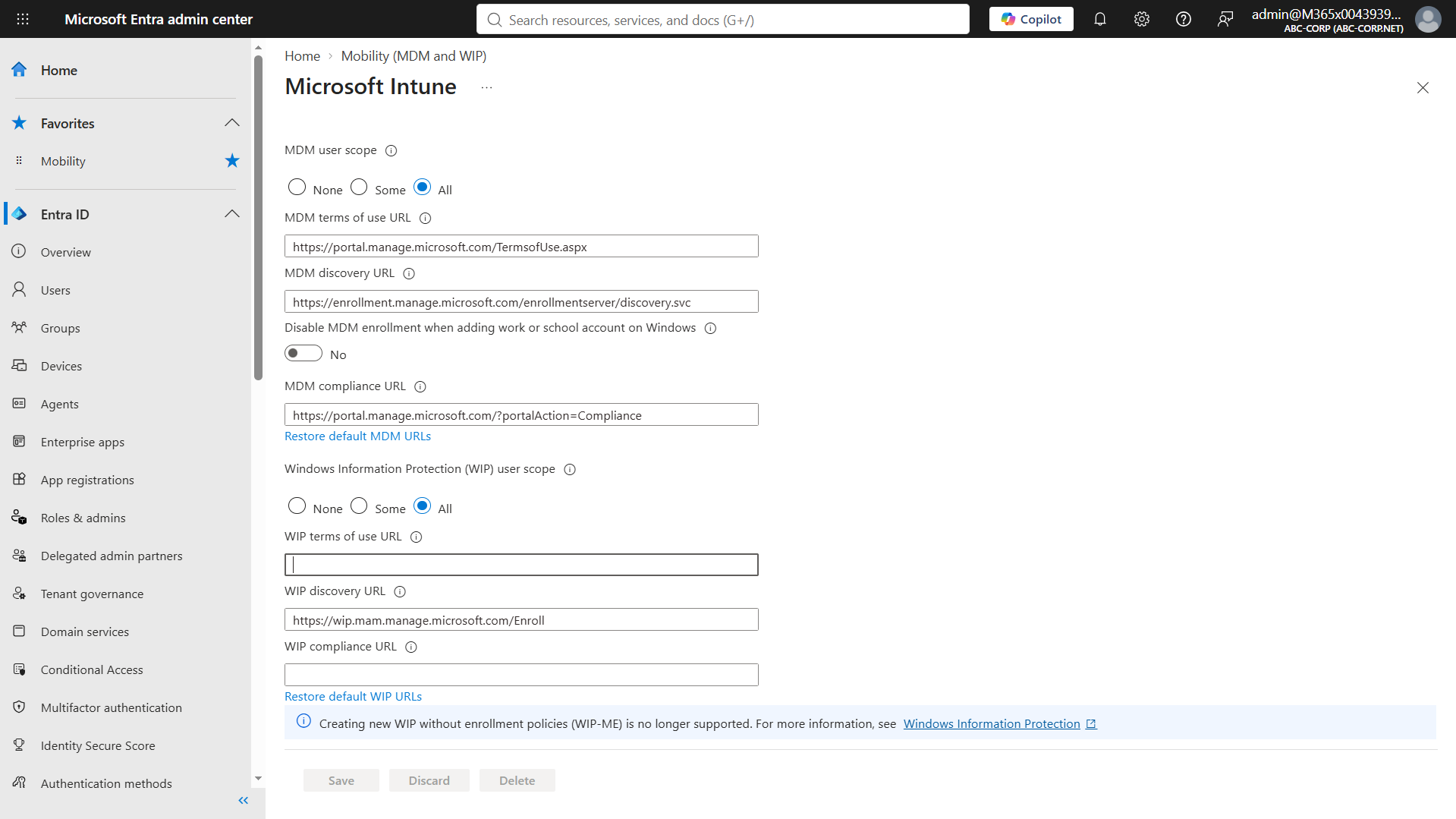
The method in which Entra ID provides the address is called Automatic Enrollment. The licence alone is not enough for this. The MDM user scope setting must also be configured in the tenant. You reach this setting through Devices > Device onboarding > Enrollment > Windows > Automatic Enrollment in the Intune admin center, or from the Mobility (MDM and WIP) > Microsoft Intune screen in the Microsoft Entra admin center. If the MDM user scope value is None, no user's device enrols in Intune automatically when it joins Entra ID. With the Some option you bring specific groups into scope, and with the All option all users. If the user is in scope, Entra ID passes the address written in the MDM discovery URL field on the same screen to the device while the device is joined to Entra ID, and Intune enrolment completes automatically as a continuation of the join. Windows Autopilot also requires Entra ID P1 for this reason, because it depends on the Automatic Enrollment and Company Branding features.
Also pay attention to the Windows Information Protection (WIP) user scope setting on the same screen. In older interfaces this field is named MAM user scope. If a user is in both the MDM and the WIP scope, the WIP scope takes precedence when the user adds the work account on a personal device, and the device does not enrol in MDM. On corporate-owned devices that are joined to Entra ID, the MDM scope applies. For this reason, I recommend that you leave the WIP user scope value as None.
The image below shows the relevant screen in the Microsoft Entra admin center.
If you do not have a Microsoft Entra ID P1 or P2 licence, you cannot use Automatic Enrollment. In this case, the user starts enrolment manually from Company Portal or Windows Settings, and the following problem occurs: because Entra ID is not involved, Windows cannot learn the address from it and looks for it in DNS. It takes the domain part of the email address that the user types, adds a fixed name in front of it and goes to the address EnterpriseEnrollment.abc-corp.net. If this name does not exist in DNS, the user sees a box that asks for the server address, and enrolment usually stops there.
The logic is the same as Autodiscover on the Exchange side. On a domain-joined computer, Outlook learns the address from the SCP in Active Directory, while a computer outside the domain needs the Autodiscover record in DNS. Here, Entra ID takes the place of the SCP, and the CNAME record below takes the place of the Autodiscover record. This record directs the name that Windows generates to the Intune entry point, and the user completes enrolment without entering a server address. If more than 1 domain is used in the users' UPNs, a separate record is required for each domain.
Type      : CNAME
Host name : EnterpriseEnrollment.abc-corp.net
Points to : EnterpriseEnrollment-s.manage.microsoft.com
TTL       : 1 hour
If you have an Entra ID P1 or P2 licence and the user is within the MDM user scope, you do not need this record. The device receives the Intune address from Entra ID during the join.
7- Device Enrollment Policies and Groups
Prepare your user groups and device groups to receive Device Enrollment policies. If you have not yet reviewed your group structure, step 4 on Microsoft's Microsoft Intune planning guide page is a good starting point. When you assign policies, I recommend that you start with a small pilot group and widen the scope gradually as long as no problem occurs.
Requiring multifactor authentication from the user during enrolment is also a topic to plan at this stage. You can enforce this with a Conditional Access policy on all platforms except Linux, and it again requires Microsoft Entra ID P1 or Microsoft Entra ID P2. I covered the MFA methods in my Microsoft Entra ID MFA implementation methods article.
8- Device Enrollment Manager Account
If you enrol devices in bulk, you can create a Device Enrollment Manager (DEM) account. A standard user can enrol up to 15 devices, while a DEM account can enrol up to 1,000 devices. You can use this account to enrol and configure devices before you give them to users. DEM is an Intune permission applied to a Microsoft Entra user account. The account must have an Intune user or device licence, and only an administrator in the Intune Administrator role can add and remove DEM accounts. A maximum of 150 DEM accounts can be defined in a tenant. Microsoft recommends using accounts that are dedicated to this task and do not belong to a specific person as DEM accounts.
The DEM account is not compatible with all enrolment methods, and the figure of 1,000 does not apply in every scenario. Apple Automated Device Enrollment, Android Enterprise Fully Managed and Corporate-Owned Work Profile devices and AOSP devices cannot be enrolled with DEM. On the Android Enterprise Personally-Owned Work Profile side, you can enrol a maximum of 10 devices per DEM account. If the Maximum number of devices per user value in Microsoft Entra ID is below 1,000, the DEM account is limited by this value and cannot reach 1,000 devices. Because DEM enrols Windows devices in shared device mode, the Device Limit Restriction in Intune does not work on these devices, and the limit is again determined by this setting on the Entra ID side.
The second group of limitations comes from the absence of user affinity on devices enrolled with DEM. Apps cannot be deployed as Available, user-based VPN profiles do not work, and you must use device-level certificates for Wi-Fi and email connections. Apple VPP apps can be installed only with a device licence, and user-licensed VPP apps cannot be used. Conditional Access is supported only for Windows 10 1803 and later and for Windows 11. The user sees only the device they are using in Company Portal and cannot wipe the device from there. This operation is done from the Intune admin center.
Because the 15-device limit is already not applied in the Windows Autopilot, Automatic Enrollment with Group Policy and co-management methods, you do not need a DEM account in these scenarios. For bulk Windows enrolment, the Provisioning Package (Bulk Enrollment) method prepared with Windows Configuration Designer is also an option to consider. For details, see Microsoft's Add device enrollment managers page.
Do not delete a DEM account that has been used to enrol devices. Deleting the account causes management problems on the devices enrolled with that account.
When the MDM Authority, licence, role and platform-specific preparations are complete, the tenant is ready for device enrolment. What remains is the enrolment itself. A device first gains an identity in Microsoft Entra ID, and Intune enrolment then follows as a separate process based on this identity. I explained how the identity side works in the Hybrid Join scenario in the article I mentioned above. In the next article, I will move to the Intune side with the same approach and examine how a device that has completed Entra ID registration enrols in Intune and which steps run in the background.
I hope you find it useful...
Feel free to share your thoughts and questions about this article in the comments below. Every contribution helps the content reach more people and makes for a more useful discussion.