Microsoft Intune is the endpoint management service that manages an organisation's devices and the apps on those devices from the cloud. It sends policies to Windows, macOS, iOS/iPadOS, Android and Linux devices, deploys apps, evaluates whether the device meets the organisation's rules and shares this result with Microsoft Entra ID. You do not need to install a management server on-premises. Management traffic runs between the device and the Intune service over the internet.
In this article, I explain which components Intune consists of, how the MDM and MAM approaches differ from each other, the relationship between compliance and Conditional Access, and licensing. I do not cover the installation steps. My aim is to give the complete overview before you start an Intune project.
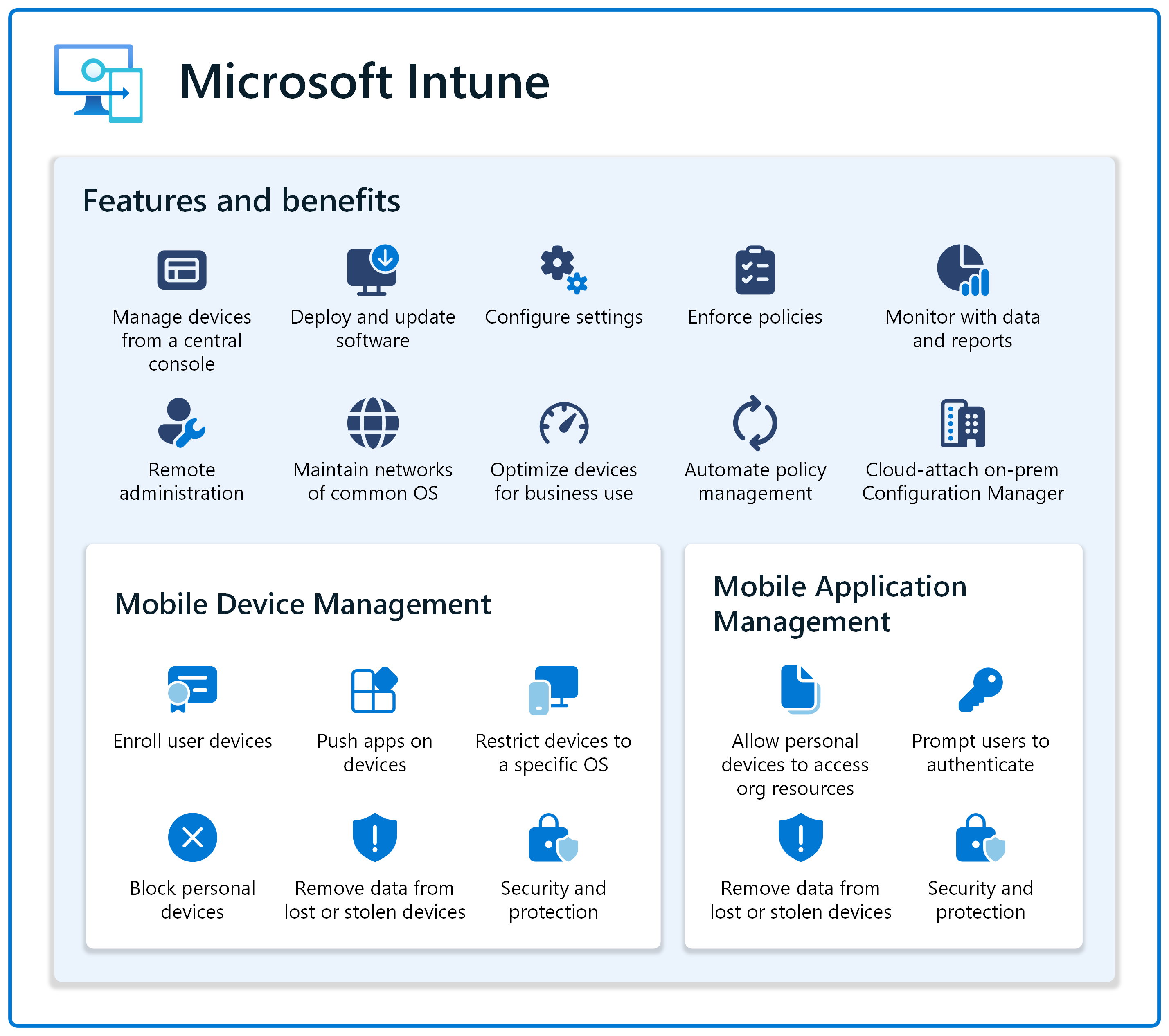
What Is Microsoft Intune?
The easiest way to understand Intune is to think of it as the device-side complement of Microsoft Entra ID. Users, groups and device objects are stored in Microsoft Entra ID (formerly Azure Active Directory). Intune delivers the policies, apps and security settings assigned to these identities and groups to the device. You do not assign a policy directly to a device, you assign it to a user group or a device group in Entra ID. Intune applies the setting to the devices that are members of that group.
All management tasks are performed in the Microsoft Intune admin center (intune.microsoft.com). In older documents and screenshots, you may see the same console under the name Microsoft Endpoint Manager admin center. Microsoft retired this brand, and the name of the product is now only Microsoft Intune.
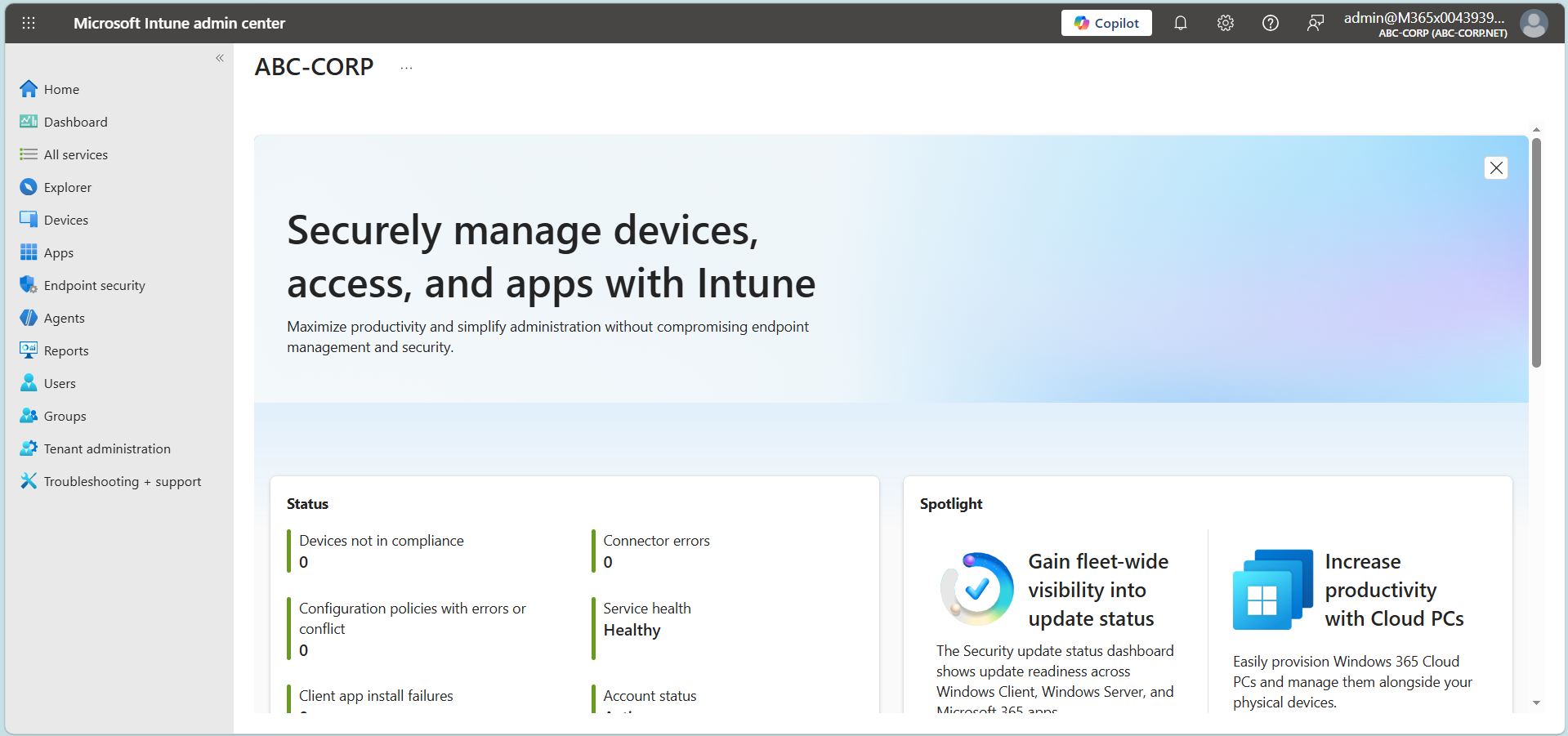
Core Components of Microsoft Intune
Almost all the work done in Intune belongs to 1 of 6 components. Distinguishing them from the start makes it clear which policy type solves which problem later.
Device Enrollment is the process of bringing the device under Intune management. During enrolment, an MDM certificate is installed on the device, and from then on the device communicates with the service through this certificate. I explained the enrolment types and the tenant prerequisites in detail in my article Microsoft Intune Device Enrollment Process and Requirements.
A configuration profile carries the settings that determine how the device behaves. Wi-Fi and VPN profiles, BitLocker or FileVault encryption, camera, Bluetooth and USB storage restrictions, and Windows Update rings are sent with these profiles. On Windows, these settings are applied in the background through the Configuration Service Provider (CSP). Which setting is supported on which Windows version also depends on the CSP.
A compliance policy does not configure the device, it evaluates it. It checks questions such as whether the disk is encrypted, whether the minimum operating system version is met, whether the password rule is applied and whether the device is jailbroken or rooted, and it marks the device as Compliant or Not Compliant. I cover how this result becomes an access decision under a separate heading below.
In app management, Microsoft 365 Apps, Win32 apps, line-of-business packages and store apps are assigned to devices as Required or Available. An app protection policy (APP) protects the organisational data inside the app and does not require the device to be enrolled in Intune. The Endpoint Security node gathers the Antivirus, Disk Encryption, Firewall, Attack Surface Reduction and security baseline settings in a single place for security teams to use.
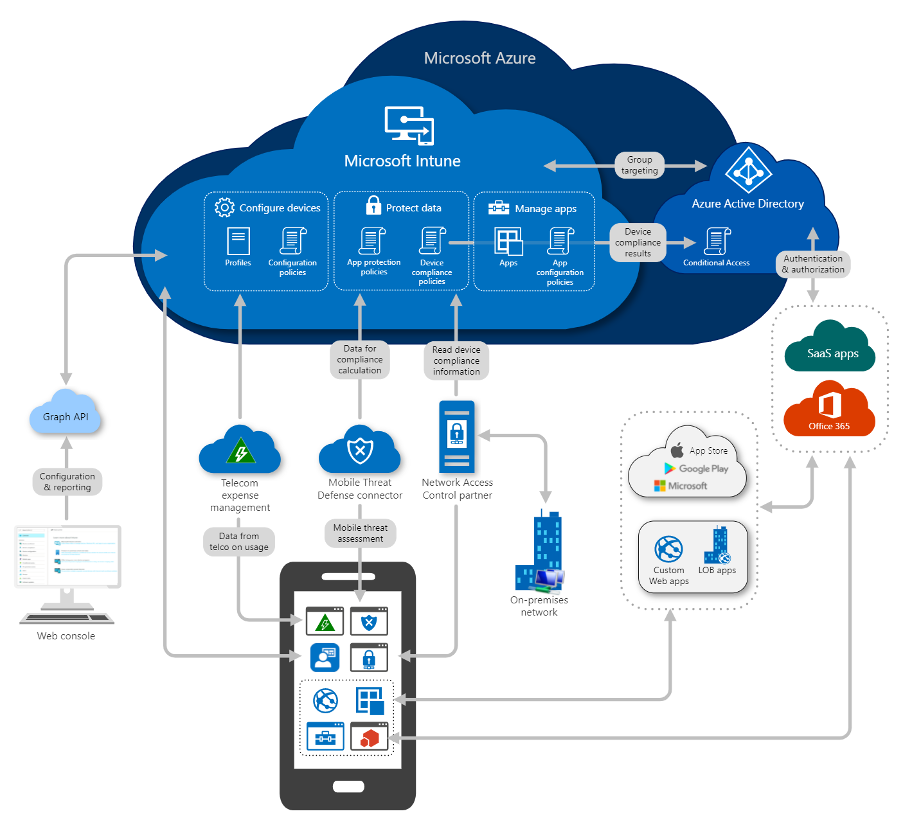
Policies do not reach the device immediately. The device receives new settings during its check-in cycle with Intune. On a device that has completed enrolment, this cycle runs approximately every 8 hours. A Sync action started from the admin center or from Company Portal shortens the wait.
Supported Platforms
Intune supports Windows, macOS, iOS/iPadOS, Android, Linux and ChromeOS devices. However, support depends on the version, and the depth of management is not the same across platforms. On the Apple side, iOS/iPadOS 17 and macOS 14 and later are supported at the time I updated this article. On Android, user-based management methods require Android 10 or later. Because Microsoft supports the last 3 major versions on the Apple side, these minimum versions increase every year. For the current list, I recommend that you rely on Microsoft's Supported operating systems and browsers in Intune page.
On Linux, support is limited to Ubuntu LTS and Red Hat Enterprise Linux. The management scope is also limited to compliance policies and script-based configuration. Capabilities that you are used to on Windows or iOS, such as app deployment, are not available on Linux. On Android, the older Device Administrator management went out of support on devices with access to Google Mobile Services as of December 2024. New deployments must use the Android Enterprise methods.
Windows 10 reached end of support on 14 October 2025. It now has the Allowed status in Intune. The device can enrol and can be managed, but Microsoft does not guarantee that new features will work on this version.
MDM and MAM: 2 Management Approaches
In Intune, you can protect the organisational data on a device at 2 different levels. Mobile Device Management (MDM) manages the device itself. Mobile Application Management (MAM) manages the organisational data inside the app without touching the device. In most cases, the owner of the device determines which one you choose. On a company-owned device, MDM is the expected model. On an employee's own phone, managing the whole device is both unnecessary and a request that is difficult for the user to accept.
|
Criterion |
MDM |
MAM |
|
Management scope |
The whole device or the work area on the device |
The organisational data inside the apps that the policy applies to |
|
Device Enrollment |
Mandatory |
Not required |
|
Policy types used |
Configuration profile, compliance policy, Endpoint Security |
App protection policy, app configuration policy |
|
Data removal behaviour |
Wipe or Retire |
Selective Wipe |
|
Typical scenario |
Company-owned devices |
BYOD, personal phones and tablets |
Mobile Device Management (MDM)
In the MDM model, the device is first enrolled in Intune. With enrolment, an MDM certificate is installed on the device, and Intune becomes able to send settings to the device through the management interface that the operating system provides. From this point on, you centrally manage the password rule, disk encryption, the minimum operating system version, the use of the camera, Bluetooth and USB storage, and the Wi-Fi, VPN and certificate profiles. The device must have an identity in Entra ID before enrolment. I examined how this identity is created in hybrid environments in my article How Clients Register with Entra ID through SCP in the Hybrid Join Process.
On personal devices, the scope of MDM varies by platform. Personally-Owned Work Profile on Android Enterprise and User Enrollment on the Apple side separate work data from the rest of the device, and the administrator sees only the work area. Windows has no such separation. When you enrol a personal Windows device, the whole device comes under the management scope. Explaining this difference to users from the start when you plan BYOD prevents the objections that would otherwise come later.
When a device is lost or stolen, or when the user leaves the organisation, remote actions are used. Articles often describe this as a single "remote wipe", but it is in fact 3 different commands, and their results are very different from each other.
|
Action |
What does it do? |
When is it used? |
|
Wipe |
Returns the device to factory settings. Everything is deleted, including personal data. |
When a company-owned device is lost or stolen, or when it will be handed over to another user |
|
Retire |
Removes the app data, profiles and settings that Intune sent, and removes the device from management. Personal data stays in place. |
When a user who enrolled a personal device leaves the organisation |
|
Selective Wipe |
Deletes only the organisational data inside the apps that an app protection policy applies to. It does not touch the device or personal data. |
In MAM scenarios where the device is not enrolled in Intune |
A Wipe cannot be undone. The command is applied as soon as the device is online and communicates with Intune. On a device that is switched off or not connected to a network, the command stays pending.
Mobile Application Management (MAM)
The mechanism behind MAM is the app protection policy. This policy is applied not to the device but to apps developed with the Intune App SDK. Microsoft apps such as Outlook, Teams, OneDrive, Word, Excel and Microsoft Edge already include the SDK. You can also bring your own line-of-business app under the same protection with the SDK or the App Wrapping Tool. When the user signs in to the app with a work account, the app connects to the Intune service, receives the policy assigned to it, and the app itself enforces the rules. This is the reason the device does not need to be enrolled.
In this model, organisational data is kept encrypted inside the app, and the policy determines where the data can go. You can prevent text in a work email from being moved to a personal app with copy and paste, an attachment from being saved to a personal storage location, or the data from being opened in an unmanaged app. You can also require a PIN or biometric verification when the app opens.
All of these rules are defined as individual lines in the Data protection step of the policy. In a typical iOS/iPadOS policy, the relevant lines and their values are as follows:
App Protection Policy (iOS/iPadOS) - Data protection

Data Transfer
  Send org data to other apps ............ Policy managed apps
  Save copies of org data ................ Block
  Restrict cut, copy, and paste .......... Policy managed apps with paste in

Functionality
  Screen capture ......................... Block
On the MAM side, access conditions are defined with the Conditional Launch settings. The minimum operating system version, the minimum app version, jailbreak or root detection and the maximum allowed device threat level are checked here. When a condition is not met, the app can warn the user, block access or wipe the organisational data. A distinction needs to be made clear here. Whether the device disk is encrypted is not a MAM condition. That check belongs to the compliance policy on the MDM side. MAM encrypts the organisational data inside the app, not the device.
Screenshot blocking also works differently on each platform. Android has a separate setting for this. On iOS/iPadOS, there was no such control for a long time. In apps that use current Intune App SDK versions, when the "Send org data to other apps" setting is set to a value other than "All apps", screenshots are blocked by default and the user captures a black screen. Because this block also covers screen sharing, I recommend that you test the policy before you deploy it if you have users who share their screen in Teams meetings.
When the user leaves the organisation or the device is lost, you remove the organisational data in the apps with Selective Wipe. The command is applied the next time the app communicates with the Intune service. Photos, personal email accounts and the other apps on the device are not affected.
On Windows, MAM works only through Microsoft Edge, and its scope is not the same as on mobile platforms. An Intune licence is also required for users who do not enrol their device but receive an app protection policy.
Using MDM and MAM Together
These 2 approaches are not alternatives to each other, and they can work together on the same device. On an enrolled company phone, MDM manages the password rule and the encryption of the device, while the app protection policy prevents the organisational data in Outlook from being moved to personal apps. MDM secures the device, but it does not control the data flow between apps at this level of detail. MAM provides that control.
When you create an app protection policy, you select which device types the policy targets: Managed, Unmanaged or both. In practice, a commonly used model is to define 2 separate policies, a stricter policy for unmanaged devices and a more flexible policy for managed devices. Because an enrolled device is already evaluated by a compliance policy, it is usually not necessary to burden the user with additional PIN steps there.
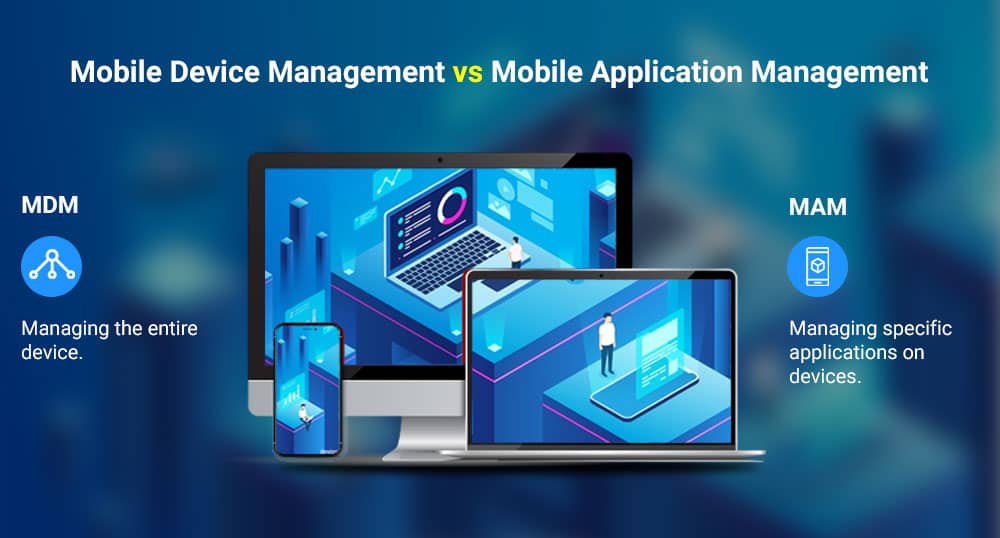
The Relationship Between Compliance Policy and Conditional Access
The most common misunderstanding about Intune is the idea that Intune blocks the access of a non-compliant device. Intune does not make access decisions. The compliance policy evaluates the device and writes the result to the device object in Entra ID. When the user wants to access Exchange Online, SharePoint or another resource, the authentication request goes to Entra ID, and the Conditional Access policy there makes the decision. If the policy contains the "Require device to be marked as compliant" condition and the device is Not Compliant, access is blocked.
Device --- Check-in ----> Microsoft Intune
                              |
                              |  Compliance Policy evaluation
                              v
                    Compliant / Not Compliant
                              |
                              |  Result is written to the device object
                              v
                      Microsoft Entra ID
                              |
User signs in -----------> Conditional Access Policy
                              |
                              v
                    Grant (access) / Block (deny)
Conditional Access is a feature of Microsoft Entra ID, not of Intune, and it requires a Microsoft Entra ID P1 or P2 licence. If Conditional Access is not defined, the compliance policy only reports and does not affect access.
The same chain can also be built on the MAM side. The "Require app protection policy" condition in Conditional Access makes it mandatory to access organisational data only from apps that have received an app protection policy. As a result, the user cannot connect to the mailbox with the built-in email app on an unenrolled phone and has to use Outlook. I covered the MFA side of Conditional Access in my article MFA Configuration and Enforcement Methods in Microsoft Entra ID.
The Microsoft Defender for Endpoint integration is also added to this chain. When the connection between Intune and Defender for Endpoint is enabled, Defender calculates a risk level for the device. You define the maximum allowed risk level in the compliance policy. When an active threat is detected on the device and the risk level exceeds this threshold, the device becomes Not Compliant and Conditional Access blocks access. When the threat is remediated, the device returns to the Compliant state at the next evaluation.
Windows Autopilot and Co-Management
On the Windows side, you often hear 2 more concepts alongside Intune. Windows Autopilot allows a new device to join Entra ID and enrol in Intune without imaging, when the user takes it out of the box and signs in with a work account. The hardware ID of the device must be registered in the tenant in advance, and Automatic Enrollment requires a Microsoft Entra ID P1 or P2 licence.
Co-management is the transition model for organisations that use Configuration Manager. The same Windows device is managed by both Configuration Manager and Intune, and you move workloads such as Compliance, Windows Update or Endpoint Protection to Intune individually when you are ready. This is the supported way to move to cloud management without having to abandon the existing Configuration Manager investment all at once.
Licensing and Administrator Roles
The base tier of Intune is Microsoft Intune Plan 1. It can be purchased on its own, and it is also included in the Microsoft 365 E3 and E5, Enterprise Mobility + Security E3 and E5, Microsoft 365 Business Premium, and Microsoft 365 F1 and F3 suites. Plan 1 is sufficient for device enrolment, configuration profiles, compliance policies, app deployment and app protection policies. Features such as Conditional Access and Windows Automatic Enrollment depend on Microsoft Entra ID P1 or P2, not on the Intune licence. I listed which Intune and Entra ID plans each suite includes in the licensing table in my enrolment article.
As of 1 July 2026, Remote Help, Advanced Analytics and the Intune Plan 2 capabilities were included in Microsoft 365 E3, and in addition to these, Endpoint Privilege Management, Enterprise App Management and Cloud PKI were included in Microsoft 365 E5. F1 and F3 are outside this change.
This change is being enabled for eligible tenants gradually, and Microsoft publishes a notification in the Microsoft 365 admin center before activation. Because suite contents change over time, I recommend that you verify the current status on Microsoft's Microsoft Intune Pricing page.
On the authorisation side, the broadest permission is in the Intune Administrator role in Entra ID. Because this is a privileged role, it must not be given to the teams that run daily operations. For them, the built-in roles in Intune's own RBAC model are used: Policy and Profile Manager, Application Manager, Endpoint Security Manager, Help Desk Operator and Read Only Operator. By combining these roles with scope tags, you can, for example, make a help desk team see only the devices at its own location.
To position Intune correctly, the distinction to remember is this: Intune configures and evaluates the device, and Entra ID makes the access decision. MDM protects the device, MAM protects the data inside the app, and in most environments both are used together. The next step is to bring the devices under management. You can find the preparations required for this in my Device Enrollment article.
I hope you find it useful...
Feel free to share your thoughts and questions about this article in the comments below. Every contribution helps the content reach more people and makes for a more useful discussion.