Device management is at the centre of the modern security approach in the Microsoft Entra ecosystem. Beyond the traditional Active Directory (AD) domain join methods, how devices are given an identity and managed in cloud and hybrid environments is very important. Signing in through a domain join inside a physical corporate network is no longer enough; devices must authenticate securely over the internet, policies must be applied and access controls must be enforced. For this purpose, Microsoft Entra offers 3 different identity management models, which allows organisations to build a flexible structure according to their needs.
As corporate infrastructures move quickly to hybrid models, devices inevitably have to work with both on-premises Active Directory and cloud-based solutions. Hybrid joined devices are joined to the traditional AD environment and are also matched with Microsoft Entra ID, which creates a bidirectional authentication mechanism. This model is a major advantage in scenarios that require integration with on-premises infrastructure such as Group Policy Object (GPO) and Kerberos. However, being hybrid joined alone is no longer enough; to benefit fully from modern security policies such as Conditional Access, multifactor authentication (MFA) and single sign-on (SSO), devices must also be managed as Microsoft Entra joined or Microsoft Entra registered.
In a world where authentication is not limited to users, securing devices becomes at least as critical as protecting user identities. Microsoft Entra joined is the model developed for organisations that need fully cloud-based management. It allows devices to be managed directly by Microsoft Entra without the traditional on-premises AD requirement. It works with Intune or other modern management tools and provides identity management that follows Zero Trust principles. Entra joined devices integrate more smoothly with Azure Virtual Desktop (AVD) and other cloud-based applications, and they are also directly compatible with advanced security solutions such as Conditional Access and passwordless authentication.
Microsoft Entra registered is used in scenarios that do not require complex authentication and focus entirely on user-based sign-in. This model is one of the most suitable options for organisations that adopt the bring your own device (BYOD) model, and it allows devices to be subject to specific access controls without being placed under full corporate management. Users register their personal devices with Microsoft Entra through Workplace Join and can then comply with SSO, Conditional Access and other security policies. However, because Entra registered devices are more limited in terms of management, they may not be sufficient in scenarios that require advanced endpoint management and device compliance policies.
Digital identity management has now become a broad ecosystem that covers devices as well as user accounts. The hybrid joined, Entra joined and Entra registered models that Microsoft Entra offers provide a structure that can be customised according to an organisation's security, management and flexibility needs. Choosing the right model determines how devices are managed and also directly affects the security level.
Why Zero Trust?
Zero Trust is a modern security strategy based on the principle of "never trust, always verify". Today, organisations need a new security model that adapts more effectively to the complexity of the modern environment, supports the hybrid workplace scenario, and protects people, devices, applications and data wherever they are.
✅ Zero Trust starts with a foundation of identity and device protection.
✅ Threat protection capabilities are built on this foundation to provide real-time monitoring and remediation of security threats.
✅ Information protection and governance provides advanced controls that target specific types of data to protect your information and help you meet compliance standards, including the protection of personal information.
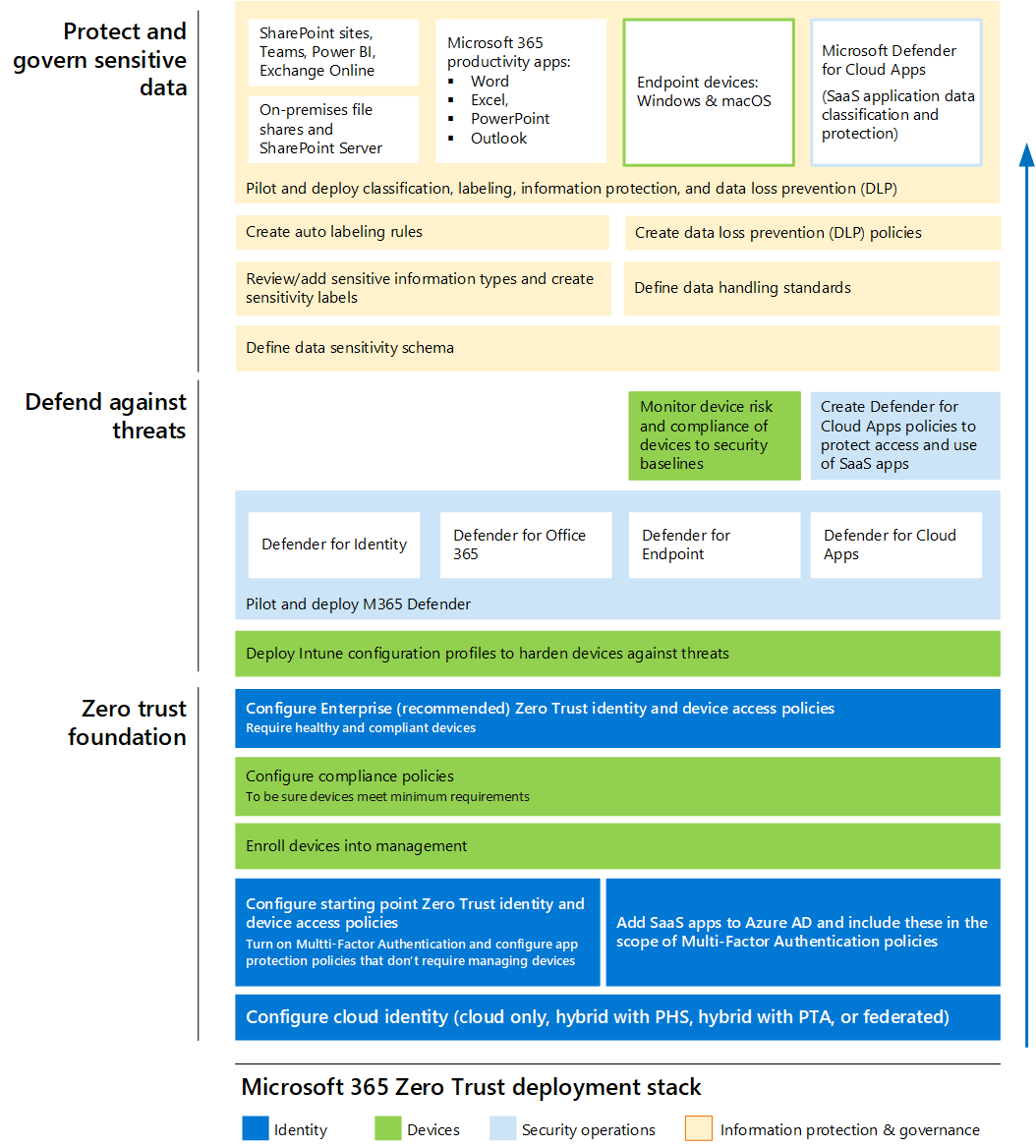
As the Zero Trust security approach becomes one of the most effective defence mechanisms against modern threats, identity and device management forms the basis of this model. Because the traditional network-centric security approach is no longer sufficient, organisations must secure user identities and devices and allow only authorised access. Policies such as Conditional Access, multifactor authentication (MFA) and device compliance go beyond authentication and provide a contextual security framework. However, before all of these policies can be applied, it is necessary to understand how devices integrate with Microsoft Entra ID.
In the Microsoft 365 ecosystem, there are 3 different Microsoft Entra join models for device identity management. These are Microsoft Entra hybrid joined, Microsoft Entra joined and Microsoft Entra registered. These models are among the basic elements that determine a device's connection to Microsoft Entra ID, its authentication mechanisms and its access controls.
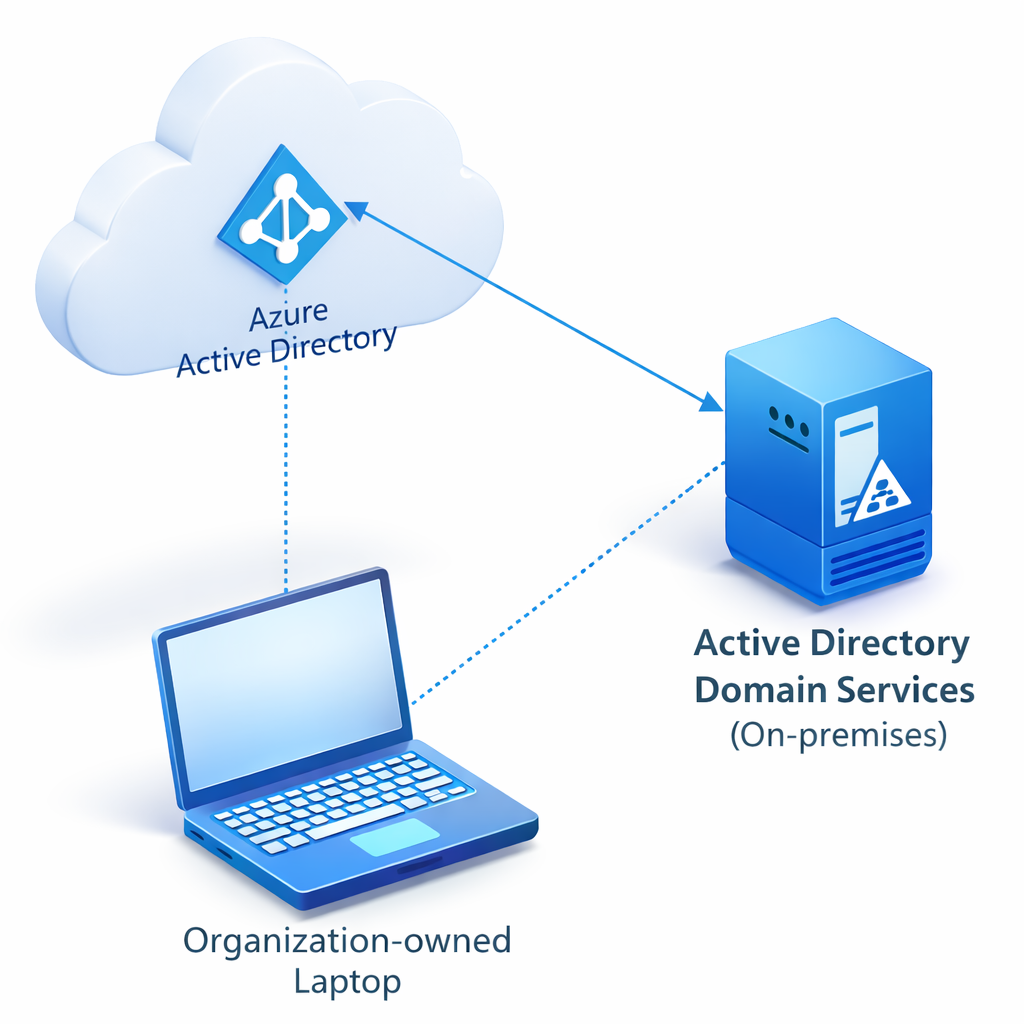
For organisations that are familiar with the traditional Active Directory (AD) domain join model, Microsoft Entra hybrid joined devices are the most familiar solution. In this model, devices are joined to on-premises AD and are also synchronised with Microsoft Entra ID. As a result, devices can use the classic Group Policy Object (GPO) structures and also benefit from cloud-based authentication and access policies. Continued support for traditional authentication methods such as Kerberos and NTLM is a critical advantage for organisations that want to maintain compatibility with older systems. However, because hybrid joined devices still depend on an on-premises domain controller, they do not offer a fully cloud-based management model.
For organisations that need fully cloud-based management, Microsoft Entra joined devices are a more suitable option. These devices integrate directly with Microsoft Entra ID and are managed directly by Microsoft Entra without any on-premises AD connection. This allows advanced policies such as Conditional Access, Intune and device compliance to be applied more flexibly. Entra joined makes security and management much easier, especially for organisations that work with Azure Virtual Desktop (AVD) or fully cloud-based solutions.
For users who want to connect their own devices to corporate resources, the Microsoft Entra registered model is used. In this model, which is common in bring your own device (BYOD) scenarios, devices are registered with Microsoft Entra ID with specific access controls and without being fully included in corporate management. This structure, also known as Workplace Join, allows users to register their personal devices and benefit from single sign-on (SSO) and Conditional Access policies. However, because Entra registered devices are more limited in terms of management, they may not be sufficient in environments that require full integration with corporate policies.
These 3 models that Microsoft Entra ID offers provide different advantages depending on an organisation's network infrastructure and security policies. Hybrid joined devices maintain integration with older systems, while Entra joined offers a fully modern identity management model. Entra registered is a more flexible option that is more limited in terms of management. The choice of model should be based on the organisation's security strategy, access requirements and level of cloud adoption.
As I mentioned above, the first step in building a Zero Trust foundation is to configure identity and device access policies. To do this, we first need to understand clearly how devices integrate with Entra ID and the characteristics of cloud-integrated devices.
There are 3 different Microsoft Entra join options for Microsoft 365.
1- Microsoft Entra Hybrid Joined
This is the structure in which the device is a member of the on-premises Active Directory domain and is joined to Entra ID at the same time. The Windows sign-in process works with the domain identity, and in the background the device is also recognised by Entra ID with its own identity. As a result, the device remains subject to all the policies of the on-premises infrastructure and is also included in Conditional Access, Intune and other cloud-based security mechanisms through Entra ID. The identity architecture is bidirectional, and the classic domain structure and the modern cloud identity structure work together.
2- Microsoft Entra Joined
This is the structure in which the device is joined directly to Entra ID and has no on-premises Active Directory dependency. The Windows sign-in process works entirely through Entra ID authentication, and the device becomes a corporate endpoint that Entra ID recognises at system level. In this model, a computer object is created for the device in Entra ID, the trust relationship is certificate-based, and policies such as Intune, Conditional Access, MFA and device compliance can be applied directly at device level. It is the main usage scenario for organisations that adopt a cloud-first or cloud-only architecture.
3- Microsoft Entra Registered
This is the structure in which the device is not joined to Entra ID at system level and only the user account is associated with Entra ID. The Windows sign-in process continues to work with a local account or the existing user account, and no computer object is created for the device in Entra ID. The trust relationship is user-based, not device-based, and authentication is session-based. This model is generally used in BYOD scenarios and gives users controlled access to applications and resources protected by Entra ID from their personal or independent devices.
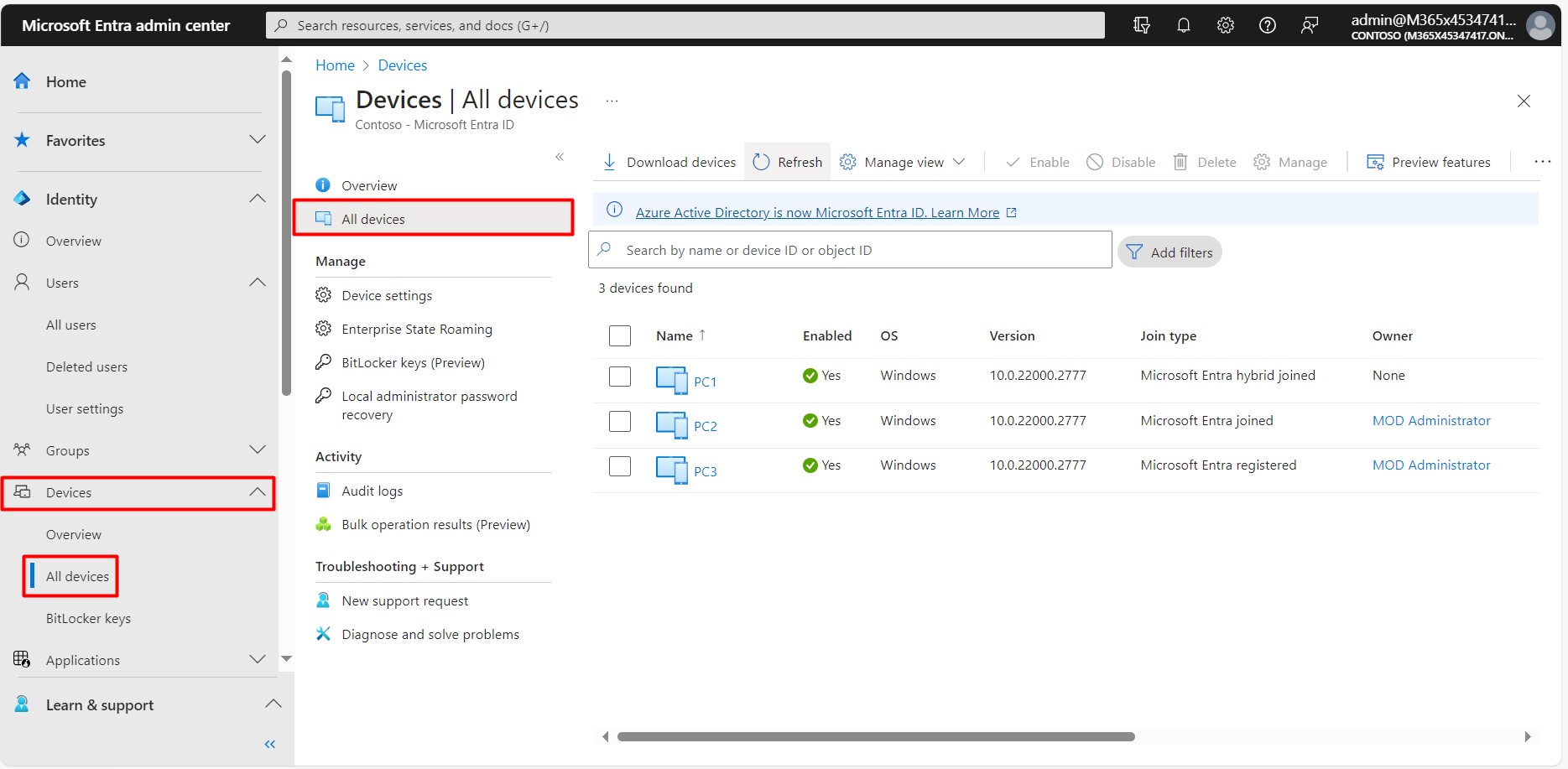
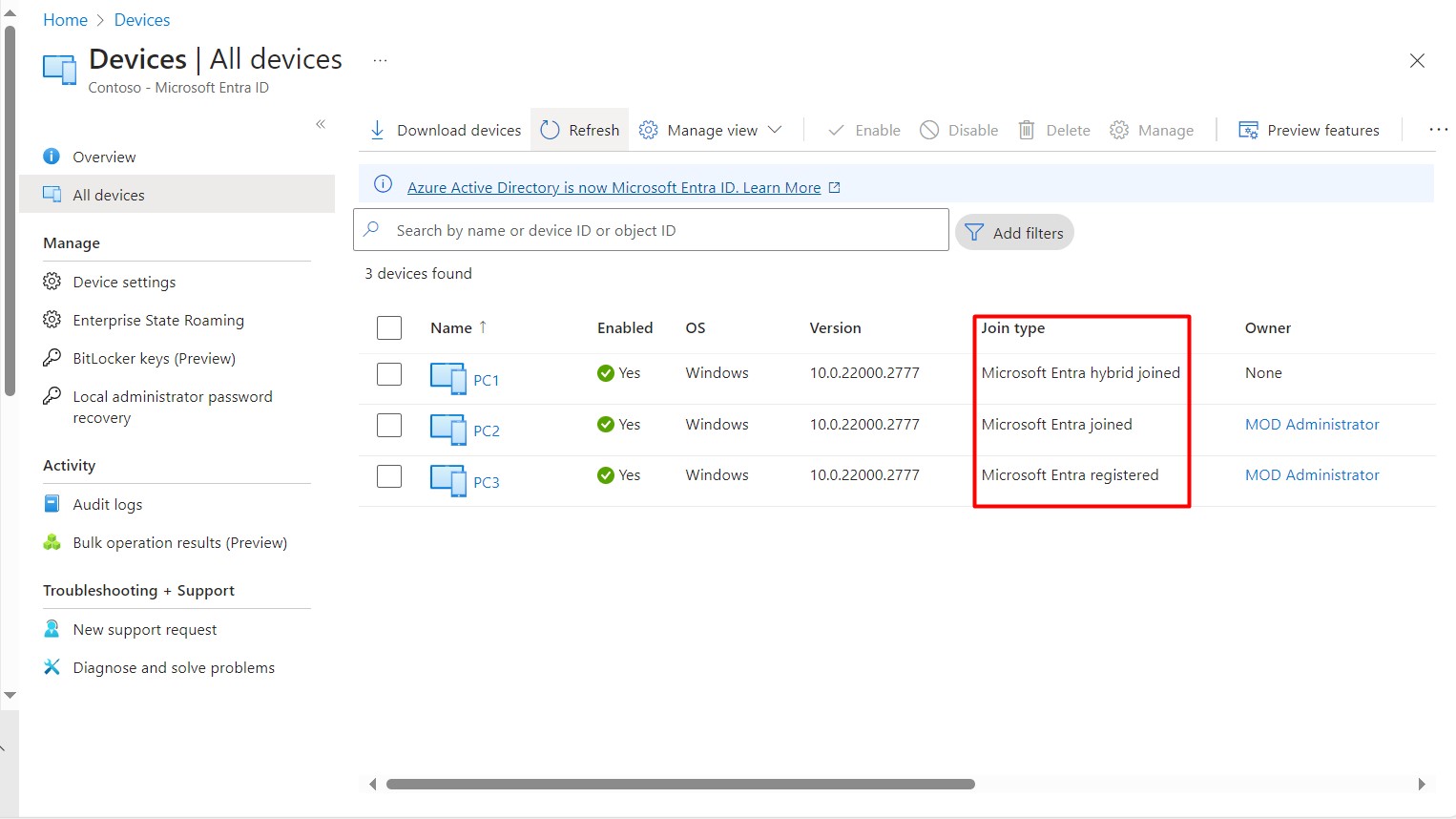
1- Microsoft Entra Hybrid Joined
Microsoft Entra hybrid joined devices are devices that are joined to the on-premises Active Directory environment and are also registered with Entra ID (Azure AD). With this structure, the device is subject to on-premises AD control and can access the cloud services that Entra ID offers at the same time. Central device management is provided with Intune and other Entra ID services.
The join operation is applied directly to the device, not to the user. The device object must exist in Entra ID before the operation. This object can be synchronised from on-premises AD with Entra ID Connect or created directly through AD FS. When Entra ID Connect is used, the object is created in the next synchronisation cycle. In the AD FS scenario, it is created immediately.
In the Entra ID Connect scenario, authentication is performed by signing the registration request with the private key of the device's machine certificate. Entra ID verifies this signature with the public key of the certificate and stores this key in the Reserved Attribute field of the device object.
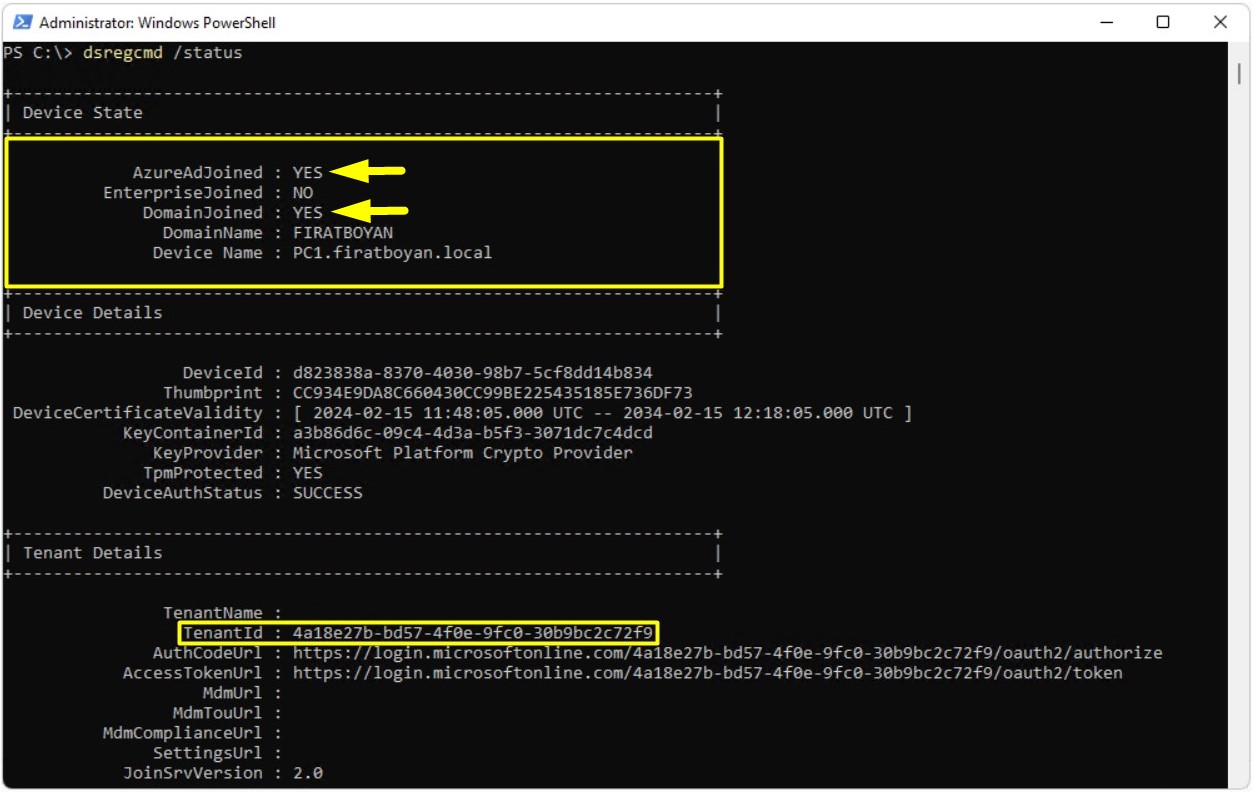
The dsregcmd /status output shows technically that this device is connected to the on-premises Active Directory environment and is joined to Microsoft Entra ID at the same time, which means it works in a hybrid joined structure. In this model, the device establishes a parallel trust relationship with 2 separate identity infrastructures: one is the classic domain-based side and the other is the cloud-based Entra ID side. The Windows operating system uses the domain identity at startup, and on the Entra ID side the device is recognised with its own machine identity and works in integration with cloud services.
Device State:
➜ AzureAdJoined: YES
➜ DomainJoined: YES
➜ EnterpriseJoined: NO
When these values appear together, they directly prove that the device is Hybrid Azure AD Joined. This means that the device is a member of the FIRATBOYAN.local domain and has also established a system-level trust relationship with the Entra ID tenant. The DomainName and Device Name fields show the identity of the device on the on-premises AD side, and the AzureAdJoined value represents its counterpart on the cloud side.
Tenant Details:
➜ TenantId: Shows which Entra ID tenant the device is connected to. The device is subject only to the Conditional Access, Intune, compliance and security policies within this tenant.
The technical meaning of the hybrid joined architecture is as follows:
• The trust relationship exists on both the domain side and the Entra ID side.
• The device remains subject to on-premises AD policies.
• At the same time, it is included in the cloud-based security and management layer through Entra ID.
• Policies such as Intune, Conditional Access, MFA and device compliance can be applied at device level.
• A Primary Refresh Token (PRT) is issued and true SSO is provided.
This output shows technically and clearly that the device is a corporate endpoint that uses the classic on-premises infrastructure and the modern cloud identity infrastructure at the same time and works in a fully hybrid identity model.
Device Characteristics and Policy Application
✔ Device policies are triggered through on-premises Active Directory GPOs.
✔ The device account is located in on-premises Active Directory.
✔ On-premises Active Directory is used to process the user session, and periodic sign-in in the domain environment is required.
✔ There are specific GPOs that cannot be applied to Microsoft Entra hybrid joined devices.
✔ Devices can be managed by Intune with some limitations in management capabilities, and Intune enrolment is required.
✔ Devices can also be managed by SCCM, and a management agent and enrolment are required. In addition, if the device connects from outside the organisation's network, an HTTPS-enabled management point is required.
✔ Device account policies are inherited from on-premises Active Directory.
✔ User account policies are inherited according to where the user identity is located.
✔ An Entra ID-only user account has significant limitations when signing in to hybrid devices.
✔ As with an on-premises Active Directory identity synchronised with Entra ID, a limited Conditional Access policy is available for hybrid devices, depending on the identity of the user who signs in.
✔ Intune device compliance policies and security rules are applied based on validation by the device management point.
✔ A limited number of Conditional Access policies are available for hybrid joined devices.
✔ SSO-enabled single sign-on is available for on-premises Active Directory and Azure services.
Entra ID Connect Synchronisation Process Flow
✅ A service connection point (SCP) must be created in Entra ID. This is usually done by the Entra ID Connect wizard. You can also create the SCP manually, but because Entra ID Connect can do this for us, I do not recommend configuring it manually.
✅ On-premises AD joined devices read the SCP automatically and try to register with the tenant information in the SCP. This fails until Entra ID Connect synchronises the device with Entra ID. Note also that Entra ID Connect cannot synchronise devices that have no userCertificate attribute value on the device object in on-premises AD.
✅ The automatic-device-join scheduled task runs on the devices. This task tries to register with the Entra ID tenant and also creates the userCertificate value that is sent to Active Directory.
✅ When the userCertificate value is present on the device object in on-premises AD, Azure AD Connect synchronises the device information with Entra ID. However, the registration is not complete, and the device is shown as Pending until it completes the registration.
✅ After Entra ID Connect synchronises the device information with Entra ID, the device registration is completed the next time the automatic-device-join task runs, and the device is registered correctly. The device is shown as Microsoft Entra hybrid joined under Devices > All Devices in Entra ID.
2- Microsoft Entra Joined
Microsoft Entra joined devices are devices that are joined directly to Entra ID (Azure AD), have no on-premises Active Directory dependency and exist only on the cloud side. Sign-in is performed with an Entra ID account, and authentication is entirely cloud-based. This model is designed for organisations that adopt a cloud-first or cloud-only architecture, and it can be applied regardless of the organisation's size or sector.
The Entra ID join structure makes devices directly subject to the identity, access and security policies controlled by Entra ID. The user accesses applications and resources protected by Entra ID from a device owned by the organisation or a personal device. This access model enables central device management and security control with Intune, Conditional Access and other Entra ID services.
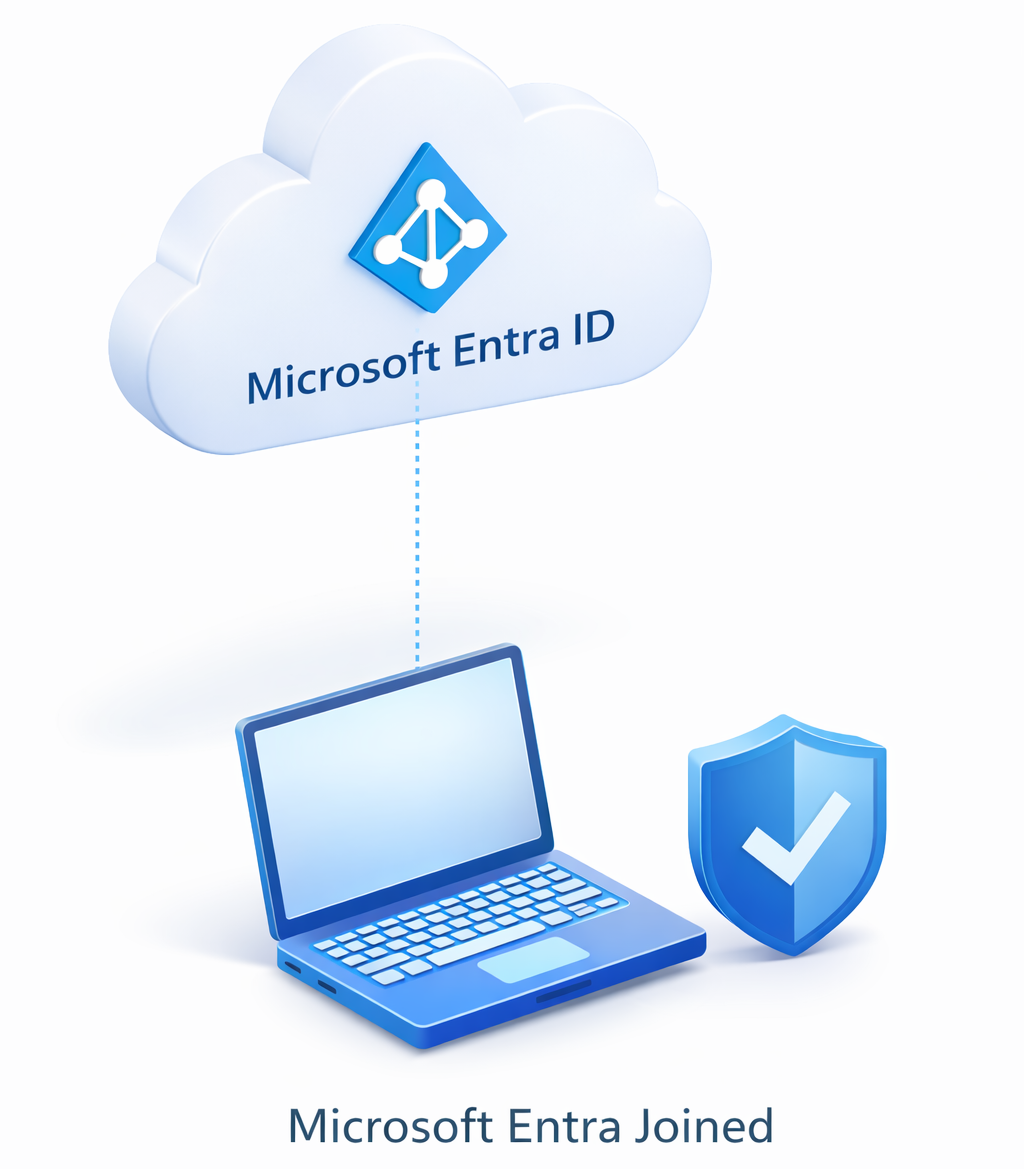
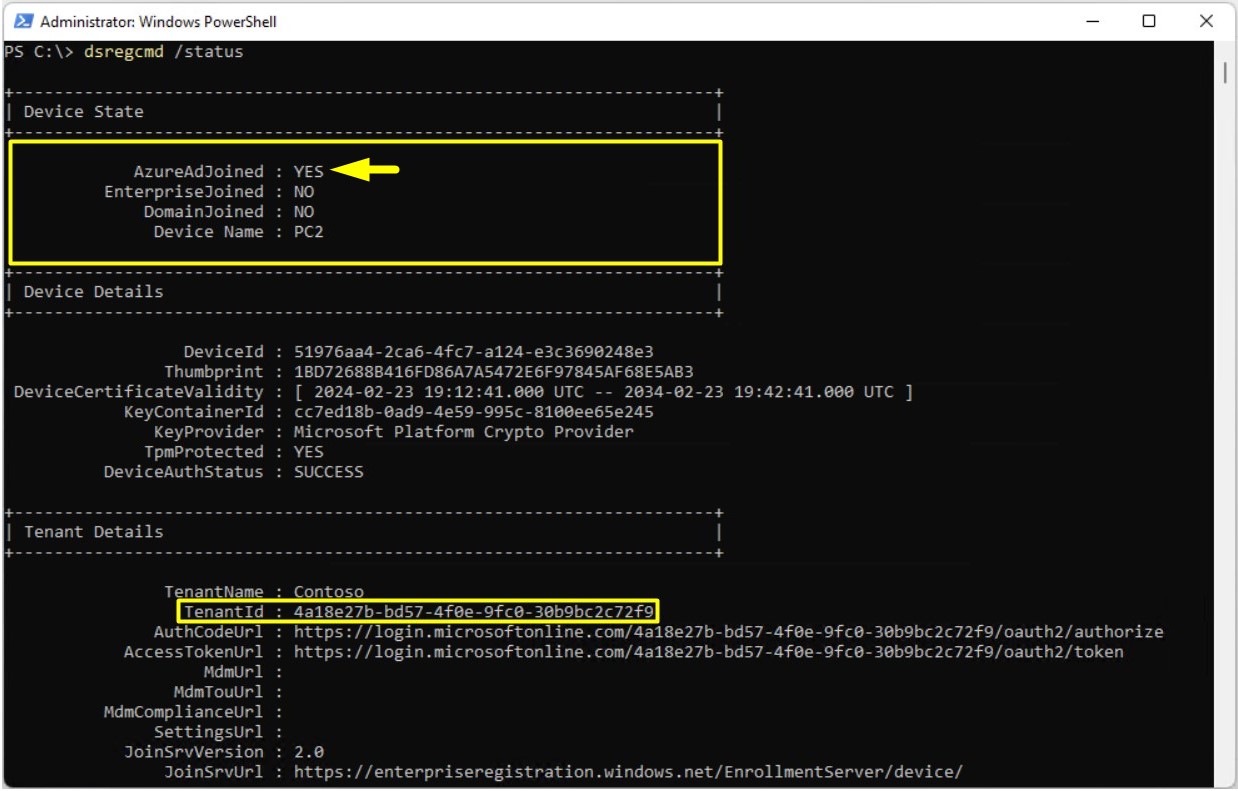
The dsregcmd /status output clearly shows that this device is joined directly to Entra ID and is a corporate endpoint connected to Microsoft Entra ID at system level.
Device State:
➜ AzureAdJoined: YES
➜ EnterpriseJoined: NO
➜ DomainJoined: NO
These values mean that the device is Entra ID joined and is not part of a hybrid joined or classic on-premises domain joined structure. In other words, the device is not connected to any on-premises Active Directory infrastructure and obtains its identity entirely from Entra ID on the cloud side. In this state, the device is an independent corporate asset that Entra ID recognises and has a trust relationship with.
In this architecture, the Windows sign-in process does not work through a local account or a domain account. It works directly with Entra ID authentication. A computer object for the device has been created in Entra ID, and the device has its own identity independently of the user. Entra ID now recognises the computer itself as well as the user.
Tenant Details:
➜ TenantId: Shows which Entra ID tenant the device is connected to. The device is subject only to the Conditional Access rules, Intune configurations and security policies within this tenant. From this moment, the computer is a digital asset that belongs to a specific organisation.
In this architecture, the trust relationship is directly device-based, not user-based. The device is managed as a corporate endpoint. Intune, Conditional Access, MFA, device compliance and configuration policies can be applied at system level. It is not a temporary client as in the registered scenario. It is an Entra ID joined corporate endpoint.
Because the device is Entra ID joined, a Primary Refresh Token (PRT) is issued when the user signs in. The PRT provides a continuous trust relationship between the device and Entra ID and enables true SSO in the browser, in Office applications and in all services that use modern authentication.
This output is the clearest example of the cloud-first architecture. The device is not a personal client. The operating system is connected directly to Entra ID, the device belongs to the organisation, it is managed at system level and it works as a natural part of the Entra ID security architecture.
Device Characteristics and Policy Application
✔ Device policies are triggered from the user and device policy in Intune and Azure Security Center.
✔ The device account is located in Entra ID.
✔ Only an Entra ID identity can be used to process a user session.
✔ GPOs in on-premises Active Directory are not used for policy application.
✔ Intune or Endpoint Manager is the device management point.
✔ Devices can be managed by on-premises SCCM, and an HTTPS-enabled management point is required.
✔ Conditional Access policies are available for the device and the user.
✔ Device and user security is provided through Azure policy, Intune device compliance policies, and security policies and rules.
✔ SSO-enabled single sign-on is available from a device that is joined to Entra ID.
3- Microsoft Entra Registered
Microsoft Entra registered devices are generally personally owned computers and mobile devices. Sign-in to the device is performed with a personal Microsoft account or a local account, and the device is not joined to the organisation, it is only registered with Entra ID. This structure is designed to support bring your own device (BYOD) scenarios.
In this model, the user accesses corporate applications and resources controlled by Entra ID from a personal device. Intune and other Entra ID services apply device and access policies to provide secure control.
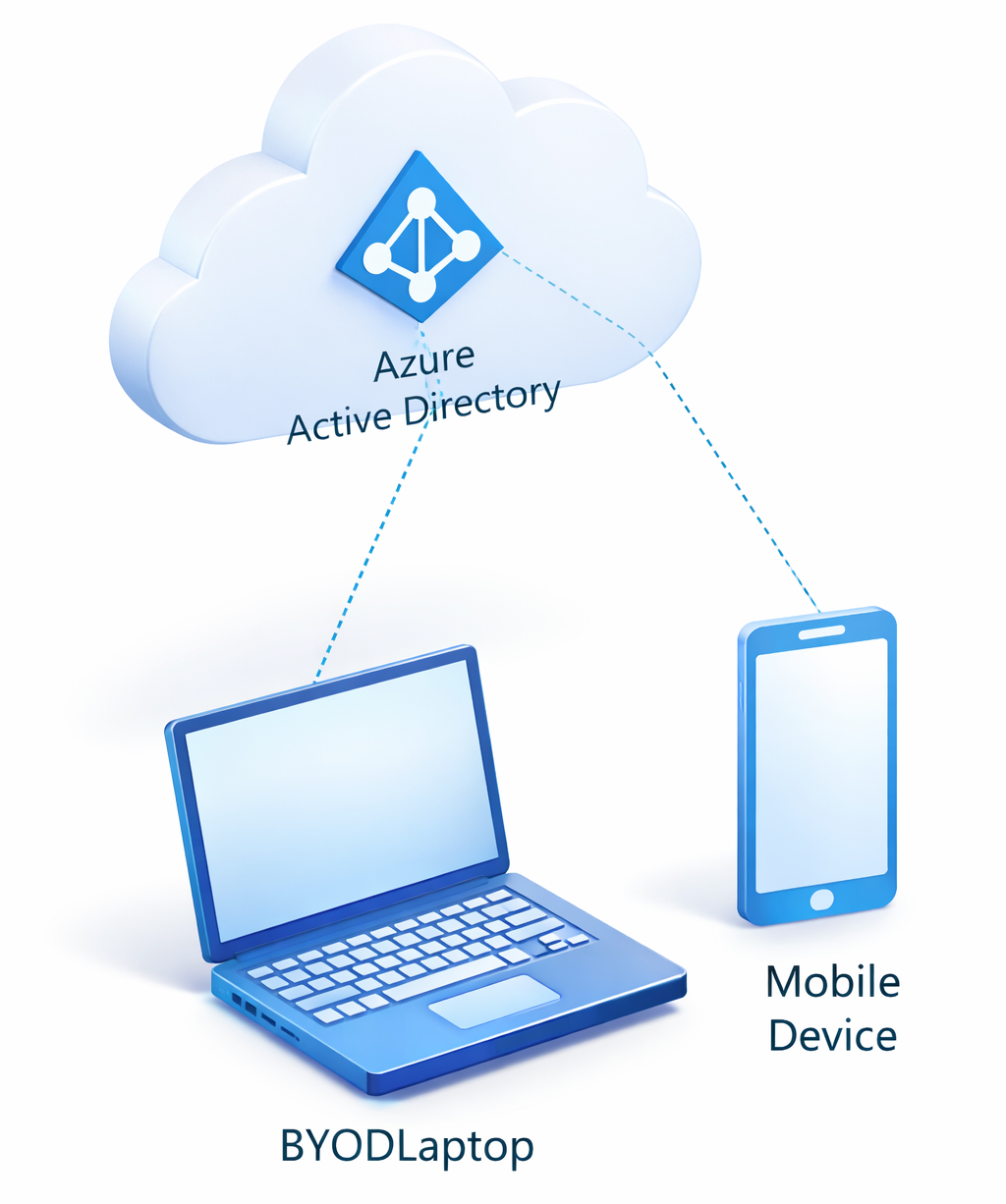
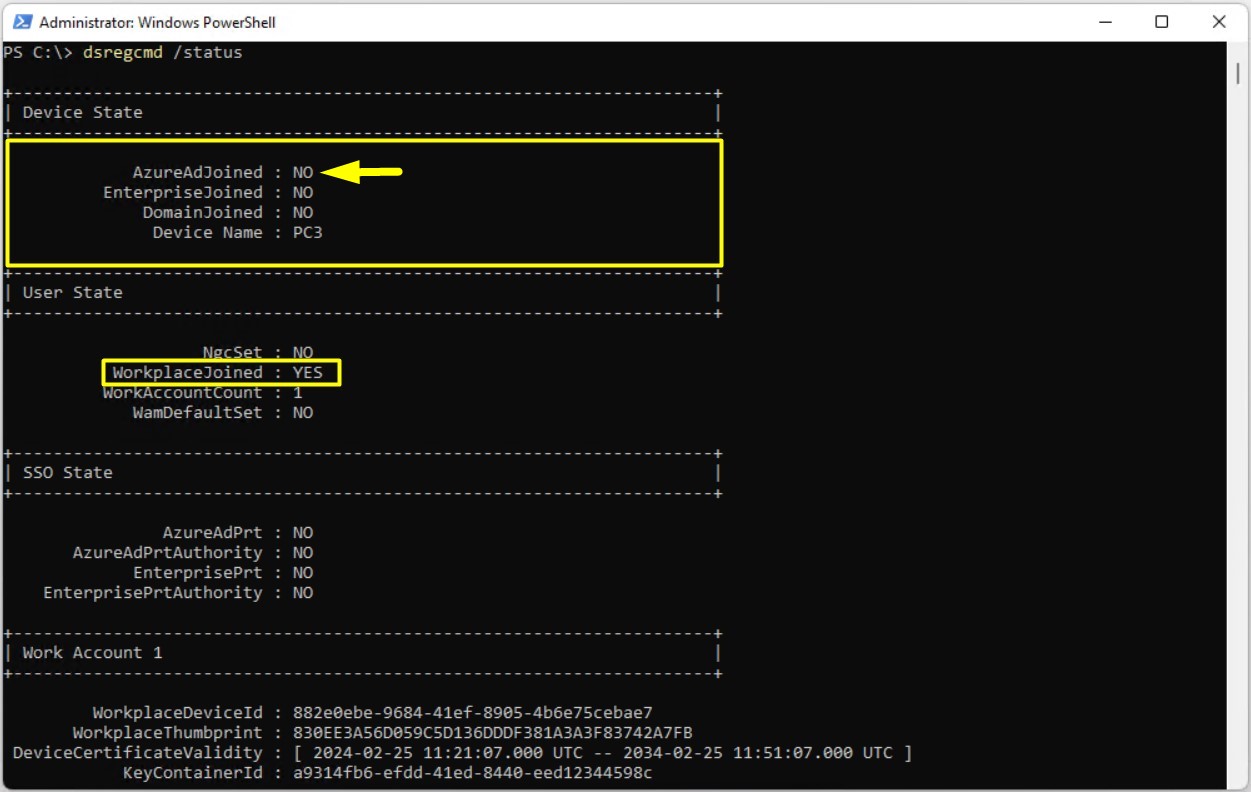
The dsregcmd /status command output shows clearly that the device is not part of any join model and is only in the registered state in Entra ID.
Device State:
➜ AzureAdJoined : NO
➜ EnterpriseJoined : NO
➜ DomainJoined : NO
All of these values are NO, which shows that this computer is not Entra ID joined, hybrid joined or classic domain joined. In other words, the device is not connected to a corporate directory at system level. Authentication of the device is not cloud-based or domain-based. It takes place entirely at the level of the local operating system.
User State:
➜ WorkplaceJoined : YES
➜ WorkAccountCount : 1
These values show that a work or school account has been added to the device and that the device exists in Entra ID only as registered. In this scenario, Entra ID does not create a computer object for the device and recognises only the user identity; the computer is a client on which the user authenticates with Entra ID. For this reason, the device is not managed as a corporate asset, and the trust relationship is user-based, not device-based.
The user accesses applications and resources protected by Entra ID from this personal or independent device. Conditional Access, MFA and Intune policies are applied at user and application level, but the device is not fully managed at system level like an Entra ID joined machine.
SSO State:
➜ AzureAdPrt: NO
➜ EnterprisePrt: NO
It is also expected that these values are NO, because a Primary Refresh Token (PRT) is issued only on Entra ID joined or hybrid joined devices. On registered devices, no continuous token is issued at system level, and authentication is session-based.
In summary, this output shows a classic BYOD scenario. The device is personal or independent, the operating system is not connected to the organisation, but the user account is registered with Entra ID and can access corporate resources in a controlled way.
Device Characteristics and Policy Application
✔ The user account used for the user session on the device is only a local user account.
✔ The Entra ID account is used to sign in to Entra ID to access cloud-based services.
✔ If the user signs in to a domain environment on the device, on-premises Active Directory GPOs apply.
✔ As long as the device is not joined to on-premises Active Directory, in other words is not a workgroup member, there is no GPO application restriction.
✔ Intune management features are available to a limited extent, with the user's consent. Devices are treated as personal devices enrolled in Intune.
✔ If the device is joined to on-premises Active Directory, device account policies are inherited from on-premises Active Directory.
✔ If the device is joined to on-premises Active Directory, user account policies are inherited from on-premises Active Directory.
✔ The device can also be managed by SCCM. However, the device must be joined to on-premises Active Directory for this, and the SCCM agent and device enrolment are required.
✔ A limited Conditional Access policy is available for Microsoft Entra registered devices. For this, the device must be enrolled in Intune.
✔ If the device is enrolled in Intune successfully, a limited number of Intune device compliance policies and security rules are applied, with the user's consent.
✔ SSO-enabled single sign-on is used for access to cloud resources.
The hybrid joined, Entra joined and Entra registered device models that Microsoft Entra offers represent a modern approach that places device identities, as well as user identities, at the centre of security. With these models, there is a clear framework for how devices are managed, which security policies they are subject to, and which corporate resources they can access under which conditions. When a secure infrastructure is designed today, the identity of the device is at least as decisive as the user account.
The hybrid joined structure connects on-premises Active Directory and Entra ID, and it is a strong model for organisations that want to keep the traditional AD infrastructure and also benefit from cloud-based authentication and security mechanisms. The most important advantage of this structure is the ability to use modern authentication methods and Entra ID-based security controls without losing existing management practices such as Group Policy. This allows control and flexibility to be maintained at the same time during the transition.
Entra joined devices represent a fully cloud-centric management approach. The device joins Entra ID directly, and all authentication, policy management and security processes run in the cloud. When it is used with Intune, central device management, compliance policies and access controls become simpler and more integrated. The Entra joined model offers a simpler and more manageable structure, especially in new-generation, cloud-first architectures.
Entra registered devices mainly target user-based access scenarios. The device is not under corporate management, but the user can access corporate applications securely with an Entra ID identity. This model is preferred in BYOD scenarios or in organisations that need controlled access from personal devices.
Understanding the differences between these 3 models correctly is critical for a good balance between device management, security policies and user experience. When they are integrated with Conditional Access, Intune and similar management tools, device compliance and access security become much stronger. Choosing the right model makes it possible to keep security strict and also give users a problem-free authentication and access experience.
I hope you find it useful...
Feel free to share your thoughts and questions about this article in the comments below. Every contribution helps the content reach more people and makes for a more useful discussion.