System administrators who build hybrid identity architectures know one behaviour well. A user signs in to a domain-joined Windows client and then opens cloud services such as Outlook on the web, SharePoint Online or OneDrive for Business in the browser, and the sign-in completes without any credentials being entered. The component that provides this transparent experience is Microsoft Entra Seamless Single Sign-On (Seamless SSO), and it is one of the most frequently misplaced components in the Microsoft Entra ID ecosystem.
Seamless SSO is a Kerberos-based authentication mechanism that uses the existing Kerberos session on the domain-joined device as proof of identity to Microsoft Entra ID. Microsoft Learn describes this mechanism as "Opportunistic". This means that Seamless SSO is used in every scenario where it can work and verifies the user's identity directly from the Kerberos ticket. In scenarios where it cannot work, the flow falls back to the active sign-in method of the tenant (PHS or PTA).
The most common conceptual mistake is the assumption that Seamless SSO works in parallel with Password Hash Synchronization (PHS) or Pass-through Authentication (PTA). In fact, when Seamless SSO is used, the user's identity is verified directly from the Kerberos ticket, and neither PHS nor PTA performs any password validation.
PHS and PTA work as the fallback authentication method only in scenarios where Seamless SSO cannot be used. These scenarios include a device that is not domain-joined, a user who is outside the corporate network and cannot send a Kerberos request to a domain controller, a browser that does not support Integrated Windows Authentication (IWA) or is not configured for it, and a user who explicitly enters a user name and password. Seamless SSO and PHS/PTA are therefore not 2 layers that work in parallel. They are 2 separate authentication paths that are evaluated in sequence.
In Turkish-language sources, 2 points about the relationship between Seamless SSO and PHS/PTA are often explained in a misleading way. The first is which method is used by default. The second is whether an automatic failover takes place between PHS and PTA when the active method fails. In practice, most of the answers given do not match the actual protocol flow that Microsoft documents. Microsoft states this point clearly in the Pass-through Authentication FAQ documentation. There is no automatic failover from PTA to PHS. Changing the method is a manual operation that is performed only at tenant level with the Hybrid Identity Administrator role.
At the centre of the mechanism is a special computer account named AZUREADSSOACC, which is created automatically in on-premises Active Directory during the Microsoft Entra Connect installation. This account holds the Kerberos decryption key that is used in Kerberos authentication. The key is generated during installation, transferred securely to the Microsoft Entra ID tenant, and from then on it is the hidden foundation of user authentication. For security reasons, Microsoft recommends that this key is rolled over manually at least every 30 days (key rollover); there is no automatic rollover mechanism for Seamless SSO. For this reason, the AZUREADSSOACC account must be treated as one of the Tier 0 (control plane) assets of the environment and hardened accordingly.
The scope of Seamless SSO must also be understood correctly for a modern endpoint strategy. Seamless SSO is designed mainly for domain-joined Windows 7 and Windows 8.1 clients. For Microsoft Entra joined or Microsoft Entra hybrid joined devices that run Windows 10, Windows 11 and Windows Server 2016 or later, Microsoft recommends SSO based on the Primary Refresh Token (PRT) instead of Kerberos-based Seamless SSO. Microsoft Learn also clarifies the following. If both Microsoft Entra join and Seamless SSO are enabled, SSO through Entra join takes precedence over Seamless SSO. Seamless SSO is therefore a layer whose scope is becoming narrower in modern client environments, but it is still actively used in a significant part of hybrid scenarios.
This article covers, in technical detail, the architecture of Seamless SSO, its Kerberos-based working principle, how it is positioned together with PHS and PTA, the role of the AZUREADSSOACC account, Kerberos decryption key rollover operations, client-side GPO requirements and its relationship with PRT-based SSO on modern Windows clients.
Seamless SSO Is Not a Sign-In Method in the Wizard
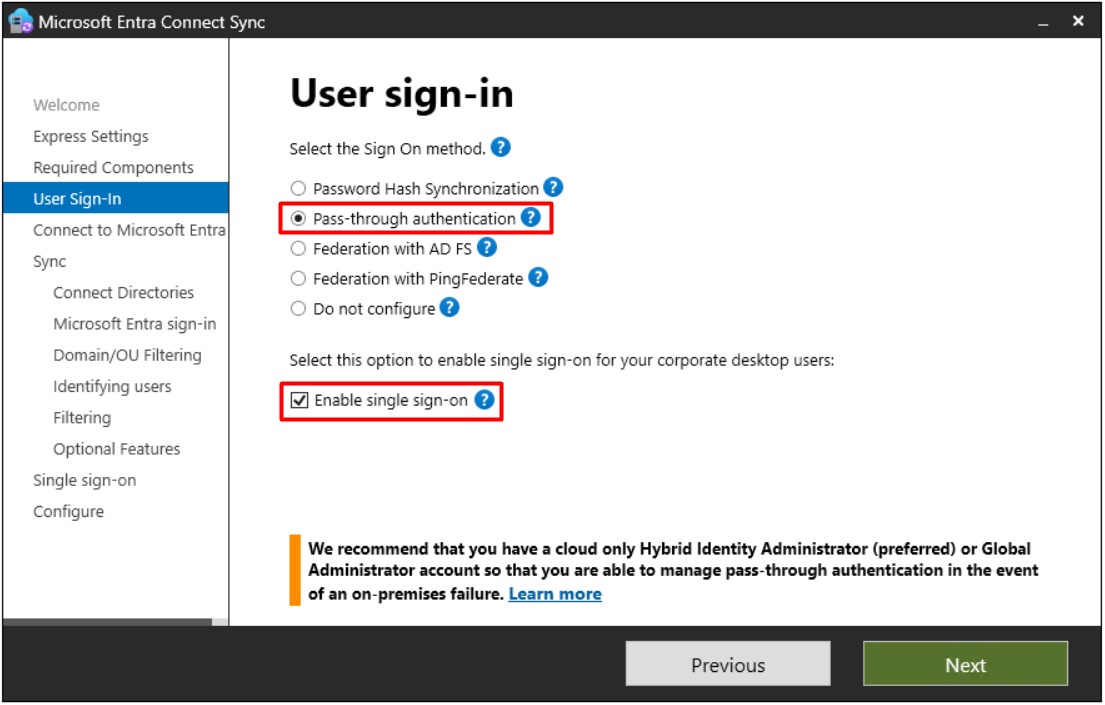
The first point to understand about Seamless SSO is that the Microsoft Entra Connect installation wizard does not present it as a sign-in method such as PHS, PTA or Federation. The options shown in the User Sign-In step of the wizard, Password Hash Synchronization, Pass-through Authentication, Federation with AD FS, Federation with PingFederate and Do not configure, are the sign-in methods that determine where and how the user's password is validated. In a tenant, only 1 of these methods works as the active sign-in method, except for temporary test scenarios with Staged Rollout.
Seamless SSO is not part of this list. It is a separate checkbox under the Enable single sign-on heading on the same wizard page, and it works completely independently of the sign-in method selection. For this reason, Seamless SSO can be enabled with PHS, with PTA, and also when both are configured together (PTA primary + PHS backup).
In terms of architecture, Seamless SSO is an authentication layer that is used in scenarios where the user already has an active Kerberos Ticket-Granting Ticket (TGT) on a domain-joined device, and it verifies the user's identity from the Kerberos ticket to Microsoft Entra ID. Microsoft's own documentation states clearly that Entra ID decrypts the Kerberos ticket, verifies the user's identity and completes the sign-in. Seamless SSO is therefore technically an authentication mechanism, but it is not a password-based mechanism like PHS or PTA. Because the user does not enter a password, the silent sign-in experience on the screen is the visible result of the Kerberos-based authentication that takes place in the background.
AZUREADSSOACC Computer Account, the Core of Seamless SSO
To understand how Seamless SSO works, it is first necessary to describe a special computer account named AZUREADSSOACC. When the Enable single sign-on option is selected during the Entra Connect Sync installation, the wizard automatically creates a computer account named AZUREADSSOACC in on-premises Active Directory for each AD forest that is synchronised. If more than 1 forest is synchronised, each forest gets its own AZUREADSSOACC account with its own unique Kerberos decryption key.
The name of this account is fixed by Microsoft and has the following meaning:
✔ AZUREAD → Azure Active Directory (now named Microsoft Entra ID)
✔ SSO → Single Sign-On
✔ ACC → Account
This account is the representative of Entra ID inside on-premises AD. In the Kerberos infrastructure it is an ordinary computer account, but it has a special purpose. Entra ID decrypts the Kerberos service tickets that it receives with the Kerberos encryption key of this account.
How the AZUREADSSOACC Key Works
Like every account in AD, AZUREADSSOACC has a password, and a Kerberos encryption key is derived from this password. According to the Microsoft Learn documentation, Seamless SSO supports the AES256_HMAC_SHA1, AES128_HMAC_SHA1 and RC4_HMAC_MD5 encryption types. Microsoft strongly recommends AES256_HMAC_SHA1. The encryption type is stored in the msDS-SupportedEncryptionTypes attribute of the account.
The operational behaviour of this key is as follows:
✔ It is generated during installation and does not change until the next key rollover.
✔ Immediately after it is generated, it is transferred securely to the Microsoft Entra ID tenant and stored in the cloud.
✔ It is not regenerated or changed for each user access.
✔ It is the same for all users, because the key belongs to the AZUREADSSOACC account, not to the user.
👉 QUESTION: "If the key is the same for all users, how is the user identified?"
👉 ANSWER: The user's identity is determined not from the key that encrypts the service ticket, but from the encrypted information inside the ticket. The key only opens the envelope. The information "this person is this user" is written inside it. In more technical terms, Microsoft Entra ID uses the securityIdentifier claim in the Kerberos ticket to match the user in the cloud.
The 30-Day Key Rollover Recommendation
Microsoft recommends that the Kerberos decryption key of the AZUREADSSOACC computer account is rolled over manually at least every 30 days. This operation is not automatic and is performed on the Entra Connect server with the Update-AzureADSSOForest cmdlet of the AzureADSSO PowerShell module. The operation requires both Domain Admin and Hybrid Identity Administrator permissions. If the account that runs the rollover is not a Domain Admin and has been specifically delegated to manage the AZUREADSSOACC account, the cmdlet must be run with the -PreserveCustomPermissionsOnDesktopSsoAccount parameter. This parameter preserves the custom ACL entries on the account. Otherwise, the cmdlet reapplies the default ACLs and the delegation model of the organisation can break.
Another technical point during rollover is the encryption type. If the AZUREADSSOACC account is configured as RC4_HMAC_MD5 and the aim is to move to AES256_HMAC_SHA1, the key rollover must be performed first. If the encryption type is changed directly, Seamless SSO stops working.
The AZUREADSSOACC account and the Entra Connect server that manages it must be treated as Tier 0 / control plane assets of the organisation and hardened accordingly. If the key of this account is compromised, an attacker can forge Kerberos service tickets for all Entra ID users in the organisation. For this reason, Microsoft requires that Kerberos delegation is disabled on the account and that no account other than Domain Admins has delegation permissions.
There is also a limit on rollover frequency. Active Directory keeps only the current and the previous key version of the AZUREADSSOACC account. If a second rollover is performed for the same forest within a short time, Entra ID cannot decrypt the tickets that are still in use and were encrypted with the old key, and Seamless SSO does not work until these tickets reach the end of their normal lifetime (up to 10 hours by default). The standard 30-day cycle prevents this problem.
Operational Warning: Do not run the Update-AzureADSSOForest cmdlet a second time for the same forest before the existing Kerberos tickets expire. Tickets encrypted with the old key cannot be opened, and Seamless SSO stops until the tickets are renewed.
Seamless SSO Flow, Kerberos Logic Step by Step
To understand how Seamless SSO works in the background, the 2 stages of the process, from the Windows sign-in to the access to the cloud service, must be examined separately.
Stage 1- Windows Sign-In (Standard Kerberos)
The user arrives at work, starts the domain-joined work computer and signs in to Windows with a user name and password. At this moment, the computer runs the standard Kerberos flow in the background.
✔ AS-REQ: A derived key is derived from the user's password. The timestamp is encrypted with this key and sent as cipher text to the domain controller (KDC).
✔ AS-REP: The KDC performs the validation and gives the user a session key and a Ticket-Granting Ticket (TGT).
The user is not aware of any of this. Only the Windows session has started. The process up to this point is not specific to Seamless SSO. The same standard Kerberos flow runs during sign-in on every domain-joined Windows device.
Stage 2- Access to the Cloud Service (Seamless SSO Takes Effect)
The user wants to access an application protected by Entra ID, such as Outlook on the web or SharePoint Online, from the browser. From this point, the Seamless SSO mechanism takes effect.
1- Redirection to the Entra ID Sign-In Page
The browser is redirected to the Entra ID sign-in endpoint. Entra ID detects that the user's device belongs to the managed domain of the organisation and redirects to https://autologon.microsoftazuread-sso.com. This URL must have been added to the Intranet zone of the browser through Group Policy.
2- Service Ticket Request
The user's work computer uses the TGT that it obtained in Stage 1 to request a Kerberos service ticket from the KDC (domain controller). This ticket is requested for the AZUREADSSOACC account.
3- AD Issues the Service Ticket
The KDC performs 3 operations in sequence.
✔ It prepares a Kerberos envelope and writes the information "this person is this user" inside it (together with the securityIdentifier claim).
✔ It encrypts (seals) this envelope with the Kerberos key of the AZUREADSSOACC account.
✔ It delivers the encrypted envelope to the user's computer.
4- The Ticket Is Forwarded to Entra ID
The user's computer cannot open this envelope, because it does not have the AZUREADSSOACC key. The computer forwards the envelope to Entra ID unchanged.
5- Entra ID Decrypts the Ticket
Entra ID decrypts the service ticket with the AZUREADSSOACC key that was copied to it during installation. It reads the securityIdentifier claim inside the ticket, matches the user with the user object on the cloud side and verifies the identity. It then issues an access token and delivers it to the application.
🎯 RESULT
The user has not entered a password anywhere. The user only signed in to Windows in the morning. The computer and Entra ID completed the rest between themselves.
The Only Difference Between Standard Kerberos and Seamless SSO
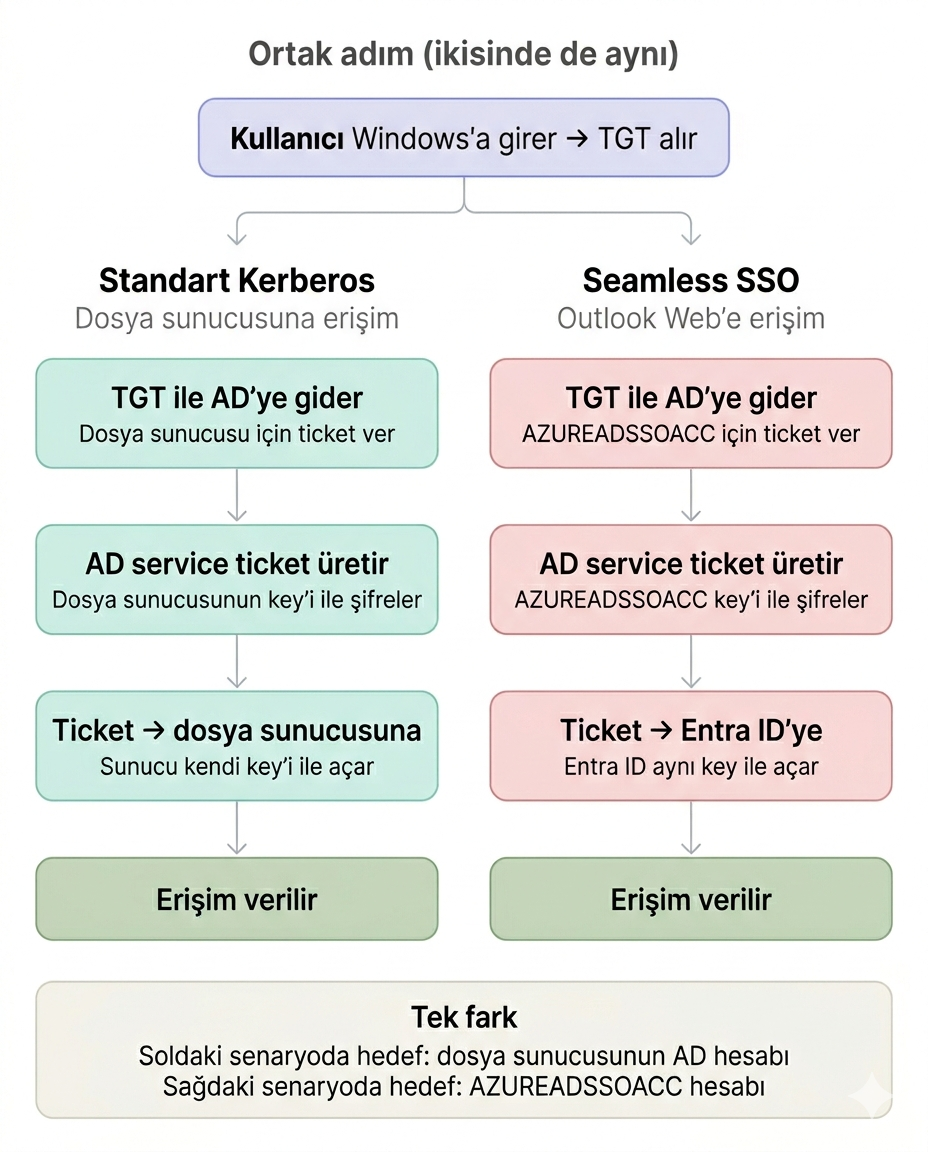
In the standard Kerberos flow, when the user wants to access a file server, the user uses the TGT to obtain a service ticket for the AD account of the file server and presents this ticket to the file server. In Seamless SSO, when the user wants to access a cloud service, the user uses the same TGT to obtain a service ticket for the AZUREADSSOACC account and presents this ticket to Microsoft Entra ID.
The mechanism is exactly the same. The only difference is who the ticket is addressed to (target SPN) and who it is presented to. In Microsoft's own words, "Seamless SSO works the same way as any other sign-in that uses Integrated Windows Authentication (IWA)."
On Which Devices Does Seamless SSO Work, and on Which Does It Not?
The scope of Seamless SSO depends directly on the AD join state of the device, because the mechanism is entirely Kerberos-based and the device must be domain-joined to on-premises Active Directory to obtain a Kerberos TGT.
|
Device Type |
SSO Mechanism |
Description |
|
Domain-joined (Windows 7 / 8.1) |
Seamless SSO with Kerberos TGT |
The SSO method that Microsoft recommends for this device class. |
|
Domain-joined (Windows 10 / 11) |
Seamless SSO with Kerberos TGT |
Still used if hybrid join has not been performed. |
|
Entra hybrid joined (Windows 10 / 11) |
SSO with PRT |
The modern method that Microsoft recommends.
If both PRT and Seamless SSO are enabled, PRT takes precedence. |
|
Entra joined (Windows 10 / 11) |
SSO with PRT |
Cloud-based modern SSO. |
|
Entra registered |
SSO with PRT |
In BYOD scenarios. |
|
iOS / Android / macOS |
SSO with PRT (by using Add Work or School Account) |
Seamless SSO does not work because a Kerberos TGT cannot be obtained. |
An Important Distinction for Entra Hybrid Joined and Entra Joined Devices
Microsoft Entra hybrid joined devices are joined to both on-premises AD and Entra ID. Because they are joined to on-premises AD, they can obtain a Kerberos TGT, and Seamless SSO can technically work. However, on modern Windows 10/11 hybrid joined devices, Microsoft recommends the Primary Refresh Token (PRT) mechanism and defines the precedence rule directly in its official documentation. When both PRT and Seamless SSO are enabled on a device, PRT-based SSO through Microsoft Entra join always takes precedence over Seamless SSO.
Microsoft Entra joined (cloud joined) devices are joined only to Entra ID. They have no relationship with on-premises AD. On these devices a Kerberos TGT cannot be obtained from AD, so Seamless SSO does not work either. However, this is not a deficiency, because cloud joined devices do not need Seamless SSO. These devices sign in directly with the Entra ID identity during Windows sign-in and obtain a PRT (Primary Refresh Token). The PRT is the cloud equivalent of the TGT. The user signs in once and then accesses cloud services without entering a password.
Scenarios in Which Seamless SSO Does Not Work
Microsoft describes Seamless SSO as an opportunistic feature. In the following cases it cannot be used, and the flow falls back to asking the user for a password.
✔ Access from non-domain-joined devices (personal computer, phone, BYOD).
✔ Access from an external network (outside the corporate network). Because a Kerberos request cannot be sent to a domain controller.
✔ Time skew. When the time difference between the device and the domain controller exceeds 5 minutes.
✔ A browser that does not support IWA or is not configured for it. Default browsers on macOS and Linux, or clients on which the GPOs have not been applied.
✔ Internet Explorer Enhanced Protected Mode. Microsoft Learn states clearly that Seamless SSO does not work when EPM is turned on.
✔ Legacy protocols that do not use Modern Authentication (legacy protocols such as POP and IMAP with Basic Auth).
Because Seamless SSO does not work in any of these cases, the flow falls back to the active sign-in method of the tenant (PHS or PTA), and password-based validation takes place through this method.
MFA enforced by Conditional Access is not included in this list. Seamless SSO satisfies only the first factor (a Kerberos ticket instead of a user name and password). If the policy requires MFA, the user does not enter a password but must complete the MFA factor (Authenticator approval, FIDO2 and so on). A prompt therefore appears on the screen; this prompt does not mean that Seamless SSO has failed.
InPrivate / Incognito Mode: Chromium-based browsers do not send the Kerberos ticket in private mode by default; the AmbientAuthenticationInPrivateModesEnabled policy is required. In Microsoft Edge this permission is turned on by default. The details are in the Private Mode section below.
Mandatory GPO Configuration for Domain-Joined Devices
Selecting the Enable single sign-on option in the Entra Connect Sync wizard and creating the AZUREADSSOACC computer account in on-premises Active Directory are not sufficient on their own to make Seamless SSO ready to work. These steps complete only the server-side configuration. For the mechanism to take effect on the client side, the browser on the user devices must be configured correctly through 2 Group Policy settings. The Registry Item Group Policy Preference, which is covered in this section as a third method, is an alternative to the first setting and not an additional requirement.
With these settings, the browser can send the Kerberos service ticket automatically to the autologon.microsoftazuread-sso.com endpoint. Otherwise, the Kerberos ticket is not sent to an endpoint that is outside the Intranet zone, and the user is asked for a password again.
Policy or Group Policy Preference?
There are 2 ways documented on Microsoft Learn to add the autologon.microsoftazuread-sso.com address to the Intranet zone. Both produce the same result, but they work differently and leave a different level of control to the user. The following table summarises this difference.
|
Criterion |
Site to Zone Assignment List (Policy) |
Registry Item (Group Policy Preference) |
|
Location in the GPO |
User Configuration > Policies |
User Configuration > Preferences |
|
Location written in the registry |
HKCU\Software\Policies\Microsoft\Windows\CurrentVersion\Internet Settings\ZoneMapKey |
HKCU\Software\Microsoft\Windows\CurrentVersion\Internet Settings\ZoneMap\Domains |
|
Can the user change it? |
No. The Internet Options > Security > Sites list is locked. |
Yes. The user can add entries to the list and remove entries from it. |
|
When the GPO is removed |
The setting is also removed. |
The registry entry remains in place (when Action: Update is used). |
|
When is it preferred? |
In all production environments where central and locked management is required. This is the method that Microsoft lists first. |
In special cases where users must also be able to manage the Intranet zone list themselves (developer and test teams, location-based internal applications). |
There is no technical restriction that prevents both methods from being defined in the same GPO; the GPO accepts both. However, as soon as the Site to Zone Assignment List policy is applied, Windows ignores the user-level ZoneMap entries. This means that while the policy is enabled, the registry entry written by the GPP remains in place but is never read. For this reason, defining both methods together has no benefit and only causes confusion. The example configuration in this article uses the policy method. The GPP step in section 3 is given to show how the alternative is configured, and it is not applied if step 1 has been applied.
Choose 1, do not use both together: If you use the policy, do not define the GPP entry; if you use the GPP, leave the policy as Not Configured. While the policy is enabled, the GPP entry is never read.
These GPO settings can be organised in a single GPO object in line with the corporate naming convention. In the following example, this object is created with the name Seamless-SSO-Configuration and linked to the Ist-All-Departments OU. Applying the settings under User Configuration matches exactly the configuration path given in the official Microsoft Learn documentation Quickstart: Microsoft Entra seamless single sign-on. Because the Registry Item GPP also uses the HKEY_CURRENT_USER hive, it is located under User Configuration as well; in this way all settings stay in the same configuration branch.
In corporate environments with a naming convention, this structure can also be split into more than 1 GPO object to separate scopes. However, when such a split is chosen, defining the same policy (for example Site to Zone Assignment List) in more than 1 GPO must be avoided. The reason is explained at the end of step 1 under the merge behaviour heading.
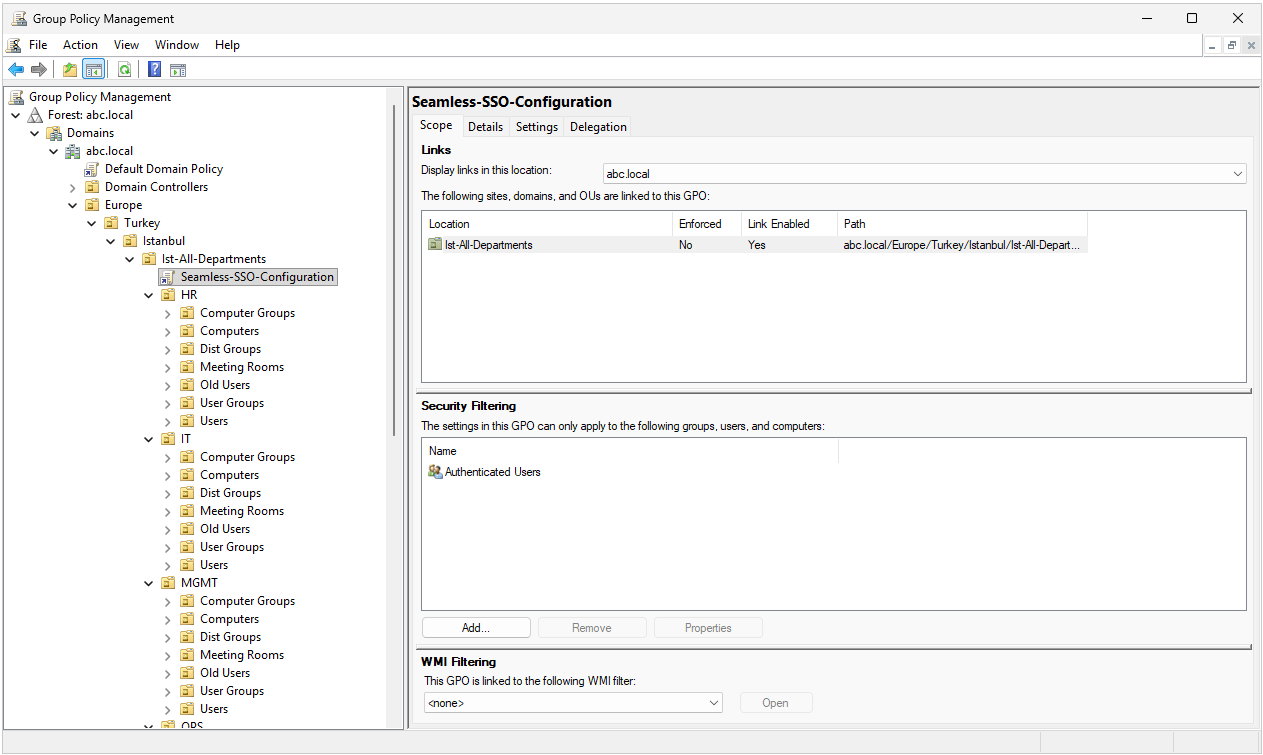
The Group Policy Management screen above shows that the Seamless-SSO-Configuration GPO object is linked to the Ist-All-Departments OU, that the Security Filtering area contains the default Authenticated Users group, and that the object is placed within the existing baseline GPO hierarchy of the organisation. After the GPO object is created and linked to the relevant OU, the next step is the 2 policy settings that must be defined in it and the Registry Item Group Policy Preference entry that is the alternative to the first of them. The following steps are applied in the order given in the official Microsoft Learn documentation.
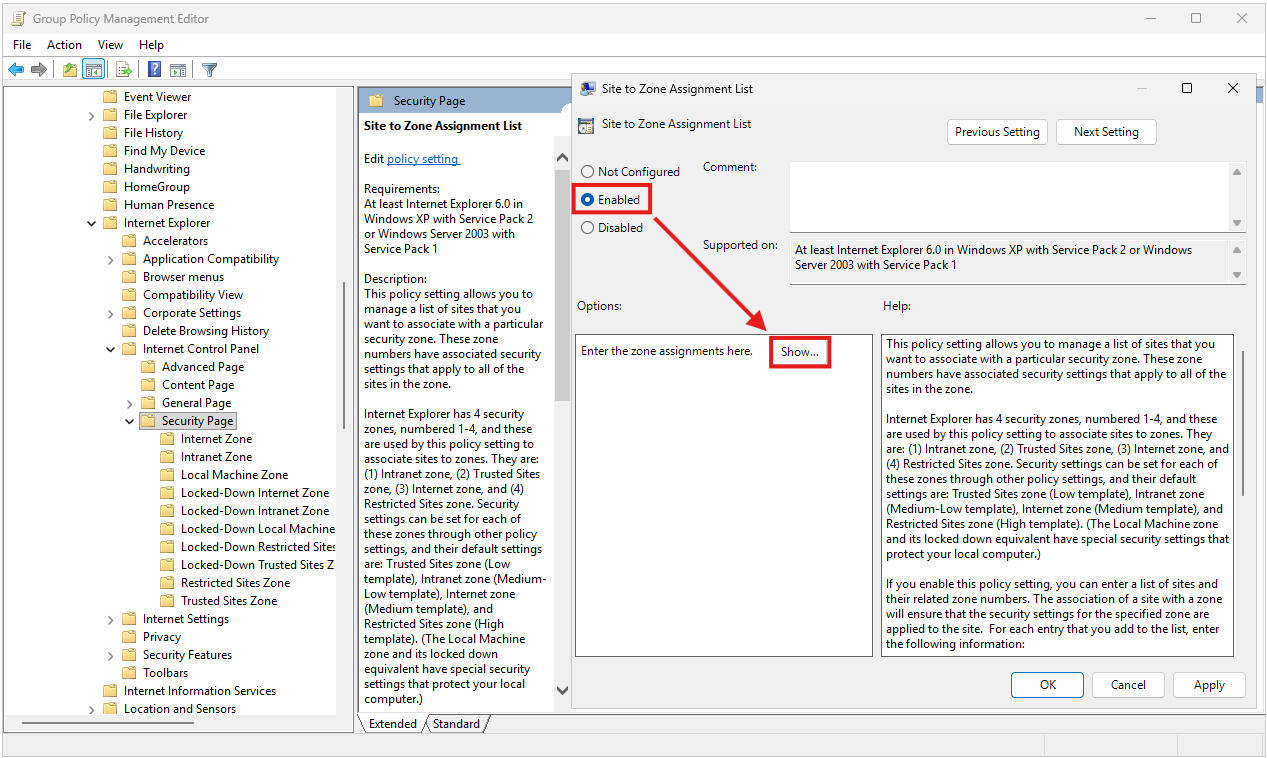
1- Site to Zone Assignment List Policy
This policy adds the autologon.microsoftazuread-sso.com URL to the Intranet zone of the browser. The configuration path is as follows.
User Configuration > Policies > Administrative Templates > Windows Components > Internet Explorer > Internet Control Panel > Security Page > Site to Zone Assignment List |
The policy is in the Not configured state by default.
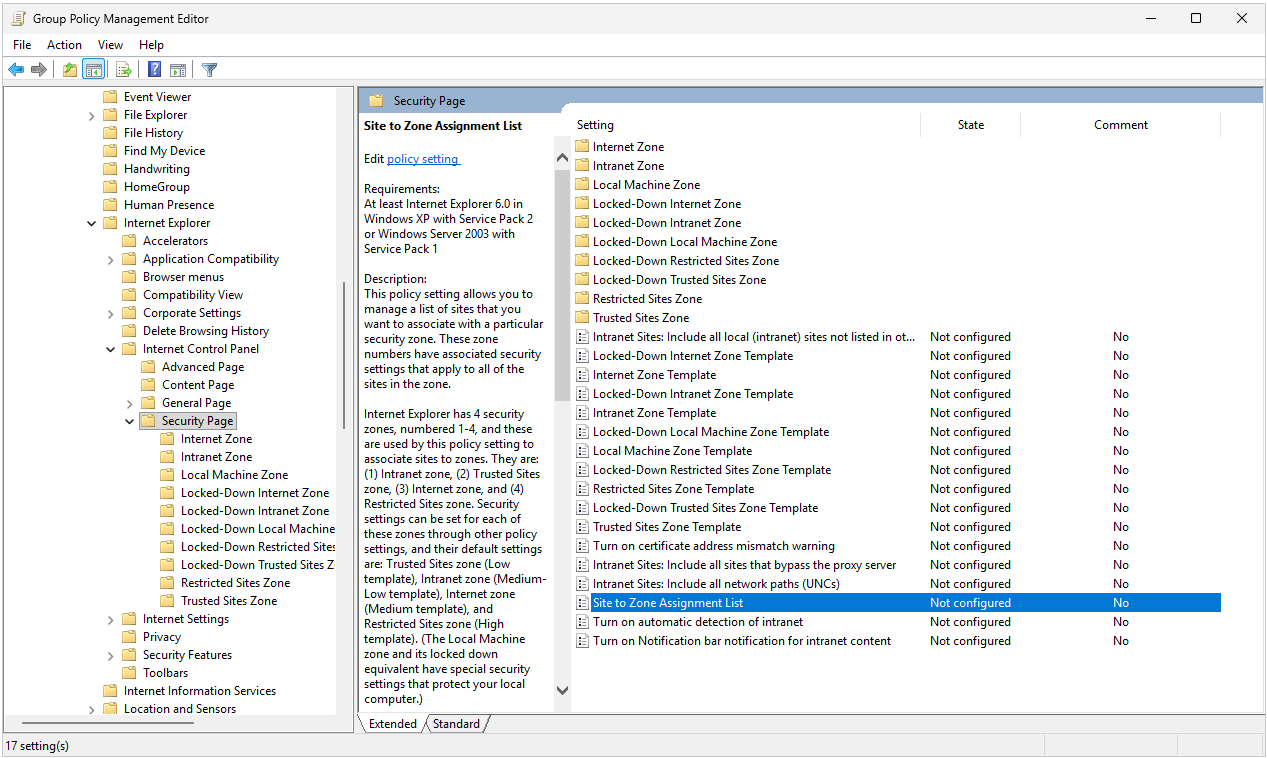
Double-click the policy, select the Enabled option in the window that opens and click the Show... button in the Options section.
In the Show Contents window that opens, the https://autologon.microsoftazuread-sso.com URL is entered in the Value name column, and the value 1, which represents the Intranet zone, is entered in the Value column.
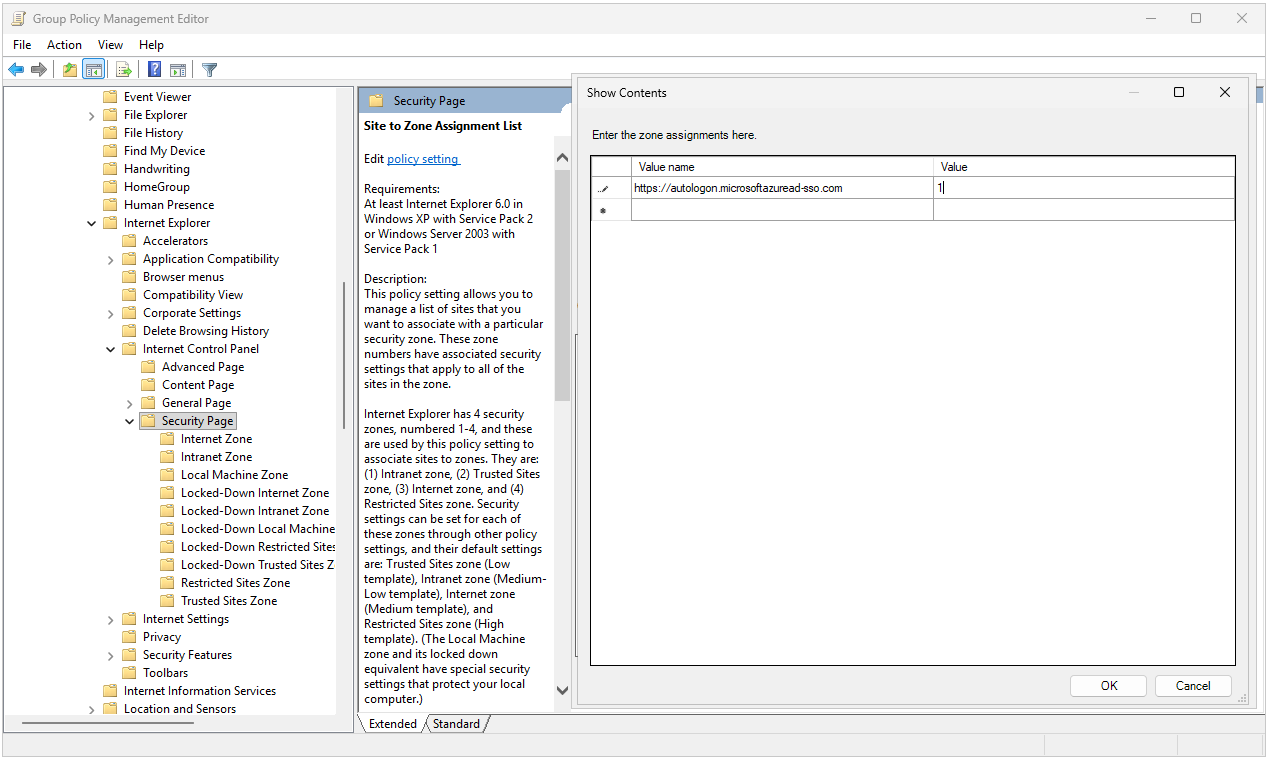
Value name : https://autologon.microsoftazuread-sso.com
Value      : 1
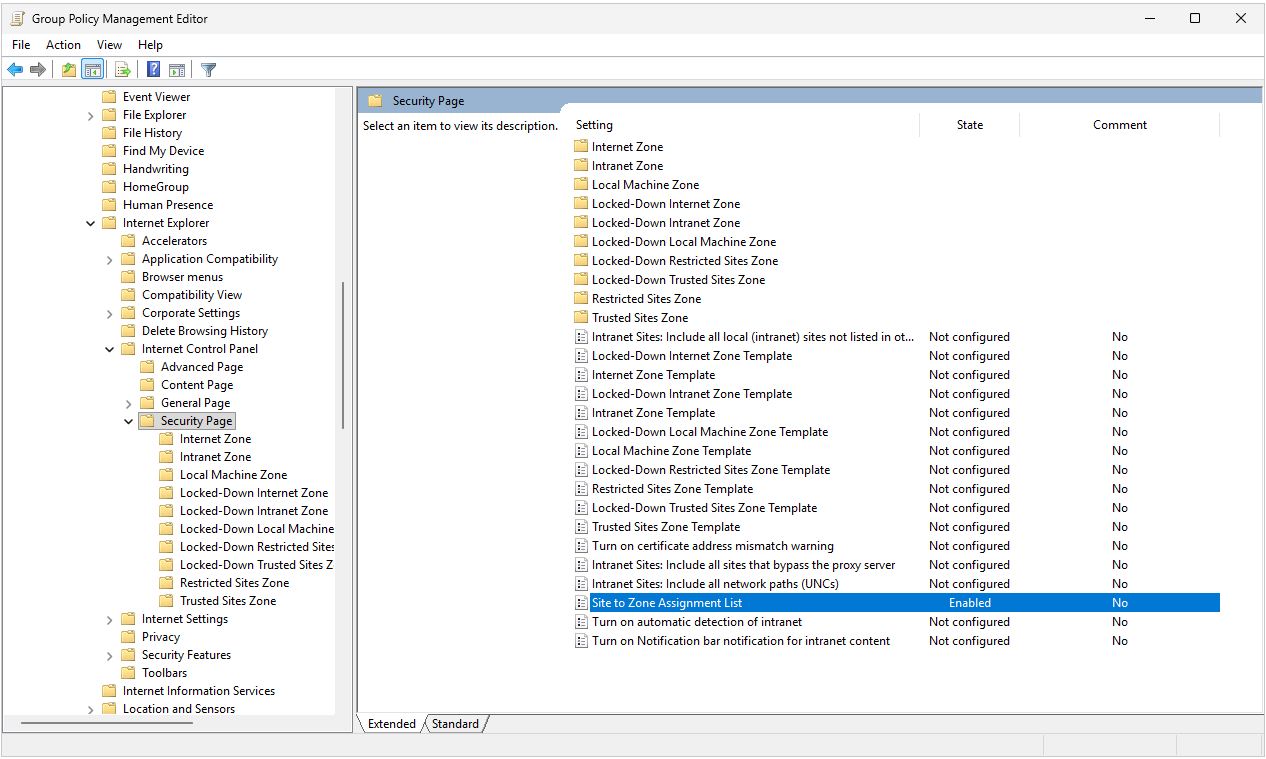
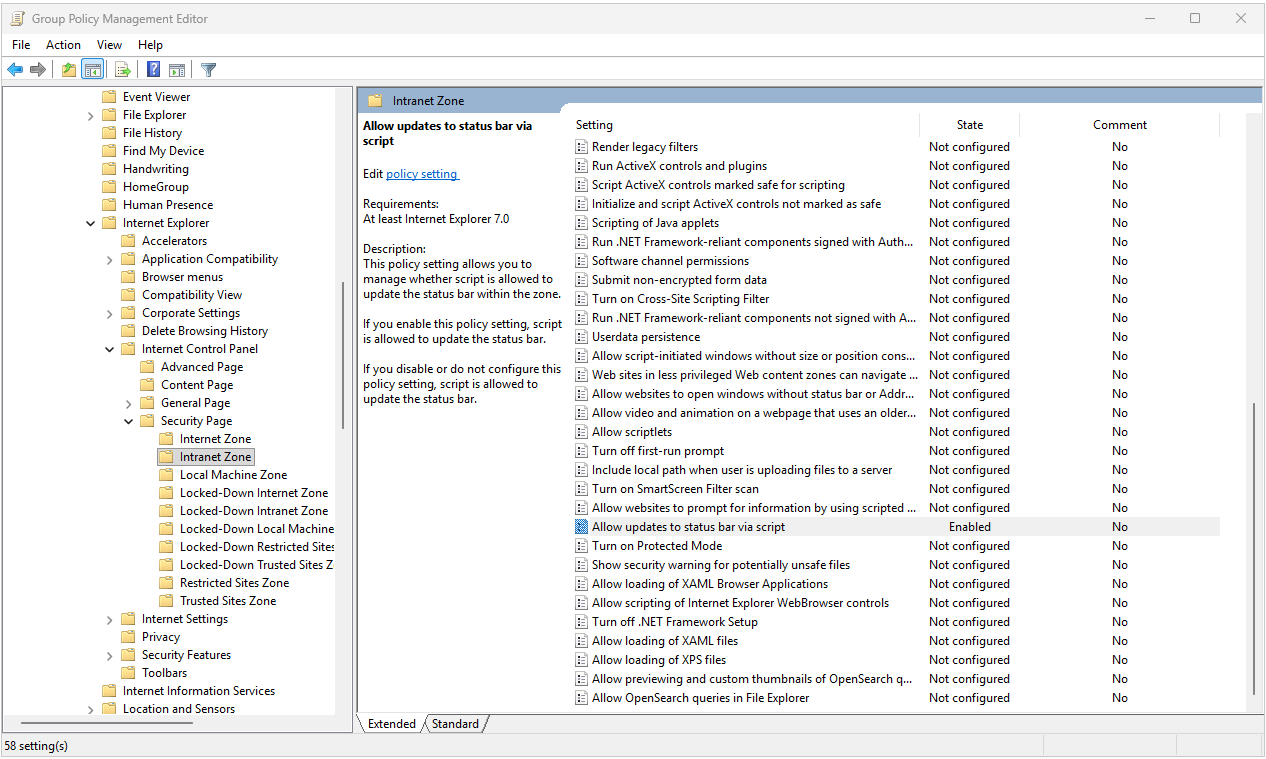
After the configuration is completed, the State column of the policy changes to Enabled.
The zone value is the point in this step where most mistakes are made. The Microsoft Learn documentation Troubleshoot Seamless single sign-on states clearly that adding the URL to the Trusted Sites zone (value 2) prevents users from signing in. Adding it to the Restricted zone (value 4) is used to block Seamless SSO deliberately; shared kiosk devices are an example.
Zone Value: The URL must be defined as Intranet zone (value 1). Trusted Sites (2) prevents sign-in, and Restricted (4) turns off Seamless SSO deliberately.
Another point that needs attention is the merge behaviour. The Site to Zone Assignment List policy does not merge between different GPOs. If the same policy is defined in 2 separate GPOs, the GPO with the highest priority in the GPO precedence order wins, and the URLs defined in the other GPO have no effect. For this reason, the Seamless SSO URL and the other Intranet/Trusted Sites definitions of the organisation must be collected in a single policy in the same GPO. This behaviour cannot be compensated for with the Registry Item Group Policy Preference described in step 3; while the policy is enabled, the GPP entry is not read. The only solution is to collect the zone assignments in a single GPO.
Merge Behaviour: The Site to Zone Assignment List does not merge between GPOs; the GPO with the highest precedence wins. Collect all zone assignments under a single policy in a single GPO.
2- Allow Updates to Status Bar via Script Policy
This policy is required for the JavaScript-based transparent authentication flow of Seamless SSO to work correctly. It allows the browser to accept script updates through the status bar in the Intranet zone. The configuration path is as follows.
User Configuration > Policies > Administrative Templates > Windows Components > Internet Explorer > Internet Control Panel > Security Page > Intranet Zone > Allow updates to status bar via script |
The policy is in the Not configured state by default.
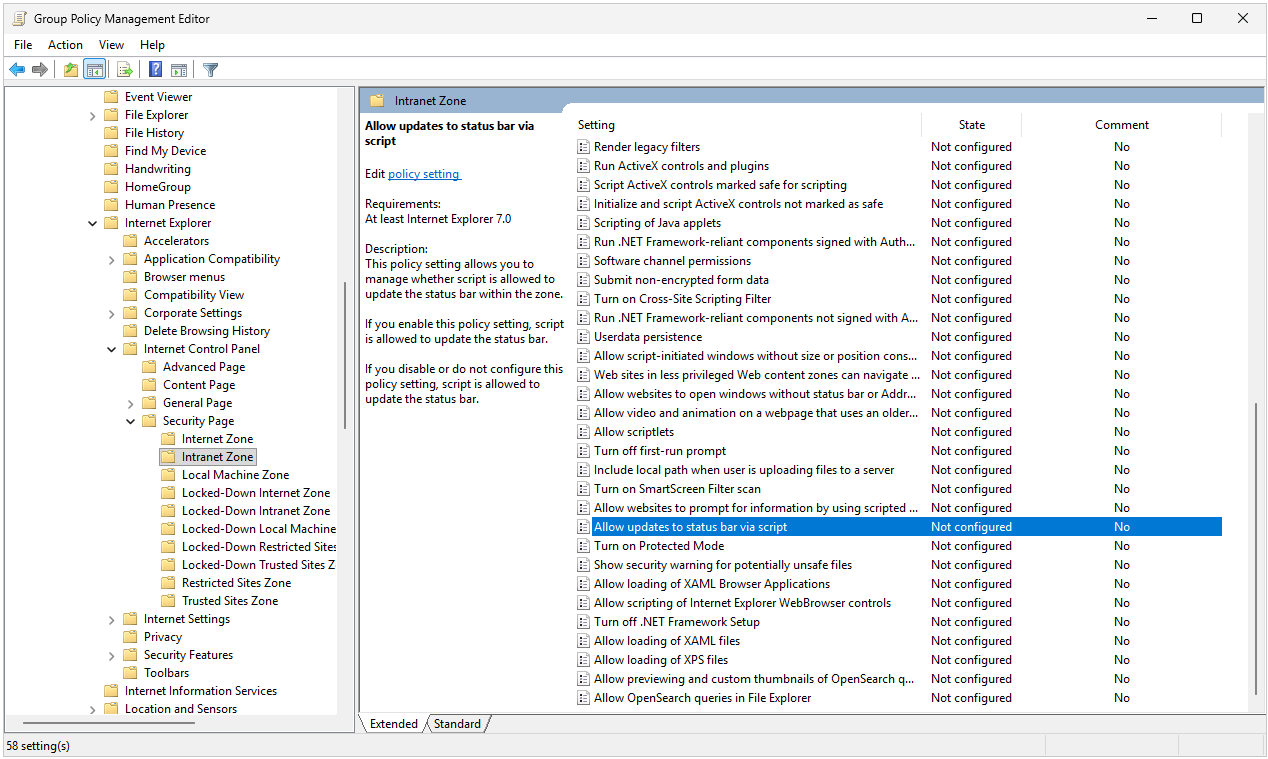
Double-click the policy, select the Enabled option in the window that opens and select Enable from the Status bar updates via script drop-down menu in the Options section.
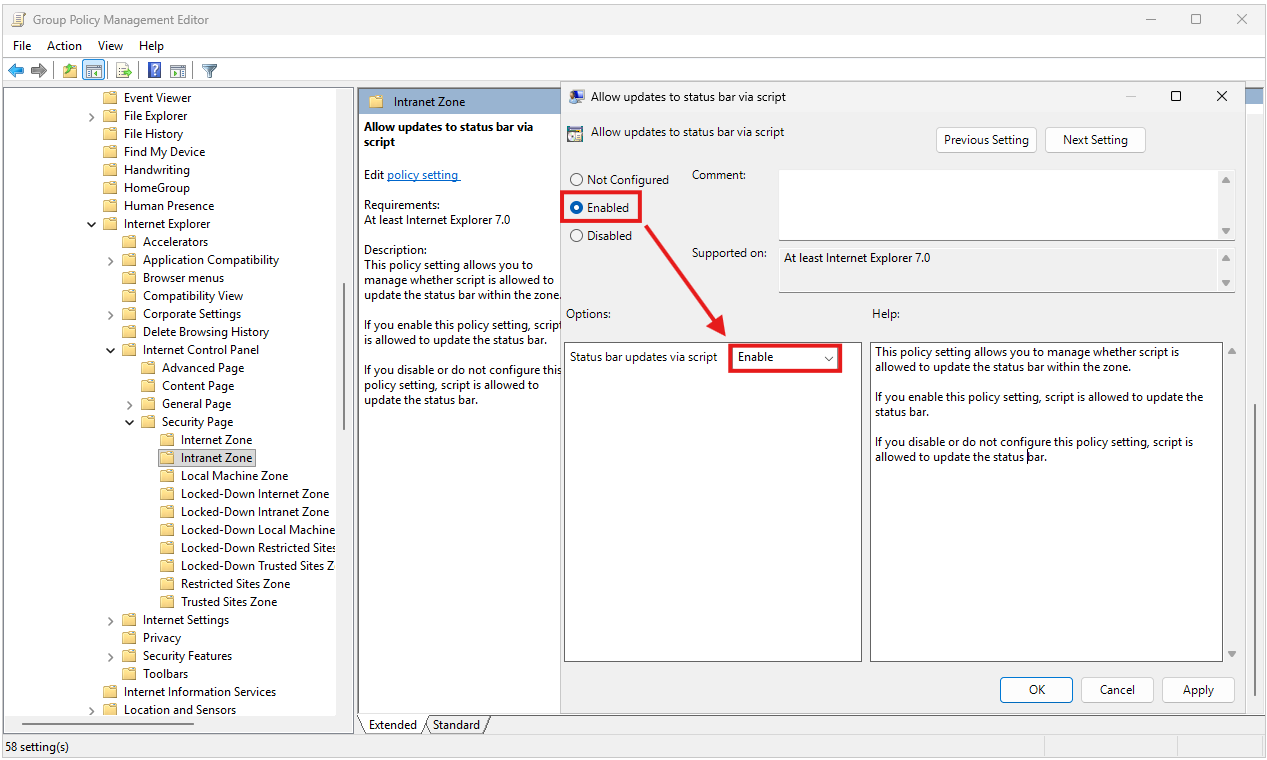
After the configuration is completed, the State column of the policy changes to Enabled.
3- Registry Item Group Policy Preference (GPP)
As an alternative to the Site to Zone Assignment List policy, Microsoft Learn also provides a registry-based entry through Group Policy Preferences. This method defines the Internet Explorer ZoneMap configuration directly under HKEY_CURRENT_USER and is preferred when users must also be able to edit the Intranet zone list themselves. It is not used together with the policy method, because when the Site to Zone Assignment List policy is applied, the user-level ZoneMap entries are ignored and the Sites list in Internet Options is locked for the user.
This step is the alternative to step 1. If you applied the Site to Zone Assignment List policy in step 1, do not apply this step. While the policy is enabled, this registry entry is not read.
The configuration path is as follows.
User Configuration > Preferences > Windows Settings > Registry > New > Registry Item |
The following values are defined in the New Registry Properties window that opens.
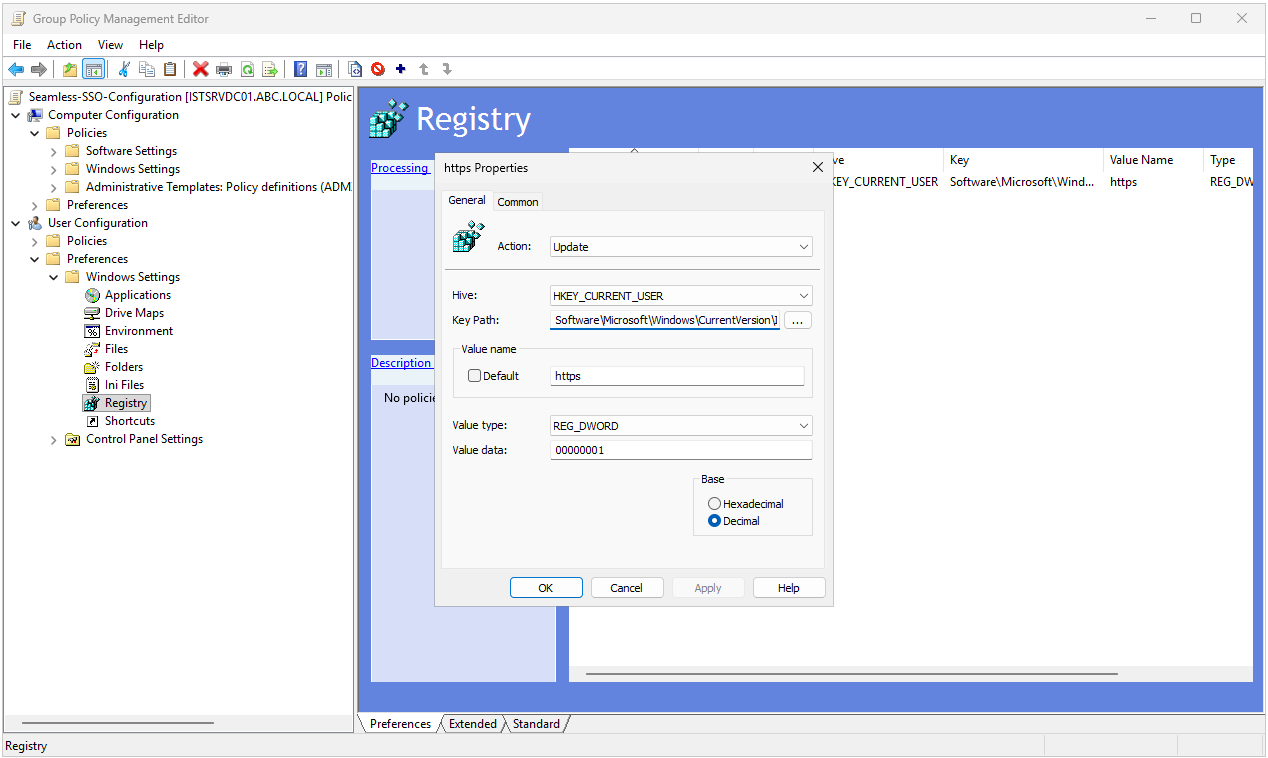
Action      : Update
Hive        : HKEY_CURRENT_USER
Key Path    : Software\Microsoft\Windows\CurrentVersion\Internet Settings\ZoneMap\Domains\microsoftazuread-sso.com\autologon
Value Name  : https
Value Type  : REG_DWORD
Value Data  : 00000001
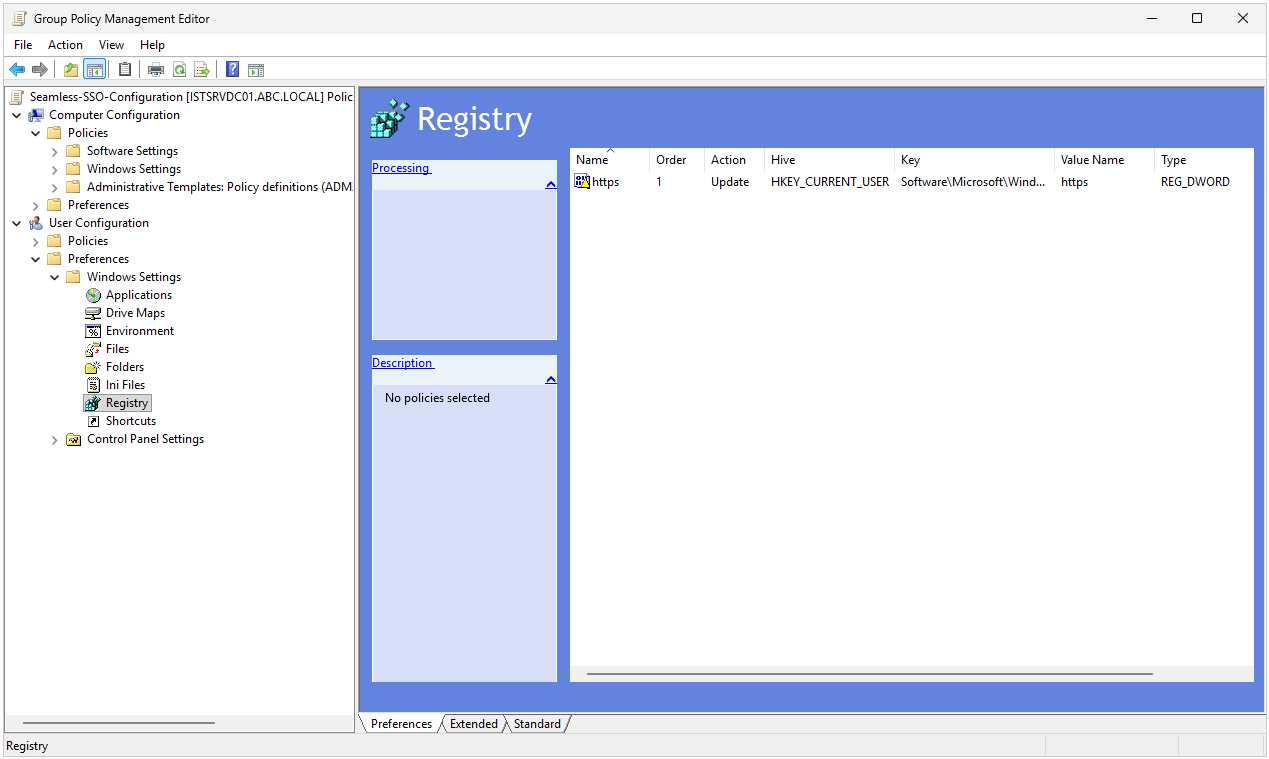
After the entry is created, the Registry Preference list is displayed as shown below. The Action column must show Update, the Hive column HKEY_CURRENT_USER and the Type column REG_DWORD.
Browser-Specific Configuration Notes
The Group Policy settings above apply to all browsers that read the Windows-level Internet Settings configuration. However, not every browser uses this setting in the same way, and some browsers need additional configuration.
Normal Window
|
Browser |
Is the GPO Sufficient? |
Additional Configuration |
|
Internet Explorer 11 |
✅ Yes |
Enhanced Protected Mode must be turned off. |
|
Microsoft Edge (Chromium) |
✅ Yes |
No additional configuration is required. |
|
Google Chrome (Windows) |
✅ Yes |
It uses Windows Internet Settings, no additional configuration is required. |
|
Google Chrome (macOS) |
❌ No |
The AuthServerAllowlist policy must be configured from Terminal or with MDM. |
|
Mozilla Firefox |
❌ No |
autologon.microsoftazuread-sso.com must be added to the network.negotiate-auth.trusted-uris value in about:config.
In a corporate environment it can be deployed with policies.json or the Firefox ADMX. |
Private Mode
To understand the private mode behaviour, the concept of ambient authentication must be explained first. Ambient authentication refers to the credentials that the browser sends automatically without asking the user for a password. These credentials can be of 3 types. Kerberos ticket, the service ticket produced from the TGT obtained from Active Directory. NTLM credentials, the hash sent automatically in the Integrated Windows Authentication flow. Client TLS certificates, the identity certificates that are in the user's certificate store and are presented automatically to the other party. The "silent sign-in" behaviour of Seamless SSO depends on the first of these mechanisms, the Kerberos ticket.
Chromium-based browsers (Google Chrome, Brave, Vivaldi and so on) block ambient authentication by default in their private/incognito modes. The reason is the privacy promise. When the user chooses private mode to browse without revealing an identity, automatic sending of credentials by the browser in the background makes this promise meaningless. For this reason, the Chromium team started to block ambient authentication in private mode by default around 2020.
Microsoft Edge is built on the same Chromium code base, but it allows ambient authentication by default in InPrivate and Guest profiles. This behaviour comes from the default value of the AmbientAuthenticationInPrivateModesEnabled policy of Edge, and it allows corporate users to sign in to Microsoft 365 without problems in an InPrivate window as well.
In corporate Seamless SSO scenarios, the default blocking in Chromium causes a problem, because employees must be able to access Microsoft 365 in Incognito mode as well. This behaviour can be configured with the AmbientAuthenticationInPrivateModesEnabled policy in line with the following table.
|
Browser |
Is the GPO Sufficient? |
Additional Configuration |
|
Microsoft Edge (Chromium) |
✅ Yes |
It works because of the default policy value, no additional configuration is required. |
|
Google Chrome (Windows) |
⚠️ Caution |
The AmbientAuthenticationInPrivateModesEnabled policy must be configured with the value 1 or 3. |
|
Google Chrome (macOS) |
⚠️ Caution |
In addition to the normal mode configuration, the AmbientAuthenticationInPrivateModesEnabled policy is required. |
|
Mozilla Firefox |
⚠️ Caution |
Firefox does not recognise the Chromium-based AmbientAuthenticationInPrivateModesEnabled policy.
Even if the normal mode configuration is kept, Firefox manages its own private mode behaviour separately. |
After the GPOs are applied, the gpupdate /force command is run on the client devices so that the configuration takes effect immediately. After the command is run, the browser must be closed and reopened, or the user must sign out and sign in again, so that the browser reads the settings.
Verifying the Configuration
To verify that the configuration has been applied successfully, the following steps can be followed on a domain-joined device.
✔ Internet Options check: On the Internet Options > Security tab, select the Local Intranet zone, click the Sites > Advanced button and verify that the https://autologon.microsoftazuread-sso.com URL is in the list.
✔ Browser test: From the domain-joined device, go to https://myapps.microsoft.com or https://outlook.office.com. If Seamless SSO is configured correctly, the user is asked for neither a user name nor a password. The sign-in completes silently.
✔ Kerberos ticket check: When the klist command is run at the command line, the output must include a service ticket for the HTTP/autologon.microsoftazuread-sso.com SPN. This is the proof that the Kerberos flow works correctly.
✔ Sign-in logs check: In Microsoft Entra admin center > Users > Sign-in logs, the sign-in records of the relevant user must contain an entry related to Seamless SSO in the Authentication Method Detail field.
When the client-side GPO configuration is skipped, the result is as follows. Even if everything is installed correctly on the server side, the AZUREADSSOACC account is created and the Entra ID tenant shows Seamless single sign-on: Enabled, users are still asked for a password when they access Entra ID from domain-joined devices. Because the browser does not send the Kerberos ticket to an endpoint outside the Intranet zone, Seamless SSO has no visible effect in practice. This is the most common problem in Seamless SSO configuration and the one that is most often diagnosed incorrectly in production environments.
If This Step Is Skipped: Even if Seamless SSO shows Enabled in the tenant, clients without the GPO configuration are still asked for a password. This is the Seamless SSO problem that is most often diagnosed incorrectly in production environments.
The Entra ID Sign-In Decision Flow, There Is Never a "Try Both"
One of the most common misunderstandings about Seamless SSO is the assumption that "if PHS and PTA are enabled together, Entra ID tries one first and falls back to the other if it fails". This is definitely wrong. The Microsoft Entra Pass-through Authentication FAQ documentation states it clearly. "Pass-through Authentication doesn't automatically failover to password hash synchronization."
When a sign-in request arrives, Entra ID runs the following deterministic decision flow.
Login request received (UPN: user@contoso.com, password)
    │
    ▼
Entra ID: what is the AuthenticationType of the contoso.com domain?
    │
    ├─ Federated  ─→  redirect to AD FS
    │
    └─ Managed    ─→  Continue
                       │
                       ▼
                   Is this user in Staged Rollout?
                       │
                       ├─ Yes, in the PHS group  ─→  PHS flow
                       │
                       ├─ Yes, in the PTA group  ─→  PTA flow
                       │
                       └─ No  ─→  Tenant default method
                                       │
                                       ├─ If PHS  ─→  PHS flow
                                       │
                                       └─ If PTA  ─→  PTA flow
At no point is there a "try both" or "if one fails, fall back to the other" logic. The tenant has a single active sign-in method, and password-based authentication always takes place through this method.
The Staged Rollout branch in the flow is not a permanent structure either. Microsoft Learn states it clearly. "Staged rollout is not designed to be a permanent configuration." Staged Rollout is a test and pilot mechanism designed for the move from federated authentication to cloud authentication. Validating different user groups through different methods in the same tenant is possible only in this temporary phase. A maximum of 10 groups can be used for each feature, and a newly added group can contain a maximum of 200 users initially. In Staged Rollout, Seamless SSO is applied when the user is in both the Seamless SSO group and the PHS or PTA group.
Staged Rollout: It is a temporary pilot mechanism, not a permanent architecture. The limits are a maximum of 10 groups per feature and a maximum of 200 users initially in a new group.
What Happens When PHS and PTA Are Selected Together?
In the Entra Connect Sync installation wizard, after PTA is selected in the User Sign-In step, the Password Hash synchronization checkbox can also be selected in the Optional Features step. This configuration represents 2 different layers.
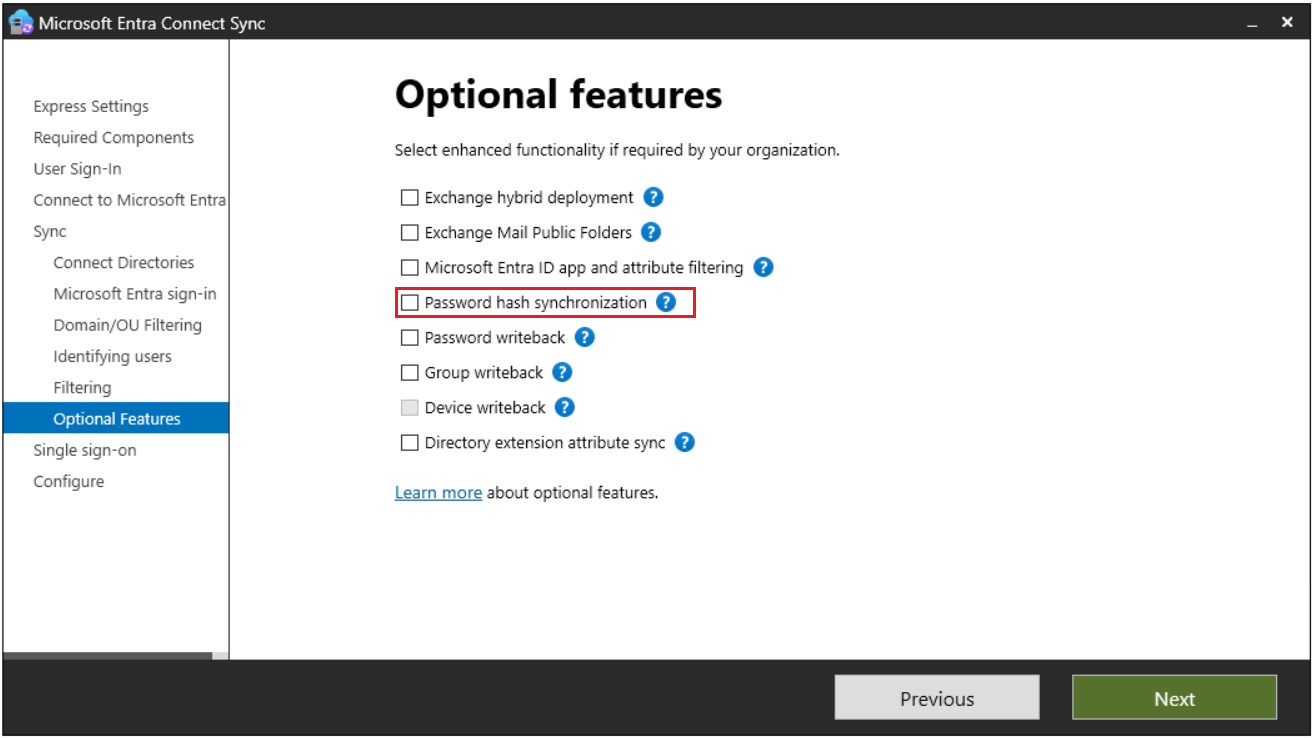
✔ PTA selection in the User Sign-In step: Sets the active sign-in method of the tenant to PTA. This means that when the user enters a password, the validation goes to on-premises AD.
✔ PHS selection in the Optional Features step: Only enables the hash synchronisation engine. It does not change the sign-in method. In this configuration, PHS has the "hot standby" role.
This combination is the production pattern that Microsoft strongly recommends in the PTA documentation, and its official name is "PHS as a backup Authentication option".
The 3 Main Benefits of the PTA + PHS Backup Configuration
1- Disaster Recovery, Readiness for Immediate Manual Failover
If the PTA infrastructure fails (all Authentication Agents unreachable, on-premises AD down, network disconnection and so on), the admin can change the sign-in method to PHS with PowerShell or the Entra Connect wizard. Because the PHS hashes are already synchronised in Entra ID, the switch takes effect immediately and users continue to access cloud resources.
If PHS had not been selected in the Optional Features step, users would not have been able to sign in after the method change, because the hashes would not have been in Entra ID. PHS would first have to be enabled, the hashes would have to finish synchronising, and only then could the method be changed. This means an unacceptable delay in a DR scenario.
2- Leaked Credentials Detection
The leaked credentials detection feature in Microsoft Entra ID Protection compares credentials leaked on the dark web with the PHS hashes in Entra ID. This feature does not work without PHS hashes. Microsoft's PHS documentation states clearly that leak detection works only for new leaks found after PHS is enabled.
When PTA works alone (without PHS), this detection is disabled. However, if PHS is selected in Optional Features, the hashes are synchronised and the detection becomes active.
Licence Requirement: Microsoft Entra ID P2 is required for leaked credentials detection details and for Conditional Access based on user risk. With Entra ID P1 the detection signal is received, but a user risk policy cannot be applied.
3- Cyber Resilience, the Safeguard of Hybrid Identity
In production environments, the PHS backup is a basic part of the cyber resilience strategy of the organisation. When a ransomware attack hits on-premises AD.
✔ If PTA is used alone → Microsoft 365 access is also lost. Users cannot access cloud resources, and the incident response process is much harder to run.
✔ If PTA + PHS backup is used → The admin changes the sign-in method to PHS, users continue to access M365, and the incident response process can be run with cloud resources.
High Availability (HA) Requirements for PTA
The PTA Quickstart documentation on Microsoft Learn recommends installing a minimum of 3 Authentication Agents for production environments (the system limit is 40 Agents per tenant). All servers on which an Authentication Agent is installed must be treated as Tier 0 systems and protected with the same hardening strategy that is applied to domain controllers. Authentication Agents establish a persistent HTTPS connection (TCP 443) to Microsoft Entra ID over Service Bus and retrieve incoming requests over this permanently open connection, not by polling.
The Cloud-Only Break-Glass Admin Account Requirement
In scenarios where PTA is used, Microsoft shows the following warning clearly on the User Sign-In page of the installation wizard.
"We recommend that you have a cloud only Hybrid Identity Administrator (preferred) or Global Administrator account so that you are able to manage pass-through Authentication in the event of an on-premises failure."
This warning relates directly to the DR scenario. If PTA fails, you cannot sign in to Entra ID with your on-premises account and switch to PHS, because all authentication depends on PTA. For this reason.
✔ A cloud-only admin account (an account with no on-premises counterpart) must be created.
✔ The Hybrid Identity Administrator or Global Administrator role must be assigned to this account.
✔ The account must be stored in a secure place as a break-glass account (protected with a FIDO2 security key or a Temporary Access Pass).
✔ Microsoft's best practice is to keep at least 2 break-glass accounts, protected with different authentication methods.
Scenario Comparison, PHS + Seamless SSO vs PTA + Seamless SSO
The point to understand here is the following. The "PHS + Seamless SSO" and "PTA + Seamless SSO" combinations are not 2 different states of the same tenant, they represent 2 separate tenant configurations.
Scenario 1, PHS + Seamless SSO
Domain-joined computer, inside the corporate network:
In this combination, the active sign-in method of the tenant is Password Hash Synchronization. The NT hashes (MD4) of the user passwords in on-premises Active Directory are combined with a per-user salt, processed by the PBKDF2 function with 1,000 iterations of HMAC-SHA256 and then synchronised to Microsoft Entra ID over TLS. In this design, password-based authentication takes place entirely on the cloud side.
Seamless SSO works next to this architecture as a separate Kerberos-based authentication layer. It makes access from domain-joined devices passwordless by using the Kerberos ticket. As long as Seamless SSO is in use, the PHS hashes are not used.
The following diagram shows the basic flow of the PHS architecture and the optional Password Writeback direction. The authentication flow follows 2 different paths, depending on whether the user's device is domain-joined or not.
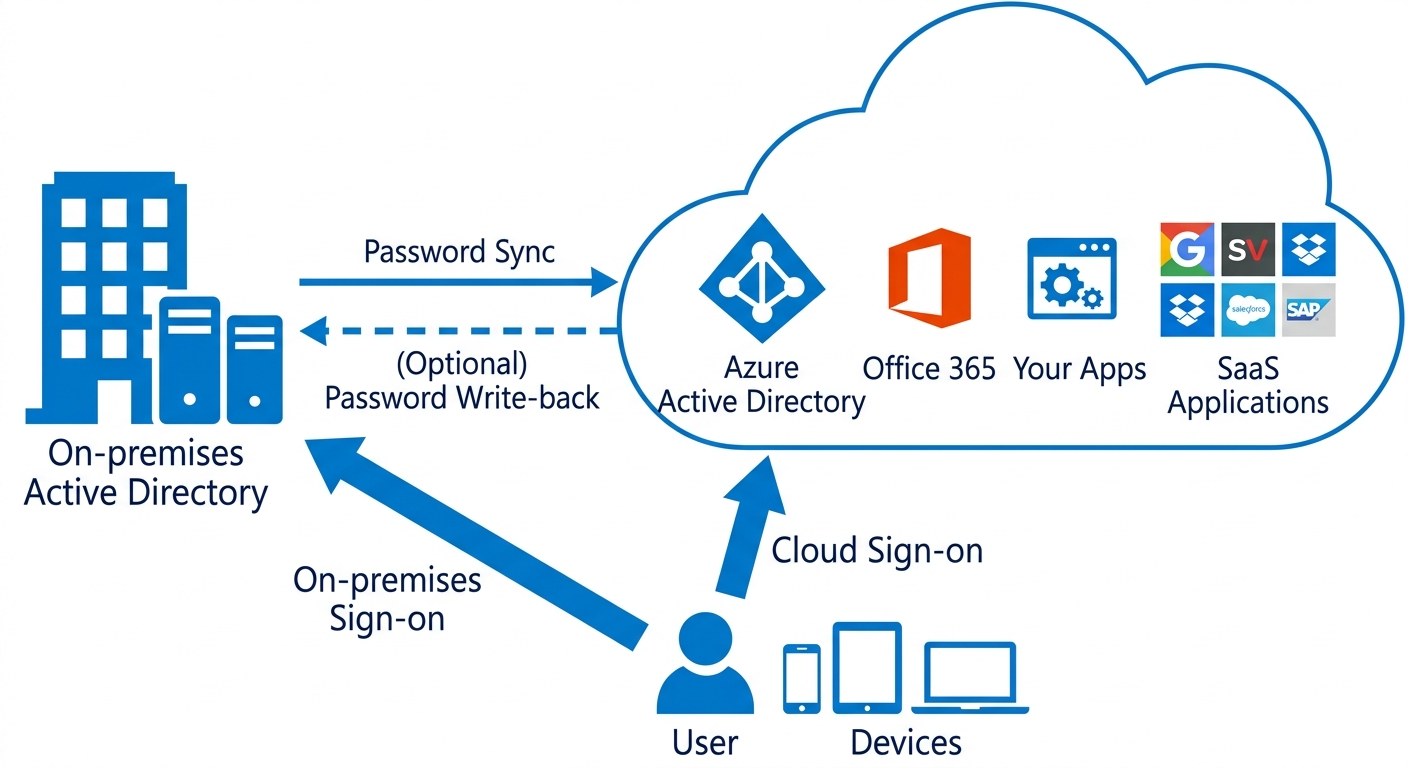
When the user accesses an application protected by Entra ID from a work computer that is domain-joined to on-premises AD, the browser automatically sends the Kerberos service ticket to the autologon.microsoftazuread-sso.com endpoint in the background. Entra ID decrypts the ticket with the shared key of the AZUREADSSOACC account and verifies the user's identity through Kerberos. Because the password is not involved in this flow at all, the PHS hashes are not used and authentication is completed entirely through Kerberos.
User       ─→  Entra ID Login page
                    │
                    ▼
Browser    ─→  autologon.microsoftazuread-sso.com
                    │
                    ▼
Kerberos ticket is sent automatically
                    │
                    ▼
Entra ID opens the ticket with the AZUREADSSOACC key
                    │
                    ▼
✅ Identity verified (PHS was NOT used)
                    │
                    ▼
Token is issued
Non-domain-joined computer or external network (Seamless SSO does not work):
When the user accesses Entra ID from a personal device or from outside the corporate network, the device cannot send a Kerberos request to a domain controller, so Seamless SSO cannot be used. In this case, the user enters the user name and password manually on the Entra ID sign-in page. Entra ID applies the same MD4 + salt + PBKDF2 + HMAC-SHA256 transformation to the entered password and compares the result with the hash that it stores in the cloud. The validation takes place entirely on the cloud side, and no connection is made to on-premises AD.
User       ─→  Entra ID Login page
                    │
                    ▼
Enters user name + password
                    │
                    ▼
Entra ID applies the same transformation to the password and compares it with the hash
                    │
                    ▼
✅ Identity verified (PHS flow)
                    │
                    ▼
Token is issued
Scenario 2, PTA + Seamless SSO
Domain-joined computer, inside the corporate network:
In this combination, the active sign-in method of the tenant is Pass-through Authentication. Password hashes are not synchronised to Entra ID. Instead, the password that the user enters is forwarded in real time to a domain controller and validated by the Authentication Agent installed in the on-premises environment. In this architecture the password is never stored permanently in the cloud. It is only sent at the moment of validation over Service Bus, encrypted with the public key of the Agent, and validated in on-premises AD.
Seamless SSO works next to this architecture as a separate Kerberos-based authentication layer. It makes access from domain-joined devices passwordless by using the Kerberos ticket.
The following diagram shows the basic flow of the PTA architecture. The layer in which authentication takes place differs, depending on whether the user's device is domain-joined or not.
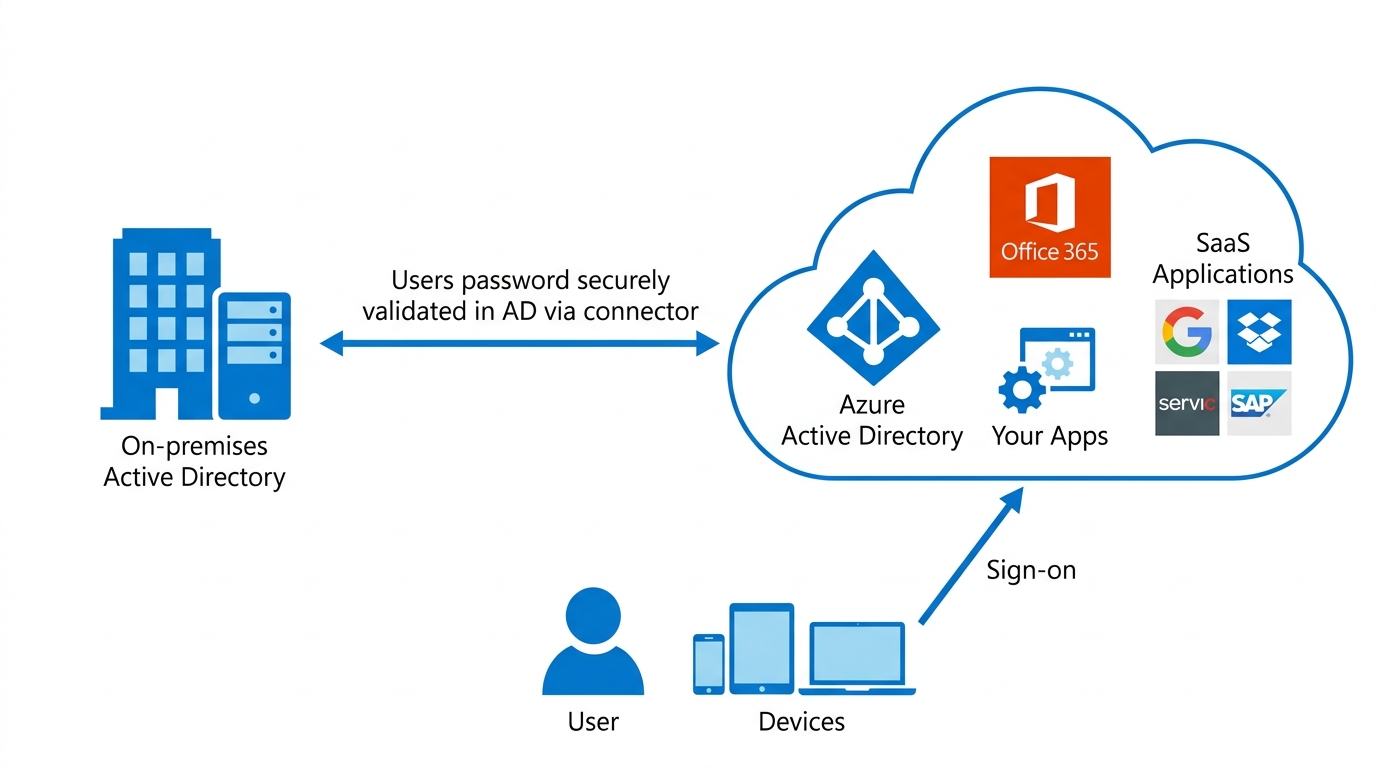
In this scenario, the authentication flow works in exactly the same way as in Scenario 1. For access from a domain-joined device, the browser sends the Kerberos ticket automatically, Entra ID decrypts the ticket with the AZUREADSSOACC key and the identity is verified. Although the active sign-in method of the tenant is PTA, no request is sent to the Authentication Agent and no validation traffic goes to on-premises AD, because Seamless SSO succeeds.
User       ─→  Entra ID Login page
                    │
                    ▼
Browser    ─→  autologon.microsoftazuread-sso.com
                    │
                    ▼
Kerberos ticket is sent automatically
                    │
                    ▼
Entra ID opens the ticket with the AZUREADSSOACC key
                    │
                    ▼
✅ Identity verified (PTA was NOT used)
                    │
                    ▼
Token is issued
Non-domain-joined computer or external network (Seamless SSO does not work):
When Seamless SSO cannot be used and the user enters the password manually, PTA, the active sign-in method of the tenant, is used. The Microsoft Entra Security Token Service (Entra STS) retrieves the public keys of all Authentication Agents registered in the tenant and encrypts the password separately for each Agent. The encrypted password values are placed on the tenant-specific Service Bus queue. One of the Authentication Agents that has a persistent connection to this queue receives the request, decrypts the password with its own private key and sends a validation request to the on-premises domain controller by using the LogonUser Win32 API call with the LOGON32_LOGON_NETWORK logon type. The result returned by the DC (success, failure, password Expired, user locked out) is sent to Entra ID, and the token is issued accordingly.
User       ─→  Entra ID Login page
                    │
                    ▼
Enters user name + password
                    │
                    ▼
Entra STS encrypts the password with the public key of each Agent
                    │
                    ▼
Encrypted password values are placed on the Service Bus queue
                    │
                    ▼
Authentication Agent receives the request over the persistent connection
                    │
                    ▼
Agent decrypts with its private key ─→ LogonUser API ─→ On-Prem DC
                    │
                    ▼
✅/❌ Result returns to Entra ID (success / failure / Expired / locked)
                    │
                    ▼
Token is issued (if successful)
Note: For access from a domain-joined device, the flow of both combinations is exactly the same, because Seamless SSO is in use and neither PHS nor PTA is used. The difference appears only when the flow falls back to password-based authentication.
Which Combination Should Be Preferred in Which Scenario?
PHS + Seamless SSO Is Preferred Because:
✔ There is no dependency on the on-premises infrastructure for authentication.
✔ Access to cloud resources continues in disaster recovery scenarios.
✔ Leaked credentials detection works.
✔ There is no operational load such as Authentication Agent management, patch cycle and HA design.
✔ Microsoft's strategic direction is the same.
PTA + Seamless SSO Is Preferred Because:
✔ A regulatory / compliance requirement makes it mandatory for the password to be validated on-premises.
✔ On-premises logon restrictions (logon hours, workstation restrictions) must be applied in real time.
✔ The organisation does not allow the password hash to leave for the cloud as a matter of policy.
✔ Account disable / password reset operations must take effect immediately.
Microsoft's Strategic Position
Since the early 2020s, Microsoft has made the following recommendation clear in its official documentation. Unless there is a specific requirement, PHS + Seamless SSO must be preferred. The migration best practices documentation uses this statement directly. "We recommend using PHS for cloud Authentication."
The main reason for this, in addition to operational simplicity, is cyber resilience. When on-premises AD is hit by a ransomware attack, users can still access Microsoft 365 with PHS, and the incident response process can be run with cloud resources. This is not possible when PTA is used alone.
Known Limitations and Points That Need Attention
✔ AZUREADSSOACC key rollover must be performed manually every 30 days. The Update-AzureADSSOForest cmdlet must not be run more than once in succession for the same forest. Otherwise, Seamless SSO stops until the Kerberos tickets expire.
✔ Seamless SSO does not work on non-domain-joined devices, for access from outside the corporate network, when the time skew exceeds 5 minutes, and in browsers that do not support Integrated Windows Authentication. In this case, the active sign-in method of the tenant (PHS or PTA) is used.
✔ Seamless SSO requires Modern Authentication (OAuth2 / OpenID Connect). Legacy protocols such as POP / IMAP that work with Basic Auth cannot use Seamless SSO. In Microsoft 365 environments, Basic Auth is already largely deprecated.
✔ As Microsoft Entra hybrid join and Microsoft Entra join become more common, the Primary Refresh Token (PRT) largely replaces Seamless SSO. Microsoft Learn states clearly that PRT takes precedence if both PRT and Seamless SSO are enabled.
✔ Even if PTA + PHS are enabled together, the traffic goes to whichever one is the tenant sign-in method. The other one only waits ready as a hot standby.
✔ Cloud-only accounts (accounts with no on-premises counterpart, for example break-glass admin accounts) always use cloud authentication and are not affected by the sign-in method setting.
✔ Staged Rollout, which is used to test 2 sign-in methods for different users at the same time, is defined by Microsoft as a temporary test tool. It is not a permanent architecture and must be disabled after the cutover is completed.
✔ Mandatory Upgrade: Microsoft Entra Connect Sync must be upgraded to version 2.5.79.0 as a minimum by 30 September 2026. After this date, all synchronisation services stop on older versions. This restriction affects the whole Entra Connect infrastructure, including Seamless SSO.
Configuration Verification
When the PTA + PHS backup + Seamless SSO configuration is installed correctly, the following state must be visible on the Microsoft Entra admin center > Microsoft Entra Connect page.
✔ Pass-through Authentication: Enabled
✔ Password Hash Sync: Enabled
✔ Seamless single sign-on: Enabled
The fact that both sign-in methods show "Enabled" here does not mean that both work in parallel. It only shows that both are enabled, which means that the PHS hashes are also synchronised to the cloud while PTA works as the active method.
Key Takeaways
✔ Seamless SSO is not a sign-in method, but technically it is a Kerberos-based authentication layer. It is positioned together with PHS or PTA, but it is not an alternative to them.
✔ When Seamless SSO is used, authentication is completed entirely through Kerberos and neither PHS nor PTA is used. Microsoft describes this mechanism as opportunistic.
✔ The sign-in method difference (PHS vs PTA) appears only when Seamless SSO cannot be used (personal device, external network, time skew, a browser that does not support IWA and so on).
✔ When Seamless SSO is enabled, the AZUREADSSOACC computer account is created automatically in on-premises AD. The Kerberos decryption key of this account is copied to Entra ID and is the basis of the mechanism. If there is more than 1 forest, each forest gets its own account with its own unique key.
✔ The AZUREADSSOACC key must be rolled over manually every 30 days. The operation is performed with the Update-AzureADSSOForest cmdlet, and the cmdlet must not be run 2 times in succession for the same forest.
✔ Microsoft recommends the AES256_HMAC_SHA1 encryption type for AZUREADSSOACC. A key rollover must always be performed before the move from RC4 to AES.
✔ On the client side, the autologon.microsoftazuread-sso.com address is added to the Intranet zone with the Site to Zone Assignment List policy. The Registry Item GPP is its alternative and is not used together with it; while the policy is enabled, the GPP entry is not read.
✔ Entra ID does not apply a "try both" logic during sign-in. The tenant has a single active sign-in method, and there is no automatic failover from PTA to PHS.
✔ If PTA is used in production, PHS must be enabled as a backup in the Optional Features step. DR, leaked credentials detection and cyber resilience depend on this backup.
✔ In environments where PTA is used, a cloud-only break-glass admin account is mandatory. While all authentication depends on PTA, DR cannot be managed with an admin account that depends on the on-premises environment. Microsoft recommends the use of at least 2 break-glass accounts as a best practice.
✔ In production PTA environments, a minimum of 3 Authentication Agents must be installed, and these servers must be hardened as Tier 0 systems.
✔ Microsoft's current strategic recommendation is to prefer PHS + Seamless SSO if there is no specific requirement. In terms of cyber resilience, PHS is much more resilient.
✔ On Microsoft Entra hybrid joined and Microsoft Entra joined devices, the PRT (Primary Refresh Token) mechanism is used and replaces Seamless SSO. Microsoft Learn states clearly that PRT takes precedence when both are enabled.
This article covered in detail what Seamless SSO is in Microsoft Entra ID environments, which protocol it works on and why the wizard does not present it as a sign-in method. We explained that Seamless SSO is based on the AZUREADSSOACC computer account, which is created automatically in on-premises Active Directory during the Entra Connect Sync installation, and that the Kerberos encryption key of this account is used on the Entra ID side to decrypt the service tickets that come from domain-joined devices.
We clarified that Password Hash Synchronization and Pass-through Authentication, which are often confused with Seamless SSO, are sign-in methods, that only 1 of them is active in a tenant at a time, and that Entra ID does not apply a "try both" logic. We saw that when Seamless SSO succeeds, the identity is verified through Kerberos, so neither PHS nor PTA is used, and that these 2 methods become active as a fallback only when Seamless SSO does not work.
We explained why enabling PHS as a backup is mandatory in production environments where PTA is used, the role of the cloud-only break-glass admin account in disaster recovery scenarios, and why Microsoft prefers the PHS + Seamless SSO combination from a cyber resilience perspective. We also emphasised that on modern Microsoft Entra hybrid joined and Microsoft Entra joined devices the Primary Refresh Token mechanism largely replaces Seamless SSO, but that for environments with a classic domain-joined device estate this mechanism is still an active Kerberos-based authentication layer.
I hope you find it useful...
Feel free to share your thoughts and questions about this article in the comments below. Every contribution helps the content reach more people and makes for a more useful discussion.