In a hybrid identity design, the component that moves the user, group and device objects in the on-premises domain to the cloud is Microsoft Entra Connect Sync. This component does not send every object in Active Directory to Microsoft Entra ID (formerly Azure AD). One of the filters that determines which objects are in scope is Organizational Unit (OU)-based filtering. A user in an OU that is out of scope is never created in the tenant, and an OU that is brought into scope by mistake moves service accounts or test objects to the cloud.
For this reason, I often need to know which OUs make up the scope, both after installation and in daily operations. This information is available in 2 ways. The first is the Domain and OU Filtering page in the Microsoft Entra Connect wizard, and the second is the PowerShell commands that read the same configuration directly from the sync engine. Below, I first show the wizard page, then I explain how I get the same list in a single run with a script that I wrote and how the output must be read.
The method in this article applies to Microsoft Entra Connect Sync. In Microsoft Entra Cloud Sync, the scope is managed from the configuration in the portal and the ADSync module is not used.
1- Synchronised OUs on the Domain and OU Filtering Page
On the server where Microsoft Entra Connect is installed, I open the wizard and select the Customize synchronization options task. After I connect to the forest, I reach the Domain and OU Filtering page. The selections made during installation appear ticked on this page. The ticked OUs are in the synchronisation scope, and the unticked OUs are out of scope.
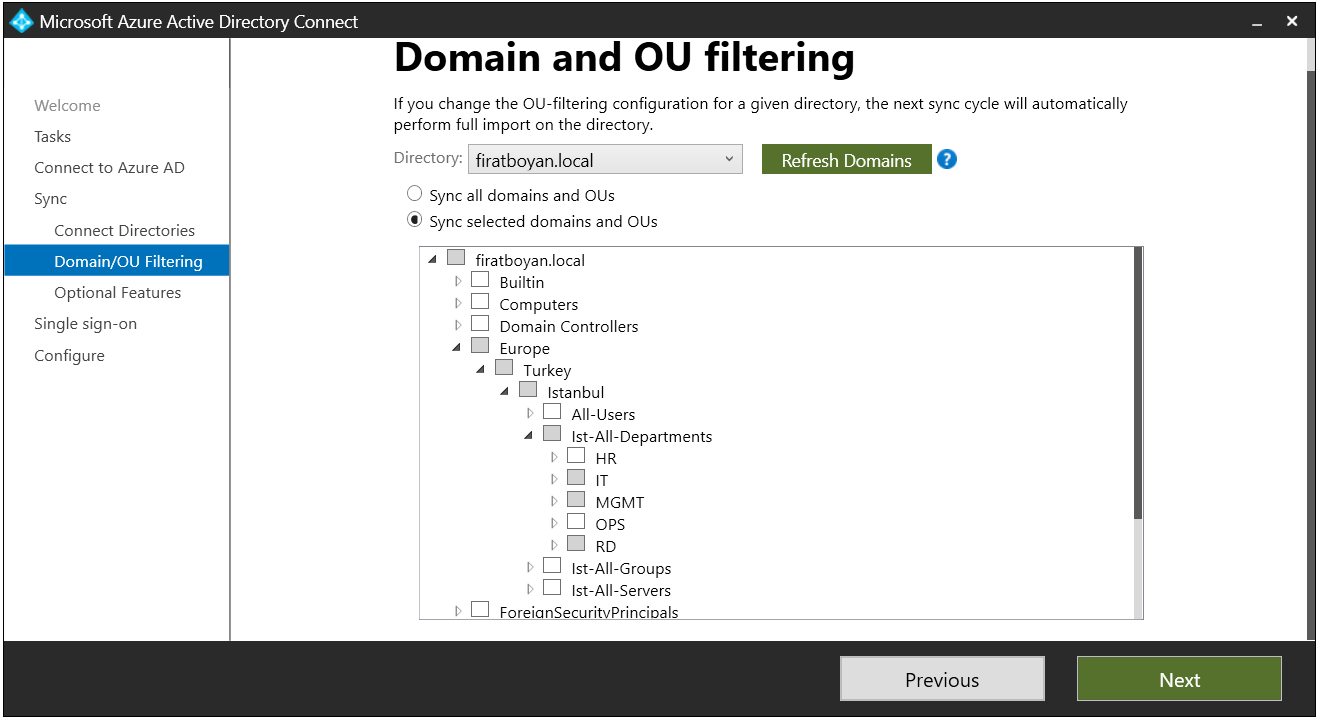
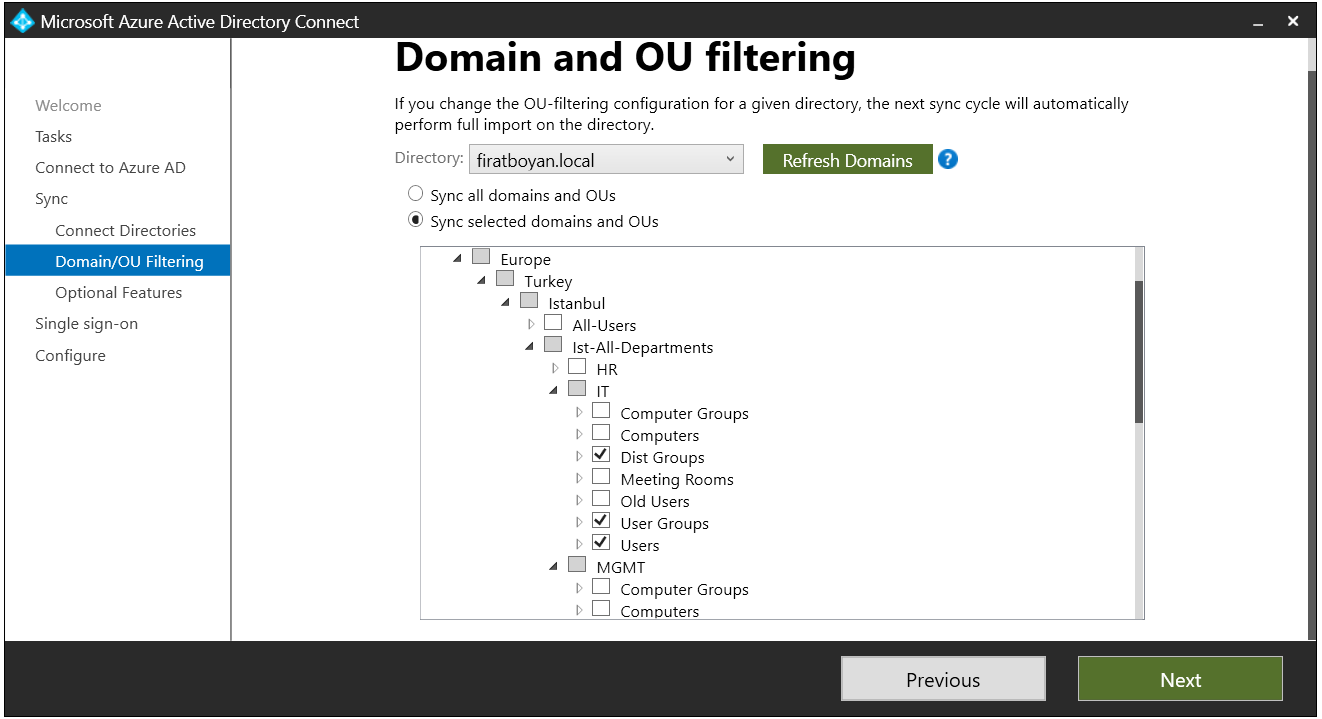
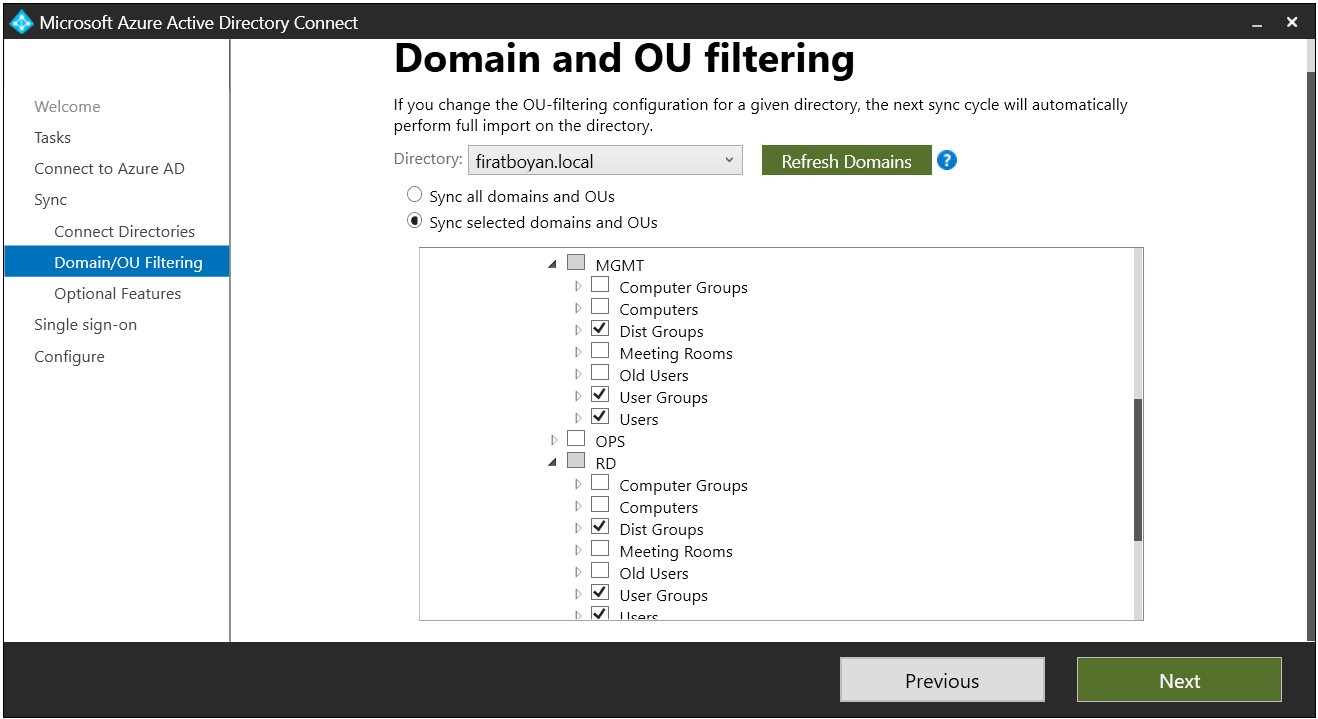
The page gives the correct information, but it is not practical. The sync scheduler is suspended while the wizard is open, each branch of a multi-level OU tree must be expanded one by one, and the only way to transfer the selection on the page to a report or a change record is to take a screenshot. When I want to see the current scope, I prefer PowerShell to opening the wizard.
2- Listing the Synchronised OUs with PowerShell
The OU selection made in the wizard is written to the partition scope of the related Active Directory Connector in the sync engine. The Get-ADSyncConnector cmdlet in the ADSync module returns these connector objects, and the OU list is read from the Partitions.ConnectorPartitionScope.ContainerInclusionList property of the object. The script below prints this list to the screen, first in full Distinguished Name format and then in a simplified view that consists of the OU names.
I run the script on the server where Microsoft Entra Connect is installed, in a Windows PowerShell session that I open with an account that is a member of the ADSyncAdmins group. If the cmdlet is not recognised, loading the module with Import-Module ADSync is enough. The script does not change any configuration, it only reads.
$SyncConnector = Get-ADSyncConnector | Where-Object {$_.Name -notmatch ' - aad'}
$OUList = $SyncConnector.Partitions.ConnectorPartitionScope.ContainerInclusionList
Write-Host "1- Distinguished Name (DN) View:" -ForegroundColor Yellow
$OUList
Write-Host ""
Write-Host "2- Simplified View:" -ForegroundColor Yellow
$OUList | ForEach-Object {
	$ouParts = $_ -split ','
	$ouParts -match '^OU=' -join ' > '
}
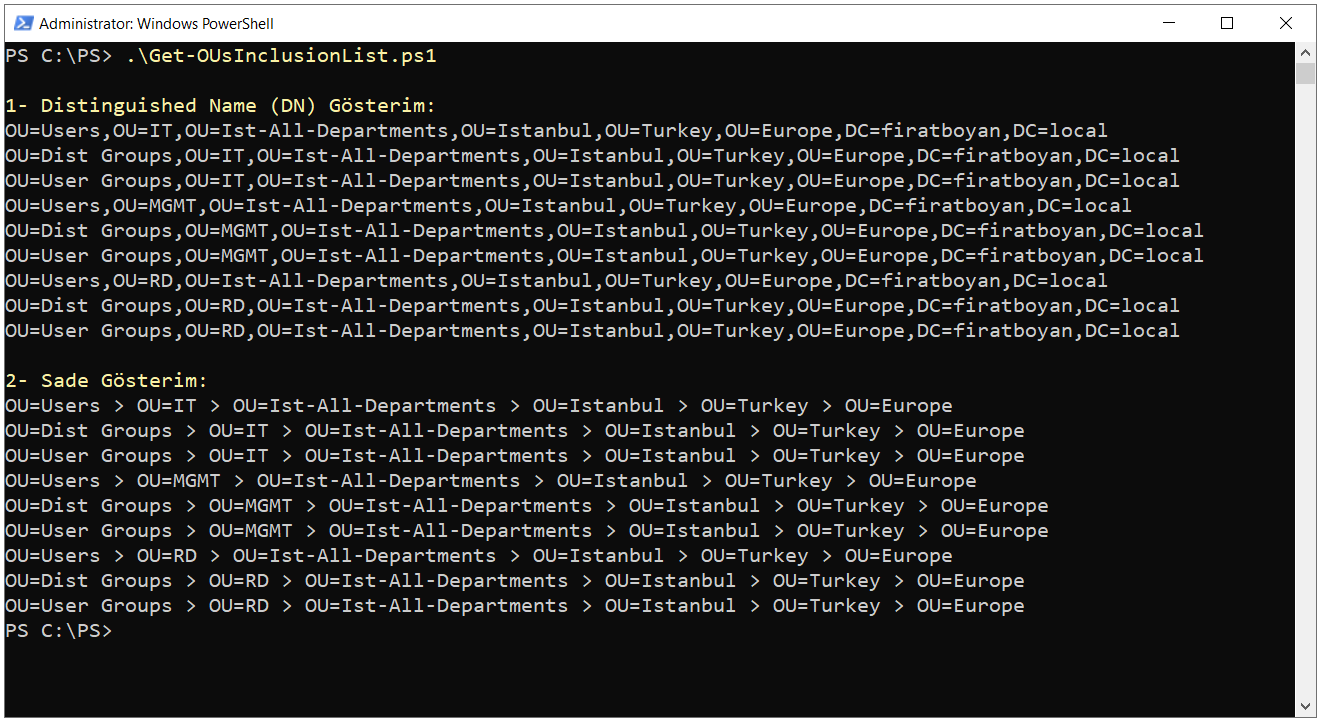
When I run the script, I get the output below.
How the Script Works
Microsoft Entra Connect Sync has 1 connector for each connected directory. An Active Directory Connector is created for each on-premises forest, and a Microsoft Entra ID Connector whose name ends with - AAD is created for the tenant. The OU filter is defined on the Active Directory side, so the script removes the Microsoft Entra ID Connector in the first line. The table below shows the purpose of each line.
|
Line |
Purpose |
Get-ADSyncConnector | Where-Object {$_.Name -notmatch ' - aad'} |
Gets all connectors and leaves out the Microsoft Entra ID Connector whose name ends with - AAD. -notmatch is not case-sensitive. |
$SyncConnector.Partitions.ConnectorPartitionScope.ContainerInclusionList |
Reads the Distinguished Name list of the containers and OUs that are in scope for each partition of the connector. |
$_ -split ',' |
Splits the Distinguished Name value at the commas into its OU=, CN= and DC= parts. |
$ouParts -match '^OU=' -join ' > ' |
Keeps the parts that start with OU= and joins them on a single line with > between them. |
Interpreting the Output
The Distinguished Name list in the first section is the exact value that the sync engine holds as the scope, and this is the list to rely on. The simplified view in the second section is there to make reading easier, and 3 points must be kept in mind when reading it.
The order is from leaf to root. A Distinguished Name starts with the lowest OU, so the simplified view also shows the child OU first and the parent OU after the > sign. The line is read in the reverse order of the tree in Active Directory Users and Computers.
Entries that are not OUs do not appear in the simplified view. The filter keeps the parts that start with OU=, so containers such as CN=Users or CN=Computers are not shown in this section. If the whole domain is selected, the list contains the root Distinguished Name value of the domain, and this entry appears as an empty line in the simplified view.
The list shows only what is included. When a parent OU is selected and an OU below it is unticked, the excluded child OU is written to the ContainerExclusionList property of the same object. When the Inclusion List is read on its own, this child OU also appears to be in scope.
An OU in the list also does not mean that every object in it is synchronised. If group-based filtering, which is used in pilot deployments, or attribute-based filtering defined at Synchronization Rule level is active, some of the objects do not go to Microsoft Entra ID even when the OU is in scope. The question that the script answers is which containers the OU filter allows.
The Inclusion List holds the OUs by their Distinguished Name value. If an OU in scope is renamed in Active Directory, it is no longer in scope and must be selected again in the wizard.
Listing the Forest, Inclusion List and Exclusion List Together
In environments where multiple forests or domains are connected, the first script combines the lists of all connectors in a single block, and the DC= parts at the end of the Distinguished Name must be checked to tell which OU belongs to which domain. In such environments, and when the Exclusion List must also be seen, I use the extended version below. This version prints the 2 lists separately for each connector and partition, writes the path from root to leaf starting with the domain, and also shows the containers that start with CN=.
function Convert-DNToPath {
	param([string]$DN)
	$Parts = $DN -split '(? '
}

foreach ($Connector in (Get-ADSyncConnector | Where-Object {$_.Name -notmatch ' - aad'})) {
	foreach ($Partition in $Connector.Partitions) {
		$Scope = $Partition.ConnectorPartitionScope
		Write-Host "Connector: $($Connector.Name) | Partition: $($Partition.Name)" -ForegroundColor Yellow
		Write-Host "Included (Inclusion List):" -ForegroundColor Green
		$Scope.ContainerInclusionList | Where-Object {$_} | Sort-Object | ForEach-Object { Convert-DNToPath $_ }
		Write-Host "Excluded (Exclusion List):" -ForegroundColor Red
		$Scope.ContainerExclusionList | Where-Object {$_} | Sort-Object | ForEach-Object { Convert-DNToPath $_ }
		Write-Host ""
	}
}
When the Convert-DNToPath function splits the Distinguished Name at the commas, it does not treat the commas that are inside an OU name and escaped with a backslash as separators. It joins the DC= parts with dots to build the domain name, then reverses the remaining parts to order them from the top OU to the lowest one. If an OU in the output is covered in the Inclusion List through its parent OU and is also in the Exclusion List, that OU is not synchronised.
I verify the output of both scripts by comparing it with the tick marks on the Domain and OU Filtering page. Every entry in the Inclusion List must be ticked on the page, and every entry in the Exclusion List must be unticked.
Each Microsoft Entra Connect server holds its own configuration. If the environment has a second server that runs in staging mode, the script must be run there as well and the lists of the 2 servers must be compared.
This article covered how to list the synchronised OUs that Microsoft Entra Connect Sync sends to Microsoft Entra ID. I showed how the scope is read first from the Domain and OU Filtering page in the wizard and then directly from the sync engine configuration with PowerShell.
The structure that the script relies on is the Inclusion List and Exclusion List values held in the partition scope of the Active Directory Connector. These 2 lists are held by Distinguished Name, so I also explained in which cases the simplified view is incomplete and why the 2 lists must be read together.
The list of synchronised OUs is the first place to check when you investigate why a user was not created in the tenant or why an unexpected object was moved to the cloud. A renamed Organizational Unit is removed from the scope without any warning, so checking this list after every change to the OU structure helps you to detect missing object problems on the hybrid identity side early.
I hope you find it useful...
Feel free to share your thoughts and questions about this article in the comments below. Every contribution helps the content reach more people and makes for a more useful discussion.