When you work in a directory in File Explorer and need to run commands there, you usually open CMD and type the same directory path again with the CD command. This step is unnecessary for a directory that you already have open. In this article, I will explain how to open a CMD window directly in the path of a directory that is open in File Explorer.
In CMD, you can go to any directory in File Explorer by typing its directory path with the CD command.
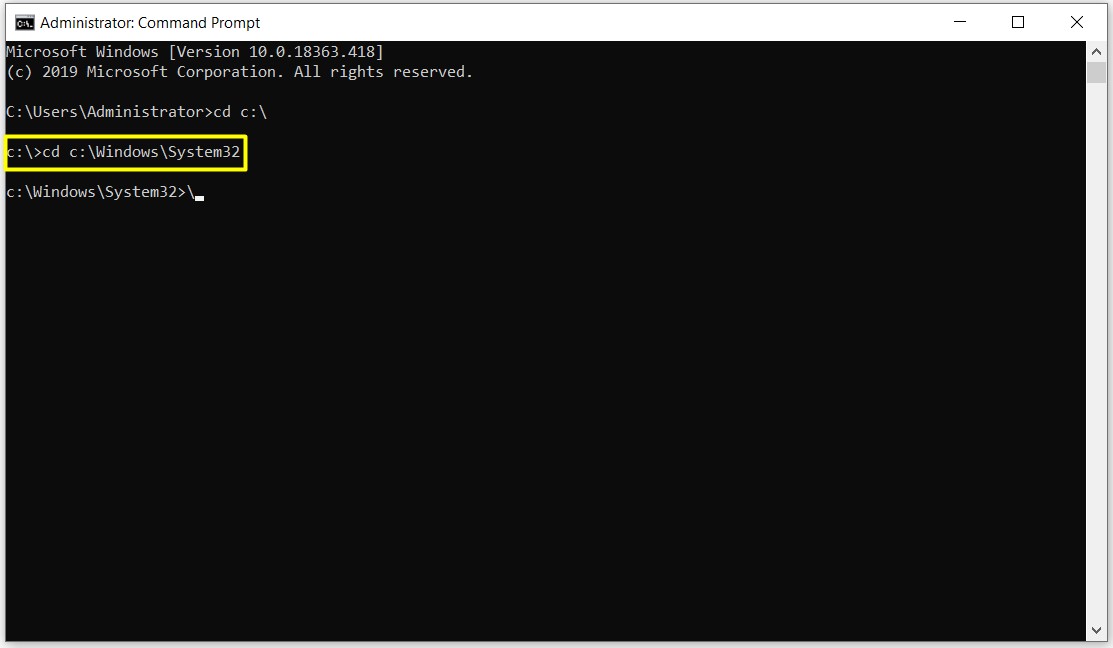
Opening CMD from File Explorer
For example, assume that you are working in a directory in File Explorer and need to run some commands in that directory from CMD. Normally, you have to open CMD with Run > CMD and type the directory path again with the CD command. However, typing the same long path again is unnecessary when you are already working in that directory. Instead, I follow these steps.
1- In File Explorer, I go to the C:\Windows\System32 directory as an example.
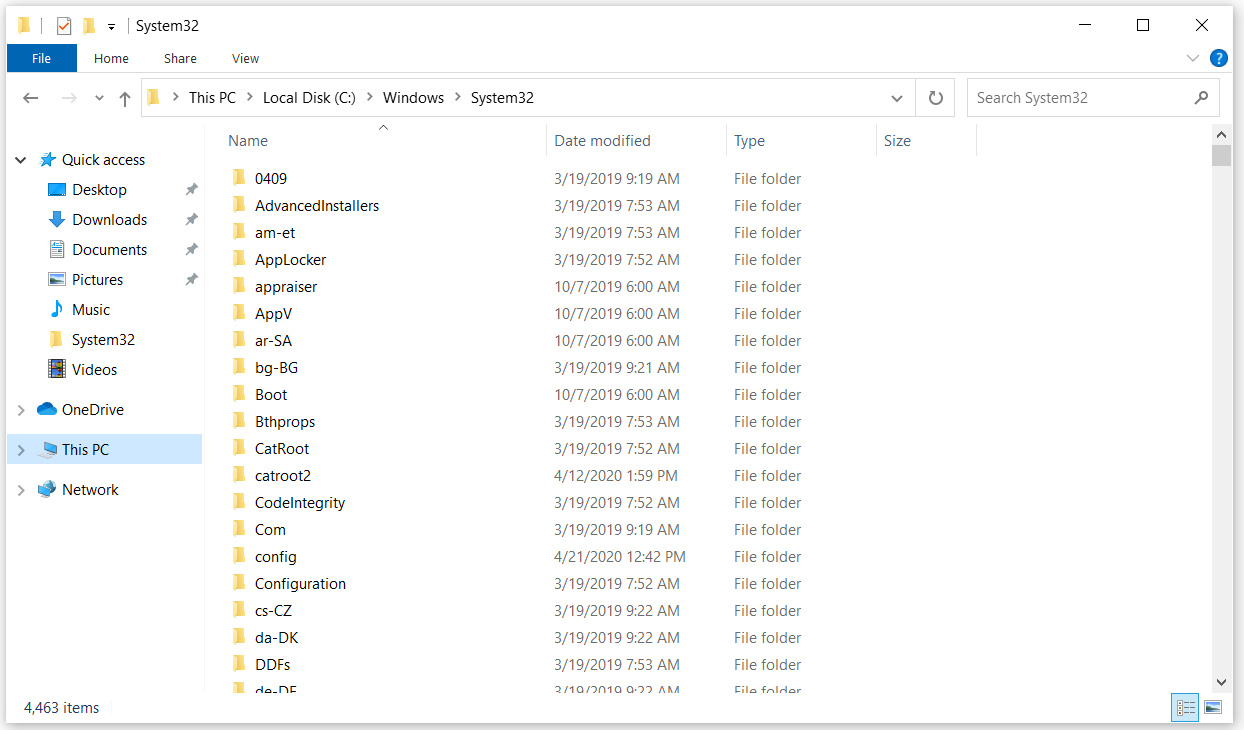
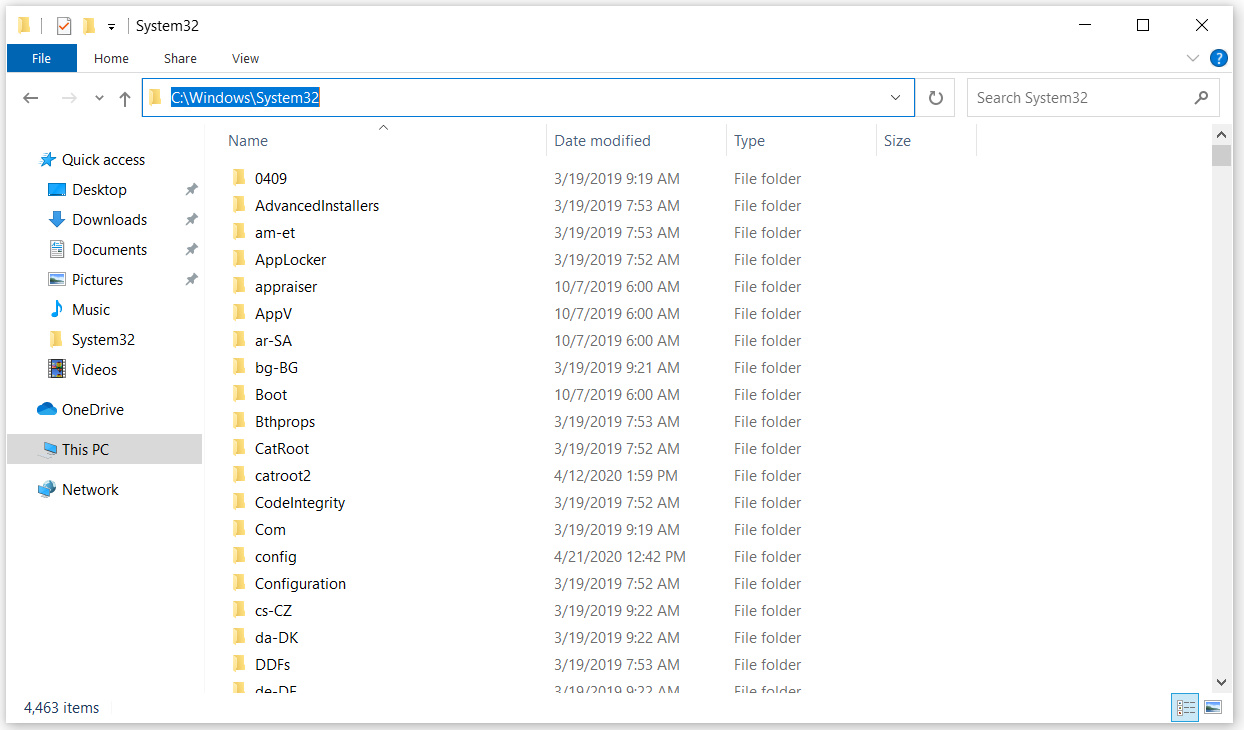
2- While in the C:\Windows\System32 directory, I type CMD in the address bar and press Enter.
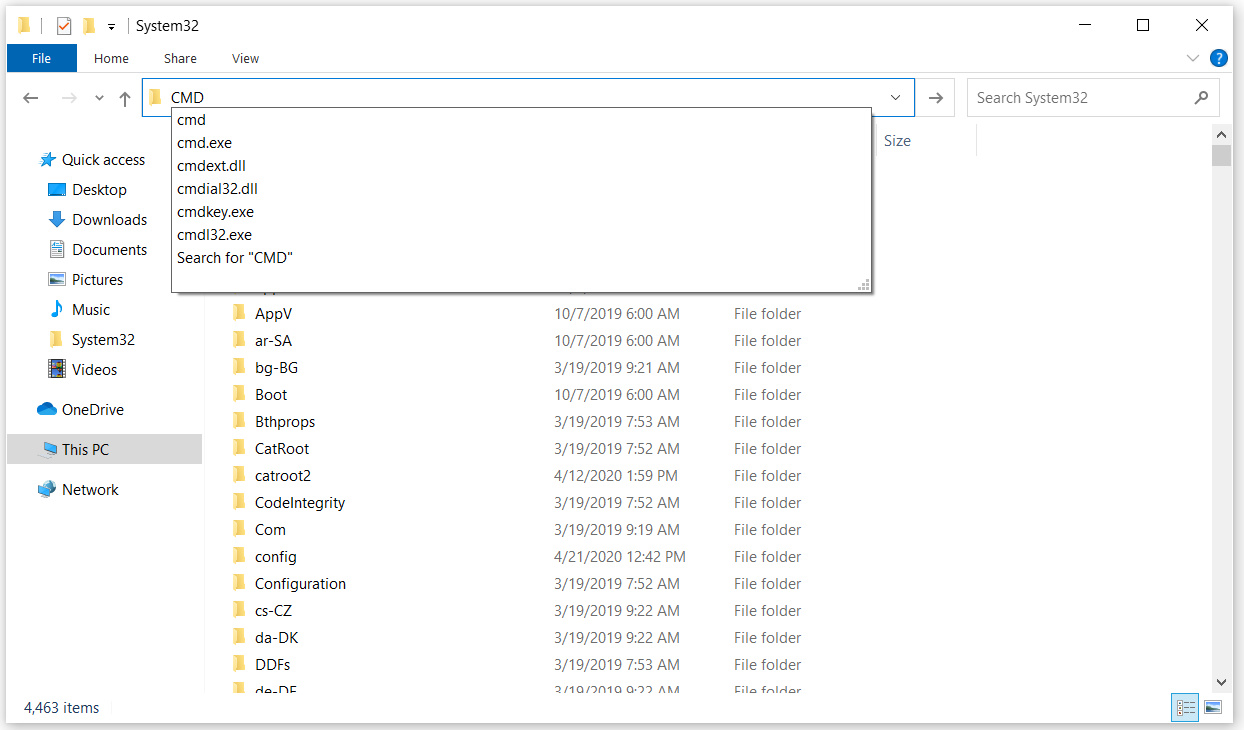
3- I see that the CMD (Command Prompt) window opens with the path of the directory in File Explorer.
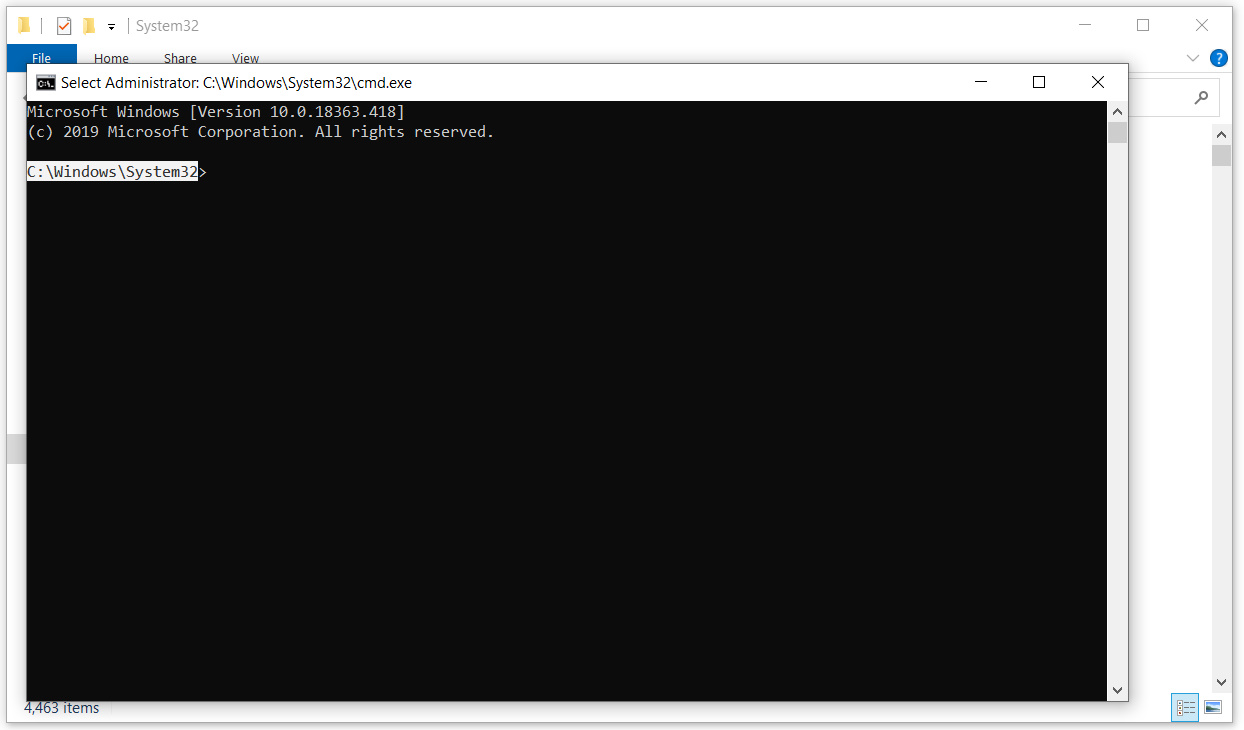
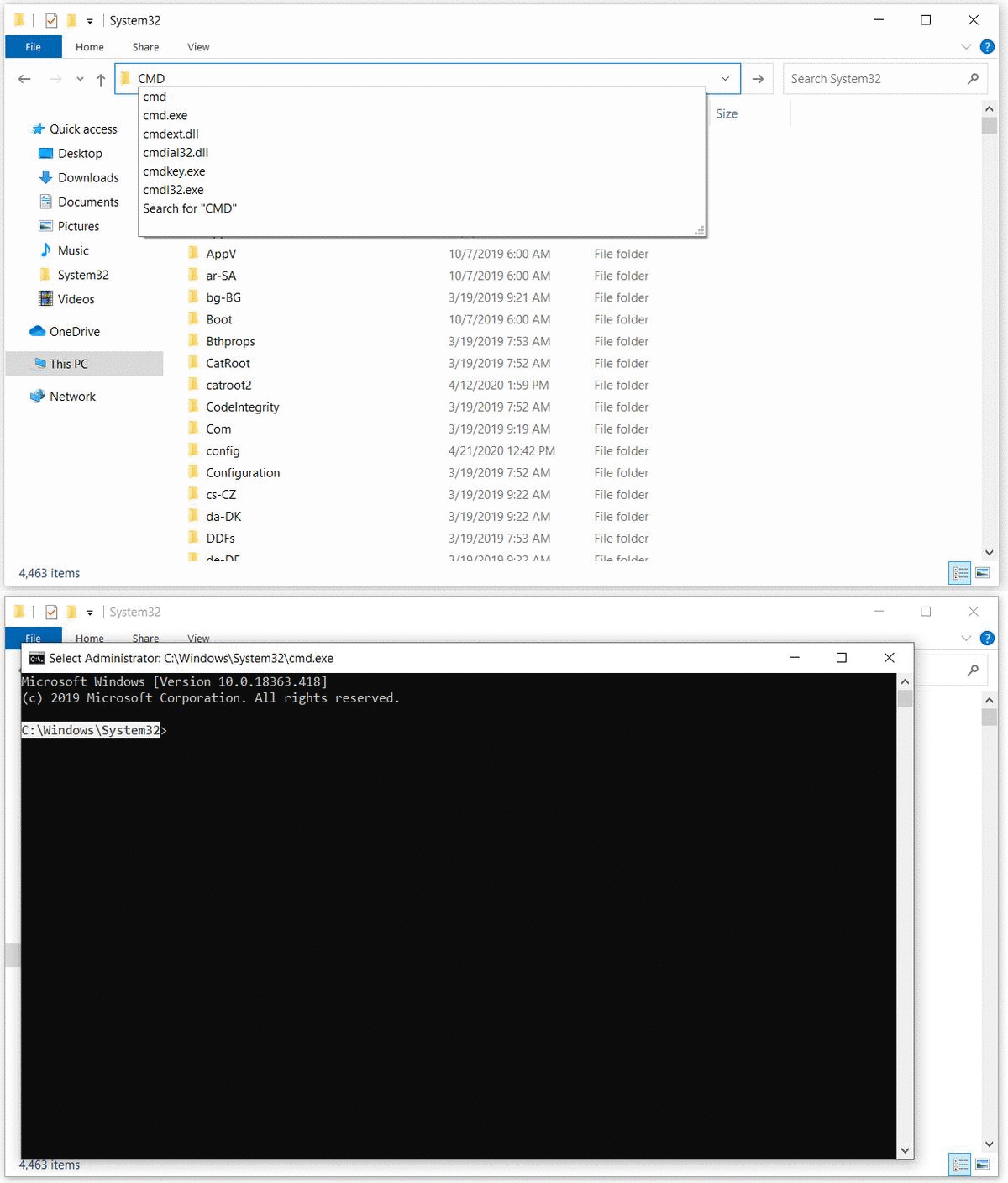
A CMD window opened from the address bar runs in the standard user context. It does not open as administrator (elevated). For commands that require administrator privileges, you need to start CMD separately with Run as administrator.
Opening PowerShell with the Same Method
The same approach also works for PowerShell. If you prefer PowerShell to CMD, type powershell instead of CMD in the address bar and press Enter. PowerShell also opens with the path of the current directory.
On Windows 11, you can also type wt in the address bar to open Windows Terminal in the current directory.
Opening CMD directly from File Explorer saves time compared with typing the directory path manually, and it reduces the chance of running a command in the wrong directory. If you often work in specific directories, this small method noticeably speeds up your workflow.
I hope you find it useful...
Feel free to share your thoughts and questions about this article in the comments below. Every contribution helps the content reach more people and makes for a more useful discussion.