In designs where users access a file share through a single server, the share becomes unavailable when that server shuts down. DFS (Distributed File System) reduces this dependency with 2 components. DFS Namespaces (DFS-N) groups shares on different servers under a single domain-based path such as \\firatboyan.local\HomeFolders and refers the client to an available server. DFS Replication (DFS-R) synchronises the content of the same folder between servers. When the 2 are used together, the client reaches the copy on the other server through the same path even if a file server shuts down.
In this article, I install the DFS role services on 2 Windows Server file servers, create a domain-based namespace and a bidirectional replication group, and then shut down 1 server to test that access continues. I use the Home Folders structure as sample data. I also explain, in the relevant section, the support limit that must be considered when user data is kept with DFS. Building the Active Directory site structure and deploying the home folders to users with Group Policy are out of scope.
This article is not tied to a specific Windows Server version. The DFS Namespaces and DFS Replication role services are available in all versions from Windows Server 2012 to Windows Server 2025, and the DFS Management wizards and settings used in the article are the same in these versions.
My environment is as follows: the firatboyan.local domain has 2 Active Directory sites, Istanbul Site and Antalya Site. Each site has 1 domain controller and 1 file server. FILESRV001 is the server that will be the source in the initial replication, and FILESRV002 is the second member.
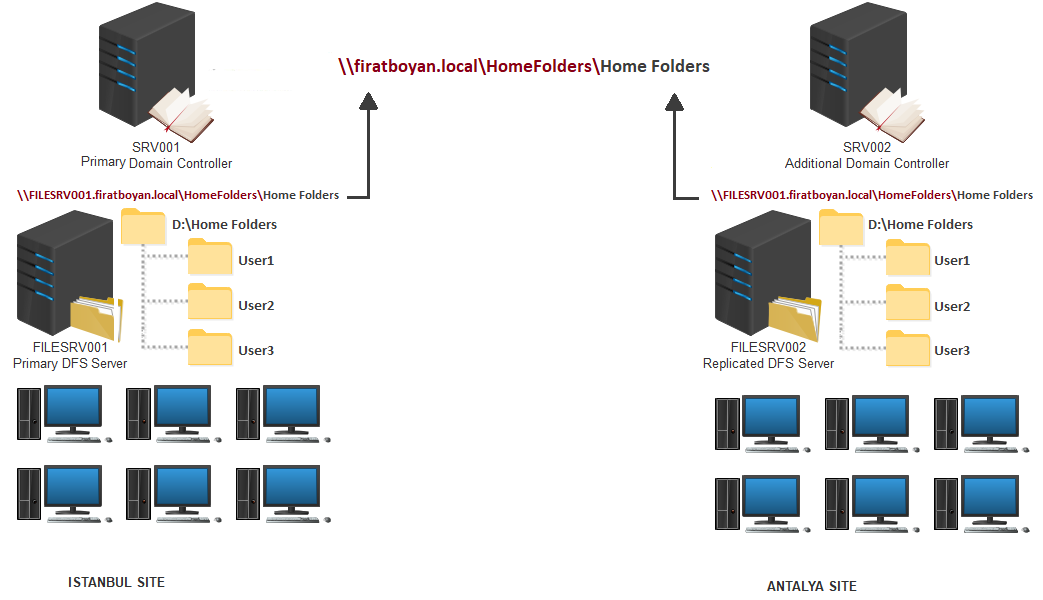
1- How Do DFS Namespaces and DFS Replication Work?
DFS Namespaces separates the path that the user sees from the physical servers. The configuration of a domain-based namespace is stored in Active Directory. The servers that host the namespace are called namespace servers. Each folder in the namespace has folder targets that point to 1 or more real shares. When a client accesses a path, DFS Namespaces gives it a list of targets (a referral). In the list, the targets in the client's own Active Directory site come first, in random order among themselves. The order of the targets outside the site depends on the referral setting of the namespace. The client connects to the first available target in the list, and if that target becomes unavailable, it moves to the next target in the list.
DFS Replication synchronises folder content between the members of a replication group. Changed files are first prepared in the staging folder on the sending side and then transferred to the other side. For files larger than 64 KB, Remote Differential Compression (RDC) ensures that only the changed blocks are sent. Replication is multidirectional (multi-master), which means that a change made on any member is carried to the others.
In this design, HA is provided at 2 separate layers:
|
Layer |
How HA Is Provided |
Equivalent in This Setup |
|
Namespace root |
Hosting the namespace on more than 1 namespace server |
Step 41 - Adding the Second Namespace Server |
|
Data |
The folder has more than 1 folder target and the content is synchronised with DFS Replication |
The replication group in section 7 and Step 33 - Share and Publish in Namespace |
DFS Replication does not lock files. If the same file is changed on 2 servers independently of each other, the last written version remains and the other version is moved to the DfsrPrivate\ConflictAndDeleted folder. This behaviour directly determines which data is kept with DFS and how it is kept.
Microsoft does not support failing over home folder and roaming profile data that is replicated with DFS Replication to a second server through DFS Namespaces. The test in this article is intended to show the mechanism.
2- Pre-Installation Checklist
Before I start the installation, I verify the following items:
|
Check |
Expected State |
|
Domain membership and forest |
FILESRV001 and FILESRV002 are members of domains in the same forest. DFS Replication does not work in a workgroup or across forests |
|
Domain functional level |
At least Windows Server 2008 (for Windows Server 2008 mode) |
|
Active Directory replication |
Error-free between the domain controllers |
|
Active Directory site structure |
Istanbul Site and Antalya Site are defined, and the subnets are associated with the correct sites |
|
Permissions |
The account that performs the installation is a member of Domain Admins, or the permission to create namespaces and replication groups has been delegated to it |
|
File system |
The folders to be replicated are on an NTFS volume and contain no files encrypted with EFS |
|
Network |
TCP 135 and the dynamic RPC ports (TCP 49152-65535) are open between the DFS Replication members, and TCP 445 is open from the clients to both file servers |
|
Antivirus |
The antivirus product in use has been confirmed with its vendor to be compatible with DFS Replication |
Domain Functional Level Check
Because I will create the namespace in Windows Server 2008 mode, the domain functional level must be at least Windows Server 2008. This mode provides access-based enumeration support and allows namespaces with more than 5,000 folders. I perform the check with PowerShell on a domain controller.
Get-ADDomain | Select-Object DNSRoot, DomainMode
The DomainMode value must be Windows2008Domain or higher. If it is lower, the namespace must be created without Windows Server 2008 mode, or the domain functional level must be raised first.
Active Directory Replication Check
Because the namespace and replication group configuration is stored in Active Directory, the configuration does not reach the server in the other site if there is a replication error between the domain controllers. I perform the check with Command Prompt on a domain controller.
repadmin /replsummary
The fails column in the output must be 0 for all domain controllers. If there is an error, I fix Active Directory replication before I move on to the DFS installation.
File System Check
DFS Replication replicates only folders on NTFS volumes. I check the file system of the secondary disk, on which I will create the Home Folders folder, on both servers. I replace {Drive Letter} with the letter of the secondary disk.
Get-Volume -DriveLetter {Drive Letter} | Select-Object DriveLetter, FileSystemType
The FileSystemType value must be NTFS.
Network Access Check
DFS Replication uses RPC for the replication traffic between members and needs TCP 135 and the dynamic RPC port range (TCP 49152-65535). TCP 445 (SMB) is required for client access to the namespace and to the folder targets. If there is a firewall between the sites, I check the access required for replication from FILESRV001 to FILESRV002, and then in the reverse direction.
Test-NetConnection -ComputerName FILESRV002 -Port 135
Because the dynamic RPC range cannot be tested with a single command, I separately check that this range is open in the firewall rule between the servers. I test SMB access from the client computer to both file servers.
Test-NetConnection -ComputerName FILESRV001 -Port 445
Test-NetConnection -ComputerName FILESRV002 -Port 445
The TcpTestSucceeded value must be True in all commands. If it returns False, I correct the firewall rule in the relevant direction.
3- Decision Table
I collect the decisions that I will make in the wizards before I start the installation. The details of the options are in the relevant steps.
|
Step |
Screen |
Decision to Make |
Choice in This Setup |
|
Step 13 |
Namespace Server |
The server that will host the namespace first |
FILESRV001 |
|
Step 14 |
Namespace Name and Settings |
The namespace name and the permissions of the root share |
HomeFolders, Administrators have full access; other users have read and write permissions |
|
Step 15 |
Namespace Type |
Domain-based or stand-alone, Windows Server 2008 mode |
Domain-based namespace, Windows Server 2008 mode enabled |
|
Step 19 |
Replication Group Type |
Multipurpose or data collection |
Multipurpose replication group |
|
Step 21 |
Replication Group Members |
The servers that will take part in replication |
FILESRV001 and FILESRV002 |
|
Step 22 |
Topology Selection |
Hub and Spoke, Full Mesh or No Topology |
Full Mesh |
|
Step 23 |
Replication Group Schedule and Bandwidth |
Continuous or scheduled replication, bandwidth |
Determined by the WAN capacity of the environment |
|
Step 24 |
Primary Member |
The member that will be the authoritative source in the initial replication |
FILESRV001 |
4- Installing the DFS Role Services
I install the DFS Namespaces and DFS Replication role services on FILESRV001 first, and then on FILESRV002.
Step 1 - Add Roles and Features
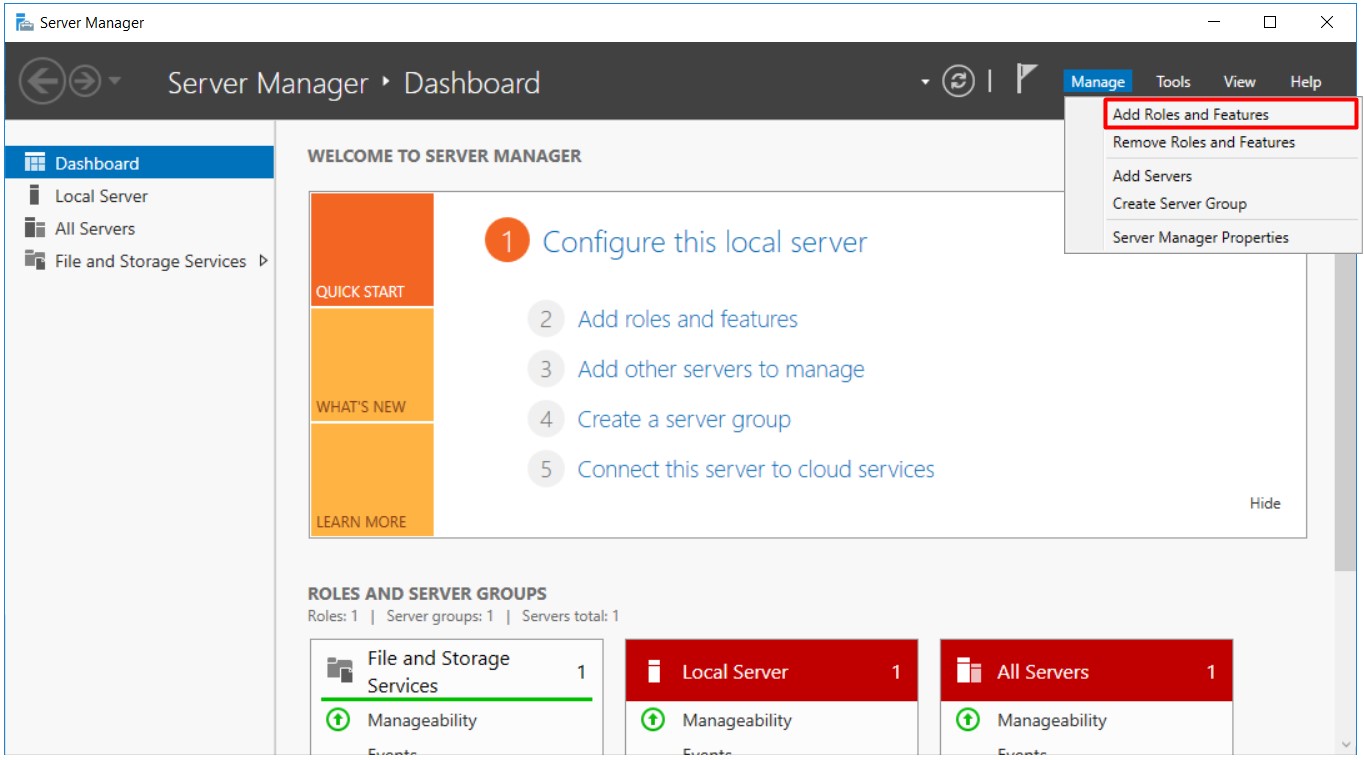
In the Server Manager console, I click Add Roles and Features on the Manage menu. The same wizard can also be opened from the Quick Start section of the Dashboard.
Step 2 - Installation Type
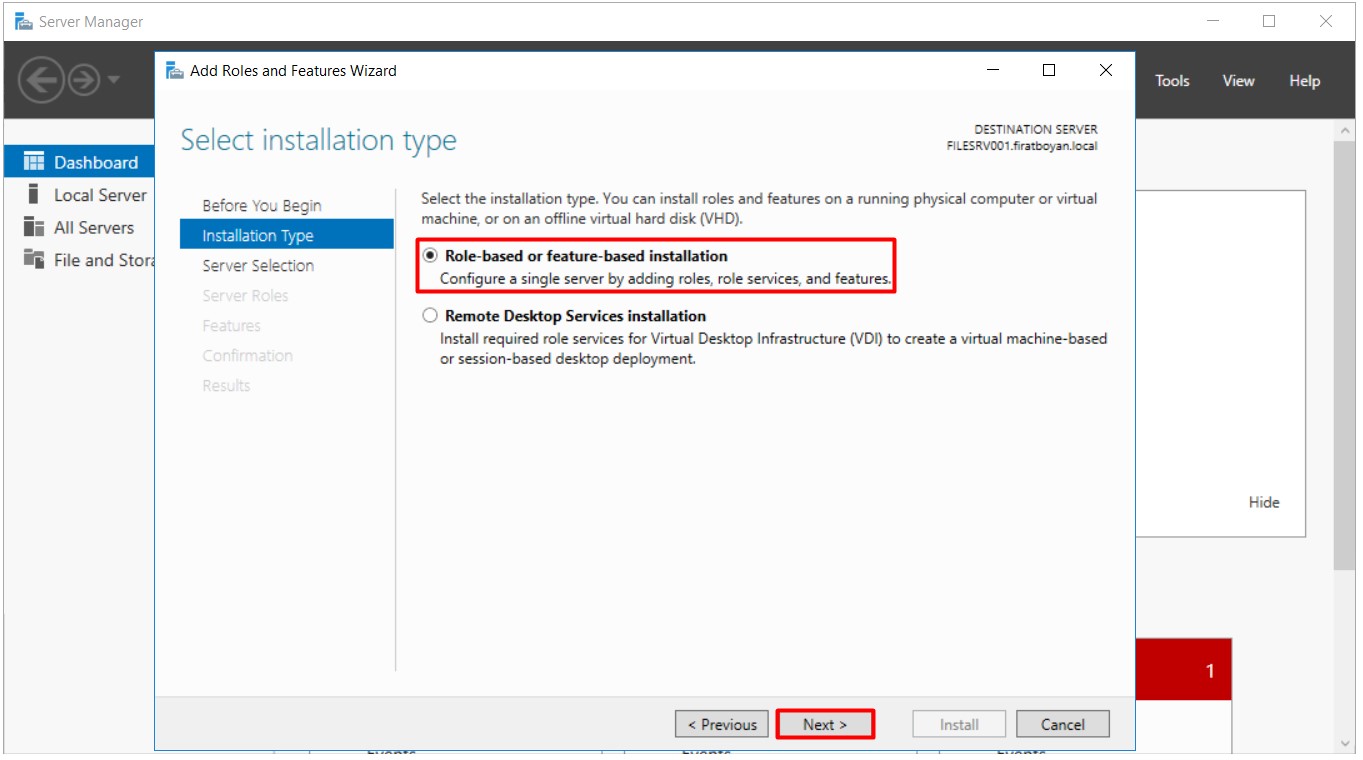
On the Select Installation Type screen, I continue with Next while Role-based or Feature-based Installation is selected.
Step 3 - Server Selection
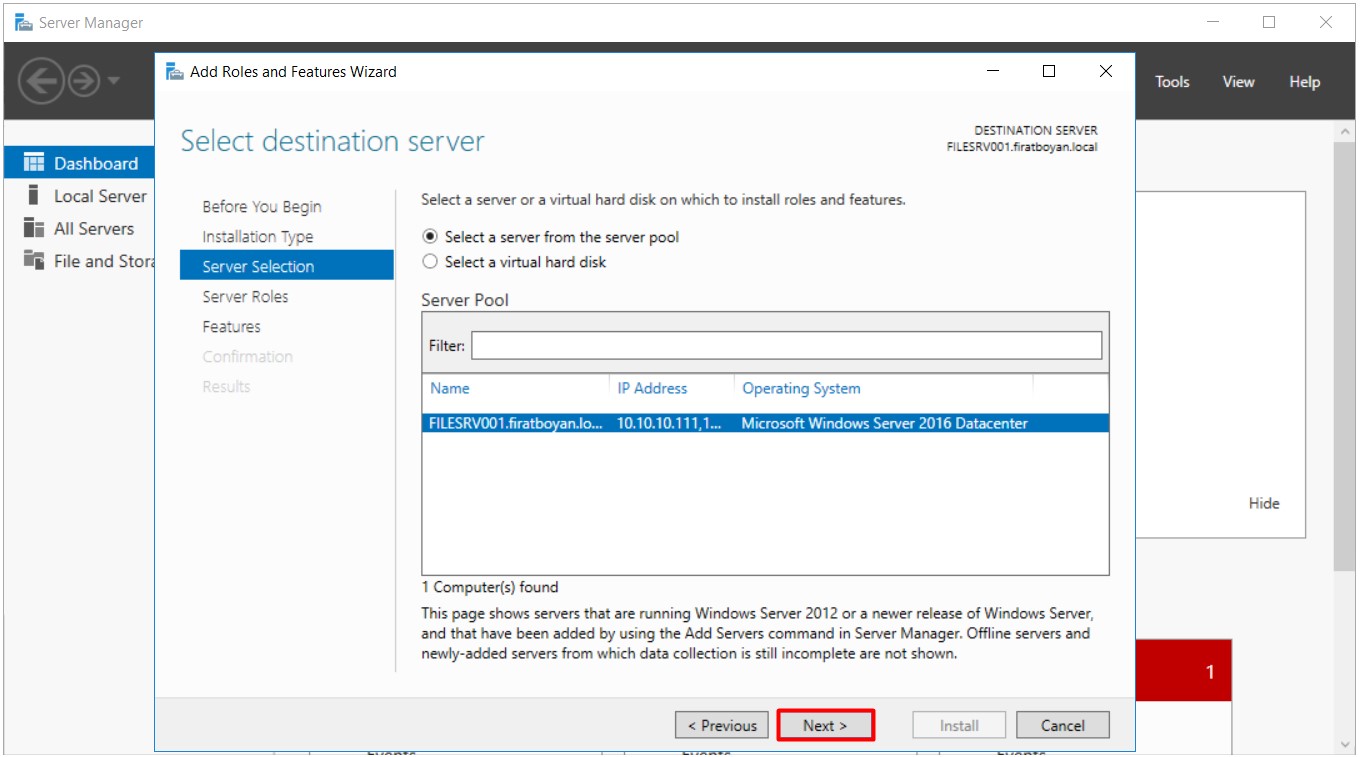
On the Select destination server screen, I select FILESRV001 as the server on which the role services will be installed.
Step 4 - Server Roles
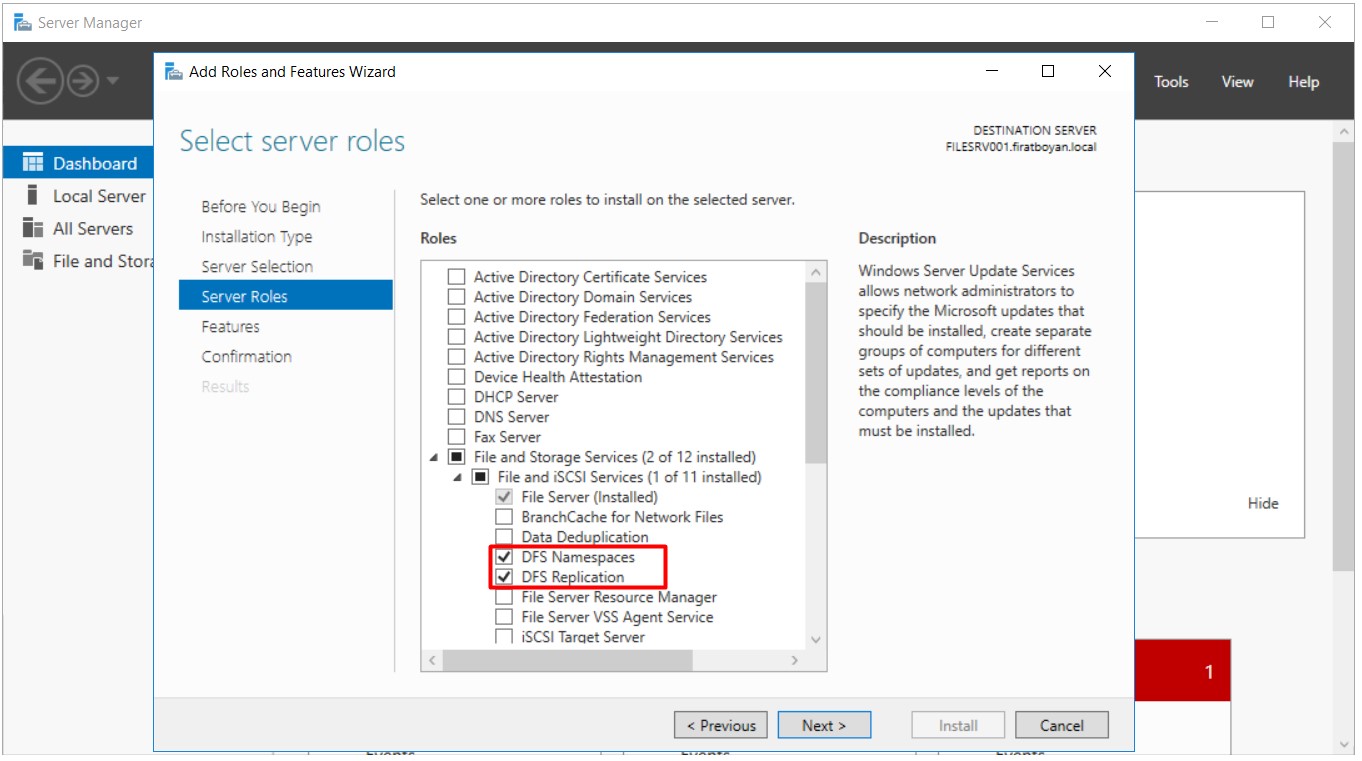
On the Select server roles screen, I select the DFS Namespaces and DFS Replication role services under File and Storage Services, File and iSCSI Services. DFS Namespaces installs the namespace server role, and DFS Replication installs the replication service. The DFS Management console is also installed with this selection.
Step 5 - Features
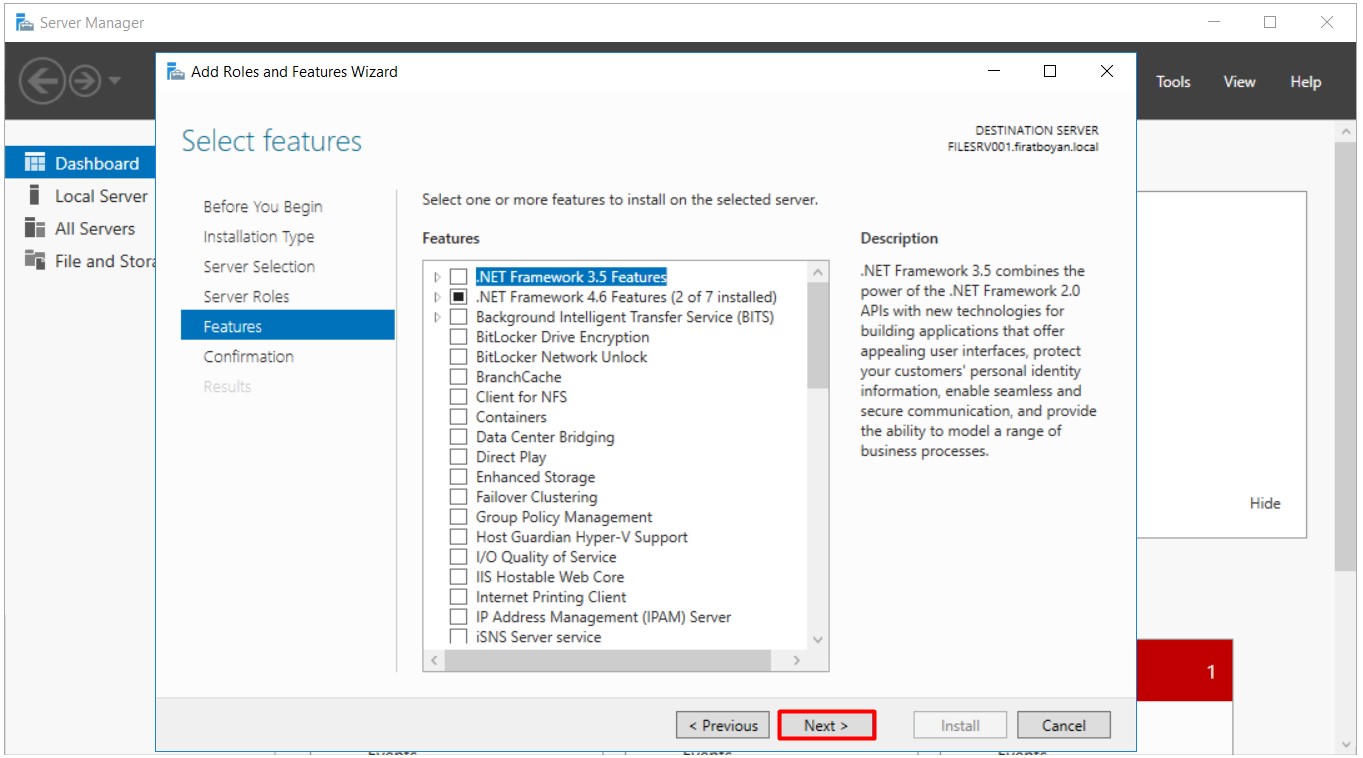
On the Select features screen, I continue with Next without selecting an additional feature.
Step 6 - Confirmation and Installation
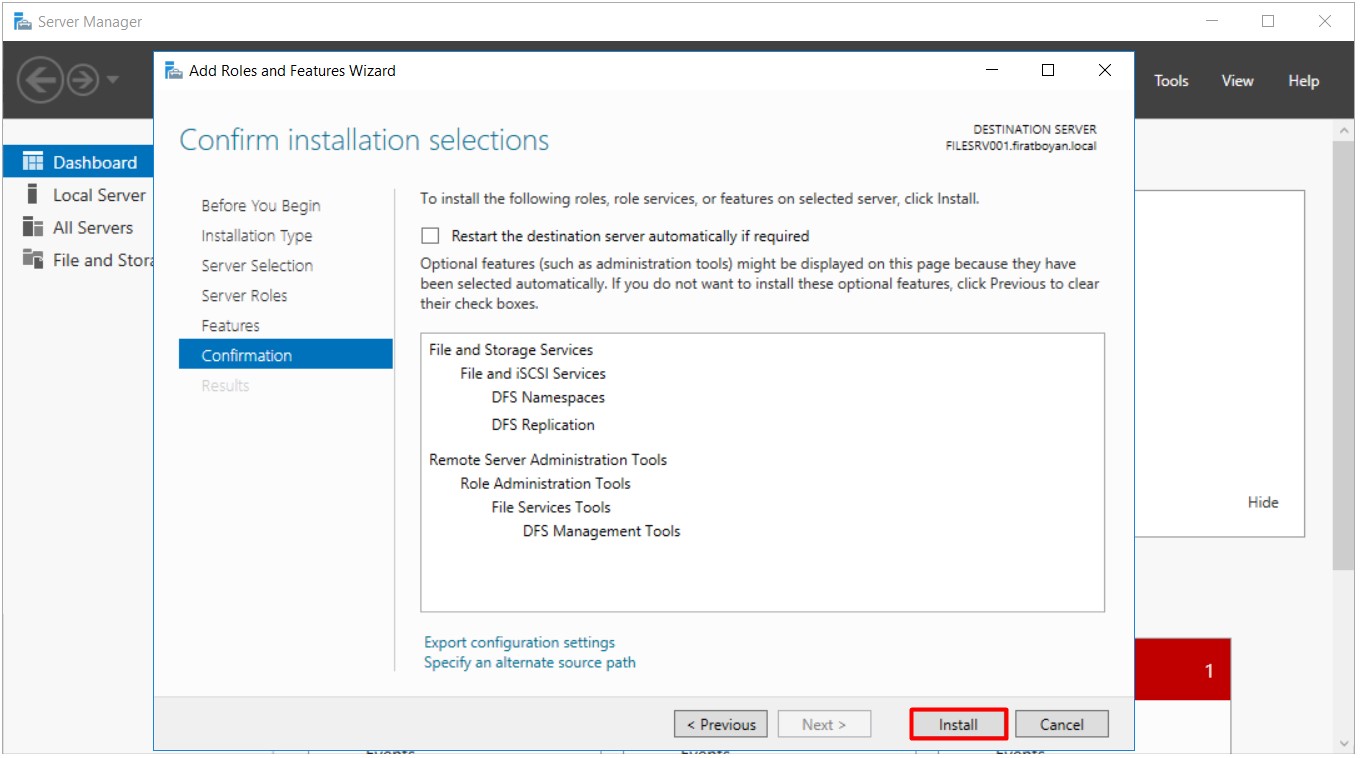
On the Confirm installation selections screen, I check the selections and start the installation with Install.
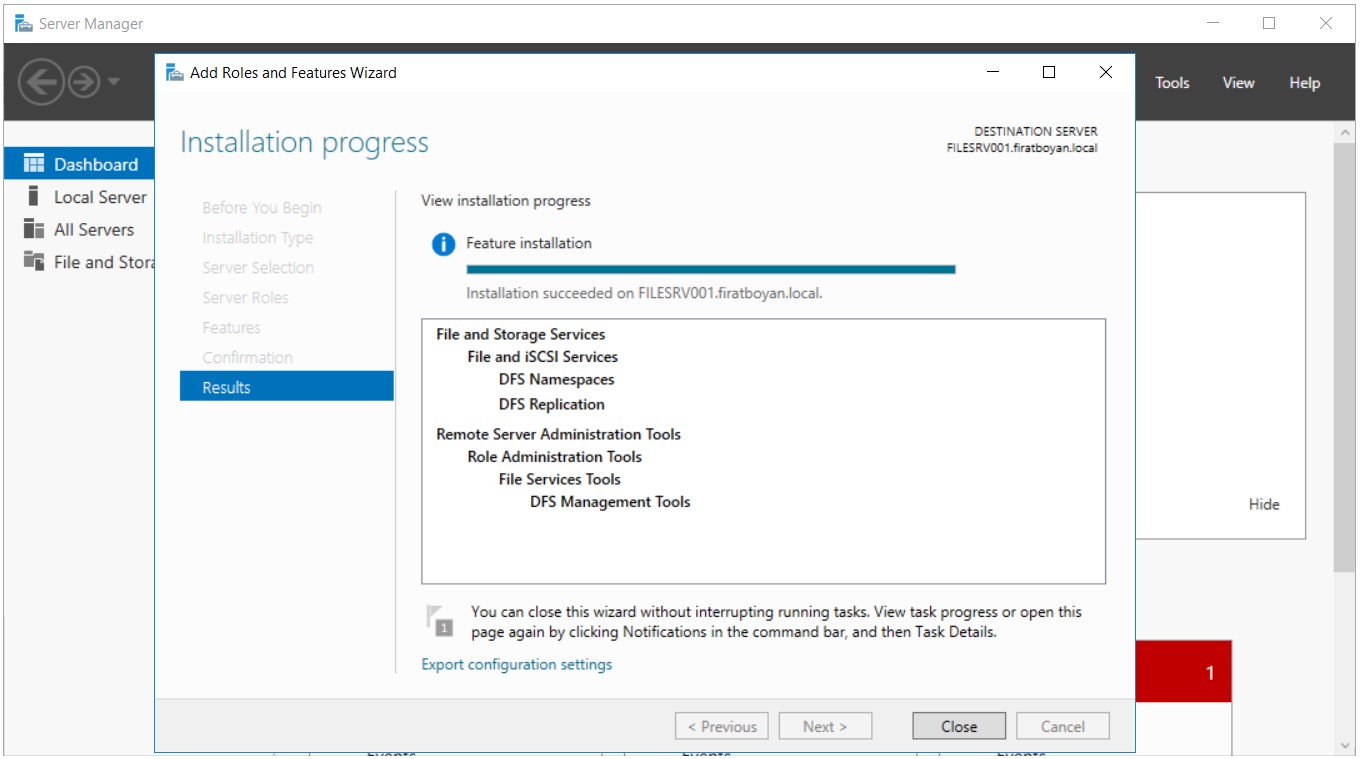
Step 7 - Installation Result
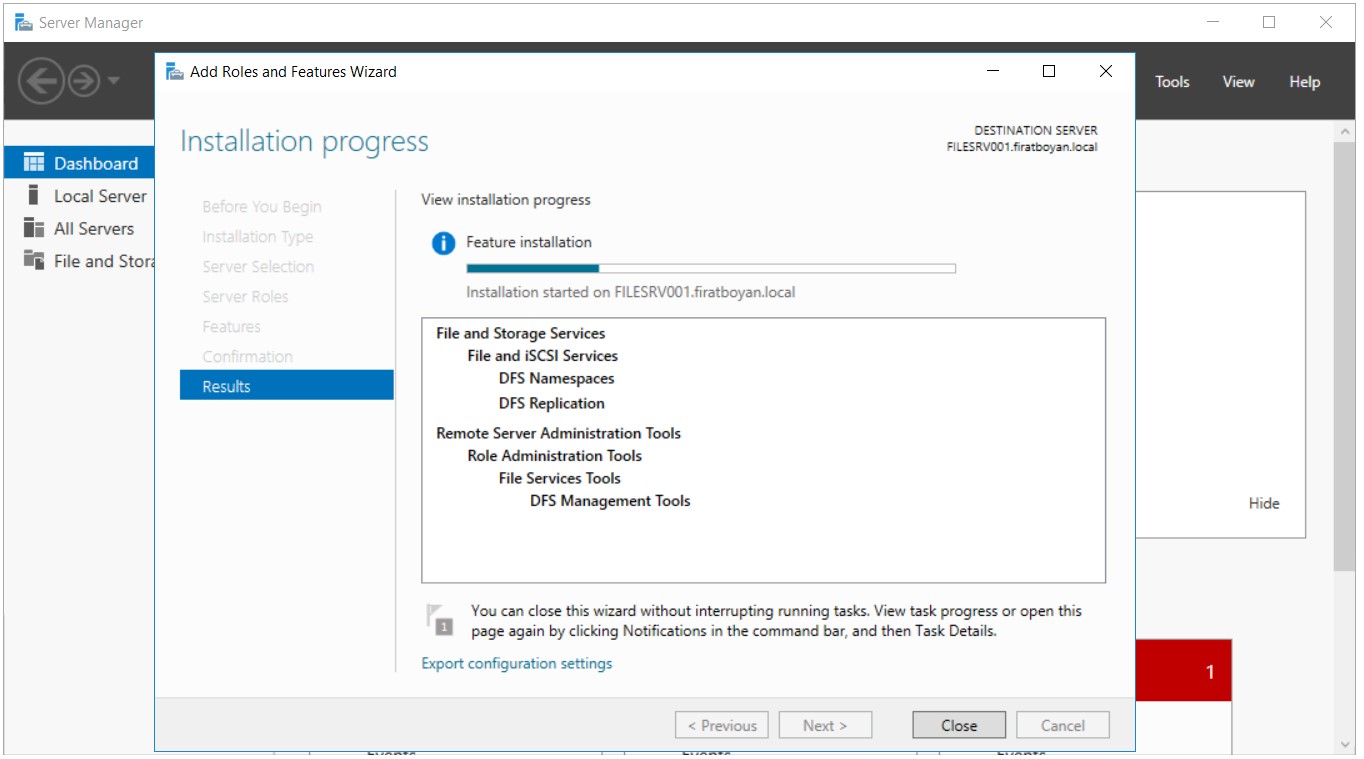
The installation completed successfully on FILESRV001.
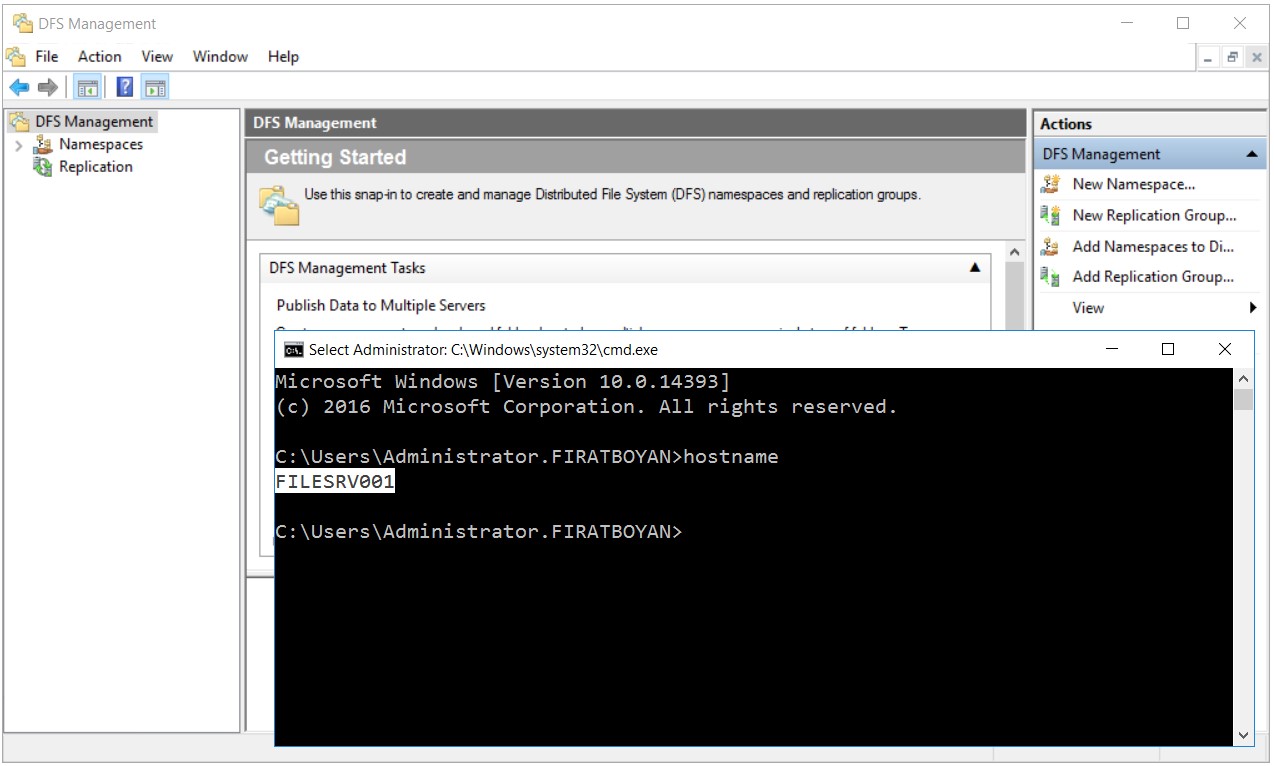
Checkpoint
The wizard must show that the installation succeeded, and the DFS Management console must be on the Tools menu.
Step 8 - Installation on FILESRV002
I repeat the same steps on FILESRV002.
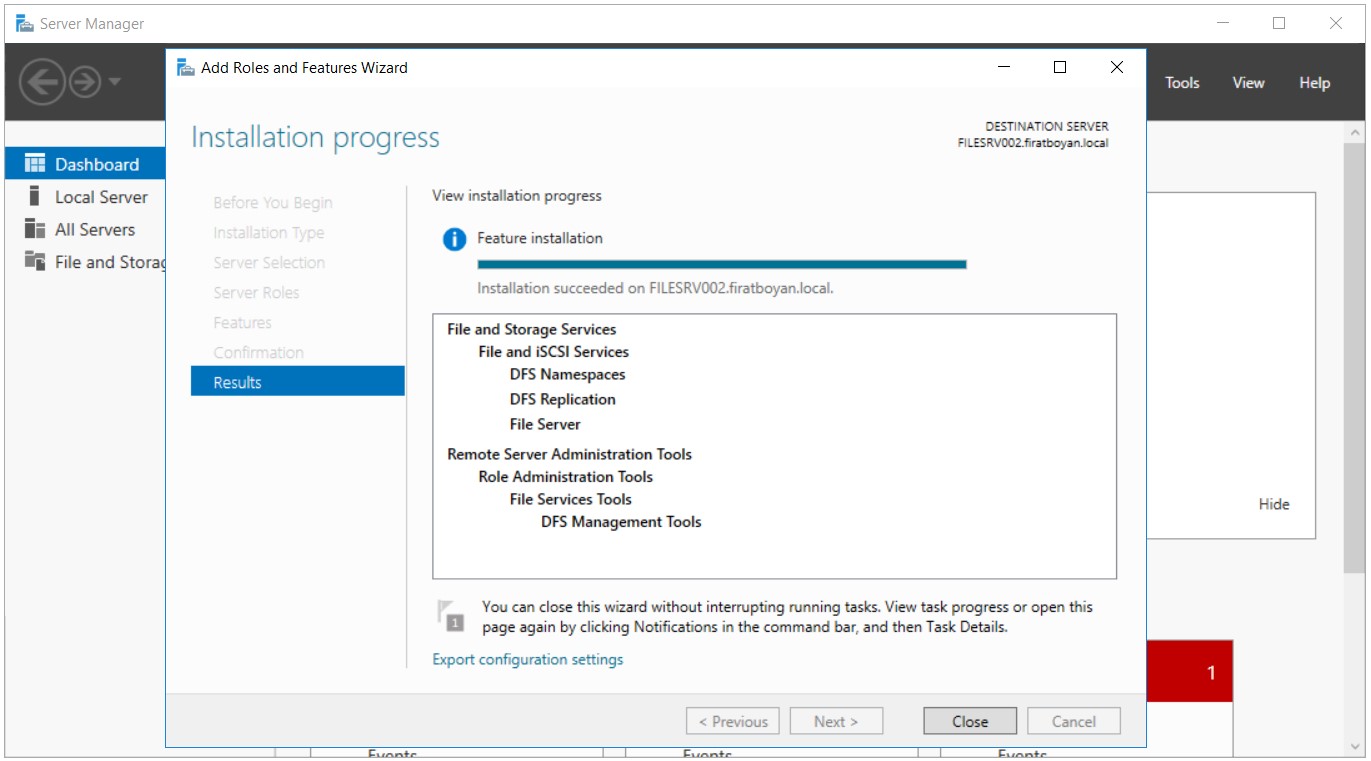
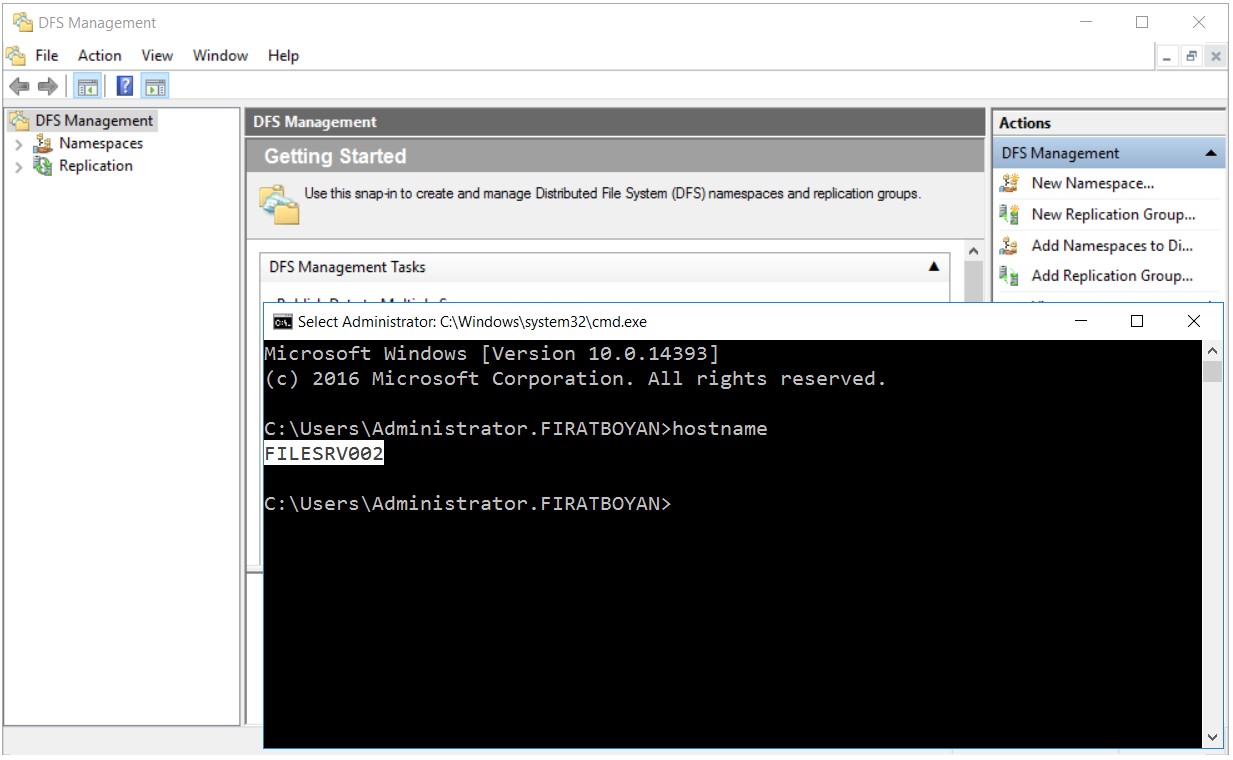
I can also install the role services with PowerShell instead of the wizard. I run the command on both servers in a PowerShell session that I open as administrator.
Install-WindowsFeature FS-DFS-Namespace, FS-DFS-Replication -IncludeManagementTools
Checkpoint
On both servers, the FS-DFS-Namespace and FS-DFS-Replication rows must appear in the Installed state in the Get-WindowsFeature FS-DFS* output.
5- Preparing the Shared Folders
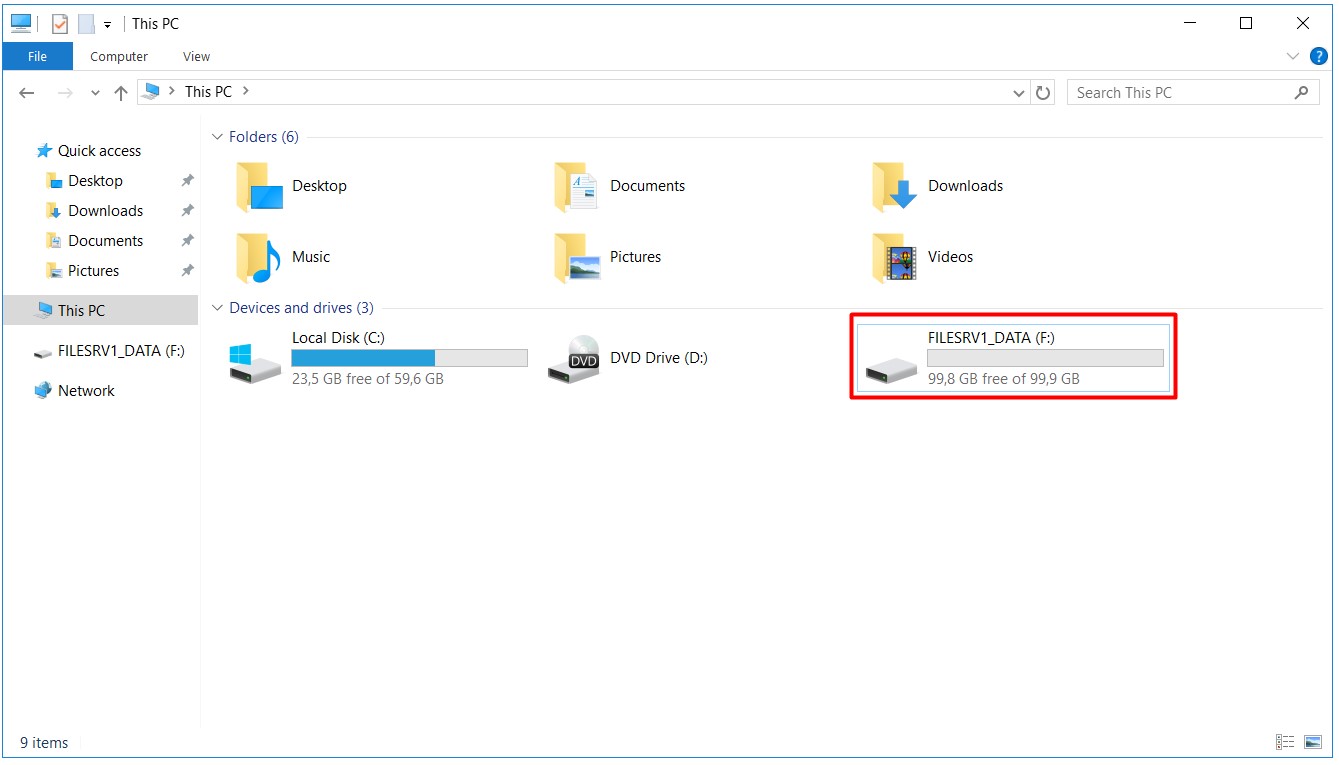
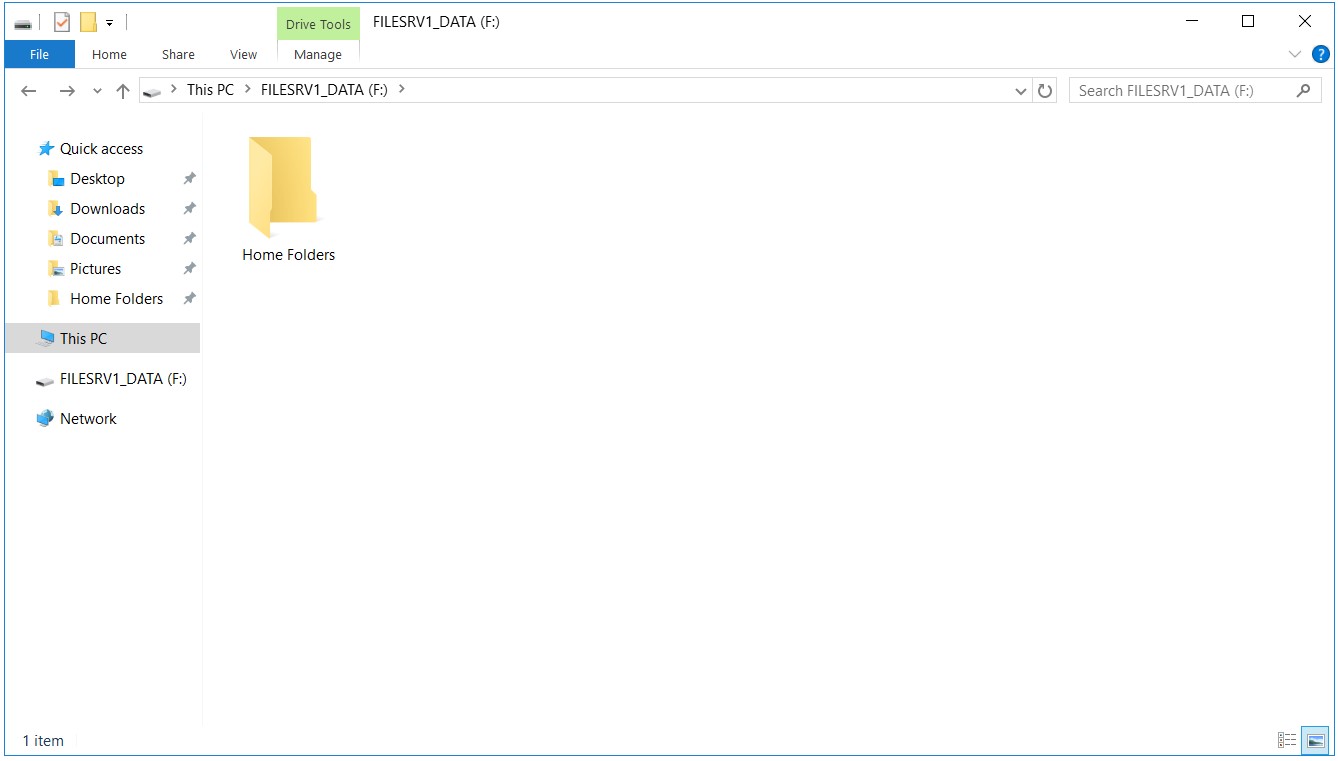
Step 9 - Home Folders Folder on FILESRV001
On the secondary disk of FILESRV001, I create a folder named Home Folders and share it.
Step 10 - User Folders and NTFS Permissions
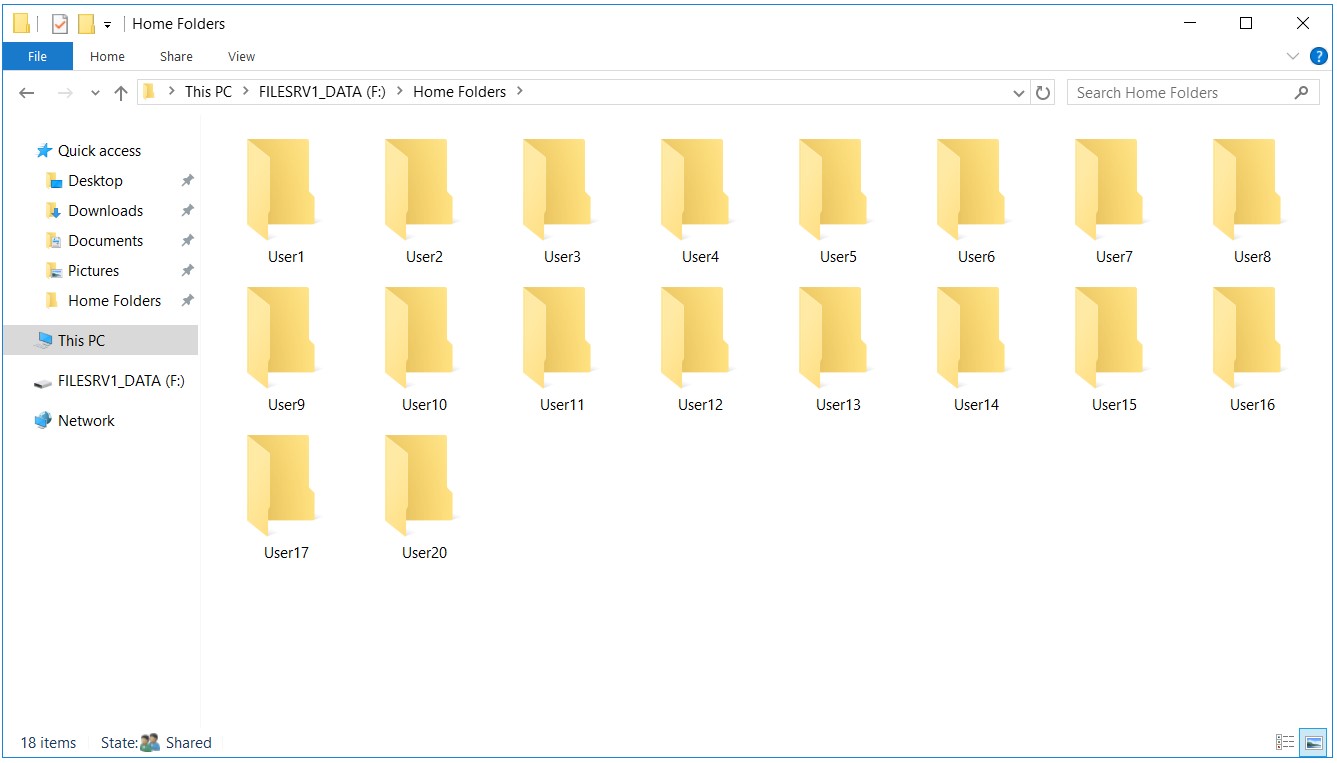
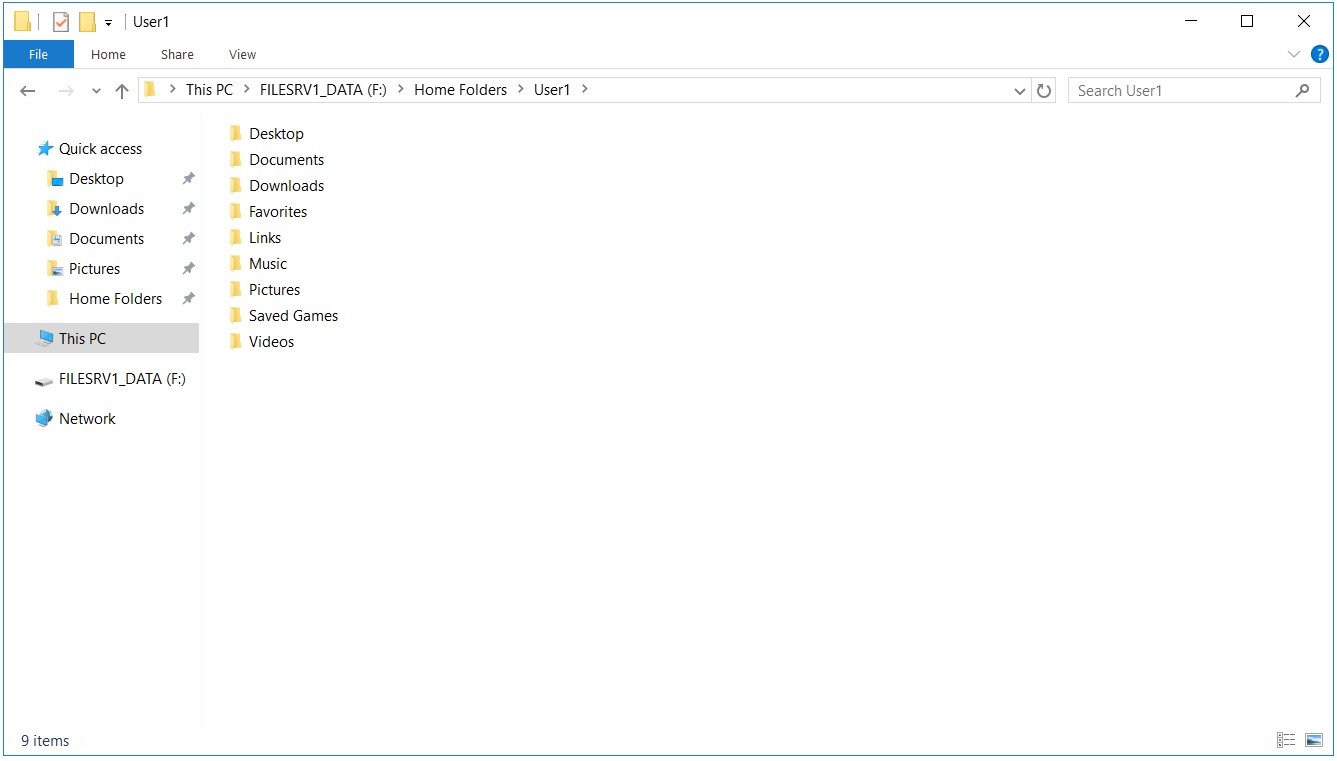
Inside the Home Folders folder, I create a folder for each user that carries the user name, and I assign the NTFS permissions. Because DFS Replication also replicates NTFS permissions, these permissions will be carried to FILESRV002 unchanged.
Step 11 - Home Folders Folder on FILESRV002
On the secondary disk of FILESRV002, I also create the Home Folders folder and share it. I do not create user folders inside this folder, because the content will come from FILESRV001 with the initial replication.
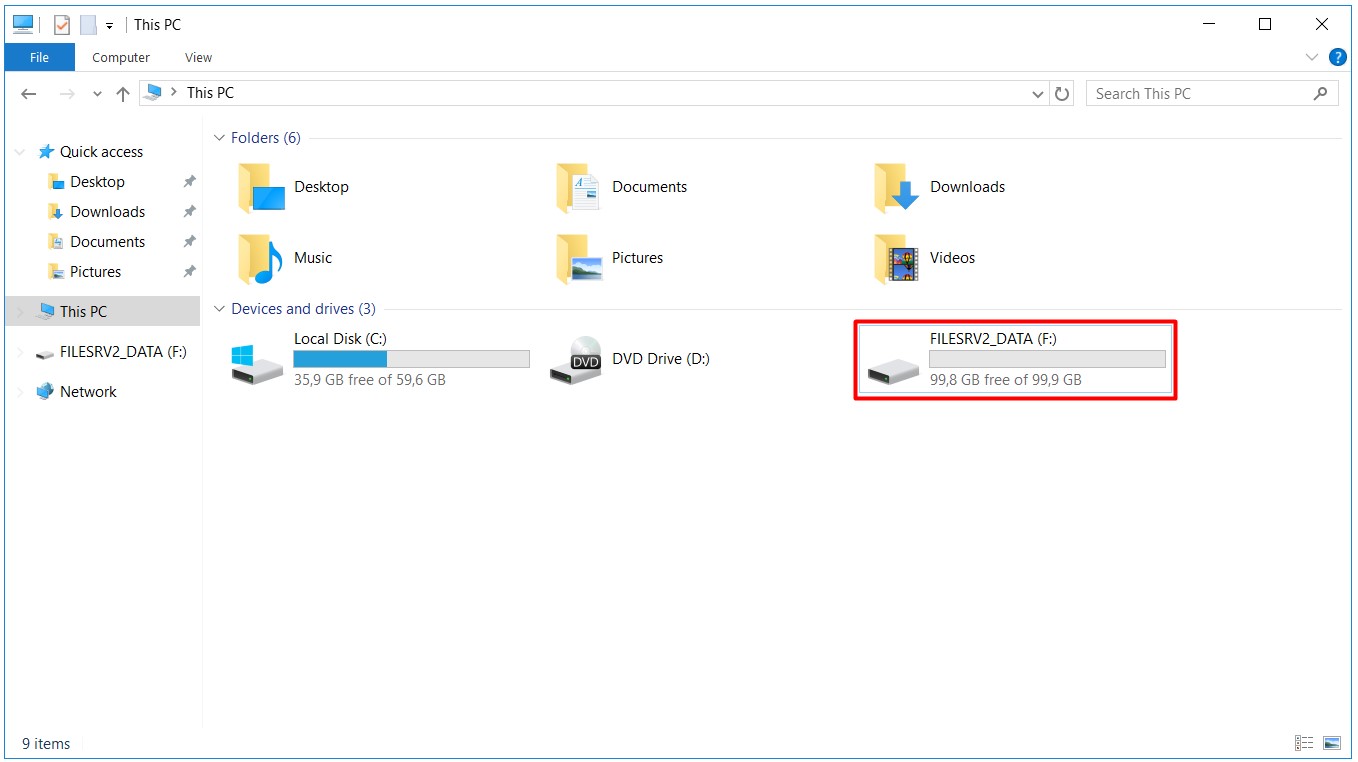
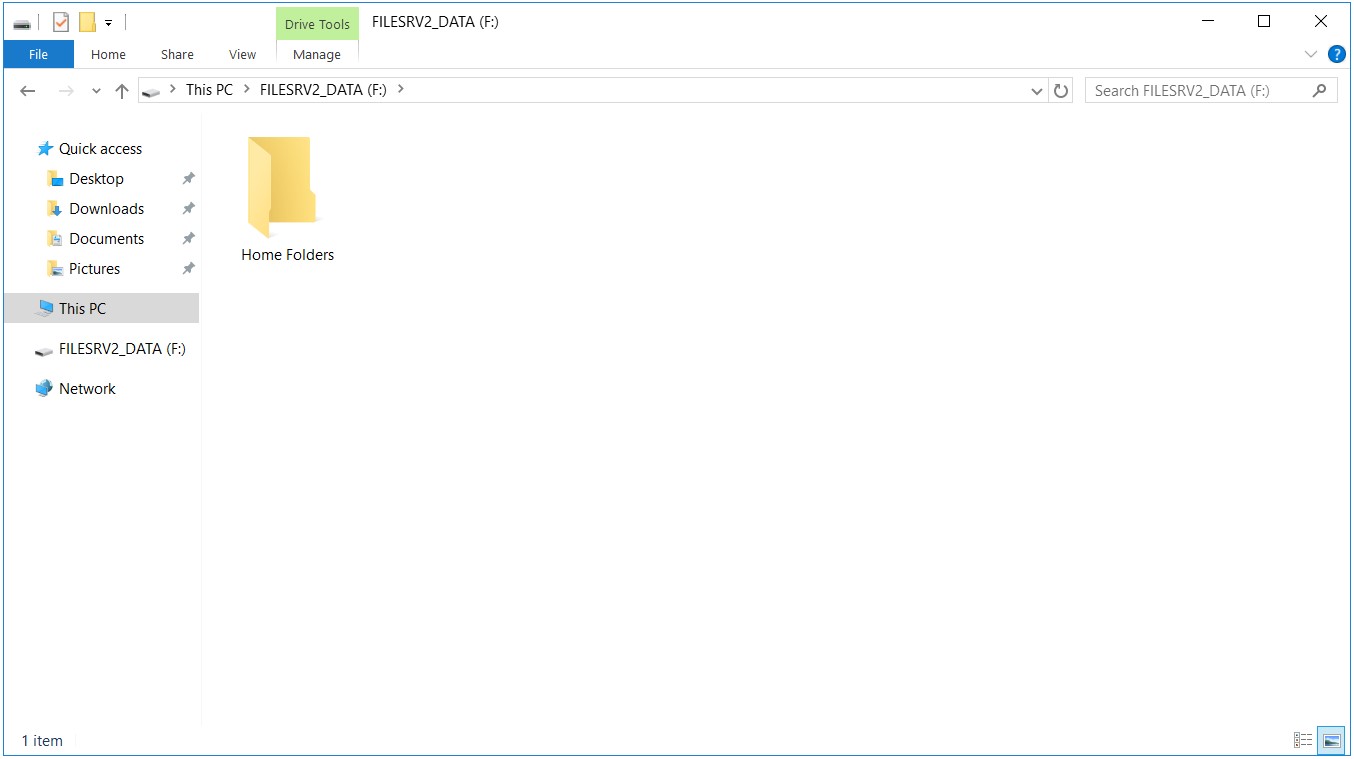
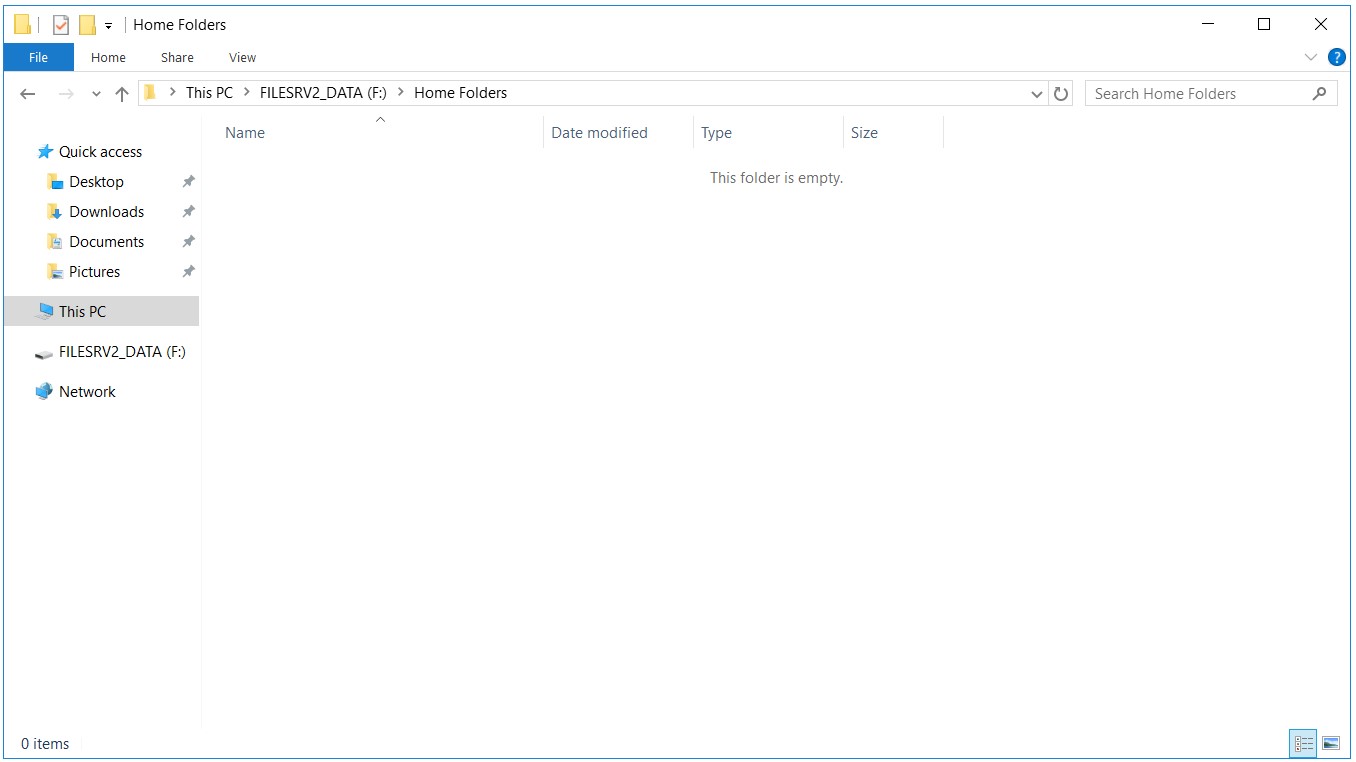
In the initial replication, files that exist on the other members and differ from the files on the primary member are removed from their location and moved to the DfsrPrivate\PreExisting folder. To prevent this confusion, I leave the folder of the second member empty.
6- Creating the Namespace
The namespace groups server-specific paths under a single domain path. In this setup, there are 2 separate server paths:
\\FILESRV001\{Share Name}
\\FILESRV002\{Share Name}
After the namespace is created, users access the copy on both servers through a single path:
\\firatboyan.local\HomeFolders\{Namespace Folder Name}
Step 12 - New Namespace
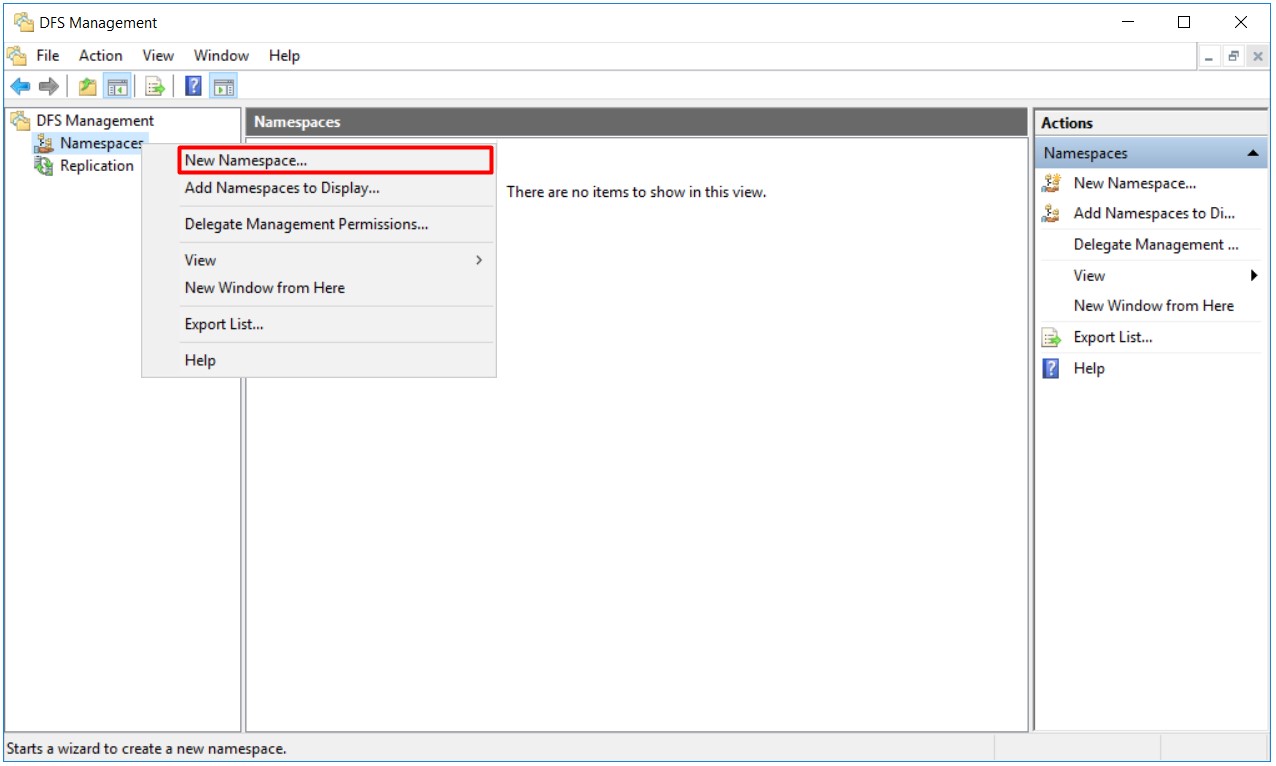
In the DFS Management console, I right-click Namespaces and select New Namespace....
Step 13 - Namespace Server
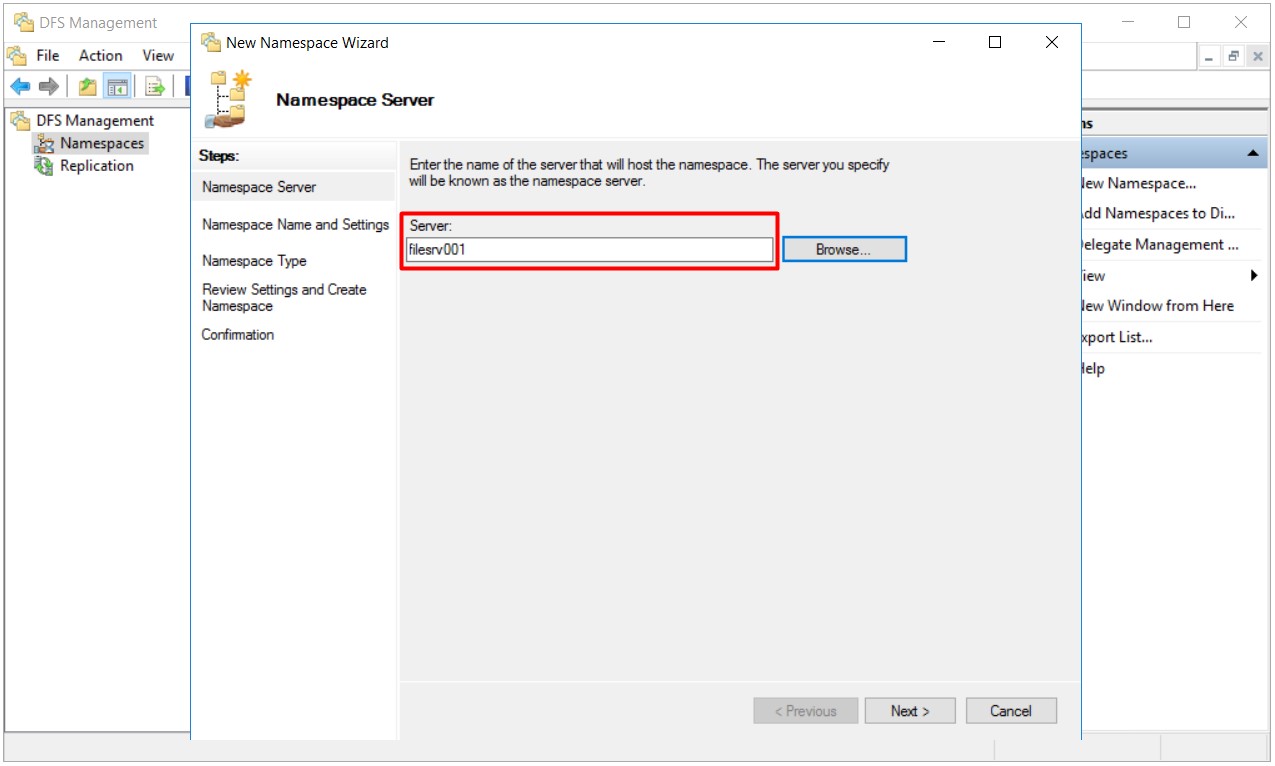
On the Namespace Server screen, I select FILESRV001 as the server that will host the namespace first. I will add the second namespace server after the installation.
Step 14 - Namespace Name and Settings
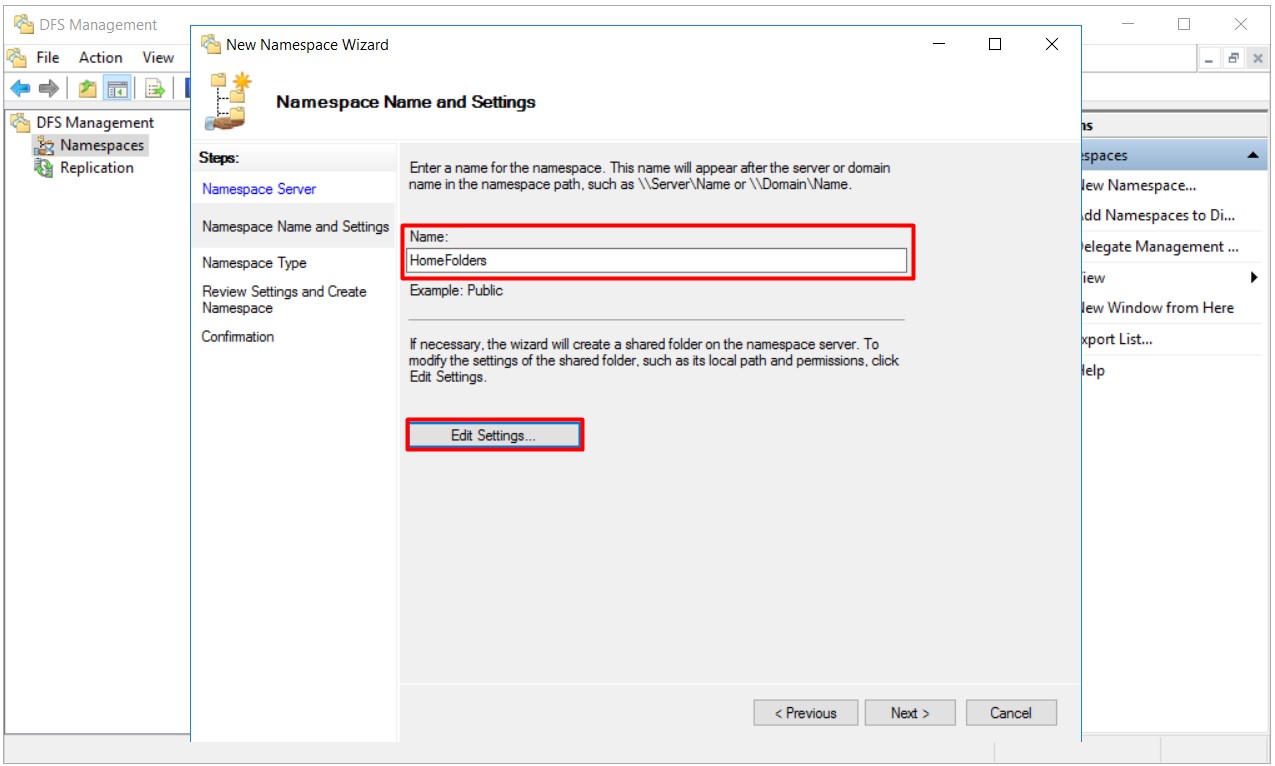
I type the name of the namespace (HomeFolders) in the Name field and click the Edit Settings... button. The wizard creates a root share with this name on the namespace server.
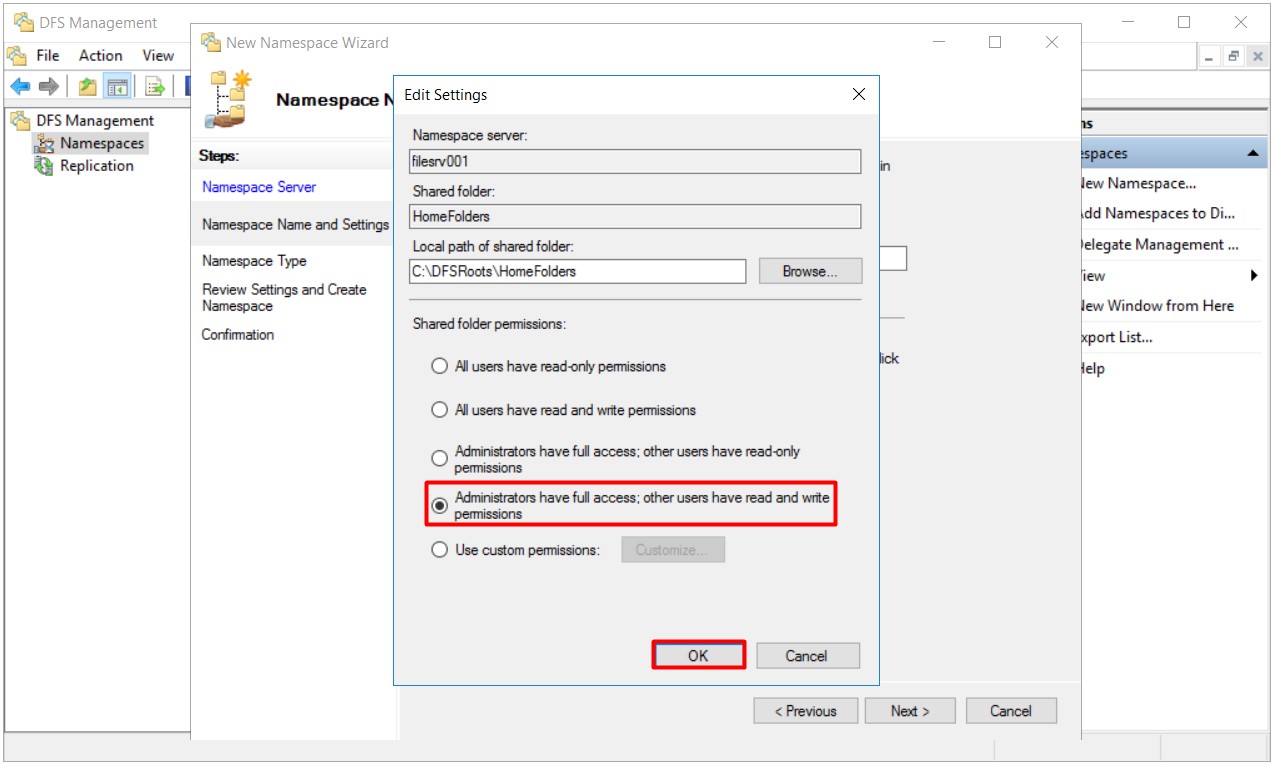
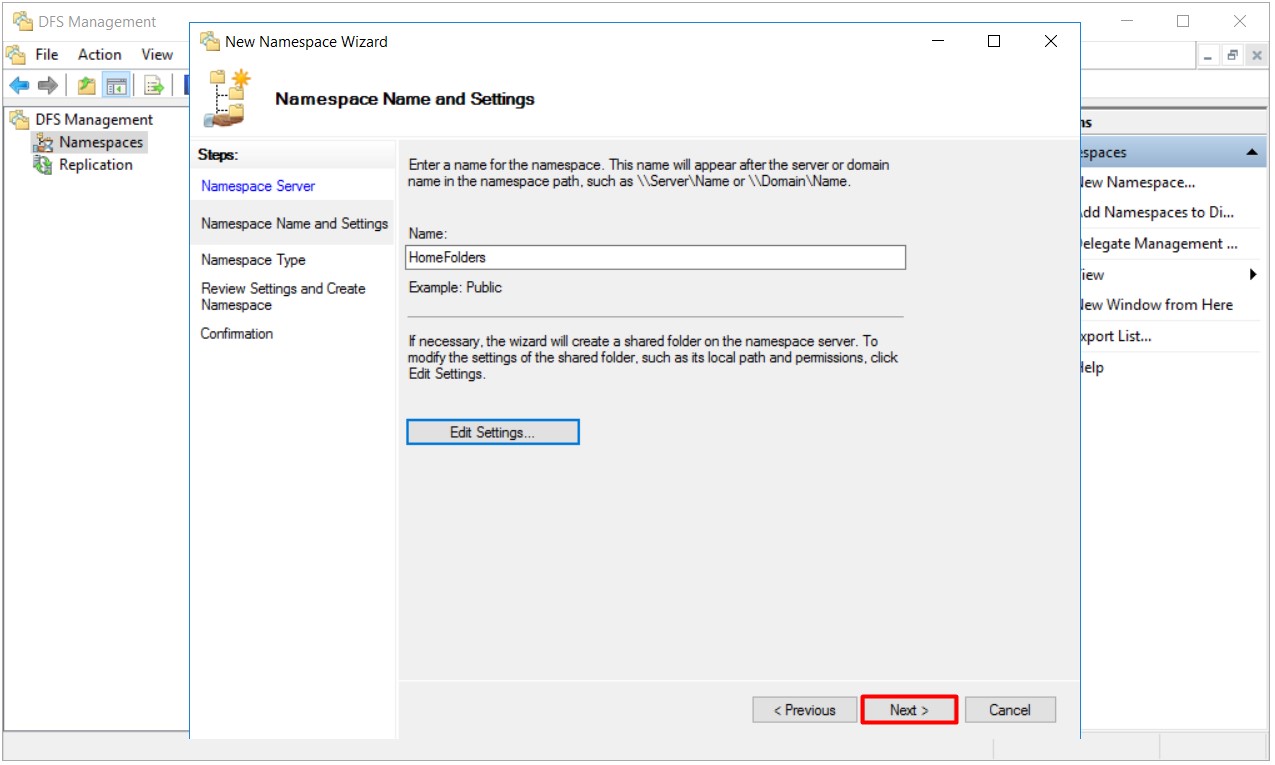
In the Edit Settings window, I select Administrators have full access; other users have read and write permissions as the share permission of the root share and close the window with OK. This permission applies only to the namespace root share. Access to user data is determined by the share and NTFS permissions of the folder targets themselves.
Step 15 - Namespace Type
On the Namespace Type screen, a choice is made between 2 namespace types:
|
Namespace Type |
Where the Configuration Is Stored |
Path Format |
HA |
|
✅ Domain-based namespace |
Active Directory |
\\firatboyan.local\HomeFolders |
Provided by adding more than 1 namespace server |
|
✅ Stand-alone namespace |
The namespace server itself |
\\FILESRV001\HomeFolders |
Provided only if the namespace is hosted on a failover cluster |
I continue with the domain-based namespace selected and Enable Windows Server 2008 mode ticked. The domain-based path stays independent of the server that the user connects to, and when the second namespace server is added, the namespace root also becomes highly available.
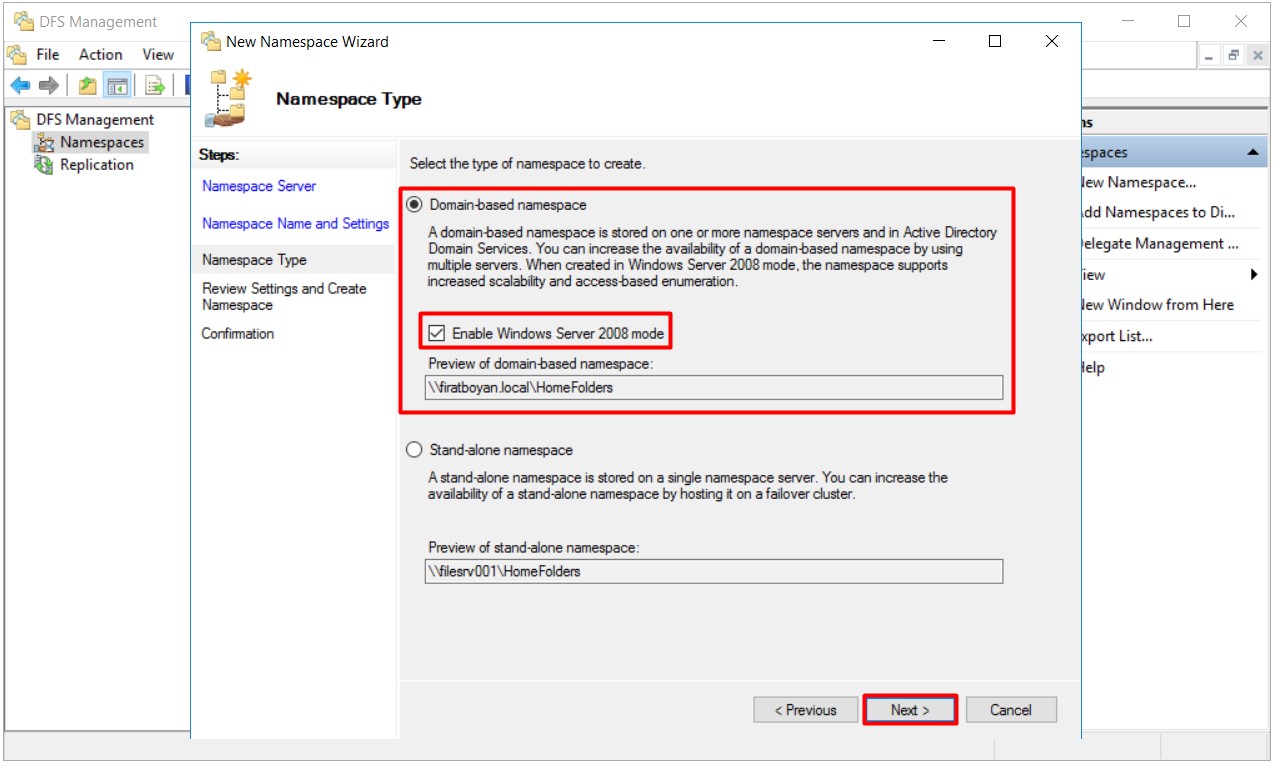
Windows Server 2008 mode requires all namespace servers to run Windows Server 2008 or later and the domain functional level to be at least Windows Server 2008. If there are older servers in the environment, this option is not ticked.
Step 16 - Review Settings and Create Namespace
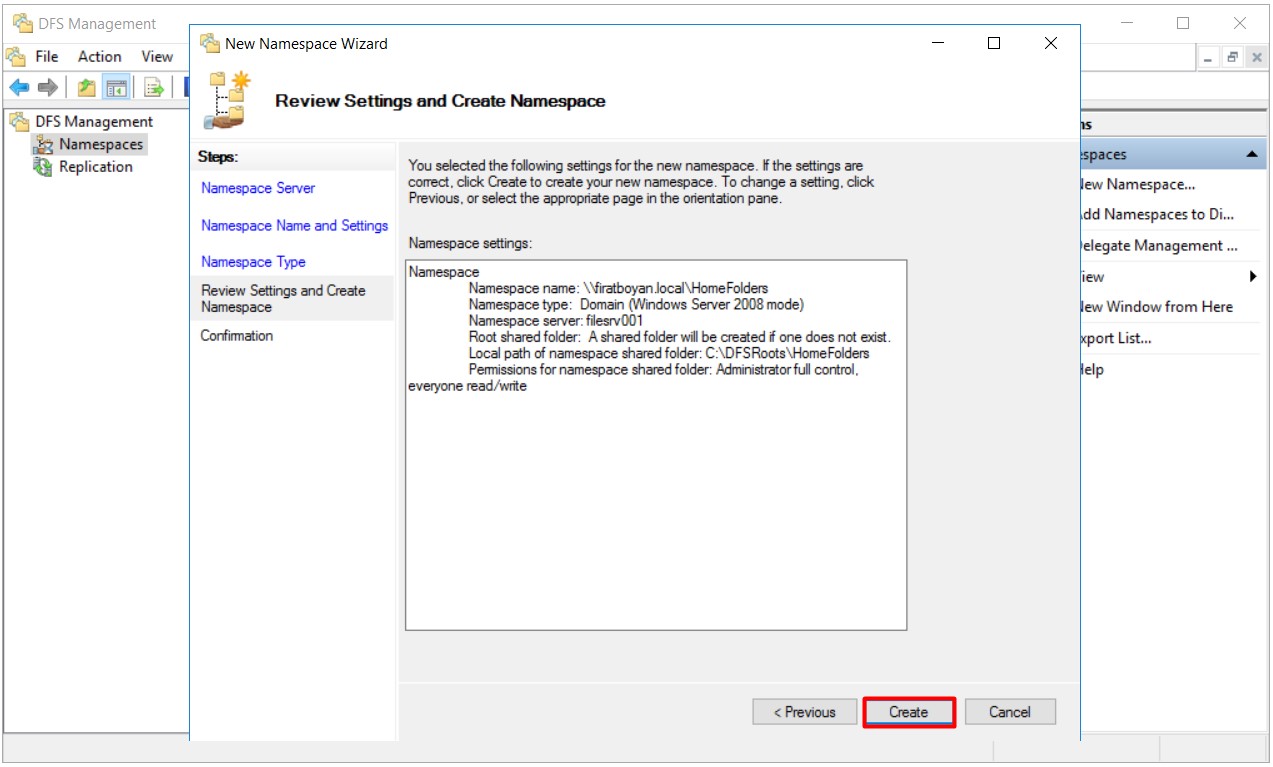
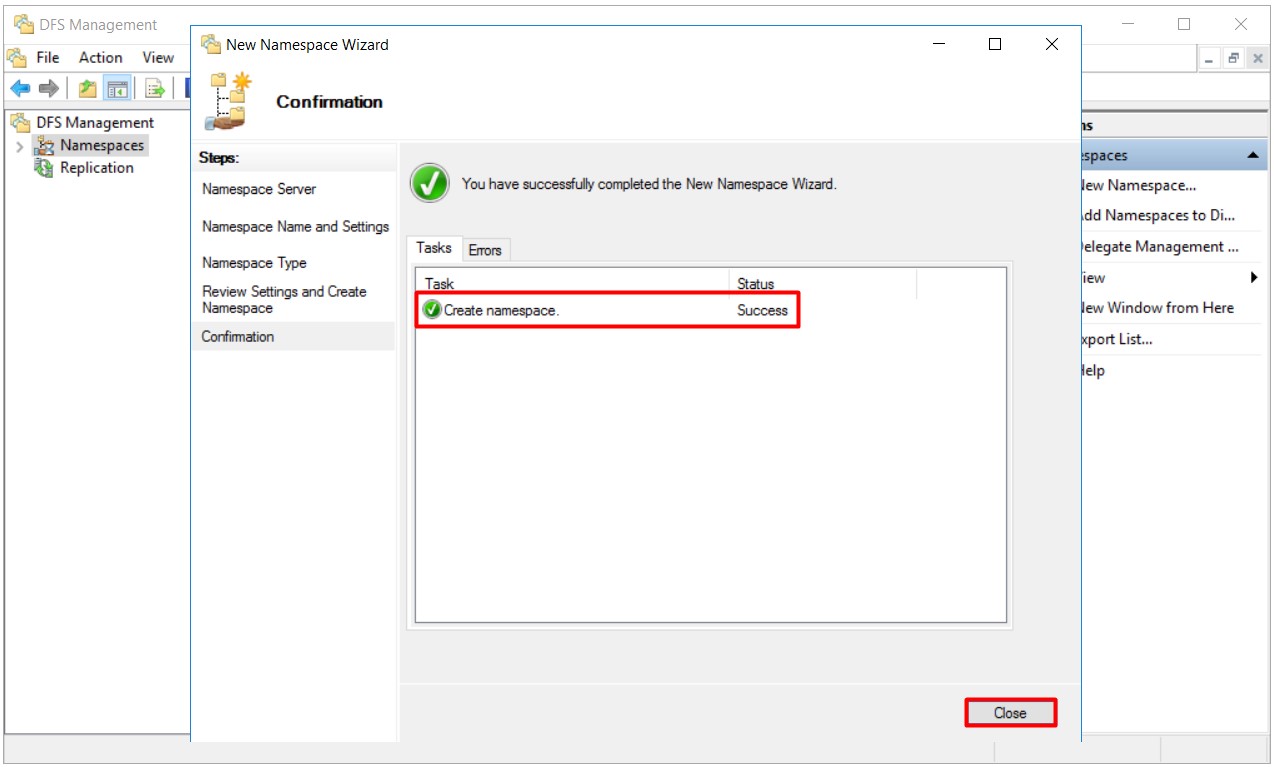
I check the summary of the settings and create the namespace with Create.
Step 17 - Viewing the Namespace
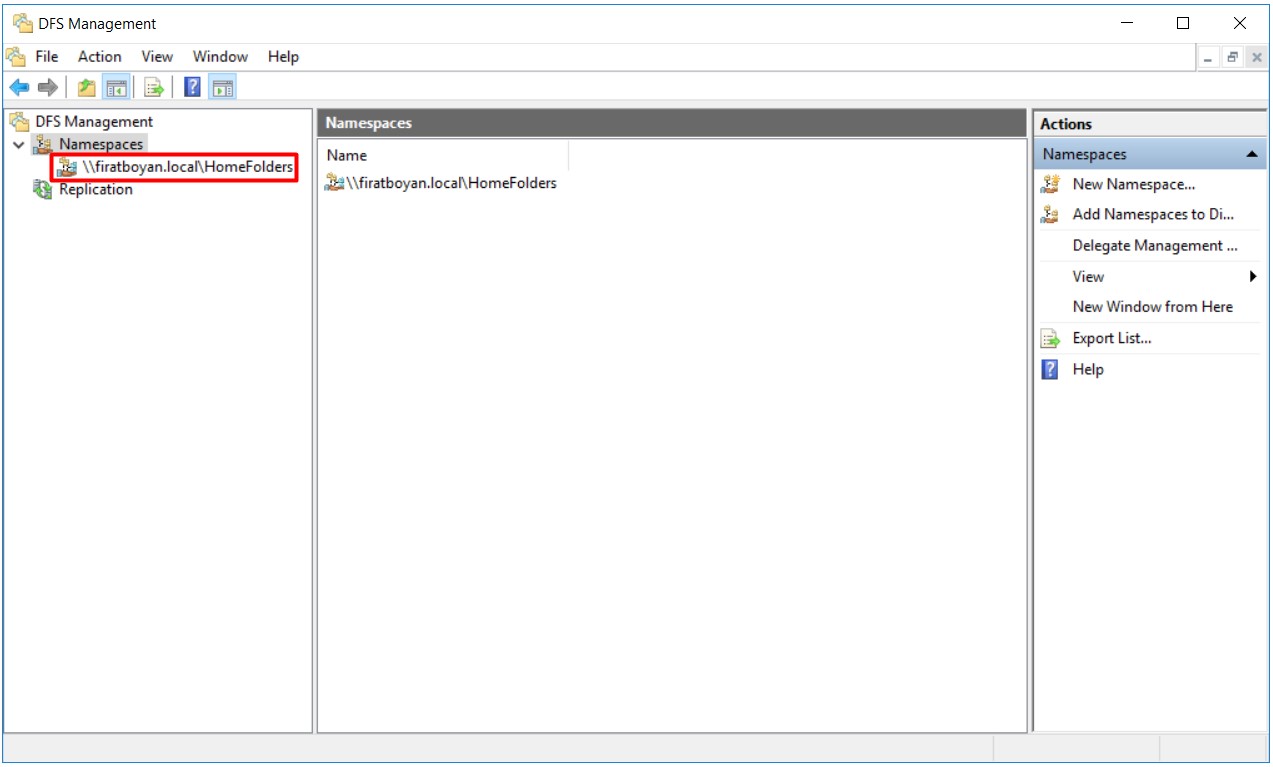
The namespace that I created appears under Namespaces in the DFS Management console.
Checkpoint
The \\firatboyan.local\HomeFolders namespace must be listed in the console, and \\FILESRV001\HomeFolders must be on the Namespace Servers tab.
7- Creating the Replication Group
Step 18 - New Replication Group
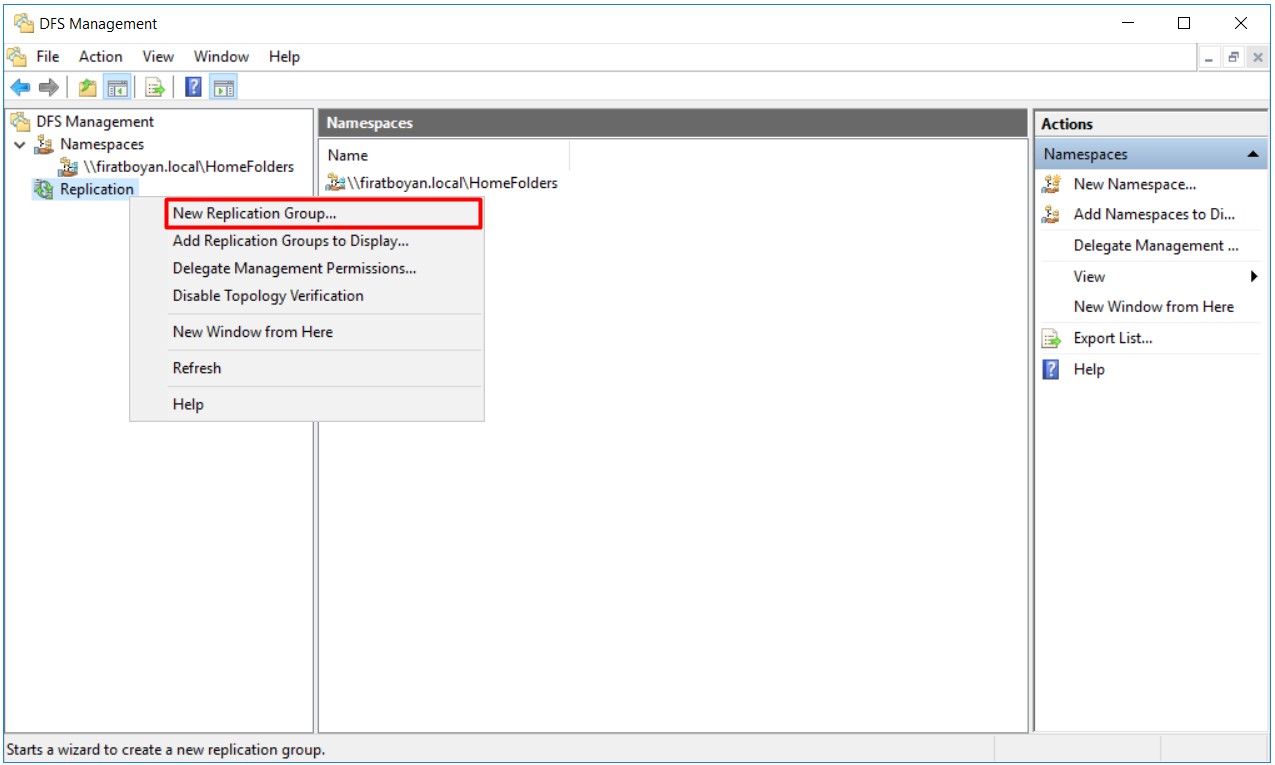
In the DFS Management console, I right-click Replication and select New Replication Group....
Step 19 - Replication Group Type
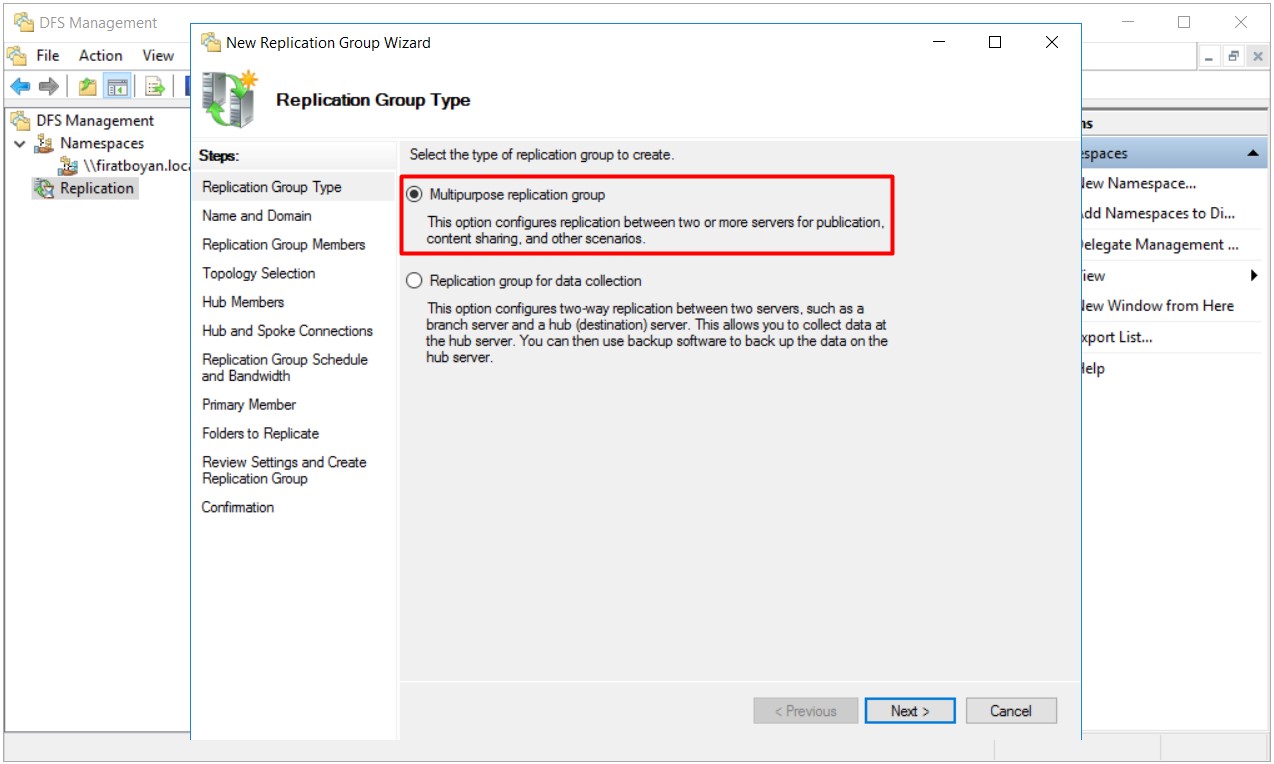
The New Replication Group Wizard offers 2 replication group types:
|
Type |
Purpose |
Replication That Is Set Up |
|
Multipurpose replication group |
Synchronising content between 2 or more servers |
Bidirectional between all members, according to the selected topology |
|
Replication group for data collection |
Collecting the data on a branch server at the central site and backing it up from there |
Bidirectional between the branch server and the central server |
To be able to add new members to the group in the future and to keep the same content on both servers, I select Multipurpose replication group.
Step 20 - Name and Domain
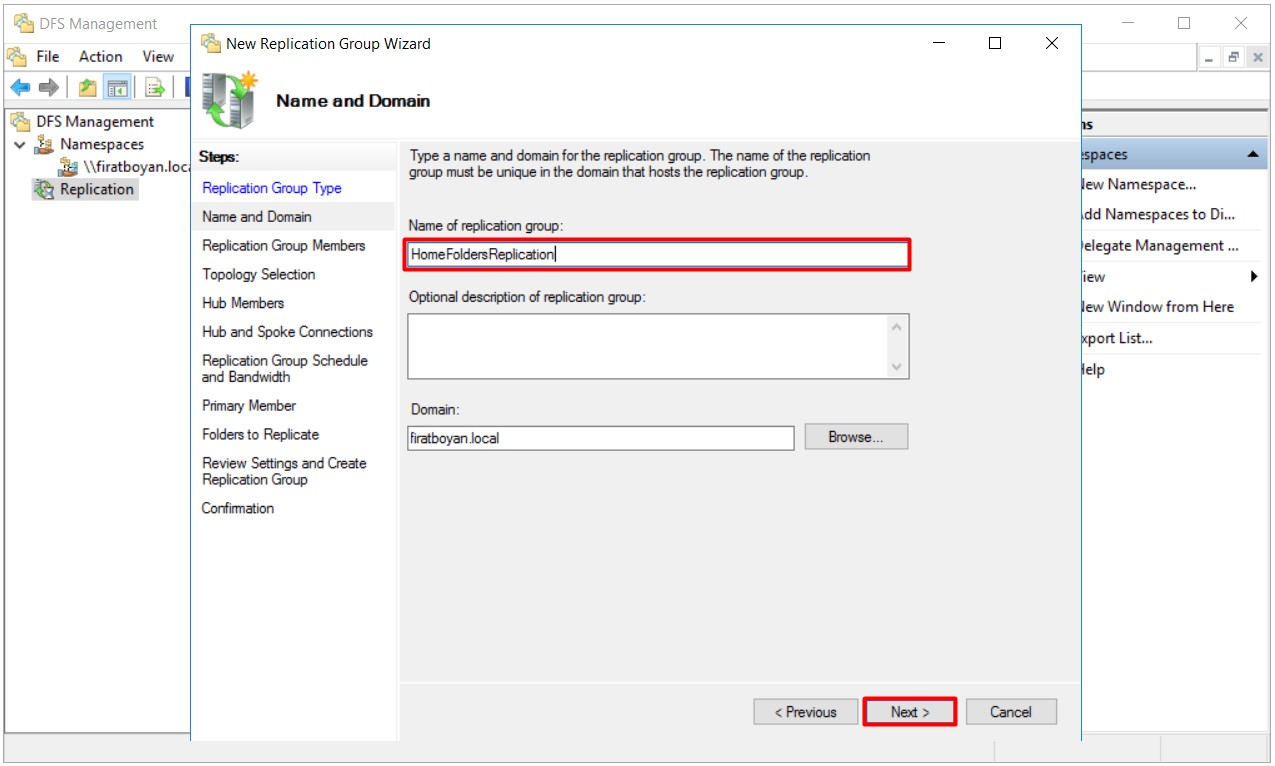
On the Name and Domain screen, I give the replication group a name.
Step 21 - Replication Group Members
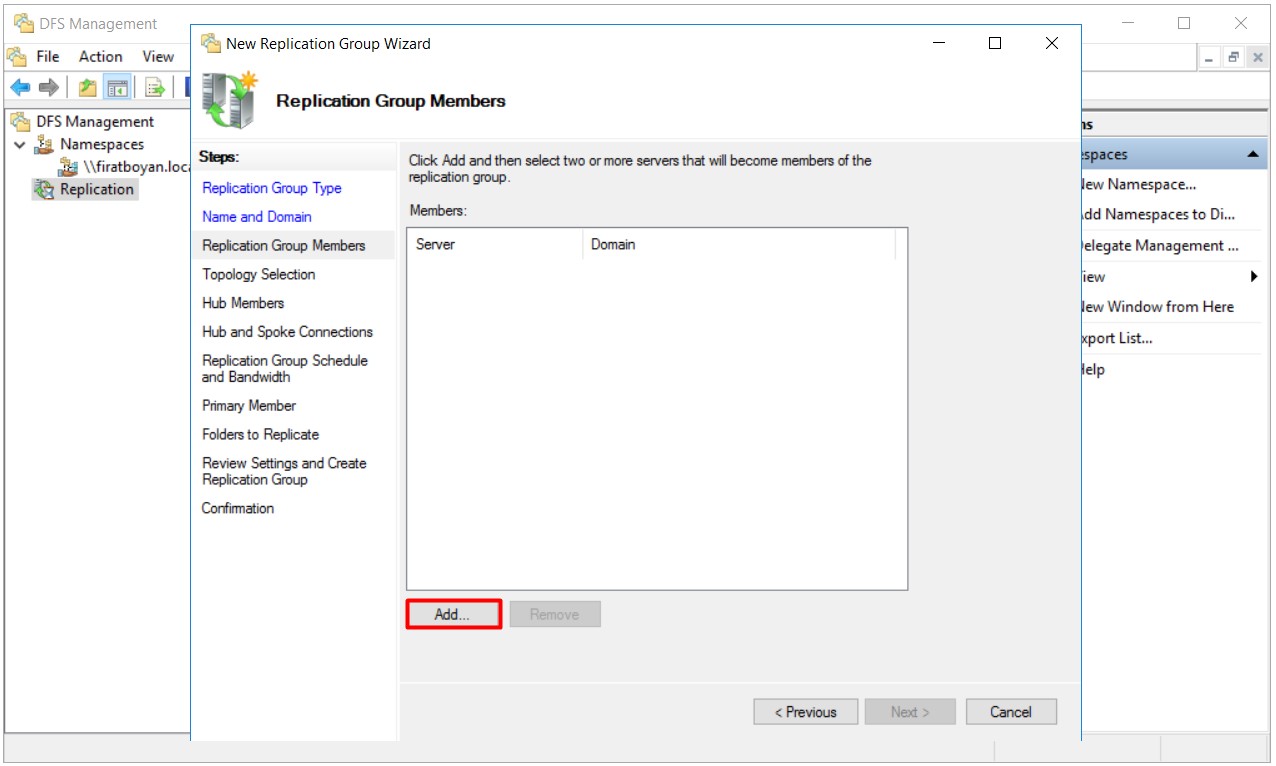
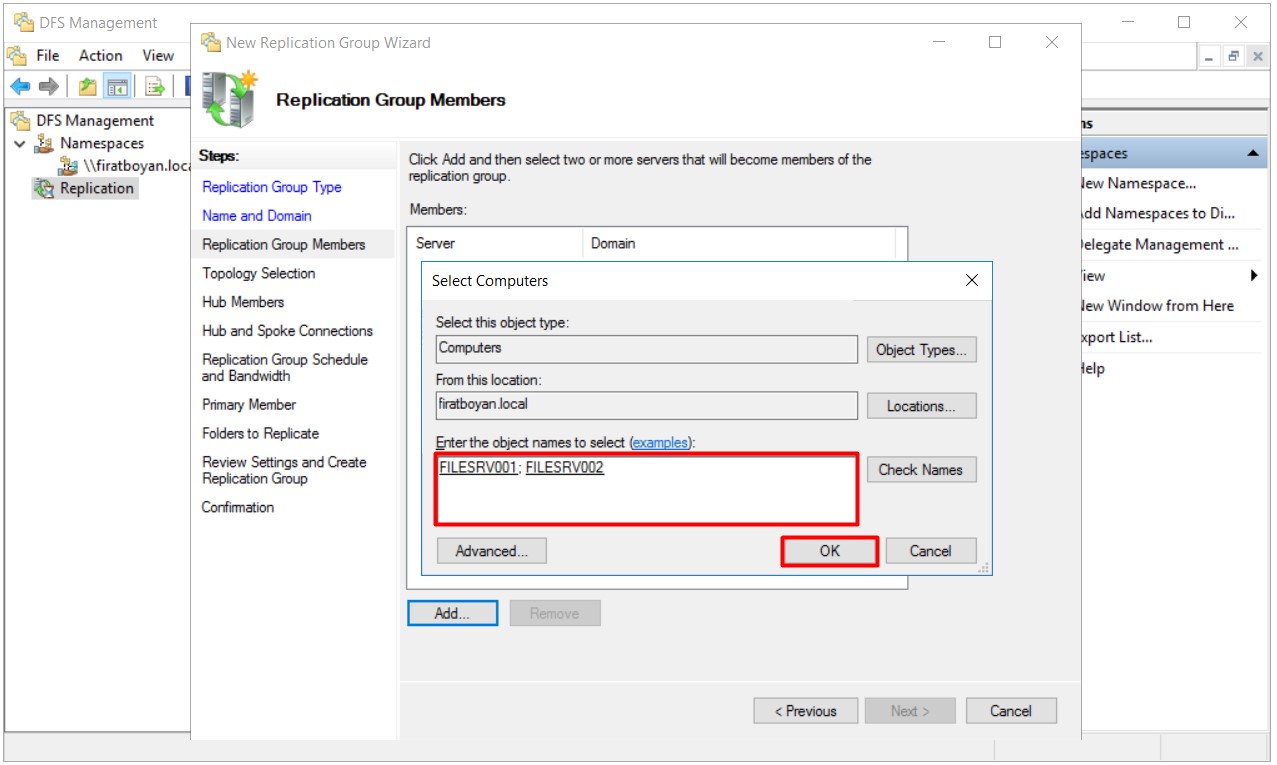
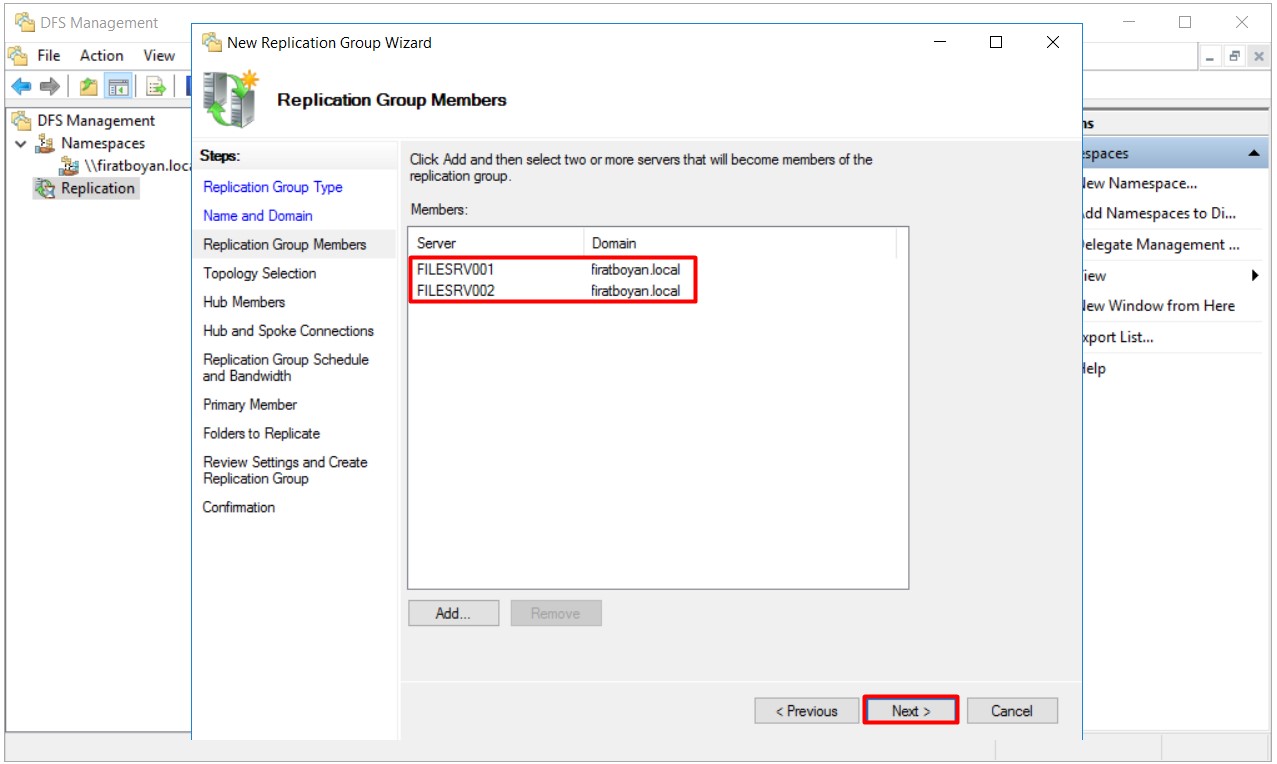
On the Replication Group Members screen, I add FILESRV001 and FILESRV002 to the group with the Add... button and continue with Next.
Step 22 - Topology Selection
On the Topology Selection screen, you select how the replication connections between the members are established. In DFS Replication, conflict resolution is the same in every topology, and the last written version remains. The topology only determines the path through which the data is carried.
|
Topology |
How It Works |
Suitable Scenario |
Point to Note |
|
Hub and Spoke |
Spoke members replicate only with the hub member |
Central site and branches, low-speed WAN links |
At least 3 members are required. If the hub is unavailable, changes are not carried between the spokes |
|
Full Mesh |
Each member replicates directly with all other members |
A small number of members. Microsoft recommends it for up to 10 members |
The number of connections increases with the formula N*(N-1)/2 |
|
No Topology |
No connections are created |
Environments where the connections will be designed manually later |
Replication does not start until the connections are created |
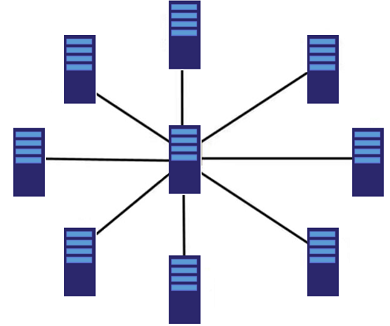
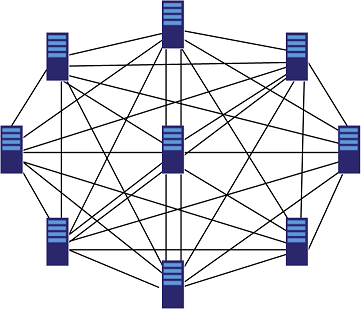
In this 2-member design, I select Full Mesh. With 2 members, Full Mesh means a single bidirectional connection between the servers.
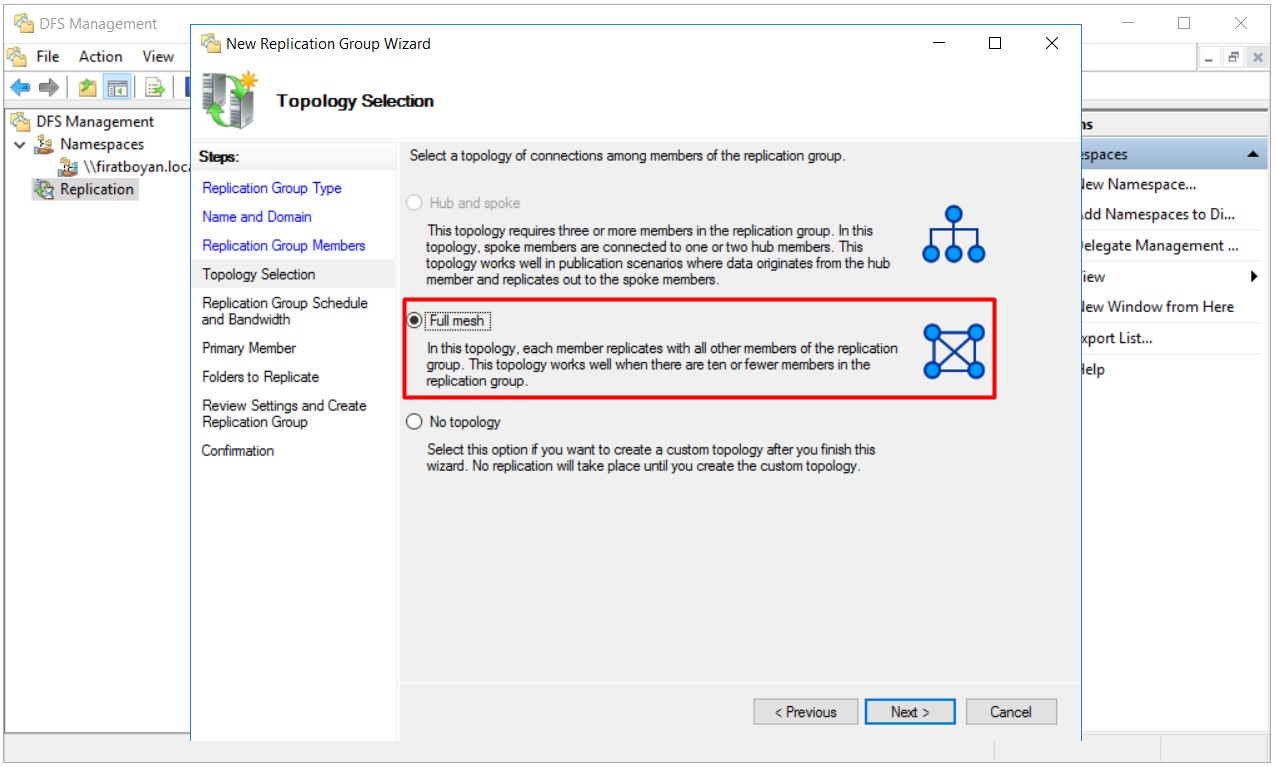
The Hub and Spoke topology requires at least 3 members. If the replication group has only 2 members, this option is not available.
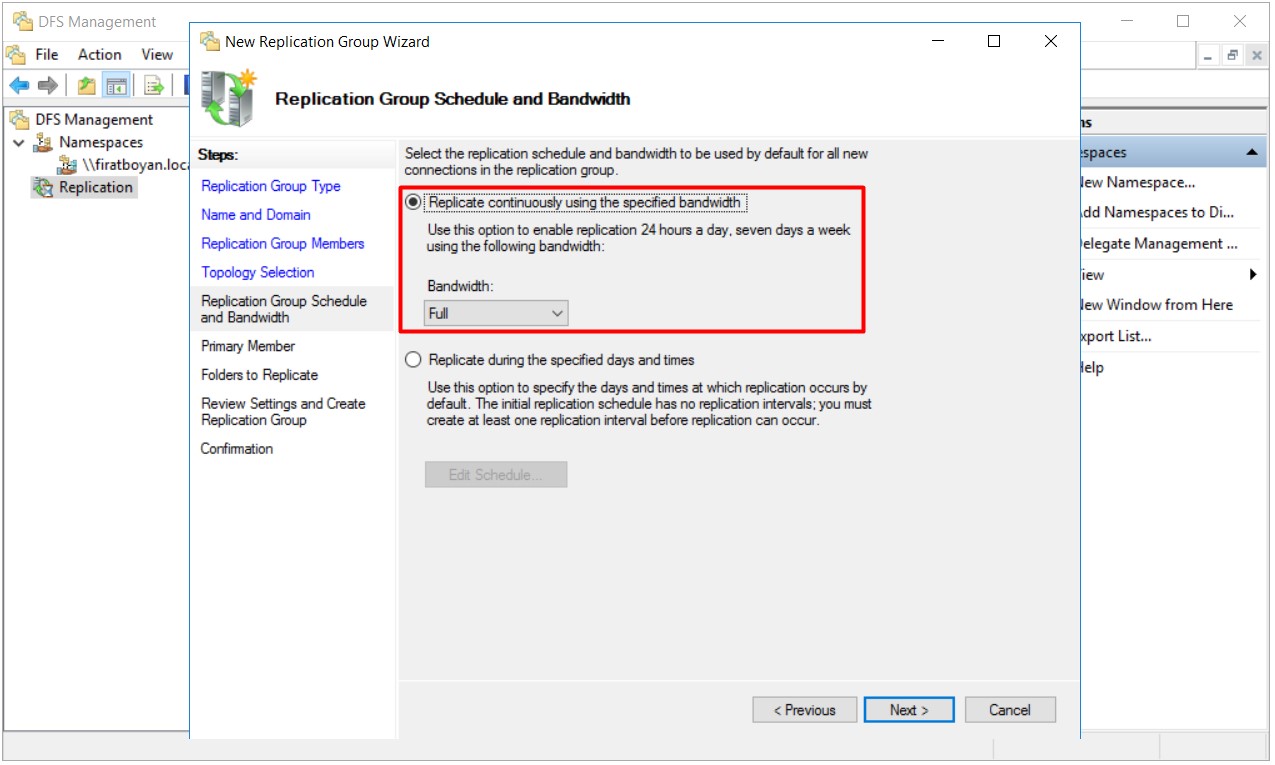
Step 23 - Replication Group Schedule and Bandwidth
On this screen, I define when replication takes place and with which bandwidth. The Replicate continuously using the specified bandwidth option replicates continuously, and the bandwidth to be allocated to replication is selected from the Bandwidth list. With the Replicate during the specified days and times option, the days and times of replication are defined with Edit Schedule. If the WAN link between the sites is saturated during busy hours, I limit the bandwidth during these hours.
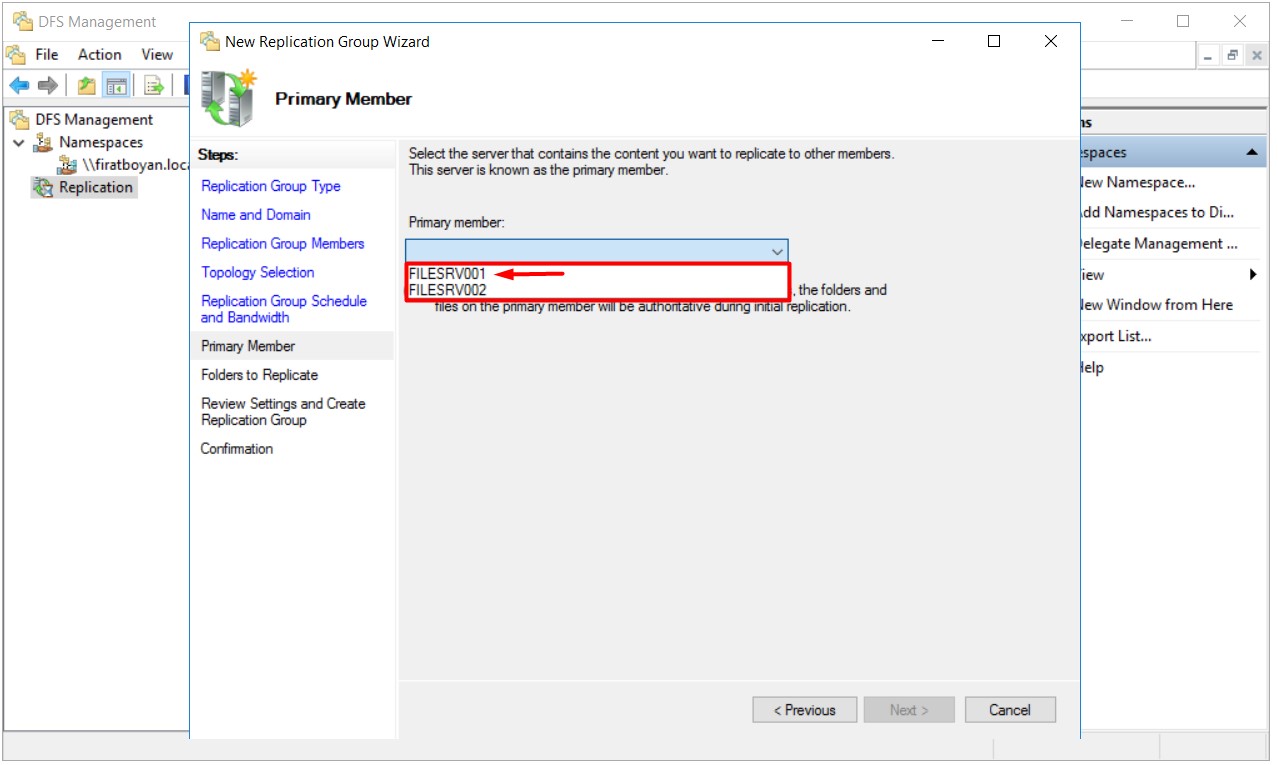
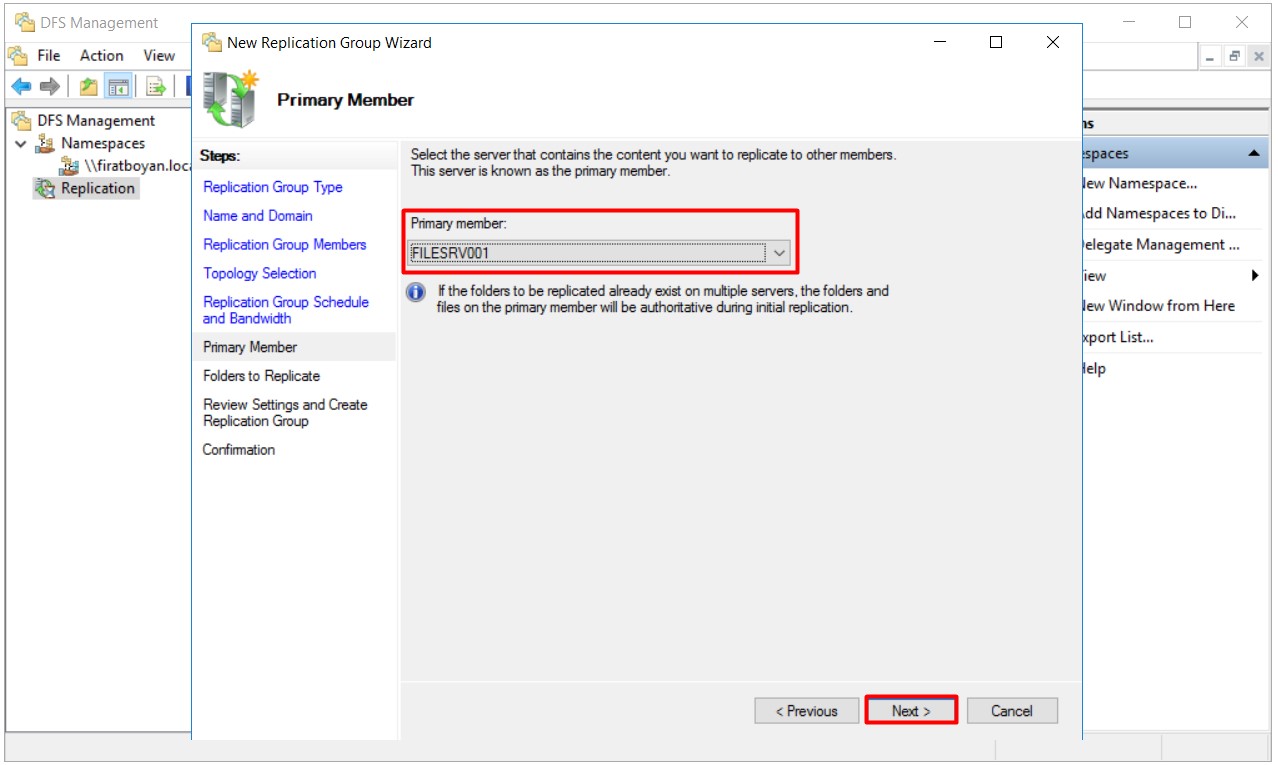
Step 24 - Primary Member
On the Primary Member screen, I select FILESRV001. The primary member is the authoritative source only in the initial replication. After the initial replication completes, all members become equal and changes replicate in every direction.
Step 25 - Folders to Replicate
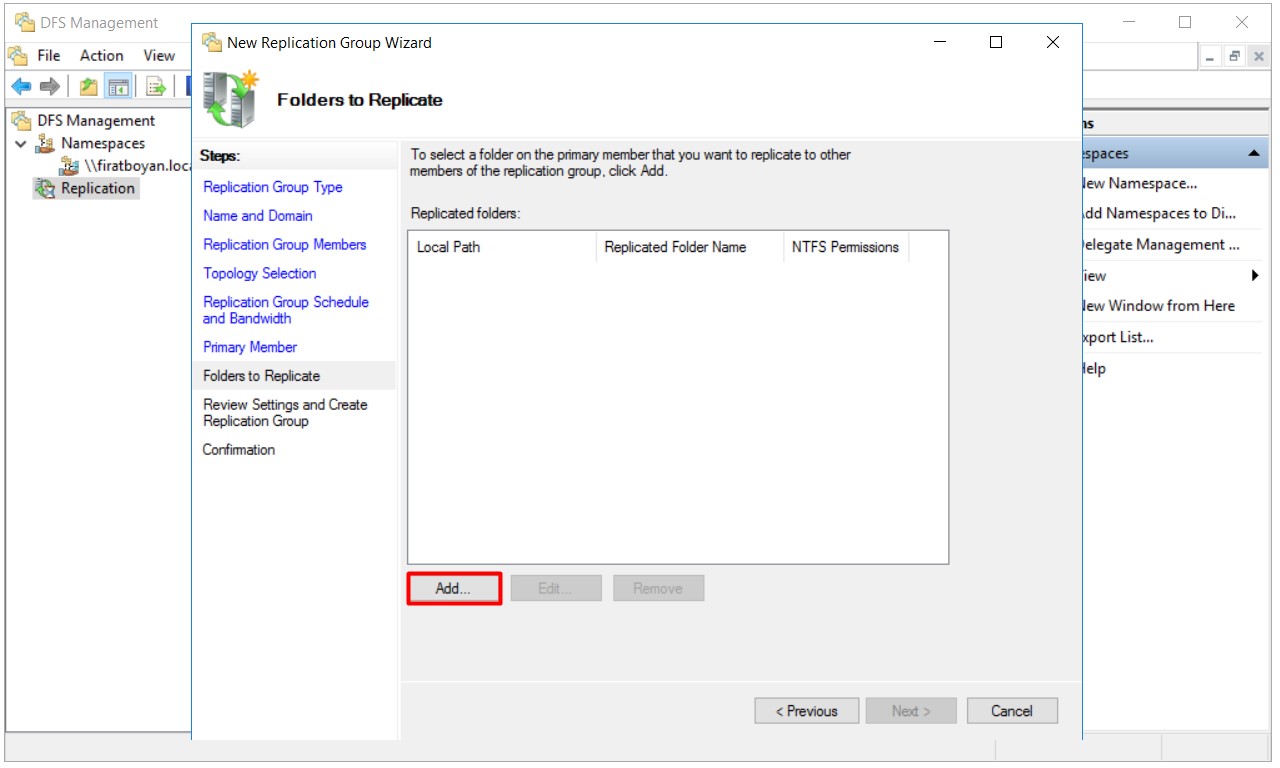
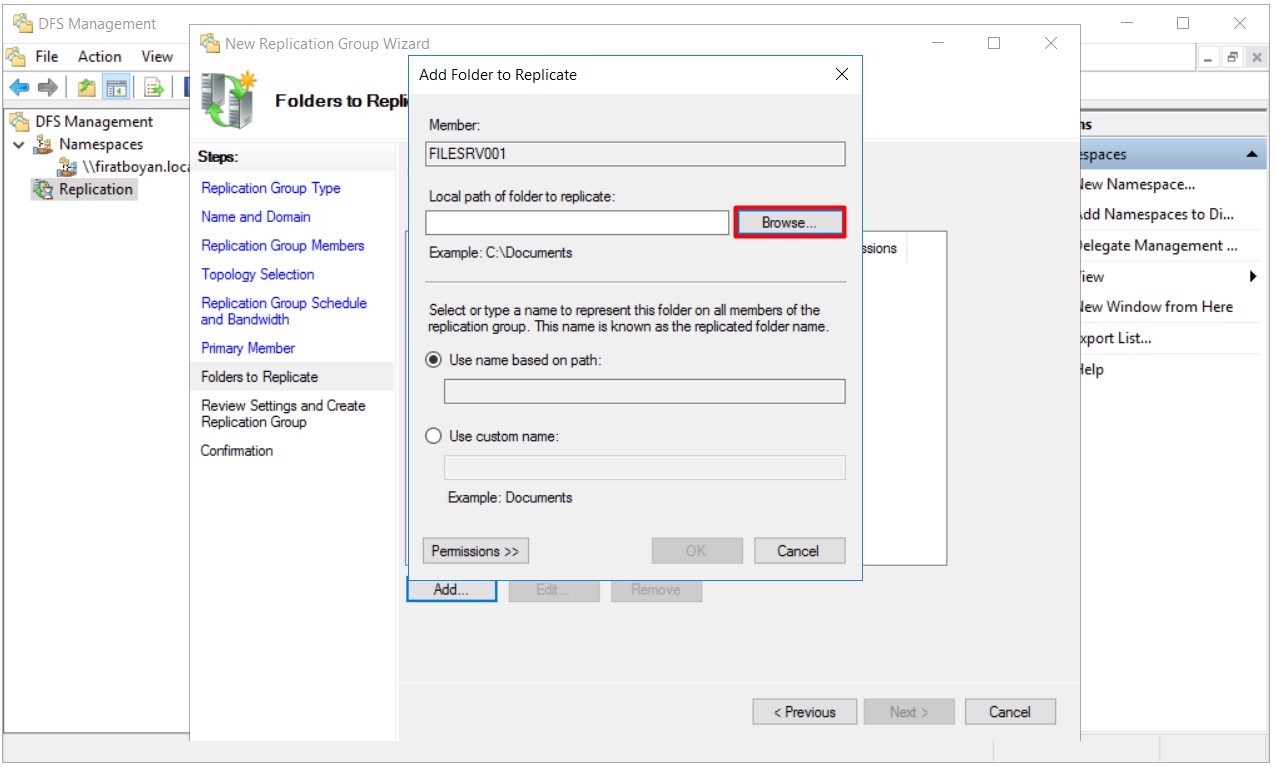
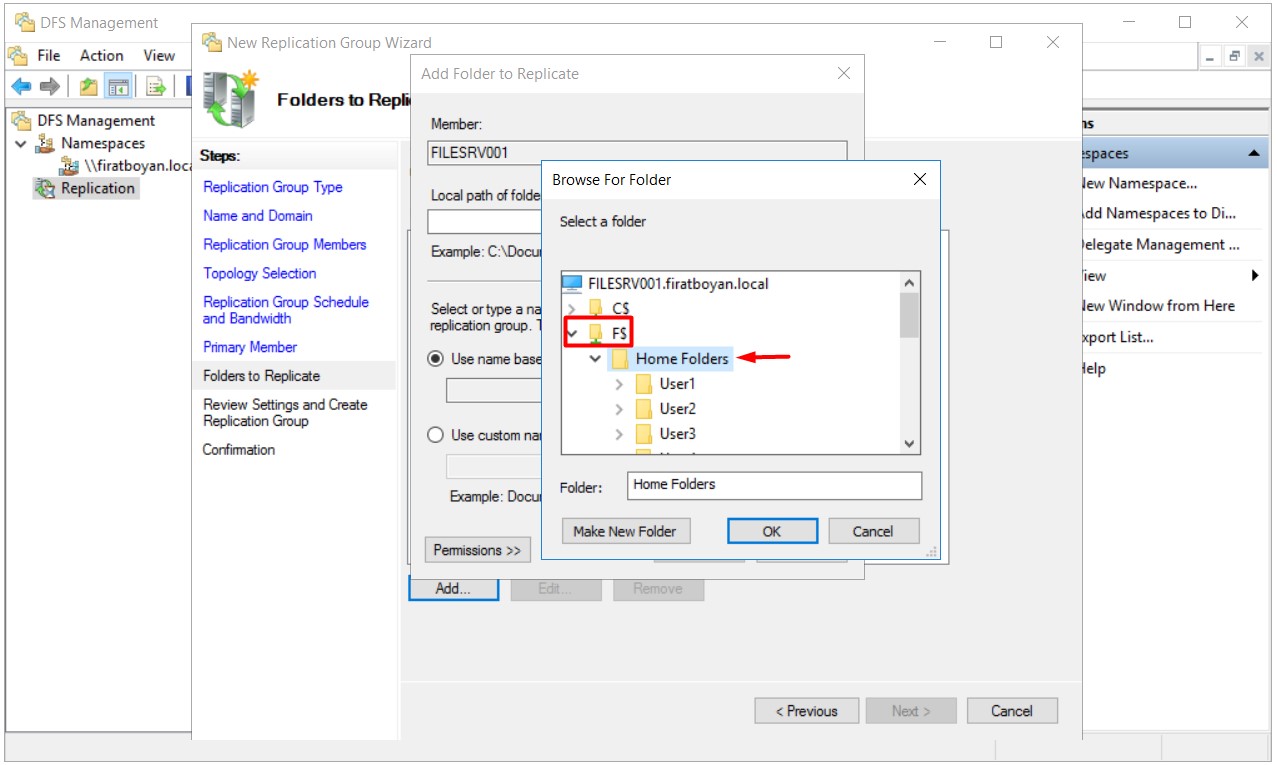
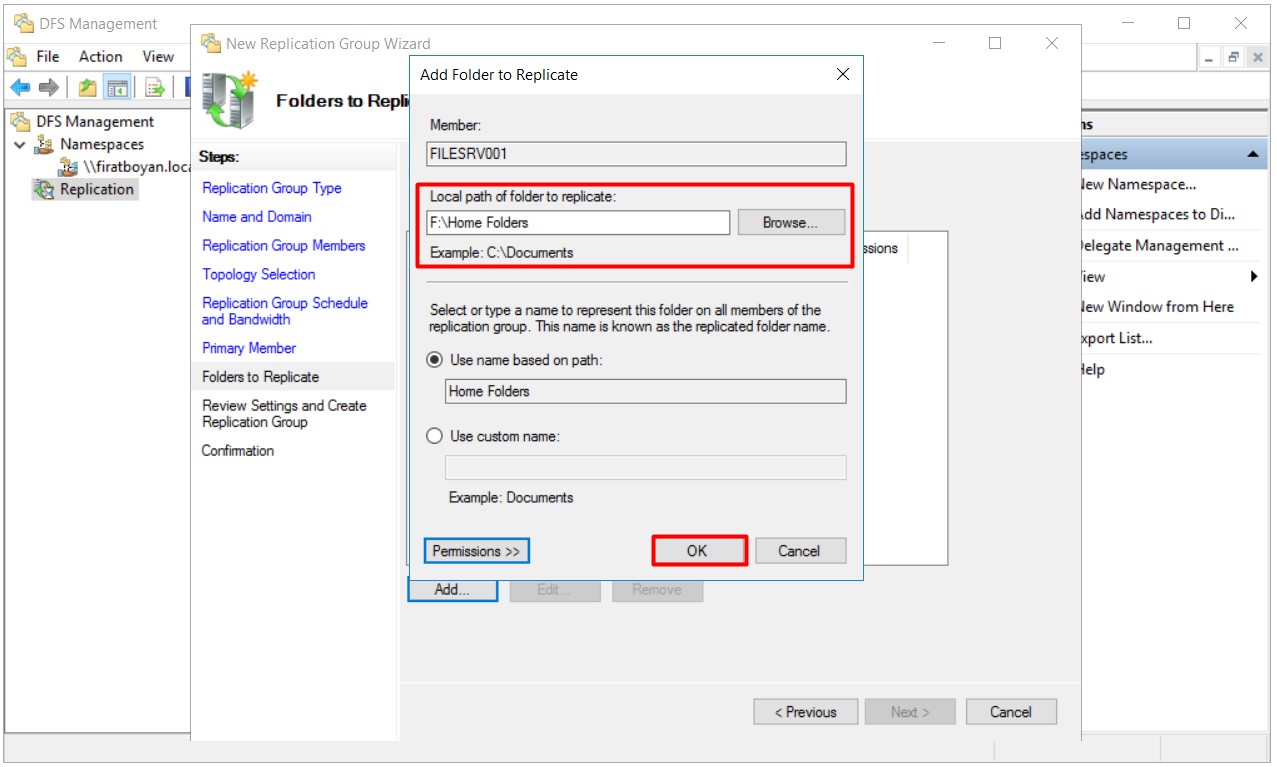
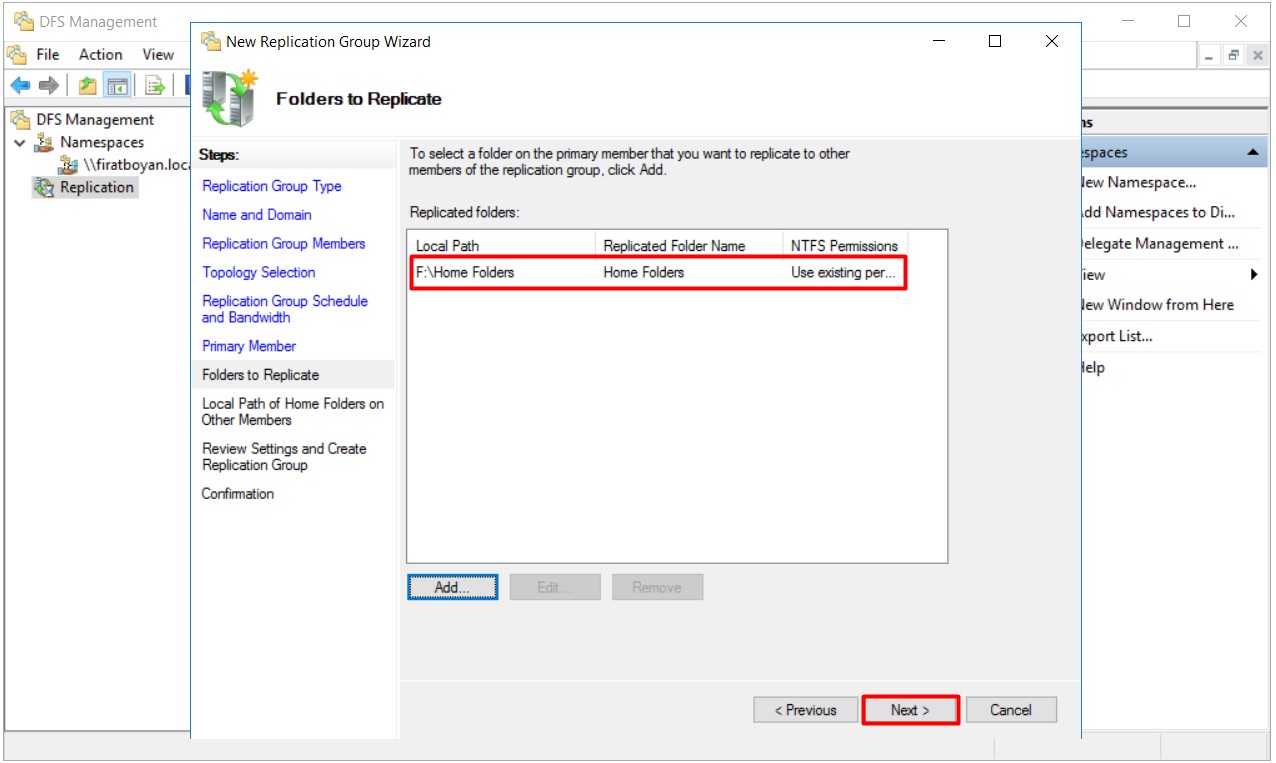
On the Folders to Replicate screen, I click the Add... button. In the Add Folder to Replicate window, I select the Home Folders folder on the secondary disk of FILESRV001 with Browse.... If the path is known, it can also be typed manually.
Step 26 - Local Path of Home Folders on Other Members
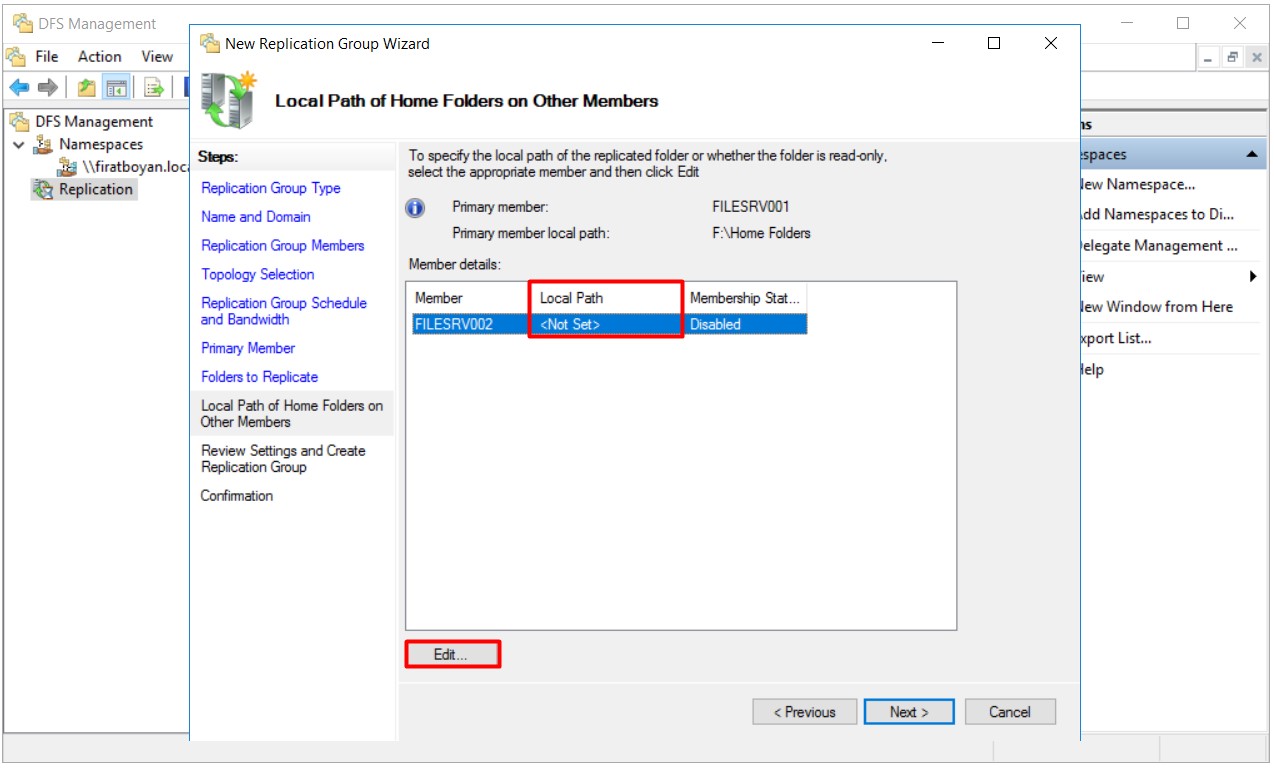
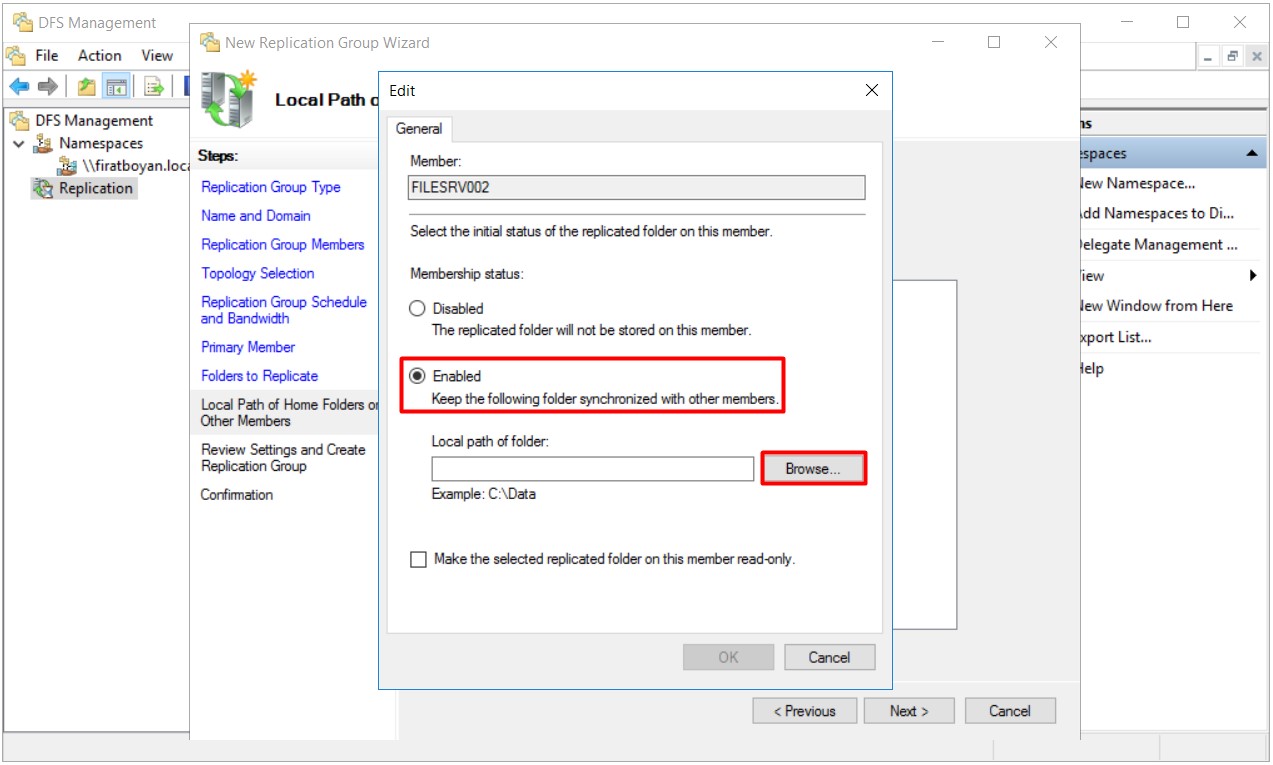
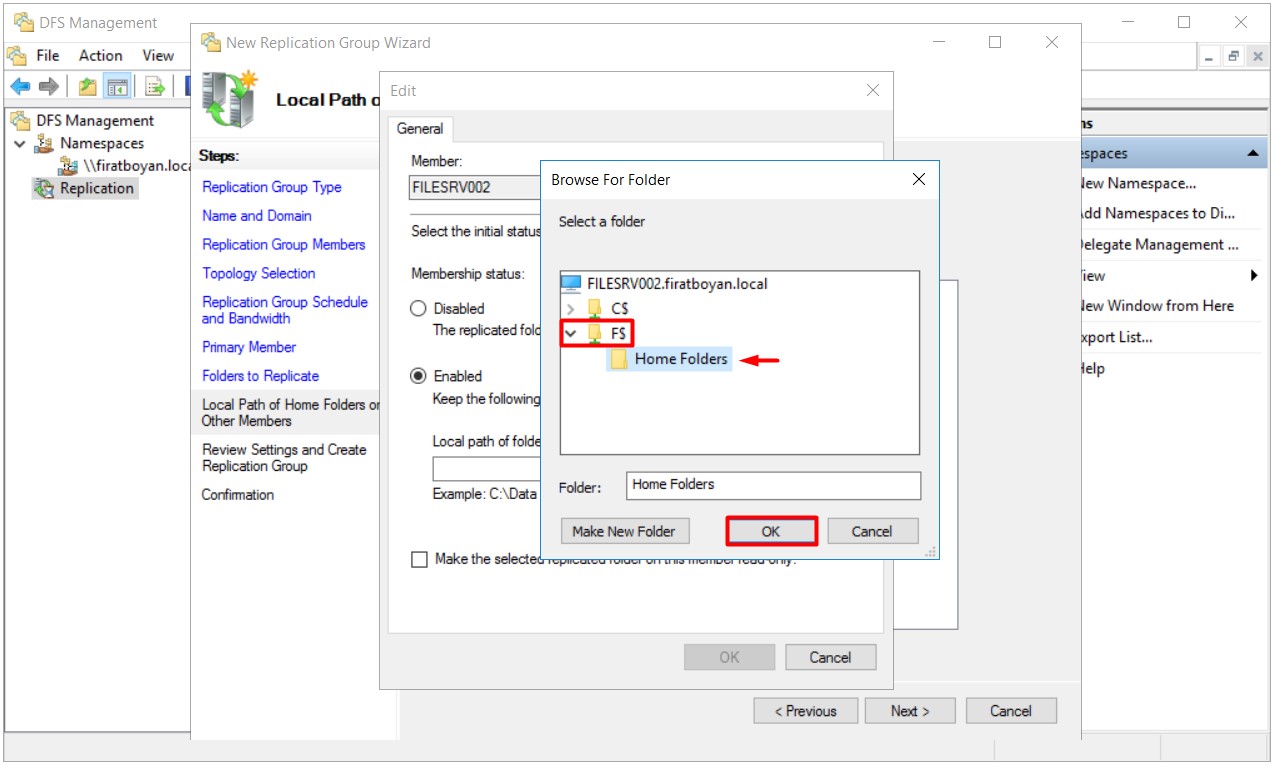
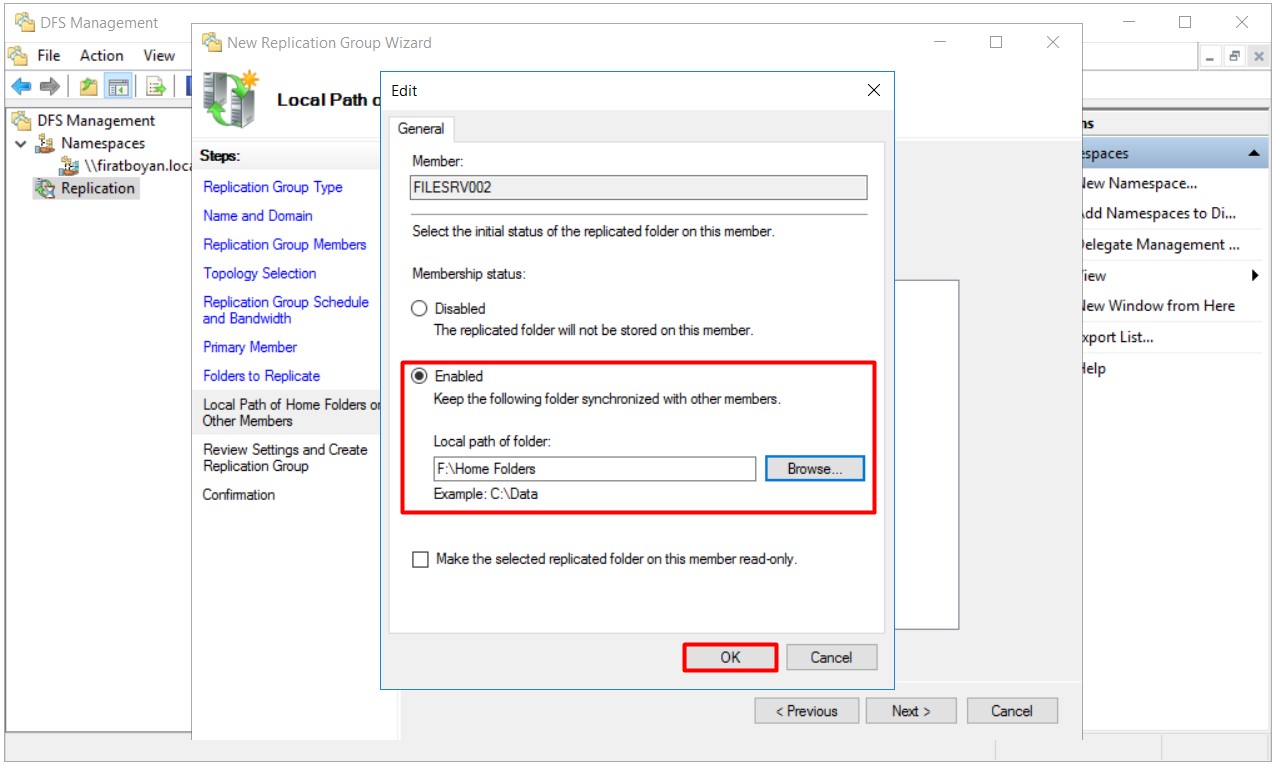
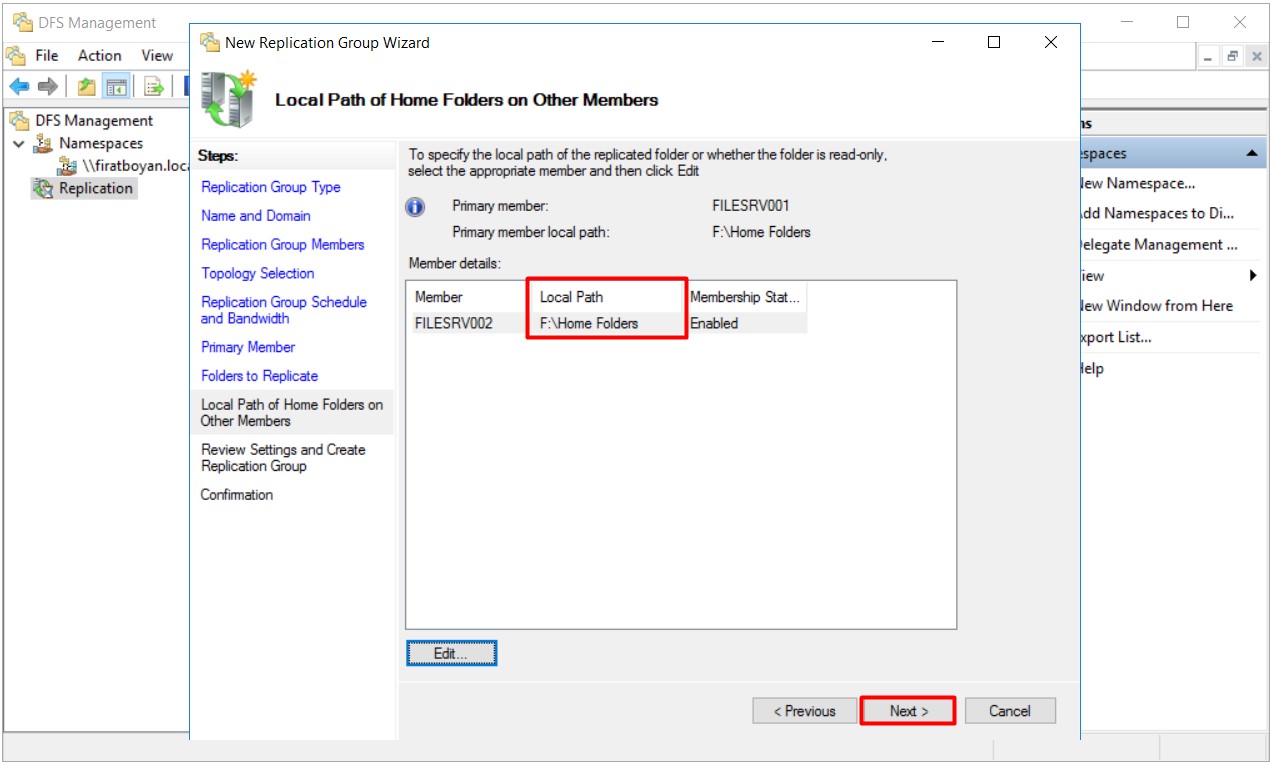
On this screen, I select the FILESRV002 row and click the Edit... button. In the window that opens, I select Enabled under Membership status and select the empty Home Folders folder on the secondary disk of FILESRV002 with Browse....
Step 27 - Review Settings and Create Replication Group
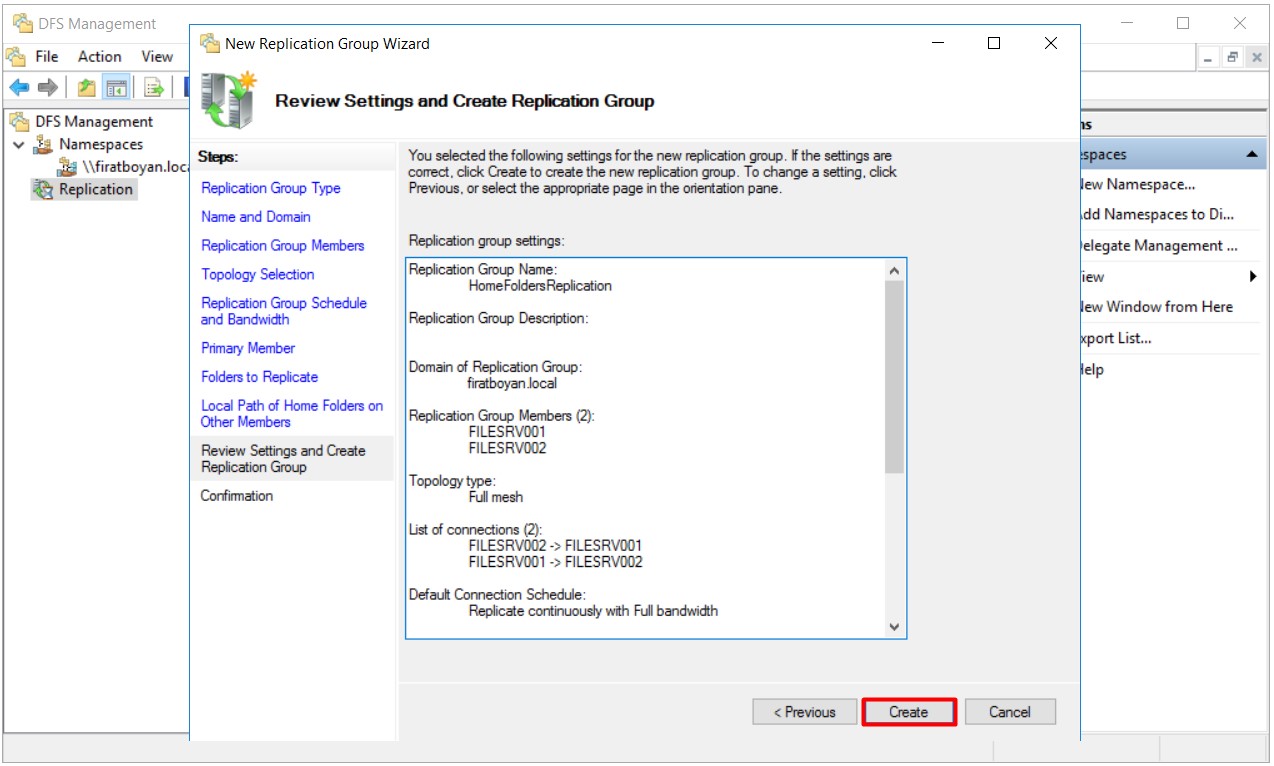
I check the summary of the settings and create the replication group with Create.
Step 28 - Confirmation
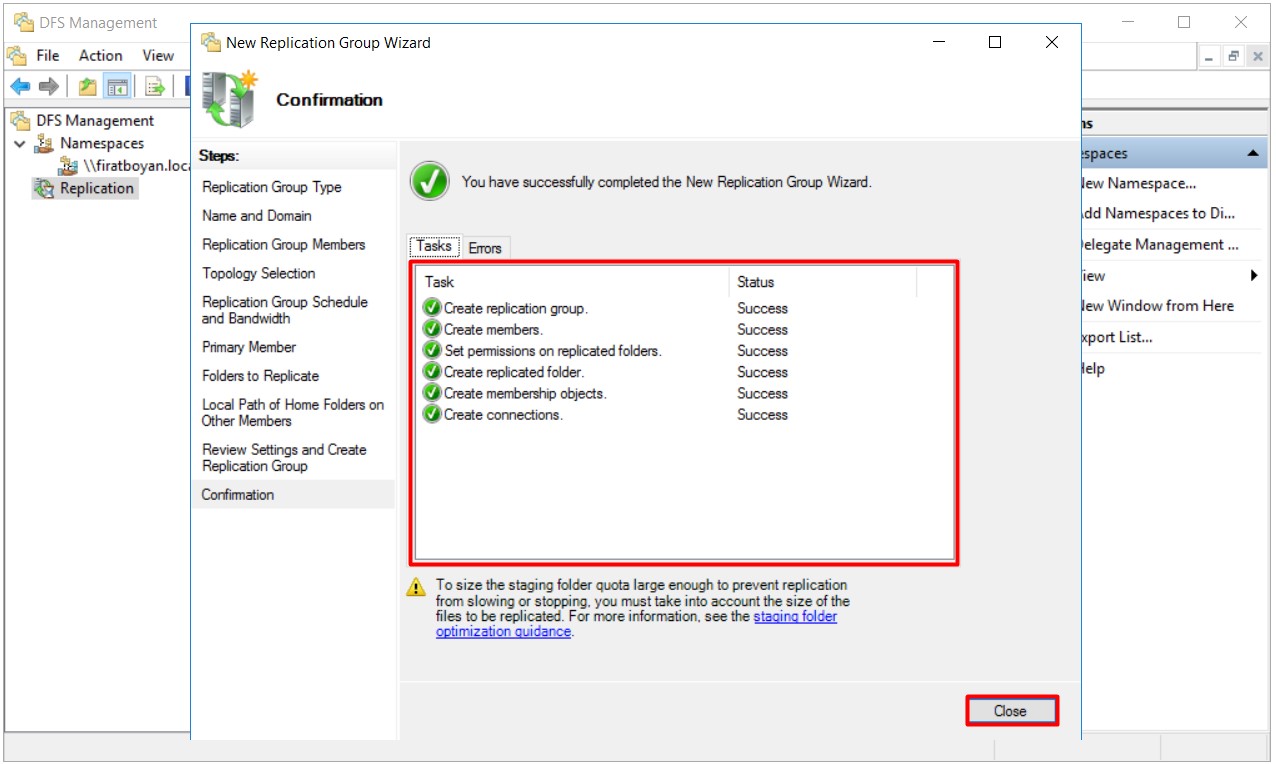
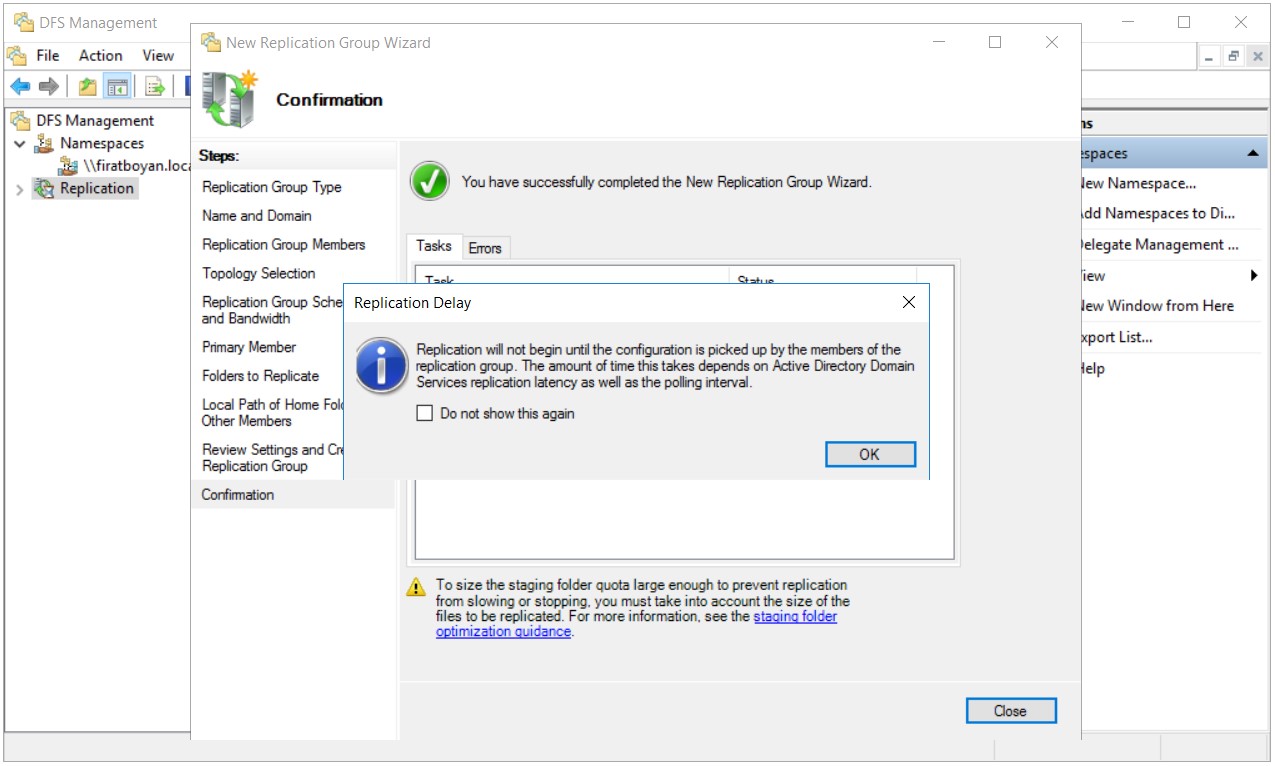
On the Confirmation screen, I see that the replication group was created successfully and close the wizard with Close. The warning that follows states that replication will not start until the members read the configuration from Active Directory.
8- Post-Installation Tasks
Step 29 - Getting the Configuration to the Members
The replication group configuration is written to Active Directory. FILESRV002 receives this configuration when 2 conditions are met. First, the change must replicate to the domain controller that FILESRV002 uses. This takes a few seconds within a site, and between sites it depends on the site link schedule (180 minutes by default). Then the DFS Replication service must read Active Directory again, and this happens once an hour by default.
To avoid waiting, I first trigger Active Directory replication on the domain controller in the site where I created the replication group.
repadmin /syncall /APed
Then I make the DFS Replication service on both members read the configuration immediately. I run the command on FILESRV001 and target both members.
dfsrdiag pollad /member:FILESRV001
dfsrdiag pollad /member:FILESRV002
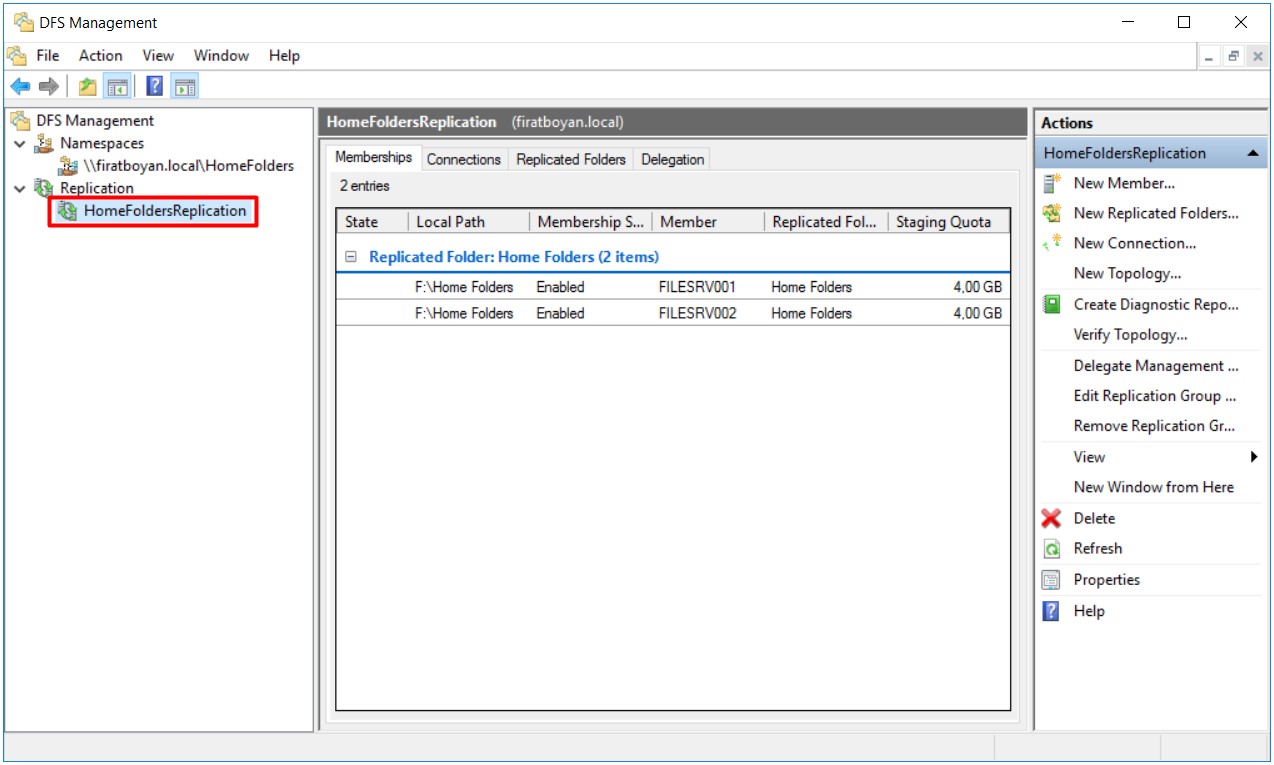
Checkpoint
The replication group that I created must appear under Replication in the DFS Management console, and both members must be listed on the Memberships tab.
Step 30 - Staging Quota on FILESRV001
DFS Replication prepares the files to be sent in the DfsrPrivate\Staging folder under the replicated folder on each member. The quota of this folder is 4096 MB by default. When usage reaches 90% of the quota, DFS Replication starts to delete the oldest staging files and continues until usage falls to 60%. The quota is a fixed value and does not grow automatically.
If the quota is too small to hold the files that must be staged at the same time, the clean-up repeats continuously and replication slows down. Microsoft recommends that the quota is equal to the total size of the 32 largest files in the replicated folder. I calculate this value with PowerShell on FILESRV001. I replace {Replicated Folder Path} with the full path of the Home Folders folder.
Get-ChildItem -Path "{Replicated Folder Path}" -Recurse -File |
    Sort-Object Length -Descending |
    Select-Object -First 32 |
    Measure-Object -Property Length -Sum |
    Select-Object @{Name='TotalMB';Expression={[math]::Ceiling($_.Sum / 1MB)}}
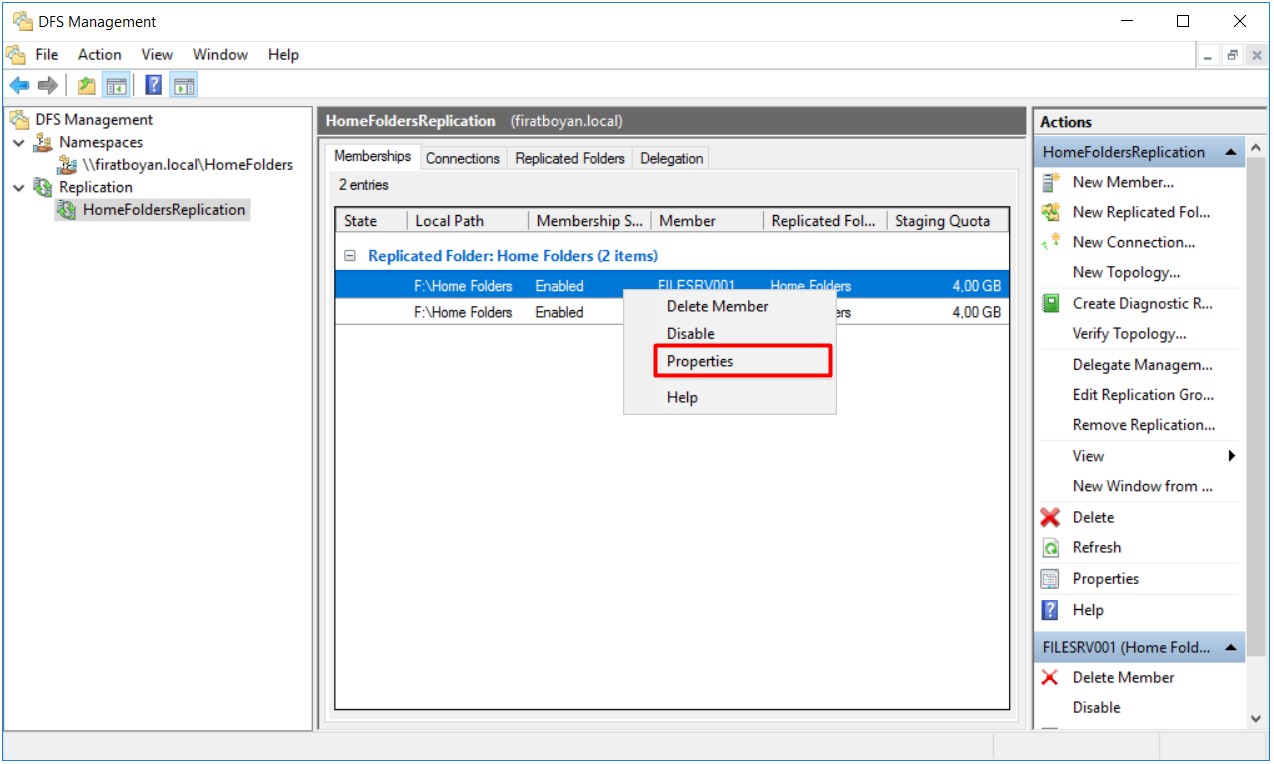
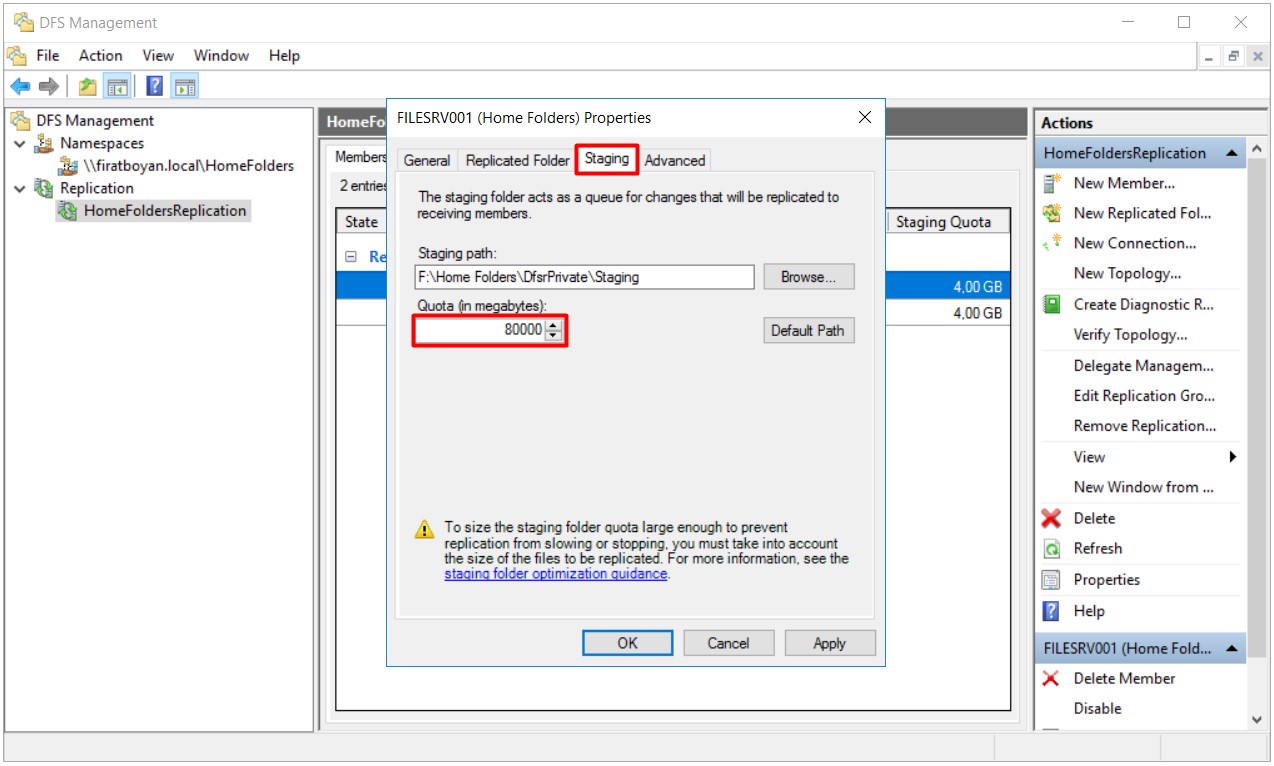
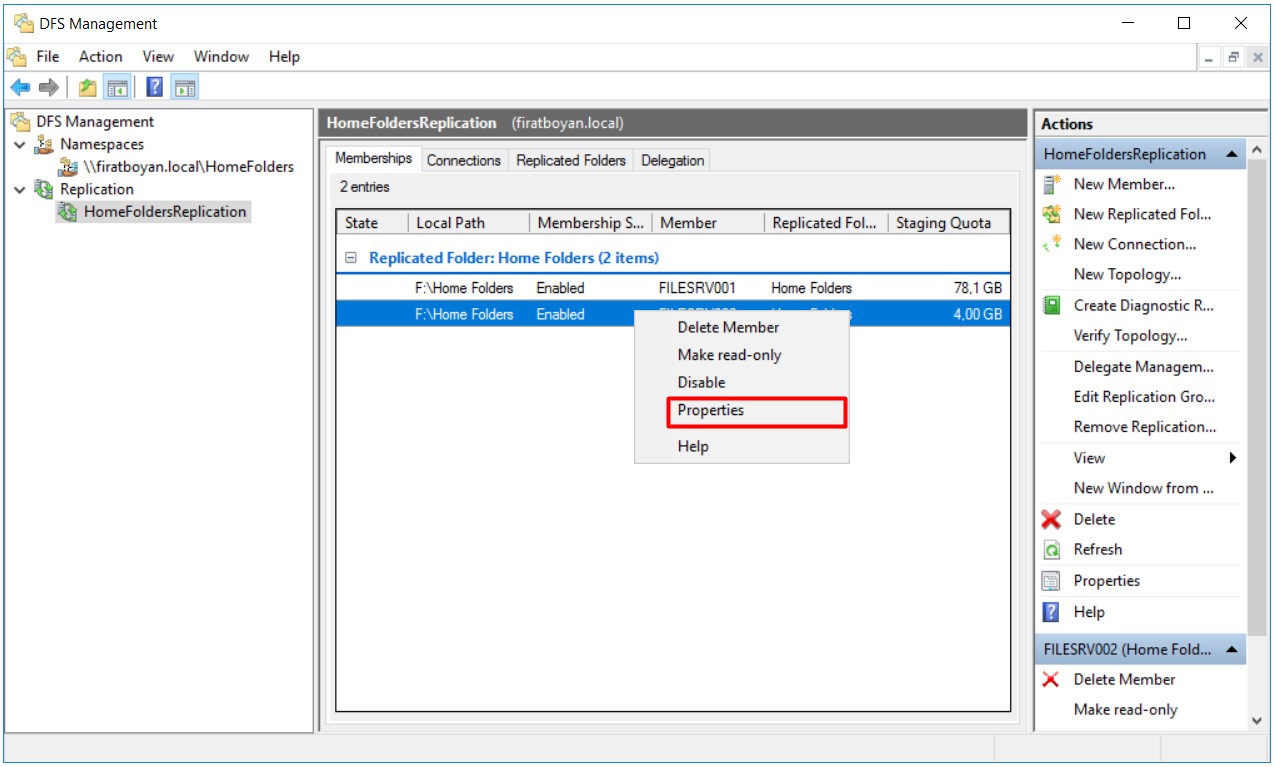
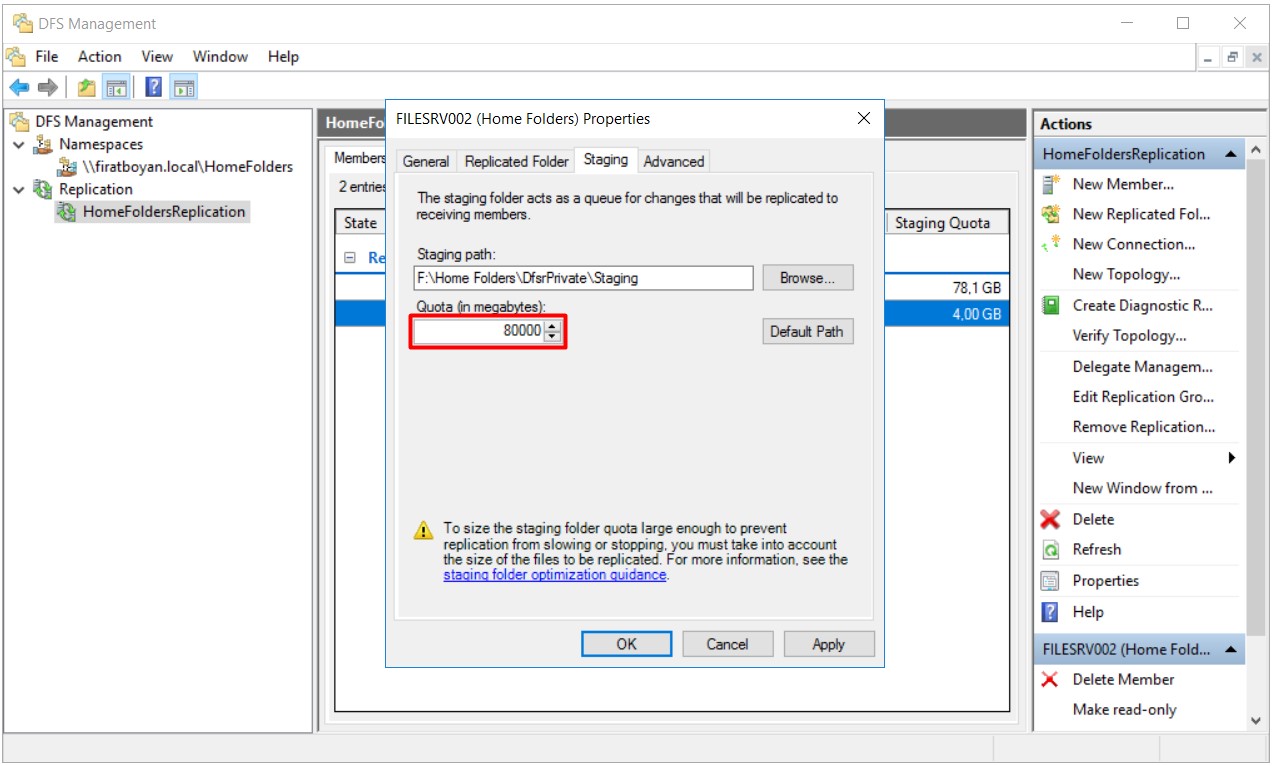
To enter the value that I found as the quota, I right-click the FILESRV001 row on the Memberships tab under the replication group, select Properties, and update the Quota value on the Staging tab.
Step 31 - Staging Quota on FILESRV002
The staging quota is defined separately for each member. I perform the same operation on the FILESRV002 row.
Checkpoint
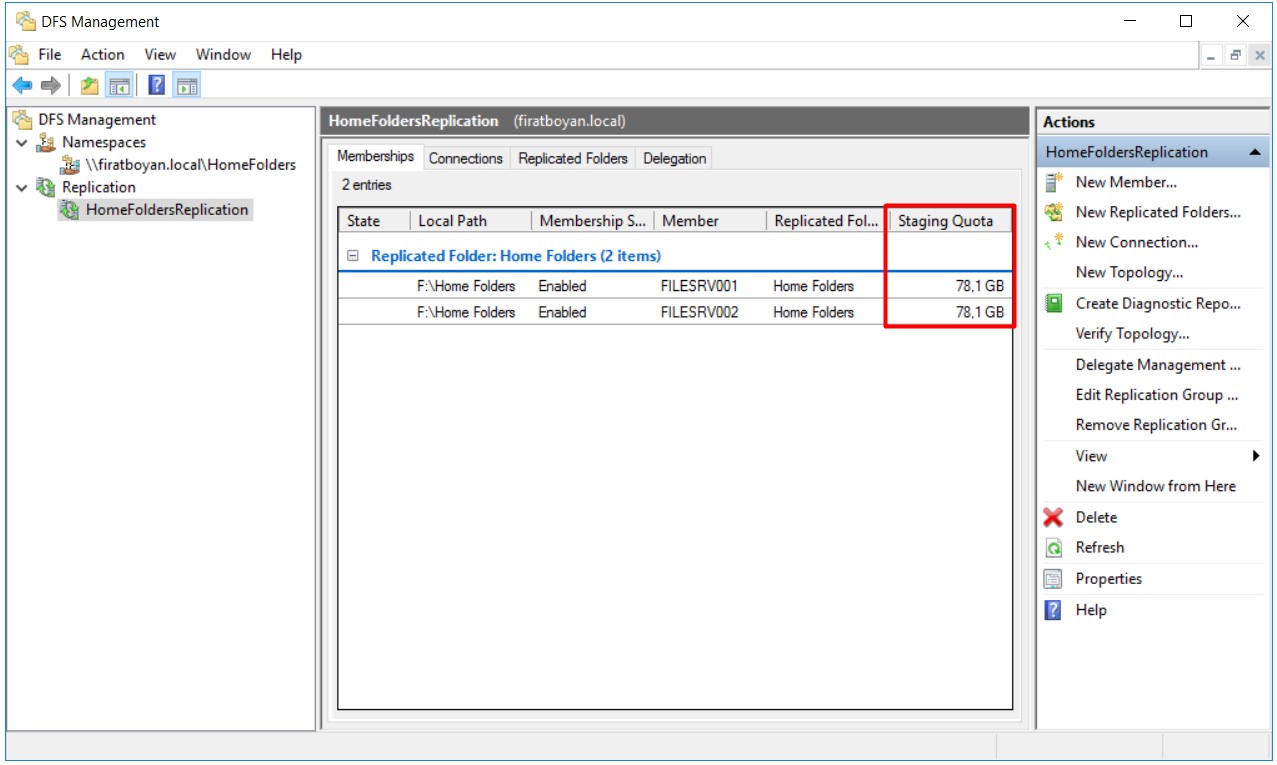
The value that I defined must appear in the Staging Quota column for both members on the Memberships tab.
Step 32 - Remote Differential Compression
RDC (Remote Differential Compression) is enabled by default and sends only the changed blocks for files larger than 64 KB. It must stay enabled on low-speed WAN links between sites. On very fast LAN links, it can be disabled because the computation cost of RDC can exceed the time that it saves. The setting is in the window that opens when you right-click the connection on the Connections tab under the replication group and select Properties.
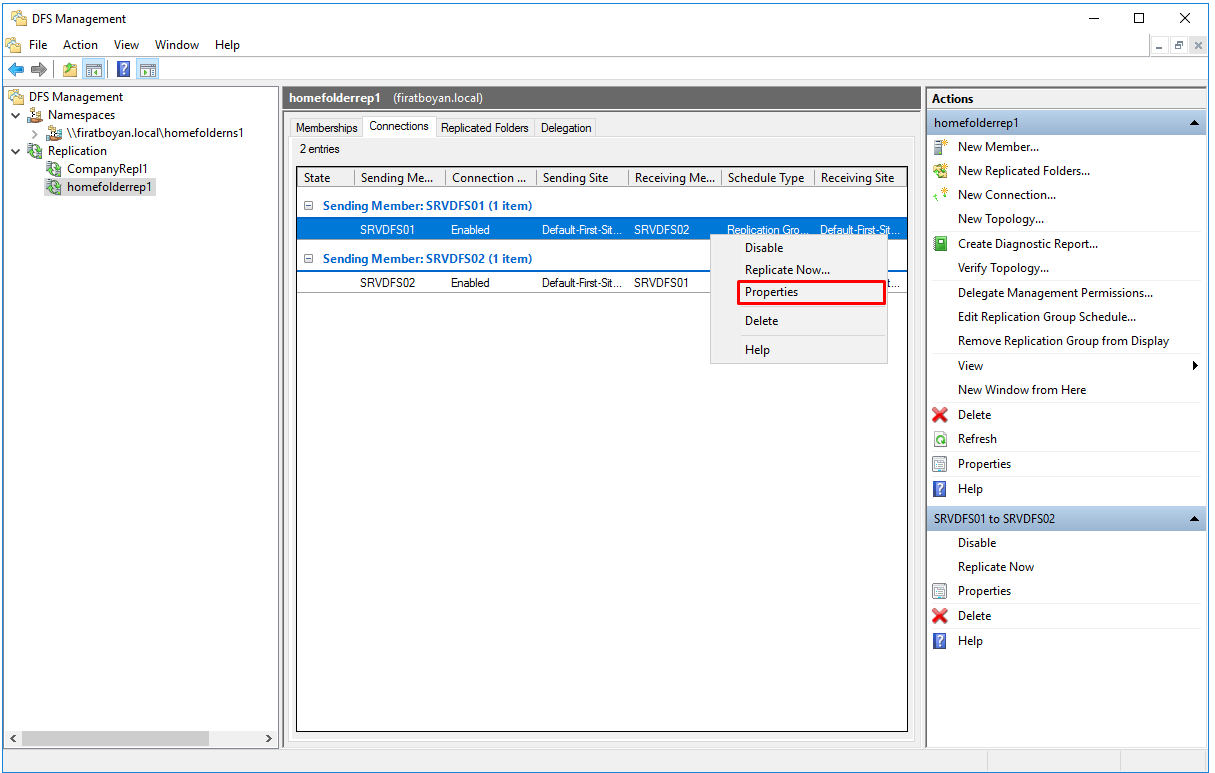
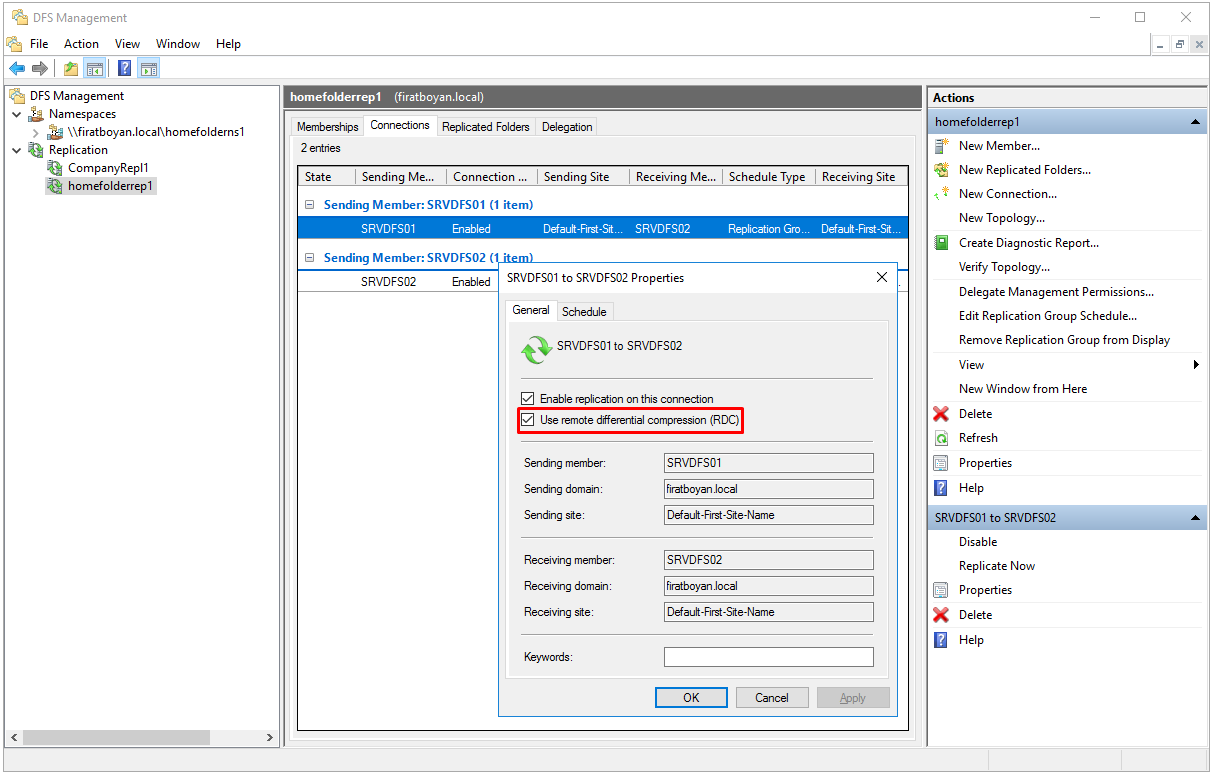
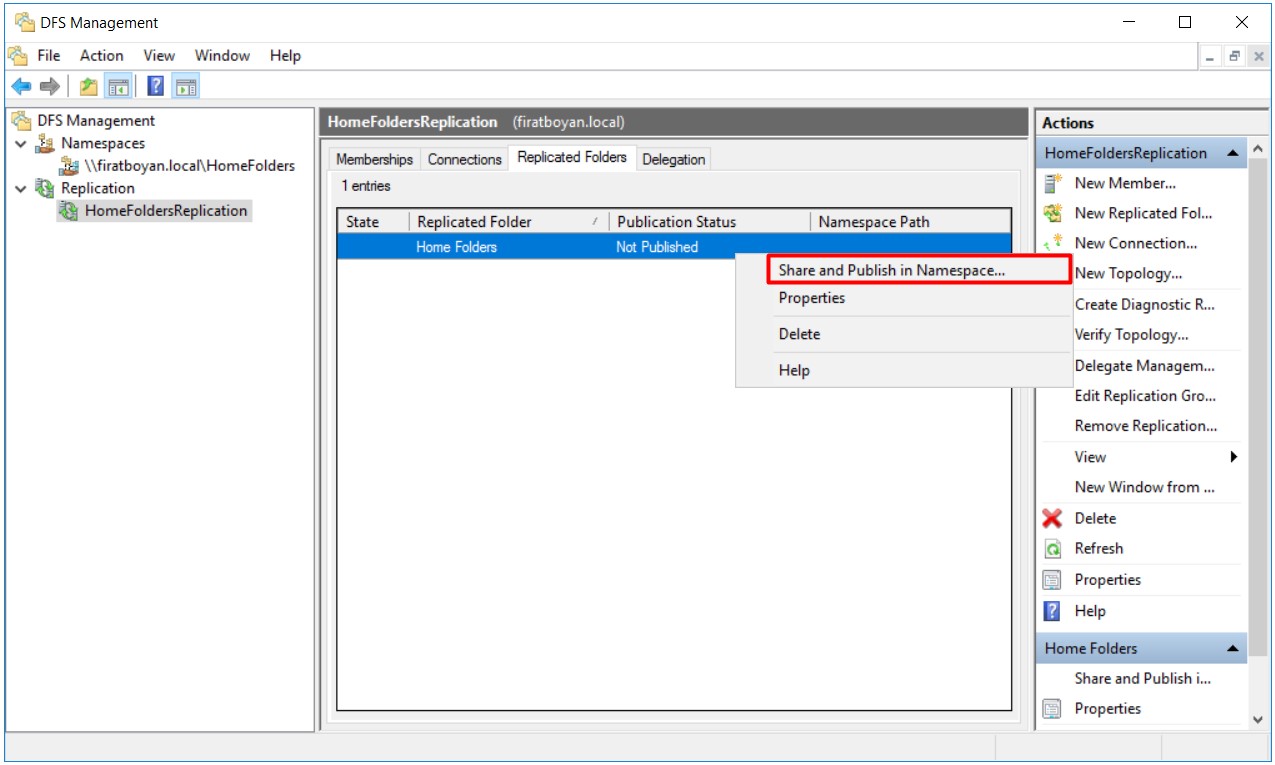
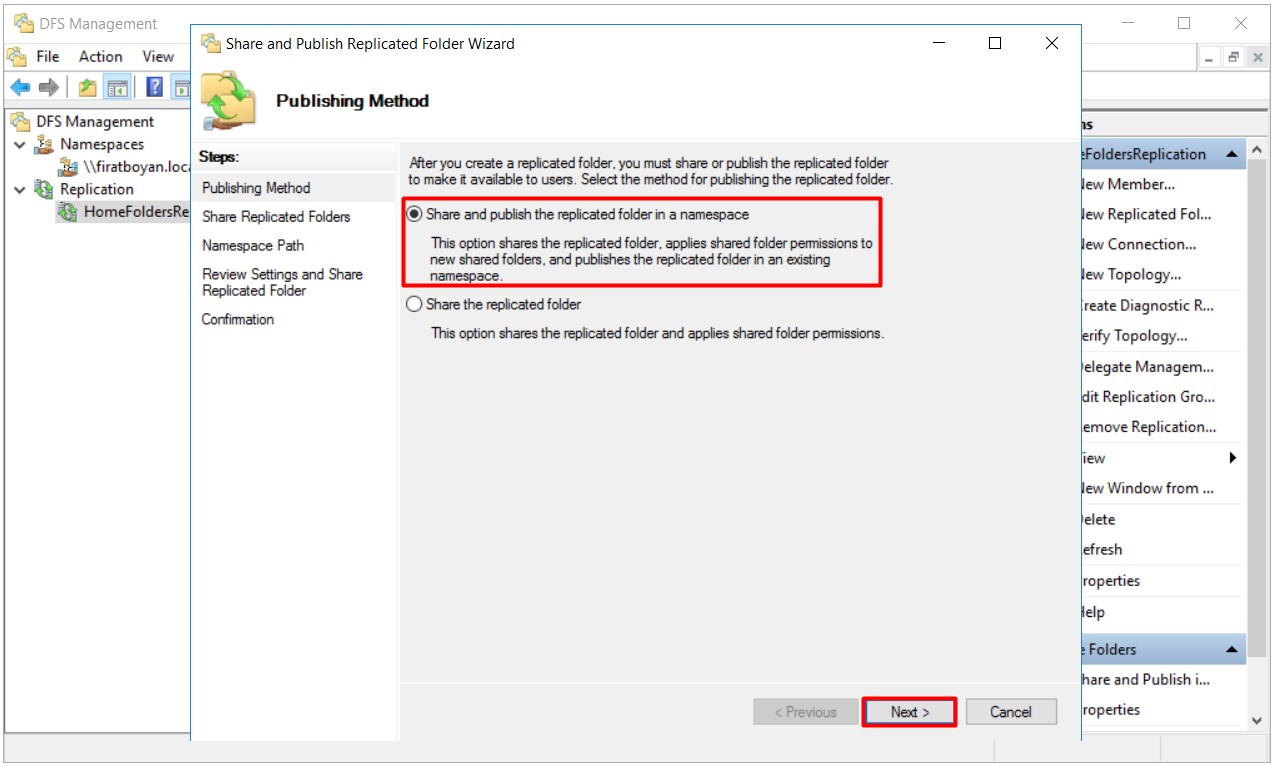
Because these 2 screenshots were added later, the server and group names in them differ from the environment in the article.
Step 33 - Share and Publish in Namespace
To publish the replicated folder in the namespace, I right-click the folder on the Replicated Folders tab under the replication group and select Share and Publish in Namespace.... In the wizard that opens, I continue with the Share and publish the replicated folder in a namespace option.
Step 34 - Share Replicated Folders
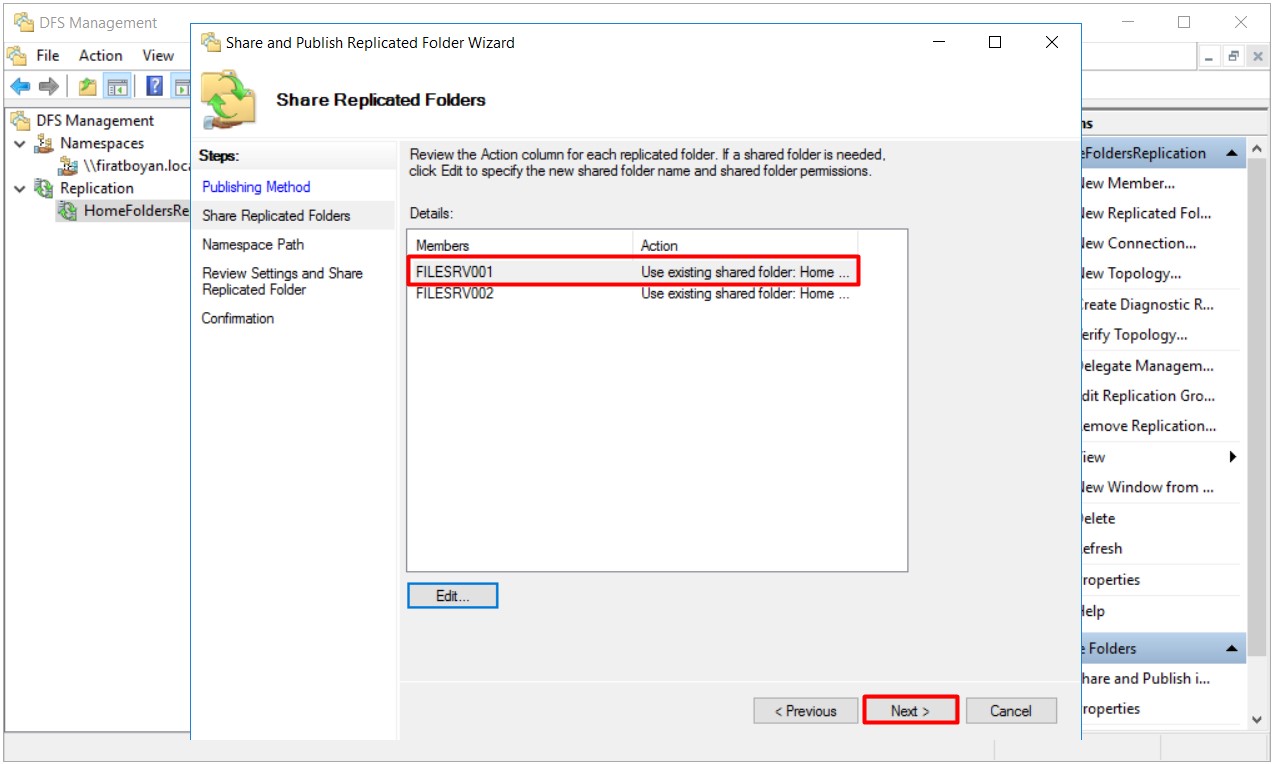
On this screen, I check the share on both members and continue with Next. The wizard will add the folder on each member as a folder target of the namespace folder.
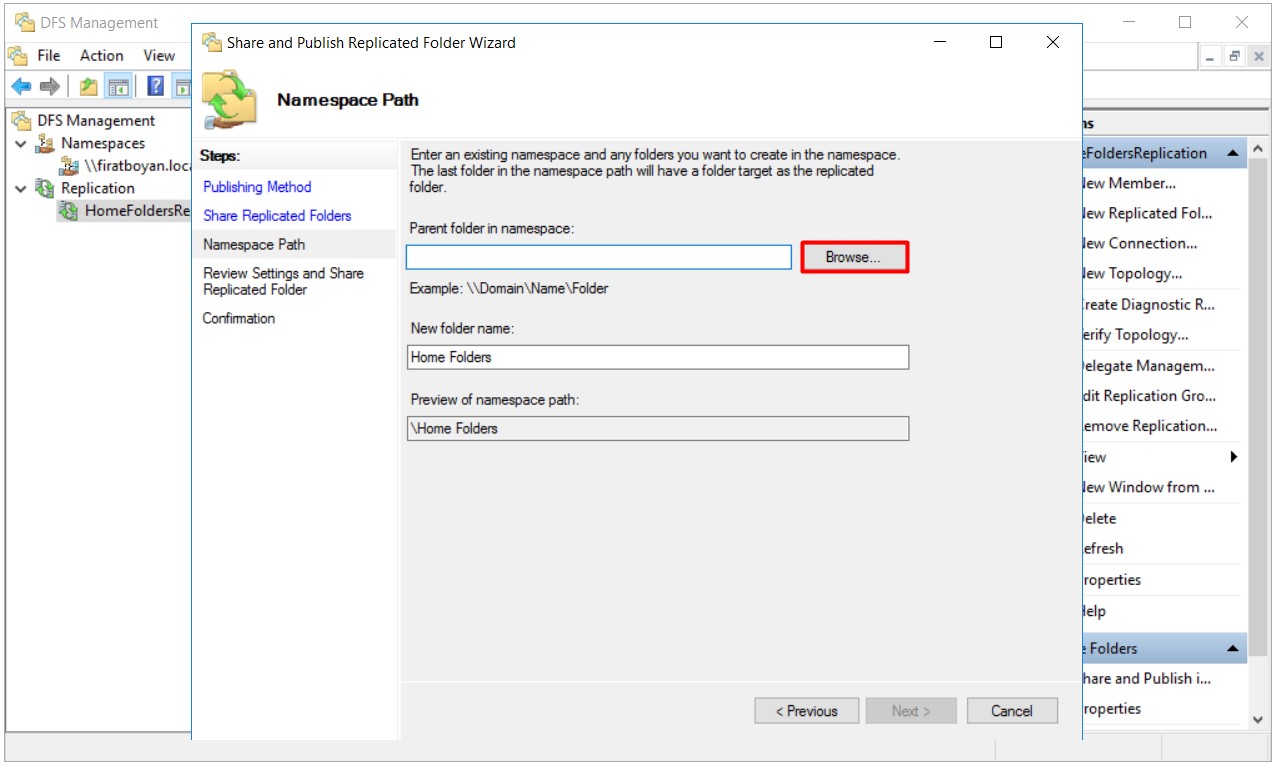
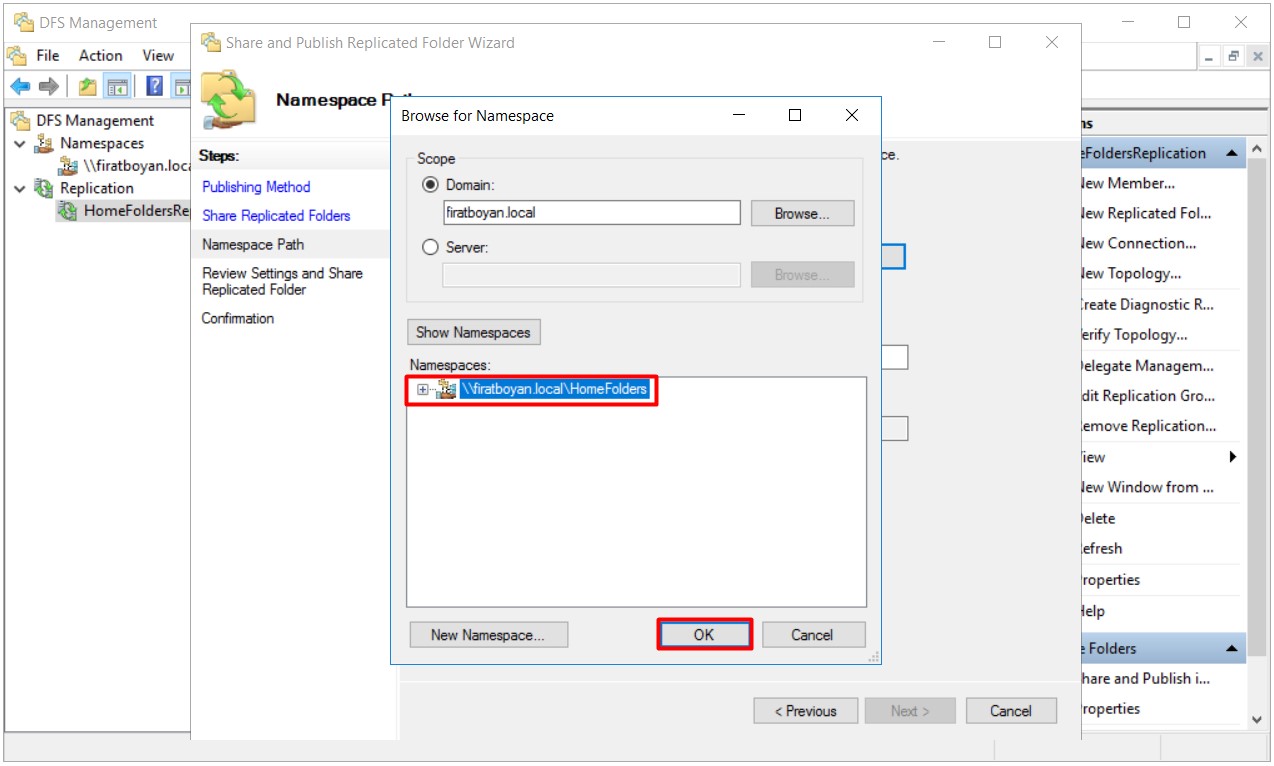
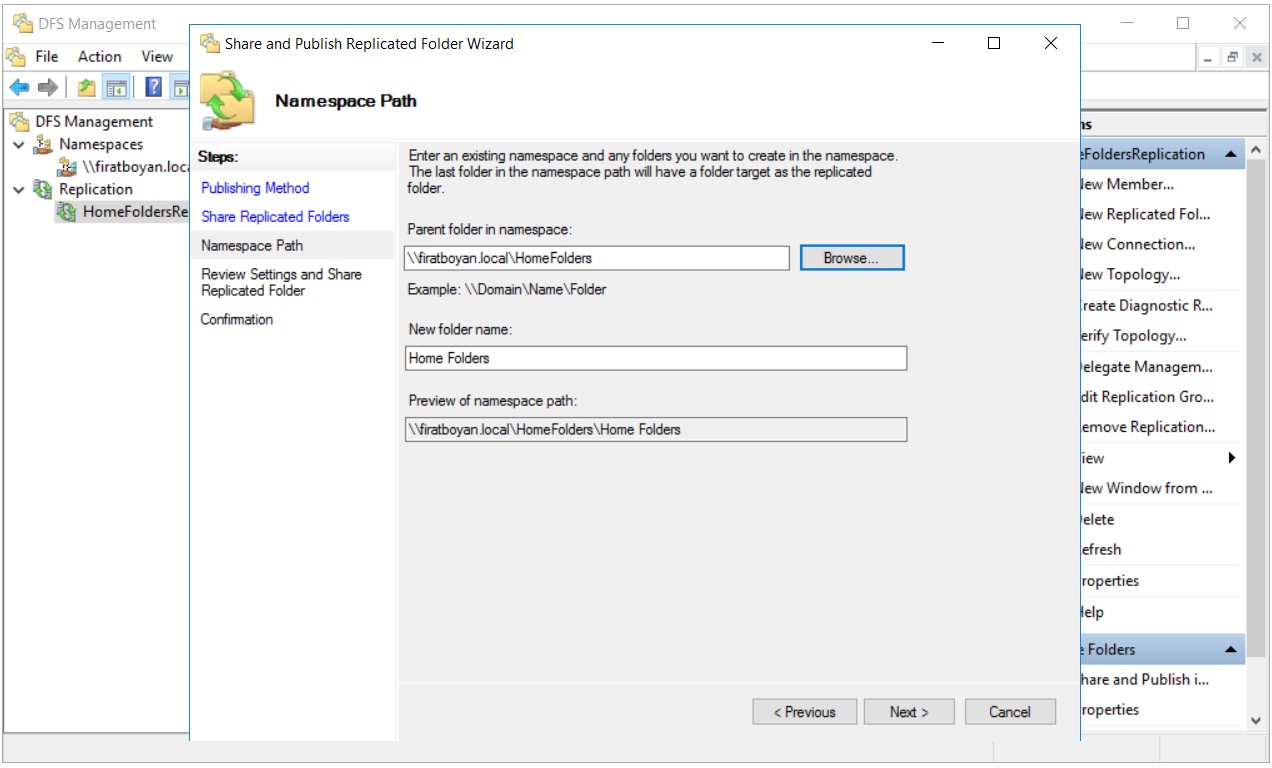
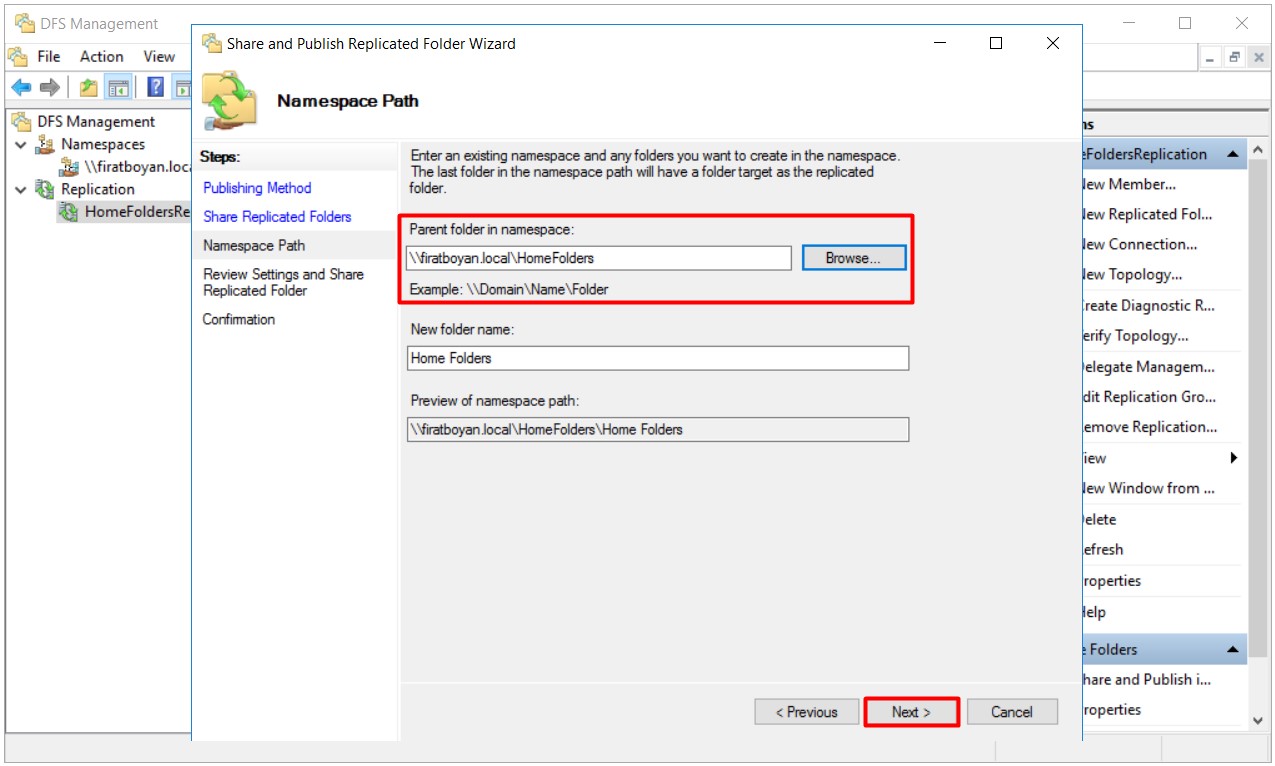
Step 35 - Namespace Path
In the Parent folder in namespace field, I select the namespace that I created in section 6 with Browse... and continue with Next.
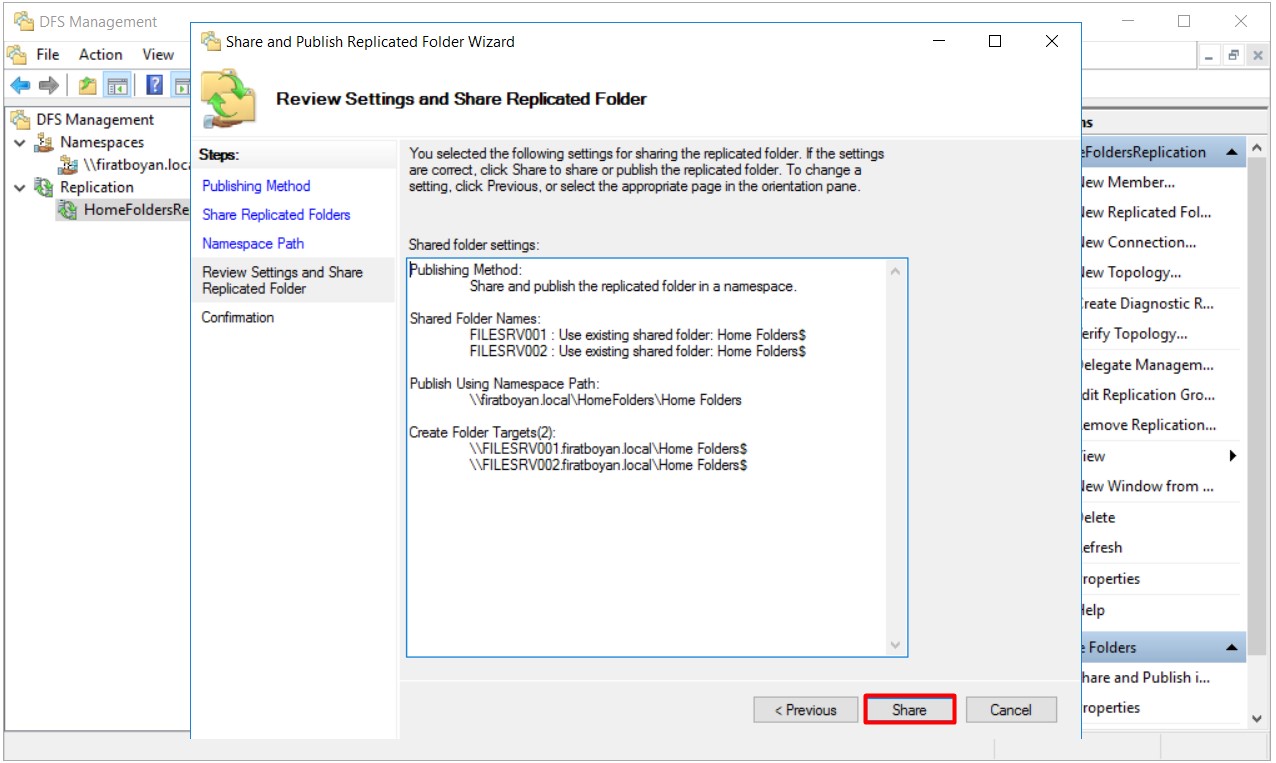
Step 36 - Review Settings and Share Replicated Folder
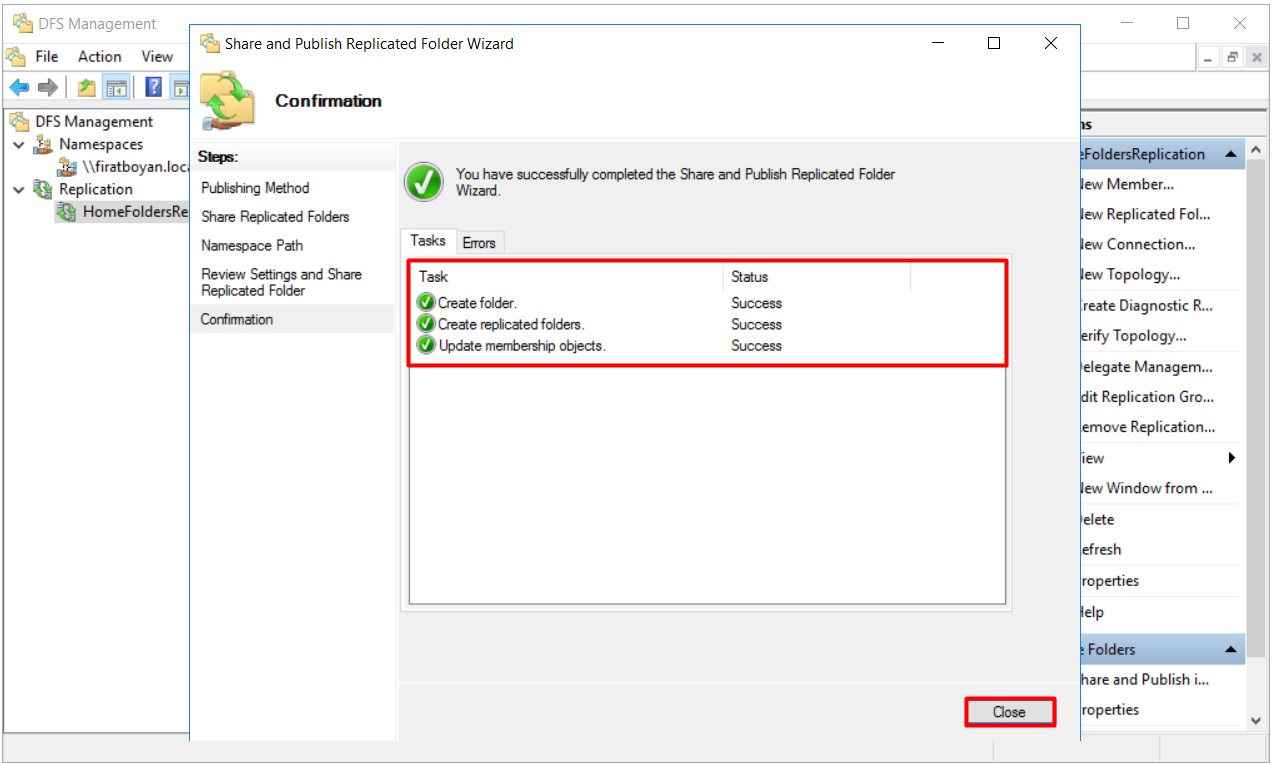
I check the summary, complete the publishing operation with Share, and close the wizard with Close.
Step 37 - Viewing the Namespace Folder
The replicated folder appears as published in the namespace.
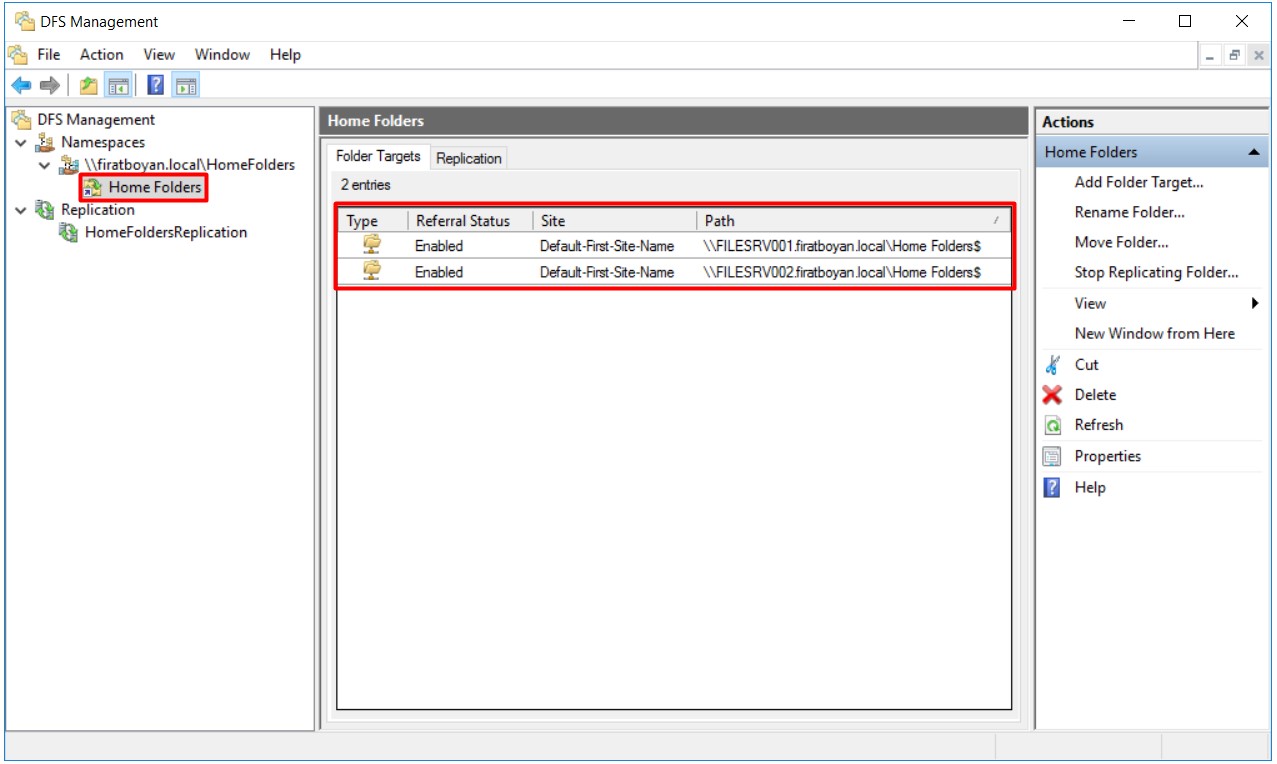
Checkpoint
The FILESRV001 and FILESRV002 shares must be listed on the Folder Targets tab of the folder in the namespace.
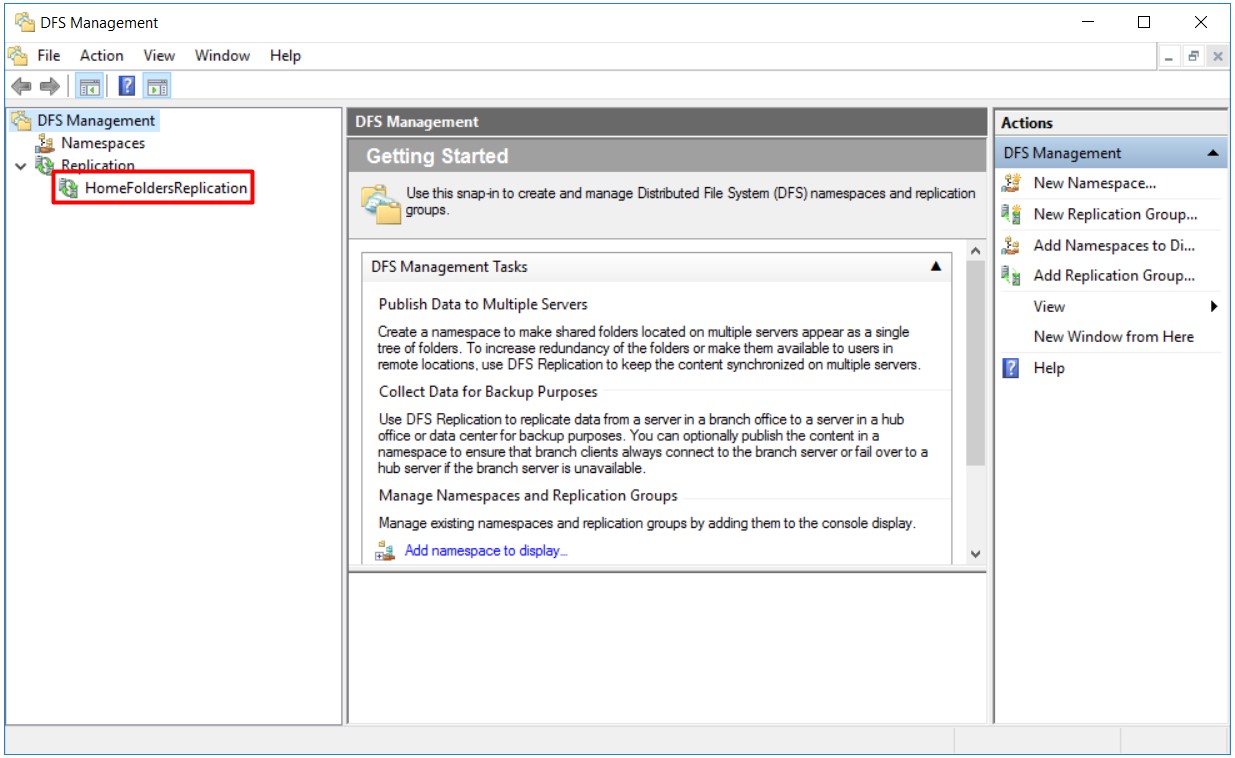
Step 38 - Viewing the Replication Group on FILESRV002
In the DFS Management console on FILESRV002, I check that the replication group also appears on this server.
Step 39 - Displaying the Namespace on FILESRV002
To manage the namespace in the console on FILESRV002 as well, I right-click Namespaces and add the namespace with Add Namespaces to Display.... This step changes only the console view and does not affect the configuration.
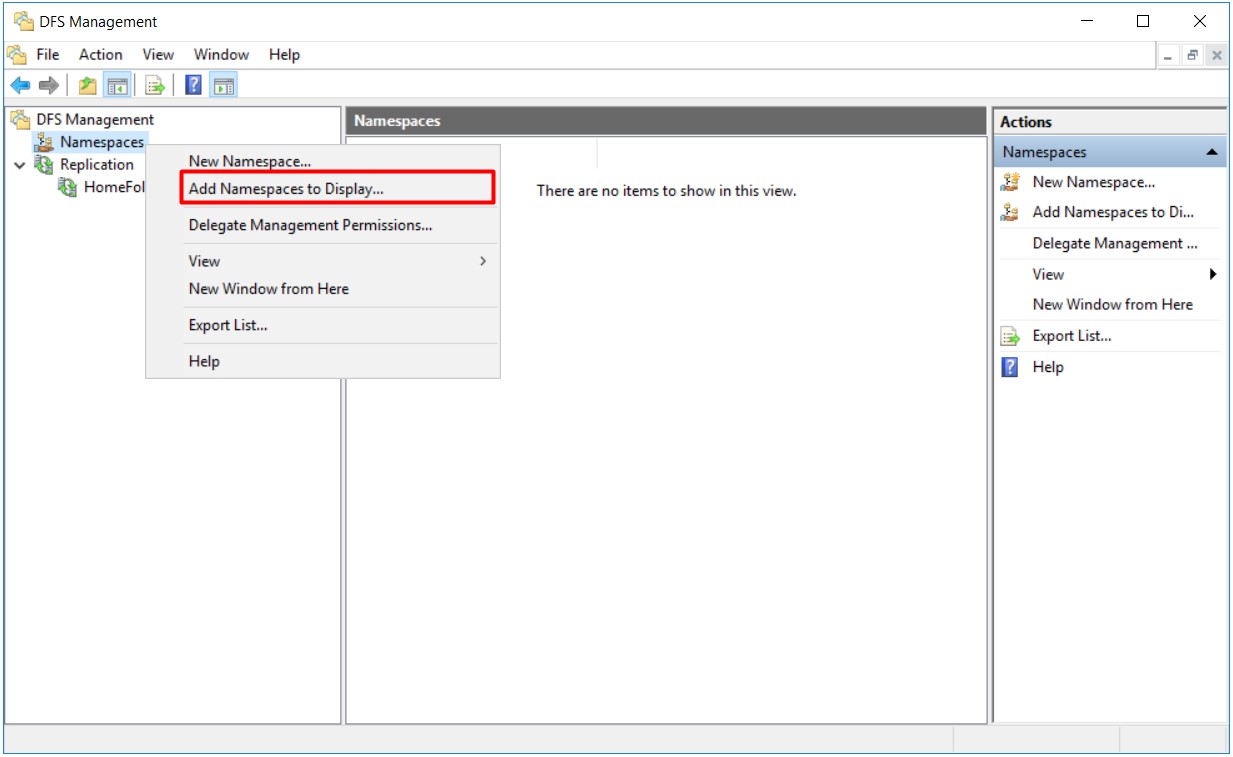
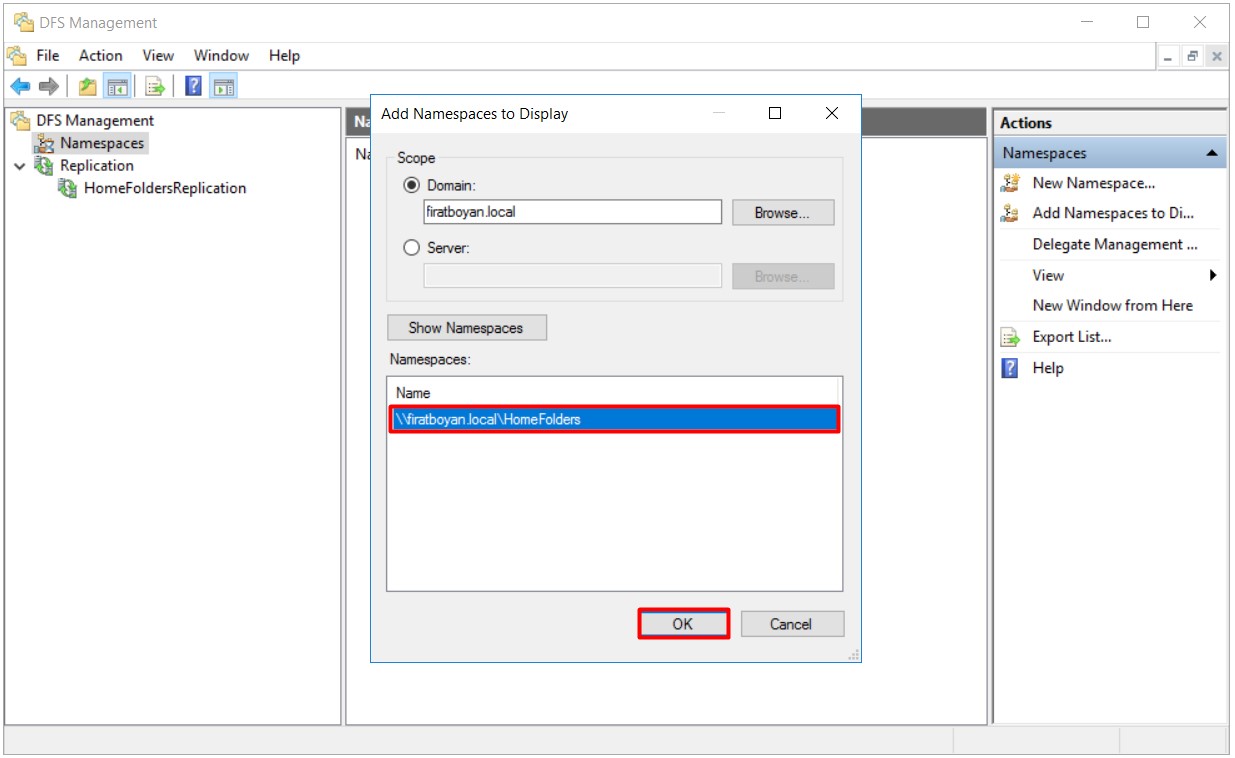
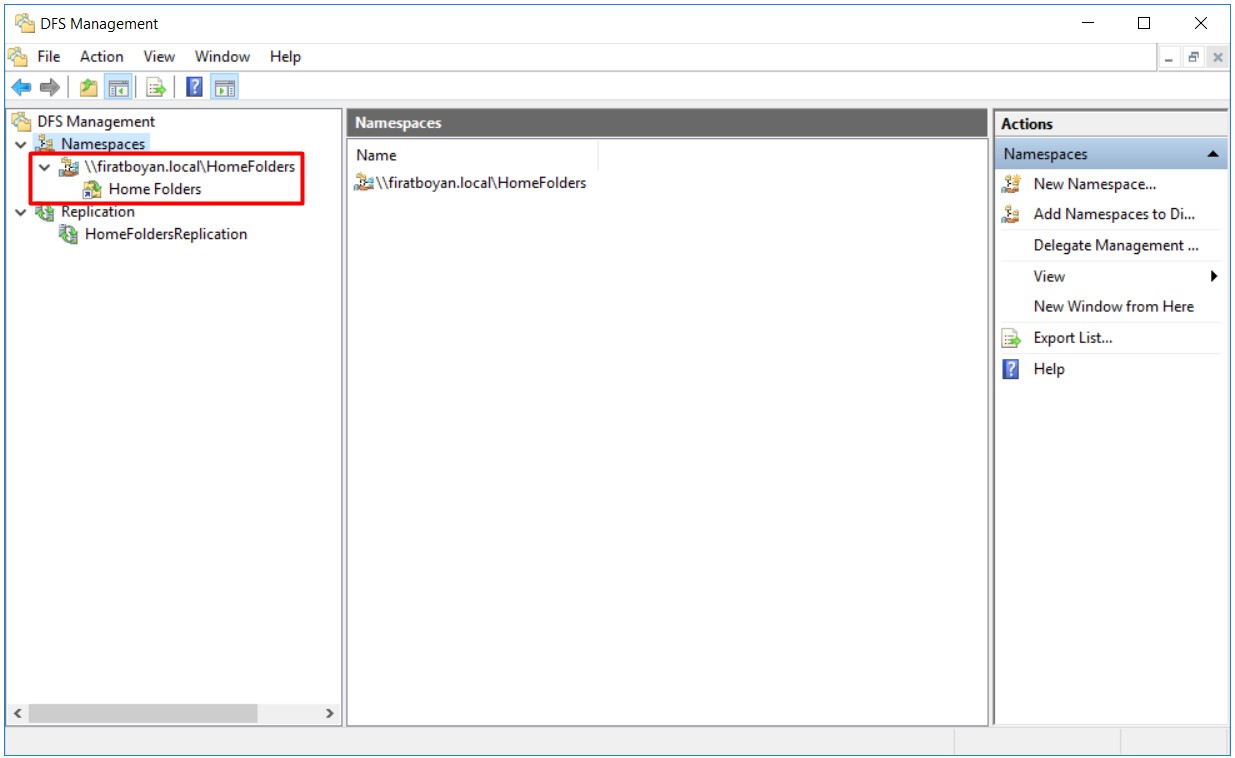
Step 40 - Completion of the Initial Replication
All user folders and NTFS permissions on FILESRV001 replicated to the empty Home Folders folder on FILESRV002.
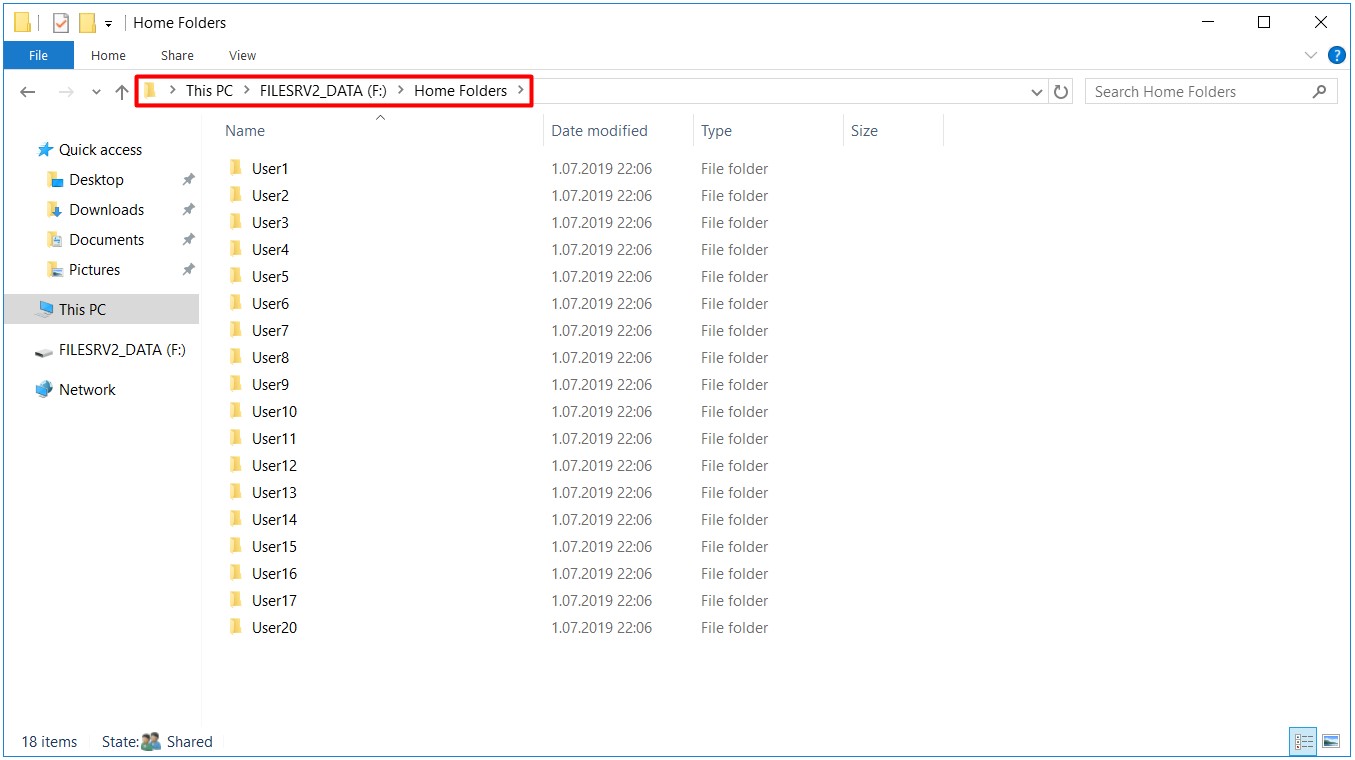
I confirm that the initial replication has finished not by looking at the folder, but with event 4104 in the DFS Replication event log on FILESRV002. This event shows that the initial replication has completed and that the member has now moved to normal replication. I run the command on FILESRV002.
Get-WinEvent -LogName "DFS Replication" -FilterXPath "*[System[EventID=4104]]" -MaxEvents 1
Checkpoint
The command must return a record with event ID 4104. If there is no record, the initial replication is still in progress.
Step 41 - Adding the Second Namespace Server
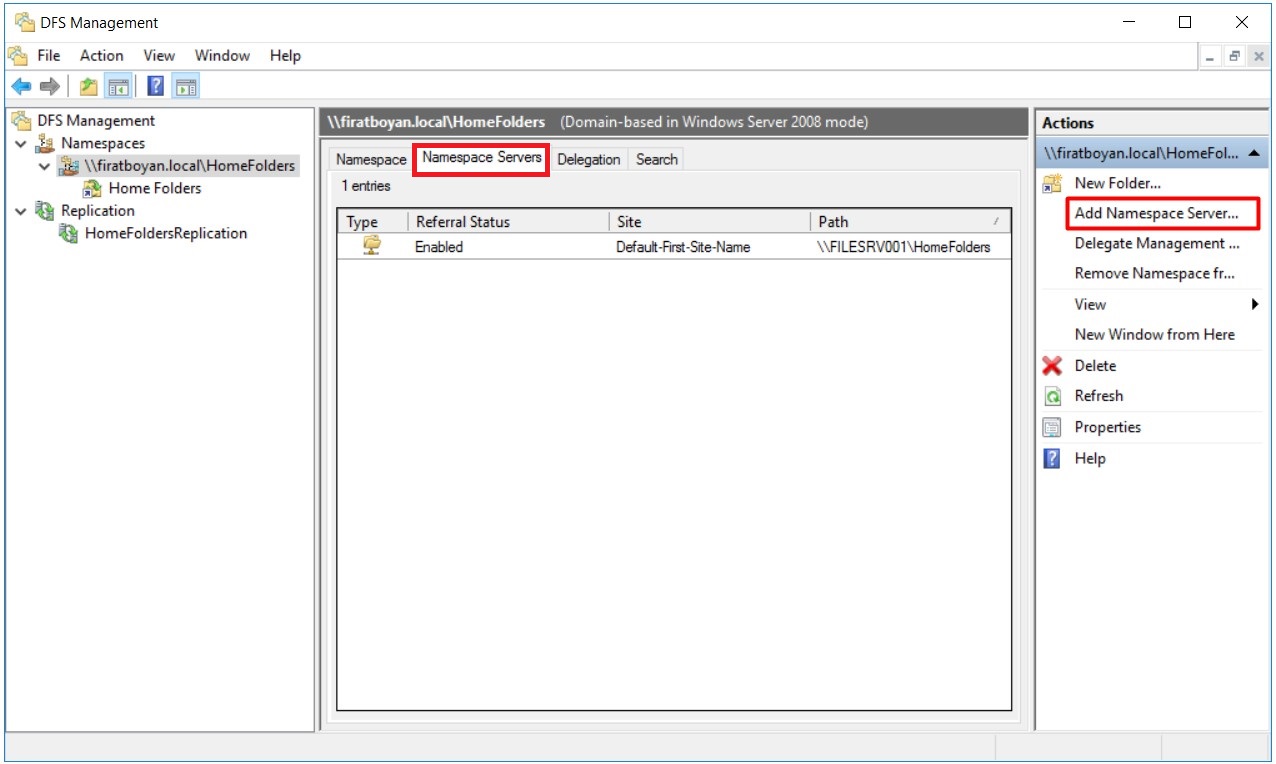
The namespace is currently hosted only on FILESRV001. If FILESRV001 shuts down, the client cannot get a referral from the namespace root even though the data is on FILESRV002. To make the namespace root highly available, I add FILESRV002 as the second namespace server.
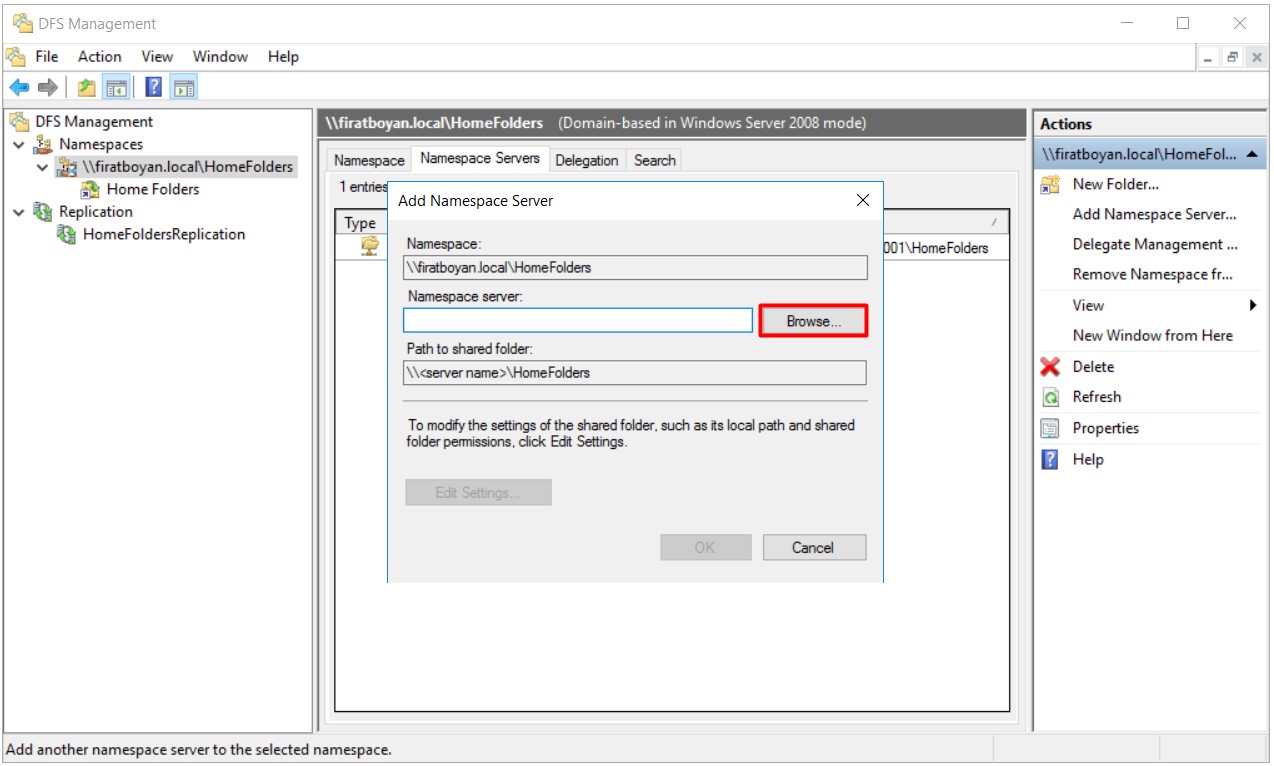
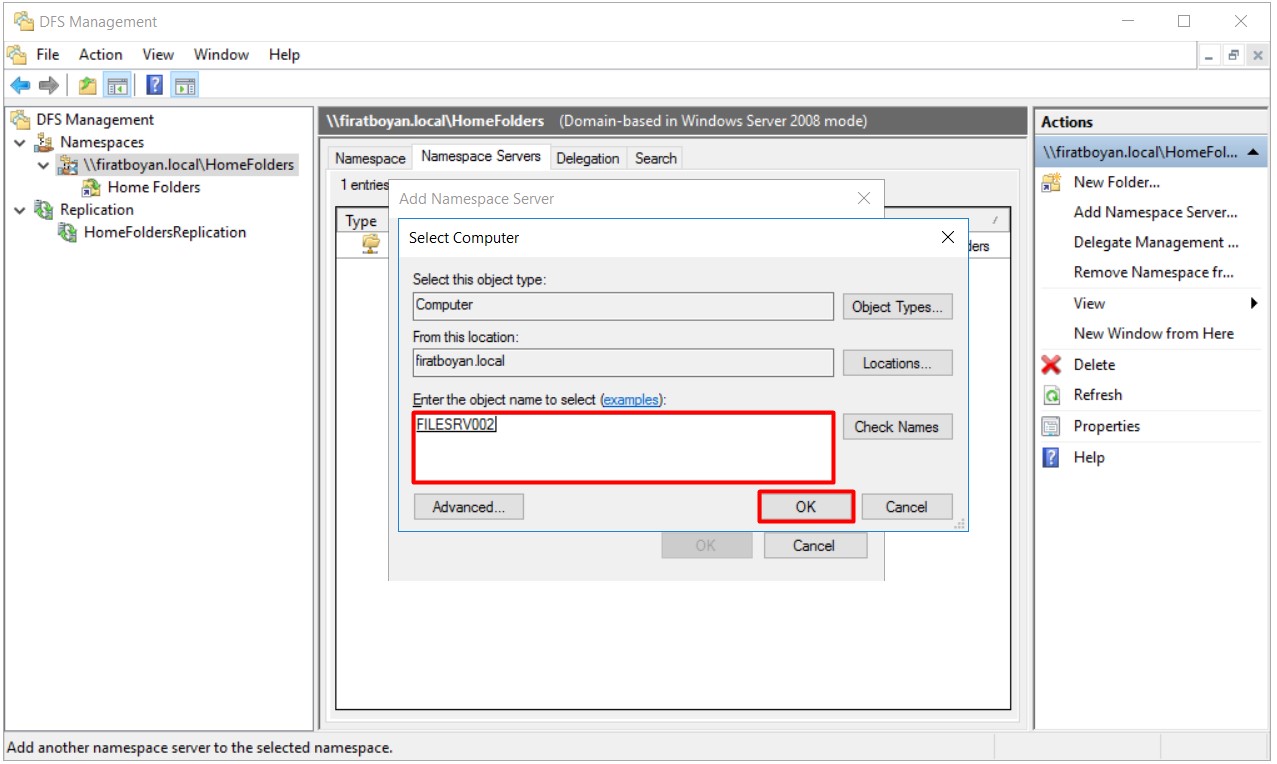
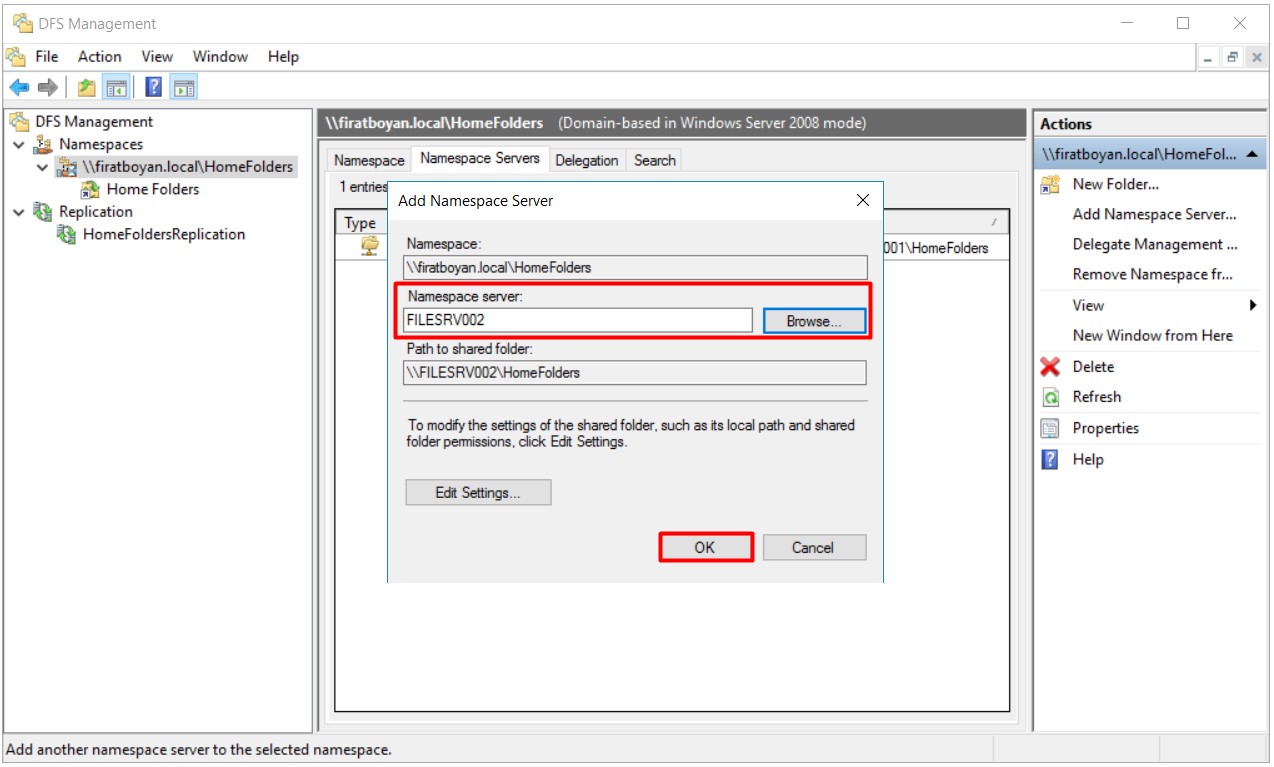
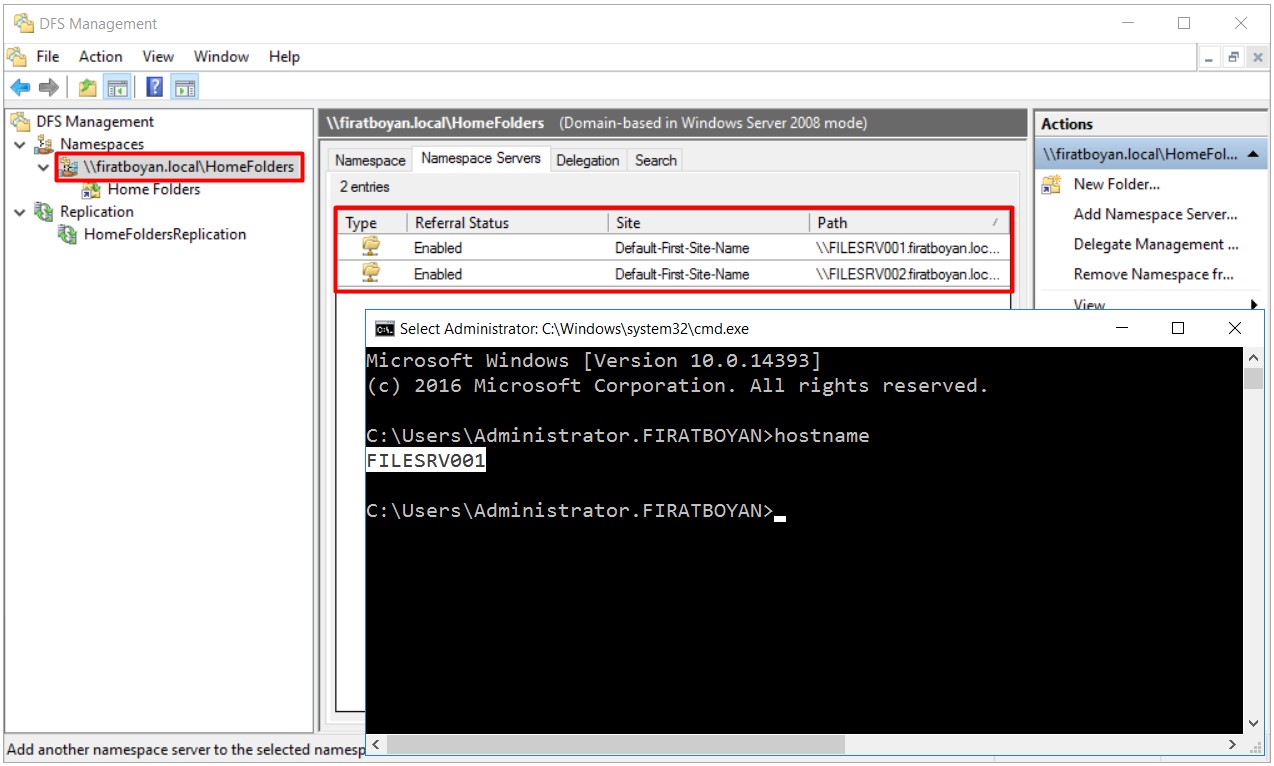
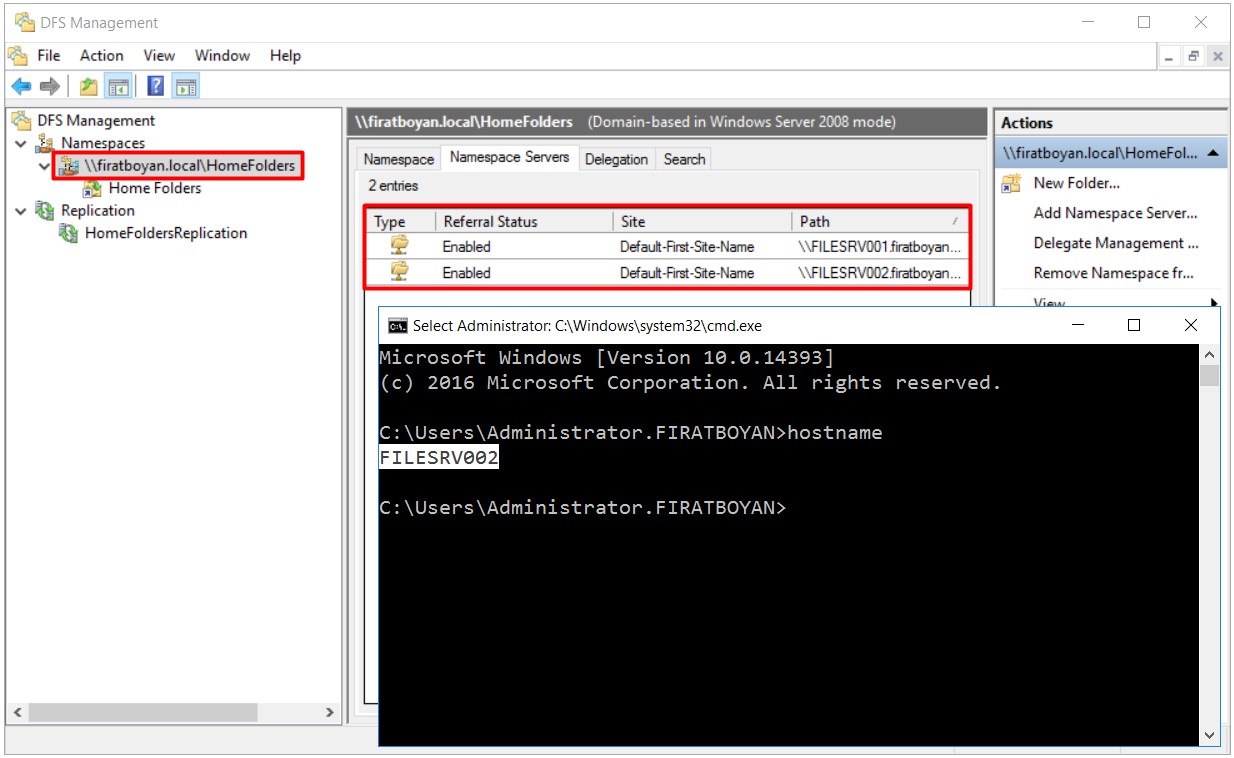
In the DFS Management console, I select the namespace and see the \\FILESRV001\HomeFolders entry on the Namespace Servers tab. In the window that opens with Add Namespace Server... on the right, I select FILESRV002 with the Browse... button and add it.
Checkpoint
Both \\FILESRV001\HomeFolders and \\FILESRV002\HomeFolders must appear on the Namespace Servers tab. The same list must also appear in the console on FILESRV002.
Step 42 - Namespace Polling Setting
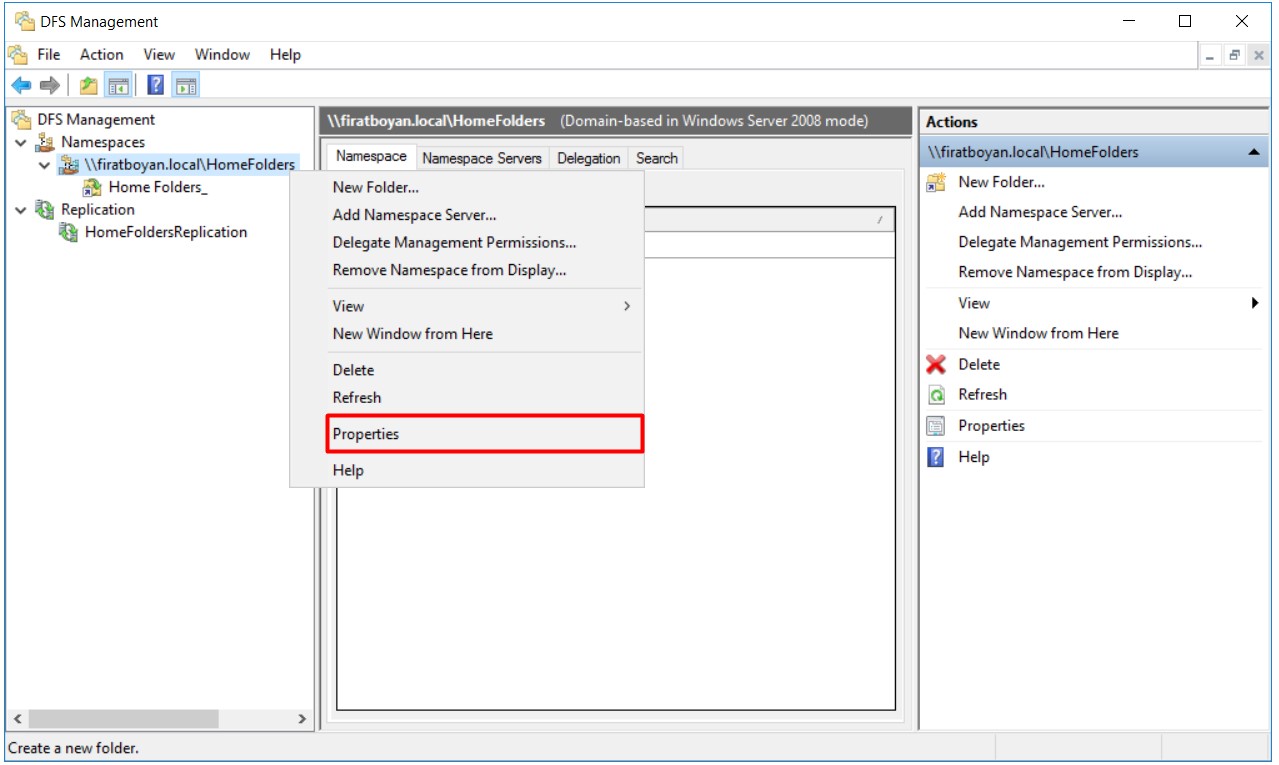
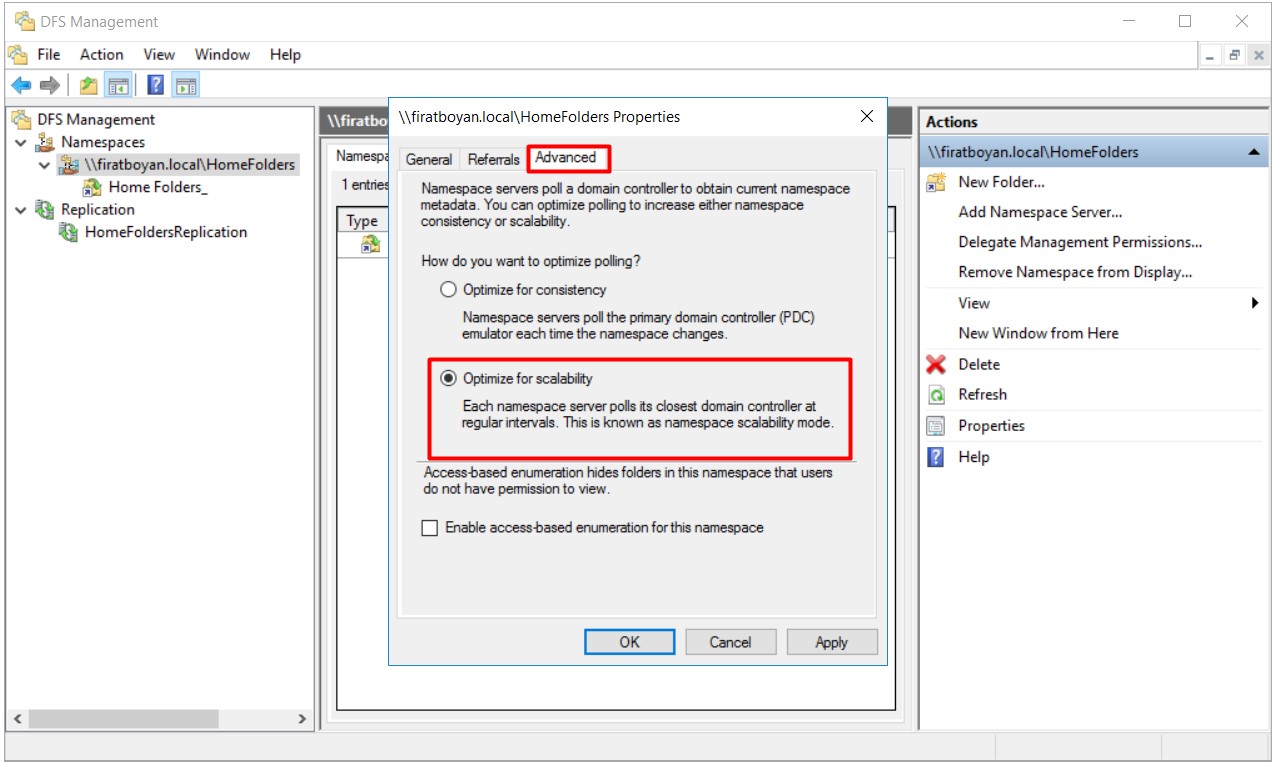
Namespace servers read the namespace configuration from Active Directory. This setting determines which domain controller the configuration is read from. I reach the setting on the Advanced tab of the window that opens when I right-click the namespace and select Properties.
|
Option |
Behaviour |
Suitable Scenario |
|
Optimize for consistency |
Namespace servers read the configuration from the domain controller that holds the PDC emulator role, and changes are reflected quickly |
16 or fewer servers host the namespace |
|
Optimize for scalability |
Namespace servers read the configuration from the domain controller closest to them, and the load on the PDC emulator decreases |
More than 16 servers host the namespace |
This setting does not affect clients. It only changes where the namespace servers read the configuration from. Microsoft recommends the Optimize for scalability option when more than 16 servers host the namespace. In this design with 2 namespace servers, I keep the default Optimize for consistency setting. The screenshot below shows the location of the setting.
The target order for clients is defined on the Referrals tab of the same window. The targets in the client's own site are always at the top of the list. If Random order is selected in the Ordering method field, the targets outside the site are ordered randomly. If Lowest cost is selected, they are ordered by site link cost from low to high. The Exclude targets outside of the client's site option ensures that the client does not see the targets in other sites at all. For HA, I do not tick this option, because if it is ticked, the client cannot move to the other site when the server in its own site shuts down.
Folder Target Status for User Data
According to Microsoft's support policy for DFS Namespaces and DFS Replication, for user data such as home folders and roaming profiles, the DFS folder that users access must have a single folder target. If a copy is kept on a second server with DFS Replication, users access only the source server, and the copy server is not used as an alternative target in the namespace. This rule applies even if the second target is kept disabled and is enabled manually at the time of a failure.
The reason is that replication is delayed. When the user moves to the second server after a failure, the user does not see the changes that have not replicated yet and works on an old copy. When the source server comes back, 2 versions of the same files conflict and 1 of them is moved to the ConflictAndDeleted folder.
For this reason, with user data I use DFS Replication to keep an up-to-date copy on the second server, and I direct users only to the source server. If HA is required for the user data itself, the solution is to run the file server on a failover cluster.
The test below was performed on Home Folders to show the DFS Namespaces failover mechanism. I do not use this design for user data in production. For data that is mostly read and is not changed in 2 places at the same time, 2 active targets work without problems.
9- Verification and HA Test
Step 43 - Access from the Client
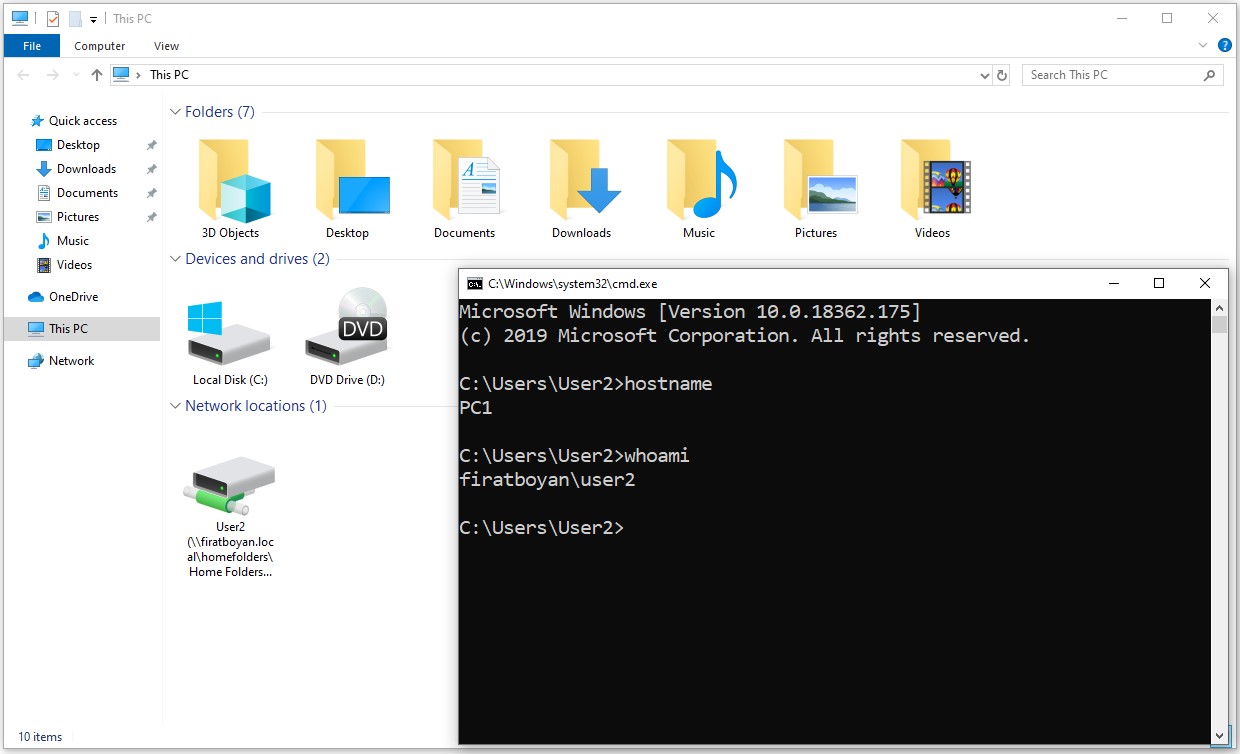
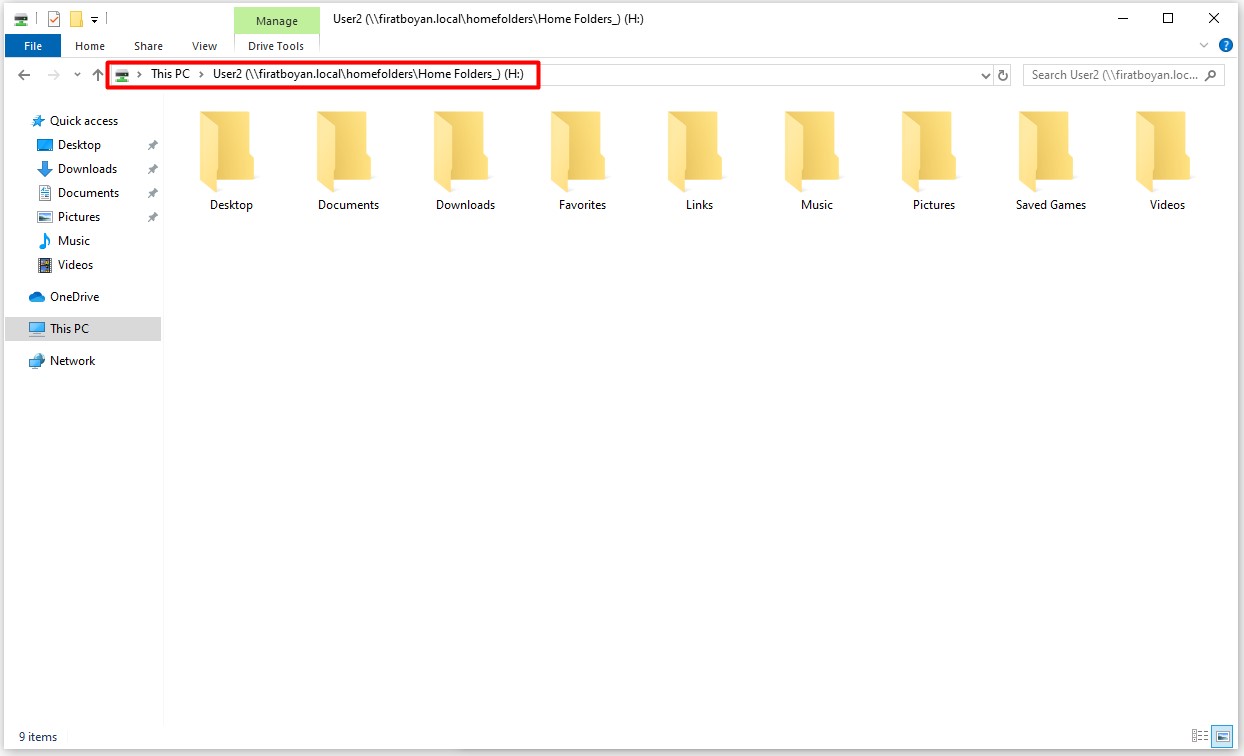
I sign in to the client computer with an Active Directory user. The home folder in the namespace is mapped as a drive.
The user's folders appear inside the home folder.
Step 44 - Viewing the Active Target
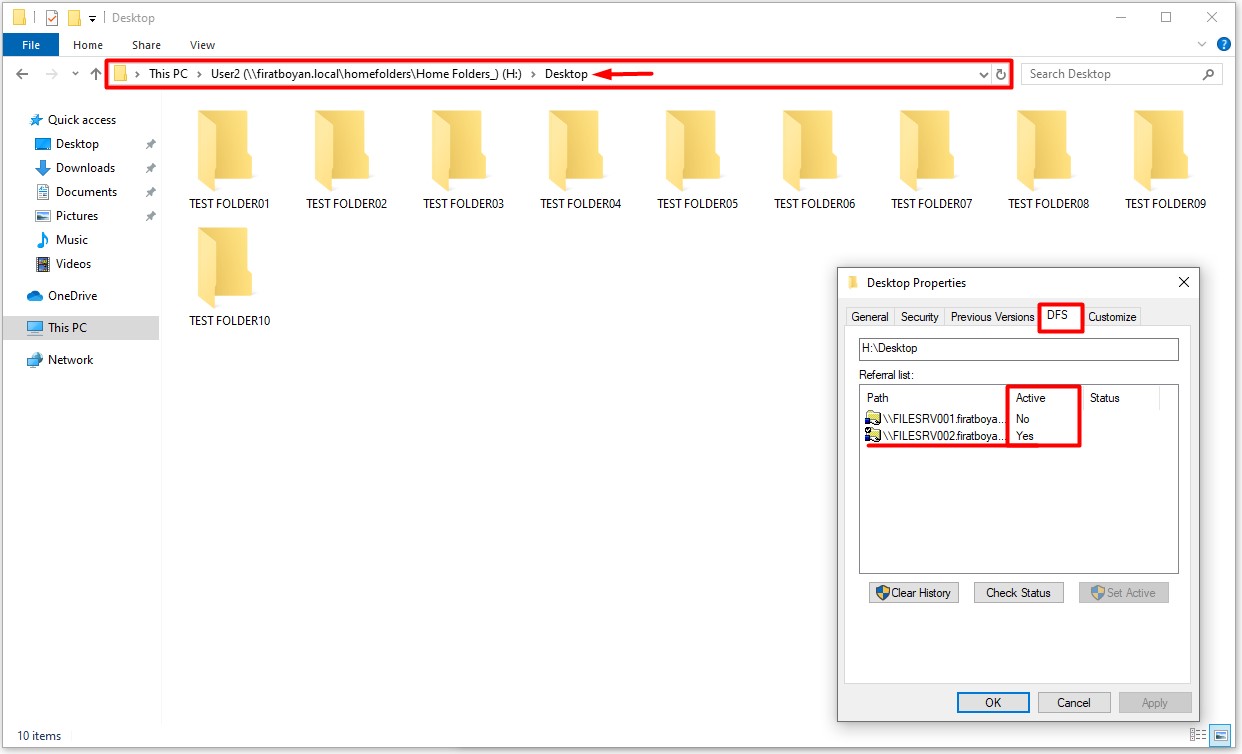
I create a few folders inside the Desktop folder. When I right-click the folder and look at the DFS tab in the Properties window, I see that the target that the client is connected to at that moment is FILESRV002.
Step 45 - Viewing the Replication
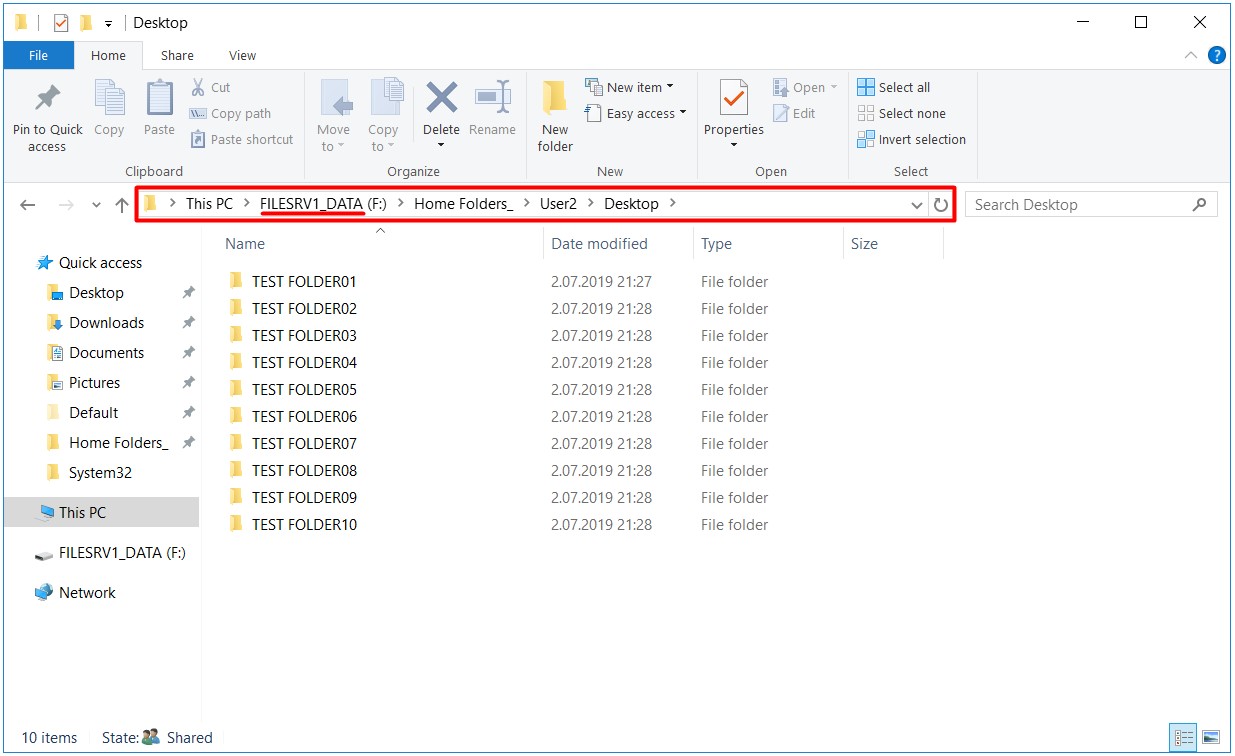
The folders that I created replicated to the Home Folders folder on both servers.
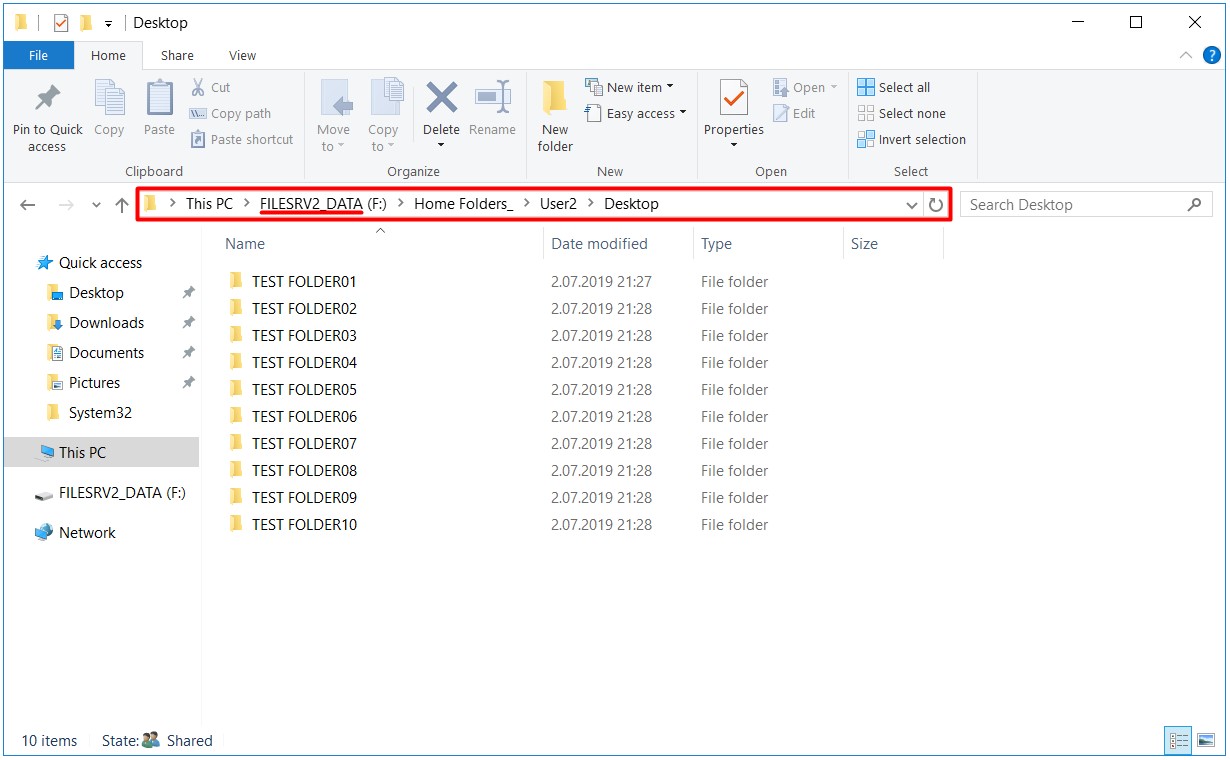
Step 46 - Shutting Down FILESRV002
I shut down FILESRV002, the server that the client is connected to.
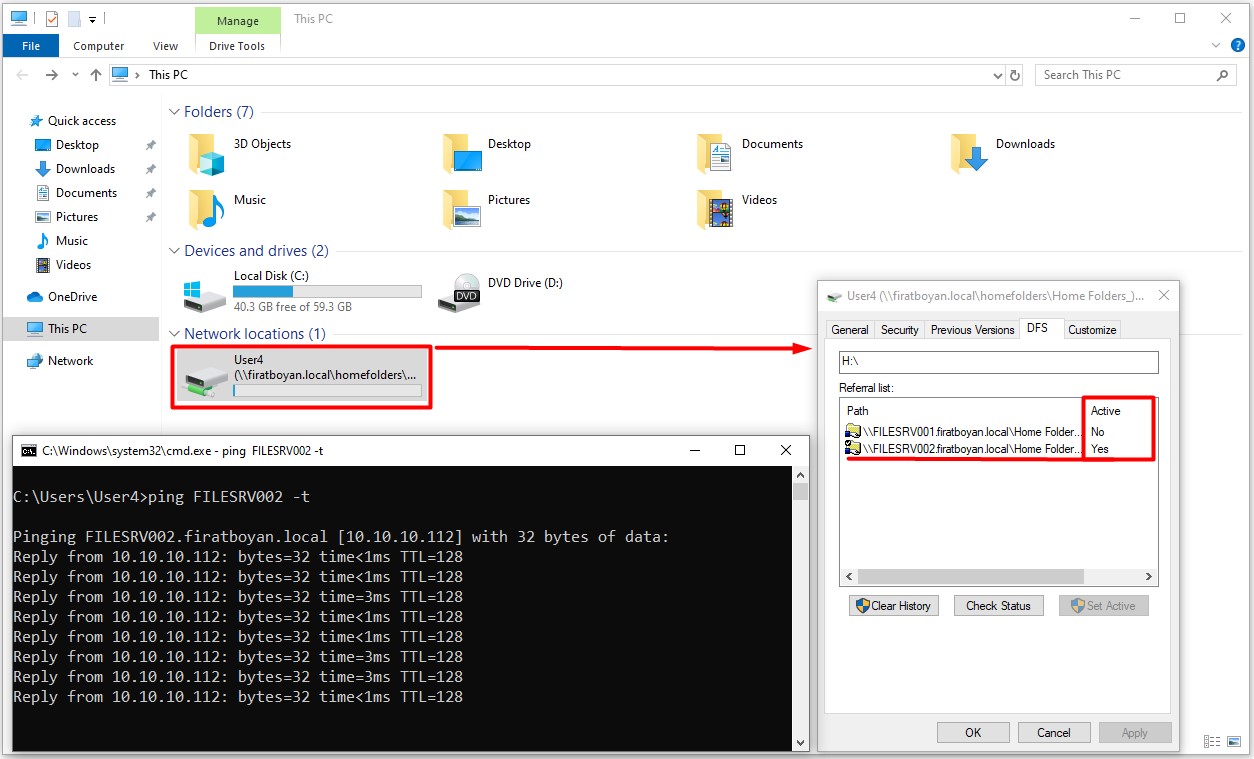
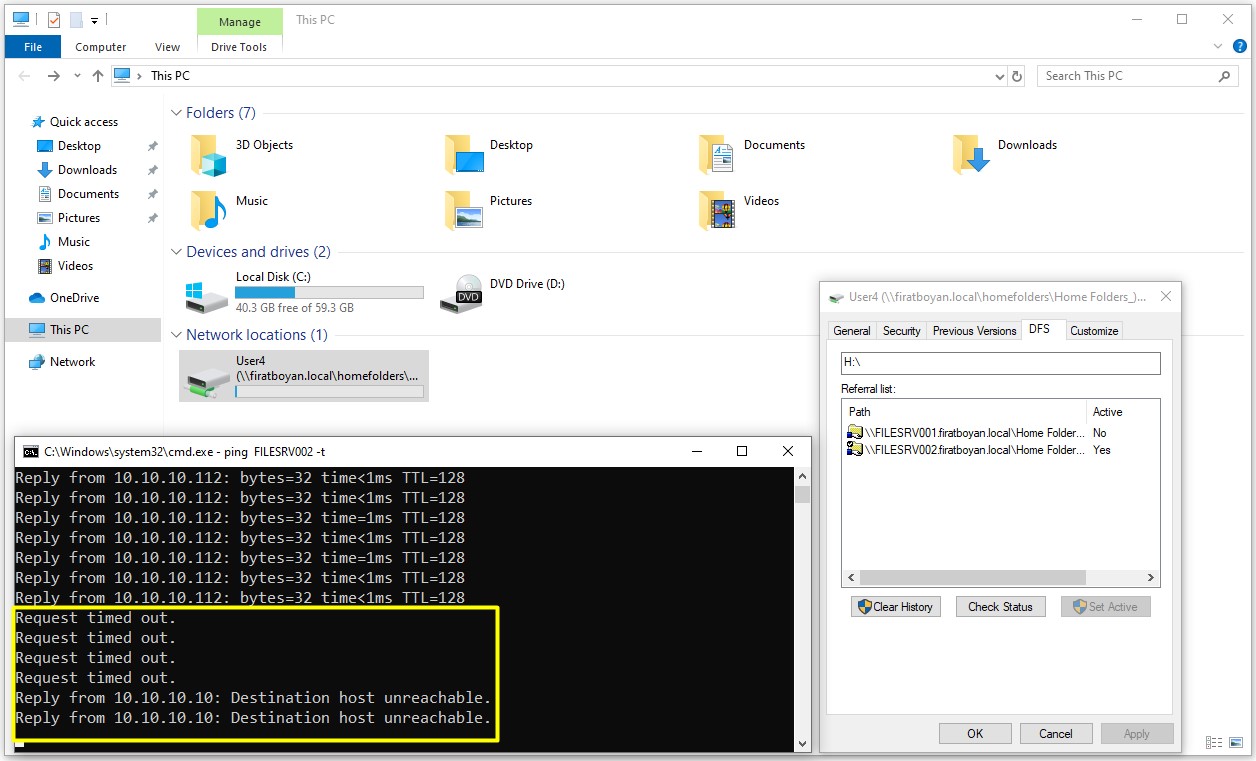
Step 47 - Access Continues
When I access the mapped drive again, the content opens. When I look at the DFS tab, I see that the active target is now FILESRV001. The client moved to the next target in the referral list. Any files that are open during the transition are closed and must be opened again.
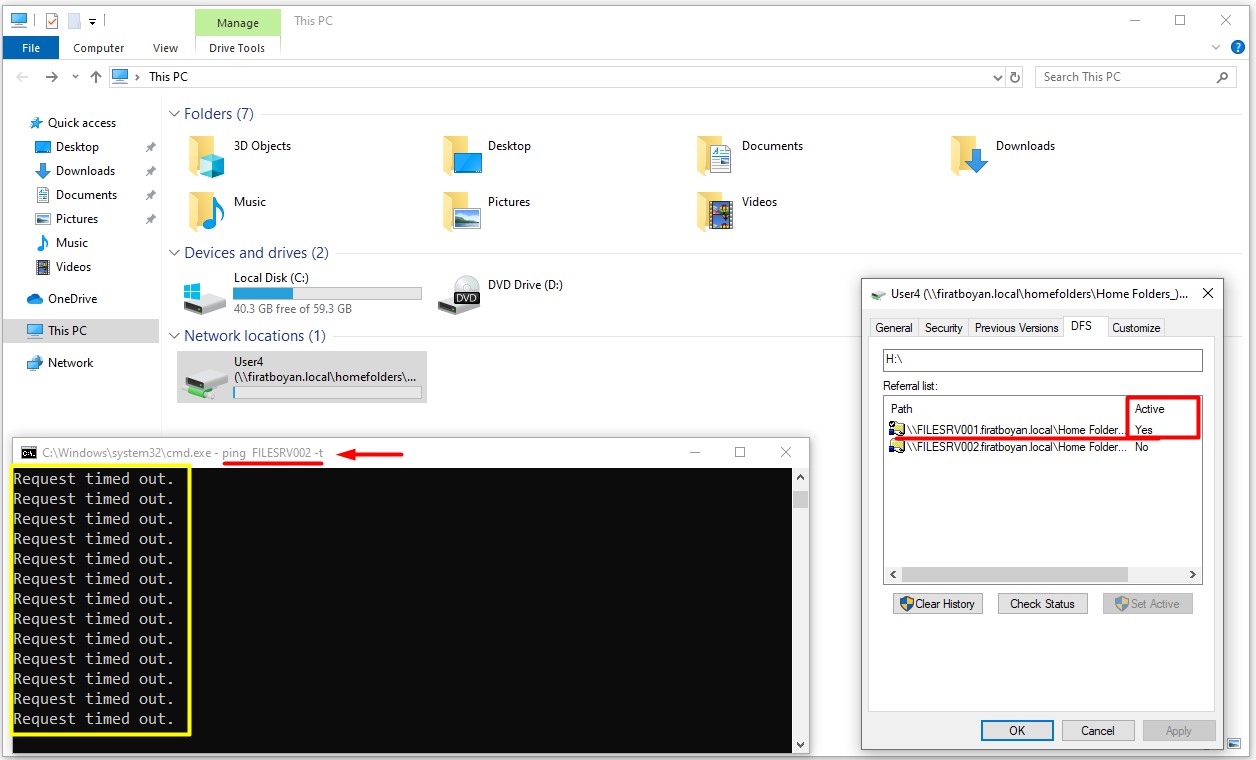
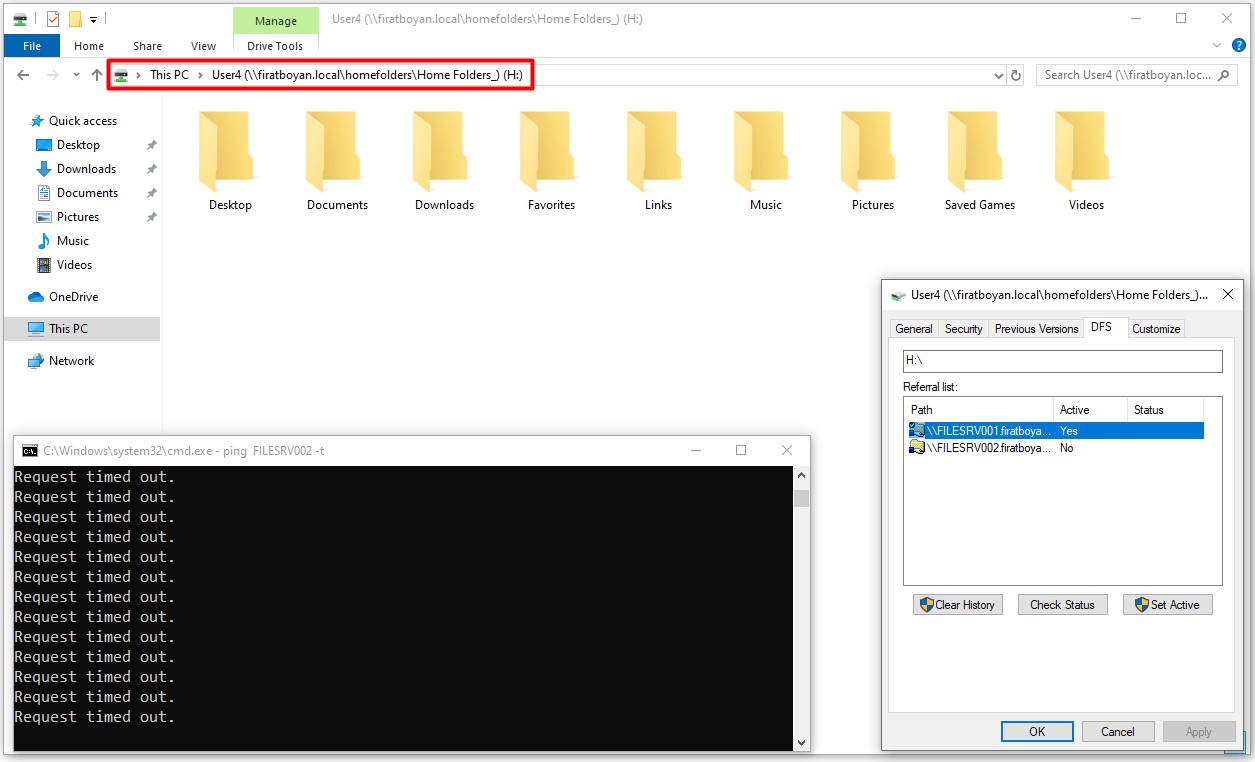
Checkpoint
While FILESRV002 is shut down, the namespace path must open and FILESRV001 must appear as the active target on the DFS tab.
Server-Side Verification
In addition to the test on the user side, I also verify the configuration on the server side. I run the commands on FILESRV001 in a PowerShell session that I open as administrator. {Replication Group Name} is the name that I gave in Step 20, and {Replicated Folder Name} is the name of the folder in the replication group.
Get-DfsnRootTarget -Path "\\firatboyan.local\HomeFolders"
Get-DfsnFolderTarget -Path "\\firatboyan.local\HomeFolders\{Namespace Folder Name}"
Get-DfsrMembership -GroupName "{Replication Group Name}" | Select-Object ComputerName, ContentPath, StagingPathQuotaInMB
Get-DfsrBacklog -GroupName "{Replication Group Name}" -FolderName "{Replicated Folder Name}" -SourceComputerName FILESRV001 -DestinationComputerName FILESRV002
|
Command |
Field |
Expected Value |
Get-DfsnRootTarget |
TargetPath, State |
\\FILESRV001\HomeFolders and \\FILESRV002\HomeFolders, Online (Step 41 - Adding the Second Namespace Server) |
Get-DfsnFolderTarget |
TargetPath, State |
The shares of both servers in the test design. Only the share of the source server for user data (Folder Target Status for User Data) |
Get-DfsrMembership |
StagingPathQuotaInMB |
The quota defined on both members (Step 30 and Step 31) |
Get-DfsrBacklog |
Output |
Empty, no pending files |
Get-WinEvent (FILESRV002) |
Id |
4104 (Step 40 - Completion of the Initial Replication) |
10- Troubleshooting and Rollback
For replication problems, the first place that I check is the DFS Replication event log on both members. The events that I see often are these:
|
Event ID |
Meaning |
Action to Take |
|
4202 |
Staging usage exceeded 90% of the quota and the clean-up started |
If it repeats often, recalculate the staging quota with the method in Step 30 and increase it |
|
4206 |
The clean-up could not reduce usage to 60% |
Increase the staging quota and check the free space on the disk that holds the staging folder |
|
4412 |
The same file changed on 2 members and a conflict occurred |
Restore the losing version from the DfsrPrivate\ConflictAndDeleted folder |
If I need to roll back the configuration, I delete the namespace folder first and then the replication group in the DFS Management console. Deleting the replication group does not delete the files on the members. It only stops replication. Because the deletion also propagates through Active Directory, I trigger the reading of the configuration with the commands in Step 29 so that it takes effect on the other member.
I know that the setup is complete by these criteria: the namespace is hosted on 2 namespace servers, event 4104 exists on FILESRV002, Get-DfsrBacklog returns empty, and when 1 server is shut down, the client can move to the other server through the namespace path. When I put user data into production, I leave only the source server as a folder target in the namespace folder and use the second server as a copy that is kept up to date with DFS Replication.
I hope you find it useful...
Feel free to share your thoughts and questions about this article in the comments below. Every contribution helps the content reach more people and makes for a more useful discussion.