NTFS (New Technology File System) permissions are the security model that determines access at file and folder level in Windows. When I want to open a folder, create a file, change content or delete it, Windows evaluates this request against the permission list on the target object and allows or denies it. For access that comes over the network, share permissions are also part of this decision. The owner of the object and user rights privileges such as SeBackupPrivilege, SeRestorePrivilege and SeTakeOwnershipPrivilege also provide rights that are outside the permission list.
Most of the permission problems I see in the field come from the difference between what the permission list shows and what the user can actually do. When a user cannot perform an operation although access has been granted, the cause is usually a Deny entry that comes through a group the user is a member of. When a user who is thought to have no access can reach the content, the explanation is usually indirect group memberships, nested group structures or inheritance from a parent folder. To read these behaviours, you need to know which parts permissions consist of and in which order Windows makes the access decision.
In this article, I first explain the mechanism behind the access decision, and then each of the basic and advanced permissions individually. After that, I show on a file server, with hands-on exercises, how share and NTFS permissions are evaluated together, and I continue with Special Permissions, inheritance and ownership. The installation of the File Server role and the details of creating a share are out of scope. The permission model I describe works in the same way in Windows Server and Windows Client versions.
This article is not tied to a specific Windows version. The NTFS permission model and the basic management steps described here apply with the same basic principles across Windows Server 2012–2025 and Windows 8–11.
1- How Does NTFS Access Control Work?
Every NTFS object carries a security descriptor. The access decision is made by comparing this security descriptor with the access token of the user who makes the request. The Security Reference Monitor (SRM) component, which runs in the Windows kernel, performs the comparison, and this operation is called an access check. When a user wants to open a file, the user specifies which access is requested (such as read, write or delete), and the SRM checks whether all of the requested access can be granted.
Security Descriptor, Owner, DACL and SACL
A security descriptor carries 4 components: owner, primary group, DACL and SACL. The primary group has no role in Windows file access control. The owner and the DACL are decisive in the access decision, whereas the SACL does not grant access, it defines auditing. The owner is the account that owns the object and can read and change the permissions of the object even with no permission in the ACL. The DACL (Discretionary Access Control List) is the list that determines who receives which access or which access is denied, and the permissions I see on the Security tab are this list. The SACL (System Access Control List) does not grant access, it determines which access attempts are written to the Security log.
Each line in the DACL is an ACE (Access Control Entry). Each ACE contains a SID, an Allow or Deny type, an access mask that holds the granted or denied rights, and inheritance flags that determine how the ACE propagates to child objects. ACEs defined directly on the object are marked as explicit, and those that come from a parent folder are marked as inherited. If no ACE in the DACL matches the user, access is denied.
Access Token and Group Memberships
When a user signs in, Windows creates an access token for this user. The token contains the user's Security Identifier (SID), the SIDs of all groups the user is a member of, including nested groups, the SIDs of built-in groups such as Everyone and Authenticated Users, and the privileges assigned to the user. During the access check, the SRM compares all of these SIDs with the ACEs in the DACL. This is why a permission that appears to be granted directly to the user can actually come from a group membership.
For access over the network, the token on the client stays in the user's own session. The file server creates a separate token to use for access control, as a result of the authentication performed while the SMB session is established. The Domain Local group memberships in the domain of the file server are also included in this token.
A group membership change is not reflected in the existing access context. If Kerberos is used, a new ticket must be obtained, and in every case a new SMB session to the file server must be established. The simplest way is to sign out and sign in again. Permission changes made in the ACL do not require a new session.
ACE Evaluation Order and Deny Precedence
The Windows ACL editor keeps ACEs in a specific order. Explicit ACEs always come before inherited ACEs. Within each group, Deny comes before Allow. Inherited ACEs are also ordered starting from the nearest parent folder.
Explicit ACEs
  1. Deny
  2. Allow
Inherited ACEs (from the parent folder)
  3. Deny
  4. Allow
Inherited ACEs (from the folder 2 levels up)
  5. Deny
  6. Allow
  ...
The SRM reads the ACEs in this order and processes only those that match the SIDs in the token. The rights in Allow ACEs accumulate. If a Deny ACE denies one of the requested rights that has not yet been granted, access is denied. The evaluation ends when all of the requested rights have been granted.
This ordering has 3 consequences in the field. The user's own permissions and the permissions that come from the user's groups are added together. An explicit Deny is the strongest entry. An explicit Allow granted directly on the object is read before a Deny inherited from a parent folder and therefore overrides it. In the same way, an Allow that comes from a near parent folder is evaluated before a Deny that comes from a more distant one.
A Deny given to broad groups such as Everyone or Domain Users affects everyone in that group, including administrators. To block an access, I prefer not to grant the permission at all instead of adding a Deny.
2- Basic Permissions
Basic permissions are the 6 checkboxes I see on the Security tab. Each of them works as a ready-made package of a group of advanced permissions. For example, when I give a user Modify, all of the advanced permissions that Modify covers are written to the access mask of the resulting ACE.
When granting permissions, I choose the narrowest basic permission that meets the need. The least privilege principle has a concrete meaning here: giving Modify to a group that will only read the content also gives every member of that group the right to delete. If no basic permission fits the need exactly, I use the advanced permissions.
✅ Read
Read grants the right to list the contents of a folder, read file content, and view the attributes and permissions of a file or folder. With this permission, the user can see which files and subfolders exist in the folder and can open and read files, but cannot make any change.
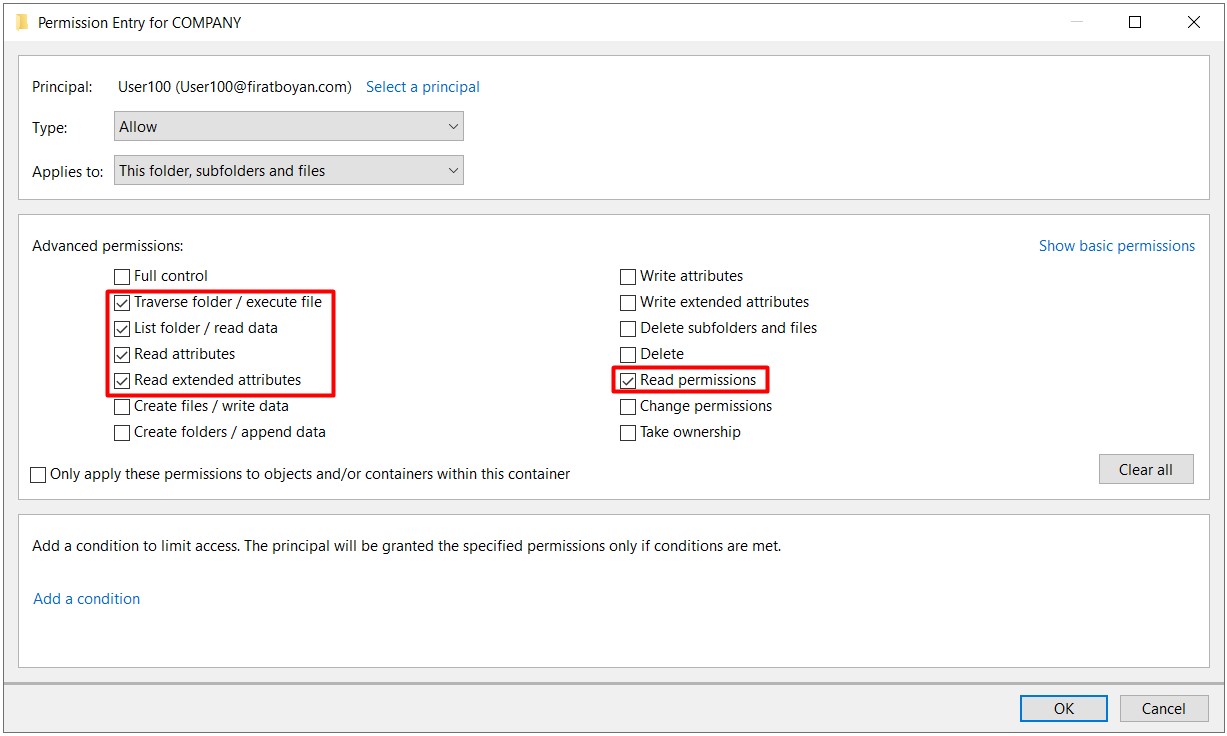
Read covers the advanced permissions List Folder / Read Data, Read Attributes, Read Extended Attributes and Read Permissions.
✅ List Folder Contents
List Folder Contents exists only on folders, and this option does not appear on files. The advanced permissions it covers are the same as Read and Execute: Traverse Folder / Execute File, List Folder / Read Data, Read Attributes, Read Extended Attributes and Read Permissions.
The only difference between the 2 permissions is the inheritance scope. List Folder Contents applies only to the folder and subfolders, and does not propagate to files. For this reason, the user can browse the folder structure and list the contents, but a separate permission that propagates to files is required for the user to open and read files.
✅ Read and Execute
In addition to the rights that Read provides, Read and Execute grants the right to start executable files and to traverse folders. The Execute right is meaningful for files that the operating system loads directly, such as .exe and .dll. Scripts such as .bat and .ps1 are read and run by cmd.exe or PowerShell, so the read right is decisive for them.
Read and Execute covers the advanced permissions Traverse Folder / Execute File, List Folder / Read Data, Read Attributes, Read Extended Attributes and Read Permissions. An additional permission is required for writing or deleting.
When a user or group is added to the ACL of a folder, the Read, List Folder Contents and Read and Execute permissions are selected by default.
✅ Write
Write grants the right to create new files and folders in a folder, write to the content of files and change attributes. The user can copy content into the folder from another directory. Because Write does not include the Delete right, a file or folder cannot be deleted or renamed. Because it does not include the Read right either, the folder contents cannot be listed and files cannot be read.
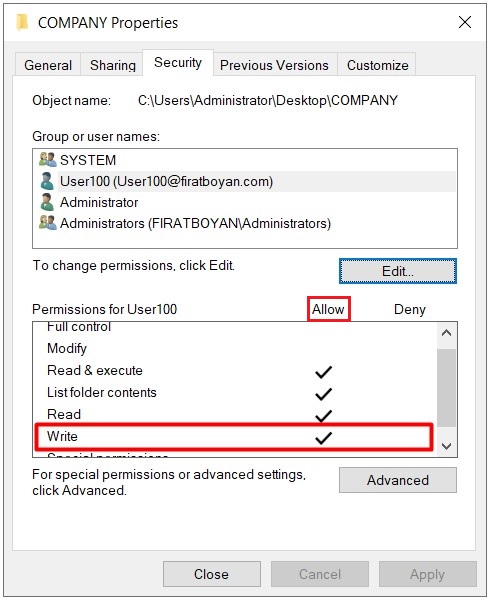
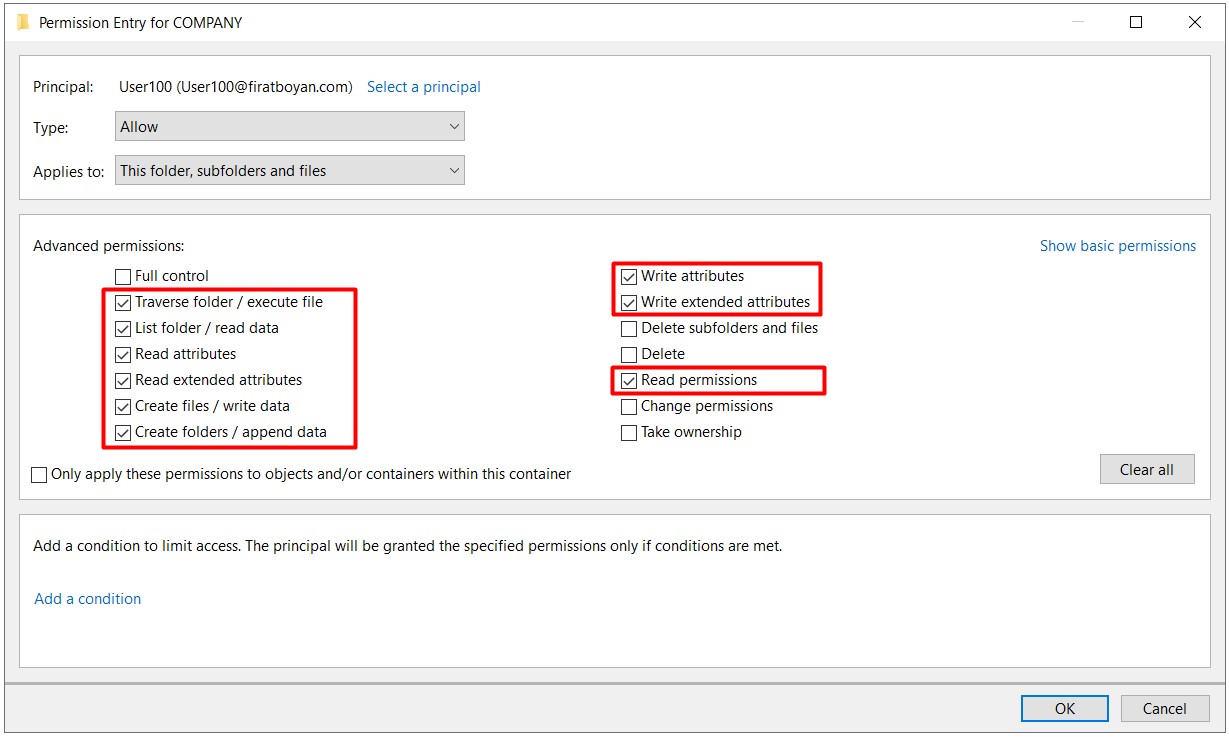
Write covers the advanced permissions Create Files / Write Data, Create Folders / Append Data, Write Attributes, Write Extended Attributes and Read Permissions. A user who has been given only Write can and cannot do the following:
|
Operation |
Result with Write Only |
|
Creating a new file or folder |
Possible |
|
Copying a file from another directory |
Possible |
|
Overwriting an existing file |
Possible, Write Data also propagates to files |
|
Opening and editing a file with an application |
Not possible, the file cannot be read |
|
Listing the folder contents |
Not possible, there is no List Folder right |
|
Deleting and renaming |
Not possible, there is no Delete or Delete Subfolders and Files right |
I use Write alone deliberately in structures where the user or the application should leave content in the folder but should not see the content or change it afterwards.
|
Scenario |
Expected Behaviour |
|
Drop folder structures (application logs, uploads from external systems) |
The user or application leaves a file, cannot list the folder contents and cannot delete the file it left. |
|
Upload directories for external sources |
The application writes files in the background, and the user cannot see what is in the folder. |
|
Backup or archive target directory |
The software writes new files and cannot delete files. It can overwrite a file that arrives with the same name. |
|
One-way submission processes (application documents, exam files) |
The user submits the file, and cannot delete it afterwards or see the list. If the user submits again with the same name, the previous file can be overwritten. |
If the folder inherits the CREATOR OWNER ACE from the volume root, the user gains Full Control on the file the user created and can delete it. In a drop folder structure, this ACE must be removed.
✅ Modify
Modify grants the right to read, execute, create, change content, rename and delete on a file or folder. This is the broadest permission I give to users who work with content in daily use.
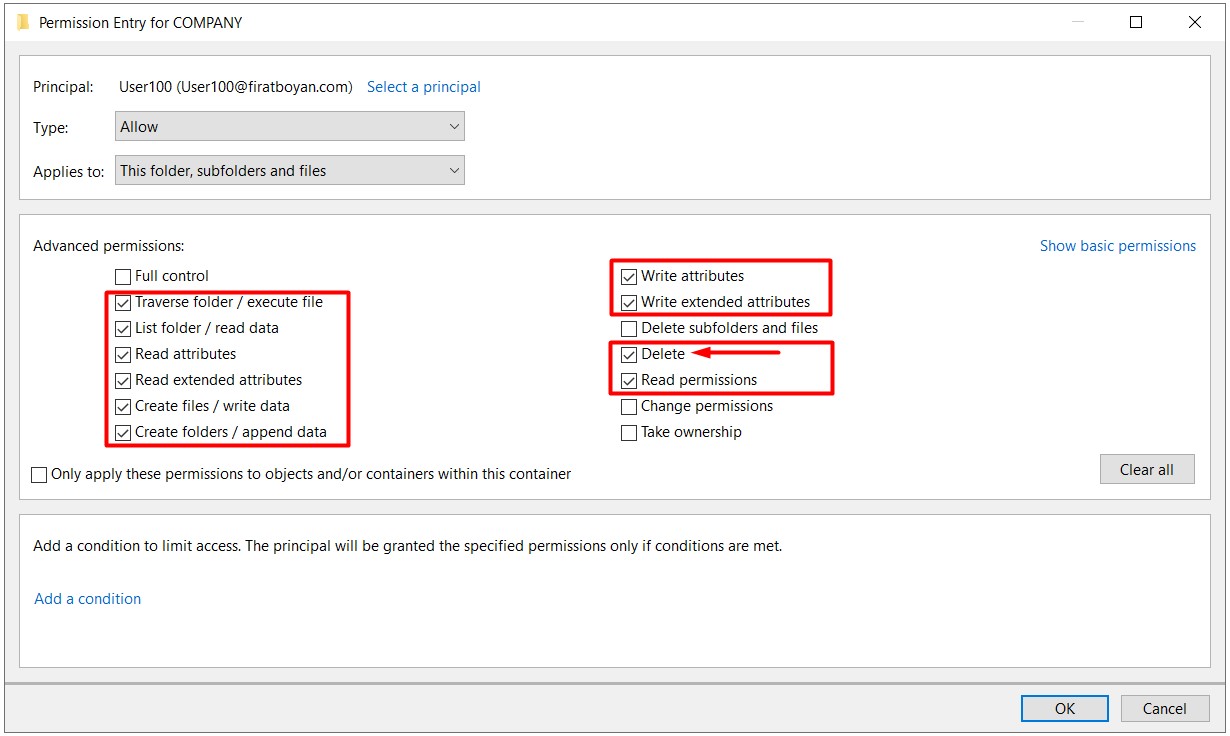
Modify covers the advanced permissions Traverse Folder / Execute File, List Folder / Read Data, Read Attributes, Read Extended Attributes, Create Files / Write Data, Create Folders / Append Data, Write Attributes, Write Extended Attributes, Delete and Read Permissions. Delete Subfolders and Files, Change Permissions and Take Ownership are not in this package. The user cannot change permissions and cannot take ownership.
✅ Full Control
Full Control allows all operations on a file or folder. The user can create, read, change and delete content, edit the permissions of the object and take its ownership.
Full Control covers all advanced permissions: Traverse Folder / Execute File, List Folder / Read Data, Read Attributes, Read Extended Attributes, Create Files / Write Data, Create Folders / Append Data, Write Attributes, Write Extended Attributes, Delete, Delete Subfolders and Files, Read Permissions, Change Permissions and Take Ownership. Because of the Change Permissions right, a user who receives Full Control can grant new permissions to themselves or to someone else, and can also remove the permissions of administrators. For this reason, I do not give Full Control to end users.
3- Advanced Permissions
Advanced permissions are the 13 separate rights I see when editing an ACE in the Advanced Security Settings window. Basic permissions are ready-made groups of these rights. When no basic permission fits the need exactly, for example when the user should be able to delete files but not the folder itself, I work with advanced permissions.
When working with advanced permissions, each ACE has 2 settings: which rights it grants and which objects these rights apply to. The second setting is the Applies to field.
Applies to and Permission Scope
The Applies to field in the Permission Entry window determines whether the ACE stays on the folder where it is defined or also propagates to subfolders and files. On folders, the default value is This folder, subfolders and files.
|
Applies to Value |
Objects the ACE Applies To |
|
This folder only |
Only the folder where the ACE is defined |
|
This folder, subfolders and files |
The folder, all subfolders and files |
|
This folder and subfolders |
The folder and subfolders, excluding files |
|
This folder and files |
The folder and the files in it, excluding subfolders |
|
Subfolders and files only |
Subfolders and files, excluding the folder itself |
|
Subfolders only |
Subfolders only |
|
Files only |
Files only |
When the Only apply these permissions to objects and/or containers within this container option in the same window is selected, the ACE propagates only 1 level down and does not reach deeper objects. The fact that List Folder Contents does not propagate to files is also based on this Applies to logic.
✅ Traverse Folder / Execute File
This permission carries 2 different rights depending on the object it is applied to. On a folder, it works as Traverse Folder and allows the user to move through the folder hierarchy and reach a child object without the right to list the folder contents. On a file, it works as Execute File and allows files such as .exe and .dll to be run.
There is an important condition for the Traverse Folder right to be decisive. Windows performs this check only if the user's token does not contain the Bypass traverse checking (SeChangeNotifyPrivilege) privilege. By default, this privilege is assigned to broad groups, including the Everyone group. In the default configuration, a user who knows the full path can reach the target object even with no permission on the folders in between. The Traverse Folder permission becomes decisive when this privilege is removed from users.
Removing the Bypass traverse checking privilege from the Everyone group can cause compatibility problems in applications and services that access files by path. I do not make this change without testing it.
The typical use case for the Traverse Folder / Execute File permission is a shortcut deployed to the desktop with a GPO that targets a specific application on a server. The user should be able to run the application, but should not see the rest of the folder structure. In the example below, I show the permissions I defined along the folder hierarchy so that a user can run the LogoGo3.exe application on the network.
\\srvdhcp-1\IT\Applications\FinanceTools\Logo\GO3\Client\LogoGo3.exe
|
Folder Name |
Inheritance Status |
Defined Permissions |
|
IT |
Disabled |
Traverse Folder / Execute File |
|
Applications |
Enabled |
Traverse Folder / Execute File |
|
FinanceTools |
Enabled |
Traverse Folder / Execute File |
|
Logo |
Enabled |
Traverse Folder / Execute File |
|
GO3 |
Enabled |
Traverse Folder / Execute File |
|
Client |
Disabled |
Traverse Folder / Execute File
List Folder / Read Data |
Because I disabled inheritance on the IT folder and defined only Traverse Folder / Execute File, the Applications, FinanceTools, Logo and GO3 folders inherit this permission, and the user cannot see the contents of these folders. If Bypass traverse checking remains with its default assignment, the traverse check on these intermediate folders is not performed anyway. What actually makes the application run is the ACE on the Client folder. If the Applies to value of this ACE covers files, the LogoGo3.exe file receives the Execute File and Read Data rights and the application runs. If the application needs DLL or configuration files in the same folder, these files also receive the read right from the same ACE. The user also needs a share permission on the IT share.
The List Folder / Read Data permission on the Client folder allows the user to see the .exe file when the user opens the folder. The same permission propagates to the file as Read Data and allows LogoGo3.exe to be read.
✅ List Folder / Read Data
List Folder / Read Data is a single line in the ACL and behaves differently depending on the type of object it is applied to. On a folder, it works as List Folder and allows the user to see which files and subfolders exist in the folder. On a file, it works as Read Data and allows the file content to be read. The 2 rights are not assigned separately. A single definition is made, and the type of the object determines the behaviour. The Applies to value of the ACE determines whether this permission propagates to files.
Without this permission, the user cannot list the contents when opening the folder. Whether the user can reach an object with a known full path through traverse is independent of this.
✅ Read Attributes
Read Attributes grants the right to view the standard attributes of a file or folder, such as Read-only, Hidden, Archive and System, and its timestamps. It does not provide access to the content and does not grant the right to change attributes.
Without this permission, some command-line tools and scripts can return an error because they cannot read the attribute information of the file.
✅ Read Extended Attributes
Read Extended Attributes allows the extended attributes that applications add to a file to be read. Extended attributes are name-value pairs that are kept separately from the file content, and they have no visible equivalent in Explorer. For example, WSL keeps Linux ownership and permission information in these fields for files on Windows disks.
The Archive, Index, Compress and Encrypt options that appear in the Advanced window of the file properties are not extended attributes. They are standard file attributes and depend on the Read Attributes and Write Attributes permissions.
✅ Create Files / Write Data
On a folder, Create Files / Write Data works as Create Files and allows new files to be created in the folder. On a file, it works as Write Data and allows the content of the file to be changed or overwritten. It does not grant the right to create folders. That behaviour depends on the Create Folders / Append Data permission.
This permission is also required to copy a file from another directory. Moving a file to another folder within the same volume additionally requires a delete right on the source side. This right can come from the Delete permission of the file or from the Delete Subfolders and Files permission on the source folder. Changing the name or extension of a file does not depend on this permission either. Renaming requires the Delete right on the file (or Delete Subfolders and Files on the parent folder).
✅ Create Folders / Append Data
On a folder, Create Folders / Append Data works as Create Folders and allows new subfolders to be created. On a file, it works as Append Data and allows data to be added to the end of the file without changing the existing content. Adding a new line to a log file is an example. Changing the content or creating a new file requires the Create Files / Write Data permission.
If only this permission is defined on the folder and a folder that contains files is copied from another directory, the folder is created at the destination, but the operation stops before it is complete because the files in it cannot be created. This permission is also not sufficient to rename a folder that has been created. The Delete right on the folder or the Delete Subfolders and Files right on the parent folder is required.
✅ Write Attributes
Write Attributes allows the standard attributes of a file or folder, such as Read-only, Hidden and Archive, and its timestamps to be changed. It does not make any change to the content. If this permission is not defined, the user cannot remove the Read-only attribute even if the user can change the content of the file. In this case, the user receives an error when trying to save the file.
✅ Write Extended Attributes
Write Extended Attributes allows the extended attributes that applications add to a file to be written and changed. Without this permission, even a user who can write to the file itself cannot add data to these fields. In custom applications that use extended attributes, the operation can end with an error if this permission is missing.
Information such as Author, Title, Company and Comments in Microsoft Office files is not in this scope. This information is stored inside the file itself and is written with the Write Data right when the file is saved.
✅ Delete
Delete allows a file or folder to be deleted. If this permission is defined on the object to be deleted, the user can delete the object even without the right to access its content. Renaming and moving within the same volume also require a delete right. This right can come from the object's own Delete permission or from the parent folder permission I describe below.
The delete right can also come from another path. If the object to be deleted has no Delete permission, the Delete Subfolders and Files permission on its parent folder makes the same operation possible. During deletion, Windows evaluates these 2 permissions separately, and the presence of 1 of them is sufficient.
✅ Delete Subfolders and Files
Delete Subfolders and Files exists only on folders and allows the files and subfolders inside the folder to be deleted. If this permission exists on the parent folder, a child object can be deleted even if there is no Delete right in its own ACL.
For a subfolder that is not empty to be deleted, every object in it must first be deletable. For this reason, if the permission stays only on the parent folder, it covers the direct contents of the subfolder. If the permission also propagates to subfolders through inheritance, the subfolder can be deleted together with its contents.
A user who has the Delete Subfolders and Files permission on the parent folder can delete a child object even if an explicit Deny for Delete is defined on that object.
✅ Read Permissions
Read Permissions allows the permissions defined on a file or folder to be viewed. With this permission, the user can open the Security tab and see which permissions are granted to which user or group.
If the permission is not defined, the user cannot see the permissions when opening the Security tab, even with access to the content, and receives a warning stating that there is no permission to read them. The owner of the object can view the permissions without this permission.
✅ Change Permissions
Change Permissions allows the permissions on a file or folder to be edited. With this permission, the user can change existing permissions on the Security tab, add a new user or group and remove existing entries.
This permission does not change the ownership of the object. Changing the owner information requires the Take Ownership permission.
✅ Take Ownership
Take Ownership allows the ownership of a file or folder to be taken. With this permission, the user can use the Owner line in the Advanced Security Settings window to transfer the ownership of the object to their own account or to a group that can be assigned as owner in their token (such as the Administrators group for administrators). Assigning another user or group directly to the Owner field is not possible with this permission. That requires the SeRestorePrivilege privilege, which the Administrators group holds by default.
Even if the user cannot access the content, the user can take ownership with this permission. After taking ownership, the user can also edit the permissions through the implicit rights of the owner, and does not need the Change Permissions permission.
The owner can view and change the permissions of the object even with only the Read permission or no permission at all in the ACL. Since Windows Server 2008, this implicit right can be restricted with the OWNER RIGHTS ACE added to the ACL.
4- Relationship Between Basic and Advanced Permissions
The table below shows which advanced permissions each basic permission contains. When a basic permission is selected, the advanced permissions ticked in that column of the table are written to the ACE together.
Basic permissions do not form a complete hierarchy. Read and Execute covers Read. Write does not cover Read and is a separate package. When Modify is selected, the Read and Execute, List Folder Contents, Read and Write permissions and their related advanced permissions become effective, with Delete added to them. Full Control adds the Delete Subfolders and Files, Change Permissions and Take Ownership permissions to this.
|
Permissions |
Read |
List Folder Contents |
Read and Execute |
Write |
Modify |
Full Control |
|
Traverse Folder / Execute File |
|
✓ |
✓ |
|
✓ |
✓ |
|
List Folder / Read Data |
✓ |
✓ |
✓ |
|
✓ |
✓ |
|
Read Attributes |
✓ |
✓ |
✓ |
|
✓ |
✓ |
|
Read Extended Attributes |
✓ |
✓ |
✓ |
|
✓ |
✓ |
|
Create Files / Write Data |
|
|
|
✓ |
✓ |
✓ |
|
Create Folders / Append Data |
|
|
|
✓ |
✓ |
✓ |
|
Write Attributes |
|
|
|
✓ |
✓ |
✓ |
|
Write Extended Attributes |
|
|
|
✓ |
✓ |
✓ |
|
Delete |
|
|
|
|
✓ |
✓ |
|
Delete Subfolders and Files |
|
|
|
|
|
✓ |
|
Read Permissions |
✓ |
✓ |
✓ |
✓ |
✓ |
✓ |
|
Change Permissions |
|
|
|
|
|
✓ |
|
Take Ownership |
|
|
|
|
|
✓ |
5- Evaluating Share and NTFS Permissions Together
The path used to access a folder determines which permissions apply. When the folder is accessed through a local path (for example D:\COMPANY), only NTFS permissions apply. Even on the same computer, if the folder is accessed over SMB with \\localhost\COMPANY, the 2 layers are evaluated together. When the folder is accessed over the network with a UNC (Universal Naming Convention) path, the share permissions (Read, Change, Full Control) are evaluated first, and then the NTFS permissions. The user receives the intersection of these 2 sides, which means that the most restrictive one applies.
Because file servers are almost always accessed through a UNC path, the 2 sides must be designed together. My recommendation, based on my field experience, is to give Full Control to the Authenticated Users (or Everyone) group on the share side and to configure all restrictions on the NTFS side. In this way, permissions are managed in a single place, and I do not have to compare 2 separate lists when I look for the reason why a user cannot access something. Because the default share permission is Read for Everyone, this setting must be changed when the share is created.
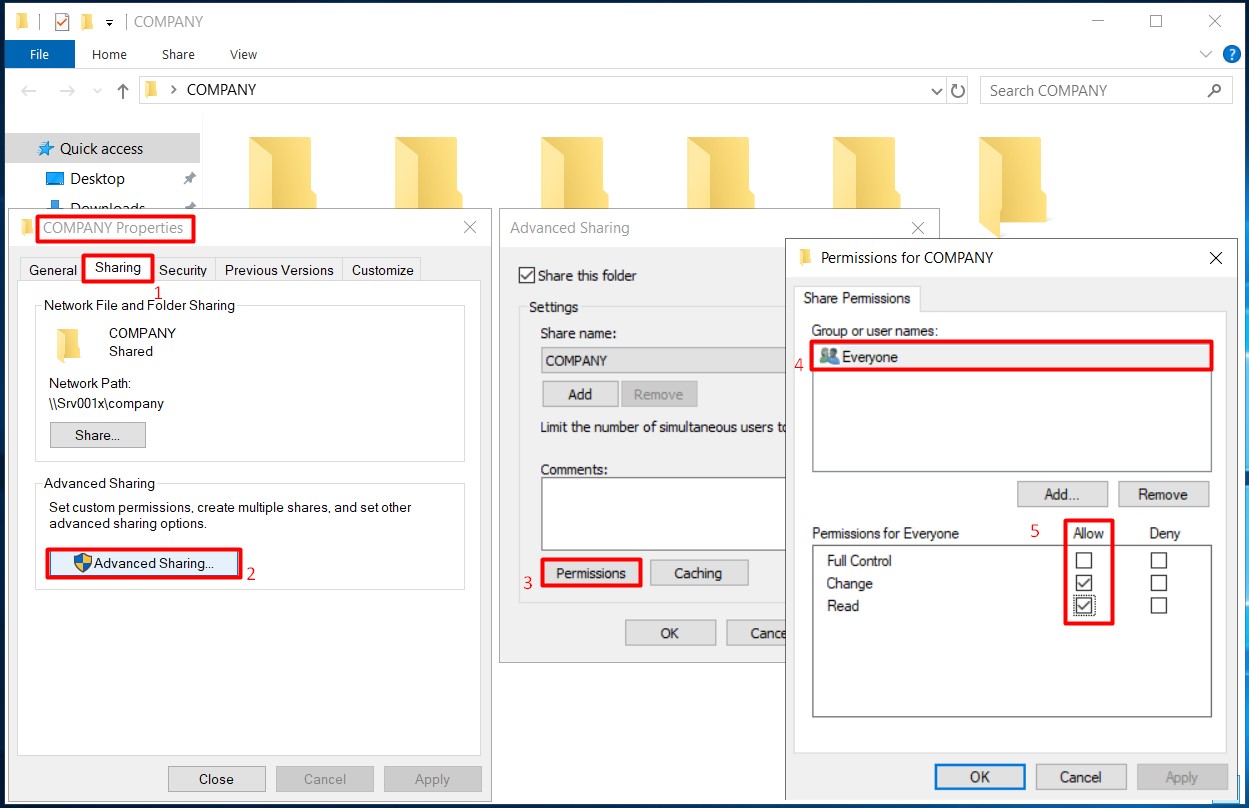
In the exercises below, I deliberately give Change to the Everyone group on the share side to show how the most restrictive permission is determined. The effect of this choice appears in Exercise 4.
Preliminary Check
For the results of the exercises to match the screenshots, the environment must be in the following state:
|
Check |
Expected State |
|
Permissions inherited by the COMPANY folder |
The Users and CREATOR OWNER ACEs that come from the volume root do not give User100 additional permissions |
|
Share permission of the COMPANY share |
Everyone: Change |
|
Group memberships of User100 |
User100 does not receive a permission on COMPANY through another group |
|
Test client |
Signed in as User100, accessing the COMPANY share through a UNC path |
The reason for the first row is this: the default ACL of the volume root gives the BUILTIN\Users group the right to create folders. On domain member servers, the Domain Users group is a member of the BUILTIN\Users group. If the COMPANY folder inherits this ACE, User100 can create folders even if only Read is granted on the Security side, and the result of Exercise 1 changes.
To see which access the user actually has, I use the Security, Advanced, Effective Access tab in the folder properties. When I select User100 with Select a user and click the View effective access button, the result of each advanced permission is listed, including the permissions that come from groups and inheritance. If the folder is shared, the Access limited by column also shows when a permission is restricted by the share.
Exercise 1 - Read
1- On the file server, I create a folder named COMPANY and share it. While sharing it, I click the Permissions button and give the Everyone group the Change permission in the Allow section.
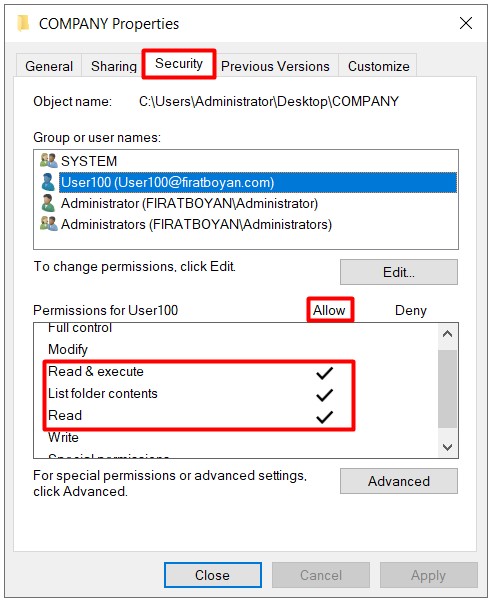
2- The next step is the NTFS permission assignment on the COMPANY folder. On the Security tab, I give the User100 user the Read permission in the Allow section.
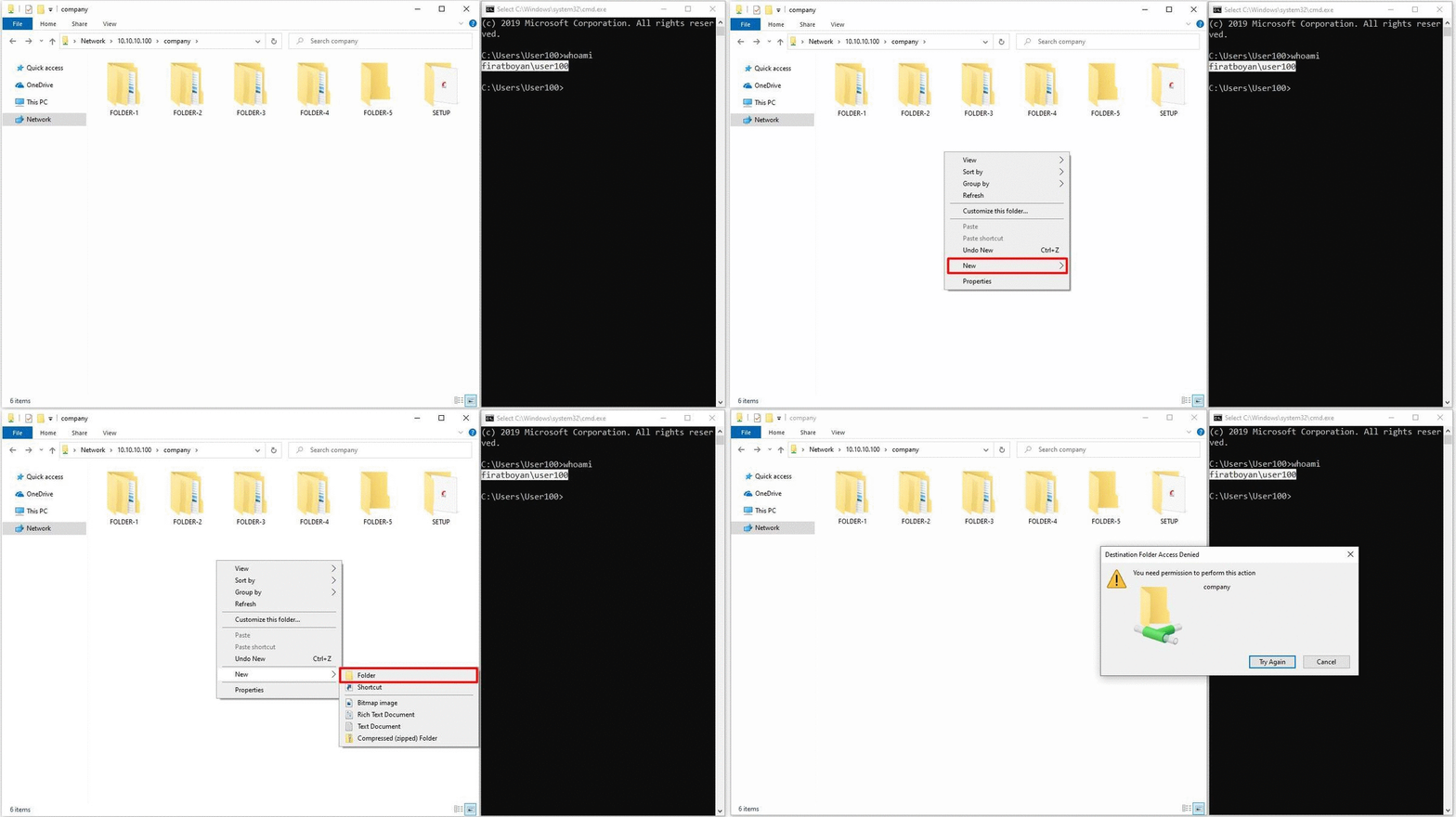
3- From the client where I am signed in as User100, I access the shared folder through the UNC path and try to create a New Folder. I receive a warning that I do not have permission for this operation.
On the share side, I defined Change for the Everyone group, and this alone would be sufficient to create a folder. However, although User100 is a member of the Everyone group, User100 has only the Read permission on the NTFS side. Because the most restrictive of the 2 sides is Read, I can only read. This is what the statement "the most restrictive one applies" means in practice.
Checkpoint
On the Effective Access tab of the COMPANY folder, only the advanced permissions related to reading should appear as Allowed for User100. The Create Files / Write Data and Create Folders / Append Data lines should be listed as not allowed.
Exercise 2 - Write
1- On the same COMPANY folder, I update the permission level on the NTFS side to Write for the same User100 user.
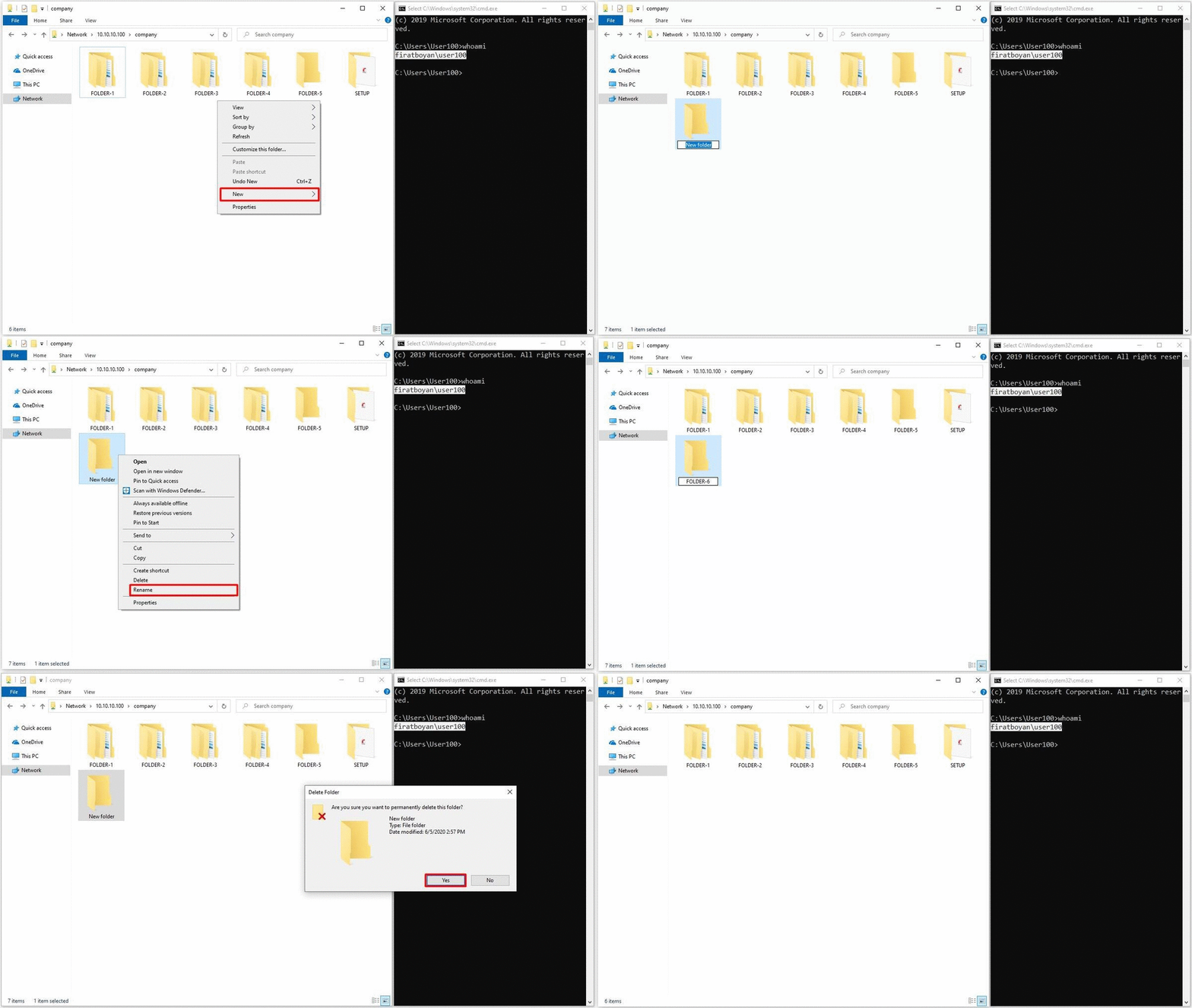
2- From the client, I access the shared folder through the UNC path and create a New Folder. The folder is created, but when I try to change its name before pressing Enter or clicking an empty area, I receive a warning that I do not have permission.
Changing the name of a file or folder requires the Delete right on that object or the Delete Subfolders and Files right on the parent folder. Because the Write basic permission contains neither of these 2 rights, I can create the folder but cannot change its name.
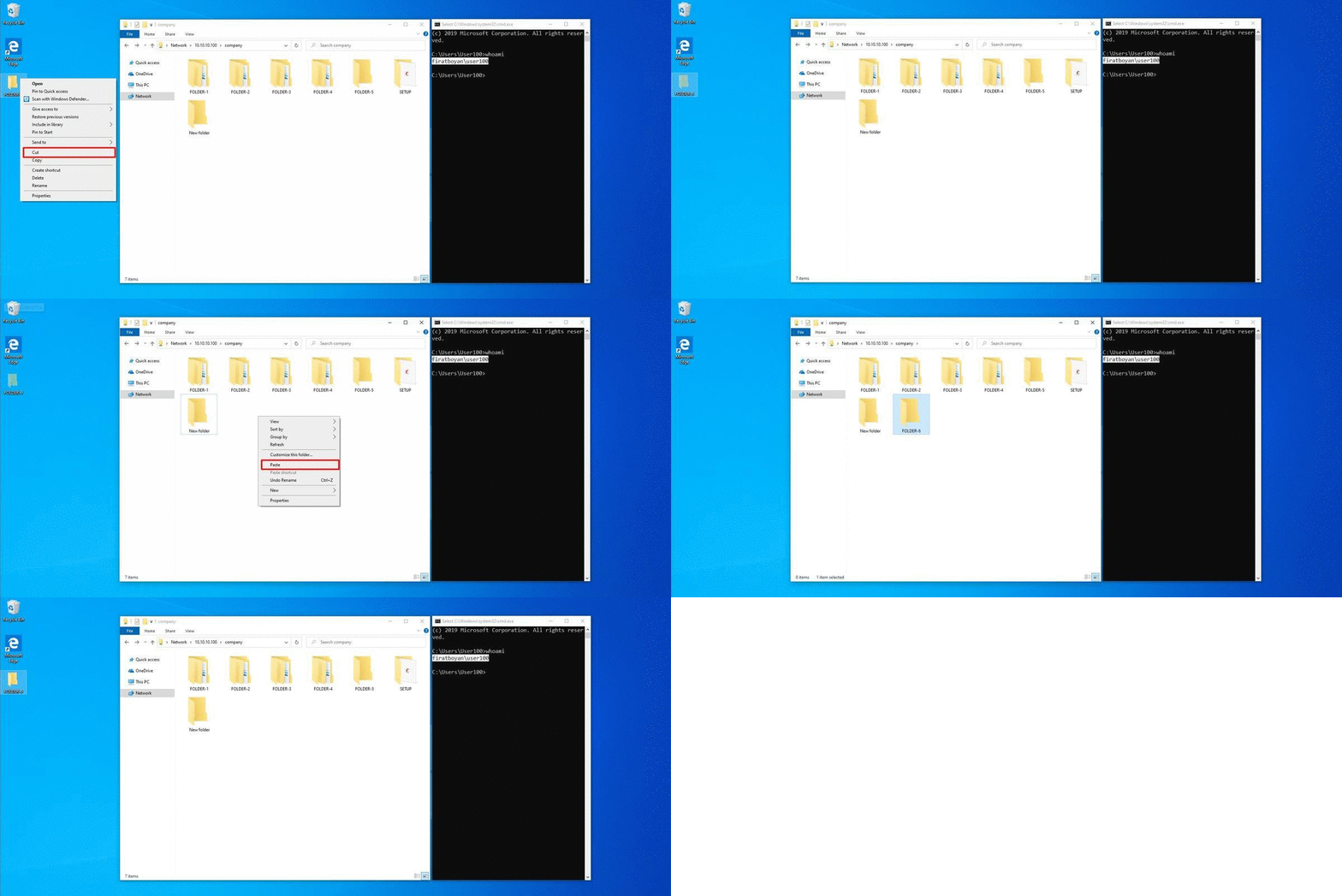
3- With the Write permission alone, I cannot change the names of the files and folders in the folder. However, I can copy a file or folder into the shared folder from another directory (for example Desktop) with Cut and Paste or Drag & Drop.
Checkpoint
The copied content should be created at the destination, but it should not be possible to list the folder contents, and renaming should be denied. On Effective Access, the Delete line should appear as not allowed.
Exercise 3 - Modify
1- On the same COMPANY folder, I update the permission level on the NTFS side to Modify for the same User100 user.
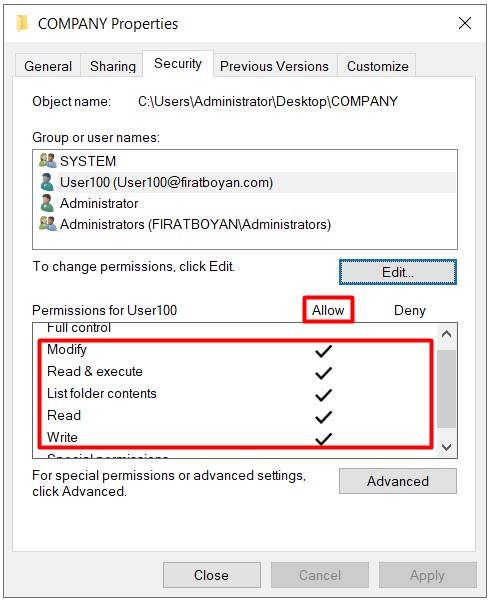
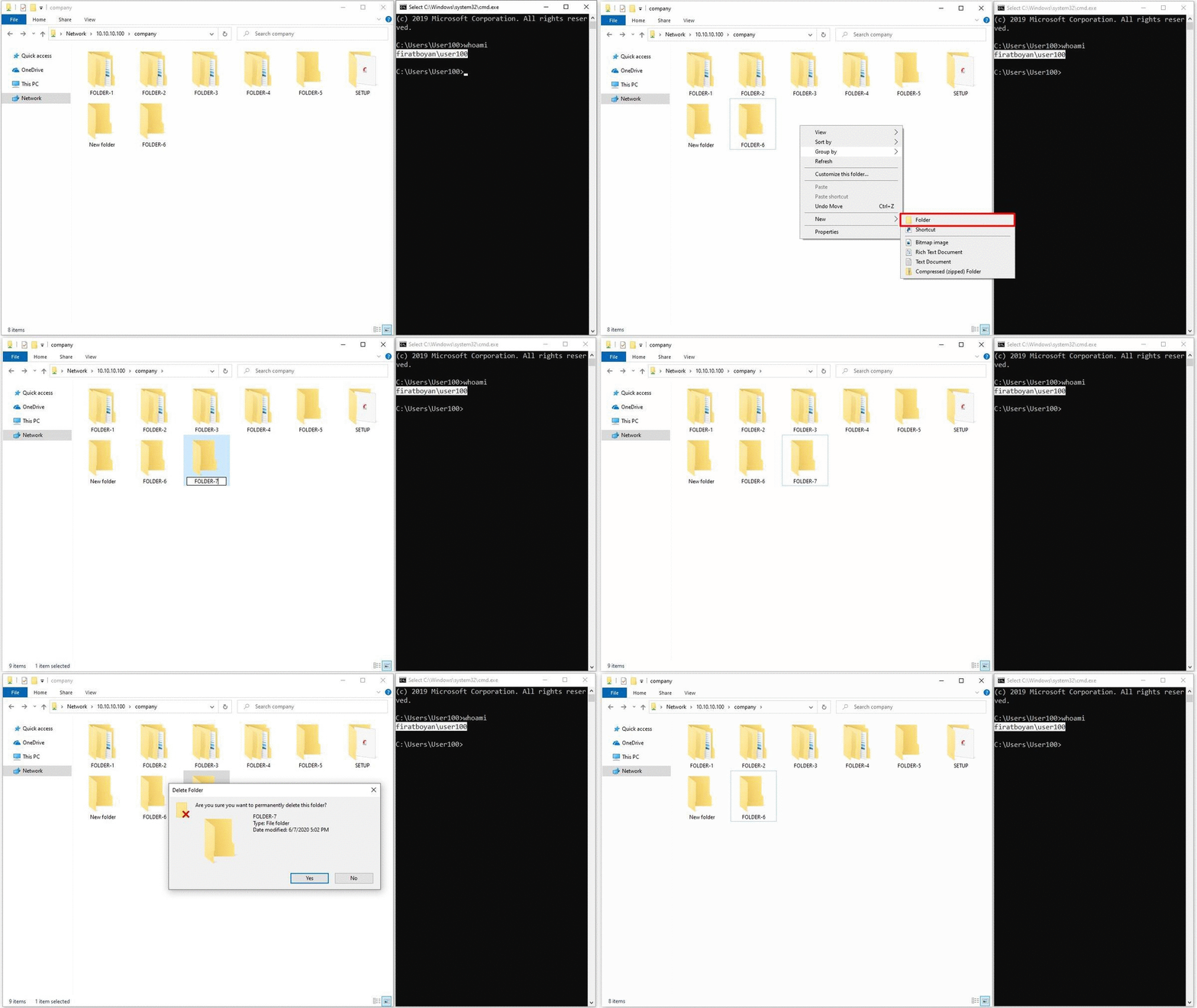
2- With Modify, the user now also has the Delete right and can therefore rename the files and folders the user created. I am sometimes asked which advanced permission renaming depends on. The Delete right on the object or the Delete Subfolders and Files right on the parent folder is sufficient. Because Modify contains Delete, the first path applies in this exercise.
The Change permission on the share side also covers reading, writing and deleting, so no restriction occurs between the 2 sides in this exercise.
Checkpoint
The user should be able to create, rename and delete a folder. On Effective Access, the Delete line should appear as Allowed.
Exercise 4 - Full Control
1- On the same COMPANY folder, I update the permission level on the NTFS side to Full Control for the same User100 user.
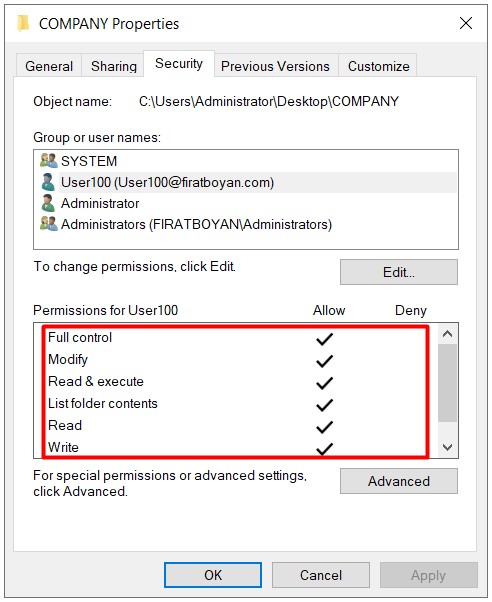
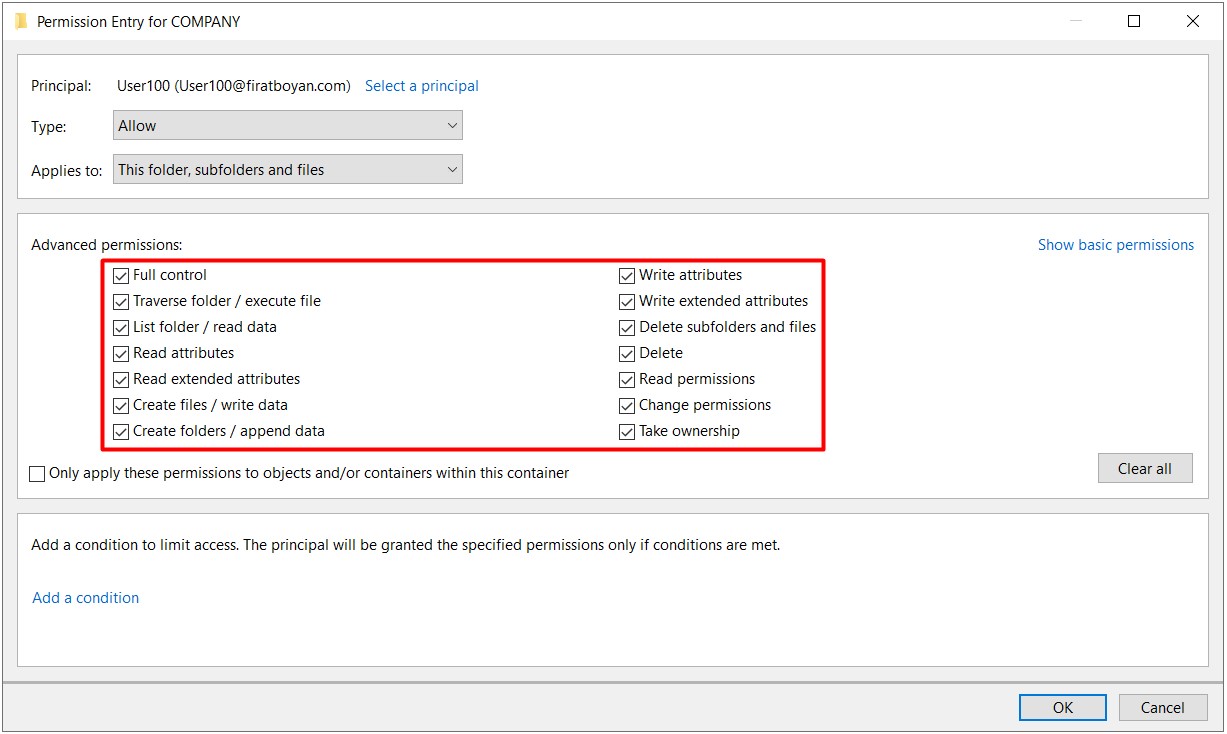
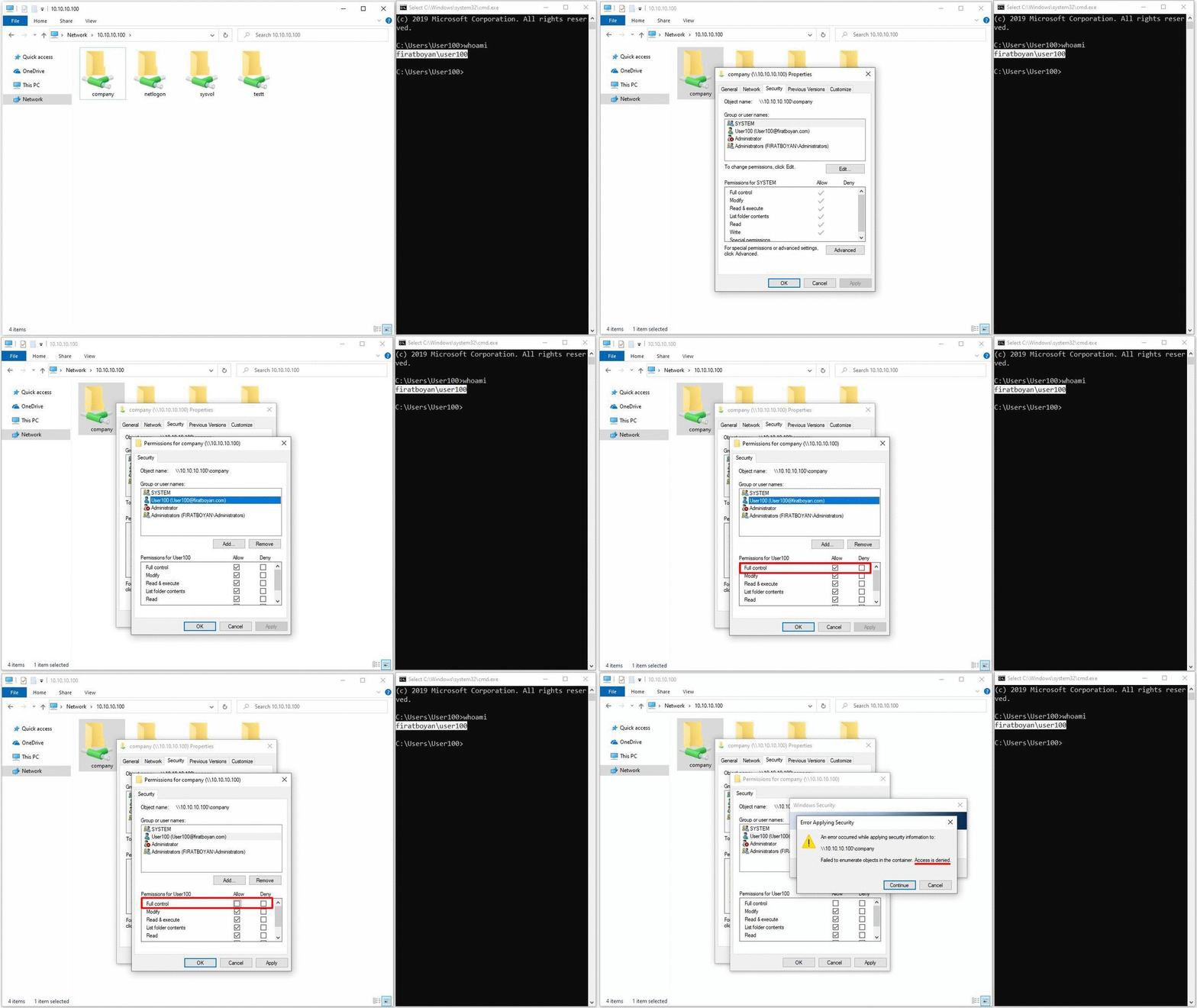
2- Although the user has been given Full Control on the NTFS side, the user cannot use the Change Permissions and Take Ownership rights that Full Control brings over the network. The reason is the Change permission I defined for the Everyone group on the share side. For network access, the intersection of Change on the share side and Full Control on the NTFS side corresponds in practice to the Modify level.
At this point, whichever user I give Full Control to on the NTFS side, Change, the most restrictive permission on the share side, applies for access over the network, and the part of Full Control beyond it has no effect. If the same user accessed the folder through a local path on the file server, the share permission would not apply and the user could use all of Full Control.
Checkpoint
On Effective Access, the Access limited by column should show the Share value in the Change Permissions and Take Ownership lines for User100.
6- Special Permissions
Each basic permission corresponds to a group of advanced permissions. When an ACE does not match the package of any basic permission exactly, it is labelled as Special Permissions on the Security tab. This happens in 2 ways. The first is the removal of 1 or more of the advanced permissions that a basic permission contains. For example, when I remove the Take Ownership permission from Full Control, the user's permission no longer appears as Full Control but as Special Permissions. The second is the selection of an Applies to value that differs from the default for the ACE. For example, when I give Modify with the This folder only scope, Special Permissions is also ticked.
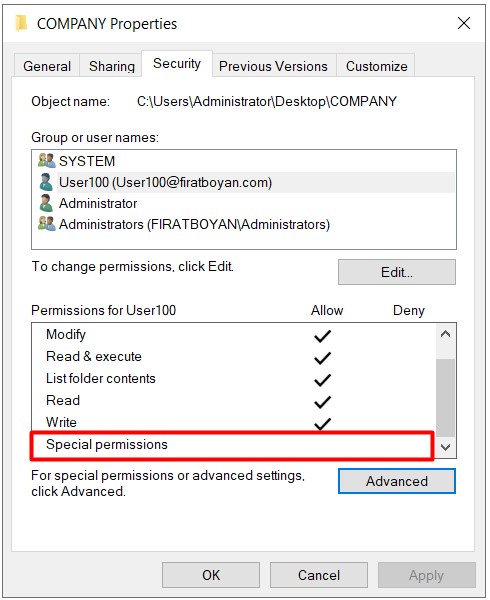
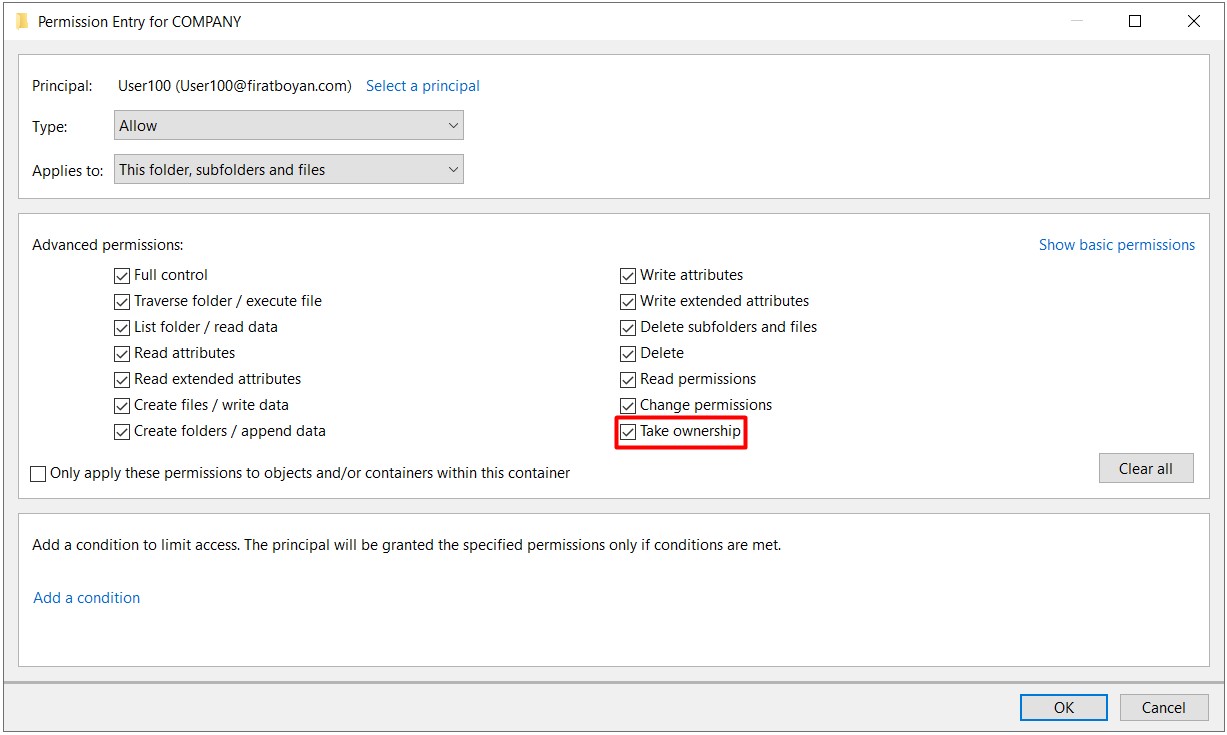
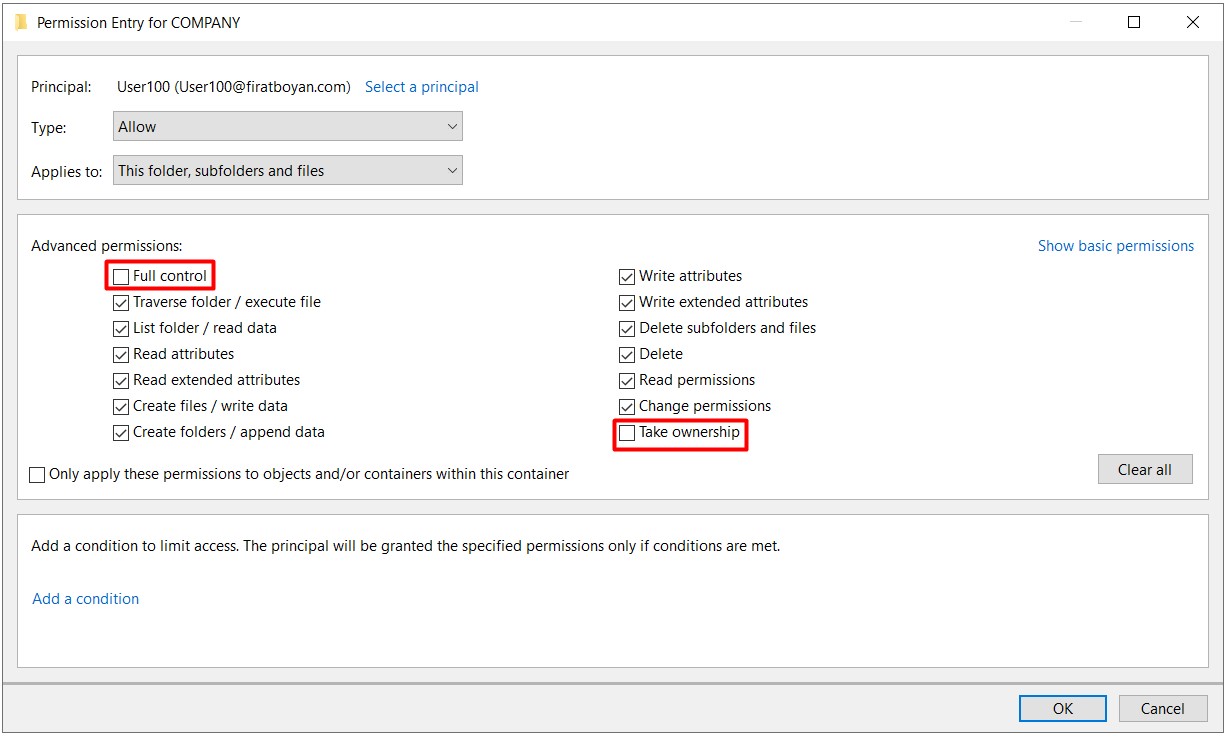
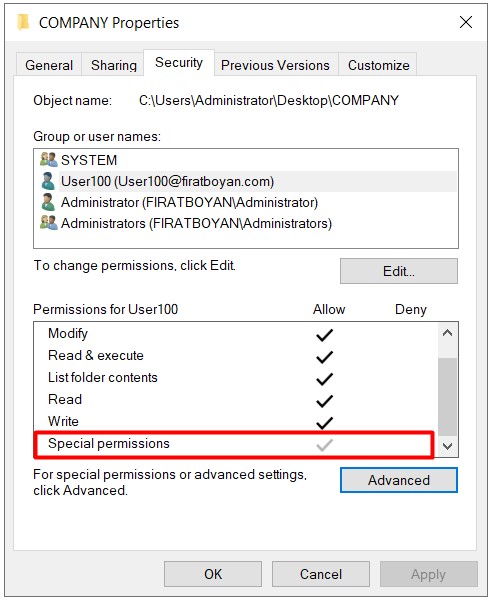
If I see Special Permissions ticked for a user or group in the ACL, either some of the advanced permissions of a basic permission have been removed or the ACE has been defined with a different Applies to scope. I see which one it is from the Access and Applies to columns of the relevant line in the Advanced Security Settings window.
7- Inheritance
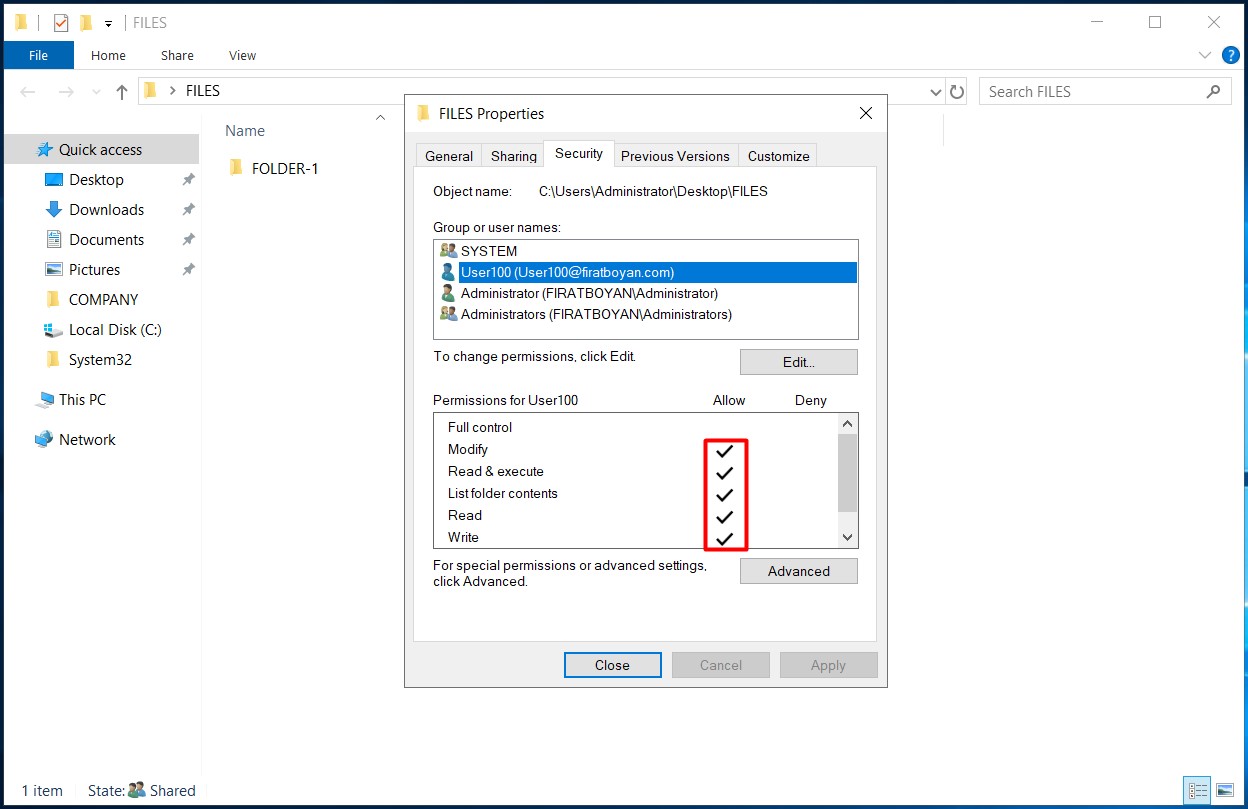
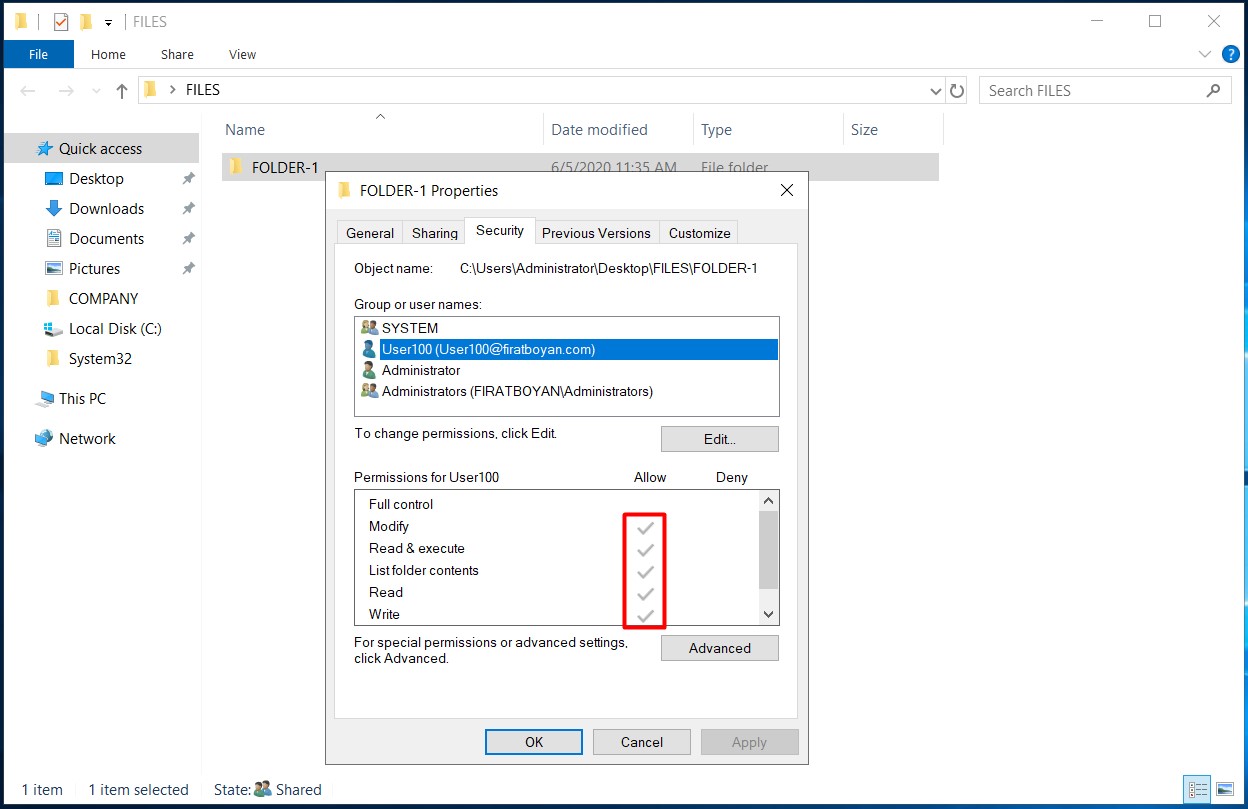
When I assign an NTFS permission to a user or group on a folder, this permission also propagates to all subfolders and files because of the default Applies to value. On the Security tab, black checkboxes that can be changed for a user show that the permission is defined directly on that folder (explicit). Grey checkboxes show that the permission is inherited from a parent folder. The Inherited from column in the Advanced Security Settings window also states which folder each inherited permission comes from.
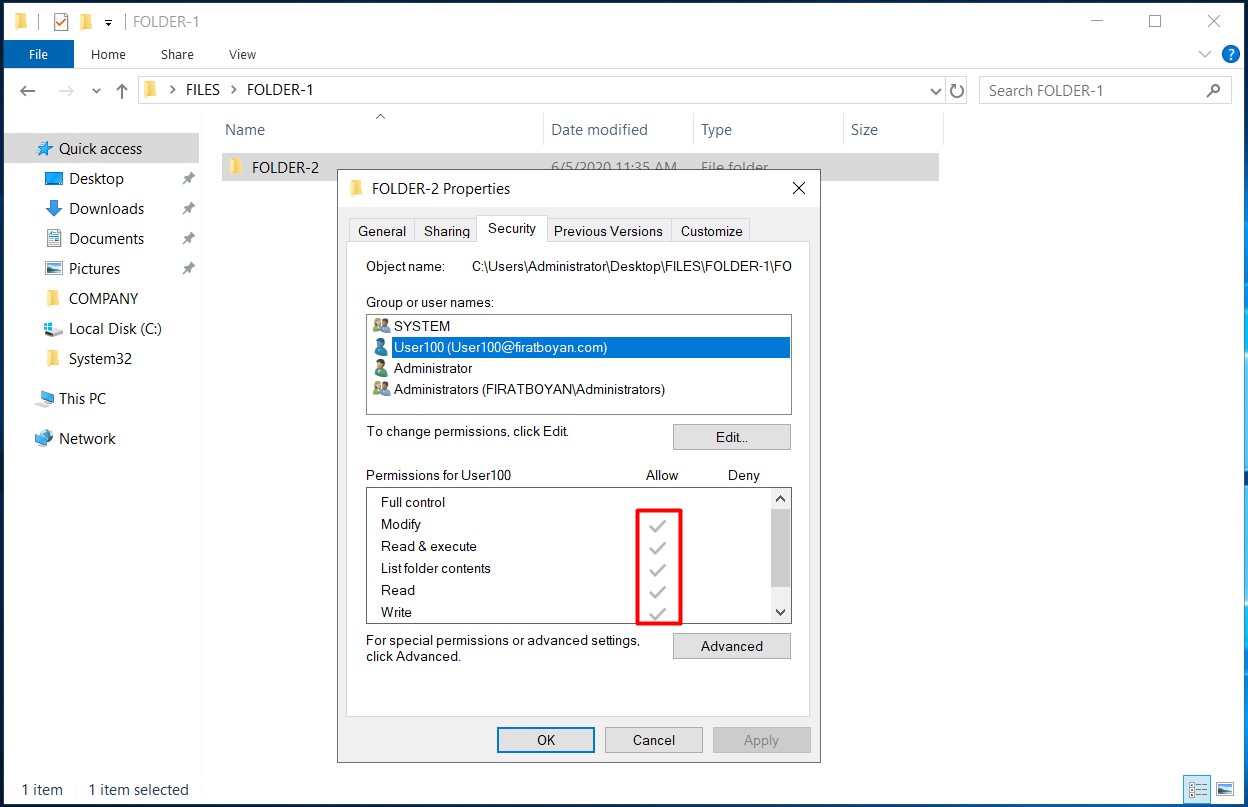
Disabling Inheritance
When subfolders need different authorisation for different users or groups, I disable inheritance on that subfolder.
1- In the folder properties, I open the Security tab and click the Advanced button.
2- In the Advanced Security Settings window that opens, I click the Disable inheritance button at the bottom.
3- I see 2 options.
|
Option |
Result |
|
✅ Convert inherited permissions into explicit permissions on this object |
Inheritance is disabled, but all inherited permissions are copied to this folder as explicit permissions. Access does not change, and the permissions can now be edited or deleted on this folder. |
|
✅ Remove all inherited permissions from this object |
Inheritance is disabled and all inherited permissions are removed from the ACL. Only the permissions that were previously defined as explicit remain on the folder. |
If Administrators and SYSTEM access comes only through inheritance, Remove all inherited permissions removes this access as well. To arrange the permissions again, an account that is the owner or has the Change Permissions right is required. If there is no such account, ownership is taken first.
In the field, I mostly use the first option and then remove the unnecessary permissions individually. In this way, no user's access changes unexpectedly at the moment inheritance is disabled.
Restructuring Permissions and ACL Backup
A folder tree in which the permissions are completely disordered and can no longer be managed is a situation I often see at the organisations I consult for. As permissions granted without a plan accumulate, it becomes almost impossible to find out why a given user has access. In such a situation, I use the Replace all child permission entries with inheritable permission entries from this object option. This option deletes all explicit permissions on subfolders and files, enables inheritance again on subfolders where it was disabled, and applies the inheritable permissions of the folder where it is selected to the whole tree.
This operation permanently deletes all explicit permissions on child objects and cannot be undone from the interface. It can take a long time on large folder trees. I take an ACL backup beforehand.
I take the backup with icacls in an elevated (Run as administrator) command prompt on the file server. {Folder Path} must be replaced with the full path of the folder I will work on, and {Backup File} with the full path of the file where the backup will be written. The /t parameter also covers child objects, and /c makes the operation continue without stopping at an object that cannot be accessed.
icacls "{Folder Path}" /save "{Backup File}" /t /c
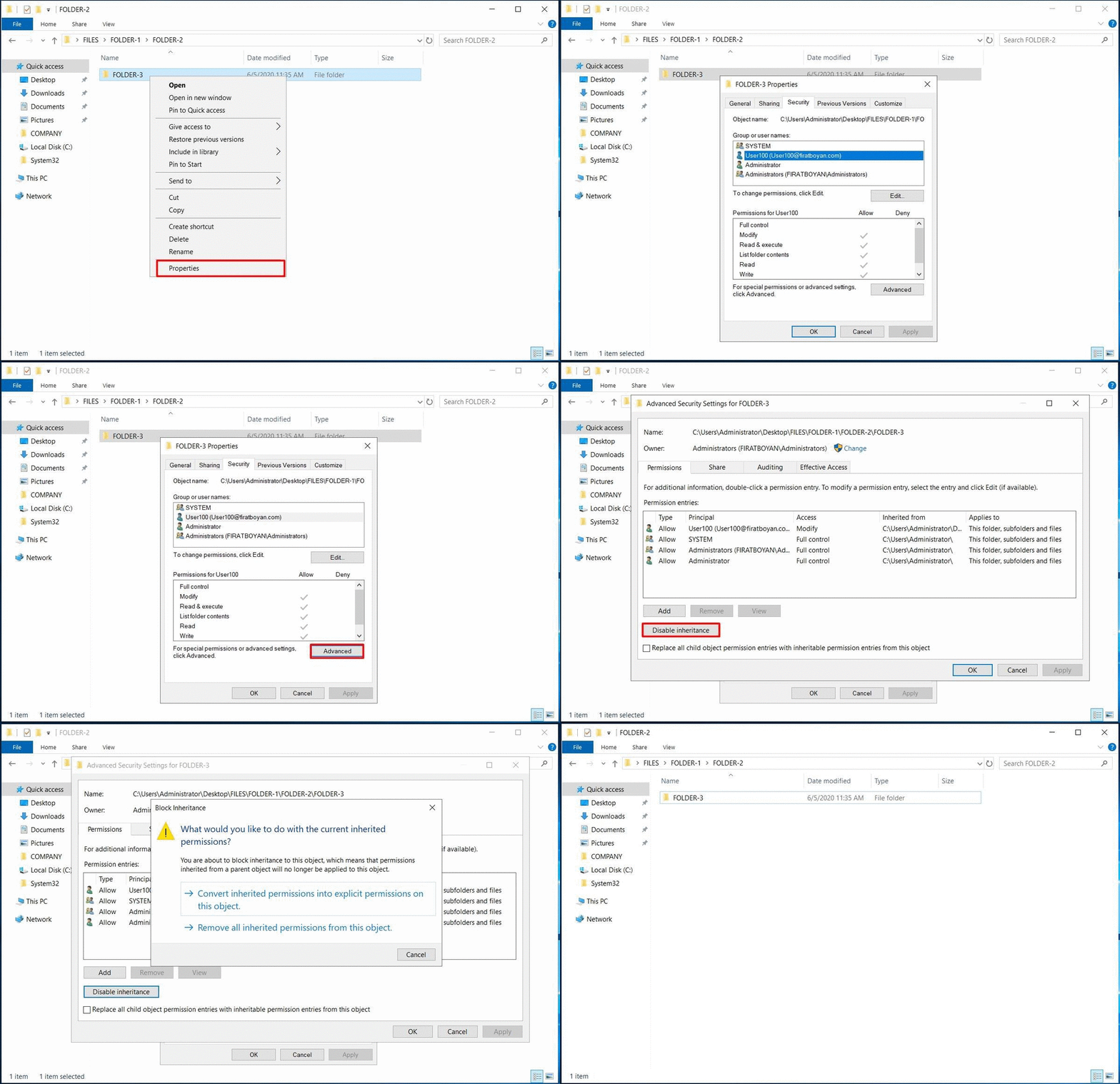
1- To restructure the permissions, I select the top folder where I will start the work.
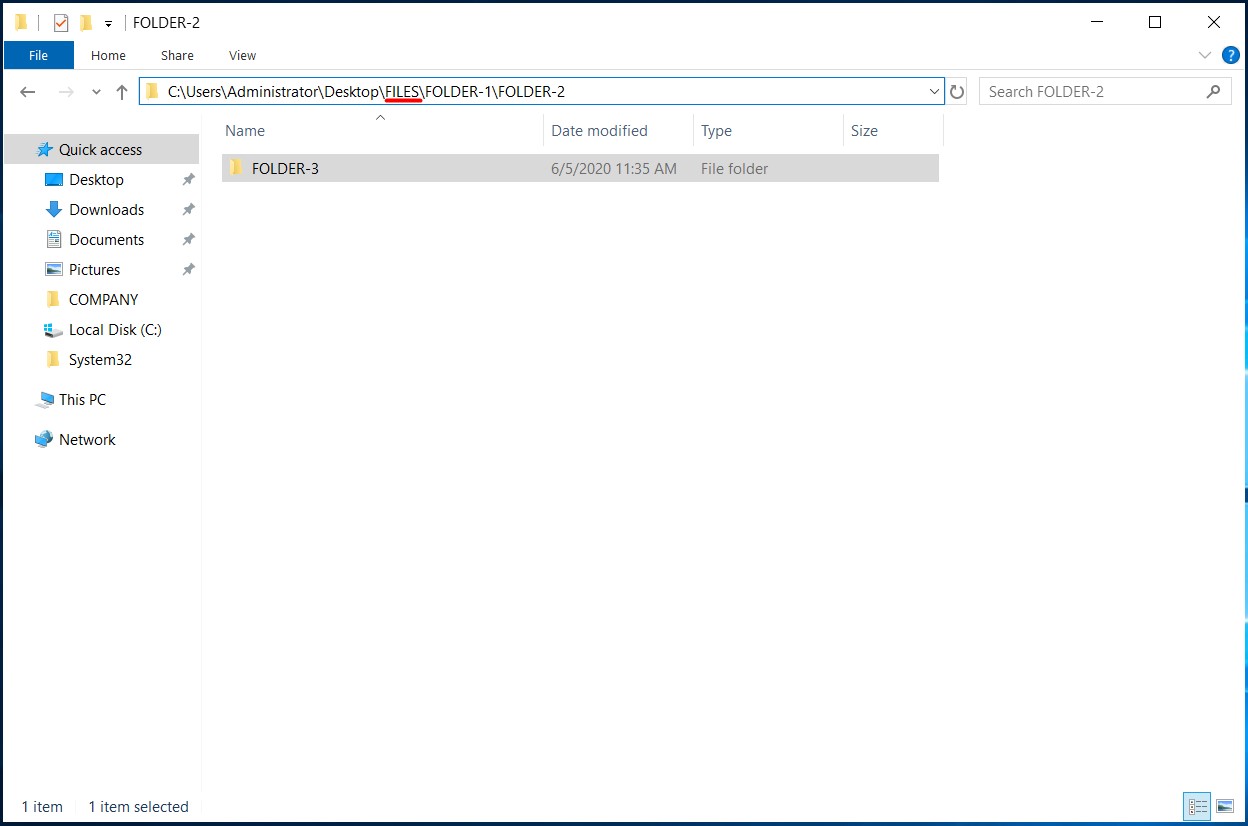
2- In the folder properties window, I click the Advanced button.
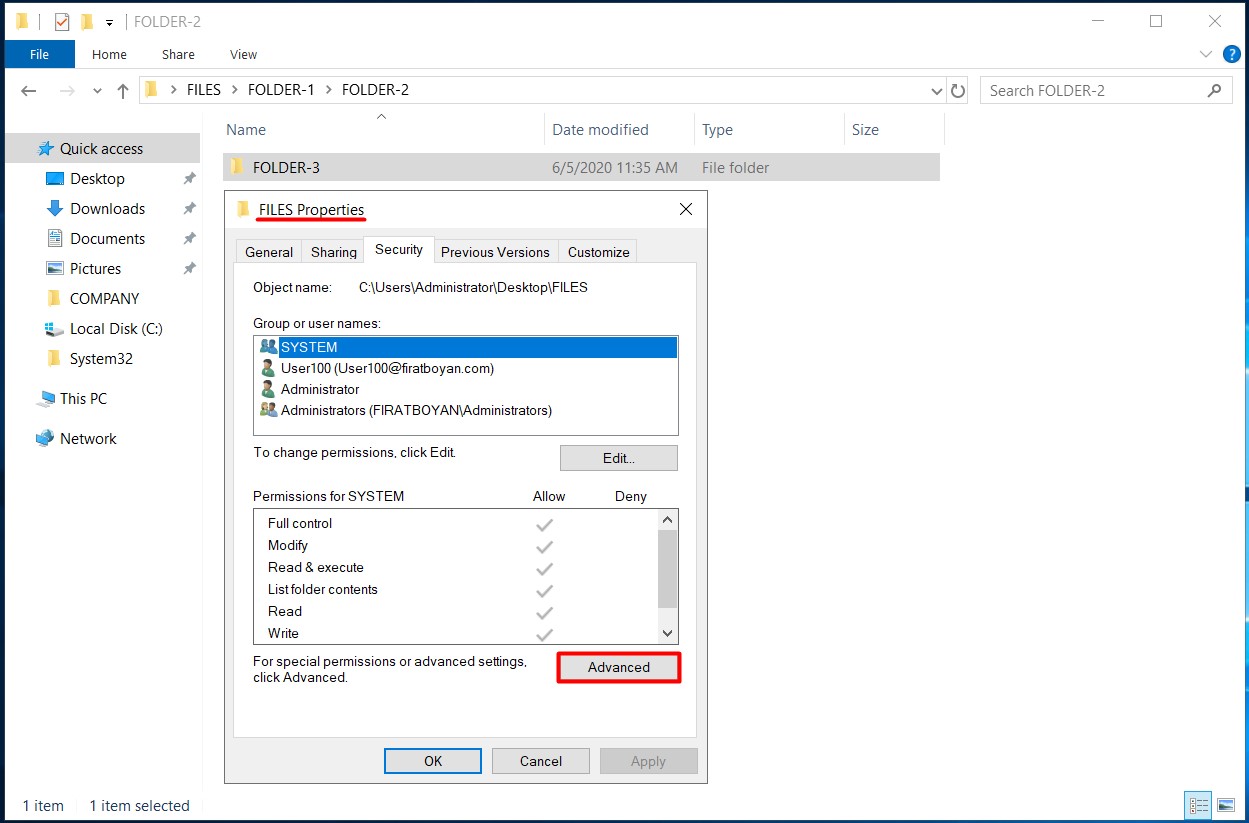
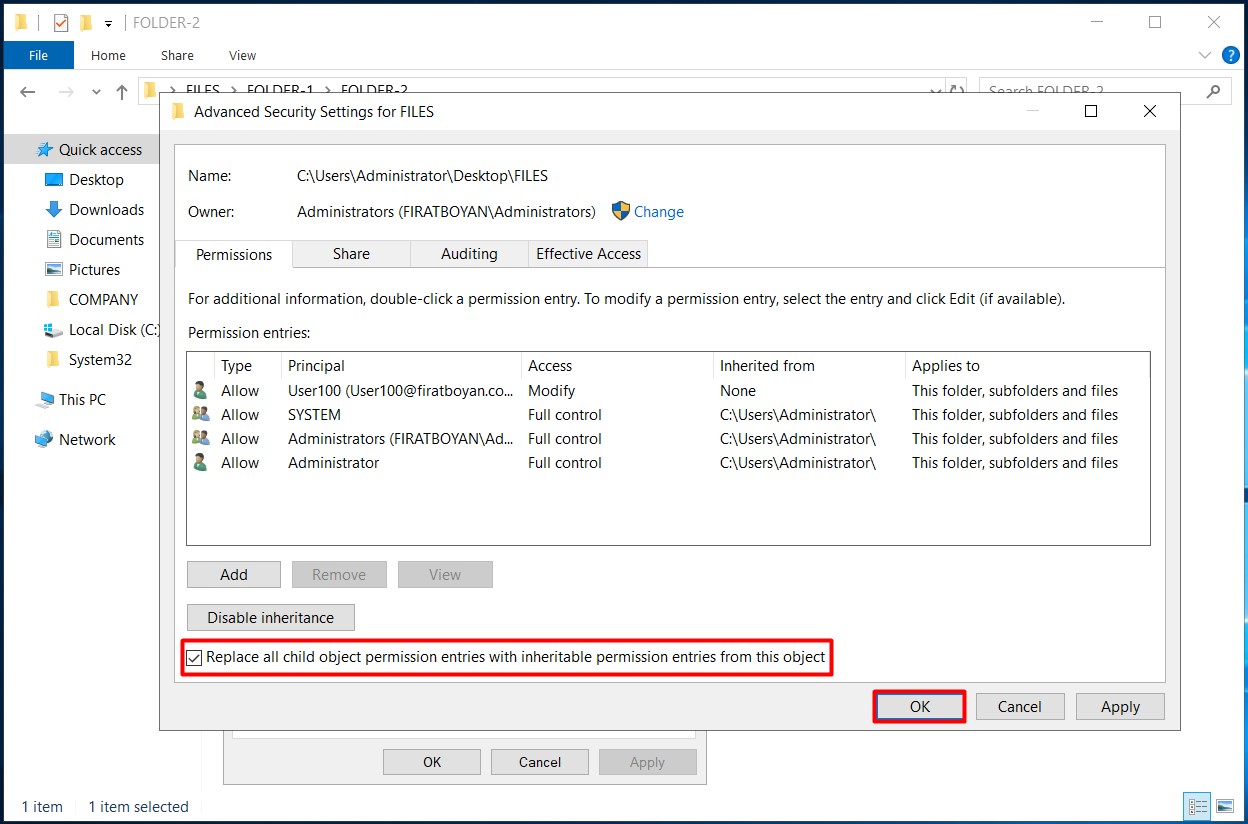
3- At the bottom of the Advanced Security Settings window, I select the Replace all child permission entries with inheritable permission entries from this object option and click the OK button.
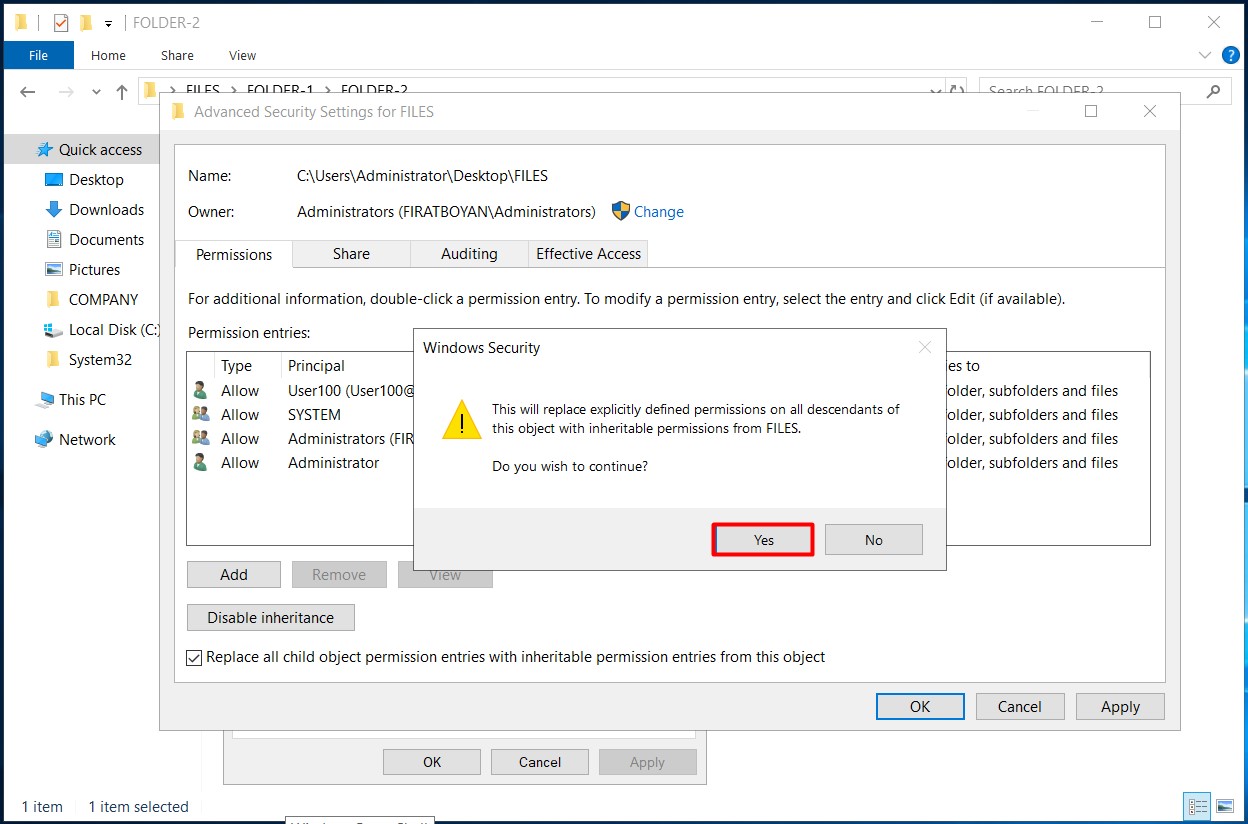
4- On the warning stating that the permissions on this folder will be applied to all child objects and that the explicit permissions on child objects will be replaced, I click the Yes button.
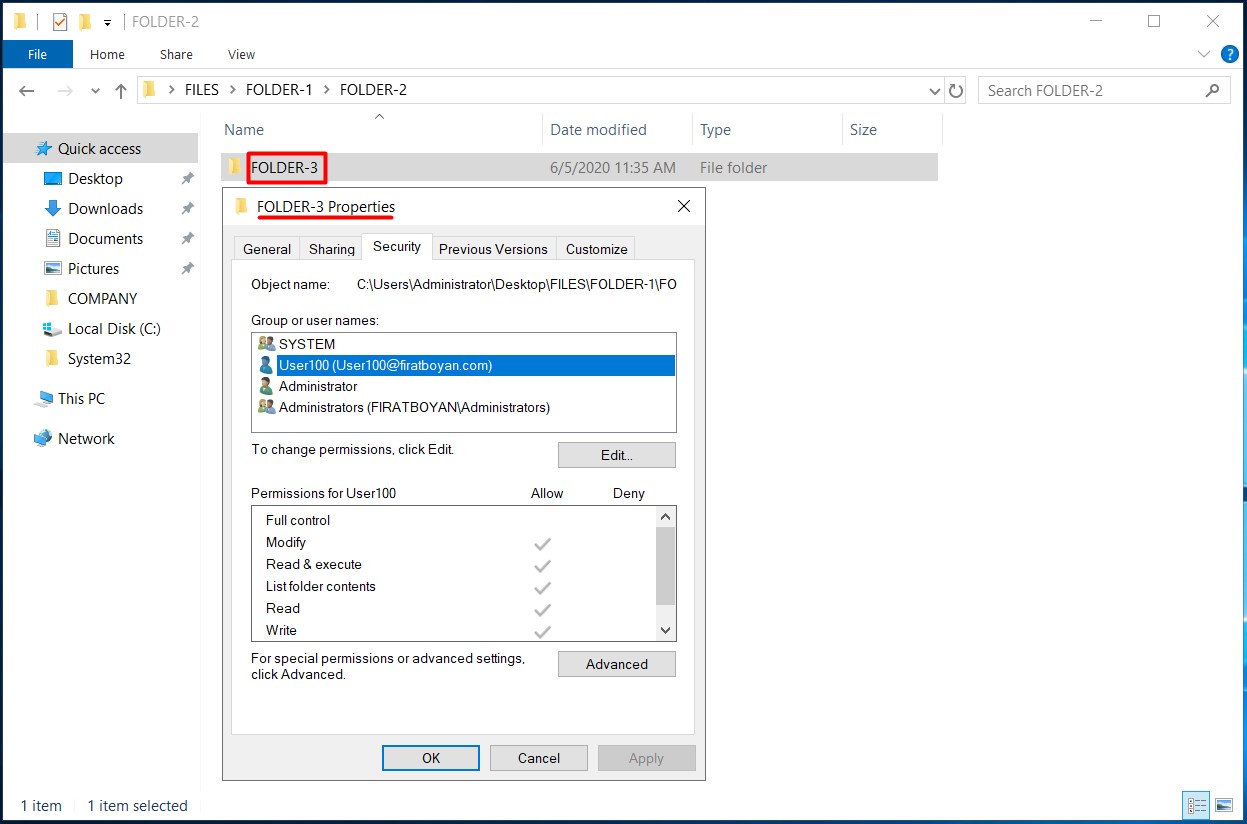
5- I had previously disabled inheritance on the FOLDER-3 folder under the FILES folder. After the operation, inheritance is enabled again on this folder, and its permissions are the same as the inheritable permissions on the FILES folder.
Checkpoint
In the Advanced Security Settings window of the subfolders, the parent folder should appear in the Inherited from column of all lines, and the Disable inheritance button should be present instead of Enable inheritance.
If the result is not as expected, I restore the previous ACLs from the backup. Because icacls saves the path of the backed-up folder relative to its parent folder, the /restore command must be run on the parent folder, not on the backed-up folder itself. For example, if the backup was taken for D:\FILES, the {Parent Folder Path} value is D:\.
icacls "{Parent Folder Path}" /restore "{Backup File}" /c
Permission Behaviour When Moving and Copying
Inheritance behaviour also changes depending on how a file arrives in the folder. A copied file or folder is created as a new object and therefore inherits the permissions of the destination folder. An object moved within the same volume is not created again. It keeps its existing permissions and does not receive the permissions of the destination folder. A move to a different volume is performed as a copy and a delete in the background, so the object receives the permissions of the destination.
This difference can cause a file moved into a folder with restricted permissions to keep the broad permissions of the old folder. In such a case, I check inheritance on the moved object in the Advanced Security Settings window.
8- Folder Ownership
Default Owner
When a file or folder is created, the default owner defined in the token of the creating account becomes the owner of the object. For a standard user, this is the user's own account. For members of the Administrators group, the result depends on the System objects: Default owner for objects created by members of the Administrators group policy and on whether the session is elevated. For this reason, I usually see the Administrators group as the owner of a folder created by an administrator.
Although folder ownership may seem unimportant in practice, it is directly useful in several situations.
Administrator access to roaming profile folders. By default, only the user and SYSTEM have access to roaming profile folders. To create a mandatory profile from these folders, the administrator must first take ownership of the folder.
Folders of deleted users. A user whose account has been deleted from Active Directory remains as an unresolved SID on the folders the user owned. The ownership of these folders must be transferred to an active Active Directory user object or to an administrator group.
Implicit rights of the owner. The owner of a folder can manage the permissions of the folder even with only the Read permission in the ACL. Unless an OWNER RIGHTS ACE is defined, this right cannot be removed through the ACL.
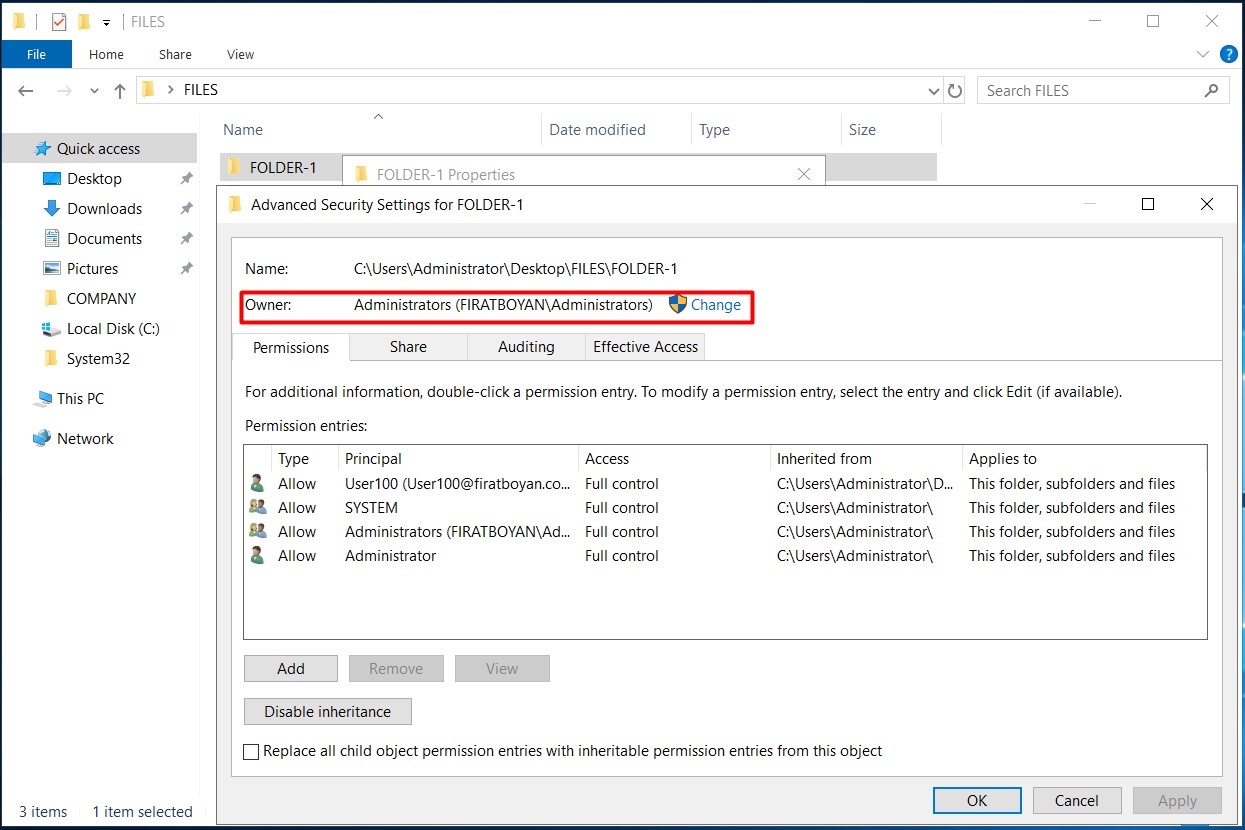
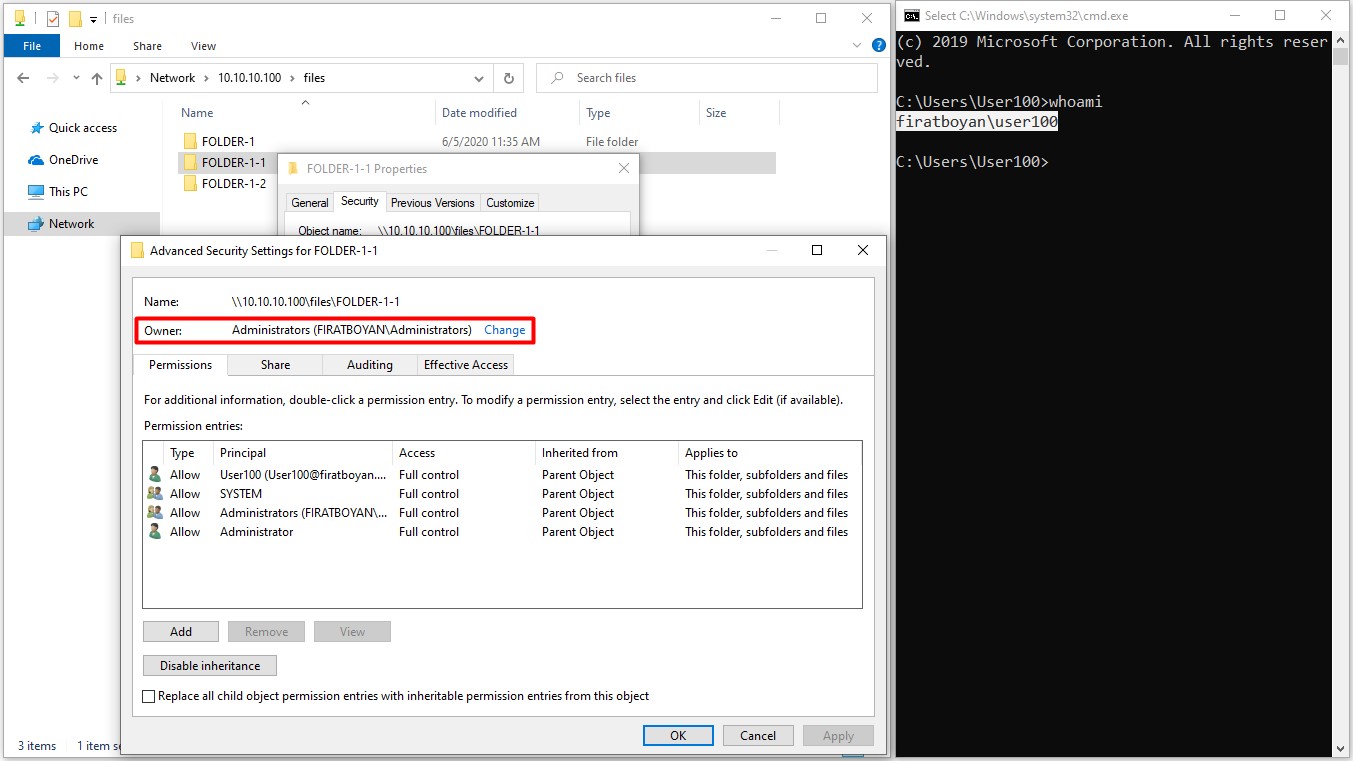
1- I see that the owner of the FOLDER-1 folder under the FILES folder is the Administrators group.
2- When I create a new folder named FOLDER-1-1 under the FILES folder with an administrator account, the owner of this folder also automatically becomes the Administrators group.
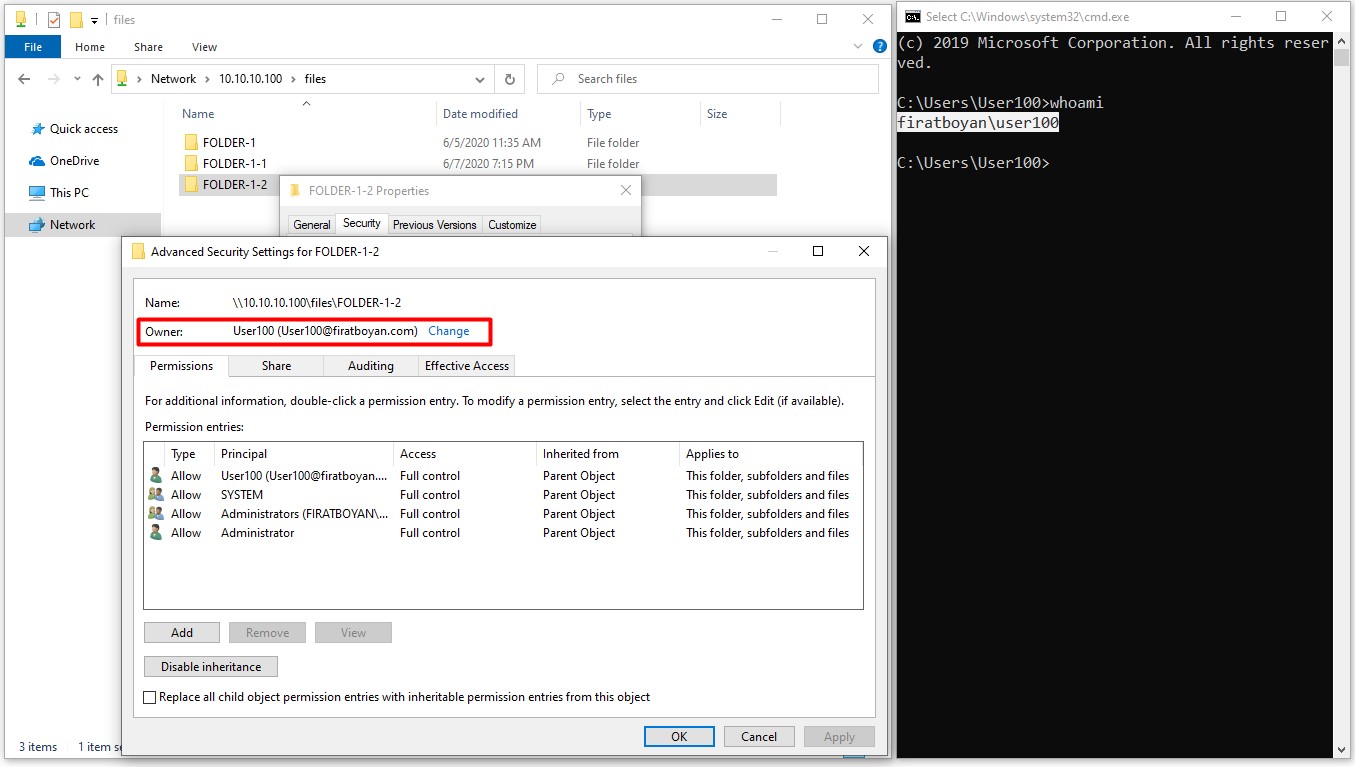
3- When the User100 user creates a folder named FOLDER-1-2 under the FILES folder, the owner of the folder automatically becomes User100.
📌 By default, the owner of a folder is the account that created it. For Administrators members, this value can be the Administrators group, depending on the Default Owner policy.
Taking Ownership
1- To take ownership of the FOLDER-1-1 folder, which is owned by the Administrators group, as User100, I click the Change link on the Owner line in the Advanced Security Settings window and select the User100 account.
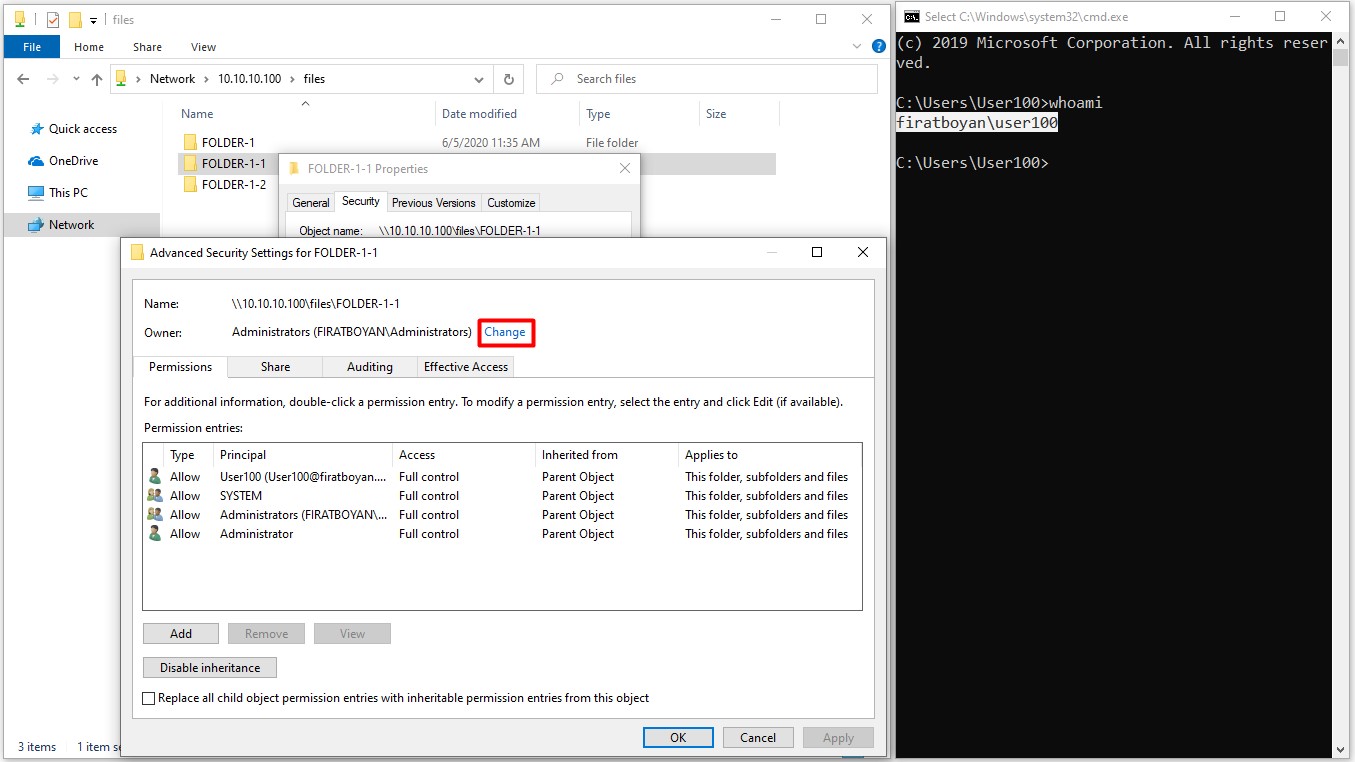
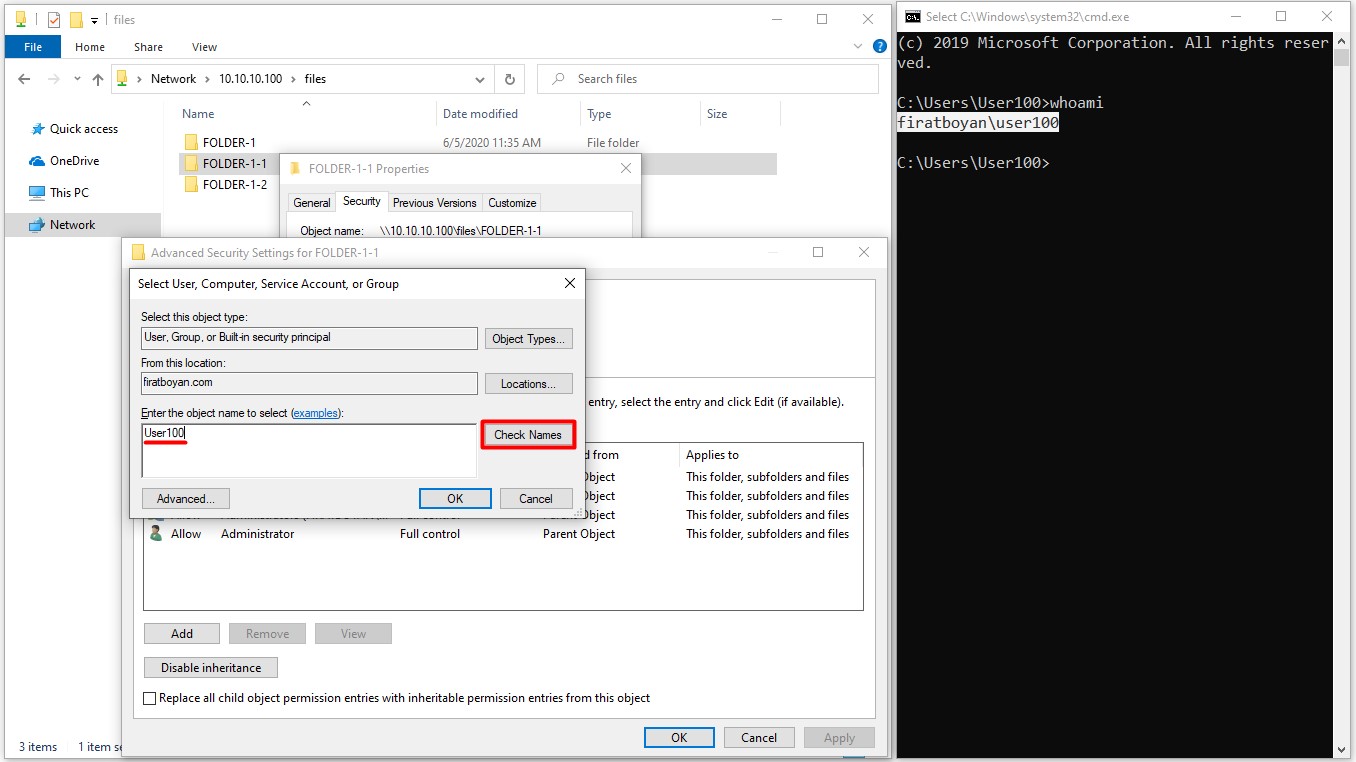
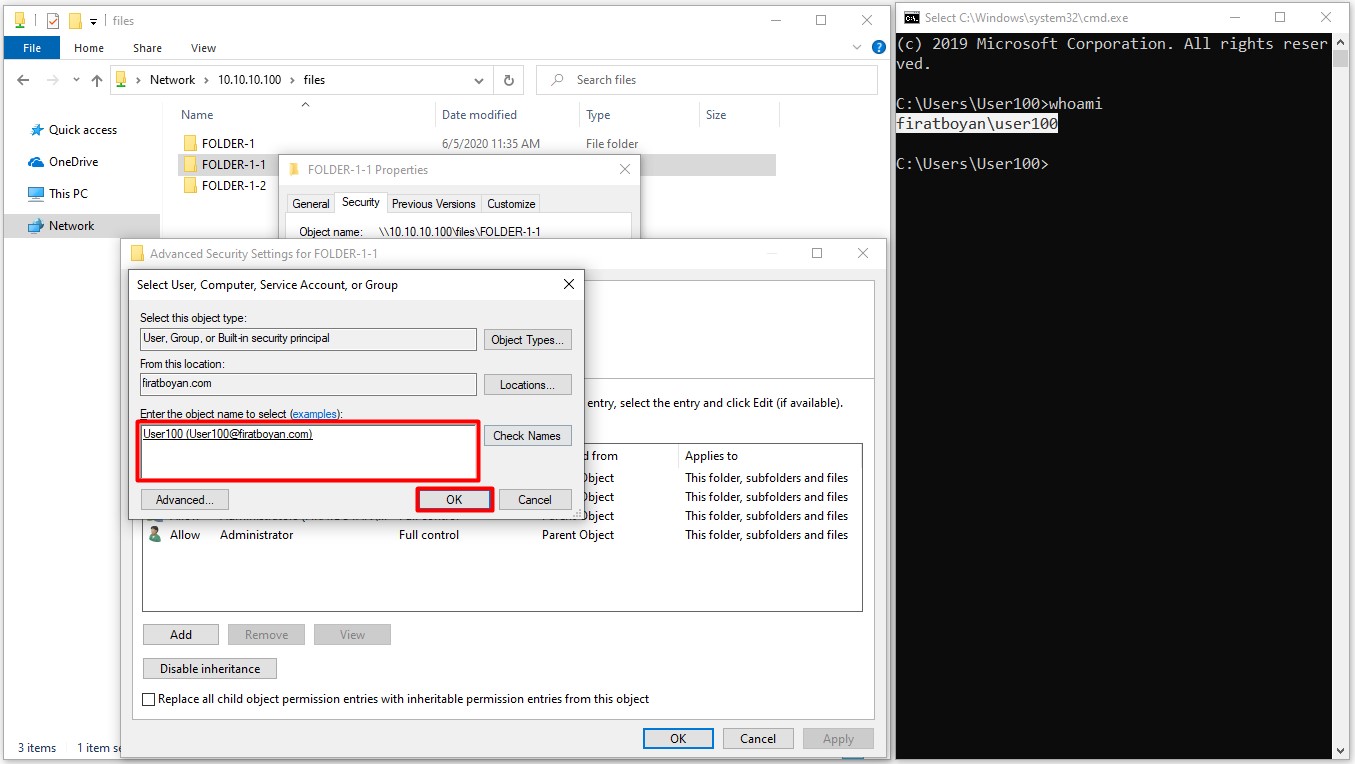
For User100 to take ownership, the Take Ownership permission must exist on the folder. With this permission, ownership can be taken to the user's own account. It cannot be assigned directly to another user.
Changing the Owner on Child Objects
1- After taking ownership, when I select the Replace owner on subcontainers and objects option, the ownership of the subfolders and files also passes to the account I selected on the parent folder.
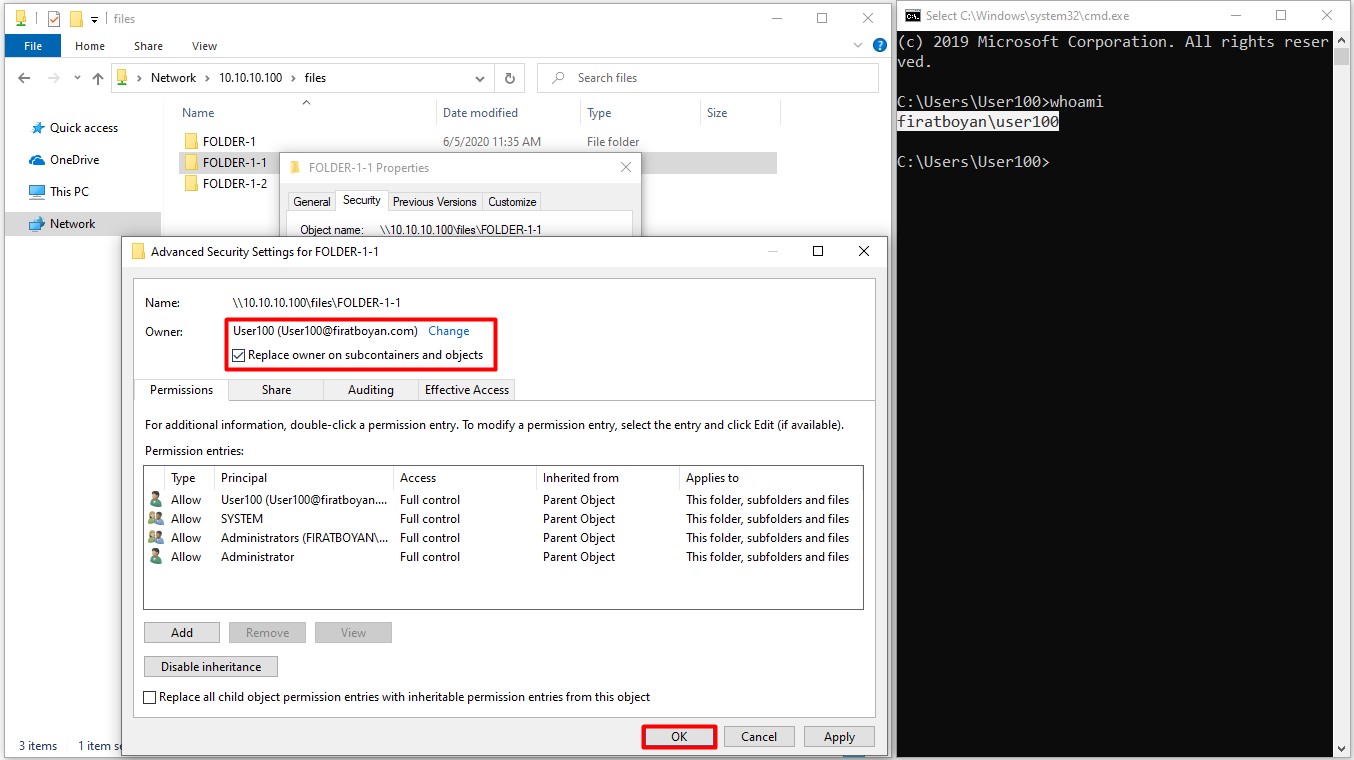
Checkpoint
The selected account should appear on the Owner line in the Advanced Security Settings window of the subfolders.
Assigning another user or group directly to the Owner field, for example transferring the folders of a deleted user to the user who takes over that work, requires SeRestorePrivilege. I do this with icacls in an elevated command prompt on the file server. {Folder Path} must be replaced with the full path of the folder, and {Domain}\{Account} with the user or group that will receive ownership.
icacls "{Folder Path}" /setowner "{Domain}\{Account}" /t /c
I check the result with Get-Acl in PowerShell. The new account should appear on the Owner line.
Get-Acl -Path "{Folder Path}" | Format-List Path, Owner, AccessToString
9- Permission Design and Auditing
Most of the confusion I see with NTFS permissions comes from granting permissions to individual users. As user-based permissions increase, the ACL of each folder has to be examined separately to find out why a user has access. For this reason, I build permissions according to the AGDLP model in Active Directory environments.
Account (user account)
   │  member of
   ▼
Global Group (role or department group)
   │  member of
   ▼
Domain Local Group (resource and permission level group)
   │  listed in the ACL
   ▼
Permission (NTFS permission)
In this model, only Domain Local groups appear in the ACL, and each group represents a single resource and a single permission level. For example, for the COMPANY folder I create 2 Domain Local groups, 1 that grants Read and 1 that grants Modify, and add the department groups to them. When a user's access changes, I do not change the ACL. I change only the group membership. I also take into account that a group membership change takes effect in the user's new session.
To monitor how permissions are used on sensitive folders, I configure auditing. This requires 2 settings together. The user or group to be monitored and the operation type (for example Delete) are added to the SACL of the folder, and the Object Access, Audit File System policy under Advanced Audit Policy is enabled with Group Policy. When both settings are in place, the relevant access is written to the Security log with event ID 4663.
For regular auditing, I list the explicit permissions in the folder tree with PowerShell. Every permission that does not come through inheritance should be a deliberate decision. If I see a SID that starts with S-1-5-21 instead of an account name in the IdentityReference column, this is an entry left from a deleted account that must be cleaned up.
Get-ChildItem -Path "{Folder Path}" -Directory -Recurse | ForEach-Object {
    $Folder = $_.FullName
    (Get-Acl -Path $Folder).Access |
        Where-Object { -not $_.IsInherited } |
        Select-Object @{Name='Path';Expression={$Folder}}, IdentityReference, FileSystemRights, AccessControlType
}
I know that I have set up the permissions of a folder structure correctly by these criteria: the Effective Access results of the test users match the permissions I designed, explicit permissions exist only on the folders I planned, no unresolved SID remains in the ACLs, and Full Control has not been given to end users. After reaching this point, I open new folders according to the same group model and make permission changes only through group memberships.
I hope you find it useful...
Feel free to share your thoughts and questions about this article in the comments below. Every contribution helps the content reach more people and makes for a more useful discussion.