Access-Based Enumeration (ABE) is a feature of SMB shares on Windows Server that lets a user see only the files and folders that the user has permission to access. When the contents of an ABE-enabled share are listed, the NTFS permissions of the requesting user are evaluated for every file and folder. Items on which the user has no Read or equivalent permission are not added to the listing response and do not appear in Explorer at all.
ABE is disabled by default and is enabled per share. The feature was released as a separate package for Windows Server 2003 SP1 and became a built-in part of the operating system with Windows Server 2008. The right expectation must be set from the start. ABE is not an access control mechanism, it is a visibility layer. NTFS permissions decide who can access a folder, and ABE reads these permissions to determine what the user sees.
When ABE is disabled, all folders in the share are listed to everyone, regardless of permissions. In a structure where department folders are collected under a single share, every user sees the folders of all departments and receives an Access Denied message when trying to open a folder outside their own department. This causes unnecessary support requests and also forces the user to search for their own working area among folders that are unrelated to their work.
The article uses a file server scenario that hosts department folders under a single share. In the target design, each department sees only its own folder and the shared area, and the management department sees all department folders. First, the client-side view is examined while ABE is disabled. Then an NTFS permission design that fits this target is built, the feature is enabled with Server Manager and PowerShell, and the result is verified on the client side with users from different departments.
This article is not tied to a specific Windows version. Access-Based Enumeration, the NTFS permission model and the SMB PowerShell cmdlets work on the same principles from Windows Server 2012 to Windows Server 2025. Because the filtering is done on the server side, the view is the same on clients from Windows 8 to 11.
This article is a translation of the Turkish original written by the same author. The screenshots are taken from the original environment, so the script output in them contains labels in Turkish.
Share View with ABE Disabled
The scenario uses the CORPORATE DATA share on the ABCISTSRVFS01 server in the abc.local domain, with the D:\CORPORATE DATA folder as its source. The share path and the folder structure under it are shown below.
\\ABCISTSRVFS01\CORPORATE DATA
(D:\CORPORATE DATA)
├── GENERAL
├── HR
├── IT
├── MGMT
├── OPS
└── R&D
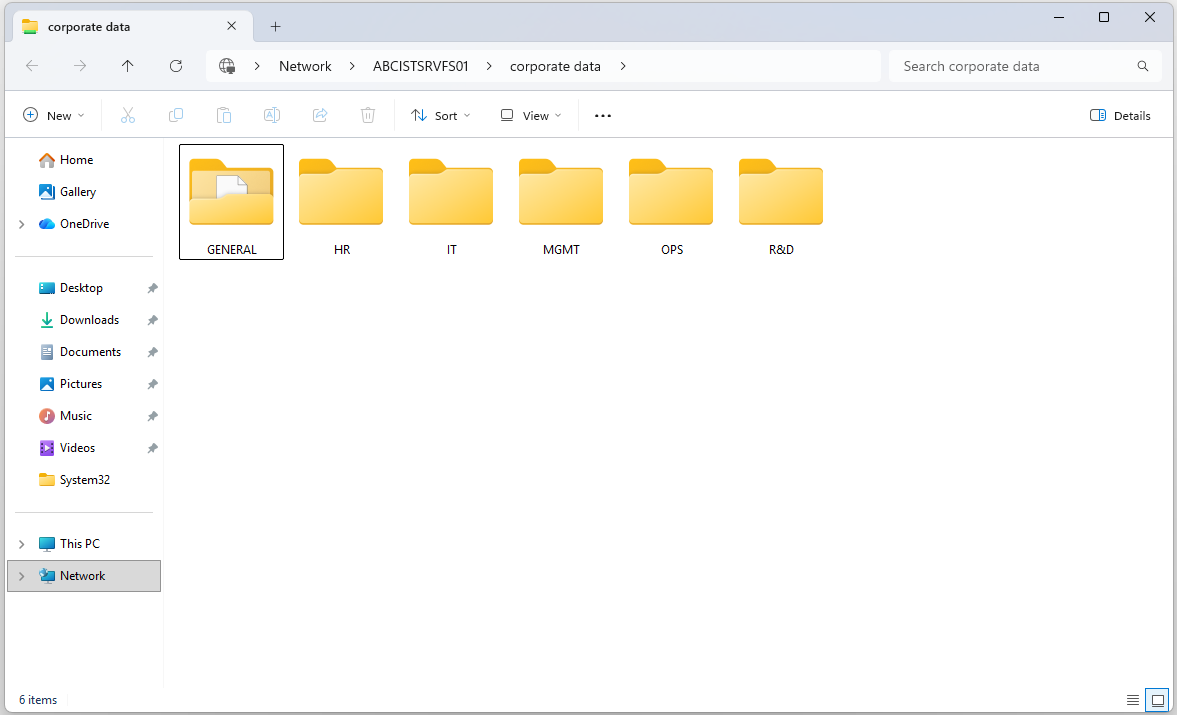
In the initial state, ABE is disabled on the share. When the user firat.boyan, who works in the IT department, signs in on ABCISTWKS01 and opens the share, all 6 folders appear in the list. The user has no permission on most of these folders, but all of them are visible because the listing is performed without a permission check.
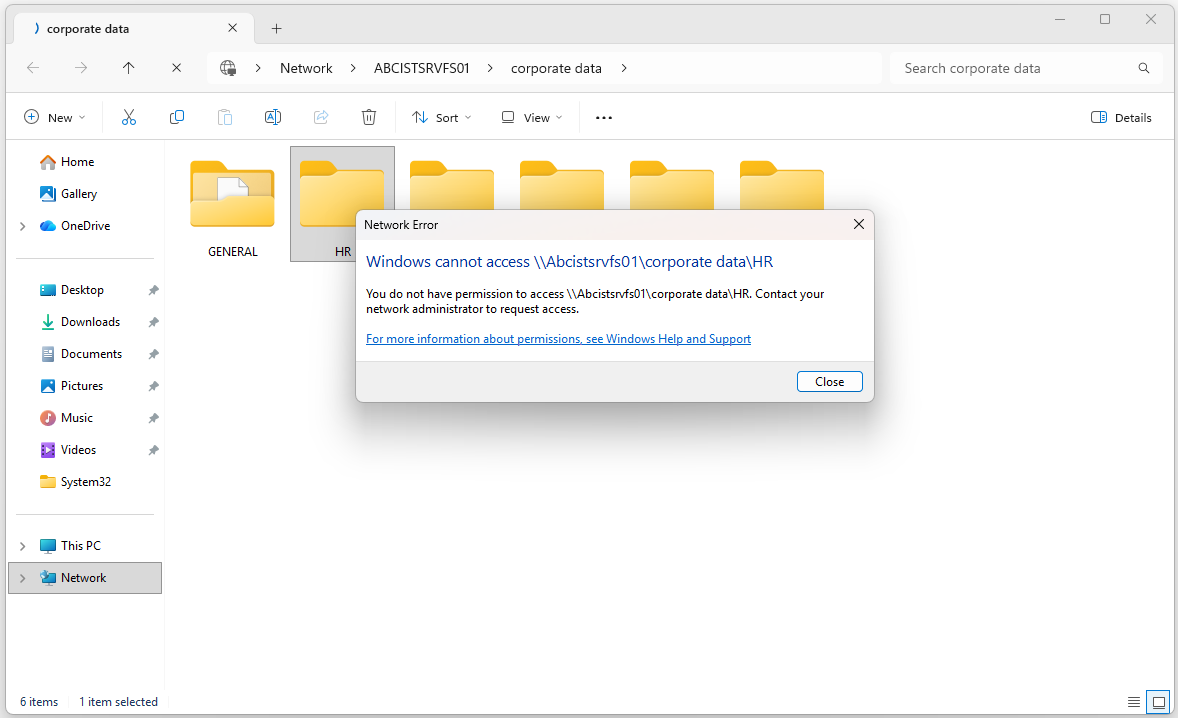
When the user tries to open the HR folder, the NTFS permissions take effect and Windows displays the error window stating that the user does not have permission to access the folder. This situation is important for understanding what ABE changes. Access control already works, what is missing is visibility control.
NTFS Permission Design for ABE
ABE does not introduce a permission model of its own. The only source it reads during listing is the NTFS permissions on files and folders. For this reason, which user sees which department folder is determined entirely by the permission design. The most common mistake is that the Read permission granted to Domain Users on the root folder also reaches the department folders through inheritance. In this case every user has the Read permission on every folder, and no folder is hidden even if ABE is enabled.
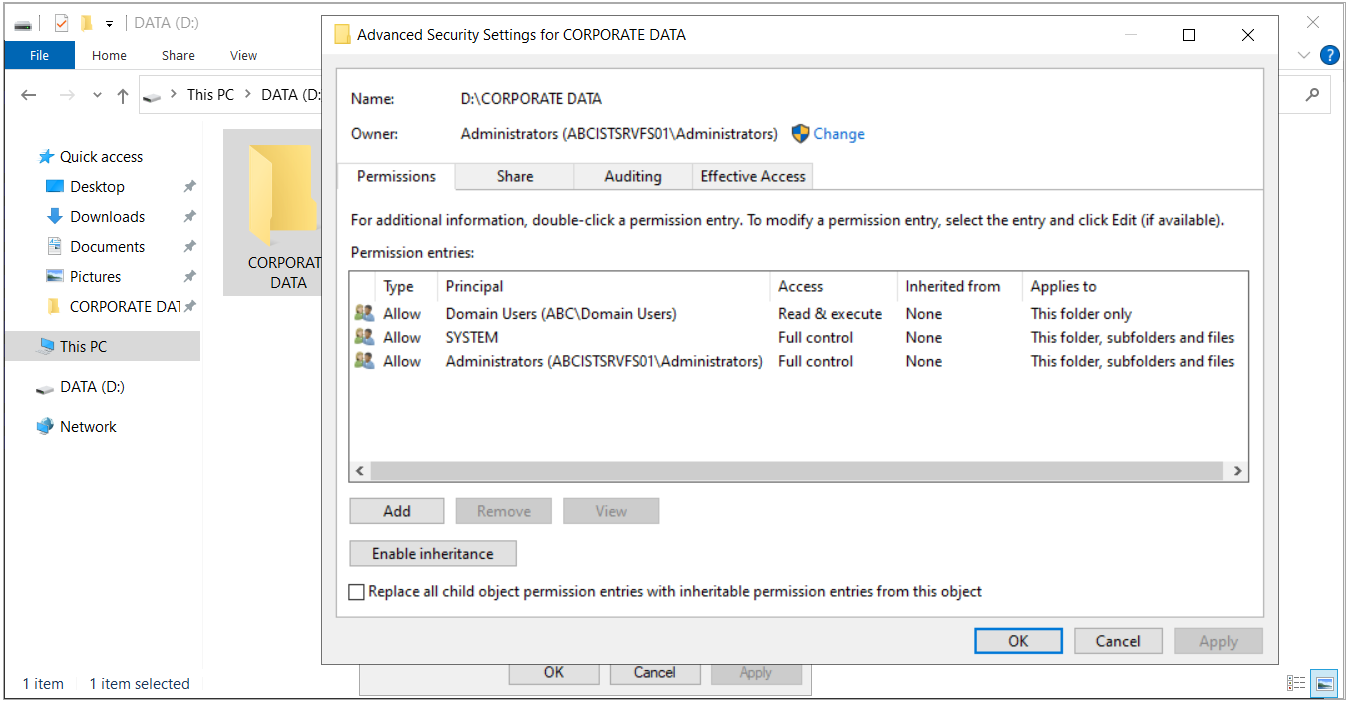
The permission design starts at the root folder. By default, the D:\CORPORATE DATA folder inherits the permissions of the D:\ drive, and these permissions include broad entries such as Users and Authenticated Users. For this reason, inheritance is disabled on the root folder and the existing entries are removed.
The permissions defined on the root folder are listed in the table below. Because the Domain Users entry has the This folder only scope, users can list the root of the share, and this permission does not reach the department folders.
|
Group |
NTFS Permission |
Applies to |
|
Administrators |
Full Control |
This folder, subfolders and files |
|
SYSTEM |
Full Control |
This folder, subfolders and files |
|
Domain Users |
Read & Execute |
This folder only |
In the screen below, the Inherited from column shows None for all entries and the Enable inheritance button appears at the bottom, which shows that inheritance is disabled on the root folder.
Inheritance remains enabled on the department folders. Because the Domain Users permission on the root folder has the This folder only scope, it does not reach the department folders. Only the Administrators and SYSTEM permissions come to these folders from the root.
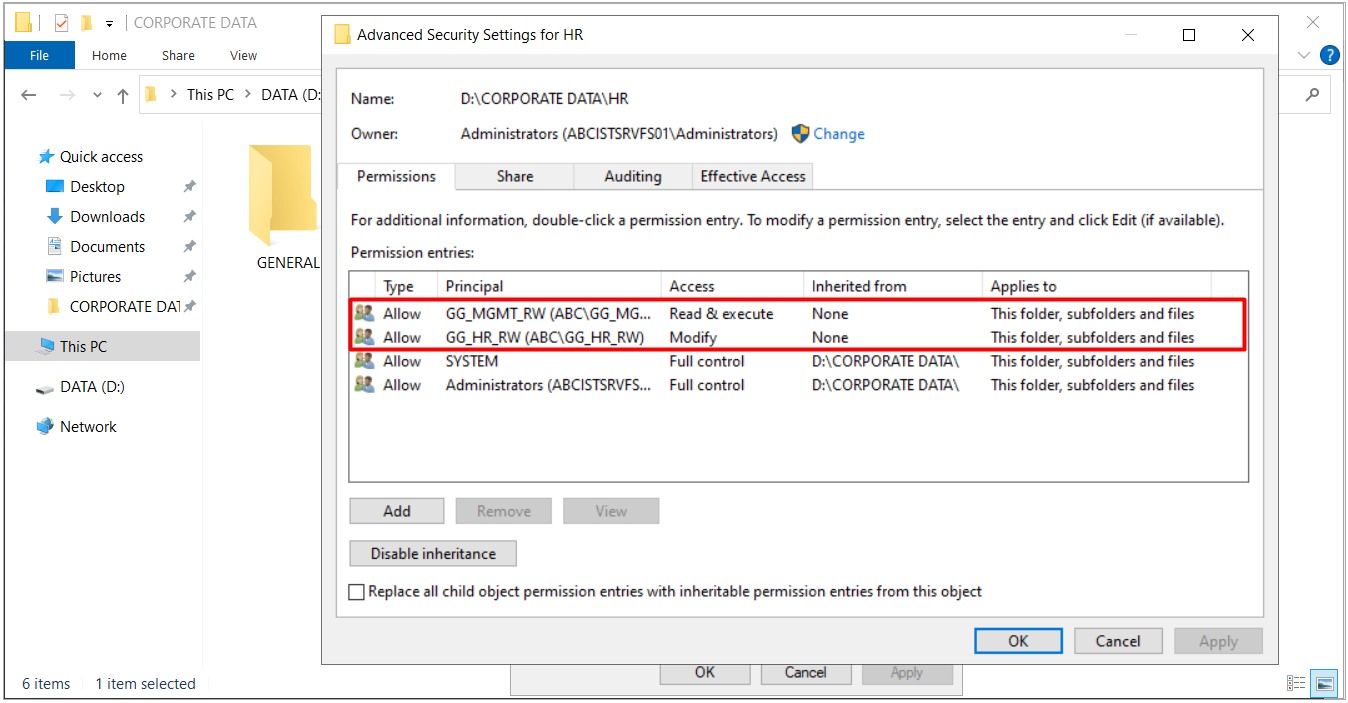
2 groups are added to each department folder.
-
The GG_HR_RW group. It receives the Modify permission and is the group of the department that owns the folder.
-
The GG_MGMT_RW group. It receives the Read & Execute permission and is the group of the management department.
As a result, MGMT users see all department folders and can read the content, but cannot make changes. The same structure is applied to the IT, OPS and R&D folders. In the MGMT folder, only the GG_MGMT_RW group has the Modify permission.
In the permissions of the HR folder, the 2 department groups appear as explicit entries, and Administrators and SYSTEM appear as inherited from D:\CORPORATE DATA. The Disable inheritance button at the bottom shows that inheritance is enabled.
The GENERAL folder is the shared area of this structure. The Domain Users group is granted the Modify permission on this folder so that all employees can share files. Because of this permission, the GENERAL folder continues to appear in every user's list after ABE is enabled.
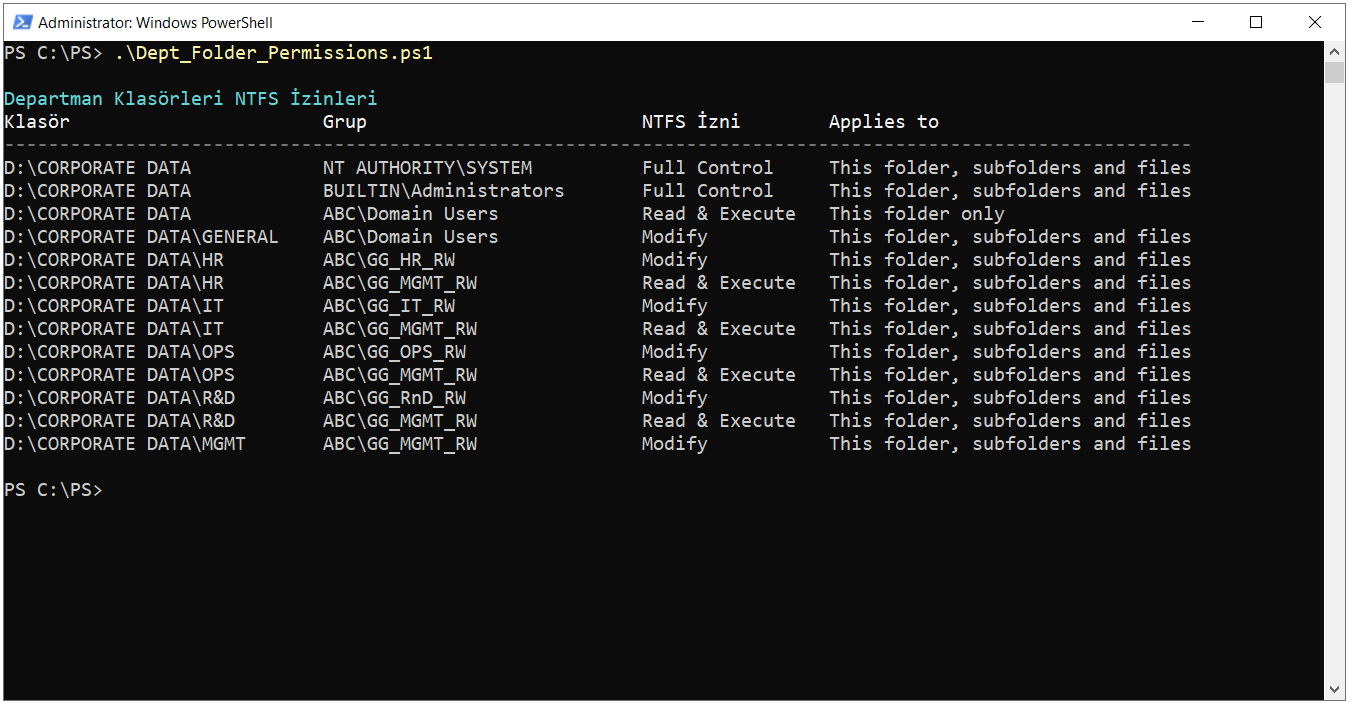
The permission structure used in this environment is listed in the table below. The table shows which group is authorised with which scope on each folder, and which entry ABE uses for its listing decision.
|
Folder |
Group |
NTFS Permission |
Applies to |
|
D:\CORPORATE DATA |
Domain Users |
Read & Execute |
This folder only |
|
D:\CORPORATE DATA |
Administrators, SYSTEM |
Full Control |
This folder, subfolders and files |
|
D:\CORPORATE DATA\GENERAL |
Domain Users |
Modify |
This folder, subfolders and files |
|
D:\CORPORATE DATA\HR |
GG_HR_RW
GG_MGMT_RW |
Modify
Read & Execute |
This folder, subfolders and files |
|
D:\CORPORATE DATA\IT |
GG_IT_RW
GG_MGMT_RW |
Modify
Read & Execute |
This folder, subfolders and files |
|
D:\CORPORATE DATA\OPS |
GG_OPS_RW
GG_MGMT_RW |
Modify
Read & Execute |
This folder, subfolders and files |
|
D:\CORPORATE DATA\R&D |
GG_RnD_RW
GG_MGMT_RW |
Modify
Read & Execute |
This folder, subfolders and files |
|
D:\CORPORATE DATA\MGMT |
GG_MGMT_RW |
Modify |
This folder, subfolders and files |
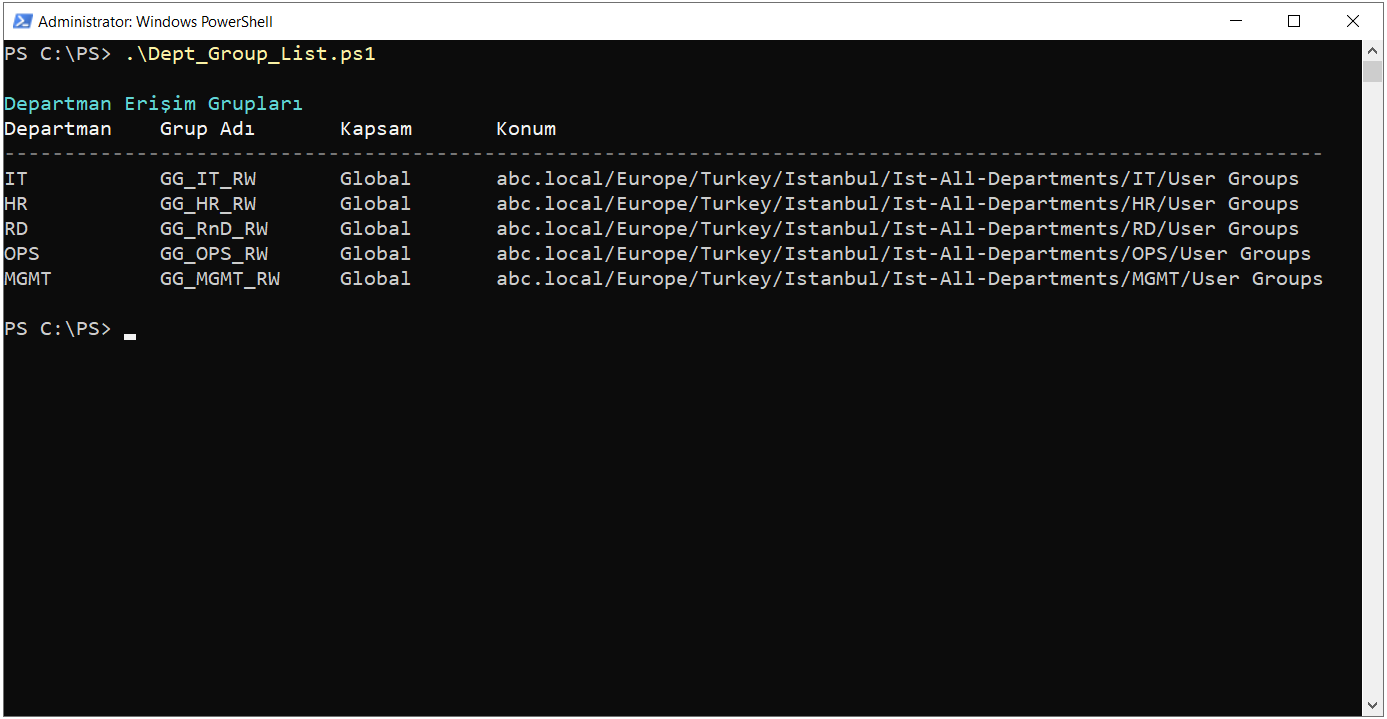
When the Active Directory counterparts of the groups in the table are listed with PowerShell, each of the 5 groups is found in the User Groups OU of its own department with Global scope. On the Active Directory side, the OU name of the R&D department is defined as RD, so the group that grants access to the R&D folder is located under the RD OU with the name GG_RnD_RW.
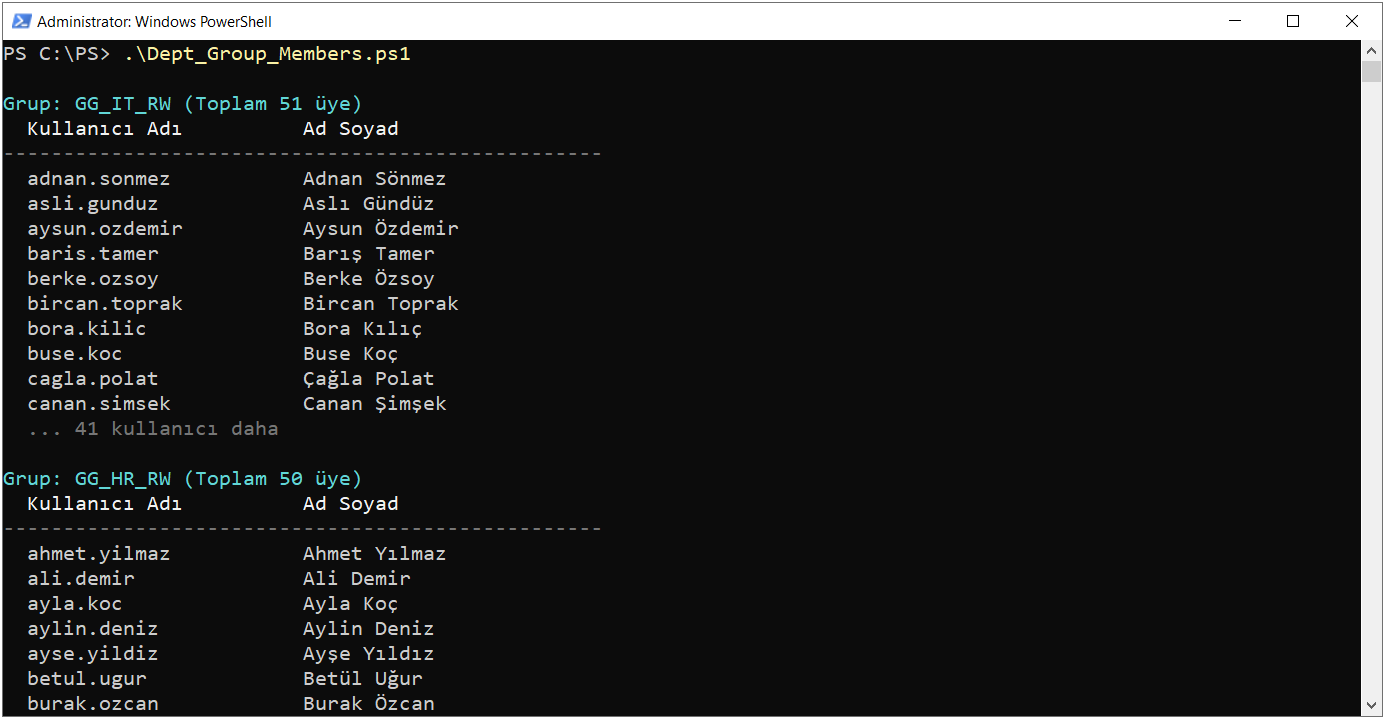
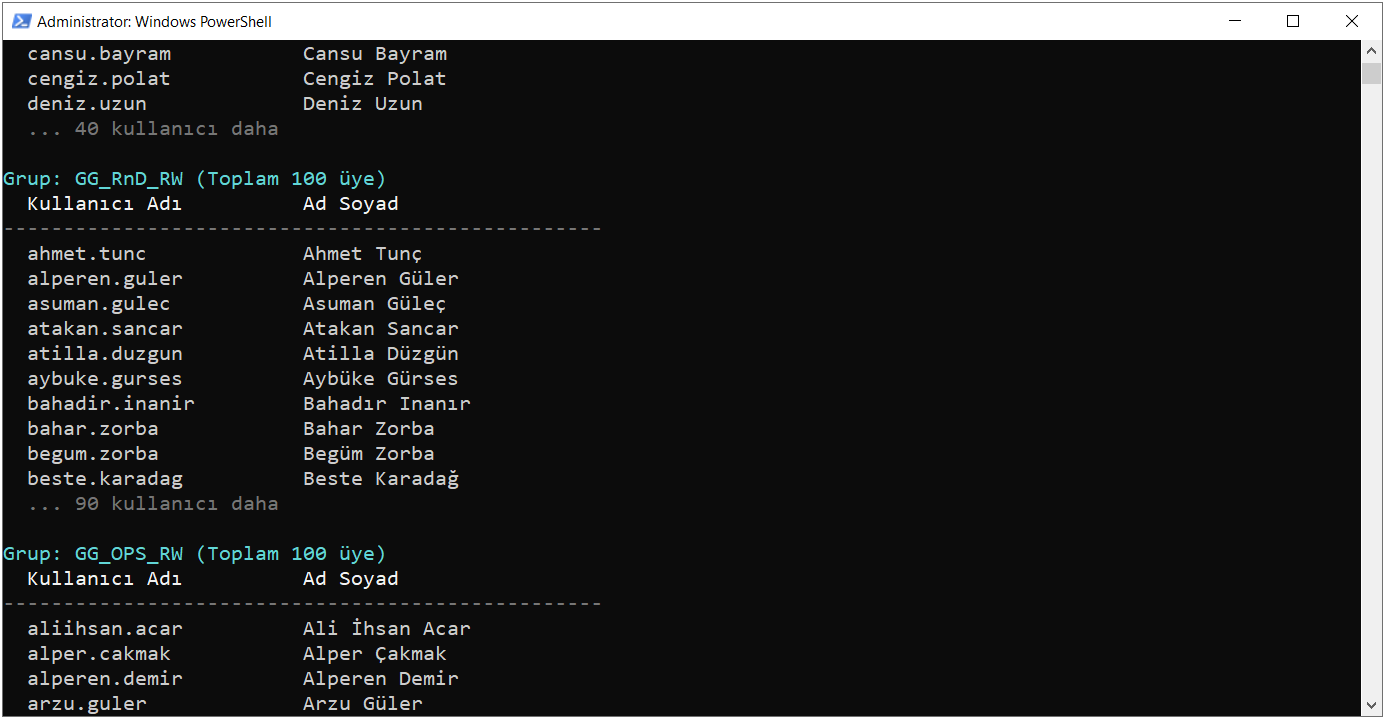
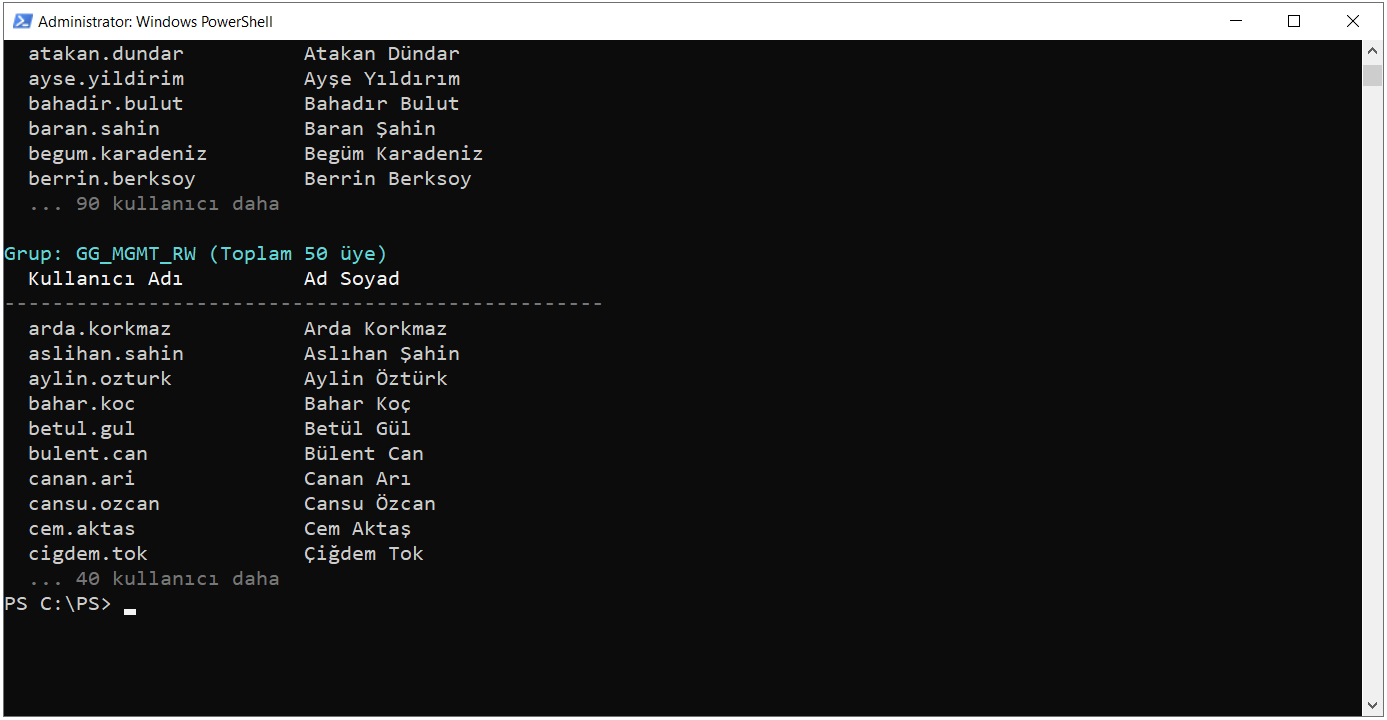
When the group memberships are listed, the total number of members of each group and its first 10 members sorted by user name are shown. The members of each group are the users in the Users OU of the relevant department.
|
Group |
Department |
Member Count |
|
GG_IT_RW |
IT |
51 |
|
GG_HR_RW |
HR |
50 |
|
GG_RnD_RW |
R&D |
100 |
|
GG_OPS_RW |
OPS |
100 |
|
GG_MGMT_RW |
MGMT |
50 |
During listing, ABE reads the NTFS permissions of these groups on the folders. These memberships determine which folder the user sees in the share.
Finally, when the explicit NTFS entries on the folders are listed with PowerShell, the output matches the rows in the table exactly. The root folder contains Administrators, SYSTEM and Domain Users with the This folder only scope. On the department folders, only the relevant department group and GG_MGMT_RW appear as explicit entries. Administrators and SYSTEM are inherited from the root, so they do not appear separately in the list.
For share permissions, a common approach is to grant Full Control to Authenticated Users and apply the actual restriction on the NTFS side. The share permission determines access to the whole share, whereas during listing ABE reads the NTFS permissions of each item, not the share permissions.
In a production environment, disabling inheritance on the root folder and removing the existing entries immediately removes access for users and groups that are not defined. Before the change, the existing permissions must be backed up with icacls /save.
Enabling ABE with Server Manager
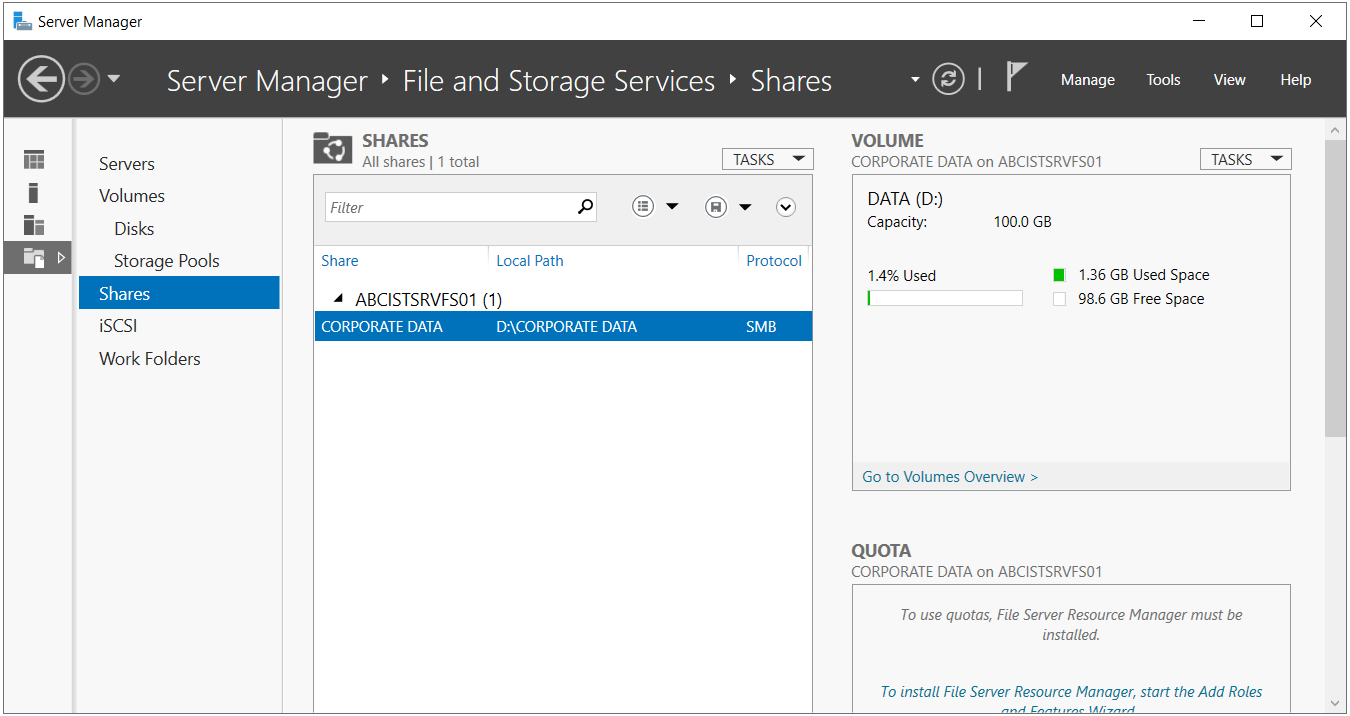
ABE is enabled per share, not per server or per volume. Other shares on the same server are not affected by this setting. When the Shares section under File and Storage Services is opened in Server Manager, the SMB shares on the server are listed. In this environment the server has 1 share, and the CORPORATE DATA share appears in the list with the path D:\CORPORATE DATA.
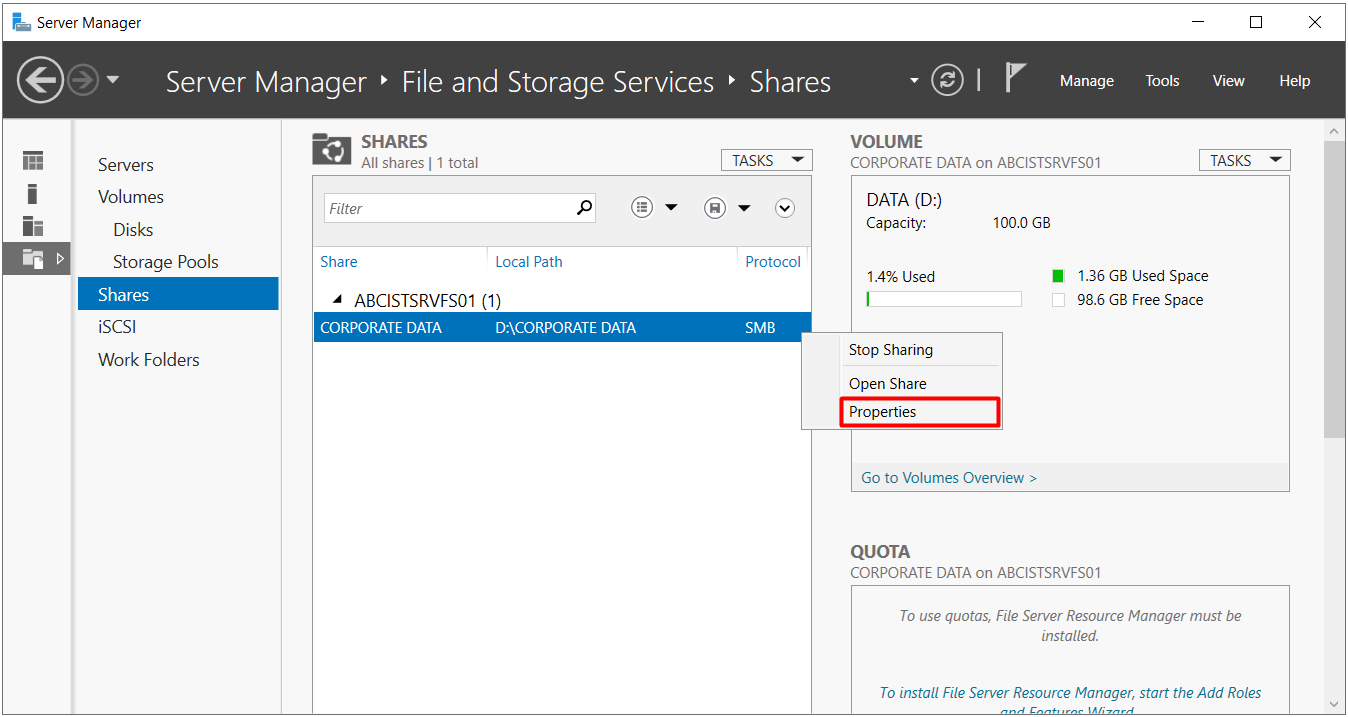
Properties is selected from the menu that opens when the share is right-clicked.
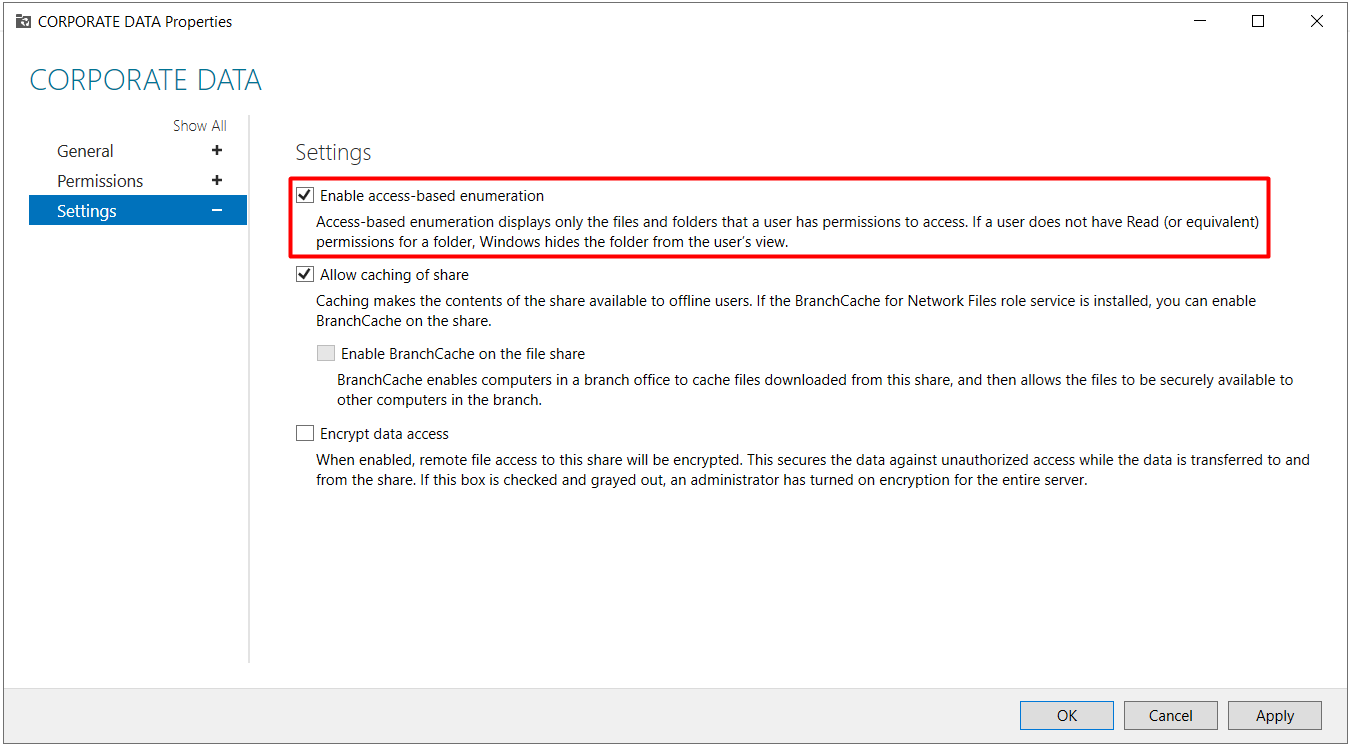
In the window that opens, the Settings section contains the Enable access-based enumeration option. The description under the option also summarises the behaviour of ABE. Folders on which the user has no Read or equivalent permission are hidden from the user's view. When the option is selected and the OK button is clicked, the setting is applied to the share. No service restart is required, and the setting takes effect from the next listing requests. If an Explorer window is open on the client side, the window must be refreshed for the view to update.
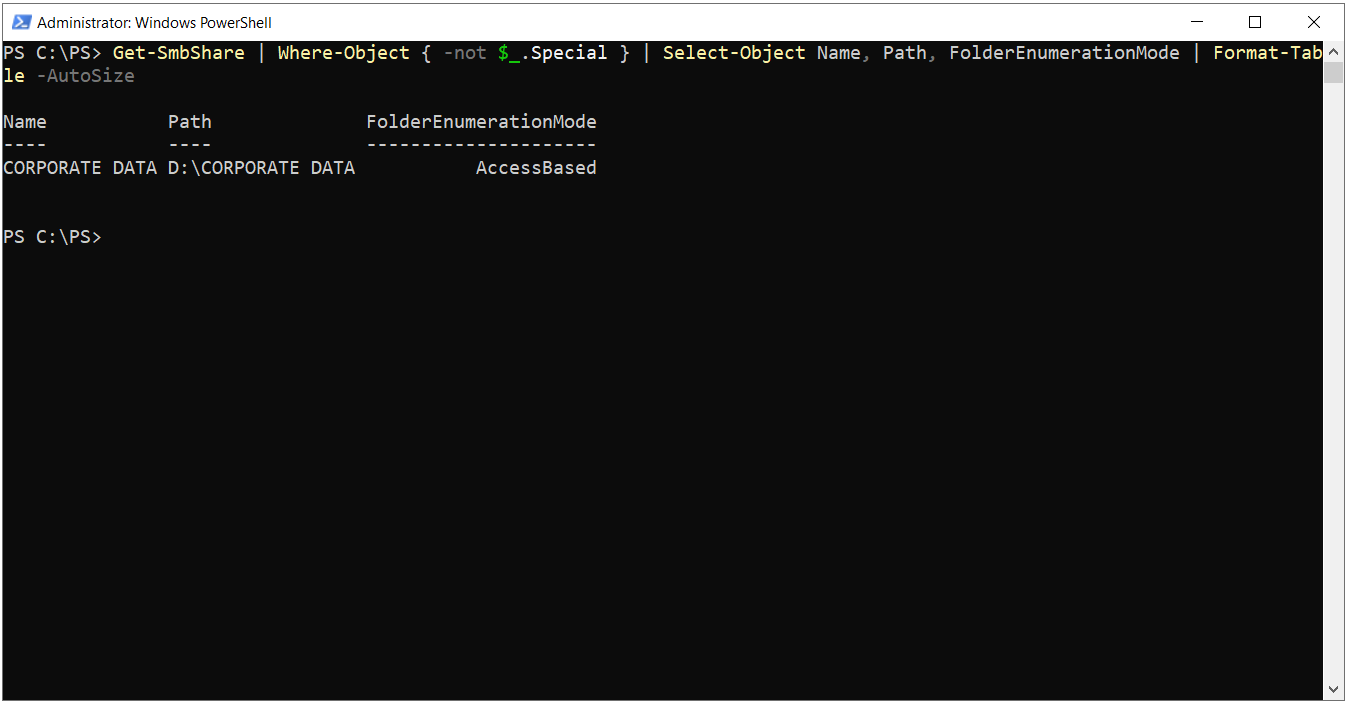
The change made in Server Manager can be verified by retrieving the general list of shares on the server with PowerShell. When administrative shares such as C$, ADMIN$ and IPC$ are excluded, only the CORPORATE DATA share remains in the list, and the FolderEnumerationMode value is AccessBased.
The same option is also offered in the Configure share settings step when a new share is created with the New Share Wizard. This allows the share to go into use with ABE enabled from the moment it is created.
ABE Configuration with PowerShell
On the PowerShell side, the same setting is managed with the FolderEnumerationMode parameter in the SmbShare module. The parameter accepts 2 values. The AccessBased value enables ABE, and the Unrestricted value returns to the default behaviour and lists all content regardless of permissions. The commands must be run on ABCISTSRVFS01 in an elevated PowerShell session with local Administrator rights. Because the share name contains a space, it is written in quotation marks in the commands.
# View the current ABE status of the share
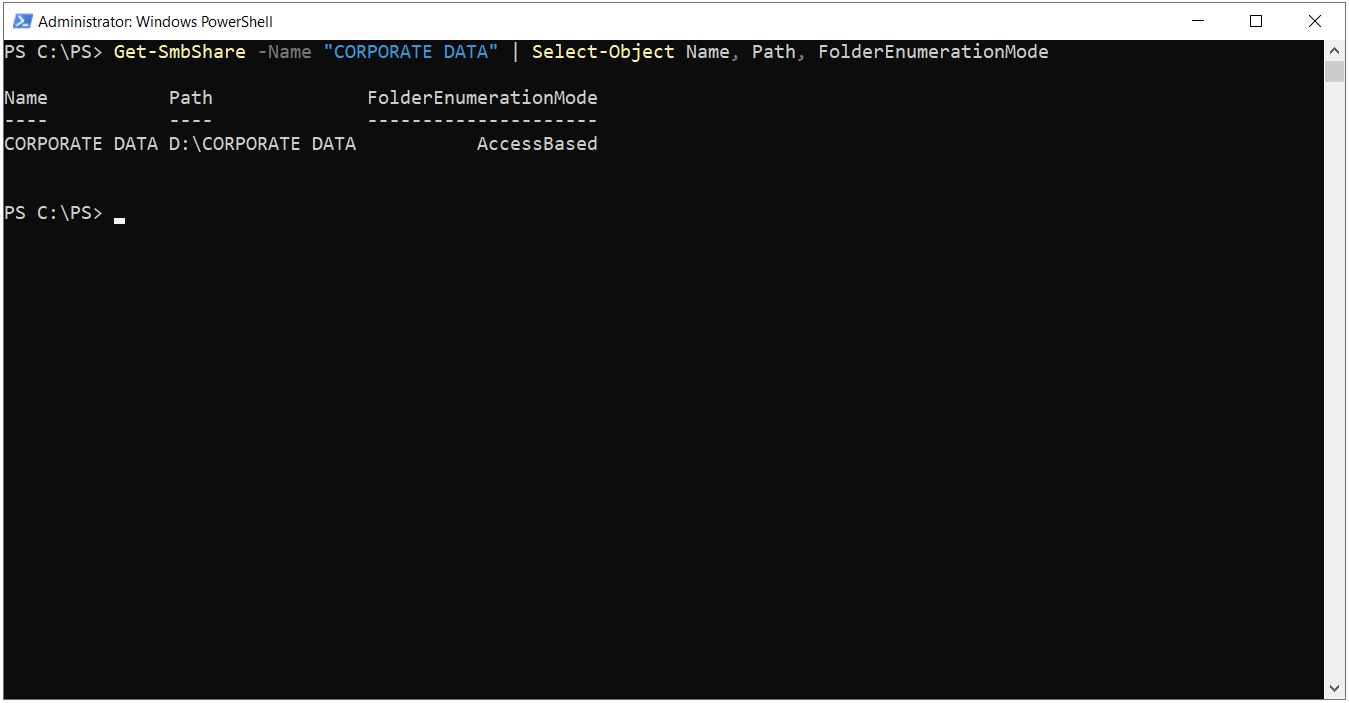
Get-SmbShare -Name "CORPORATE DATA" | Select-Object Name, Path, FolderEnumerationMode

# Enable ABE on an existing share
Set-SmbShare -Name "CORPORATE DATA" -FolderEnumerationMode AccessBased -Force

# ABE status of all shares on the server except administrative shares
Get-SmbShare | Where-Object { -not $_.Special } | Select-Object Name, Path, FolderEnumerationMode | Format-Table -AutoSize

# Create a new share with ABE enabled
New-SmbShare -Name "PROJECTS" -Path "D:\PROJECTS" -FullAccess "NT AUTHORITY\Authenticated Users" -FolderEnumerationMode AccessBased
The Set-SmbShare command asks for confirmation by default, and the Force parameter skips this confirmation. If the commands are run from another management server, the target server can be specified with the CimSession parameter. When the Get-SmbShare command is run directly for the CORPORATE DATA share, the AccessBased value in the FolderEnumerationMode column confirms that the setting is applied to the share.
Client-Side Verification
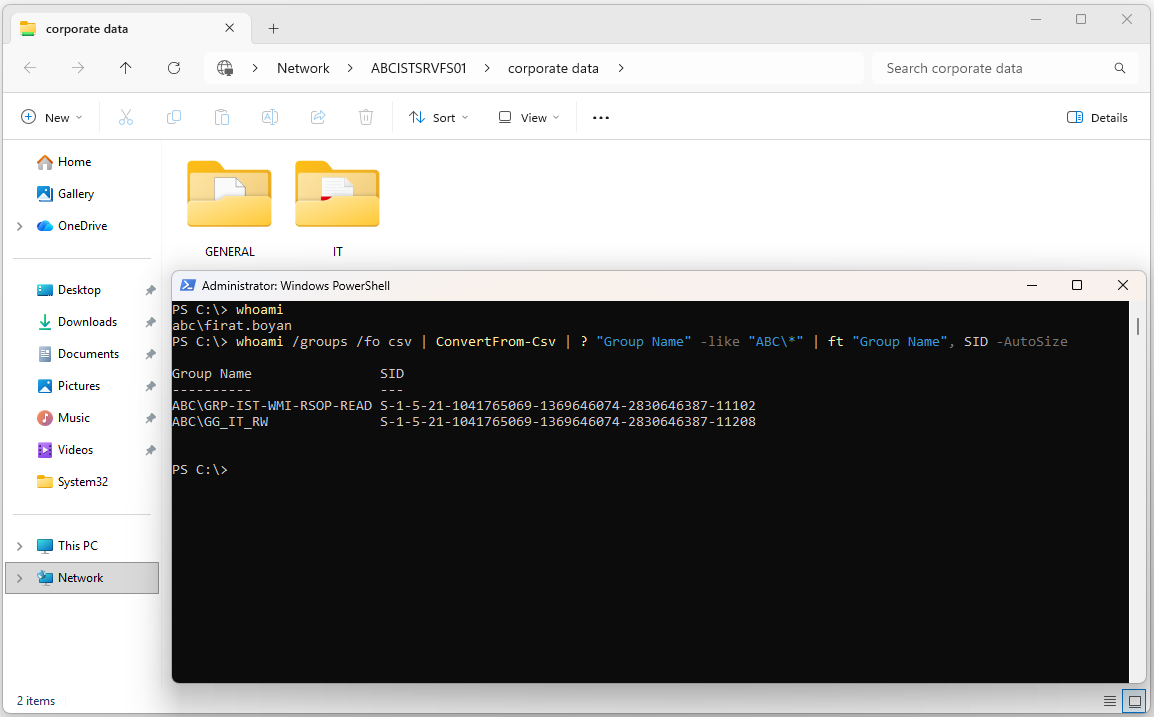
After ABE is enabled, when the user firat.boyan from the IT department opens the share again on ABCISTWKS01, only the GENERAL and IT folders appear in the list. The HR, MGMT, OPS and R&D folders still exist on the server unchanged, but they are not added to the listing response because the user has no Read permission on them. The whoami output on the same screen shows that the user's access token contains the GG_IT_RW group and that the IT folder is visible because of this membership.
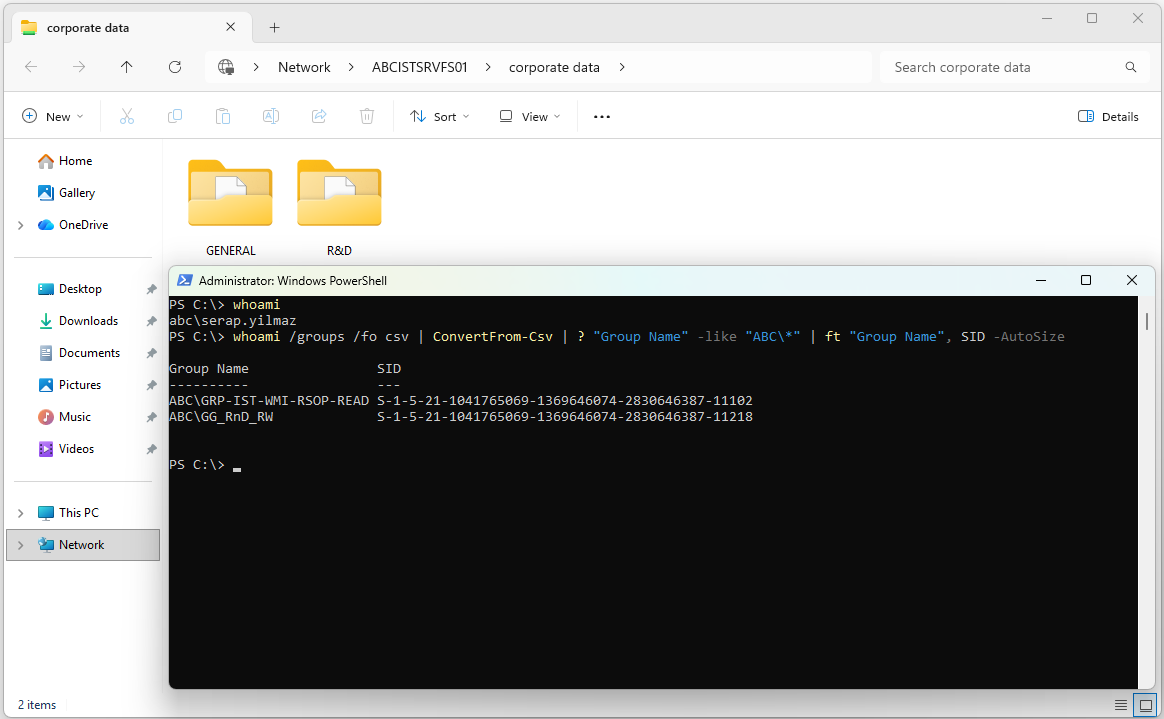
When the same share is opened with the user serap.yilmaz from the RD department, the GENERAL and R&D folders appear this time. In the whoami output, the group in the token is GG_RnD_RW. The 2 users connect to the same UNC path but see different content, because the listing result is calculated separately for each request, based on the group memberships in the access token of the requesting user.
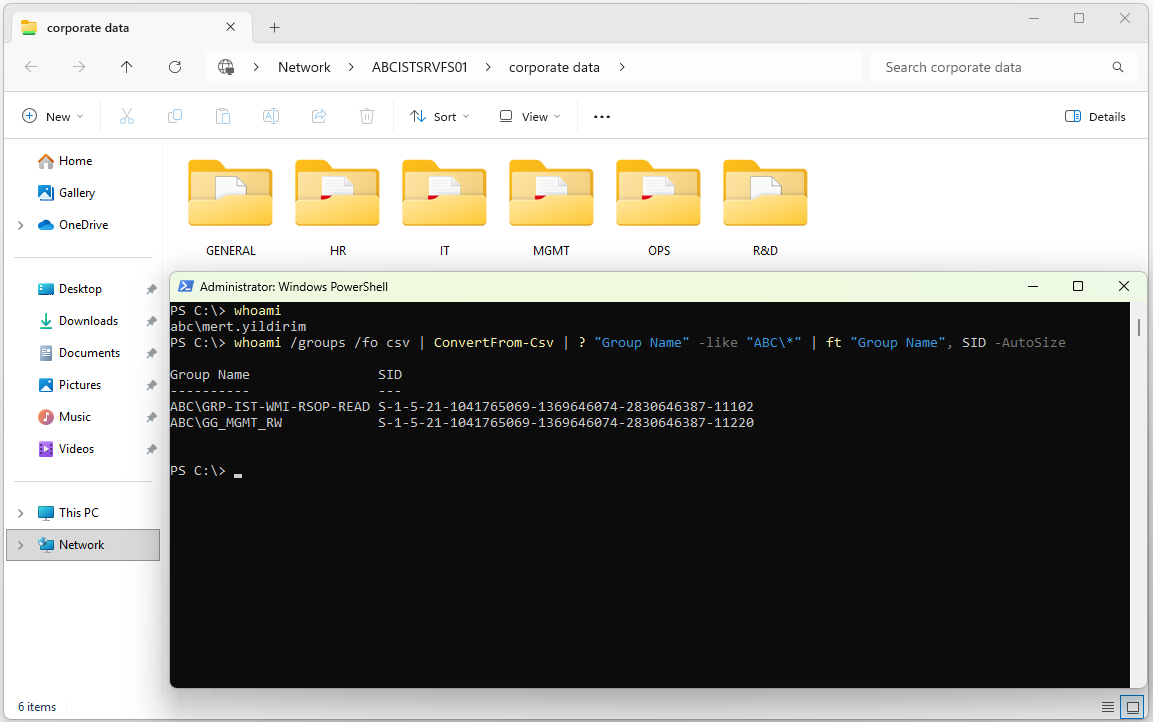
When the share is opened with the user mert.yildirim from the MGMT department, all 6 folders appear in the list. Because the user is a member of the GG_MGMT_RW group, the user has the Read & Execute permission on every department folder and ABE hides none of these folders. The user can open the HR or OPS folder and read the content, but cannot create or modify files in these folders.
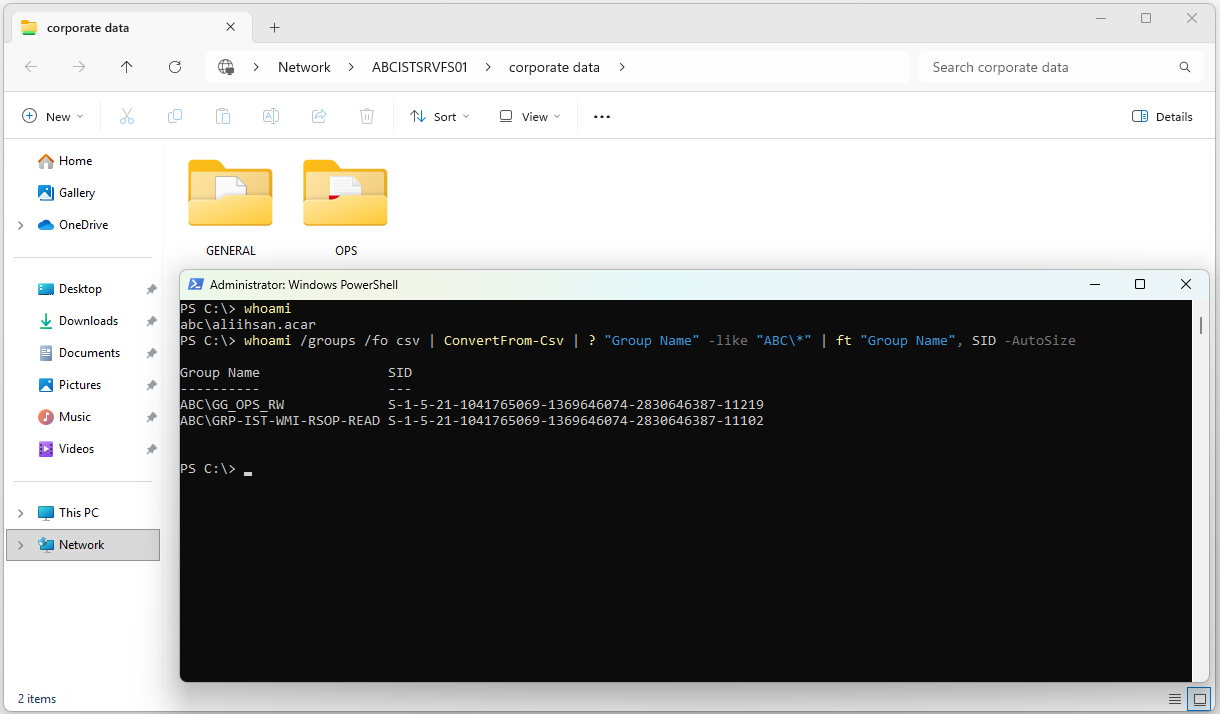
The check with the user aliihsan.acar from the OPS department gives the same result. When the user opens the share, only the GENERAL and OPS folders appear, and the whoami output shows that the group in the token is GG_OPS_RW. When 4 users from 4 different departments connect to the same share, each of them sees the folders that the permission structure in the table predicts.
When a user is newly added to a department group, this membership is not reflected in the access token of the current session. The user must sign out and sign in again for the folder to appear in the list.
Planning and Operational Considerations
ABE is a feature that runs on the SMB server side. When a local session is opened on the server and the D:\CORPORATE DATA folder is accessed directly, the listing is done through the file system and the ABE filter is not applied. Groups such as Domain Admins continue to see all folders through the share as well, because of their Full Control permissions.
ABE filters the contents of the share, it does not hide the share itself. In the list opened with the server name, the CORPORATE DATA share is visible to all users. If a share must not appear in the server list, $ must be added to the end of the share name.
When a new department folder is created, the same permission model must be applied to that folder too. Because the Domain Users permission on the root folder has the This folder only scope, it is not passed to the new folder. The folder inherits only the Administrators and SYSTEM permissions from the root and appears only in the administrators' list until the relevant department group is added. The GG_MGMT_RW group must also be added to the new folder so that the MGMT department can see this folder as well.
Because a permission check is performed per item on every listing request, the listing time and the server CPU usage can increase in folders that contain a large number of items and in shares with heavy concurrent access. This effect can be limited by building the folder structure as a department-based or project-based hierarchy instead of a flat structure that collects a large number of items at a single level.
In designs that use DFS Namespaces, ABE is enabled separately on the namespace, and separate permissions are defined for the namespace folders. The ABE setting on the target share does not filter the namespace view automatically.
The benefit that ABE provides is directly proportional to the quality of the permission design behind it. When access granted on the root folder with inheritance disabled and the This folder only scope, a separate GENERAL folder for the shared area, group-based permissions on the department folders and the read permission defined for management are built together, every user sees the folders that fit their role when opening the share.
This article covered, at a technical level, how the visibility of department folders under a shared folder is managed with the Access-Based Enumeration feature on Windows Server, how it relates to NTFS permissions and where it fits in the file server architecture.
ABE is a visibility layer that works at the SMB share level and hides the files and folders on which the user has no Read permission from the list. The access decision is always made by NTFS permissions. ABE reads these permissions during listing and presents a share view that shows each department its own folder and shows the management group all department folders.
For the feature to give the expected result, inheritance must be disabled on the root folder and the Domain Users permission must be limited to the This folder only scope, explicit permissions must be defined on the department folders through Active Directory groups, and a separate read permission must be granted to the management group. ABE is enabled per share, either in the share properties in Server Manager or with the FolderEnumerationMode parameter in PowerShell.
During planning, it must be taken into account that ABE does not hide share names, that it is not applied to local access on the server, that group membership changes are reflected with a new session, that the same permission model must be repeated on new department folders and that separate configuration is required in DFS Namespaces designs. Together with a correctly designed file server permission structure, ABE reduces the support load on shared folders and gives every user a working area that fits their role.
I hope you find it useful...
Feel free to share your thoughts and questions about this article in the comments below. Every contribution helps the content reach more people and makes for a more useful discussion.