In Exchange Server, an email from outside passes through 3 separate transport services that run on the Mailbox server before it reaches the recipient's mailbox: Front End Transport service, Transport service and Mailbox Transport service. Microsoft calls the whole formed by these services, the SMTP connections between them, the queues and the components the transport pipeline. The categorizer in the Transport service is at the centre of the pipeline. Every message sent or received in the organisation must be processed by the categorizer before it is routed and delivered. A message can pass through the categorizer again when it is sent back to the Submission queue (resubmit).
The step that costs the most time in mail flow problems is not knowing in which layer the error occurred. Was the connection rejected on port 25, is the message waiting in the Submission queue, or did it stop during delivery to the mailbox database? The answers to these questions come from knowing what each service does and what it does not do.
The transport pipeline and mail flow architecture described here is common to Exchange Server 2019 and Exchange Server Subscription Edition (SE). The Receive connector, queue, shadow redundancy, Safety Net, back pressure and size limit behaviours in this article are documented in the same way for both versions on Microsoft Learn.
The article is based on a design without an Edge Transport server, in which email from the internet is received directly by the Front End Transport service on the Mailbox server. Outbound flow and outbound proxy are kept short, only enough to complete the inbound flow. Edge Transport and hybrid mail flow with Exchange Online are outside the scope of this article.
The article consists of the following sections:
-
Overview of the transport pipeline and the division of tasks between the 3 services
-
Default Receive connectors, their ports and permission structures
-
How the Front End Transport service receives the SMTP connection, with example scenarios
-
The SMTP Receive, Submission queue, categorizer, delivery queue and SMTP Send stages in the Transport service
-
Delivery to the mailbox database with Mailbox Transport Delivery
-
Protection at the transport layer with shadow redundancy and Safety Net
-
Outbound flow and outbound proxy
-
Log sources and troubleshooting
The examples use a single Mailbox server named EXCH01 and the name mail.firatboyan.com. Replace the values given in curly brackets in the commands with the equivalents in your own environment.
1- Transport Pipeline Overview
In Exchange Server 2019 and Exchange Server SE, the Client Access role is not a separate server role. The Front End Transport service, the Transport service and the Mailbox Transport service run on the same Mailbox server as independent Windows services. Although these services are on the same server, they communicate with each other over SMTP. A message can enter through the Front End Transport service of a server and be processed by the Transport service of a different server.
The task boundaries of the services are clear, and these boundaries are directly useful during troubleshooting:
|
Service |
Task |
Content Inspection |
Queue |
|
Front End Transport service |
A stateless proxy that receives SMTP traffic from outside. It passes the connection to the Transport service. Optionally, it also sends outbound traffic to the internet. |
No |
No |
|
Transport service |
The equivalent of the Hub Transport role in Exchange 2010. Categorisation, routing, mail flow rules, and antispam and antimalware processing take place here. It does not communicate directly with the mailbox database. |
Yes |
Yes |
|
Mailbox Transport Submission |
Takes the message sent by the user from the local mailbox database over RPC and delivers it to the Transport service over SMTP. |
No |
No |
|
Mailbox Transport Delivery |
Receives the message from the Transport service over SMTP and writes it to the local mailbox database over RPC. |
No |
No |
There are 2 details to note in the table. The Front End Transport service never communicates with the Mailbox Transport service. The Transport service is always between them. The Mailbox Transport service connects only to the mailbox database on its own server and does not access the database of another server.
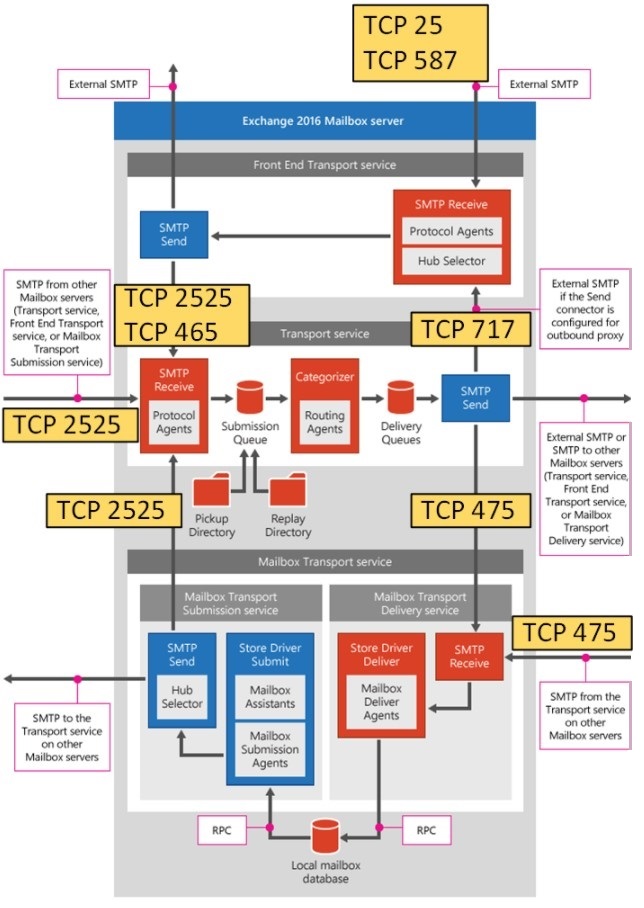
The path of an email from the internet, with the port and connector names, is as follows:
Sending SMTP server on the internet
        │  TCP 25
        ↓
Front End Transport Service   (Receive Connector: Default Frontend EXCH01)
        │  TCP 2525
        ↓
Transport Service             (Receive Connector: Default EXCH01)
        │  SMTP Receive → Submission Queue → Categorizer → Delivery Queue → SMTP Send
        │  TCP 475
        ↓
Mailbox Transport Delivery    (Implicit Receive Connector)
        │  RPC
        ↓
Mailbox Database              (the recipient's active database copy)
Each of these steps can take place on the same server, or the steps can be spread across different Mailbox servers. The only fixed point is that the RPC connection between Mailbox Transport Delivery and the mailbox database is always established on the same server.
2- Default Receive Connectors
A Receive connector is the object that defines the IP address and port on which an Exchange server listens for SMTP connections, from whom it accepts the connection and which permissions it gives to the connecting party. On Mailbox servers, Receive connectors are stored in Active Directory as child objects of the related server object. The default connectors are created automatically during setup.
Every Receive connector has a TransportRole value. Connectors with the FrontendTransport value belong to the Front End Transport service, and connectors with the HubTransport value belong to the Transport service. Checking this value is the shortest way to tell which connector is used by the 2 services that carry the same name.
|
Connector |
TransportRole |
Port |
Accepts Connections From |
|
Default Frontend |
FrontendTransport |
25 |
SMTP servers on the internet (anonymous connection) |
|
Client Frontend |
FrontendTransport |
587 |
Authenticated SMTP clients |
|
Outbound Proxy Frontend |
FrontendTransport |
717 |
Transport service (only if outbound proxy is enabled on the Send connector) |
|
Default |
HubTransport |
2525 |
Front End Transport service, Transport service on other servers, Mailbox Transport Submission and Edge Transport |
|
Client Proxy |
HubTransport |
465 |
Client connections proxied through Client Frontend |
|
Mailbox Delivery (Implicit) |
Mailbox Transport Delivery |
475 |
Transport service |
The way each connector authenticates the connecting party and the permission groups it allows are as follows:
|
Connector |
Authentication Mechanism |
Permission Group |
|
Default Frontend |
TLS
BasicAuth
BasicAuthRequireTLS
ExchangeServer
Integrated |
AnonymousUsers
ExchangeLegacyServers
ExchangeServers |
|
Client Frontend |
TLS
BasicAuth
BasicAuthRequireTLS
Integrated |
ExchangeUsers |
|
Outbound Proxy Frontend |
TLS
BasicAuth
BasicAuthRequireTLS
ExchangeServer
Integrated |
ExchangeServers |
|
Default |
TLS
BasicAuth
ExchangeServer
Integrated |
ExchangeLegacyServers
ExchangeServers
ExchangeUsers |
|
Client Proxy |
TLS
BasicAuth
BasicAuthRequireTLS
ExchangeServer
Integrated |
ExchangeServers
ExchangeUsers |
|
Mailbox Delivery (Implicit) |
ExchangeServer |
ExchangeServers |
2.1- Connector Selection and the Role of Permissions
Bindings (local IP address and port) and RemoteIPRanges (source IP range) together determine which connector receives a connection. If multiple connectors exist on the same port, the connector whose RemoteIPRanges value is the narrowest match for the connecting IP address is selected. Exchange does not move a connection between connectors. If the connection arrives on port 25, it is either received or rejected by the matching connector on that port.
On all default connectors, the RemoteIPRanges value covers all IPv4 and IPv6 addresses. This means that the Default connector on port 2525 is protected not by an IP restriction but by the permission group and authentication settings. If the connecting party is not authenticated with an Exchange Server identity, it does not have sufficient permission to send messages on this connector.
Permission groups correspond to Active Directory permissions in the background. The 3 permissions that affect mail flow behaviour the most are:
|
Permission |
Effect |
|
ms-Exch-SMTP-Submit |
Required to send messages to the connector. Without this permission, the MAIL FROM and AUTH commands fail. |
|
ms-Exch-SMTP-Accept-Any-Recipient |
The relay permission. Without this permission, the connector accepts only messages to recipients in the accepted domains of the organisation. |
|
ms-Exch-Bypass-Anti-Spam |
Allows messages sent by the connecting party to be accepted without passing through the antispam filters. |
The AnonymousUsers group has ms-Exch-SMTP-Submit but does not have ms-Exch-SMTP-Accept-Any-Recipient. For this reason, a server that connects anonymously from the internet can deliver messages to the organisation's own domains but cannot use Exchange as a relay to other domains. The ExchangeUsers group has Accept-Any-Recipient and Bypass-Anti-Spam. This permission is what allows an authenticated user to send email to the internet.
2.2- Front End Transport Service Connectors
Default Frontend is the organisation's main entry point from the internet. The address that the MX record points to reaches this connector, that is, port 25. It accepts anonymous connections, but AUTH is also supported because BasicAuth, BasicAuthRequireTLS and Integrated are in the Authentication Mechanism list. Among the default connectors, this is the only connector whose protocol logging value is Verbose by default.
Client Frontend listens on port 587 and allows only the ExchangeUsers group. POP3 and IMAP4 clients, applications and devices use this port to send email with authentication. A client that connects without authentication is rejected at the MAIL FROM stage because it does not have the ms-Exch-SMTP-Submit permission.
Outbound Proxy Frontend accepts connections only from Exchange servers on port 717. The party that starts the connection is the Transport service. This connector is used only when the outbound proxy setting is enabled on a Send connector. If this setting is not enabled, outbound traffic does not pass through the Front End Transport service at all.
2.3- Transport Service Connectors
Default is the entry point of the Transport service on port 2525. Inbound email proxied by the Front End Transport service, internal traffic from other Mailbox servers and user messages delivered by Mailbox Transport Submission arrive here. Connections are encrypted with the self-signed certificate of the Exchange server. Clients do not connect directly to this connector.
Client Proxy listens on port 465. When a client connects to Client Frontend on port 587 and authenticates, the Front End Transport service passes this session to Client Proxy on a Mailbox server. Port 465 here is not an SMTPS (implicit TLS) port open to clients. It is an internal proxy port that Exchange servers use between themselves. Client applications must not be directed to port 465.
2.4- Mailbox Transport Delivery Implicit Connector
In addition to the connectors created during setup, the Mailbox Transport Delivery service has an invisible implicit Receive connector. It listens on port 475, accepts connections only from Exchange servers and does not require management. It does not appear in the Get-ReceiveConnector output, but port 475 must be open in the internal firewall rules between servers. Otherwise, the Transport service cannot deliver the message to the server that holds the recipient's database.
2.5- Listing the Connectors with PowerShell
To see the Receive connectors on the server together with their TransportRole and binding information, run the following command in the Exchange Management Shell (EMS). The command only reads and does not change the configuration.
Get-ReceiveConnector -Server EXCH01 | Format-Table Name,TransportRole,Bindings,Enabled -AutoSize
Name                            TransportRole      Bindings                          Enabled
----                            -------------      --------                          -------
Default EXCH01                  HubTransport       {0.0.0.0:2525, [::]:2525}         True
Client Proxy EXCH01             HubTransport       {[::]:465, 0.0.0.0:465}           True
Default Frontend EXCH01         FrontendTransport  {[::]:25, 0.0.0.0:25}             True
Outbound Proxy Frontend EXCH01  FrontendTransport  {[::]:717, 0.0.0.0:717}           True
Client Frontend EXCH01          FrontendTransport  {[::]:587, 0.0.0.0:587}           True
In the output, the match between the port number and the TransportRole value shows directly which connector belongs to which service. Ports 25, 587 and 717 belong to the Front End Transport service, and ports 2525 and 465 belong to the Transport service.
3- How the Front End Transport Service Receives the Connection
The first point at which an email from the internet reaches Exchange is the Default Frontend connector in the Front End Transport service. This service works as a stateless proxy. It receives the SMTP session, evaluates the connector match, TLS, authentication and permissions, and then passes the session to the Transport service on a Mailbox server. It does not inspect the message content, does not run the antispam agents and does not queue the message on disk.
3.1- How the SMTP Session Proceeds
The SMTP session is always controlled by the party that opens the connection, that is, the sending server or client. The client sends the commands, and the Receive connector gives the responses. A typical anonymous session proceeds in the order below. C at the start of a line indicates the client and S indicates the server.
S: 220 {Server FQDN} Microsoft ESMTP MAIL Service ready at {Date}
C: EHLO {Client FQDN}
S: 250-{Server FQDN} Hello [{Client IP}]
S: 250-SIZE {MaxMessageSize value of the connector, in bytes}
S: 250-STARTTLS
S: 250-AUTH {Mechanisms advertised by the connector}
S: 250 {Other ESMTP extensions}
C: MAIL FROM:<{sender address}>
S: 250 2.1.0 Sender OK
C: RCPT TO:<{recipient address}>
S: 250 2.1.5 Recipient OK
C: DATA
S: 354 Start mail input; end with .
C: {Headers and message body}
C: .
S: 250 2.6.0 {Message-ID} Queued mail for delivery
C: QUIT
S: 221 2.0.0 Service closing transmission channel
EHLO is the command with which the client introduces itself and asks the server for the ESMTP extensions it supports. HELO is the older SMTP equivalent, which does not return an extension list. The lines in the EHLO response are not random. They are generated directly from the configuration of the Receive connector:
|
Connector Setting |
Effect on the EHLO Response and the Session |
|
TLS |
STARTTLS is advertised. The server needs a certificate that contains the name it advertises in EHLO. |
|
BasicAuth |
Basic authentication is also offered in an unencrypted session. |
|
BasicAuthRequireTLS |
Basic authentication is offered only after the session is encrypted with STARTTLS. |
|
Integrated |
Authentication with NTLM and Kerberos is offered. |
|
ExchangeServer |
The GSSAPI and Mutual GSSAPI authentication that Exchange servers use between themselves is offered. |
|
MaxMessageSize |
Advertised in bytes on the SIZE line. A message that exceeds this value is rejected with the 552 5.3.4 response. |
The default MaxMessageSize value on Receive connectors is 36 MB. The organisation-wide send and receive limit is 10 MB by default. The difference exists to cover the growth of attachments by approximately 33% with Base64 encoding over SMTP. A message can pass the connector and still be stopped by the organisation limit or the mailbox limit. For size problems, all 3 limits must be checked.
Telnet can be used to see the same session manually. On Windows, the Telnet Client feature is not installed by default and must be enabled first. Because Telnet cannot encrypt, the session cannot continue after STARTTLS. For this reason, the test is done without sending the STARTTLS command.
telnet {Server FQDN} 25
EHLO {Client FQDN}
When the same test is run against port 587, the response comes from Client Frontend. When the 2 outputs are compared, the differences on the AUTH line directly reflect the difference between the Authentication Mechanism settings of the 2 connectors.
3.2- Example Scenarios
💡 Scenario 1: Anonymous email from the internet. An external SMTP server queries the MX record, connects to port 25 and is received by Default Frontend. The connection is evaluated with the AnonymousUsers permissions. If the recipient in the RCPT TO command belongs to an accepted domain of the organisation, the message is accepted and the session is passed to the Transport service.
If the recipient is outside the accepted domains, that is, if the connecting server is trying to use Exchange as a relay, the recipient is rejected with the "Unable to relay" response because the AnonymousUsers group does not have the ms-Exch-SMTP-Accept-Any-Recipient permission. In the default configuration, this behaviour prevents Exchange from becoming a relay server that is open to the internet.
💡 Scenario 2: A client that sends with authentication. Although Default Frontend advertises AUTH, ExchangeUsers is not in its permission group list. The entry point designed for user and application submissions is Client Frontend on port 587. Here the client encrypts the session with STARTTLS, authenticates and sends with the ExchangeUsers permissions. The Front End Transport service passes this session to the Client Proxy connector on a Mailbox server over port 465.
💡 Scenario 3: A send attempt to port 587 without authentication. If an application connects to port 587 and sends the MAIL FROM command directly without sending AUTH, the command is rejected with the 530 "Client was not authenticated" response because Client Frontend has no permission defined for anonymous connections. The error is not caused by connecting to the wrong port. It is caused by skipping the authentication step on the correct port.
For printers and application servers that cannot authenticate, the correct solution is not to change Default Frontend. A separate Receive connector is created with RemoteIPRanges defined specifically for the IP addresses of these devices.
3.3- What the Front End Transport Service Does and Does Not Do
|
Does |
Does Not |
|
Matches the connection to the correct Receive connector according to Bindings and RemoteIPRanges. |
Does not inspect the message content or attachments. |
|
Applies STARTTLS, authentication and permission group permissions. |
Does not run the antispam and antimalware agents. These run in the Transport service. |
|
Applies the connector-level message size and recipient count limits. |
Does not queue the message on disk. |
|
Proxies the session to the Transport service over port 2525. |
Does not communicate directly with the Mailbox Transport service or the mailbox database. |
When the Front End Transport service selects the Mailbox server to which it passes the message, it takes into account the delivery group that contains the recipient's mailbox database. This group can be a database availability group (DAG) or an Active Directory site. In this way, the message reaches a Transport service that is as close to the recipient as possible, and no unnecessary hop occurs between servers.
Load distribution is not a feature of the Front End Transport service. Distribution of inbound traffic across multiple servers is provided by multiple MX records or by a load balancer in front.
4- Transport Service
The Transport service is the core layer where all SMTP traffic of the organisation is processed. It accepts the message, passes it through the antispam and antimalware checks, resolves the recipients, applies the mail flow rules, determines the route and places the message in a delivery queue according to its destination. It does not communicate directly with the mailbox database. It leaves delivery to the database to Mailbox Transport Delivery.
The stages in the service are, in order, SMTP Receive, Submission queue, categorizer, delivery queue and SMTP Send.
4.1- SMTP Receive
SMTP Receive is the stage that accepts the message that arrives on port 2525 through the Default connector. Unlike in the Front End Transport service, the message is not proxied here. It is actually accepted. During the SMTP session, a series of events is triggered in order, and the installed transport agents attach to these events and evaluate the message. A message that is not rejected by an agent is written to the Submission queue.
The default state of the agents on an Exchange Server Mailbox server is different from what is expected:
|
Agent |
State on the Mailbox Server |
|
Malware agent |
Installed and enabled by default. |
|
Content Filter, Sender Filter, Sender ID, Protocol Analysis |
Available but not installed by default. Installed with Install-AntiSpamAgents.ps1. |
|
Recipient Filter |
Installed with the script, but in a state that does not block any recipient. Microsoft recommends that it is not configured on a Mailbox server. A single invalid recipient in a message causes the whole message to be rejected, even though it has valid recipients. |
|
Connection Filtering (IP Block List and RBL), Attachment Filtering |
Not present on a Mailbox server. Present only on an Edge Transport server. |
This table also corrects a wrong assumption that is common in the field. In an environment without Edge Transport, Exchange does not query RBL lists for the sending IP address by itself. If an RBL check is required, it is done by a gateway or filtering service in front of Exchange.
Among the antispam agents offered on an Exchange Server Mailbox server, there is no agent that evaluates the DKIM signature or the DMARC policy. A check based on the SPF record can be done only with the Sender ID agent, and this agent is not installed by default.
To install the antispam agents on a Mailbox server, run the following script in the Exchange Management Shell on the relevant Mailbox server. The operation requires permissions on the transport configuration. After the script completes, the Transport service is restarted.
& $env:ExchangeInstallPath\Scripts\Install-AntiSpamAgents.ps1
Restart-Service MSExchangeTransport
The Restart-Service MSExchangeTransport command stops mail flow on that server until the service starts again. Run the command in a maintenance window.
After installation, the IP addresses of the internal SMTP servers in the organisation must be defined with Set-TransportConfig -InternalSMTPServers so that the Sender ID agent does not evaluate internal servers by mistake. The following command shows the installed agents and their priority order:
The quarantine concept in antimalware and antispam behaviour is also different from Exchange Online. When the Malware agent finds malicious content, it deletes the message or its attachments according to the policy. There is no quarantine portal open to users. The Content Filter agent assigns a spam confidence level (SCL) value to messages. Depending on this value, the message can be deleted, rejected, sent to a configured quarantine mailbox or delivered to the user's Junk Email folder.
Another mechanism that protects the health of the server works at the SMTP Receive stage: back pressure. The Transport service continuously monitors the usage of the disk that holds the queue database, the memory usage of the EdgeTransport.exe process, the number of messages in the Submission queue and the pending in-memory transactions of the queue database (version buckets). Each resource has 3 defined pressure levels: Low, Medium and High. The action applied depends on both the resource and the level.
When the Submission queue and version buckets come under pressure, Exchange first applies tarpitting. It delays the acknowledgement of the MAIL FROM command by 10 seconds by default and, if the pressure continues, increases this delay in steps of 5 seconds up to 55 seconds. If the pressure does not decrease for a certain period, the delay is stopped and incoming messages start to be rejected. For disk usage and EdgeTransport.exe memory usage, there is no delay stage. At the Medium level, messages from non-Exchange servers are rejected directly. At the High level, messages from other Exchange servers and submissions from Mailbox Transport Submission are also rejected.
Each increase in the pressure level is written to the Application event log from the MSExchangeTransport source with event ID 15004, and each decrease with event ID 15005. The following command shows the current levels of the monitored resources.
[xml]$bp = Get-ExchangeDiagnosticInfo -Server EXCH01 -Process EdgeTransport -Component ResourceThrottling
$bp.Diagnostics.Components.ResourceThrottling.ResourceTracker.ResourceMeter
4.2- Submission Queue
The Submission queue is the queue where messages accepted by the Transport service wait to be picked up by the categorizer. Messages enter this queue in 3 ways: through a Receive connector via SMTP Receive, as correctly formatted message files placed in the Pickup or Replay directory, or by submission from a transport agent.
Messages that accumulate in the Submission queue show that the problem is at the categorizer stage. In this case, the usual items to examine are delays in access to Active Directory during recipient resolution or a transport agent that processes messages slowly.
4.3- Categorizer
The categorizer takes messages from the Submission queue individually and performs 3 main tasks in order.
In the recipient resolution stage, recipient addresses are matched to objects in Active Directory. Distribution groups are expanded to their members, and copies of the message are separated for recipients that require different processing. This separation is called bifurcation.
In the routing resolution stage, the destination is determined for each recipient. The destination can be a mailbox database, a DAG, an Active Directory site, another Active Directory forest or a domain outside the organisation.
In the content conversion stage, the message is converted to the format that the destination expects.
The mail flow rules (also known as transport rules) defined in the organisation are applied at this stage by the Transport Rule agent. Actions such as adding a disclaimer to a message, blocking a message that carries a specific attachment or sending the message to a manager for approval take place here. If encryption is applied by a rule, the AD RMS infrastructure must be installed and integrated with Exchange in an on-premises environment. Journaling also takes effect at this stage.
When the categorizer finishes its work, the message is placed in a delivery queue that is separated according to its destination.
4.4- Delivery Queue
Delivery queues are created per destination. Messages for the same mailbox database, the same DAG or the same external domain wait in the same queue. When the destination cannot be reached, the message stays in the queue and is retried at set intervals. A problem caused by a single recipient or destination affects only the queue of that destination.
These retries have a limit. By default, a delay notification (delay DSN) is sent to the sender after 4 hours. A message that cannot be delivered within 2 days expires, and a non-delivery report (NDR) is returned to the sender. These periods are configured on the Transport service, and the following command shows them:
Get-TransportService -Identity EXCH01 | Format-List MessageExpirationTimeout,DelayNotificationTimeout
The current state of the queues on the server is monitored with Get-Queue. The LastError column usually states in a single line why the message is waiting.
Get-Queue -Server EXCH01 | Format-Table Identity,DeliveryType,Status,MessageCount,NextHopDomain,LastError -AutoSize
The queue list can also show 2 special queues. The Unreachable queue holds messages whose route cannot be resolved. The poison message queue isolates messages that are identified as causing the Transport service to crash during processing.
4.5- SMTP Send
SMTP Send is the stage that takes the message from the delivery queue and forwards it to the next point. In this session, the SMTP Send component of Exchange sends the commands, and the Receive connector of the remote server gives the responses. Where the message goes depends on the location of the recipient:
|
Recipient Location |
Where the Message Is Sent |
|
Active mailbox database on the same server |
Mailbox Transport Delivery on the same server (475) |
|
Mailbox database that is active on another server in the same DAG |
Mailbox Transport Delivery on that server (475) |
|
Different DAG, Active Directory site or forest |
Transport service of a Mailbox server at the destination (2525) |
|
Outside the organisation |
To the MX record or a defined smart host through a Send connector. If outbound proxy is enabled, to the Front End Transport service first (717) |
In sessions to external servers, if the remote side advertises STARTTLS, Exchange encrypts the session with opportunistic TLS by default. If the remote side does not support TLS, the session continues unencrypted. If encryption must be mandatory for a specific domain, the RequireTLS parameter and, if required, the TlsAuthLevel and TlsDomain parameters are configured on the Send connector. In this case, if TLS cannot be established, the message is not sent and waits in the queue. For management of the server certificate, see the SSL Certificate Import and Export Operations on Exchange 2019 article.
When outbound email is rejected by the remote side, the cause is usually not Exchange itself. The remote server can apply greylisting and reject the first attempt with a temporary error. In this case, Exchange keeps the message in the queue and retries. If the outbound IP address is on an RBL list, or if the SPF, DKIM and DMARC records of the sending domain are missing, the message is rejected or marked as spam by the remote side.
5- Delivery with Mailbox Transport Delivery
The Mailbox Transport Delivery service performs the last step of the message's path. It receives the message from the Transport service over SMTP through the implicit Receive connector on port 475 and writes it to the local mailbox database over RPC. It delivers only to databases that are active on its own server. If the recipient's database is active on another server, the Transport service routes the message there.
Mailbox Transport Delivery does not keep a queue. If a temporary error occurs during delivery, for example if the database is in a failover at that moment, the message stays in the delivery queue in the Transport service and is retried from there. For permanent errors, an NDR is generated instead of waiting. If the recipient's mailbox has reached its quota limit and receiving is blocked, the message is not held in the queue and an NDR is returned to the sender.
When delivery is complete, the message becomes visible in the mailbox, is indexed by Exchange Search and can then be found in search.
6- Shadow Redundancy and Safety Net
The DAG and the transport layer protect different things against data loss. The DAG copies the mailbox database to other servers with log replication. I explained the details of this mechanism in the Copy and Replay Queue Length article. However, the DAG does not protect messages that have not yet reached the database and are waiting in the transport queue. The Transport service covers this gap with 2 mechanisms of its own.
Shadow redundancy keeps a shadow copy of a message on another transport server when the message is received. This copy is kept until successful delivery of the message to the next point is confirmed. If the server that holds the message is lost before delivery, the server that holds the shadow copy resends the message. Within a DAG, the shadow copy is kept on another member of the same DAG.
Safety Net keeps copies of successfully delivered messages for a set period. When a database moves to the passive copy with a lossy failover, the last messages that were not yet copied by log replication are resent from Safety Net. In this way, messages that could be lost at the moment of failover reach the mailbox again.
Get-TransportConfig | Format-List ShadowRedundancyEnabled,SafetyNetHoldTime
In the default configuration, shadow redundancy is enabled and Safety Net keeps messages for 2 days. For shadow redundancy to work in a meaningful way, the environment must have multiple Mailbox servers. In a single-server environment, there is no second server to hold the shadow copy.
7- Outbound Flow and Outbound Proxy
Outbound flow starts from the opposite end of inbound flow. When the user clicks Send in Outlook, the message is first written to the Outbox folder of the mailbox. The Mailbox Transport Submission service takes this message from the local database over RPC and delivers it to a Transport service over SMTP on port 2525. From this point, the message passes through the Submission queue, categorizer and delivery queue stages as in inbound flow.
By default, a new Exchange organisation does not have a Send connector to send email to the internet. The administrator must create it. If the outbound proxy setting is disabled on the Send connector, the Transport service sends the message directly to the internet. If this setting is enabled, the message first goes to the Outbound Proxy Frontend connector on port 717 of a Front End Transport service and leaves for the internet from there. This method is preferred in environments where only specific servers are required to send to the internet.
Get-SendConnector | Format-List Name,AddressSpaces,SmartHosts,FrontendProxyEnabled,RequireTLS,TlsAuthLevel
A Send connector whose FrontendProxyEnabled value is True uses outbound proxy. In this case, port 717 must be open between the Mailbox servers.
8- Log Sources and Troubleshooting
In mail flow problems, 2 log sources complement each other. Protocol logging records every command and response in the SMTP session line by line. Here you see why the connection was rejected, which connector received it and whether TLS was established. Message tracking records the path of the message in the transport pipeline per event: it shows when the message was received, on which server it was processed and where it was delivered.
Among the default Receive connectors, protocol logging is enabled only on Default Frontend. If a session on another connector must be examined, logging is enabled for that connector.
Set-ReceiveConnector -Identity "EXCH01\Client Frontend EXCH01" -ProtocolLoggingLevel Verbose
Verbose protocol logging increases disk usage quickly under heavy traffic. When the examination is complete, set the ProtocolLoggingLevel value back to None.
The Front End Transport service and the Transport service write their logs to separate folders. Getting the location of the log folders from the server itself prevents you from looking in the wrong folder in environments where the default path has been changed.
Get-FrontEndTransportService -Identity EXCH01 | Format-List ReceiveProtocolLogPath,SendProtocolLogPath
Get-TransportService -Identity EXCH01 | Format-List ReceiveProtocolLogPath,SendProtocolLogPath,MessageTrackingLogPath
Get-MessageTrackingLog is used to trace the path of a message to a specific recipient. Values such as RECEIVE, DELIVER, SEND, DEFER and FAIL in the EventId column show directly which stage the message is at.
Get-MessageTrackingLog -Recipients {recipient email address} -Start "{Start Date}" | Format-Table Timestamp,EventId,Source,ServerHostname,MessageSubject -AutoSize
The table below summarises which layer to examine according to the symptom:
|
Symptom |
Layer to Examine |
Source to Use |
|
A connection or relay error is returned to the sender |
Front End Transport service, Receive connector matching and permissions |
FrontEnd protocol log, Get-ReceiveConnector |
|
The message was accepted but did not reach the mailbox |
Transport service queues |
Get-Queue, Get-MessageTrackingLog |
|
The message may have been deleted or rejected by a transport agent |
Transport service, SMTP Receive and categorizer |
Agent log, Get-MessageTrackingLog |
|
Acknowledgement of incoming messages is delayed or messages are rejected |
Transport service, back pressure |
Application event log (15004 and 15005), Get-ExchangeDiagnosticInfo, disk and memory status |
|
A message to an external recipient is waiting in the queue |
Transport service, SMTP Send and Send connector |
Get-Queue LastError, Hub Send protocol log |
In Exchange Server, the path of an inbound email consists of services that each focus on a single task. The Front End Transport service controls the entry point and passes the session inside. The Transport service inspects the message, resolves its recipients and determines its route. Mailbox Transport Delivery writes the message to the local database. When the layer in which the error occurred is known, you go directly to the correct log and the correct command, and mail flow problems are solved without guessing.
I hope you find it useful...
Feel free to share your thoughts and questions about this article in the comments below. Every contribution helps the content reach more people and makes for a more useful discussion.