When a user signs in to a Windows operating system for the first time, a workspace specific to that user is created. This workspace is called a local user profile, or local profile. The system creates a separate profile for each user and loads the same profile when the user signs in again. This preserves the settings, documents and personal preferences from the previous session. The user's personal desktop items, documents and application settings are kept in this profile. The desktop also shows the shared shortcuts under C:\Users\Public\Desktop, which do not belong to the user's profile.
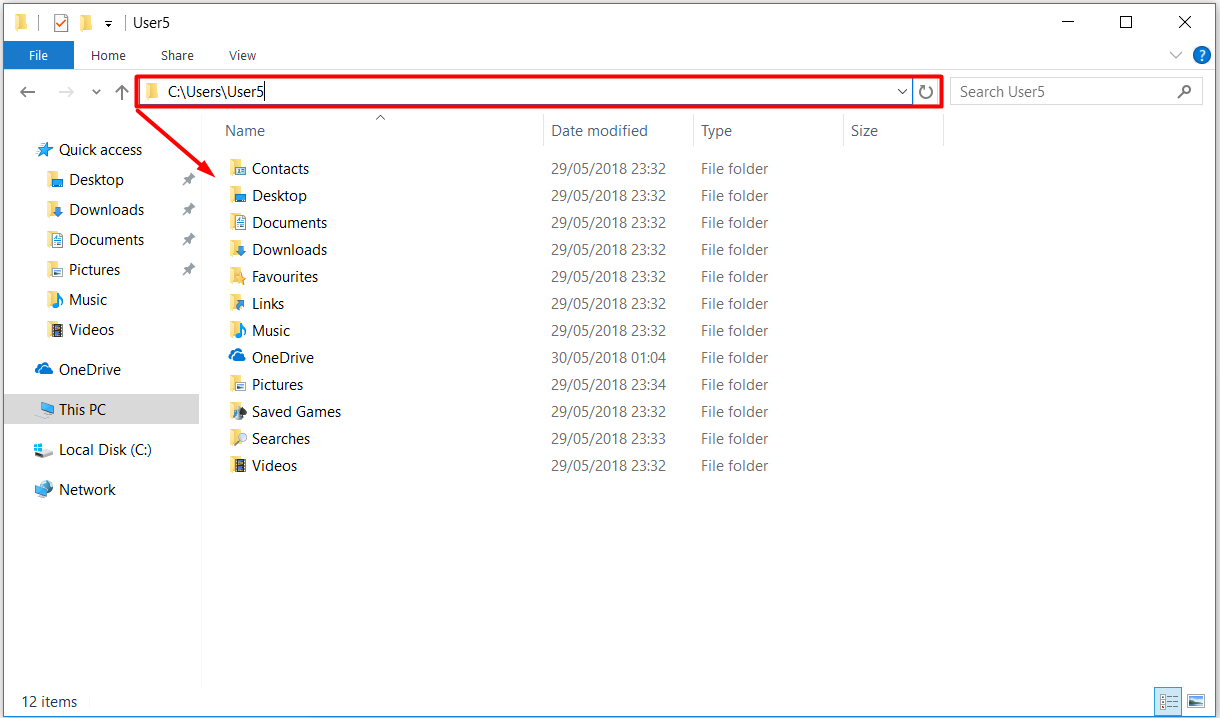
A profile consists of 2 parts. The first is the folder structure under C:\Users\{UserName}. Documents, desktop items and the application files under AppData are stored here and written directly to disk. The second is the NTUSER.DAT file in the root of the same folder. This file holds the user's registry settings. It is loaded into the registry as a hive at sign-in and stays open for the whole session. The User Profile Service (ProfSvc) creates the profile and loads it at each sign-in.
Each user's profile is kept isolated from the others. Even when more than 1 person works on the same computer, each person uses their own desktop folder, their own application settings and their own registry preferences.
The defining characteristic of a local profile is that it stays bound to the computer on which it was created. When the same user signs in on another machine, a new profile is created on that machine, and the settings, documents and desktop on the previous computer are not carried over. In environments where users always work on the same computer, this design works without any additional infrastructure. On shared computers, or in environments where users change devices, the profile has to move with the user. This need is met by solutions such as a roaming profile.
The profile structure described in this article is the same from Windows Server 2008 to Windows Server 2025. In the registry examples, values that differ between versions are noted under the relevant heading.
The Default Folder and Profile Creation
The user's profile folder contains standard folders such as Desktop, Documents, Downloads and Pictures. The AppData directory holds application configuration files, cache data and session histories. This folder is created automatically when the user signs in to the system for the first time. Windows does not do this by writing files from nothing. It uses the folder named Default under the C:\Users directory as a template.
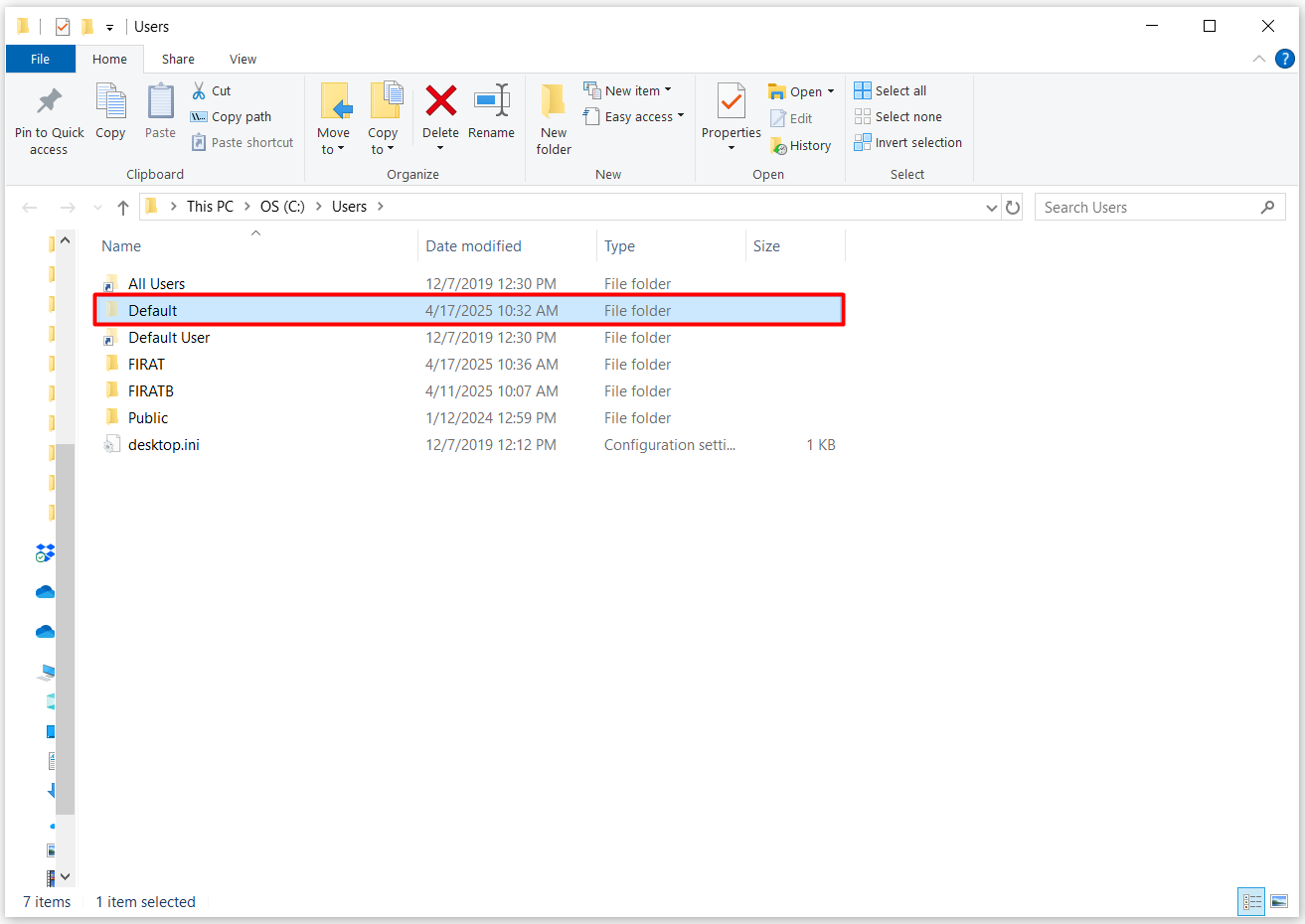
The Default folder is hidden. It contains user-specific subfolders such as desktop, documents and music, empty and ready for use. The AppData folder is present with its Local, Roaming and LocalLow substructure. The NTUSER.DAT file, which carries the default registry settings, is also in this folder. When a new user signs in, Windows copies this content to a new folder at C:\Users\{UserName} and creates the folder on behalf of that user's account. If a profile folder with the same name already exists, a suffix is added to the new folder, for example user.DOMAIN.
The copy takes place once, at the first sign-in. After the profile is created, it has no further connection to the Default folder, and the user works independently in their own folder. For example, when a shortcut is added to the Default\Desktop folder, every user who signs in for the first time after that receives a copy of this shortcut on their desktop. The profiles of users who have already signed in are not affected by this change.
A file placed in the Default folder is not shared between users. A separate copy goes to each profile created afterwards. The place for shared files is the C:\Users\Public folder.
Files and folders can be provided in advance this way. Settings held in the registry, such as the desktop background, are not copied as files. They come from the NTUSER.DAT file in the Default folder. For this reason, in environments where a system image is prepared or a deployment is made to a large number of computers, the content of the Default profile is planned before deployment. A carelessly prepared template appears as missing desktop items, corrupt AppData content or incorrect startup settings for every user who signs in afterwards. Writing a setting that should remain user-specific into the Default profile has the same result.
The method that Microsoft supports for customising the Default profile is the CopyProfile setting used with Sysprep. Manually copying a user profile over the Default folder is not supported.
Workgroup computers always use the local Default folder. In a domain environment, a network default profile can be defined on the NETLOGON share, and the profiles of new domain users can be created from this template. You can find this design in the Domain Default Profile article.
The Default User Folder
Under C:\Users, an item named Default User appears next to the Default folder. It is not a real folder. It is a junction point that points to the C:\Users\Default folder. It was left in place so that applications using the old paths could continue to work when the location of user data changed with Windows Vista and Windows Server 2008. Everything written to it goes to the Default folder. The folder used as the local template when a new profile is created is the Default folder.
NTUSER.DAT and Its Relationship with the Registry
The NTUSER.DAT file in the root of the profile folder is the hive file that holds the user's registry settings. When the user signs in, Windows loads the C:\Users\{UserName}\NTUSER.DAT file as a registry hive and attaches it under the HKEY_USERS\{SID} key. HKEY_CURRENT_USER is not a separate data area. It is a link to this key of the signed-in user under HKEY_USERS. The same data is visible in both locations.
User-specific class registrations, such as file associations, are kept in a separate hive file. This file is at AppData\Local\Microsoft\Windows\UsrClass.dat and is loaded under HKEY_USERS\{SID}_Classes. On the HKEY_CURRENT_USER side, these registrations appear under the Software\Classes key.
When the user changes a setting, the change is written to the in-memory hive through HKEY_CURRENT_USER. Windows does not wait for the session to end. It transfers these changes to the file on disk at regular intervals through the lazy flush mechanism, and at system shutdown. When the user signs out, the hive is unloaded from the registry and the lock on the NTUSER.DAT file is released. This is why the file cannot be copied or deleted while the session is open.
Persistent settings under HKEY_CURRENT_USER, except Software\Classes, are kept in the signed-in user's own NTUSER.DAT file. Keys created as volatile stay in memory and are deleted when the hive is unloaded.
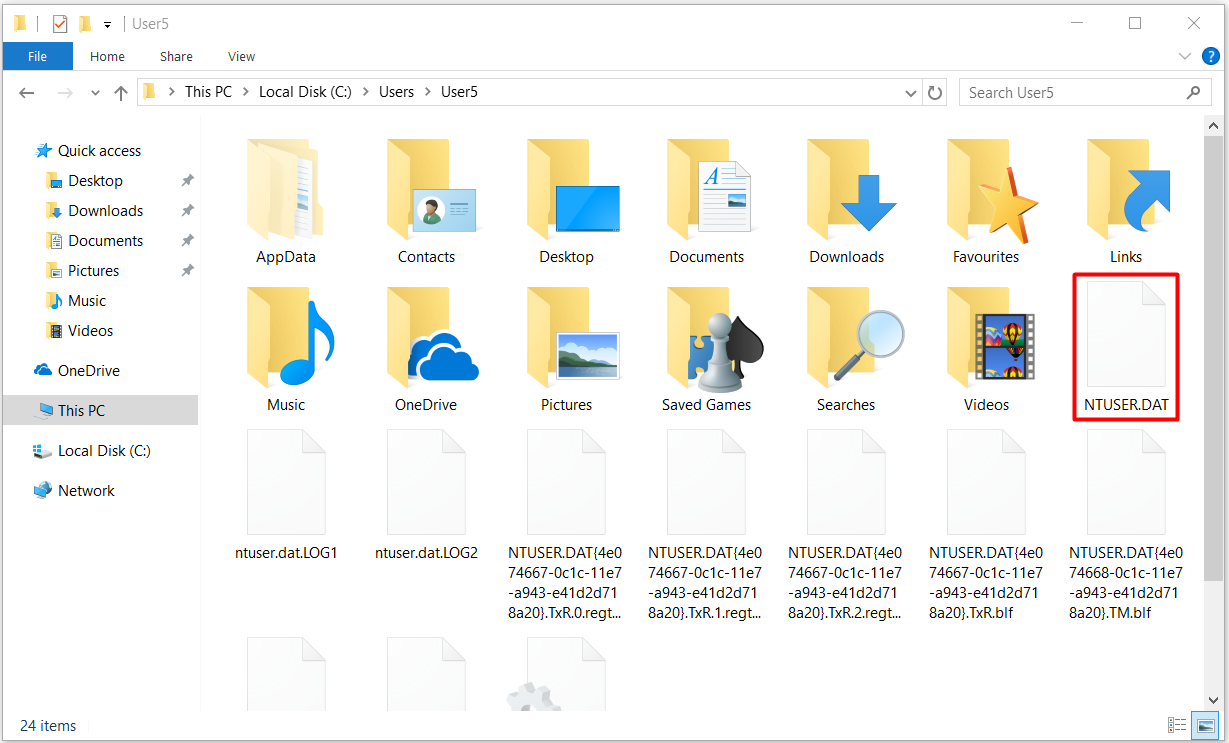
The ntuser.dat.LOG1 and ntuser.dat.LOG2 files, which are stored with NTUSER.DAT in the profile folder, are the transaction log files of the hive. They prevent write operations that are left incomplete during a sudden interruption or a system failure from corrupting the hive. The files with a GUID in their name and the .TM.blf, .TxR.blf and .regtrans-ms extensions belong to the Transactional Registry (TxR) feature introduced with Windows Vista, and they keep the records of the transactions performed on the registry. None of these files should be deleted or edited manually.
Copying the NTUSER.DAT file into another user's profile does not give a reliable result. The profile may fail to load, and the session may open with a temporary profile.
Some example settings written under HKEY_CURRENT_USER are listed below.
👉 Desktop background (Wallpaper)
The desktop background information is kept in the Wallpaper value in the following key.
HKEY_CURRENT_USER\Control Panel\Desktop
When the user changes the desktop background, the file path of the image in use is written to this value.
👉 Screen saver settings (Screen Saver)
Screen saver settings are also stored under the same key.
HKEY_CURRENT_USER\Control Panel\Desktop
ScreenSaveActive determines whether the screen saver is enabled, ScreenSaveTimeOut sets the number of seconds after which it starts, and SCRNSAVE.EXE specifies the .scr file to run.
👉 Mouse settings
User-specific mouse settings are kept under the following key.
HKEY_CURRENT_USER\Control Panel\Mouse
This key contains values such as MouseSensitivity (pointer speed), DoubleClickSpeed (double-click time) and SwapMouseButtons (whether the primary button is the right or the left one). When the user changes these settings, the relevant values are updated.
👉 Taskbar and Start menu layout
Some of the user-specific options for the taskbar and the Start menu are located under the following key.
HKEY_CURRENT_USER\Software\Microsoft\Windows\CurrentVersion\Explorer\Advanced
Showing the Task View button on the taskbar in Windows 11 (ShowTaskViewButton) is an example of the values in this key. Automatically hiding the taskbar is not kept here, and its registry location differs between Windows versions. The documented location for Windows 11 is the following key, and the setting is stored in the binary data in this key. Earlier Explorer versions also used the StuckRects2 key for the same purpose.
HKEY_CURRENT_USER\Software\Microsoft\Windows\CurrentVersion\Explorer\StuckRects3
👉 Explorer view preferences
Explorer view preferences are stored in the following key and its subkeys.
HKEY_CURRENT_USER\Software\Microsoft\Windows\CurrentVersion\Explorer
Showing hidden files (Hidden) and hiding file extensions (HideFileExt) are kept in the Advanced subkey. Window behaviours such as displaying the full path in the title bar are in the CabinetState subkey. Whether items open with a single click or a double click is not held as a separate value. It is stored inside the binary value named ShellState in the Explorer key.
👉 Application-specific settings
User-specific application settings are usually kept in the following layout.
HKEY_CURRENT_USER\Software\{Company}\{Application}
Here, {Company} and {Application} are placeholders. Some applications use a single key directly under their own name. For example, WinRAR stores its compression options and interface settings under HKEY_CURRENT_USER\Software\WinRAR. Not every application uses the registry. In a standard installation, Notepad++ keeps its settings in the config.xml file in the %AppData%\Notepad++ folder. In both cases the settings remain in the user's profile, one in NTUSER.DAT and the other under AppData.
👉 Printer preferences
User-specific printer preferences are stored under the following key.
HKEY_CURRENT_USER\Software\Microsoft\Windows NT\CurrentVersion\Windows
The name of the default printer is kept in the Device value in this key. Whichever printer the user selects as the default, that information is written here. Some software may also store user-specific printing preferences under its own application keys.
👉 Keyboard layout and language preferences
User-specific keyboard layout settings are located under the following key.
HKEY_CURRENT_USER\Keyboard Layout
The Preload subkey lists the keyboard layouts to load at sign-in, by sequence number. Entry 1 is the first layout in the list. The Substitutes subkey defines the mapping when a different layout is to be loaded in place of the standard layout for an input language. For example, using the F keyboard instead of the Q keyboard for the Turkish input language is this kind of mapping.
In current Windows versions, this order alone does not determine the effective default input method. If a default input method override is defined for the user, Windows uses it. If no override is defined, Windows determines the default input method from the user's language list.
👉 Programs that run at sign-in (Run Key)
The entries for programs that should run automatically when the user session starts are found under the following key.
HKEY_CURRENT_USER\Software\Microsoft\Windows\CurrentVersion\Run
When the user's run list is processed, the enabled startup entries in this key are run at that user's sign-in. The user can disable a startup application individually on the Startup apps tab in Task Manager. This mechanism works per user, not for the whole computer.
These entries are not processed in 2 cases. Windows skips the Run keys by default in Safe Mode. If the Do not process the legacy run list setting in Group Policy is enabled, the user's run list is also not run at sign-in.
The User Profile and the ProfileList Record
Windows records which user uses which profile folder in the registry, under the following key.
HKEY_LOCAL_MACHINE\SOFTWARE\Microsoft\Windows NT\CurrentVersion\ProfileList
Each subkey under this key is named with a SID (Security Identifier) and contains the profile record of that account. In the example below, local and Active Directory domain user accounts appear with SIDs that start with S-1-5-21. On a Microsoft Entra joined device, the SID of a Microsoft Entra user has a different prefix, for example S-1-12. S-1-5-18, S-1-5-19 and S-1-5-20 are the profiles of system accounts, and these records must not be changed. The ProfileList key itself contains the Default, ProfilesDirectory, ProgramData and Public values. These values define the root directory in which profiles are created, the Default folder used as the template, and the location of the shared folders.
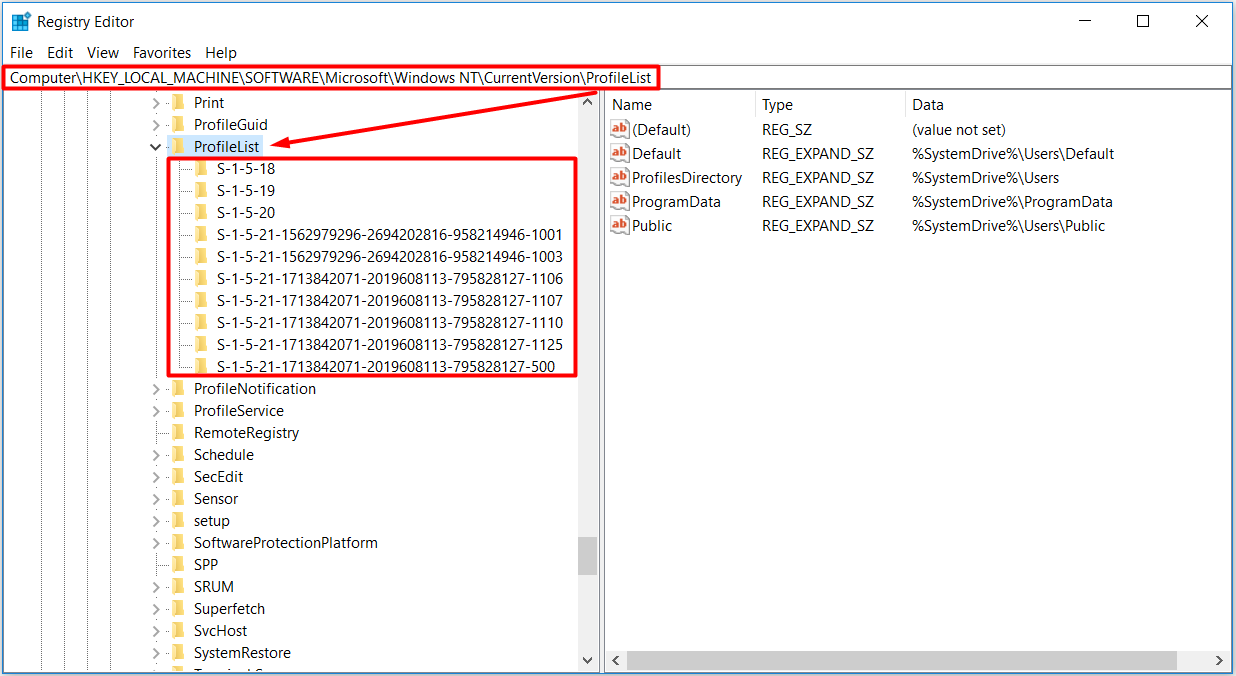
The ProfileImagePath value in each SID key points to the profile folder of that account. For example, the path C:\Users\User5 is defined under the SID that ends with -1110. When the user signs in, the system reads the profile folder to load from this value. The State value in the same key holds the state of the profile.
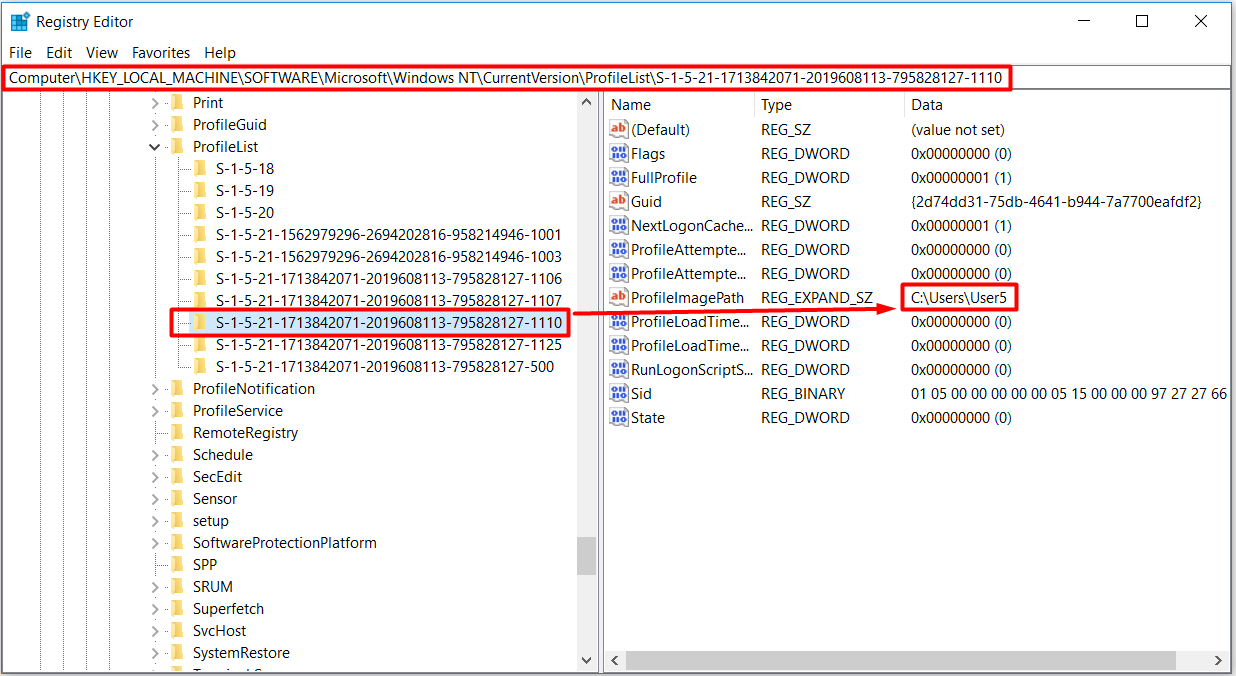
A mismatch between this record and the folder on disk is a known source of profile problems. When the profile folder is deleted manually from under C:\Users, the SID key remains in ProfileList. When the user signs in again, the system cannot find the folder shown in the record and may open the session with a temporary profile.
A SID key under ProfileList with .bak appended to its name is the backup registry record of that profile. Microsoft identifies this record as the place to check for corrupt profile and temporary profile problems. The existence of the record alone does not show that the folder was deleted manually. To find the root cause, the ProfileImagePath value is compared with the folder on disk, and the User Profile Service events in Event Viewer are examined.
To remove a profile, do not delete the folder manually. Instead, select the profile on the System Properties > Advanced > User Profiles > Settings screen and use the Delete option. This operation requires an account that is a member of the local Administrators group or an account that has been delegated permission for this task.
If the profile folder contains local files that need to be kept, they must be backed up before the deletion.
On a machine where the record and the folder remain inconsistent, the relevant SID key may need to be corrected or deleted. The profile folder and the ProfileList key must be backed up before this operation, because a mistake here directly affects the user's sign-in behaviour. Records of accounts that are no longer used also remain under this key as leftover entries. On machines with profile problems, ProfileList is one of the first places to check.
This article covered how a local profile is created, how the C:\Users\Default folder is used as a template, the relationship between the NTUSER.DAT file and HKEY_CURRENT_USER, and how profiles are recorded in the registry under ProfileList. To give new domain user profiles common initial settings, see the Domain Default Profile article. To carry a user's profile settings between computers, see the Roaming Profile article.
I hope you find it useful...
Feel free to share your thoughts and questions about this article in the comments below. Every contribution helps the content reach more people and makes for a more useful discussion.