An email user usually has 2 pieces of information: an email address and a password. The user does not know which Exchange Server to connect to, which protocol and URL the connection uses, or where the Offline Address Book or the free/busy information comes from. The Autodiscover service fills exactly this gap. This service was introduced in Exchange Server 2007. It starts from the email address that the client provides, finds the connection settings of that mailbox and returns them to the client. The Outlook profile is then created from this response, without any server name being entered manually.
The Autodiscover response is not used only during the first profile setup. The MAPI over HTTP and Outlook Anywhere connection settings, the Exchange Web Services (EWS) address, the Offline Address Book (OAB) address and the Availability address that provides the free/busy information all arrive in this response. Outlook runs Autodiscover again about 1 hour after a successful query and about 5 minutes after a failed query. The same query is also repeated when the mailbox is moved to another database or when the connection is lost. For this reason, when Autodiscover does not work, the problem is not limited to profile setup. Features such as Out of Office, free/busy and OAB download also stop working.
The basic operating logic is as follows:
✅ The client sends an Autodiscover request over HTTPS to the Autodiscover URL that it has found. The body of the request contains the email address of the user.
✅ The Client Access services on the Exchange Server receive the request through IIS (Internet Information Services), authenticate it and proxy it to the Mailbox server that hosts the active copy of the user's mailbox.
✅ An XML response that contains the connection settings specific to that user is returned to the client.
✅ The client creates the email profile from the information in this response, or updates the settings in its existing profile.
Starting with Exchange Server 2016, a separate Client Access server role cannot be installed. The Client Access services run on the Mailbox server. For this reason, the cmdlet is now named Get-ClientAccessService.
The main question is where the client finds the Autodiscover URL. A client that has only an email address tries several methods in a specific order to find this address. If a method returns no result, the client moves on to the next one. When one of the methods returns a valid response, the remaining methods are not tried. Below, I first describe the 4 main discovery methods that classic Outlook on Windows uses for a MAPI-based Exchange account, and then the other steps that Outlook places before and between these methods. This service affects all client connections in an Exchange Server environment, so knowing the correct order saves time during troubleshooting.
Not every client uses all 4 methods. Exchange ActiveSync (EAS) clients do not use SCP. They send requests to the HTTPS addresses derived from the email domain, follow the redirect in the response and query the DNS SRV record if the request fails.
1- Service Connection Point (SCP) URL
A domain-joined computer first tries to learn the Autodiscover address from Active Directory. To do this, it uses LDAP to query the Service Connection Point-SCP object in the Active Directory configuration partition. Exchange Server writes the SCP object there. When the Autodiscover virtual directory is created in IIS during setup, an SCP object is created in Active Directory for each Exchange Server at the same time.
2 attributes of the SCP object are important. The serviceBindingInformation attribute holds the Autodiscover URL of that server. The keywords attribute uses the Site= entry to state which Active Directory site the SCP record is associated with. In environments with more than 1 site, the client sorts the SCP URLs that it finds into 3 tiers according to this information. It first tries the SCP records that match its own site. If it does not receive a valid response from them, it moves on to the records that are not bound to any site, and finally to the records defined for another site. In other words, keywords is not a filter, it is an order of priority.
The SCP object is located at the following path in ADSI Edit.
Configuration
└── Services
    └── Microsoft Exchange
        └── FIRATBOYAN (Organization name)
            └── Administrative Groups
                └── Exchange Administrative Group (FYDIBOHF23SPDLT)
                    └── Servers
                        └── EXCHSRV01 (Host Name)
                            └── Protocols
                                └── Autodiscover
                                    └── EXCHSRV01 (serviceConnectionPoint object)
When the Autodiscover container under Protocols is expanded, the SCP object that carries the name of the server is displayed. The value of the serviceBindingInformation attribute in the properties of this object shows the internal Autodiscover URL.
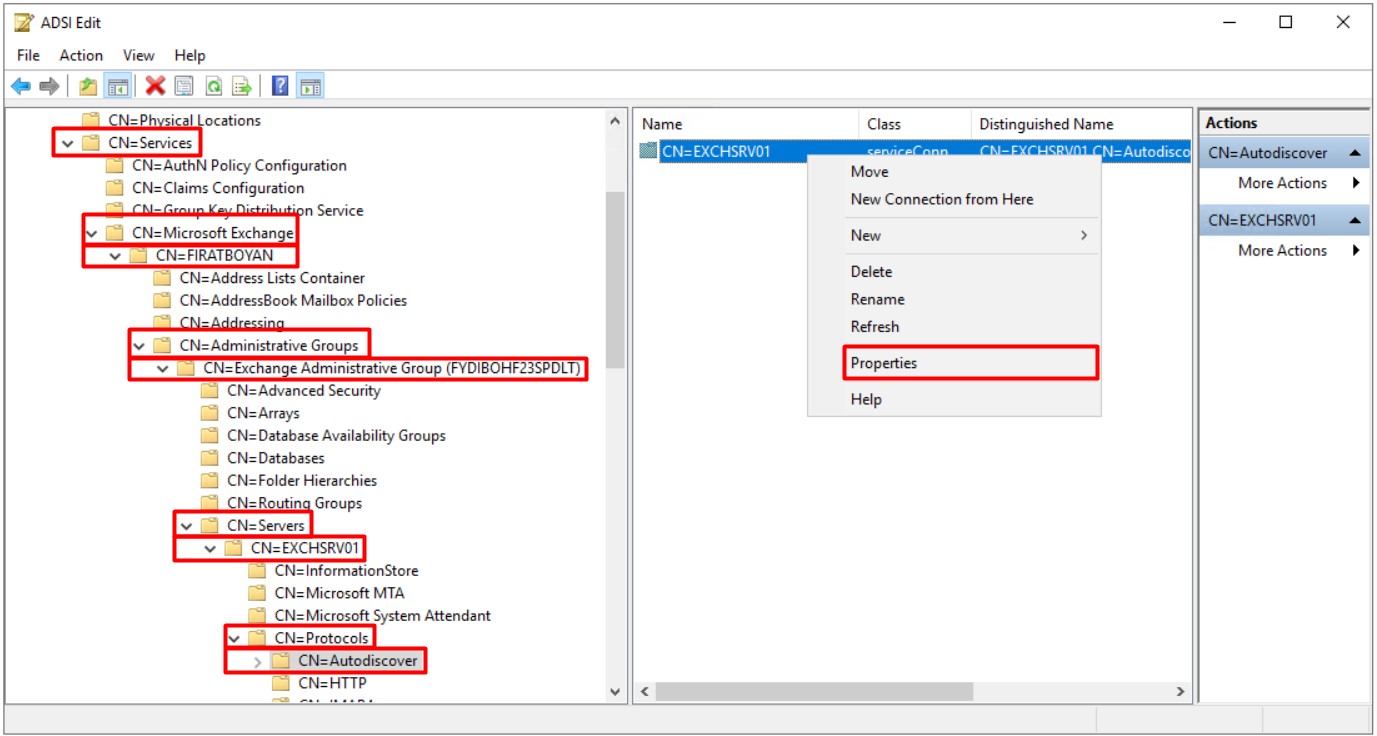
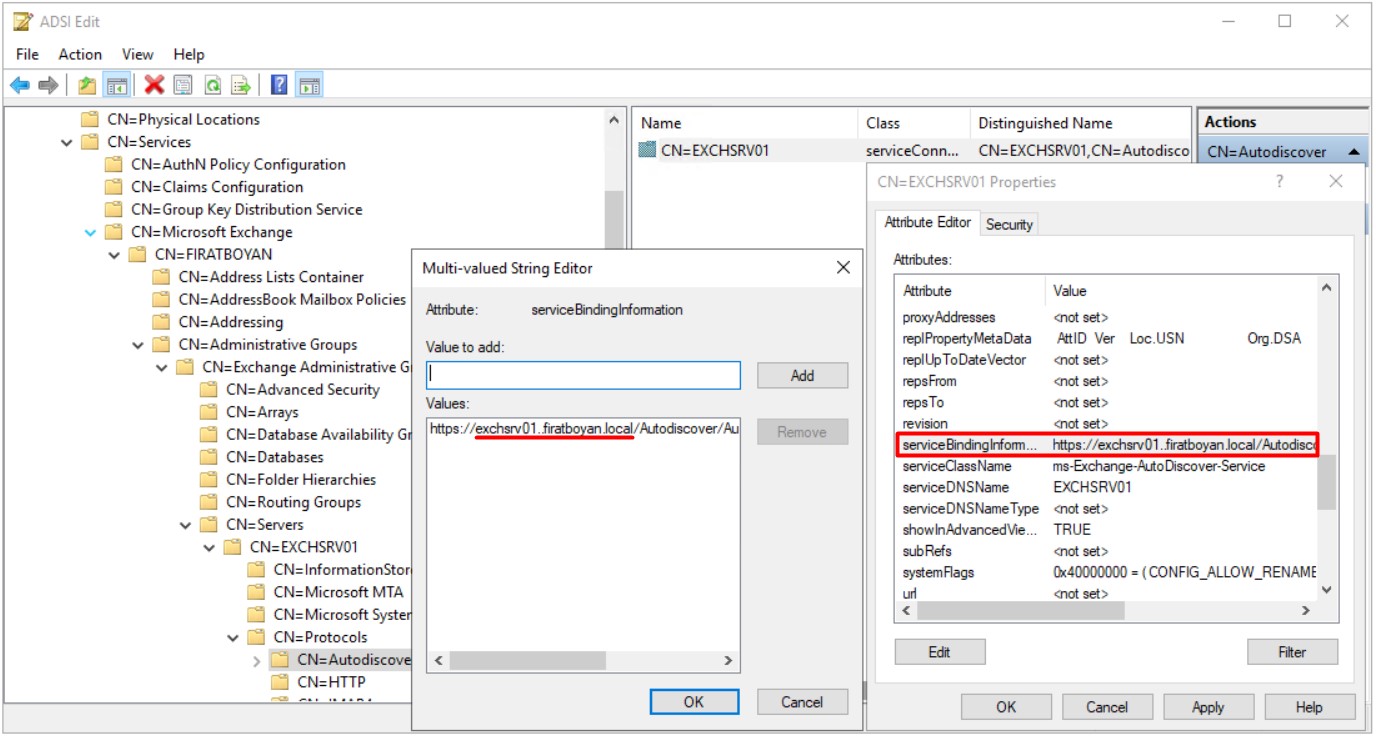
If the domain-joined client can read the Autodiscover URL from the SCP, it takes this address and uses it to reach the service. In a default installation, the URL returned from the SCP contains the FQDN of the Exchange Server itself.
https://EXCHSRV01.firatboyan.local/autodiscover/autodiscover.xml
Leaving the default value like this causes problems in practice. Public certificate authorities do not issue certificates for internal names such as .local, so the server name is not in the certificate and Outlook shows a certificate warning to the user. For this reason, the value in the SCP is changed to a name that is in the digital certificate, with the AutoDiscoverServiceInternalUri parameter of the Set-ClientAccessService cmdlet. In most environments this name is a namespace that is also used for external access, such as autodiscover.firatboyan.com or mail.firatboyan.com. For the internal and external URL values of the other services, see the article in which I describe the virtual directory URL configuration.
The SCP method is not used in 2 cases. Workgroup clients are not members of Active Directory, so they do not query the SCP. A domain-joined client that is not inside the network of the Exchange Server, by physical connection or VPN access, cannot reach a domain controller, and the SCP query returns no result. In both cases the client moves on to the next discovery method.
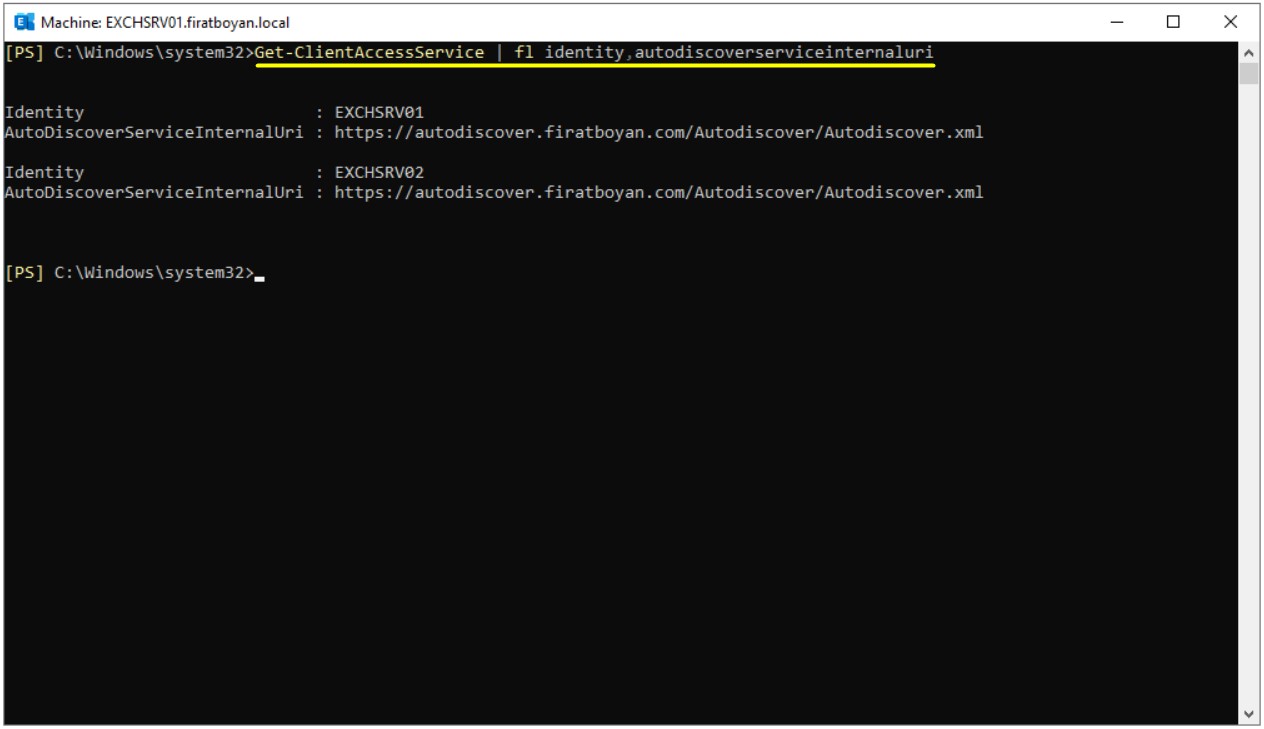
You can also query the Service Connection Point (SCP) information shown in ADSI Edit from the Exchange Management Shell (EMS) with the following command.
Get-ClientAccessService | fl Identity,AutoDiscoverServiceInternalUri
2- Hard-Coded URLs
A client that receives no result from the SCP derives 2 fixed URLs from the part of the email address after the @ sign, that is, the domain suffix. Workgroup clients skip the SCP query and arrive at this method. Domain-joined clients without a VPN connection also reach the same point, because they cannot read the SCP.
For example, the first URL derived for the address mail@firatboyan.com targets the root domain.
https://firatboyan.com/autodiscover/autodiscover.xml
In most organisations the root domain points to the corporate website, so this address usually does not return a valid Autodiscover response. Outlook expects this. It does not show the certificate errors from this step to the user and moves on to the next URL.
https://autodiscover.firatboyan.com/autodiscover/autodiscover.xml
The second URL is the actual Autodiscover address. The client queries the name autodiscover.firatboyan.com in DNS. For external access this name is resolved in public DNS, and for internal access it is resolved in internal DNS. The record can be a Host (A) record, or it can be a CNAME record that points to the externally published name of the Exchange Server. Whichever one is used, the name autodiscover.firatboyan.com must be in the certificate of the server. Unlike the root domain step, certificate errors in this step are not suppressed.
There are 2 reasons why both URLs use HTTPS.
The client verifies the server that it connects to. With the digital certificate that the server presents, the client checks at the start of the communication that the server to which it will send its credentials is really the intended server.
Authentication traffic is carried encrypted. The information exchanged during authentication is protected by TLS against man-in-the-middle attacks.
A client that reaches the Autodiscover service of the Exchange Server at one of the URLs sends its request with HTTP POST. The authentication method depends on the configuration of the client and of the Exchange Server. If the server offers Negotiate, Kerberos is preferred, and NTLM is used when Kerberos is not available. Depending on the configuration, Basic Authentication or Modern Authentication can also be in use. The password is sent to the server only when Basic Authentication is used. With the other methods, the client identifies itself with a ticket, a challenge-response exchange or a token.
3- HTTP Redirection
If the client has reached this stage, it has not received a valid response from the previous 2 HTTPS URLs. In this case it again uses the domain suffix as the reference, and this time derives a non-secure HTTP URL.
http://autodiscover.firatboyan.com/autodiscover/autodiscover.xml
The request sent to this address is a GET request and contains no authentication. At this point the client does not send a user name, a password or any other credential. Because the connection is not HTTPS, no certificate check is possible, so the identity of the remote server cannot be verified. For this reason, the purpose is not to obtain settings. The client only checks whether this address redirects it to another HTTPS address.
If the server returns a 301 or 302 Redirect response, the client takes the address in the Location header of the response. If the address is HTTPS, the client checks its certificate and sends the actual Autodiscover request to this new address with POST. If the server returns an Autodiscover response directly instead of a redirect, Outlook does not use this response, because it arrived over a non-secure channel.
This method is most useful in environments where a large number of domains are served by a single Exchange infrastructure. Instead of adding a separate autodiscover name to the certificate for each domain, the autodiscover record of every domain is pointed to a redirect site that listens only on HTTP, and this site sends the client to a single HTTPS address.
Because the redirect comes from a server whose identity has not been verified, Outlook follows only HTTPS targets and can show the user a warning that asks for approval of the redirect.
If no redirect response arrives, or if the returned address is not valid, the process does not end here. The client moves on to the DNS SRV query.
4- DNS SRV Record
A client that could not reach the Autodiscover service with any of the previous methods queries DNS for an SRV record with the following name.
_autodiscover._tcp.firatboyan.com
The SRV record does not return a URL. Its response contains the priority, weight, port and target host name. For Autodiscover the port value is 443, and the target is the name under which the Exchange Server is published.
_autodiscover._tcp.firatboyan.com SRV 0 0 443 mail.firatboyan.com
The client builds the Autodiscover URL itself from the host name in the record and sends its request to this address over HTTPS.
https://mail.firatboyan.com/autodiscover/autodiscover.xml
The practical benefit of the SRV record is that it does not require the name autodiscover.firatboyan.com to be in the certificate. If the certificate contains only the name mail.firatboyan.com, no A or CNAME record is created for autodiscover, and the SRV record is pointed to this name instead.
If the SRV record is used together with an A or CNAME record, the order must be taken into account. The fact that the name autodiscover.firatboyan.com resolves in DNS does not stop the flow on its own. If an endpoint in one of the previous steps returns valid settings, the SRV record is never queried. If the HTTPS and HTTP redirect steps return no result, Outlook moves on to the SRV query. For this reason, in an environment that relies on SRV, make sure that the previous addresses do not return an Autodiscover response that looks valid from another server.
The SRV record does not carry Autodiscover data, it only points to the target. If a wrong host name is entered, the client sends its request to the wrong server. Make sure that the target name is in the certificate.
If the SRV query also returns no result, Outlook tries the Microsoft 365 endpoints a final time when the conditions are met. If this attempt also returns no settings, Autodiscover fails. In Outlook 2016 and later, Autodiscover must be configured and working in order to connect to Exchange Server. Because the connection settings are taken directly from the Autodiscover response, an Exchange profile cannot be created without a valid response.
5- Steps That Outlook Adds to This Flow
The 4 methods above are only one part of the flow that Outlook runs. The table below shows the Windows flow that Microsoft documents for Outlook 2016, Outlook 2019 and classic Outlook for Microsoft 365. Product support for Outlook 2016 and Outlook 2019 ended in October 2025, so the supported equivalent today is the classic Outlook that comes with Microsoft 365 Apps. During troubleshooting, the reason why Outlook goes to an unexpected address is usually one of the additional steps in the table.
|
Order |
Outlook Step |
What It Does |
Registry Value |
|
1 |
Restart scenario |
In cases such as an account being added while Outlook is running, it reads the response that was cached before the restart. If the expected response cannot be read, the attempt ends here and the later steps do not run. |
None |
|
2 |
Local data preference |
If a local autodiscover.xml file has been deployed with Group Policy, it uses that file. |
PreferLocalXML |
|
3 |
Last Known Good |
It reads the last successful Autodiscover response for the primary mailbox from the local cache. |
ExcludeLastKnownGoodURL |
|
4 |
Microsoft 365 priority |
If it decides that the account belongs to Microsoft 365, it tries the known Microsoft 365 endpoints. |
ExcludeExplicitO365Endpoint |
|
5 |
SCP |
The query described under 1- Service Connection Point (SCP) URL. |
ExcludeScpLookup |
|
6 |
Root domain |
The first URL under 2- Hard-Coded URLs. |
ExcludeHttpsRootDomain |
|
7 |
Autodiscover domain |
The second URL under 2- Hard-Coded URLs. |
ExcludeHttpsAutoDiscoverDomain |
|
8 |
Local data |
It tries the local file once more, even if PreferLocalXML is not defined. |
None |
|
9 |
HTTP redirect |
The GET request described under 3- HTTP Redirection. |
ExcludeHttpRedirect |
|
10 |
SRV |
The query described under 4- DNS SRV Record. |
ExcludeSrvRecord |
|
11 |
Microsoft 365 final attempt |
It tries the Microsoft 365 endpoints a final time with less strict criteria. |
ExcludeExplicitO365Endpoint |
The registry values are defined as DWORD values under the HKCU\Software\Microsoft\Office\16.0\Outlook\AutoDiscover key. If the same values are written with Group Policy under HKCU\Software\Policies\Microsoft\Office\16.0\Outlook\AutoDiscover, the policy key takes precedence. For the values that start with Exclude, 1 makes Outlook skip the related step. For the PreferLocalXML value, 1 enables the step.
The table also shows that on a workgroup computer the flow does not start with the root domain query. The SCP query is skipped, but the Local data preference, Last Known Good and Microsoft 365 priority steps can run before the root domain query.
Step 4 runs before SCP, so it needs separate attention in on-premises environments. For a user whose mailbox is on an on-premises Exchange Server, Outlook first tries the Microsoft 365 endpoints if it treats the account as a Microsoft 365 account. This attempt alone does not indicate an error. If the endpoint does not return valid settings, Outlook moves on to the next step, which is the SCP query. In environments where all mailboxes are on-premises and this attempt is not wanted, the ExcludeExplicitO365Endpoint value is set to 1. This value disables both the priority attempt in step 4 and the final attempt in step 11.
ExcludeExplicitO365Endpoint disables only the direct attempts against the Microsoft 365 endpoint. The other discovery methods or a valid redirect can still take Outlook to Exchange Online. In a hybrid environment, verify that those paths work before you deploy this value.
To see how Autodiscover completes on a computer, use the Test E-mail AutoConfiguration tool in classic Outlook. While Outlook is running, hold down the CTRL key and right-click the Outlook icon in the taskbar to open it. After the email address is entered, the Use Guessmart and Secure Guessmart Authentication check boxes are cleared and the query is started with Test. The tool runs the test on that computer and shows the result on the Results, Log and XML tabs.
Microsoft Remote Connectivity Analyzer, in contrast, starts its tests from the internet and tests the services that are reachable from outside. It is used to understand how the public DNS records, the published Autodiscover address and the certificate appear from outside. It does not show the path that a client on the internal network follows.
This article covered what the Exchange Server Autodiscover service does and the SCP, hard-coded URL, HTTP redirection and DNS SRV methods that classic Outlook on Windows tries in order to find the Autodiscover URL. It then covered the steps that Outlook adds to this flow and the registry values that control each step.
I hope you find it useful...
Feel free to share your thoughts and questions about this article in the comments below. Every contribution helps the content reach more people and makes for a more useful discussion.