In Exchange Server, a database availability group (DAG) keeps copies of a mailbox database on multiple servers. Every transaction log file generated on the active copy is shipped to the passive copies and replayed into the database there. 2 numbers show how far a passive copy is behind the active copy: CopyQueueLength and ReplayQueueLength.
These 2 values do not measure the same thing, and they do not lead to the same result when they rise. CopyQueueLength shows how many logs the passive copy is behind the active copy, and it relates to the changes that can be at risk at the moment of a failover. ReplayQueueLength affects how long the passive copy takes to become active. The value that is rising tells you whether to start the investigation on the transfer side or on the disk side of the target server.
This article is not tied to a specific Exchange Server version. The DAG architecture was introduced with Exchange Server 2010. The CopyQueueLength and ReplayQueueLength values, and the Get-MailboxDatabaseCopyStatus cmdlet that reads them, have the same meaning in Exchange Server 2010, 2013, 2016, 2019 and SE.
The queue logic itself is older than the DAG. Continuous replication, which is based on copying log files and replaying them on the passive side, was first used in Exchange Server 2007 with the LCR, CCR and SCR models. Exchange Server 2010 brought this technology together under the DAG, and later versions kept the same foundation.
How Does It Work?
Every change written to the active copy is first recorded in a transaction log file. The Microsoft Exchange Replication service delivers these log files to the passive copy in 3 stages. The log is first copied to the target server, then its integrity is checked (inspection), and finally it is replayed into the passive database (replay).
Active Copy                                Passive Copy
-----------                                -----------
Log generated --->  Copying    --->  Inspection  --->  Replay  --->  Database
                    |                         |           |
                    +---- CopyQueueLength ----+   ReplayQueueLength
                  (logs waiting to be copied      (logs inspected, not yet
                        and inspected)             replayed into the database)
The 2 queues form at different points of this flow. The copy stage runs over the network between the active and passive servers, so CopyQueueLength reflects the state of the transfer between the 2 servers. The replay stage takes place entirely on the target server and depends on the disk I/O capacity of that server.
Continuous replication works in 2 modes. In file mode, closed log files are transferred from the active copy to the passive copies. In block mode, added with Exchange Server 2010 SP1, every update written to the log buffer of the active copy is also sent to the log buffers of the passive copies at the same time. When the buffer is full, each copy builds and inspects the next log file itself. The queue values do not show the transfer mode, and they are read in the same way in both modes.
What Is CopyQueueLength?
CopyQueueLength is the number of log files that have been generated on the active copy but have not yet been fully copied to the passive copy and inspected. The value is meaningful for passive copies. In a healthy DAG it stays at 0 or very close to 0, because log files are shipped to the target at the rate they are generated.
Active Manager calculates this value from the last log that the passive copy inspected. For this reason, the counter does not show where individual files are or how many messages will be affected. It shows how far the passive copy is behind in the log sequence. If the active server fails at that moment and the missing logs cannot be recovered, the changes in those logs have not reached the passive copy. This is why CopyQueueLength is the queue associated with the risk of data loss.
CopyQueueLength shows how many logs the passive copy is behind the active copy. The changes in the logs that cannot be recovered during a failover are at risk.
The possible reasons for a rising value include latency, packet loss or insufficient bandwidth on the network side. If the copy has been put into the Suspended state, copying stops and the queue grows as logs are generated on the active side. A full log disk on the target server or a stopped Microsoft Exchange Replication service leads to the same result. A higher log generation rate on an active server under heavy load can also raise the queue temporarily.
What Is ReplayQueueLength?
ReplayQueueLength is the number of log files that have been copied to the passive server and inspected, but have not yet been replayed into the passive database. These logs are stored on the disk of the target server. Even if the active server is lost, the data in them is on the passive side.
For this reason, a high ReplayQueueLength does not mean data loss. Its effect is seen in the activation time. The passive copy must replay the logs in the queue before it is mounted, and the longer the queue is, the later the database becomes available to users.
ReplayQueueLength is the number of log files that have been copied to the passive server but have not yet been replayed into the database. It does not affect data loss. It affects how long the copy takes to become active.
The factors that raise this value are on the target server itself. An I/O bottleneck on the database disk, processor load and the activity of other databases that share the same disk are possible reasons for a lower replay rate.
One side effect of a queue that stays high for a long time is seen in log truncation. By default, a log file can be deleted only if it has been backed up or circular logging is enabled, if it is behind the database checkpoint, and if the other copies have finished their work with that log. Copies that are not lagged copies must have replayed the log. Such a copy that is behind in replay delays truncation and can cause the log disk to fill up.
Log truncation does not run on the active copy while one of the passive copies is in the Suspended state. Monitor the free space on the log disk during long maintenance work.
ReplayQueueLength on a Lagged Copy
When the ReplayLagTime value of a database copy is set to a value greater than 0, that copy becomes a lagged copy. The Replication service intentionally does not replay the copied logs for the configured period. The period can be set to a maximum of 14 days.
On such a copy, a ReplayQueueLength in the thousands is the expected behaviour and is not a sign of a fault. When you interpret monitoring output, you need to know which copies are lagged copies. The planned replay delay on a lagged copy does not delay truncation on the active side on its own, because for a lagged copy it is enough that the log has been inspected.
One possible reason for an unexpected drop in the queue on a lagged copy is automatic play down. If Replay Lag Manager is enabled, Exchange Server replays the delayed logs automatically when the number of healthy copies falls below the configured threshold or when the disk space threshold is reached. This behaviour depends on the version and on the DAG configuration. For example, it is disabled by default in Exchange Server 2013 and is enabled with the ReplayLagManagerEnabled parameter of the Set-DatabaseAvailabilityGroup cmdlet.
How Do Queue Values Affect Failover?
A rise in the queue values does not start an activation on its own. When Exchange Server automatically activates a passive copy after a failure, this is called a failover. A planned move started by the administrator is called a switchover. From this point, the queue values affect 2 decisions: which passive copy is selected, and whether the selected copy is mounted automatically. A switchover started without a specified target server uses the same copy selection algorithm.
When Active Manager selects the copy to activate, it first looks for copies with a CopyQueueLength below 10 and a ReplayQueueLength below 50. If no copy meets this criterion, the conditions are relaxed step by step. A copy with high queue values therefore ranks lower during selection.
After the copy is selected, Active Manager tries to copy the missing logs from the server that previously hosted the active copy. This step is called Attempt Copy Last Logs (ACLL). The number of logs still missing is then compared with the AutoDatabaseMountDial setting on the server.
|
AutoDatabaseMountDial |
Automatic Mount Condition |
Lossless |
The database is not mounted until all logs generated on the active copy have been copied to the passive copy. |
GoodAvailability (default) |
The database is mounted automatically if CopyQueueLength is 6 or less. |
BestAvailability |
The database is mounted automatically if CopyQueueLength is 12 or less. |
If the number of missing logs exceeds this limit, the database is not mounted automatically on that copy and Active Manager tries the next copy. With the 2 values other than Lossless, some mailbox data can be lost if the mount takes place before the missing logs are recovered. Safety Net (transport dumpster in Exchange Server 2010), which is enabled by default, reduces this loss by redelivering the messages it holds.
Changing the AutoDatabaseMountDial setting with Set-MailboxServer changes the data loss limit that is accepted during a failover. Do not change this value in a production environment without planning.
Which Queue Points to What?
Reading the 2 values together shows where to start the investigation. The table below summarises the possible situations and the first place to check.
|
Symptom |
Possible Cause |
Where to Check |
|
CopyQueueLength is rising, ReplayQueueLength is low |
The logs cannot reach the target, or the copy is in the Suspended state |
The replication network, the Status value of the copy, the free space on the target log disk, the Microsoft Exchange Replication service |
|
CopyQueueLength is low, ReplayQueueLength is rising |
The logs arrive but cannot be replayed into the database |
The I/O performance of the database disk on the target server, processor load, whether the copy is a lagged copy |
|
Both values are rising together |
In the same measurement interval, neither the copy and inspection rate nor the replay rate keeps up with log generation |
The copy and replay rates separately, the overall resource usage of the target server, the log generation rate on the active side |
|
ReplayQueueLength is constantly very high and stable |
The copy is configured as a lagged copy |
The ReplayLagTime value of the copy |
How Is It Monitored?
The queue values are read with the Get-MailboxDatabaseCopyStatus cmdlet. The cmdlet is available only in on-premises Exchange Server and is run in the Exchange Management Shell on a DAG member server or on a computer where the management tools are installed. The commands do not change the configuration. The account in use must have permission to run this cmdlet. The command below shows which management role is required.
Get-ManagementRole -Cmdlet Get-MailboxDatabaseCopyStatus
The script below goes through all database copies in the organisation and writes the CopyQueueLength and ReplayQueueLength values of each copy to the screen.
$allDBCopies = Get-MailboxDatabaseCopyStatus *
$allDBCopies | ForEach-Object {
    $dbName = $_.Name
    $copyQueueLength = $_.CopyQueueLength
    $replayQueueLength = $_.ReplayQueueLength

    Write-Host "Database: $dbName"
    Write-Host "CopyQueueLength: $copyQueueLength"
    Write-Host "ReplayQueueLength: $replayQueueLength"
    Write-Host "-----------------------------------"
}
The script writes 4 lines for each copy. The first line contains the name of the copy in the Database\Server format, the next 2 lines contain the queue values, and the last line is a separator. On active copies both values show 0, so the blocks that need to be interpreted belong to the passive copies.

A queue value cannot be interpreted on its own without knowing the state of the copy. To see the same information together with the Status value and the time of the last inspected log, you can use the command below. In this output, each row represents 1 copy. The Status value must be Healthy for a healthy passive copy and Mounted for the active copy.
Get-MailboxDatabaseCopyStatus * | Sort-Object Name | Format-Table Name, Status, CopyQueueLength, ReplayQueueLength, LastInspectedLogTime -AutoSize
Another tool that directly tests whether replication keeps up with log generation is the Test-ReplicationHealth cmdlet. In its output, the DBLogCopyKeepingUp test checks whether the copy and inspection stage is behind, and the DBLogReplayKeepingUp test checks whether the replay stage is behind. Replace the {Server Name} value in the command with the name of the DAG member that you want to check.
Test-ReplicationHealth -Identity {Server Name}
To receive periodic email notifications instead of querying the values manually, you can use my script named Copy-Replay-QueueLength.ps1, which I published on GitHub. For each database copy in the $allDBCopies variable, the script adds the CopyQueueLength and ReplayQueueLength values to a table in HTML format and sends it to the specified recipient by email. For the script to run independently, the variable must be populated with the line below before the loop, in a session that has access to the Exchange cmdlets. The sender address, recipient address and SMTP server values must also be edited for your own environment.
$allDBCopies = Get-MailboxDatabaseCopyStatus * -ErrorAction Stop

When we run the script, you can see that the CopyQueueLength and ReplayQueueLength states of our DAG member databases are delivered in HTML format to the email address we specified.
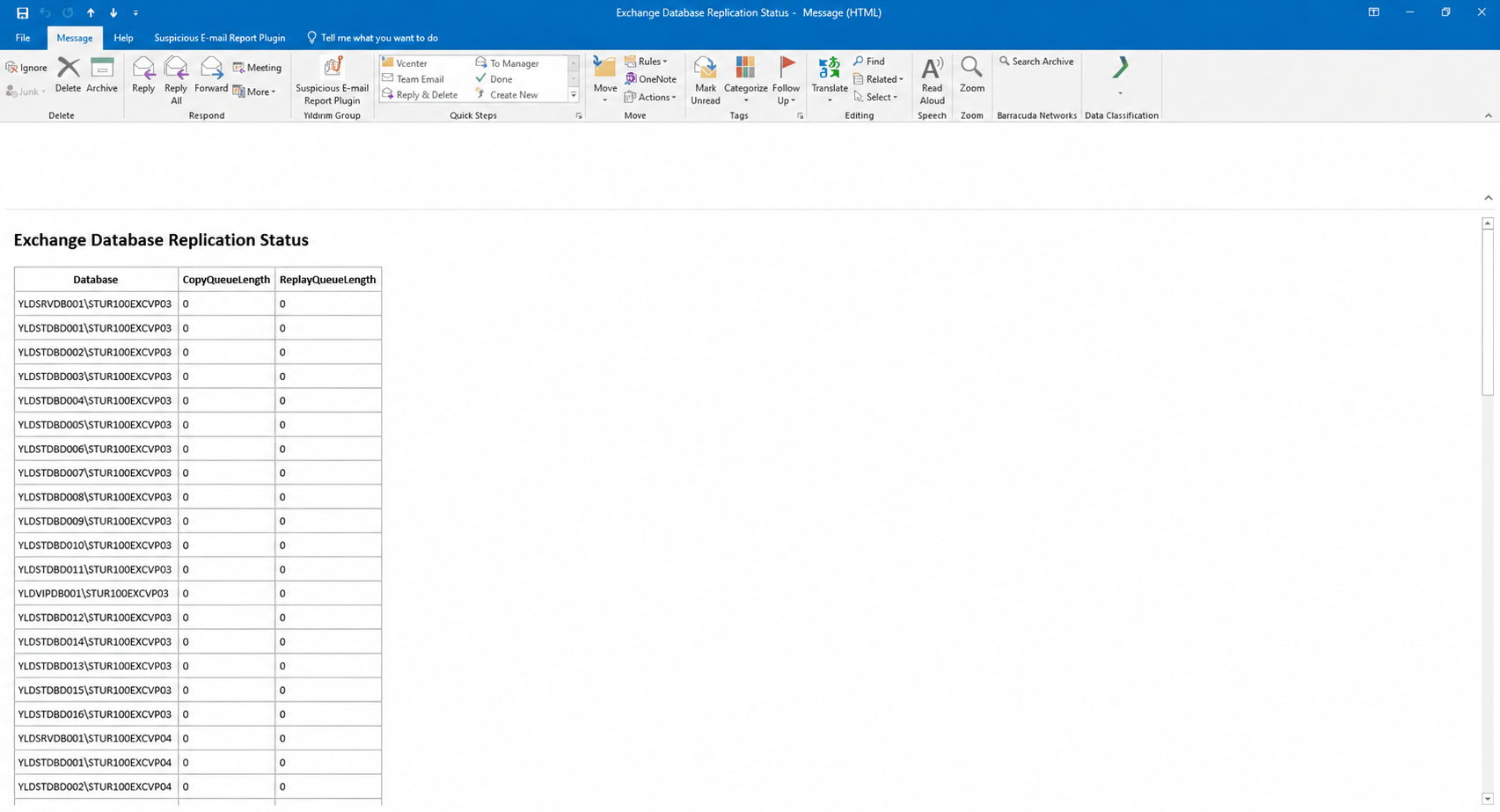
The script can be run at regular intervals with a scheduled task. The report shows the state at the moment of the query, and it does not capture a rise that appears and disappears between 2 runs. Choose the run interval with this in mind. When you read the report, evaluate the high ReplayQueueLength values of copies configured as lagged copies separately.
In this article, I explained at which stage of the replication flow the CopyQueueLength and ReplayQueueLength values form, how they affect copy selection and the automatic mount decision during a failover and a switchover, which queue points to which problem, and how these values are monitored with PowerShell.
I hope you find it useful...
Feel free to share your thoughts and questions about this article in the comments below. Every contribution helps the content reach more people and makes for a more useful discussion.