Hyper-V Virtual Switch is a software-based Layer 2 Ethernet switch that runs on the Hyper-V host. The virtual network adapters (vNICs) of the virtual machines connect to the ports of this switch, and the type of the switch determines how far the traffic can go: to the physical network, to the host, or only to the other virtual machines connected to the same switch. It works on the same principle as a physical access switch: it learns MAC addresses, forwards frames to the relevant port and processes VLAN tags.
The difference is that the port is a property of the virtual machine's vNIC. Bandwidth limits, VLAN assignment and security settings are applied to individual vNICs, not to the switch as a whole, and when the virtual machine is moved to another host, these settings move with it. The first part of the article describes the port-level security and performance features of the virtual switch, and the second part describes the behaviour of the external, internal and private switch types.
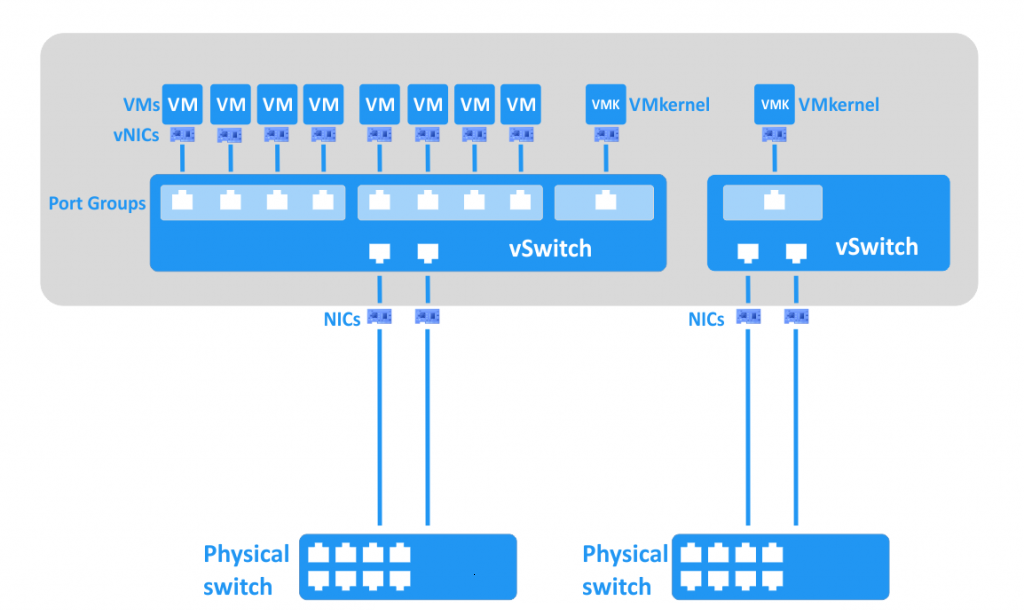
All of the features here are available in Windows Server 2016 and later versions. Port ACL, DHCP Guard and Router Guard were introduced in Windows Server 2012, extended port ACL in Windows Server 2012 R2, and Switch Embedded Teaming (SET) in Windows Server 2016.
Hyper-V Virtual Switch Security and Performance Features
The Hyper-V role first arrived with the 64-bit edition of Windows Server 2008. With Windows Server 2012, the virtual switch gained an extensible structure; port ACLs, DHCP Guard, Router Guard and bandwidth management were added in this version. Features introduced in later versions are stated with their version under the relevant headings.
For readers who come from the physical network side, 1 point needs to be clear from the start. Concepts such as Dynamic ARP Inspection (DAI), DHCP Snooping, IP Source Guard and trusted or untrusted ports belong to physical switches and do not exist under these names in Hyper-V Virtual Switch. Hyper-V uses its own mechanisms against the same threats: port ACLs, DHCP Guard, Router Guard and the MAC address spoofing setting. All of them are configured per vNIC.
1- ARP/ND Poisoning (Spoofing) Protection
ARP poisoning is an attack that corrupts the ARP cache entries of devices on the same Layer 2 segment. The attacker sends forged ARP reply packets to the target devices and advertises its own MAC address for an IP address that belongs to another device. This IP address is usually the default gateway address. Devices that accept the forged entry start to send their traffic to the attacker, and the attacker can then capture, modify or drop this traffic. On the IPv6 side, the same attack is carried out with Neighbor Discovery (ND) messages.
In a virtualisation environment, the attacker can be another virtual machine connected to the same virtual switch. Microsoft lists ARP/ND Poisoning (Spoofing) protection among the features of Hyper-V Virtual Switch, but Hyper-V Manager has no setting with this name. The configuration is done with port ACL rules through PowerShell. The approach is to restrict the IP addresses that can pass through the virtual machine's switch port.
The 2 commands below apply an IP allowlist: they allow the IP address assigned to the virtual machine and deny all other addresses. The commands are run on the Hyper-V host, in a PowerShell session opened with administrator rights. Replace the {VM Name} and {VM IP Address} values to match your own environment.
Add-VMNetworkAdapterAcl -VMName "{VM Name}" -LocalIPAddress {VM IP Address} -Direction Both -Action Allow
Add-VMNetworkAdapterAcl -VMName "{VM Name}" -LocalIPAddress ANY -Direction Both -Action Deny
Among IP-based port ACL rules in the same direction, the longest match rule applies. The Allow rule that defines a single host address is more specific than the Deny rule written with ANY, so traffic for that address passes.
Before this example is applied, 3 points need attention. The ANY value matches both IPv4 and IPv6 addresses; when a single IPv4 address is allowed, the other IPv4 addresses of the virtual machine are denied, and so is its IPv6 traffic. If the virtual machine uses IPv6 or the adapter has more than 1 IP address, separate Allow rules must be written for these addresses. If the virtual machine has more than 1 vNIC, the rule must be applied only to the intended adapter with the -VMNetworkAdapterName parameter. On a virtual machine that gets its address from DHCP and whose address can change, communication stops unless the rule is updated.
These 2 rules restrict the IP traffic that passes through the vNIC to the specified address. On their own, they must not be treated as a guarantee of complete protection against ARP and Neighbor Discovery attacks.
2- DHCP Guard and Router Guard
A rogue DHCP server is one of the easiest man-in-the-middle attacks on a network. A virtual machine that runs the DHCP Server service can reply to DHCP requests from clients before the real DHCP server does. If the client accepts this offer, the result depends on the information in the offer. If the address of the rogue server is given as the default gateway, the client's traffic to remote networks goes to that virtual machine. If only the DNS server address is changed, the client's DNS queries go to the server given in the offer; the default route does not change, but forged DNS responses can direct the client to wrong addresses. The same result can also occur without malicious intent; a DHCP server installed for testing only needs to be connected to the wrong switch.
DHCP Guard blocks this behaviour at vNIC level. When the setting is enabled on a virtual machine's network adapter, the virtual switch drops the messages that the virtual machine sends as a DHCP server. The virtual machine continues to work as a DHCP client, which means it can obtain an IP address but cannot distribute addresses. Hyper-V does not keep an IP and MAC binding database; the decision is based on the type of the message and the port it leaves from.
To map this to the DHCP Snooping logic of physical switches, a vNIC with DHCP Guard enabled behaves like an untrusted port, and a vNIC with DHCP Guard disabled behaves like a trusted port. Microsoft's parameter definition makes the same distinction: with the On value the virtualised DHCP server is considered untrusted, and with the Off value it is considered trusted. The correct usage is to enable DHCP Guard on all virtual machines except those that hold the authorised DHCP server role.
Router Guard applies the same approach to router messages. Router Advertisement and Redirect messages that leave a vNIC with the setting enabled are dropped. This prevents a virtual machine from advertising itself as a router and changing the default gateway information of other virtual machines, especially on the IPv6 side. Router Guard affects only these control messages; it does not interfere with the virtual machine forwarding IP packets from one interface to another. On a virtual machine that performs static IPv4 routing, having Router Guard enabled does not stop the routing.
Both settings are configured in Hyper-V Manager on the virtual machine's Settings > Network Adapter > Advanced Features page or with PowerShell. The command below is run on the Hyper-V host and enables both protections on the network adapters of the specified virtual machine.
Set-VMNetworkAdapter -VMName "{VM Name}" -DhcpGuard On -RouterGuard On
If DHCP Guard is enabled on the virtual machine that holds the authorised DHCP server role, this server cannot assign IP addresses. Router Guard must be kept disabled on a vNIC that needs to send Router Advertisement or Redirect messages.
3- Port ACL and Extended Port ACL
A port ACL (access control list) is a rule that is applied to a virtual switch port and determines whether a packet is accepted or denied as it enters or leaves the virtual machine. It is not a protocol; it is a property of the switch port. More than 1 rule can be defined on the same port, and each rule affects the vNIC of a single virtual machine.
A basic port ACL works with 3 pieces of information: address, direction and action. The address can be an IP address, an IP range or a MAC address. The direction is given as Inbound, Outbound or Both. The action is one of Allow, Deny or Meter, which is used to measure traffic. A basic port ACL does not look at the protocol or port number; it either allows or blocks all communication with an address.
The command below blocks communication between the specified virtual machine and {IP Range} in both directions. The command is run on the Hyper-V host; the range is written in the form 192.168.10.0/24.
Add-VMNetworkAdapterAcl -VMName "{VM Name}" -RemoteIPAddress {IP Range} -Direction Both -Action Deny
Filtering by protocol and port number is done with extended port ACLs, introduced in Windows Server 2012 R2. In extended port ACL rules, the protocol, local port and remote port can be defined in addition to the source and destination IP address. The -Weight value determines the priority of the rules, and a higher value is evaluated first. With the -Stateful parameter, there is no need to write a separate rule for the return traffic of an allowed connection.
The example below denies connections to the virtual machine on TCP port 3389 at the switch port.
Add-VMNetworkAdapterExtendedAcl -VMName "{VM Name}" -Action Deny -Direction Inbound -LocalPort 3389 -Protocol TCP -Weight 10
The rules defined for a virtual machine are listed with the Get-VMNetworkAdapterAcl and Get-VMNetworkAdapterExtendedAcl commands. Port ACL rules work independently of the operating system inside the virtual machine, so the rule remains in effect even if the administrator of the virtual machine disables Windows Firewall.
4- MAC Address Spoofing
Because of its name, the MAC address spoofing setting is often mistaken for a protection feature. It is in fact a permission setting, and it determines whether the virtual machine can use a source MAC address in outgoing packets that is different from the MAC address assigned to it.
When the setting is Off, the virtual machine can use only the MAC address assigned to it and cannot impersonate the MAC address of another device. This is the state that provides protection. When it is On, the virtual machine is allowed to send packets with a different source MAC address.
The setting needs to be enabled in topologies where more than 1 MAC address reaches the switch through a single vNIC. The best-known example is Nested Virtualization. If the virtual machines of a virtual machine that runs Hyper-V need to reach the external network with their own MAC addresses, the packets pass through 2 virtual switches, and MAC address spoofing must be enabled on the vNIC connected to the first-level switch, that is, on the adapter of the virtual machine that acts as the nested host. If the inner virtual machines reach the external network through NAT, only the nested host's own MAC address reaches the switch and this setting is not needed.
The command below is run on the physical Hyper-V host and enables MAC address spoofing on the network adapters of the specified virtual machine. The same setting can also be configured on the Advanced Features page in Hyper-V Manager.
Get-VMNetworkAdapter -VMName "{VM Name}" | Set-VMNetworkAdapter -MacAddressSpoofing On
This permission also makes it possible for the virtual machine to use the MAC address of another device on the same segment. It should be left disabled on virtual machines whose topology does not require it.
5- Bandwidth Management and Hardware Acceleration
The virtual switch provides bandwidth management per vNIC. In this feature, which is part of Quality of Service (QoS), 2 limits can be defined. Maximum bandwidth sets the upper limit that the virtual machine can use and prevents a single virtual machine from filling the whole physical NIC. Minimum bandwidth guarantees the share reserved for the virtual machine at times of congestion.
On the performance side, the load is offloaded to the capabilities of the physical NIC. Virtual Machine Queue (VMQ) distributes incoming packets into separate queues on the physical NIC according to the destination virtual machine, so the packet classification work is not concentrated on a single CPU core of the host. On adapters that support SR-IOV, the virtual machine accesses a virtual function of the physical NIC directly and the traffic does not pass through the software layer of the virtual switch. These features depend on the support of the physical NIC and its driver.
IPsec task offloading is a historical feature today. It was designed to move IPsec encryption and integrity calculations to a NIC that supports them; however, Microsoft defines this technology as deprecated as of Windows Server 2016 and recommends not using it. Most network adapters do not support this feature, and on those that do, it is disabled by default.
Hyper-V Virtual Switch Types
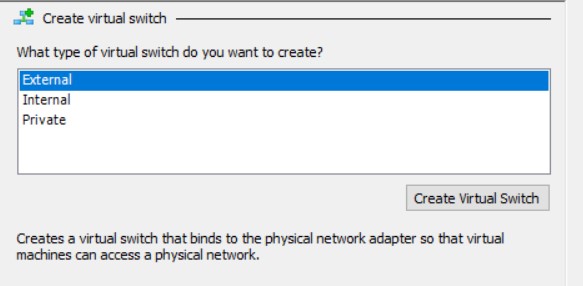
Hyper-V has 3 virtual switch types: External, Internal and Private. All 3 use the same switch engine; the difference is in what is connected to the switch. An external switch has a physical NIC connected to it, an internal switch has a virtual adapter of the host connected to it, and a private switch has only virtual machines connected to it. These 3 sentences answer the question of which systems a virtual machine can communicate with.
1- External Virtual Switch
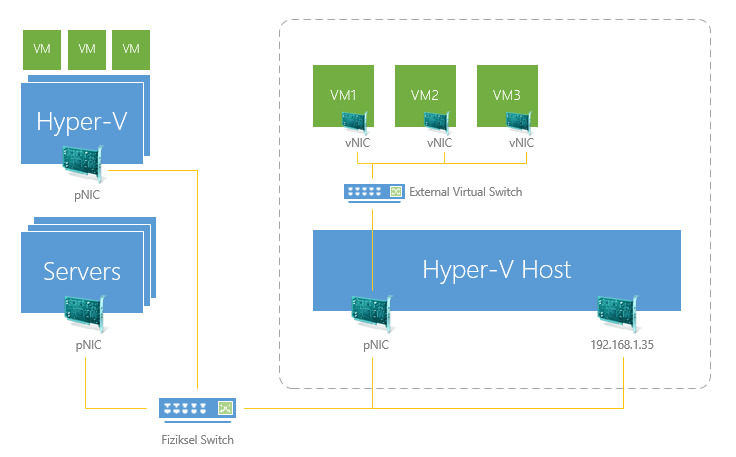
An external virtual switch is the switch type that connects virtual machines to the physical network. When it is created, a physical NIC on the host is selected and this NIC is bound to the switch. From that point, the physical NIC works as the uplink port of the virtual switch to the physical network.
The connection is at Layer 2. Virtual machines communicate with devices on the physical network by MAC address, as if they were connected directly to a physical switch. The switch does not copy every frame to the uplink; it forwards the frame to the ports where its destination is located. Unicast traffic between 2 virtual machines on the same host, connected to the same switch and the same VLAN, stays inside the host and never reaches the physical NIC. Traffic whose destination is on the physical network, together with broadcast and multicast traffic, is carried out through the uplink, and traffic from the physical network reaches the virtual machines by the same path. VLAN ID assignments are made on the vNIC, and the physical switch port must be configured to carry these VLANs.
The practical result is that the virtual machine behaves exactly like a physical server. It obtains an IP address from the DHCP server on the physical network, sends DNS queries, joins the domain and carries out operations such as Active Directory replication. Access to different subnets is the job of the router that is the virtual machine's default gateway, not of the switch; the virtual switch does not perform Layer 3 routing.
The point that needs the most attention when an external switch is created is the host's own network access. When the physical NIC is bound to the switch, the host operating system cannot use this NIC directly. For the host to keep its network access through the same NIC, the Allow management operating system to share this network adapter option is selected. This option creates a virtual adapter named vEthernet ({Switch Name}) on the host, and the host communicates through this adapter.
On a switch created without this option, no default management adapter is created for the host. In this case there are 2 options. The first is to add a host vNIC to the same external switch later with Add-VMNetworkAdapter -ManagementOS and to define an IP address and, if required, a VLAN on this adapter; designs in which management, Live Migration and cluster traffic are split across separate host vNICs are built this way. The second is to use a separate physical NIC for management traffic.
Creating an external switch on the host's only physical NIC without leaving a working management path removes the host's network access. If the operation is performed remotely, the session disconnects.
By default, a single physical NIC is connected to an external switch. In Windows Server 2016 and later, Switch Embedded Teaming (SET) allows more than 1 physical NIC to be made a member of the same switch, so redundancy and load distribution are provided inside the switch. In designs built with a single NIC, capacity planning must be based on the total of the virtual machines' traffic to and from the physical network; traffic that stays inside the same host does not use this NIC.
2- Internal Virtual Switch
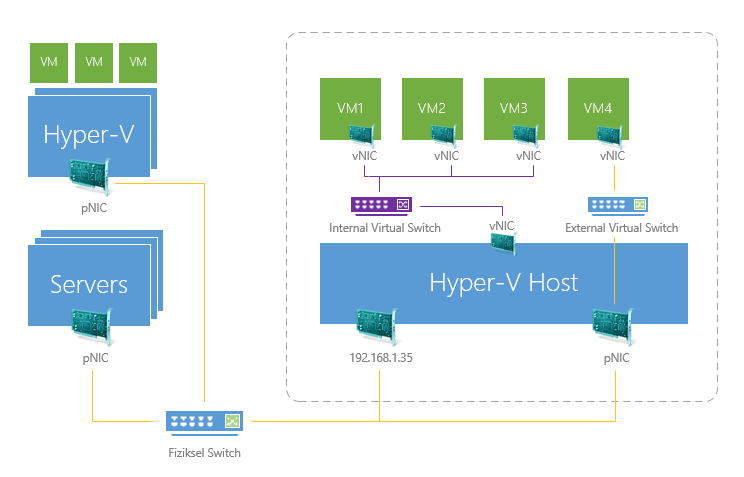
An internal virtual switch is the switch type that is not connected to a physical NIC and keeps the traffic inside the host. When it is created, a virtual adapter named vEthernet ({Switch Name}) is created automatically on the host and connected to the switch. As a result, virtual machines on the same host can communicate both with each other and with the host operating system.
Because the switch has no uplink to the physical network, Layer 2 traffic does not leave this segment. Broadcast, unicast and multicast traffic sent by the virtual machines does not reach the physical network, and DHCP broadcasts from the physical network do not reach this segment. For the virtual machines to obtain IP addresses, the addresses must be assigned manually or a DHCP server must be connected to the same switch.
The presence of the host on this segment is the main reason for using this type. Files can be copied from the host to the virtual machines, a Remote Desktop connection can be made, or an application on the host can be tested against services on the virtual machines. It is suitable for test and development environments that must work without leaking traffic to the physical network.
An internal switch does not provide external network access by itself, but the host can take the gateway role for this segment. To do this, the segment's gateway address is first assigned to the host's internal vEthernet adapter with New-NetIPAddress, and then a NAT is defined for the same prefix with New-NetNat. WinNAT does not assign IP addresses to virtual machines; on each virtual machine, an IP address from the same prefix, the host's vEthernet address as the default gateway, and the DNS server information must be defined manually. The Default Switch that comes with Hyper-V on Windows client operating systems also uses NAT.
Domain join and DNS resolution depend on this access path. A virtual machine on an isolated internal switch cannot reach a domain controller on the physical network directly. If the domain controller is on the same segment, the join works without problems. If the domain controller is on another segment, the virtual machine must have a Layer 3 path to that segment, must be able to resolve the Active Directory DNS records and must be able to reach the required services on the domain controller. Unless NAT or routing is defined, internet access and external DNS resolution also fail.
If a second network adapter is added to a virtual machine and connected to an external switch, that virtual machine has access to 2 segments at once. The isolation of the internal switch applies only to virtual machines whose only adapter is connected to this switch.
3- Private Virtual Switch
A private virtual switch is the most closed of the 3 types. Neither a physical Network Interface Card (NIC) nor a virtual adapter of the host is connected to the switch. The only things connected are the vNICs of the virtual machines, and these virtual machines can communicate only with each other.
The difference from an internal switch is on the host side. When a private switch is created, no vEthernet adapter is created on the host. It is not possible to ping the virtual machines from the host, copy files to them or connect to them with Remote Desktop; the virtual machines are accessed through the console connection in Hyper-V Manager. Communication is VM-to-VM only.
The segment receives no broadcast or multicast traffic from outside and sends no frames outside. Services such as DNS and DHCP can be used if they run on a virtual machine connected to this switch. The scope of a private switch is limited to a single host; private switches created with the same name on different nodes of a failover cluster are not connected to each other, and virtual machines on different nodes cannot communicate through this switch.
This isolation is useful in scenarios where traffic must not leak outside: malware analysis, attack simulations, and tests that run on a copy of the production environment and must not conflict with the real systems. Starting a copy of a production domain controller while it is connected to a private switch prevents 2 servers with the same name and the same IP address from being on the same network at the same time.
When the private type is selected without noticing, the resulting symptom is misleading. The virtual machine's network adapter appears connected, the IP configuration is correct and pings to other virtual machines on the same switch succeed, but the default gateway and the host cannot be reached. In this situation, the first thing to check is the type of the switch that the virtual machine is connected to.
The exception for the internal switch also applies here. If a second adapter connected to an external or internal switch is added to a virtual machine on a private switch, that virtual machine can reach outside the isolated segment.
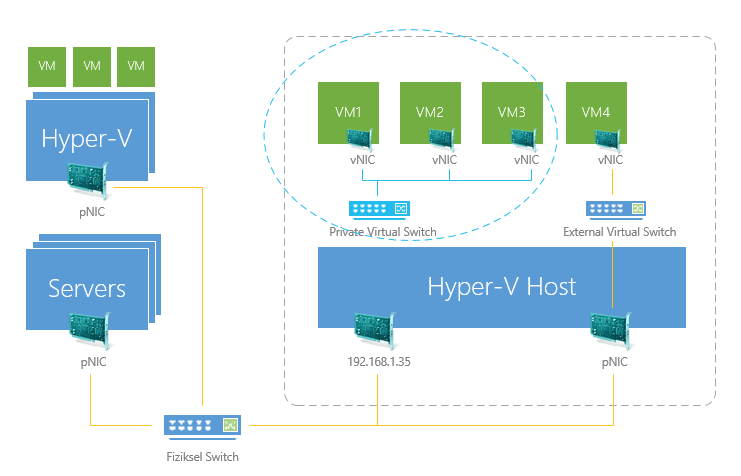
External, Internal and Private Virtual Switch Comparison
The table below compares the behaviour of the 3 switch types against the same criteria.
|
Feature |
External Virtual Switch |
Internal Virtual Switch |
Private Virtual Switch |
|
Connection to a Physical NIC |
Yes |
No |
No |
|
Communication with the Hyper-V Host |
Yes (if a host vNIC is defined) |
Yes (through vEthernet) |
No |
|
Communication Between VMs |
Yes |
Yes |
Yes |
|
Physical Network Access |
Yes |
No (yes if NAT or routing is defined on the host) |
No |
|
Ping / RDP from Host to VM |
Possible |
Possible |
Not possible |
|
Is a vNIC Created on the Host? |
Automatic if management sharing is enabled; can be added later if it is disabled |
Yes, automatic |
No |
|
Layer 2 Broadcast Scope |
Shared with the physical network |
Within the internal segment |
Within the private segment |
|
DHCP / DNS Source |
Services on the physical network |
A VM on the segment or the host |
A VM on the segment |
|
Use Case |
Servers that need access to the physical network and the internet |
Test environments that interact with the host and are closed to the external network |
Fully isolated test environments and simulations |
A single virtual switch does not meet the needs of most environments. The common design is to use an external switch for production traffic together with internal or private switches for isolated test segments. Because more than 1 network adapter can be added to a virtual machine and connected to different switches, virtual machines that act as a router or firewall between 2 segments are also built this way.
In this article, I covered the port-level security features of Hyper-V Virtual Switch and the behaviour of the 3 switch types. I explained how port ACLs restrict the IP traffic that passes through the vNIC, which messages the DHCP Guard and Router Guard settings drop, that the MAC address spoofing setting is a permission setting, and that extended port ACLs allow filtering at protocol and port level. I showed that the difference between external, internal and private switches comes from whether a physical NIC and the host are connected to the switch. The switch type is a decision made in the first step in Hyper-V Manager or PowerShell, and the answer to the question of why a packet does not reach a virtual machine is usually found in this decision.
I hope you find it useful...
Feel free to share your thoughts and questions about this article in the comments below. Every contribution helps the content reach more people and makes for a more useful discussion.