If you see the permission-issue error with the code 8344 next to it in Synchronization Service Manager while synchronising on-premises Active Directory (AD) objects with Microsoft Entra ID, the problem is on the on-premises Active Directory side, not on the cloud side. The error occurs in the Export step of the AD connector. In other words, Microsoft Entra Connect Sync tries to write a value to an attribute of an object in Active Directory, and the domain controller rejects the request with the response Insufficient access rights to perform the operation.
The part that fails is the values that Entra Connect writes back to Active Directory (writeback). The Import and Synchronization steps continue to work, but the Export step returns the error again for the same objects in every cycle. The effect of the error on the user depends on the attribute that cannot be written. If an attribute such as Exchange hybrid writeback cannot be written, the user already exists in Entra ID and only the written-back value is missing. The situation is different if the attribute that cannot be written is mS-DS-ConsistencyGuid selected as the source anchor. The first export of a new user to Entra ID takes place after this attribute is populated in Active Directory.
In this article, I first explain how the error appears in Synchronization Service Manager and why it occurs. I then use the Troubleshoot task in Microsoft Entra Connect Sync to redefine the permissions of the AD DS Connector account, replicate the change between the domain controllers and verify that the error is gone. Microsoft Entra Connect Sync installation is outside the scope of this article.
Permission Issue 8344 Error
How the Error Appears
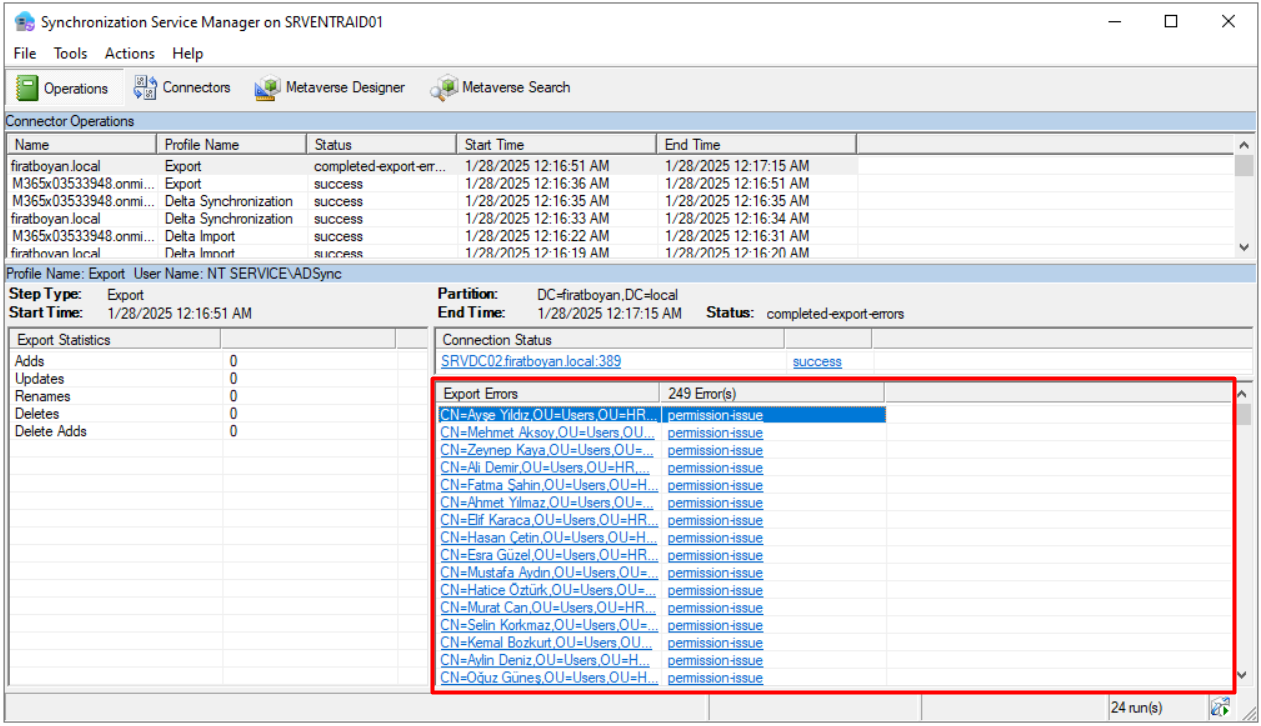
When I open the Operations tab in Synchronization Service Manager, I see that the Export row of the firatboyan.local connector has completed with the completed-export-errors status. When I select the row, the Export Errors area lists the permission-issue error for several users. Note that the error occurs on the Active Directory connector, not on the Entra ID connector. The write request goes to Active Directory.
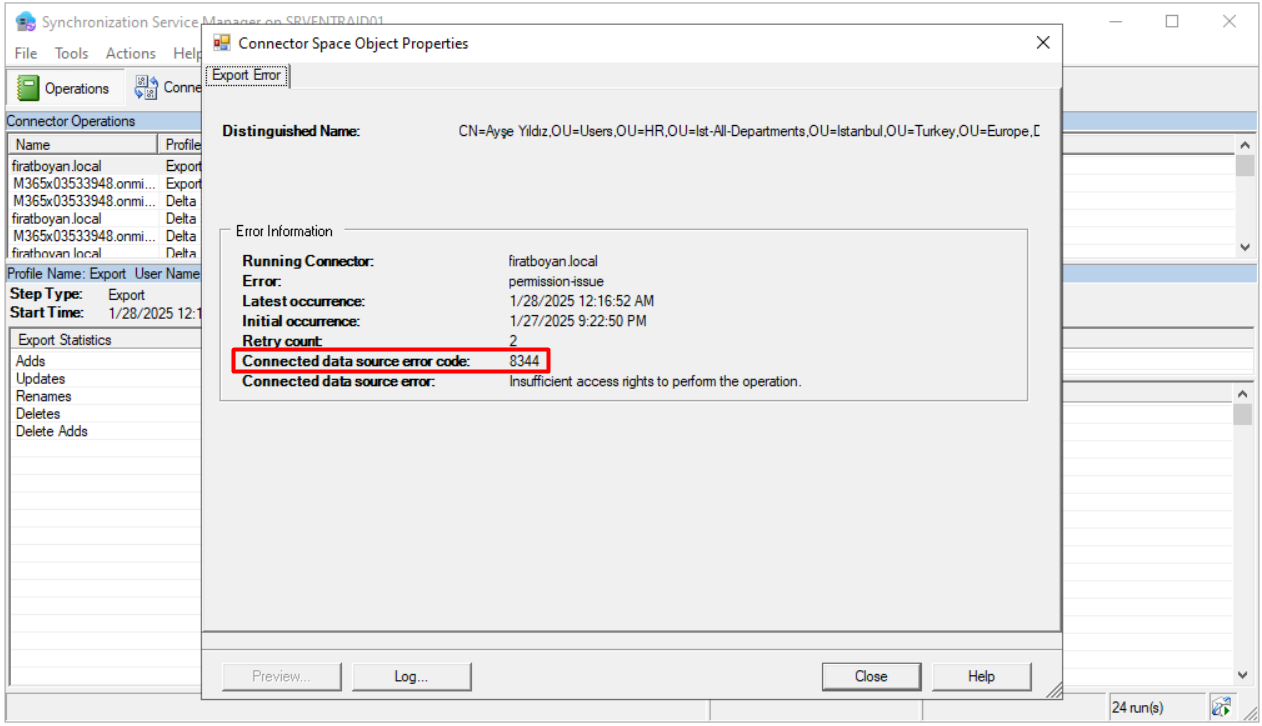
When I double-click Ayşe Yıldız, one of the users with the error, the Connector Space Object Properties window opens. The fields in the window show the source of the error clearly.
|
Field |
Value |
Meaning |
|
Distinguished Name |
CN=Ayşe Yıldız, OU=Users, OU=HR |
The first part of the object's distinguished name that is visible in the window. The full value also includes the parent OUs and the DC=firatboyan,DC=local components. It shows the organizational unit (OU) under which the error occurs. |
|
Running Connector |
firatboyan.local |
The connector that runs the export operation. Because the value is the on-premises domain, the target of the write request is Active Directory. |
|
Error |
permission-issue |
The type under which the sync engine classifies the error. It states that the connector account has no write permission on the object. |
|
Retry count |
2 |
Shows that the export operation was retried 2 times for this object and that the same error was returned on each attempt. |
|
Connected data source error code |
8344 |
The error code returned by Active Directory. |
|
Connected data source error |
Insufficient access rights to perform the operation |
The text equivalent of code 8344. The account that performs the operation has insufficient access rights. |
Cause of the Error
Microsoft Entra Connect Sync connects to Active Directory with the AD DS Connector account. In an Express installation, this account is created automatically with the MSOL_ prefix, and the required permissions are assigned during installation. A Custom installation has 2 options. If Create new account is selected, the wizard again creates the account. If Use existing account is selected, the existing account that you specify is used, and you must grant this account the additional permissions required by the features that you enable. The 8344 error shows that the connector account has no write permission on the attribute that it tries to write back.
You can find which attribute cannot be written in the same window. The Pending Export tab of the Connector Space Object Properties window lists the changes that are waiting to be sent to Active Directory. The 2 typical examples that Microsoft gives for this error are mS-DS-ConsistencyGuid, which is used as the source anchor, and Exchange hybrid writeback attributes such as msDS-ExternalDirectoryObjectID. The information that determines which permission is missing is on this tab.
There are 3 possible reasons for the missing permission.
The permission for the relevant feature has not been granted to the connector account. This occurs on accounts defined with Use existing account when the permission for a feature that was enabled later has not been assigned.
Inheritance is disabled on the object or on the OU above it. The permissions are defined at the domain root, but they do not reach the object because inheritance is disabled. If the error appears only on objects under a specific OU, check this first.
The object is protected by AdminSDHolder or was protected by it in the past. Inheritance is disabled on accounts that are members of a protected group. By default, the SDProp process runs on the PDC Emulator every 60 minutes, compares the ACL of these accounts with the ACL on the AdminSDHolder object and reapplies it if they differ. When the account is removed from the protected group, SDProp stops updating the ACL, but the adminCount value remains 1 unless it is changed manually, and inheritance remains disabled. In both cases, the account does not receive the permissions that come from the domain root.
On accounts that are still members of a protected group, it is expected behaviour for the 8344 error to continue. Microsoft recommends that on-premises administrator accounts are not synchronised to Entra ID and that the AdminSDHolder ACL is not changed.
Resolving the Permission Issue 8344 Error
It is possible to grant the permissions manually through ADUC or dsacls, but Microsoft Entra Connect Sync provides a ready-made tool for this job. The Troubleshoot task in the wizard runs the cmdlets of the ADSyncConfig PowerShell module from a menu. I perform the operations on the Entra Connect server.
The feature permissions are written to Active Directory with the rights of the account that opens the Troubleshoot session. For this reason, the account that runs the wizard must have Domain Administrator rights in every domain in the forest. In forests that contain more than 1 domain, an account that is a member of Enterprise Admins meets this requirement in practice.
Step 1 - Starting the Troubleshoot Task
I run Microsoft Entra Connect Sync. The welcome screen shows the warning The synchronization service scheduler is suspended until this setup wizard is closed. I click the Configure button to continue.
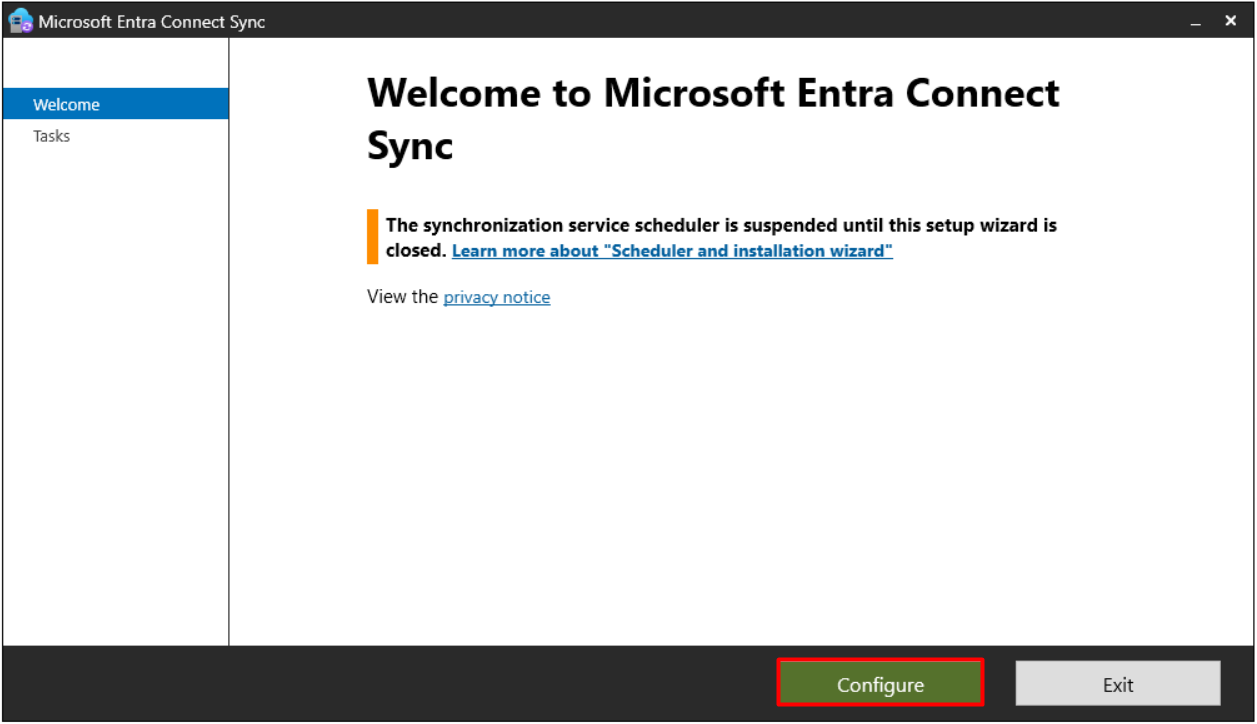
The scheduler is suspended for as long as the wizard remains open, and the automatic sync cycle does not run. Remember to close the wizard when the operations are finished.
On the Additional tasks screen, I select the Troubleshoot option and click the Next button.
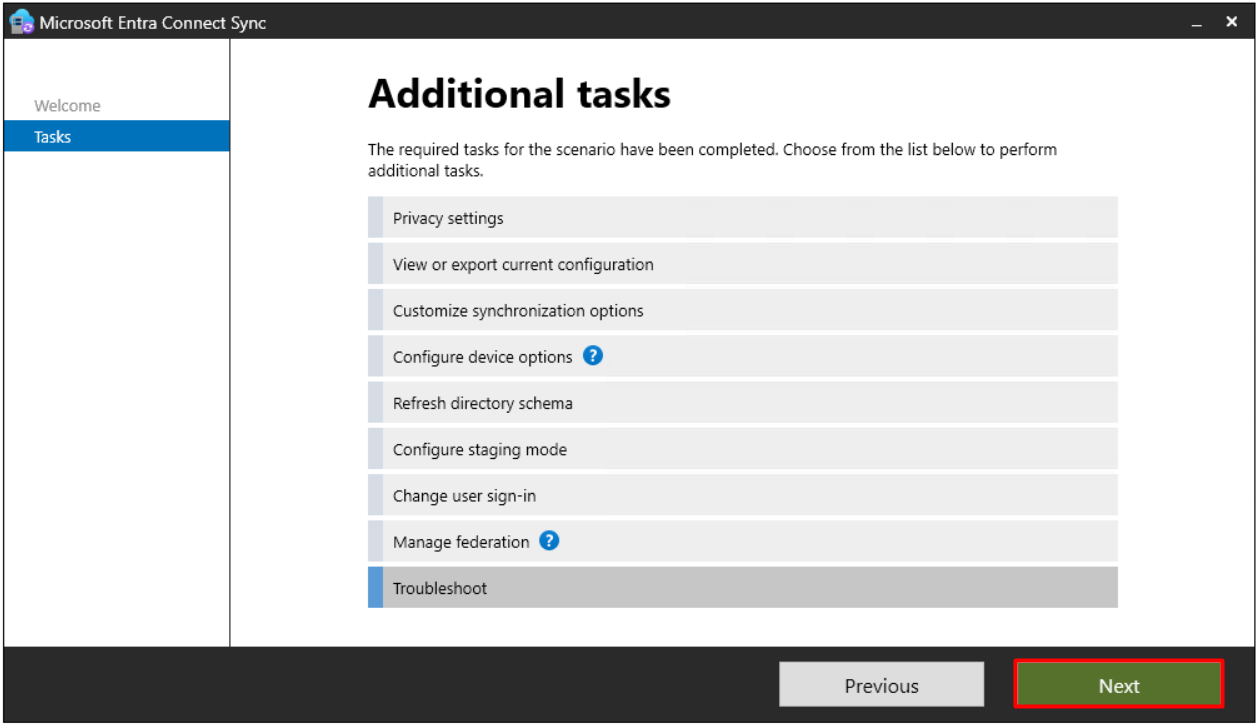
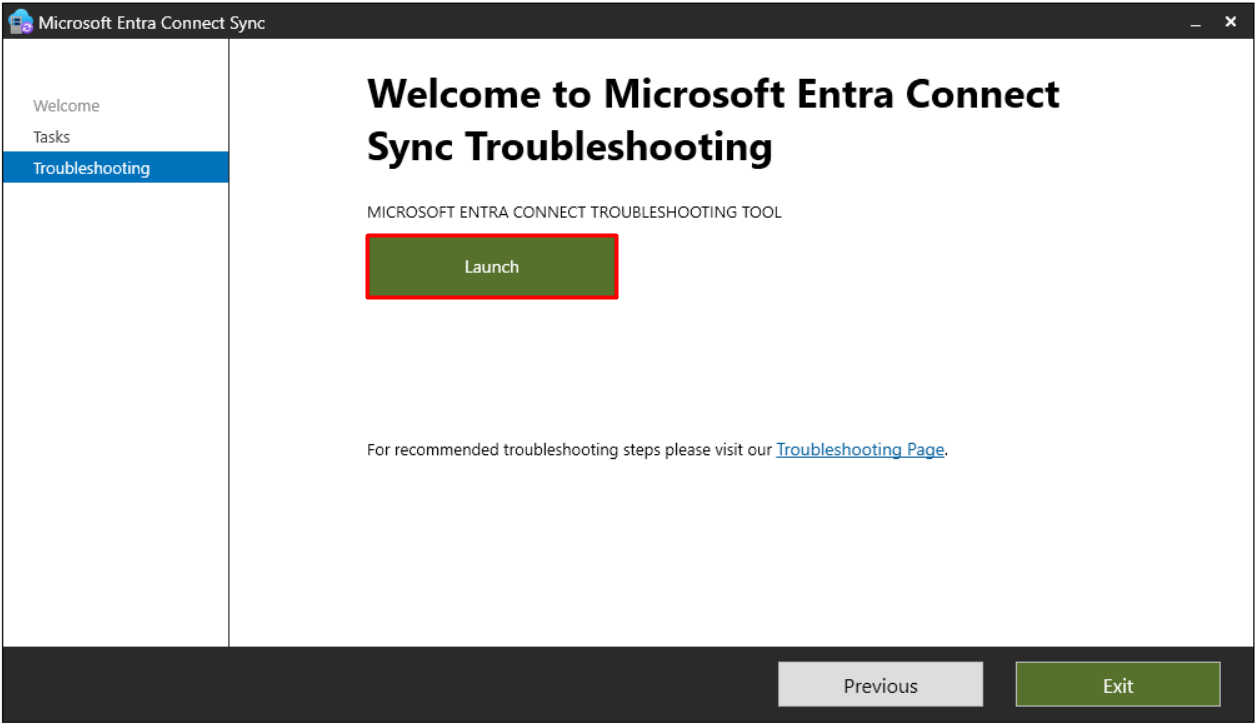
On the next screen, I click the Launch button. This button opens the troubleshooting menu in a separate PowerShell window.
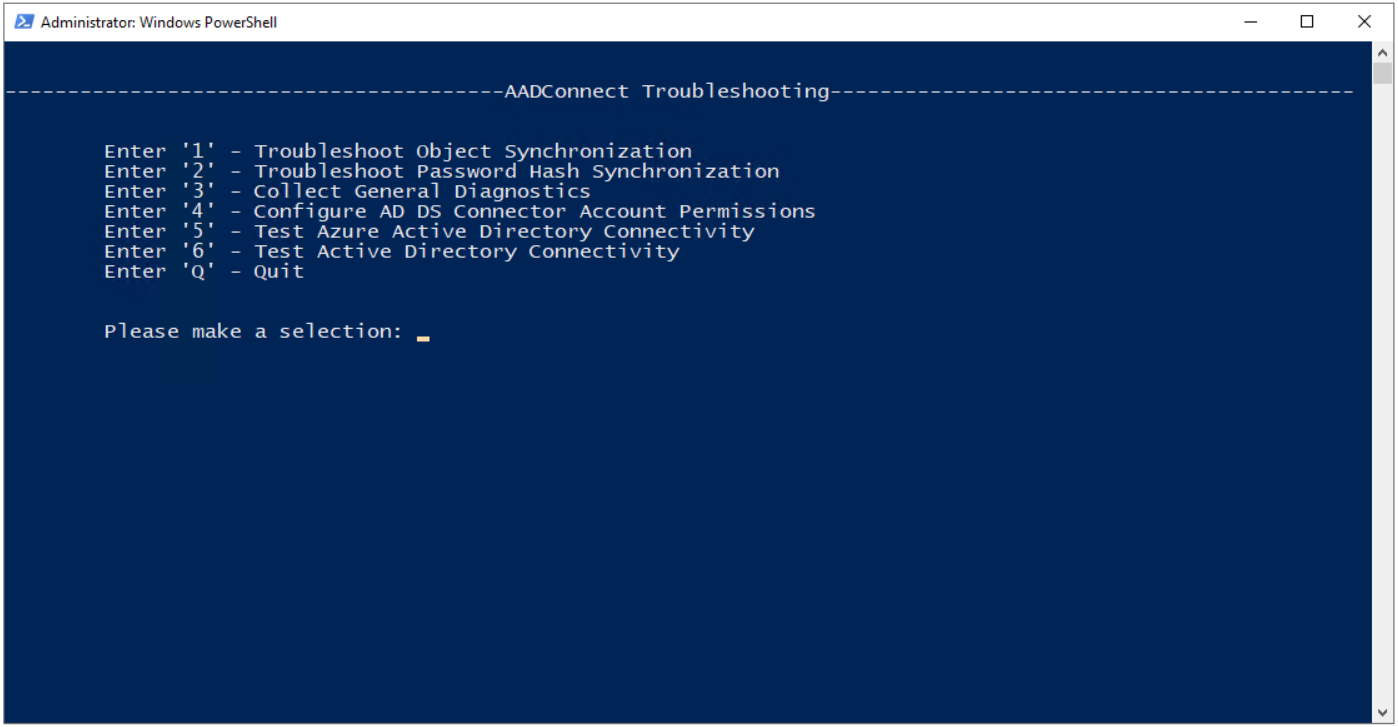
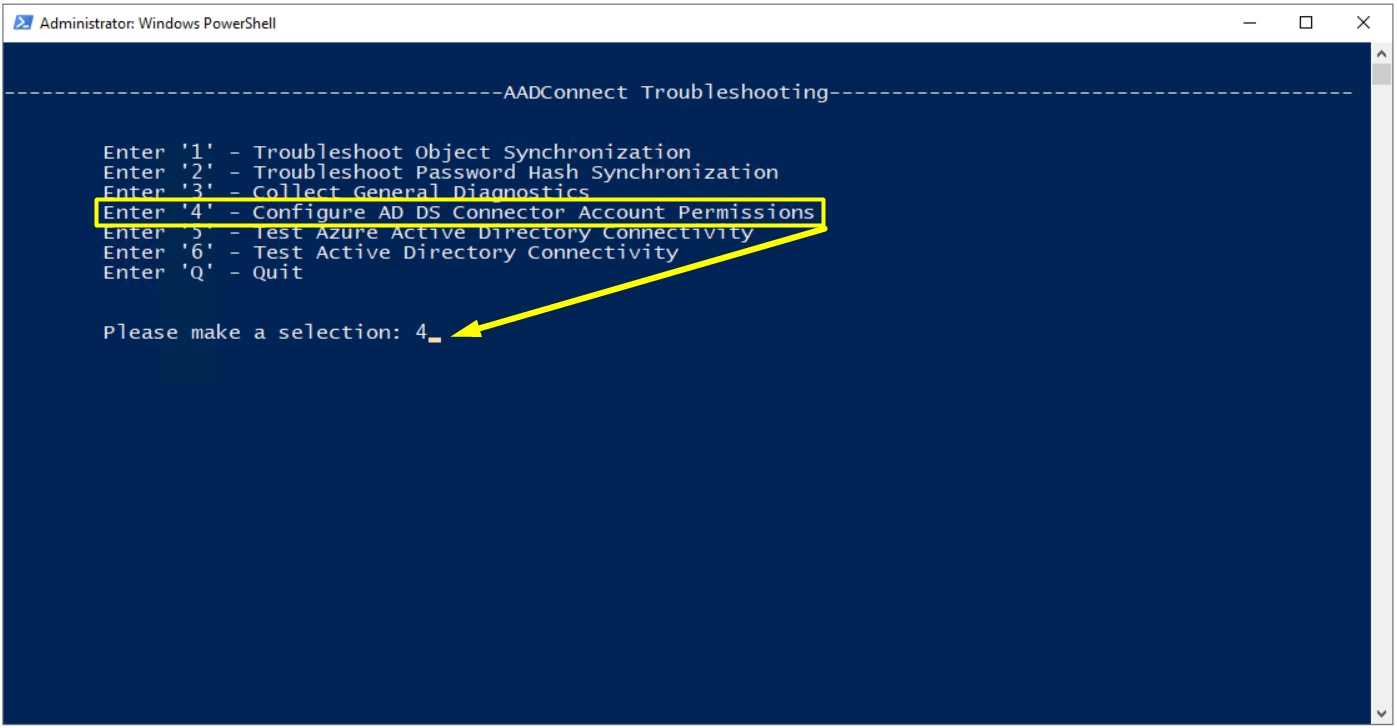
The AADConnect Troubleshooting menu that opens provides separate options for object synchronisation, Password Hash Synchronization, collecting diagnostic data and connectivity tests. To define permissions, I enter option 4, Configure AD DS Connector Account Permissions. This option does not perform an analysis or report missing permissions. It opens a submenu that lists the permission cmdlets of the ADSyncConfig module.
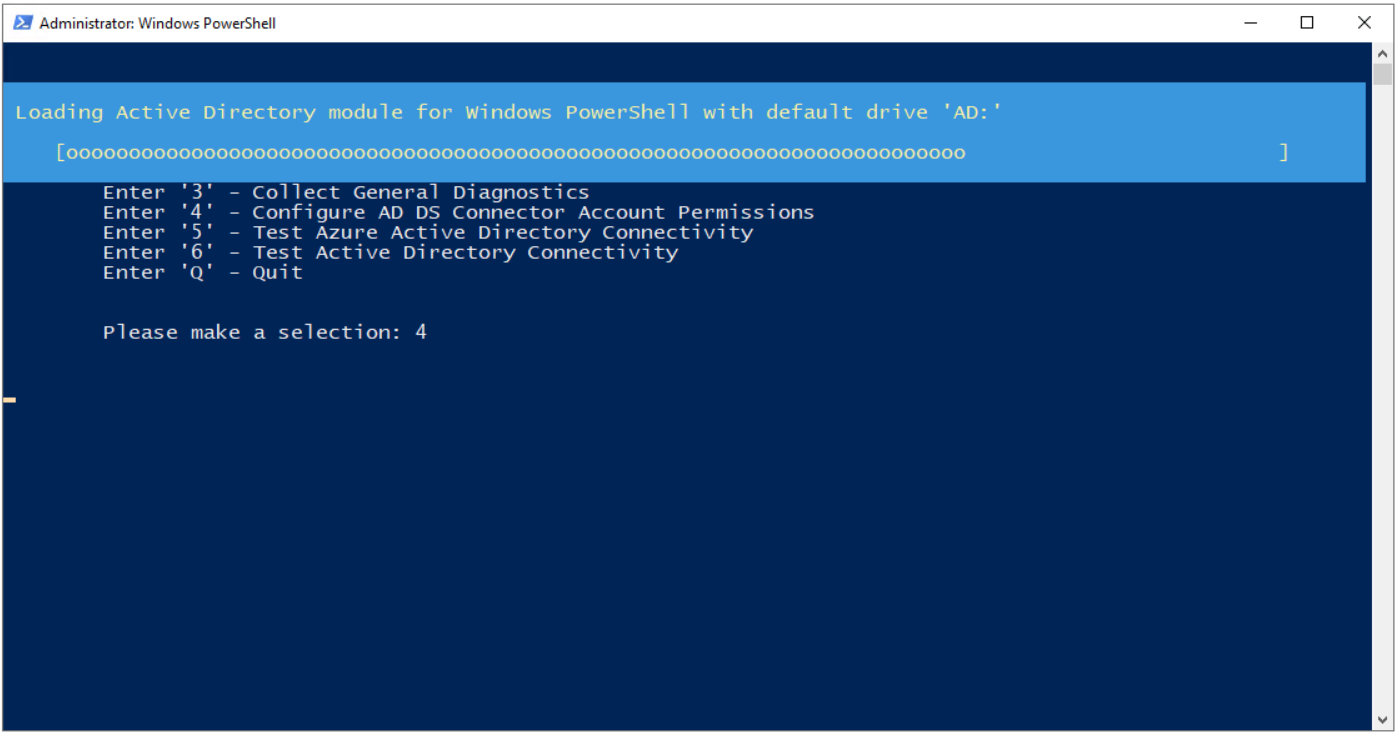
After the selection, the tool tries to load the ADSyncConfig module, and the Active Directory PowerShell module that it depends on, into the PowerShell session.

Step 2 - Installing the RSAT-AD-Tools Feature
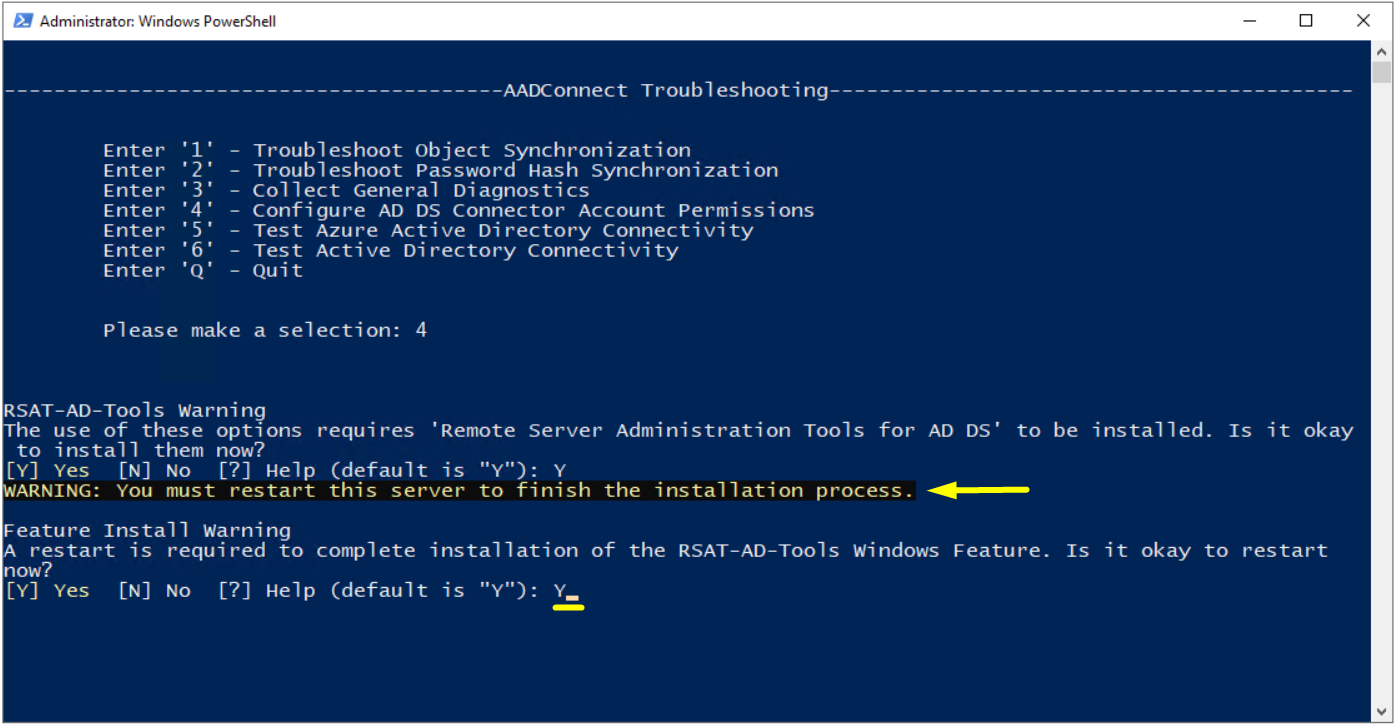
Because the ADSyncConfig module depends on the Active Directory PowerShell module and the AD DS tools, it requires the Remote Server Administration Tools (RSAT) feature to be installed on the server. RSAT-AD-Tools is not installed on my Entra Connect server, so the tool detects this and asks for confirmation to install it. I confirm with Y.
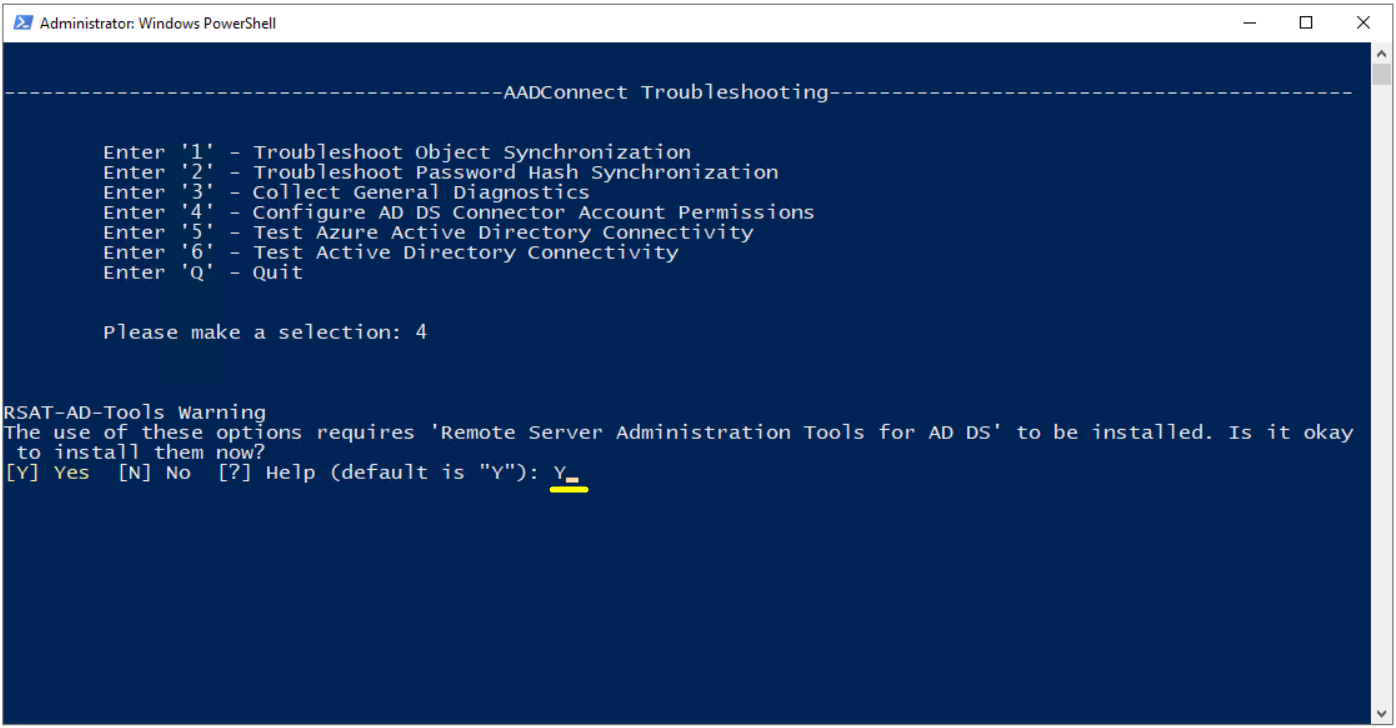
The installation does the same work as the Install-WindowsFeature RSAT-AD-Tools command and takes a few minutes.
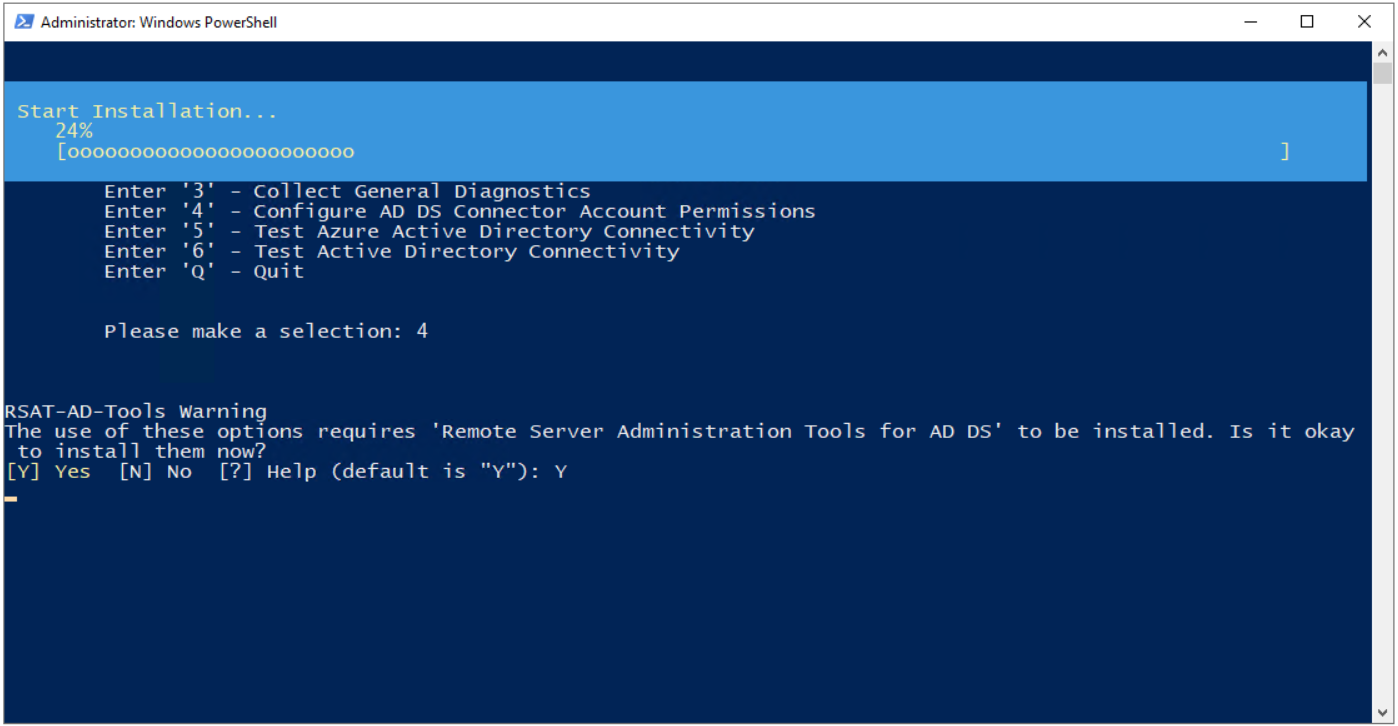
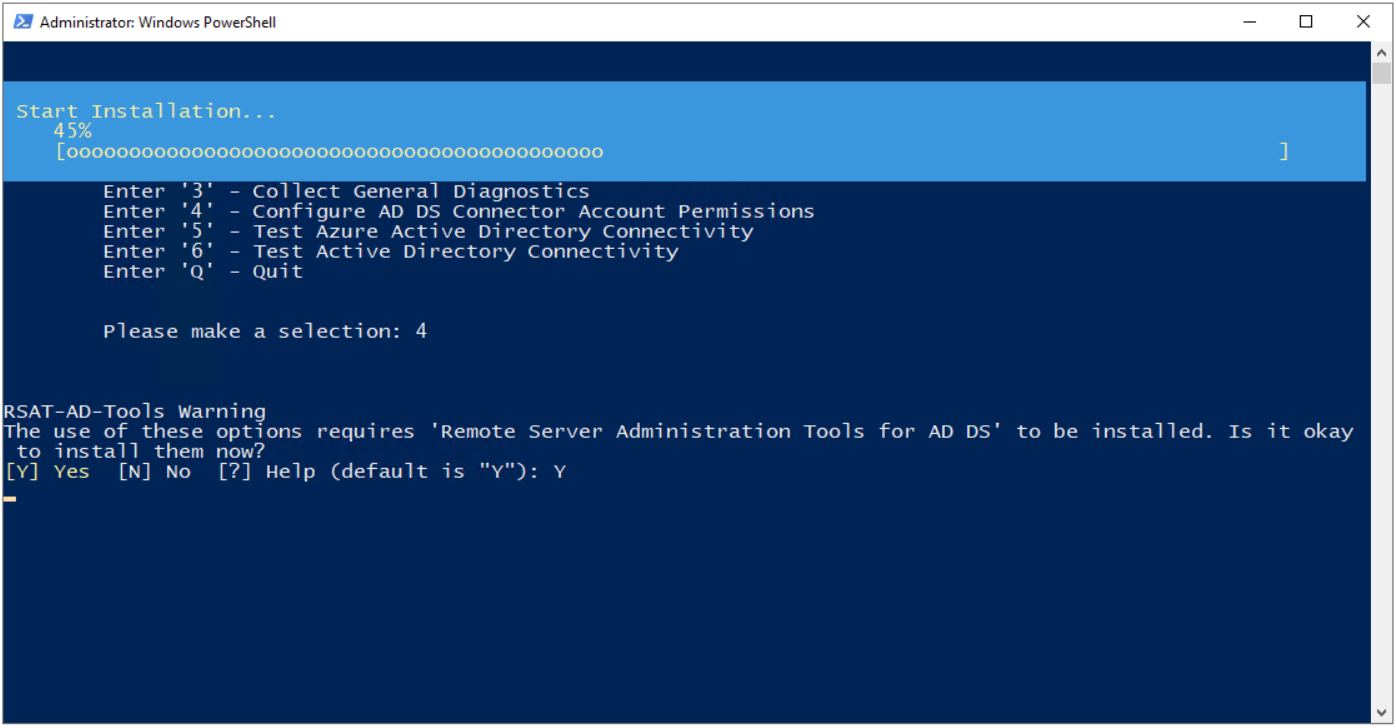
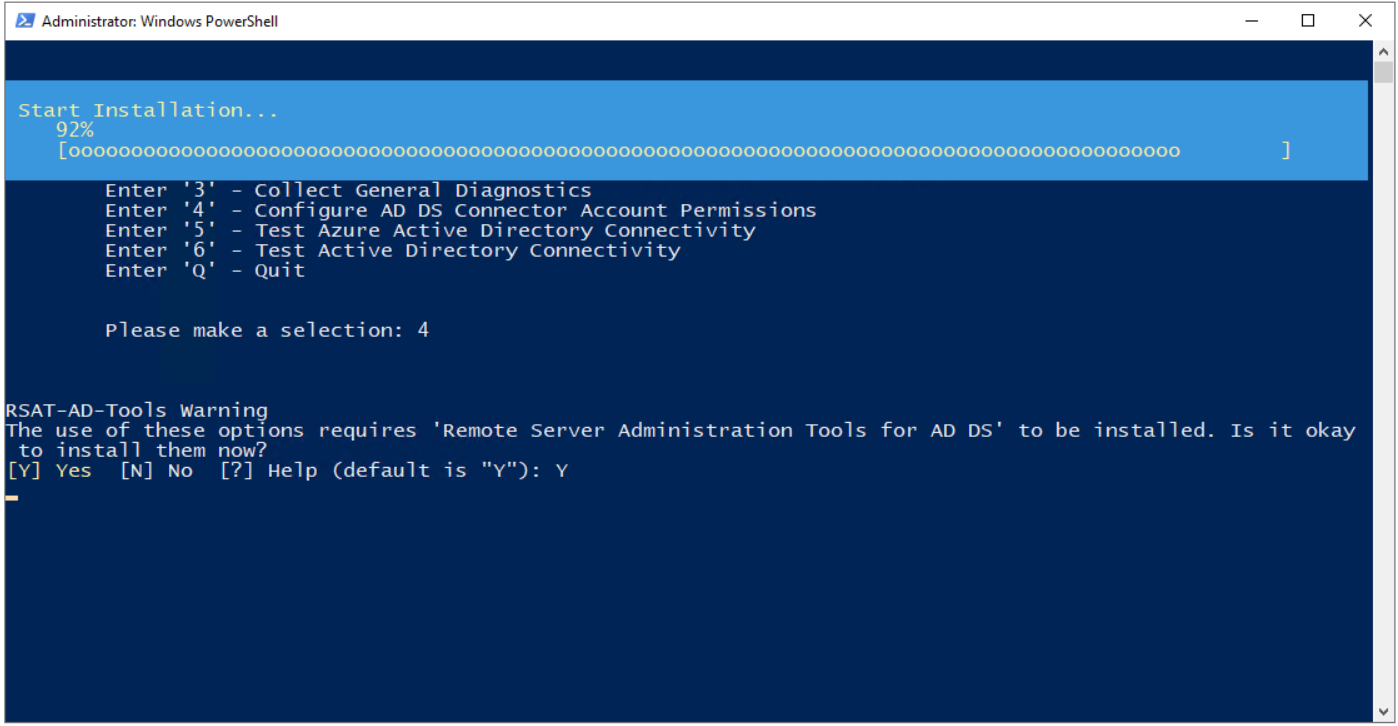
When the installation finishes, the tool reports that a restart is required to complete the RSAT-AD-Tools installation and asks for confirmation.
This confirmation restarts the Entra Connect server itself. The sync cycle, Password Hash Synchronization and Password Writeback do not work until the server is running again.
I confirm with Y. After the server starts, I run the wizard again and return to the Configure AD DS Connector Account Permissions menu by the path in Step 1.
Checkpoint
The Configure Permissions menu opens without the RSAT warning and lists options 1 to 13.
Step 3 - Selecting the Connector Account
Most of the options in the Configure Permissions menu assign the permission for a single feature. There are separate options for Basic Read, Exchange Hybrid, Exchange Mail Public Folder, MS-DS-Consistency-Guid, Password Hash Sync and Password Writeback. For the entra_sync_22012025@firatboyan.com account, I enter option 12, Set default AD Connector account permissions. This option assigns the permissions for 5 features one after another and finally applies restricted permissions to the connector account. The Basic Read permissions are not included in this set. For them, option 3 in the menu is run separately.
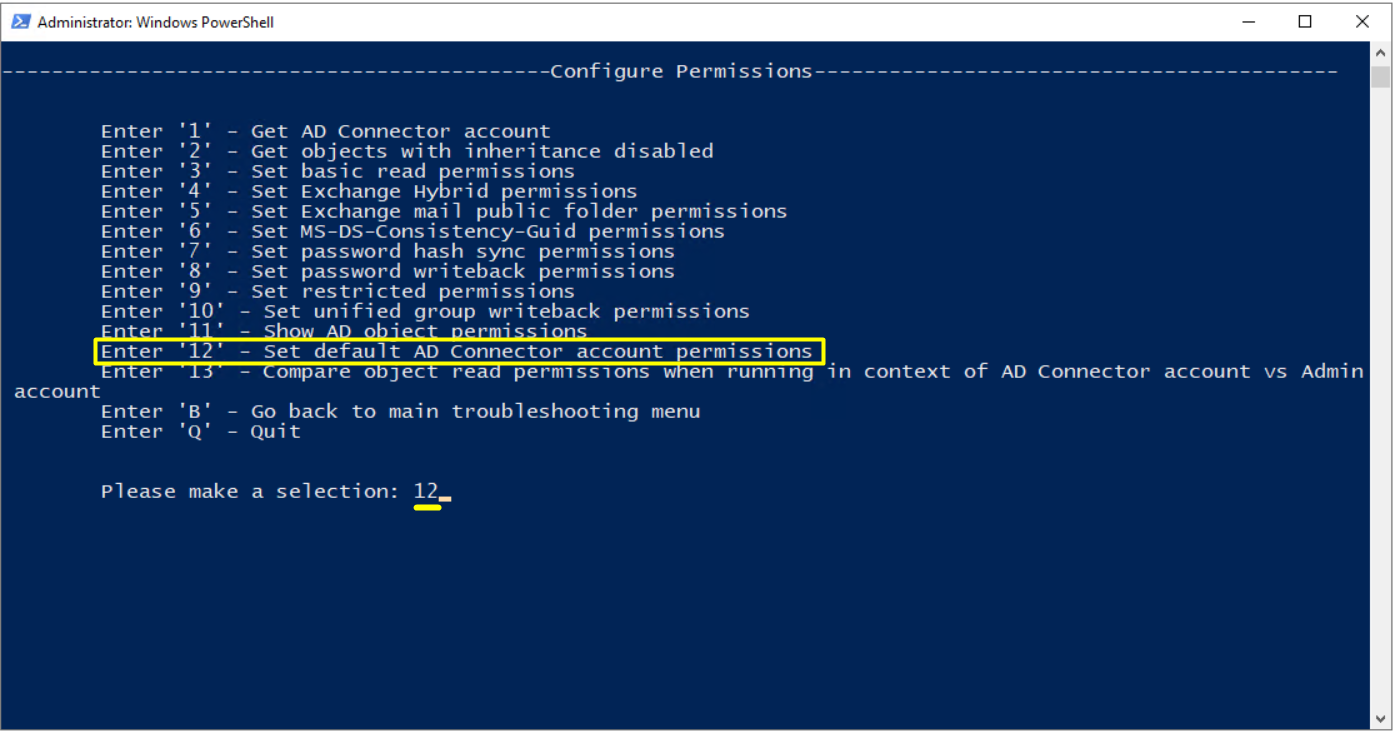
Option 12 also writes the permissions for features that are not used in the environment to the domain root, and the tool does not remove these ACEs. In a production environment, run only the option for the feature that you use.
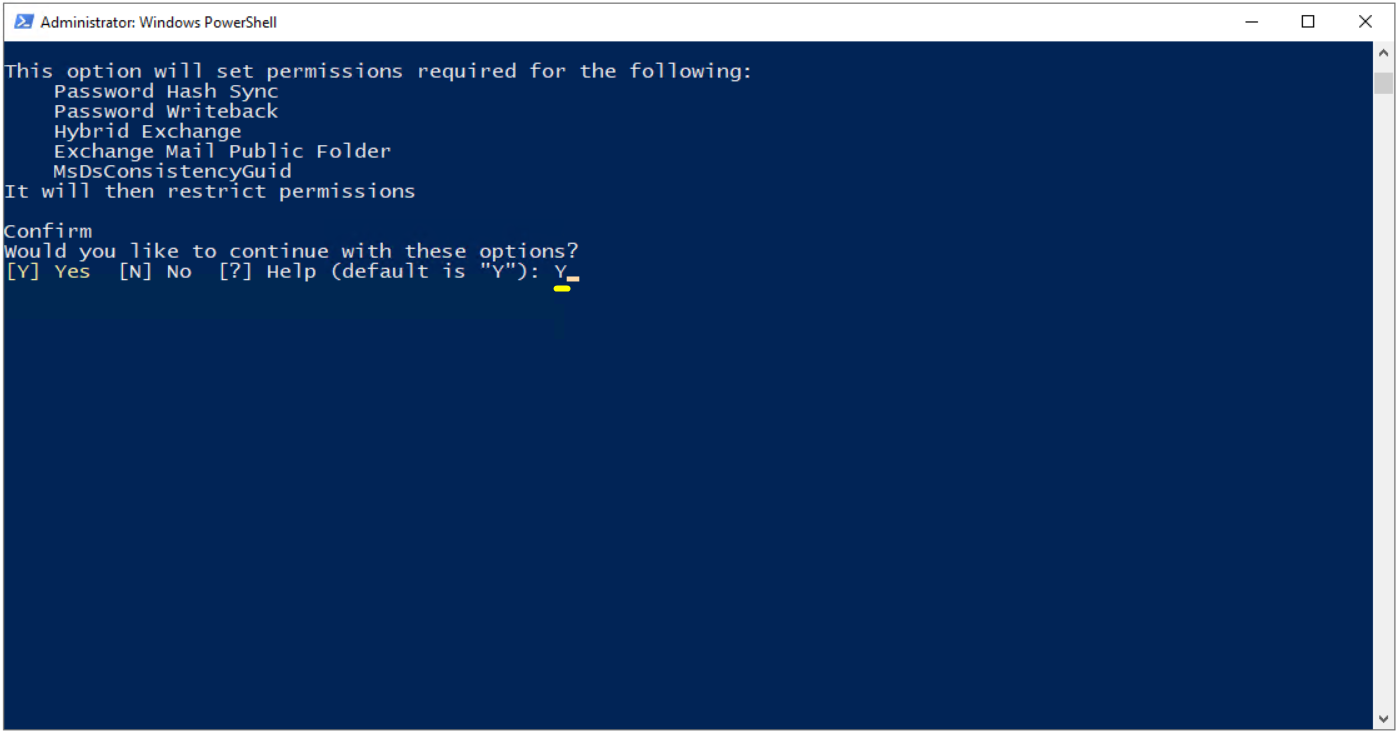
The tool lists the permissions that it will assign and reports that restricted permissions will be applied to the connector account after these permissions.
✅ Password Hash Sync
✅ Password Writeback
✅ Hybrid Exchange
✅ Exchange Mail Public Folder
✅ MsDsConsistencyGuid
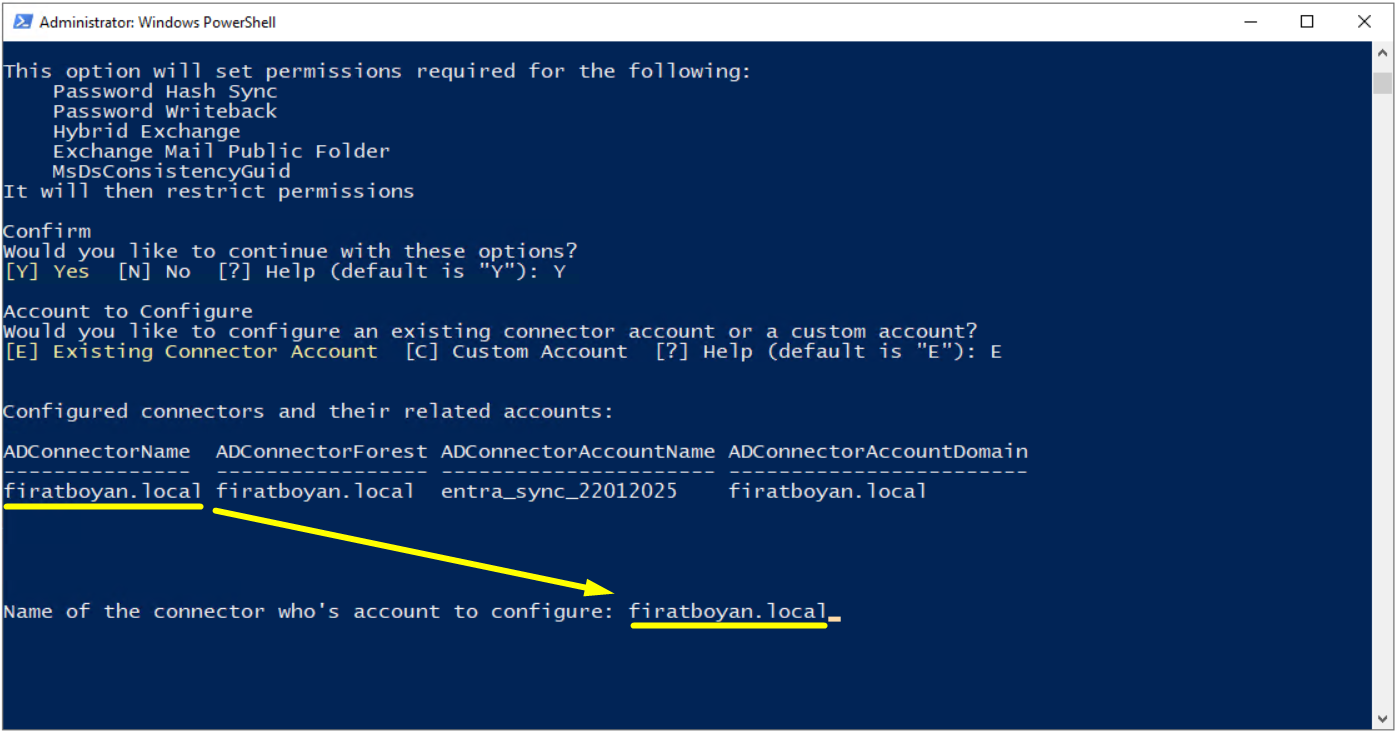
I enter Y to continue.
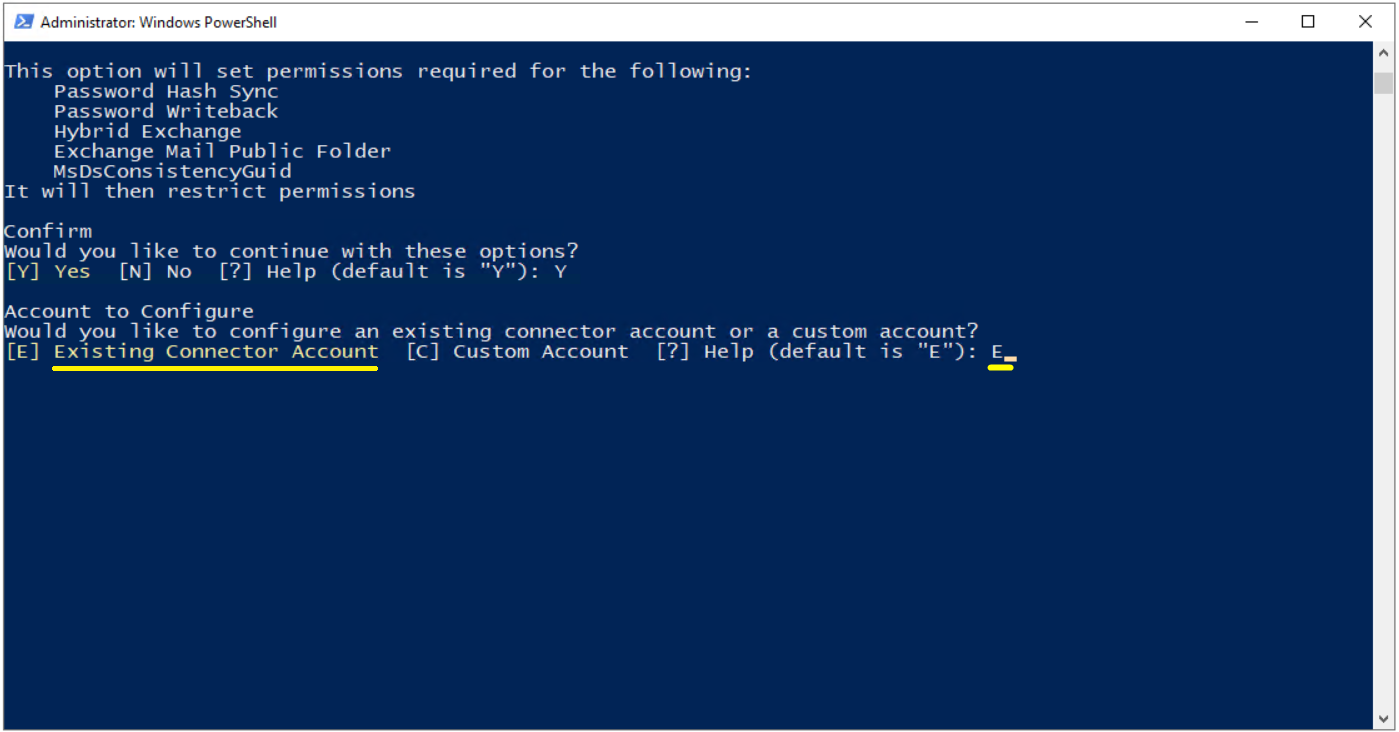
The next question is which account the permissions are assigned to. The tool can use the existing connector account recorded in the Entra Connect configuration or a custom account that is specified manually. Because the entra_sync_22012025@firatboyan.com account already runs the sync operations, I enter the E (Existing Connector Account) option.
The Name of the connector who's account to configure field asks which Active Directory connector's account is configured. In environments where more than 1 forest is synchronised, each forest has its own connector and its own connector account. If the wrong connector is selected, the permissions are assigned to the account of another forest and the error continues. Because my environment has a single connector, I enter the value firatboyan.local. The tool shows the account linked to this connector as entra_sync_22012025.
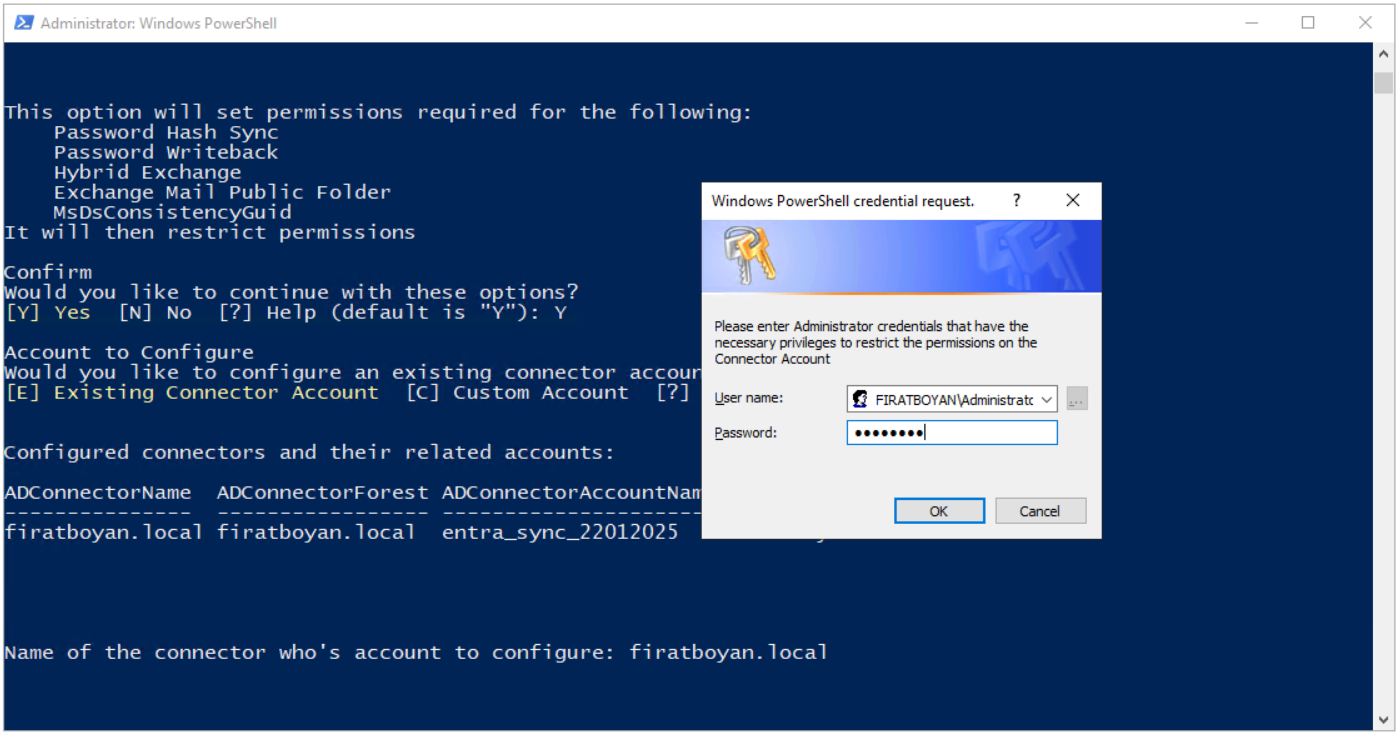
The Windows PowerShell Credential Request window then opens. The credentials entered here are not used to assign the 5 feature permissions. The tool passes them only to the restricted permissions operation at the very end, and the account entered for this operation must be an administrator account that is different from the connector account. I enter the credentials of the FIRATBOYAN\Administrator account and click the OK button. The feature permissions, however, are assigned with the rights of the account that opened the session, so if that account's rights are insufficient, the ACL changes are rejected and the 8344 error continues.
Step 4 - Confirming the Permissions
The tool applies each permission group with a separate cmdlet, and each one asks for its own PowerShell confirmation. Every confirmation offers the same options.
|
Option |
Result |
|
[Y] Yes |
Confirms only the operation in question. |
|
[A] Yes to All |
Accepts the remaining confirmations of the current operation. |
|
[N] No |
Rejects only the operation in question. |
|
[L] No to All |
Rejects the remaining confirmations of the current operation. |
|
[S] Suspend |
Suspends the operation. |
Because the permission groups are called separately, the next group can ask for confirmation again even if A is entered for a group. To see each assigned permission one by one, I enter Y at every confirmation. The order of the confirmations and the Active Directory permission that corresponds to each one are as follows.
|
Confirmation |
Permission Assigned |
Applied To |
|
Password Hash Synchronization |
Replicating Directory Changes and Replicating Directory Changes All |
Domain root only |
|
Password Writeback |
Reset Password, write access to the lockoutTime and pwdLastSet attributes |
Descendant User objects |
|
Unexpire Password |
Unexpire Password extended right |
The root object of each domain |
|
Exchange Hybrid |
Read and write on all properties |
Descendant User, InetOrgPerson, Group and Contact objects |
|
Exchange Mail Public Folder |
Read on all properties |
Descendant PublicFolder objects |
|
mS-DS-ConsistencyGuid |
Read and write on the mS-DS-ConsistencyGuid attribute |
Descendant User objects |
The first confirmation is for the Password Hash Synchronization permission. This permission allows the connector account to read password hash values from the domain controller through replication. Because it is defined only at the domain root, it has no OU or AdminSDHolder scope.
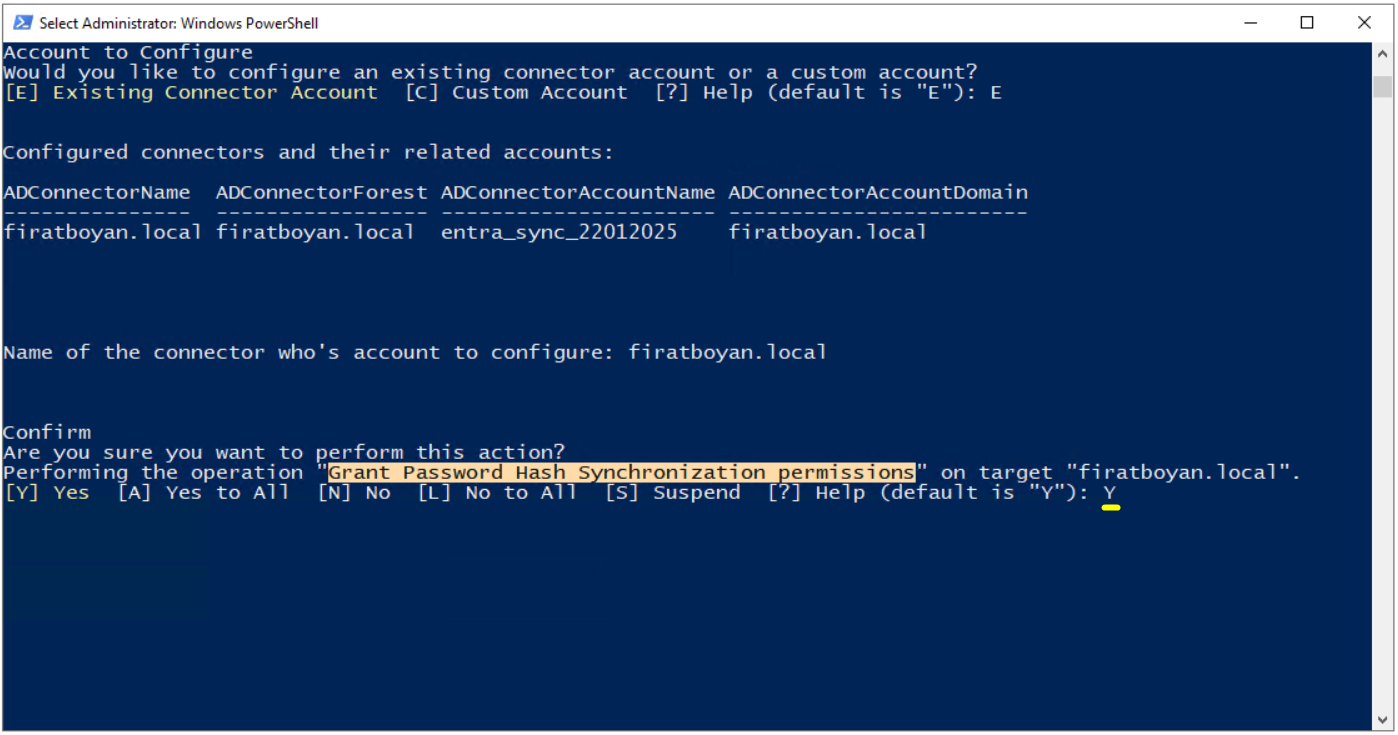
The second confirmation is for Password Writeback. When a user changes or resets a password on the Entra ID side, the connector account needs the Reset Password right on User objects and write permission on the 2 attributes in the table so that the new password can be written to on-premises Active Directory. Microsoft's Password Writeback requirements also include the Change password right. Because it is not among the permissions assigned by this confirmation, you need to check separately whether the connector account effectively has this right when you troubleshoot Password Writeback problems.
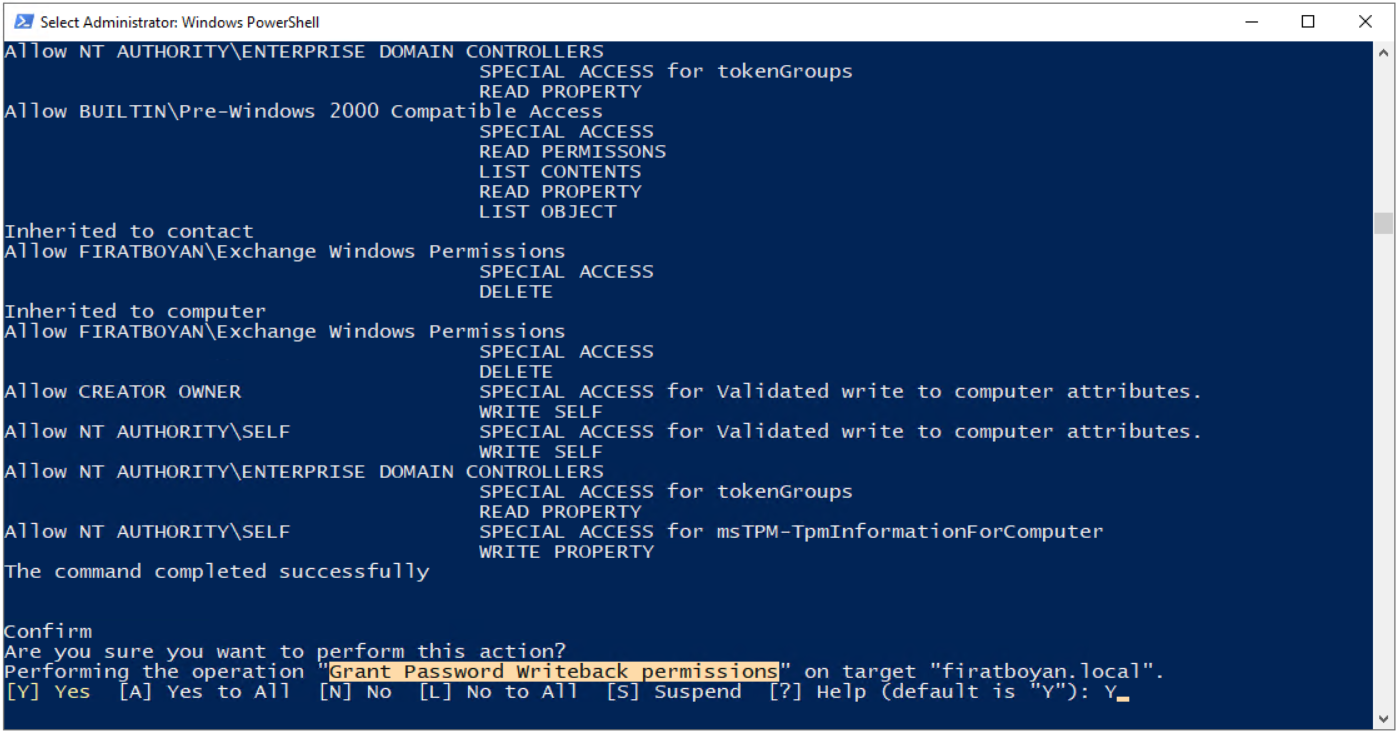
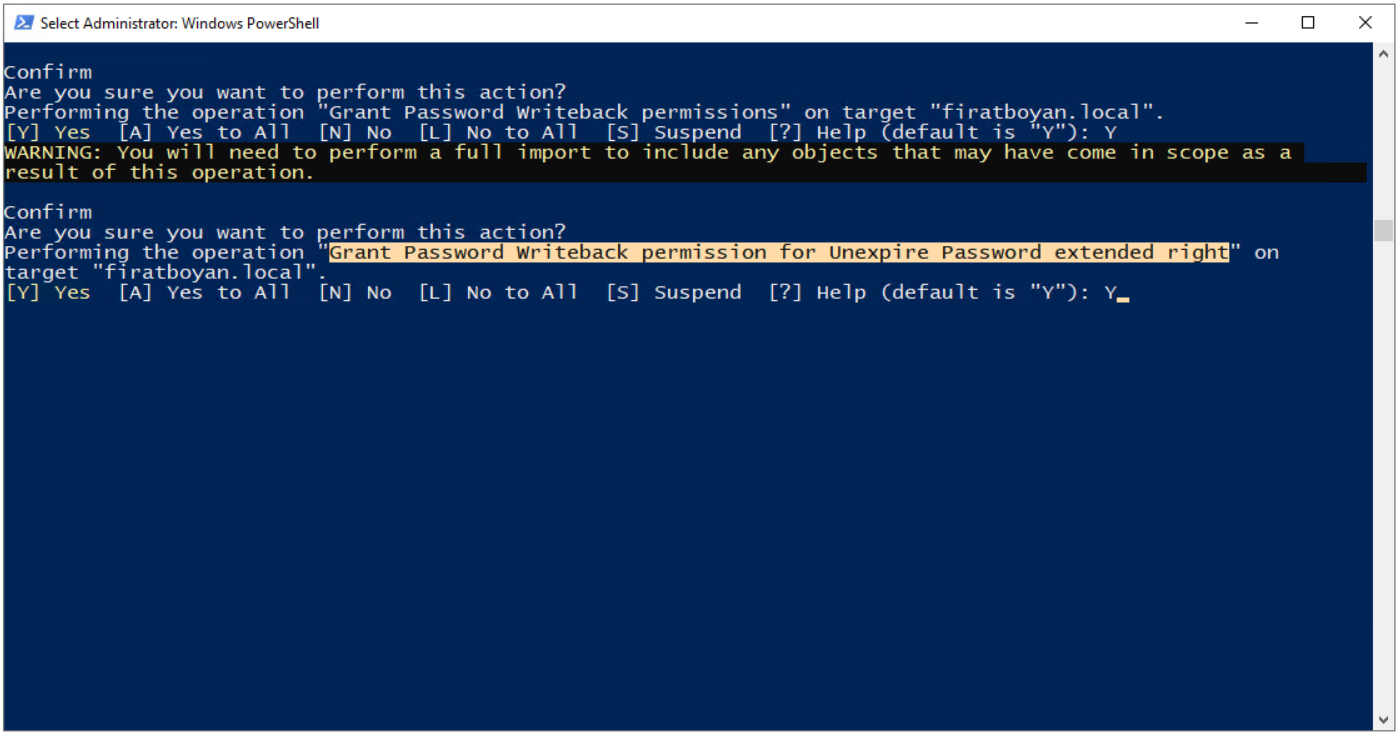
The third confirmation is for Password Writeback permission for Unexpire Password extended right. Unexpire Password is one of the permissions that Microsoft documents for Password Writeback, and it is applied to the root object of every domain in the forest.
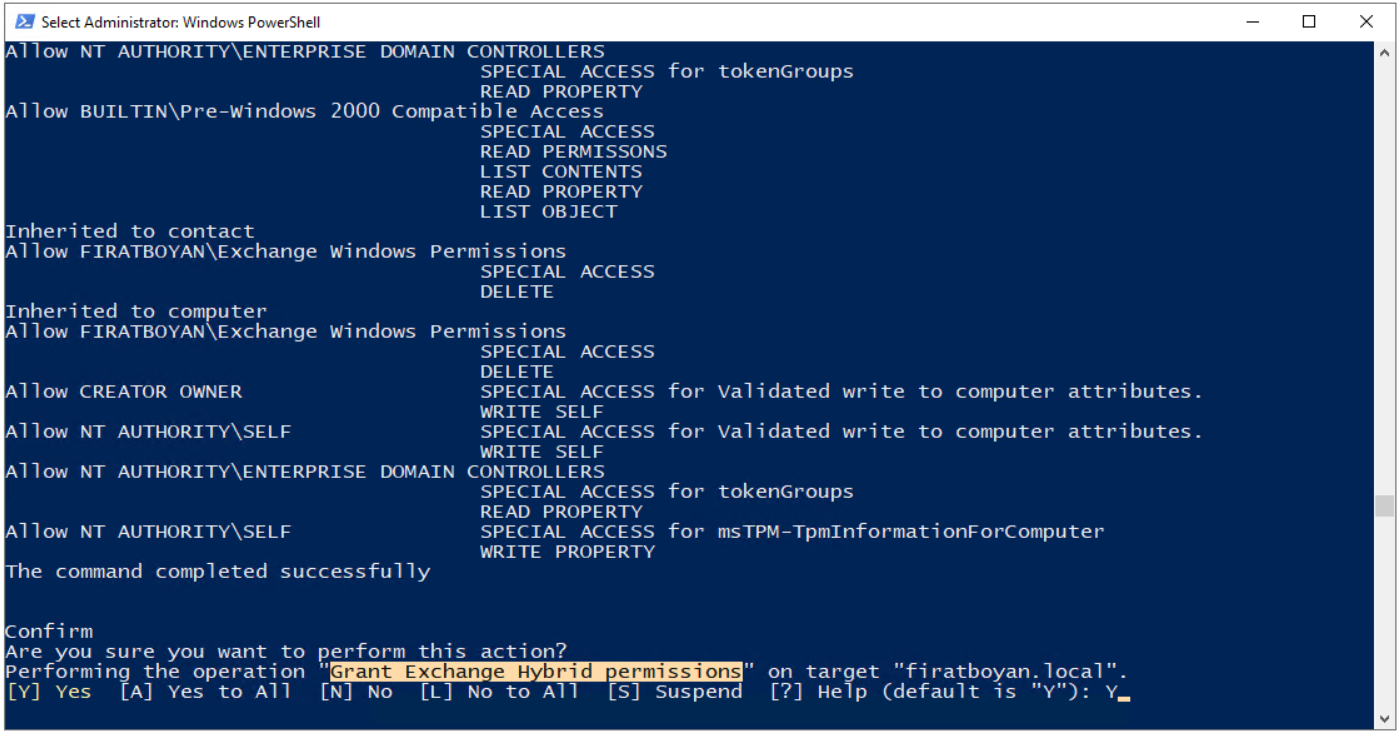
The fourth confirmation is for Exchange Hybrid permissions. In an Exchange hybrid deployment, Entra Connect writes some values that originate in Exchange Online back to the on-premises objects. Because the granted permission includes the write right on all properties of 4 object classes, it is the broadest permission in the list. An environment that does not use Exchange hybrid does not need this permission.
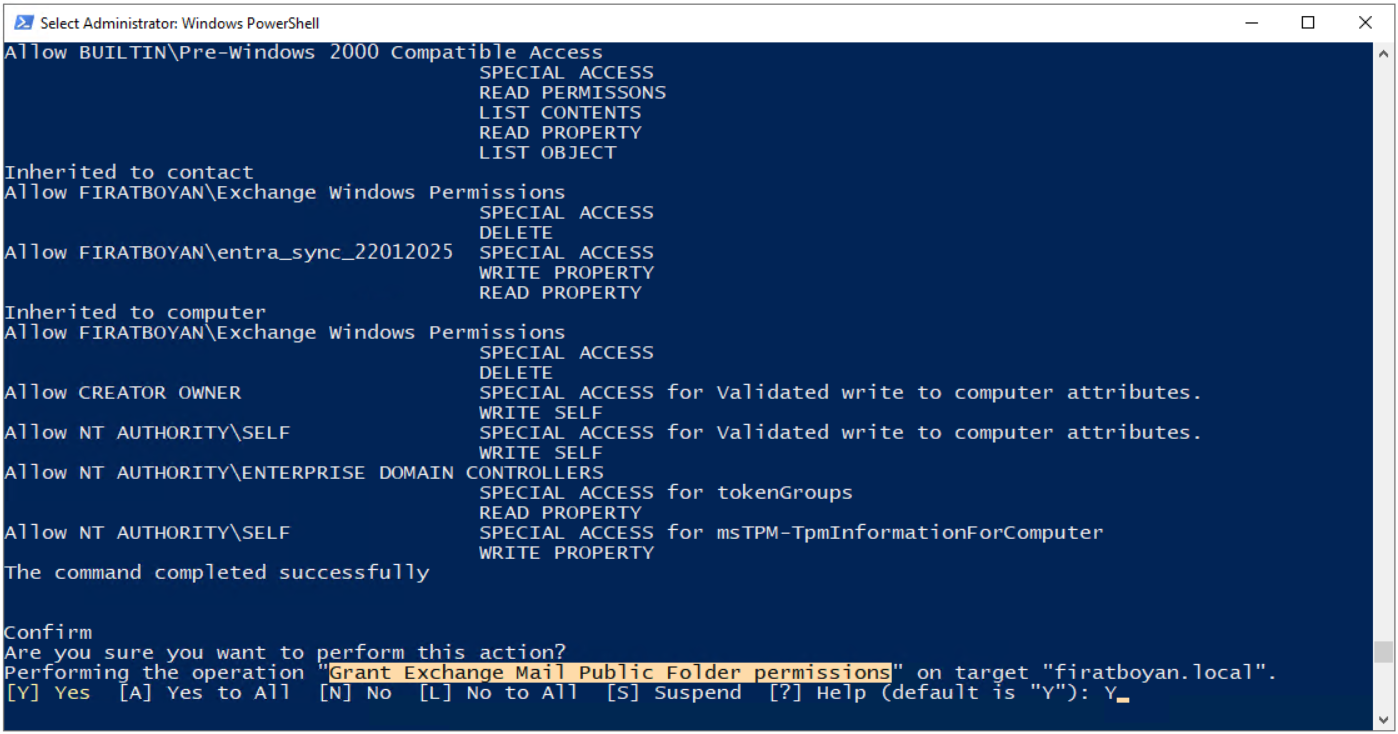
The fifth confirmation is for Exchange Mail Public Folder permissions. The connector account is given read permission on PublicFolder objects so that mail-enabled public folder objects can be synchronised to Entra ID. It does not include write permission.
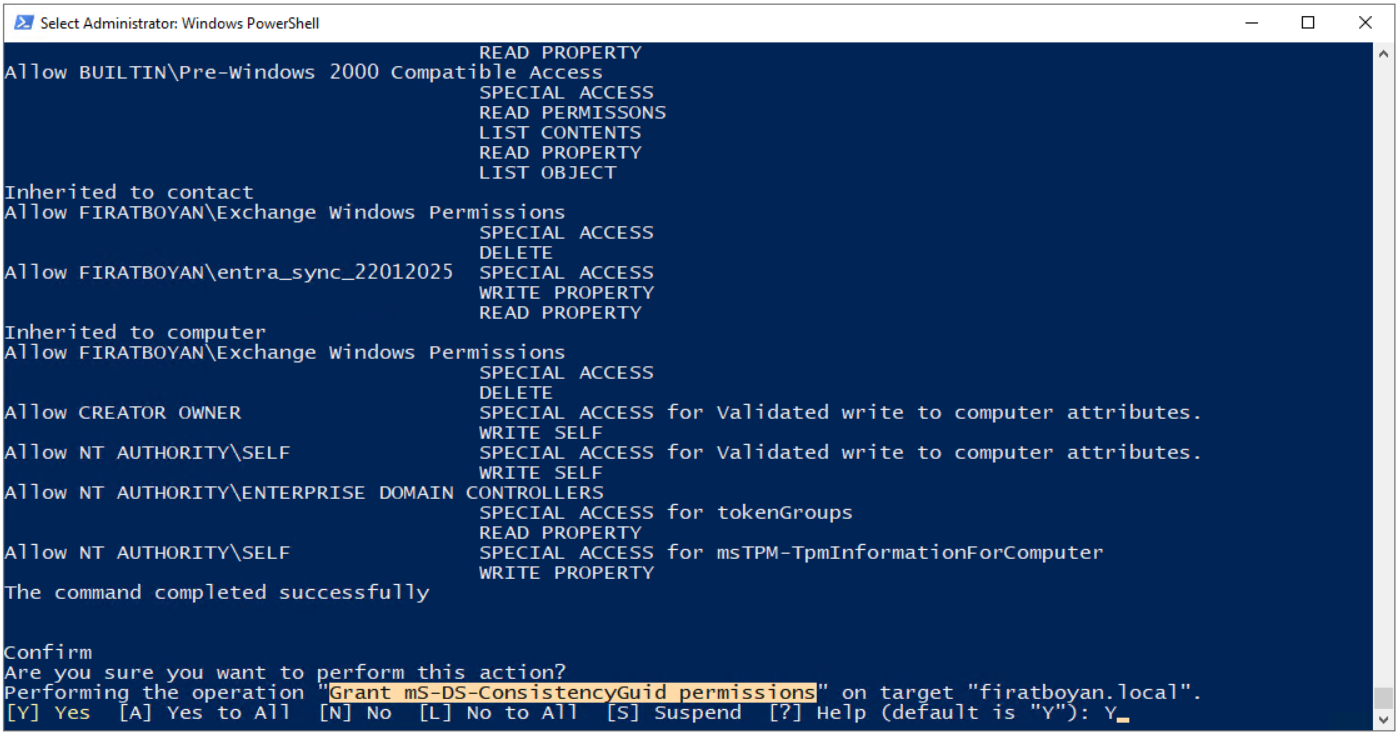
The sixth confirmation is for mS-DS-ConsistencyGuid permissions. The source anchor selection depends on the installation. When the source anchor selection is left to the Microsoft Entra Connect Sync wizard, the wizard first checks whether the tenant has a source anchor recorded from a previous installation and, if there is a record, uses the same attribute again. If there is no record, it selects mS-DS-ConsistencyGuid if this attribute is not populated on any object, and objectGUID if it is populated on at least 1 object. If mS-DS-ConsistencyGuid is selected, Entra Connect writes the objectGUID value to User objects where this attribute is empty and exports the object to Entra ID after the attribute is populated. If the connector account has no write permission on this attribute, a separate permission-issue error occurs for each user.
objectGUID is a value that cannot be changed. When a user is moved to another domain in the same forest, objectGUID is preserved, and what changes is the user's SID. In a migration to another forest, however, a new user object is created in the target and this object receives a new objectGUID. Because mS-DS-ConsistencyGuid is a writable attribute, the source anchor value can be moved with the user. For such migrations, the hard match protection that applies from 1 July 2026 must be taken into account. If the onPremisesObjectIdentifier value of the target cloud account is already populated, Entra ID blocks the rematch with the AttributeUpdateNotAllowed result.
Step 5 - Restricted Permissions
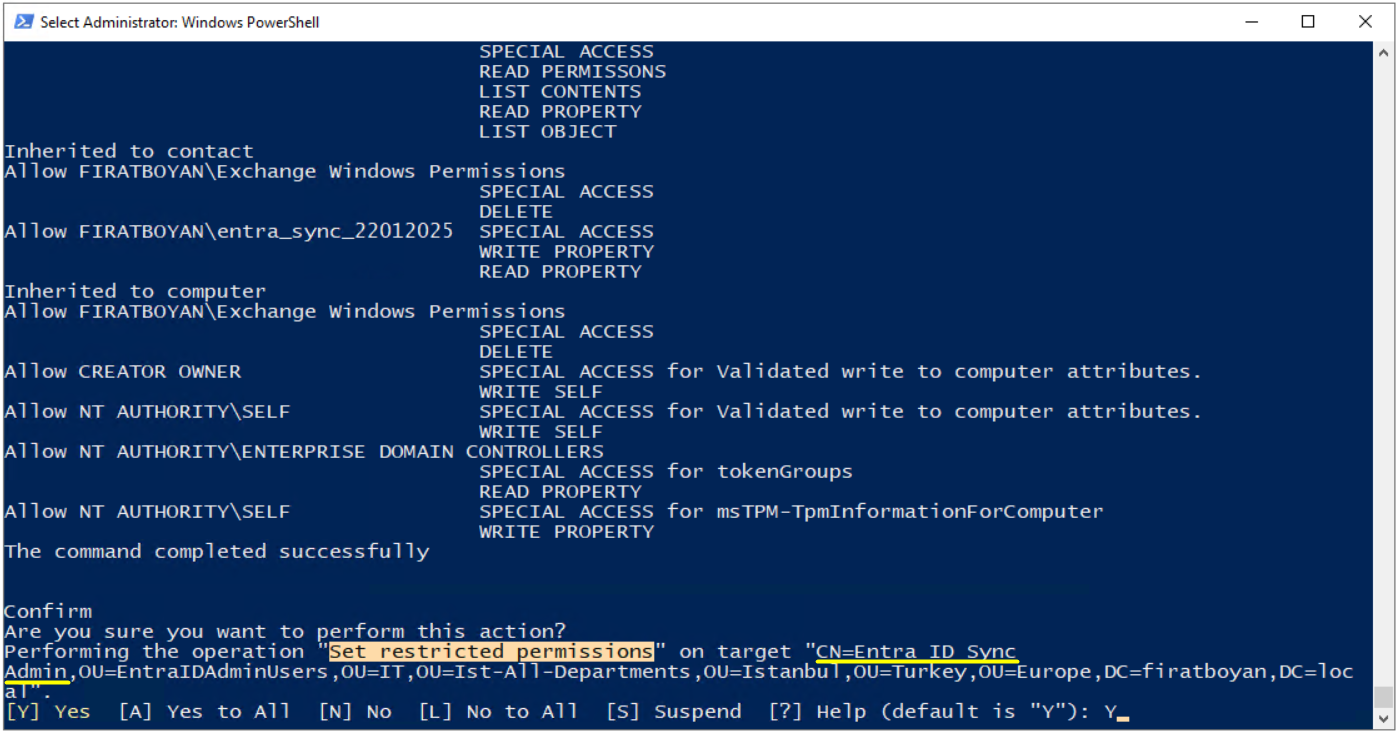
The last confirmation is for the Set restricted permissions operation. Contrary to what its name suggests, this operation does not reduce the permissions of the connector account in Active Directory. Its target is the ACL of the connector account object itself. The administrator credentials that I entered in Step 3 are used in this operation. In this scenario, the target object is as follows.
CN=Entra ID Sync Admin,OU=EntraIDAdminUsers,OU=IT,OU=Ist-All-Departments,OU=Istanbul,OU=Turkey,OU=Europe,DC=firatboyan,DC=local
The operation disables inheritance on this object and removes all ACEs except SELF. It then defines Full Control for SYSTEM, Enterprise Admins, Domain Admins and Administrators, and read permissions for Enterprise Domain Controllers and Authenticated Users. This prevents the password of the connector account from being reset, or the account from being changed, through a right inherited from the parent OUs, for example by a Help Desk group that is delegated on the OU. Because the compromise of an account that can read password hash values directly affects domain security, I apply this hardening and enter Y.
All operations complete without errors and the tool returns to the main menu. I close the PowerShell window and then the Microsoft Entra Connect Sync wizard. When the wizard closes, the scheduler becomes active again.
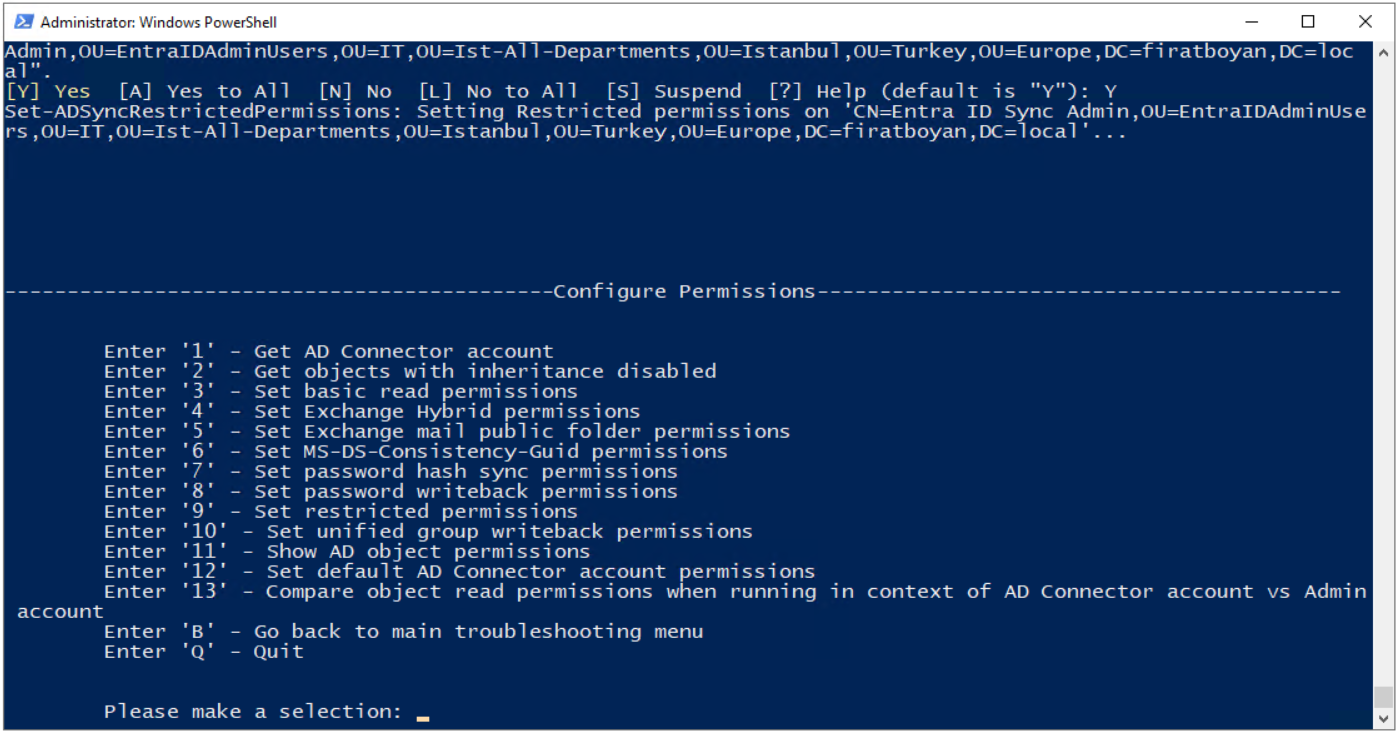
Checkpoint
No error message appears after the confirmation for each permission group, and the tool returns to the AADConnect Troubleshooting main menu.
Step 6 - Active Directory Replication
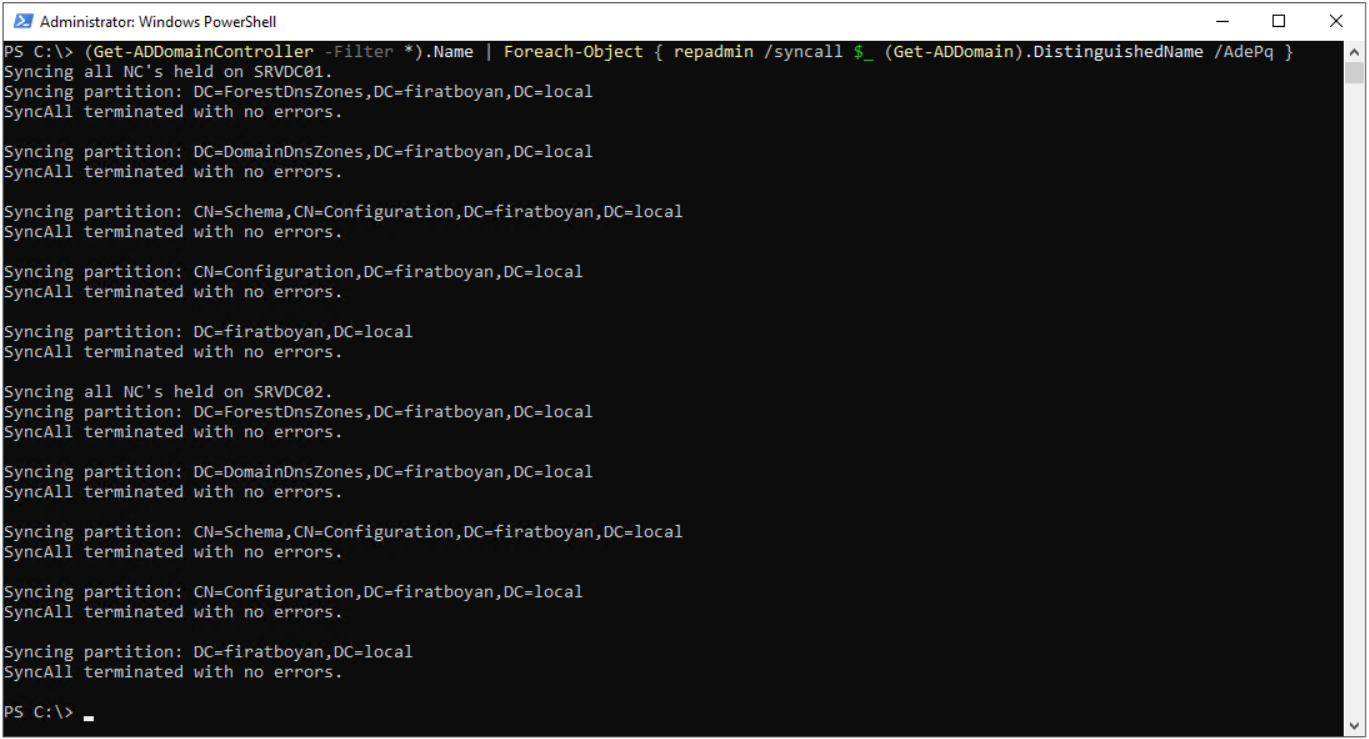
The ACL changes were made on the domain controller that the tool connected to. Entra Connect, however, can communicate with a different domain controller during export. To send the change to the other domain controllers without waiting for the normal replication interval, I start Active Directory replication manually with the command below.
The command requires the Active Directory PowerShell module and the repadmin.exe tool. The account that opens the session must have the right to start on-demand replication between domain controllers. In the default configuration, members of the domain's Administrators group can start replication between the domain controllers in the same domain, and members of Enterprise Admins can start it between all domain controllers in the forest. Being a local administrator on a member server does not provide this right.
(Get-ADDomainController -Filter *).Name | Foreach-Object { repadmin /syncall $_ /AdeP }
Get-ADDomainController -Filter * returns the domain controller objects in the domain, and the .Name expression selects the names of these objects. The Foreach-Object loop then runs the repadmin /syncall command for each name. The parameters have the following meanings.
|
Parameter |
Function |
/A |
Synchronises all directory partitions (naming contexts) held by the target domain controller. |
/d |
Shows servers by distinguished name instead of GUID in messages. |
/e |
Also includes replication partners in other sites. Without this parameter, only the partners in the same site are synchronised. |
/P |
Sends the changes outwards from the target domain controller (push). |
By default, Active Directory replication works on a pull basis, which means that each domain controller pulls changes from its partner. The /P parameter reverses this direction and makes the domain controller where the change was made send the current data to its partners immediately. It is also possible to run the command on a single domain controller as repadmin /syncall /AdeP. The loop version starts a separate replication request for each listed domain controller.
For each domain controller, the output ends with the line SyncAll terminated with no errors. This line shows that the call completed without reporting an error.
Verification
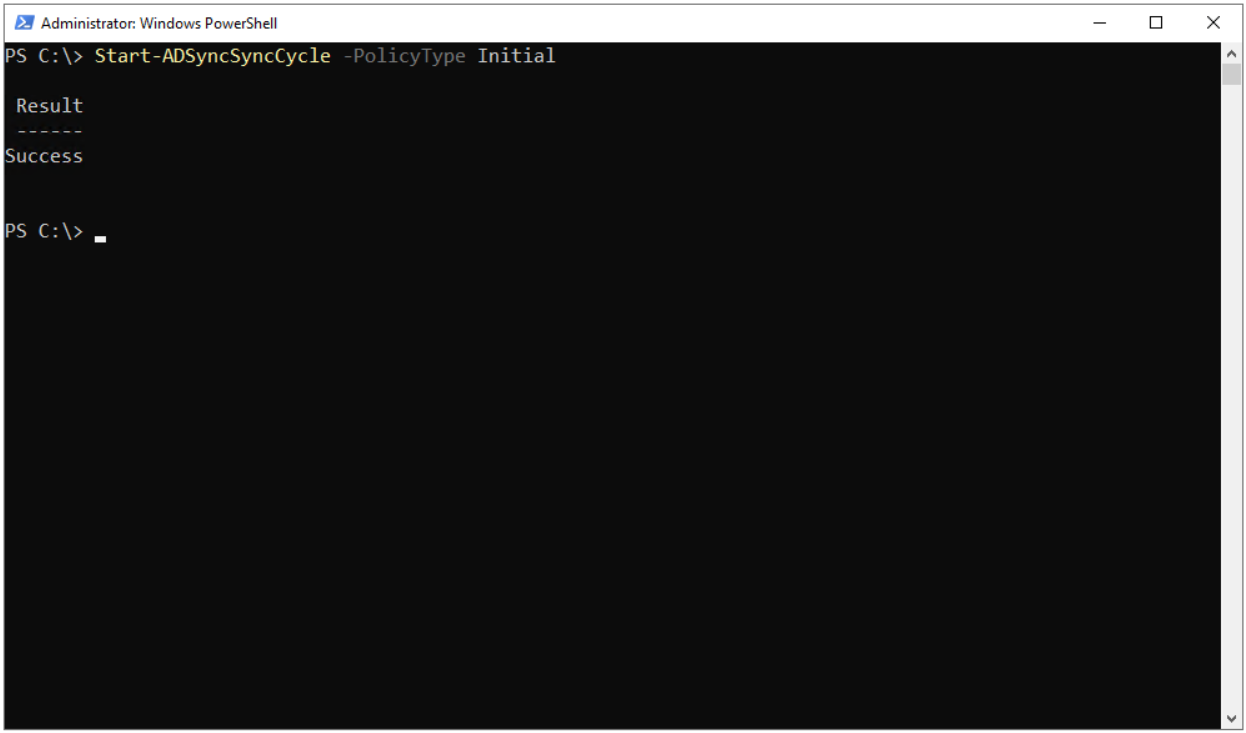
To see the effect of the permissions, I start a delta sync cycle on the Entra Connect server without waiting for the next scheduler cycle.
Start-ADSyncSyncCycle -PolicyType Delta
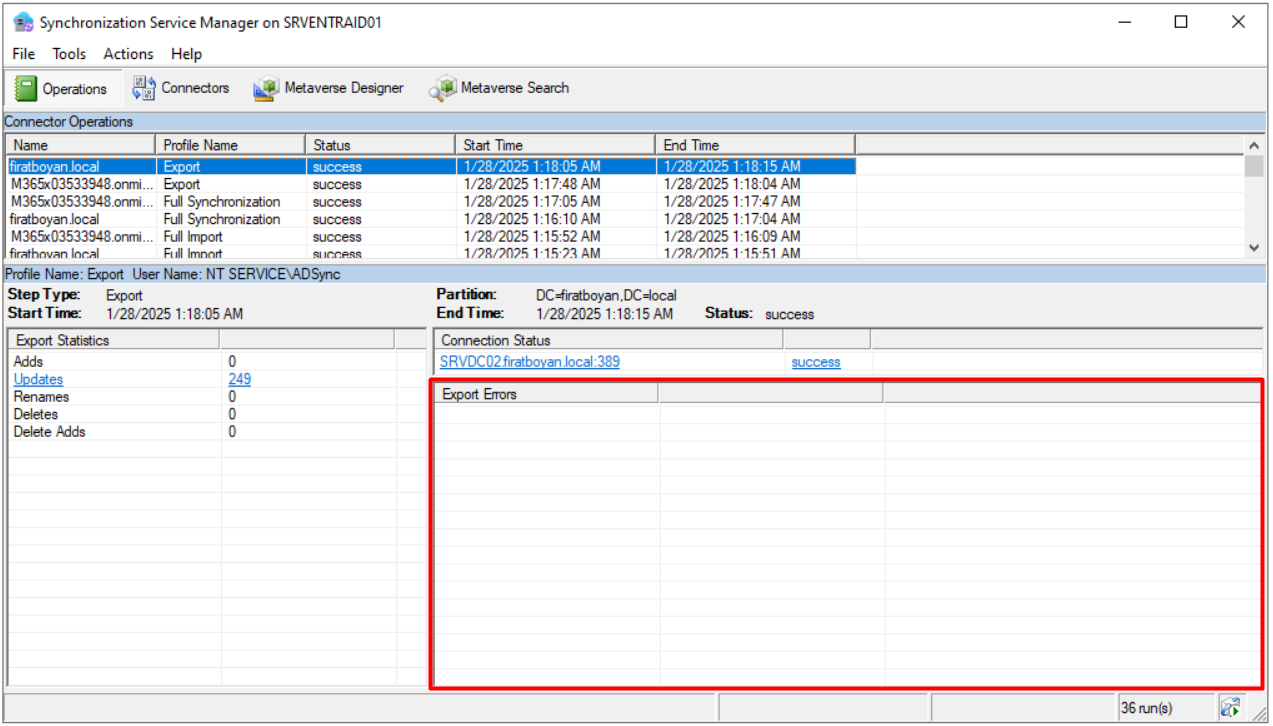
Objects with an export error are retried automatically in the next cycle. In Synchronization Service Manager, the Export row of the firatboyan.local connector now completes with the success status, and the Export Errors area contains no entries. The values that could not be written before have been written to the Active Directory user objects.
If the error continues on some objects after the permissions are assigned, check 2 cases.
Inheritance may be disabled on the object or on its parent OU. Option 2, Get objects with inheritance disabled, in the Configure Permissions menu asks for the search scope and the object class. If the object class is left empty, only organizationalUnit objects are searched. Enter user to find users that have inheritance disabled on themselves, or * for all classes.
The adminCount value of the object may be 1. First verify whether the account is still a member of a protected group. If the account is no longer a member, the permissions at the domain root reach the object when inheritance is enabled again. If the account is still protected, an individual change made to the object's ACL is reverted at the next SDProp run. In these 2 cases, the Troubleshoot task does not resolve the error on its own.
This article covered how the Permission Issue 8344 error that Microsoft Entra Connect Sync receives during writeback to Active Directory appears, which missing permissions cause it, and how the permissions of the AD DS Connector account are redefined with the Troubleshoot task in the wizard. When you apply the same steps in your own environment, identifying the attribute that cannot be written from the Pending Export tab and assigning only the permission for that feature prevents you from granting the connector account broader permissions than it needs.
I hope you find it useful...
Feel free to share your thoughts and questions about this article in the comments below. Every contribution helps the content reach more people and makes for a more useful discussion.