When I migrate a domain controller that runs on Windows Server 2008 R2 to Windows Server 2022, I do not touch the operating system of the old server. In the method I follow, the new server joins the existing domain as an additional domain controller, the FSMO roles are transferred to this server, the old domain controller is demoted and removed from the environment, and the functional levels are raised at the end. Extended support for Windows Server 2008 R2 ended on 14 January 2020. Systems covered by Extended Security Updates (ESU) could receive security updates until 10 January 2023, and those covered by the Azure-only fourth year could receive them until 9 January 2024. All of these periods have passed. An operating system that receives no security updates sits at the centre of the identity infrastructure, and this is the real reason for the migration.
In this article, I first look briefly at the new features in Windows Server 2022. I then go through the pre-migration checks, the functions of the FSMO roles, the transfer of the roles and the functional level raise, in that order. Adding the Windows Server 2022 server to the existing domain as an Additional Domain Controller is outside the scope of this article. In my scenario, this server has already been added to the domain. If you are not familiar with the domain controller concept, I recommend that you read my article on it first.
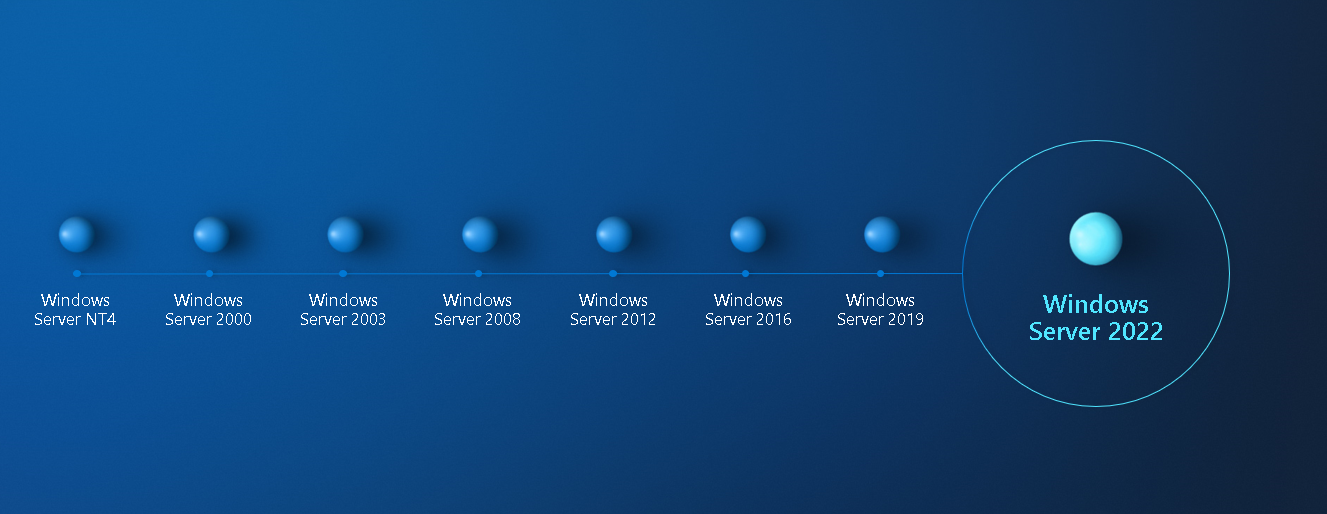
This article is written with Windows Server 2022 as the target. To add a Windows Server 2025 domain controller, the domain and forest functional levels must be at least Windows Server 2016. For this reason, a Windows Server 2025 domain controller cannot be added directly to an environment at the Windows Server 2008 R2 level.
New Features in Windows Server 2022
The new features in Windows Server 2022 can be grouped under 3 main headings. These are multi-layered security, hybrid capabilities with Azure and flexibility in the application platform.
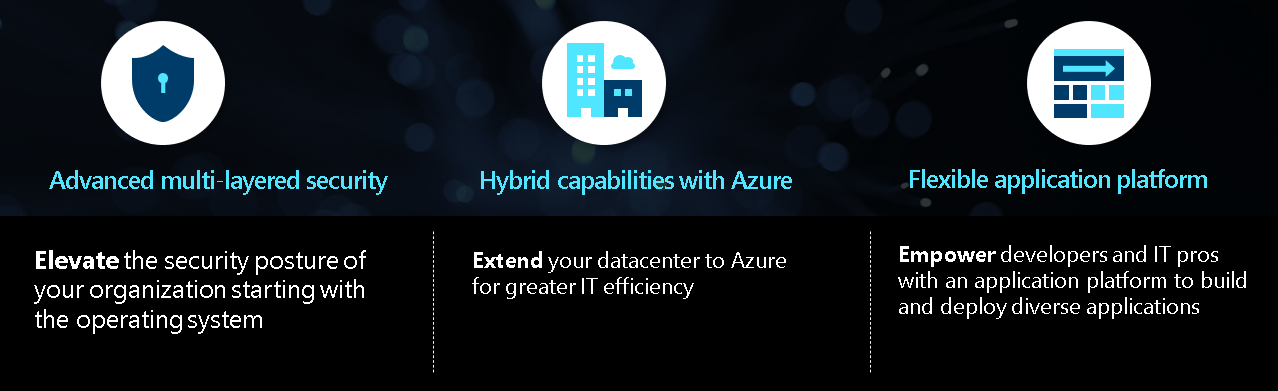
1- Advanced multi-layered Security
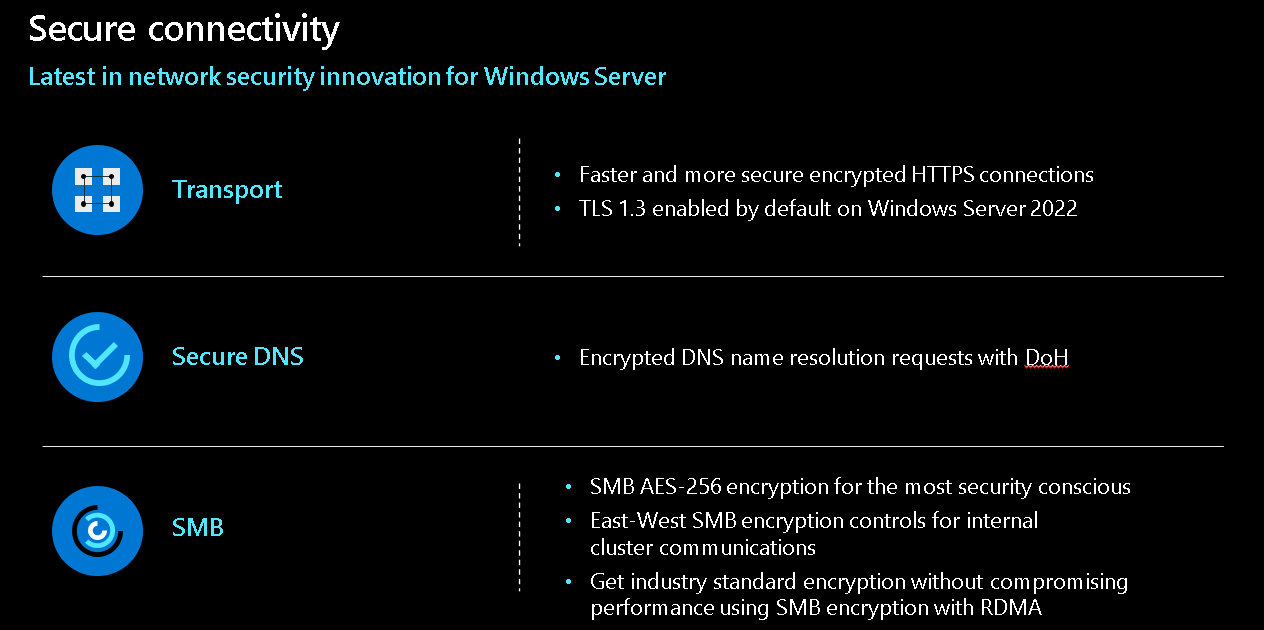
In this release, security is handled in 2 layers. The first is Secured-core server, which protects the server itself from the hardware level upwards. The second is secure connectivity, which hardens the protocols that the server uses to communicate with the outside world.
1.1- Secured-core Server
Secured-core server uses hardware, firmware and driver capabilities together with virtualisation-based security technologies. The aim is to make 3 things more difficult from the hardware level upwards: boot kit and rootkit attacks that start before the operating system loads, the placement of malicious code in firmware, and credential theft. Before you move to a Secured-core server configuration, security components such as Secure Boot and TPM 2.0 must be enabled in the BIOS. Secured-core certified hardware is listed in the Windows Server Catalog.
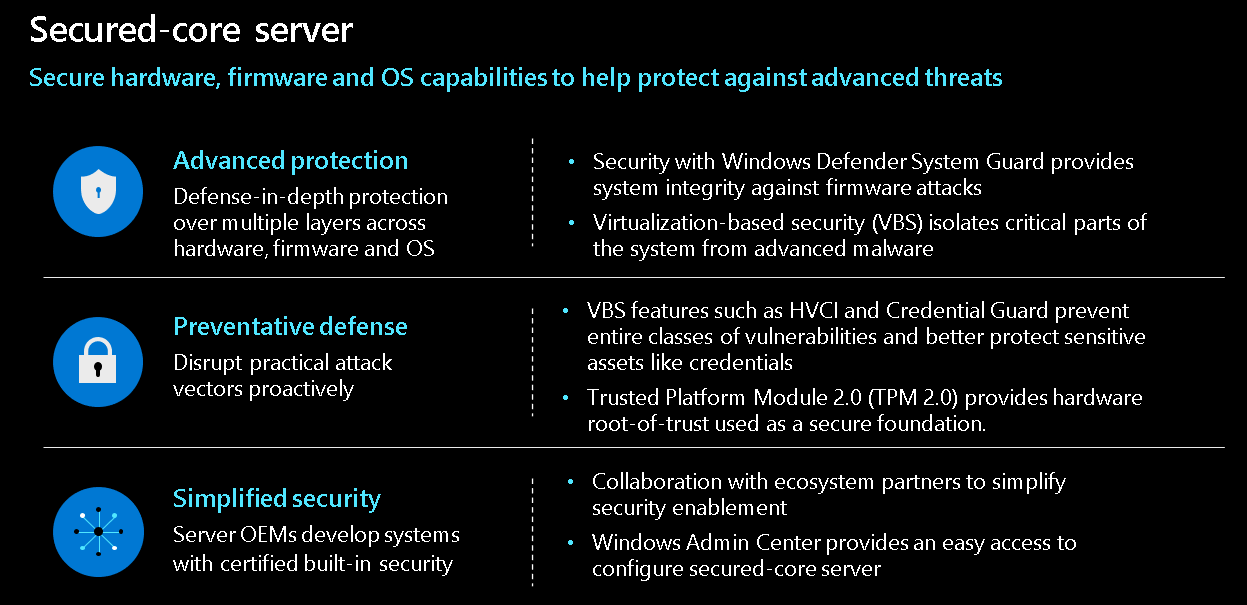
1.2- Secure connectivity
Monitoring the traffic of a server is sometimes easier than breaking into a server that is tightly protected by hardware and virtualisation. For this reason, the communication protocols were also strengthened in Windows Server 2022. TLS 1.3 is enabled by default. On the SMB side, AES-256-GCM and AES-256-CCM encryption support was added. SMB traffic between the nodes in a cluster can be encrypted, and encryption on SMB Direct connections that use RDMA no longer reduces performance as much as before. This last item makes a direct difference in cluster designs that replicate storage, such as S2D.
DNS-over-HTTPS (DoH) support also arrived with this release, but one distinction must be made clear here. In Windows Server 2022, DoH support is on the DNS client side. This means that the server can send the queries it makes to a DoH-capable DNS server encrypted over HTTPS. The DNS Server service, however, does not answer DoH queries in this release.
Do not enable the Require DoH option for the DNS client on domain-joined machines. Active Directory depends on DNS, and name resolution fails because the Windows Server 2022 DNS Server service does not answer DoH queries.
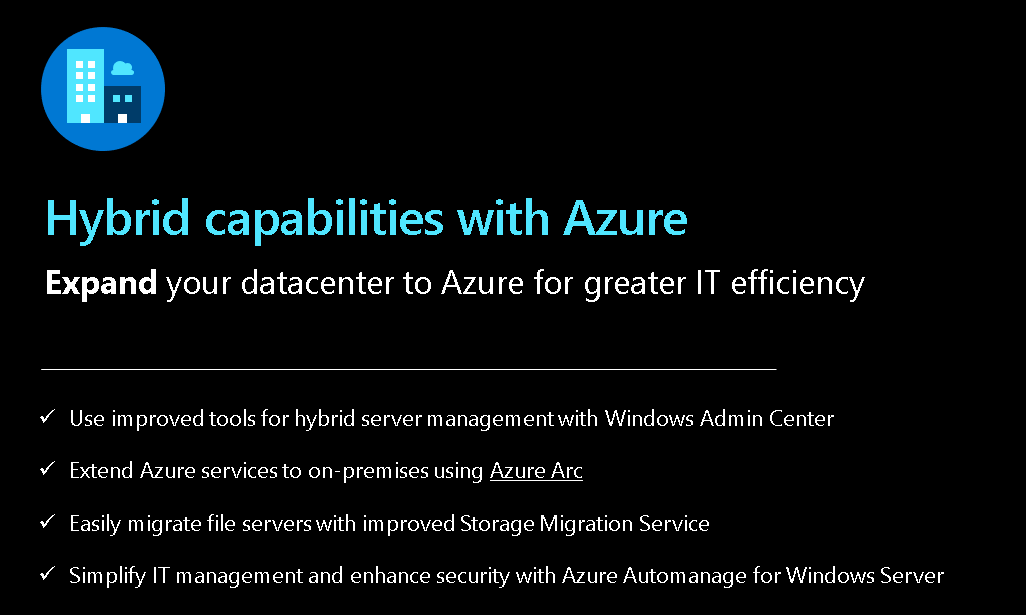
2- Hybrid capabilities with Azure
Many organisations run some of their workloads on-premises and some in the cloud, and managing these 2 sides with separate tools makes operations harder. Windows Server 2022 stands out here with 2 tools. With Windows Admin Center, we can manage servers from a single interface. Azure Arc, through an agent installed on on-premises servers, lets us apply Azure management services such as monitoring, update management and Policy to these servers as well.
3- Flexible application platform
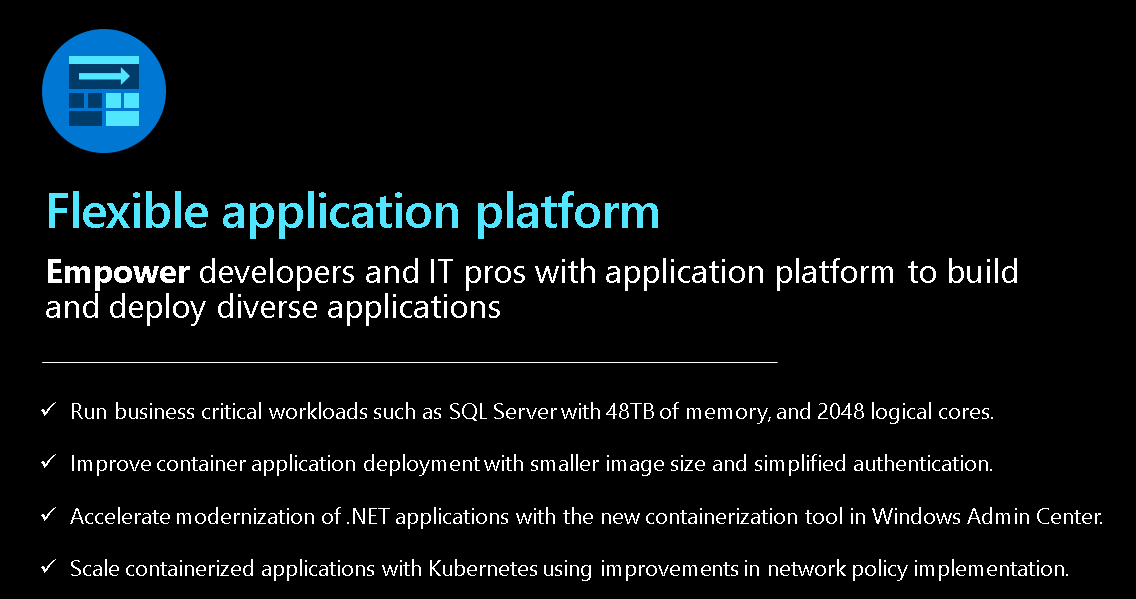
The first new feature on the application platform side is scalability. Microsoft presented the scalability of Windows Server 2022 for large SQL Server workloads with the example of 48 TB of RAM and 2,048 logical cores on 64 physical sockets. The maximum RAM that the operating system supports, however, depends on the edition and on the paging support of the hardware. Microsoft's current limits table lists 256 TB for Standard and Datacenter on hosts that support 4-level paging, and 4 PB on hosts that support 5-level paging.
The second new feature is on the Windows container side. Container image sizes are smaller, Kubernetes compatibility is provided through containerd, which is the industry standard, and gMSA can be used on container hosts that are not joined to a domain. On the Kubernetes side, IPv6 dual-stack support and consistent network policy implementation with Calico were also added. With network policy, traffic between pods can be restricted by IP address and port.
What Is Migration?
The word means moving, and migration is the transfer of physical or virtual systems from an old version or platform to a new one. In a domain controller migration specifically, what is moved is not the disk or the operating system of a server. The Active Directory database has already been copied to the new domain controller by replication. What is moved is the FSMO roles on the old domain controller and the function of that server in the environment.
In the scenario in this article, my aim is to hand over all the duties of the Windows Server 2008 R2 domain controller to the Windows Server 2022 domain controller, remove the old server from the environment and fully renew the domain environment in terms of Windows Server version.
1- Pre-Migration Checklist
The firatboyan.local domain in my scenario has 2 domain controllers. The first server, which created the domain, runs Windows Server 2008 R2 and holds all 5 FSMO roles. The Windows Server 2022 server that I added to the domain later works as an additional domain controller. Real environments can have many more domain controllers, but these 2 servers are enough to explain the migration process.
Throughout the article, I use the term Primary Domain Controller for the domain controller that holds the PDC Emulator role, and the term Additional Domain Controller for domain controllers that are added to the domain later. Because Active Directory is multi-master, these are not official product terms. They are names that are established in the field.
Before you start the migration, especially if you do not know the environment, you need to verify the items in the table below. I cover each item that is verified with a command separately below the table.
|
Check |
Expected State |
|
Domain controller inventory |
All domain controllers are listed with their operating system versions, and the Windows Server 2022 domain controller is in the list |
|
FSMO role ownership |
It is known which domain controller holds each of the 5 roles (in this environment, all of them are on the Windows Server 2008 R2 domain controller) |
|
Active Directory replication |
No errors in the repadmin /replsummary output, no error records in the repadmin /failcache output |
|
Functional level |
Domain and forest functional levels are at least Windows Server 2008 (Windows Server 2008 R2 in this environment) |
|
SYSVOL replication method |
DFSR |
|
Domain controller health |
dcdiag /q output is empty |
|
Permissions |
The account that performs the operation is a member of the Domain Admins, Enterprise Admins and Schema Admins groups |
Domain Controllers and FSMO Role Ownership
I start the checks in a PowerShell console that I open on the Windows Server 2008 R2 domain controller. Windows PowerShell 2.0, which comes with Windows Server 2008 R2, does not load modules automatically on the first cmdlet call. This feature arrived with PowerShell 3.0. If you are not in a session where the Active Directory module is already loaded, you need to load the module first.
Import-Module ActiveDirectory
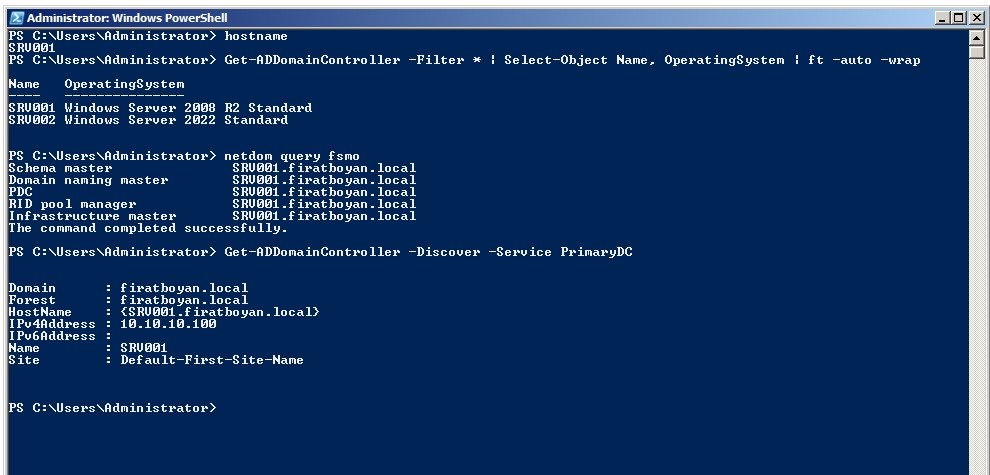
First, I list the domain controllers in the environment and their operating system versions.
Get-ADDomainController -Filter * | Select-Object Name, OperatingSystem | FT -AutoSize -Wrap
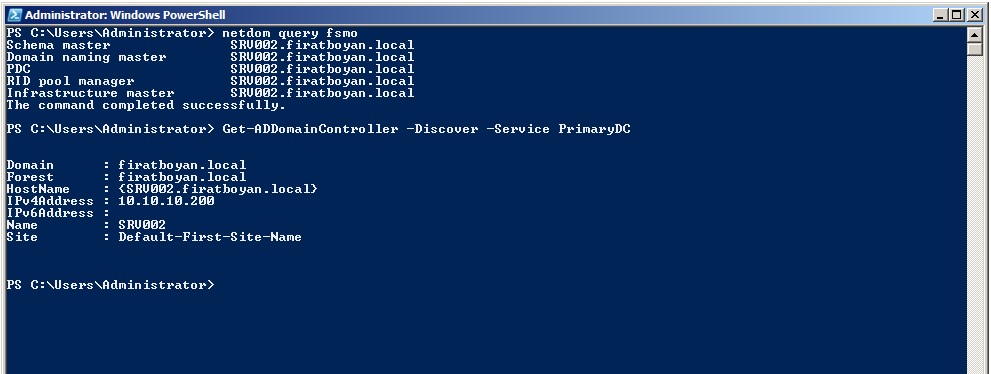
Next, I get the domain controller that holds the FSMO (Flexible Single Master Operation) roles. netdom is a command-line tool, not a PowerShell cmdlet, but it works in the same way in the PowerShell console.
Among the 5 FSMO roles, the domain controller that holds the PDC Emulator role is referred to as the Primary Domain Controller, even if it does not hold the other roles. I can also get this information directly with the command below.
Get-ADDomainController -Discover -Service PrimaryDC
In the output, I see the 2 domain controllers with their operating systems. All 5 FSMO roles and the Primary Domain Controller function are on the Windows Server 2008 R2 domain controller.
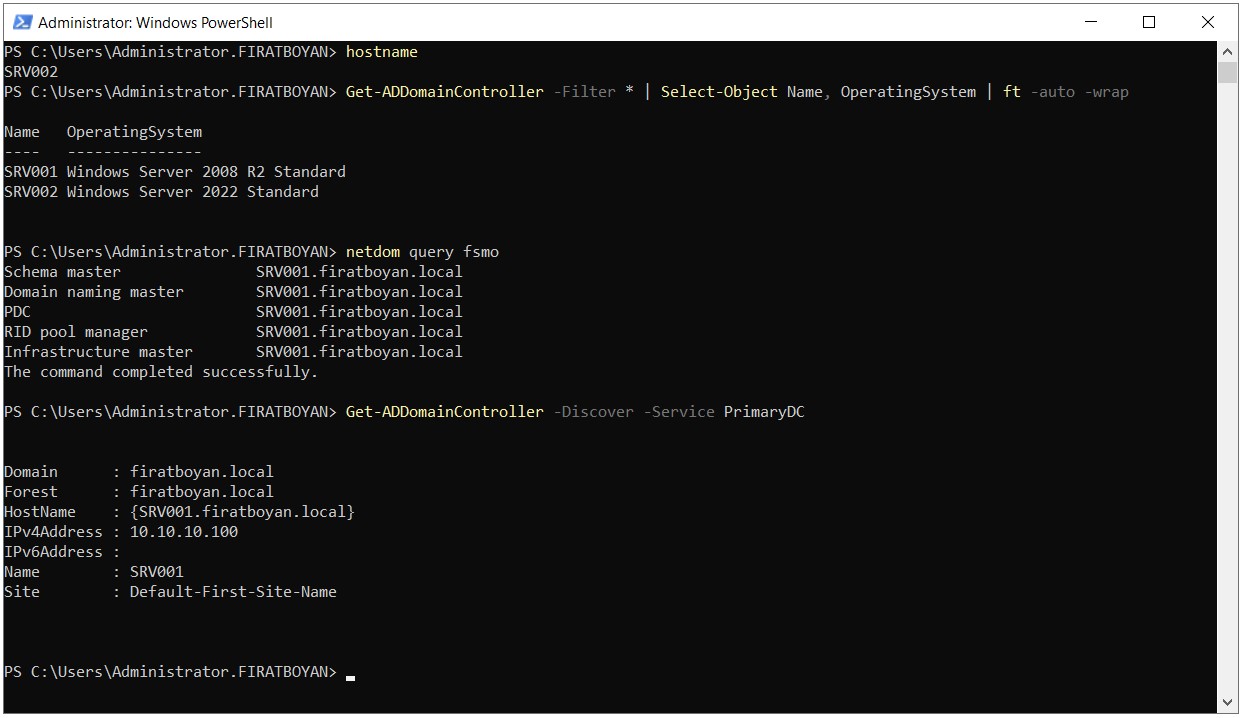
When I run the same commands on the Windows Server 2022 domain controller, I get the same information. This output alone does not show that replication is healthy, because the server on which the command is run does not fix which domain controller answers the query. I check replication separately with repadmin under the next heading.
Active Directory Replication
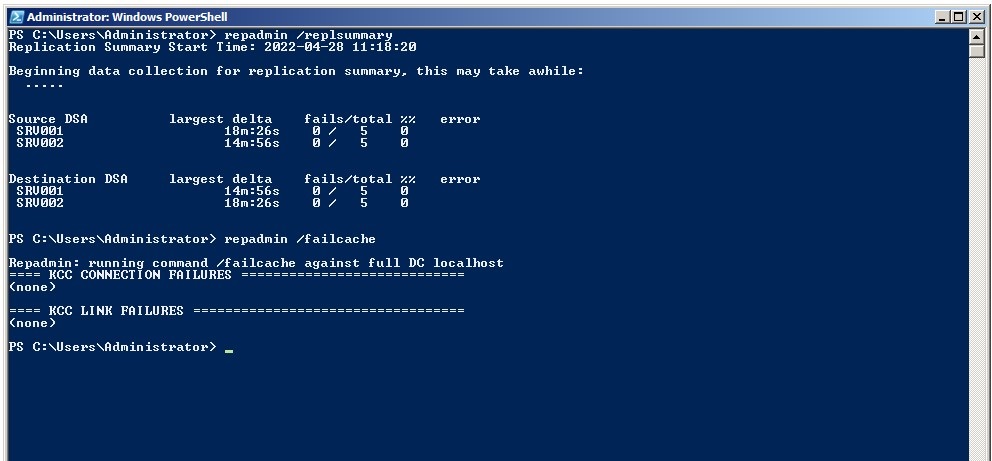
An FSMO role transfer relies on the role ownership information replicating between domain controllers. Moving a role in an environment with replication problems can cause 2 domain controllers to see different role holders. For this reason, I run the 2 commands below on the Windows Server 2008 R2 domain controller.
repadmin /replsummary
repadmin /failcache
repadmin /replsummary shows the summary status of Active Directory replication traffic between domain controllers, and repadmin /failcache shows the connection failures recorded by the KCC (Knowledge Consistency Checker). The KCC is a process that runs on every domain controller and starts every 15 minutes by default. It calculates the intrasite replication topology, which determines which domain controller replicates with which other domain controller within a site, and it creates the required connection objects automatically.
I see no failed replication and no KCC error record in the output.
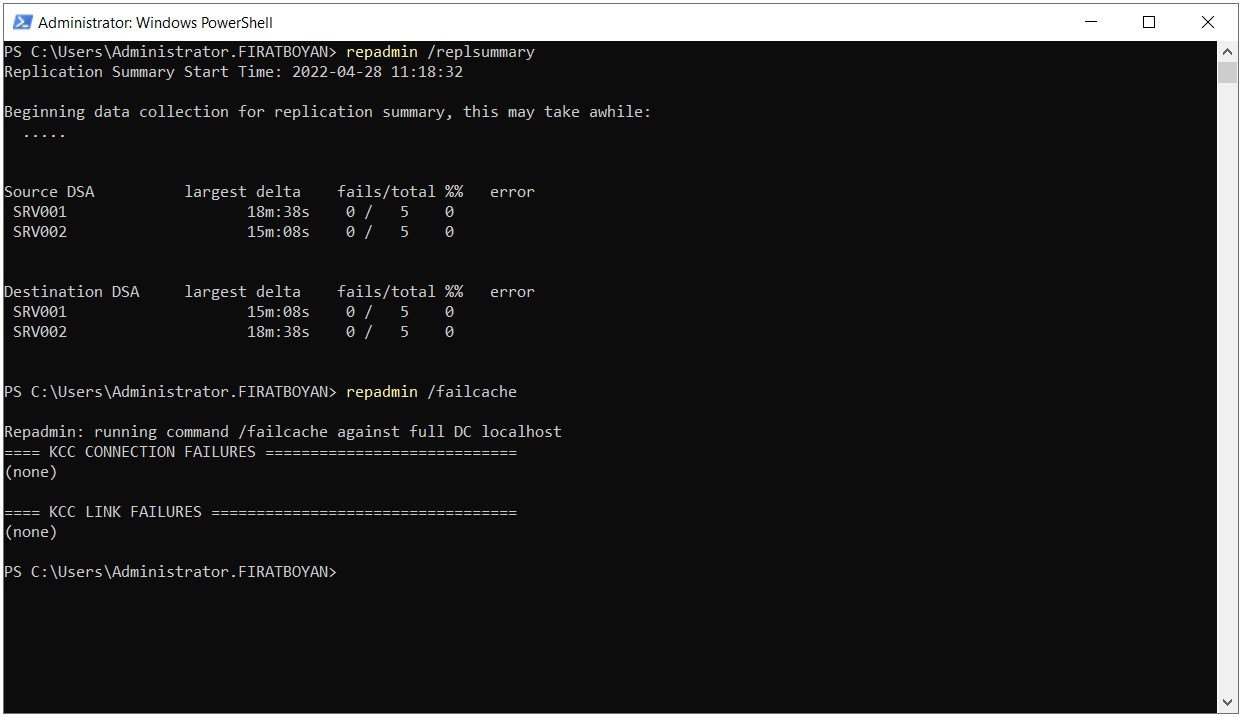
I also run the same commands on the Windows Server 2022 domain controller and get the same result.
Domain and Forest Functional Level
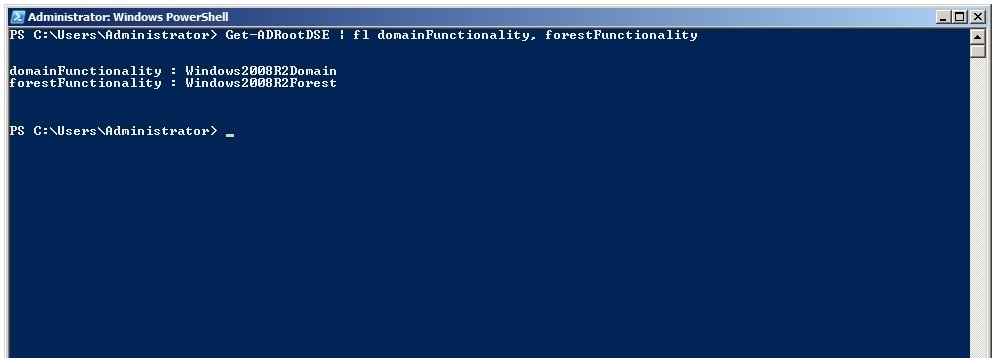
On the Windows Server 2008 R2 domain controller, I get the domain functional level (DFL) and forest functional level (FFL) with the command below.
Get-ADRootDSE | fl domainFunctionality, forestFunctionality
I set both levels to Windows Server 2008 R2 when I first created my domain environment, and the output confirms this.
The same command returns the same values on the Windows Server 2022 domain controller.
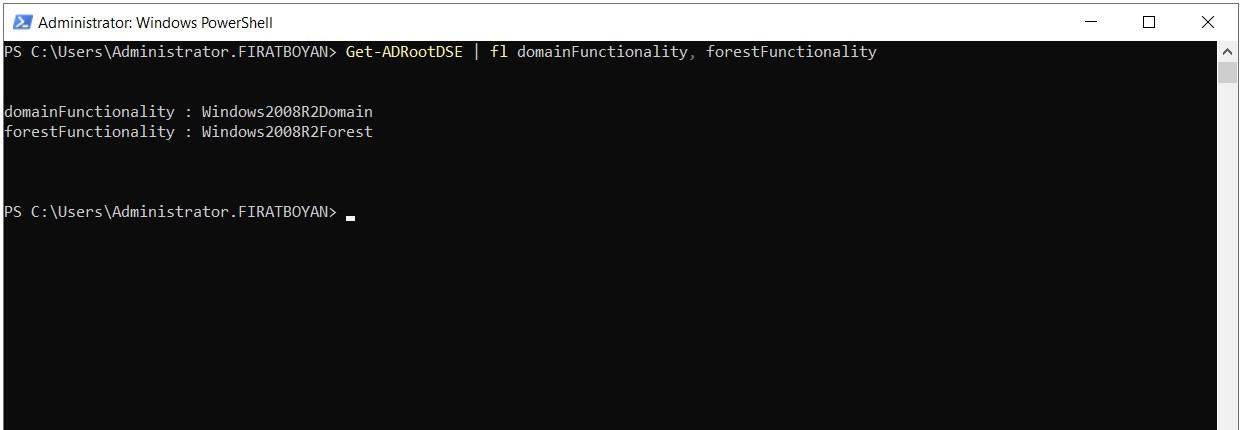
The reason for this check is as follows. For a server that runs Windows Server 2019 or Windows Server 2022 to be added as a domain controller, the functional level must be at least Windows Server 2008. During the check, you may also see that the level is Windows Server 2003. This value does not prove that the environment was migrated from Windows Server 2003 in the past. When a new forest is created with Windows Server 2008 R2, the default forest functional level is also Windows Server 2003. In both cases, you first need to make sure that no Windows Server 2003 domain controller remains in the environment and then raise the functional levels.
SYSVOL Replication Method (FRS and DFSR)
A sufficient functional level is not enough alone. In older environments, the content of the SYSVOL shared folder is replicated with the File Replication Service (FRS). Domain controllers that run Windows Server 2019 and Windows Server 2022, however, do not support FRS and replicate SYSVOL with Distributed File System Replication (DFSR). In a domain that replicates SYSVOL with FRS, SYSVOL stays on FRS until it is converted separately, even if the functional level was raised later. When you try to add a newer-generation domain controller to such a domain, the promotion stops with the error below.
Verification of replica failed. The specified domain {Domain-Name} is still using the File Replication Service (FRS) to replicate the SYSVOL share. FRS is deprecated. The server being promoted does not support FRS and cannot be promoted as a replica into the specified domain. You MUST migrate the specified domain to use DFS Replication using the DFSRMIG command before continuing.
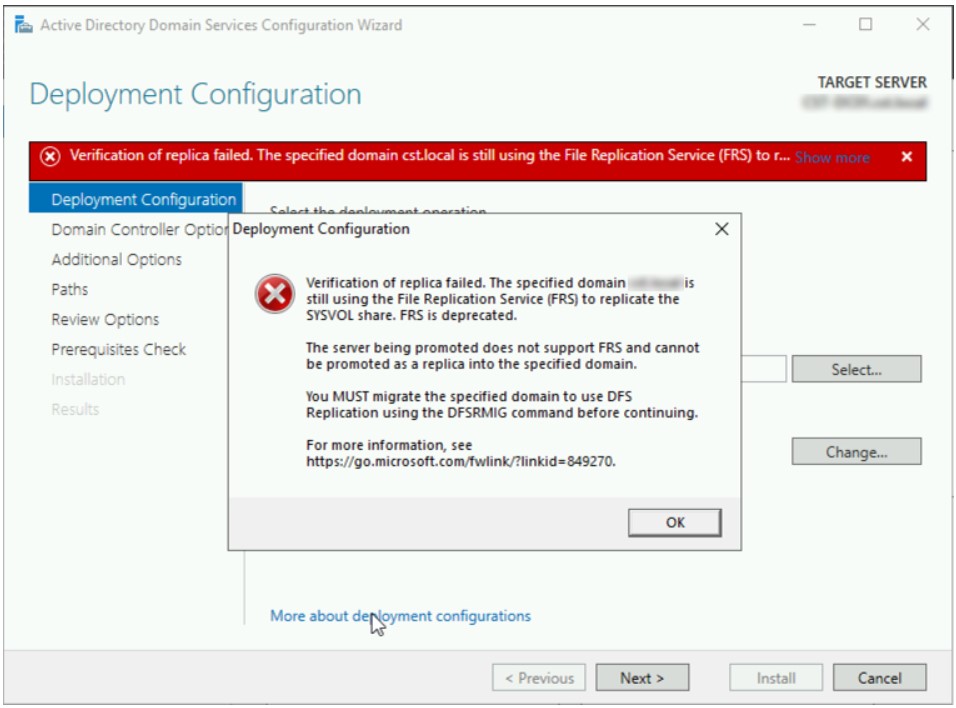
When you get this error, you need to convert SYSVOL replication from FRS to DFSR with the dfsrmig tool while the functional level is at least Windows Server 2008. This process is called DFSR migration.
The clearest difference between DFSR and FRS is that DFSR uses Remote Differential Compression (RDC). FRS resends the whole of a changed file. RDC divides the file into parts called chunks, calculates a signature for each part, compares the signatures on the 2 sides and sends only the parts that are different. On links with limited bandwidth, this difference directly affects the replication time.
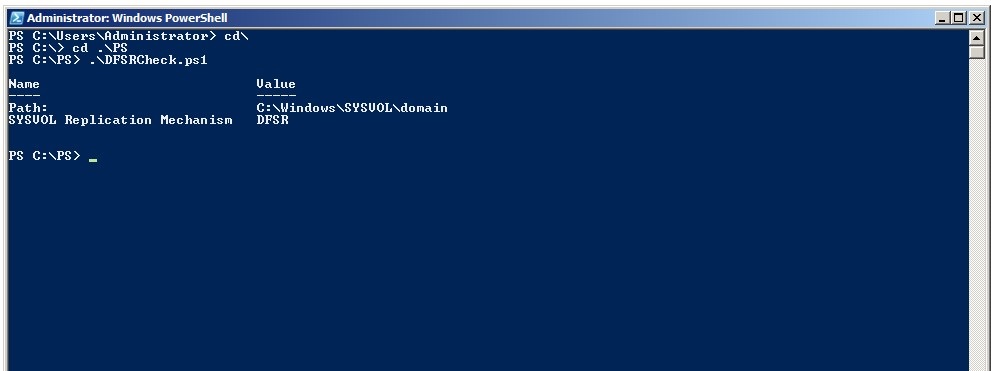
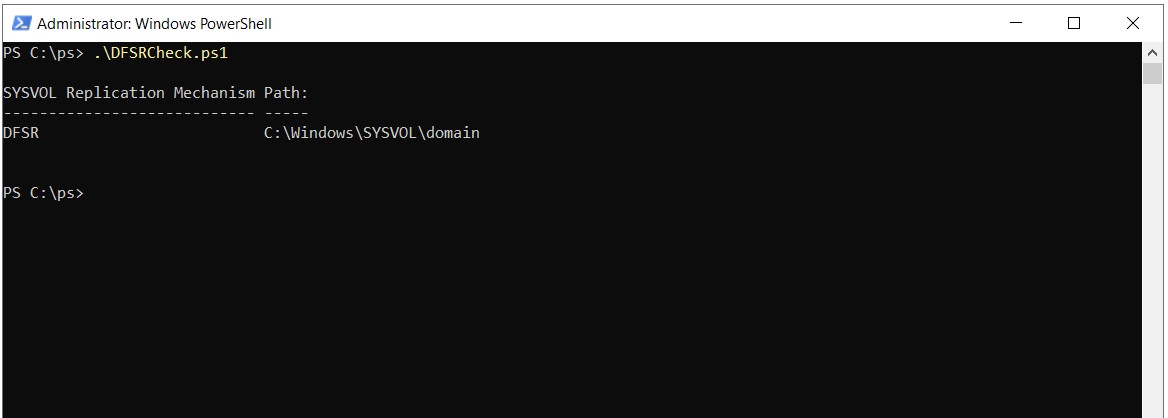
To find out which method SYSVOL replication uses in your current environment, you can use the DFSRCheck.ps1 PowerShell script. The script looks at the subscription objects of the single domain controller that answers the query, so the result is valid for that domain controller. In a domain that was migrated from FRS to DFSR, verify the state across the domain on the PDC Emulator. Check that the global state is Eliminated with dfsrmig /getglobalstate, and check that all domain controllers have reached this state with dfsrmig /getmigrationstate. Because my environment was created at the Windows Server 2008 R2 level, SYSVOL replication runs over DFSR.
Health Check with DCDIAG
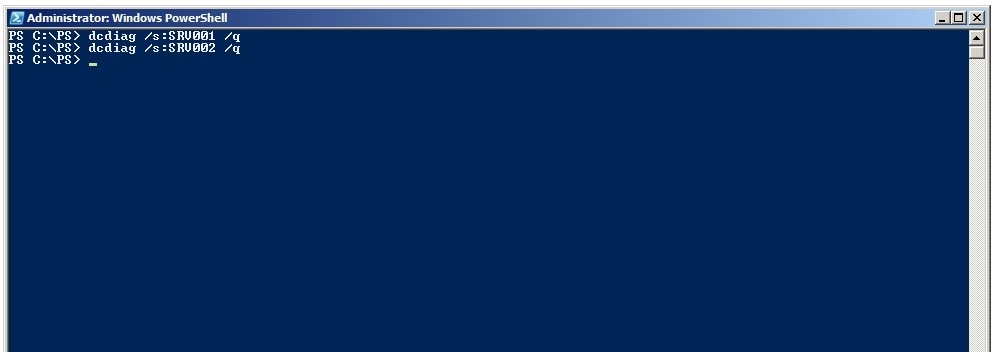
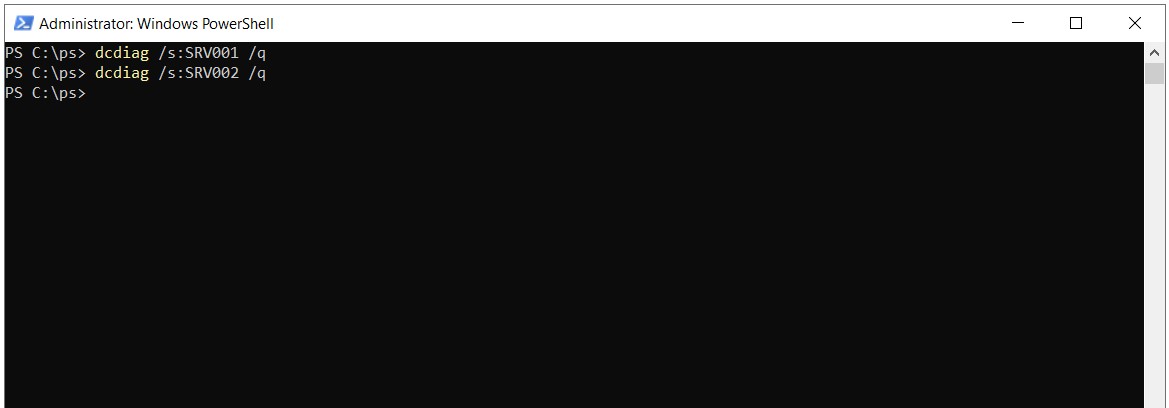
As the last pre-check, I run a health check on the domain controllers with DCDIAG. The DCDIAG tool has many test options. To stay within the scope of the article, I use the tool here with the /q parameter, so that it lists only the errors, if there are any. The /s parameter specifies the domain controller on which the test runs, so I can scan the 2 domain controllers from a single console.
dcdiag /s:SRV001 /q
dcdiag /s:SRV002 /q
I run the commands separately on both the Windows Server 2008 R2 domain controller and the Windows Server 2022 domain controller. This is not a requirement. I do it this way to show the result from both sides. Empty output means that none of the tests found an error.
2- Examining the FSMO (Flexible Single Master Operation) Roles
In Active Directory, most changes can be made on any writable domain controller and spread to the others by replication. Some operations, however, produce a conflict when they are performed on 2 different domain controllers at the same time. Schema changes, adding and removing domains, and RID pool allocation are examples of these operations. Operations of this kind are assigned to a single domain controller, and these duties are called FSMO roles. When a domain environment is first created, all 5 roles are assigned to the first domain controller.
In the pre-checks, I confirmed that all 5 roles are on the Windows Server 2008 R2 domain controller. Before I move on to transferring the FSMO roles, I find it useful to examine what each role that I am going to move does and what is affected when the role holder is unreachable.
|
Role |
Scope |
Function |
|
Schema Master |
1 per forest |
Makes the changes to the schema |
|
Domain Naming Master |
1 per forest |
Manages the addition of domains and application directory partitions to the forest and their removal |
|
PDC Emulator |
1 per domain |
Is the reference domain controller for password changes, account lockout processing and time synchronisation |
|
RID Master |
1 per domain |
Allocates RID pools to domain controllers |
|
Infrastructure Master |
1 per domain |
Updates the references to objects in other domains |
1- Schema Master
The Active Directory schema defines which object class types can exist in the directory and which attribute values these objects can carry. A change such as adding a new class or attribute to the schema can be made only on the domain controller that holds the Schema Master role. The change replicates from there to all other domain controllers in the forest. Having a single write point prevents conflicting schema changes from being made on 2 different domain controllers at the same time.
When the Schema Master is unreachable, users, groups and other AD objects continue to be managed normally. The only thing affected is schema changes. This situation appears most often with products that extend the schema during installation, such as Exchange Server, and in the schema preparation that runs when a domain controller of a newer version is added.
The Schema Master role is unique within the forest.
2- Domain Naming Master
The Domain Naming Master manages the addition of a new domain or application directory partition to the forest and their removal from the forest. It is responsible for the Partitions container in the configuration partition, and this role authorises the changes to the forest namespace. When a new domain is to be added, the operation goes through the domain controller that holds this role, and this prevents a second domain with the same name from being created in the forest.
When the role holder is unreachable, the existing domains continue to work. Operations that change the forest namespace cannot be performed. These include adding and removing domains, and also adding or removing an application directory partition.
The Domain Naming Master role is unique within the forest.
3- PDC Emulator
The PDC Emulator is the FSMO role that affects daily operations the most. It has 3 main functions.
It is the reference point for password changes. A user's password can be changed on any writable domain controller. The change is written to the NTDS.dit database of that domain controller and is forwarded to the PDC Emulator immediately, without waiting for the normal replication cycle. A read-only domain controller (RODC) does not process the password change request itself and forwards it to a writable domain controller. If a user tries to sign in on a domain controller that has not yet received the new password, that domain controller contacts the PDC Emulator and has the password verified against the most recent one before it returns a wrong password result.
Account lockout is processed here. When you investigate lockout problems, you can start with the Security log of the PDC Emulator. When necessary, also look at the Security log of the domain controller that processed the request and at the Caller Computer Name field in event 4740. This field shows the computer from which the attempt that caused the lockout came.
It has a high position in the time hierarchy. Domain-joined machines get their time from a domain controller in their own domain. Domain controllers select their time source according to criteria such as the site, whether the source is marked as reliable, and whether it is in the parent domain. The PDC Emulator of their own domain is one of these candidates. The PDC Emulators in child domains synchronise from a domain controller in the parent domain. If no other reliable source is configured, the PDC Emulator in the forest root domain is at the very top of the hierarchy and is the authoritative time source for the forest. Because Kerberos authentication is sensitive to time difference, this hierarchy must work correctly.
The PDC Emulator is also the default target for Group Policy editing. The Group Policy Management Console connects to the PDC Emulator by default to prevent the conflicts that would arise if more than 1 administrator edited the same GPO on different domain controllers at the same time. The distribution of GPOs to the other domain controllers takes place through normal Active Directory and SYSVOL replication.
What Happens If the PDC Emulator FSMO Is Unreachable?
Password changes can be made, but they spread with a delay. The user can change the password on the writable domain controller that serves them. Until the new password reaches the other domain controllers through the normal replication cycle, the user may not be able to sign in with the new password on some domain controllers.
Authentication continues. Domain controllers continue to perform Kerberos authentication with the information in their own databases. The affected part is the second check that is made against the PDC Emulator in the case of a wrong password. When this check cannot be made, the sign-in request of a user whose password has just been changed is rejected.
The time hierarchy loses its top in the forest root domain. Domain controllers stay synchronised with each other, but because there is no authoritative source, the forest time can gradually move away from the real time. When the PDC Emulator of a child domain is unreachable, the source at the top of the forest does not change.
The PDC Emulator role is domain-specific. There is 1 in each domain in the forest.
4- RID Master
In Active Directory, every security principal, such as a user, group or computer, receives a security identifier (SID) at the moment it is created. A SID consists of 2 parts. The first part is the fixed SID value of the domain, and the second part is the relative identifier (RID) number that makes the object unique within that domain.
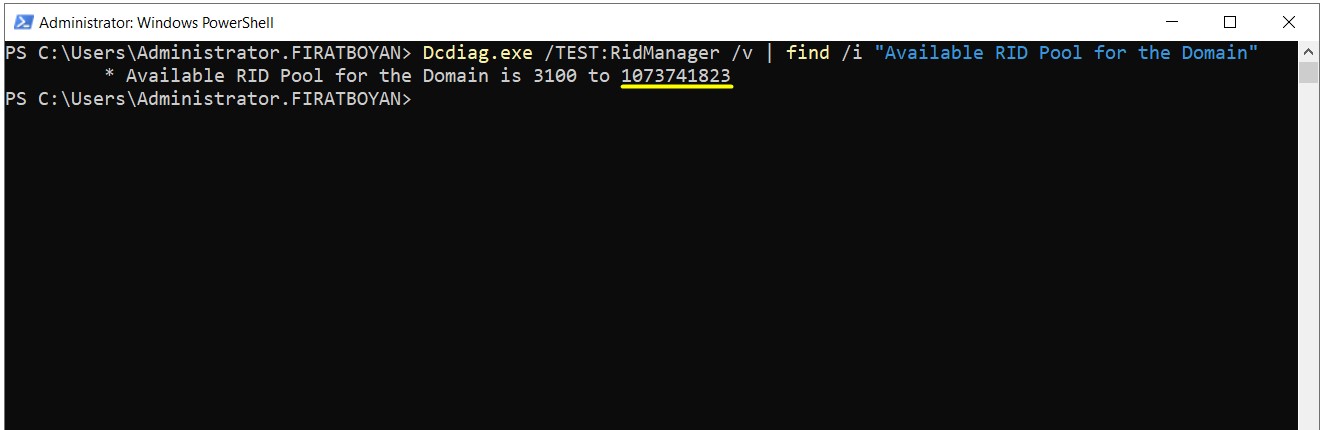
Because objects can be created on any writable domain controller, 2 domain controllers must be prevented from giving the same RID number to 2 different objects. The RID Master achieves this by allocating RID pools to each domain controller in blocks of 500 by default. The domain controller that creates the object assigns the RID number from its own pool and requests a new block from the RID Master when its pool runs low.
The total RID space of a domain is 1,073,741,823. With Windows Server 2012, this space can be extended up to the upper limit of 2,147,483,647 when an administrator unlocks it. An issued RID is not reused, even if the object is deleted.
The second function of the RID Master concerns object moves between domains. When an object is moved to another domain within the same forest, the source domain controller must be the RID Master of the source domain, and the target domain controller must be the RID Master of the target domain. If a different domain controller is used, the move fails with an error.
When the RID Master is unreachable, domain controllers continue to create objects until the pool they hold is used up. No new security principal can be created on a domain controller that has consumed its local pool and cannot get a new block from the RID Master. In this case, the the directory service has exhausted the pool of relative identifiers error may occur. The exhaustion of the local pool of 1 domain controller does not mean that the total RID space of the domain is exhausted. The management of existing objects and authentication are not affected by this situation.
The RID Master role is domain-specific. There is 1 in each domain in the forest.
5- Infrastructure Master
The Infrastructure Master keeps the references from the objects in its own domain to objects in other domains up to date. A domain controller does not hold the whole of an object that belongs to another domain. Instead, it stores a small record that represents that object, which is called a phantom. When the name or location of the referenced object changes, this record must also be updated. I explain this with a scenario.
Assume that a user in Domain-A (User-A) is a member of a group in Domain-B (Group-B). When User-A is moved from OU-1 to OU-2 within Domain-A, its distinguished name (DN) changes.
Old DN: CN=User-A,OU=OU-1,DC=Domain-A,DC=com
New DN: CN=User-A,OU=OU-2,DC=Domain-A,DC=com
|
Stage |
Operation Performed |
|
1- DN change |
The change is written to a domain controller in Domain-A and replicates within Domain-A |
|
2- Global catalog update |
The global catalog servers in the forest update their partial copy of User-A with the new DN |
|
3- Comparison |
The Infrastructure Master of Domain-B compares the phantom records in its own domain with a global catalog at regular intervals and sees that the User-A record is out of date |
|
4- Reference update |
The Infrastructure Master updates the record with the new DN and replicates the change to the other domain controllers in Domain-B |
|
5- Result |
User-A appears with its new DN in the member list of Group-B |
Relationship Between the Infrastructure Master (IM) and the Global Catalog (GC)
Microsoft recommends that, in forests with more than 1 domain, the Infrastructure Master role is not held on a domain controller that is a global catalog. The reason follows from the mechanism above. A global catalog already holds a partial copy of every object in the forest, so it has no phantom records. When the Infrastructure Master runs on a global catalog, it finds no outdated record to compare and makes no update, and the other domain controllers in the domain that are not global catalogs keep the old references.
This recommendation no longer applies in the following cases.
|
Case |
Why It Is Not a Problem |
|
The forest consists of a single domain |
There is no other domain, so there are no cross-domain references to update |
|
All domain controllers in the domain are global catalogs |
No domain controller has phantom records, and all of them have current data |
|
AD Recycle Bin is enabled in the forest |
Each domain controller updates its own cross-domain references itself |
Because my environment is a single-domain forest, having the Infrastructure Master on the same domain controller as the global catalog does not cause a problem.
The Infrastructure Master role is domain-specific. There is 1 in each domain in the forest.
Distribution of Forest-Wide and Domain-Wide Roles
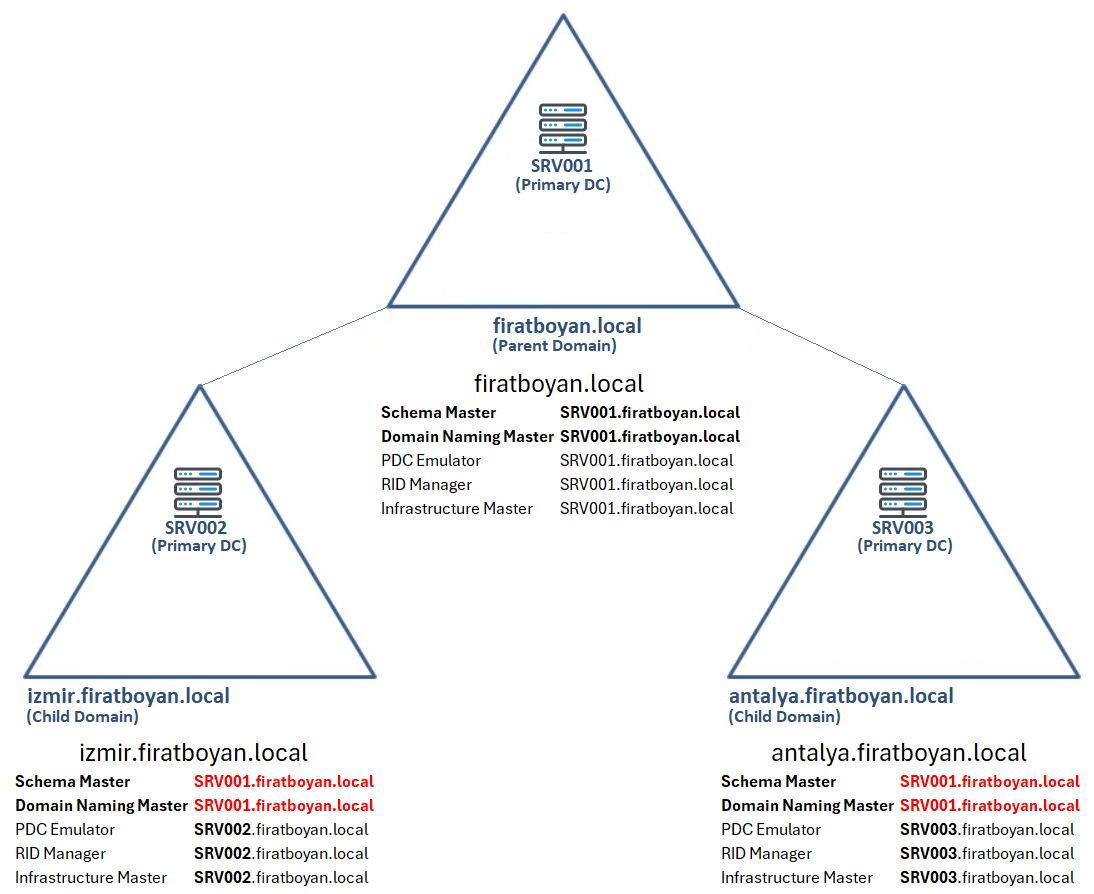
I use an example to make the distinction between forest-wide and domain-wide roles clear. Assume that your forest has 3 domains. 1 of them is the parent domain, where the forest was first created, and the other 2 are child domains. The first server that creates each domain is the first domain controller of that domain and takes the PDC Emulator, RID Master and Infrastructure Master roles for its own domain. This means that this structure has 3 separate PDC Emulators, 3 separate RID Masters and 3 separate Infrastructure Masters. Each of them is on a single domain controller in its own domain.
The Schema Master and Domain Naming Master roles, however, exist only once across the forest. You see the same server for these 2 roles on every domain controller in the forest that you query. Unless the roles are moved, this server is the first domain controller of the parent domain. If required, they can also be moved to a domain controller in a child domain.
3- Transferring the FSMO (Flexible Single Master Operation) Roles
Moving FSMO roles to another domain controller is not an operation that is specific to migration scenarios. Because it is not mandatory to hold all 5 roles on a single domain controller, the roles can also be shared between different domain controllers to distribute the load.
In this article, I move all 5 roles from the Windows Server 2008 R2 domain controller to the Windows Server 2022 domain controller. When the PDC Emulator role is moved, the Windows Server 2022 server takes over the Primary Domain Controller function. When the remaining roles are also moved, no role remains on the Windows Server 2008 R2 domain controller, and this server becomes ready to be demoted.
Each role is moved from a different management tool and requires a different group membership.
|
Role |
Management Tool |
Required Group Membership |
|
RID Master, PDC Emulator, Infrastructure Master |
Active Directory Users and Computers |
Domain Admins |
|
Domain Naming Master |
Active Directory Domains and Trusts |
Enterprise Admins |
|
Schema Master |
Active Directory Schema |
Schema Admins |
I perform the transfers through the GUI (Graphical User Interface). You can also perform the same operation with a single PowerShell command. In the command below, you need to replace {Target DC} with the name of the domain controller to which the roles are moved. The numbers in the -OperationMasterRole parameter correspond to the PDC Emulator (0), RID Master (1), Infrastructure Master (2), Schema Master (3) and Domain Naming Master (4) roles, in that order.
Move-ADDirectoryServerOperationMasterRole -Identity "{Target DC}" -OperationMasterRole 0,1,2,3,4
Do not add the -Force parameter to the command. This parameter seizes the role when the current role holder cannot be reached. The operation to perform while the old role holder is running is a transfer.
Step 1 - Transferring the RID Master Role
The RID Master, PDC Emulator and Infrastructure Master roles are transferred through Active Directory Users and Computers. There is no order of priority between the roles, and I start with the RID Master.
Because all the roles are on the Windows Server 2008 R2 domain controller, I open Active Directory Users and Computers on this server, right-click the domain and select Operations Masters....
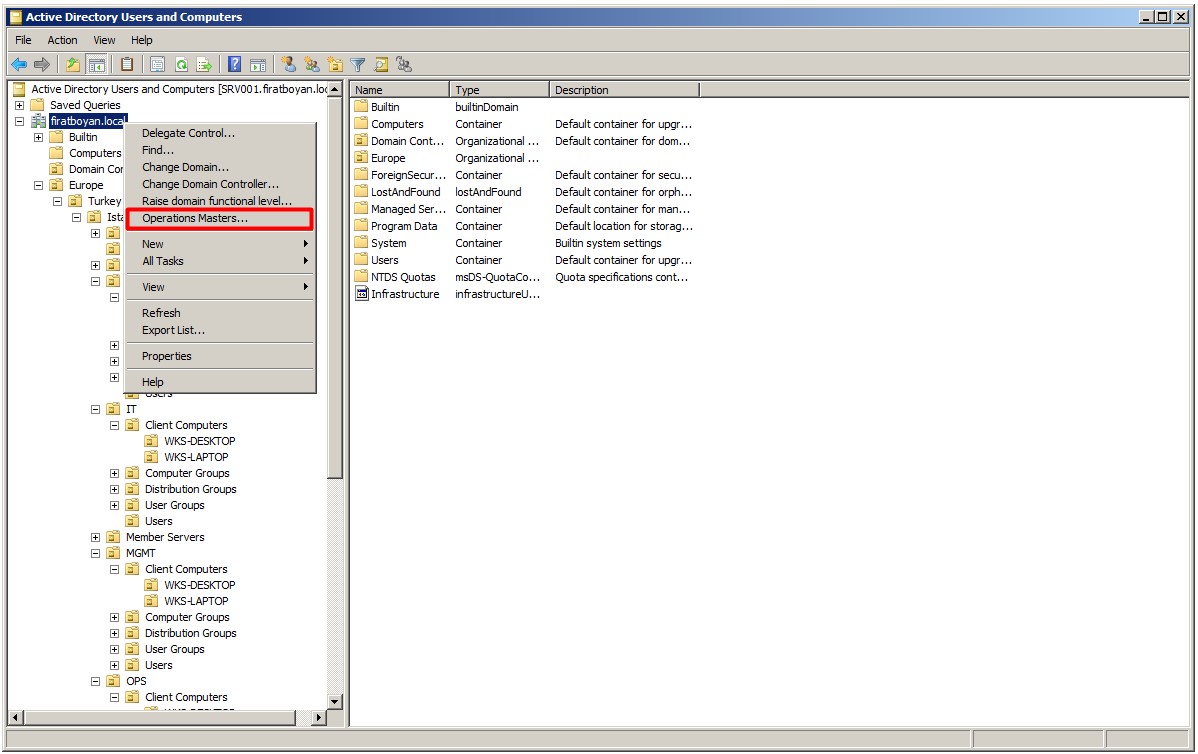
The window that opens has the RID, PDC and Infrastructure tabs. Each tab has 2 fields. The upper field shows the domain controller that currently holds the role, and the lower field shows the domain controller to which the role will be transferred. The lower field is the domain controller to which the console is currently connected. Because the console is currently connected to the server that holds the roles, I see the same server in both fields. A transfer is not possible in this state, so I first need to connect the console to the target domain controller.
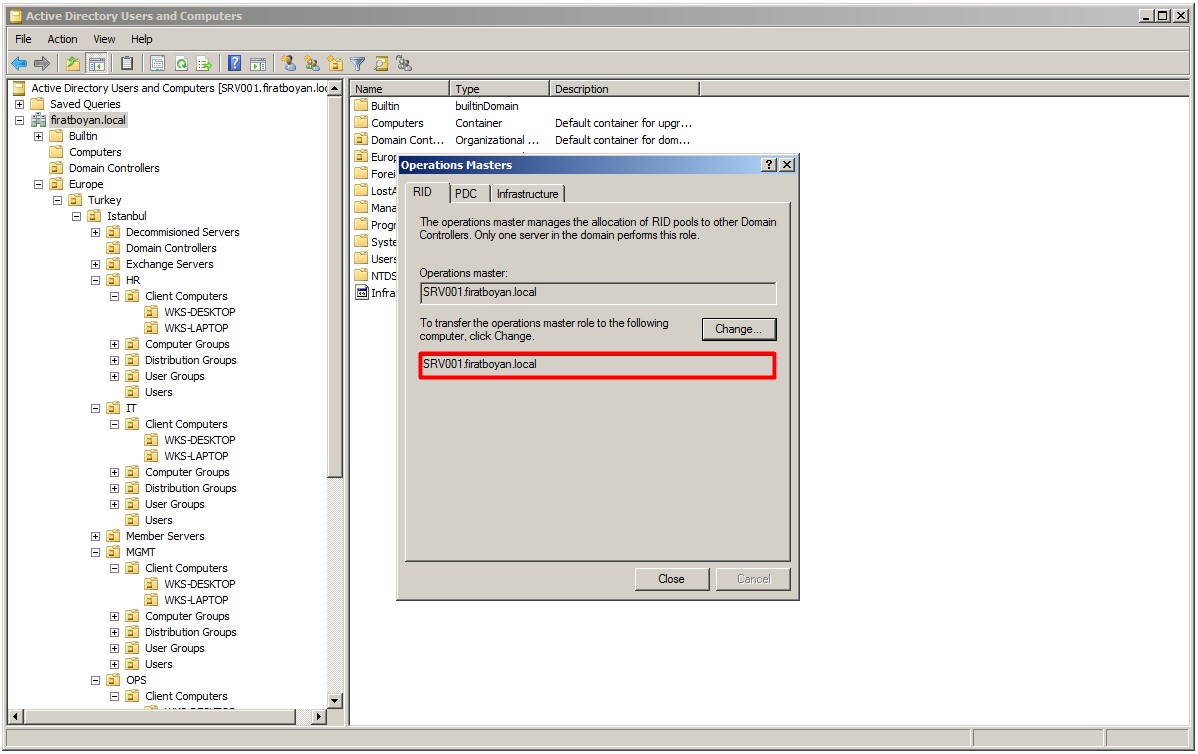
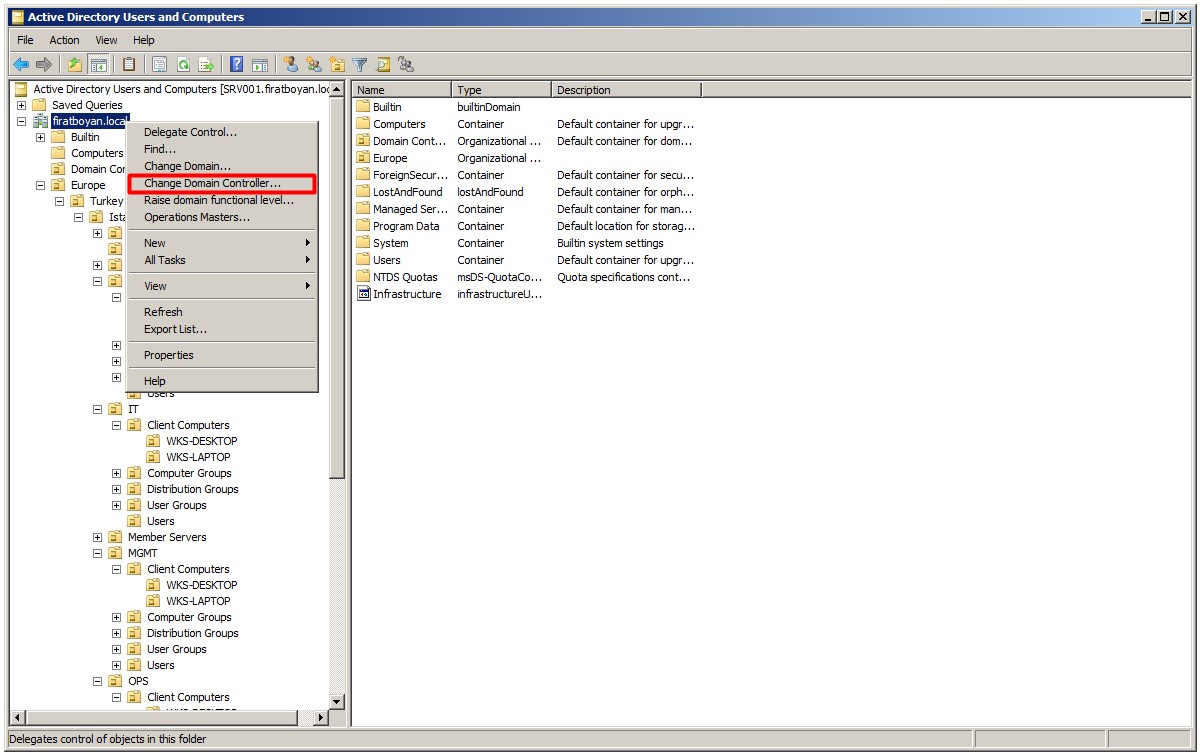
I close the window, right-click the domain again and this time select Change Domain Controller....
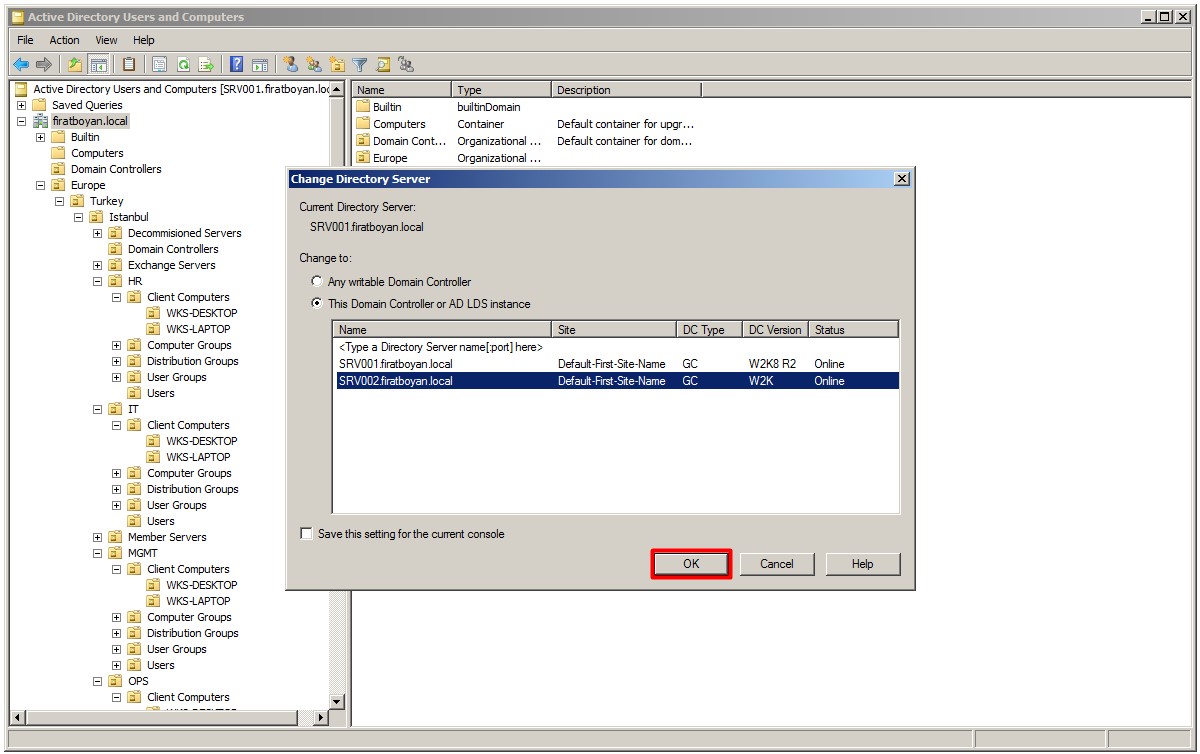
In the Change Directory Server window, I select the This Domain Controller or AD LDS instance option, choose the Windows Server 2022 domain controller to which the roles will be moved from the list and click OK.
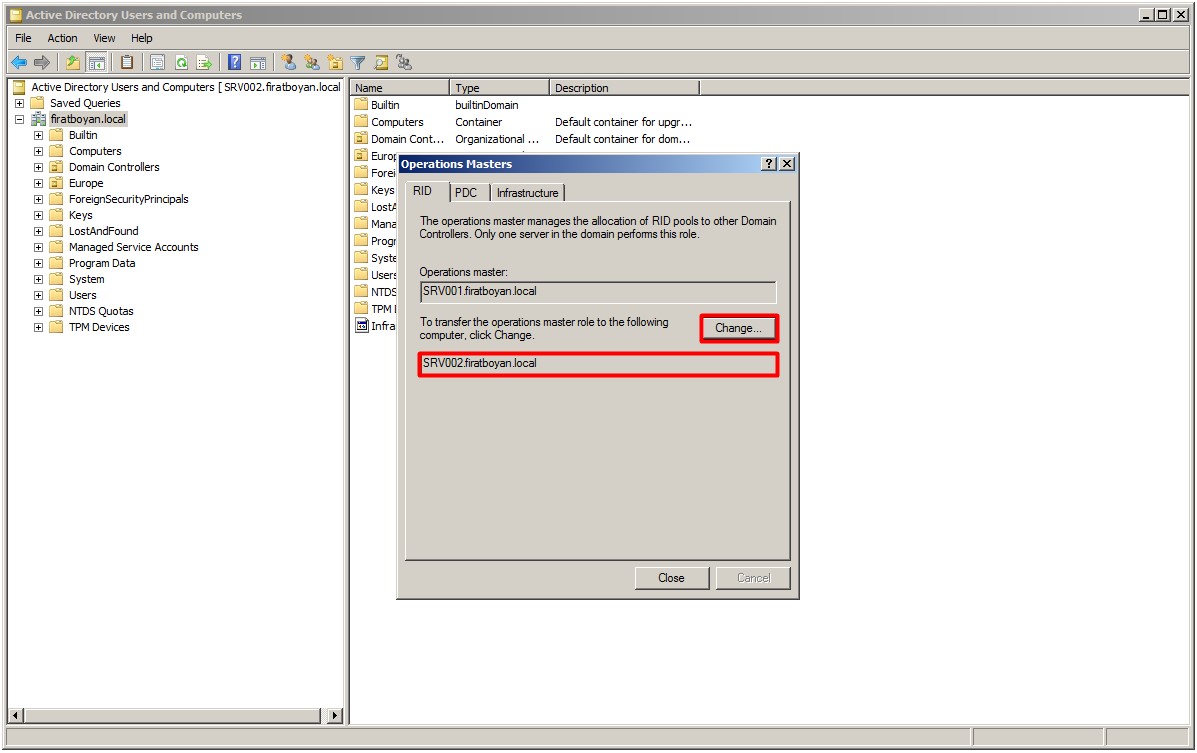
When I right-click the domain and open Operations Masters... again, I see that the lower field has changed to the target domain controller. On the RID tab, I click Change....
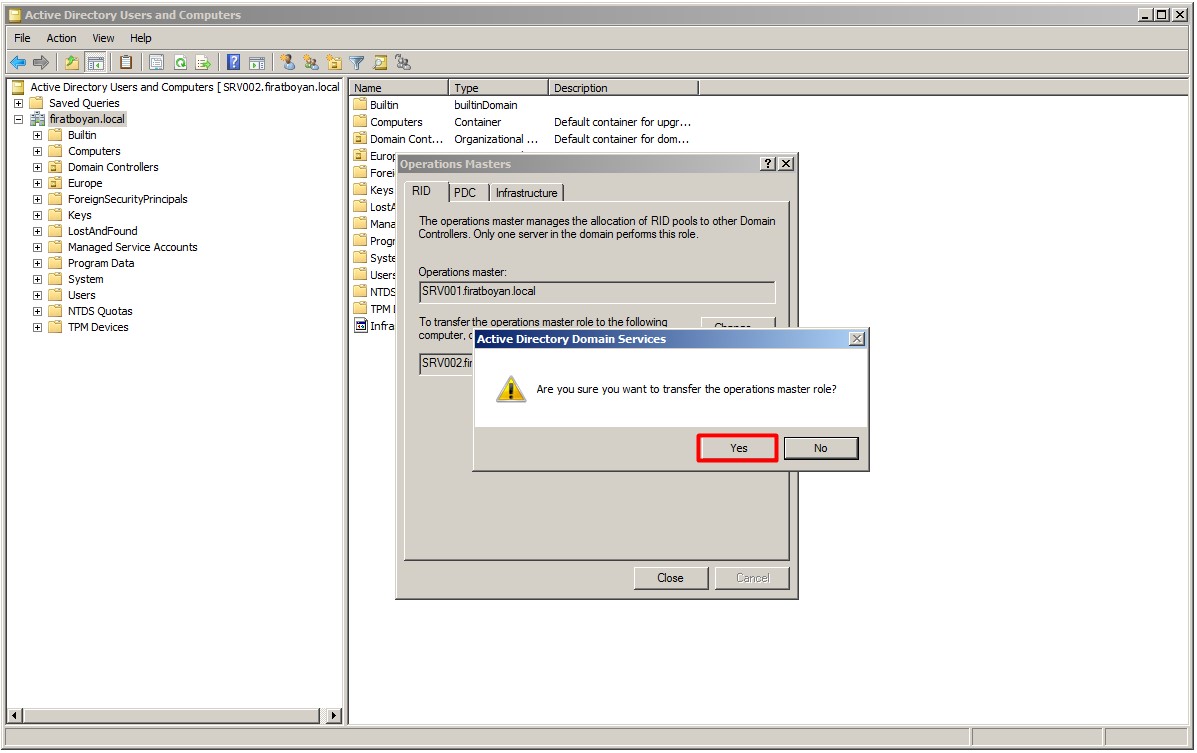
In the confirmation box that appears, I click Yes to confirm the operation.
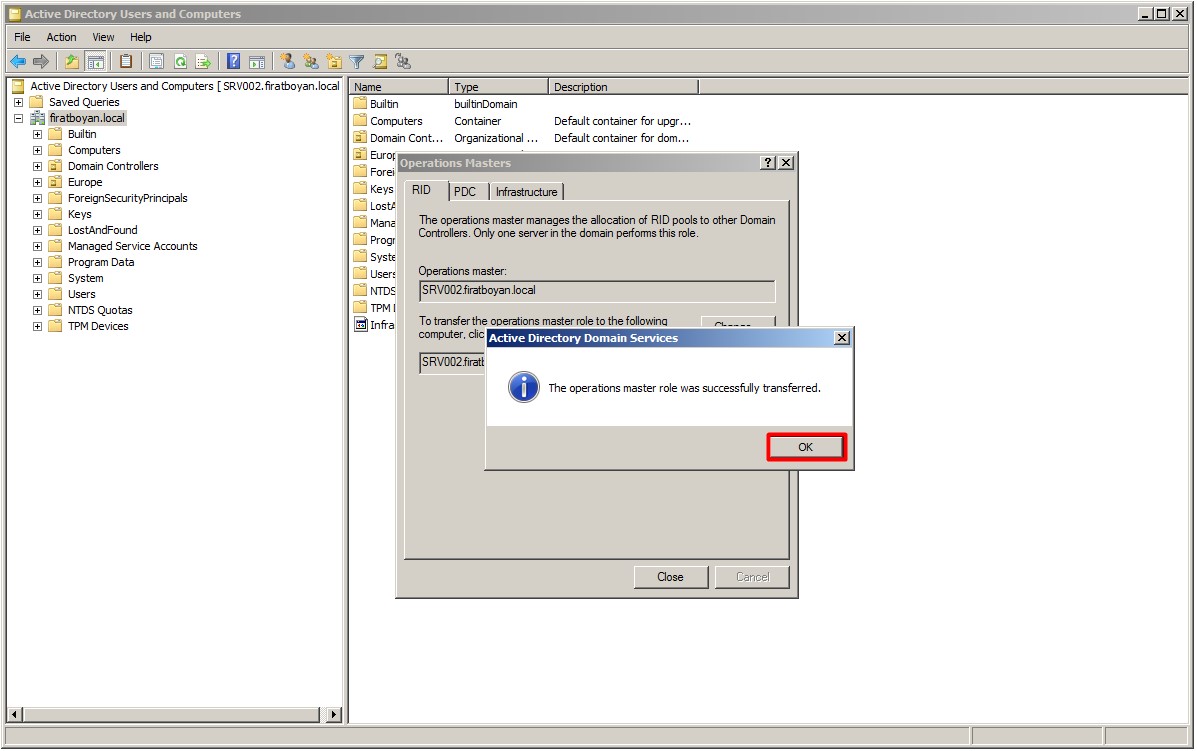
The transfer of the RID Master role is complete.
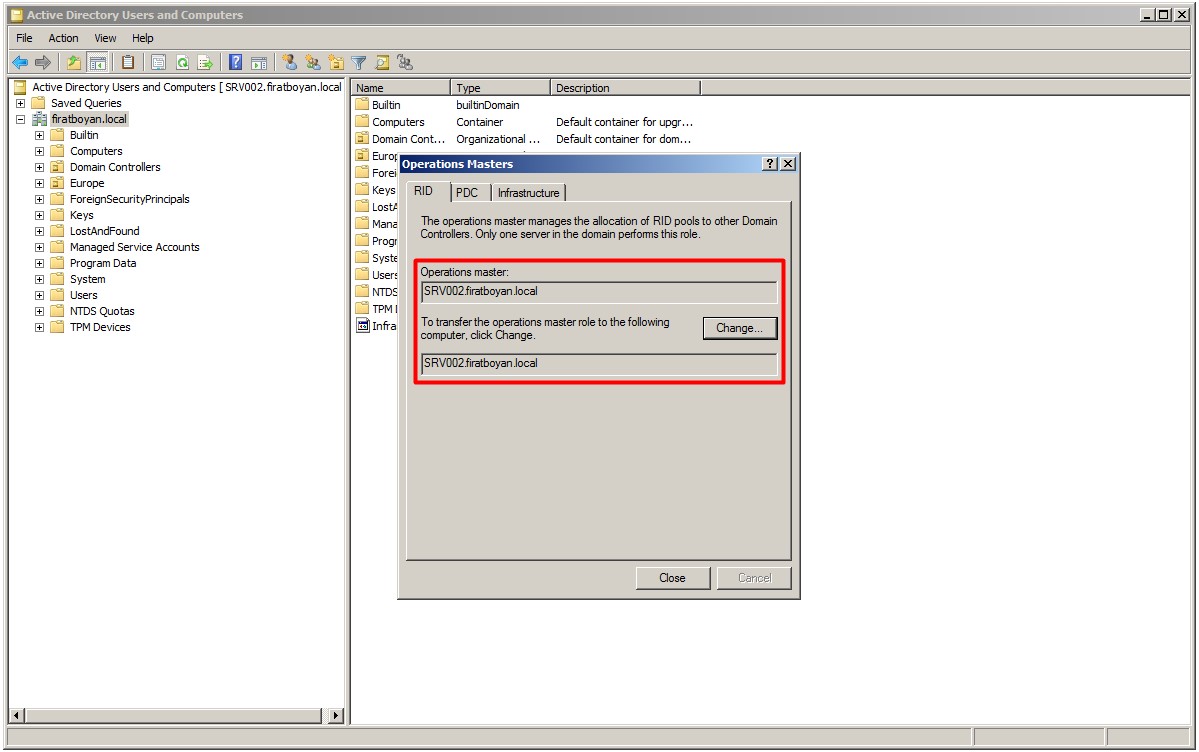
Checkpoint
On the RID tab, the upper Operations Master field now shows the Windows Server 2022 domain controller.
Step 2 - Transferring the PDC Emulator and Infrastructure Master Roles
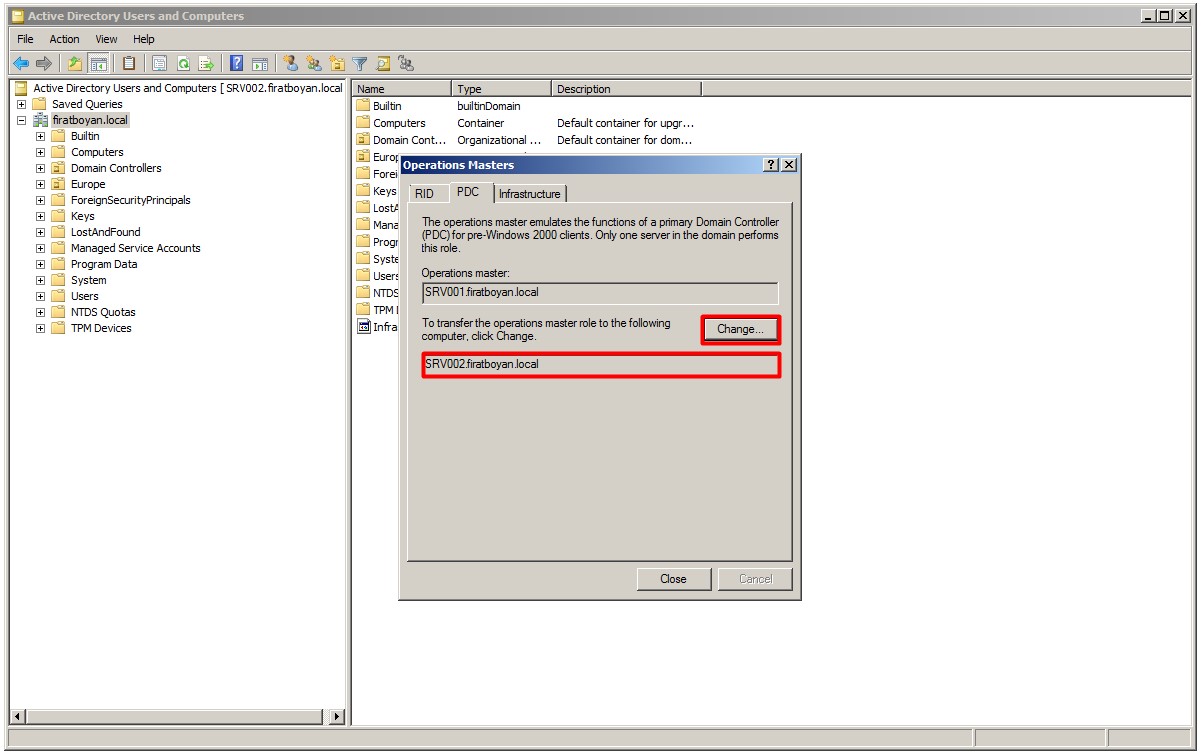
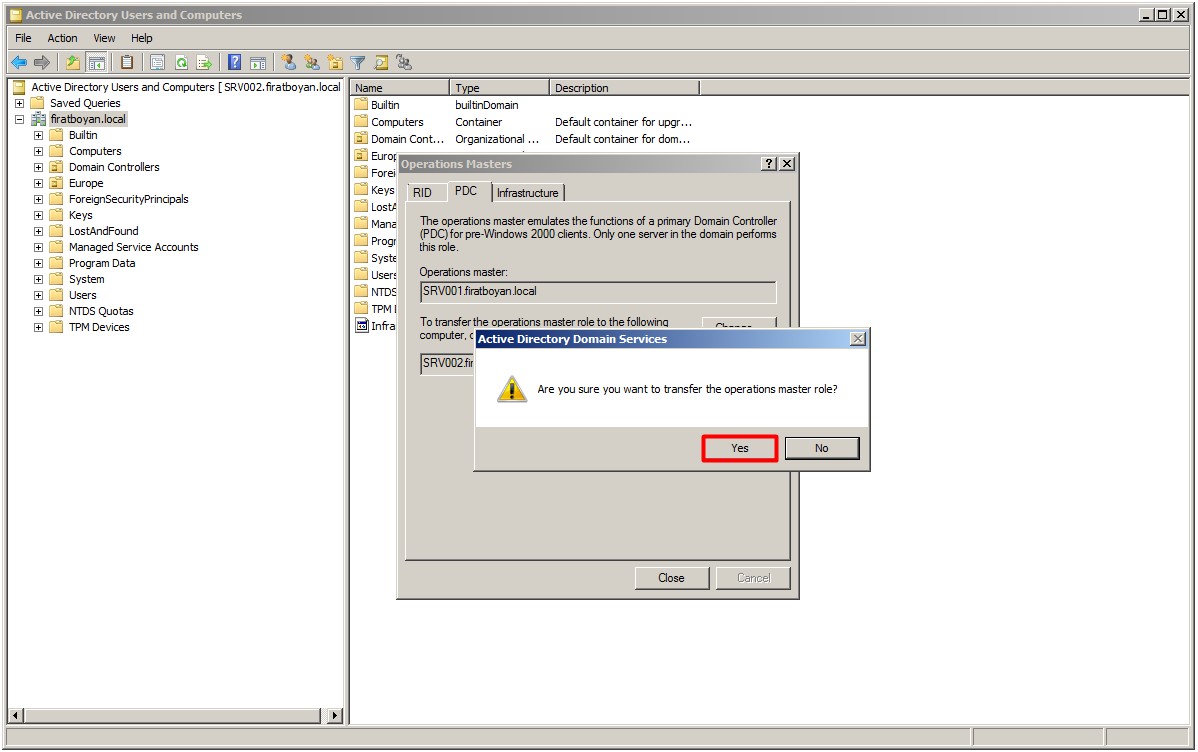
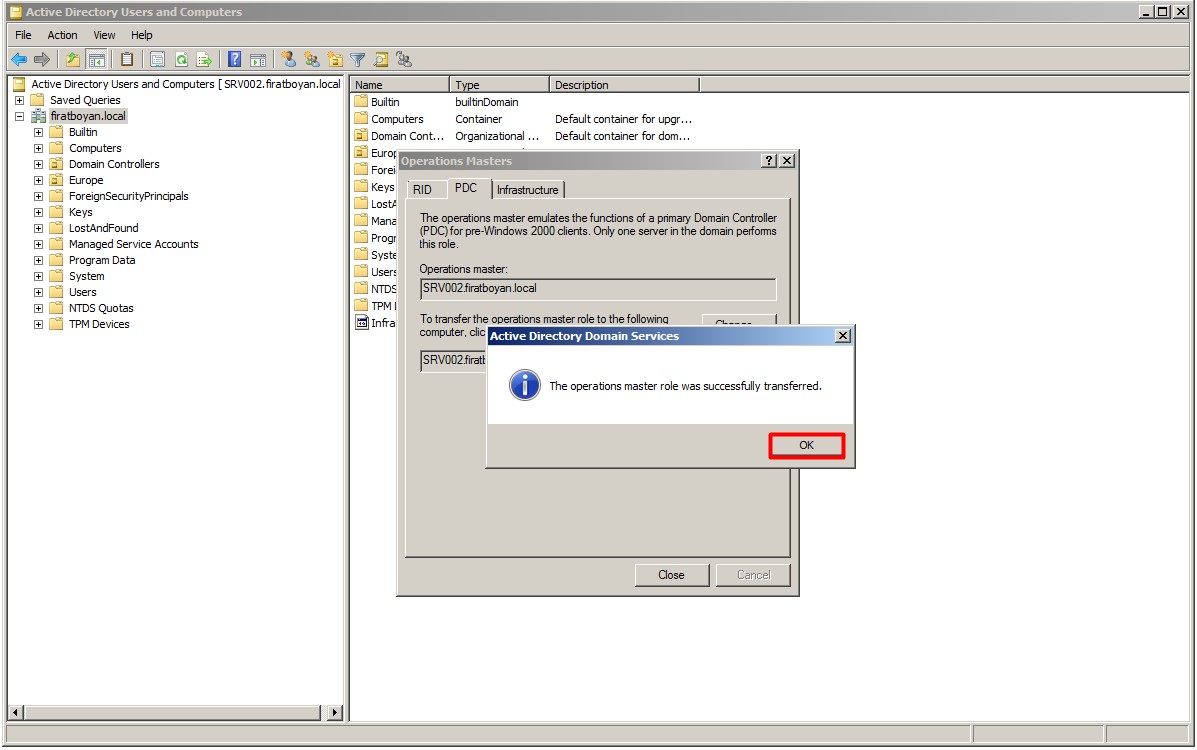
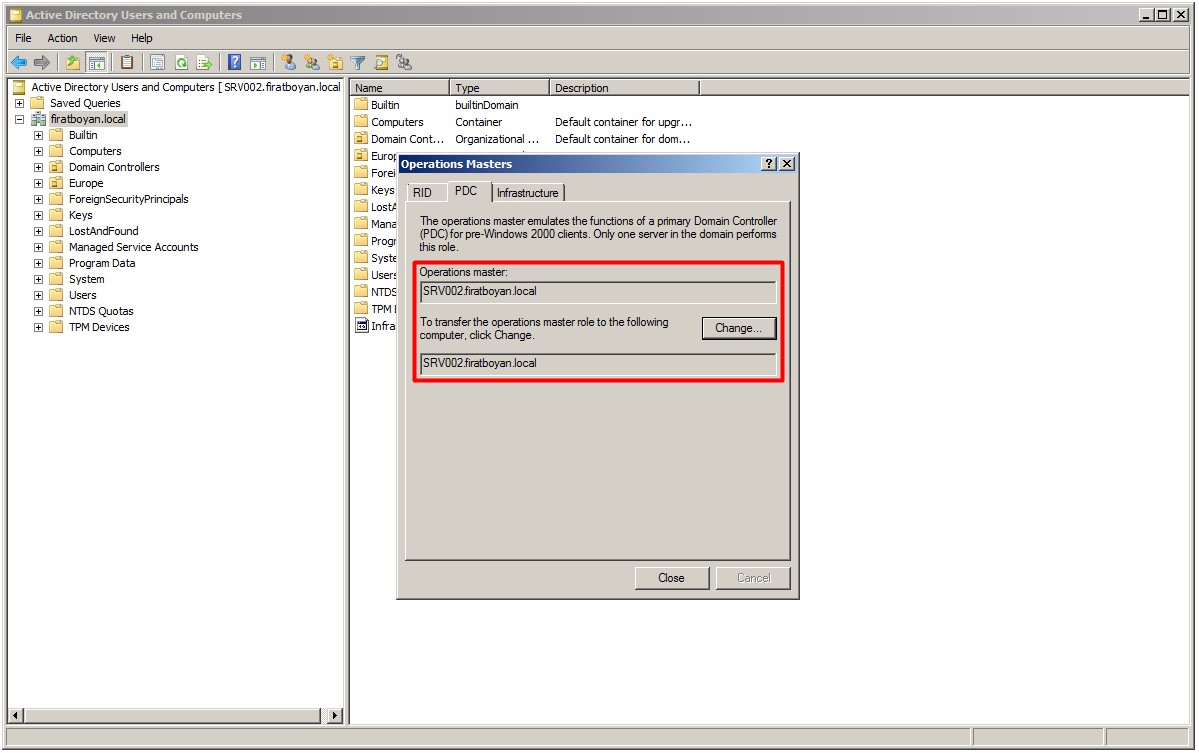
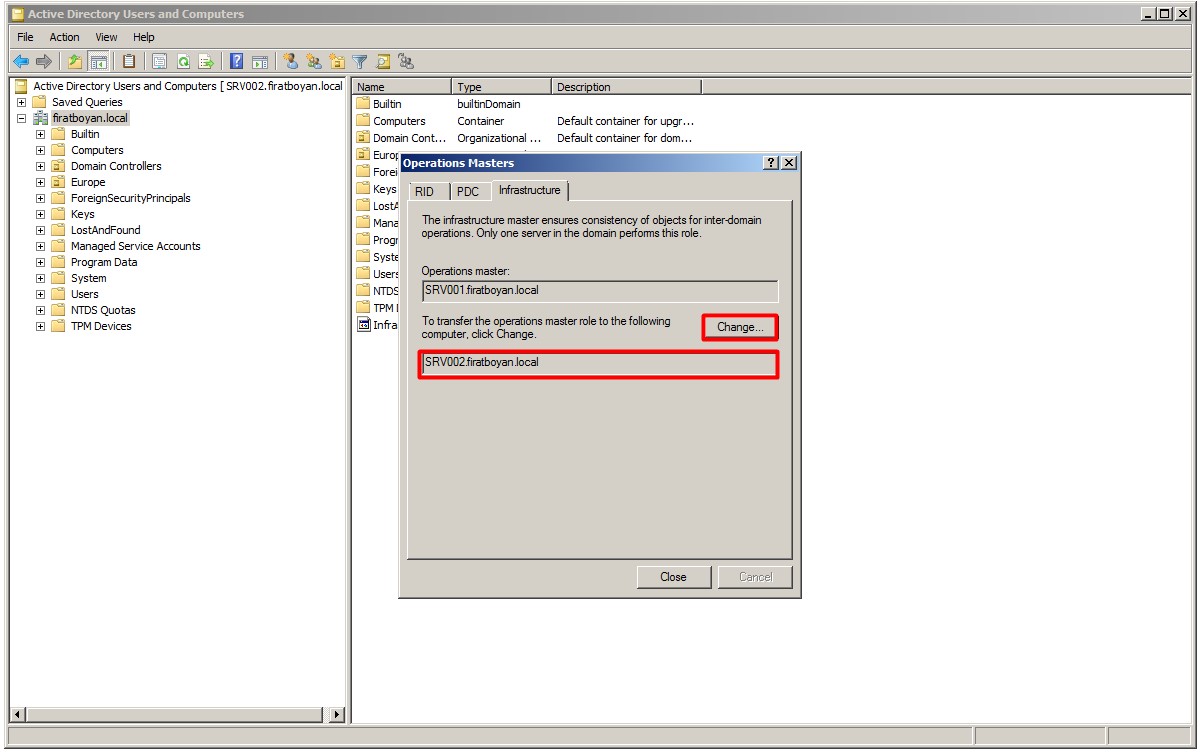
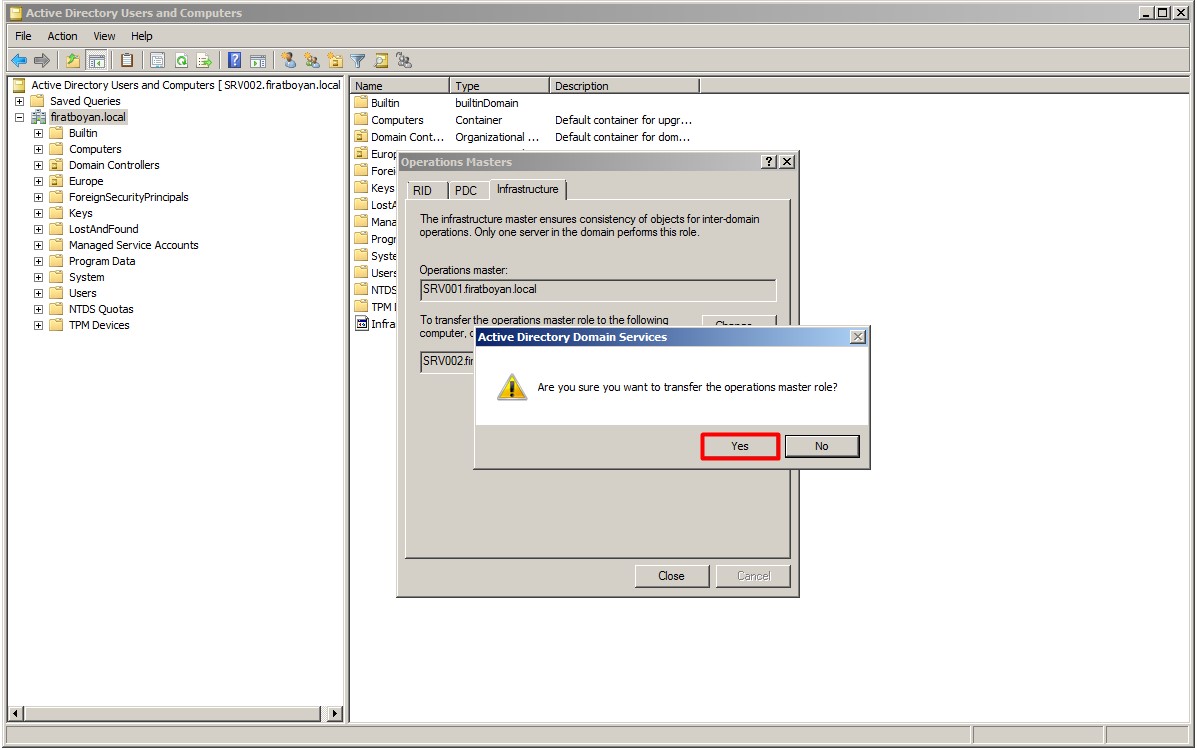
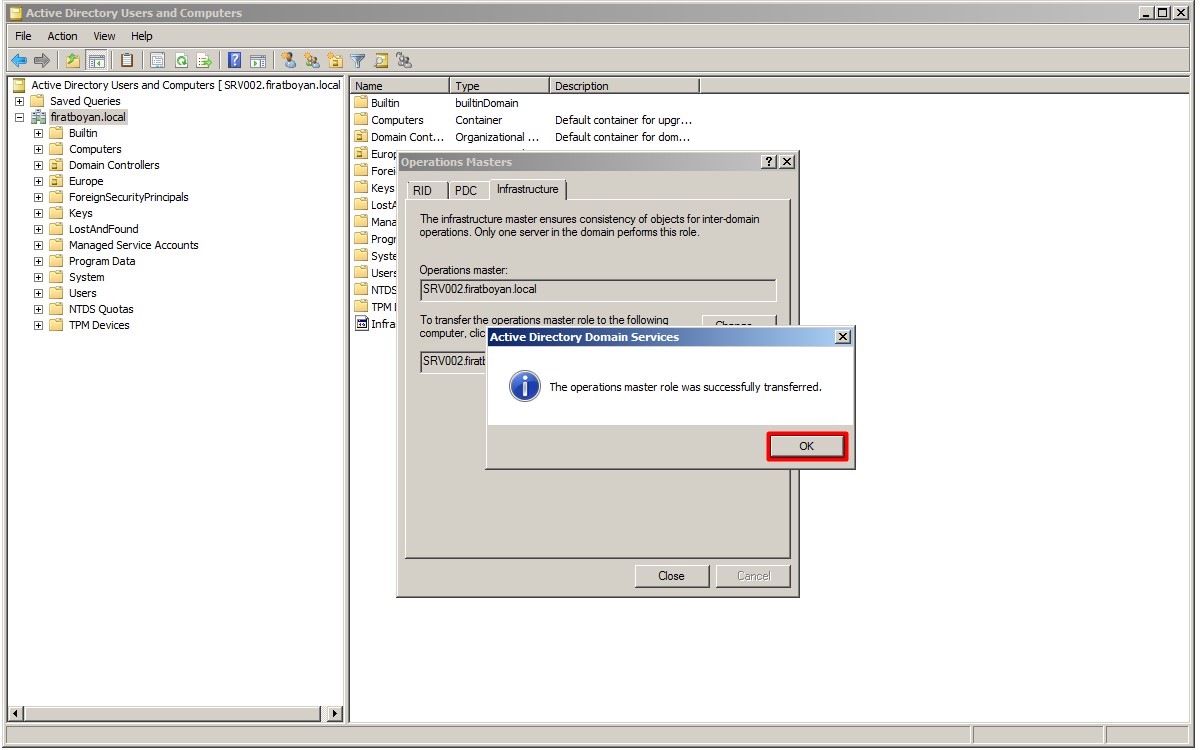
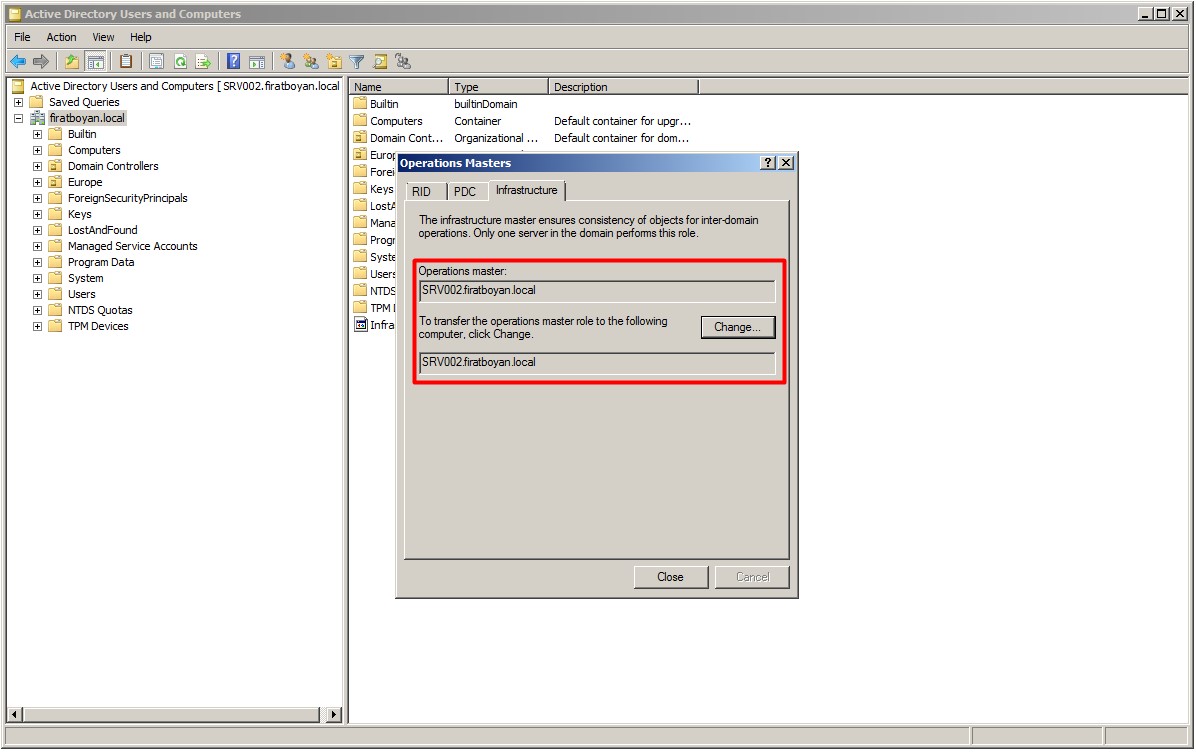
Because the console stays connected to the target domain controller, I do not need to repeat the Change Domain Controller selection. I apply the same operation that I performed on the RID tab on the PDC tab for the PDC Emulator role and on the Infrastructure tab for the Infrastructure Master role. On both tabs, I click Change... and confirm with Yes.
When the PDC Emulator of the forest root domain is moved, the default time source of the forest also changes. Verify the external NTP configuration on the new role holder and configure the old role holder to synchronise from the domain hierarchy. Moving a PDC Emulator in a child domain does not change the source at the top of the forest.
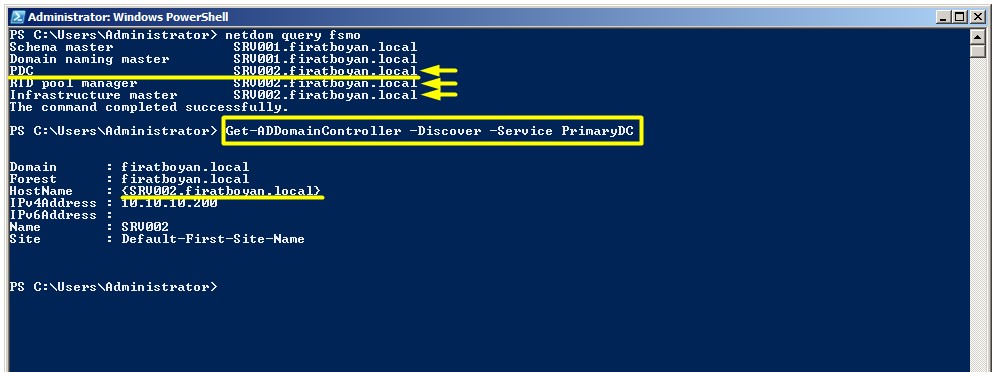
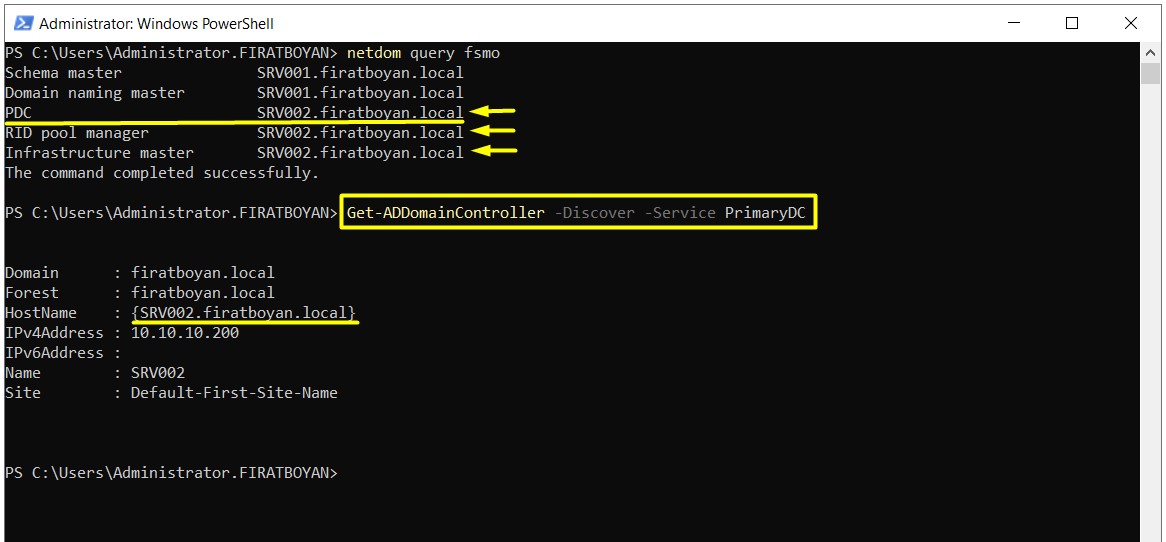
After I complete the transfer of the 3 domain-wide roles, I query FSMO role ownership again.
I mentioned that moving the PDC Emulator role gives the target domain controller the Primary Domain Controller function. I check this as well with the command below.
Get-ADDomainController -Discover -Service PrimaryDC
The -Discover parameter can return cached domain controller information. If you still see the old server in the output immediately after the transfer, add the -ForceDiscover parameter to the command. When you evaluate the result, compare the HostName field with the FQDN of the new domain controller, because the Name field is not populated in every environment.
Checkpoint
In the netdom query fsmo output, the RID Master, PDC Emulator and Infrastructure Master roles appear on the Windows Server 2022 domain controller. The Schema Master and Domain Naming Master roles are still on the old server.
Step 3 - Transferring the Domain Naming Master Role
The Domain Naming Master role is moved through Active Directory Domains and Trusts. I open the console, right-click the Active Directory Domains and Trusts node at the top left and select Operations Master....
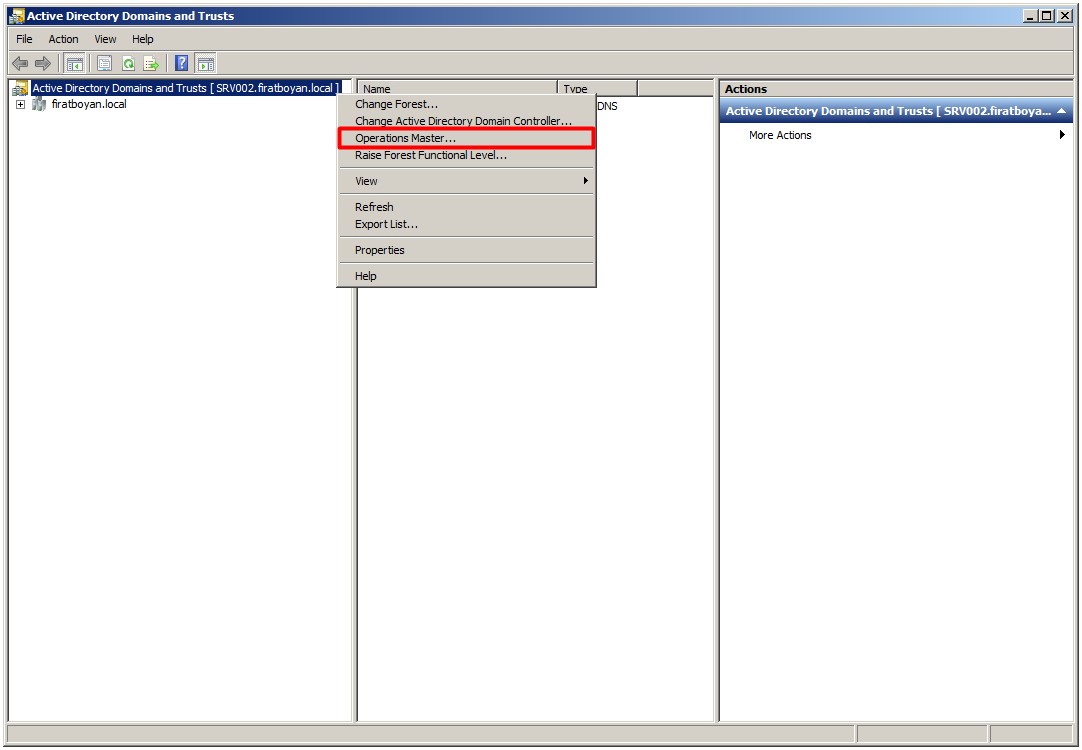
In my environment, the lower field of the console shows the Windows Server 2022 domain controller to which I want to move the role. If a different server appears in this field in your environment, you first need to connect the console to the target domain controller by right-clicking the same node and selecting Change Active Directory Domain Controller.... For the role transfer, I click Change....
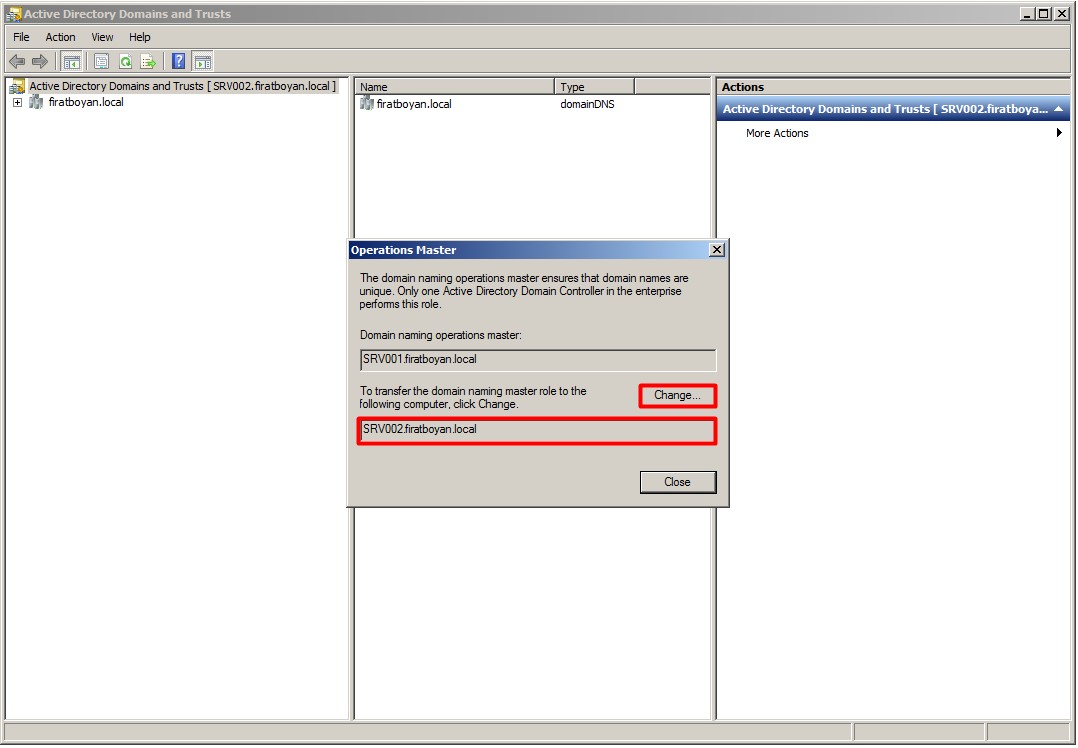
In the confirmation box, I click Yes to confirm the operation.
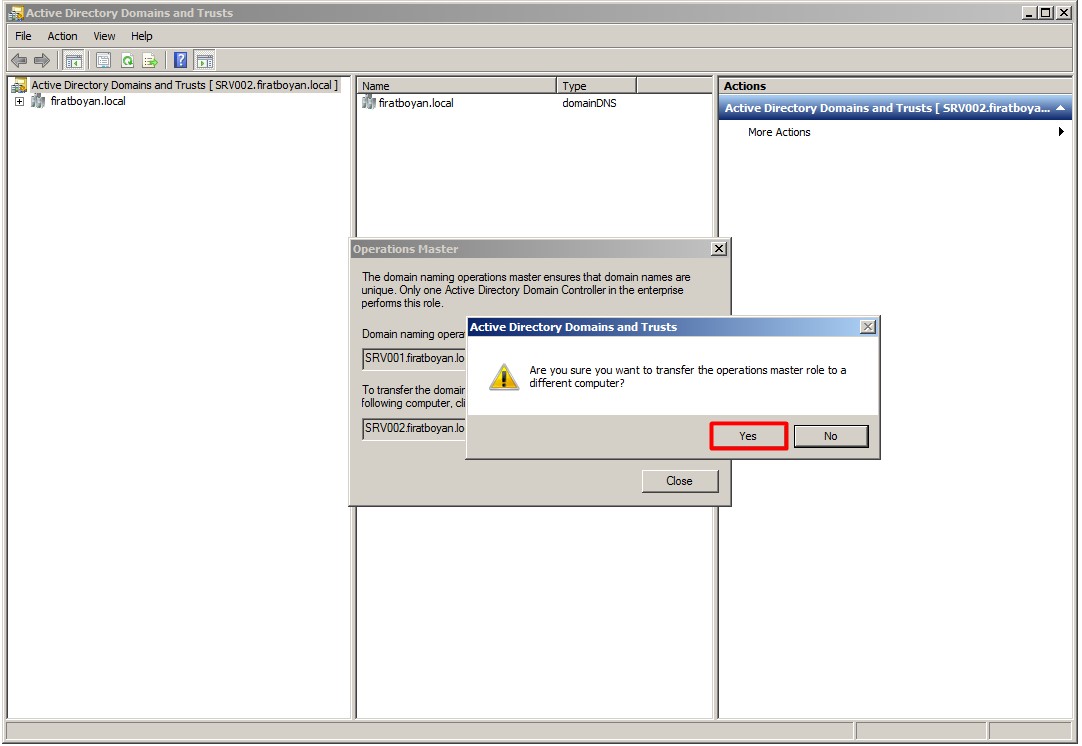
The transfer of the Domain Naming Master role is complete.
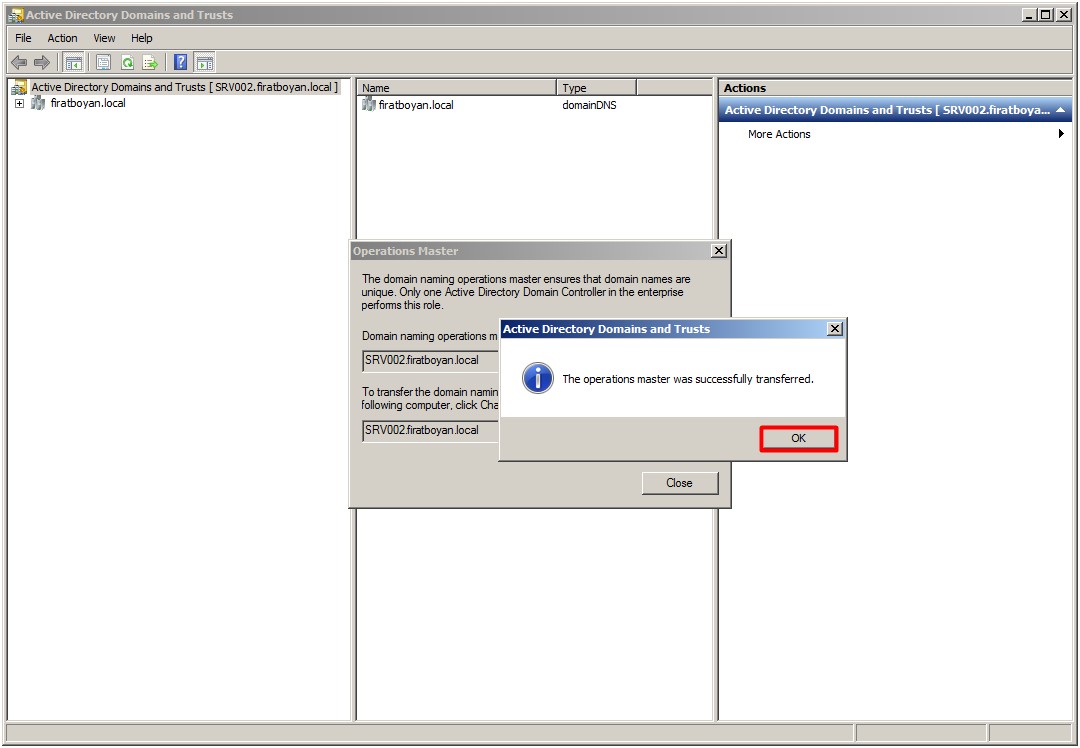
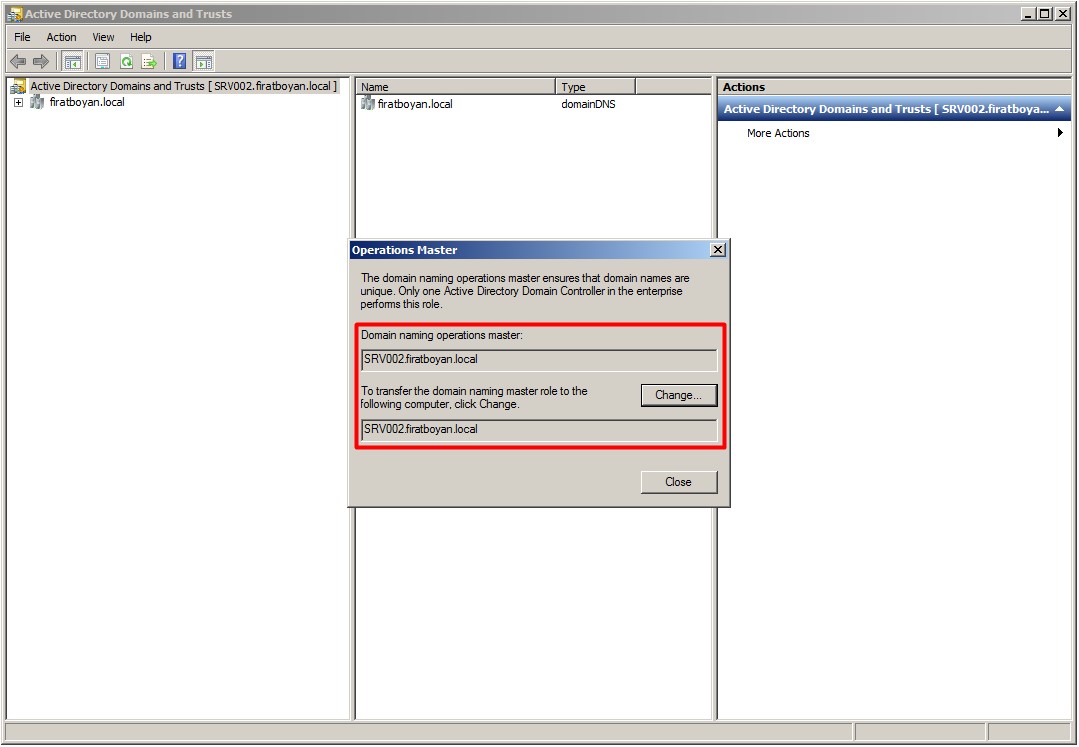
Checkpoint
In the Operations Master window, the Domain naming operations master field shows the Windows Server 2022 domain controller.
Step 4 - Transferring the Schema Master Role
The Schema Master role is moved through the Active Directory Schema snap-in. Unlike Active Directory Users and Computers and Active Directory Domains and Trusts, this snap-in is not available under Administrative Tools by default and must be registered first.
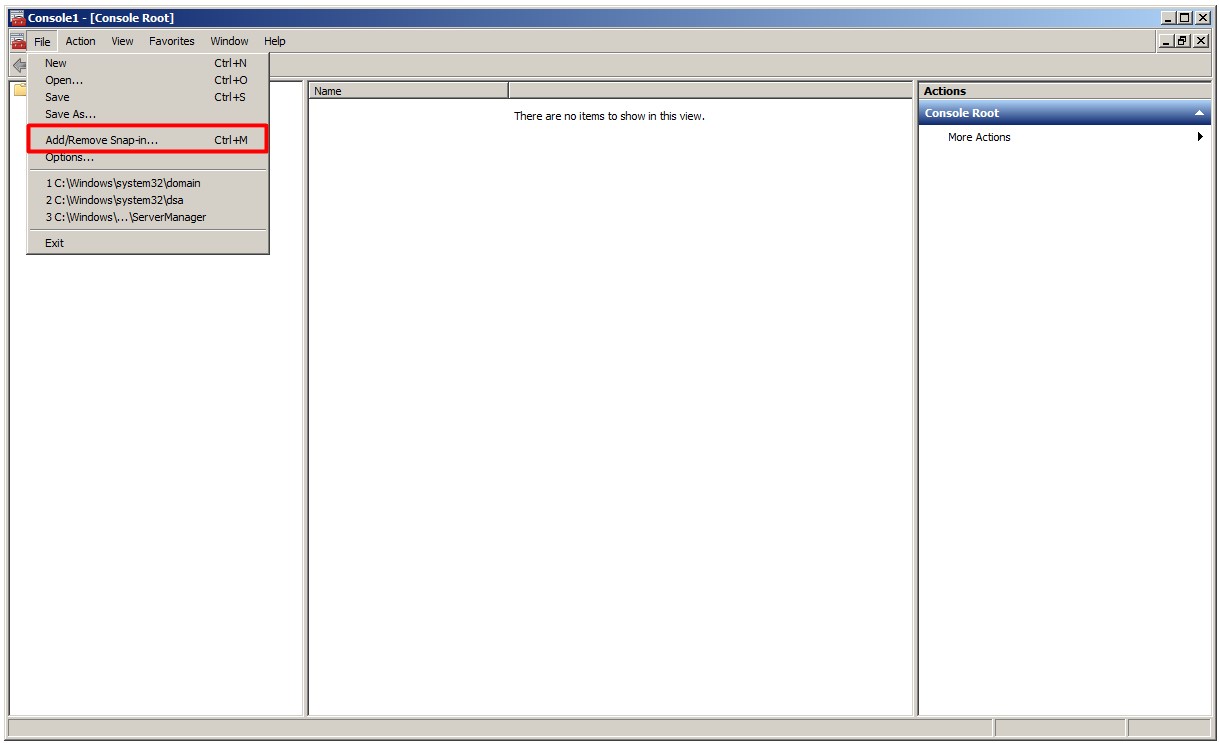
I type mmc in the Run window to open an empty console and select Add/Remove Snap-in... from the File menu.
In the window that opens, Active Directory Schema is not in the list on the left.
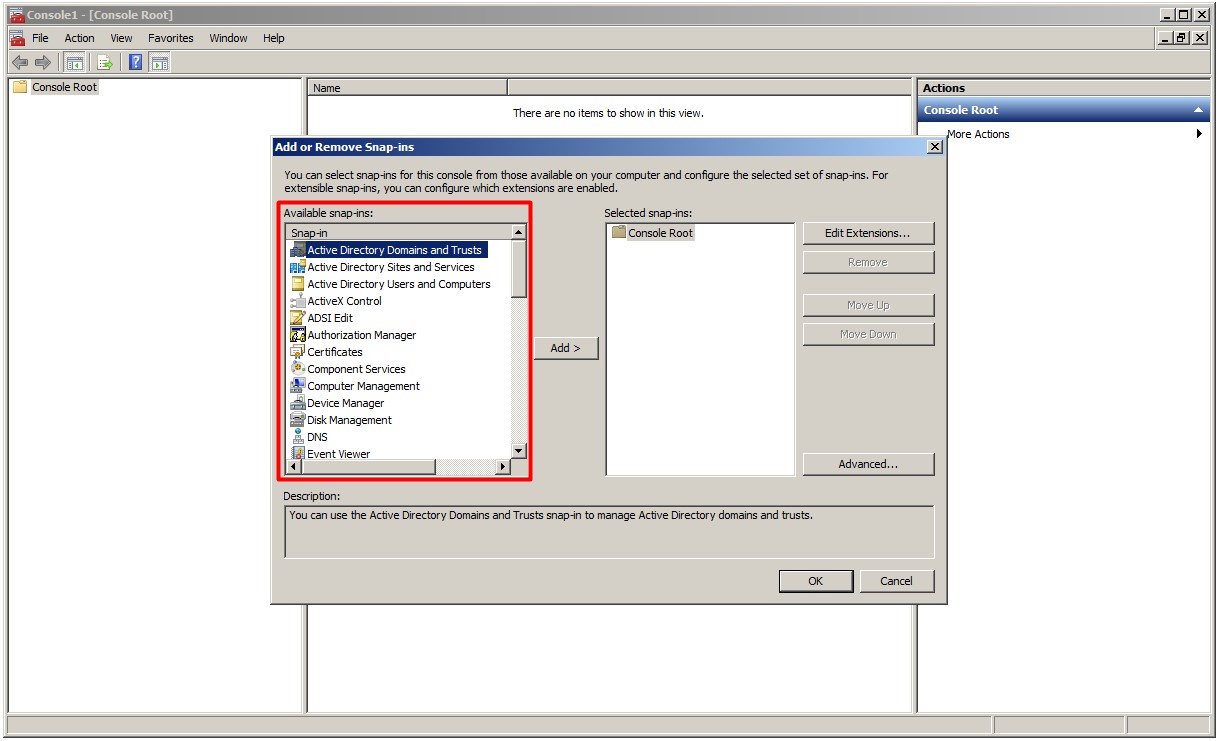
To make the snap-in visible, I register the schmmgmt.dll file with the command below in the Run window. The command must be run with administrator privileges.
regsvr32 schmmgmt.dll
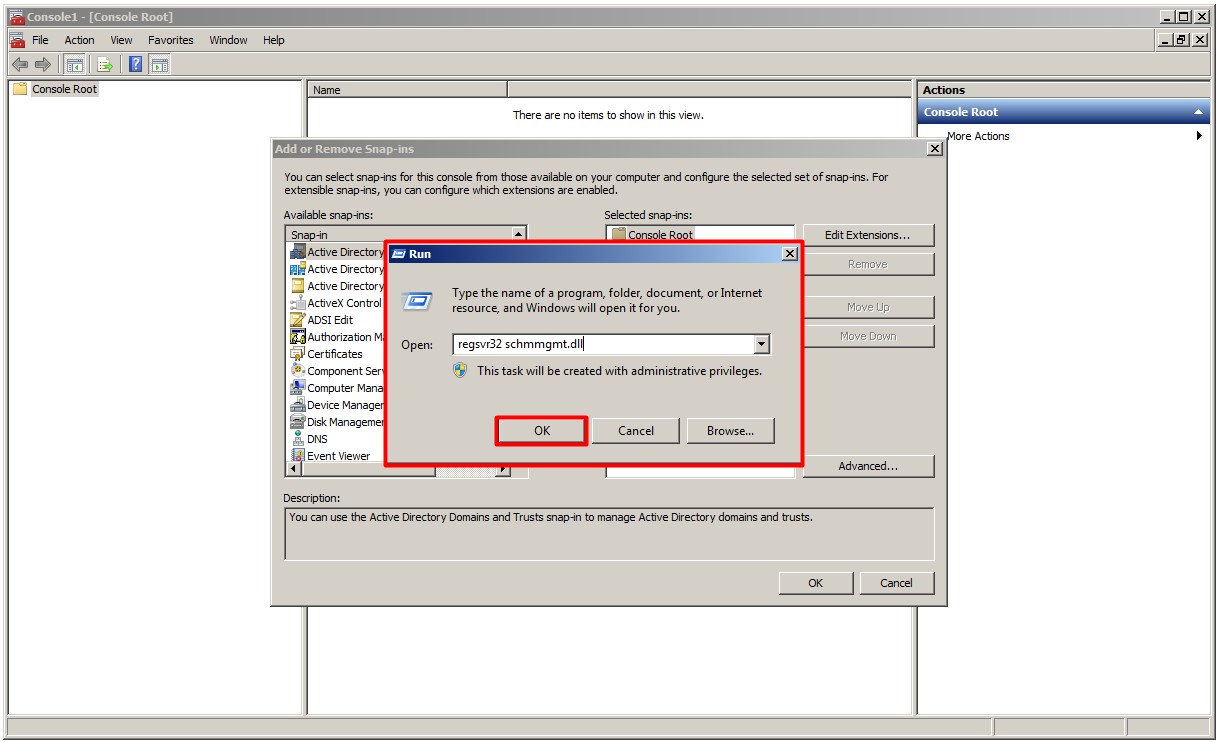
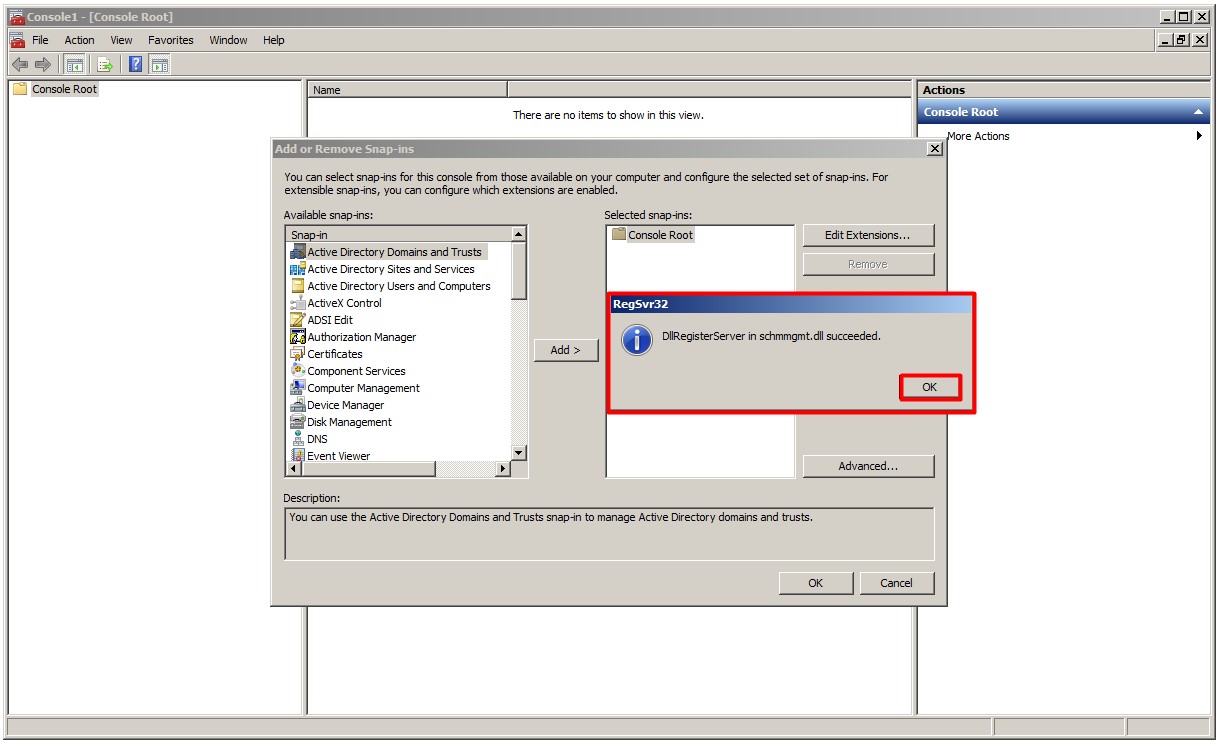
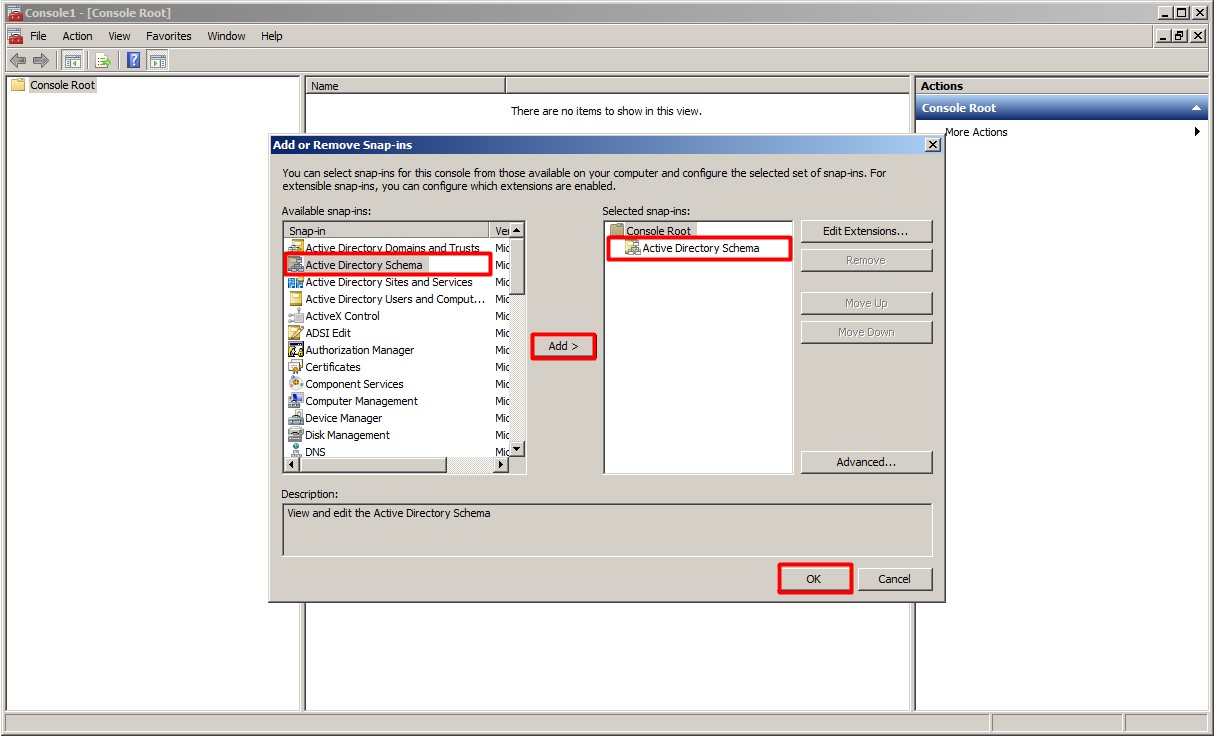
After the registration, when I open the Add/Remove Snap-in window again, Active Directory Schema appears in the list. I select the snap-in, move it to the right side with the Add > button in the middle and click OK.
In the console, I right-click Active Directory Schema and select Operations Master....
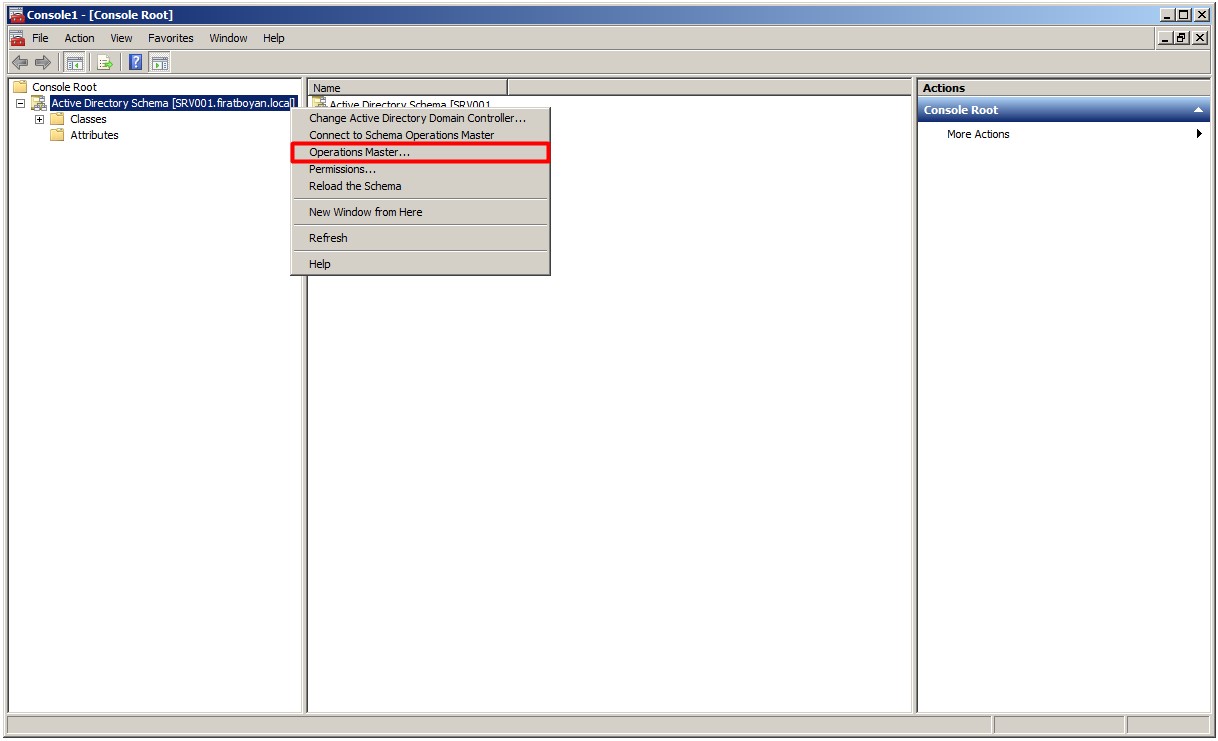
As under the Step 1 - Transferring the RID Master Role heading, the console here is also connected to the domain controller that currently holds the role, so it again shows the old server as the target.
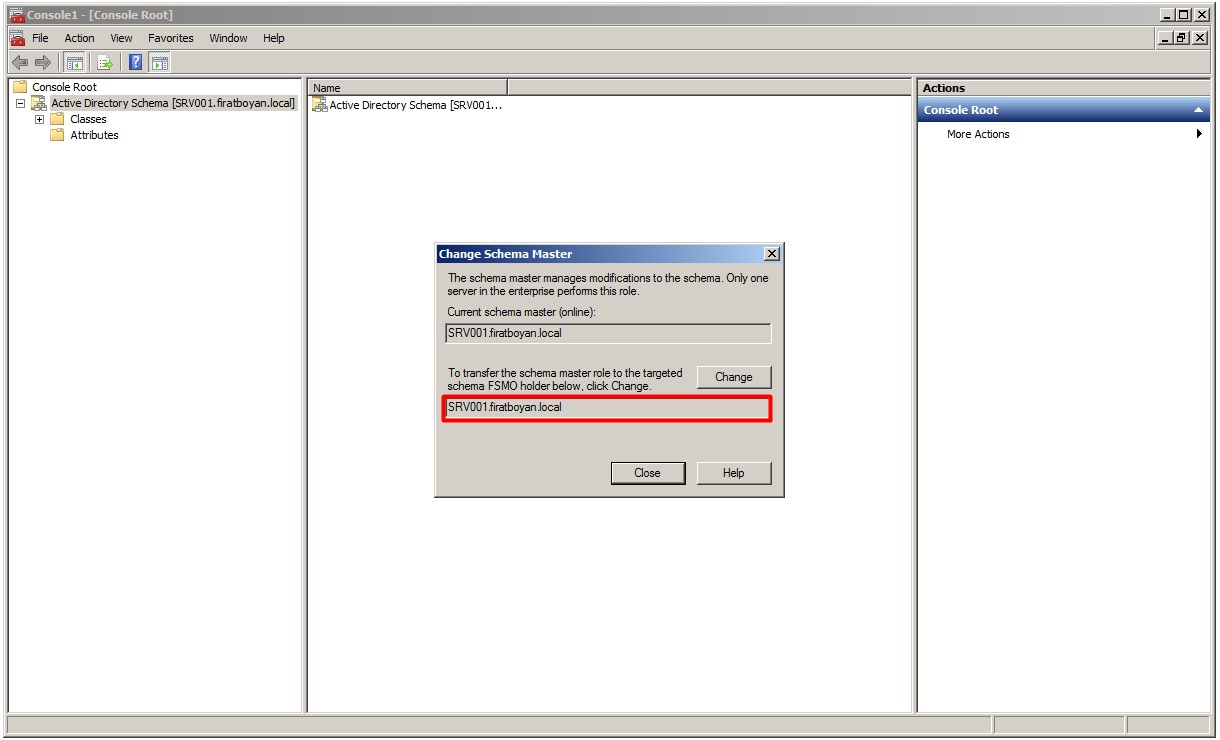
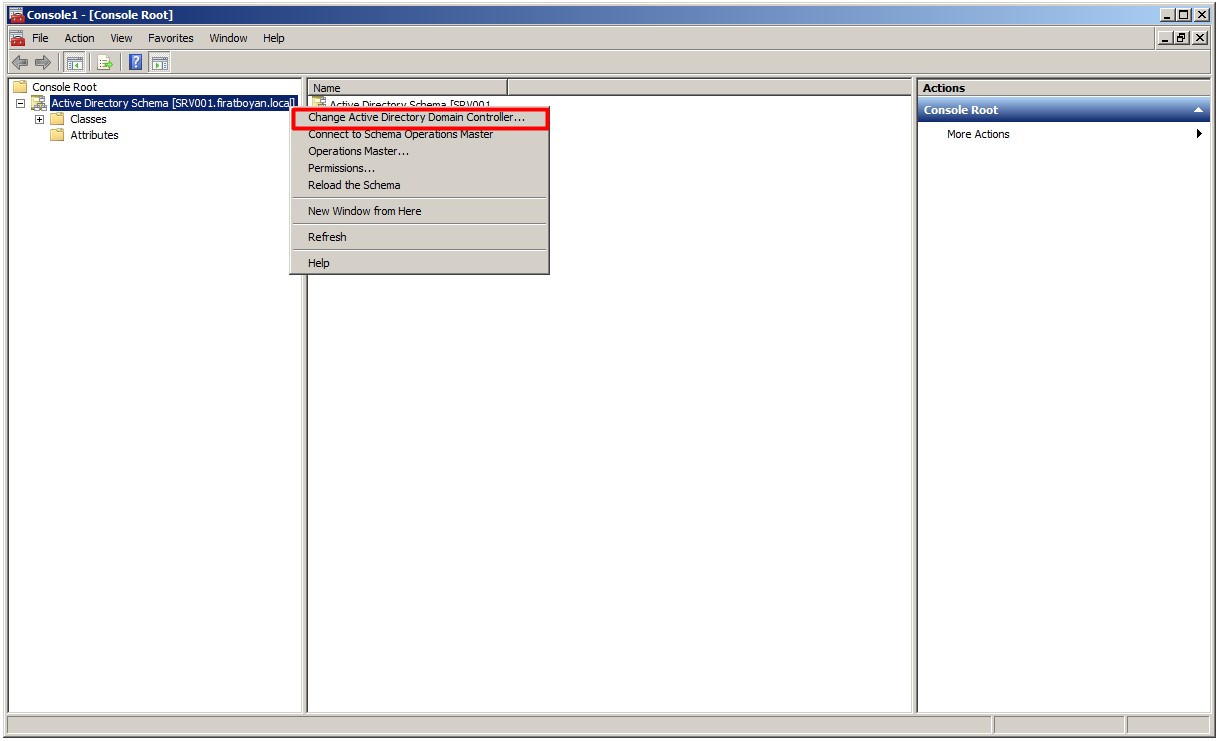
I close the window, right-click Active Directory Schema and this time select Change Active Directory Domain Controller....
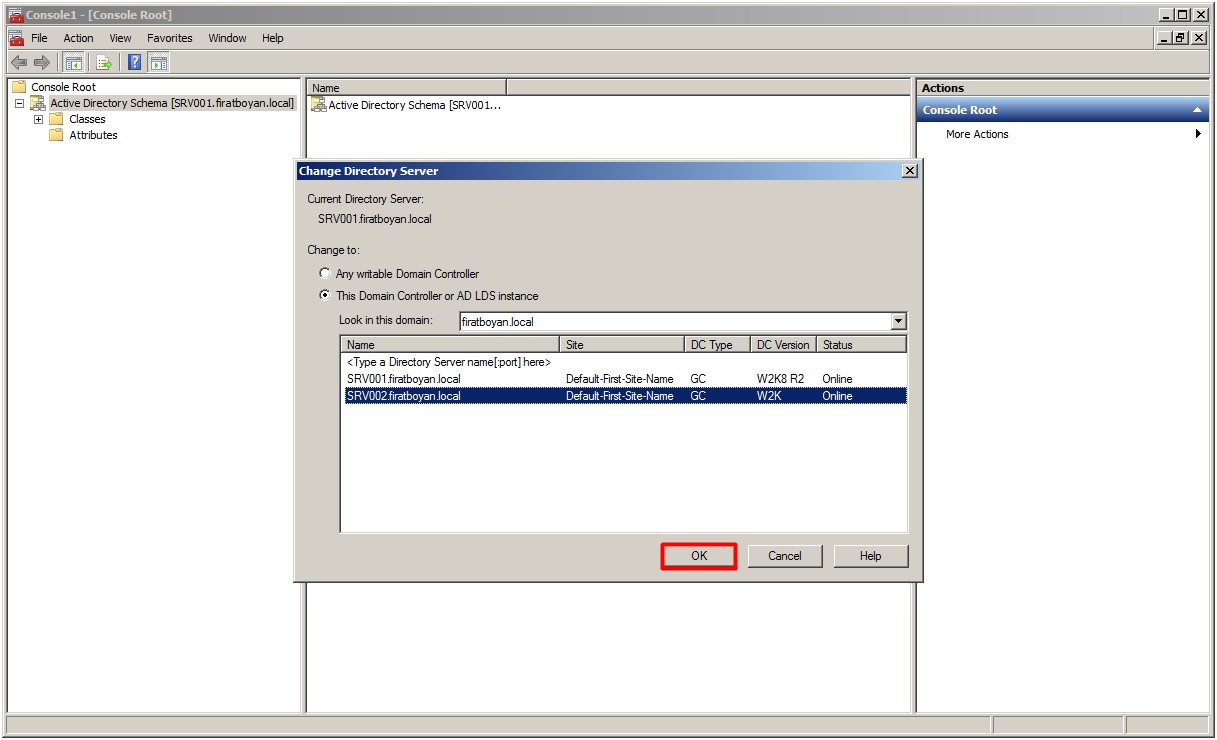
In the Change Directory Server window, I select the This Domain Controller or AD LDS instance option, choose the Windows Server 2022 domain controller and click OK.
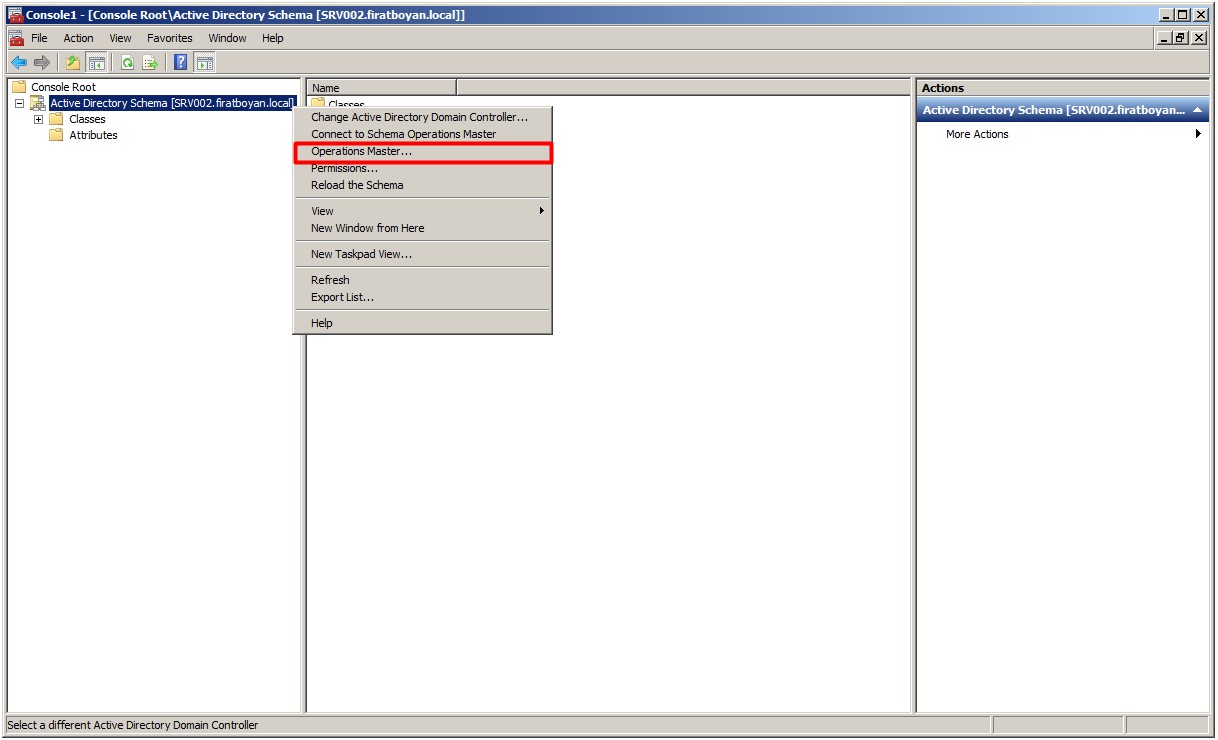
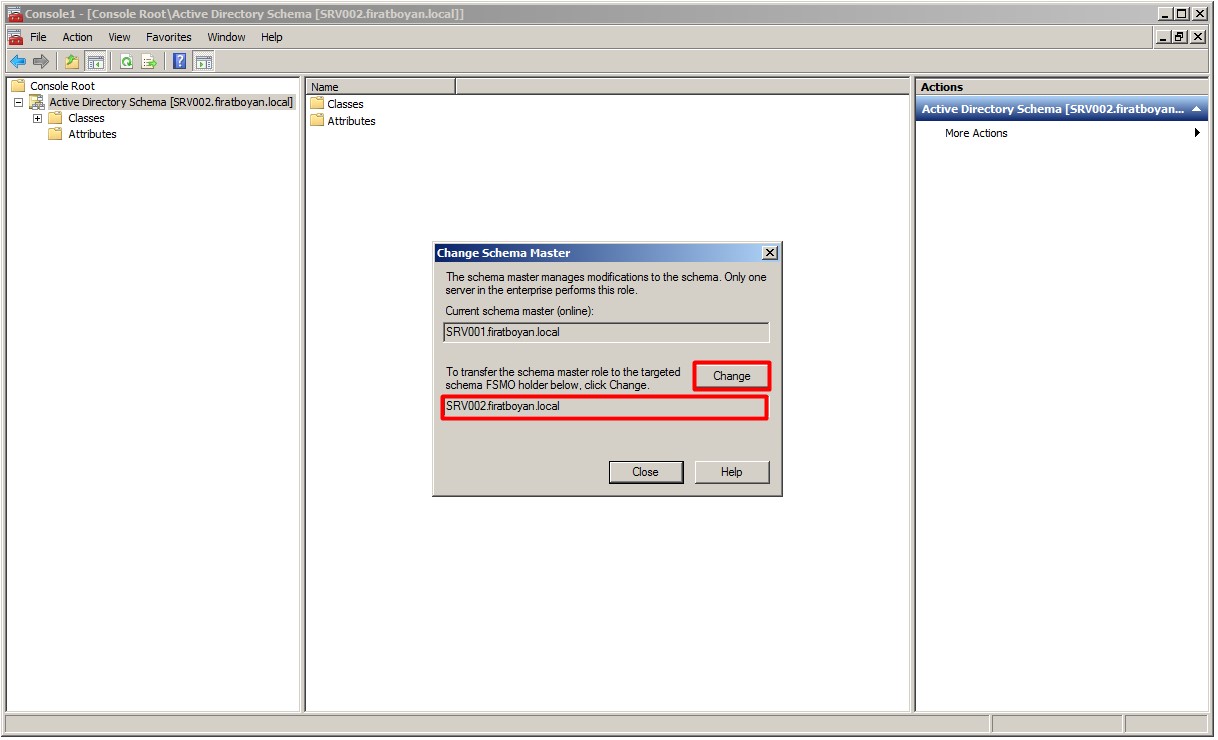
When I right-click Active Directory Schema and open Operations Master... again, I see that the target field has changed to the Windows Server 2022 domain controller. To transfer the Schema Master role, I click Change.
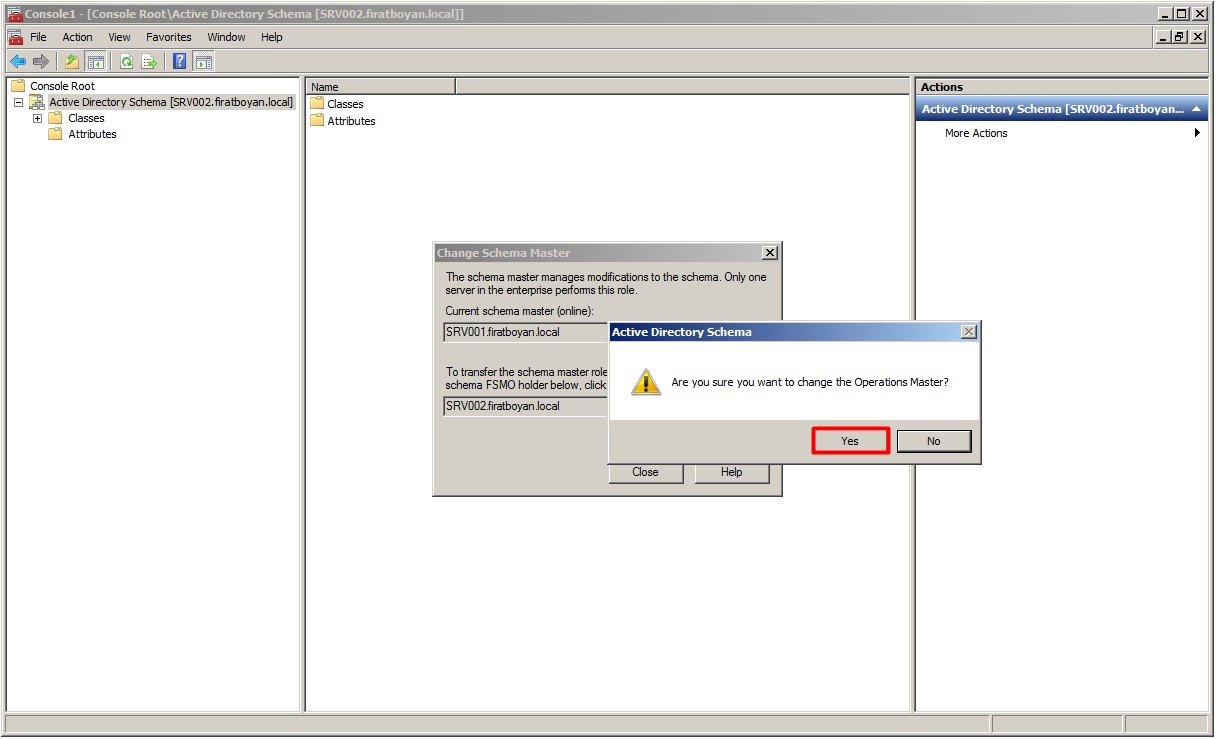
In the confirmation box, I click Yes to confirm the operation.
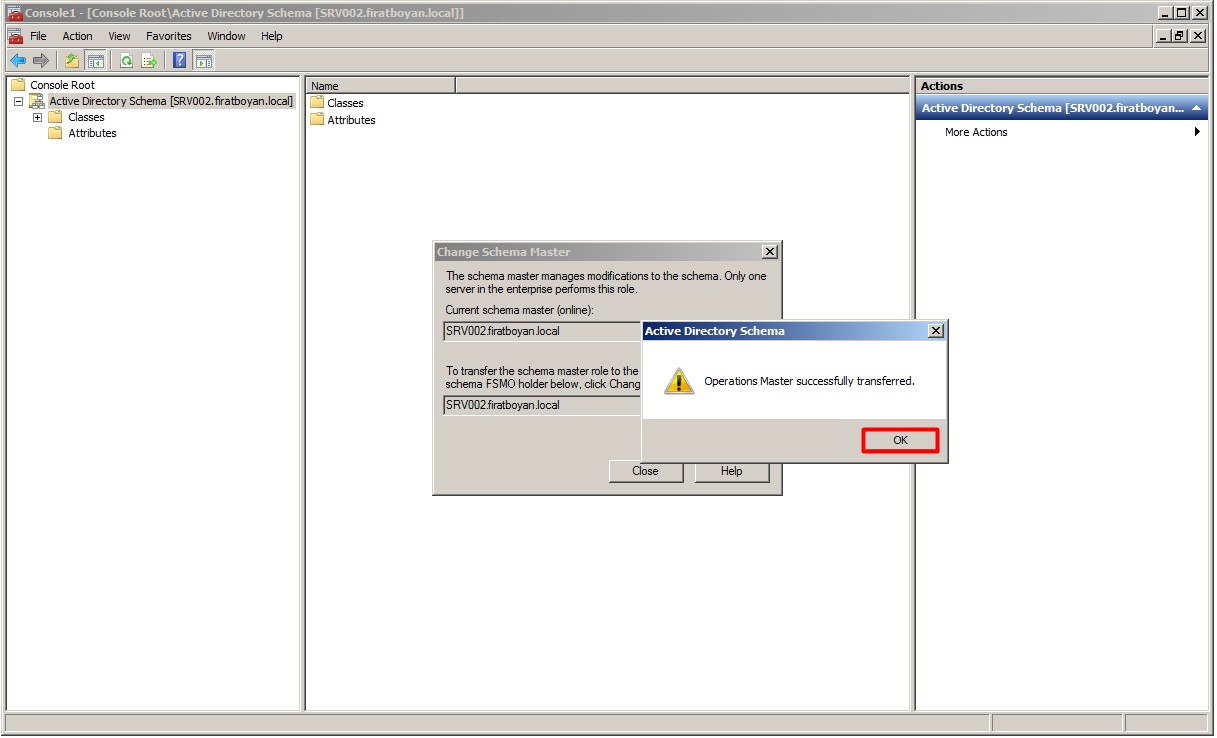
The transfer of the Schema Master role is complete.
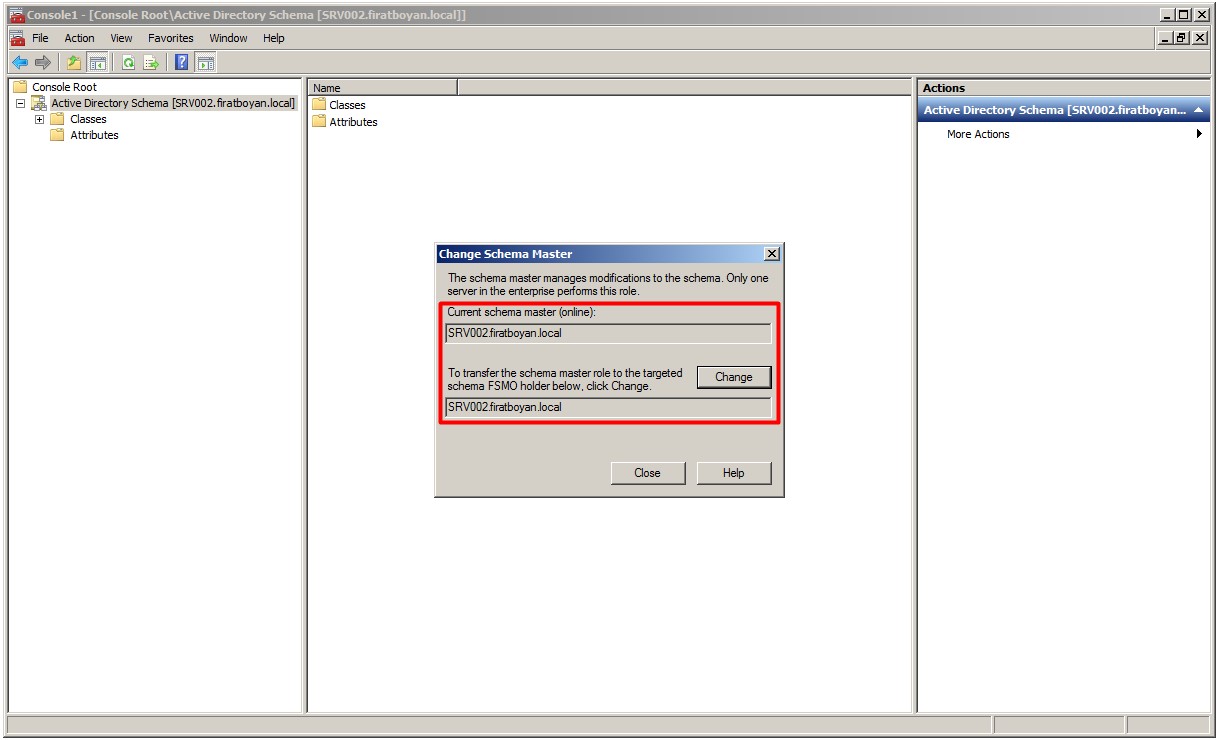
After I complete the transfer of all 5 FSMO roles, I query role ownership for the last time.
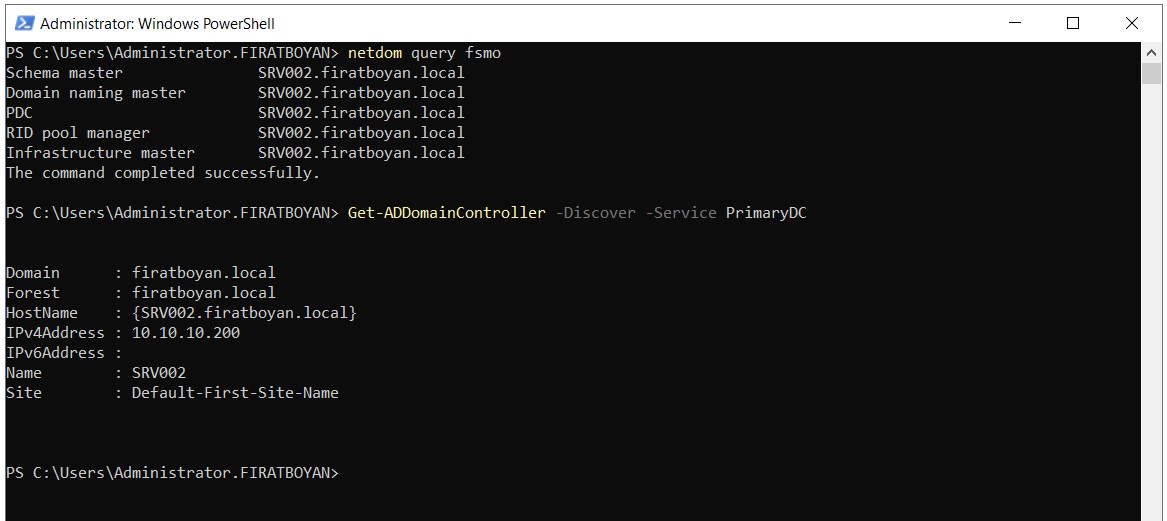
Checkpoint
In the netdom query fsmo output, the Schema Master, Domain Naming Master, PDC Emulator, RID Master and Infrastructure Master roles all appear on the Windows Server 2022 domain controller.
4- Functional Level Status and Removal of the Old Domain Controller
With each new Windows Server version, Microsoft adds new features to Active Directory. It uses the functional level concept so that these features do not cause problems in the same environment as domain controllers of older versions. The functional level determines which Active Directory features can be used in a domain or forest and the lowest Windows Server version that can run as a domain controller in the environment. You can find the details of the concept in my article The Forest Functional Level (FFL) and Domain Functional Level (DFL) Concept.
Moving the FSMO roles and making the Windows Server 2022 server the Primary Domain Controller does not change the functional level. Because the domain environment was created at the Windows Server 2008 R2 level, a domain controller of a higher version that is added later also works at the existing level. The level stays the same until an administrator raises it separately.
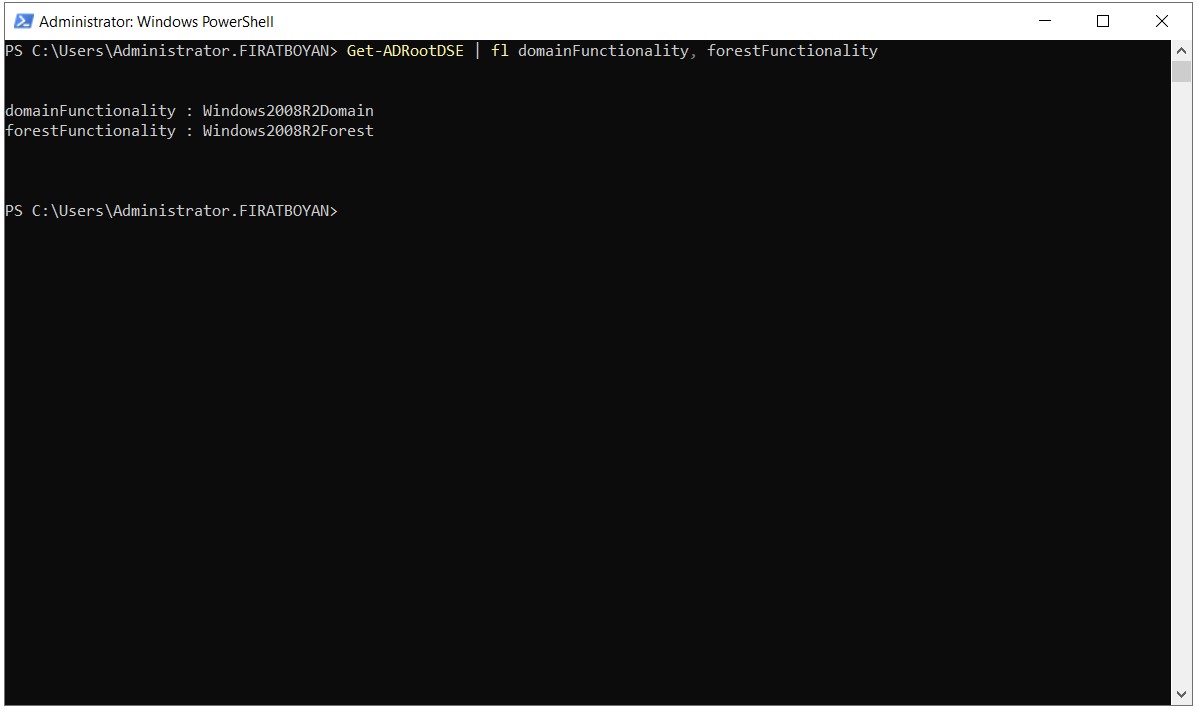
On the Windows Server 2022 Primary Domain Controller, I check the current state with the command below. The domain functional level and forest functional level are still Windows Server 2008 R2.
Get-ADRootDSE | fl domainFunctionality, forestFunctionality
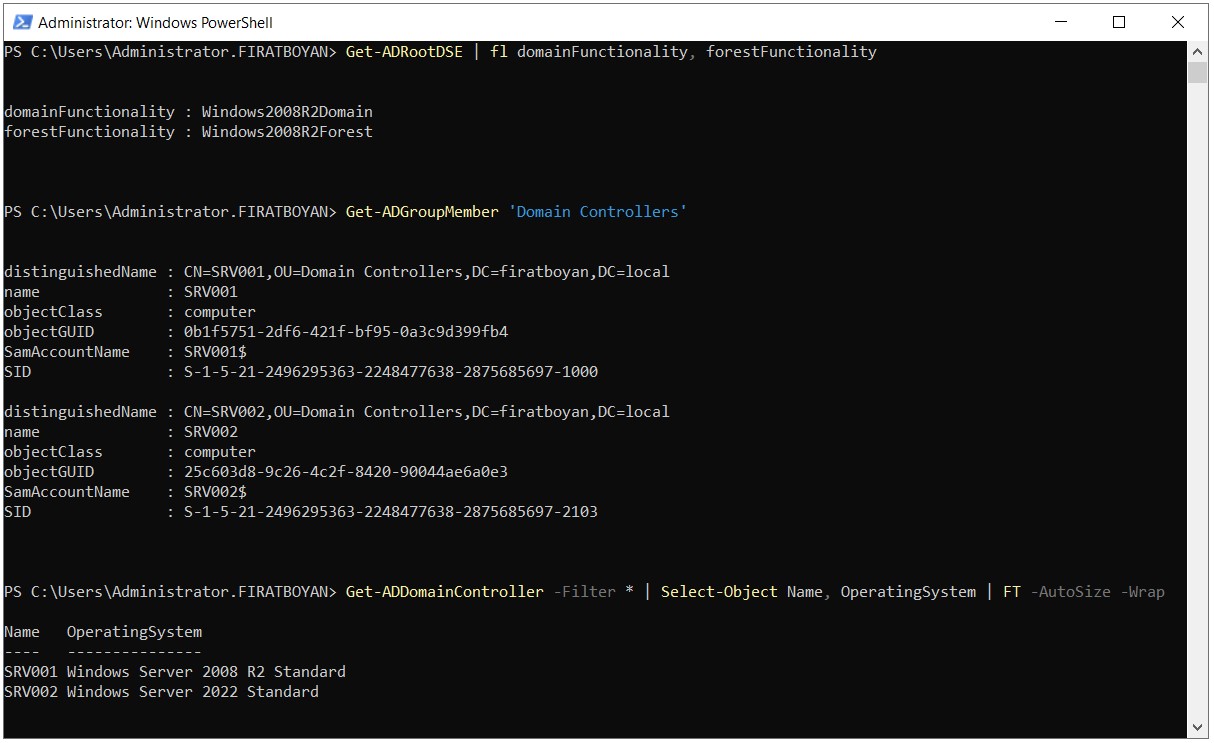
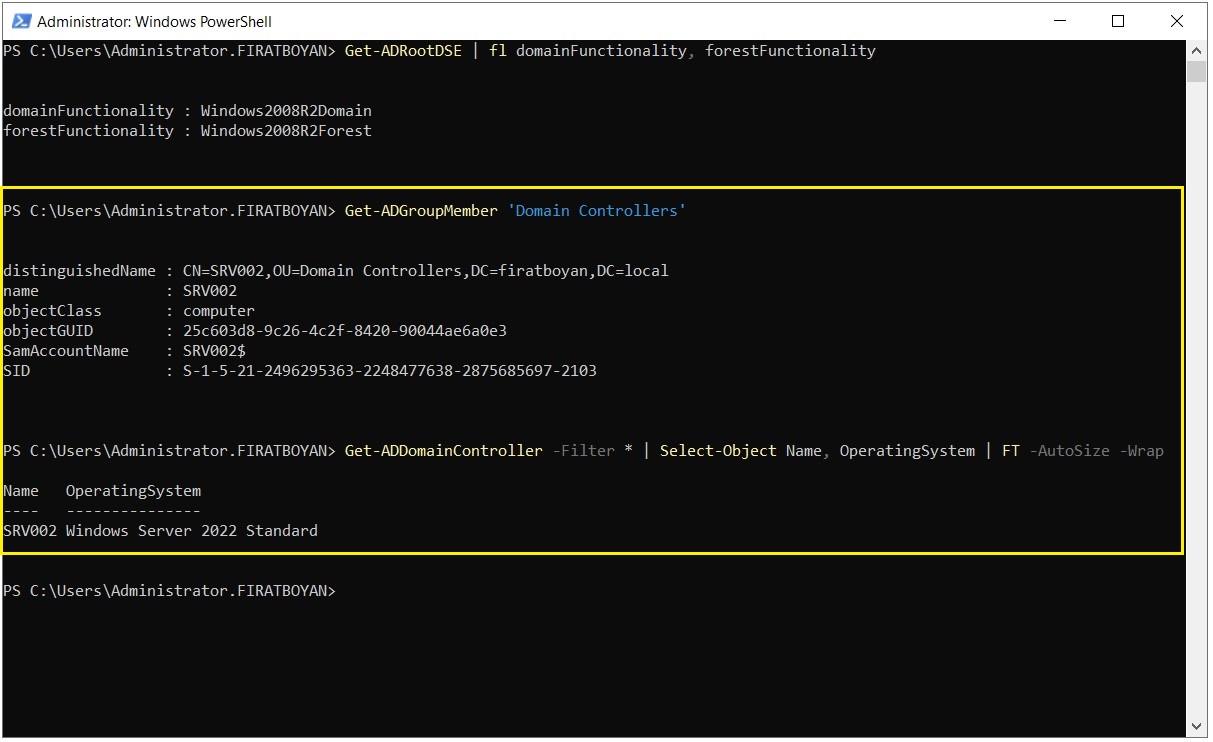
Next, I get the list of domain controllers in the environment with 2 different commands. The first lists the members of the Domain Controllers group, and the second lists the domain controllers with their operating system versions.
Get-ADGroupMember 'Domain Controllers'
Get-ADDomainController -Filter * | Select-Object Name, OperatingSystem | FT -AutoSize -Wrap
The Windows Server 2008 R2 domain controller is still in the list.
To raise to a functional level, all domain controllers in the environment must run a Windows Server version that supports that level. If you try to raise the level while a domain controller of an older version is in the environment, you get the error below.
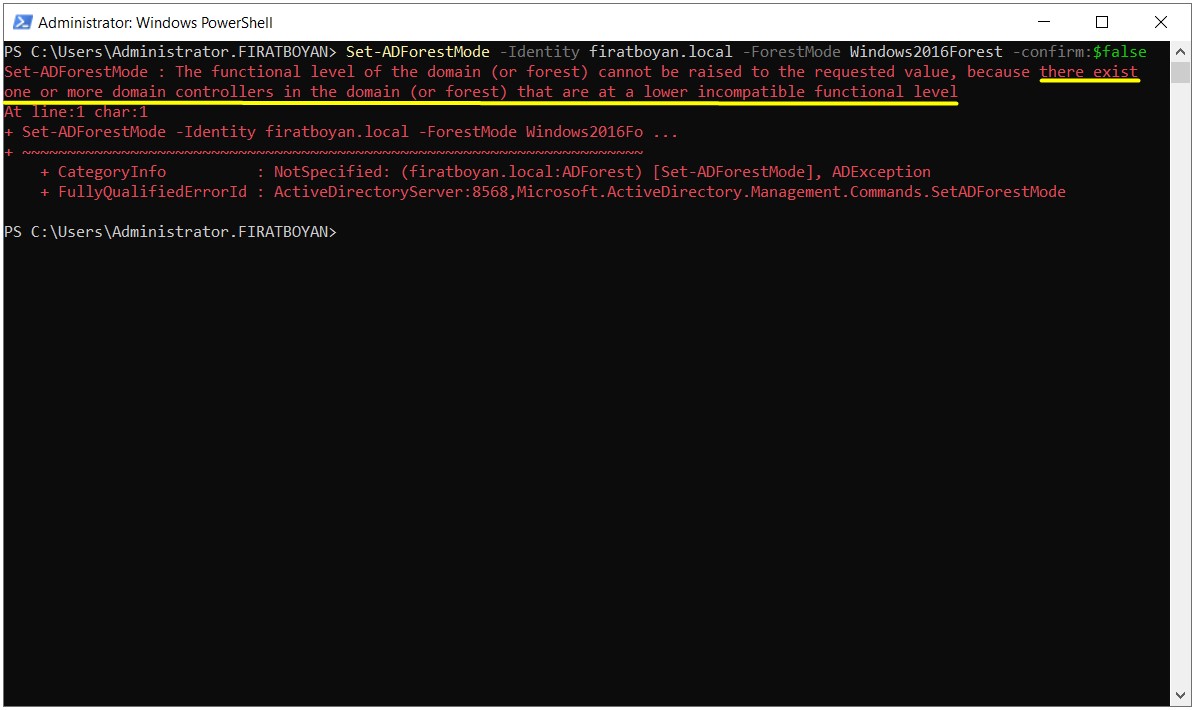
Unless your environment has a reason that makes it necessary to keep a domain controller of an older version, such as an application dependency, there is no purpose in keeping this server in the forest. At this point in the article, in the background, I demoted the Windows Server 2008 R2 domain controller and removed it from the environment.
Before you remove the old domain controller, verify that the DNS server that the clients will use resolves the Active Directory DNS zones and the domain controller SRV records. If the old server is the only global catalog in the environment, make sure that the Windows Server 2022 domain controller is ready as a global catalog.
After these 2 verifications, you need to point the DNS settings of clients and servers, the DHCP scope options and the applications that use LDAP to the address of the new domain controller. If the address of the old server stays in these settings, name resolution and authentication outages occur when the server is removed.
After the demotion, I get the domain controller list again on the Windows Server 2022 Primary Domain Controller.
Get-ADGroupMember 'Domain Controllers'
Get-ADDomainController -Filter * | Select-Object Name, OperatingSystem | FT -AutoSize -Wrap
Checkpoint
The output of both commands contains only the Windows Server 2022 domain controller. No domain controller of an older version remains in the forest.
5- Raising the Domain Functional Level (DFL) and Forest Functional Level (FFL)
Because no domain controller of an older version remains in the forest, I can raise the functional levels. Windows Server 2019 and Windows Server 2022 did not introduce a new functional level. For this reason, the highest level that can be set in an environment that consists of Windows Server 2022 domain controllers is Windows Server 2016.
I raise the domain functional level first and then the forest functional level. The order must be this, because the forest functional level cannot be raised before all domains in the forest reach the target level.
The domain functional level affects the relevant domain, and the forest functional level affects the whole forest. After the raise, a domain controller that runs a version older than Windows Server 2016 cannot be added to the environment. Take a verified Active Directory backup before the operation.
The raise is not an irreversible operation, but the rollback depends on conditions. Microsoft supports lowering the functional level if no Active Directory feature that is specific to the raised level has been put into use. In an environment with domain controllers that run Windows Server 2022 or earlier versions, the lowest level that can be set is Windows Server 2008. The target domain functional level cannot be below the current forest functional level.
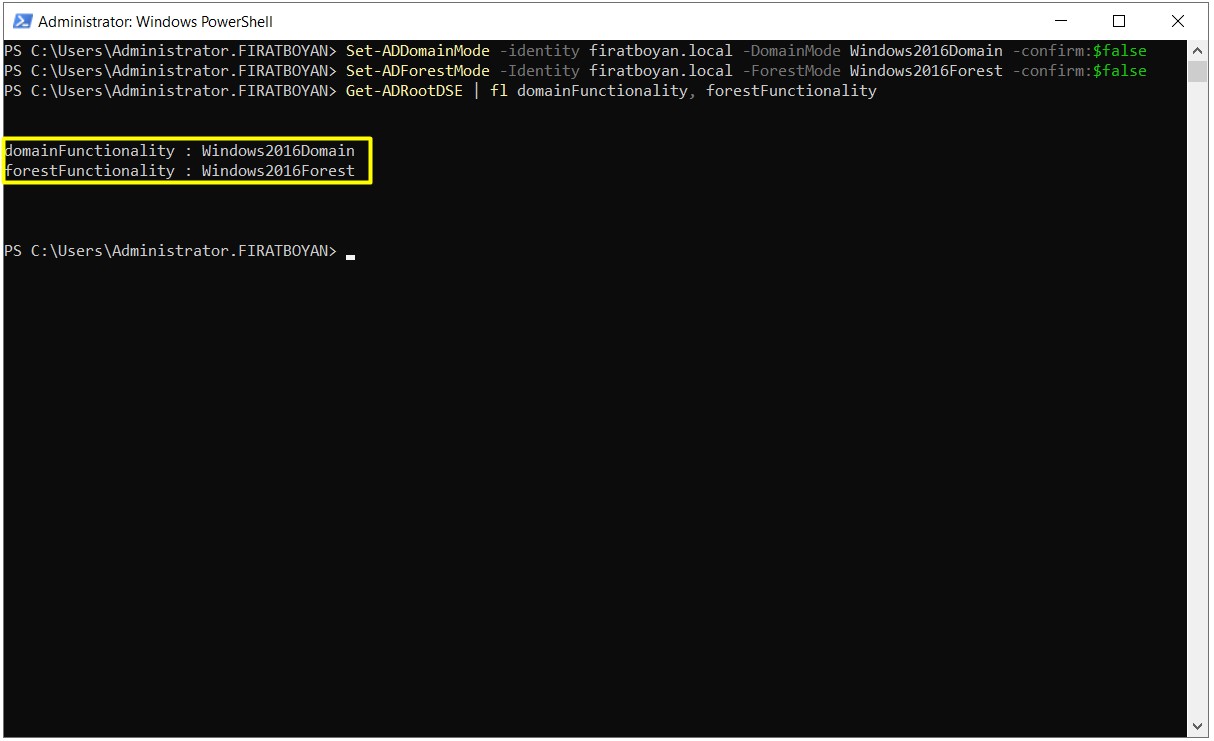
Set-ADDomainMode -identity firatboyan.local -DomainMode Windows2016Domain -confirm:$false
Set-ADForestMode -Identity firatboyan.local -ForestMode Windows2016Forest -confirm:$false
You need to replace the firatboyan.local value in the commands with your own domain name. The -confirm:$false parameter skips the confirmation prompt, and the change is applied as soon as the command is run.
Checkpoint
In the output of Get-ADRootDSE | fl domainFunctionality, forestFunctionality, both values show the Windows Server 2016 level.
6- Verification
I verify that the migration is complete by running the commands that I used throughout the process on the Windows Server 2022 domain controller one last time. The table below summarises which field to look at for each command and the expected value. After the old domain controller is removed, only 1 domain controller remains in the forest and it has no replication partner, so repadmin /replsummary is not in the table at this stage. This command is meaningful in the pre-checks, which are done while 2 domain controllers run together.
|
Command |
Field |
Expected Value |
netdom query fsmo |
5 FSMO roles |
All on the Windows Server 2022 domain controller |
Get-ADDomainController -Discover -Service PrimaryDC -ForceDiscover |
HostName |
FQDN of the Windows Server 2022 domain controller |
Get-ADDomainController -Filter * |
OperatingSystem |
No Windows Server 2008 R2 domain controller in the list |
Get-ADRootDSE |
domainFunctionality, forestFunctionality |
Windows2016Domain, Windows2016Forest |
dcdiag /q |
Output |
Empty |
This article covered how I handed over the duties of a Windows Server 2008 R2 domain controller to a Windows Server 2022 domain controller. First, I checked the domain controller inventory, FSMO role ownership, replication, the functional levels and the SYSVOL replication method. Then I examined the functions of the 5 FSMO roles and moved the roles to the new server through Active Directory Users and Computers, Active Directory Domains and Trusts and Active Directory Schema. After I removed the old domain controller from the environment, I raised the domain and forest functional levels to Windows Server 2016. When you see all the values in the table in your own environment, the migration is complete.
I hope you find it useful...
Feel free to share your thoughts and questions about this article in the comments below. Every contribution helps the content reach more people and makes for a more useful discussion.