When a user cannot sign in, Group Policy is not applied or a server cannot be joined to the domain, one of the first things to check is port access between the client and the domain controller. If there is a firewall, an ACL or a different VLAN in between, and even only one of the DNS, Kerberos, LDAP or SMB traffic types is blocked, the symptom usually appears as a completely different error message. For this reason, I need to determine quickly whether the problem is on the service side or on the network side.
In this article, I will explain how I test access to the ports of a domain controller with a short script that I wrote in PowerShell. The script uses the Test-NetConnection cmdlet. What this cmdlet does not verify is as important as what it verifies, because the -Port parameter runs a TCP test only. Within this scope, I will also explain why some ports in the list return Connection Failed even on a healthy domain controller.
1- How the Script Works
The script consists of 2 parts. The first part defines which ports are tested on which domain controller. The second part goes through this definition, attempts a TCP connection for each port and writes the result to the screen in colour.
Test-NetConnection is included in the operating system with the NetTCPIP module from Windows Server 2012 R2 and Windows 8.1 onwards, so I do not need to install an additional module. I pay attention to 2 points before I run the script. The test result is valid for the path from the machine where the script runs to the domain controller. For this reason, I run the script on the client that has the problem or on a machine in the same network segment. In addition, the FQDN of the domain controller must resolve to the correct IP address through DNS from this machine. If the name cannot be resolved or resolves to the wrong address, the results are misleading.
Running the script on the domain controller itself does not test the firewall and ACL rules in between. The test must always be run from the source side where the access problem occurs.
Step 1 - Creating the Hash Table
First, I create a hash table named $DomainControllers. The key of the table is the FQDN of the domain controller, and the value is an array of the port numbers to test. The server that I test in my environment is SRVDCMS20347.firatboyan.local.
$DomainControllers = @{
    "SRVDCMS20347.firatboyan.local" = @(53,88,464,3268,3269,389,636,135,137,138,139,445,123,49443)
}
Because the FQDN contains dots, I write the key in quotation marks. Otherwise, PowerShell cannot parse this line. If I need to test more than 1 domain controller, I add a new key and port array to the same table for each server.
Step 2 - The Connection Test Loop
I use 2 nested foreach loops. The outer loop goes through the domain controllers in the hash table, and the inner loop goes through the ports defined for that server one by one. Test-NetConnection runs for each port, and the result is written according to the TcpTestSucceeded property of the returned object.
foreach ($DC in $DomainControllers.Keys) {
    foreach ($Port in $DomainControllers[$DC]) {
        $check = Test-NetConnection -ComputerName $DC -Port $Port -WarningAction SilentlyContinue
        if ($check.TcpTestSucceeded) {
            Write-Host ($DC + " on Port " + $Port + ": Connection Successful") -ForegroundColor Green }
        else {
            Write-Host ($DC + " on Port " + $Port + ": Connection Failed") -ForegroundColor Red }
    }
}
The -WarningAction SilentlyContinue parameter hides the yellow warning lines that the cmdlet produces when the TCP connection cannot be established. As a result, only the result lines that I write remain on the screen. If the TCP connection is established, the line appears in green as Connection Successful. If it is not, the line appears in red as Connection Failed.
The script slows down noticeably on some ports. If the SYN packet is dropped on the path or at the target without a response, TCP retransmits this packet as many times as the TCP setting on the client allows, and the result returns only when these attempts are exhausted. If the target rejects the connection with an RST, the result returns without waiting. Test-NetConnection has no configurable timeout parameter for the -Port test, so the total time increases as the number of filtered ports increases.
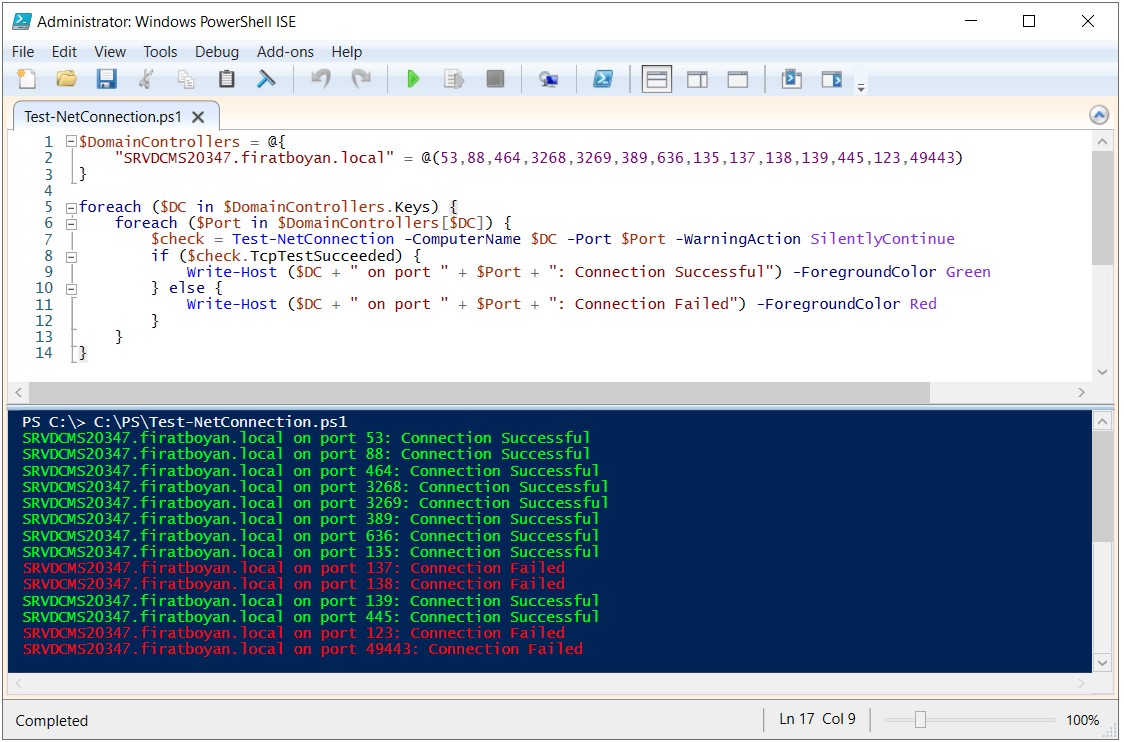
Checkpoint
I see a single result line for each port in the list. The ports to which a TCP connection can be established from the machine where I run the script return green, and the others return red.
2- Tested Ports and Services
Port numbers are between 0 and 65535 and are divided into 3 ranges. 0-1023 are the well-known ports, which are assigned to standard services such as DNS, Kerberos and LDAP. 1024-49151 are the registered ports, which are registered for specific applications. 49152-65535 are the dynamic ports, which the operating system assigns for temporary connections.
The same port number exists separately for TCP and UDP. TCP establishes a connection with a three-way handshake (SYN, SYN-ACK, ACK) before data is sent. UDP has no such connection setup, and the packet is sent directly. This difference is decisive for the subject of this article. Test-NetConnection produces its result by checking whether the handshake completes. Because UDP has no handshake, I cannot test UDP services with this method.
The table below shows which service each port tested in the script belongs to and which transport protocol it uses.
|
Port |
Transport Protocol |
Service |
Description |
53 |
TCP and UDP |
DNS |
Name resolution and locating domain controllers through SRV records. The port is listened on if the DNS role is installed on the domain controller. |
88 |
TCP and UDP |
Kerberos |
User and computer authentication. |
464 |
TCP and UDP |
Kerberos Password Change |
Password change and password reset over Kerberos. |
389 |
TCP and UDP |
LDAP |
Directory queries. The UDP side is used in the domain controller location process. |
636 |
TCP |
LDAP SSL |
Encrypted directory queries. |
3268 |
TCP |
Global Catalog |
Global catalog queries that search across the forest. |
3269 |
TCP |
Global Catalog SSL |
Encrypted global catalog queries. |
135 |
TCP |
RPC Endpoint Mapper |
Informs the client which port the requested RPC service listens on. |
137 |
UDP |
NetBIOS Name Service |
NetBIOS name resolution. TCP 137 is also defined for NBName, but name resolution traffic runs over UDP. |
138 |
UDP |
NetBIOS Datagram Service |
NetBIOS datagram communication. |
139 |
TCP |
NetBIOS Session Service |
Session-based communication over NetBIOS. The port is listened on if NetBIOS over TCP/IP is enabled. |
445 |
TCP |
SMB |
Access to the SYSVOL and NETLOGON shares, and reading of Group Policy files. |
123 |
UDP |
W32Time (NTP) |
Time synchronisation. |
49443 |
TCP |
AD FS Certificate Authentication |
It is not a fixed service port reserved for AD DS. AD FS can use this port for user certificate authentication. |
There is one more range that is not in the table but is required for domain controller communication. In the default configuration, RPC-based services such as replication, Netlogon, LSA and SAM do not use a fixed port. The client first connects to the RPC Endpoint Mapper over TCP 135, learns the port reported for the relevant RPC interface and establishes the connection over that port. In Windows Server 2008 and later, these dynamic ports are assigned from the 49152-65535 range by default.
This behaviour can be changed. Fixed TCP ports can be defined on the domain controller with the TCP/IP Port registry value for Active Directory replication (NTDS) and the DCTcpipPort registry value for Netlogon. For this reason, if there is a firewall in between, I verify RPC access based on the ports configured in the environment. If fixed ports are defined, I can add these values to the array in the script. If they are not defined, I check in the firewall rules that the whole dynamic range is open for TCP.
A Successful result for TCP 135 does not show that the port reported by the Endpoint Mapper is also reachable. RPC traffic also fails when this second port is blocked.
Ports 53, 88, 389 and 464 use both TCP and UDP. The script verifies only the TCP side of these ports.
3- What Test-NetConnection Verifies and What It Does Not
Test-NetConnection runs 4 types of test. These are the ping test, the TCP port test, route tracing with -TraceRoute and route selection diagnostics with -DiagnoseRouting. When the -Port parameter is given, it attempts a connection to the TCP port on the target and returns the result in the TcpTestSucceeded property as True or False.
A Successful result shows that the TCP handshake completed. This means that this port is not blocked on the path from the machine where I run the script to the domain controller, and that a process listens on this port on the target. It does not show that the service responds correctly. For example, a Successful result for 636 does not mean that an LDAP SSL session can be established. That requires a valid certificate on the domain controller, and it is tested separately. In the same way, a Successful result for 88 does not prove that a Kerberos ticket can be obtained. In addition, the result is valid only for the source where the test was run. A port that is reachable from one machine may not be reachable from another machine.
A Failed result shows that the TCP connection could not be established from this source. It does not show the reason. The possible causes are as follows.
|
Possible Cause |
Description |
|
Firewall or ACL on the path |
A device between the source and the target blocks the traffic from this source. |
|
Windows Firewall on the target |
The rule on the domain controller does not allow this source address. |
|
No listening service |
No process listens on this port over TCP on the target. |
|
The service uses UDP |
The service is running but does not listen on the TCP side. |
|
Name resolution or route |
The FQDN resolves to a different IP address than expected, or the packets do not reach the target. |
The cmdlet does not distinguish between these cases, and all of them produce the same result. This cmdlet does not measure packet loss, does not detect unauthorised access and is not a performance measurement tool. Its purpose is to show quickly whether TCP access exists from a specific source to a specific target.
4- Interpreting the Ports That Return Failed
When I run the script against the healthy domain controller in my own environment, the following 4 ports fail.
SRVDCMS20347.firatboyan.local on Port 137: Connection Failed
SRVDCMS20347.firatboyan.local on Port 138: Connection Failed
SRVDCMS20347.firatboyan.local on Port 123: Connection Failed
SRVDCMS20347.firatboyan.local on Port 49443: Connection Failed
This result is not a sign of a fault. The 4 ports fail because the test method is TCP and because of the content of the port list.
Ports 137, 138 and 123 (UDP)
NetBIOS Datagram Service (138) and W32Time (123) run over UDP. TCP is also defined for NetBIOS Name Service (137), but in a Windows environment name resolution traffic runs over UDP 137. The script attempts a TCP connection to these 3 ports, and all 3 return Failed in my environment. On a server that has a reachable TCP listener on the same number, the result can be Successful. In both cases, this result does not show the state of the UDP service, and that service is tested separately.
NetBIOS Session Service (139) uses TCP. If NetBIOS over TCP/IP is enabled on the target and the source can reach this port, it returns Successful in the same test. If NetBIOS over TCP/IP is disabled, 139 also returns Failed, and SMB traffic continues to work directly over TCP 445.
To verify the time service, I use the w32tm tool, which sends an NTP query. If the command can obtain time samples from the domain controller, there is access over UDP 123.
w32tm /stripchart /computer:SRVDCMS20347.firatboyan.local /samples:3 /dataonly
To see whether the DNS service responds, I direct the query to the domain controller itself with the -Server parameter.
Resolve-DnsName -Name firatboyan.local -Server SRVDCMS20347.firatboyan.local
If the command returns records, the DNS service on that server answered the query. It does not show which transport protocol carried the response, so on its own it does not count as proof of UDP 53 access. To see the TCP and UDP sides separately, I use Microsoft's PortQry tool, which is downloaded separately. PortQry sends a real DNS query to port 53 over both protocols and reports the result for each protocol.
portqry -n SRVDCMS20347.firatboyan.local -e 53 -p both
The same tool can be used for the other UDP ports. In the UDP 137 query, PortQry sends a NetBIOS Adapter Status query and checks whether the service responds.
portqry -n SRVDCMS20347.firatboyan.local -e 137 -p udp
The status values that PortQry returns are as follows.
|
Status |
Meaning |
LISTENING |
A response was received from the port, and a process is listening. |
NOT LISTENING |
No process is listening. In the UDP test, an ICMP Port Unreachable message was received from the target. In the TCP test, a TCP response with the RST flag was received. |
FILTERED |
No response was received. The port may be filtered, and it is not known whether a process is listening. |
LISTENING or FILTERED |
An ambiguous result specific to UDP. No ICMP Unreachable message was received, and the service did not respond either. |
A LISTENING or FILTERED result on its own does not prove that a firewall blocks the port. In UDP, no response can mean either that the port is filtered or that the service ignored a packet whose format was not suitable. For the services that it recognises, PortQry tries to remove this ambiguity by sending a second query that conforms to the protocol. If it receives a response, it clarifies the status as LISTENING.
Port 49443
49443 is not a fixed service port reserved for AD DS. In the configuration that uses 1 host name and 2 ports, AD FS performs user certificate authentication over this port. In Windows Server 2016 and later, if the certificate contains the host name with the certauth prefix, the same operation can also run over TCP 443. This means that this port is not used in every AD FS deployment.
On a domain controller that does not have AD FS, in most cases no service listens on this port, and the result is Failed, as in my environment. However, 49443 is inside the default dynamic port range of Windows. If the operating system has assigned this port to another RPC endpoint at that moment, the test can return Successful on a server without AD FS as well. For this reason, neither a Successful nor a Failed result for this port has any meaning on its own.
I left this port in the list deliberately. It shows that I can add the port of another role or application in the environment to the hash table and test it with the same script. If I only test domain controller services, I remove the value 49443 from the array.
If One of the TCP Ports Returns Failed
If a port that uses TCP, such as 53, 88, 135, 389, 445, 636, 3268 or 3269, fails, the situation is different and must be investigated. First, I repeat the same test for the same target IP address and port from a machine in the same subnet as the domain controller.
If the second machine returns Successful, the service is listening and is reachable from that source. The reason for the Failed result on the first client is not yet known. At this point, I check which IP address the first client resolves the FQDN to, which route it takes to the target, and whether the firewall on the path and the Windows Firewall rules on the domain controller allow this source address.
If the second machine also returns Failed, I turn to the domain controller side. I check whether the relevant service is running, and I check the Windows Firewall rules.
3268 and 3269 are listened on only on domain controllers that hold the global catalog role, and 53 only on those that have the DNS role installed. If the server that I test does not hold these roles, a Failed result for these ports is consistent with the configuration.
This article covered how access to the ports of a domain controller is tested with a PowerShell script that uses the Test-NetConnection cmdlet. The script goes through the server and port list defined in a hash table with nested loops, attempts a TCP connection for each port and reports the result in colour.
I listed in a table which port and which transport protocol services such as DNS, Kerberos, LDAP, Global Catalog, RPC Endpoint Mapper and SMB use. I also explained separately that RPC-based services use the dynamic port range by default and that fixed ports can be defined for NTDS and Netlogon.
In this script, I use Test-NetConnection with the -Port parameter to check whether a TCP connection can be established from the client to the target port. The result of this test does not show the state of services that run over UDP, such as NetBIOS and W32Time. In my environment, the related ports failed although these services were running. For these services, I showed the tests run with w32tm and PortQry and how to read the PortQry status values.
Reading the results correctly saves time in Active Directory access problems. Because a Failed result does not show the reason, when I repeat the test from a second source and compare the results, I turn directly to the relevant layer instead of looking for the problem in a service that works.
I hope you find it useful...
Feel free to share your thoughts and questions about this article in the comments below. Every contribution helps the content reach more people and makes for a more useful discussion.