In Active Directory, I can query an Organizational Unit (OU) by its name or by its GUID value, but some operations require the full path of the target in the directory. When I start a search from a specific OU with -SearchBase, or link a Group Policy to an OU with New-GPLink -Target, the value I enter is the Distinguished Name (DN) of that OU. Searching by name is also not always enough, because OUs with the same name can exist in different branches and the query then returns more than 1 result.
First I explain how a DN is built and how it is read, and then I list the DNs of the Organizational Unit hierarchy in my own domain environment with the Get-ADOrganizationalUnit cmdlet. Retrieving the number of user and computer objects in an OU is outside the scope of this article. I covered that topic separately in my Listing Active Directory Organizational Unit Contents article.
1- Distinguished Name (DN) Structure
Active Directory is a directory service that is compliant with LDAP (Lightweight Directory Access Protocol), and every object in the directory has a DN. A DN consists of comma-separated parts that start with the object's own name and extend to the root of the domain. Each of these parts is called a Relative Distinguished Name (RDN), and each RDN is written in the Attribute=Value format.
DN Components: CN, OU and DC
In Active Directory, 3 abbreviations appear most often in a DN. The table below gives what each one stands for and its equivalents in my own environment.
|
Abbreviation |
Stands For |
What It Represents |
Example |
|
CN |
Common Name |
Objects such as users, groups and computers, and built-in containers such as Users and Computers |
CN=Administrator, CN=Users |
|
OU |
Organizational Unit |
The Organizational Unit at that level of the DN |
OU=HR, OU=Istanbul |
|
DC |
Domain Component |
Each part of the domain name that is separated by a dot |
DC=firatboyan, DC=local |
The DC abbreviation in a DN does not mean Domain Controller. It means Domain Component. The firatboyan.local domain is written as DC=firatboyan,DC=local in a DN.
The default Users and Computers folders are containers, not OUs. For this reason, the DN of the built-in Administrator account has the form CN=Administrator,CN=Users,DC=firatboyan,DC=local. If I write the same path with OU=Users, the query cannot find the object.
How Is a DN Read?
Reading a DN from left to right moves from the object up to the domain root. The leftmost RDN is the object itself, and each part to the right represents the next level up. The DN of the HR Organizational Unit in my own environment is as follows:
OU=HR,OU=Ist-All-Departments,OU=Istanbul,OU=Turkey,OU=Europe,DC=firatboyan,DC=local

firatboyan.local
└── Europe
    └── Turkey
        └── Istanbul
            └── Ist-All-Departments
                └── HR
In this example, the leftmost OU=HR is the RDN of the HR object itself. OU=Ist-All-Departments, immediately to its right, is the parent OU that HR belongs to directly.
An RDN must be unique within its container or OU. 2 objects with the same name can exist in different OUs, because their DNs are different. This is the mechanism that prevents name conflicts between Active Directory objects.
A DN is not the permanent identity of an object. When the object is moved to another OU or renamed, the DN changes. The identifier that is assigned when the object is created and does not change afterwards is stored in the objectGUID attribute. DNs are not used in access permissions either. The SID inside an ACL entry (ACE) specifies which identity the entry applies to. For this reason, when I write a DN in a script, I take into account that the script will not work if that OU is moved or renamed.
Directory partitions such as Domain, Configuration and Schema are also named with a DN. I explained how these partitions are replicated between domain controllers in my Active Directory partitions and replication management article.
2- Prerequisites
All the commands in this article use the Get-ADOrganizationalUnit cmdlet in the ActiveDirectory PowerShell module. This module is available on a domain controller when it is installed together with the management tools of the Active Directory Domain Services role. On a member server, it is installed with the RSAT-AD-PowerShell feature.
On a client, the Active Directory Domain Services and Lightweight Directory Services Tools component under RSAT is required. For the client, Microsoft's RSAT installation guide lists Windows 10 version 1809 and later, or Windows 11, with the Pro and Enterprise editions in both cases. Installing the component requires local administrator rights on the client.
The commands only read from the directory and do not change any object or setting. I run the commands in a PowerShell session that I open on the domain controller.
3- Listing Organizational Unit DNs
Step 1 - Current Organizational Unit Structure
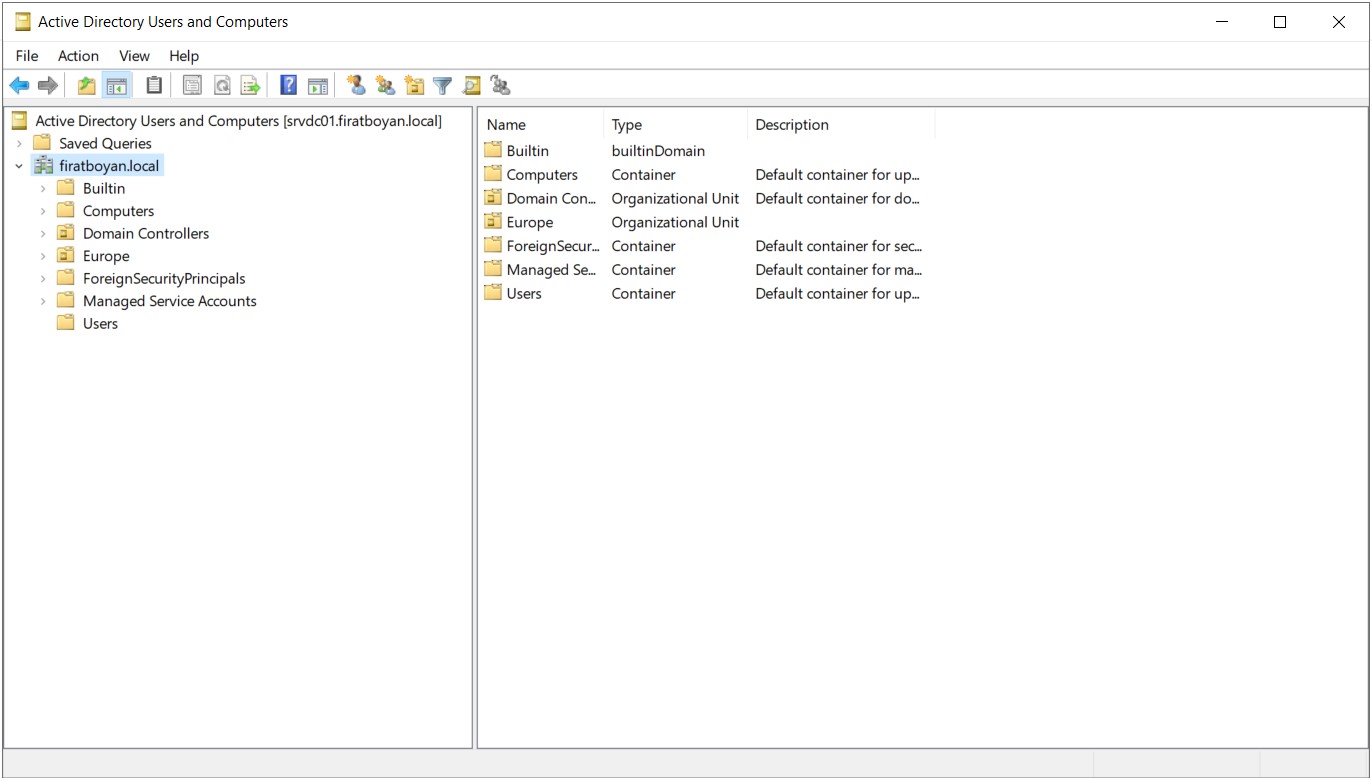
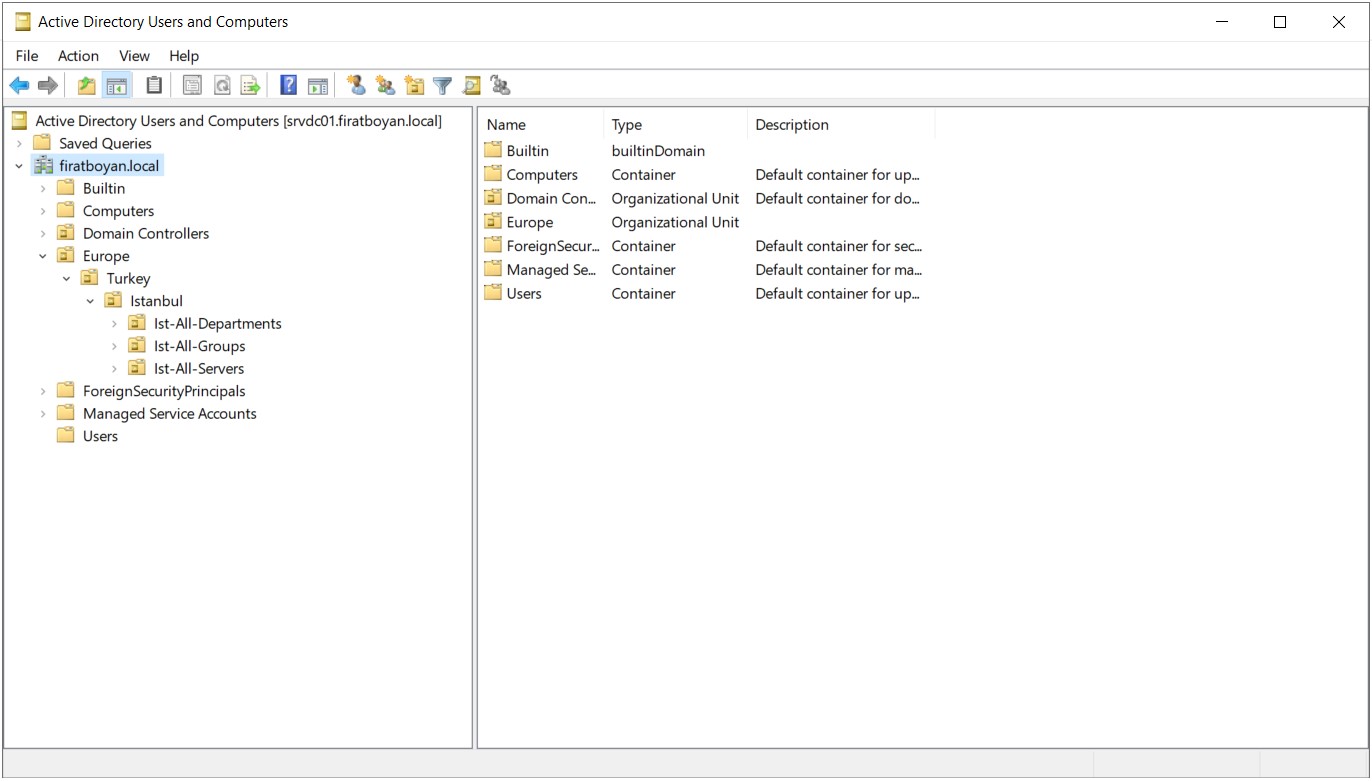
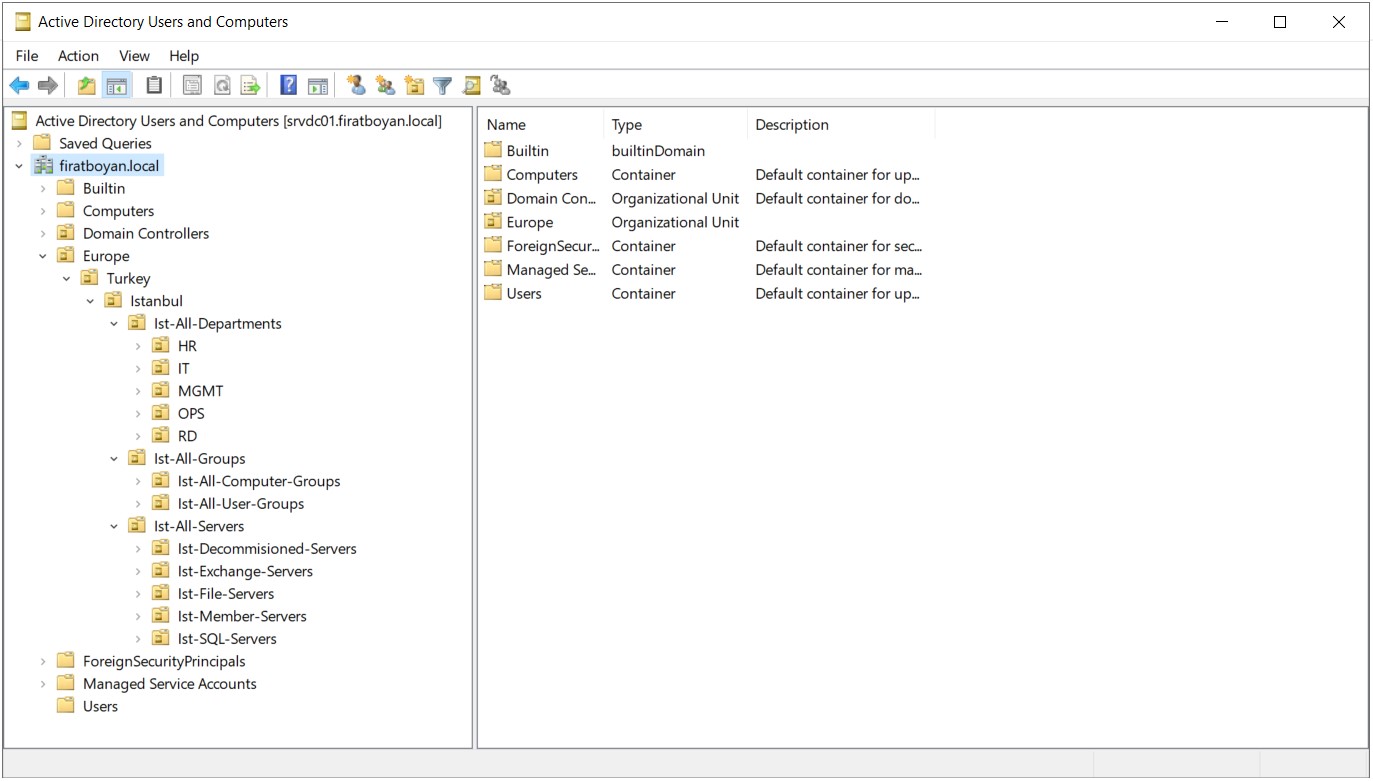
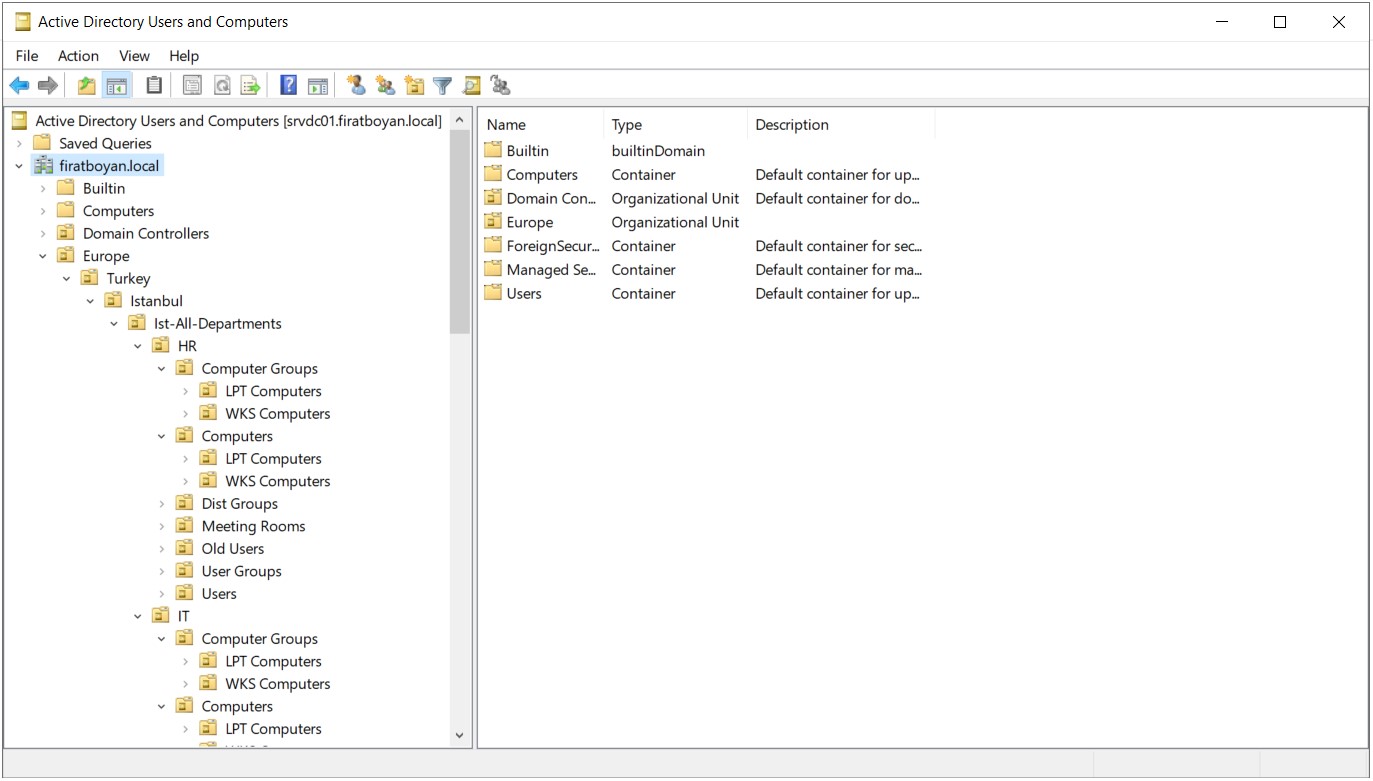
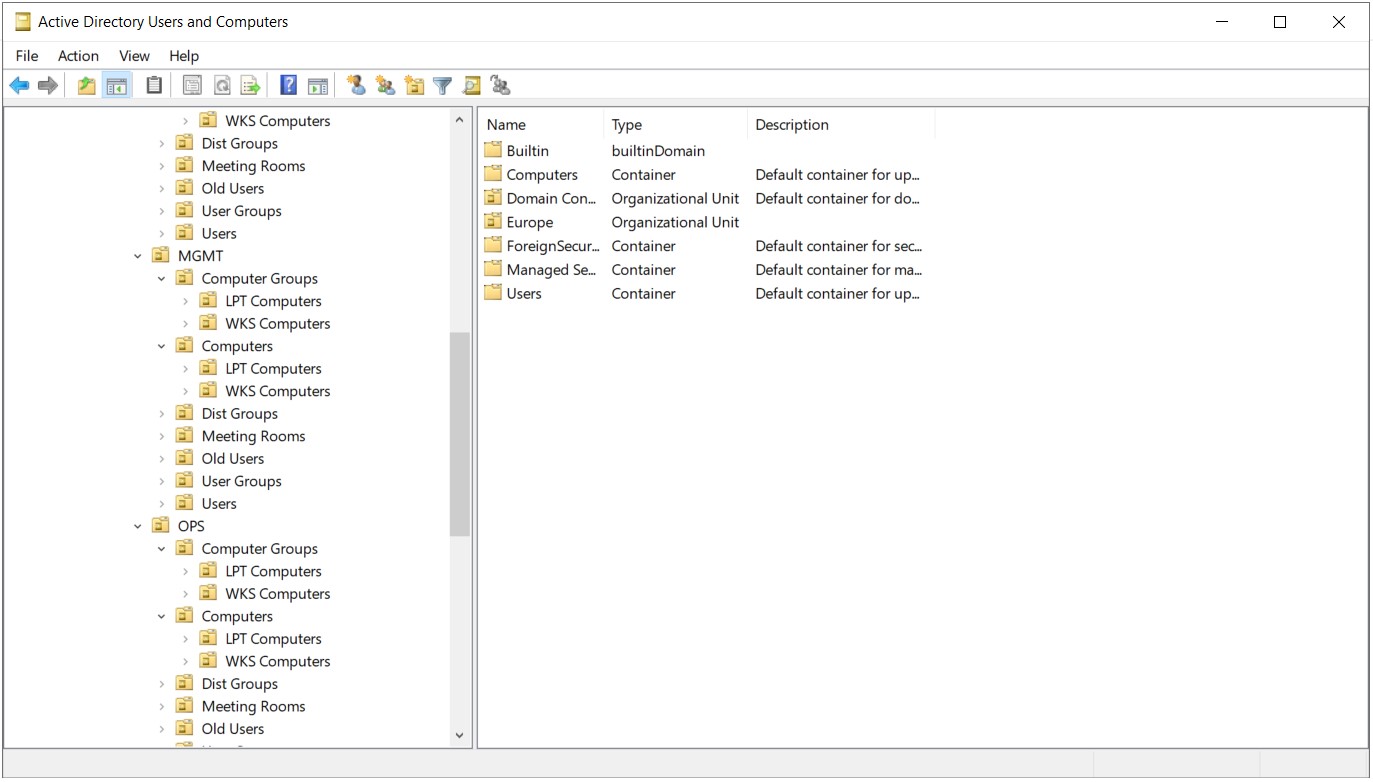
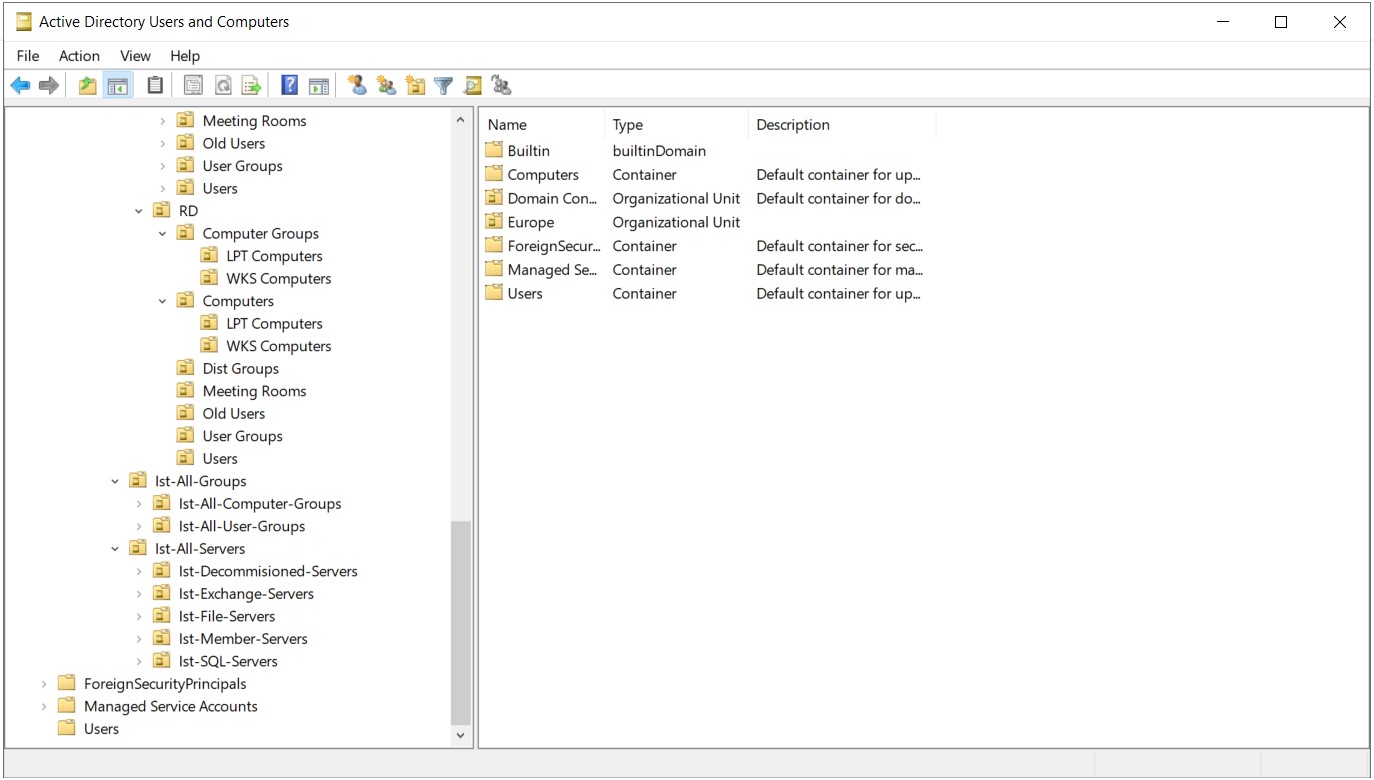
The Organizational Unit hierarchy in my own domain environment appears in the GUI (Graphical User Interface) as shown below. I compare the output from the following steps with this structure.
Step 2 - Listing the DNs of All Organizational Units
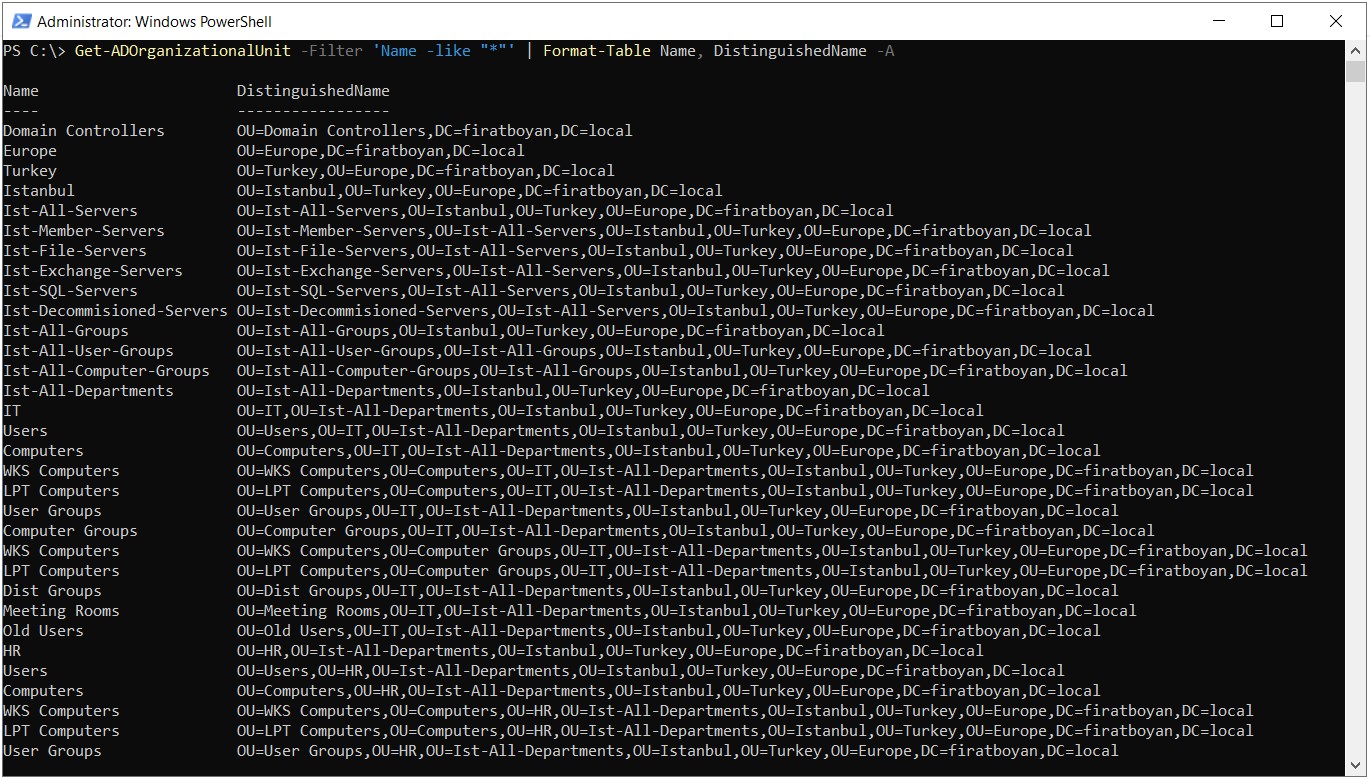
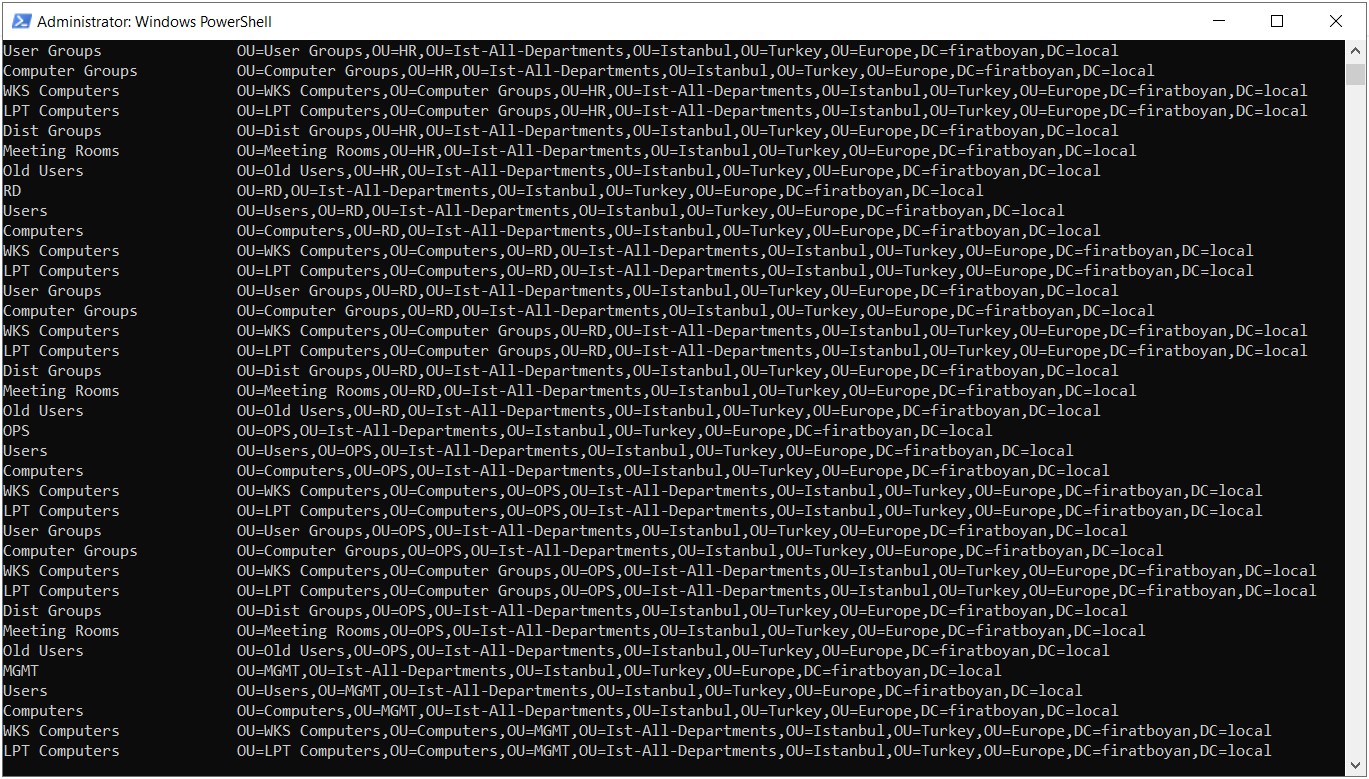
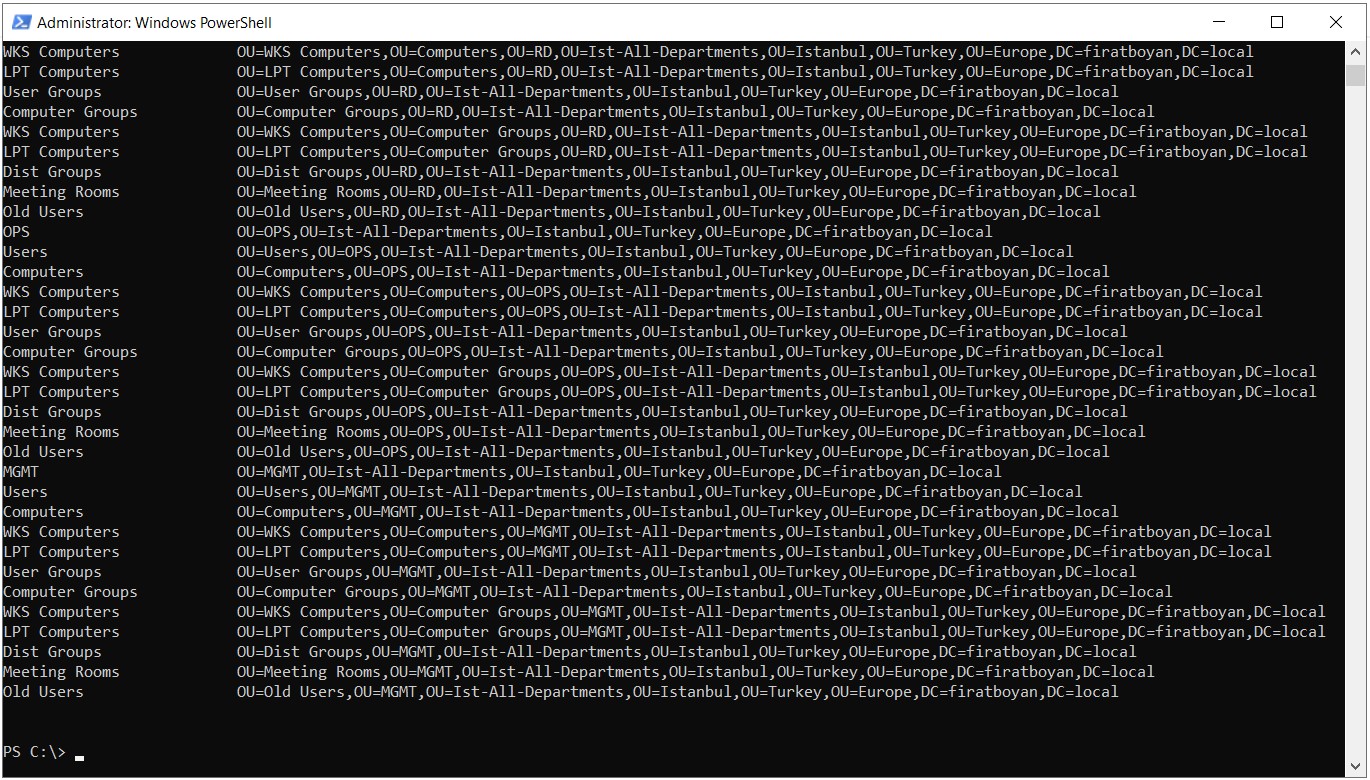
I list the Organizational Units in the domain together with their names and DNs with the command below. The -Filter 'Name -like "*"' expression returns all OUs regardless of their name, and it gives the same result as the -Filter * that I use in the following steps. The -A at the end of the command is the short form of the -AutoSize parameter, which adjusts the column widths to the content.
Because I do not specify -SearchBase in the command, the current location of PowerShell determines where the search starts. When I run it from a file system location such as C:\, the search starts from the default naming context of the target domain, that is, the domain root. If I run it while I am in an OU location on the AD: drive, the search starts from that OU. Because -SearchScope is Subtree by default, the result contains that OU itself and the OUs below it. In every case, the query lists the OUs that my account has permission to see.
Get-ADOrganizationalUnit -Filter 'Name -like "*"' | Format-Table Name, DistinguishedName -A
Checkpoint
The output contains the Name and DistinguishedName columns, and there is 1 row for each OU that I saw under the Step 1 - Current Organizational Unit Structure heading.
Step 3 - Writing the Output to a File
I add Out-File to the end of the same command to write the output to a file. As an example, I used the AD-OU.txt file under the C:\ directory. Writing to the root of C:\ may require opening PowerShell as an administrator. Instead, you can specify another folder where you have write permission.
If C:\AD-OU.txt already exists, Out-File overwrites the existing content without a warning. To keep the previous list, specify a different file name or add -NoClobber to the command.
Get-ADOrganizationalUnit -Filter 'Name -like "*"' | Format-Table Name, DistinguishedName -A | Out-File C:\AD-OU.txt
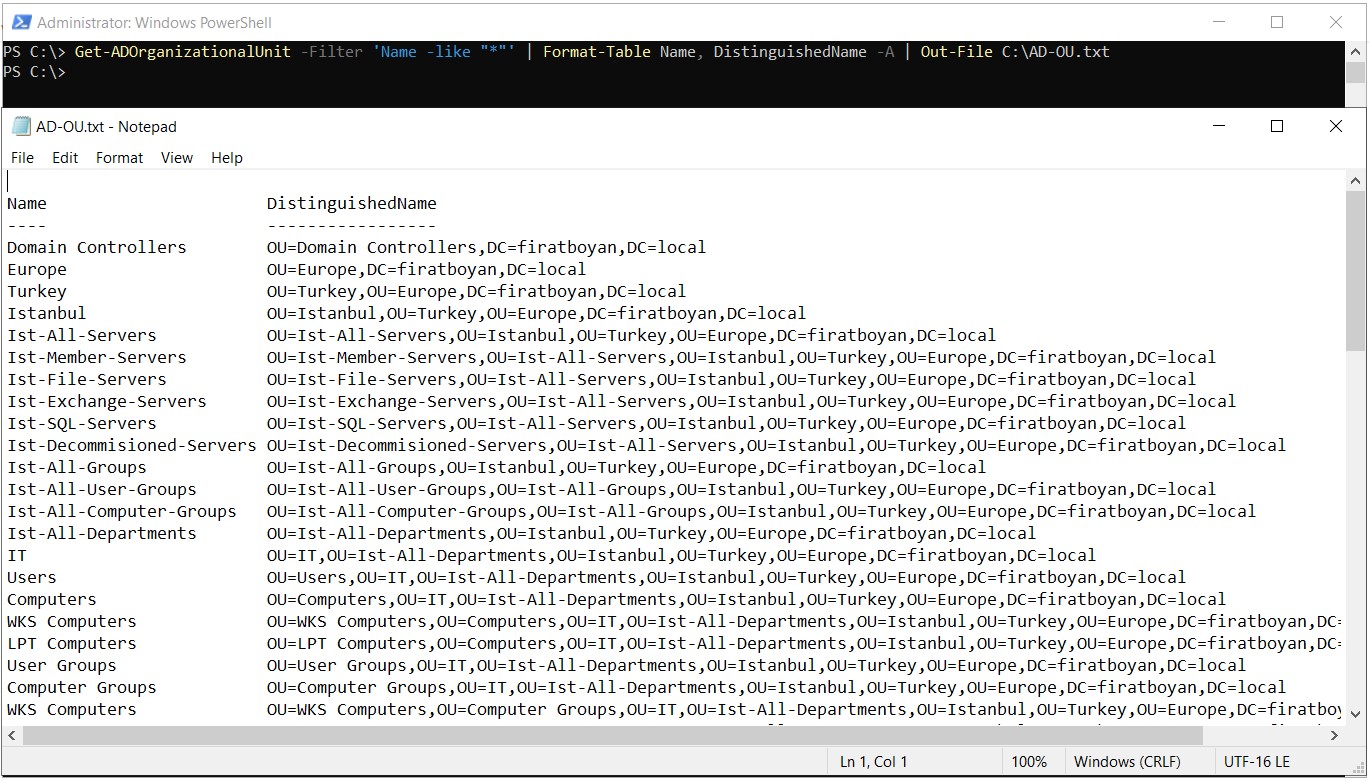
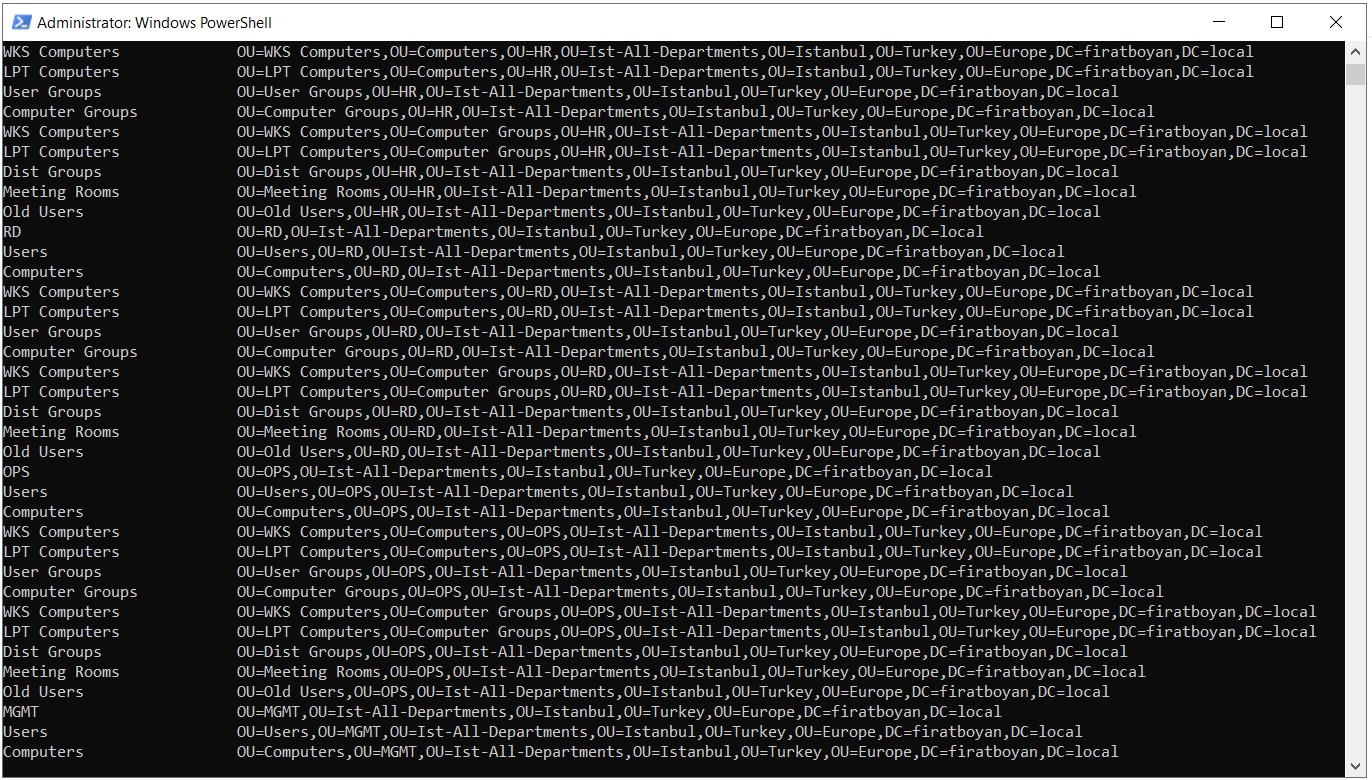
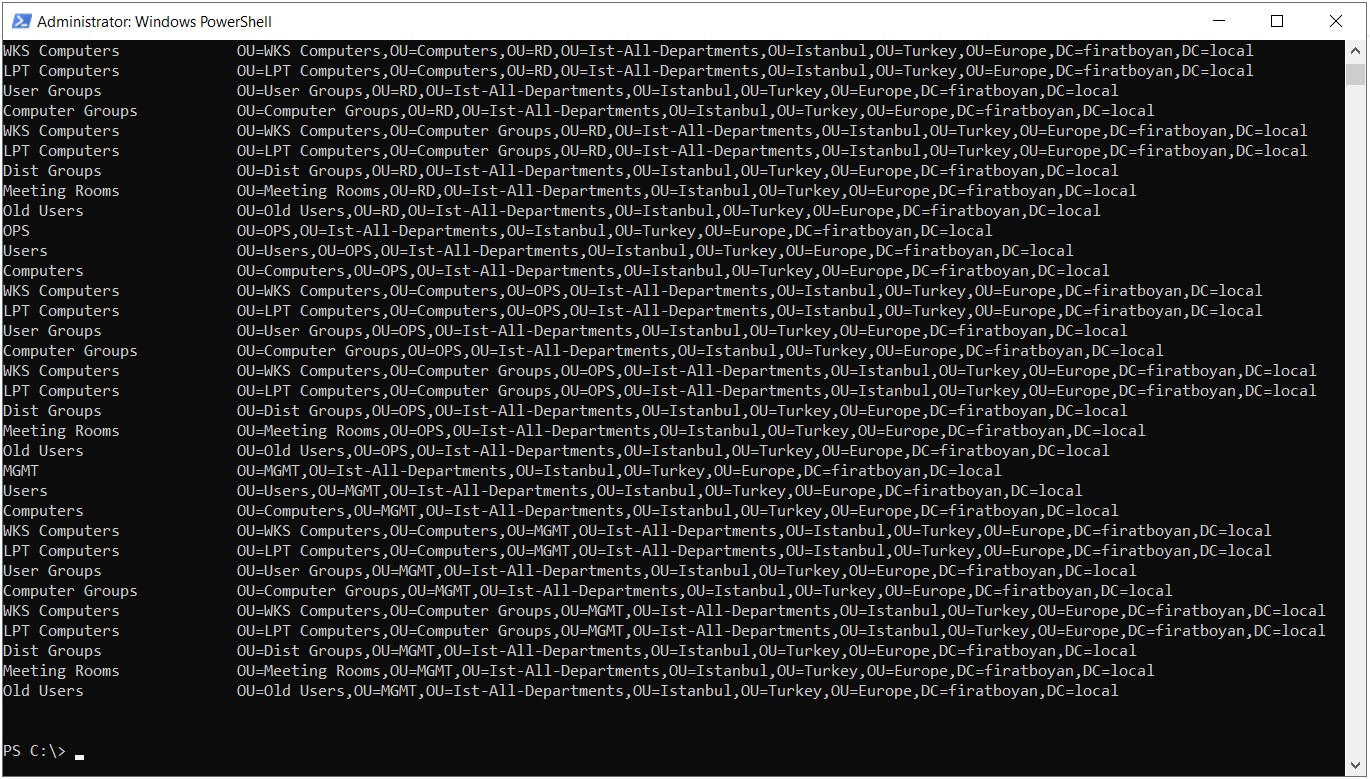
When the -Width parameter is not specified, the PowerShell host determines the line width for Out-File, and in the PowerShell console this value is 80 characters by default. Characters that exceed the width do not wrap to the next line, they are truncated. DNs become longer in a deep OU hierarchy, so if you see that the ends of the lines are missing in the file, you can run the command with -Width 300 as shown below and increase the line width to 300 characters.
Get-ADOrganizationalUnit -Filter 'Name -like "*"' | Format-Table Name, DistinguishedName -AutoSize | Out-File C:\AD-OU.txt -Width 300
Step 4 - Listing the OUs Under a Specific Organizational Unit
To list a specific branch of the hierarchy instead of the whole domain, I use 2 parameters. -SearchBase takes the DN of the OU where the search starts, and -SearchScope determines how deep the search goes from that point. When -SearchScope is not specified at all, the default value is Subtree.
|
SearchScope Value |
Scope of the Search |
Base |
Only the OU that is specified with -SearchBase |
OneLevel |
The OUs directly below the specified OU |
Subtree |
The specified OU itself and all levels below it |
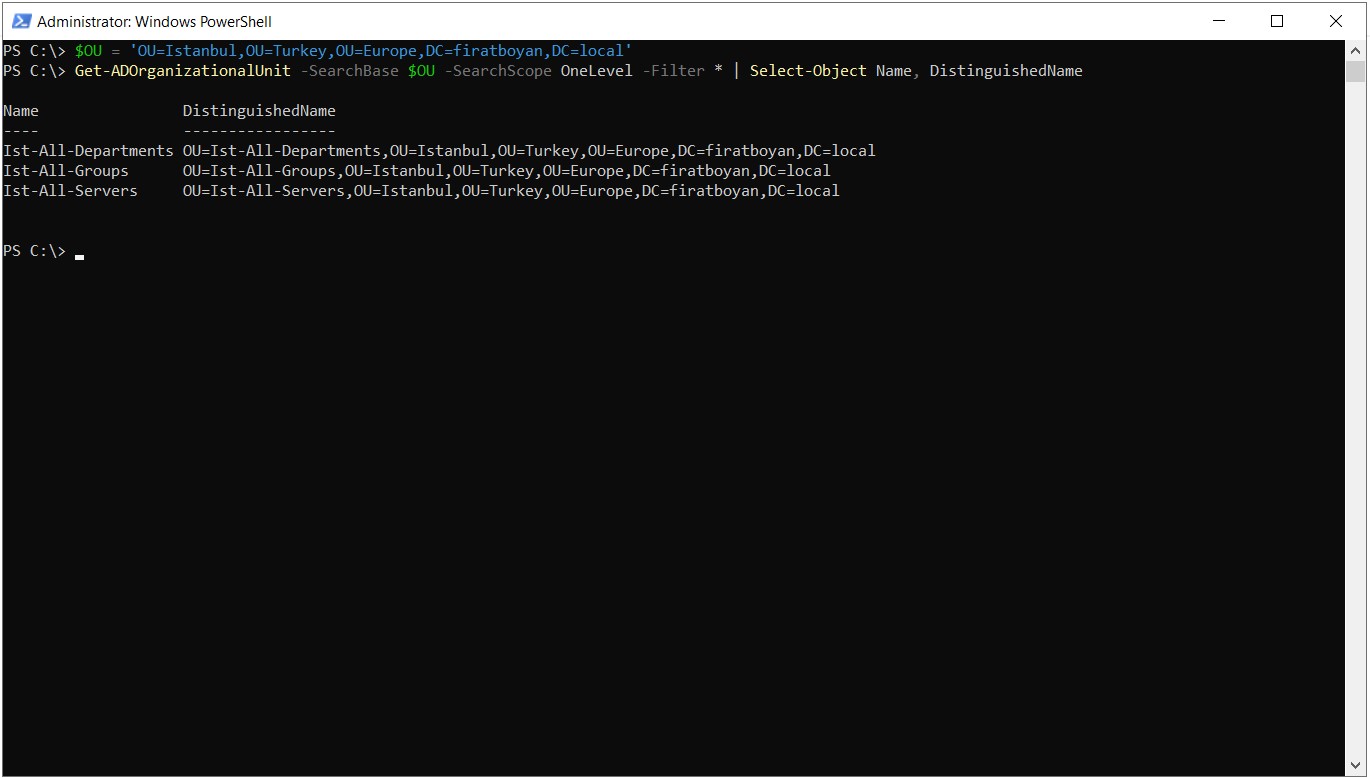
In my environment, the Istanbul OU, which is located under the Europe and Turkey Organizational Units, forms the main structure of the hierarchy. First I list the OUs directly below Istanbul with OneLevel.
$OU = 'OU=Istanbul,OU=Turkey,OU=Europe,DC=firatboyan,DC=local'
Get-ADOrganizationalUnit -SearchBase $OU -SearchScope OneLevel -Filter * | Select-Object Name, DistinguishedName
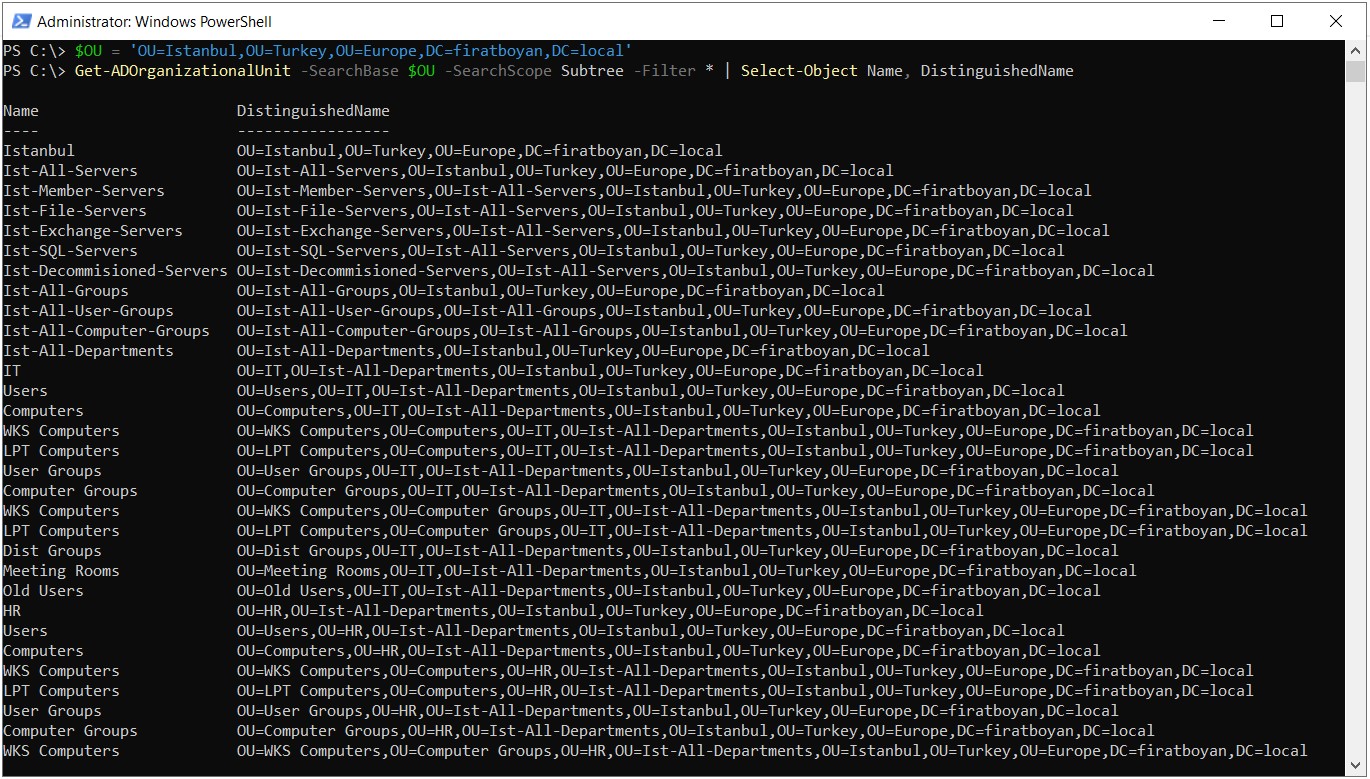
To also see the child Organizational Units inside these OUs, I change the -SearchScope value to Subtree. Because Subtree includes the search base as well, the Istanbul OU itself is also listed in the output.
$OU = 'OU=Istanbul,OU=Turkey,OU=Europe,DC=firatboyan,DC=local'
Get-ADOrganizationalUnit -SearchBase $OU -SearchScope Subtree -Filter * | Select-Object Name, DistinguishedName
Checkpoint
Each DN in the OneLevel output contains a single OU before the OU=Istanbul part. The Subtree output also contains rows with more than 1 OU before this part.
Step 5 - Organizational Units Under Ist-All-Departments
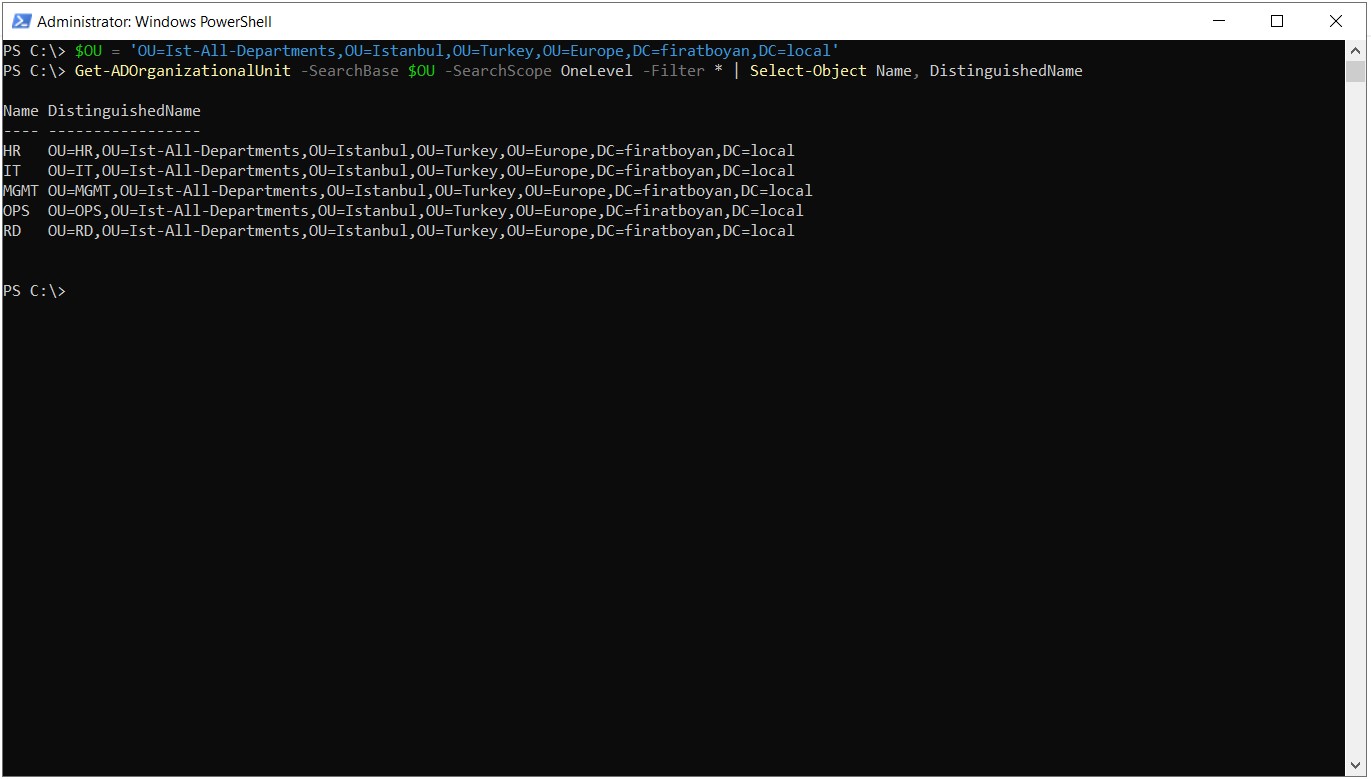
I apply the same method 1 level down. I give the DN of the Ist-All-Departments OU as the -SearchBase value and list the main Organizational Units of the departments with OneLevel.
$OU = 'OU=Ist-All-Departments,OU=Istanbul,OU=Turkey,OU=Europe,DC=firatboyan,DC=local'
Get-ADOrganizationalUnit -SearchBase $OU -SearchScope OneLevel -Filter * | Select-Object Name, DistinguishedName
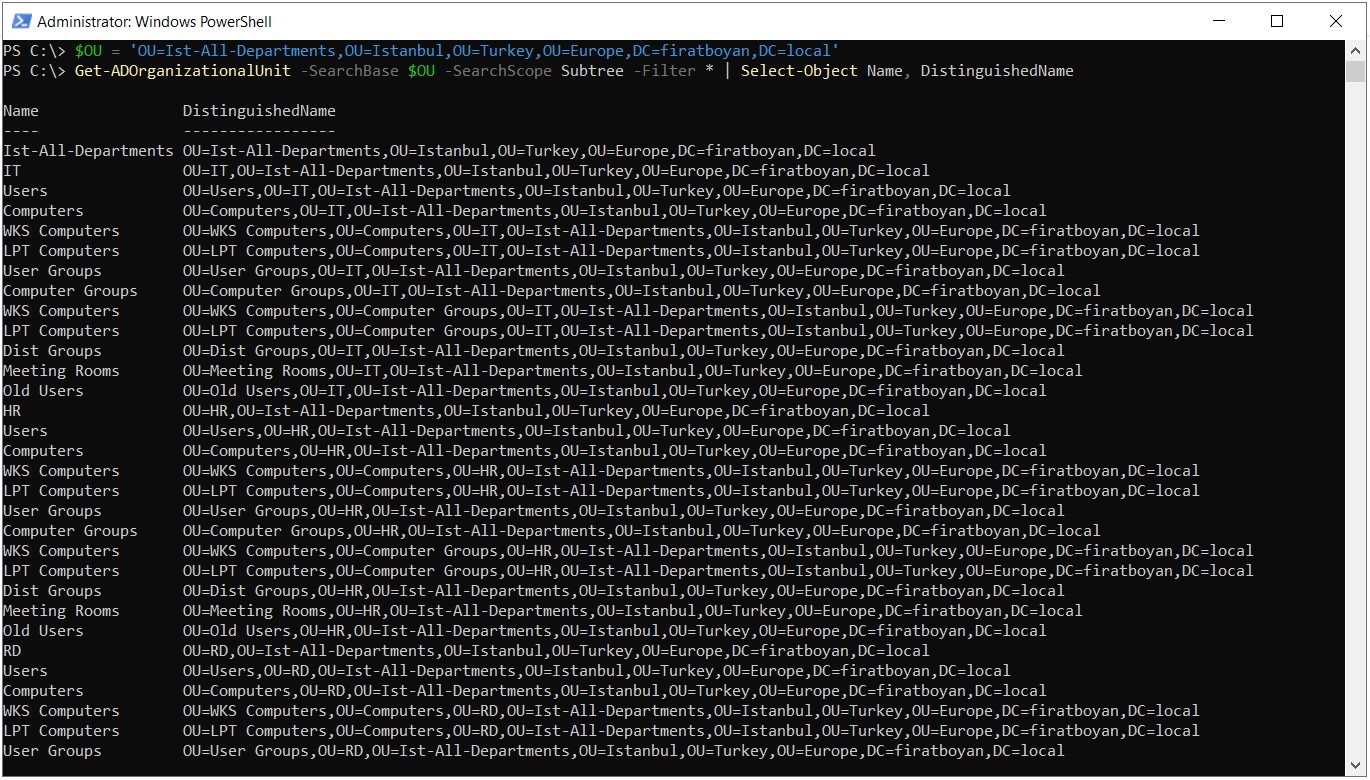
To also list the child Organizational Units inside the department OUs, I switch to the Subtree value again.
$OU = 'OU=Ist-All-Departments,OU=Istanbul,OU=Turkey,OU=Europe,DC=firatboyan,DC=local'
Get-ADOrganizationalUnit -SearchBase $OU -SearchScope Subtree -Filter * | Select-Object Name, DistinguishedName
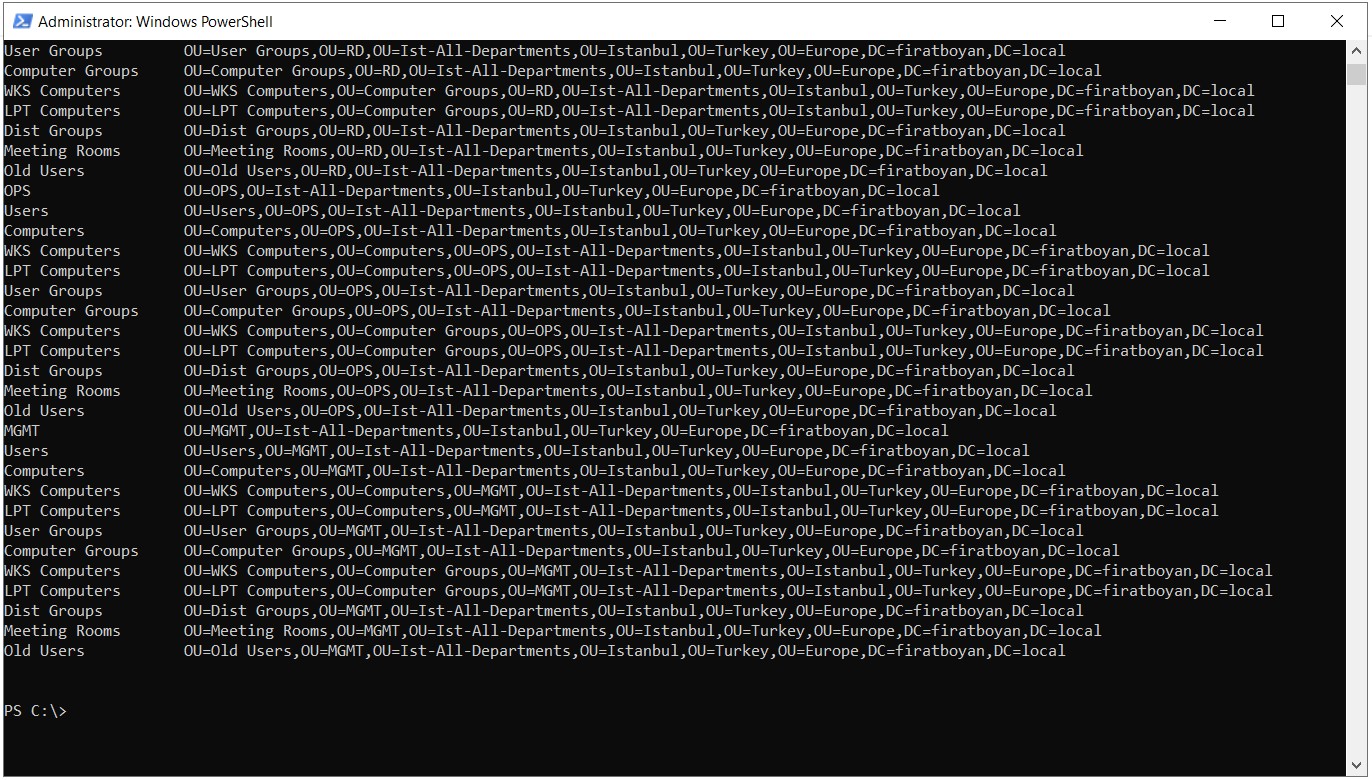
Step 6 - Organizational Units Under HR
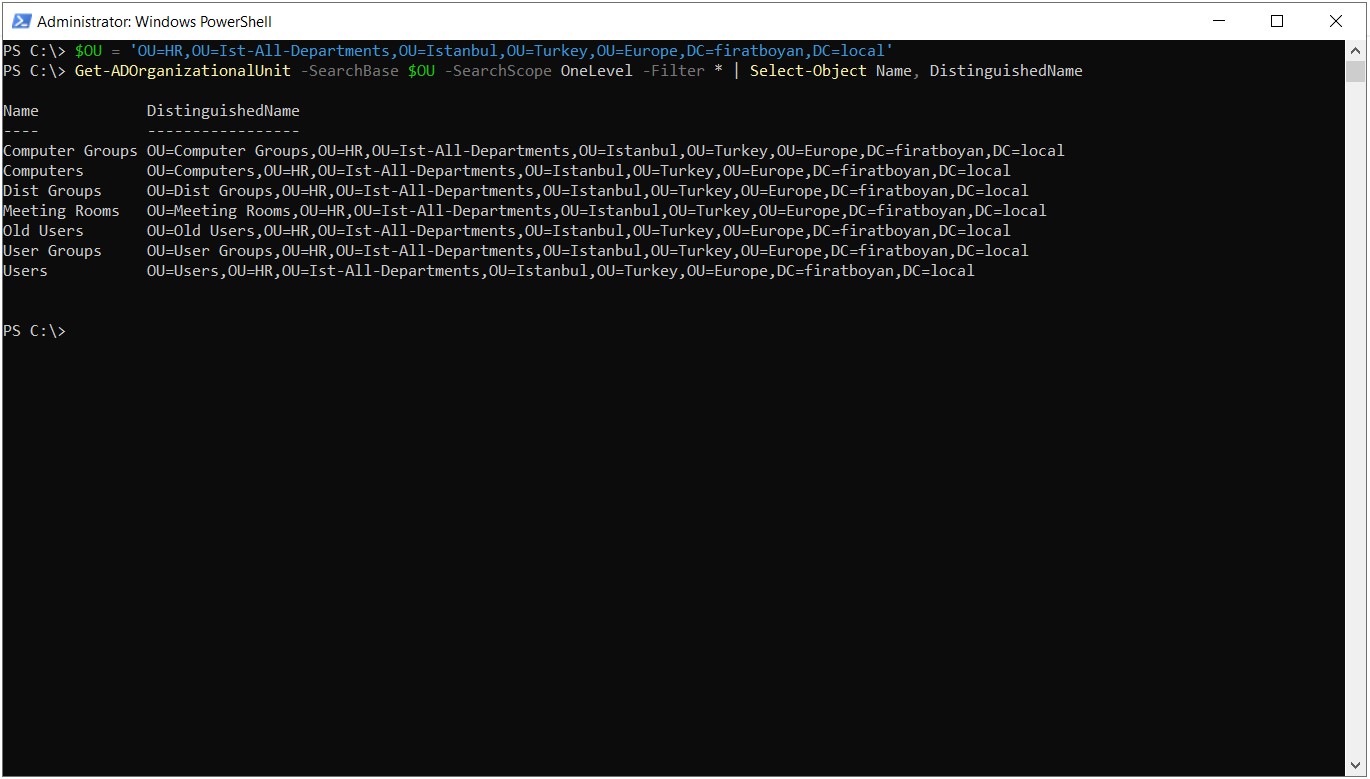
Finally, I go down to a single department. I give the HR OU under Ist-All-Departments as the search base and list the Organizational Units directly below it with OneLevel.
$OU = 'OU=HR,OU=Ist-All-Departments,OU=Istanbul,OU=Turkey,OU=Europe,DC=firatboyan,DC=local'
Get-ADOrganizationalUnit -SearchBase $OU -SearchScope OneLevel -Filter * | Select-Object Name, DistinguishedName
To see all the levels under HR, I run the same command with the Subtree value.
$OU = 'OU=HR,OU=Ist-All-Departments,OU=Istanbul,OU=Turkey,OU=Europe,DC=firatboyan,DC=local'
Get-ADOrganizationalUnit -SearchBase $OU -SearchScope Subtree -Filter * | Select-Object Name, DistinguishedName
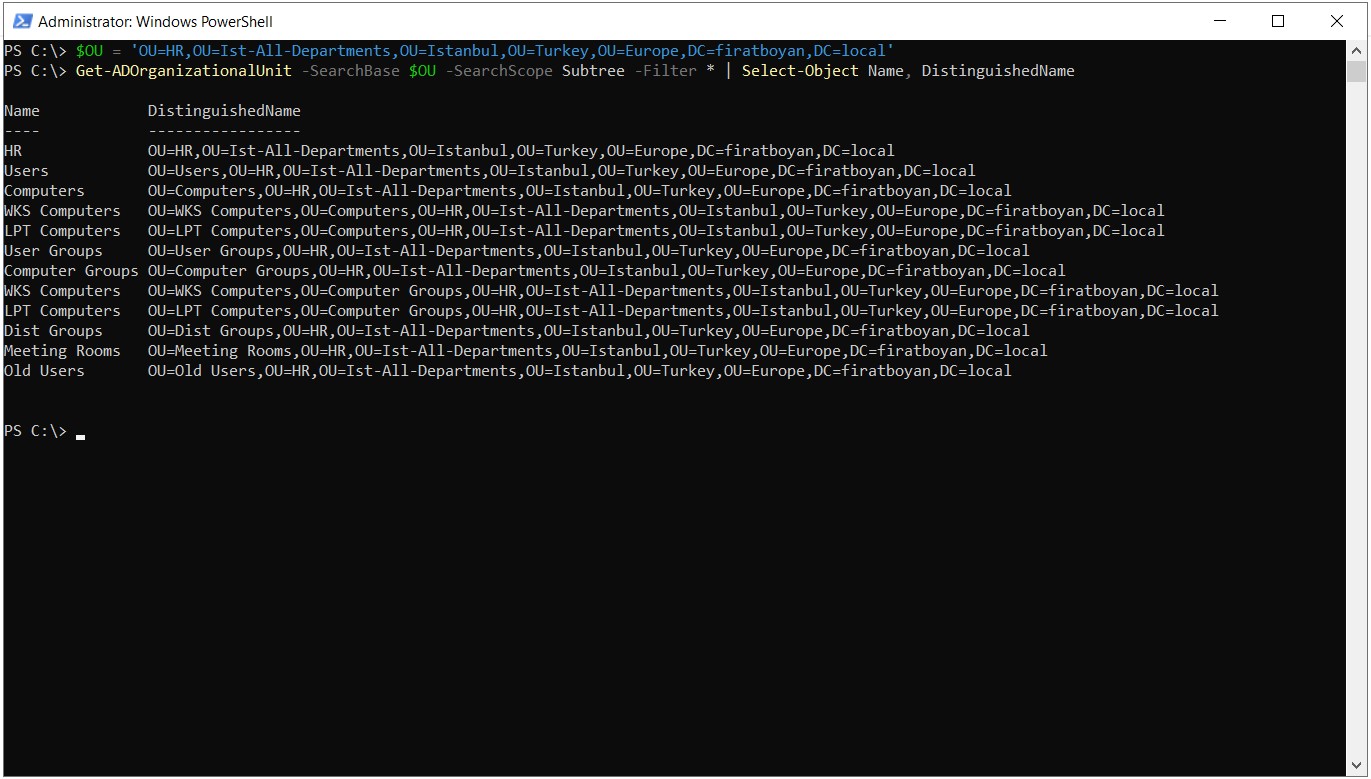
I went from the top of the hierarchy down to a single department with the same 2 parameters. In your own environment, you only need to enter the DN of the OU you are interested in as the -SearchBase value and select the depth with -SearchScope.
This article covered the Distinguished Name (DN) structure in Active Directory and how to list the DNs of the Organizational Unit (OU) hierarchy in a domain with PowerShell. The CN, OU and DC components that form a DN, the Relative Distinguished Name (RDN) concept and the reading of a DN from the object towards the domain root were explained on an example path.
On the practical side, I first listed all the OUs in the domain with the Get-ADOrganizationalUnit cmdlet, and then went down to a specific branch of the hierarchy with the SearchBase and SearchScope parameters. I showed the difference between OneLevel and Subtree with the output from the Istanbul, Ist-All-Departments and HR levels, and when writing the result to a file, I covered why lines can be truncated and the risk of overwriting an existing file.
A Distinguished Name is a value that changes when an object is moved or renamed. When the path written in Group Policy links, LDAP queries and scripts does not match the current OU structure, the command cannot find the object. Keeping the DN list of the OU hierarchy available makes it easier to write the correct path in such operations and to compare changes made to the structure later. To count the objects in an OU, you can also read my Listing Active Directory Organizational Unit Contents article.
I hope you find it useful...
Feel free to share your thoughts and questions about this article in the comments below. Every contribution helps the content reach more people and makes for a more useful discussion.