In Active Directory environments, DNS is configured to allow clients and servers to create their own records through dynamic update. When a computer joins the domain, changes its IP address or receives a new address from DHCP, the related A and PTR records are created or updated automatically. This mechanism automates record creation, but removing the records of devices that no longer exist requires separate configuration.
Computers removed from the domain, laptops that change network, rebuilt servers, decommissioned domain controllers and shut-down virtual machines leave orphaned records in the zone over time. When one of these records points to an IP address that has since been assigned to another device, name resolution goes to the wrong target, management tools connect to the wrong device and troubleshooting takes longer than necessary. Multiple PTR records for the same IP address also make reverse lookup results unreliable.
Windows Server DNS solves this problem with the aging and scavenging mechanism. Aging keeps a timestamp on every dynamically created record and determines when that timestamp can be refreshed. Scavenging treats records that have not been refreshed within the defined period as stale and removes them from the zone.
This article first explains the time calculation behind the mechanism, and then covers, step by step, inspecting record timestamps, zone-level and server-level configuration, verification with PowerShell, restricting which server performs scavenging, identifying the records that will be deleted in advance, and verification through the event log. The examples use a domain controller named ABCISTSRVDC01 running Windows Server 2022 and the abc.local zone, and the commands must be adapted to the values of your own environment.
How Aging and Scavenging Work
Every record created through dynamic update carries a timestamp that shows when it was created or last refreshed. Manually created static records have a timestamp of 0, and by default these records are outside the scope of scavenging. Clients refresh their records regularly. The Windows DNS Client service performs this refresh every 24 hours by default, and on domain controllers the Netlogon service re-registers the SRV records at the same interval.
There are 2 different operations to distinguish here. A change to the record data, for example a different IP address, is an update. When the data stays the same and only the timestamp is renewed, it is a refresh. The aging mechanism treats these 2 operations differently, and the time calculation is based on 2 intervals.
Aging Interval Values
The table below shows the 2 interval values that determine the life cycle of a record, the server-level scavenging cycle and their default durations.
|
Setting |
Default |
Behaviour |
|
No-refresh interval |
7 days |
Starts after the timestamp is refreshed. Refresh requests received during this period are not accepted and the timestamp does not change. Update requests that contain a data change are accepted. |
|
Refresh interval |
7 days |
Starts when the no-refresh interval ends. A refresh received during this period is accepted and the timestamp is updated. If no refresh arrives before the period ends, the record is considered stale. |
|
Scavenging period |
7 days |
A server-level setting. It determines how often the automatic scavenging cycle runs. |
The no-refresh interval exists because of replication load. In AD-integrated zones, every timestamp change is an Active Directory write operation, and this change is replicated to all domain controllers that hold the DNS role. If every refresh from thousands of clients that refresh their records every day were accepted, it would create unnecessary replication traffic. The no-refresh interval limits these writes to a set interval.
For a record to become eligible for deletion, a period equal to the sum of the 2 intervals must pass after its timestamp. With the default values, this period is 14 days. The flow below shows the timeline of a single record.
T0                     T0 + 7 days              T0 + 14 days
|----------------------|------------------------|------------------>
|  No-Refresh Interval |    Refresh Interval    |  Stale
|  Refresh rejected    |  Refresh accepted      |  Removable by
|  Update accepted     |  Timestamp renewed     |  scavenging

Refresh arrives within the Refresh Interval    -> T0 becomes the new timestamp, the cycle starts again
No refresh arrives within the Refresh Interval -> The record is deleted in the next scavenging cycle
A record being stale is not sufficient for it to be deleted. Aging must be enabled on the zone that contains the record, the scavenging start time set for the zone must have passed, and automatic or manual scavenging must run on at least 1 DNS server. When any of these conditions is missing, the record stays in the zone even if it is stale. The event log verification at the end of the article also shows a case in which one of these conditions has not yet been met.
DNS Manager has 3 different settings related to aging and scavenging, and not all of them need to be configured. The diagram below shows what each setting does and which ones are mandatory.
Setting                               Location                       Requirement
------------------------------------  -----------------------------  --------------------------------
1. Zone Aging                         Zone Properties > Aging        Mandatory, separate for each zone
2. Set Aging/Scavenging for All Zones Server name > right-click menu Optional, shortcut for setting 1
3. Enable automatic scavenging        Server Properties > Advanced   Mandatory, 1 server is sufficient

1 or 2    -> Determines which zones' records can be deleted
3         -> Actually runs the deletion
The article shows all 3 settings in order. If the zones are configured individually, setting 2 can be skipped, and if all AD-integrated zones take the same values, setting 2 can be used instead of setting 1. Setting 3 is required with both methods.
Inspecting Record Timestamp Information
Before configuration, the current state of the existing records must be reviewed. DNS Manager does not show timestamp information in the default view. When Advanced is selected from the View menu, the Timestamp column becomes visible in the record list of the abc.local zone and the related fields appear in the record properties.
The screen below shows 2 types of value in the Timestamp column. The SOA and NS records and the A record of the ABCISTSRVDC01 server itself appear as static, and these records are outside the scope of scavenging. The records of servers that run regularly, such as ABCISTSRVFS01, have a recent timestamp. It is not a coincidence that all timestamp values appear as full hours, because the DNS server keeps this value with hourly precision.
In the Properties window of the ABCISTWKS01 record, the IP address field shows 10.10.10.88. The Delete this record when it becomes stale option is selected and the Record time stamp field contains 9/26/2026 2:00:00 PM. This value shows that the record was created as dynamic and is within the scope of scavenging. In a manually created record, this option is cleared and the Timestamp column shows static.
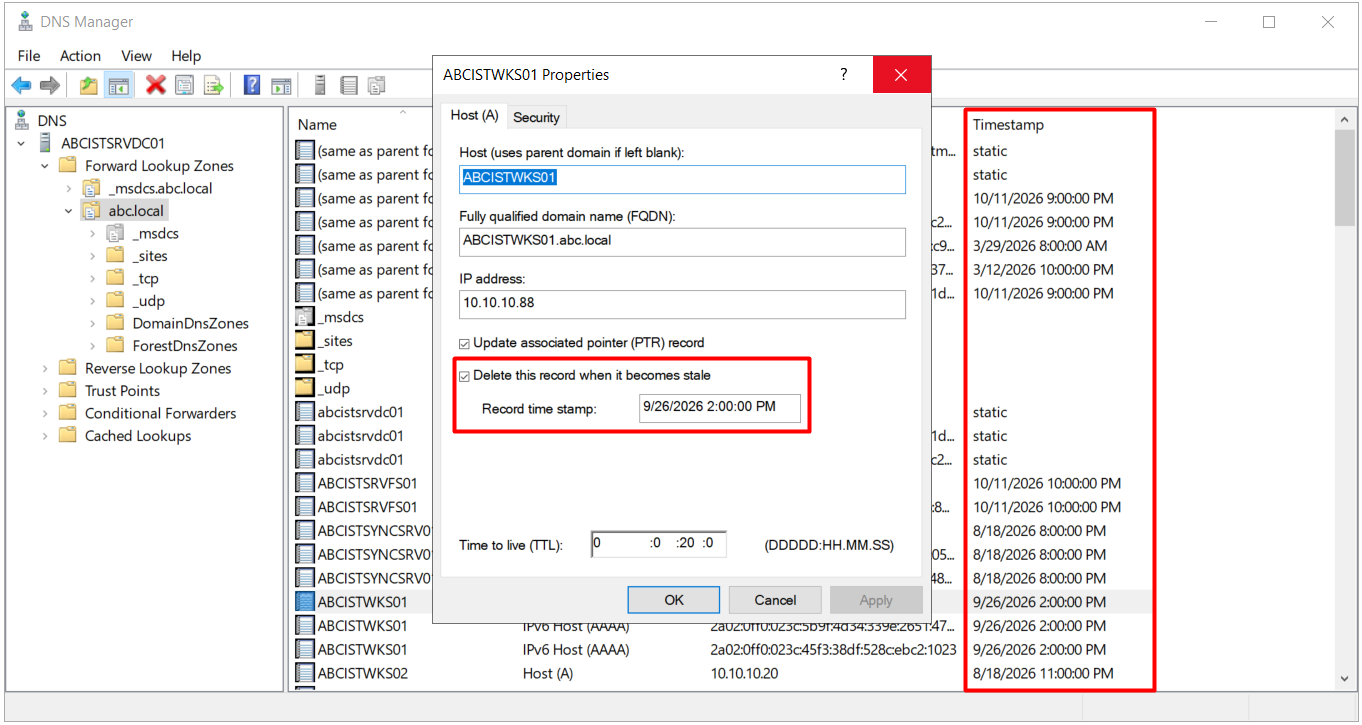
If the Delete this record when it becomes stale option is selected on a static record, the record is given a timestamp and comes within the scope of scavenging. The dnscmd /AgeAllRecords command has the same effect on all static records in the zone. These 2 methods must not be used on permanent records such as server, printer and application records.
Aging Configuration at Zone Level
Aging is enabled separately for each zone. When you right-click the abc.local zone and open Properties, the General tab shows that the zone type is Active Directory-Integrated, the Replication scope is set to All DNS servers in this domain and the Dynamic updates setting is Secure only. The aging mechanism works on records created through dynamic update, so this setting must be enabled. The Aging button is at the bottom of the same tab.
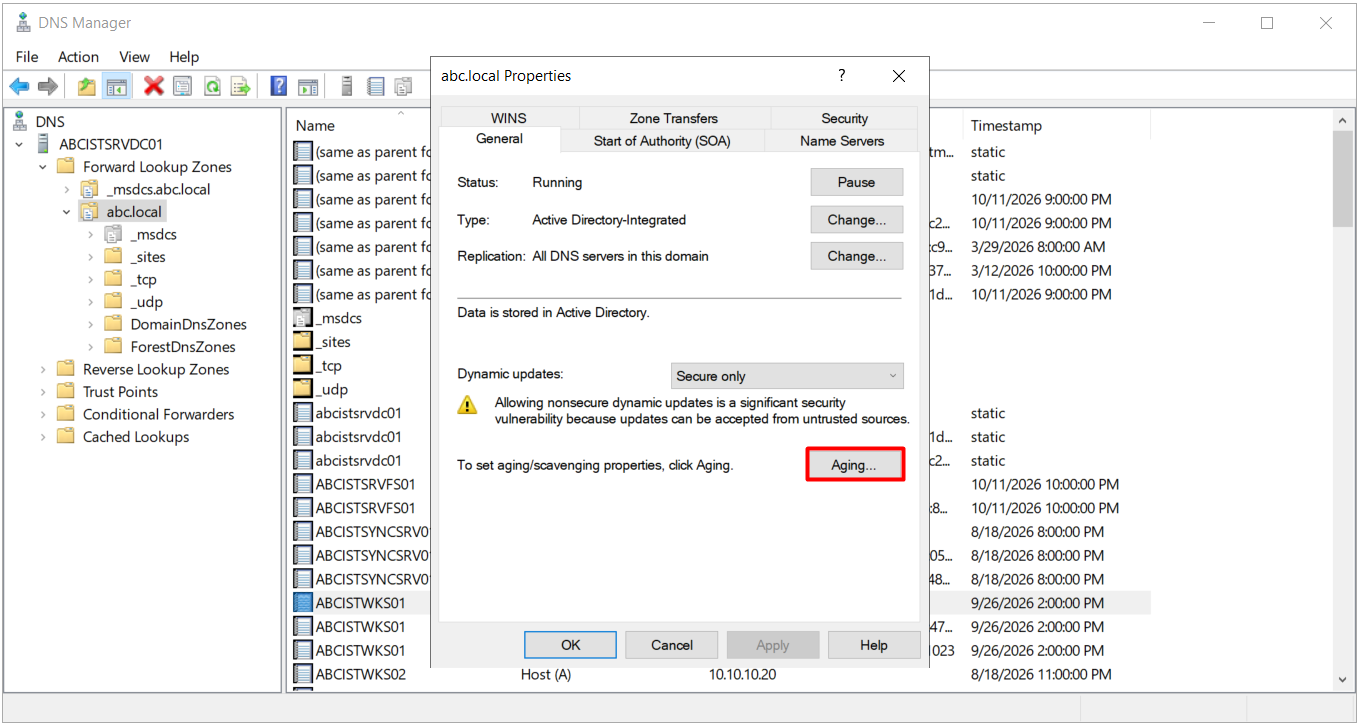
The Aging button opens the Zone Aging/Scavenging Properties window. In this window, the Scavenge stale resource records option is selected, and the No-refresh interval and Refresh interval values are left at the default of 7 days in this environment. This option enables aging for the zone, but it does not delete any record by itself. Deletion takes place when server-level scavenging runs.
The The zone can be scavenged after field at the bottom of the window shows the date after which the zone can be scavenged. On the screen, this field shows 1/1/1601 2:00:00 AM. This is not a date but a value that has not yet been assigned. The start time has not been calculated because the option has just been selected and the setting has not yet been saved.
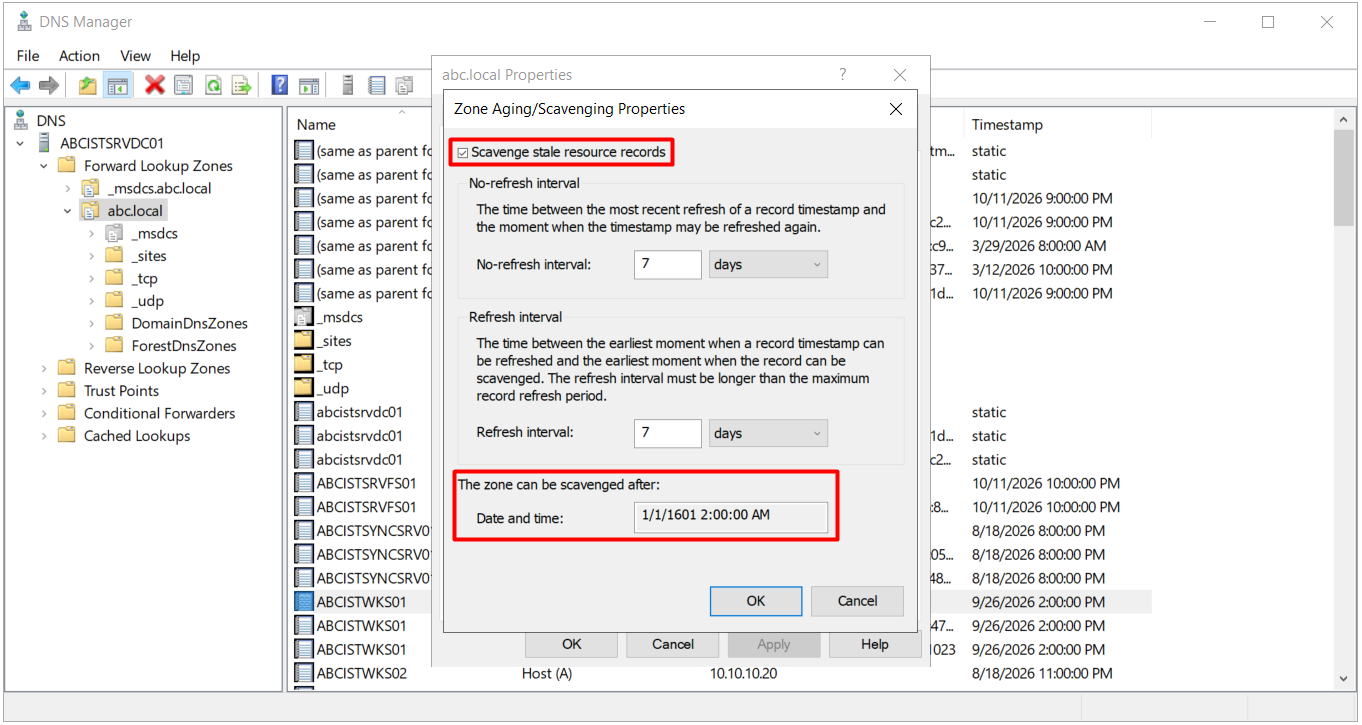
When the setting is saved by clicking OK, the DNS server sets this field to a time that is 1 refresh interval later than the moment aging was enabled. This waiting period is defined so that clients whose timestamps were not updated while aging was disabled can refresh their records, and it prevents mass deletion when the zone is first enabled. The calculated value appears in the PowerShell output in a later section.
The same setting must also be configured on the reverse lookup zones. If aging is enabled on the forward zone but not on the reverse zone, A records are cleaned up while old PTR records stay in place, and reverse lookup results remain incorrect.
Scavenging Configuration at Server Level
There are 2 different settings at server level, and they are often confused with each other. The first is the Set Aging/Scavenging for All Zones option, which appears when you right-click the server name ABCISTSRVDC01 in DNS Manager.
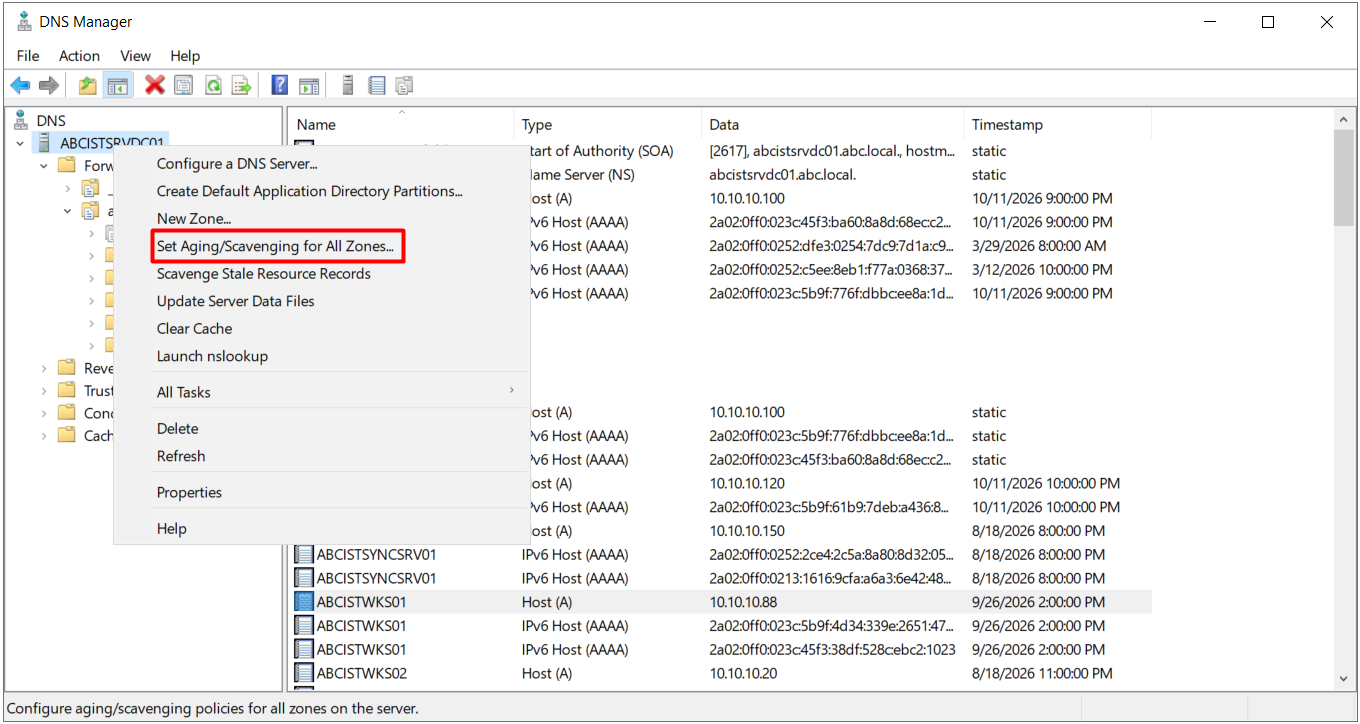
The Server Aging/Scavenging Properties window that opens contains the same fields as the zone-level window. The values set here are used as the default aging settings for new AD-integrated zones created on the server. In this environment, the Scavenge stale resource records option is selected and the interval values are left at 7 days.
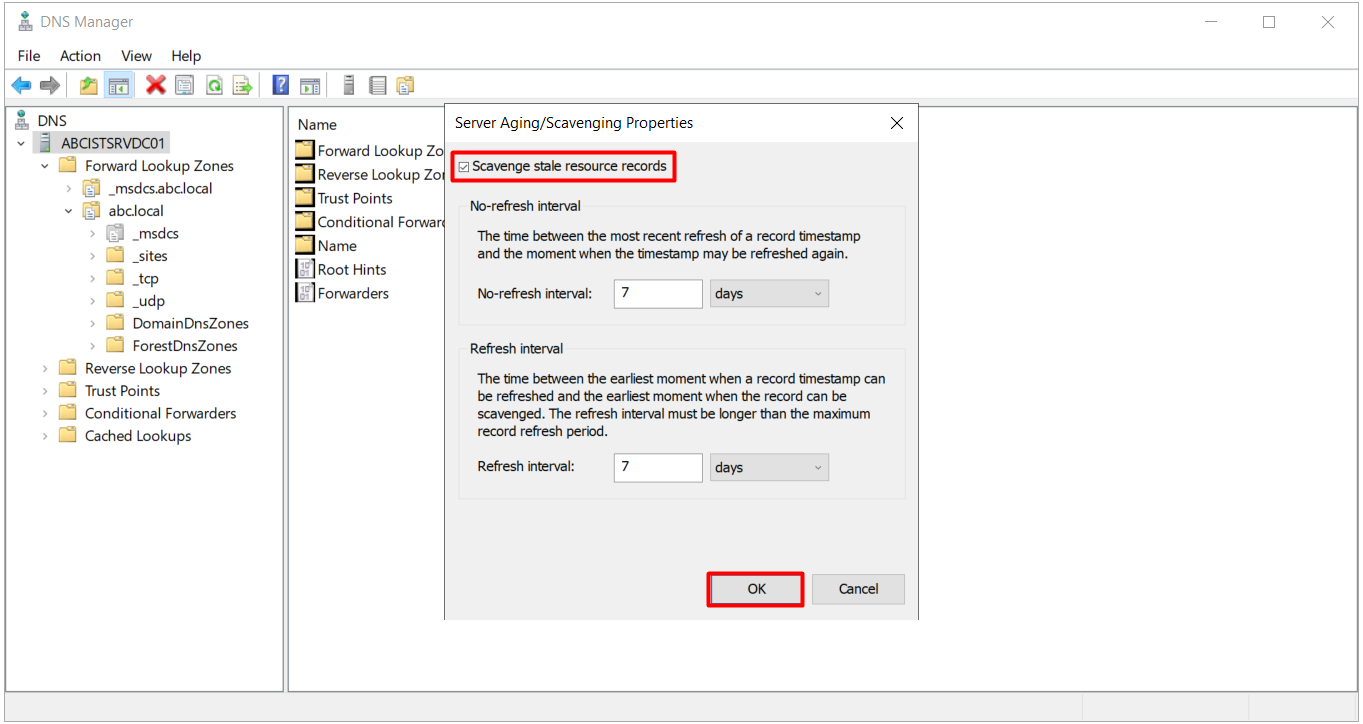
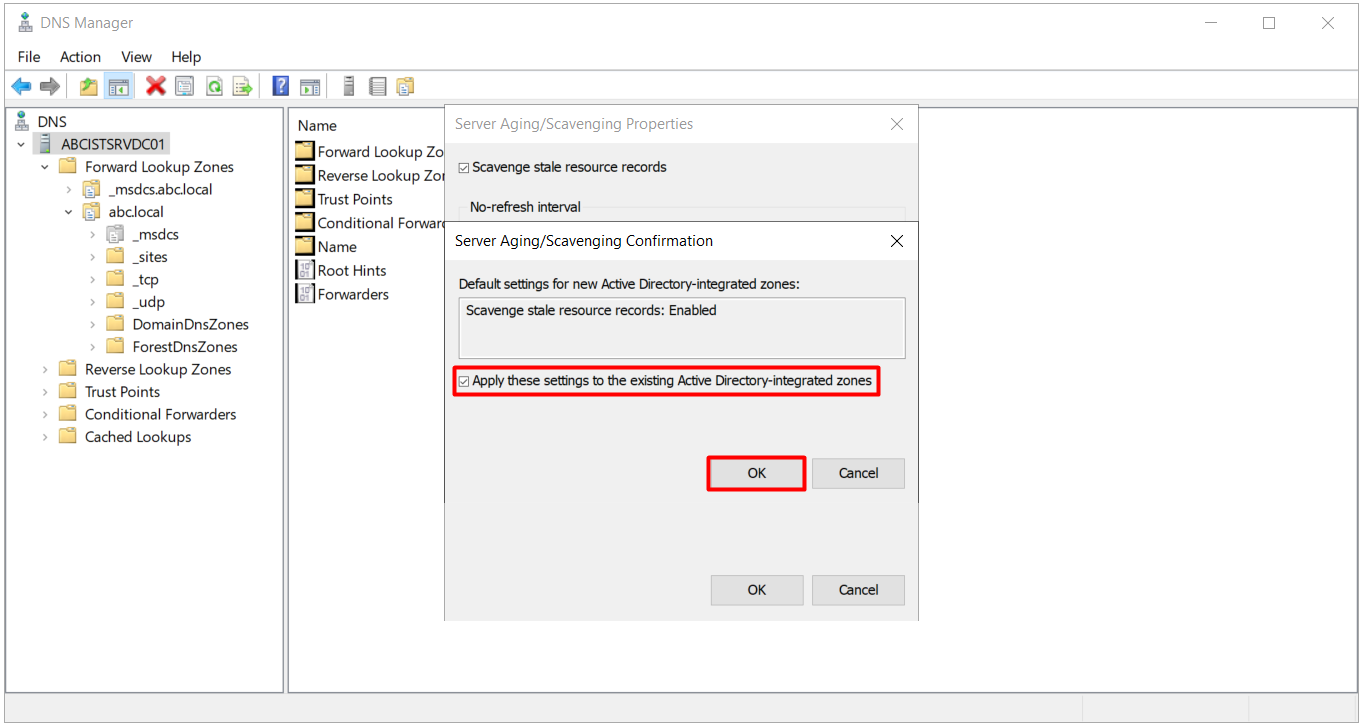
When OK is clicked, the Server Aging/Scavenging Confirmation window opens. The upper part summarises the default setting that will apply to new AD-integrated zones. When the Apply these settings to the existing Active Directory-integrated zones option below it is selected, the same values are also applied to the existing AD-integrated zones.
In this environment, the option is selected. As a result, the _msdcs.abc.local zone and any AD-integrated reverse lookup zones also receive the same aging settings. Nothing changes on abc.local, because it was configured with the same values in the previous step. In environments where zones need different interval values, this option must be left cleared, otherwise it overwrites the settings made for each zone.
The second setting is the one that runs the scavenging operation itself. When the Enable automatic scavenging of stale records option on the Advanced tab of the ABCISTSRVDC01 Properties window is selected, the server scans the zones that have aging enabled at the interval specified in the Scavenging period field and deletes the stale records. In this environment, the Scavenging period value is left at 7 days.
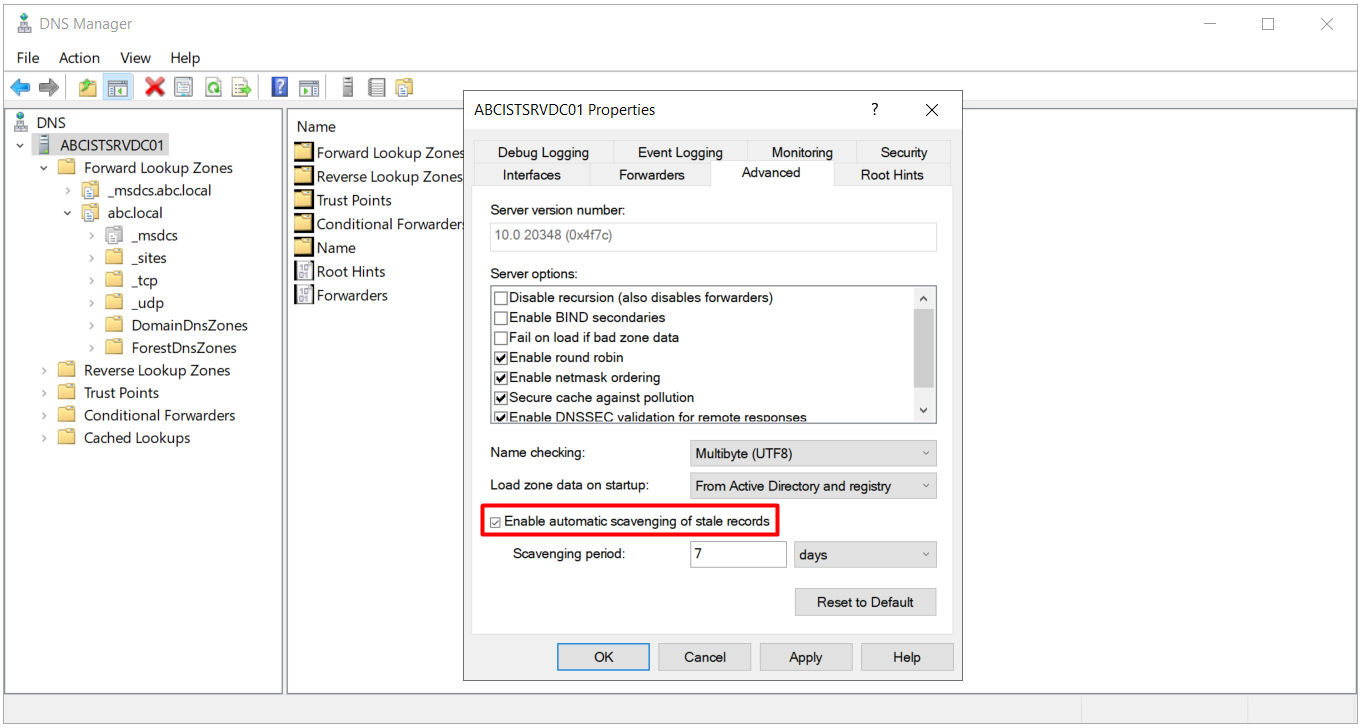
In AD-integrated zones, the zone-level aging setting is stored in Active Directory and reaches all DNS servers through replication. Automatic scavenging, however, is a local setting of each DNS server. For this reason, scavenging does not need to be enabled on all domain controllers. Running it on a single server is enough, because the cleaned-up records are reflected on the other servers through replication.
In AD-integrated zones, a record removed by scavenging is not deleted immediately. It is first marked as a tombstone, and this state is carried to the other domain controllers through replication.
Verifying the Configuration with PowerShell
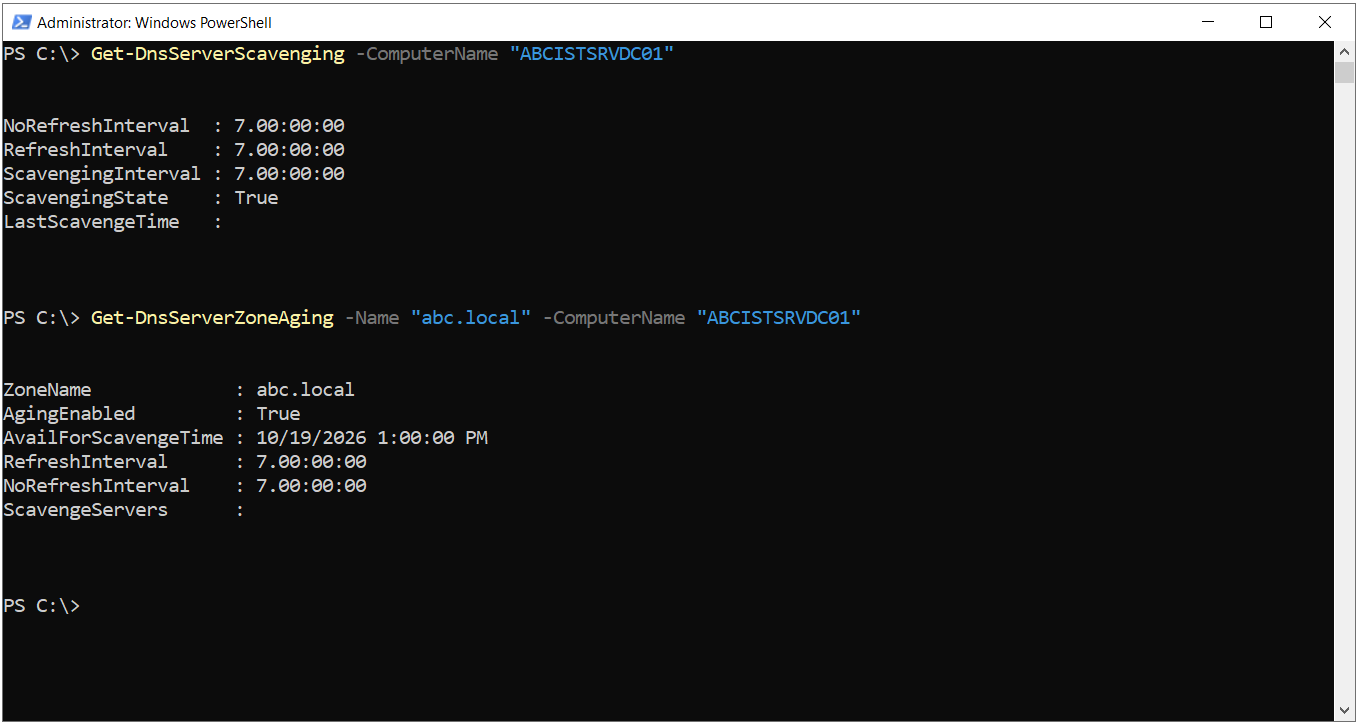
After the configuration is complete, check that the values at both server and zone level have been applied as expected. The Get-DnsServerScavenging command shows the scavenging state of the server, the interval values and the last scavenging time. The Get-DnsServerZoneAging command returns the aging state of the zone, the interval values, the ScavengeServers list and the date after which the zone can be scavenged.
Get-DnsServerScavenging -ComputerName "ABCISTSRVDC01"
Get-DnsServerZoneAging -Name "abc.local" -ComputerName "ABCISTSRVDC01"
The first output shows that ScavengingState is True and that NoRefreshInterval, RefreshInterval and ScavengingInterval are applied as 7 days. The LastScavengeTime field is empty, because the server has not yet completed a scavenging cycle since this configuration.
In the second output, AgingEnabled is True. The field that showed 1/1/1601 in the graphical interface now shows 10/19/2026 1:00:00 PM as the AvailForScavengeTime value. Aging was enabled on 12 October 2026, so this date is exactly 7 days later, which is the refresh interval. No record on the zone is deleted before this date.
The empty ScavengeServers field shows that scavenging permission on the zone is not restricted to any server.
Restricting Which Server Performs Scavenging
When the ScavengeServers list is empty, every DNS server that has automatic scavenging enabled can scavenge the zone. When this setting is enabled on more than 1 DNS server, it becomes difficult to track which server deleted which record and when, and the event logs of all servers must be searched during troubleshooting. To prevent this confusion, a ScavengeServers list can be defined at zone level.
When this list is defined, only the DNS servers with the IP addresses in the list can scavenge the zone. The other servers do not touch this zone even if automatic scavenging stays enabled on them. The setting is not available in the graphical interface and is configured through PowerShell. The commands must be run on a server that has the DnsServer module installed, with an account that has permissions on the zone.
# Restricts scavenging on the abc.local zone to the ABCISTSRVDC01 server at 10.10.10.100 only
Set-DnsServerZoneAging -Name "abc.local" -ScavengeServers 10.10.10.100 -ComputerName "ABCISTSRVDC01"

# Same configuration for the reverse zone
Set-DnsServerZoneAging -Name "10.10.10.in-addr.arpa" -ScavengeServers 10.10.10.100 -ComputerName "ABCISTSRVDC01"

# Check the result
Get-DnsServerZoneAging -Name "abc.local" -ComputerName "ABCISTSRVDC01"
If the IP address in the ScavengeServers list does not belong to a DNS server that has automatic scavenging enabled, the zone is never scavenged. The list must match the server on which scavenging runs.
Identifying the Records to Be Deleted in Advance
Scavenging is difficult to reverse. For a deleted record to return, the device must register its record again, and if the device is switched off or cannot perform a dynamic update, the record must be created manually. For this reason, the correct approach is to see which records will be deleted before the scavenging start time of the zone arrives.
The command below lists the records whose timestamp is older than the sum of the no-refresh and refresh interval values. Static records return an empty timestamp, so they are excluded by the filter.
# The sum of No-Refresh + Refresh is 14 days with the default values
$Esik = (Get-Date).AddDays(-14)

Get-DnsServerResourceRecord -ZoneName "abc.local" -ComputerName "ABCISTSRVDC01" |
    Where-Object { $_.Timestamp -and $_.Timestamp -lt $Esik } |
    Select-Object HostName, RecordType, Timestamp |
    Sort-Object Timestamp
In this environment, the output is quite long. Most of the list consists of SRV, A and AAAA records with a timestamp of 1/31/2026 10:00:00 AM. These are the site-specific records of the _ldap, _kerberos and _gc services and the address records of the DomainDnsZones and ForestDnsZones names, and they cover sites such as Antalya-Site, Izmir-Site, London-Site, Mumbai-Site, Ankara-Site and HQ-Head-Office.
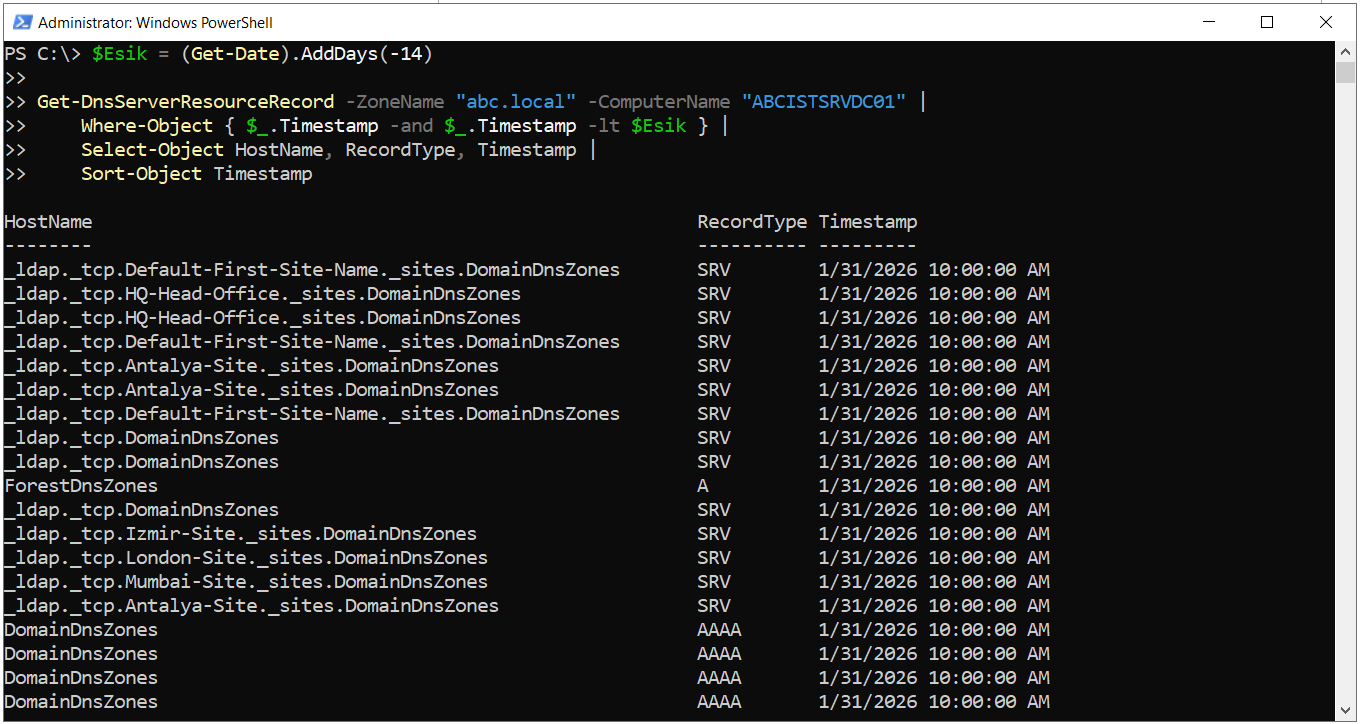
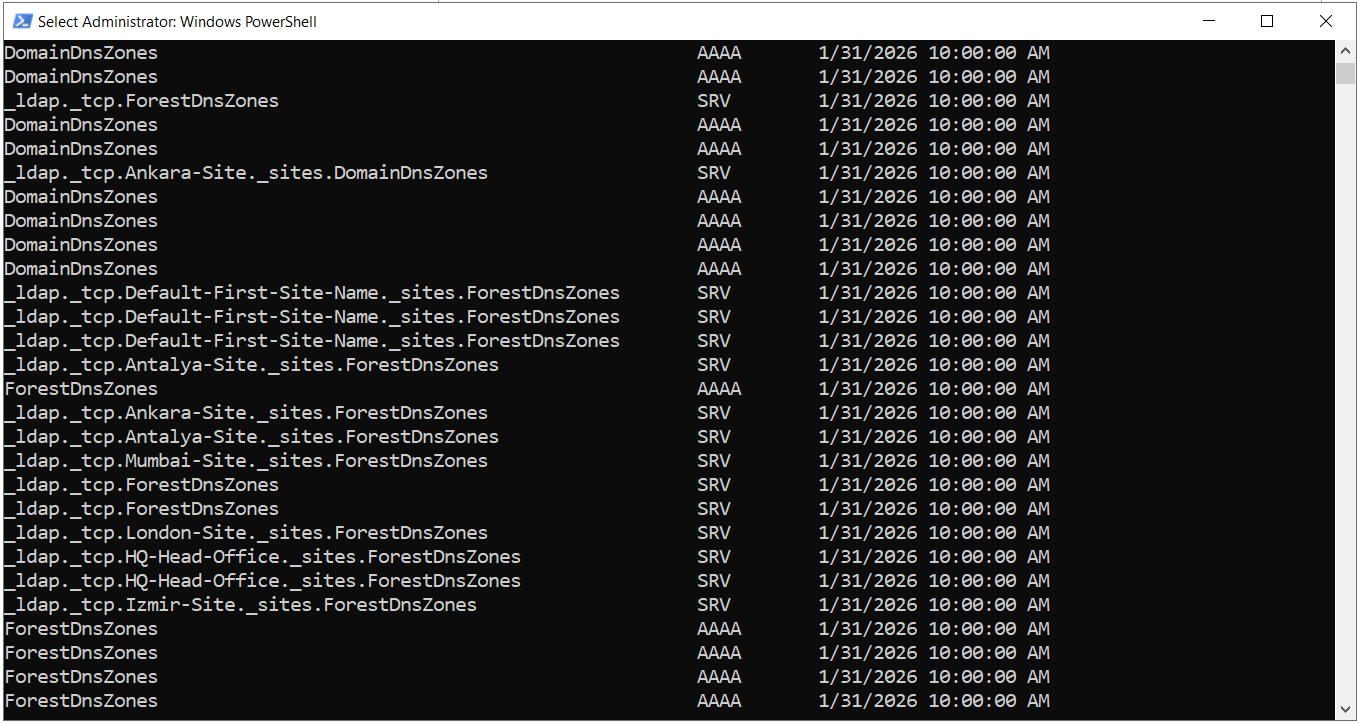
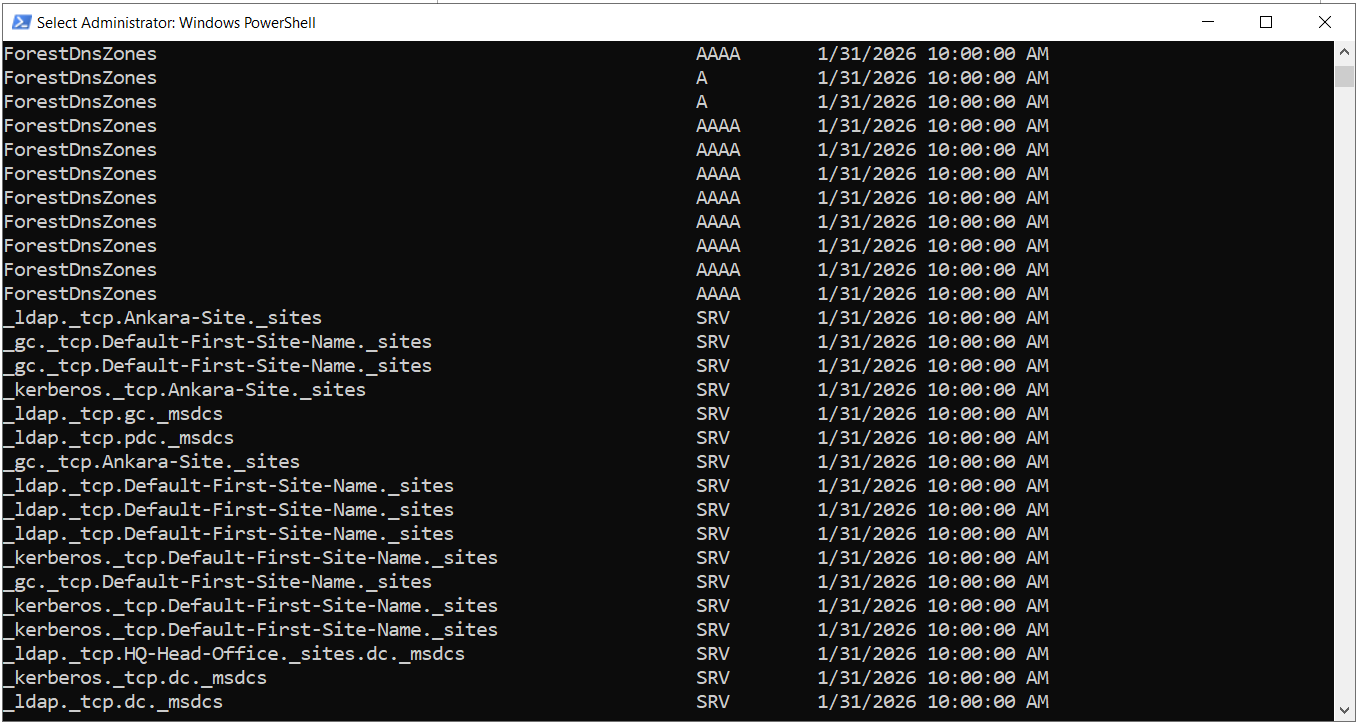
These records are registered by the Netlogon service on domain controllers. A running domain controller refreshes these records every 24 hours, so their timestamps are never older than 14 days. A timestamp from months ago indicates that the domain controller that created the record, or the IPv6 address in that record, is no longer in use. Even so, domain controller SRV records are a direct part of the DC Locator process, so before scavenging starts, it must be verified that these records really belong to domain controllers that have been removed.
The last part of the list shows server and client records. The ABCISTSYNCSRV01, ABCISTWKS02 and ABCISTWKS03 records have timestamps from August 2026. The ABCISTWKS01 record inspected in the first step is also in the list, with a value of 9/26/2026 2:00:00 PM. These devices have not refreshed their records since those dates. If they have been shut down permanently, deletion of their records is the expected behaviour.
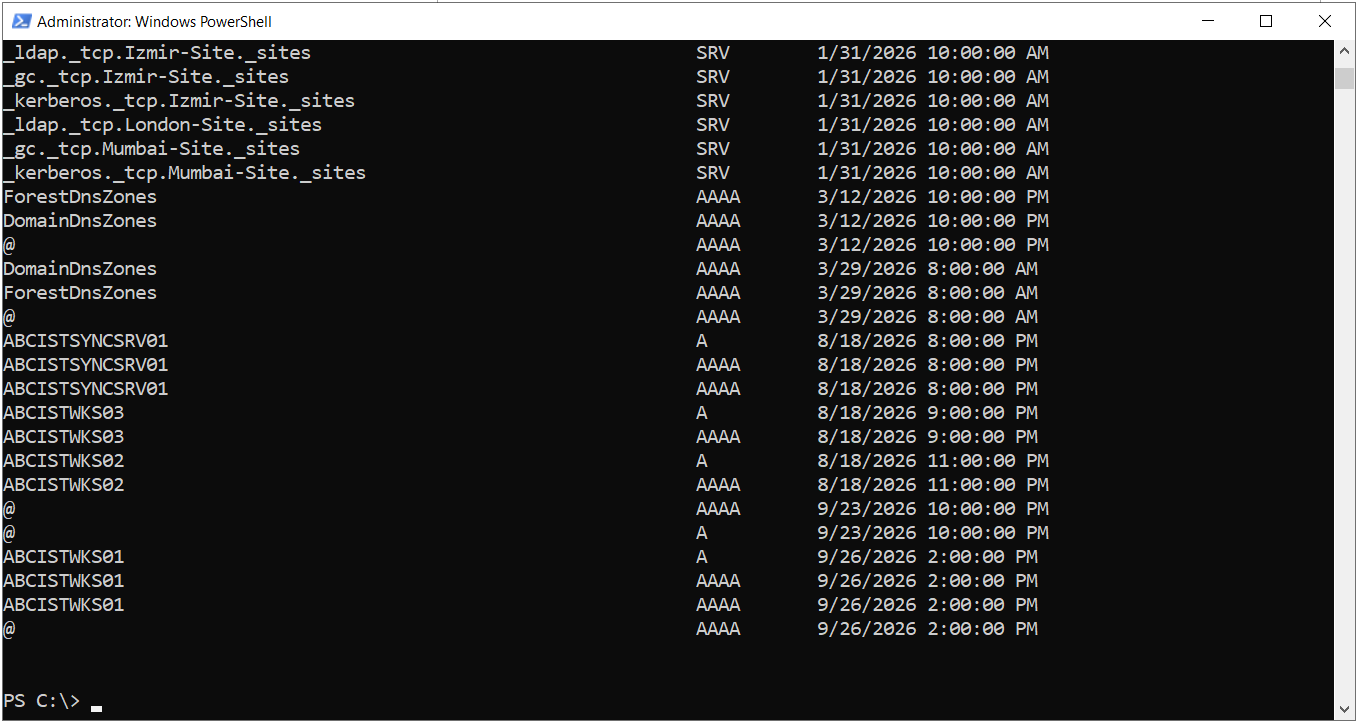
A server such as ABCISTSYNCSRV01 appearing in this list must be assessed separately. If the server is only switched off for a period and will be started again, the record must be made static before scavenging starts by clearing the Delete this record when it becomes stale option in the Properties window of the record. Cluster names, load balancer records and application records must be handled in the same way during this check.
Manual Scavenging and Event Log Verification
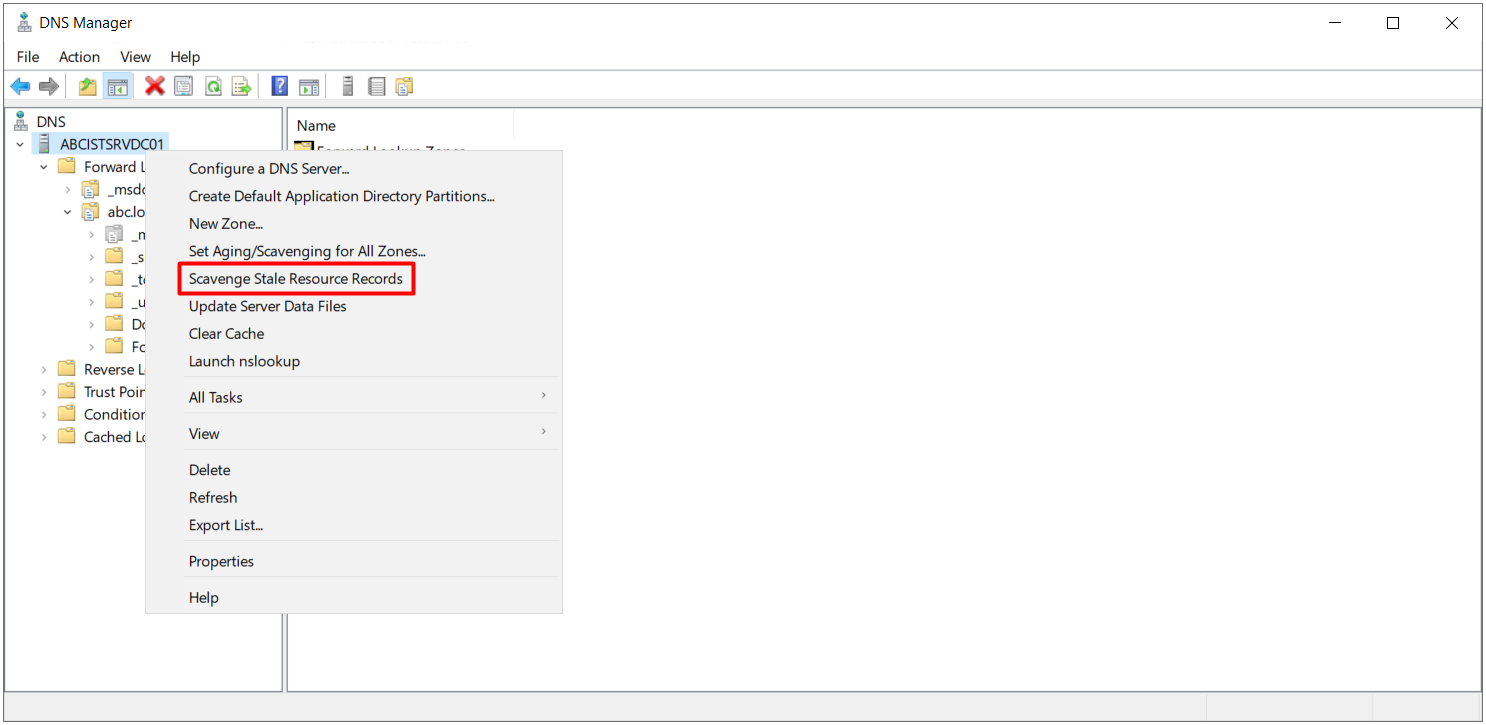
Automatic scavenging runs by itself when the scavenging period expires. Scavenging can be triggered manually to see the result of the cycle without waiting, or to carry out the clean-up in a planned maintenance window. In DNS Manager, right-clicking the server name ABCISTSRVDC01 and selecting Scavenge Stale Resource Records starts the cycle.
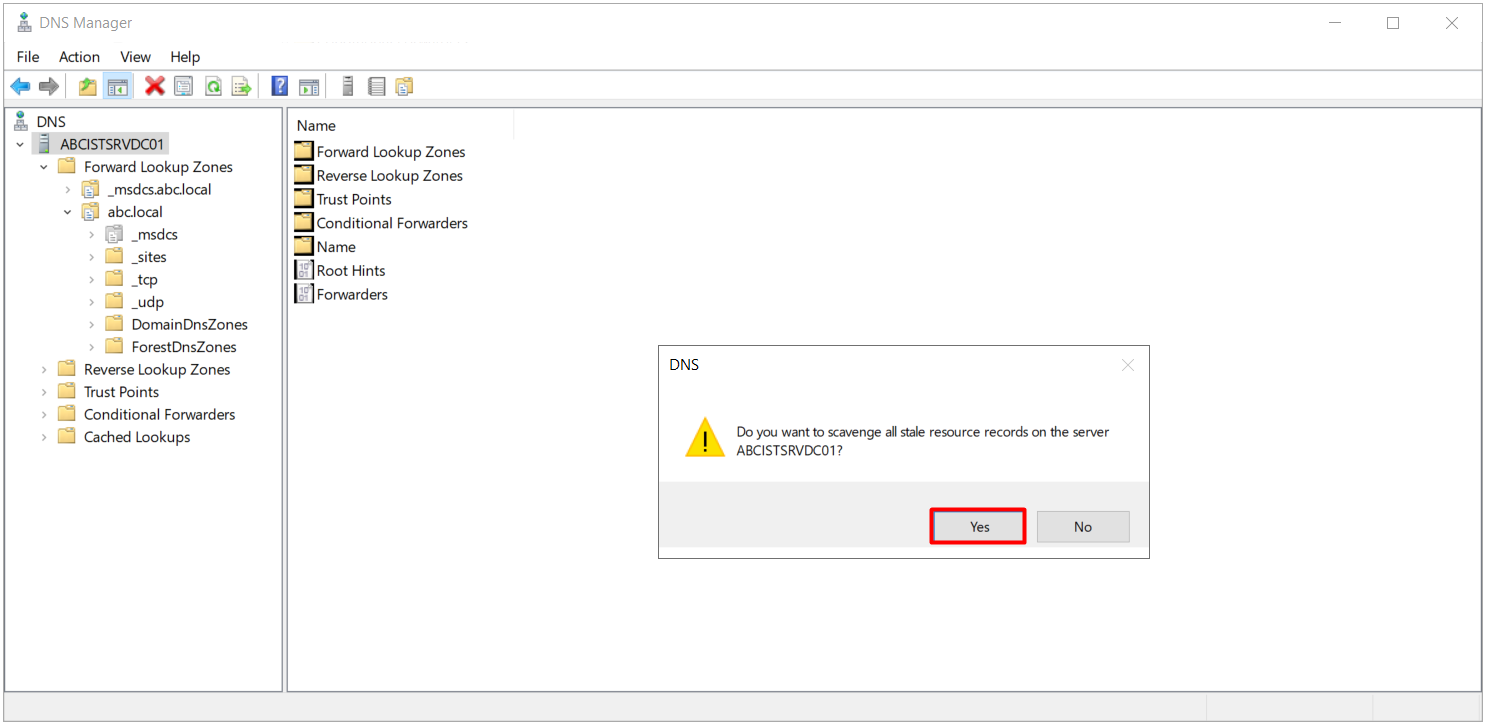
After the selection, a confirmation window asks whether all stale records on the server should be scavenged. When you confirm by clicking Yes, the server runs the cycle immediately on all zones on which it has scavenging permission.
The same operation can also be performed with PowerShell.
Start-DnsServerScavenging -ComputerName "ABCISTSRVDC01" -Force
Manual scavenging deletes stale records immediately if the scavenging start time of the zone has passed. The list from the previous step must have been checked before the cycle is triggered.
The result of the cycle is written to the DNS Server event log. When the DNS Server log under Applications and Services Logs is opened in Event Viewer, an Event ID 2502 entry with the time 10/12/2026 2:02:53 PM is visible in this environment. The message states that the DNS server completed the scavenging cycle but did not visit any node.
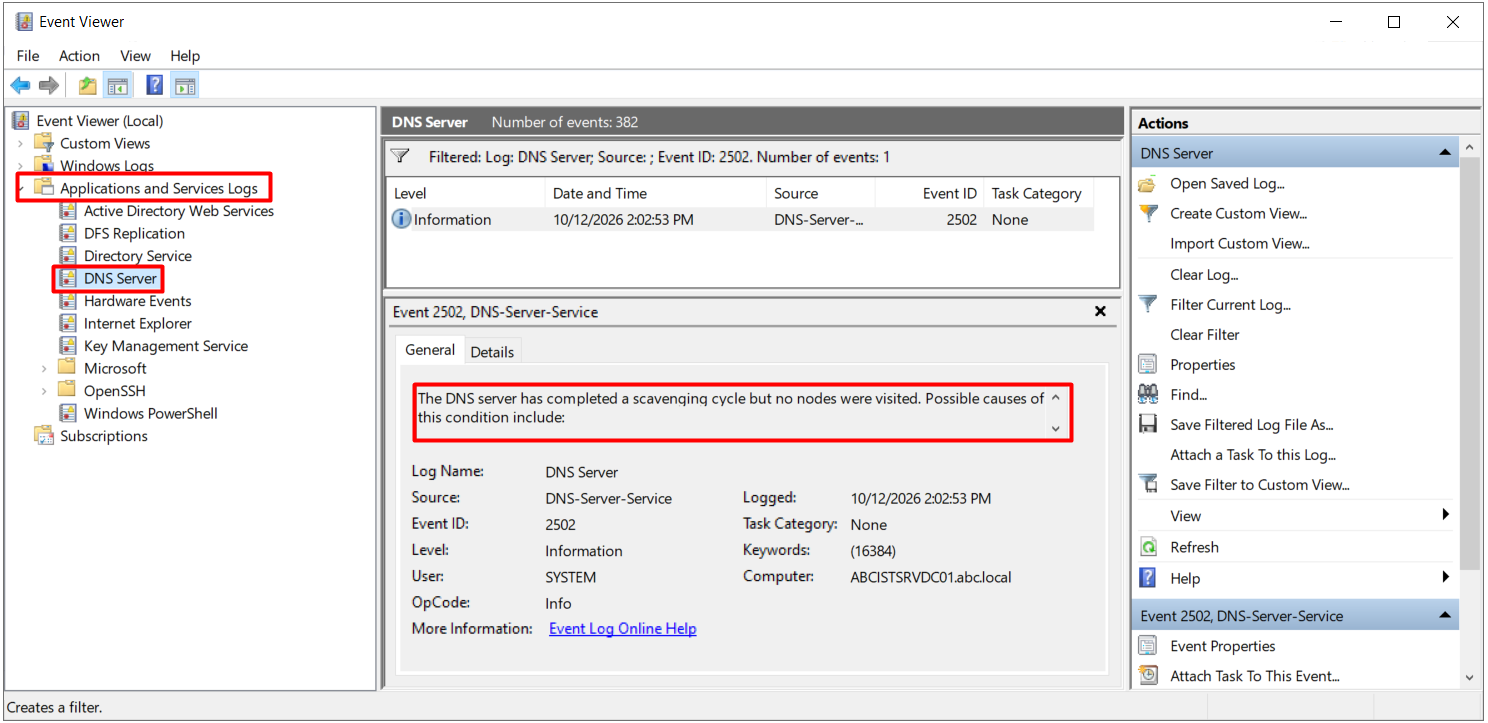
This result is the expected behaviour, even though many stale records were listed in the previous step. The AvailForScavengeTime value of the abc.local zone is 10/19/2026 1:00:00 PM, so the manually triggered cycle skipped this zone. One of the conditions stated at the beginning of the article, namely that the scavenging start time of the zone must have passed, has not yet been met.
The first cycle that runs after this date produces an Event ID 2501 entry. This entry contains the numbers of zones and nodes visited and the number of records deleted. The number of deleted records should be consistent with the number of records listed in the previous step. The event entries can also be queried with PowerShell.
Get-WinEvent -FilterHashtable @{ LogName = 'DNS Server'; Id = 2501, 2502 } -ComputerName "ABCISTSRVDC01" -MaxEvents 5 |
    Format-List TimeCreated, Id, Message
After the first successful cycle, the LastScavengeTime field in the Get-DnsServerScavenging output is also populated. If there is an unexpected difference in the number of deleted records, the interval values, the AvailForScavengeTime value of the zone and the ScavengeServers list must be checked again.
Planning the Interval Values
The default values of 7 + 7 days work correctly in most environments, but they do not suit every environment. Interval values must be chosen according to which component refreshes the records and how often.
If the refresh interval is shorter than the refresh frequency of the record, the record can be deleted while the device is switched on and running. In environments where the DHCP server registers records on behalf of clients, the record is updated together with the lease renewal. In this case, the sum of the no-refresh and refresh interval values must not be lower than the DHCP lease duration. When short lease durations are used together with longer interval values, no record is lost during short shutdowns.
|
Scenario |
Assessment |
|
Clients register their own records |
The DNS Client service refreshes the record every 24 hours. The default values of 7 + 7 days are usually sufficient. |
|
DHCP registers records on behalf of clients |
The record is updated with the lease renewal. The sum of the intervals must not be lower than the lease duration. |
|
Devices that stay switched off for long periods |
For holiday periods or seasonally used systems, the interval values can be increased to cover this period, or the records can be made static. |
|
Fast-changing VDI or lab environments |
Shorter interval values keep the zone cleaner. Replication load must also be taken into account when the values are shortened. |
Aging and scavenging is a mechanism that, once configured, keeps DNS zones clean automatically. To put the configuration into production safely, a sufficient framework is to identify in advance the records that must stay static, to leave scavenging to a single server and to use the time until the AvailForScavengeTime date to review the records that will be deleted. When these steps are applied, only the records of devices that really exist remain in the zone, and troubleshooting times for name resolution problems become noticeably shorter.
This article covered, at a technical level, how the aging and scavenging mechanism on DNS Server cleans up old and orphaned records, how the timestamp calculation works and how the configuration is divided between zone level and server level. It explained that records created through dynamic update carry a timestamp, while static records are outside this process by default.
It showed that the no-refresh interval and the refresh interval together determine when a record is considered stale, and that the no-refresh interval exists to prevent unnecessary replication traffic in AD-integrated zones. It also explained that the zone-level aging setting is replicated with Active Directory, that the automatic scavenging setting is local to each DNS server, and that these 2 settings are mandatory while the Set Aging/Scavenging for All Zones option is an optional shortcut.
The article showed that the AvailForScavengeTime value calculated for the zone when aging is enabled delays the first scavenging cycle by 1 refresh interval, that cycles triggered before this date end with Event ID 2502 and that successful cycles are tracked with Event ID 2501. It also covered leaving clean-up permission to a single DNS server with the ScavengeServers list and listing stale records, including domain controller SRV records, in advance with PowerShell.
On the planning side, it emphasised that interval values must be chosen to match the client refresh frequency and the DHCP lease duration, that reverse lookup zones must also be included in aging, and that keeping permanent records static is part of putting the DNS scavenging configuration into production safely.
I hope you find it useful...
Feel free to share your thoughts and questions about this article in the comments below. Every contribution helps the content reach more people and makes for a more useful discussion.