On shared computers, for example classroom and laboratory computers, kiosk systems or call centre workstations, every user is expected to start every session with the same desktop and settings. A standard roaming profile writes every change the user makes back to the server at sign-out, so in these environments the profiles become different from each other, grow and become corrupted over time.
A mandatory profile is a type of roaming profile that does not write the changes made during the session back to the server. Even if the user changes the wallpaper or adds a shortcut to the desktop, these changes are lost at sign-out and the same profile is loaded again at the next sign-in. In this article, I convert an existing roaming profile into a mandatory profile. Setting up the roaming profile and configuring Folder Redirection with Group Policy are out of scope.
The steps in this article do not depend on the Windows Server version. The suffix added to the profile folder, however, depends on the client version: Windows 10 version 1607 and later and Windows Server 2016 and later use .V6, and the suffix in use can be seen from the folder name on the server. A mandatory profile must be prepared on the same Windows version as the clients that will use it.
1- How Does a Mandatory Profile Work?
The user's registry settings are stored in a registry hive file in the profile folder. A registry hive is a section of the registry that is stored as a file on disk. When the user signs in, this file is loaded under HKEY_USERS and appears to the user as HKEY_CURRENT_USER.
In a roaming profile, this file is named NTUSER.DAT. At sign-in, the profile is copied from the server to the C:\Users folder on the client, and at sign-out the changed files and the hive are written back to the server. When the file is named NTUSER.MAN, Windows treats the profile as mandatory. The profile is still copied to the client at sign-in and the hive is writable during the session, but no change is written back to the server at sign-out. What makes a mandatory profile read-only is not a file attribute. Windows sees this file name and does not write the profile back to the server.
|
Profile Type |
Hive File |
At Sign-Out |
If the Profile Cannot Be Reached |
|
Roaming profile |
NTUSER.DAT |
Changes are written to the server |
The user signs in with the local copy or a temporary profile |
|
Mandatory profile |
NTUSER.MAN |
Changes are not written to the server |
The user signs in with the local copy or a temporary profile |
|
Super mandatory profile |
NTUSER.MAN, the folder name ends with the .man suffix |
Changes are not written to the server |
The user cannot sign in |
A super mandatory profile is preferred in environments such as exams and kiosks, where the user must work only with the prepared profile. When the profile server cannot be reached, it is better for the user not to sign in at all than to work with a different profile.
A mandatory profile also has a limitation. The user's files and application settings are lost at the end of the session as well. To keep the user's documents, a mandatory profile is used together with Folder Redirection, which redirects folders such as Documents and Desktop to the server. On computers such as kiosks, where the same settings must apply to all users, the loopback processing mode of Group Policy also completes this design.
For a mandatory profile that many users will share, Microsoft recommends preparing it from the default profile on a reference computer. The method in this article makes the existing roaming profile of a single user mandatory.
2- Preliminary Checks
Before I start, I verify the following items:
|
Check |
Expected State |
|
Roaming profile |
A roaming profile is configured for User5, the user has signed in and out at least once, and the profile folder exists on the server |
|
User session |
User5 has no open session on any computer |
|
Profile Path |
The Profile Path value of User5 points to the profile folder |
|
Permission |
The account that performs the task is an administrator on the file server |
I check the Profile Path value on a server that has the Active Directory PowerShell module installed.
Get-ADUser -Identity User5 -Properties ProfilePath | Select-Object Name, ProfilePath
The Profile Path value is written without a suffix, and Windows adds the suffix that matches the client version to the folder name itself. The structure on the server looks like this:
Profile Path (Active Directory):  \\{Server Name}\{Share Name}\User5
Folder on the server:             \\{Server Name}\{Share Name}\User5.V6
                                    ├─ NTUSER.DAT  (NTUSER.MAN in a mandatory profile)
                                    ├─ AppData
                                    └─ ...
If the user has an open session while the NTUSER.DAT file is renamed, the profile is written to the server again at sign-out and the change is lost.
3- Administrator Access to the Profile Folder
1- In the shared folder that holds the roaming profiles, I try to open the profile folder of User5.
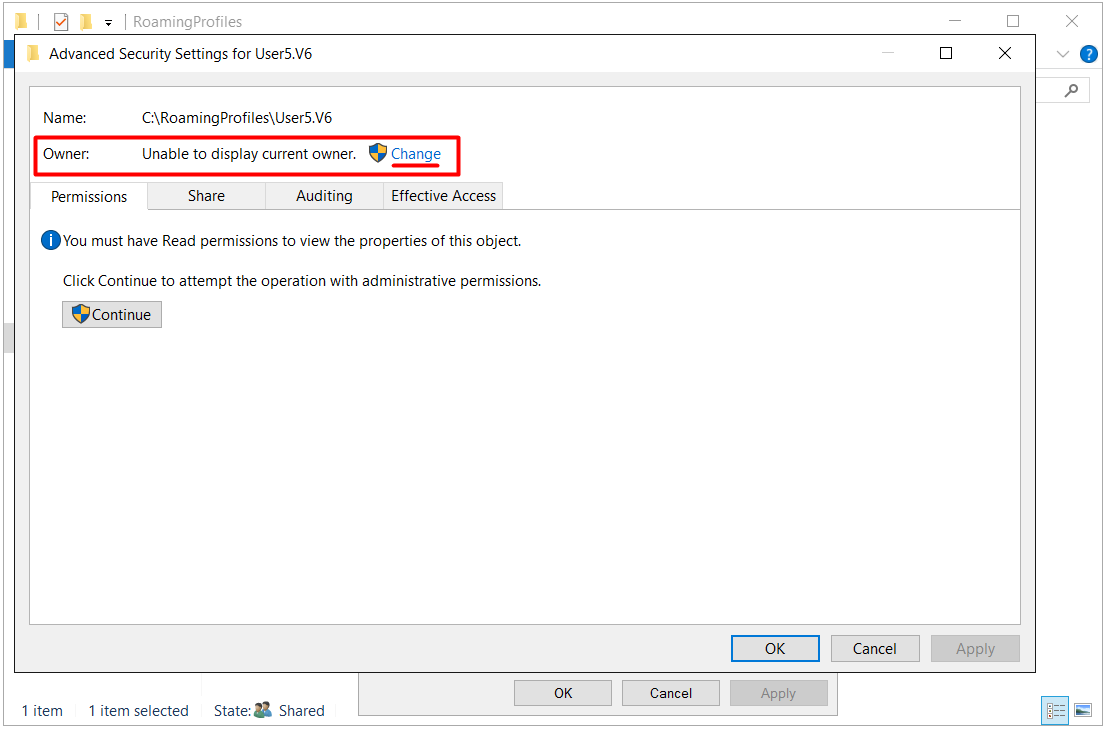
I cannot open the folder, even with an administrator account. By default, Windows creates the roaming profile folder so that only the user and SYSTEM have Full Control, and the owner of the folder is the user. If the Add the Administrators security group to roaming user profiles setting in Group Policy has not been enabled, the Administrators group is not in the ACL of the folder.
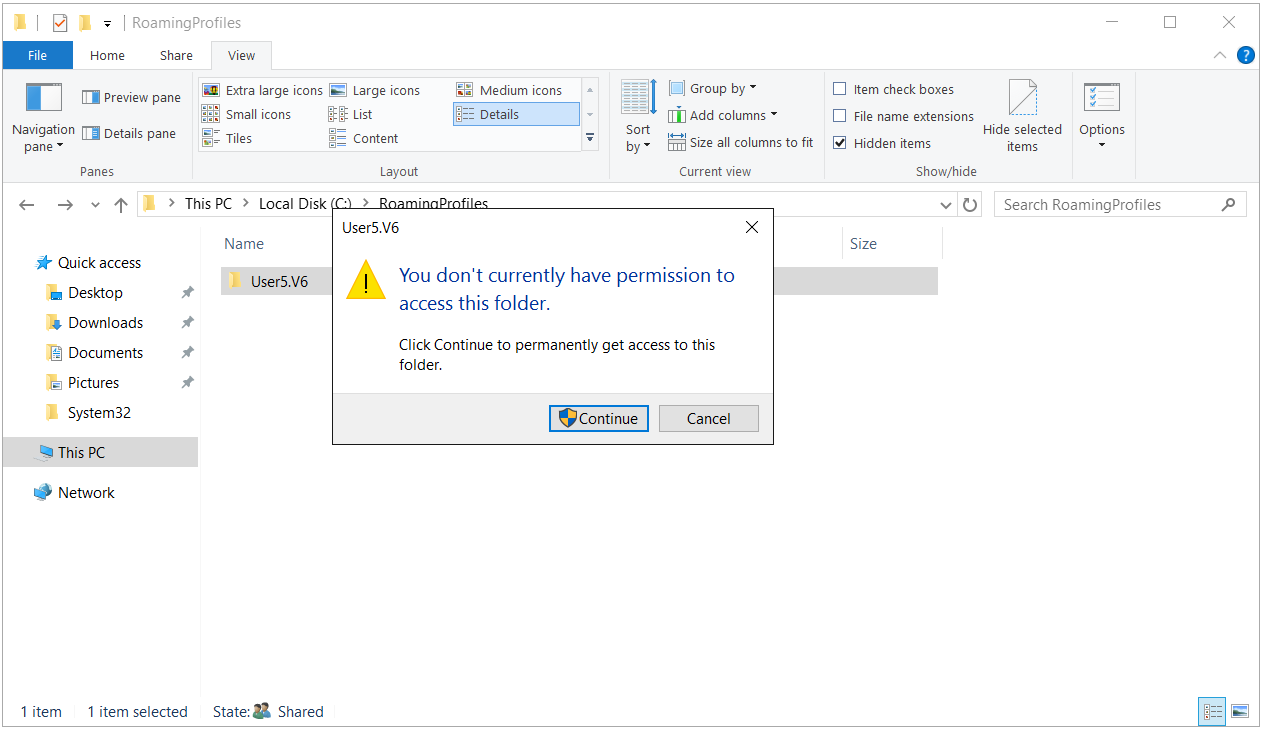
The Continue button tries to add the administrator's account to the ACL of the folder with UAC elevation. The administrator has neither the right to change permissions on this folder nor its ownership, so the operation fails and access is denied.
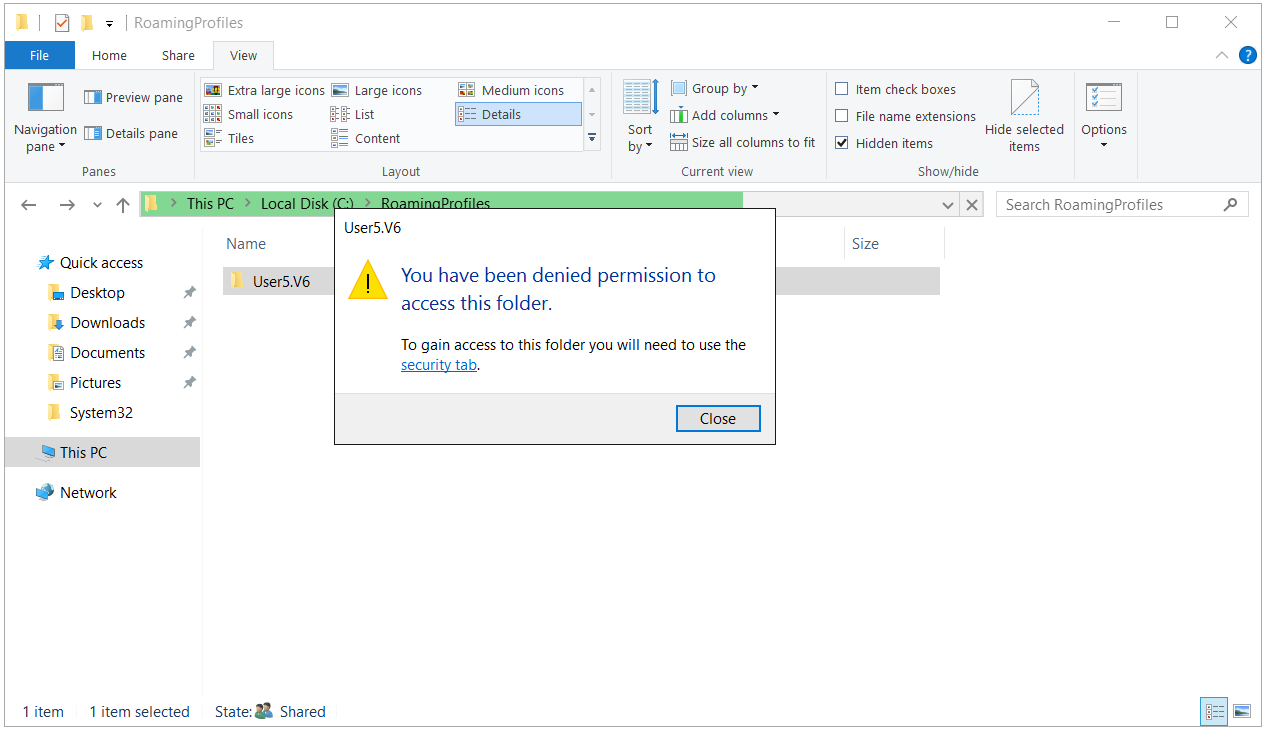
To access the folder, I first need to take ownership and grant myself permission. I explained ownership and permissions in detail in my NTFS permissions article.
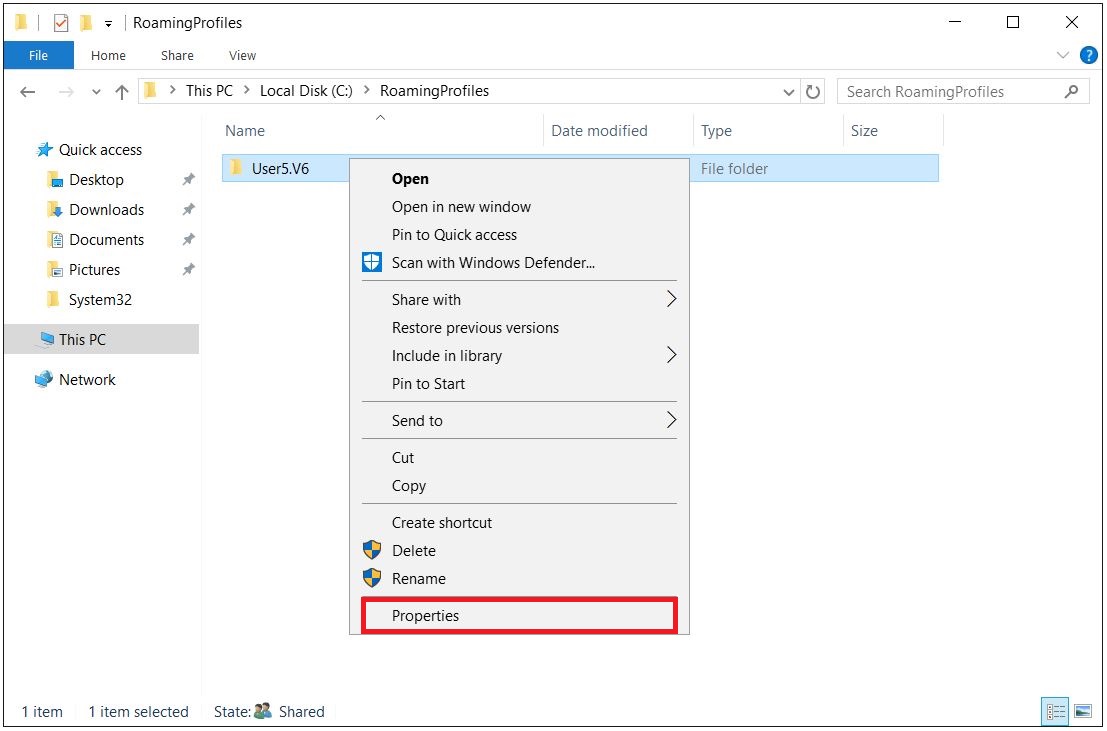
2- I right-click the profile folder and select Properties.
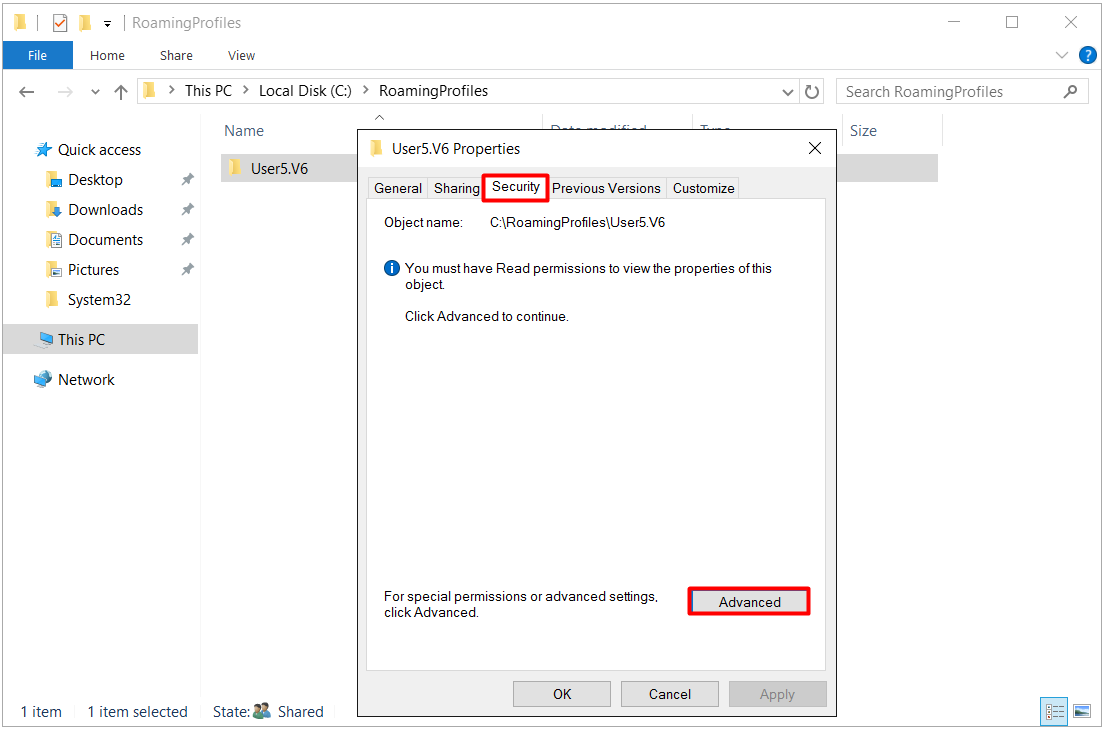
3- On the Security tab, I click the Advanced button.
4- I click the Change link on the Owner line.
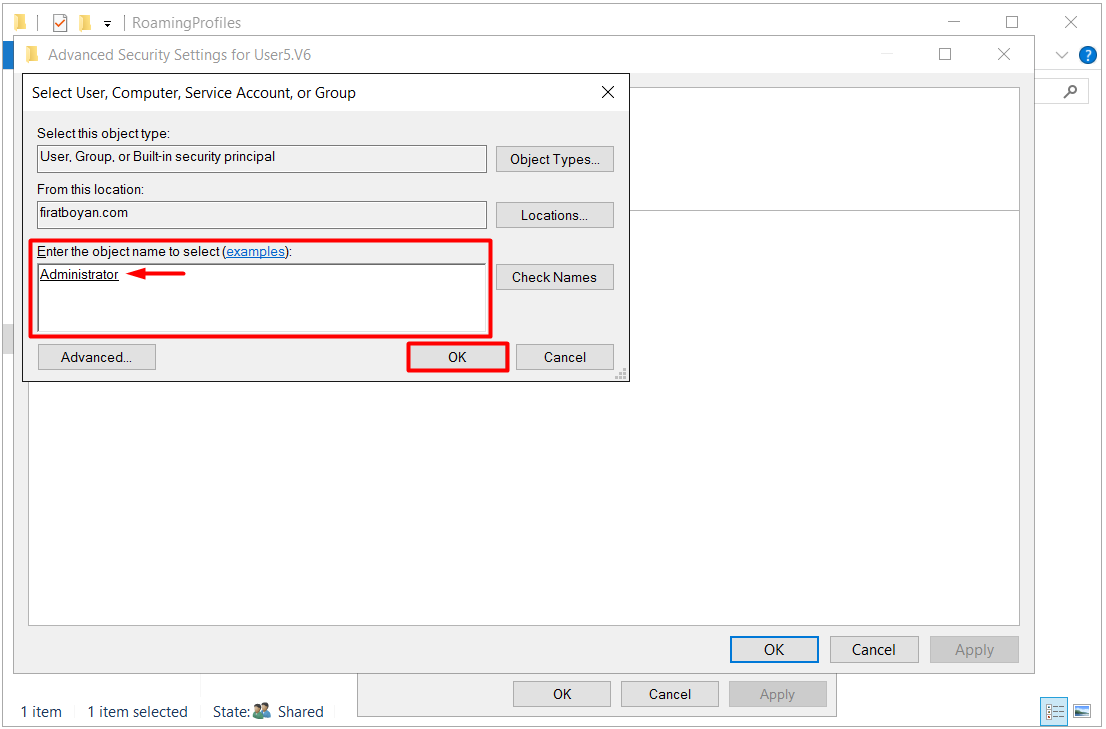
5- I select the built-in Administrators group as the owner and confirm with OK. Microsoft requires the owner of the mandatory profile folder to be the Administrators group, and the ownership stays with this group after the configuration is complete. The screenshot shows the Administrator account selected, but the correct selection is the Administrators group.
6- To apply the ownership to the subfolders and files as well, I select the Replace owner on subcontainers and objects option and click the OK button.
.png)
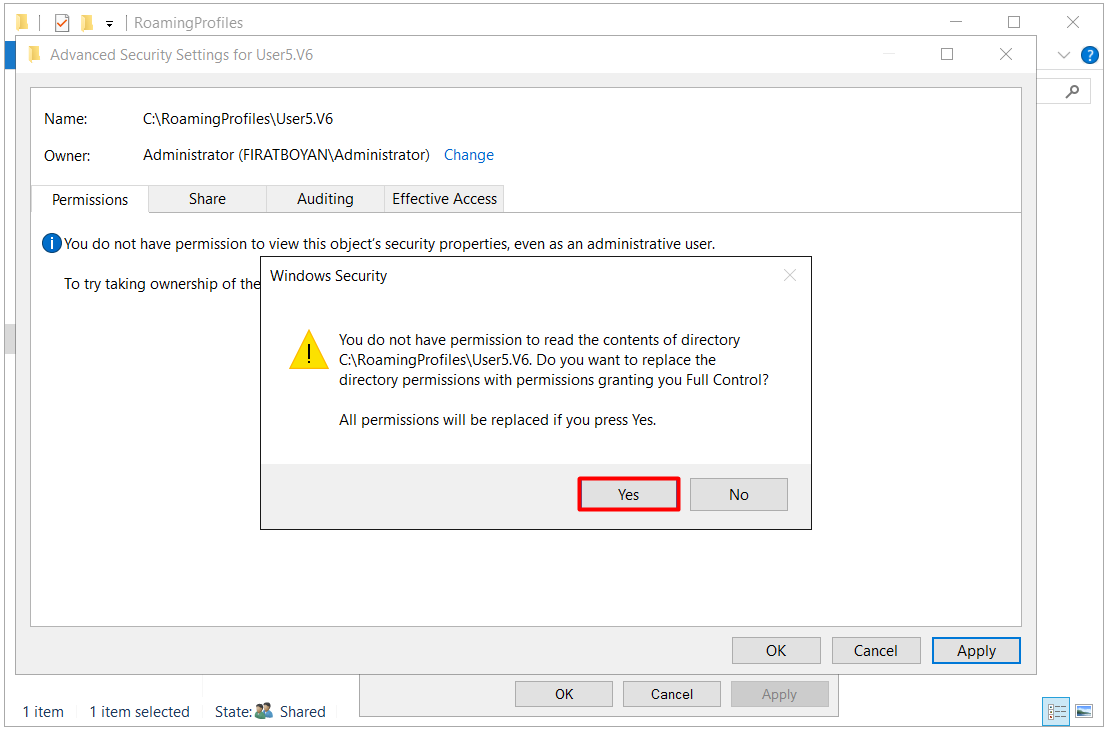
7- Windows states that I do not have permission to read the folder and asks whether I want to replace the permissions with Full Control. I confirm with Yes. This step adds the Administrator account to the ACL of the folder with Full Control.
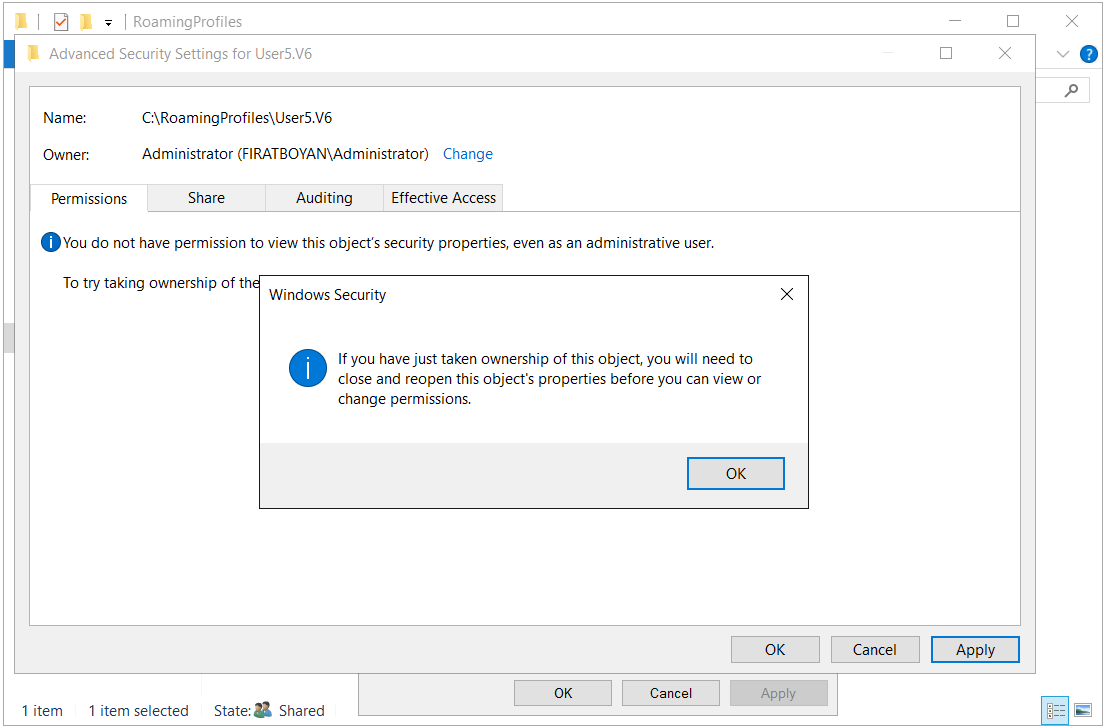
8- I close the warning, which states that I need to close and reopen the window to see the permissions, with OK.
9- When I reopen the window, the Full Control permission of the Administrator account is visible. This permission is defined only on the folder itself and has not yet reached the files inside it. To be able to rename the NTUSER.DAT file, I apply the permission to the child objects as well. To do this, I select the Replace all child object permission entries with inheritable permission entries from this object option.
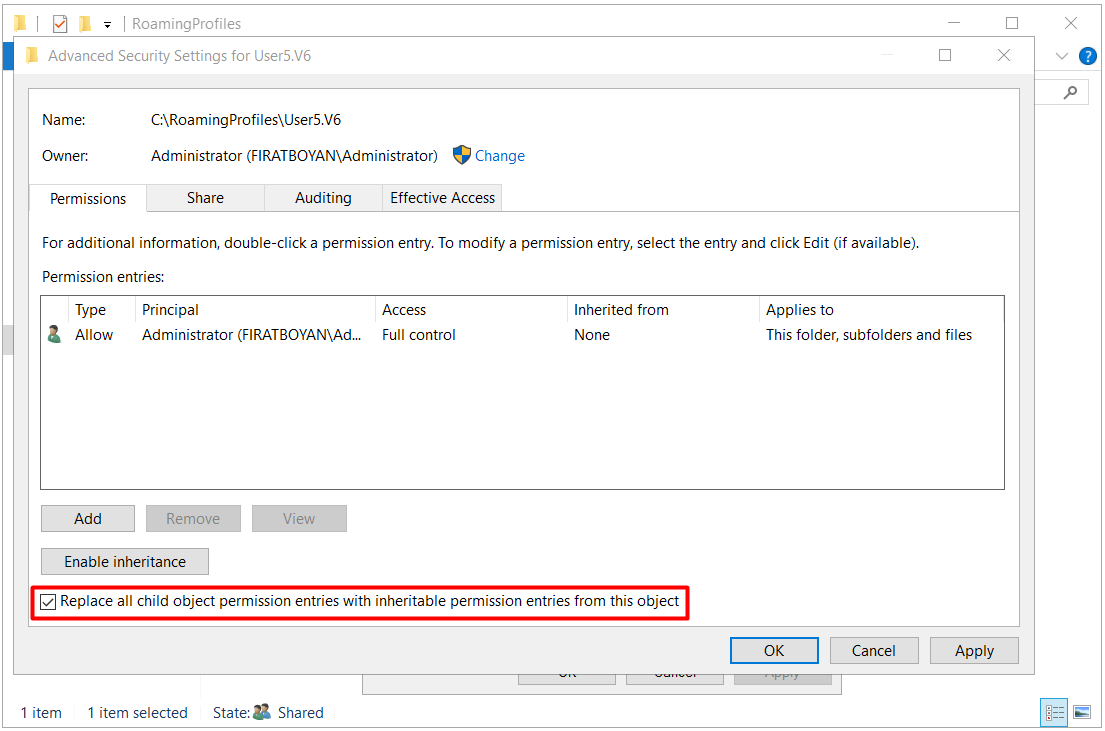
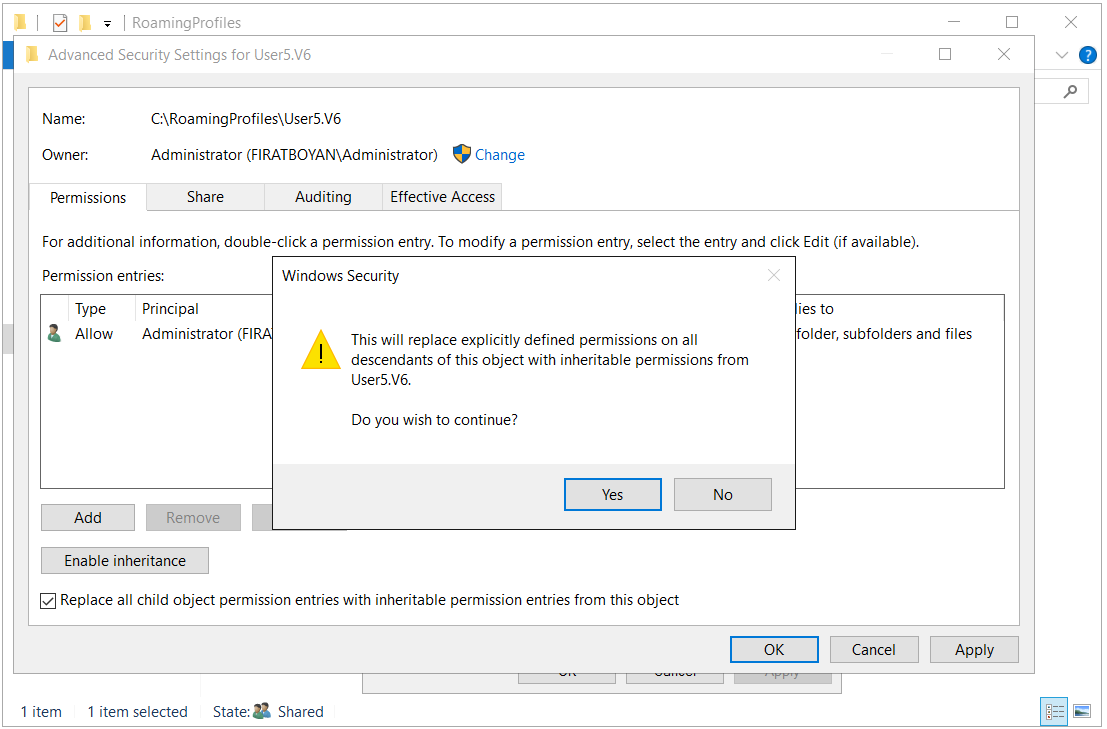
The Replace all child object permission entries option deletes all explicit permissions on the subfolders and files and applies the permissions of the parent folder in their place. This operation cannot be undone from the interface.
10- I confirm the warning, which states that the permissions will be applied to the child objects, with Yes.
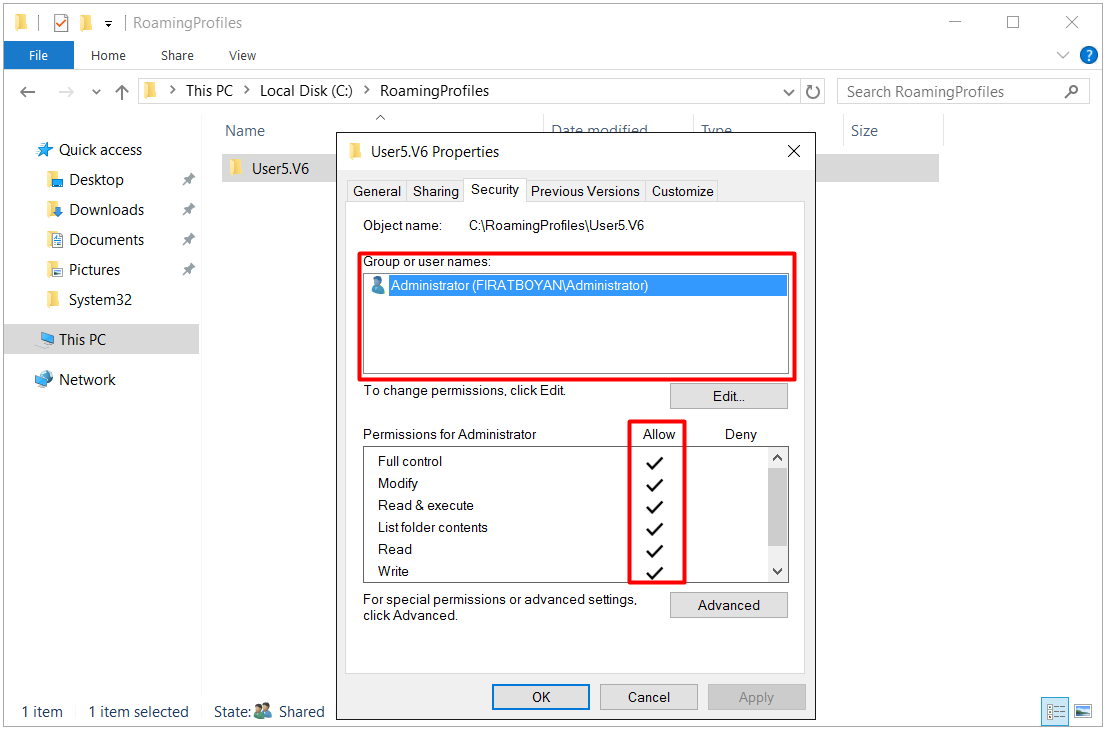
Checkpoint
The Administrator account must appear in the ACL with Full Control, and it must be possible to open the profile folder.
4- Renaming the NTUSER.DAT File to NTUSER.MAN
1- I open the profile folder. NTUSER.DAT is a hidden file, so I select the Hidden items option on the View menu.
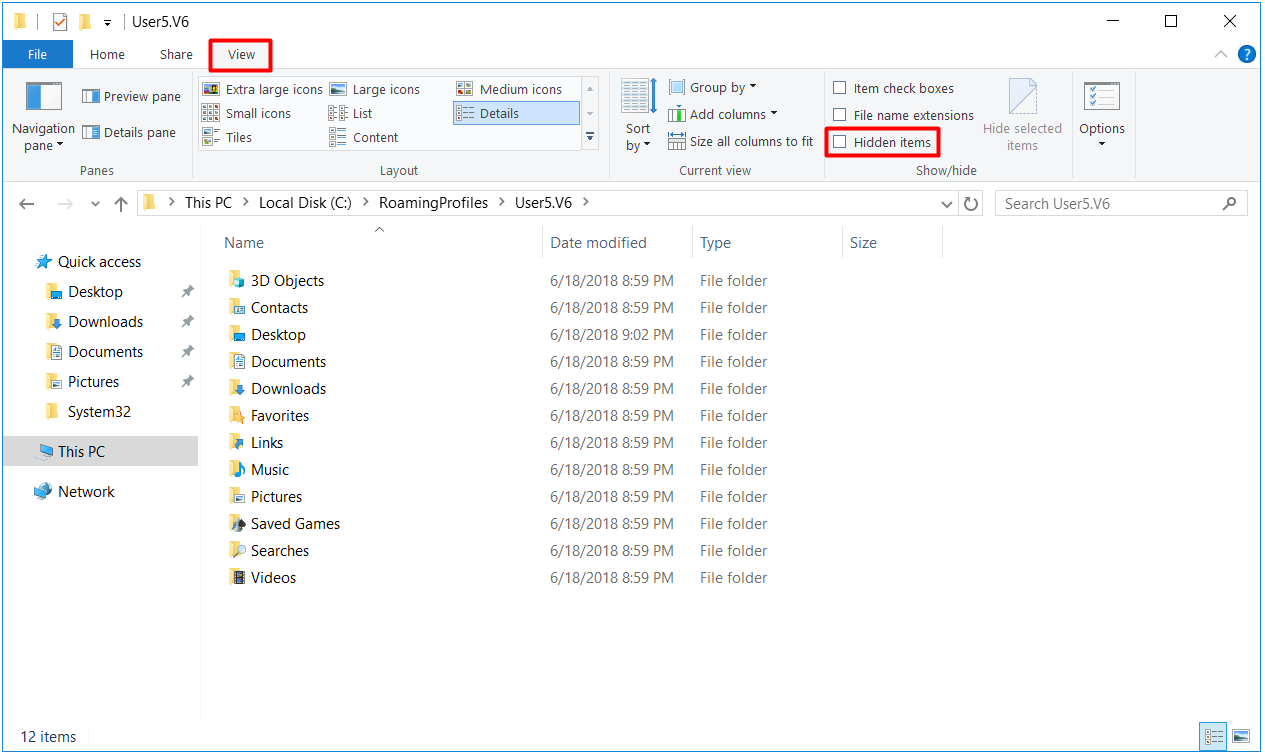
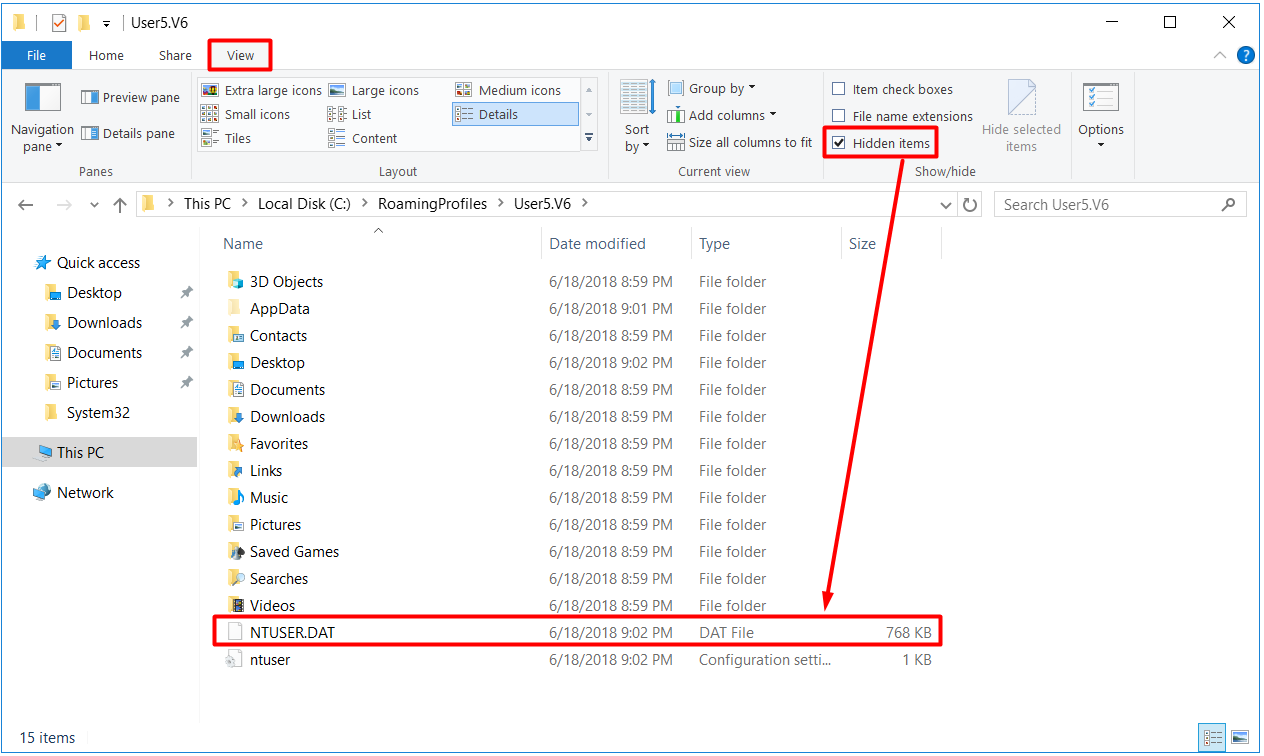
2- I rename the NTUSER.DAT file to NTUSER.MAN. When Windows sees this file name at sign-in, it treats the profile as mandatory and does not write it back to the server at sign-out.
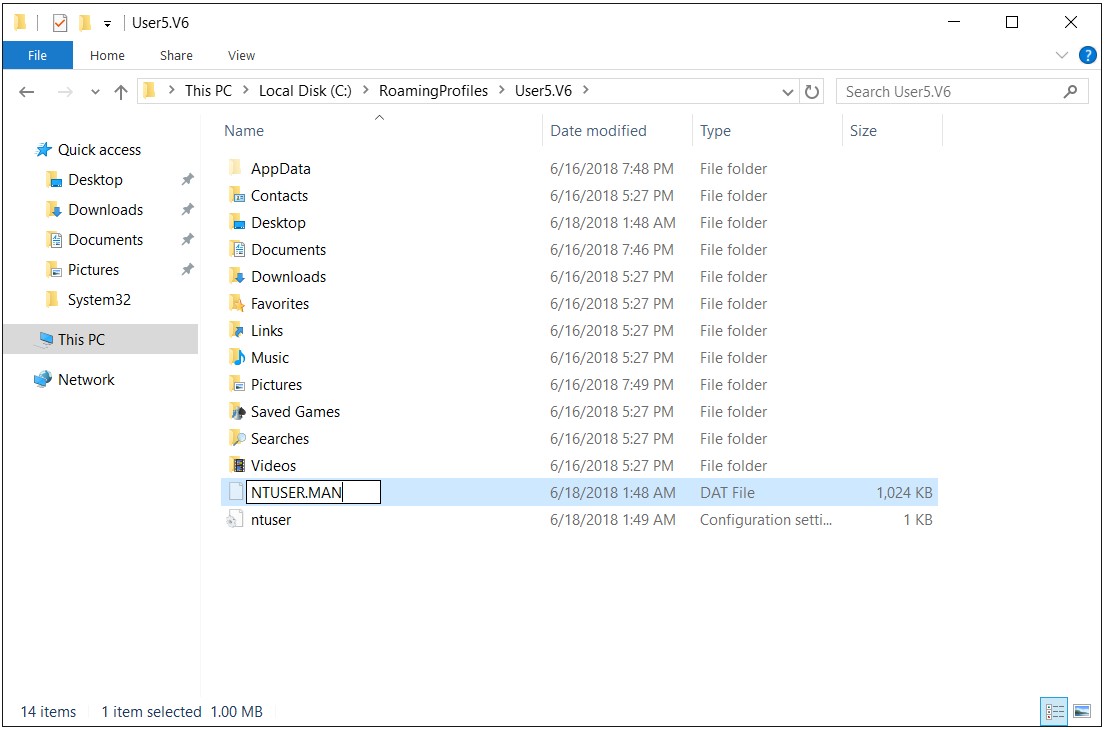
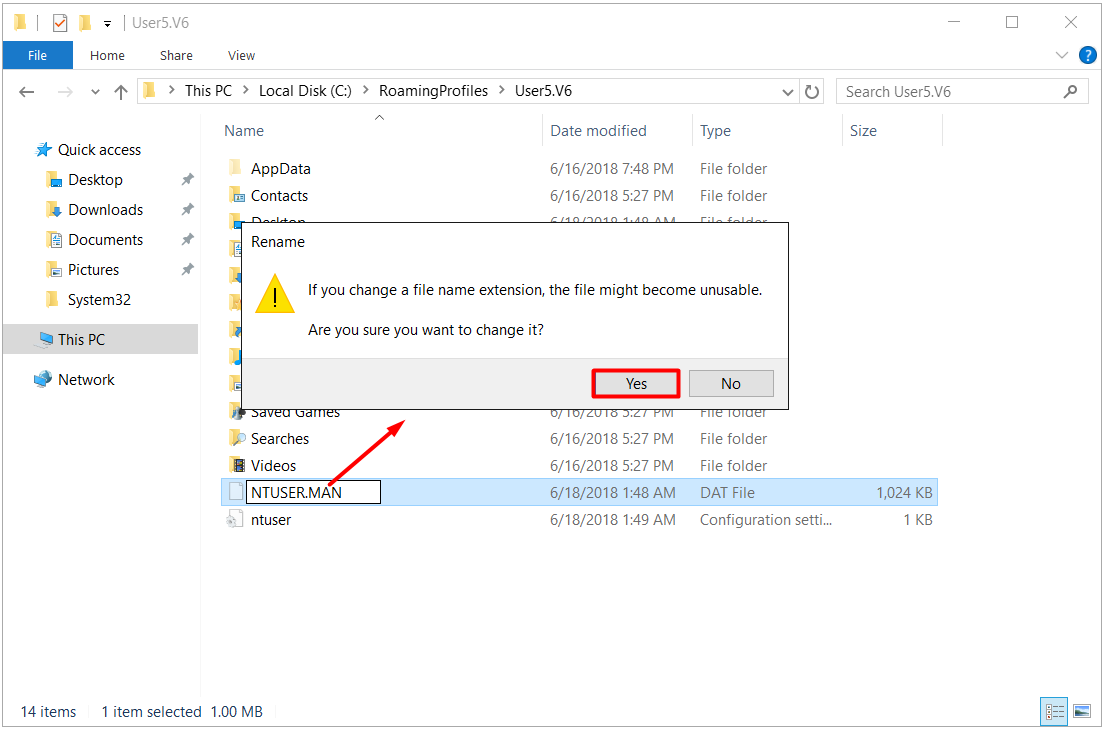
3- I confirm the warning, which states that changing the extension can make the file unusable, with Yes.
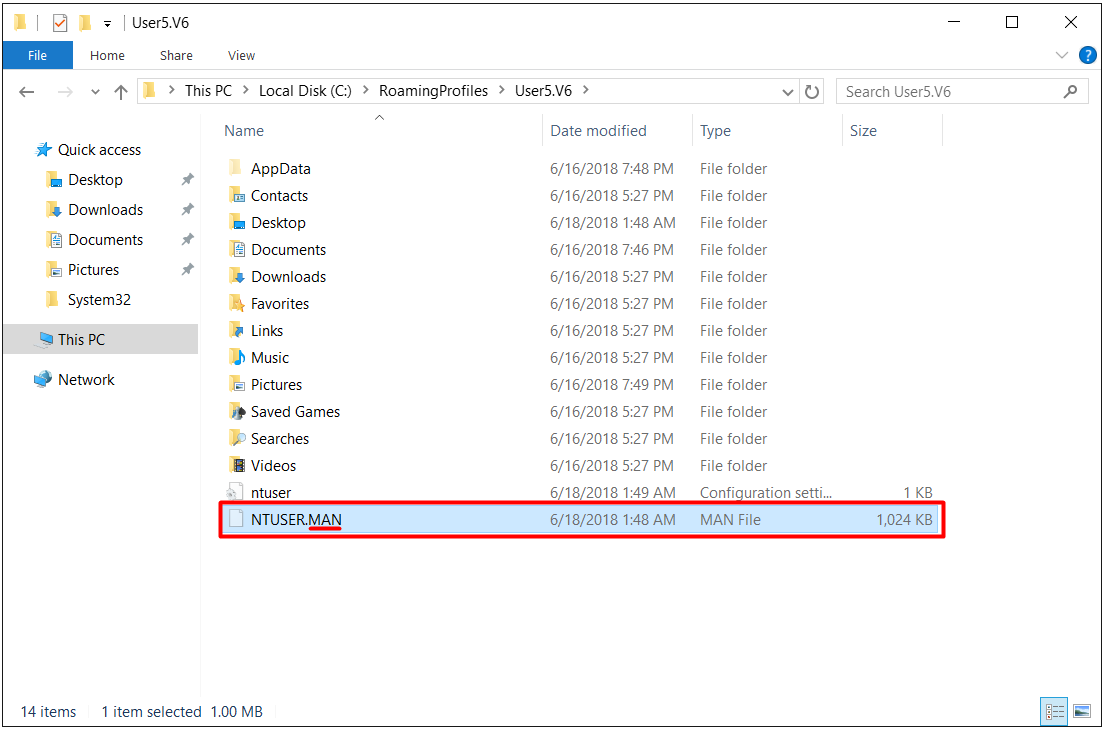
Checkpoint
NTUSER.MAN must appear in the profile folder instead of NTUSER.DAT.
5- Granting Read Permission to the User
The Administrators group remains the owner of the profile folder. So that the user can load the profile, I grant the user read permission only. In a mandatory profile, the profile is not written back to the server, so the user does not need write permission.
1- I right-click the profile folder and open the Properties window again.
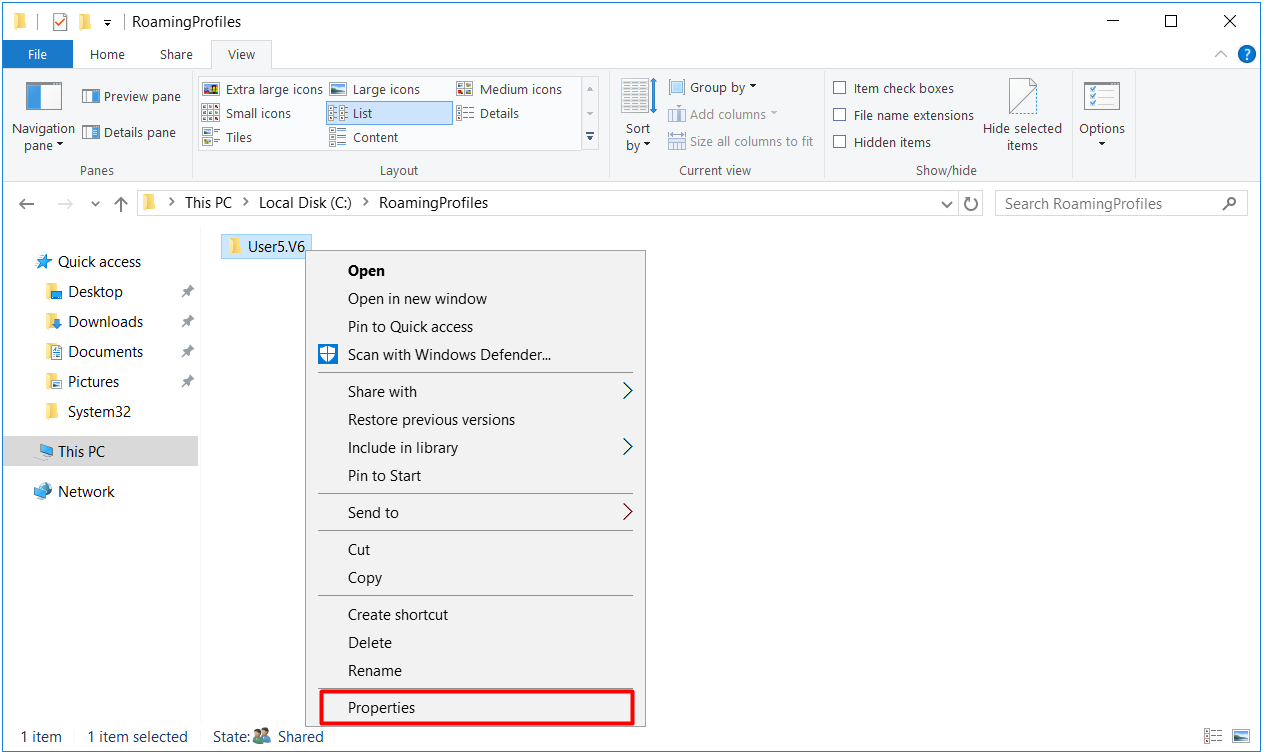
2- On the Security tab, I click the Advanced button and then the Add button in the Permission entries area.
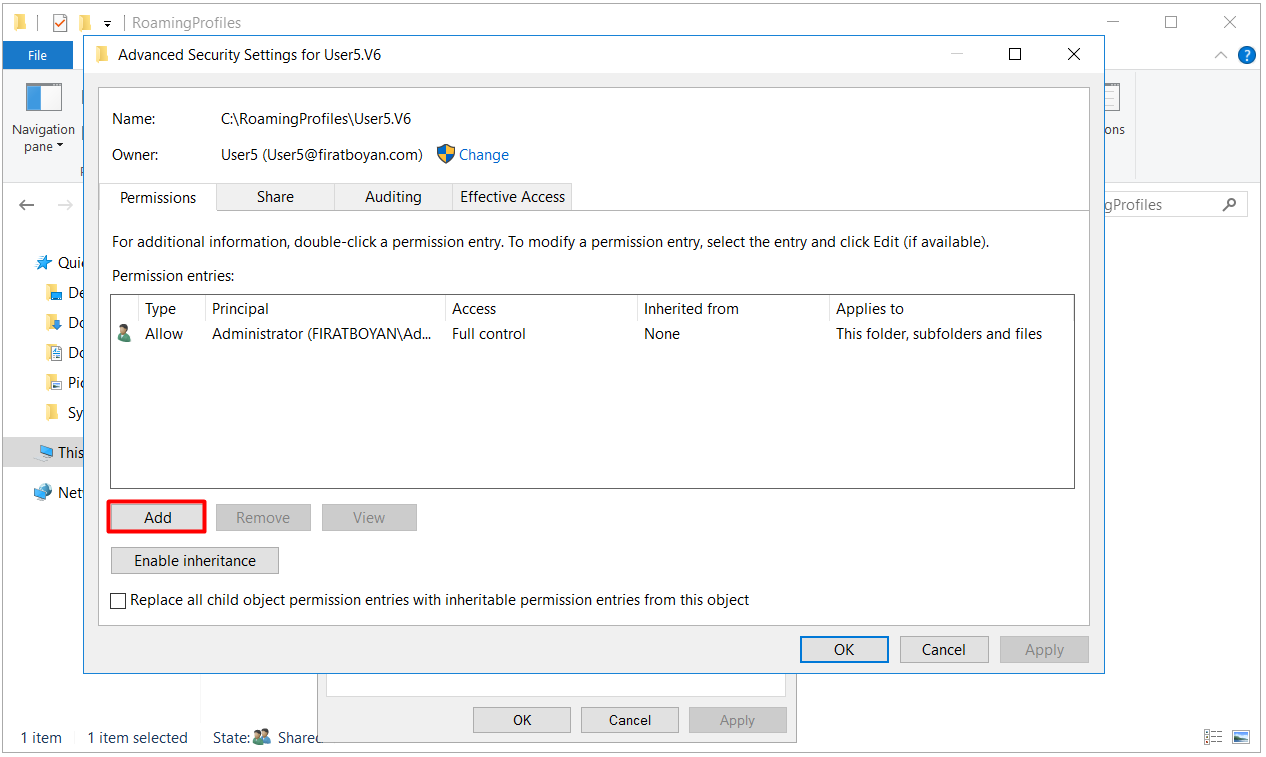
3- I click the Select a principal link on the Principal line.
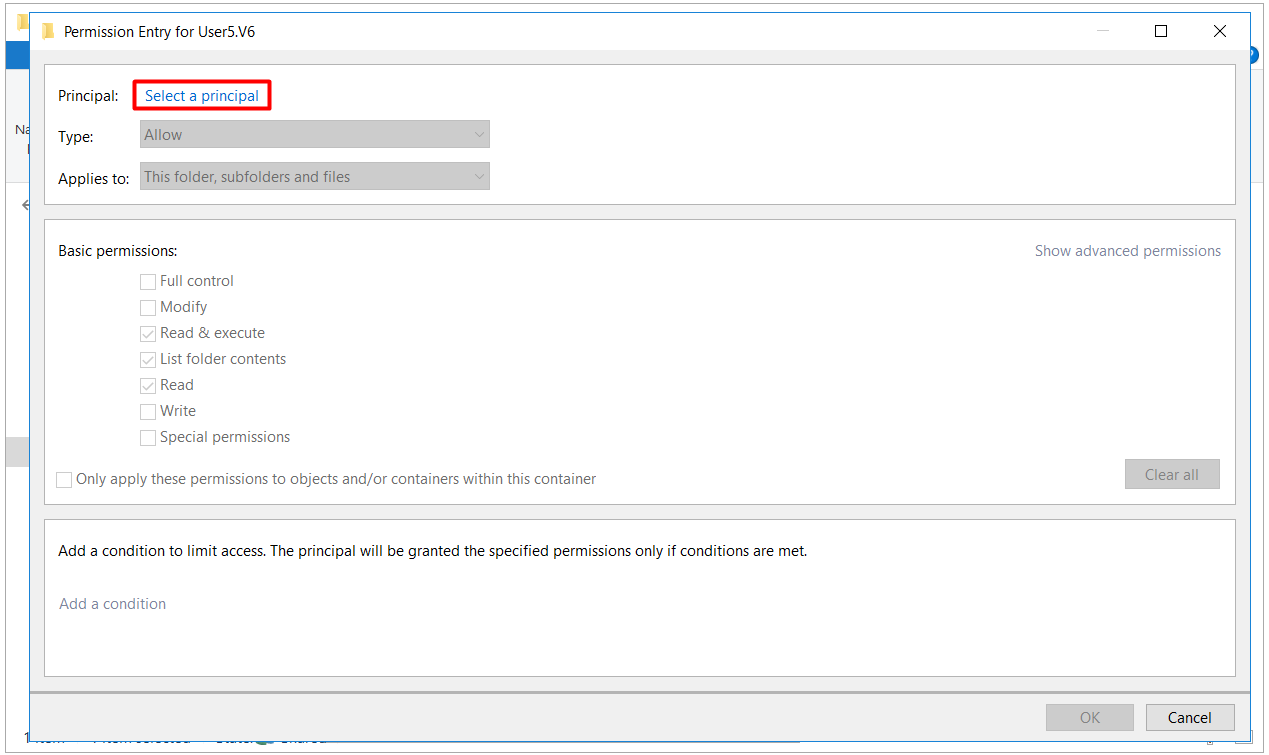
4- I select the User5 account and confirm with OK.
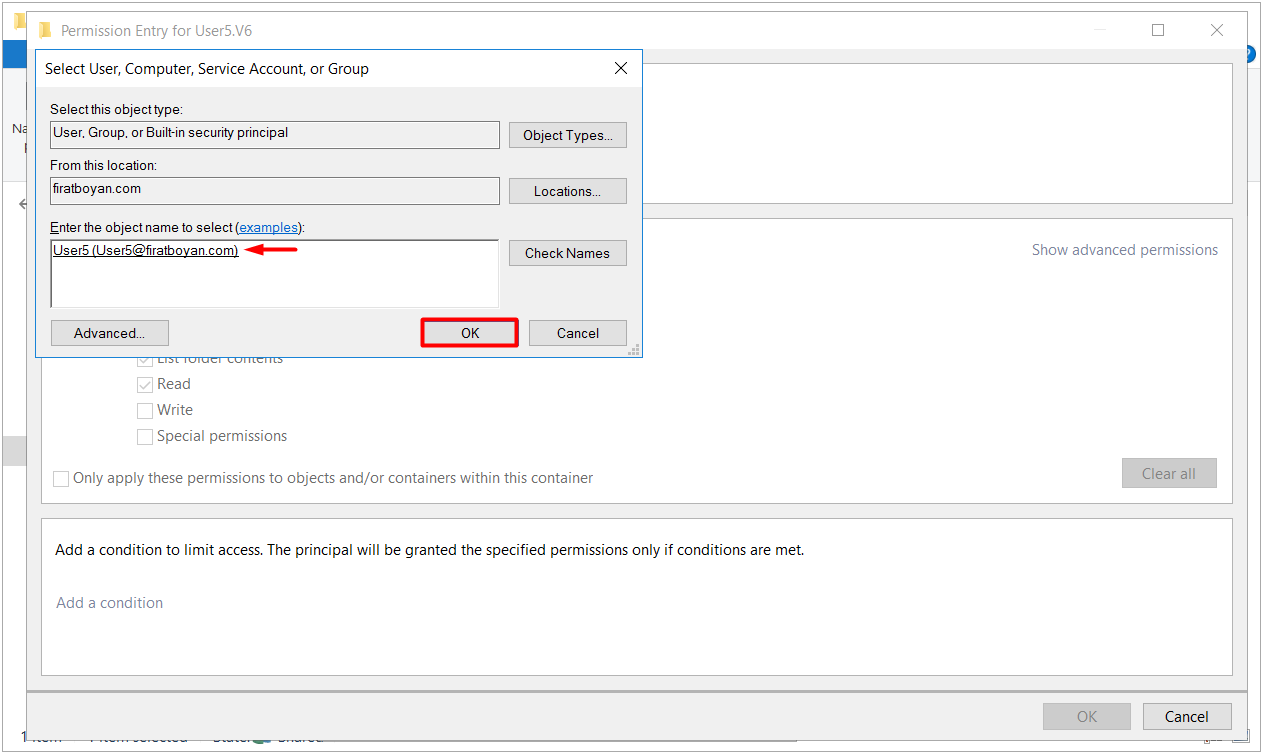
5- I grant User5 the Read permission only.
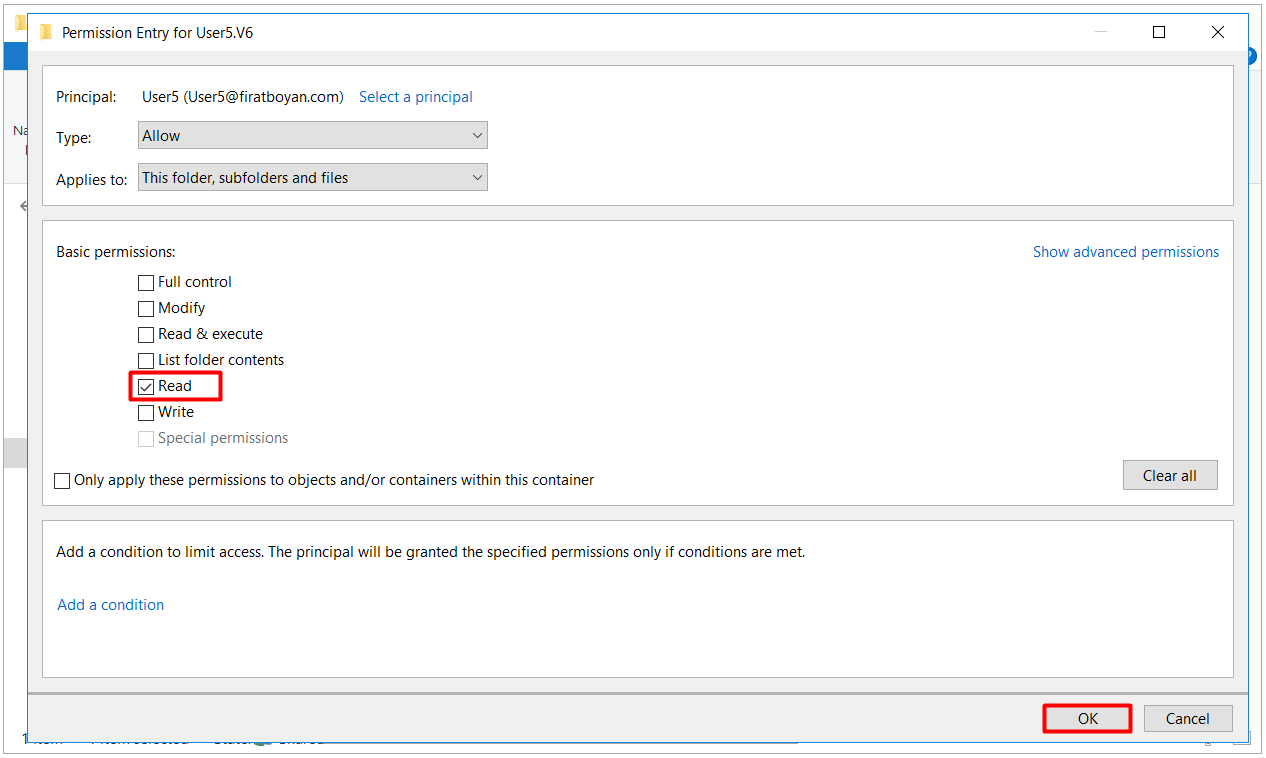
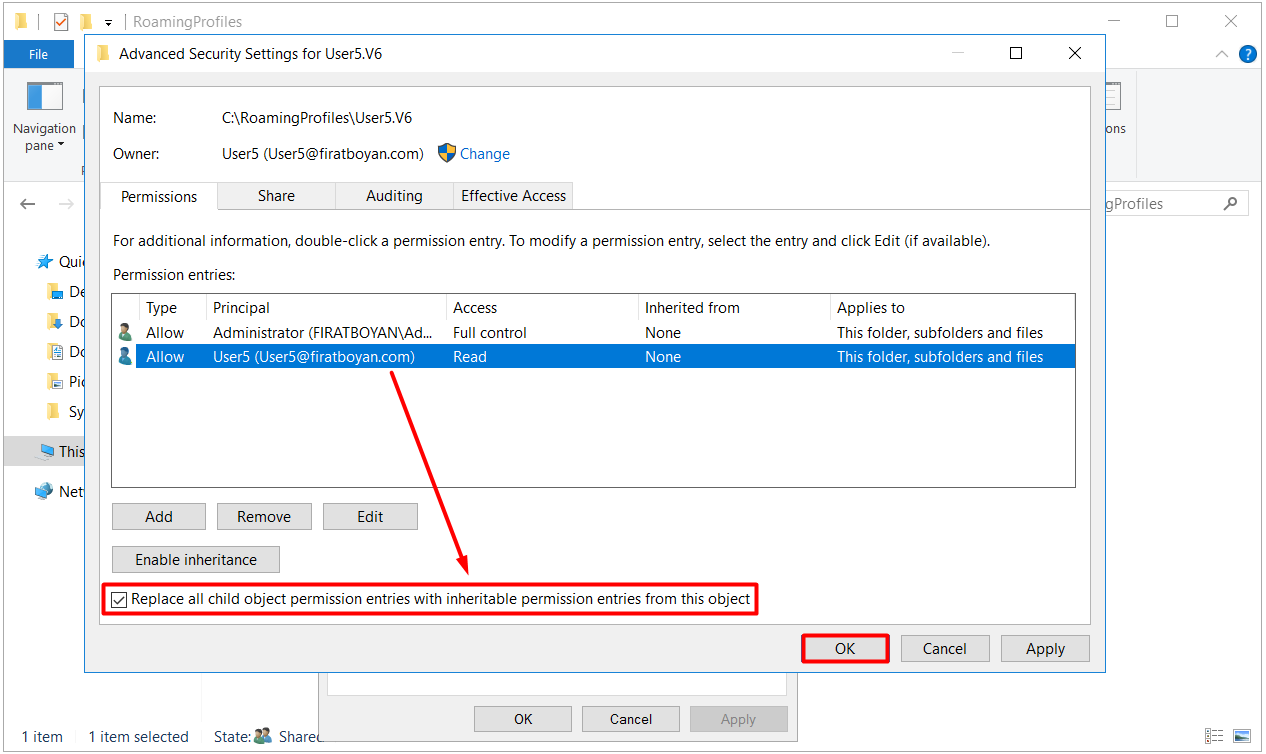
6- So that the read permission reaches all files in the profile, I select the Replace all child object permission entries with inheritable permission entries from this object option and confirm the warning with Yes.
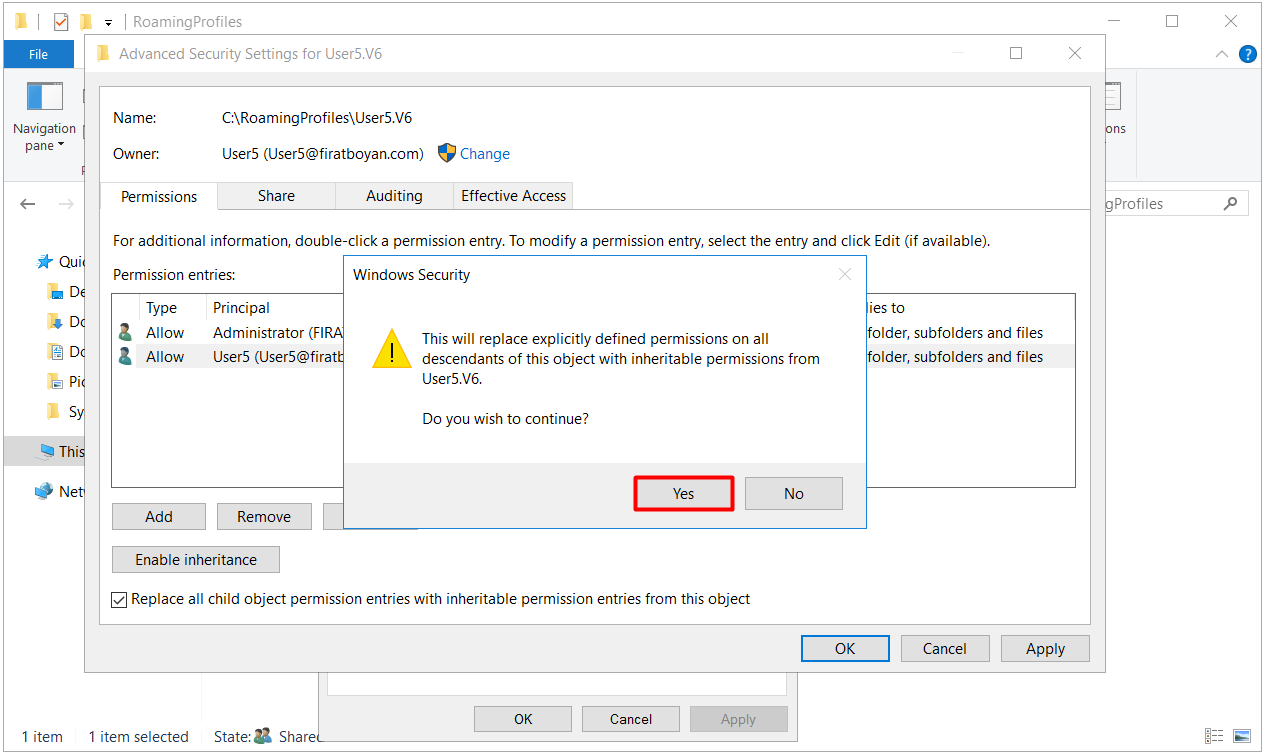
7- The Read permission of User5 is visible on the Security tab.
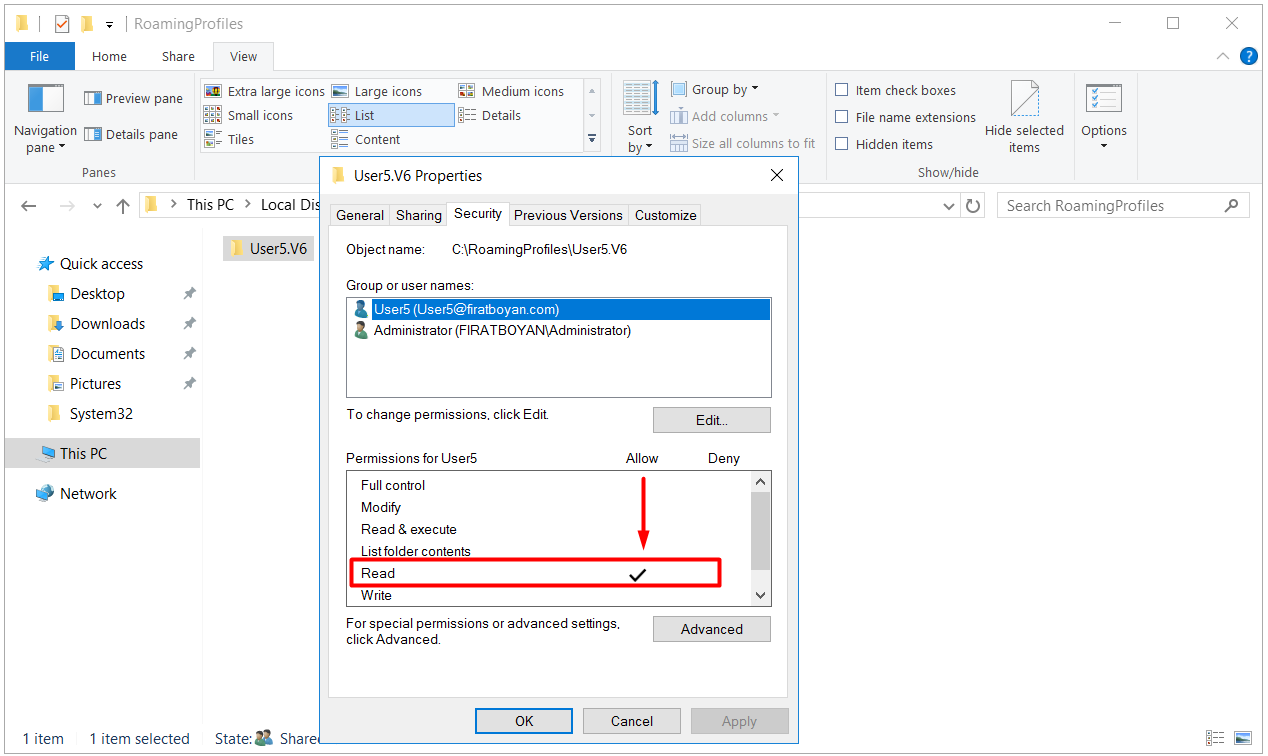
Black check marks show that the permission is defined on this folder. In the subfolders, the same permission appears grey, which shows that the permission comes through inheritance.
Checkpoint
In the Advanced Security Settings window, the Administrators group must appear as the Owner and the permission of User5 must be Read.
6- Sharing the Profile Folder
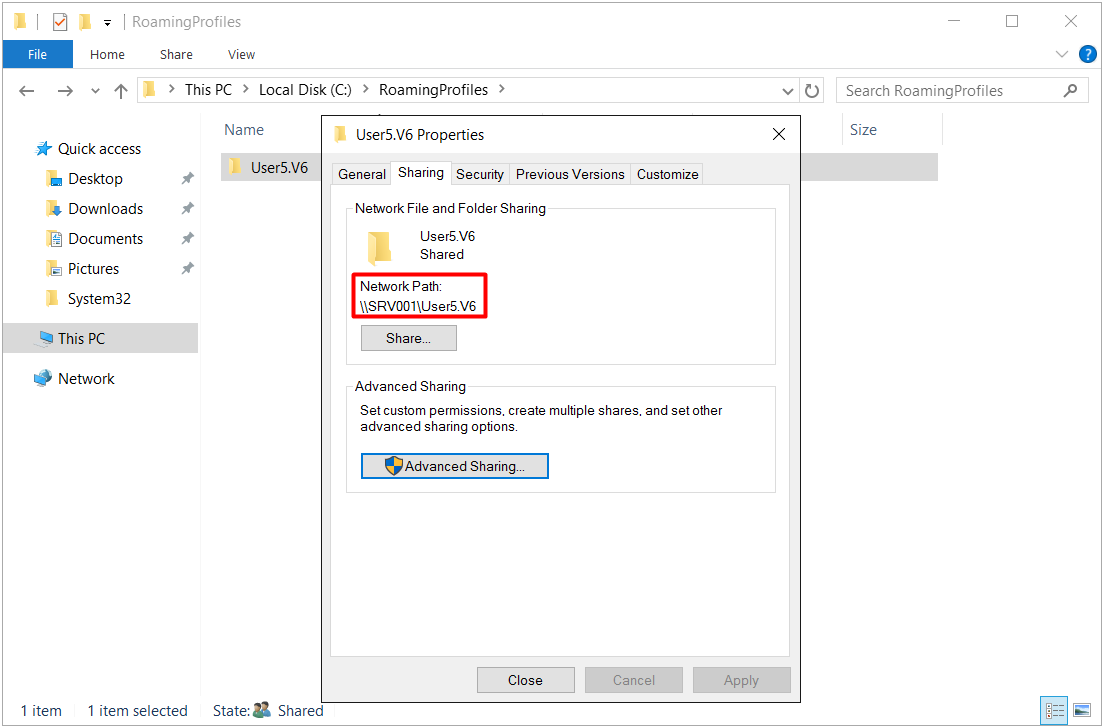
If the user's Profile Path value points to the main share that holds the roaming profiles, Windows accesses the profile through this share. In this case, the profile folder does not need to be shared separately, and the NTFS Read permission from section 5 restricts the user. Sharing the profile folder as a separate share is only meaningful if the user's Profile Path value will be changed to this new share. The steps below are for this case.
1- On the Sharing tab of the profile folder, I open the Advanced Sharing window, select the Share this folder option and then click the Permissions button.
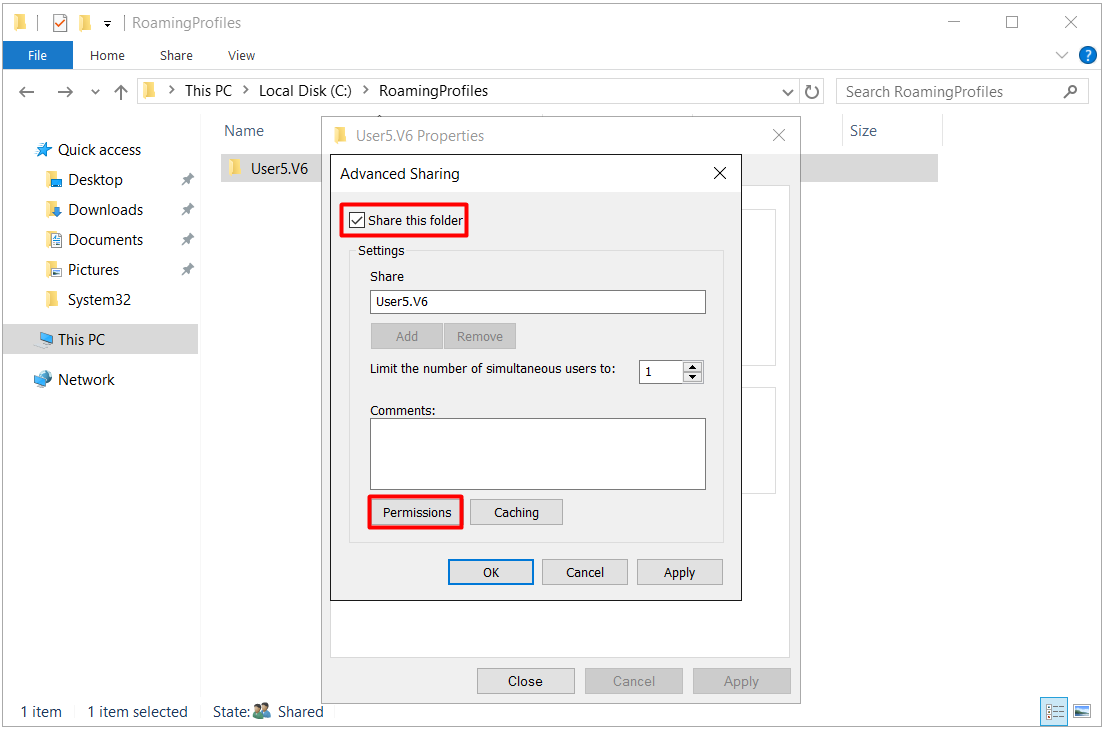
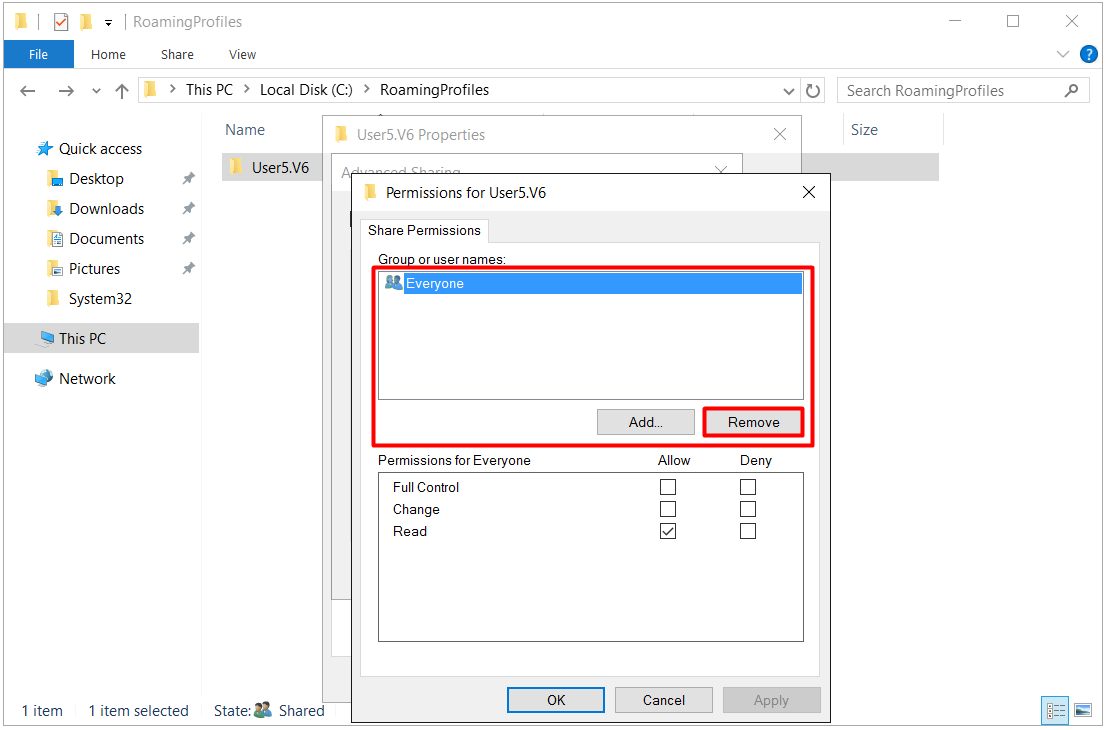
2- I remove the Everyone group, which is present by default, with Remove.
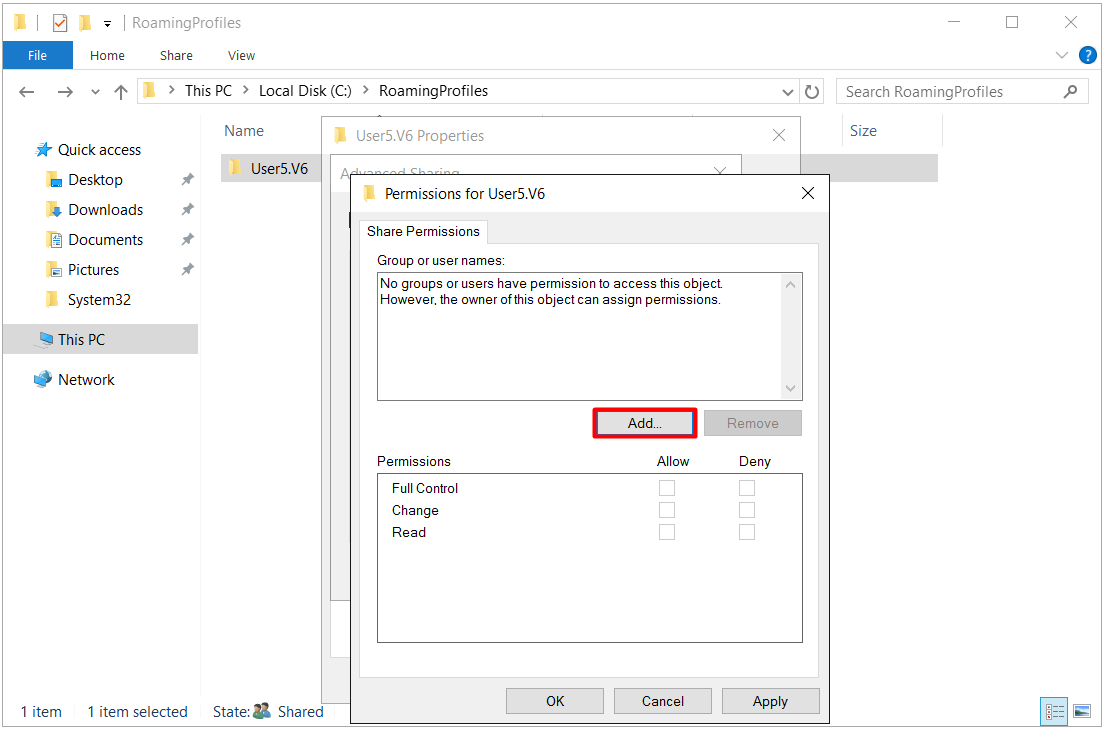
3- I add the User5 account with Add....
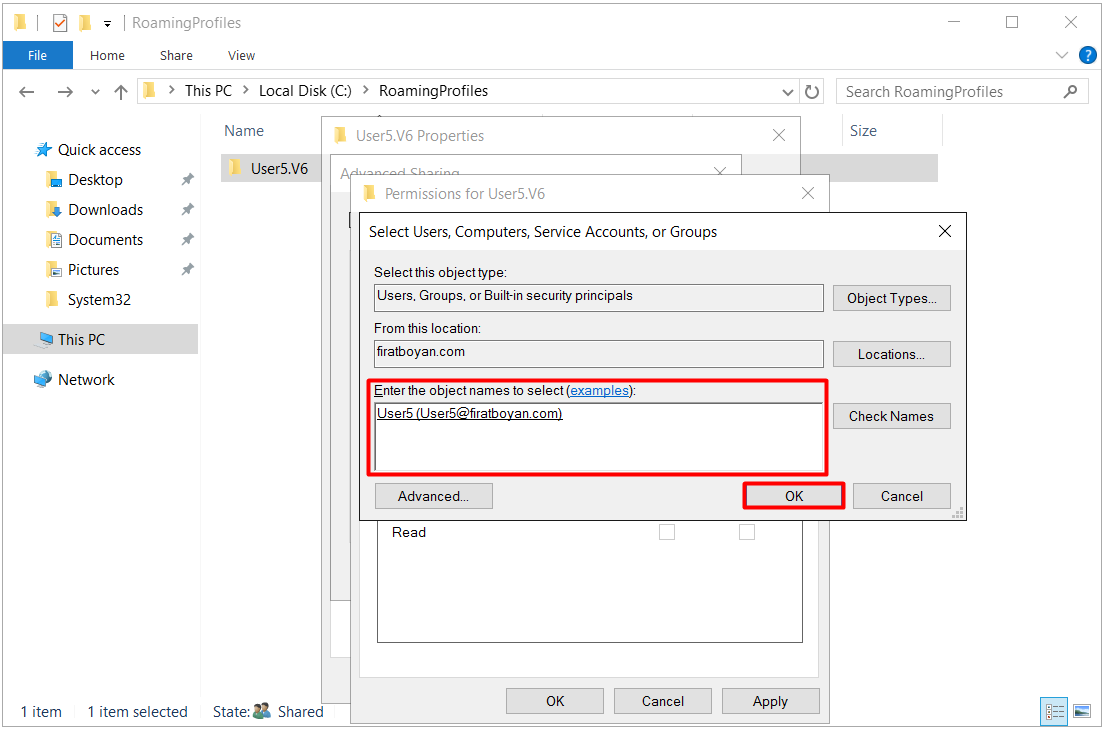
4- I check that User5 has the Read permission only and save with OK.
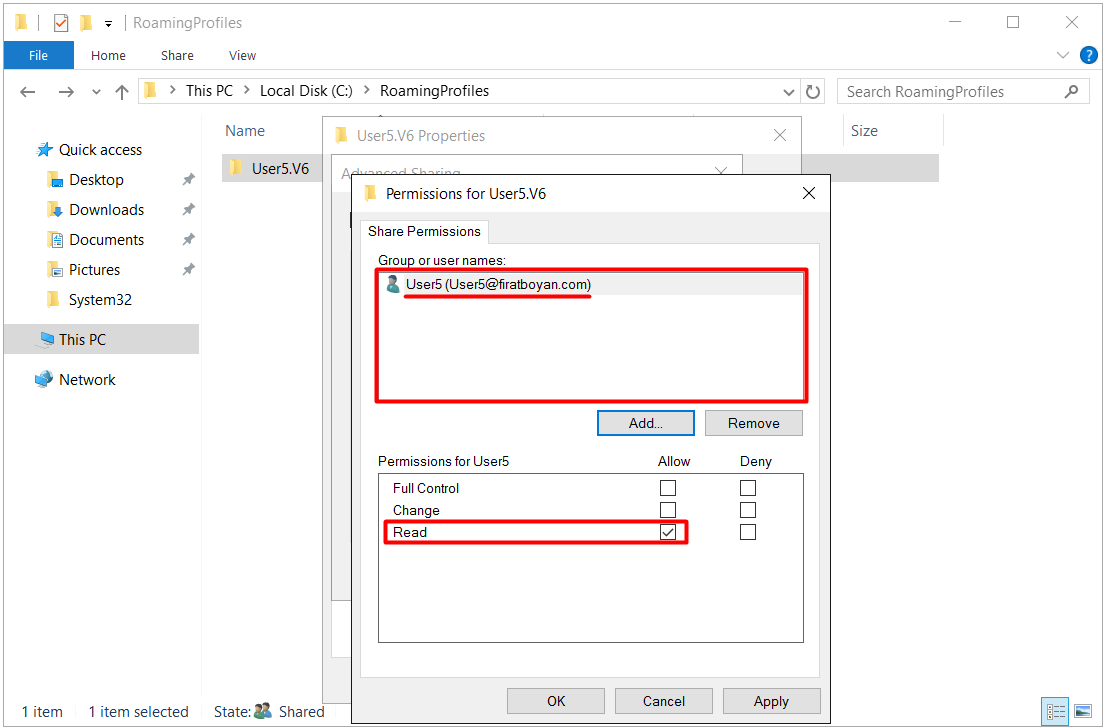
5- The profile folder is now shared. If the user will use this share, I update the Profile Path value in Active Directory with the path of the new share.
7- Testing and Verification
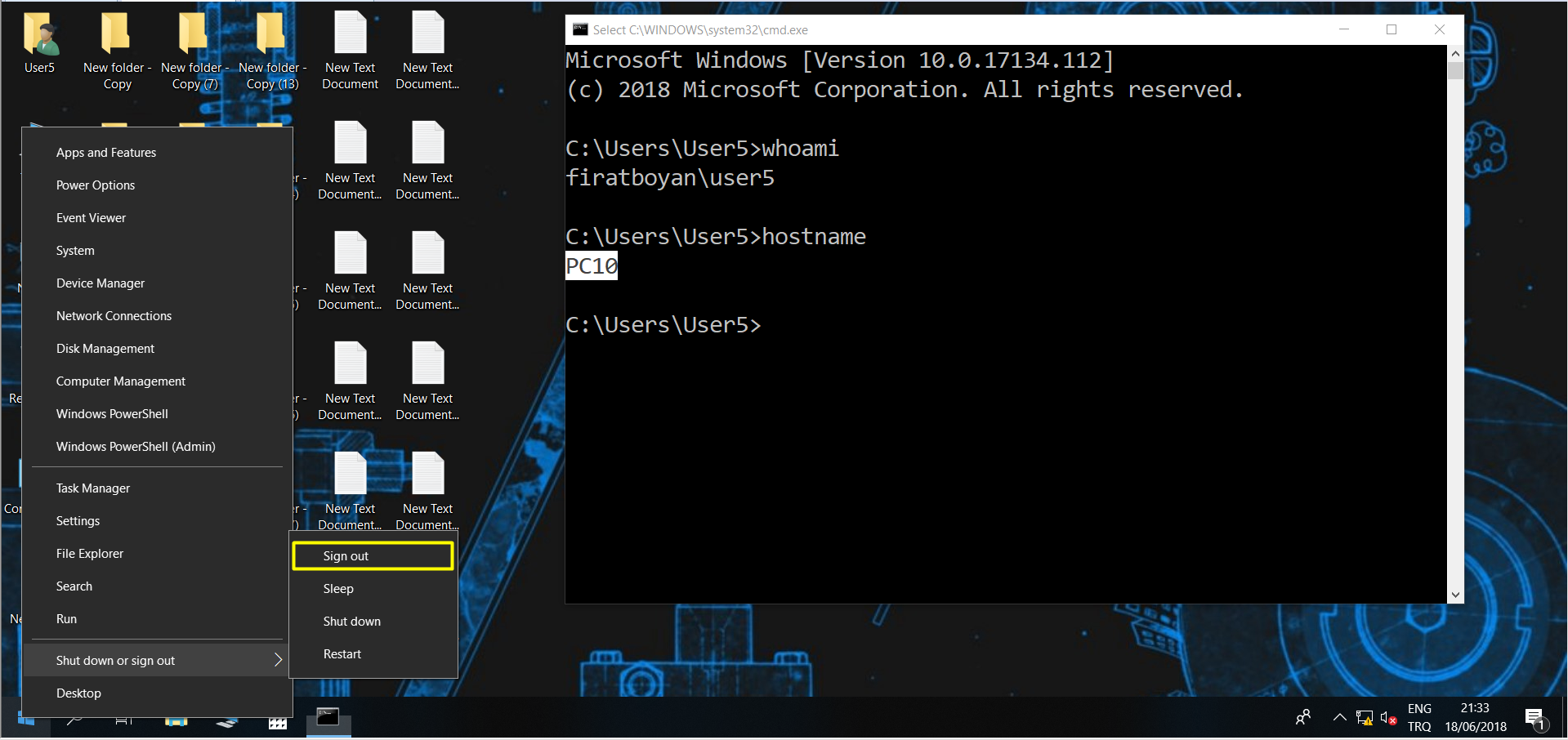
1- I sign in to the PC10 computer as User5.
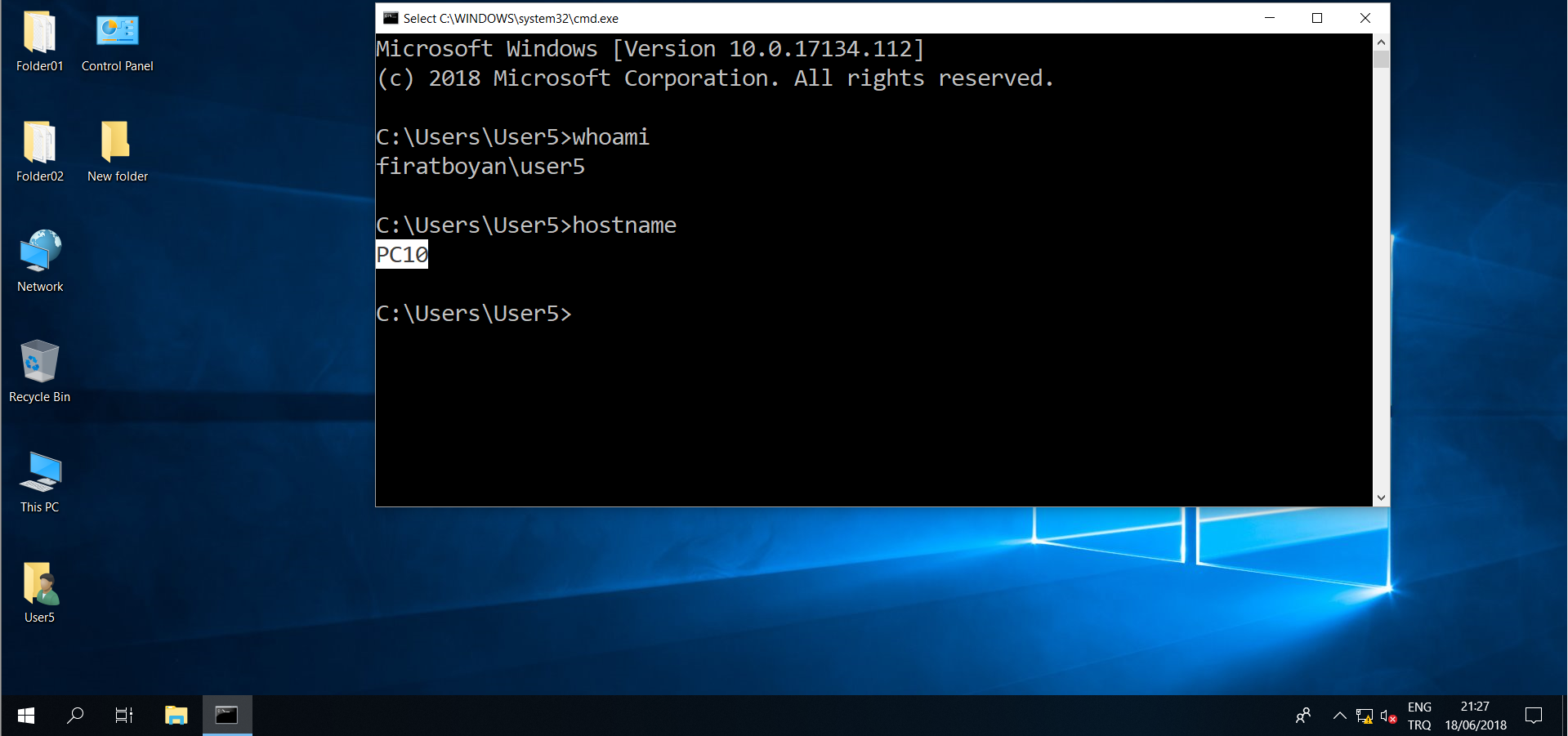
2- I make a few changes in the profile.
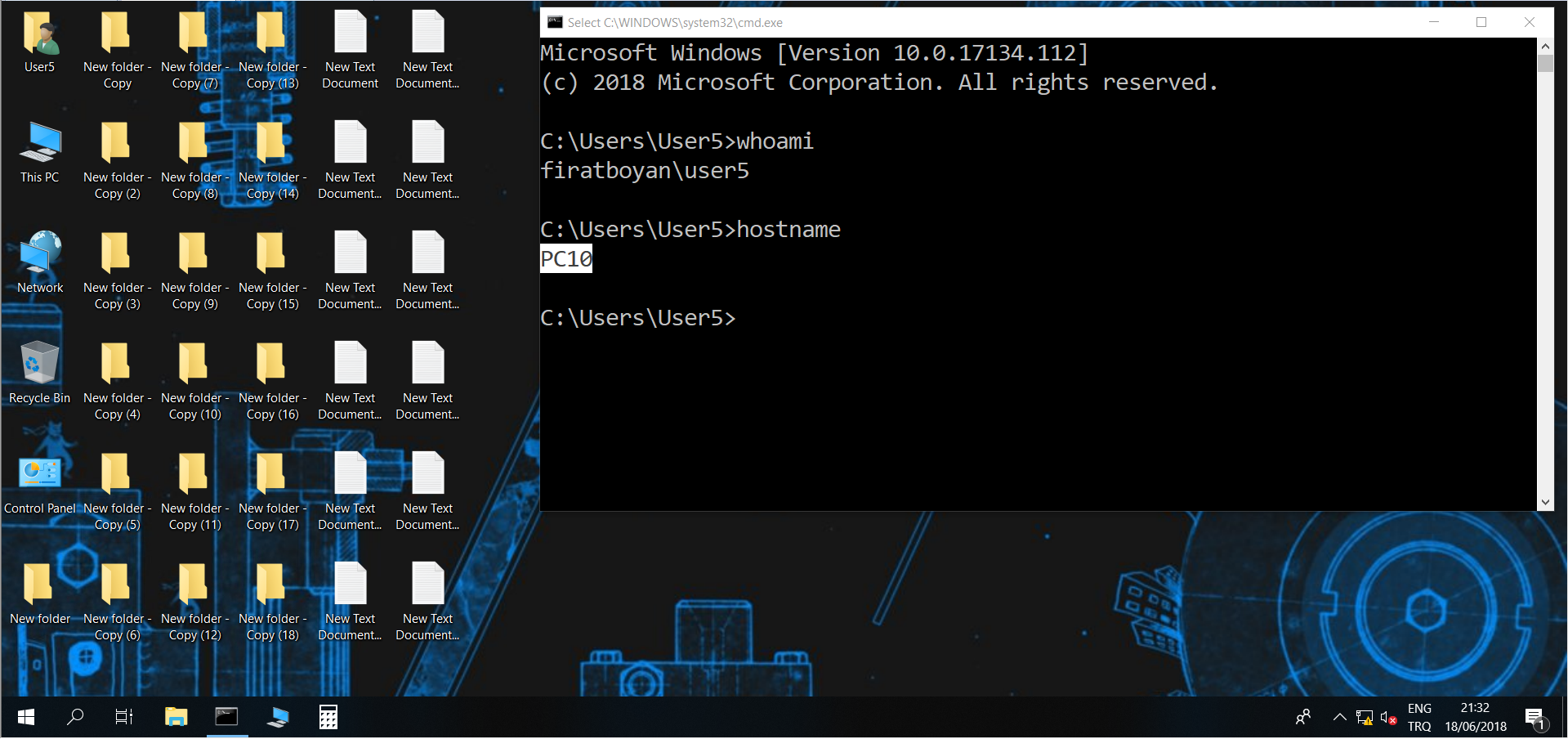
3- I sign out to see whether the changes are written to the profile.
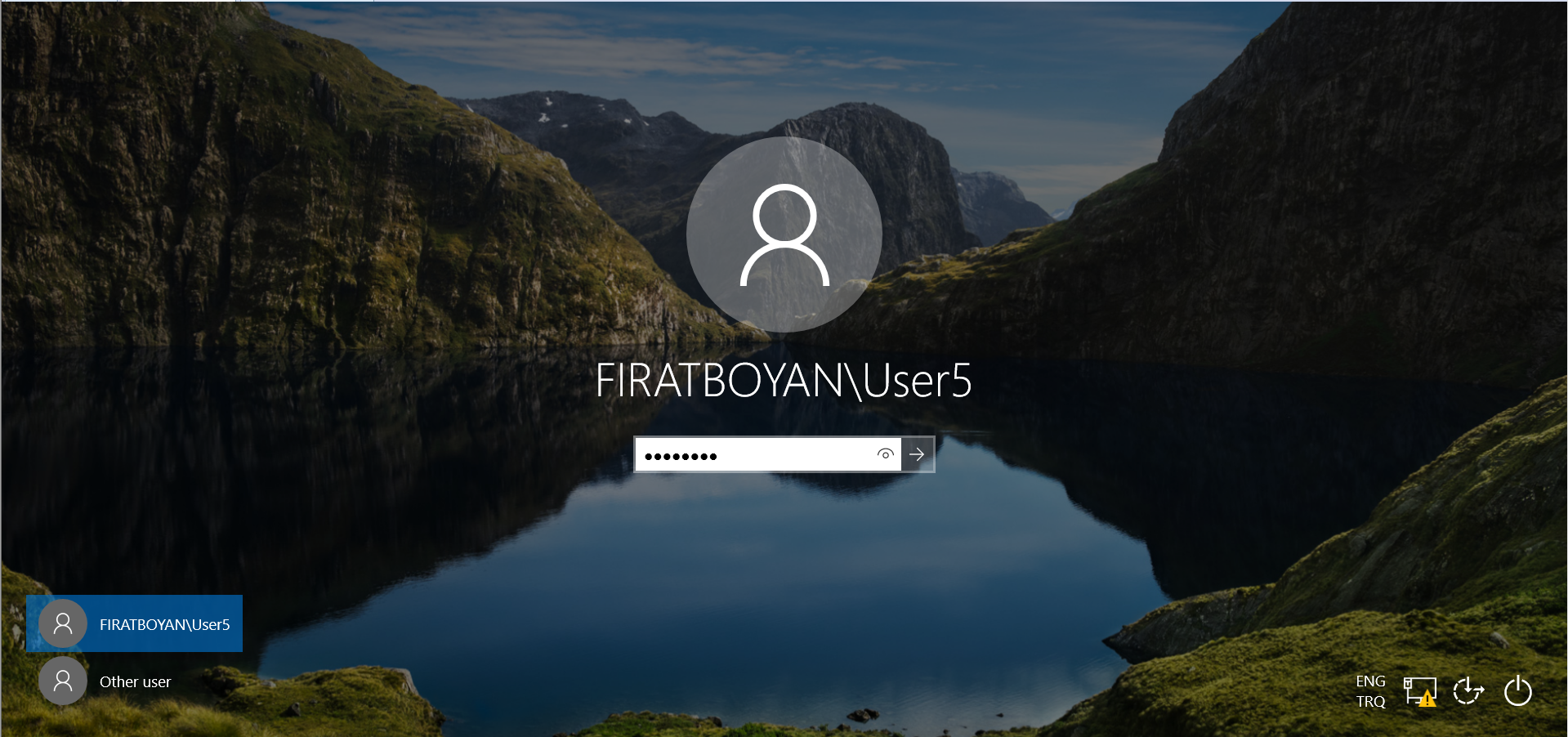
4- When I sign in as User5 again, I see that none of the changes I made before signing out are in the profile.
Checkpoint
The session must start with the same profile at every sign-in, and the user must not see a warning stating that the session was opened with a temporary profile.
The loss of the changes is not sufficient evidence on its own, because the changes are also lost when the user signs in with a temporary profile. For this reason, on the client I check the User Profile Service log under Applications and Services Logs, Microsoft, Windows in Event Viewer, and the User Profile Service records in the Application log. Event 1511, which shows that the user signed in with a temporary profile, must not appear.
If I need to make the profile roaming again, I rename the NTUSER.MAN file to NTUSER.DAT while the user is signed out and grant User5 Full Control on the profile folder again.
I know that the configuration is complete by these criteria: NTUSER.MAN is in the profile folder, the owner of the folder is the Administrators group and the permission of User5 is Read, the changes the user makes during a session do not appear in the next session, and there is no temporary profile record in the User Profile Service log. If the user's documents need to be kept, the next step is to deploy Folder Redirection.
I hope you find it useful...
Feel free to share your thoughts and questions about this article in the comments below. Every contribution helps the content reach more people and makes for a more useful discussion.