A roaming profile stores the user profile on a file server, so the user works with the same desktop, documents and settings on whichever computer in the domain they sign in to. When the user signs in, the profile is copied from the server to the computer, and when the user signs out, the changed files are written back to the server. Because the profile is stored centrally, the user's settings are not lost when the computer is replaced or fails.
In this article, I prepare the roaming profile share on a file server, define a Profile Path for a user in Active Directory, and test that the profile moves between 2 different computers. Folder Redirection configuration is out of scope.
The steps in this article do not depend on the Windows Server version. The suffix added to the profile folder, however, changes according to the client version: Windows 10 version 1607 and later, Windows 11, and Windows Server 2016 and later use .V6, and the suffix in use can be seen from the folder name on the server.
1- How Does a Roaming Profile Work?
When the user signs in, Windows checks the Profile Path value in Active Directory and copies the profile from the server to the C:\Users folder on the client. The user works with this local copy throughout the session, and no continuous connection to the server is required. When the user signs out, the changed files and the user's registry hive (NTUSER.DAT) are written back to the server. By default, the local copy stays on the computer, and only the changed files are copied at the next sign-in.
Windows adds a suffix to the name of the profile folder according to the client version. Even if the Profile Path is defined as \\SRV001\RoamingProfiles$\User5, clients running Windows 10 version 1607 and later store the profile in the User5.V6 folder. Clients on different versions use folders with different suffixes for the same user, so settings do not move between versions. There is no need to define a separate Profile Path for each version.
If the server cannot be reached during sign-in, the user is signed in with the local copy on the computer. If there is no local copy either, Windows gives the user a temporary profile, and the changes made in this profile are deleted when the user signs out.
The most common problem with roaming profiles is that sign-in and sign-out times increase as the profile grows. To solve this, the folders that make the profile grow are moved out of the profile:
|
Problem |
Solution |
|
Folders such as Documents and Desktop make the profile grow |
Keep these folders directly on the server with Folder Redirection |
|
Application cache folders roam with the profile |
Exclude these folders with the Exclude directories in roaming profile Group Policy setting |
|
The profile size grows without control |
The Limit profile size Group Policy setting or an FSRM quota on the server |
|
Local copies accumulate on shared computers |
The Delete cached copies of roaming profiles Group Policy setting |
Microsoft does not support distributing roaming profile data that is replicated with DFS Replication to more than 1 target through DFS Namespaces. I explained the details in my DFS article.
2- Preliminary Checks
Before I start, I verify the following items:
|
Check |
Expected State |
|
Domain environment |
The file server and the clients are domain members |
|
File system |
The disk where the profile folder will be created is NTFS |
|
User group |
The users who will use roaming profiles are collected in a security group (for a production design) |
|
Permissions |
An account that is an administrator on the file server and can edit user properties in Active Directory |
3- Preparing the Profile Folder and Its Permissions
1- On the file server, I create a single root folder named RoamingProfiles that will hold the profiles of all users. I do not create the user folders here manually, because Windows creates each user's folder itself at the first sign-in.

2- In the Properties window of the folder, I go to the Security tab and click the Edit... button. On this screen, I edit the NTFS permissions of the folder.
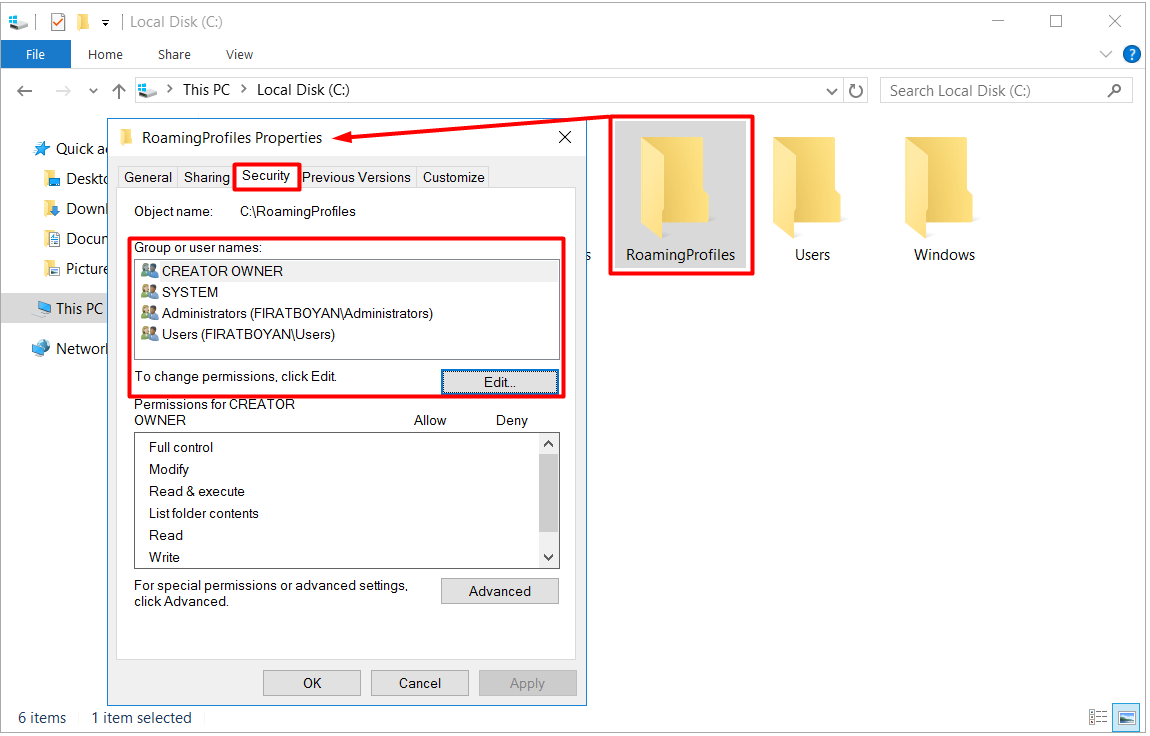
3- Users need NTFS permissions to create their own profile folders in the root folder and to read and write their profiles. Even if the share permission is Full Control, access is denied and the profile cannot be loaded when there is no NTFS permission. To grant this permission quickly in the lab environment, I use the Add... button to add the Everyone group.
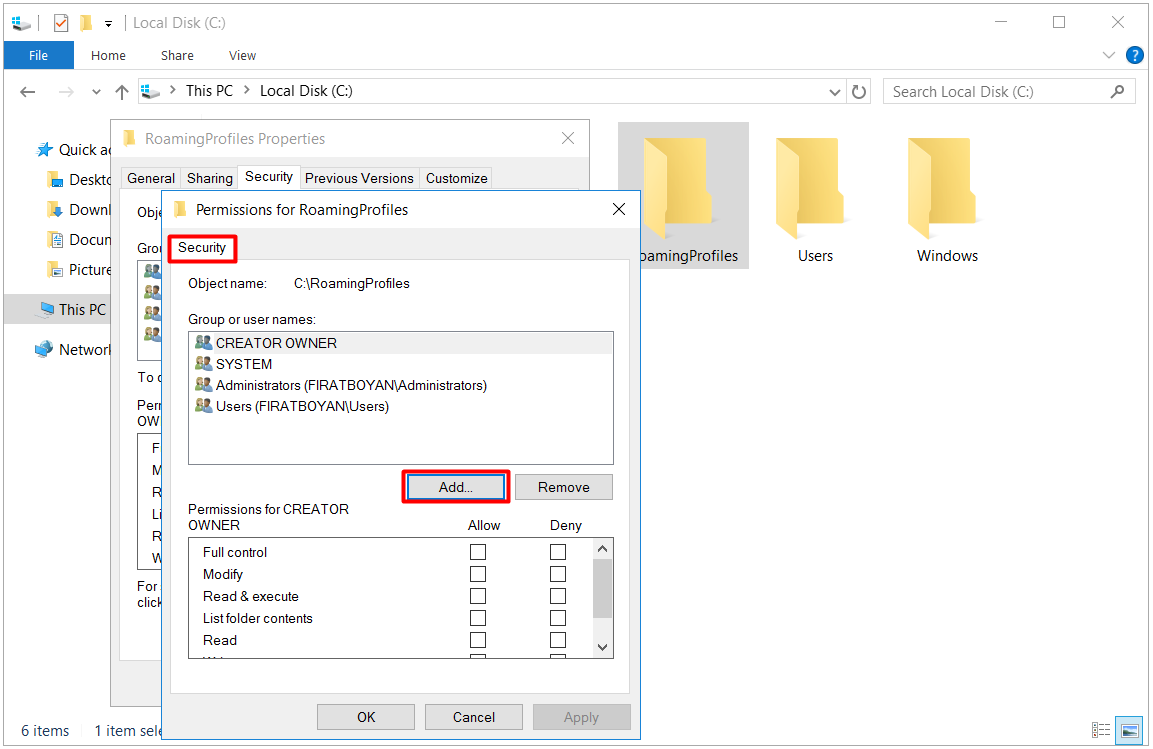
4- In the lab environment, I give the Everyone group Full Control.


When the Everyone group has Full Control in NTFS, any user can create a folder in the root folder with another user's name, and can delete or rename other users' folders. This permission is not used in a production environment.
In a production environment, I disable inheritance on the root folder and apply the following permissions that Microsoft recommends for Roaming User Profiles:
|
Account |
Permission |
Applies To |
|
CREATOR OWNER |
Full Control |
Subfolders and files only |
|
SYSTEM |
Full Control |
This folder, subfolders and files |
|
Administrators |
Full Control |
This folder only |
|
Security group of the roaming profile users |
List folder / read data, Create folders / append data |
This folder only |
With these permissions, a user can create only their own profile folder in the root folder. Because of the CREATOR OWNER entry, the user has full control of the folder they create, but cannot open other users' folders.
4- Sharing the Folder
1- On the Sharing tab of the folder, I click the Advanced Sharing... button.
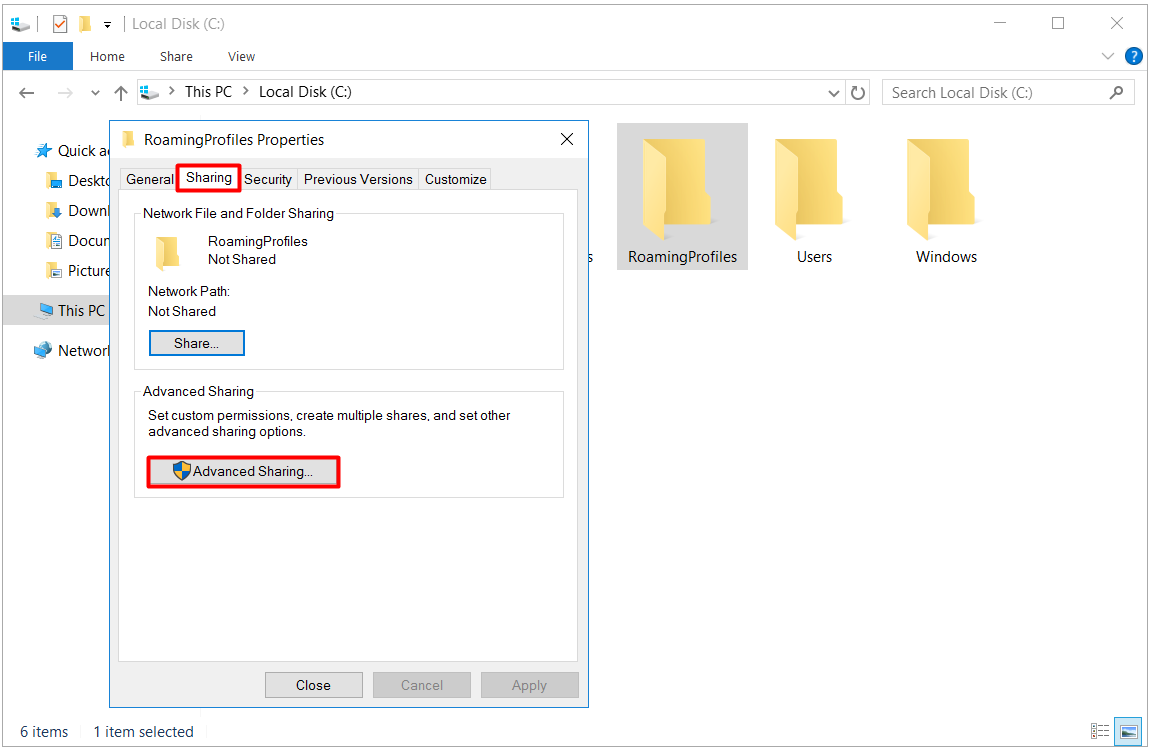
2- I select the Share this folder option and add $ to the end of the share name. Shares that end with $ are not listed when the network is browsed and can be accessed only when the UNC path is known. Then I click the Permissions button.

3- In the lab environment, I give the Everyone group Full Control in the share permissions. For access over the network, the share permission and the NTFS permission are evaluated together, and the intersection of the 2 applies. I explained the details of this design in my Share Permissions article.

In a production environment, I remove the Everyone group from the share permissions and give Full Control only to the security group of the roaming profile users. The NTFS permissions in section 3 apply the detailed restrictions.
4- The folder is now shared.

5- The folder is currently empty. The user folders will be created at the first sign-ins.

6- Because the share is hidden, I access it directly by its UNC path, \\SRV001\RoamingProfiles$.

Microsoft recommends disabling Offline Files caching on the profile share. Because the profile is already stored locally on the client, Offline Files creates a second cache and can cause synchronisation problems. I also enable Access-Based Enumeration on the share so that users see only the folders they can access in the root folder. I apply both settings in a PowerShell session that I open as administrator on the file server.
Set-SmbShare -Name "RoamingProfiles$" -CachingMode None -FolderEnumerationMode AccessBased -Force
Get-SmbShare -Name "RoamingProfiles$" | Select-Object Name, Path, CachingMode, FolderEnumerationMode
Checkpoint
In the output, the CachingMode value must be None and the FolderEnumerationMode value must be AccessBased.
5- Defining the Profile Path for the User
1- In the Active Directory Users and Computers console, I open the Properties window of the User5 user.

2- On the Profile tab, I enter \\SRV001\RoamingProfiles$\%username% in the Profile path field. When Active Directory Users and Computers saves the user properties, it replaces the %username% variable with the user's logon name. When more than 1 user is selected and edited in bulk, the correct path is also written for each user with their own name.
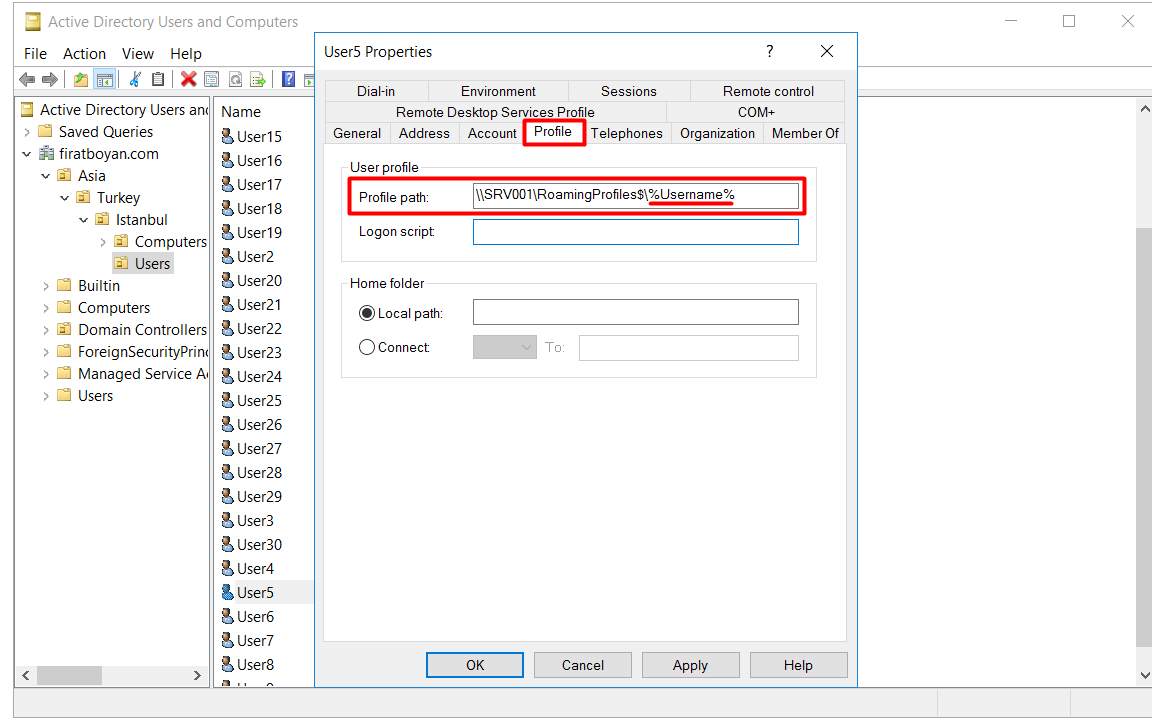
Profile Path:       \\SRV001\RoamingProfiles$\%username%
Saved value:        \\SRV001\RoamingProfiles$\User5
Folder on server:   \\SRV001\RoamingProfiles$\User5.V6

SRV001            Name or FQDN of the file server
RoamingProfiles$  Hidden share
.V6               Suffix that Windows adds according to the client version
I check the saved path on a server that has the Active Directory PowerShell module installed.
Get-ADUser -Identity User5 -Properties ProfilePath | Select-Object Name, ProfilePath
6- Related Group Policy Settings
These are the Group Policy settings I use to manage roaming profiles. All of them are optional and are applied as needed.
|
Setting |
Location |
What It Does |
|
Add the Administrators security group to roaming user profiles |
Computer Configuration\Administrative Templates\System\User Profiles |
Adds the Administrators group to newly created profile folders. If it is not enabled, administrators cannot access user profile folders |
|
Delete cached copies of roaming profiles |
Computer Configuration\Administrative Templates\System\User Profiles |
Deletes the local copy on the client when the user signs out. When the server cannot be reached, the user is signed in with a temporary profile |
|
Exclude directories in roaming profile |
User Configuration\Administrative Templates\System\User Profiles |
Does not copy the specified folders to the server with the profile |
|
Limit profile size |
User Configuration\Administrative Templates\System\User Profiles |
Sets an upper limit on the profile size and warns the user when the limit is exceeded |
The Add the Administrators security group setting affects only the profile folders created after the setting is applied. The permissions of existing folders do not change.
Windows also checks that the owner of the profile folder is the user or the Administrators group. If the owner is another account, the profile is not loaded. For this reason, I take this rule into account when I change the ownership of profile folders manually.
7- Testing and Verification
1- I sign in to the PC10 computer as User5.


2- The profile folder of User5 was created on the share with the .V6 suffix.

3- I create a few folders and files on the desktop and sign out. During sign-out, these changes are written to the profile on the server.

4- This time, I sign in to the PC20 computer as User5. The folders and files that I created on PC10 also appear on the PC20 desktop.
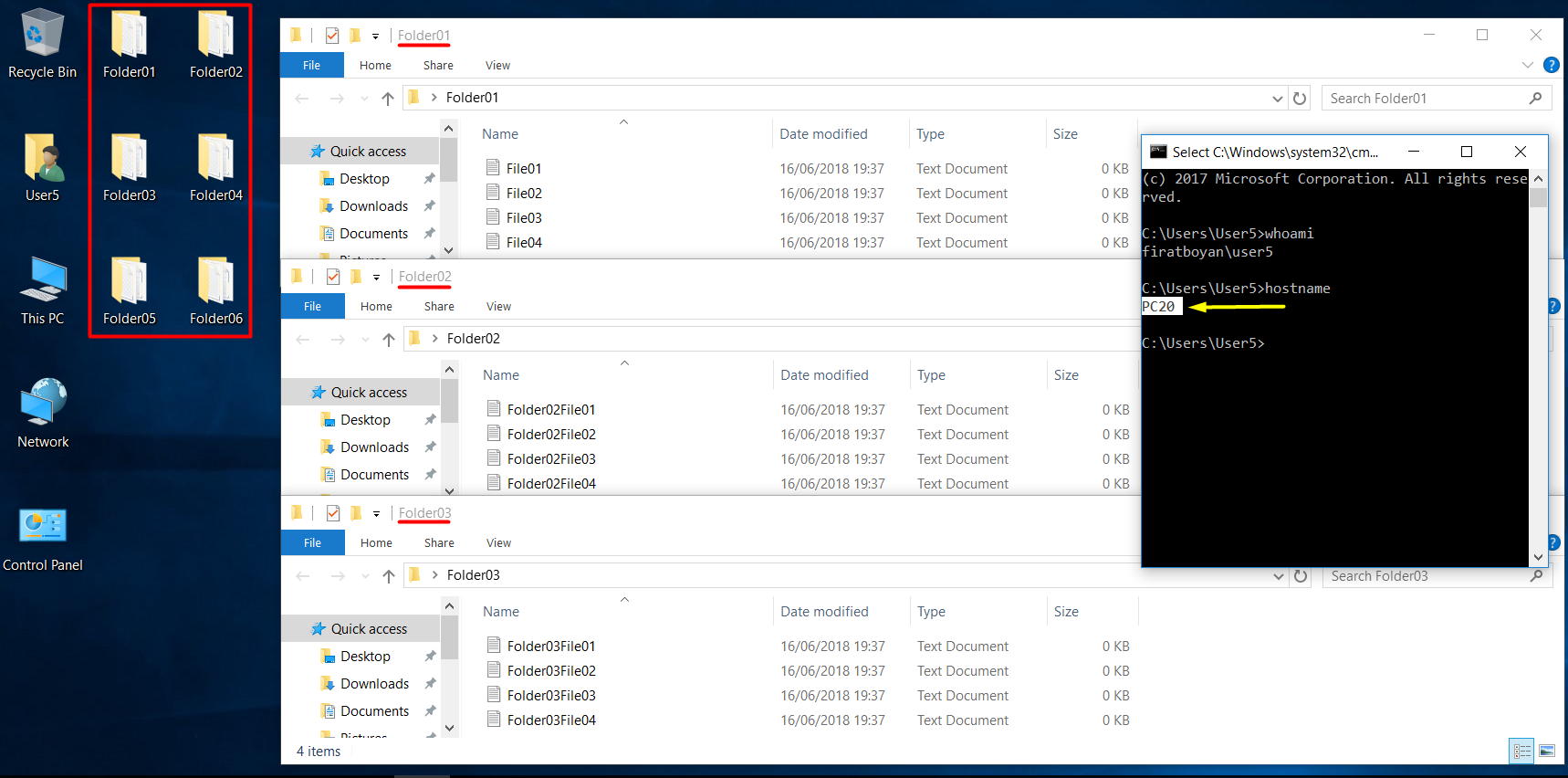
Checkpoint
The changes made on PC10 must appear on PC20, and the user must not see a warning stating that they are signed in with a temporary profile.
I monitor profile load and save problems on the client from the User Profile Service entries in the Application log in Event Viewer:
|
Event ID |
Meaning |
|
1509 |
A file in the profile could not be copied |
|
1511 |
The user signed in with a temporary profile |
|
1530 |
The user's registry file was held open by another process during sign-out |
If I need to remove the roaming profile, I clear the user's Profile Path field. At the next sign-in, the user continues with the local profile on the computer, and the folder on the server remains until it is deleted manually.
I confirm that the configuration is complete by these criteria: the share is hidden, Offline Files is disabled and Access-Based Enumeration is enabled, the user's Profile Path value is correct, the profile folder is created on the server with the suffix that matches the client version, and a change made on one computer appears on the other computer. The next step to keep the profile size under control is to enable Folder Redirection.
I hope you find it useful...
Feel free to share your thoughts and questions about this article in the comments below. Every contribution helps the content reach more people and makes for a more useful discussion.