Microsoft Graph is the RESTful API layer that provides access to data and management operations in Microsoft 365 services through a single endpoint. In the global Microsoft cloud environment, this endpoint is graph.microsoft.com. Directory objects such as users, groups, devices and applications are read and modified through this API, within the limits of the supported operations and the permissions granted. Licences are assigned to users and groups with the same API. Requests are authorised with an access token obtained through OAuth 2.0. Responses are mostly returned in JSON format. In some operations, the response body can be empty or, as with the profile photo, can contain binary data.
The way to use this API from PowerShell is the Microsoft Graph PowerShell SDK. The SDK is published in PowerShell Gallery under the name Microsoft.Graph. The term MgGraph in the title is not the name of the module. It is an unofficial name based on the Mg prefix of the cmdlets in the module and on the Connect-MgGraph cmdlet used to connect. Get-MgUser queries Microsoft Entra ID users, New-MgGroup creates a group, and Get-MgDevice lists the devices registered in the directory. The device management objects on the Intune side are also accessed through the submodules of the same module.
The main reason behind the move to the Microsoft.Graph module is the retirement of the older modules. The MSOnline and AzureAD modules were declared deprecated on 30 March 2024. Microsoft announced that the MSOnline module would be retired between early April 2025 and late May 2025. For the AzureAD and AzureAD-Preview modules, the start of retirement was announced as mid-October 2025. For this reason, older scripts that start with Connect-MsolService or Connect-AzureAD must be migrated to the Microsoft Graph PowerShell SDK or to the Microsoft Entra PowerShell module.
The Microsoft.Graph module does not replace the service-specific management modules. ExchangeOnlineManagement for Exchange Online management, MicrosoftTeams for Teams management and the dedicated module for SharePoint Online management are installed separately.
The scope of this article is the installation of the module. It covers, in order, the prerequisites to verify before installation, the resolution of the errors on the PowerShellGet and NuGet provider side, the installation of the Microsoft.Graph and Microsoft.Graph.Beta modules, the verification of the installation, and the update and uninstallation of the module. Connecting with Connect-MgGraph and selecting permission scopes are out of scope.
1- Prerequisites and Network Access
Before you start the installation, make sure that the items below are met. The PowerShell version, execution policy, PowerShellGet and TLS items in the table are covered individually, with their commands, in the next section.
|
Check |
Expected State |
|
PowerShell version |
At least Windows PowerShell 5.1. The version Microsoft recommends is PowerShell 7 or later, which has no additional prerequisites. |
|
.NET Framework |
.NET Framework 4.7.2 or later if Windows PowerShell 5.1 is used. |
|
PowerShellGet |
The current version. Version 1.0.0.1, which is included with Windows PowerShell 5.1, must be updated. |
|
Execution policy |
RemoteSigned or a less restrictive policy. |
|
Security protocol |
TLS 1.2 or later for the PowerShell Gallery connection. |
|
Privileges |
A PowerShell session opened as administrator if the module is installed for all users. |
|
Network access |
Outbound HTTPS (TCP 443) access to the FQDNs below. |
Because the module is downloaded from PowerShell Gallery, the computer where the installation is performed must be able to reach the Gallery endpoints. Port forwarding is not what is needed here. It is enough to allow outbound TCP 443 traffic on the firewall. Microsoft publishes the addresses to allow for these services as FQDN (Fully Qualified Domain Name) entries, so the rule must be defined by FQDN instead of by IP address.
|
FQDN |
Purpose |
*.powershellgallery.com |
PowerShell Gallery website |
cdn.powershellgallery.com
cdn.oneget.org |
Package query and download |
go.microsoft.com
aka.ms |
Redirection services |
login.microsoftonline.com
graph.microsoft.com |
Sign-in with Connect-MgGraph and API calls in the global Microsoft cloud environment after installation |
The addresses in the last row of the table belong to the global Microsoft cloud environment. In national cloud environments such as US Government and China operated by 21Vianet, the Graph and sign-in endpoints of that environment are used. You can follow the current endpoint list of the global environment on Microsoft's Microsoft 365 URLs and IP address ranges page.
If a proxy is used in the network environment, the same FQDNs must also be allowed through the proxy. In environments with SSL/TLS inspection, the intercepting certificate can cause PowerShell Gallery and sign-in traffic to be blocked. If a connection error occurs during installation, check whether these FQDNs are excluded from inspection.
2- Preparing the PowerShell Environment
The Microsoft.Graph module is installed from PowerShell Gallery with the Install-Module cmdlet of the PowerShellGet module. For this reason, the execution policy is verified first and PowerShellGet is updated next. All of the steps below are applied in a Windows PowerShell window opened with the Run as Administrator option.
Step 1 - Checking the Execution Policy
The Microsoft.Graph module contains script-based components, and if the execution policy does not allow these components to load, the module cannot be imported. You can check the effective policy with the command below.
The command output must be RemoteSigned or a less restrictive value. If the output is RemoteSigned, you can continue to the next step without any change.
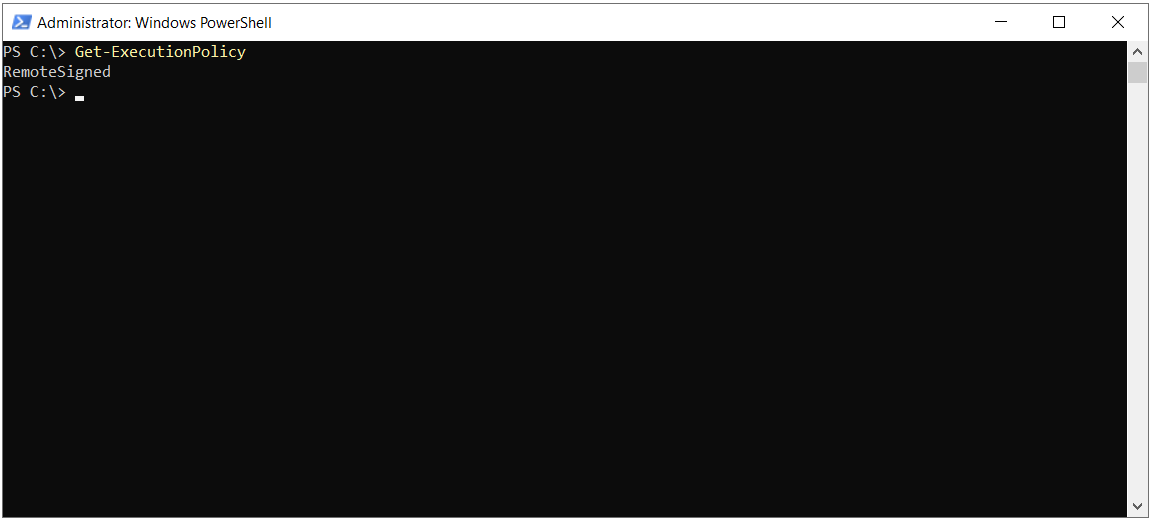
If the output is Restricted or AllSigned, you can change the policy with the command below.
Set-ExecutionPolicy RemoteSigned -Force
Under the RemoteSigned policy, locally created scripts run without a signature. Scripts downloaded from the internet must be digitally signed by a trusted publisher. This signature requirement applies as long as the file carries the internet zone mark. The -Force parameter skips the confirmation prompt and has no effect on the policy itself. You do not need to restart PowerShell for the change.
The execution policy can be defined in more than 1 scope, and the scopes have an order of precedence. The MachinePolicy and UserPolicy scopes, which are applied through Group Policy, have the highest precedence, followed by Process, CurrentUser and LocalMachine. If a policy is defined in a scope with higher precedence, changing the LocalMachine value does not change the effective policy. If the Get-ExecutionPolicy output still shows the old value after the command, use Get-ExecutionPolicy -List to see which scope applies.
A Set-ExecutionPolicy command that is run without -Scope changes the LocalMachine scope and requires an administrator session. If a change for your own account only is enough, use the Set-ExecutionPolicy -ExecutionPolicy RemoteSigned -Scope CurrentUser command.
Step 2 - Updating the PowerShellGet Module
Windows PowerShell 5.1 includes version 1.0.0.1 of the PowerShellGet module. This version does not include the NuGet provider and must be updated to work with PowerShell Gallery without problems. The command below installs the current version of the PowerShellGet module.
Install-Module PowerShellGet -Force
The -Force parameter suppresses the conflict warnings in the module installation. If a different version of PowerShellGet exists on the computer, the new version is installed next to it and the old version is not deleted. If the same version is already installed, it is overwritten. A new PowerShell window must be opened after the installation for the new version to take effect.
If PSGallery is the only registered repository on the computer, the installation commands in this article use that repository. If more than 1 repository is registered, add -Repository PSGallery to the Install-Module commands. The command that Microsoft gives for Windows PowerShell 5.1 is Install-Module PowerShellGet -Repository PSGallery -Force -AllowClobber.
If the NuGet provider is not installed on the computer, the command stops with the prompt below. The -Force parameter does not skip this prompt.
NuGet Provider is required to continue
PowerShellGet requires NuGet Provider version '2.8.5.201' or newer to interact with NuGet-based repositories. The NuGet Provider must be available in 'C:\Program Files\PackageManagement\ProviderAssemblies' or 'C:\Users\Administrator\AppData\Local\PackageManagement\ProviderAssemblies'. You can also install the NuGet Provider by running 'Install-PackageProvider -Name NuGet -MinimumVersion 2.8.5.201 -Force'. Do you want PowerShellGet to install and import the NuGet Provider now?

[Y] Yes [N] No [S] Suspend [?] Help (default is "Y"): Y
PowerShell Gallery is a NuGet-based repository, and PowerShellGet needs at least version 2.8.5.201 of the NuGet provider to communicate with this repository. You can press Y to have the provider installed and imported automatically.
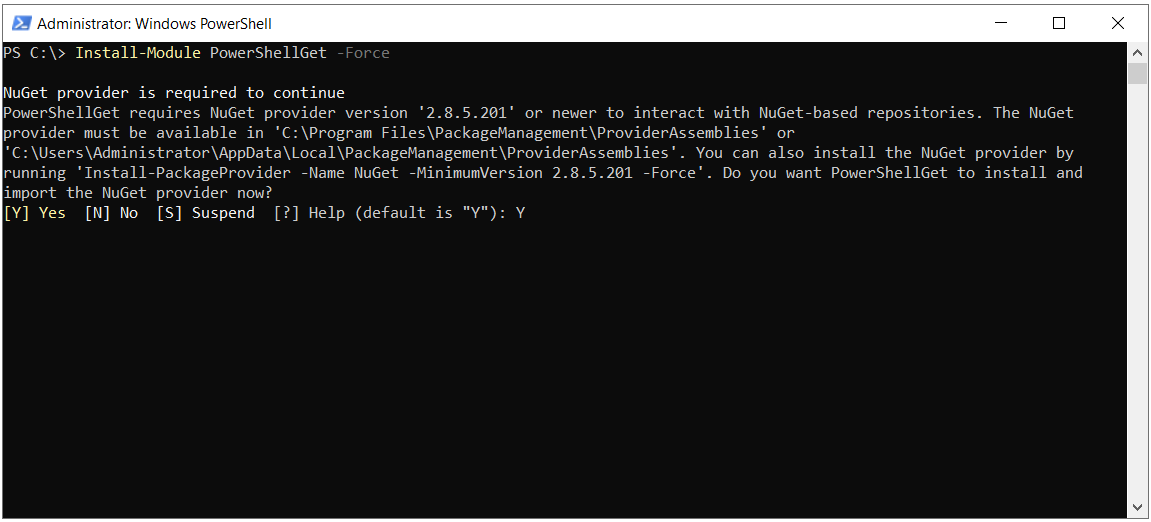
If you want to install the NuGet provider manually, you can use the command below.
Install-PackageProvider -Name NuGet -MinimumVersion 2.8.5.201 -Force
If this step also fails, the warnings below appear.
WARNING: Unable to download from URI 'https://go.microsoft.com/fwlink/?LinkID=627338&clcid=0x409' to ''.
WARNING: Unable to download the list of available providers. Check your Internet connection.
PackageManagement\Install-PackageProvider : No match was found for the specified search criteria for the provider 'NuGet'.
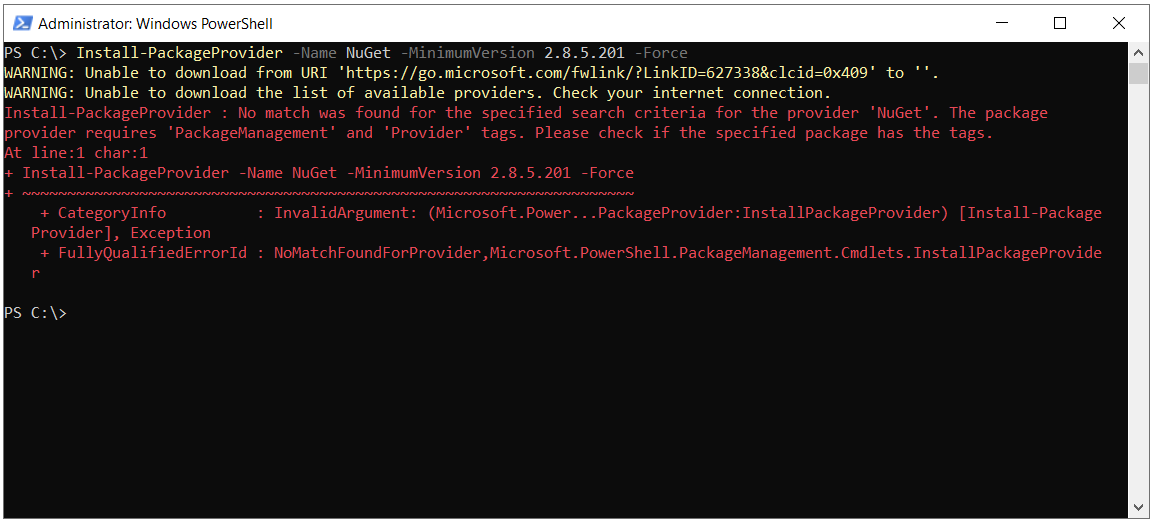
The warning reports that PackageManagement cannot download the list of available providers from the specified address. Because the provider list cannot be retrieved, NuGet cannot be found either. In this case, check outbound HTTPS access, the TLS setting of the session and the proxy configuration. The substeps below check the PowerShell version, the security protocol and the PSGallery registration in order.
Step 2.1 - Checking the PowerShell Version
The minimum version for the Microsoft Graph PowerShell SDK is Windows PowerShell 5.1. You can check the version with the command below.
Get-Host | Select-Object Version
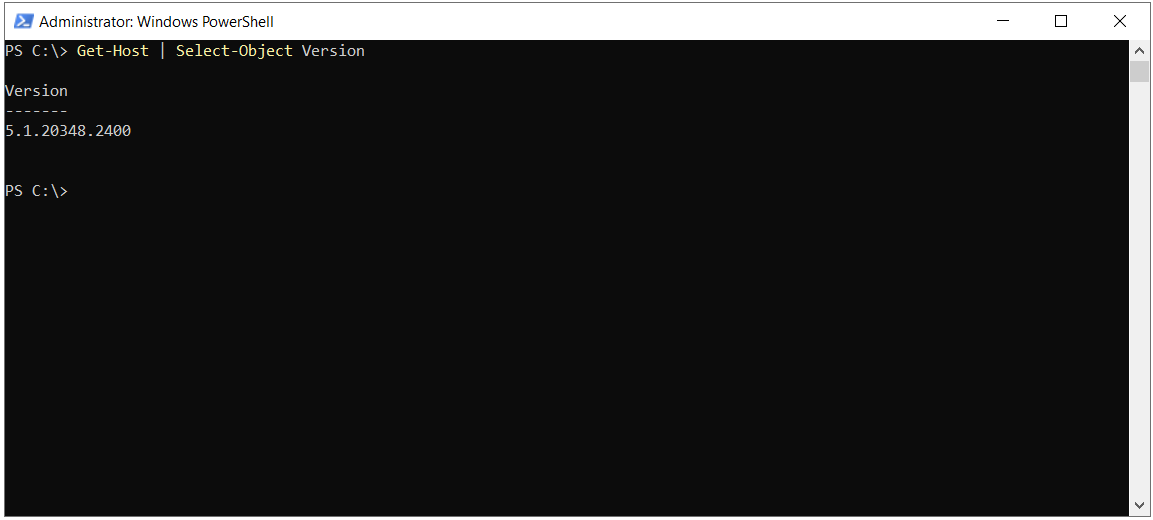
The Get-Host command returns the version of the host application that you are working in. In the standard PowerShell console, this value is the same as the version of the PowerShell engine. If you use ISE or another host, check the engine version with $PSVersionTable.PSVersion.
Windows PowerShell 5.1 and PowerShell 7 use different default installation folders. Because PowerShell 7 also scans the AllUsers module folder of Windows PowerShell, it can see an installation there. Perform the installation inside the PowerShell version in which you will use the module.
Step 2.2 - Checking the Security Protocol
PowerShell Gallery has required TLS 1.2 or later connections since April 2020. You can see which protocol setting the session uses for new connections with the command below.
[Net.ServicePointManager]::SecurityProtocol
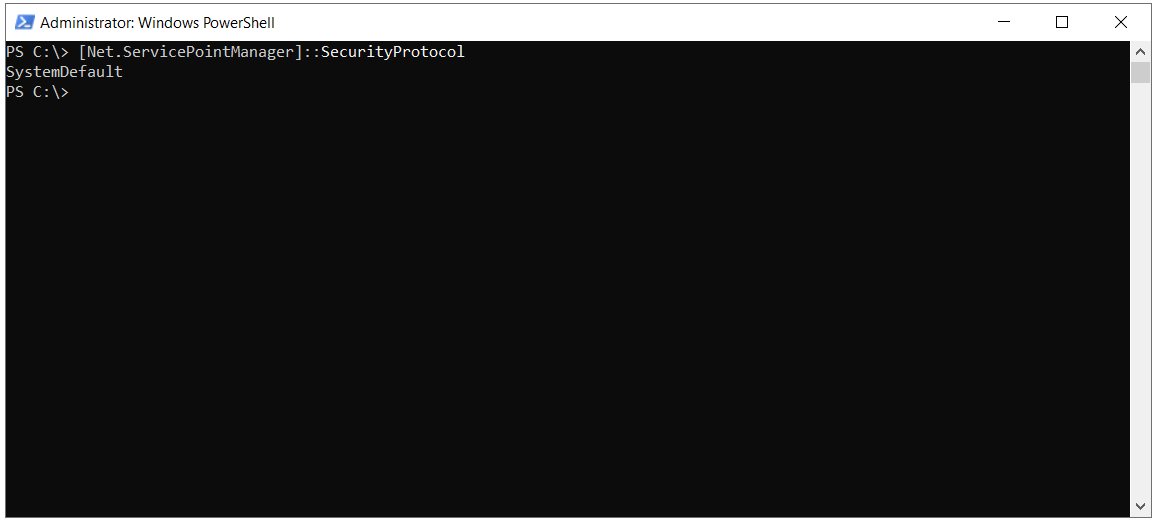
The SystemDefault output shows that the session is not fixed to a specific protocol and that it leaves the protocol selection for new connections to the operating system and to the configuration made by the administrator. TLS 1.2 is enabled by default at operating system level on Windows Server 2012 R2 and later. Even so, the protocol used in an actual connection depends on the .NET Framework settings, the Schannel configuration and the TLS negotiation with the remote endpoint. The output of this command does not show which TLS version an established connection uses.
If the output is SystemDefault and you suspect a TLS version mismatch, you can select TLS 1.2 explicitly in the same session and try the download again. A download error on its own does not show that the problem is caused by TLS. Firewall and proxy access must be checked separately.
Step 2.3 - Enabling TLS 1.2
The command below directs the session to use TLS 1.2. The command must be run in the same window, before the Install-PackageProvider and Install-Module commands.
[Net.ServicePointManager]::SecurityProtocol = [Net.SecurityProtocolType]::Tls12
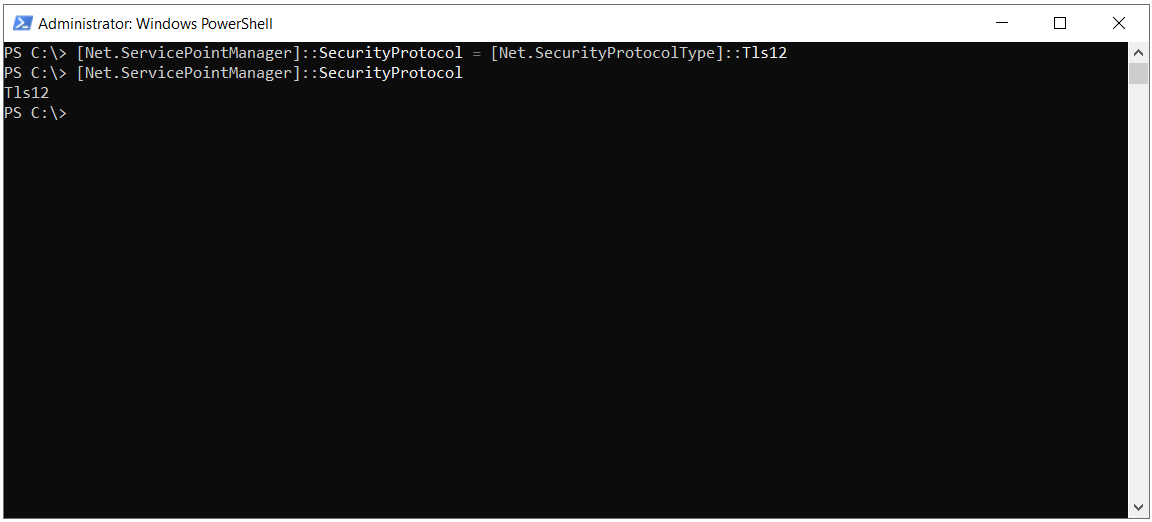
This assignment applies only in the session where the command is run and to new connections established after the assignment. A newly opened PowerShell session uses its own initial setting.
Step 2.4 - Re-registering the PSGallery Repository
If the error continues after TLS 1.2 is assigned, the registration of the PSGallery repository must also be checked. The Get-PSRepository command lists the registered repositories. If PSGallery is not in the list, the command below restores the default repository registration. If the registration is in place, this command is not needed.
Register-PSRepository -Default
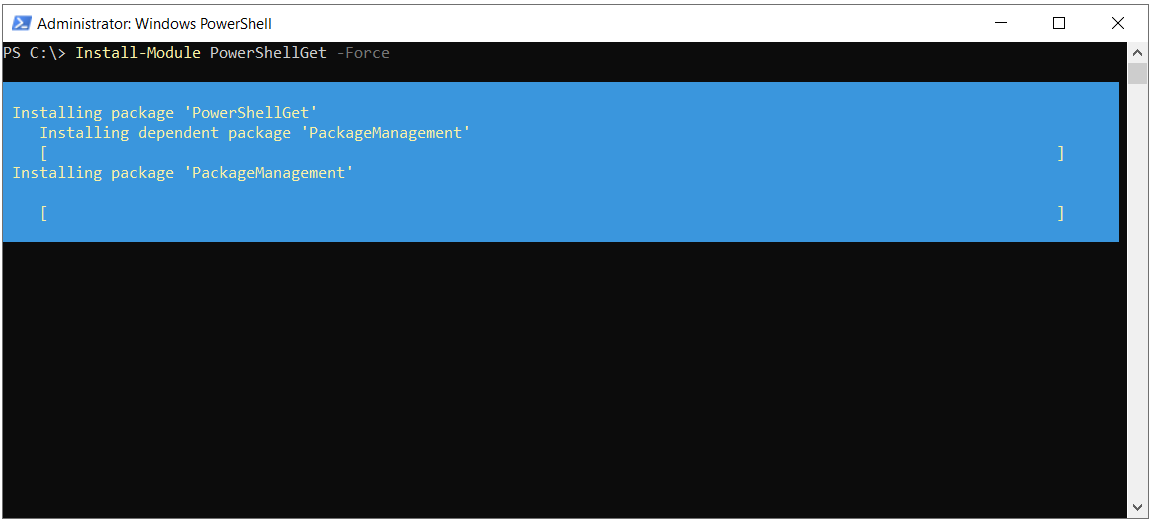
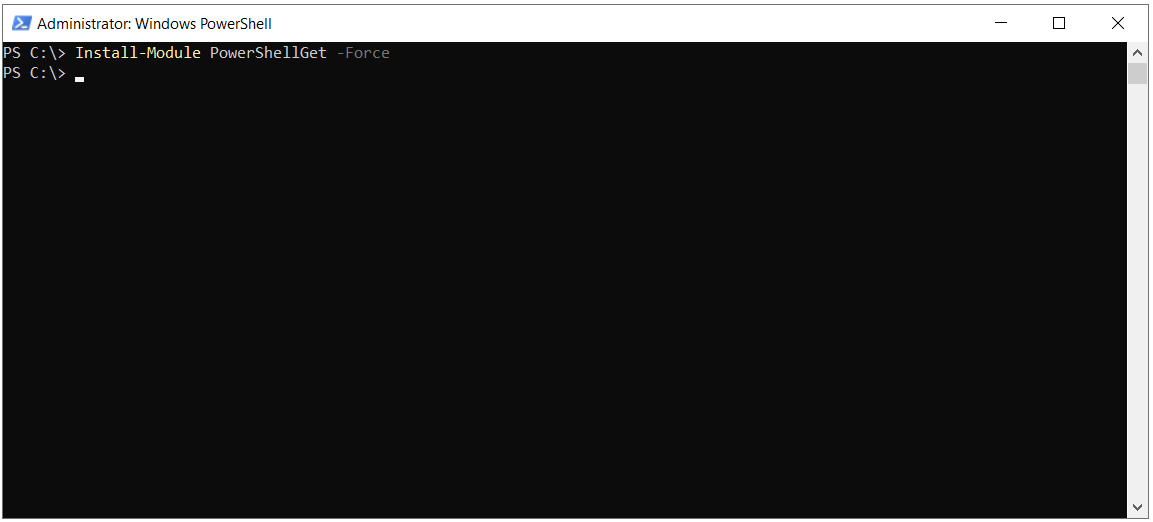
In the example environment, the problem was resolved after this command. After the repository registration was renewed, the NuGet provider was installed, then the Install-Module PowerShellGet -Force command was run again and the current version of the PowerShellGet module was installed.
Checkpoint
The Install-Module PowerShellGet -Force command must complete without errors. To load the current version, close the PowerShell window at this point and open it again as administrator.
3- Installing the Microsoft.Graph Module
The Microsoft Graph PowerShell SDK is published as 2 separate main modules. The Microsoft.Graph module calls the Microsoft Graph v1.0 endpoint, and the Microsoft.Graph.Beta module calls the beta endpoint. This section installs the v1.0 module.
Step 3 - Selecting the Installation Scope
The -Scope parameter of the Install-Module command determines the folder where the module is installed and who can use it.
|
Scope |
Installation Location (Windows PowerShell 5.1) |
Required Privileges |
When to Choose It |
AllUsers |
$env:ProgramFiles\WindowsPowerShell\Modules |
Administrator session |
Management servers and computers where more than 1 administrator signs in |
CurrentUser |
$HOME\Documents\WindowsPowerShell\Modules |
Standard user |
Personal computers and cases where administrator privileges are not available |
If the -Scope parameter is not specified, the default scope depends on the PowerShell version and on the type of session. With the current PowerShellGet on Windows PowerShell 5.1, AllUsers is used in a session opened as administrator and CurrentUser is used in a standard session. It is better to write the parameter explicitly so that the result is not left to the default.
Step 4 - Installing the Module
The command below installs the module for all users on the computer. The command must be run in a PowerShell window opened as administrator.
Install-Module Microsoft.Graph -Scope AllUsers -Force -AllowClobber -Verbose
If you want to install the module only for the user who runs the command, it is enough to change the scope to CurrentUser. This command does not require an administrator session.
Install-Module Microsoft.Graph -Scope CurrentUser -Force -AllowClobber -Verbose
The other parameters used in the commands work as follows.
|
Parameter |
What It Does |
-Force |
Suppresses the conflict warnings in the module installation. If a different version of the module is installed, it installs the new version next to it. If the same version is installed, it overwrites it. |
-AllowClobber |
Allows the installation to continue even if a command name in the installed module conflicts with an existing command name on the computer. |
-Verbose |
Displays the detailed messages that the cmdlet and the provider produce during the installation. |
Microsoft.Graph is a parent module, and when it is installed it brings dozens of submodules with it, such as Microsoft.Graph.Authentication, Microsoft.Graph.Users and Microsoft.Graph.Groups. This is the reason why the installation takes a long time.
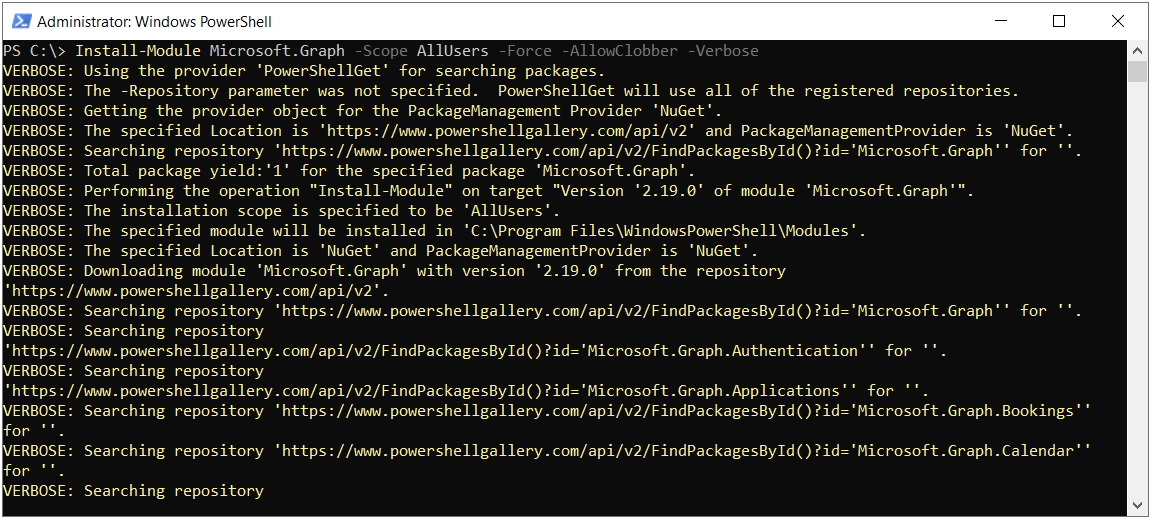
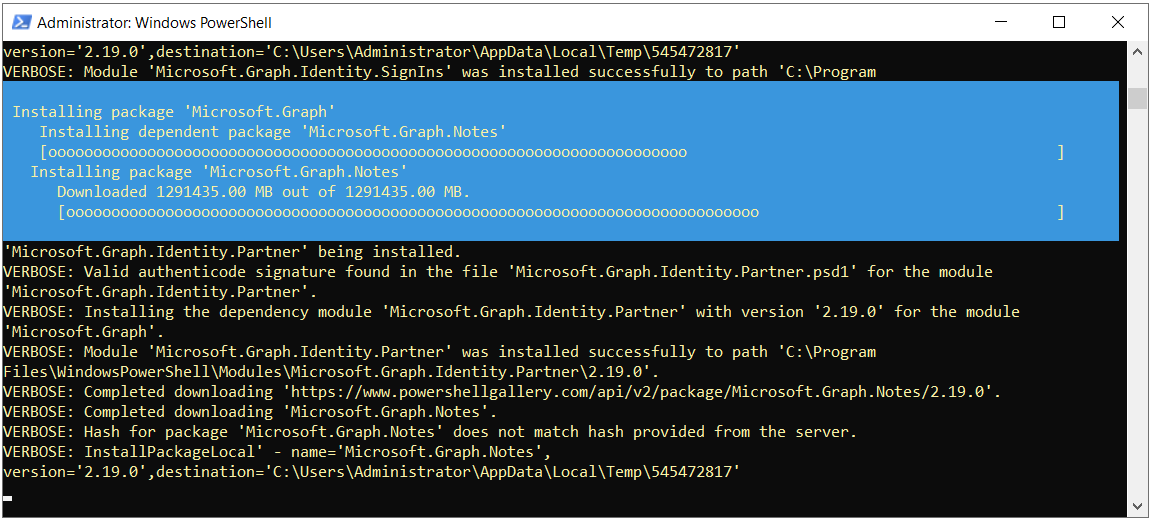
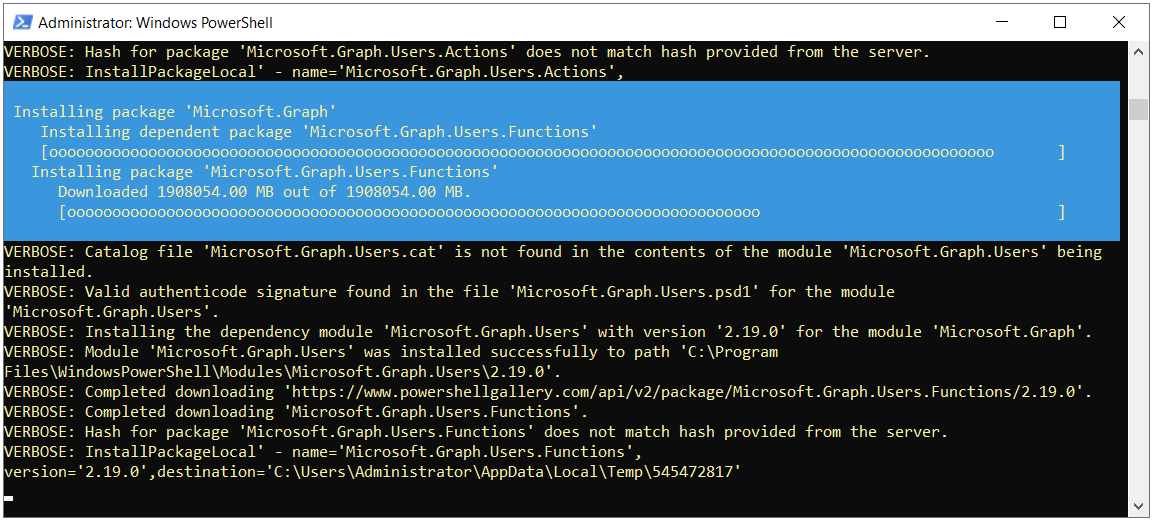
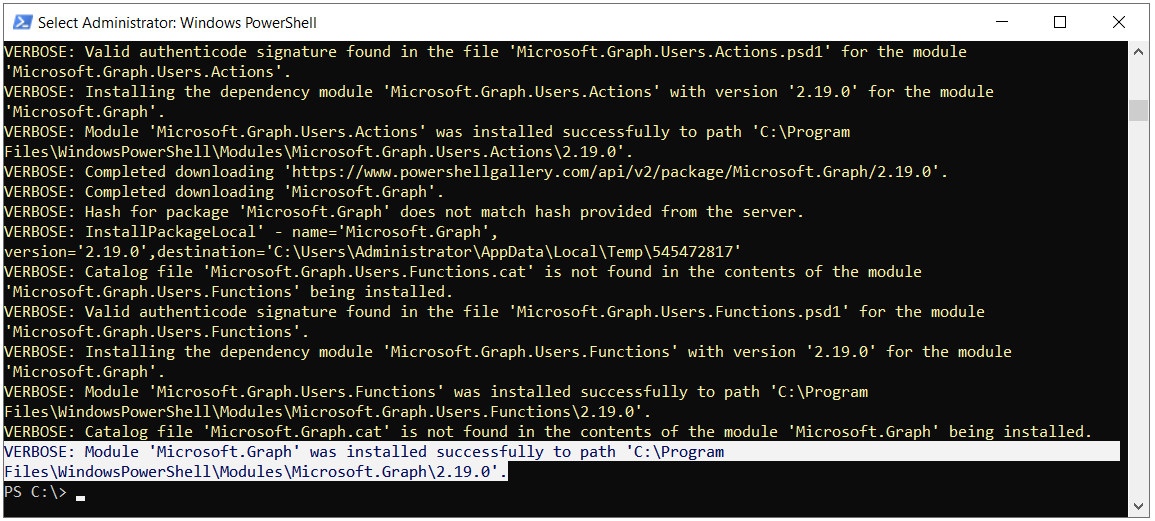
If you do not need all of the submodules, you can install only the ones you need. For example, the Install-Module Microsoft.Graph.Users command also installs the Microsoft.Graph.Authentication module, which is its dependency. Only the cmdlets of the installed submodules can be used.
Checkpoint
The command must complete without errors, and the Get-InstalledModule Microsoft.Graph command must return the installed version.
4- Installing the Microsoft.Graph.Beta Module
API features that have not yet been moved to v1.0 are accessed through the /beta endpoint of Microsoft Graph. The Microsoft.Graph.Beta module provides the named cmdlets for these APIs. A request can also be sent to the same API by giving a URI that starts with /beta to the Invoke-MgGraphRequest cmdlet in the Microsoft.Graph.Authentication module, so installing the Beta module is not mandatory to use the beta API. Because beta APIs can change without prior notice, Microsoft recommends the v1.0 module for scripts. Automation that runs in a production environment must not depend on beta APIs.
Step 5 - Installing the Beta Module
The 2 modules can be installed side by side in the same PowerShell version. You can use the command below to install the Beta module. The parameters are the same as those explained under the heading Step 4 - Installing the Module.
Install-Module Microsoft.Graph.Beta -AllowClobber -Force -Verbose
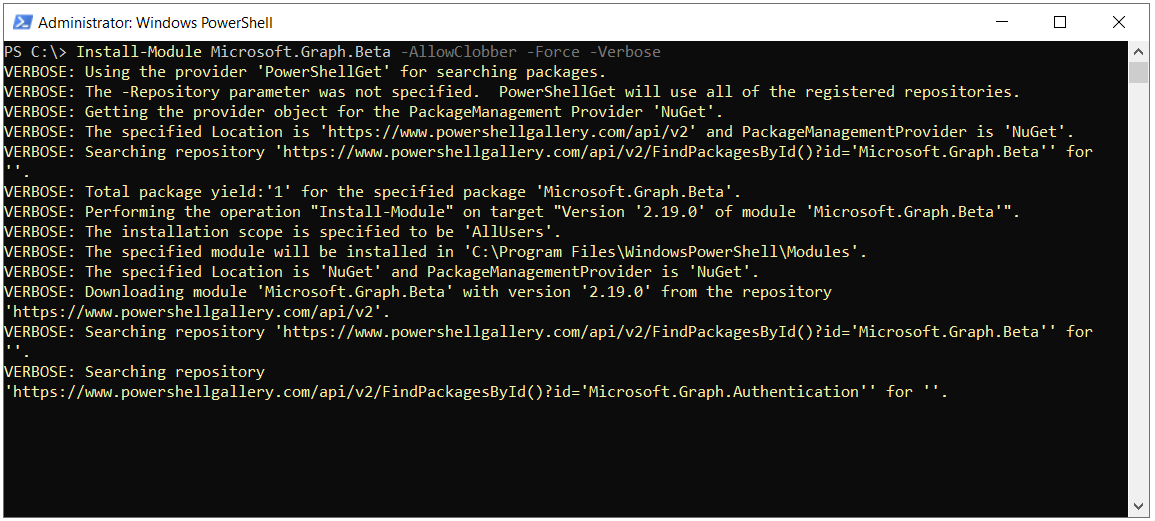
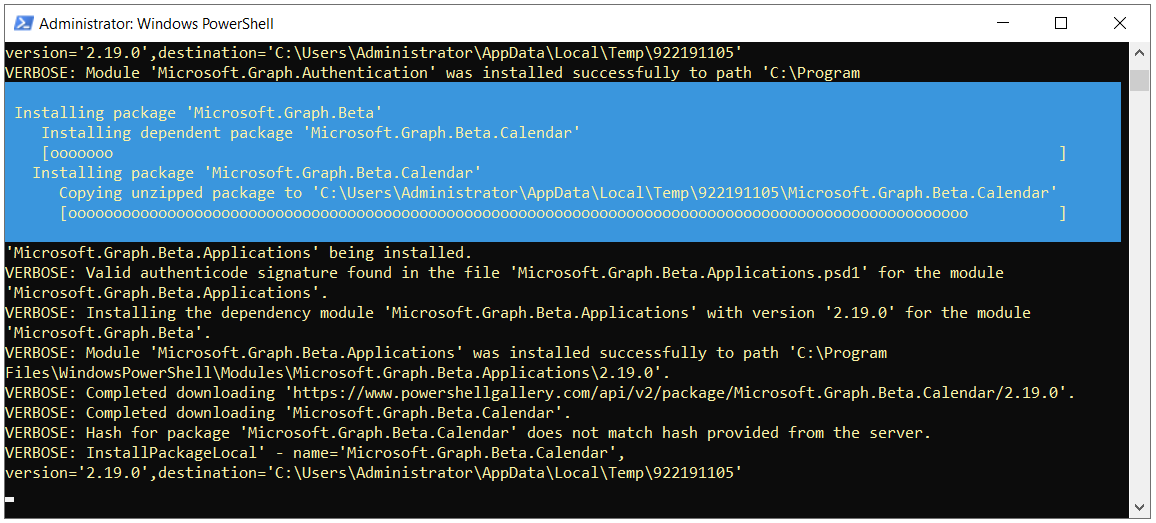
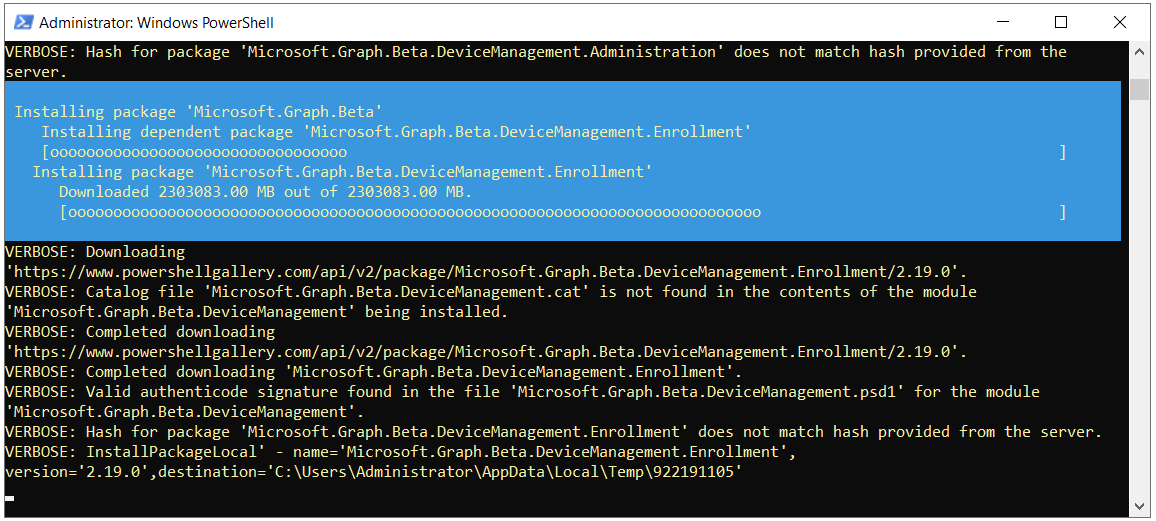
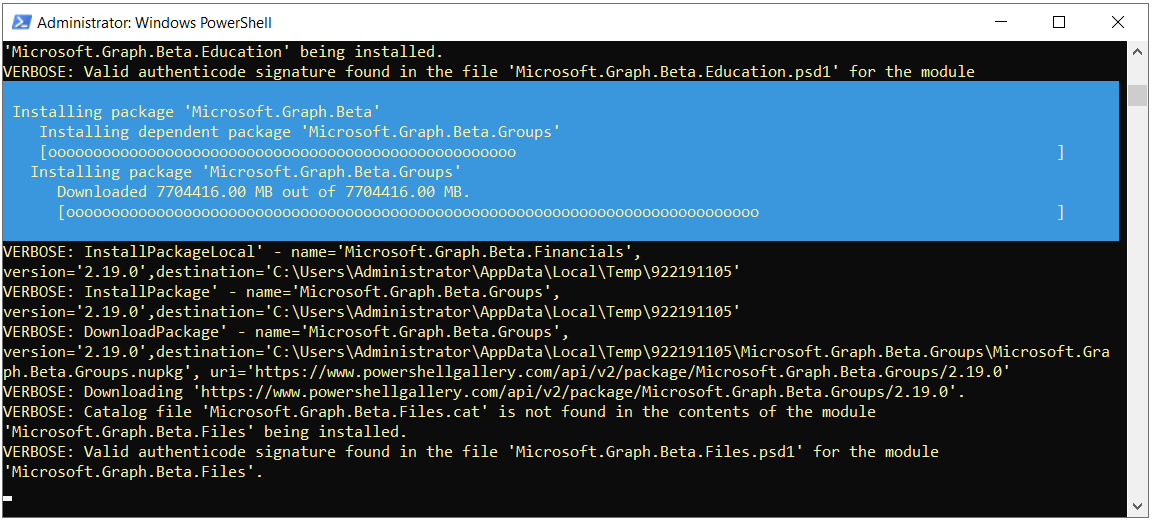
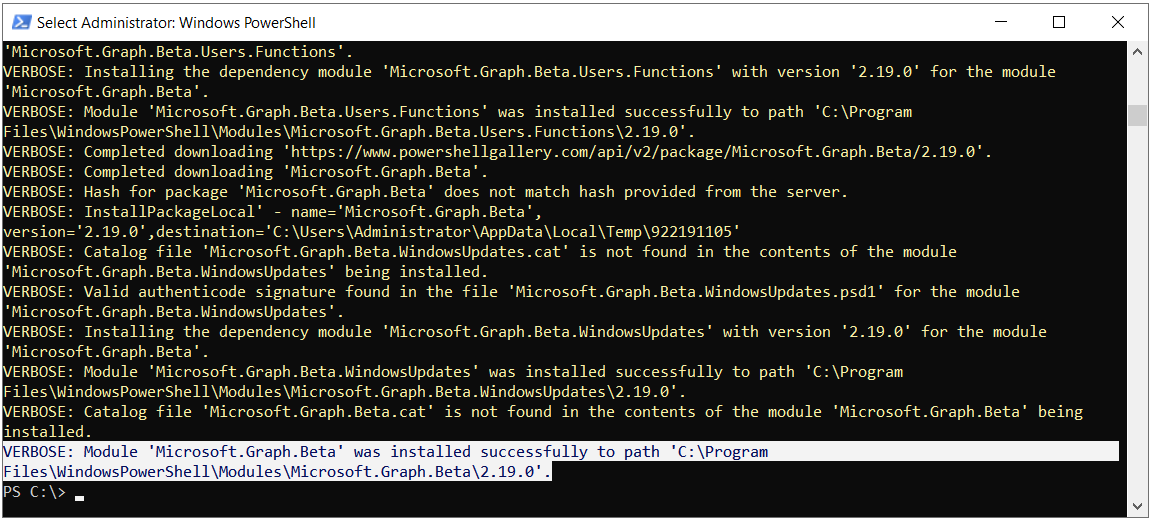
In SDK v2, the prefix of the cmdlets generated for the beta API is MgBeta. The beta equivalent of the Get-MgUser cmdlet is Get-MgBetaUser. This allows the cmdlets of the 2 modules to be used together in the same script.
5- Verifying the Installation
You can use the command below to list the installed Microsoft.Graph modules and their versions.
Get-InstalledModule | Where-Object {$_.Name -match "microsoft.graph"} | FT -AutoSize
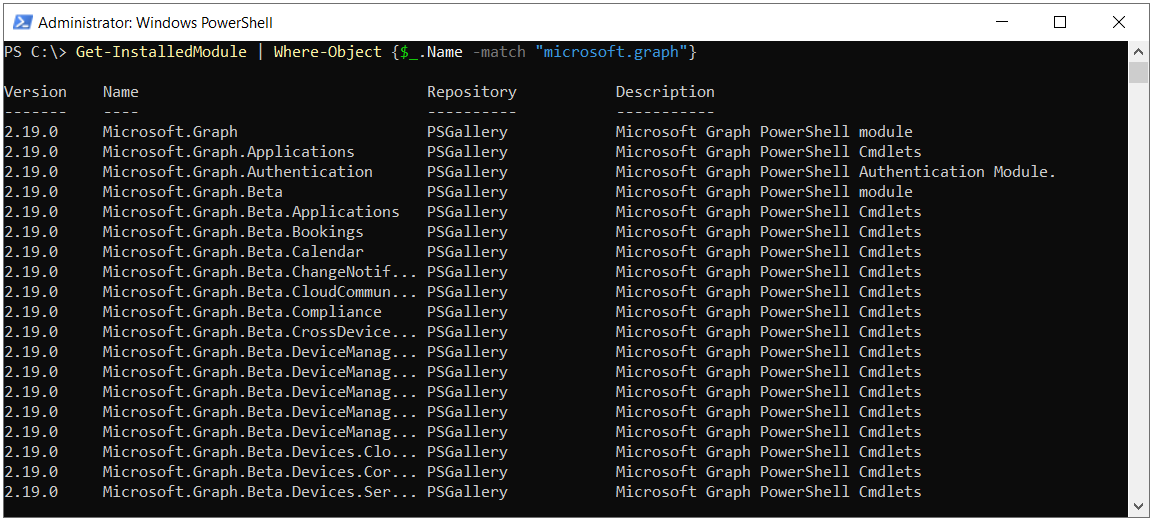
The output lists the Microsoft.Graph parent module, Microsoft.Graph.Authentication and the other submodules. If you also installed the Beta module, the lines that start with Microsoft.Graph.Beta appear as well. Submodules that were installed separately and Beta modules that are updated independently can appear in the same list with different version numbers.
To see only the version of the parent module, you can use the Get-InstalledModule Microsoft.Graph command. In an installation that targets the current version, the version that this command returns must be the same as the latest version published in PowerShell Gallery.
6- Updating and Uninstalling
The Microsoft Graph PowerShell SDK is updated frequently, and new APIs and bug fixes arrive with new versions. The command below upgrades the installed module to the current version. If the module was installed in the AllUsers scope, the command must be run in an administrator session.
Update-Module Microsoft.Graph
The order is important during uninstallation. Uninstall-Module cannot uninstall a module that other modules depend on, and uninstalling the parent module does not uninstall the submodules. For this reason, the parent modules are uninstalled first, followed by the submodules. Microsoft.Graph.Authentication, which is the common dependency of all submodules, is left until last. If you also installed the Beta module, uninstall the Beta parent module first.
Uninstall-Module Microsoft.Graph.Beta -AllVersions
Next, the v1.0 parent module, the submodules and finally the Authentication module are uninstalled. The -AllVersions parameter covers all versions of the module that are installed on the computer.
The Microsoft.Graph.* pattern in line 2 targets every package whose name starts this way and does not check whether the package belongs to the SDK. If a package that is published independently of the SDK, such as Microsoft.Graph.Intune, is installed on the computer, this line uninstalls it as well. If you want to keep such a package, do not use line 2. Uninstall the submodules that you want to remove by their full names, as in the Uninstall-Module -Name Microsoft.Graph.Users -AllVersions example.
Uninstall-Module Microsoft.Graph -AllVersions
Get-InstalledModule Microsoft.Graph.* | ? Name -ne "Microsoft.Graph.Authentication" | Uninstall-Module -AllVersions
Uninstall-Module Microsoft.Graph.Authentication -AllVersions
Line 2 also uninstalls the Microsoft.Graph.Beta submodules. An administrator session is required for installations in the AllUsers scope. Scheduled tasks and automation scripts that use the module do not work after the uninstallation.
If the Get-InstalledModule Microsoft.Graph command returns the targeted version, the installation is complete. The next step is to connect to the tenant with the Connect-MgGraph cmdlet and to determine the permission scopes that suit the operation to be performed.
This article covered, step by step, the prerequisites and network access required to install the Microsoft.Graph (MgGraph) PowerShell module, the execution policy check, the resolution of the errors on the PowerShellGet and NuGet provider side through TLS 1.2 and the PSGallery registration, the installation of the Microsoft.Graph and Microsoft.Graph.Beta modules, the verification of the installation, and the update and uninstallation of the module.
I hope you find it useful...
Feel free to share your thoughts and questions about this article in the comments below. Every contribution helps the content reach more people and makes for a more useful discussion.