Creating a Database Availability Group (DAG) and adding Mailbox servers to it as members does not make the databases redundant automatically. Each mailbox database remains a single copy on the server where it was created, and no other server can take over the database when that server fails. High availability starts when passive copies of the database are added to the other DAG members. The transaction log files generated on the active copy are copied to the passive copies and replayed into the database there. When the active copy becomes unreachable, 1 of the passive copies is mounted and users continue to work after a short reconnection.
In this article, I add the passive copies of the databases with the Exchange Management Shell (EMS) in a 3-node DAG that I have just built. Creating the DAG and adding the Mailbox servers to the DAG as members are outside the scope of this article. After adding the copies, I explain the Active Manager component, which decides which copy becomes active when a failure occurs, the Primary Active Manager (PAM) and Standby Active Manager (SAM) roles, and the Best Copy and Server Selection (BCSS) process.
The steps in this article do not depend on a specific Exchange Server version. The DAG, the Add-MailboxDatabaseCopy cmdlet and Active Manager have been in use since Exchange Server 2010. The screenshots were taken in an Exchange Server 2019 environment.
1- Prerequisite Checklist
The Add-MailboxDatabaseCopy cmdlet expects several conditions to be met on the source and target servers. If 1 of these conditions is missing, the cmdlet returns an error, or the copy is added but seeding does not complete. I verify the following items before adding the copies.
|
Check |
Expected State |
|
DAG membership |
The Mailbox server that will receive the copy is a member of the same DAG as the server that hosts the active copy. |
|
DAG state |
The DAG is healthy and has quorum. |
|
Active copy |
The active copy of the database is in the Mounted state. |
|
Existing copy |
The target server does not hold a copy of the same database. |
|
Database and log path |
The database and log path used by the active copy also exists on the target server. All copies of a database use the same path. |
|
Circular logging |
Circular logging is disabled on the database when the first passive copy is added. If it is enabled, it is disabled first, and the database is dismounted and mounted again to apply the change. |
|
Disk |
The target server has enough space and IOPS capacity for the database and log files. |
|
Permission |
The account that runs the cmdlet has a role that grants permission to run this cmdlet, such as membership of the Organization Management role group. |
The circular logging condition is checked when the second copy, that is, the first passive copy, is added. A database with a single copy uses JET circular logging, and enabling or disabling this setting requires the database to be dismounted and mounted again. If the setting is already disabled, this operation is not needed.
Access to the mailboxes in that database is interrupted during the dismount and mount operation that disables JET circular logging. Make this change during planned downtime.
When circular logging is enabled again on a database that has entered replication, continuous replication circular logging (CRCL) is used instead of JET circular logging. CRCL is enabled and disabled dynamically, does not require a dismount, and can remain enabled from the third copy onwards.
Disk capacity must not be underestimated. During seeding, the whole database is copied to the target server, and afterwards every log file is replayed on the passive copy. Insufficient disk performance causes the replay queue to grow, and a bottleneck on the network connection used for replication causes the copy queue to grow. Both queues are evaluated directly in the copy selection process that I describe in a later section.
2- Adding Database Copies to a DAG
In my environment, 3 Mailbox servers named 06SW-EXCHANGEA, 06SW-EXCHANGEB and 06SW-EXCHANGEC are members of the same DAG. Each of the databases named TRSADB01x, TRSADB02x and TRSADB03x is active on a different node. I run all the commands in the Exchange Management Shell.
Step 1 - Checking the Active and Passive Copies
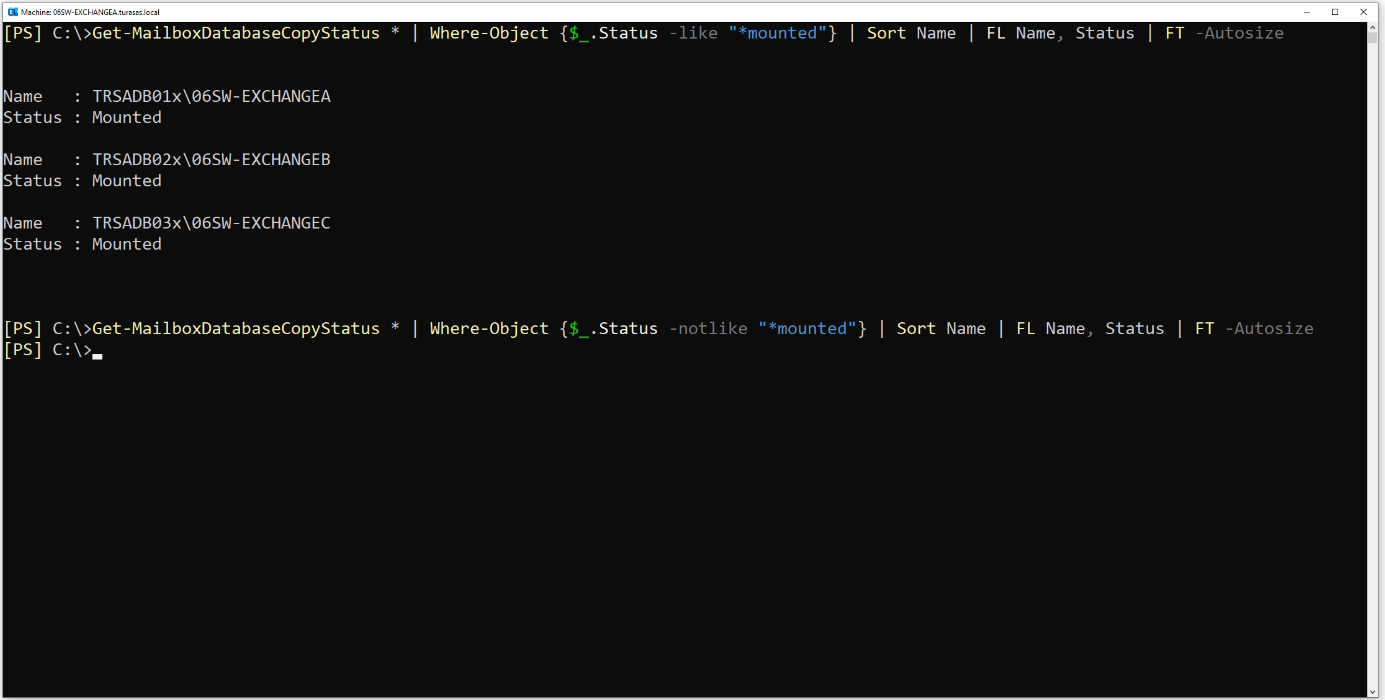
I check the current state before I start adding copies. The following command lists the copies whose status is Mounted, that is, the online active copies, and the servers that host them. The Name field in the output has the form Database\Server, so I read from it which database is active on which node.
Get-MailboxDatabaseCopyStatus * | Where-Object {$_.Status -eq "Mounted"} | Sort-Object Name | Format-Table Name, Status -AutoSize
To list the passive copies, I do not use the Status field. I use the ActiveCopy field, which shows the role of the copy, and select the records where this field is False. The Status field shows the current state of the selected copies. In a newly built DAG, the databases do not have passive copies yet, so this command returns no results in my environment. If copies were added earlier in your environment, the output will be different.
Get-MailboxDatabaseCopyStatus * | Where-Object {$_.ActiveCopy -eq $false} | Sort-Object Name | Format-Table Name, Status -AutoSize
Step 2 - Viewing the Activation Preference Values
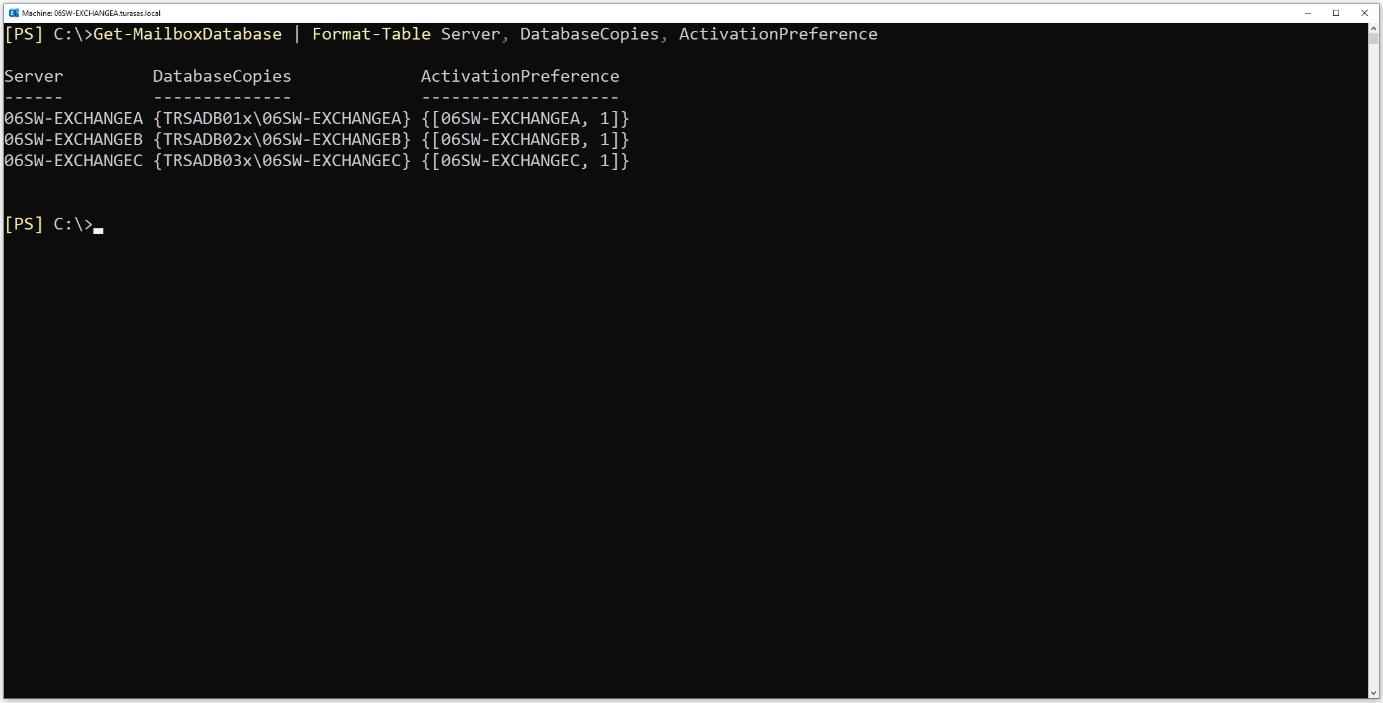
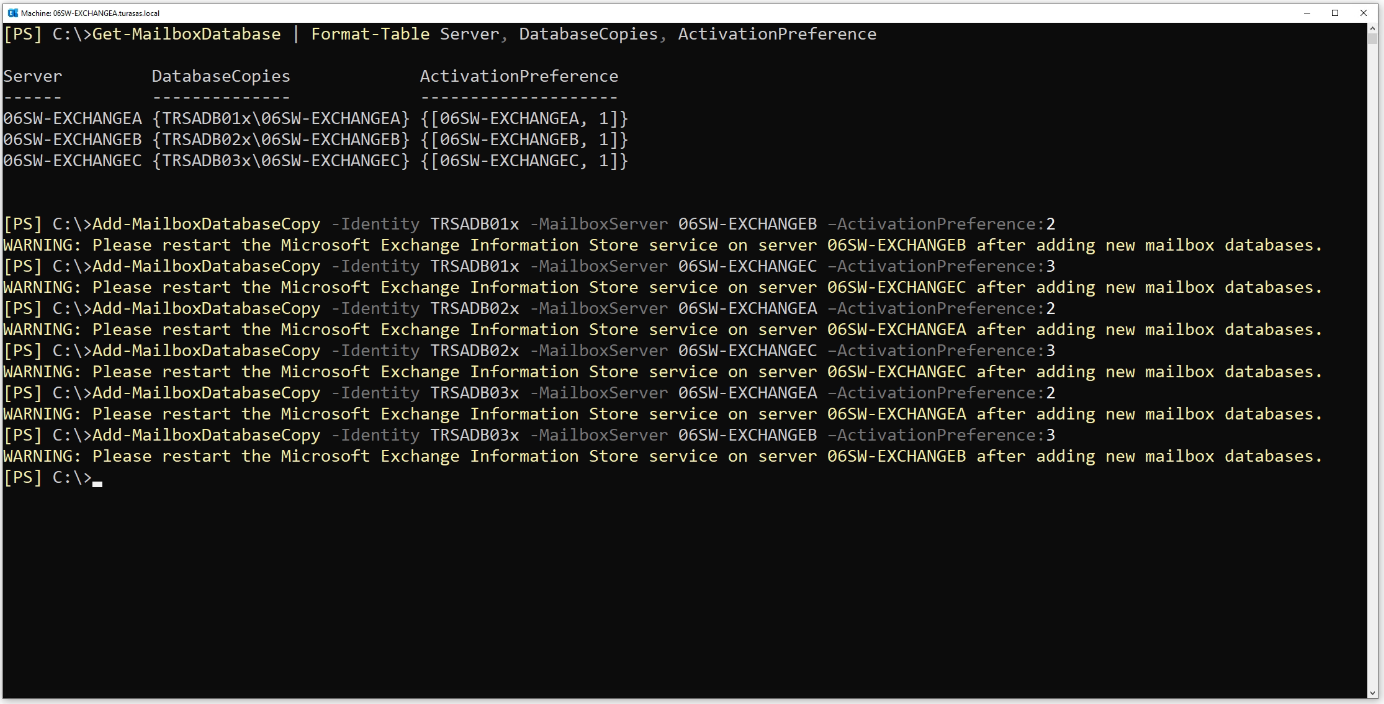
With the following command, I view which servers hold copies of the databases and the activation preference numbers of these copies.
Get-MailboxDatabase | Format-Table Server, DatabaseCopies, ActivationPreference
The activation preference is a preference number that starts at 1 and is assigned to each copy of a database. A lower number means a higher preference, and the value cannot exceed the total number of copies of the database. The first copy of a database always receives the value 1. I have not added passive copies yet, so each database in my environment has a single copy and all of them show the value 1.
Step 3 - Adding the Passive Copies
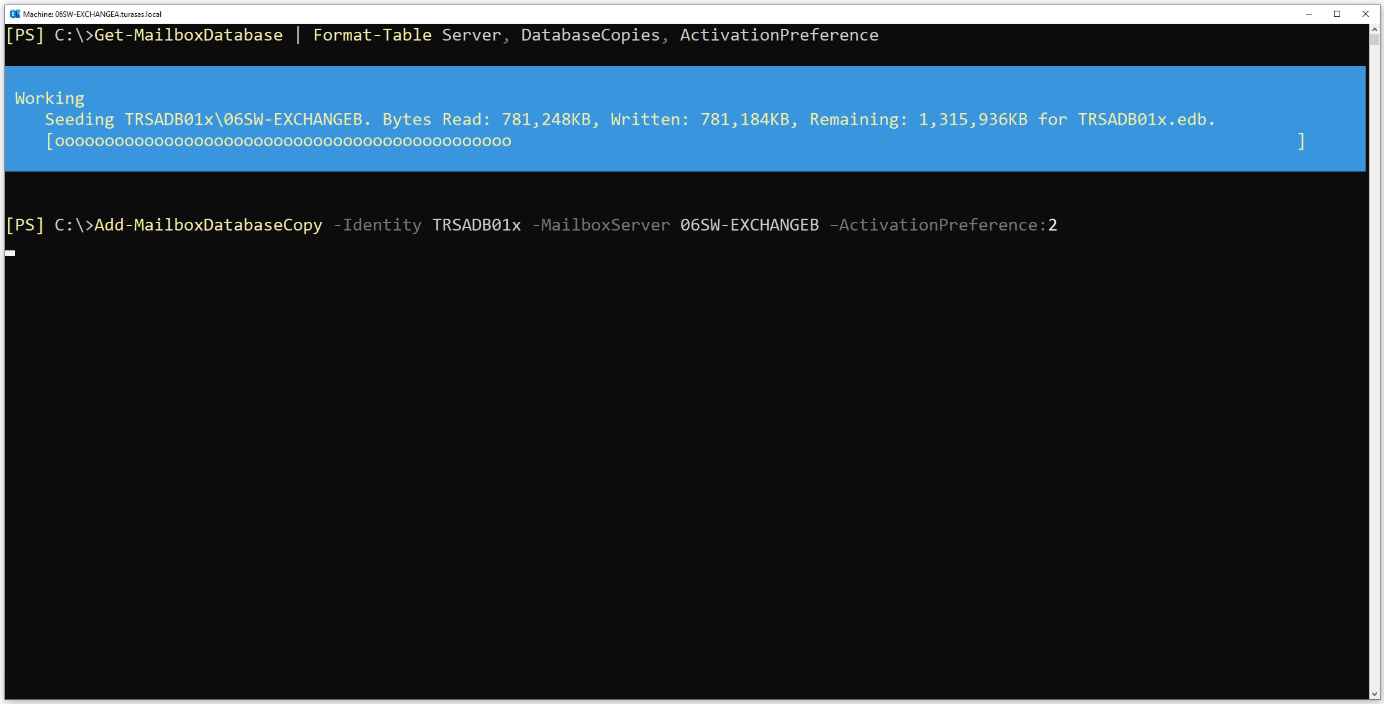
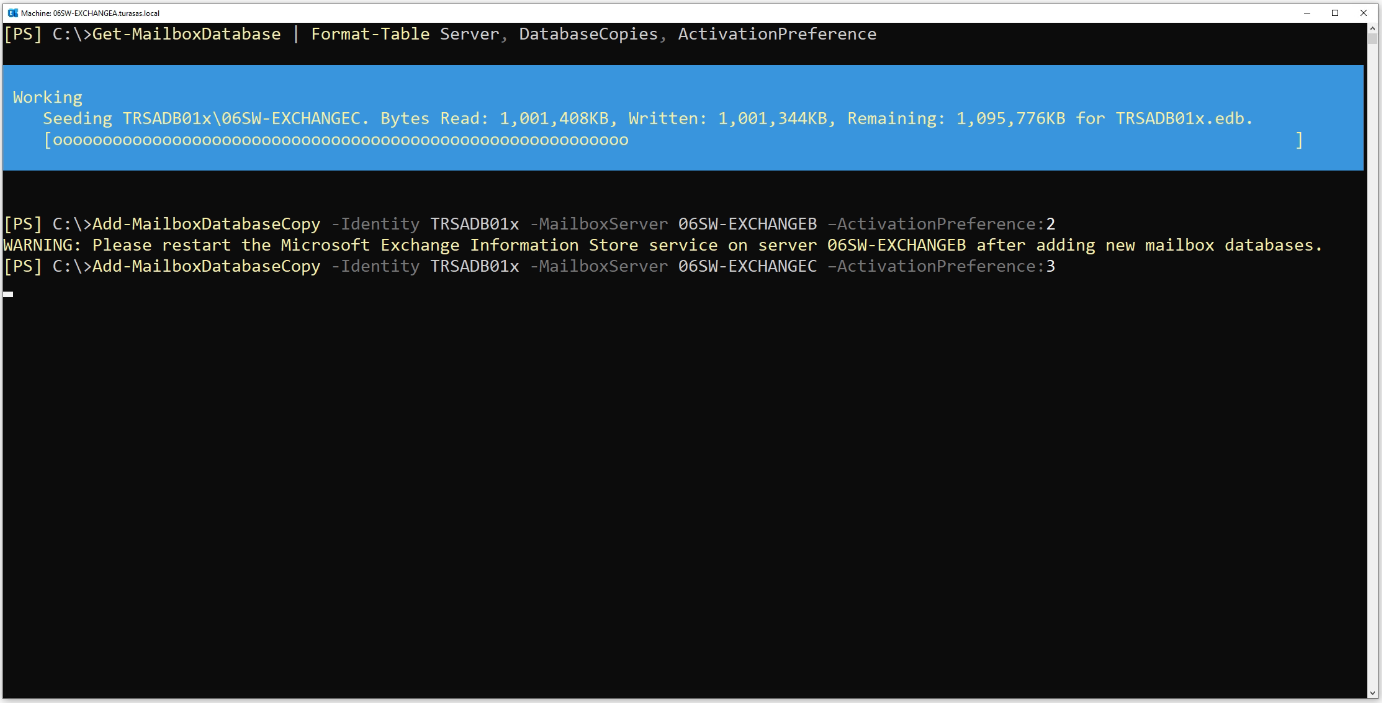
I add the passive copy with the Add-MailboxDatabaseCopy cmdlet. The -Identity parameter specifies the database, the -MailboxServer parameter specifies the DAG member where the copy will be created, and the -ActivationPreference parameter specifies the preference number of the new copy.
Add-MailboxDatabaseCopy -Identity {Database} -MailboxServer {Server Name} -ActivationPreference:{Number}
You need to replace the values in curly brackets with the values for your own environment. In my environment, each database is active on 1 node, so I add 1 passive copy of each database to each of the other 2 nodes. The active copies have the value 1, so I give the new copies the values 2 and 3.
Add-MailboxDatabaseCopy -Identity TRSADB01x -MailboxServer 06SW-EXCHANGEB -ActivationPreference:2
Add-MailboxDatabaseCopy -Identity TRSADB01x -MailboxServer 06SW-EXCHANGEC -ActivationPreference:3

Add-MailboxDatabaseCopy -Identity TRSADB02x -MailboxServer 06SW-EXCHANGEA -ActivationPreference:2
Add-MailboxDatabaseCopy -Identity TRSADB02x -MailboxServer 06SW-EXCHANGEC -ActivationPreference:3

Add-MailboxDatabaseCopy -Identity TRSADB03x -MailboxServer 06SW-EXCHANGEA -ActivationPreference:2
Add-MailboxDatabaseCopy -Identity TRSADB03x -MailboxServer 06SW-EXCHANGEB -ActivationPreference:3
By default, the cmdlet adds the copy and starts the seeding operation itself. The whole database is copied to the target server, and then log replication starts. The -SeedingPostponed parameter is used for large databases, or when you want to seed from another, closer copy instead of the active copy. In this case, the copy remains in the Suspended state and seeding must be started separately.
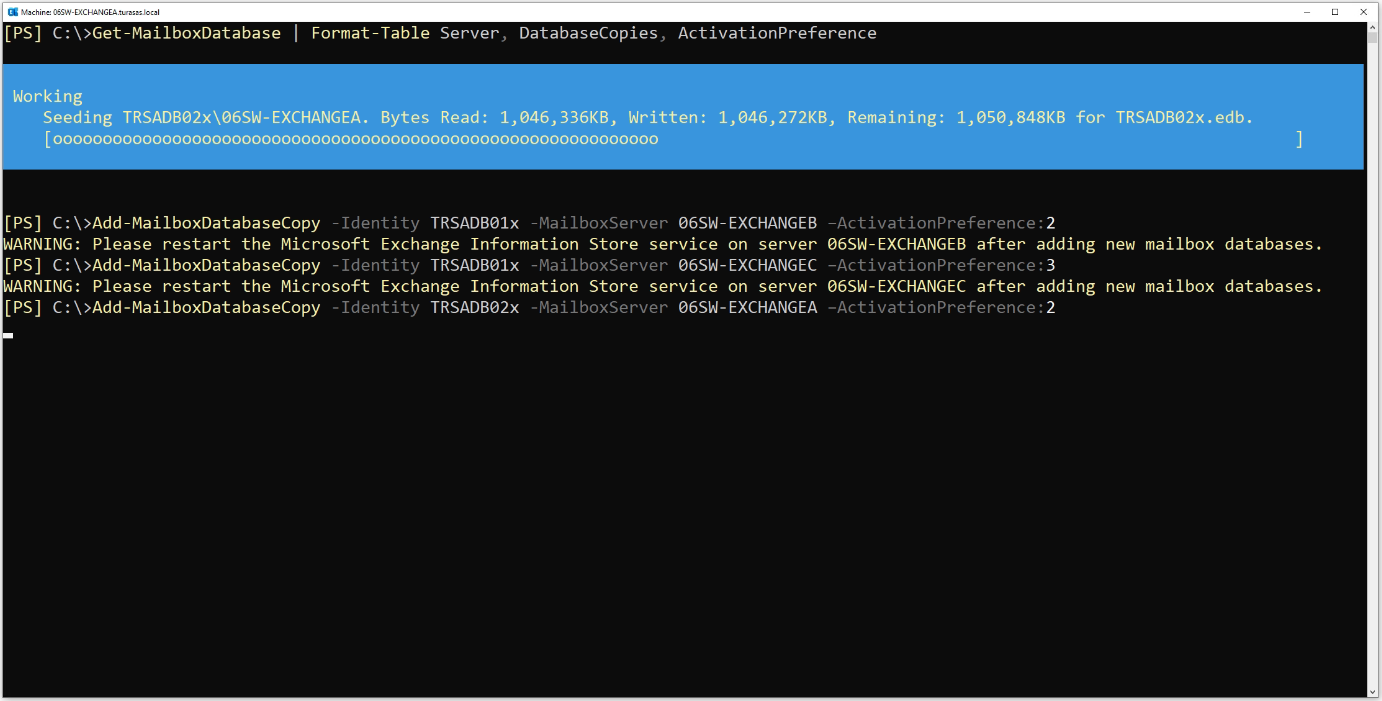
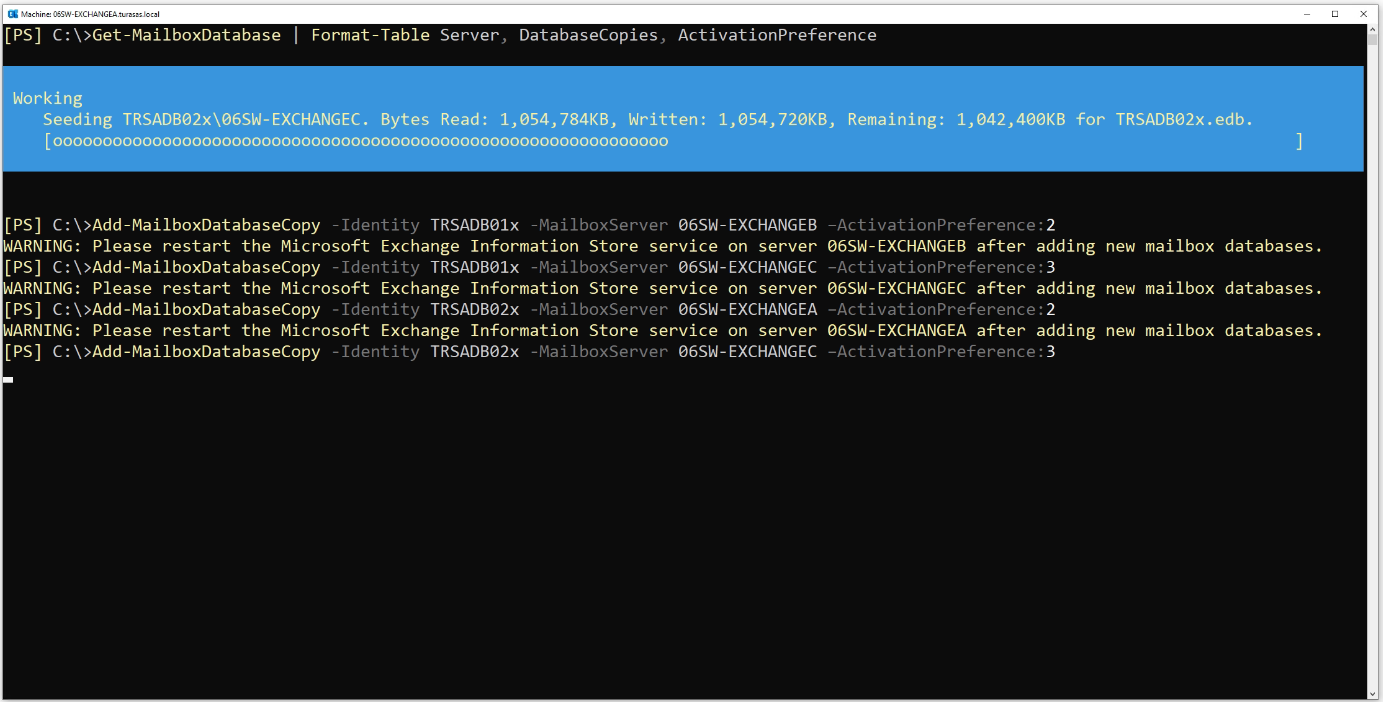
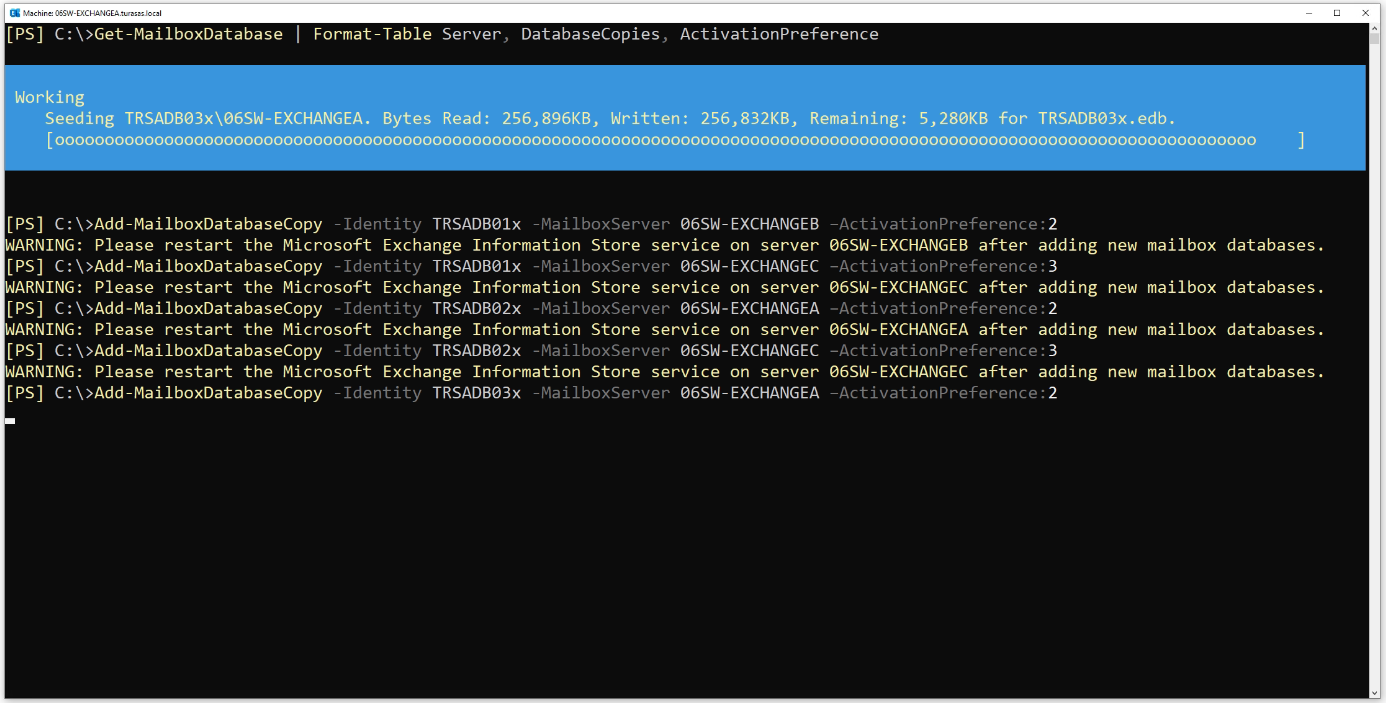
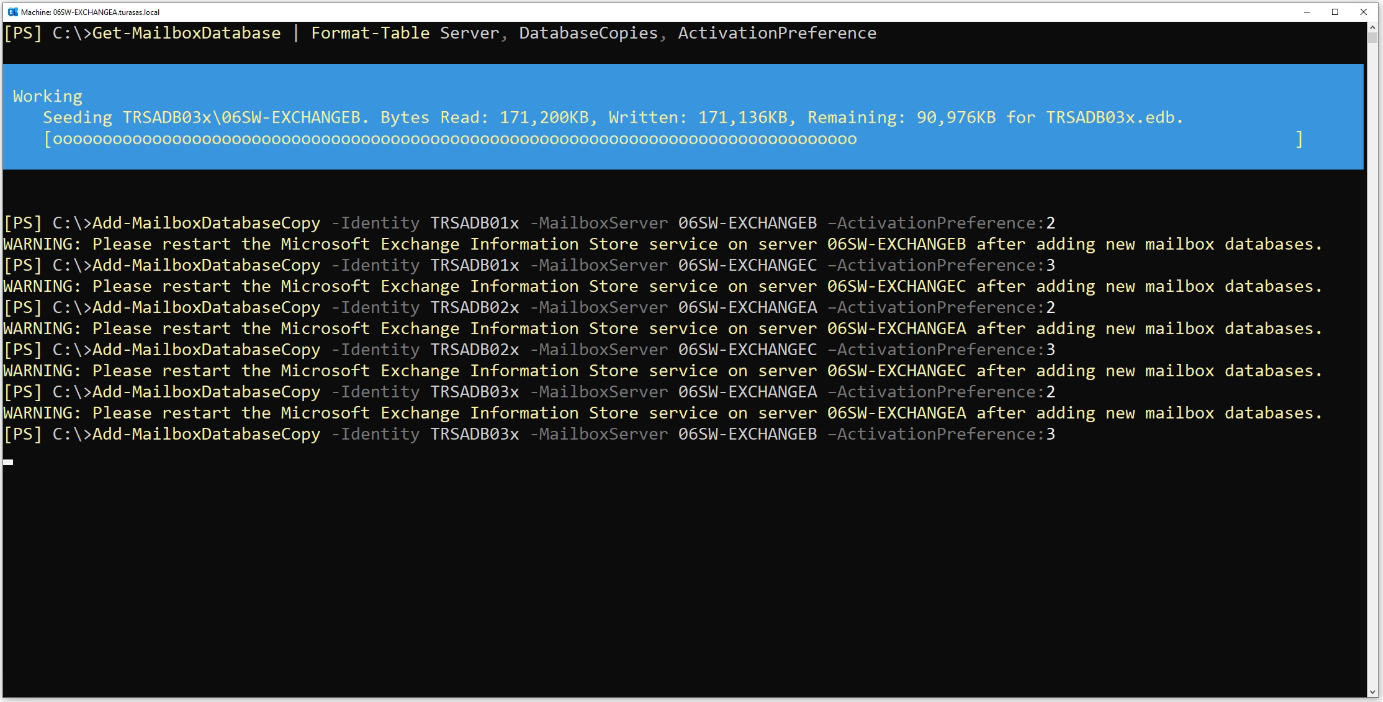
The activation preference is a preference, not a guarantee. The values 2 and 3 that I assigned do not mean that the next copy in the order will definitely become active when the active copy fails. Active Manager decides which copy is mounted. The initial sorting of the candidates uses the copy queue length or the activation preference, depending on the AutoDatabaseMountDial setting. The replay queue length is used when the suitability of the sorted candidates is evaluated, and it can eliminate a candidate that is higher in the list. I explain this mechanism in detail in section 4.
An activation preference of 1 does not make the copy active by itself. Before Exchange Server 2016 CU2, moving the database back to the preferred server after a failover required a manual switchover or running the RedistributeActiveDatabases.ps1 script. The PreferenceMoveFrequency DAG property, introduced in Exchange Server 2016 CU2, automated this task. If the target server and the copy are healthy, the PAM periodically activates the copy whose activation preference value is 1 with a lossless switchover.
I have completed adding the passive copies of all the databases to the other nodes.
Checkpoint
The copies can show the Initializing state for a short time immediately after seeding. When replication reaches a healthy state, the commands in Step 1 must show 1 Mounted copy and 2 Healthy copies for each database.
If an added copy needs to be removed, the Remove-MailboxDatabaseCopy cmdlet is used.
Step 4 - Restarting the Information Store Service
After a database copy is added to a server, the Microsoft Exchange Information Store service (MSExchangeIS) must be restarted on that server. The reason is the memory management model of the Managed Store, which was introduced in Exchange Server 2013. The store calculates the cache target that it will use for the databases once, when the service starts, based on the memory of the server and the number of database copies on that server. If the service is not restarted, the copies added later run with a smaller cache target than the databases that already existed.
The account that restarts the service must have permission to stop and start Windows services on the target server. This permission is separate from the Exchange role assignment used to add the copy.
Restarting the Information Store service can trigger a failover of the active databases on that node. In a production environment, first move the active databases to a healthy copy with a switchover, and check the copy states before you continue with the next node.
In this newly built environment, which does not carry any user load yet, I first restart the Information Store service on the node where I ran the command.
Get-Service | Where-Object { $_.Name -like "*MSExchangeIS*" } | Restart-Service -Force
I do not connect to the other 2 nodes with Remote Desktop Connection (RDC). From the same node, I supply the host name of the remote server with the -ComputerName parameter and restart the service from there.
Get-Service -ComputerName {Server Name} | Where-Object { $_.Name -like "*MSExchangeIS*" } | Restart-Service -Force
Get-Service -ComputerName 06SW-EXCHANGEB | Where-Object { $_.Name -like "*MSExchangeIS*" } | Restart-Service -Force

Get-Service -ComputerName 06SW-EXCHANGEC | Where-Object { $_.Name -like "*MSExchangeIS*" } | Restart-Service -Force
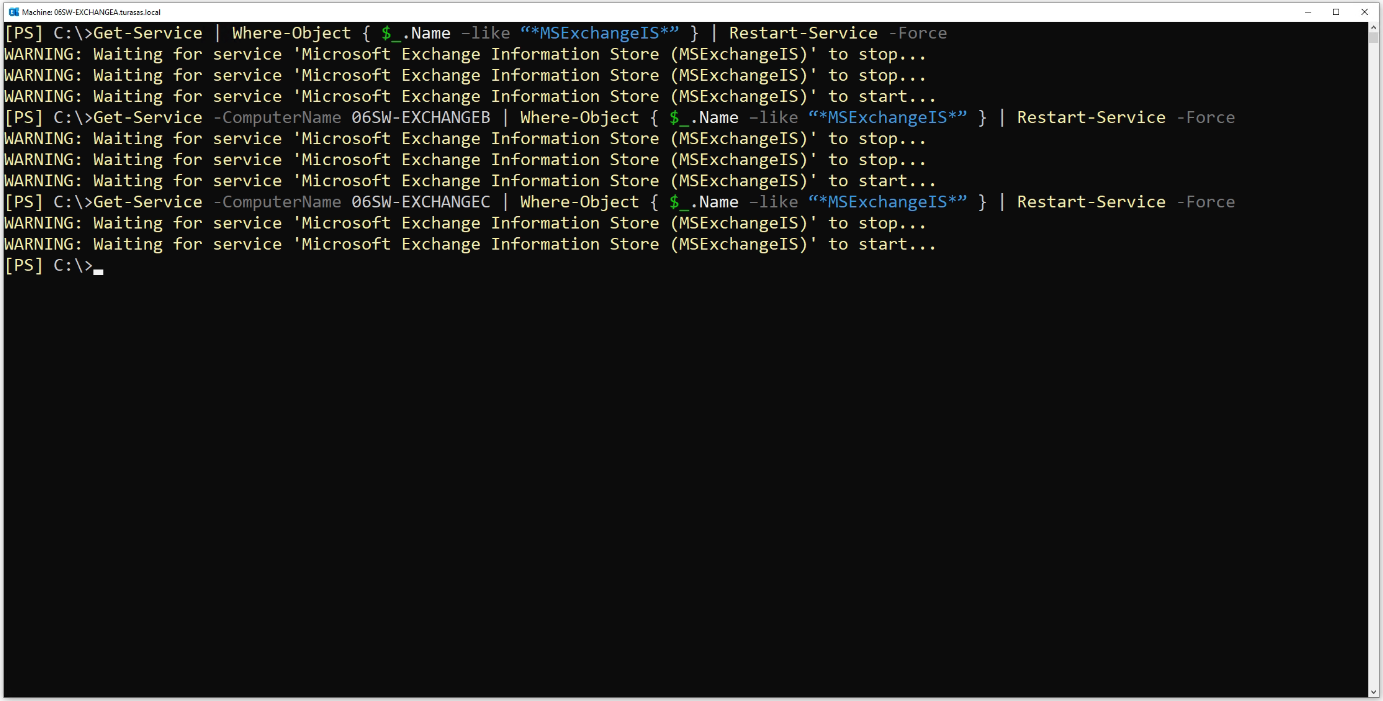
The -ComputerName parameter of the Get-Service cmdlet does not rely on PowerShell remoting. It connects to the remote server over RPC. For this reason, it works without opening a WinRM session with Enter-PSSession or Invoke-Command.
Step 5 - Verifying the Activation Preference Values
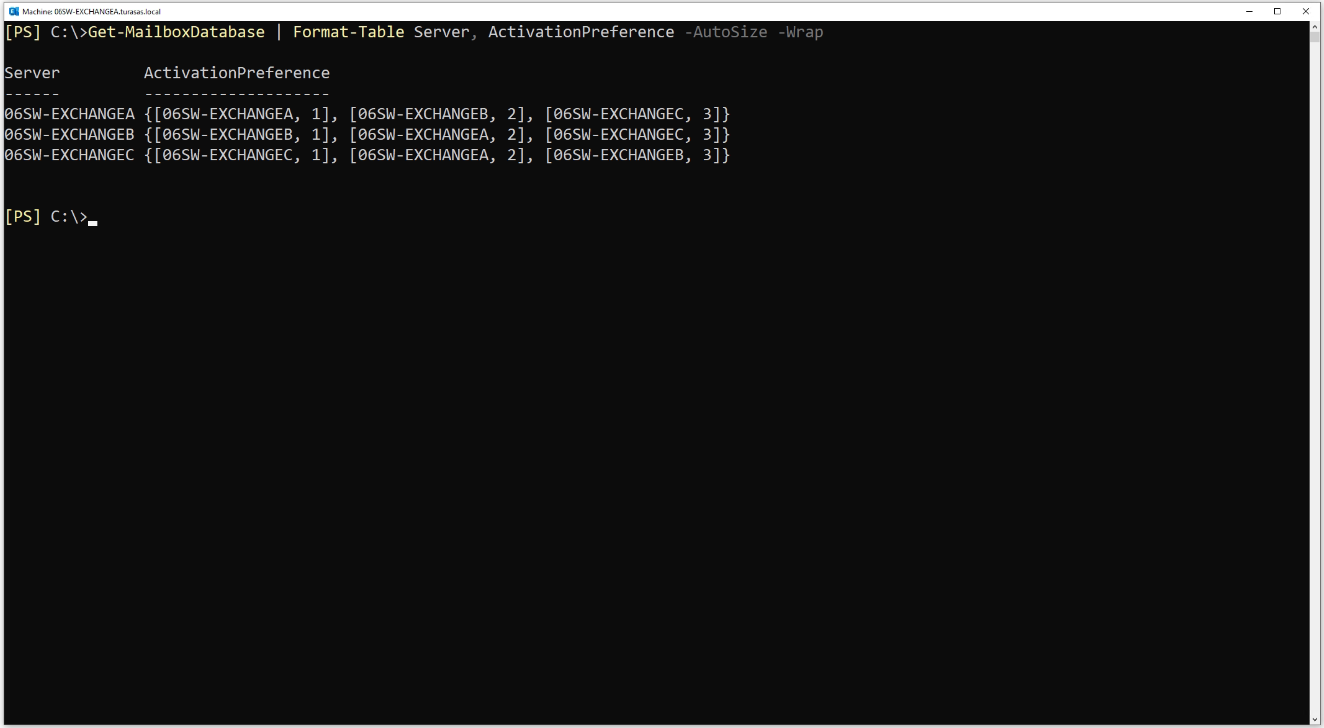
I run the command from Step 2 again to view the final copy distribution of the databases and their activation preference numbers.
Get-MailboxDatabase | Format-Table Server, DatabaseCopies, ActivationPreference
Checkpoint
The DatabaseCopies field of each database must show 3 servers, and the ActivationPreference field must show the values 1, 2 and 3 that I assigned in Step 3.
3- Active Manager: PAM and SAM
After the copies are added, the first question is which passive copy becomes active when the active copy fails. The Active Manager component in Exchange Server makes this decision. Active Manager runs inside the Microsoft Exchange Replication service (MSExchangeRepl.exe) on all Mailbox servers. A Mailbox server that is not a member of a DAG has only 1 role, which is named Standalone Active Manager. On servers that are DAG members, Active Manager holds 1 of 2 roles: Primary Active Manager (PAM) or Standby Active Manager (SAM).
Primary Active Manager (PAM)
The PAM is the role that decides which copies are active and which are passive in the DAG, and it exists on only 1 server in the DAG at a time. This server is the DAG member that owns the cluster quorum resource, that is, the default cluster group, in Windows Failover Cluster. The PAM receives the notifications about topology changes and reacts to server failures, and the active copy assignment of a database changes only through the PAM. Both a manual switchover and an automatic failover are carried out by the PAM.
The information about which server a database is active on is stored in the cluster database, but the other Exchange components do not access this information directly. Active Manager provides it to them. The server that holds the PAM role also performs the SAM tasks for the databases that it hosts.
The PAM being on a single server does not create a weakness, because the role is tied to ownership of the cluster group, not to the server. If the server that hosts the PAM fails, the cluster group moves to another DAG member that is still running, and the PAM role moves to that server. Before planned maintenance or an update, however, you need to move the cluster group, and therefore the PAM role, to another DAG member yourself. You can see which server currently holds the PAM role with the following command.
Get-DatabaseAvailabilityGroup -Status | Format-List Name, PrimaryActiveManager
Standby Active Manager (SAM)
On all DAG members that do not hold the PAM role, Active Manager runs in the SAM role. The SAM has 2 tasks. The first is to tell other Exchange components, such as Client Access and Transport, which server hosts the active copy of a database. Client connections and email delivery are directed to the correct server with this information. The second is to detect failures of the databases and the Information Store on its own server and to ask the PAM to start a failover.
The SAM does not make decisions. It does not select the failover target and does not update the location information of the database itself. These 2 tasks belong to the PAM. A server in the SAM role also does not take the PAM role on its own initiative. When the cluster group moves to that server, the Active Manager on it starts to run as the PAM.
4- Best Copy and Server Selection (BCSS) Process
When a failure prevents access to the active copy, or when a switchover is started without a specified target, the PAM runs an internal algorithm that selects the most suitable passive copy for the affected database. This process is named Best Copy Selection (BCS) in Exchange Server 2010. In Exchange Server 2013, the server health checks of Managed Availability were included in the selection, and the process was renamed Best Copy and Server Selection (BCSS). Exchange Server 2016 and 2019 also use BCSS. The steps for adding copies are the same in all versions, but the server health checks that I describe in this section apply to Exchange Server 2013 and later.
Sorting the Candidate Copies
The PAM first builds the list of candidates. Copies that are unreachable and copies whose activation has been blocked by an administrator are not included in the list. The AutoDatabaseMountDial setting on the Mailbox servers determines how the remaining copies are sorted.
If the setting is a value other than Lossless, the list is sorted by copy queue length as the primary key. The copy with the fewest missing logs is placed at the top. The activation preference is the secondary key here, and it determines the order only between copies that have the same copy queue length.
If the setting is Lossless on any of the servers that host a copy, the list is sorted in ascending order of activation preference. The sorting is done in the same way for a lossless switchover that is performed without a specified target.
This is the point where it becomes clear why the activation preference value is not a guarantee. With settings other than Lossless, a copy with fewer missing logs is placed higher in the list even if its preference number is higher. The replay queue length is not part of the sorting. It is evaluated in the criteria sets in the next stage.
Criteria Sets
After sorting, the PAM evaluates only the copies in the list whose status is Healthy, DisconnectedAndHealthy, DisconnectedAndResynchronizing or SeedingSource. These copies are tested against the following criteria sets in order. The PAM first looks for a copy that meets set 1. If it does not find one, it moves to set 2, and if that set is not met either, it moves to the next one. The first 9 sets apply queue and content index criteria, and the conditions become less strict as the sets progress. Set 10 does not require any additional criterion, and activation is attempted for a copy that is in 1 of these 4 states.
|
Criteria Set |
Criteria |
|
1 |
» The content index status is Healthy.
» The copy queue length is fewer than 10 log files.
» The replay queue length is fewer than 50 log files. |
|
2 |
» The content index status is Crawling.
» The copy queue length is fewer than 10 log files.
» The replay queue length is fewer than 50 log files. |
|
3 |
» The content index status is Healthy.
» The replay queue length is fewer than 50 log files. |
|
4 |
» The content index status is Crawling.
» The replay queue length is fewer than 50 log files. |
|
5 |
» The replay queue length is fewer than 50 log files. |
|
6 |
» The content index status is Healthy.
» The copy queue length is fewer than 10 log files. |
|
7 |
» The content index status is Crawling.
» The copy queue length is fewer than 10 log files. |
|
8 |
» The content index status is Healthy. |
|
9 |
» The content index status is Crawling. |
|
10 |
» The copy status is Healthy, DisconnectedAndHealthy, DisconnectedAndResynchronizing or SeedingSource. |
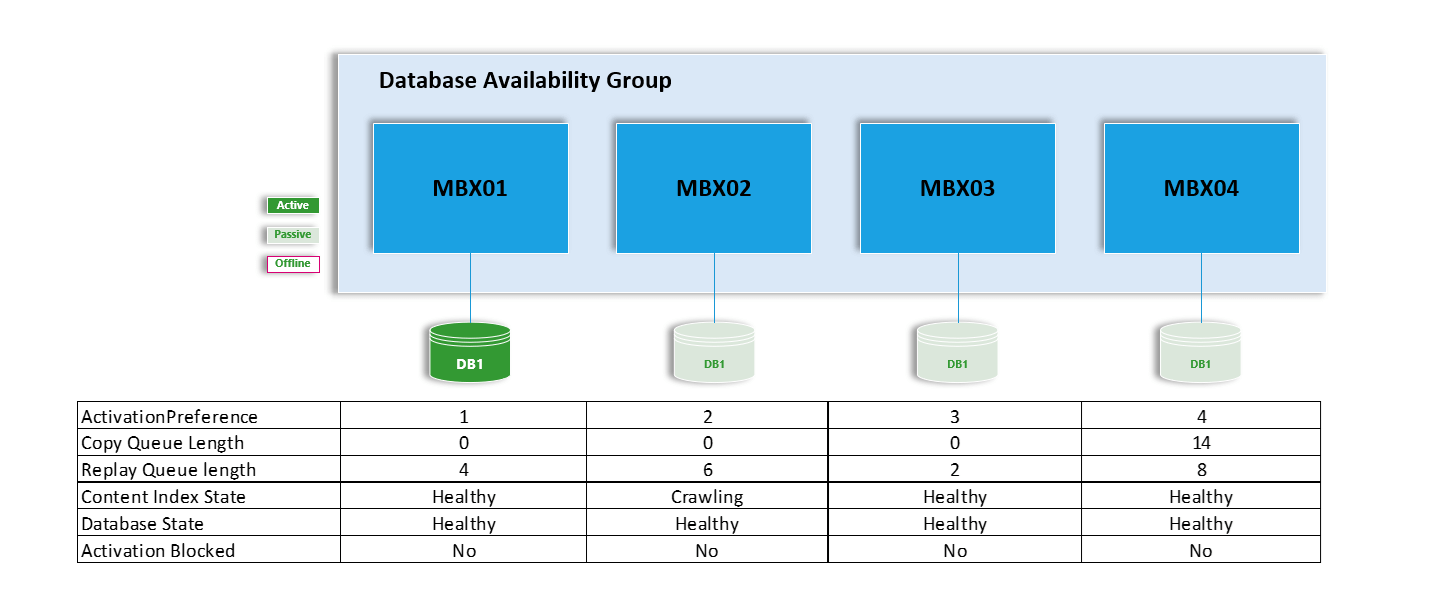
If no copy meets set 10 either, the PAM cannot activate any copy automatically in this attempt.
Server Health Checks
The "Server" part of the BCSS name comes from 4 additional checks that were added in Exchange Server 2013 and are based on the state of the components monitored by Managed Availability. Active Manager applies these checks in the following order and includes the overall health of the server that hosts the copy in the selection.
|
Check |
Server Required |
|
All Healthy |
A server on which all monitored components are healthy. |
|
Up to Normal Healthy |
A server on which all monitored components with Normal priority are healthy. |
|
All Better than Source |
A server whose component state is better than that of the server that currently hosts the database. |
|
Same as Source |
A server whose component state is the same as that of the server that currently hosts the database. |
If a Managed Availability component triggered the failover, an additional requirement applies. The state of that component on the target server must be better than its state on the source server. For example, if the failover started because of an Outlook on the web failure, BCSS must select a copy on a server where the Outlook on the web component is healthy.
Mounting the Selected Copy
After the copy is selected, the Attempt Copy Last Logs (ACLL) subprocess runs and tries to copy the missing log files from the server that hosted the active copy before the failure. The mount rule that follows depends on whether the operation is an automatic failover or a switchover started by an administrator.
In an automatic failover, the number of logs still missing after ACLL is evaluated against the AutoDatabaseMountDial setting of the server that hosts the candidate copy. GoodAvailability allows the mount with up to 6 missing log files and BestAvailability with up to 12, and Lossless does not allow any missing logs. If the number of missing logs is within the limit that the setting allows, the PAM sends a mount request to the Information Store over RPC. If the limit is exceeded or the database cannot be mounted, the PAM repeats the same steps for the next most suitable copy.
In a switchover, the behaviour is different. When the Move-ActiveMailboxDatabase cmdlet is run without the -MountDialOverride parameter, the database is mounted with the Lossless setting. To use the AutoDatabaseMountDial setting of the target server itself, the parameter is given the value None.
The Lossless setting is preferred in environments that cannot tolerate data loss. In return, the probability that the database is not mounted automatically increases when the missing logs cannot be copied.
This article walked through adding the passive copies of the mailbox databases in a DAG to the other nodes with the Add-MailboxDatabaseCopy cmdlet in the Exchange Management Shell (EMS). I explained step by step the conditions that must be verified before adding the copies, what the activation preference value means and why the Information Store service must be restarted. I then described the Active Manager component, which decides which copy becomes active when a failure occurs, the PAM and SAM roles, and the order in which the Best Copy and Server Selection (BCSS) process evaluates the copies.
I hope you find it useful...
Feel free to share your thoughts and questions about this article in the comments below. Every contribution helps the content reach more people and makes for a more useful discussion.