Performing a domain join to on-premises Active Directory is a task that all of us have done for years. You enter the domain name in System Properties, provide an authorised account, the machine restarts and the operation is complete. We also know roughly what happens in the background: the machine queries DNS for an SRV record, locates a domain controller, a computer account is created in Active Directory, and from that point the authentication process with Kerberos begins. Nothing here is surprising.
Now the same machine also needs to register with a Microsoft Entra ID tenant. We call this Entra ID hybrid join: the machine remains a member of the on-premises domain and also gains a device identity in Entra ID. With this identity, the user can obtain a PRT (Primary Refresh Token), Conditional Access can ask "does this device belong to us", and cloud management tools such as Intune can recognise the device. At exactly this point, a question appears that becomes uncomfortable when you think about it. How does this machine know which tenant it belongs to? Consider that there are millions of tenants in the world. Nobody types the tenant ID into the machine, and there is no Group Policy that tells it "register with this tenant" either. The user arrives in the morning and signs in, and some time later, while they drink their coffee, the machine appears in the Entra admin center as "Microsoft Entra hybrid joined". So how does this happen?
The answer to this question is stored in a single object in the Active Directory Configuration partition. This object is called a Service Connection Point, known as SCP for short. Entra Connect writes this object to the forest once, and its work is done. After that, every Windows machine that is a member of the domain checks the same fixed location at every sign-in. If it finds an SCP there, it reads the tenant information inside it and starts its own registration. So what we call hybrid join consists of 1 write operation on the server side and a read operation that is repeated continuously on the client side.
In this article, I explain this background process step by step. First, we look at how the SCP is created with Entra Connect Sync, what it is and how it is verified. Then we move to the client side and examine how the scheduled task built into Windows reads the SCP, how it reaches the Device Registration Service, and which proof of identity the device uses to register itself in Entra ID. In the last section, I show how to confirm that the registration is complete, both on the client and in the Entra admin center. For the environment, I work with the abc.local forest, the managed identity model with PTA (Pass-through Authentication), and the M365x00439391.onmicrosoft.com tenant. For hybrid join, there is no difference between Pass-through Authentication and Password Hash Sync; both are managed models and follow the same flow. In federated environments the SCP logic is the same. The only part that differs is the proof-of-identity step at registration time, and when we reach that point I cover the 2 models separately.
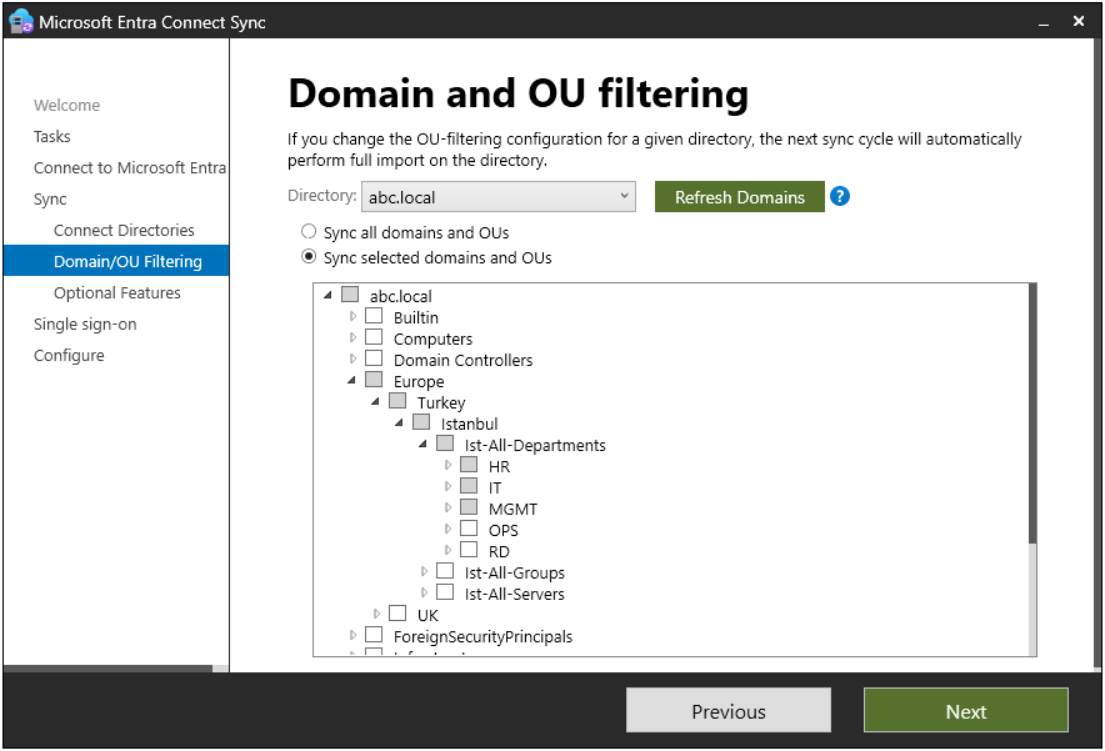
Before the SCP is written, there is a prerequisite to meet. Entra Connect Sync must be installed, and the OUs that contain the computer objects that will be hybrid joined must be in the sync scope. In a managed environment, this is the place that actually determines which machines become hybrid joined. A machine outside the sync scope reads the SCP and attempts registration, but because there is no device object for it in Entra ID, the Device Registration Service rejects the request. This attempt is repeated at every sign-in and fails every time. For this reason, the cleanest way to keep an OU out of hybrid join is not to include it in the sync scope at all.
The Domain and OU filtering screen below shows the whole structure. The Domain Controllers and Computers containers are not selected. The parent OU that contains the department OUs is partially selected, which means that only some of the OUs under it are in scope. Microsoft does not support hybrid join on servers in the domain controller role or on Server Core installations; this is why leaving the Domain Controllers OU out of scope is a deliberate choice.
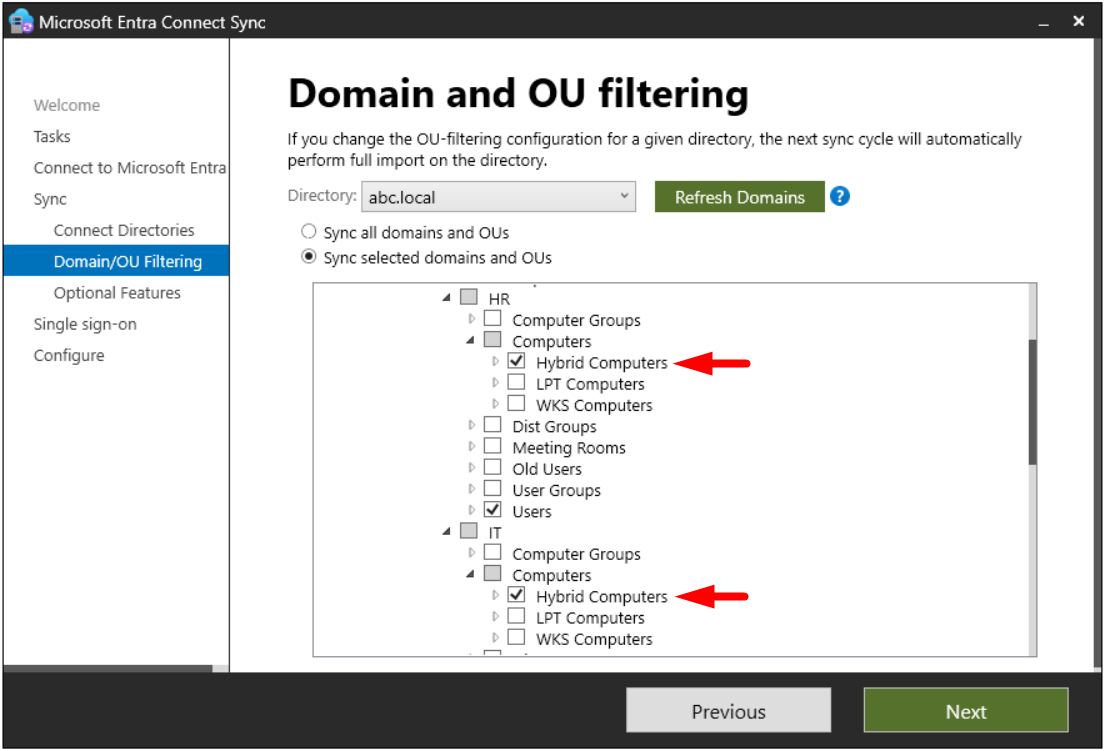
When I scroll down on the same screen, only the Hybrid Computers OUs under HR and IT are selected. The LPT Computers and WKS Computers OUs are out of scope. In this environment, the only machines that become hybrid joined are the machines in these 2 OUs; the others cannot register with Entra ID even though they are domain members.
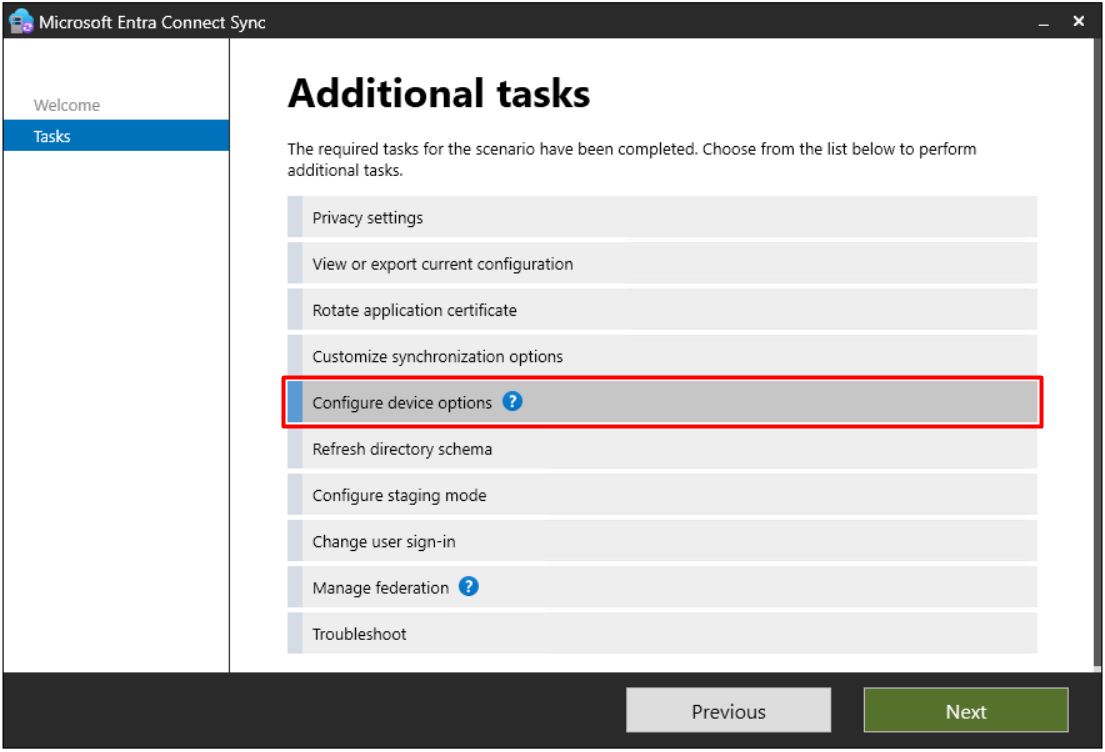
The SCP is created through the Entra Connect Sync wizard. When I open the wizard and select Configure, the Additional tasks list appears; from here I select the Configure device options option.
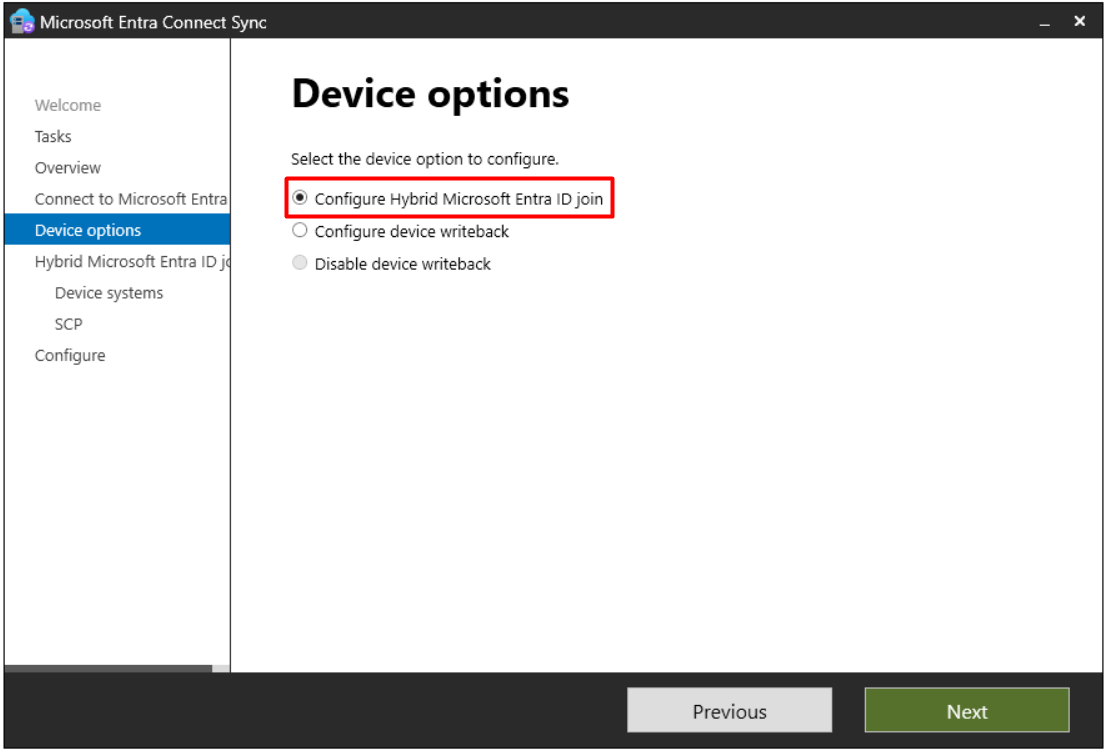
The Device options screen has 3 options. Configure Hybrid Microsoft Entra ID join is the option that writes the SCP. The other 2 options relate to device writeback and manage writing device objects in Entra ID back to on-premises Active Directory; they are outside the scope of this article.
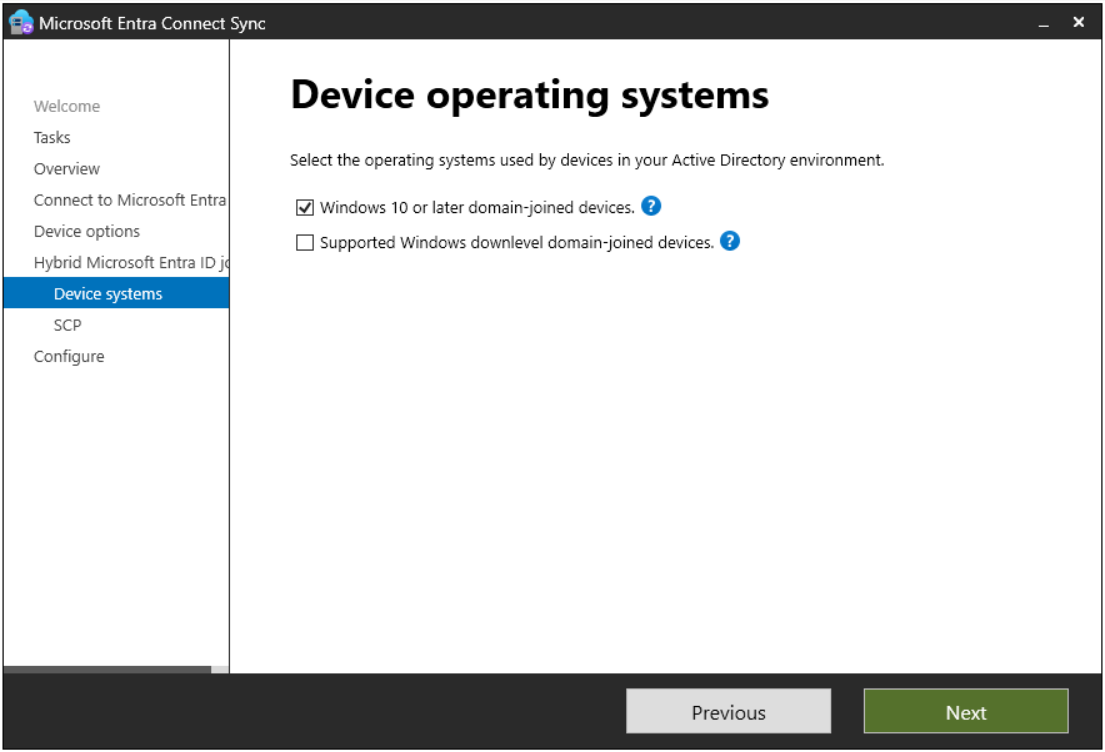
On the Device operating systems screen, I select the Windows 10 or later domain-joined devices option. The Supported Windows downlevel domain-joined devices option is for older Windows operating systems such as Windows 8.1 and Windows Server 2012 R2; these operating systems have no automatic registration and need a separate Workplace Join package. Because this scenario is no longer supported, I leave it unselected.
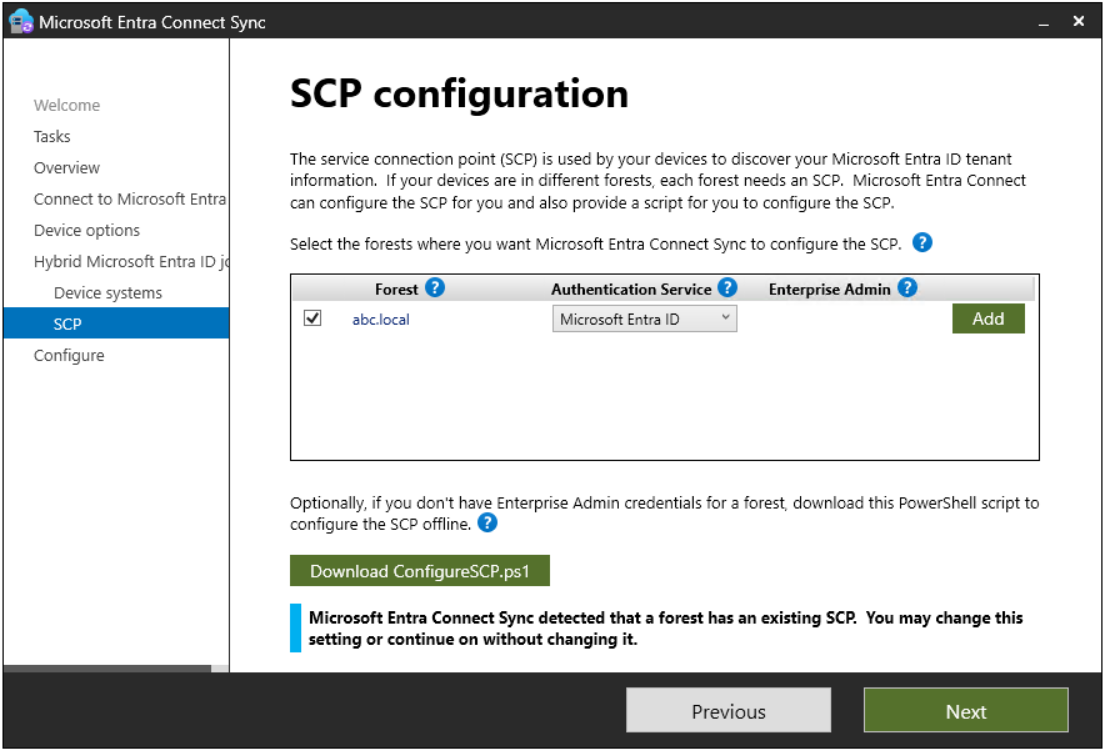
The SCP configuration screen is the most important step of this process. Here you select the forest where the SCP will be written, set the Authentication Service to Microsoft Entra ID for a managed environment or to AD FS for a federated environment, and enter Enterprise Admin credentials. This permission is mandatory because the wizard writes the SCP to the Configuration partition. If Enterprise Admin credentials are not available, the script downloaded with the Download ConfigureSCP.ps1 button on the same screen can be run separately by an authorised person in the forest to create the SCP.
Pay attention to the blue information box at the bottom of the screen. If the forest already has an SCP, the wizard detects it and shows the message "detected that a forest has an existing SCP". This is not an error; the wizard continues with the existing SCP, and the object does not change because it writes the same values for the same tenant.
When the wizard completes, it has done 2 things. First, it writes the SCP object to the fixed location in the Configuration partition and fills the keywords attribute with the azureADName and azureADId values. Second, if the domain is federated, it adds the claim rules required for device registration to AD FS; this second step does not exist in a managed environment. This operation is performed once, and nothing is sent to the clients. How the clients learn about the SCP is the subject of the next section.
The Entra Connect Sync wizard writes only to the AD side. It does not deploy a scheduled task, a registry key or a Group Policy to client machines.
So what exactly is this object that the wizard writes? An SCP is a standard object type in Active Directory that holds the connection information of a service, and its objectClass value is serviceConnectionPoint. The SCP created for hybrid join states which Entra tenant the forest is connected to. The CN value of the object and the container where it is located are fixed and are hard-coded in Windows. The only part that changes is the DC components at the end, which point to each forest's own Configuration partition. In this environment, the full path of the object is as follows.
CN=62a0ff2e-97b9-4513-943f-0d221bd30080,CN=Device Registration Configuration,CN=Services,CN=Configuration,DC=abc,DC=local |
The keywords attribute of the object contains 2 values. azureADName carries the verified domain name of the tenant; in this environment it is M365x00439391.onmicrosoft.com. azureADId carries the GUID value of the tenant.
It is not a coincidence that the SCP is in the Configuration partition. The Configuration partition replicates to every domain controller in the forest and can be read from every domain. Reading it does not need a special permission either; the default Read right of Authenticated Users is sufficient. In this way, every machine that joins the forest reaches the same tenant information without any additional setting, whichever domain or OU it is in. As a natural result of this design, there is 1 SCP per forest; a single forest can connect to only 1 tenant.
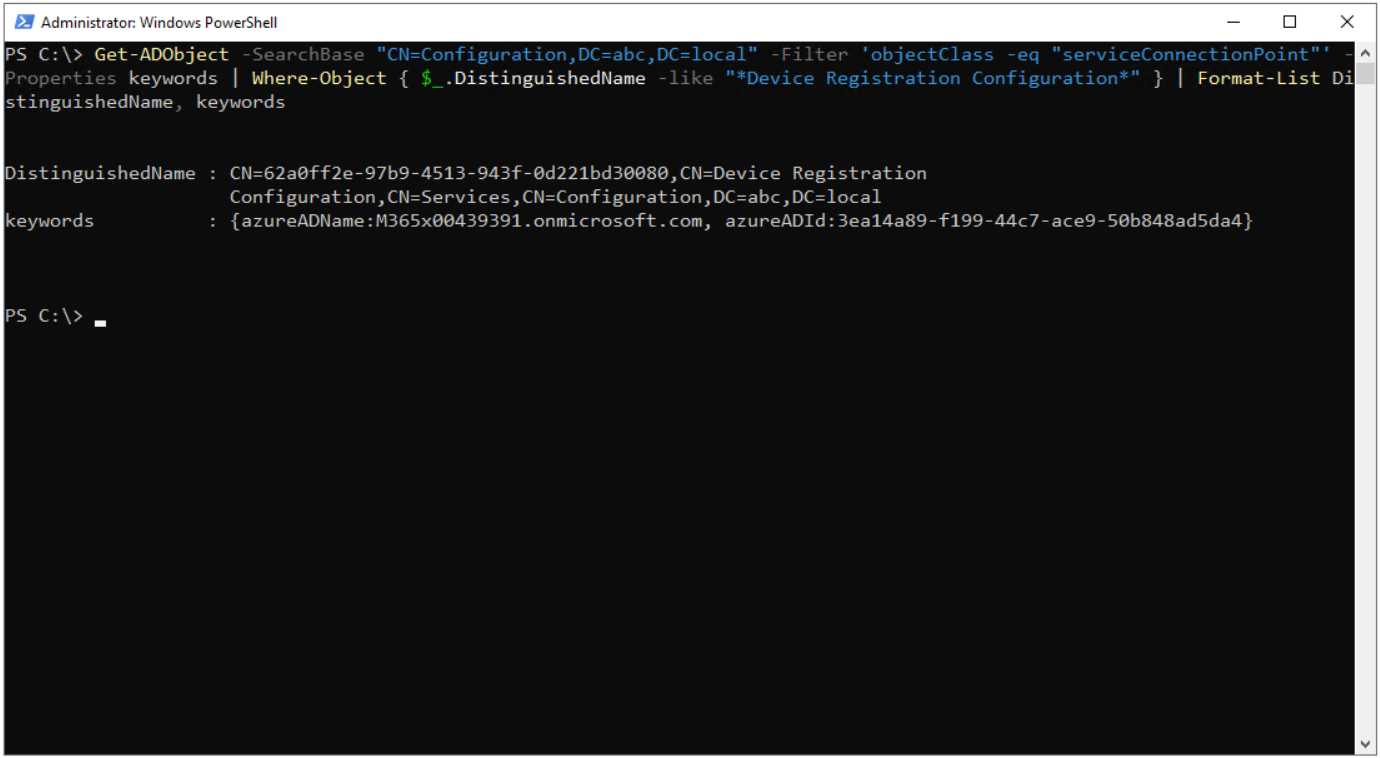
We can verify in 2 ways that the SCP has actually been written. The first is PowerShell. On a domain controller, or on a machine with the RSAT Active Directory module installed, the following command returns the SCP object in the Configuration partition and its keywords values.
Get-ADObject -SearchBase "CN=Configuration,DC=abc,DC=local" -Filter 'objectClass -eq "serviceConnectionPoint"' -Properties keywords | Where-Object { $_.DistinguishedName -like "*Device Registration Configuration*" } | Format-List DistinguishedName, keywords
In the output, the DistinguishedName line shows the fixed location, and the keywords line shows the azureADName and azureADId values. The azureADId here must be exactly the same as the TenantId that we see shortly in the dsregcmd output on the client side.
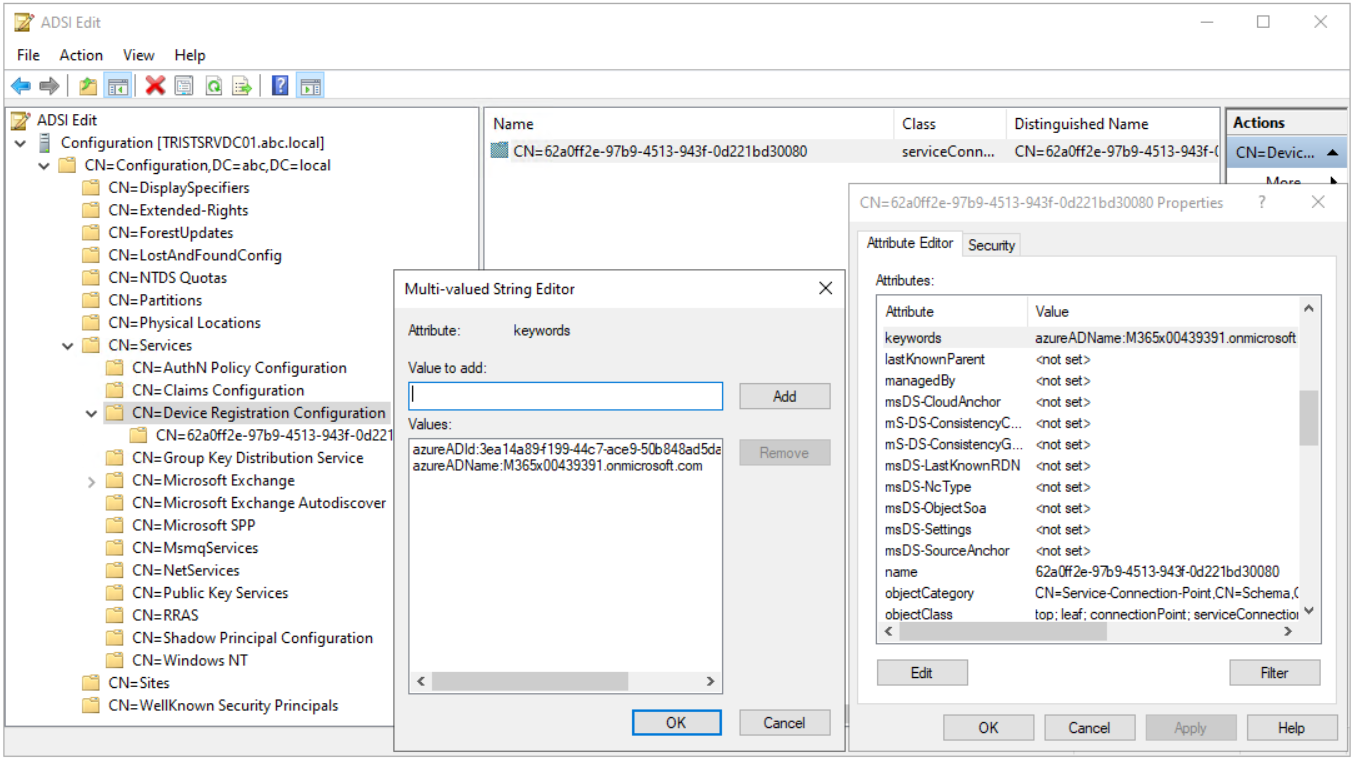
The second way is ADSI Edit. When I open ADSI Edit with the adsiedit.msc command and connect to the Configuration naming context, I see the CN=Device Registration Configuration container under CN=Services, and inside it the SCP object named with the GUID CN=62a0ff2e-97b9-4513-943f-0d221bd30080. In the Properties window of the object, when I open the keywords line with Edit on the Attribute Editor tab, the 2 values are listed in the Multi-valued String Editor. In the middle pane, the Class column of the object shows serviceConnectionPoint, which indicates that this is a real SCP and not an ordinary container.
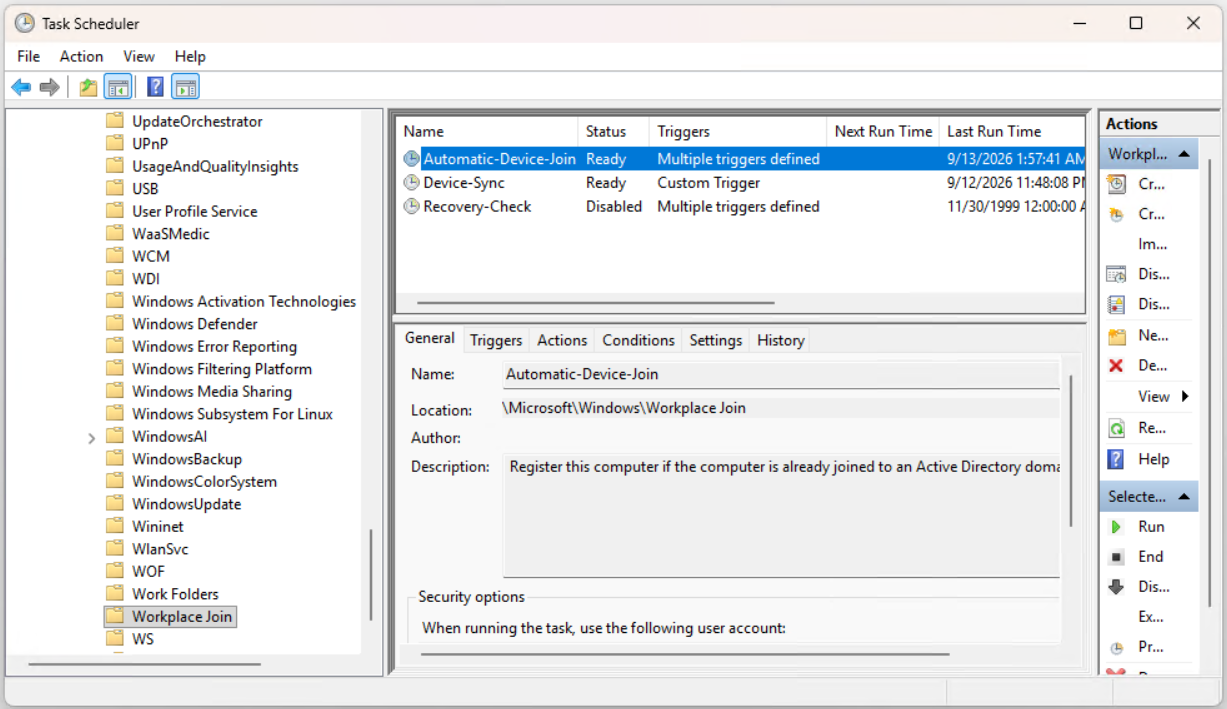
The server side ends here. Now I move to the client and look at how the machine finds this SCP. After the machine joins the domain, when a user signs in, a scheduled task that is included in Windows runs with the SYSTEM account. This is the Automatic-Device-Join task, located under Task Scheduler Library at the path Microsoft > Windows > Workplace Join. It is not added by Entra Connect; it exists on every machine with Windows 10 or later from installation. The description of the task also summarises its purpose in 1 sentence: "Register this computer if the computer is already joined to an Active Directory domain".
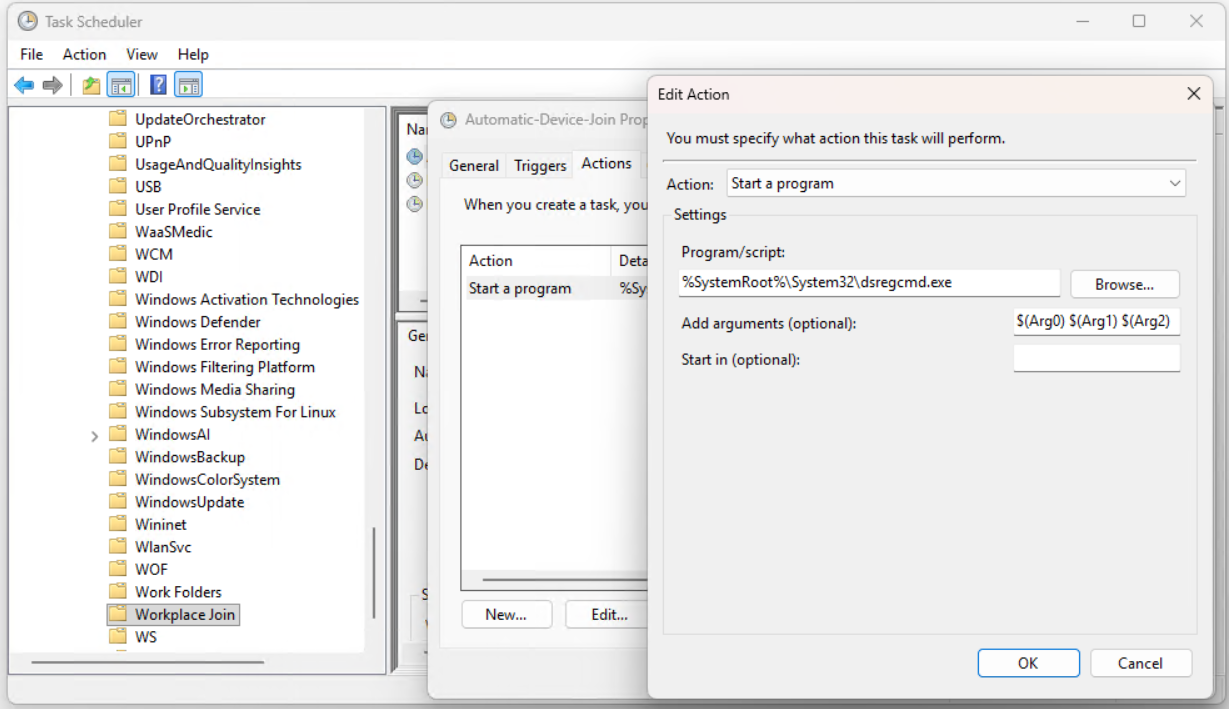
When I look at the Actions tab of the task, I see that the program it runs is %SystemRoot%\System32\dsregcmd.exe and that it takes the parameters $(Arg0) $(Arg1) $(Arg2). This syntax is Task Scheduler's own mechanism.
The trigger of a scheduled task does not have to be a sign-in only; a task can also run when a specific Event ID is written to an event log in Event Viewer. With such an event trigger, Task Scheduler transfers the fields selected with XPath from the XML content of that event to the Arg0, Arg1 and Arg2 variables and passes them to the command line as parameters.
This is also the reason why the Triggers column of the Automatic-Device-Join task shows "Multiple triggers defined"; the task runs both at sign-in and when specific events related to Device Registration occur. With a normal sign-in trigger there is no event, so these variables remain empty, and dsregcmd runs without parameters and performs the default automatic registration check. So the hybrid join that we see in the daily flow is in fact a dsregcmd call without parameters.
When dsregcmd runs without parameters, it performs a series of preliminary checks, and these checks are sequential; a machine that stops at a check does not move to the next.
-
Domain membership check. dsregcmd does not ask a domain controller for this; it reads it from the domain information that Windows keeps locally. If the machine is not a member of a domain, hybrid join has no meaning, and dsregcmd ends without taking any action.
-
Existing registration state check. If the machine has already registered with Entra ID, it does not need to register again; dsregcmd only refreshes the state and ends.
-
SCP lookup. In this step, which I describe in detail shortly, dsregcmd looks for the tenant information. If no SCP is found, it ends again and repeats the same checks from the beginning at the next sign-in; if an SCP is found, it reads the tenant information inside it and starts the registration process.
The most important result of this flow is that the client does not learn from anywhere that it needs to register. It receives no notification, no Group Policy tells it to "register", and Entra Connect sends it nothing. It performs the same checks at every sign-in, and the existence of the SCP is the answer itself. The administrator writes 1 object to the forest, and 1,000 machines in that forest read that object at every sign-in.
The most important result of this flow is that the client does not learn from anywhere that it needs to register. It receives no notification, no Group Policy tells it to "register", and Entra Connect sends it nothing. It performs the same checks at every sign-in, and the existence of the SCP is the answer itself. The administrator writes 1 object to the forest, and 1,000 machines in that forest read that object at every sign-in.
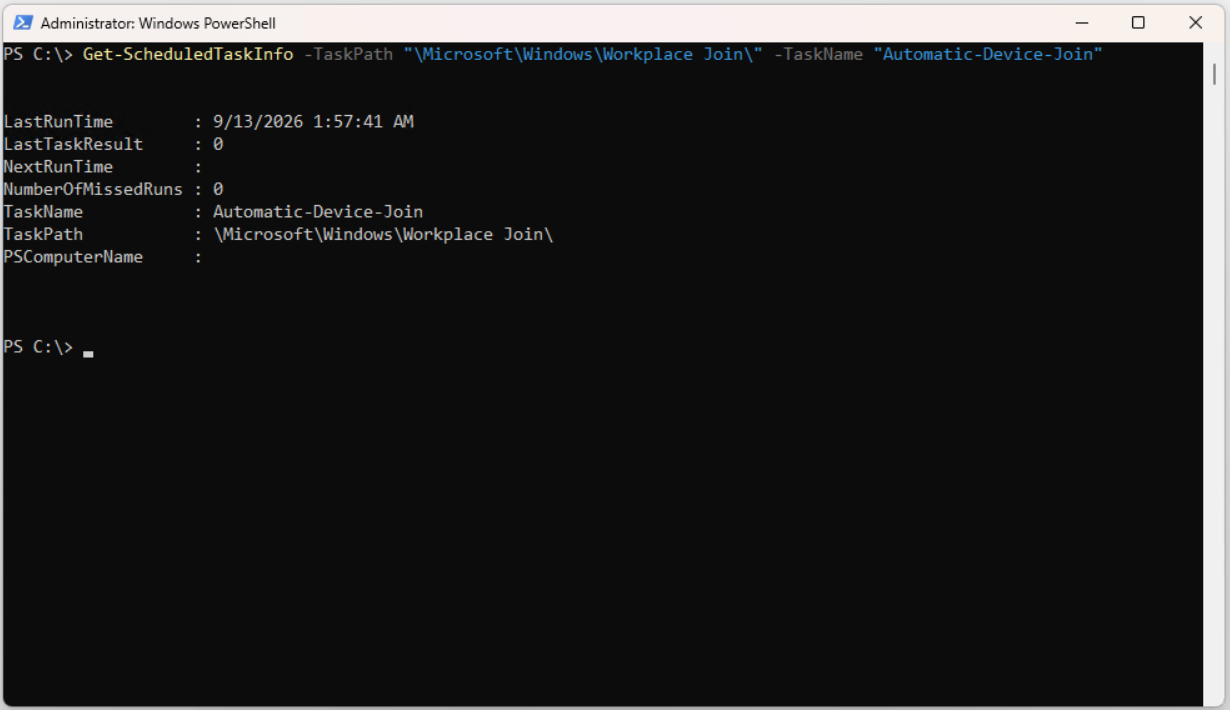
We can check on the client whether the task has actually run with the following command. In the output, LastRunTime shows when the task was last triggered, and LastTaskResult shows its result. A LastTaskResult value of 0 means that dsregcmd completed without an error; however, it does not mean that the registration is complete. A dsregcmd run that ends without taking any action because no SCP was found also returns 0. We read whether the registration has actually happened from the dsregcmd /status output.
Get-ScheduledTaskInfo -TaskPath "\Microsoft\Windows\Workplace Join\" -TaskName "Automatic-Device-Join"
So where does dsregcmd look for that SCP? In fact, it does not look in a single place; it checks 2 sources in a specific order of priority. Its first stop is not Active Directory but the machine's own registry. Windows first checks whether the TenantId and TenantName values are defined under the following key; if it finds a value, it uses it without querying Active Directory at all.
HKLM\SOFTWARE\Microsoft\Windows\CurrentVersion\CDJ\AAD |
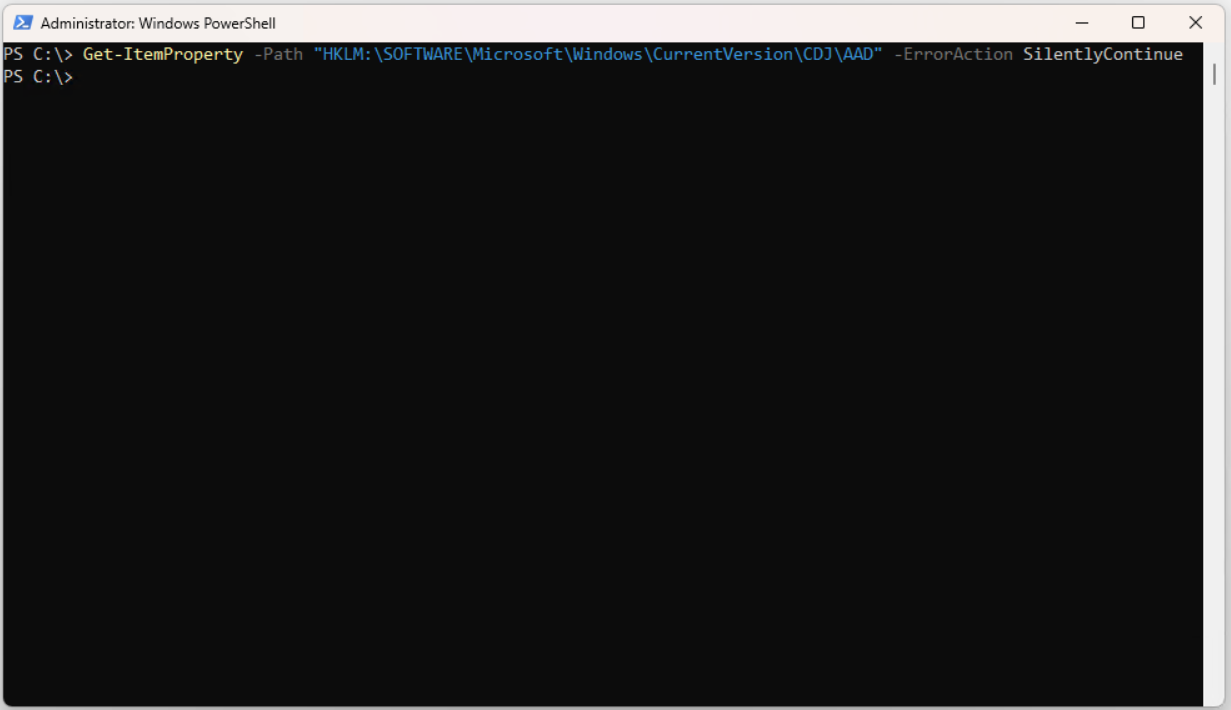
This is called Configure client-side registry setting for SCP, and when it exists it overrides the SCP in AD. This method is used to target specific OUs or to connect a single forest to more than 1 tenant; it is not used in a standard deployment. Because the registry key is on the machine itself, the following command is run in PowerShell with Run as administrator.
Get-ItemProperty -Path "HKLM:\SOFTWARE\Microsoft\Windows\CurrentVersion\CDJ\AAD" -ErrorAction SilentlyContinue
In an environment where the SCP is written to AD with Entra Connect, it is expected that this command returns nothing. The output below shows exactly this; the machine reads the tenant information only from the SCP in AD.
If the registry has no value, dsregcmd moves to the second source. It connects with LDAP to the domain controller that it can already reach as a domain member and reads the SCP object at the fixed DN; it takes the azureADId and azureADName values from the keywords attribute. If both sources are empty, the registration does not start at all, and all fields in the Tenant Details section of the dsregcmd /status output, including TenantId, remain empty.
After it obtains the tenant information, the machine uses the azureADName value to perform Device Registration Service discovery. The address it contacts is the path built with azureADName under https://enterpriseregistration.windows.net/. DRS is the device registration service of Entra ID; it is the other party to which the device says "this is who I am, register me".
The metadata returned by the discovery contains the JoinSrvUrl endpoint for registration, KeySrvUrl for key operations, and AuthCodeUrl and AccessTokenUrl for token operations. Because the discovery runs in the SYSTEM context, if the environment has a proxy, a WinHTTP proxy must be defined and SSL inspection must be disabled for these addresses.
The SYSTEM context does not see the user proxy settings. Make sure that SYSTEM can reach the enterpriseregistration.windows.net and login.microsoftonline.com addresses directly.
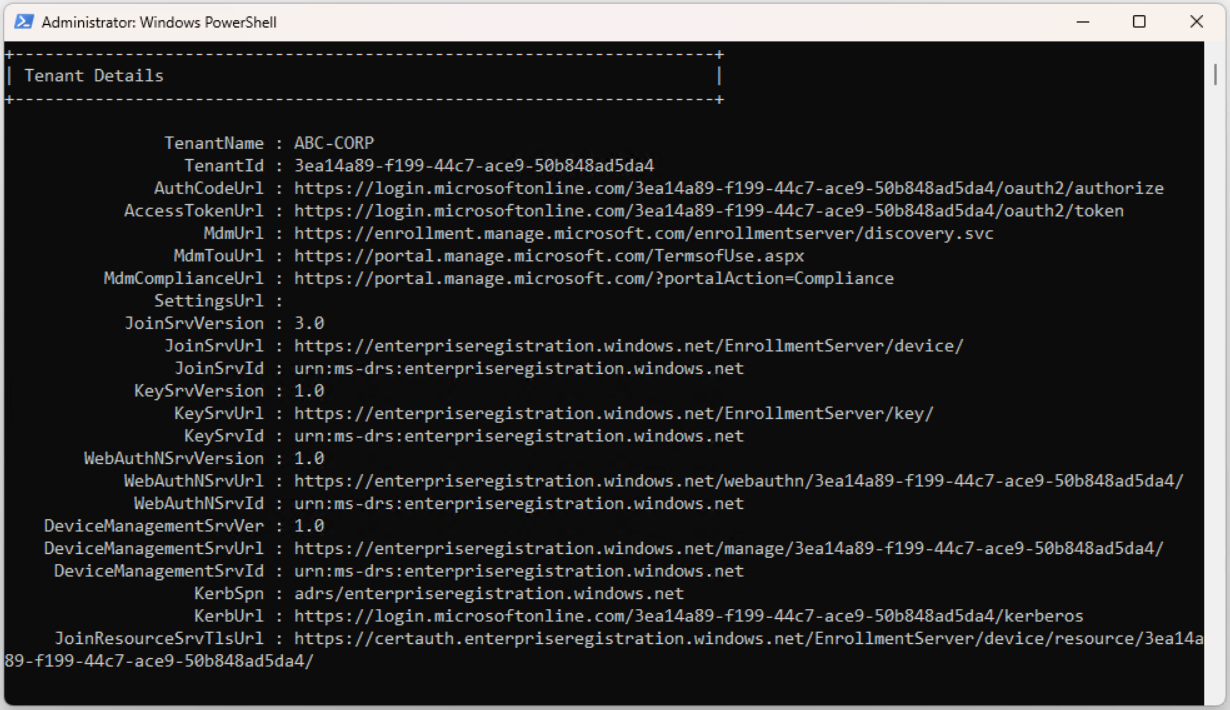
The result of the discovery is visible on the client in the Tenant Details section of the dsregcmd /status output. TenantId must be the same as azureADId in the SCP; if it is different, the client-side setting in the registry is in effect. JoinSrvUrl, KeySrvUrl, AuthCodeUrl and AccessTokenUrl are the direct result of DRS discovery. TenantName, MdmUrl, MdmTouUrl and MdmComplianceUrl, however, are not fields that belong to device registration; they are filled after the signed-in user obtains a PRT (Primary Refresh Token). When you check with an account that is not synchronised to Entra ID, for example Domain Administrator, these fields appear empty, and this is not an error. SettingsUrl is empty in every case.
Now that the tenant and DRS are known, it is time for the device to prove itself. To prove its identity to DRS, the machine generates a key pair and a self-signed certificate. The private key is kept in the TPM if a TPM is present. This certificate serves as a temporary identity during the registration process; when the registration completes, DRS issues a device certificate that it has signed itself to replace it.
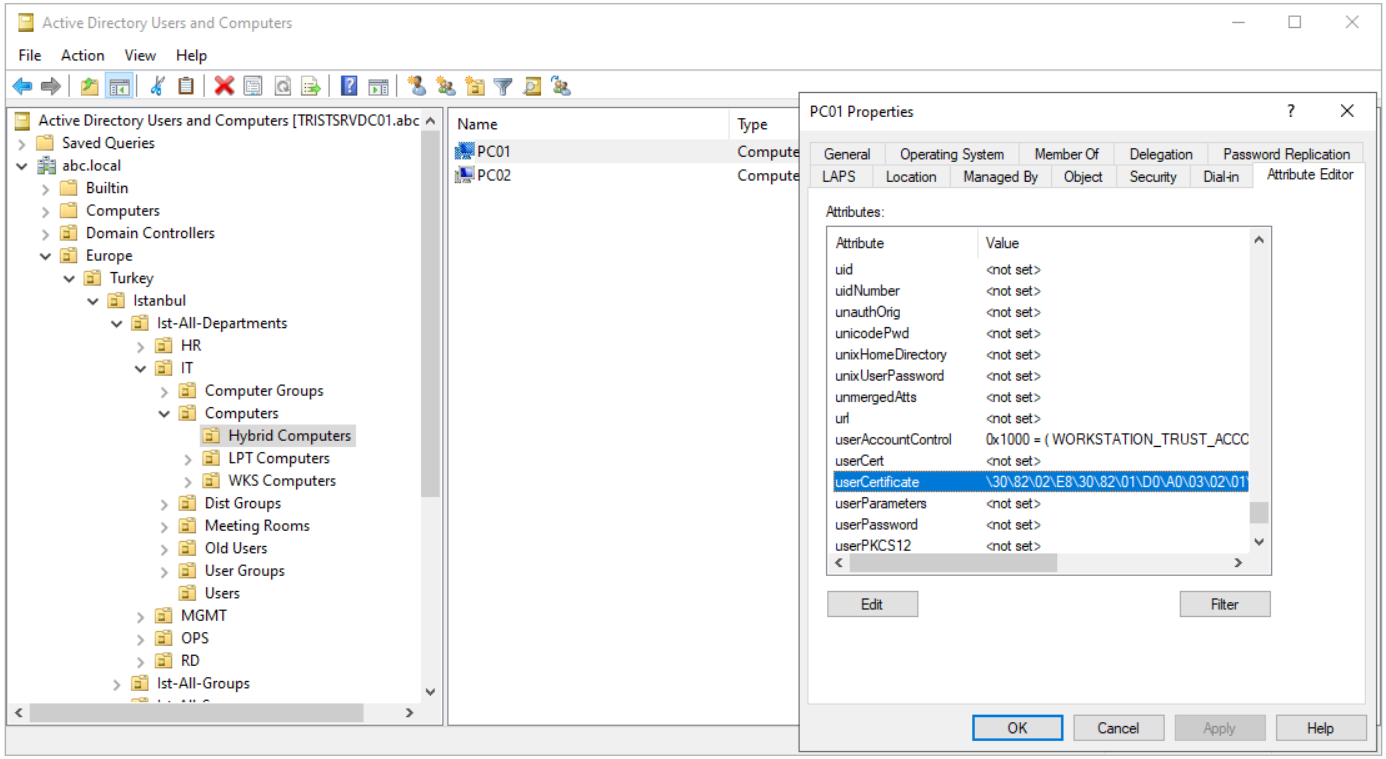
In a managed environment, the public part of this self-signed certificate is written to the userCertificate attribute of the computer object and is synchronised to Entra ID by Entra Connect. In a federated environment this write does not happen. When I look at the Attribute Editor tab of the PC01 object in Active Directory Users and Computers, I see that the userCertificate attribute has content.
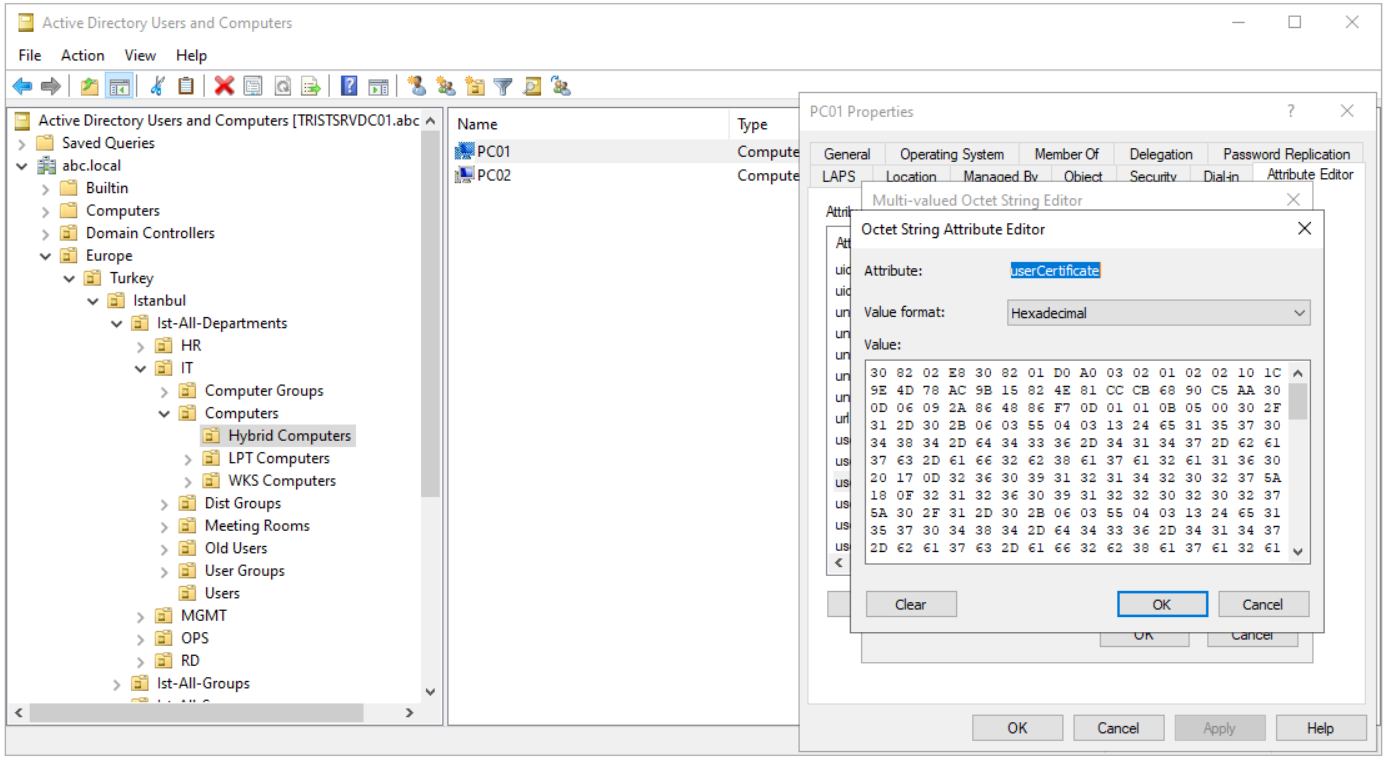
When it is opened with Edit, the hexadecimal content of the certificate is listed in the Octet String Attribute Editor.
At this point, the registration flow splits into 2 according to the domain type, and which flow is followed depends on whether the domain in azureADName is managed or federated in Entra ID. In a managed environment, the certificate written to userCertificate is carried to Entra ID together with the computer object in the next sync cycle of Entra Connect, and a device object is created there.
On its next attempt, the machine sends DRS a request signed with the certificate; Entra ID matches the objectGUID and SID and completes the registration. Because the process waits for the sync, the first registration usually completes at the next sign-in. During this time the device is visible in the Entra admin center, but the Registered column shows "Pending"; when the registration completes, this text is removed.
In a federated environment, however, the machine obtains a token with Kerberos from the WS-Trust windowstransport endpoint of AD FS, presents this token to DRS and registers immediately without waiting for the sync. AD FS must issue the objectGUID, primarySID, accountType and issuerid claims; these rules are added by Entra Connect in the SCP configuration step of the wizard.
In a managed environment, it is normal for the first hybrid join attempt to appear to fail. The registration completes on the attempt after the Entra Connect sync cycle finishes and the device object is created.??
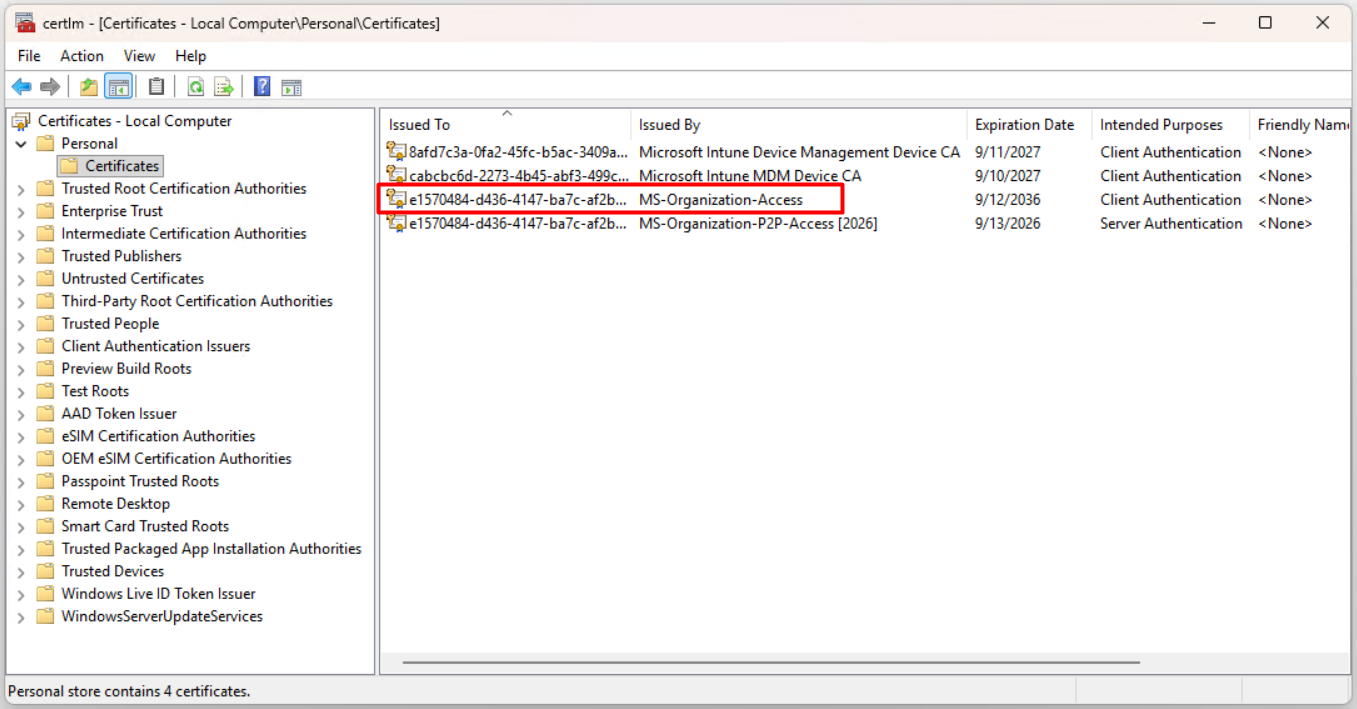
When the registration completes, the device certificate issued by DRS is placed in the Local Computer certificate store on the client. When I look under Personal > Certificates with certlm.msc, I see 4 certificates. The one that represents hybrid join is the row that shows MS-Organization-Access in the Issued By column; the other 3 are in the same store but represent different relationships. It is useful to explain each of them separately.
» MS-Organization-Access is the Entra ID identity of the device. It is issued by DRS when hybrid join completes. The Issued To value is the Entra ID Device ID of the device, and it is valid for 10 years from the registration date. This certificate is used when the device proves itself to Entra ID, when the user obtains a PRT and when Conditional Access performs a device check. If this certificate does not exist, the device is not registered in Entra ID.
» MS-Organization-P2P-Access is the certificate for authentication between devices. With this certificate, 2 devices registered to the same tenant authenticate each other, for example in a Remote Desktop connection. It is a by-product of hybrid join, not the registration itself. It is valid for 1 year and renews automatically.
Microsoft Intune MDM Device CA is the Intune identity of the device. It is issued when the device enrols in Intune, and the device identifies itself with this certificate during MDM check-in. It is not related to hybrid join; if the device were not enrolled in Intune, this row would not exist.
» Microsoft Intune Device Management Device CA is the second device certificate of Intune and is used for Intune's device management channel. This is also a product of MDM enrolment; it is not related to Entra ID registration.
These 4 rows show 3 different relationships of a single machine. The relationship between the device and Entra ID is represented by MS-Organization-Access, the relationship between the device and other devices by the P2P certificate, and the relationship between the device and Intune by the 2 Intune CA certificates. Hybrid join creates only the first one; the Intune certificates arrive only after the Entra ID registration completes, through a separate enrolment process.
We can also retrieve the same certificate with PowerShell. The following command lists the certificate whose issuer is MS-Organization-Access in the Local Machine store with the Subject, Issuer, NotAfter and Thumbprint fields.
Get-ChildItem Cert:\LocalMachine\My | Where-Object { $_.Issuer -like "*MS-Organization-Access*" } | Format-List Subject, Issuer, NotAfter, Thumbprint
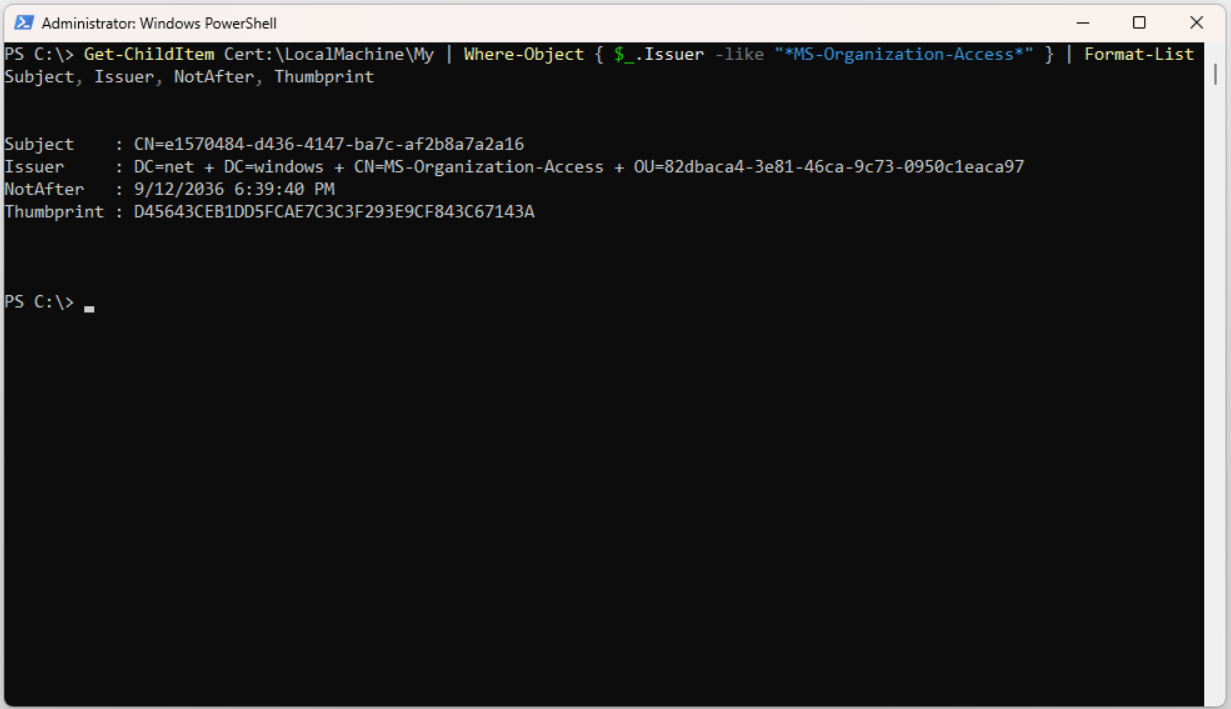
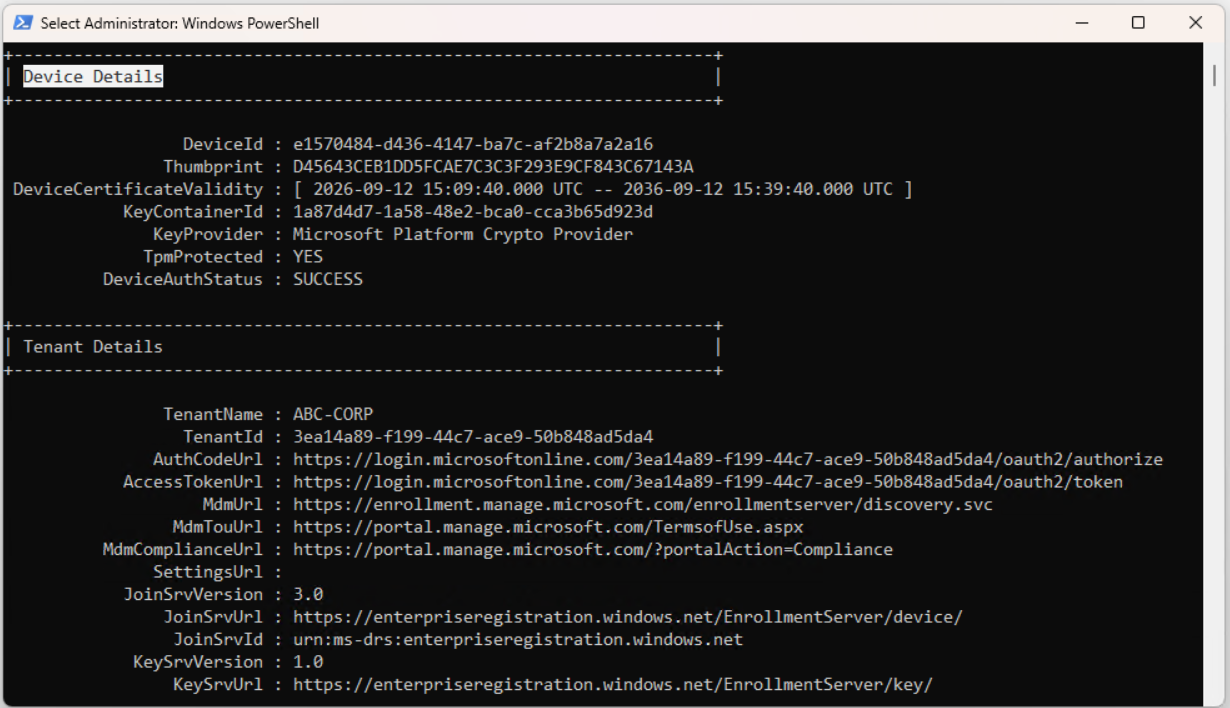
The equivalent of this certificate on the dsregcmd side is the Device Details section. DeviceId is exactly the same as the Subject value of the certificate, and Thumbprint is exactly the same as the Thumbprint in the PowerShell output. Microsoft Platform Crypto Provider on the KeyProvider line and YES on the TpmProtected line show that the private key is kept in the TPM. A DeviceAuthStatus value of SUCCESS is the proof that the device can authenticate to Entra ID with this certificate.
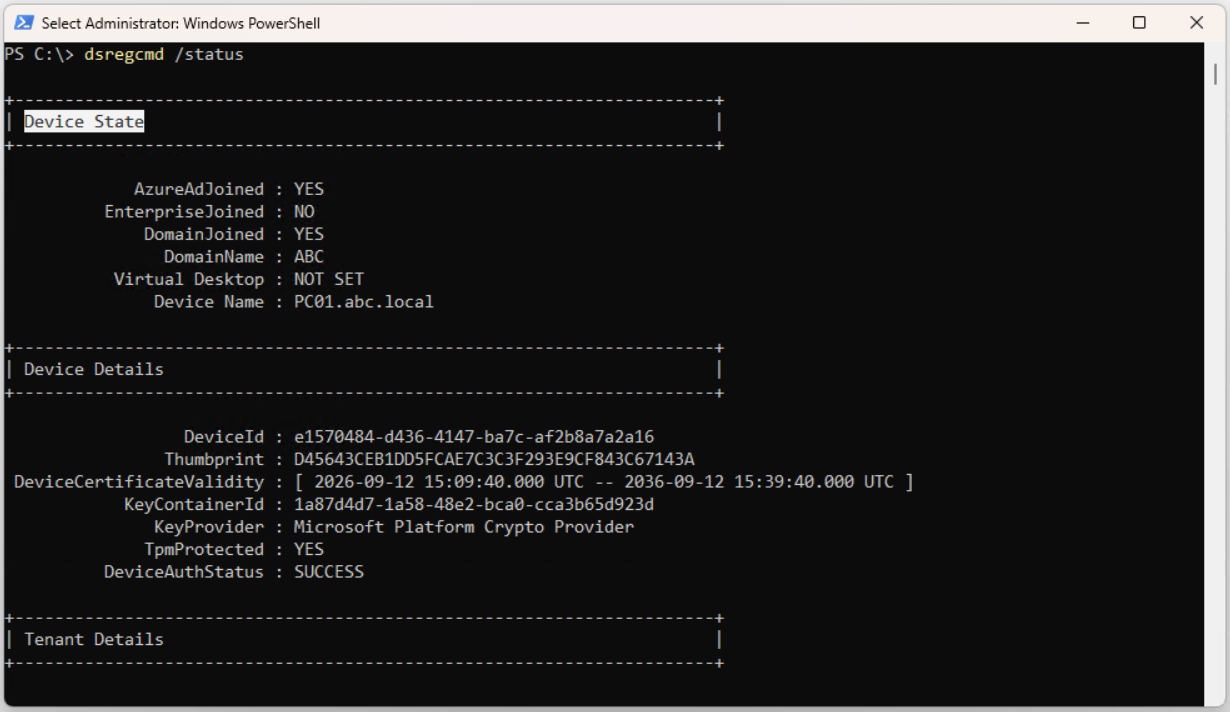
To see that the registration is complete, I look at the Device State section at the top of the dsregcmd /status output. If both the AzureAdJoined and DomainJoined lines are YES, the machine is hybrid joined. It is normal for the EnterpriseJoined line to be NO; this field belongs to on-premises Device Registration Service scenarios that are not related to Entra ID. Confirming once more that the TenantId value in the Tenant Details section matches the azureADId in the SCP guarantees that the registration was made to the correct tenant.
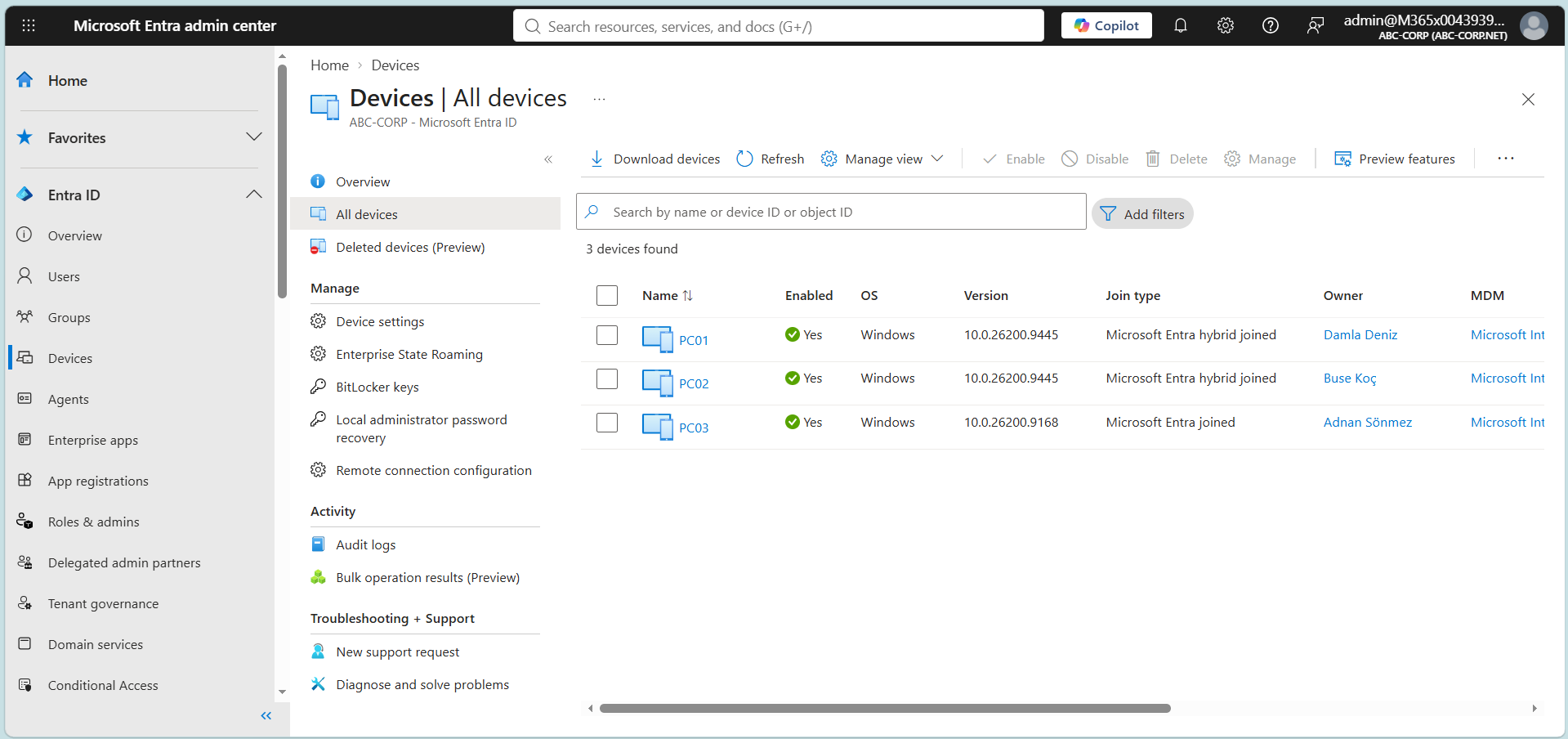
The final verification is in the Entra admin center. When I look at the All devices list under Devices, the Join type column shows "Microsoft Entra hybrid joined" for PC01 and PC02, and "Microsoft Entra joined" for PC03. The presence of 2 different join types in the same tenant also shows that the SCP concerns only machines that are domain members; PC03 never checked the SCP, because it is not a member of the domain.
Device registration completes here. The user obtaining a Primary Refresh Token, Conditional Access and Intune enrolment are processes separate from device registration, and each of them, with its own prerequisites, is the subject of a separate article.
When you encounter a problem, the places to check are clear. The Device State, Device Details, Tenant Details and Diagnostic Data sections of the dsregcmd /status output are the first place to look. In Event Viewer, the Microsoft, Windows, User Device Registration, Admin log under Applications and Services Logs records every step and error in the registration process. If you want to trigger the task again without signing out, the following command does the same thing.
Start-ScheduledTask -TaskPath "\Microsoft\Windows\Workplace Join\" -TaskName "Automatic-Device-Join"
To reduce this whole flow to a single sentence: the SCP is a single object with a fixed location that states which tenant the forest is connected to; it is written once on the server side, read at every sign-in on the client side, and the machine's decision to register depends only on whether this object exists. The real filter that determines which machines register is not Group Policy but the Entra Connect sync scope. When you troubleshoot a hybrid join problem, this order does not change either. First, does the SCP exist and does it point to the correct tenant; then, is the computer object in the sync scope; and last, can the client reach DRS from the SYSTEM context.
I hope you find it useful...
Feel free to share your thoughts and questions about this article in the comments below. Every contribution helps the content reach more people and makes for a more useful discussion.