Exchange hybrid is a coexistence architecture that provides a shared identity infrastructure, a shared mail routing design and staged migration between on-premises Exchange servers and Exchange Online. In this architecture, a user who has an active UserMailbox on an on-premises Exchange server is synchronised to Microsoft Entra ID by Microsoft Entra Connect Sync, and the Exchange attribute set is carried to the cloud at the same time. Exchange Online holds this user as a MailUser object, which is the cloud representation of the existing on-premises mailbox.
This synchronised attribute set also contains the msExchMailboxGuid attribute, which carries the identity of the on-premises mailbox. When an Exchange Online licence is assigned to the user, a second cloud UserMailbox is not created, and the reason is not a missing licence or a provisioning error. Exchange Online continues to hold the object as a MailUser because of the synchronised Exchange attributes. The real UserMailbox in Exchange Online is created when the mailbox is moved with a hybrid remote move. At that point, the on-premises object starts to be represented as a RemoteUserMailbox.
We will go through this chain step by step: how the Exchange attributes are carried to the cloud, why Exchange Online holds this object as a MailUser, how the msExchMailboxGuid value behaves during migration and offboarding, and how to verify this state in the environment.
Scenario
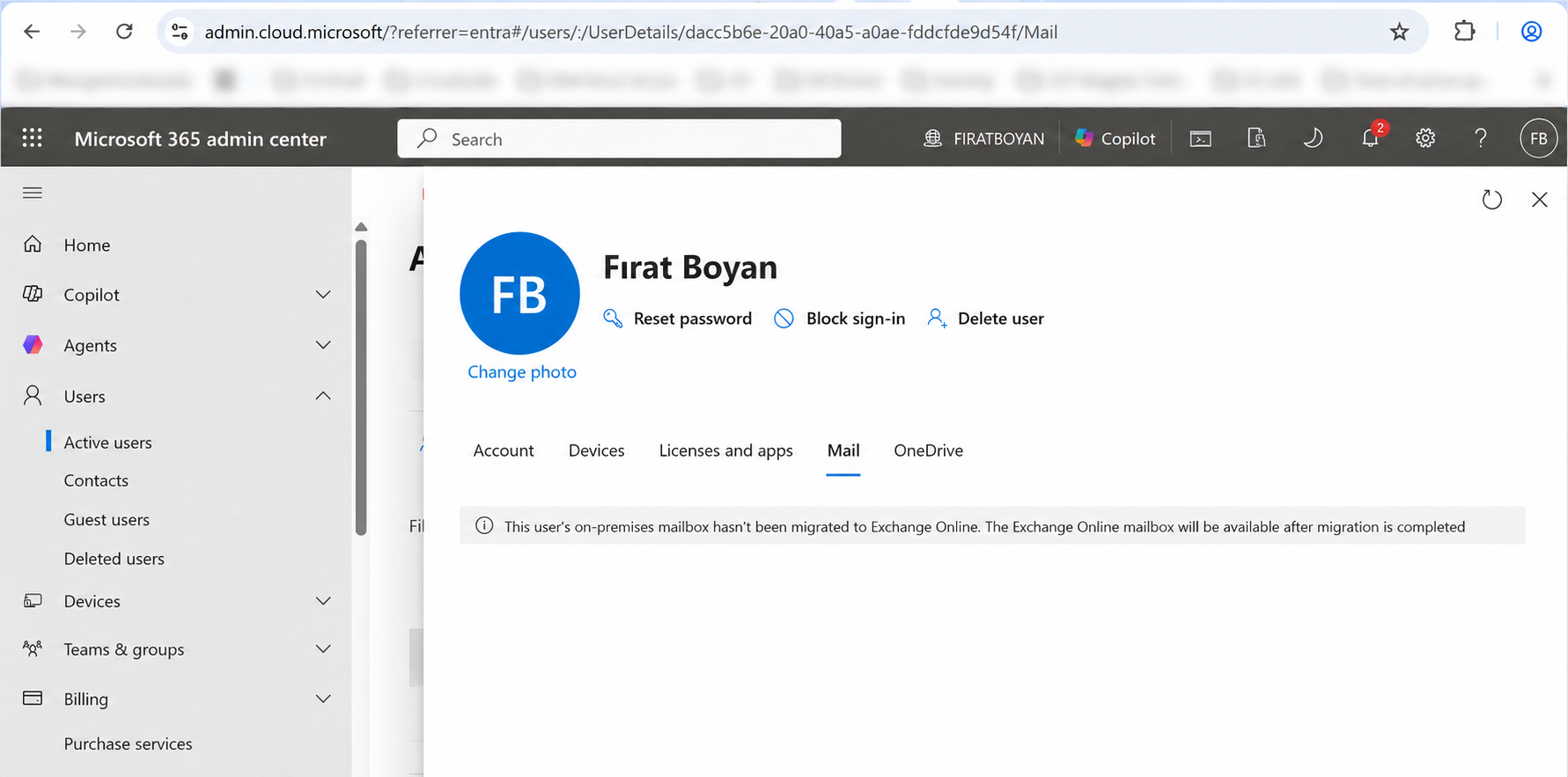
There is a situation that is often seen in Exchange hybrid environments. The user has an active mailbox on an on-premises Exchange server and has not been migrated to Exchange Online yet. The user has been synchronised to Microsoft Entra ID by Microsoft Entra Connect Sync, the Exchange attributes have reached the cloud, and the object in Exchange Online is a MailUser. When an Exchange Online licence is assigned to this user, a second cloud UserMailbox is not created, contrary to what is expected. In the Microsoft 365 admin center, the following information message is displayed on the user's Mail tab.
"This user's on-premises mailbox hasn't been migrated to Exchange Online. The Exchange Online mailbox will be available after migration is completed."
This is in fact the expected hybrid behaviour. Because the user's mailbox already exists on-premises, Exchange Online does not open a second mailbox for the same user. As long as the user remains a MailUser in Exchange Online, the message continues to appear on the Mail tab, and the assigned licence does not change this.
Many administrators interpret this behaviour as an error. To see which information Exchange Online bases this decision on, we first need to look at how the Exchange attributes reach the cloud.
Transfer of Exchange Attributes with Entra Connect Sync
For Exchange Online to interpret the recipient type correctly for a user whose mailbox is on-premises, the on-premises Exchange attributes must reach the cloud. Microsoft Entra Connect Sync carries the Exchange attributes, including msExchMailboxGuid, from on-premises AD to Entra ID. The changes in Entra ID are then replicated to the Exchange Online directory, and Exchange Online creates and interprets the recipient object according to this synchronised Exchange attribute set.
Sync Direction and the Difference from Exchange Hybrid Writeback
The required Exchange attributes, including msExchMailboxGuid, are synchronised by Microsoft Entra Connect Sync from on-premises Active Directory towards the cloud. The Exchange hybrid deployment option does not need to be enabled for this forward sync flow.
The Exchange hybrid deployment option, which is on the Optional Features page during Entra Connect installation, opens the reverse direction. When this option is enabled, certain attributes such as msExchArchiveStatus, msExchSafeSendersHash, msExchBlockedSendersHash and publicDelegates are written back from the cloud to on-premises AD. For proxyAddresses, the whole attribute is not written back. Only the X500 address that comes from Exchange Online is added to the on-premises object. This flow is called Exchange hybrid writeback, and the list of attributes that are written back can be smaller depending on the on-premises Exchange schema version.
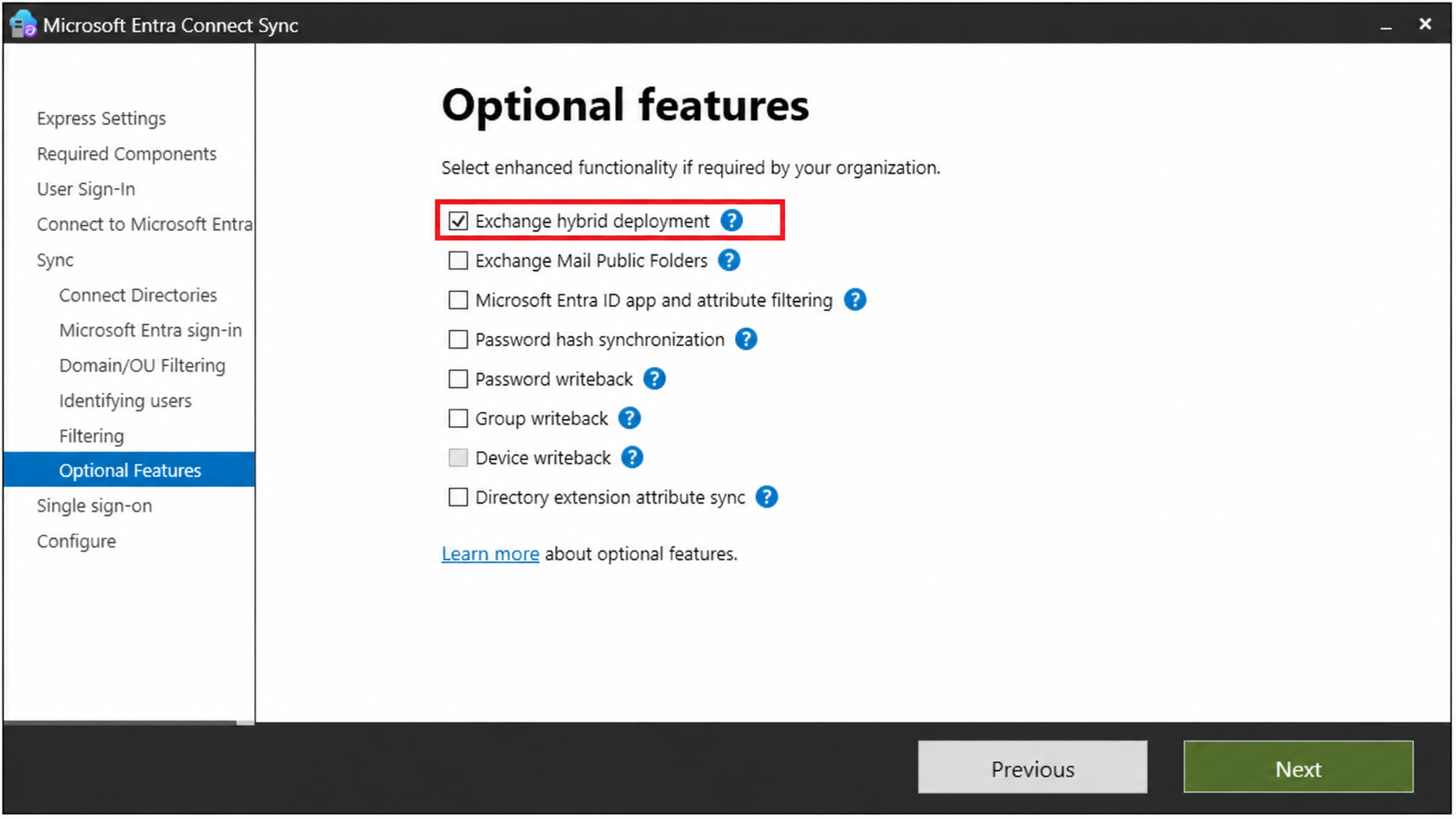
The Exchange hybrid deployment option can also be enabled before the HCW is run. However, it does not set up hybrid by itself. The connectors, organization relationship, OAuth, free/busy and hybrid mail flow components are configured by the HCW.
The important point about sync direction is this: msExchMailboxGuid is carried only from on-premises to the cloud and is not in the scope of Exchange hybrid writeback. An ExchangeGuid value that is created in the cloud is not automatically written back to the on-premises RemoteMailbox object. We will see the practical effect of this limitation in the offboarding scenario.
How Exchange Online Interprets the Recipient Type
When a user whose mailbox is on-premises is synchronised to Entra ID, Exchange Online looks at the synchronised Exchange attributes, provisions this object as a MailUser and holds the GUID of the on-premises mailbox in the ExchangeGuid property. MailUser means that the user's identity is registered in the tenant but the real mailbox is hosted on an on-premises Exchange server. Emails sent to this user are also routed to the on-premises address, not to a mailbox in Exchange Online.
In this hybrid scenario, an Exchange Online licence alone does not create a second cloud mailbox. Because the user is held as a MailUser in Exchange Online, assigning a licence does not convert the existing recipient type to UserMailbox. Users who have no on-premises mailbox and who are eligible for cloud mailbox provisioning are a different scenario.
Terminology Difference Between MailUser and RemoteUserMailbox
There are 2 recipient types that are often confused in Exchange hybrid terminology. The table below compares the recipient types on the on-premises Exchange side and the Exchange Online side according to the location of the user's active mailbox.
|
Active Location of the Mailbox |
On-Premises Exchange Recipient Type |
Exchange Online Recipient Type |
|
On-premises Exchange |
UserMailbox |
MailUser |
|
Exchange Online |
RemoteUserMailbox |
UserMailbox |
The object in the scenario we are examining is a MailUser. RemoteUserMailbox appears in the opposite scenario and is the on-premises representation of a user whose mailbox is in Exchange Online. Both types mean "the mailbox is on the other side", but one exists in the cloud and the other on-premises, and they work in different directions.
The Role of the msExchMailboxGuid Attribute
msExchMailboxGuid carries the unique GUID of the on-premises Exchange mailbox. Exchange sets it automatically at the moment the mailbox is created with the Enable-Mailbox or New-Mailbox cmdlet. In Exchange Online, the same value appears as the ExchangeGuid property of the MailUser object.
msExchMailboxGuid is one of the main attributes in the synchronised Exchange attribute set that carry the identity of the on-premises mailbox. Exchange Online relies on this value to associate the MailUser object with the existing on-premises mailbox. Exchange Online looks at the attribute set as a whole, understands that the user has an active mailbox on-premises and does not provision a second UserMailbox for the same user. This prevents a duplicate mailbox. The warning in the Microsoft 365 admin center is seen together with the state in which the user is held as a MailUser in this way. Microsoft does not document in detail which combination of attributes or recipient state triggers the message.
GUID Behaviour During Migration
Before migration, there is a MailUser in Exchange Online, and the ExchangeGuid value of this object matches the GUID of the on-premises mailbox. When a hybrid remote move is started, the Mailbox Replication Service (MRS) moves the mailbox content to Exchange Online. When the move is complete, the recipient in Exchange Online becomes a UserMailbox, and the on-premises object is represented as a RemoteUserMailbox. In this scenario, the UserMailbox in Exchange Online is created when the hybrid remote move is complete.
After the move, the GUID continues to identify the same mailbox on both sides, and the on-premises object references the cloud mailbox correctly. The GUID stays the same as long as the mailbox is not deleted and recreated. If the mailbox is disabled and enabled again, a new GUID is generated. If the ExchangeGuid value does not match between the on-premises mailbox and the MailUser in Exchange Online, the move request cannot succeed.
Offboarding and the Writeback Limitation
The fact that the GUID is carried in 1 direction only becomes visible in mailbox move scenarios in the reverse direction. If the mailbox was not migrated from on-premises but was created directly in the cloud, for example with New-RemoteMailbox, the ExchangeGuid value of the cloud mailbox may not be written to the on-premises RemoteUserMailbox object. If ExchangeGuid on the on-premises side stays empty (00000000-0000-0000-0000-000000000000), the move fails when you try to move the mailbox back to on-premises. For this reason, the GUID match may need to be established before offboarding.
In this case, the value is first read from the cloud mailbox in an Exchange Online PowerShell session.
Get-Mailbox -Identity {User} |
    Format-List Name, ExchangeGuid, ArchiveGuid
The values that are read are written to the relevant RemoteUserMailbox object in the on-premises Exchange Management Shell. If the user has an online archive, the same match is required for msExchArchiveGuid. If there is no archive, the -ArchiveGuid parameter is removed from the command. You need to replace the {User}, {ExchangeGuid} and {ArchiveGuid} values according to your own environment.
Set-RemoteMailbox -Identity {User} -ExchangeGuid {ExchangeGuid} -ArchiveGuid {ArchiveGuid}
This command changes the on-premises AD object directly. Writing the wrong GUID causes offboarding to fail. Copy the value from the cloud mailbox, and wait for the change to reach the cloud through Entra Connect Sync.
Relationship with Cloud-Based Exchange Attribute Management
Microsoft's cloud-based Exchange attribute management feature uses the IsExchangeCloudManaged property to move the source of authority for the Exchange attributes of synchronised users whose mailbox is in Exchange Online to the cloud. Specific attributes can be written back to on-premises AD through Microsoft Entra Cloud Sync. A user whose active mailbox is on-premises, which is the scenario in this article, is not directly in the scope of the feature.
msExchMailboxGuid is not in the writeback scope of this feature either. Before the mailbox is moved back to on-premises, IsExchangeCloudManaged must be set to $false to return management to on-premises. Otherwise, updates that come from on-premises are blocked and offboarding breaks.
Cases Where a Cloud Mailbox Is Created by Mistake
The protection described so far depends on the Exchange attribute set, including msExchMailboxGuid, reaching the cloud. If this attribute set does not reach the cloud, Exchange Online may not interpret the user's on-premises mailbox state correctly. In that case, assigning a licence can lead to an unwanted second cloud mailbox while the on-premises mailbox exists.
If the Exchange attribute set does not reach the cloud correctly, or if Exchange attribute management is moved to the cloud at tenant level before all on-premises mailboxes are migrated, the expected MailUser state may not be created. In particular, enabling the Set-OrganizationConfig -ExchangeAttributesCloudManagedByDefault setting early breaks the supported hybrid recipient flow. Microsoft does not support this configuration. On-premises recipients that are created after the setting is enabled are synchronised with identity attributes only, the expected MailUser is not created, and the mailboxes of these users cannot be migrated to Exchange Online.
If the required Exchange attributes do not reach the cloud, or if Exchange attribute management is moved to the cloud at tenant level before all on-premises mailboxes are migrated, Exchange Online may not interpret the user's existing on-premises mailbox state correctly, and assigning a licence can lead to an unwanted second cloud mailbox.
Verification in the Environment
To verify the state of the user in the hybrid environment, we look at the recipient type and the GUID value on both sides. On the on-premises side, the following command is run in the Exchange Management Shell. The command only reads data, and the View-Only Recipients permission is sufficient.
Get-Mailbox -Identity firat.boyan |
    Format-List Name, RecipientTypeDetails, ExchangeGuid, ArchiveGuid
In the output, a RecipientTypeDetails value of UserMailbox and a GUID in the ExchangeGuid field show that the mailbox is active on-premises.
On a management machine that has no access to the Exchange Management Shell, the same value can also be read with the Active Directory PowerShell module. Because msExchMailboxGuid is stored in AD as a byte array, it must be converted to a readable GUID format.
Get-ADUser -Identity firat.boyan -Properties msExchMailboxGuid |
    Select-Object Name, @{Name = 'msExchMailboxGuid'; Expression = { [guid]$_.msExchMailboxGuid }}
On the Exchange Online side, the MailUser object of the same user is checked in a session opened with Connect-ExchangeOnline.
Get-MailUser -Identity firat.boyan@abc.com |
    Format-List Name, RecipientTypeDetails, ExchangeGuid, ArchiveGuid
A RecipientTypeDetails value of MailUser and an ExchangeGuid value that is identical to the GUID read on-premises show that the user's hybrid recipient state is correct and that the MailUser object in Exchange Online is associated with the on-premises mailbox through the correct GUID. In this state, it is expected behaviour that a second cloud mailbox is not created even if a licence is assigned. If Get-MailUser cannot find the user, check whether the required Exchange attributes have been synchronised to the cloud.
This check verifies the recipient state and the GUID match. For a remote move, the hybrid configuration, MRSProxy, the migration endpoint and the required mailbox move permissions must be verified separately.
Key Points
✔ For a user whose mailbox is on-premises, the recipient type on the on-premises Exchange side is UserMailbox.
✔ The synchronised representation of the same user in the cloud is a MailUser.
✔ An Exchange Online licence does not create a second UserMailbox for this user, who is held as a MailUser.
✔ This decision is based on the synchronised Exchange attribute set.
✔ msExchMailboxGuid is one of the main attributes in this set. It carries the identity of the on-premises mailbox and appears as ExchangeGuid in Exchange Online.
✔ When the hybrid remote move is complete, the recipient in Exchange Online becomes a UserMailbox.
✔ At the same time, the on-premises object is represented as a RemoteUserMailbox.
✔ The GUID match is required for the migration and offboarding processes to complete successfully.
✔ If the required Exchange attributes do not reach the cloud, or if Exchange attribute management is moved to the cloud early at tenant level, the expected MailUser state can break and a duplicate mailbox risk can occur.
Conclusion
In an Exchange hybrid environment, assigning an Exchange Online licence to a user who has an on-premises mailbox and whose Exchange attributes are synchronised to the cloud does not create a second cloud mailbox. Exchange Online holds the object as a MailUser. The synchronised Exchange attribute set, including msExchMailboxGuid, shows that this object is associated with the existing on-premises mailbox. In this scenario, the UserMailbox in Exchange Online is created when the hybrid remote move is complete, and the on-premises object is represented as a RemoteUserMailbox.
According to Microsoft's hybrid remote move documentation, the Exchange Online licence must be assigned after migration is complete. After migration is complete, there are 30 days to assign the licence.
Knowing where this GUID comes from, in which direction it is carried and where it is not written back provides the correct starting point for pre-migration checks, offboarding preparation and the diagnosis of duplicate mailbox problems.
I hope you find it useful...
Feel free to share your thoughts and questions about this article in the comments below. Every contribution helps the content reach more people and makes for a more useful discussion.