When an Exchange organisation is moved to Microsoft 365, in most environments it is not possible to move all mailboxes to Exchange Online in a single night. Some users stay on the on-premises Exchange Server, the others move to Exchange Online, and the 2 environments must behave like a single organisation for a long time. Hybrid Exchange Deployment is this coexistence model. Free/busy and MailTips are shared between the 2 environments, mail flow is protected with TLS, and mailboxes can be moved online in both directions.
This structure is built in several layers. First, identity synchronisation is set up with Microsoft Entra Connect or Microsoft Entra Cloud Sync, the steps for adding and verifying a domain in Microsoft 365 are completed, and a public CA certificate is assigned to the Exchange services. If the Classic topology is used, Autodiscover and EWS are also published externally. The Hybrid Configuration Wizard (HCW) runs after these prerequisites. The OAuth trust, Organization Relationship, connectors, migration endpoint and coexistence domain are created together in both environments in this flow. Mailbox moves start after the HCW is complete.
The HCW keeps the basic hybrid parameters in the HybridConfiguration object in on-premises Active Directory. The Hybrid Configuration Engine compares the desired state in this object with the current configuration in the 2 environments and, according to the selected configurations, directly creates or updates the related objects in on-premises Exchange, Exchange Online and Microsoft Entra ID. The flow of the wizard also changed in 2025. Organization Configuration Transfer and Centralized Mail Transport moved to a separate page, and the use of the tenant-specific dedicated Exchange Server application became the default.
The scope of this article is limited to the Hybrid Configuration Wizard (HCW) setup steps. Hybrid prerequisites such as Microsoft Entra Connect installation, verification of the domains in the tenant, obtaining the public CA certificate and assigning it to the Exchange services, publishing Autodiscover and EWS externally, public DNS records and firewall rules, as well as mailbox moves, are out of scope. The prerequisites that directly affect the HCW are verified with commands in the Prerequisite Checklist section.
The article has 5 sections.
-
Prerequisite Checklist covers the checks that must be done before the HCW is started, with commands and sample output.
-
HCW Decision Table collects the decisions to be made on each screen of the wizard in a single table.
-
HCW Setup Steps goes through the 13 screens of the wizard in order.
-
Post-HCW Tasks contains the enablement, clean-up and verification steps that are mandatory after the wizard is complete.
-
Re-Run Scenarios shows the situations that require the HCW to be run again.
The sample environment uses 2 Exchange servers named EXCSRV01 and EXCSRV02, the abc-corp.net domain and a Full Hybrid configuration in the Classic topology.
1- Prerequisite Checklist
Verifying the items below before the wizard is started prevents the HCW from stopping halfway and from completing with an incorrect configuration. Every check except the permission items appears below the table with its own command and sample output. The Exchange Online permissions change according to the selected configuration, so they are covered in detail in Step 1.
|
Check |
Expected State |
|
On-Premises Permission |
The account that runs the wizard is a member of the Organization Management role group. |
|
Exchange Online Permission |
Global Administrator if hybrid is configured for the first time. On re-runs it changes according to the selected configuration. |
|
Exchange Build |
All servers are on a build that supports the dedicated Exchange Server application. |
|
Transport Certificate |
A certificate issued by a public CA, with the same Subject and Issuer information, is installed and valid on all servers that will be used for Send and Receive. |
|
Auth Certificate |
The Exchange OAuth certificate is valid and has not expired. |
|
Organization FQDN |
It resolves in public DNS to the Exchange servers or to the load balancer, and TCP/25 is open to Exchange Online. |
|
MRSProxy |
Enabled on the EWS virtual directory. |
Build Check
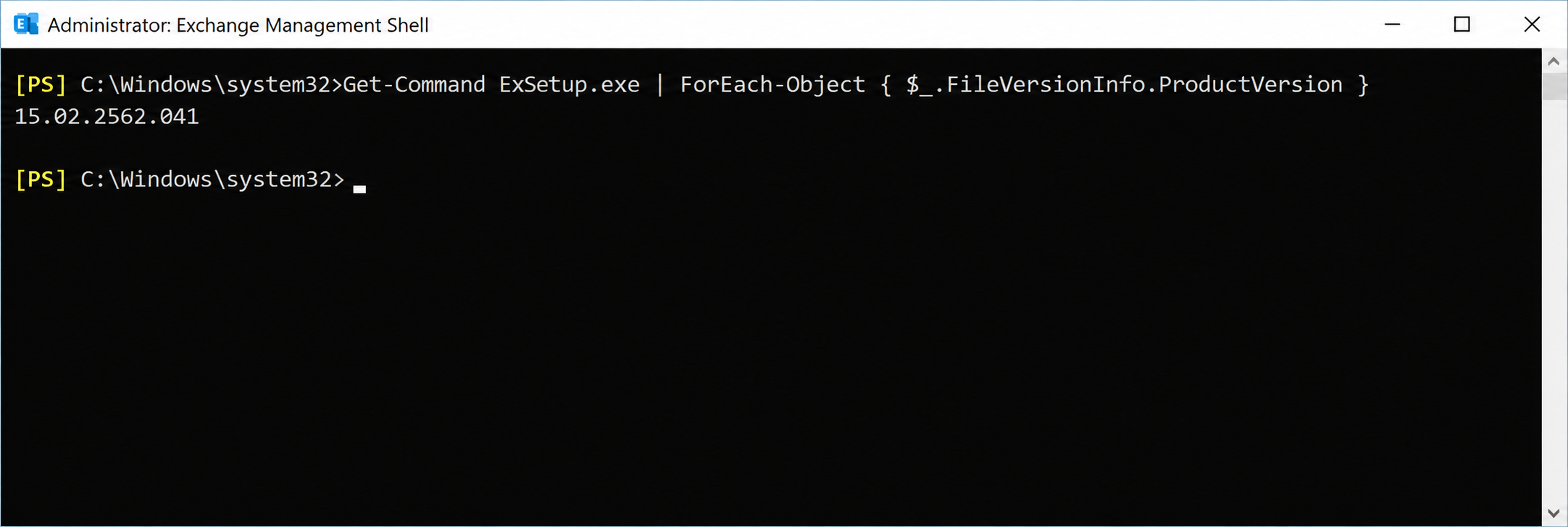
The build check is done separately on each Exchange server. The AdminDisplayVersion value does not reflect Hotfix Updates, so the correct build number is read from the ExSetup.exe file in the Bin folder of the Exchange installation directory. Exchange setup adds this folder to the PATH variable, so the command does not need a file path.
The command is run in the Exchange Management Shell.
Get-Command ExSetup.exe | ForEach-Object { $_.FileVersionInfo.ProductVersion }
The value 15.02.2562.041 in the output corresponds to the Exchange Server SE RTM May 2026 Hotfix Update (HU) build. This build is the minimum build required for the Graph API-based hybrid flow in the table in Step 5. Later Security Updates have a higher build number and include the same features. The same command is also run on EXCSRV02 to verify that both servers are on the same build.
Transport Certificate Check
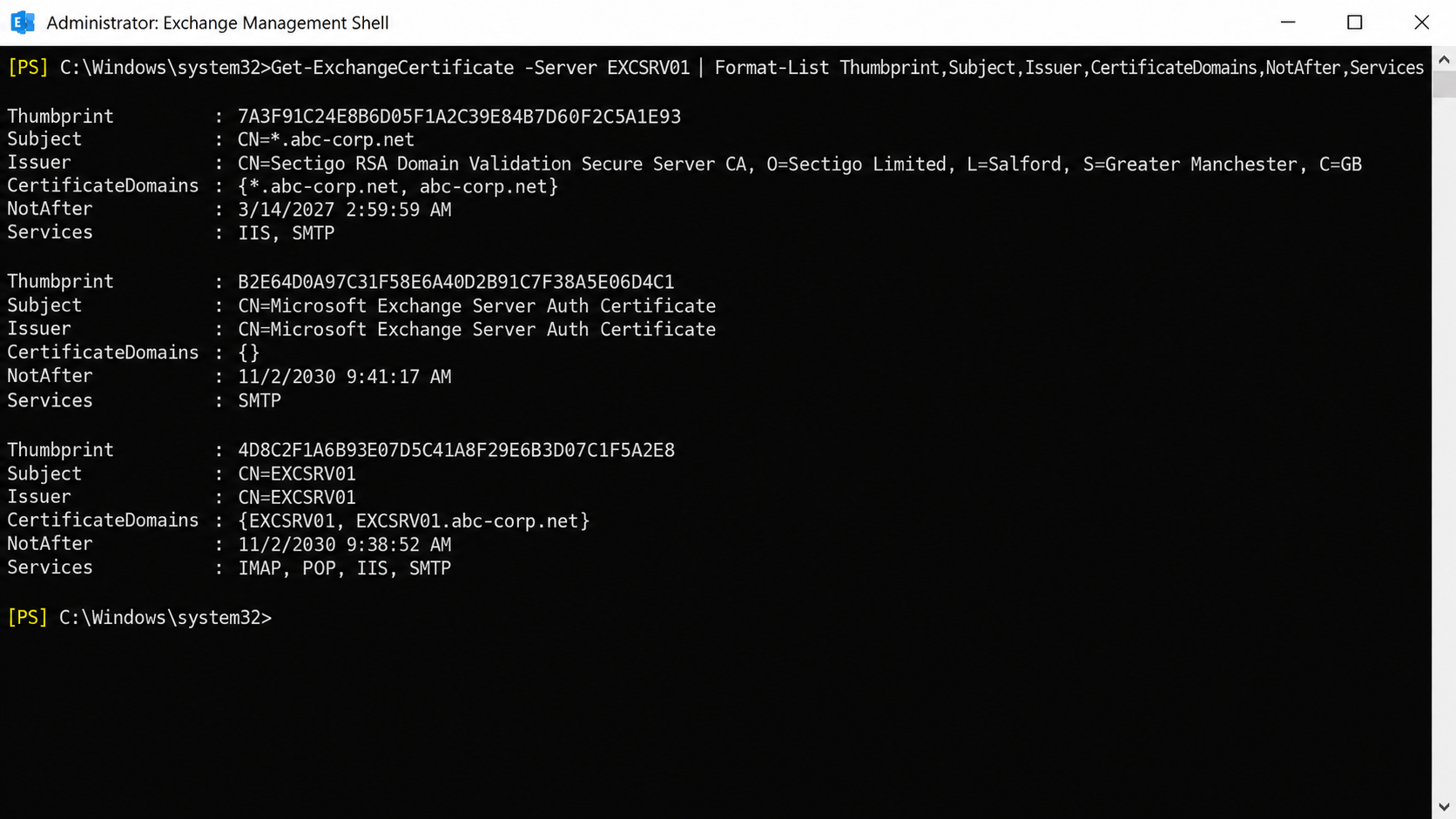
The certificate used for hybrid mail flow must be installed on all servers that will host the Send and Receive connectors. The connectors match the certificate by its Issuer and Subject information, not by its thumbprint. For this reason, different certificates with the same Subject and Issuer also work technically, but Microsoft's recommendation and the simplest method is to install the same certificate on all servers. In this check, the thumbprint comparison is used to verify that the same certificate exists on every server. The certificates are listed separately for each server.
Get-ExchangeCertificate -Server EXCSRV01 | Format-List Thumbprint,Subject,Issuer,CertificateDomains,NotAfter,Services
3 certificates are listed on EXCSRV01. The first is the *.abc-corp.net certificate issued by a public CA, and it is assigned to the IIS and SMTP services. This certificate is selected as the transport certificate in Step 9. The second is the Microsoft Exchange Server Auth Certificate that Exchange uses for OAuth, and the third is the self-signed certificate that is created during installation.
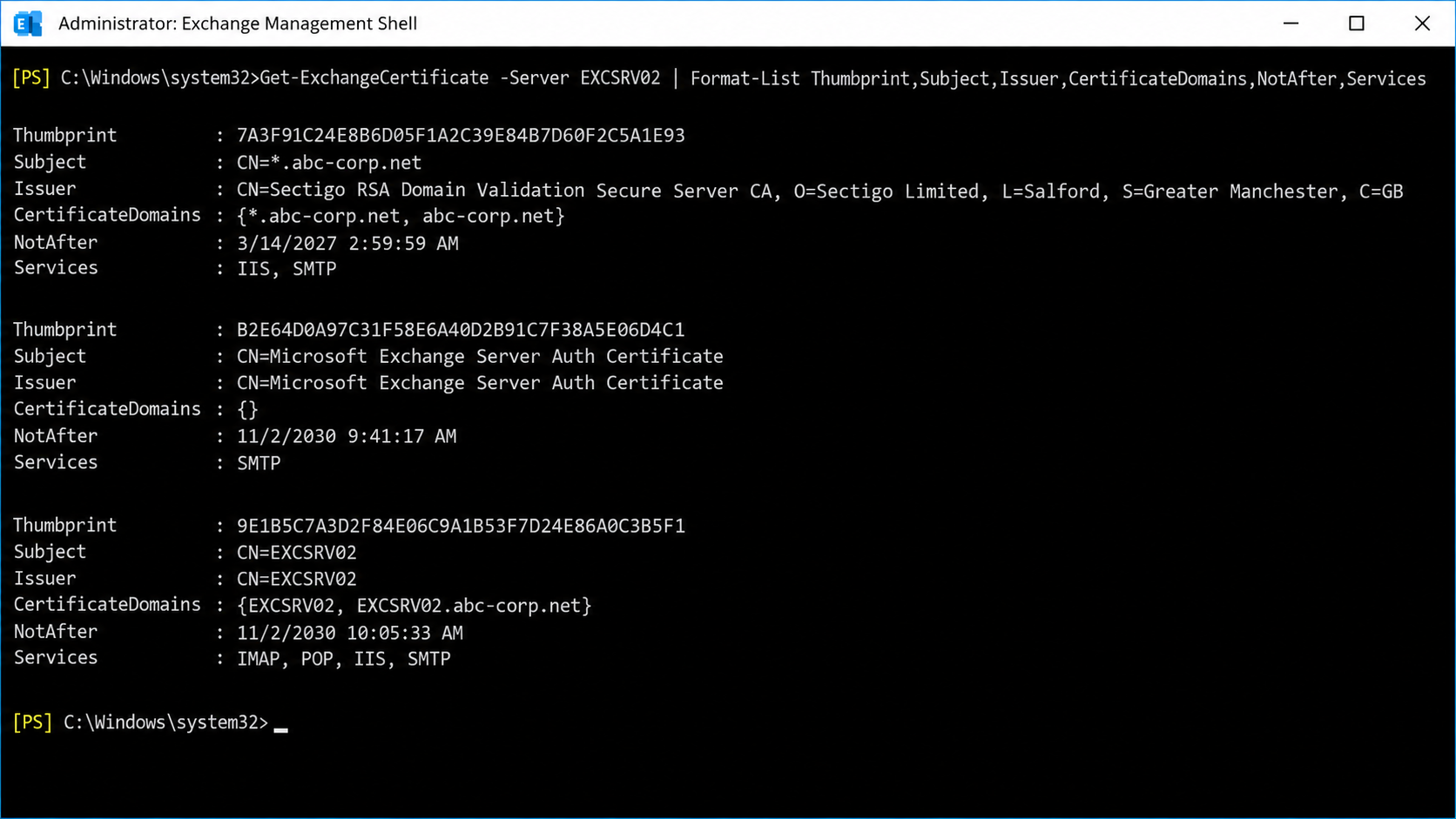
Get-ExchangeCertificate -Server EXCSRV02 | Format-List Thumbprint,Subject,Issuer,CertificateDomains,NotAfter,Services
The thumbprint of the *.abc-corp.net certificate on EXCSRV02 is identical to the one on EXCSRV01. This match shows that the same certificate is installed on both servers. If different certificates were used, it would be enough for the Subject and Issuer fields to be the same on both servers. The thumbprint values of the self-signed certificates are different on each server.
Auth Certificate Check
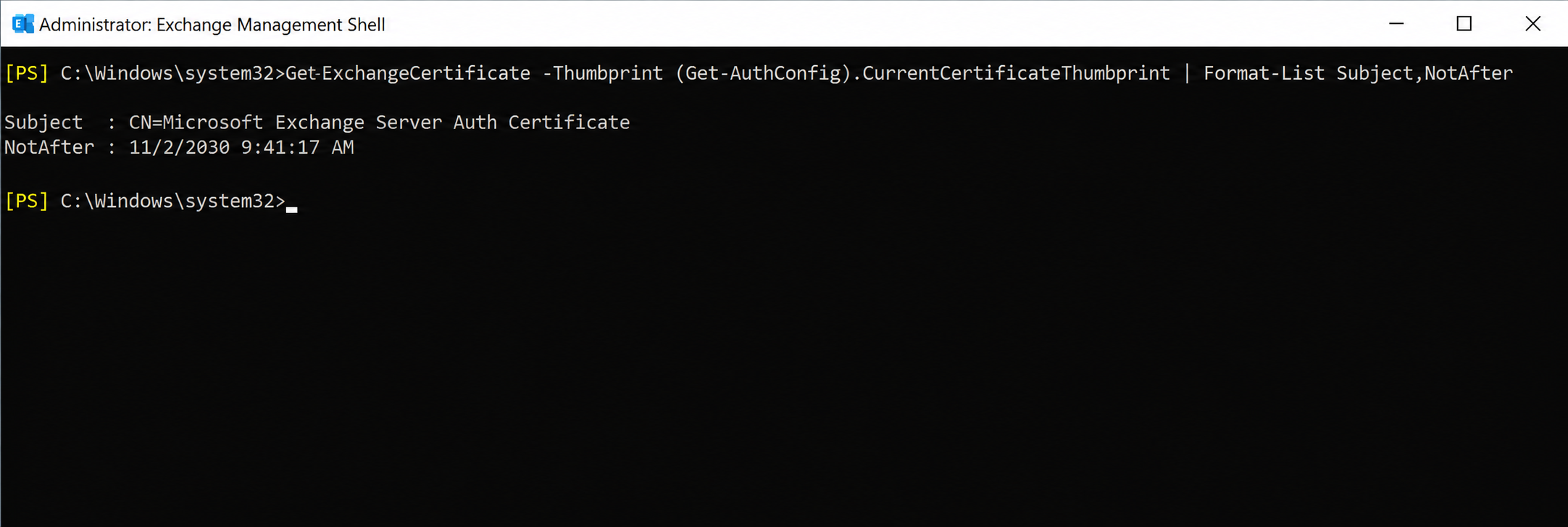
The OAuth configuration of the HCW and the certificate upload to the dedicated Exchange Server application depend on the active Auth Certificate of Exchange. The active certificate is found with the CurrentCertificateThumbprint value in the Get-AuthConfig output.
Get-ExchangeCertificate -Thumbprint (Get-AuthConfig).CurrentCertificateThumbprint | Format-List Subject,NotAfter
A NotAfter value that shows a future date means that the Auth Certificate has not expired. This check looks only at the validity date. On its own, it does not verify that the certificate has been distributed to all servers or that the whole OAuth configuration is healthy. For a full check, Microsoft's MonitorExchangeAuthCertificate script can be used.
The HCW must not be run with an expired Auth Certificate. OAuth communication between Exchange Server and Exchange Online depends on a valid Auth Certificate, so the certificate must be renewed before the HCW.
DNS Check
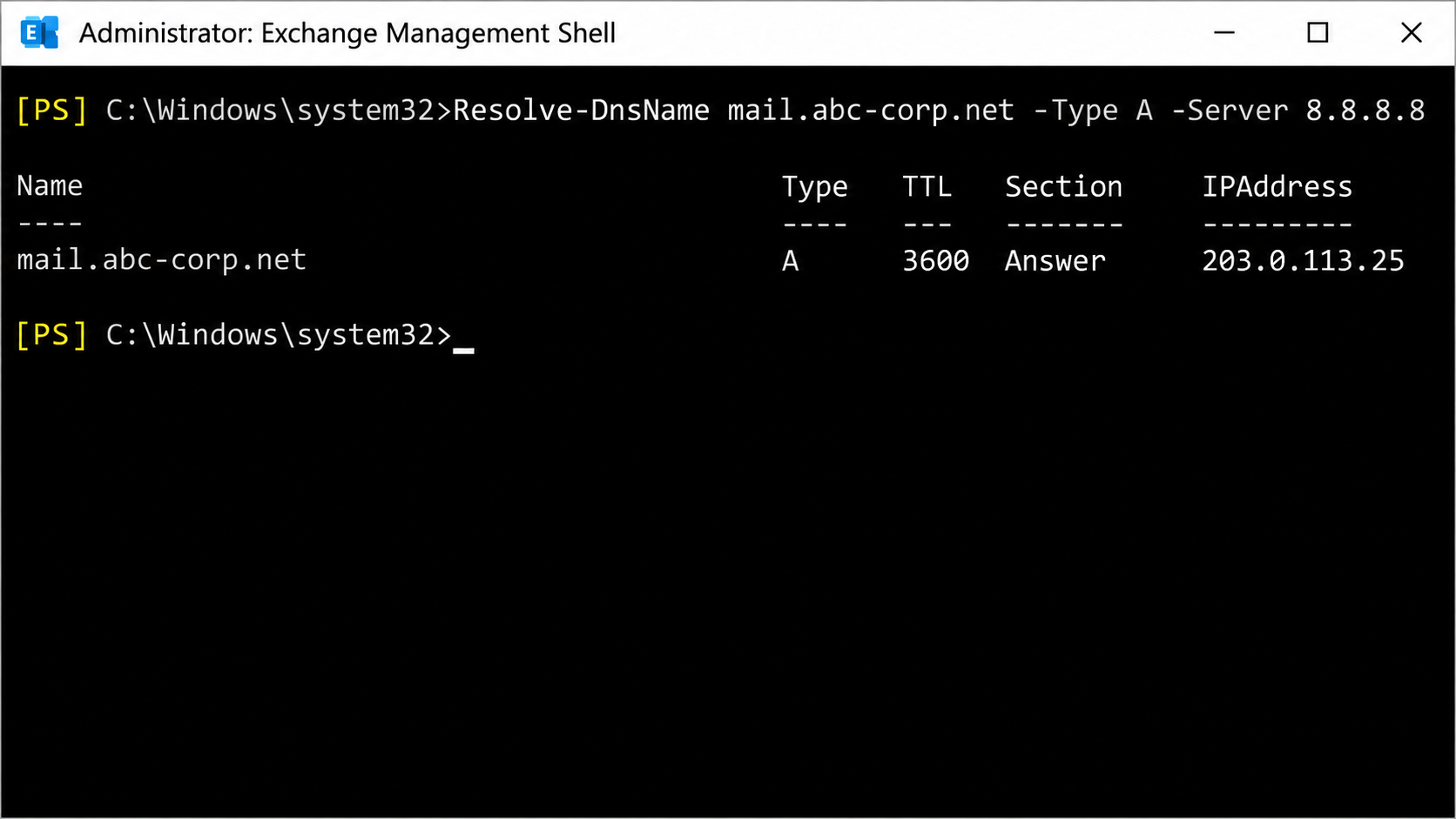
The Organization FQDN must resolve in public DNS. The Exchange server uses internal DNS, so in environments with split DNS the internal IP address is returned and the test is misleading. To send the query to public DNS, an external DNS server is specified with the Server parameter.
Resolve-DnsName mail.abc-corp.net -Type A -Server 8.8.8.8
The returned IP address must be the public IP address that Exchange Online connects to for SMTP. Whether TCP/25 is open to Exchange Online on this address is verified separately on the firewall.
MRSProxy Check
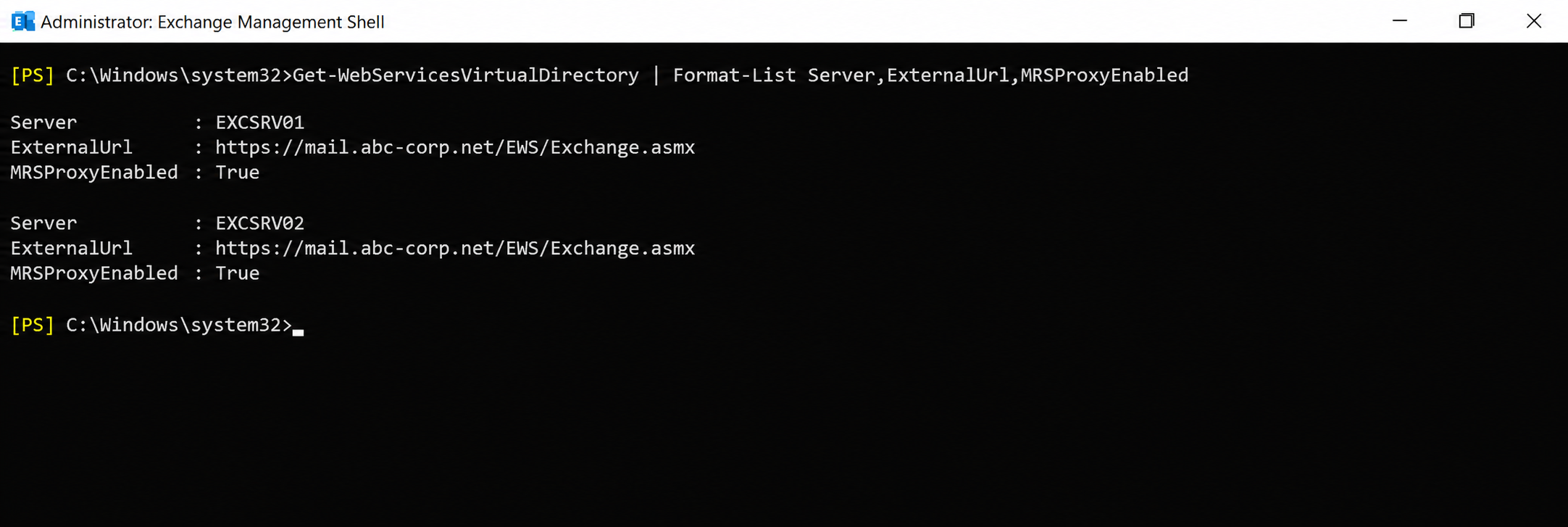
In Classic Hybrid, mailbox moves are done with MRSProxy, which runs on the EWS virtual directory. The ExternalUrl and MRSProxyEnabled values are checked on all servers.
Get-WebServicesVirtualDirectory | Format-List Server,ExternalUrl,MRSProxyEnabled
On both servers, the ExternalUrl value is expected to be https://mail.abc-corp.net/EWS/Exchange.asmx and the MRSProxyEnabled value is expected to be True.
On a server where the MRSProxyEnabled value is False, MRSProxy is enabled with the command below. The HCW can also enable this setting itself, but enabling it in advance gives the IIS cache time to refresh.
Set-WebServicesVirtualDirectory -Identity "EXCSRV01\EWS (Default Web Site)" -MRSProxyEnabled $true
2- HCW Decision Table
Every screen of the HCW asks for a decision. The table below lists these decisions in step order. Each row shows the question asked on the related screen and the answer given in this setup. Answering the same questions for your own environment before the wizard is started removes the need to make decisions in front of the screen during setup.
|
Step |
Screen |
Decision to Make |
Selection in This Setup |
|
1 |
Hybrid Features |
Which hybrid configuration will be set up? |
Full Hybrid Configuration |
|
2 |
Hybrid Domains |
Which domains will be included in the hybrid configuration? |
abc-corp.net |
|
2 |
Hybrid Domains |
Through which domain will the Autodiscover information be obtained? |
abc-corp.net |
|
3 |
Hybrid Topology |
Which topology will be used? |
Classic Hybrid Topology |
|
3 |
Hybrid Topology |
Will the configurations be selected one by one? |
Yes, Choose Exchange Hybrid Configuration was selected. |
|
4 |
Choose what HCW Configures |
Will Organization Configuration Transfer be done? |
No |
|
4 |
Choose what HCW Configures |
Will Centralized Mail Transport be enabled? |
No |
|
5 |
Exchange Server Application Configuration |
Will admin consent be granted to the dedicated application? |
Yes |
|
6 |
Hybrid Configuration |
On which server role will the connectors be configured? |
Client Access and Mailbox servers |
|
7 |
Receive Connector Configuration |
Which servers will receive mail from Exchange Online? |
EXCSRV01, EXCSRV02 |
|
8 |
Send Connector Configuration |
Which servers will send mail to Exchange Online? |
EXCSRV01, EXCSRV02 |
|
9 |
Transport Certificate |
Which certificate will protect hybrid mail flow? |
abc-corp.net |
|
10 |
Organization FQDN |
To which address will Exchange Online deliver on-premises mail? |
mail.abc-corp.net |
3- HCW Setup Steps
Step 1 - Hybrid Features
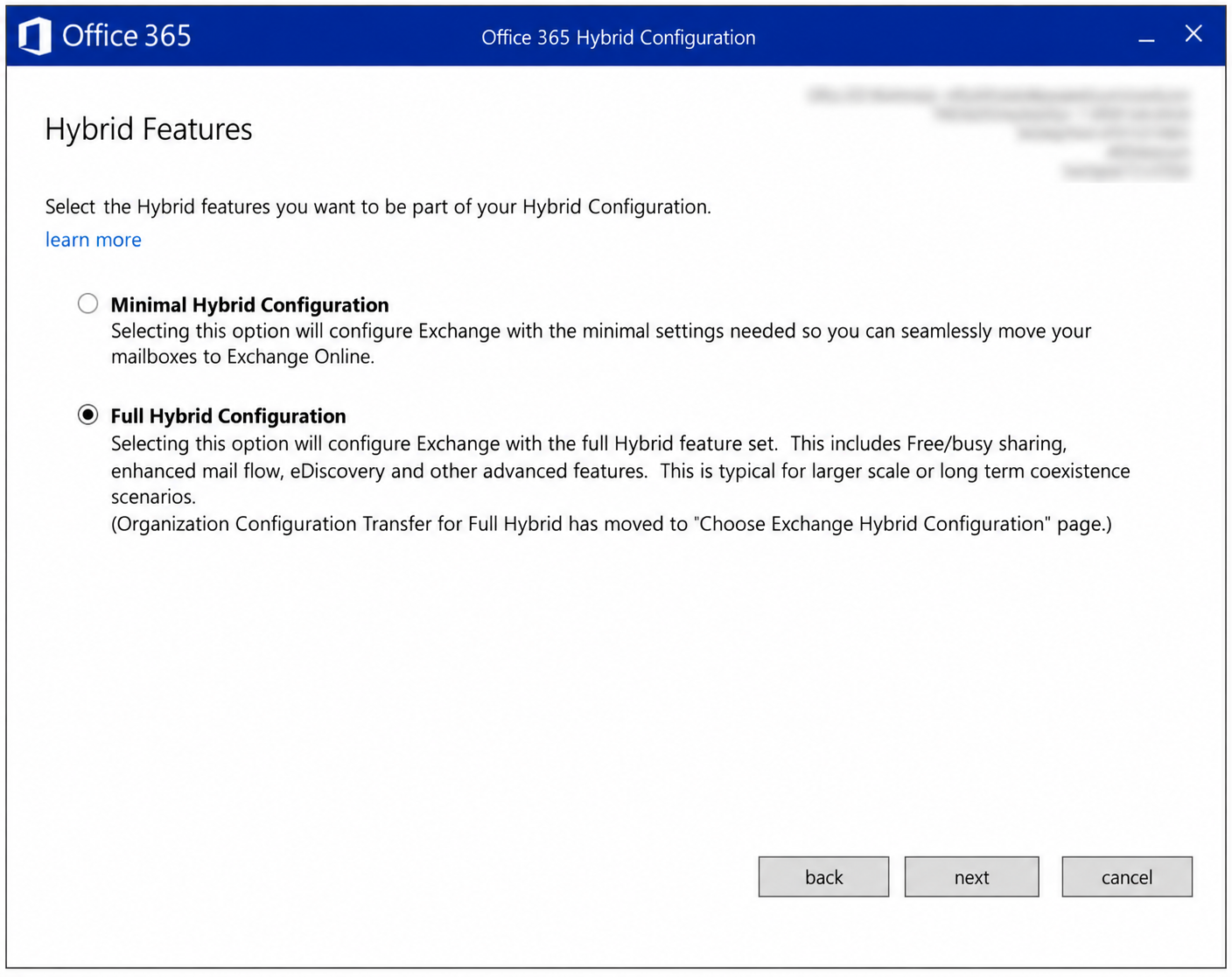
After the wizard collects the environment information, it opens the Hybrid Features page, which is the first decision screen. The decision made on this screen determines which hybrid components the HCW sets up between the 2 environments.
Minimal Hybrid Configuration focuses only on mailbox migration. Full Hybrid Configuration sets up the whole hybrid infrastructure, including the OAuth trust, Organization Relationship and hybrid mail flow connectors. The differences between the 2 options are in the table below.
|
Scope |
Minimal Hybrid Configuration |
Full Hybrid Configuration |
|
Purpose |
The minimum configuration required to move mailboxes to Exchange Online. |
All hybrid features, so that the 2 environments can work together for a long time. |
|
OAuth, Organization Relationship and Intra Organization Connector |
Not configured. |
Configured. |
|
Free/Busy and MailTips |
Not supported. |
Supported. |
|
Hybrid Mail Flow Connectors |
Not configured. |
Configured, and mail between the 2 environments is protected with TLS. |
|
eDiscovery and Other Cross-Premises Features |
Not supported. |
Supported. |
|
Mailbox Migration |
Supported. |
Supported. |
|
Choose Exchange Hybrid Configuration |
Not supported. |
Supported. |
|
Suitable Scenario |
Migrations that will be completed in a short time. |
Long-term coexistence and staged migration. |
In this setup the 2 environments will run in coexistence for some time, so Full Hybrid Configuration was selected. The note at the bottom of the page states that the Organization Configuration Transfer option was removed from this screen for Full Hybrid and moved to the Choose Exchange Hybrid Configuration page.
Checkpoint
Full Hybrid Configuration must be selected. If Minimal is selected, the granular configuration page in Step 4 does not open at all.
Exchange Online Permission Requirements
The selection made on this screen also determines which role the account that runs the wizard must have in Exchange Online. The required role changes according to the combination of 2 independent selections.
-
The Minimal or Full Hybrid Configuration selection on this screen.
-
The Classic or Modern topology selection that is made in Step 3.
These 2 selections are independent of each other, and neither restricts the other. Whether Minimal or Full is selected, the topology can be Classic or Modern. The connection appears only on the permission side, because the required role is determined by the combination of the 2 selections and not by a single selection. With Minimal and Classic, Exchange Administrator is enough, while the same Minimal with Modern requires Global Administrator. For this reason Microsoft defines the permissions separately for Minimal and Full. The 2 tables below show this definition, and in each table the role required for the Classic and Modern topology is in a separate column.
In the tables below, the permissions that change according to the option apply only to scenarios where the HCW is run again. If hybrid is configured for the first time, Global Administrator is required regardless of the selections.
✅ Minimal Hybrid Configuration
In Minimal Hybrid Configuration, the Choose Exchange Hybrid Configuration feature on the Hybrid Topology screen in Step 3 is not supported, so there is no granular selection. The permission is defined at a single level for the whole configuration. In the Classic topology the Exchange Administrator role is enough, because this configuration does not set up an OAuth trust and does not create an application registration in Microsoft Entra ID. The Modern topology requires Global Administrator. The wizard also asks for Global Administrator credentials during the installation and registration of the Hybrid Agent.
|
Granular Hybrid Configuration |
Classic Hybrid |
Modern Hybrid |
|
Not Available |
Exchange Administrator |
Global Administrator |
✅ Full Hybrid Configuration
In Full Hybrid Configuration, the permission is defined separately for each configuration selected on the Choose what HCW Configures page in Step 4. In the Classic topology, the 2 options that create a trust relationship or an application registration in Microsoft Entra ID require Global Administrator. The other options can be done with the Exchange Administrator role. In the Modern topology all options require Global Administrator. These granular permissions are especially useful in scenarios where the HCW is run again.
|
Granular Hybrid Configuration |
Classic Hybrid |
Modern Hybrid |
|
Oauth, Intra Organization Connector and Organization Relationship |
Global Administrator |
Global Administrator |
|
Dedicated Exchange Server Application in Entra ID |
Global Administrator |
Global Administrator |
|
Update Coexistence Domain in Exchange Server Accepted domain and Email Address Policy |
Exchange Administrator |
Global Administrator |
|
Migration Endpoint |
Exchange Administrator |
Global Administrator |
|
Organization Configuration Transfer |
Exchange Administrator |
Global Administrator |
|
Outbound Connector in M365 Organization |
Exchange Administrator |
Global Administrator |
|
Inbound Connector in M365 Organization |
Exchange Administrator |
Global Administrator |
|
Receive Connector on Exchange Hybrid Server |
Exchange Administrator |
Global Administrator |
|
Send Connector on Exchange Hybrid Server |
Exchange Administrator |
Global Administrator |
|
Enable Centralized Mail Transport |
Exchange Administrator |
Global Administrator |
|
Update Secure Mail Certificate for connectors |
Exchange Administrator |
Global Administrator |
Step 2 - Hybrid Domains
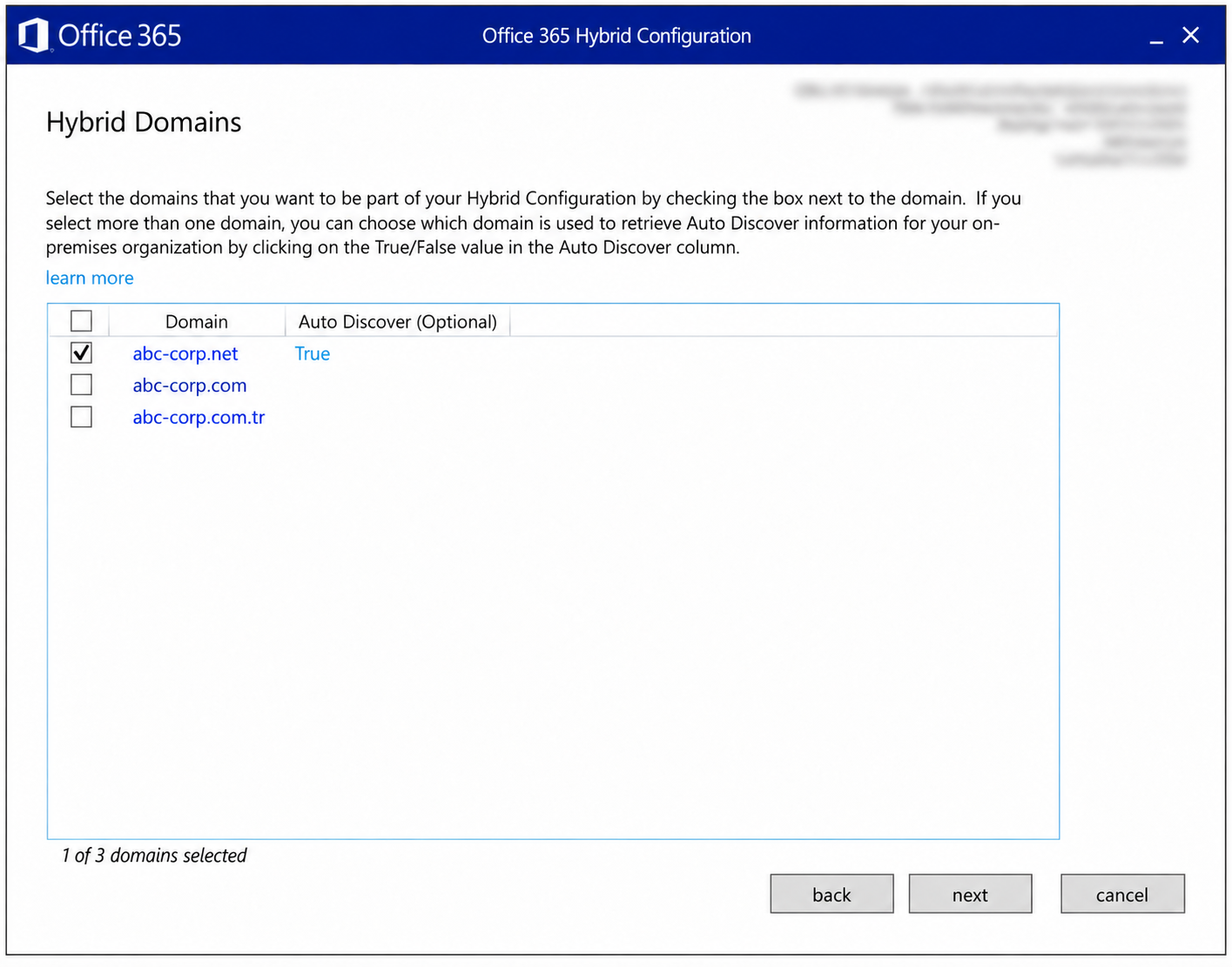
This page lists the accepted domains defined in the on-premises Exchange organisation. If the organisation has a single accepted domain, the HCW selects it automatically and moves to the next screen without showing this page. The source of the domains in the list is not Microsoft Entra Connect synchronisation. Entra Connect synchronises objects such as users and groups, while domains are added to the tenant and verified separately.
The selected domains are written to the HybridConfiguration object as a hybrid domain. The HCW configures free/busy sharing, the Organization Relationship and mail routing between the 2 environments only for these domains. For this reason, all domains that appear in the primary SMTP addresses of the users who will be part of the hybrid structure must be selected. At a minimum, the main accepted domain of the organisation must be selected. Every selected domain must also be added to the tenant and verified, otherwise the wizard returns an error in the next step.
In the sample environment 3 domains are listed and only abc-corp.net is selected. The addresses of the users who will be part of the hybrid structure end with this domain. If the mailboxes that use the other 2 domains were also going to be included in hybrid, those domains would have to be selected too.
When more than 1 domain is selected, the Auto Discover column determines through which domain the Autodiscover information of the on-premises organisation is obtained. In most environments this value does not need to be changed. Only if a specific domain hosts the Autodiscover information that the HCW needs for the Organization Relationship configuration is the value of that domain set to True. On the sample screen the value True appears for abc-corp.net.
Checkpoint
The primary SMTP domains of the users who will be part of the hybrid structure must be selected and verified in the tenant. The Auto Discover value is left at its default unless there is a specific requirement.
Step 3 - Hybrid Topology
This page determines the path that Exchange Online uses to reach on-premises Exchange.
With the Use Exchange Classic Hybrid Topology option, Exchange Online connects directly over HTTPS to the Autodiscover and EWS addresses published to the Internet. Free/busy, MailTips, message tracking and the mailbox migration traffic that runs over MRSProxy arrive at these addresses. As the description on the screen states, this model provides all hybrid features, but it requires inbound connections from the Internet and outbound connections to the Internet to be open for Client Access and transport traffic.
When Use Exchange Modern Hybrid Topology is selected, the wizard installs the Hybrid Agent, which is built on Microsoft Entra Application Proxy technology. Free/busy and migration requests from the cloud are forwarded to the Exchange Server on the internal network over the outbound HTTPS connection that the agent opens. SMTP traffic does not pass through the agent, so the mail flow requirements are the same in both models.
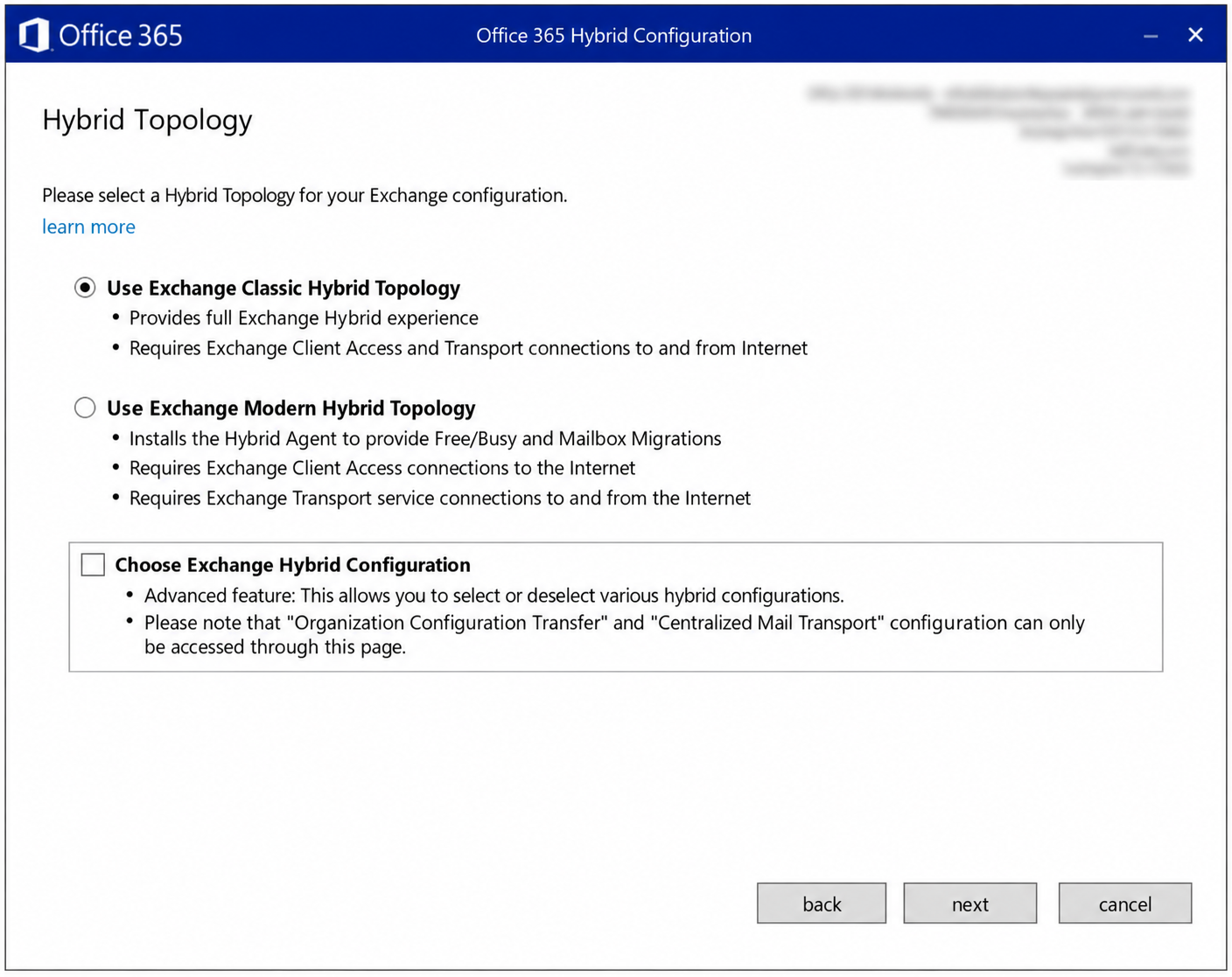
Classic and Modern Topology Comparison
The main differences between the 2 models are in the table below.
|
Scope |
Classic Hybrid Topology |
Modern Hybrid Topology |
|
Access from the Cloud to On-Premises |
Exchange Online connects directly to the published Autodiscover and EWS addresses with inbound TCP/443. |
Free/busy and migration requests are forwarded over the outbound TCP/443 connection that the Hybrid Agent opens. |
|
Mail Flow |
TCP/25 in both directions and a public CA certificate are required. |
The same as Classic. SMTP traffic does not pass through the Hybrid Agent. |
|
Migration Endpoint |
More than 1 migration endpoint and custom URLs are supported. |
A single migration endpoint that points to the tenant-specific msappproxy.net address is supported. |
|
Hybrid Modern Authentication |
Supported. |
Not supported. |
|
Message Tracking and Multi-Mailbox Search |
Supported cross-premises. |
Not supported. |
|
Teams Calendar Features That Require On-Premises Mailbox Access |
This is the topology that Microsoft recommends. |
Microsoft recommends the Classic topology for this scenario. |
|
Dedicated Exchange Server Application |
Required. |
Required. |
I covered the communication flows of the 2 topologies, and which one should be selected in which scenario, in detail in the article Differences between the Exchange Hybrid Classic and Modern topologies.
The Choose Exchange Hybrid Configuration Option
The Choose Exchange Hybrid Configuration box at the bottom of the page is an advanced option that works independently of the topology selection. On the screen above the box is not selected yet. When the box is selected and Next is clicked, the wizard adds the Choose what HCW Configures page to the flow. If the box is not selected, the default configuration set is applied and this page is not displayed at all.
Checkpoint
The Classic topology must be selected and the Choose Exchange Hybrid Configuration box must be selected.
The Organization Configuration Transfer and Enable Centralized Mail Transport settings can be accessed only from the page that opens when the Choose Exchange Hybrid Configuration box is selected.
Step 4 - Choose what HCW Configures
On this page, the hybrid configurations that the HCW applies in this run are selected one by one. The selections here determine which objects, such as the OAuth trust, Organization Relationship, connectors and migration endpoint, are created or updated in the 2 environments. The page has 2 sections, Configure Hybrid Features and Configure Mail Flow, and the options required for a first setup are selected by default.
The Caution warning at the top of the page makes the effect of the selections clear. In the first HCW run, clearing a configuration causes some hybrid features not to work. In later runs, a setting that is cleared is not rolled back, it is only skipped in that run. Selections that were changed by mistake return to the default with the Reset Choices button.
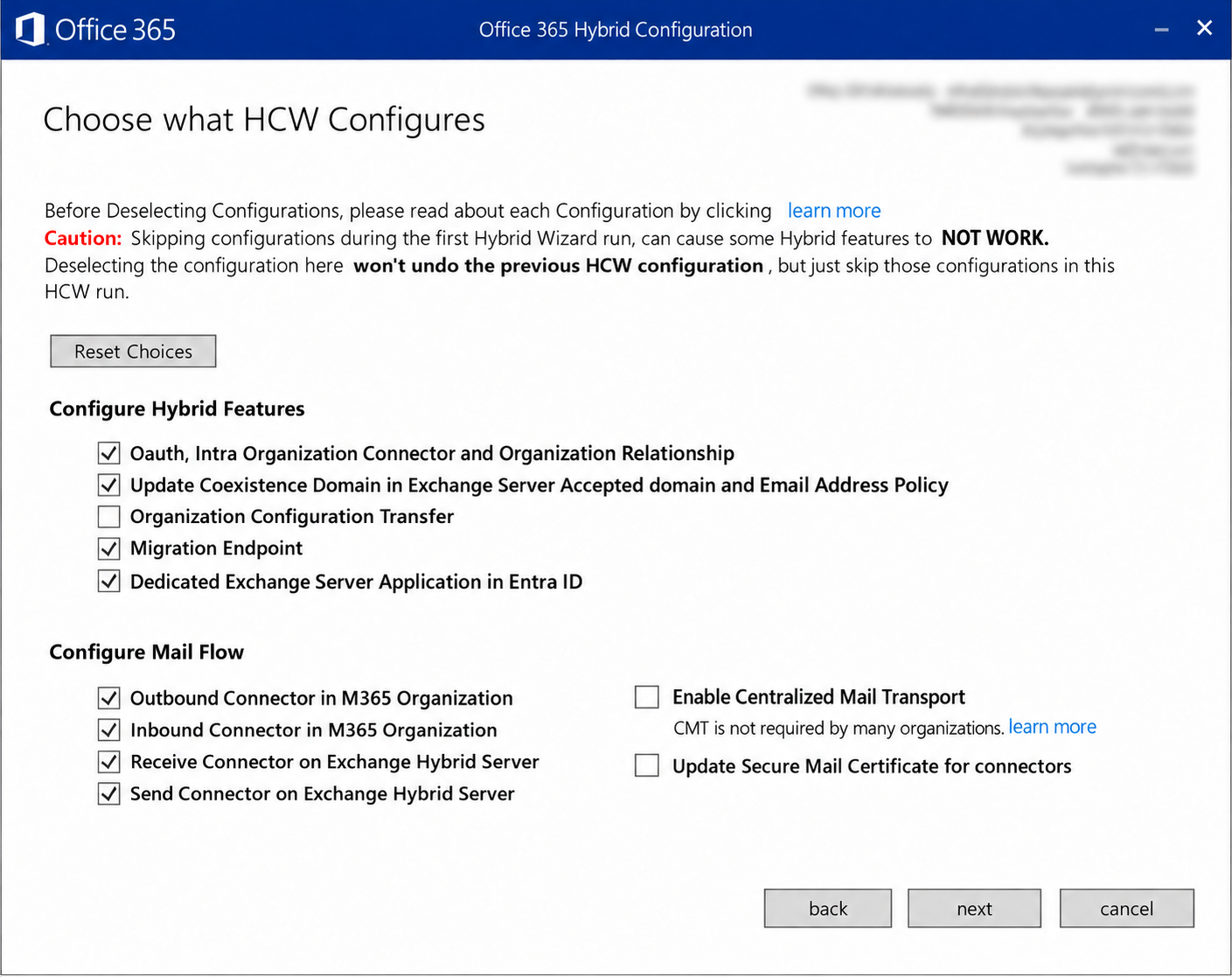
👉 Configure Hybrid Features
This section covers the identity, sharing and migration side of hybrid.
|
Option |
What the HCW Does |
|
Oauth, Intra Organization Connector and Organization Relationship |
Sets up the OAuth trust between the 2 environments, the Auth Server objects, the Intra Organization Connectors and the Organization Relationships. Free/busy, MailTips and Online Archive depend on these objects. |
|
Update Coexistence Domain in Exchange Server Accepted domain and Email Address Policy |
Adds the {Tenant}.mail.onmicrosoft.com coexistence domain as an accepted domain on the on-premises side and writes it to the email address policy as a secondary address. Mail to mailboxes that were moved to Exchange Online is routed through this address. |
|
Organization Configuration Transfer |
Copies organisation policies such as the OWA mailbox policy, mobile device mailbox policy and retention policy to Exchange Online. It is not selected by default. |
|
Migration Endpoint |
Creates the migration endpoint in Exchange Online that points to on-premises Exchange. |
|
Dedicated Exchange Server Application in Entra ID |
Creates the tenant-specific application in Microsoft Entra ID that Exchange Server uses for OAuth communication, and causes the screen in Step 5 to open. |
👉 Configure Mail Flow
This section contains the connectors that carry mail flow between the 2 environments and 2 additional options.
|
Option |
What the HCW Does |
|
Outbound Connector in M365 Organization |
Configures the outbound connector used by mail from Exchange Online to the on-premises organisation. |
|
Inbound Connector in M365 Organization |
Configures the inbound connector that identifies mail from the on-premises side as hybrid traffic. |
|
Receive Connector on Exchange Hybrid Server |
Configures the on-premises Receive connector that receives mail from Exchange Online. |
|
Send Connector on Exchange Hybrid Server |
Configures the on-premises Send connector used by mail to Exchange Online. |
|
Enable Centralized Mail Transport |
Routes mail from Exchange Online to the Internet through the on-premises organisation. It is disabled by default. |
|
Update Secure Mail Certificate for connectors |
Changes only the TLS certificate of the 4 connectors without changing their other settings. It is used when certificates are renewed. |
Decision Point - Centralized Mail Transport
When CMT is enabled, mail that Exchange Online mailboxes send to the Internet does not go directly to the recipient. It is routed to on-premises Exchange first. For this, the HCW makes the following changes on the connectors.
-
The RecipientDomains value of the outbound connector is set to *.
-
The RouteAllMessagesViaOnPremises value of the outbound connector becomes $true.
-
The inbound and outbound connector options are selected automatically. If 1 of these 2 connectors is cleared, the CMT selection is also cleared.
CMT exists for compliance requirements that force outbound mail to pass through an on-premises DLP, journaling, archiving or SMTP gateway solution. It must not be enabled if there is no such requirement. In the sample environment CMT was left cleared.
When CMT is enabled, the external mail traffic of cloud users depends on the on-premises servers and on TCP/25 access. An outage on the on-premises side means that Exchange Online users cannot send mail to external recipients.
Checkpoint
In a first setup, all options except Organization Configuration Transfer, Enable Centralized Mail Transport and Update Secure Mail Certificate for connectors must be selected. If Organization Configuration Transfer is required, it is selected separately.
Step 5 - Exchange Server Application Configuration
In this step the wizard opens the Exchange Server Application Configuration screen below. The Dedicated Exchange Server Application in Entra ID option is enabled by default in the HCW, so this screen appears as part of the standard flow on supported builds and cloud environments. The effect of the Choose what HCW Configures page in Step 4 on the ExchangeServerApp application is that the Dedicated Exchange Server Application in Entra ID option appears there as a box and can be cleared if the application should not be created in Microsoft Entra ID.
If the Dedicated Exchange Server Application in Entra ID box is cleared, the Exchange Server Application Configuration screen does not appear and the application is not created. In this case Exchange Server cannot establish OAuth communication with Exchange Online, and on-premises users cannot access the free/busy, MailTips and profile photo information on the cloud side. Mailbox migration and hybrid mail flow work independently of this application, so they are not affected.
Disabling the option makes sense only for environments that do not host on-premises mailboxes or that set up the application separately with the ConfigureExchangeHybridApplication.ps1 script. The application is also not required in environments that use DAuth instead of OAuth, but DAuth depends on EWS in Exchange Online and will stop working when EWS is disabled. Microsoft recommends that these environments move to OAuth.
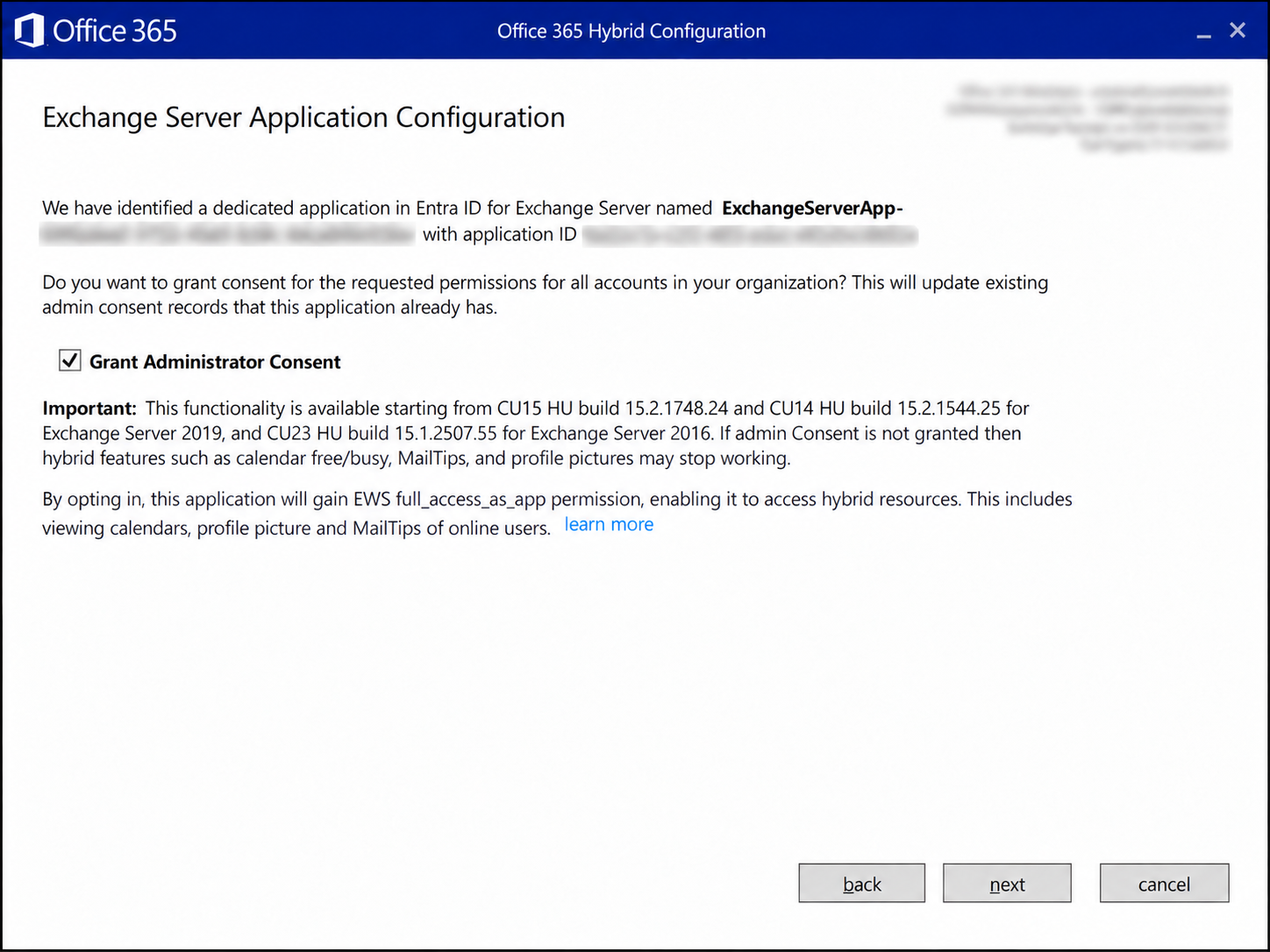
Behind this screen is a change that was made to the hybrid architecture in 2025. For OAuth communication with Exchange Online, Exchange Server previously used the shared Office 365 Exchange Online service principal that belongs to Microsoft. The HCW also uploaded the on-premises Auth Certificate to the keyCredentials property of this object.
Microsoft abandoned this model because of the vulnerability documented as CVE-2025-53786 and because of the retirement of EWS in Exchange Online. In the new model, every tenant has a separate application named ExchangeServerApp-{Organization GUID}.
Since 31 October 2025, EWS access through the shared service principal has been blocked permanently. Without the dedicated application, free/busy, MailTips and profile photo sharing towards the cloud do not work.
What the HCW Does in Microsoft Entra ID
✔ With this option, the HCW registers the application in Microsoft Entra ID through Microsoft Graph.
✔ It adds the EWS full_access_as_app permission to the application.
✔ It uploads the current Auth Certificate, and the next one if it exists, to the application.
✔ It removes expired certificates from the application.
✔ When approval is given, it grants tenant-wide admin consent.
Grant Administrator Consent
As the screen shows, when the wizard detects an existing application in the tenant, it displays the name and Application ID of the application and states that the approval will update the existing admin consent records.
The Grant Administrator Consent box is one of the most important steps on this screen. full_access_as_app is an application permission, so it allows the application to access Exchange Online mailboxes through EWS without a user session or user context.
A permission of this type cannot be used unless tenant-wide administrator consent is granted. If administrator consent is not granted, or is revoked later, on-premises users cannot access the free/busy, MailTips and profile photo information of Exchange Online users.
Administrator consent is required for this access, but it is not enough on its own. For the EWS-based hybrid flow to work, the EWS access settings in Exchange Online must also be suitable. This topic is covered separately under the EWS Retirement heading below.
If this box is cleared when consent has already been granted to an existing application, the wizard revokes the consent and the working hybrid features stop.
Supported Exchange Builds
The Important note on the screen lists the builds that support the feature. With Exchange Server SE included, the current table is as follows.
|
Version |
Minimum Build |
EWS-Based Flow |
Graph API-Based Flow |
|
Exchange Server SE RTM, May 2026 HU |
15.2.2562.41 |
Supported. |
Supported. |
|
Exchange Server SE RTM |
15.2.2562.17 |
Supported. |
Not supported. |
|
Exchange Server 2019 CU15, April 2025 HU |
15.2.1748.24 |
Supported. |
Not supported. |
|
Exchange Server 2019 CU14, April 2025 HU |
15.2.1544.25 |
Supported. |
Not supported. |
|
Exchange Server 2016 CU23, April 2025 HU |
15.1.2507.55 |
Supported. |
Not supported. |
Support for Exchange Server 2016 and 2019 ended on 14 October 2025. The version to target in a new hybrid setup today is Exchange Server SE.
The HCW creates the application and prepares the Auth Server configuration on the Exchange side, but it does not enable the feature in the on-premises organisation automatically. The feature is enabled with a setting override in Step 14.
Checkpoint
The Grant Administrator Consent box must be selected and the account that runs the wizard must have the Global Administrator role.
EWS Retirement and the Graph API-Based Flow
The application that the HCW creates connects to Exchange Online through EWS. Microsoft started to disable EWS in Exchange Online gradually, tenant by tenant, from October 2026 and will disable it completely on 1 April 2027. This process affects the dedicated application directly, because the EWS access settings of Exchange Online determine whether the application works, even if admin consent has been granted and the setting override has been created.
2 settings apply during the transition period. EwsEnabled holds whether EWS is enabled tenant-wide, and EwsAllowedAppIDs holds the list of Application IDs of the applications that are allowed to use EWS. Enforcement is applied to tenants gradually, so not every tenant moves to the same state at the same time, but Microsoft's recommendation is to configure this without waiting. To keep the EWS-based hybrid flow until April 2027, Microsoft requires the EwsEnabled value to be set to True and the Application ID of the dedicated application to be added to the EwsAllowedAppIDs list. Every write to the list replaces the previous content, so the Application IDs of the other applications in the tenant that use EWS are also given in the same command, separated by commas. The command is run in Exchange Online PowerShell.
Set-OrganizationConfig -EwsEnabled $true -EwsAllowedAppIDs "{Dedicated-Application-ID}"
Get-OrganizationConfig -RetrieveEwsOperationAccessPolicy | Format-List EwsEnabled,EwsAllowedAppIDs
Changes to EwsAllowedAppIDs take effect in Exchange Online with a delay of up to 24 hours. After April 2027 the EwsEnabled value cannot be changed and the EWS-based flow stops completely.
The permanent solution is the Graph API-based hybrid flow for the supported coexistence calls. With Exchange Server SE May 2026 HU, the dedicated application can be configured with the Calendars.Read, MailTips.ReadBasic.All, ProfilePhoto.Read.All and MailboxSettings.Read Graph permissions, and Exchange Server can make the hybrid calls that Graph supports through Graph. Only Exchange Server SE supports this flow. For this reason, after April 2027 environments that host on-premises mailboxes and need coexistence features must be on Exchange Server SE. Today the Graph flow is available only in the Microsoft 365 Global environment and does not provide the same coverage as EWS for all features. In scenarios that Graph does not support yet, Exchange Server continues to use EWS.
|
Feature |
EWS-Based Flow |
Graph API-Based Flow |
|
Free/Busy |
Supported. |
Supported. |
|
MailTips |
Supported. |
Only Automatic Replies is supported. |
|
Profile Photo |
Supported. |
Supported. |
|
Move to the Archive Mailbox in the Cloud |
Supported. |
Not supported. |
The HCW does not add the Graph permissions and does not enable the Graph flow. This configuration is done with the ConfigureExchangeHybridApplication.ps1 script described in Step 14. If scenarios that require EWS are still in use after the Graph flow is enabled, the full_access_as_app permission must not be removed from the application.
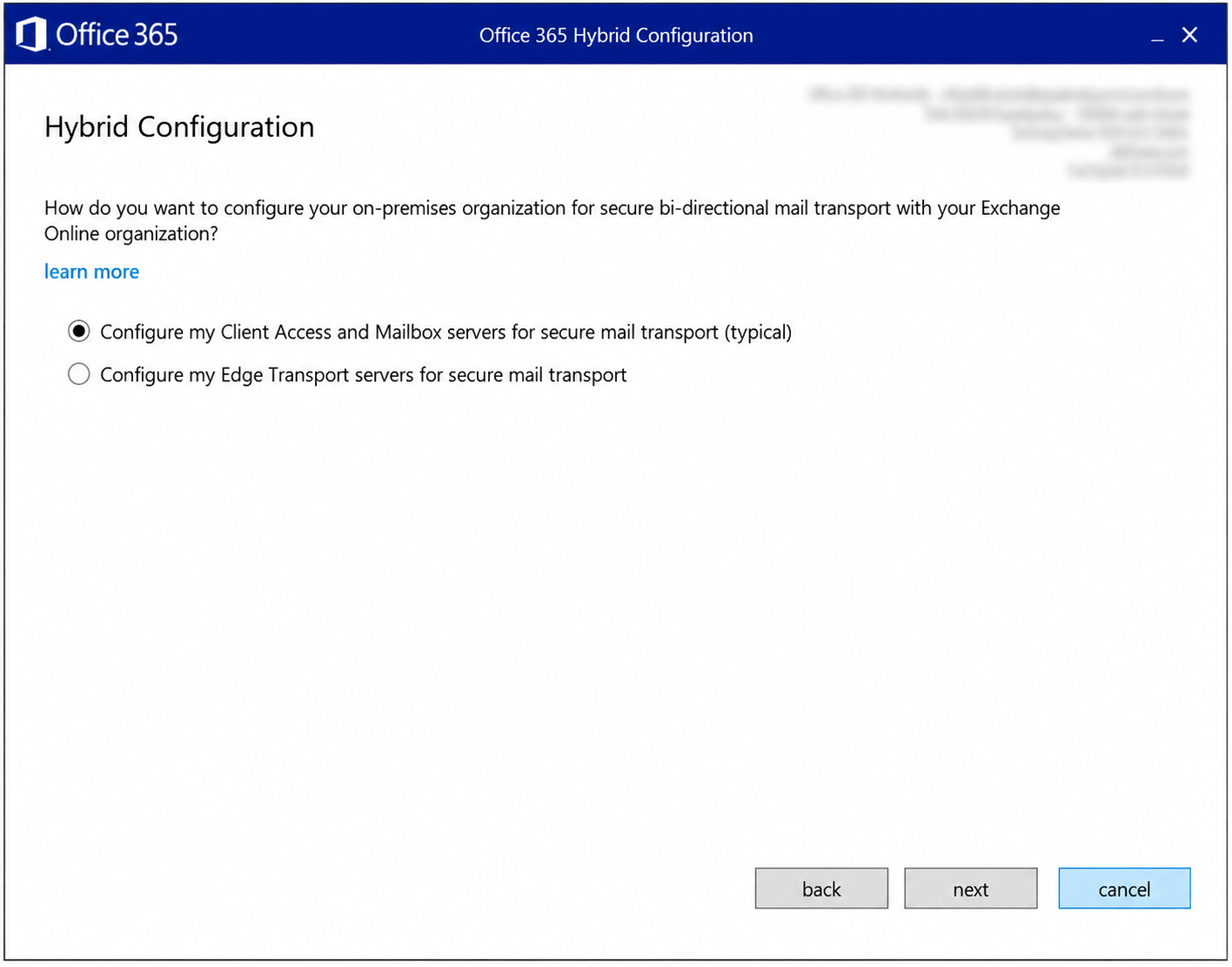
Step 6 - Hybrid Configuration
In this step the wizard moves to the mail flow side and asks through which servers secure mail flow will be set up. The Configure my Client Access and Mailbox servers for secure mail transport option is the typical scenario, where the connectors are configured on the Mailbox servers. In Exchange Server 2016 and later, the Client Access services run inside the Mailbox role.
The Configure my Edge Transport servers for secure mail transport option is for environments that use an Edge Transport server in the DMZ. With this option, the Edge servers must be subscribed to the organisation with EdgeSync before the HCW.
Checkpoint
In an environment that does not use Edge Transport, the Client Access and Mailbox servers option must be selected.
Step 7 - Receive Connector Configuration
On this page, the servers that will receive hybrid mail from Exchange Online are selected. The HCW applies this configuration on the Default Frontend {Server Name} Receive connector on each server. The Microsoft documentation describes the operation as New-ReceiveConnector or Set-ReceiveConnector, but this connector is created during installation in Exchange Server 2016 and later, so in practice the existing connector is updated. The changes are as follows.
-
mail.protection.outlook.com:AcceptCloudServicesMail is added to the TlsDomainCapabilities value.
-
The transport certificate that is selected in Step 9 is written to the TlsCertificateName value.
After these changes, a connection that comes from Exchange Online and has a validated certificate is accepted as internal and authenticated hybrid traffic. The Exchange 2013 note on the screen belongs to the old architecture.
Checkpoint
The selected servers must be behind the Organization FQDN address that is entered in Step 10 and must be reachable from Exchange Online on TCP/25.
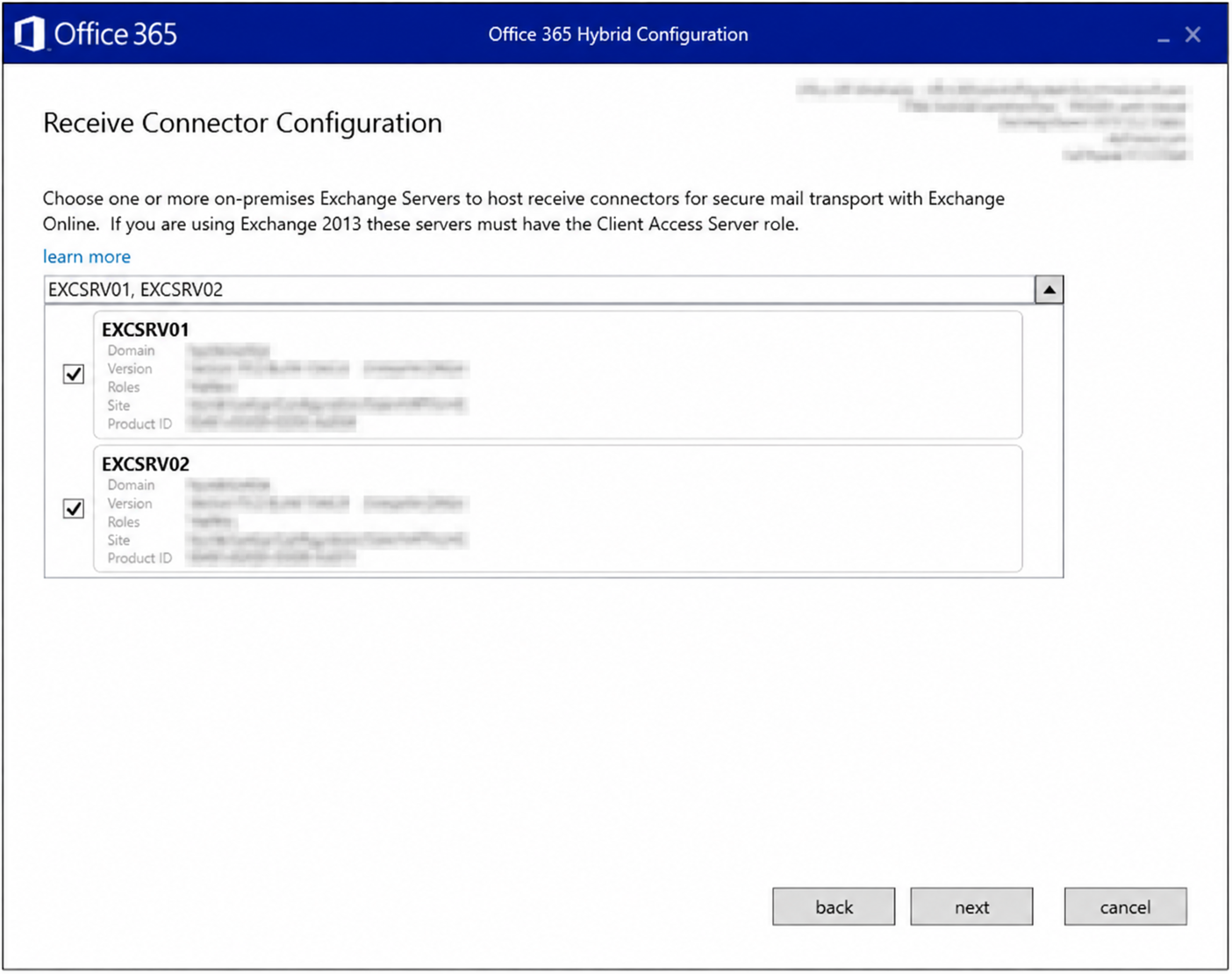
Step 8 - Send Connector Configuration
This page asks the same question for traffic in the opposite direction. The selected servers become the source transport servers of the Send connector that the HCW creates. The main values of the connector are as follows.
|
Property |
Value |
|
Name |
Outbound to Office 365 - {GUID} |
|
AddressSpaces |
{Tenant}.mail.onmicrosoft.com |
|
DNSRoutingEnabled |
$true |
|
RequireTLS |
$true |
|
TlsAuthLevel |
DomainValidation |
|
TlsDomain |
mail.protection.outlook.com |
|
SourceTransportServers |
The servers selected on this page |
Mail to mailboxes that were moved to Exchange Online leaves through this connector. In the sample environment both servers were selected together, so hybrid mail flow does not depend on a single server in either direction.
Checkpoint
The selected servers must be able to reach Exchange Online Protection on outbound TCP/25.
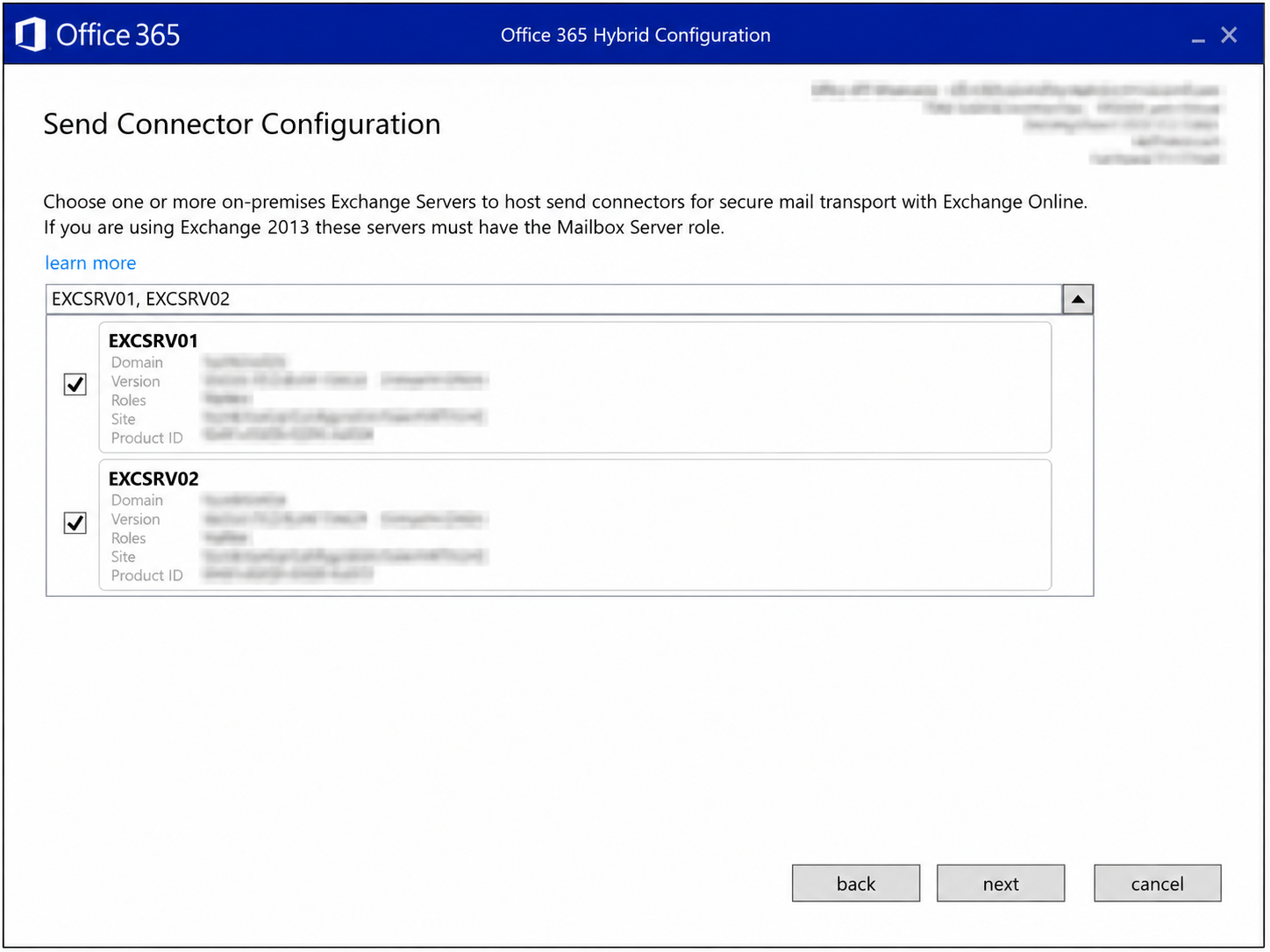
Step 9 - Transport Certificate
On this page, the certificate that will protect hybrid mail flow is selected. The wizard lists the certificates found on the servers selected in the previous steps. The selected certificate must meet the following conditions.
-
It must be issued by a trusted public CA. A self-signed certificate cannot be used.
-
A certificate with the same Subject and Issuer information must be installed on all servers selected for the Send and Receive connectors. Installing the same certificate on all servers is the method that Microsoft recommends and the simplest one.
Connector Properties That Receive the Certificate
The effect of the selection applies to both environments. The certificate information is written to the following properties on the 4 connectors.
|
Connector |
Property |
Value Written |
|
On-Premises Receive Connector |
TlsCertificateName |
The Issuer and Subject values of the certificate |
|
On-Premises Send Connector |
TlsCertificateName |
The Issuer and Subject values of the certificate |
|
Exchange Online Inbound Connector |
TlsSenderCertificateName |
Certificate name |
|
Exchange Online Outbound Connector |
TlsDomain |
Certificate name |
Exchange Online uses this certificate name to decide that a connection from the on-premises side is hybrid traffic. In the sample environment separate certificates are listed for abc-corp.net, abc-corp.com and abc-corp.com.tr.
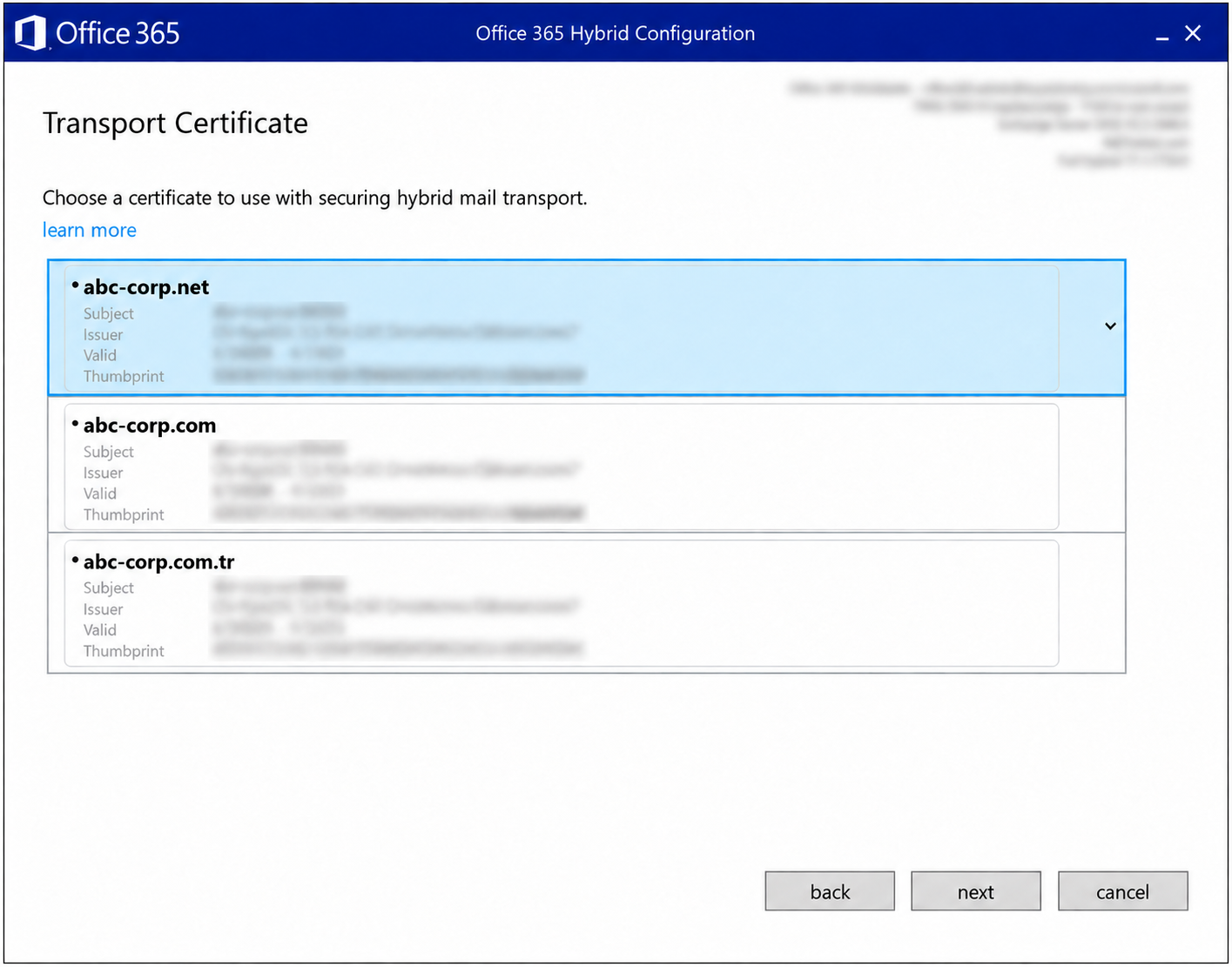
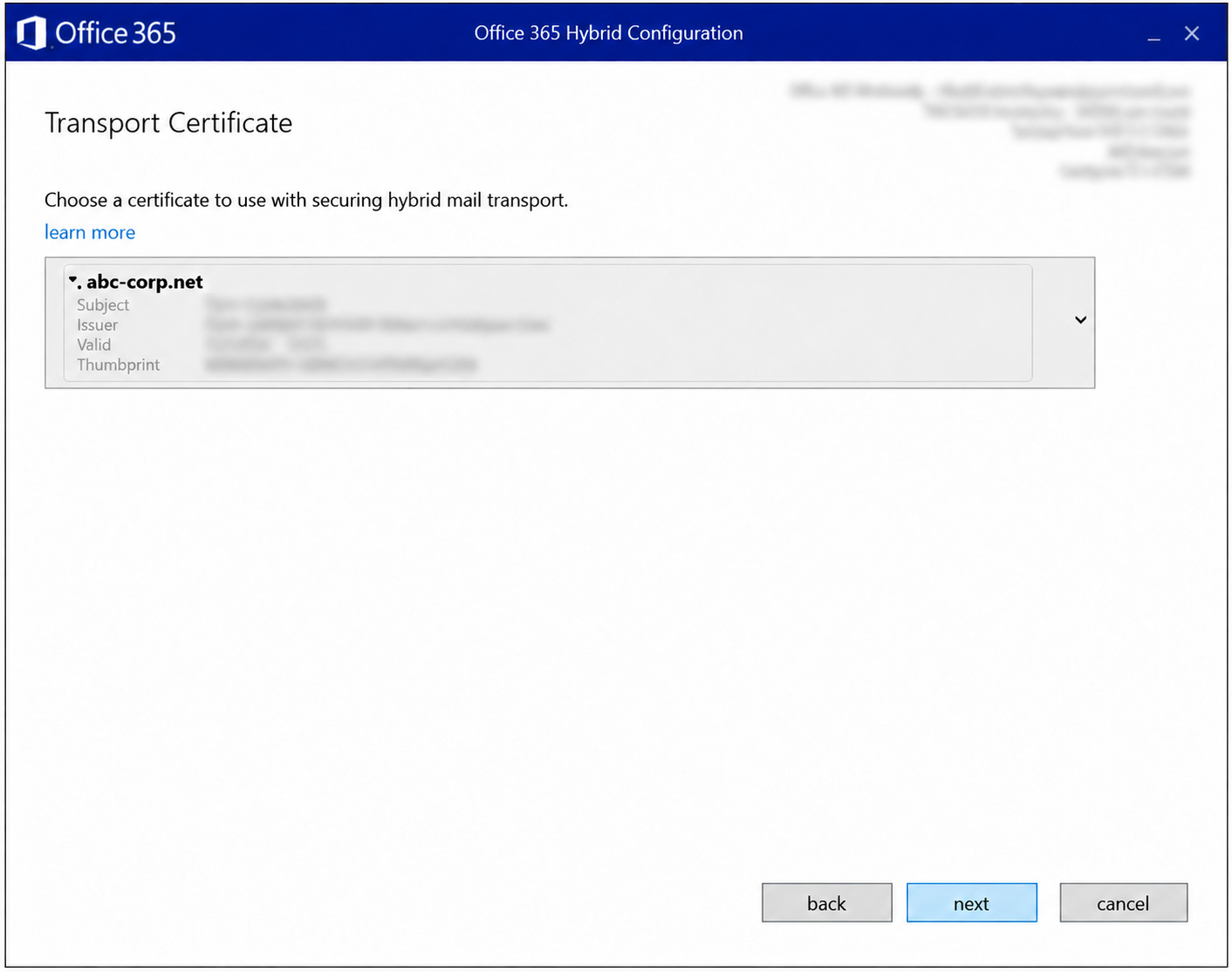
When a certificate is selected, the list narrows and only the selected certificate is displayed. If a certificate with a short validity period is selected, the HCW must be run again with the Update Secure Mail Certificate for connectors option after the renewal.
Checkpoint
The Subject, Issuer, Valid and Thumbprint fields must match the certificate verified in the Prerequisite Checklist.
Step 10 - Organization FQDN
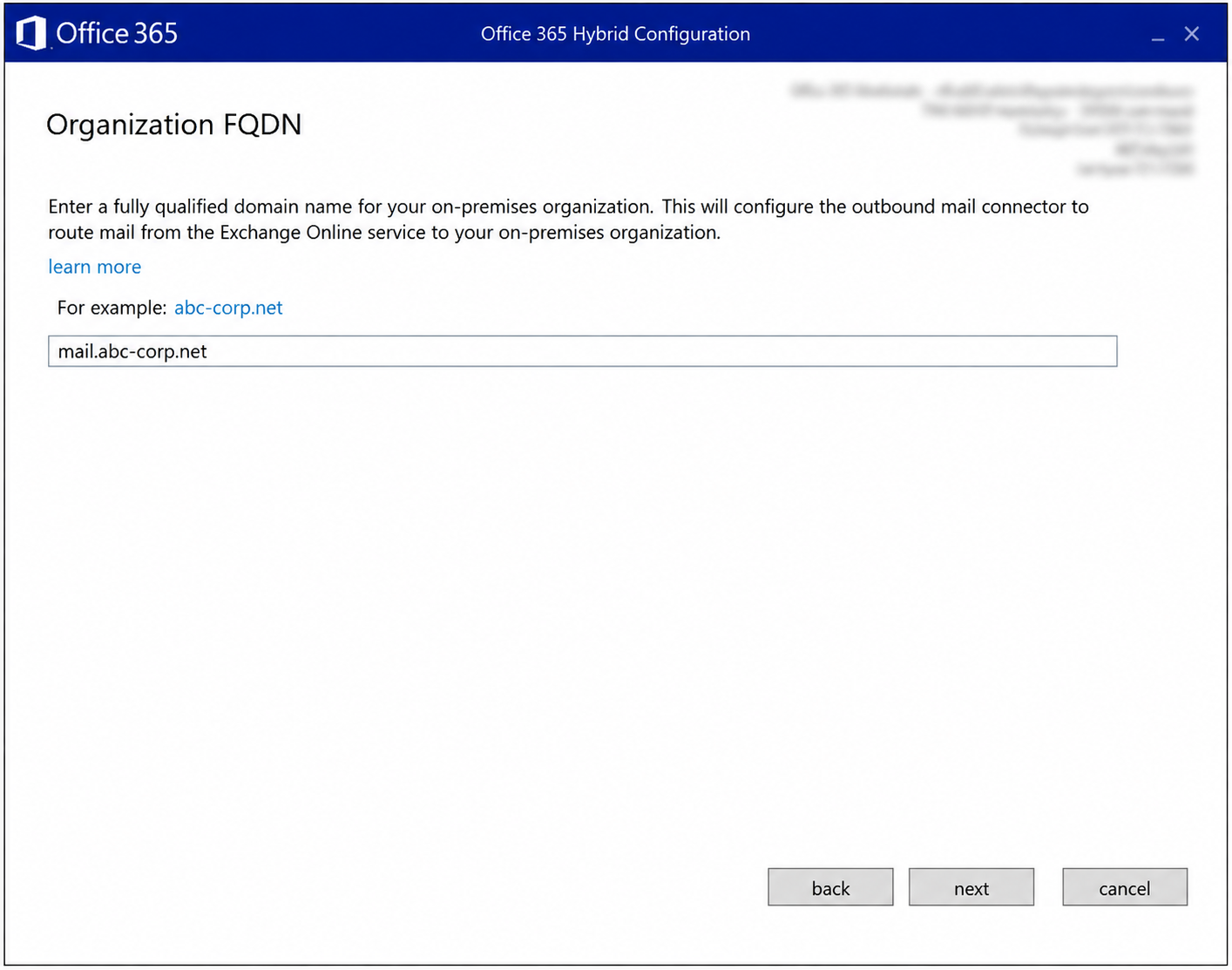
In this step, the SMTP address of the on-premises organisation that is reachable from the Internet is entered. The value is written to the SmartHosts property of the outbound connector created in Exchange Online. Exchange Online delivers mail for on-premises mailboxes to this address over TCP/25 and validates the certificate during the TLS handshake (TlsSettings = DomainValidation). The following conditions must be met for the FQDN that is entered.
|
Condition |
Requirement |
|
DNS |
In public DNS, it must resolve to a public IP address that is routed to the servers selected in Step 7 or to the load balancer in front of them. |
|
Firewall |
On this public IP address, TCP/25 must be open to Exchange Online and must be translated with NAT directly to the servers selected in Step 7. If Edge Transport is used in the environment, the target is the Edge server. |
|
Intermediate layer |
A server, service or device that modifies the message between Exchange Online and on-premises, for example a Secure Email Gateway (SEG), must not be on this path. Modified messages are no longer treated as internal and become subject to policies such as anti-spam, transport rules and journaling. A firewall that passes TCP/25 traffic without modifying it is supported, but the endpoint that accepts the connection must be a Mailbox or Edge Transport server. |
|
Certificate |
The servers behind it must present the certificate selected in Step 9, and the Subject or SAN field of this certificate must cover the FQDN that is entered. |
In most of the environments I have worked with, the existing host (A) record (for example mail.abc-corp.net) that the MX record points to and that is defined in the Exchange virtual directory URL settings such as OWA, EWS and ActiveSync is entered as the Organization FQDN. The TCP/25 and TCP/443 NAT rules are already defined for this name, so no additional DNS or firewall configuration is required.
Checkpoint
The value entered must be the same as the Organization FQDN in the Decision Table. In the sample environment mail.abc-corp.net, which is the same name as the MX record, was entered, so the existing TCP/25 NAT rule is enough.
In some environments I have worked with in the field, I saw that the preference was to route hybrid traffic through a separate host (A) record (for example hybrid.abc-corp.net) that is different from the host (A) record defined on the virtual directories and created only for this purpose, and I have also implemented this design myself. In such a design, to determine which NAT rule is required, I first clarify who initiates the traffic and which setting routes which traffic.
Connections to the on-premises environment come from 2 sources. On the Internet side, external clients (OWA, ActiveSync, Outlook, EWS) connect on TCP/443 and servers that send mail through the MX record connect on TCP/25, and this traffic already exists before the HCW. On the Exchange Online side, mail from cloud mailboxes to on-premises mailboxes arrives on TCP/25, and free/busy, MailTips and mailbox migration traffic arrives on TCP/443, and this traffic starts with the HCW.
The TCP/443 flow in this section is for the Classic Full Hybrid topology used in the sample environment. In Modern Full Hybrid, free/busy and mailbox migration go through the Hybrid Agent and do not require inbound TCP/443 to on-premises. The TCP/25 requirement is the same in Classic Full and Modern Full.
In Classic Full Hybrid, the 3 settings below determine which name, and therefore which IP address, Exchange Online traffic goes to. For free/busy and MailTips, if TargetSharingEpr is defined on the Organization Relationship or the IntraOrganizationConnector, this value takes precedence over the EWS ExternalUrl.
|
Setting |
Port |
Traffic It Routes |
|
Organization FQDN |
TCP/25 |
Mail from Exchange Online to on-premises mailboxes. |
|
EWS ExternalUrl |
TCP/443 |
Free/busy, MailTips and Out of Office. If TargetSharingEpr is not defined, Exchange Online learns this address through Autodiscover. Outlook clients on the Internet also use the same name for EWS. |
|
Migration Endpoint |
TCP/443 |
Mailbox migration (MRS). |
For each of these settings, if the hybrid name is entered, that traffic goes to the public IP address that the hybrid name resolves to, and if the existing name is kept, it goes to the public IP address of the existing name. For the EWS ExternalUrl, this rule applies when TargetSharingEpr is empty. The TCP/25 rule is required only for the Organization FQDN, and the TCP/443 rule is required for the name used in the EWS ExternalUrl, Autodiscover and the migration endpoint. The EWS ExternalUrl is not an HCW screen, it is a virtual directory setting. Even so, if the hybrid name is going to be used, it must be evaluated in the same plan.
Firewall NAT rules work on the public IP and port, not on the name. Whether an additional rule is required depends on whether the 2 names resolve to the same public IP address.
With this logic, the designs seen in the field fall into 4 scenarios. In all scenarios mail.abc-corp.net resolves to 203.0.113.10. In Scenario 1 this name is entered in the 3 settings, and in the other scenarios hybrid.abc-corp.net is entered.
|
Scenario |
hybrid.abc-corp.net |
Target Server |
New NAT Rule |
Source Restriction |
|
1 - Single name, single IP |
Not used |
EXCHSRV01/02 |
Not required |
Not possible |
|
2 - Separate name, same IP |
203.0.113.10 |
EXCHSRV01/02 |
Not required |
Not possible |
|
3 - Separate name, separate IP |
203.0.113.20 |
EXCHSRV01/02 |
TCP/25, TCP/443 |
TCP/25 |
|
4 - Separate name, separate IP, separate server |
203.0.113.20 |
EXCHSRV03 |
TCP/25, TCP/443 |
TCP/25, TCP/443 |
Scenario 1 - Single Host (A), Single IP
The sample environment is built according to this scenario. mail.abc-corp.net is used in all of the Organization FQDN, EWS ExternalUrl and migration endpoint settings, and the Internet and Exchange Online connect to the same name and the same public IP address.
    +----------------------+       +-------------------------------+
    | Internet (25 & 443)  |       |  Exchange Online (25 & 443)   |
    +----------------------+       +-------------------------------+
                |                              |
                +------------------------------+
                                 |
                                 v
                         mail.abc-corp.net
                           203.0.113.10
                                 |
                                 v
  +------------------------------------------------------------+
  |              Perimeter Firewall (WAN -> LAN)               |
  +------------------------------------------------------------+
  |  Dest. IP:Port       Source             NAT Target         |
  |  ------------------  -----------------  --------------     |
  |  203.0.113.10:25     Any                EXCHSRV01/02       |
  |  203.0.113.10:443    Any                EXCHSRV01/02       |
  +------------------------------------------------------------+
                                 |
                                 v
                   +--------------------------+
                   |  EXCHSRV01 / EXCHSRV02   |
                   +--------------------------+
Exchange Online sends mail to 203.0.113.10:25 and connects to 203.0.113.10:443 for free/busy, MailTips and mailbox migration. All traffic arrives at a single IP address, so the 2 existing NAT rules are enough. The rules cannot be restricted to the Exchange Online IP ranges, because the restriction would also block user and MX traffic from the Internet.
Scenario 2 - Separate Host (A), Same IP, Same Servers
In this scenario hybrid.abc-corp.net is used in the 3 settings, but this name also resolves to 203.0.113.10. The traffic goes to the same IP address, the same NAT rules and the same servers, so the view on the firewall is the same as in Scenario 1 and no new rule is required. The only additional requirement is that the certificate also covers the name hybrid.abc-corp.net.
    +----------------------+       +-------------------------------+
    | Internet (25 & 443)  |       |  Exchange Online (25 & 443)   |
    +----------------------+       +-------------------------------+
                |                              |
                +--- EWS (443) --------------->| (Learned from Autodiscover.)
                |                              |
                v                              v
        mail.abc-corp.net             hybrid.abc-corp.net
                |                              |
                +------------------------------+
                                 |
                                 v
                           203.0.113.10
                                 |
                                 v
  +------------------------------------------------------------+
  |              Perimeter Firewall (WAN -> LAN)               |
  +------------------------------------------------------------+
  |  Dest. IP:Port       Source             NAT Target         |
  |  ------------------  -----------------  --------------     |
  |  203.0.113.10:25     Any                EXCHSRV01/02       |
  |  203.0.113.10:443    Any                EXCHSRV01/02       |
  +------------------------------------------------------------+
                                 |
                                 v
                   +--------------------------+
                   |  EXCHSRV01 / EXCHSRV02   |
                   +--------------------------+
The reason I prefer this design is future flexibility. When the 3 settings are configured with the hybrid name from the start, no change is required on the Exchange side to move hybrid traffic to a separate IP address (Scenario 3). For example, if the setup is done today with the record below:
hybrid.abc-corp.net A 203.0.113.10
Later, it is enough to open the TCP/25 and TCP/443 NAT rules for 203.0.113.20 to EXCHSRV01/02 on the firewall and to point the record in public DNS to the new IP address:
hybrid.abc-corp.net A 203.0.113.20
A move to Scenario 4 requires, in addition to these 2 operations, the installation of EXCHSRV03, a re-run of the HCW to select EXCHSRV03 as the Receive and Send connector server, and the TargetSharingEpr value to be set on the object used for free/busy in Exchange Online. If there is no such plan, Scenario 1 is enough.
Scenario 3 - Separate Host (A), Separate IP
In this scenario hybrid.abc-corp.net resolves to a separate IP address (203.0.113.20) and is routed to the same servers. Hybrid traffic is separated from user and MX traffic at the IP level, so it can be monitored separately on the firewall and in the logs.
    +----------------------+       +-------------------------------+
    | Internet (25 & 443)  |       |  Exchange Online (25 & 443)   |
    +----------------------+       +-------------------------------+
                |                              |
                +--- EWS (443) --------------->| (Learned from Autodiscover.)
                |                              |
                v                              v
        mail.abc-corp.net             hybrid.abc-corp.net
          203.0.113.10                   203.0.113.20
                |                              |
                v                              v
  +------------------------------------------------------------+
  |              Perimeter Firewall (WAN -> LAN)               |
  +------------------------------------------------------------+
  |  Dest. IP:Port       Source             NAT Target         |
  |  ------------------  -----------------  --------------     |
  |  203.0.113.10:25     Any                EXCHSRV01/02       |
  |  203.0.113.10:443    Any                EXCHSRV01/02       |
  |  203.0.113.20:25     Any                EXCHSRV01/02       |
  |  203.0.113.20:443    Any                EXCHSRV01/02       |
  +------------------------------------------------------------+
                |                              |
                +------------------------------+
                                 |
                                 v
                   +--------------------------+
                   |  EXCHSRV01 / EXCHSRV02   |
                   +--------------------------+
Exchange Online sends mail to 203.0.113.20:25 and connects to 203.0.113.20:443 for free/busy, MailTips and mailbox migration. OWA, ActiveSync and Outlook (MAPI) connections and mail that arrives through the MX record continue to arrive at 203.0.113.10. For this reason, 2 new NAT rules must be opened on the 203.0.113.20 address for TCP/25 and TCP/443.
Only Exchange Online connects to 203.0.113.20:25, so this rule can be restricted to the Exchange Online IP ranges. 203.0.113.20:443 must stay as Any, because Outlook clients on the Internet also connect to this address for EWS. If the EWS ExternalUrl is kept on the existing name, this rule can also be restricted. However, the same servers can also be reached through 203.0.113.10, so these restrictions do not reduce the attack surface significantly.
The error I see most often in the field in this scenario is that a TCP/443 NAT rule is opened for the hybrid name only for EWS and TCP/25 is missed. The TCP/25 requirement applies to the name entered as the Organization FQDN, not to the MX record, so Exchange Online cannot connect.
If the hybrid name resolves to a separate IP address and there is no TCP/25 NAT rule for this IP, mail waits in the Exchange Online queue, and when the retry period expires a Non-Delivery Report (NDR) is returned to the sender.
There are 2 solutions in this case. Either a TCP/25 NAT rule is defined for the public IP address of the hybrid name, or the HCW is run again and the name in the MX record is entered in the Organization FQDN field. The second option is valid if the TCP/25 rule defined for the MX record is routed directly to the Exchange servers.
If 203.0.113.20 must be completely separated from the Internet, the EWS ExternalUrl must be kept on the existing name or hybrid traffic must be moved to a separate server (Scenario 4).
Scenario 4 - Separate Host (A), Separate IP, Separate Server
In this scenario hybrid.abc-corp.net resolves to a separate IP address and is routed to a separate server (EXCHSRV03). The EWS ExternalUrl value of EXCHSRV01/02 is set to mail.abc-corp.net and the value of EXCHSRV03 is set to hybrid.abc-corp.net.
    +----------------------+       +-------------------------------+
    | Internet (25 & 443)  |       |  Exchange Online (25 & 443)   |
    +----------------------+       +-------------------------------+
                |                              |
                v                              v
        mail.abc-corp.net             hybrid.abc-corp.net
          203.0.113.10                   203.0.113.20
                |                              |
                v                              v
  +------------------------------------------------------------+
  |              Perimeter Firewall (WAN -> LAN)               |
  +------------------------------------------------------------+
  |  Dest. IP:Port       Source             NAT Target         |
  |  ------------------  -----------------  --------------     |
  |  203.0.113.10:25     Any                EXCHSRV01/02       |
  |  203.0.113.10:443    Any                EXCHSRV01/02       |
  |  203.0.113.20:25     Exchange Online    EXCHSRV03          |
  |  203.0.113.20:443    Exchange Online    EXCHSRV03          |
  +------------------------------------------------------------+
                |                              |
                v                              v
    +----------------------+       +----------------------+
    |     EXCHSRV01/02     |       |      EXCHSRV03       |
    +----------------------+       +----------------------+
Setting the EWS ExternalUrl value of EXCHSRV03 to the hybrid name is not enough on its own for Exchange Online to send free/busy and MailTips requests to this server. If TargetSharingEpr is not defined, Exchange Online finds the EWS address through Autodiscover, and there is no guarantee that the returned address is EXCHSRV03.
In Classic Full Hybrid, the HCW creates an IntraOrganizationConnector and an Organization Relationship in Exchange Online that target on-premises, but it leaves the TargetSharingEpr value empty on both. As long as the IntraOrganizationConnector is enabled, free/busy requests go through this object with OAuth. If the IOC is disabled, DAuth is used through the Organization Relationship. For this reason I first check the Enabled state of the IOC and set the TargetSharingEpr value to the EWS address of the hybrid name on the object in the active path. I run the commands in Exchange Online PowerShell. The {IOC Name} and {Organization Relationship Name} values must be replaced with the names in the output of the first 2 commands.
Get-IntraOrganizationConnector | Format-List Name,Enabled,TargetAddressDomains,DiscoveryEndpoint,TargetSharingEpr
Get-OrganizationRelationship | Format-List Name,DomainNames,TargetSharingEpr,TargetAutodiscoverEpr

# If IOC Enabled = True
Set-IntraOrganizationConnector -Identity "{IOC Name}" -TargetSharingEpr https://hybrid.abc-corp.net/EWS/Exchange.asmx

# If IOC Enabled = False
Set-OrganizationRelationship -Identity "{Organization Relationship Name}" -TargetSharingEpr https://hybrid.abc-corp.net/EWS/Exchange.asmx
The TargetSharingEpr value changes the target of free/busy and MailTips requests from Exchange Online to on-premises. If the target server or name is unreachable, cloud users cannot see on-premises calendar information.
With this configuration, Internet traffic goes to EXCHSRV01/02 through 203.0.113.10, the mail, free/busy and mailbox migration traffic of Exchange Online goes to EXCHSRV03 through 203.0.113.20, and both rules of 203.0.113.20 can be restricted to the Exchange Online IP ranges. This design requires an additional server, a re-run of the HCW and the TargetSharingEpr change, so in this step I treat it only as an option.
If the rules are going to be restricted to the Exchange Online IP ranges, the official Microsoft 365 URLs and IP address ranges list must be used as the reference. If the rule is not updated when the list is updated, mail flow and free/busy stop.
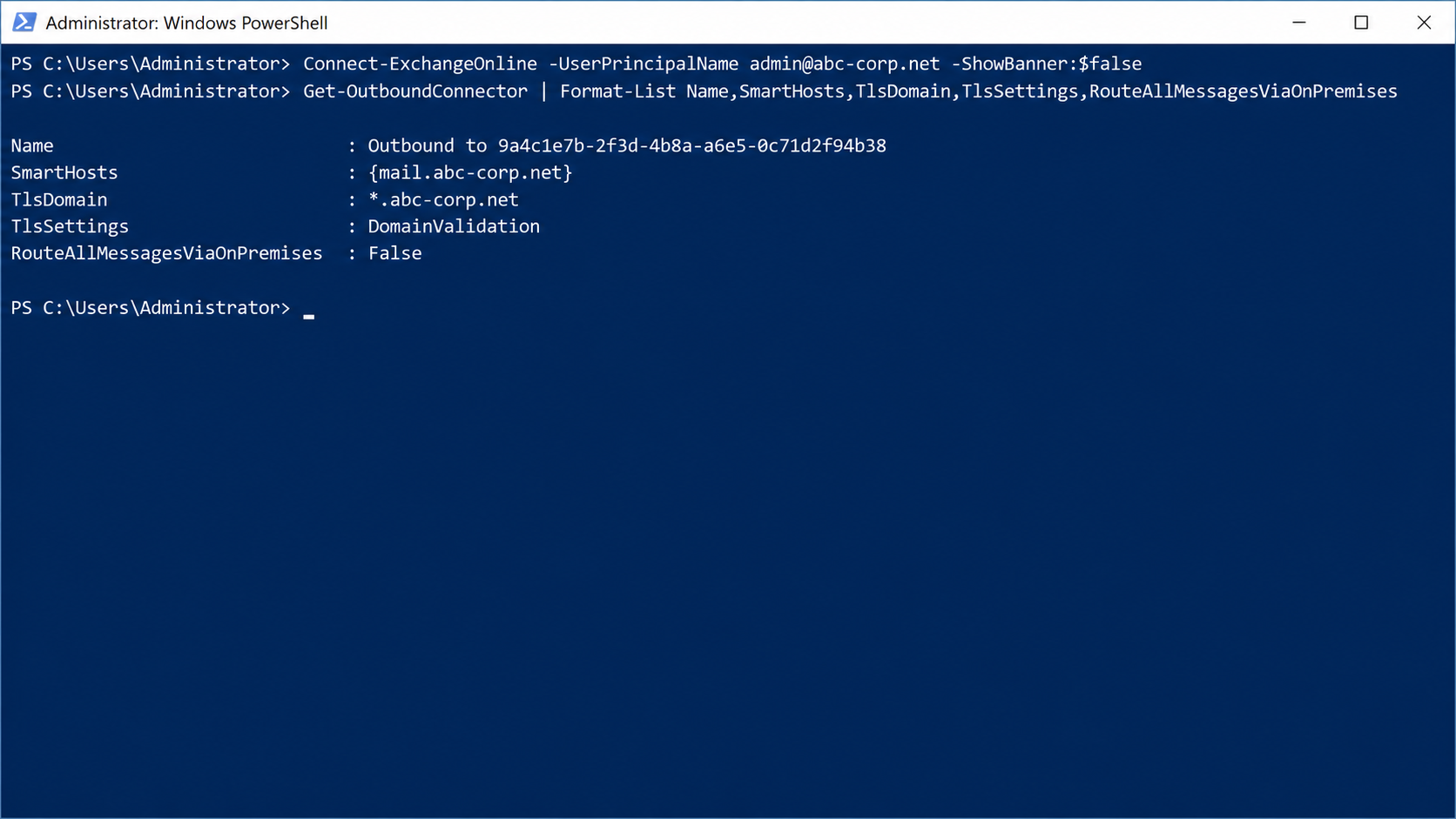
Whichever scenario is selected, I verify the Organization FQDN value through Exchange Online PowerShell after the HCW is complete.
Get-OutboundConnector | Format-List Name,SmartHosts,TlsDomain,TlsSettings,RouteAllMessagesViaOnPremises
The SmartHosts field must show the FQDN that was entered and the TlsSettings field must show DomainValidation. The TlsDomain field contains the name of the certificate selected in Step 9. In the sample environment a wildcard certificate was selected, so this value appears as *.abc-corp.net, and because it also covers the name mail.abc-corp.net, TLS validation succeeds. A value of False in the RouteAllMessagesViaOnPremises field shows that the Centralized Mail Transport option is not used.
Step 11 - Ready for Update
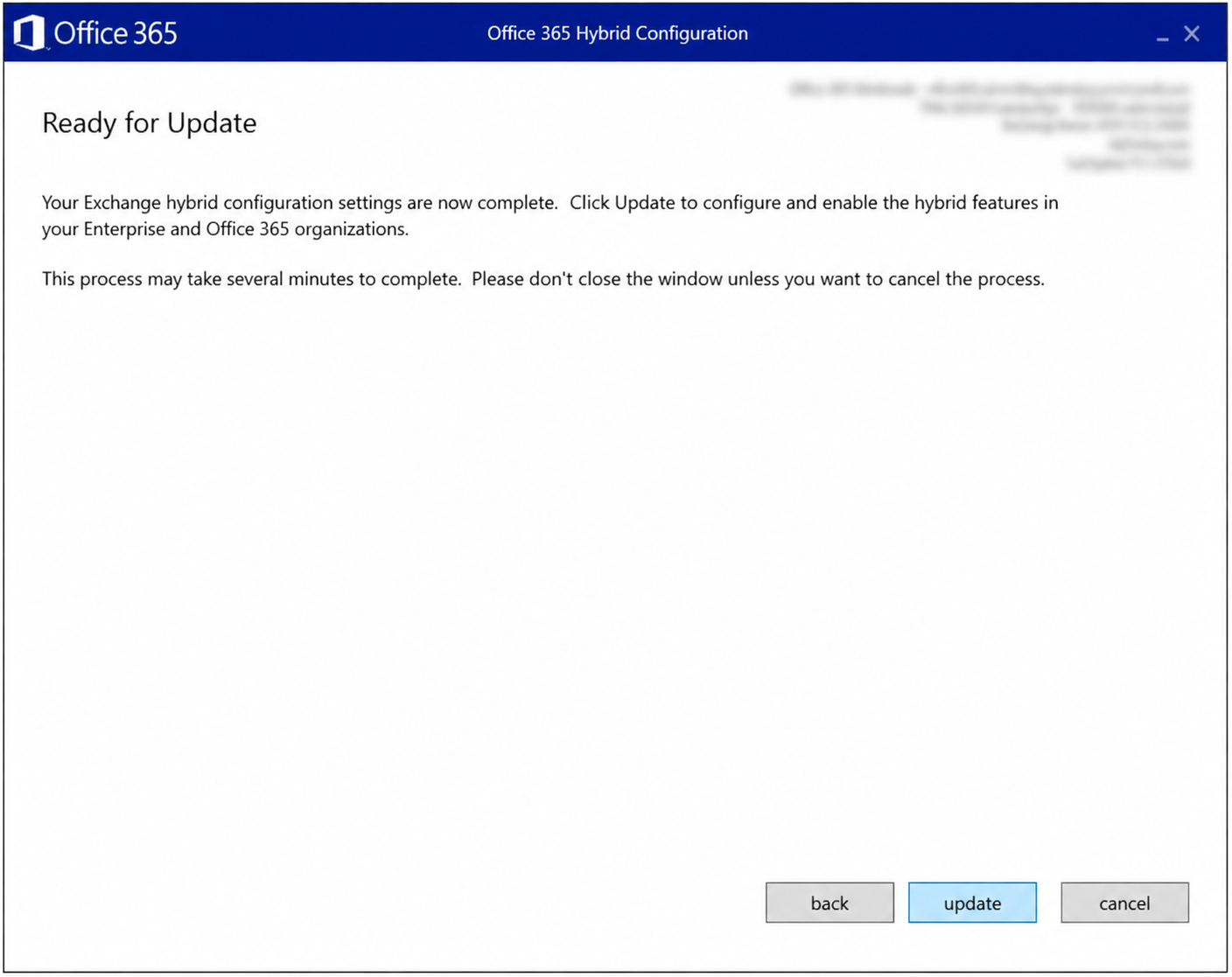
At this point the wizard has collected all inputs. Until this moment it is possible to return with Back to the previous pages and, if necessary, to the Choose what HCW Configures page to change the selections. When the Update button is clicked, the basic hybrid parameters are written to the HybridConfiguration object and the Hybrid Configuration Engine starts to create or update the connector, Organization Relationship, migration endpoint and Microsoft Entra ID objects of the selected configurations in the 2 environments.
Checkpoint
Before the Update button is clicked, the selections must be compared with the Decision Table one last time.
Step 12 - Configuring
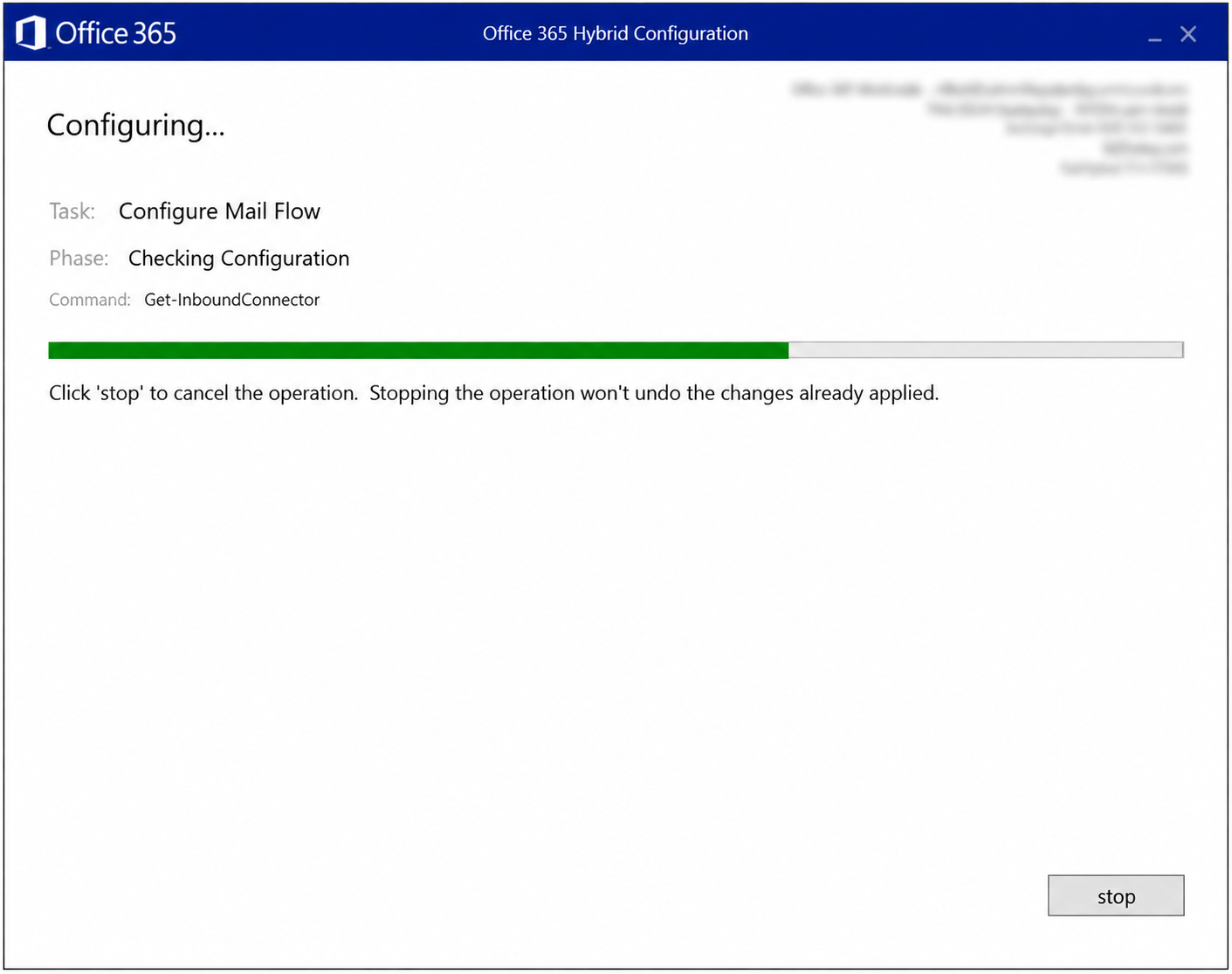
This screen shows what the engine is doing at that moment in 3 lines.
-
Task shows the main configuration task that is running.
-
Phase shows the current phase of this task.
-
Command shows the PowerShell cmdlet that is running in the background.
In the example on the screen, Get-InboundConnector is running in the Checking Configuration phase of the Configure Mail Flow task. In this phase the engine reads the existing inbound connector in Exchange Online and compares it with the desired state.
The Stop button stops the operation, but it does not roll back the changes applied up to that moment. A run that is interrupted halfway can leave the 2 environments with an inconsistent configuration.
If an error occurs, the details are found in 2 separate log sets. The wizard's own logs are kept in the %UserProfile%\AppData\Roaming\Microsoft\Exchange Hybrid Configuration folder in the profile of the account that runs the wizard. The logs of the Update-HybridConfiguration operation on the Exchange side are on the server in the %ExchangeInstallPath%Logging\Update-HybridConfiguration folder.
Step 13 - Congratulations
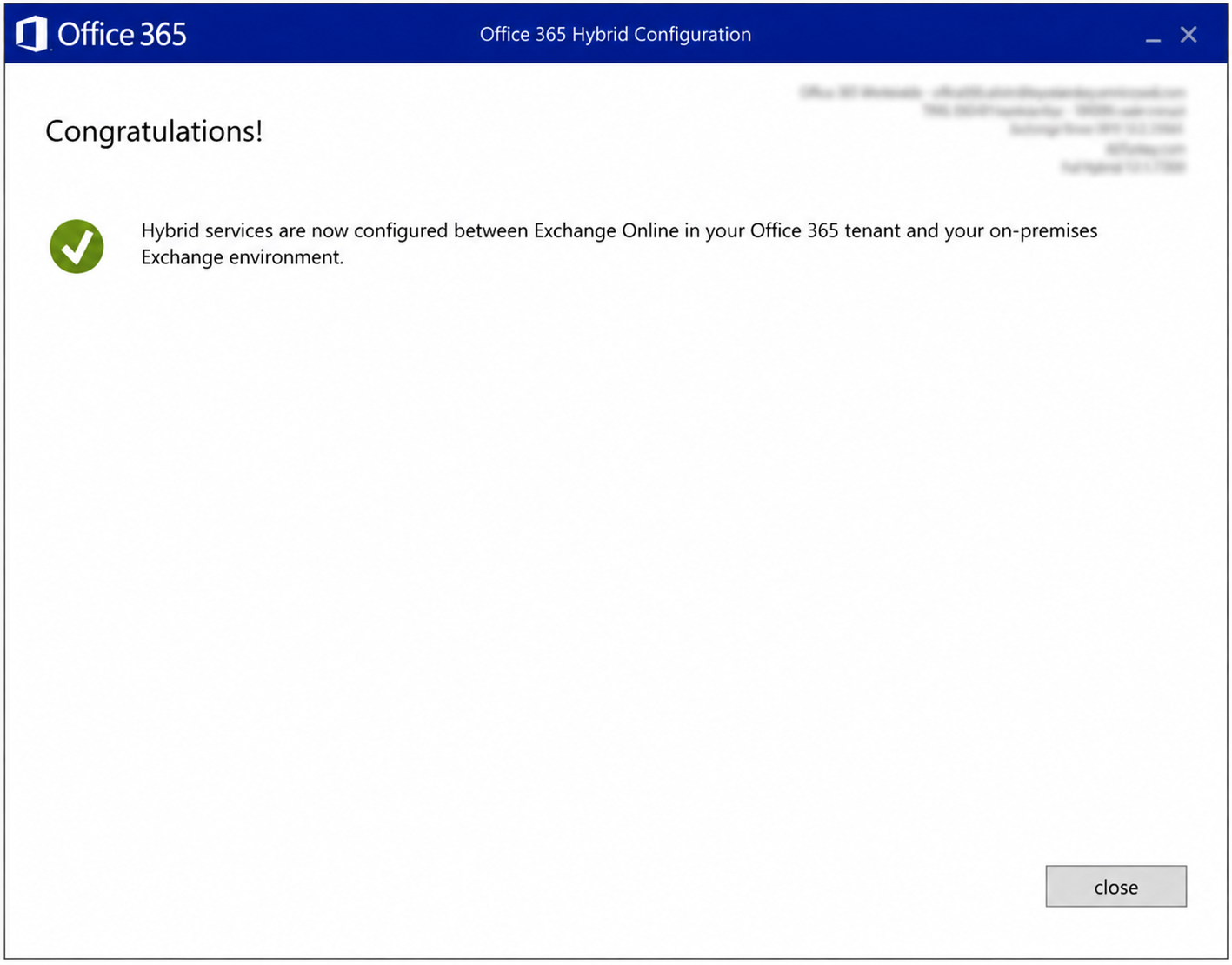
This screen reports that the hybrid services have been configured between Exchange Online and on-premises Exchange. The wizard is closed with the Close button. Closing the wizard does not mean that the work is finished, because the next 3 steps are completed outside the HCW.
The HCW does not configure mail flow from the Internet. Inbound mail flow is determined by the MX record of the domain and is managed independently of the wizard.
4- Post-HCW Tasks
Step 14 - Enabling the Dedicated Application
For the application created in Step 5 to be used in the on-premises organisation, the commands below are run in an Exchange Management Shell session opened with administrator rights. The first command creates the setting override that enables the feature, and the second causes the configuration to be read again immediately.
New-SettingOverride -Name "EnableExchangeHybrid3PAppFeature" -Component "Global" -Section "ExchangeOnpremAsThirdPartyAppId" -Parameters @("Enabled=true") -Reason "Enable dedicated Exchange hybrid app feature"
Get-ExchangeDiagnosticInfo -Process Microsoft.Exchange.Directory.TopologyService -Component VariantConfiguration -Argument Refresh
The setting override affects all servers in the Exchange organisation. It can take up to 60 minutes for the change to be detected, and during this time free/busy, MailTips and profile photos may not work temporarily.
This setting override enables the dedicated Exchange Server application feature in the on-premises Exchange organisation. The application is used in both the EWS-based and the Graph API-based flow, so this setting override is required in both cases. On Exchange Server SE May 2026 HU and later, to enable the Graph API-based flow for the supported coexistence calls, the ConfigureExchangeHybridApplication.ps1 script is run with the FullyConfigureExchangeHybridApplication parameter on a Mailbox server that has Internet access. The script asks whether to add the Graph permissions, adds the permissions to the application when approval is given, and creates a second setting override named EnableRouteThroughMSGraphFeature so that the hybrid calls supported by the Graph API are routed through Graph. In hybrid scenarios that Graph does not support yet, Exchange Server continues to use EWS.
Creating the application in Microsoft Entra ID requires at least the Application Administrator role. On the Exchange side, at least the View-Only Configuration, Organization Client Access and Organization Configuration roles are enough. Organization Management is the higher-privileged alternative that includes these permissions.
.\ConfigureExchangeHybridApplication.ps1 -FullyConfigureExchangeHybridApplication
The Graph flow is supported only in the Microsoft 365 Global environment. If it is enabled in an unsupported cloud environment, free/busy, MailTips and profile photo sharing stop.
Step 15 - Shared Service Principal Clean-Up
The HCW does not remove the Auth Certificates that were uploaded to the shared service principal earlier. To complete the mitigation recommended for CVE-2025-53786, the ConfigureExchangeHybridApplication.ps1 script is run with the ResetFirstPartyServicePrincipalKeyCredentials parameter. In this usage, which Microsoft calls Service Principal Clean-Up mode, the script deletes all certificates in the keyCredentials property of the shared service principal.
The operation requires Global Administrator permission. In this mode the script only edits the object in Microsoft Entra ID, so it does not need to be run on an Exchange server. It can be run from any computer that can reach the Microsoft Graph and Microsoft Entra ID endpoints.
.\ConfigureExchangeHybridApplication.ps1 -ResetFirstPartyServicePrincipalKeyCredentials
If the HCW is run again later with the Oauth, Intra Organization Connector and Organization Relationship option selected, the Auth Certificate is uploaded to the shared service principal again. In this case Step 15 must be repeated.
Step 16 - Verification
The configuration is verified from both sides. The checks on the on-premises side are done in the Exchange Management Shell, and the checks on the Exchange Online side are done in an Exchange Online session opened in Windows PowerShell. The output of each command is compared with the decisions made in the wizard.
On-Premises Verification
2 commands are run on the on-premises side. The first shows the configuration that the HCW wrote, and the second shows whether OAuth communication with Exchange Online works. Both are run in the Exchange Management Shell.
The Get-HybridConfiguration Command
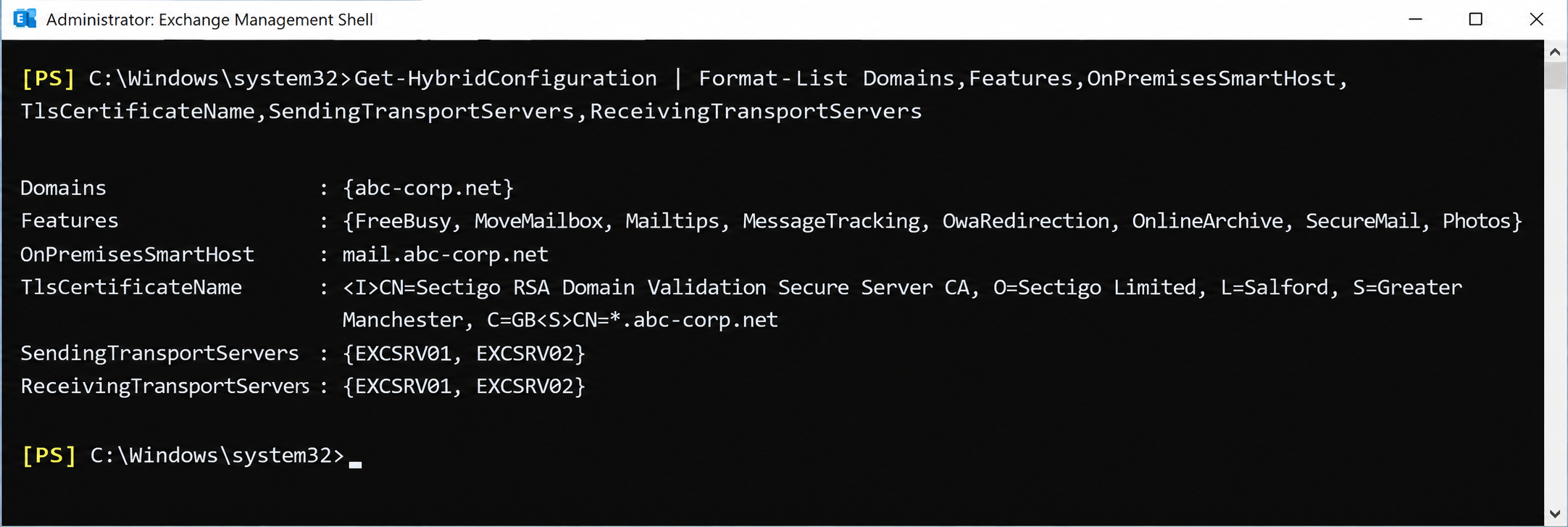
This command shows the values that the wizard wrote to the HybridConfiguration object.
Get-HybridConfiguration | Format-List Domains,Features,OnPremisesSmartHost,TlsCertificateName,SendingTransPortServers,ReceivingTransPortServers
The Domains field shows abc-corp.net, which was selected in Step 2, and the OnPremisesSmartHost field shows mail.abc-corp.net, which was entered in Step 10. The SendingTransportServers and ReceivingTransportServers fields show the EXCSRV01 and EXCSRV02 servers selected in Step 7 and Step 8. The Features field lists all hybrid features, including free/busy, MailTips, mailbox migration and SecureMail.
The TlsCertificateName field contains the Issuer and Subject values of the certificate selected in Step 9. The certificate in the sample environment is a wildcard certificate with the Subject value *.abc-corp.net, so the value ends with CN=*.abc-corp.net.
The Test-OAuthConnectivity Command
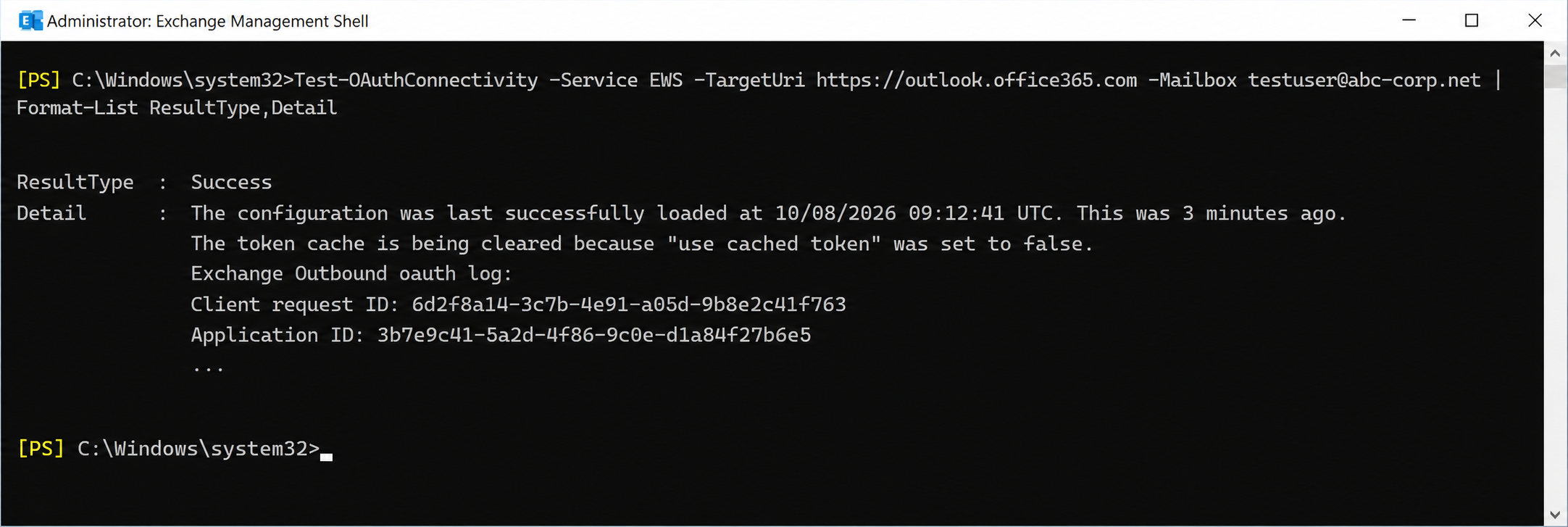
This command tests whether Exchange Server can obtain an OAuth token for Exchange Online. A test mailbox hosted on-premises is given to the Mailbox parameter.
Test-OAuthConnectivity -Service EWS -TargetUri https://outlook.office365.com -Mailbox testuser@abc-corp.net | Format-List ResultType,Detail
A ResultType value of Success shows that the token was obtained successfully. The Application ID value in the Detail field must be the same as the Application ID of the dedicated application created in Microsoft Entra ID with the name ExchangeServerApp. This match confirms that hybrid calls are made through the tenant-specific application and not through the shared service principal. The Detail field actually contains a longer diagnostic text, which is shortened in the image. This test verifies the EWS-based flow. If the Graph API-based flow is enabled, free/busy and MailTips behaviour is tested separately in Outlook.
Exchange Online Verification
3 commands are run on the Exchange Online side. The first 2 show the outbound and inbound connectors that the HCW created, and the third shows the migration endpoint. For the commands, a session is opened in Windows PowerShell with the ExchangeOnlineManagement module. The ShowBanner parameter hides the opening text of the module.
Connect-ExchangeOnline -UserPrincipalName admin@abc-corp.net -ShowBanner:$false
The Get-OutboundConnector Command
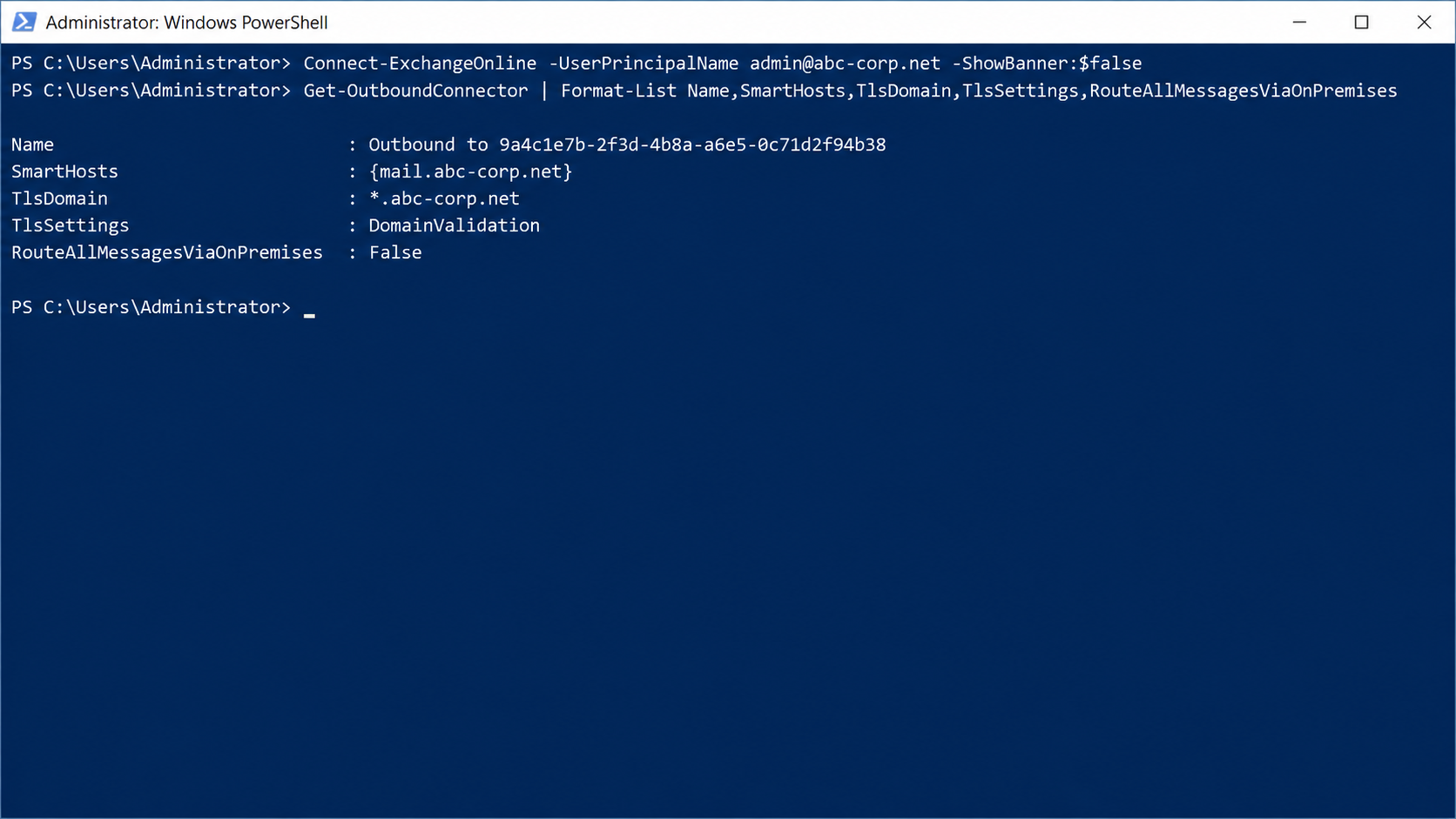
This command shows the outbound connector used by mail from Exchange Online to the on-premises organisation.
Get-OutboundConnector | Format-List Name,SmartHosts,TlsDomain,TlsSettings,RouteAllMessagesViaOnPremises
The HCW names the connector in the format Outbound to {GUID}. The SmartHosts field shows the mail.abc-corp.net address entered in Step 10, and the TlsDomain field shows the name of the certificate selected in Step 9. A TlsSettings value of DomainValidation means that Exchange Online validates the certificate of the on-premises side against this name. CMT was not selected in Step 4, so the RouteAllMessagesViaOnPremises value is False.
The Get-InboundConnector Command
This command shows the inbound connector that identifies mail from the on-premises side as hybrid traffic.
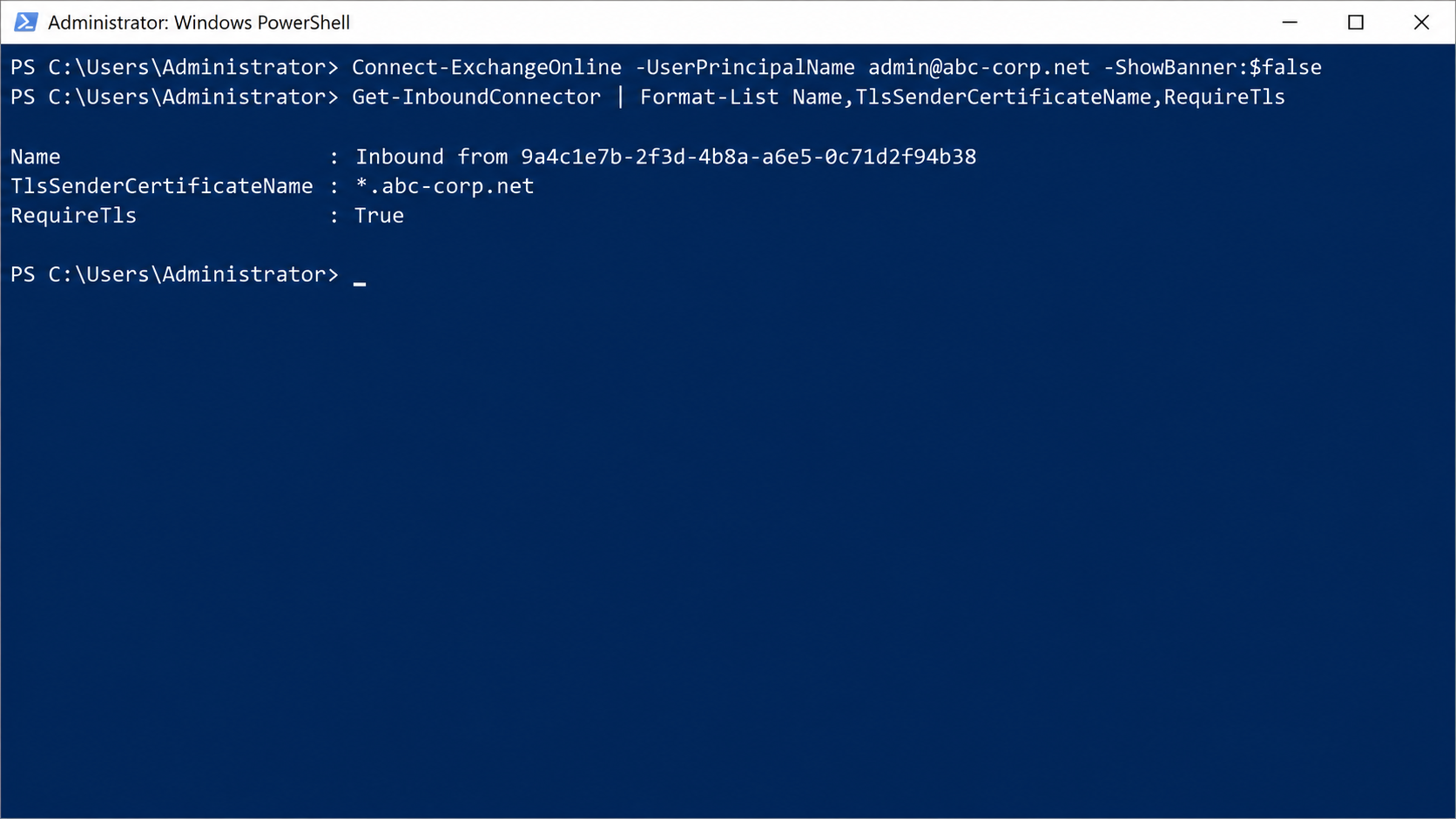
Get-InboundConnector | Format-List Name,TlsSenderCertificateName,RequireTls
The connector is created with the name Inbound from {GUID}, which has the same GUID as the outbound connector. The TlsSenderCertificateName field must show the same certificate name as the TlsDomain value on the outbound connector. A RequireTls value of True means that hybrid mail from the on-premises side is accepted only with TLS.
The Get-MigrationEndpoint Command
This command shows the migration endpoint that is used for mailbox moves.
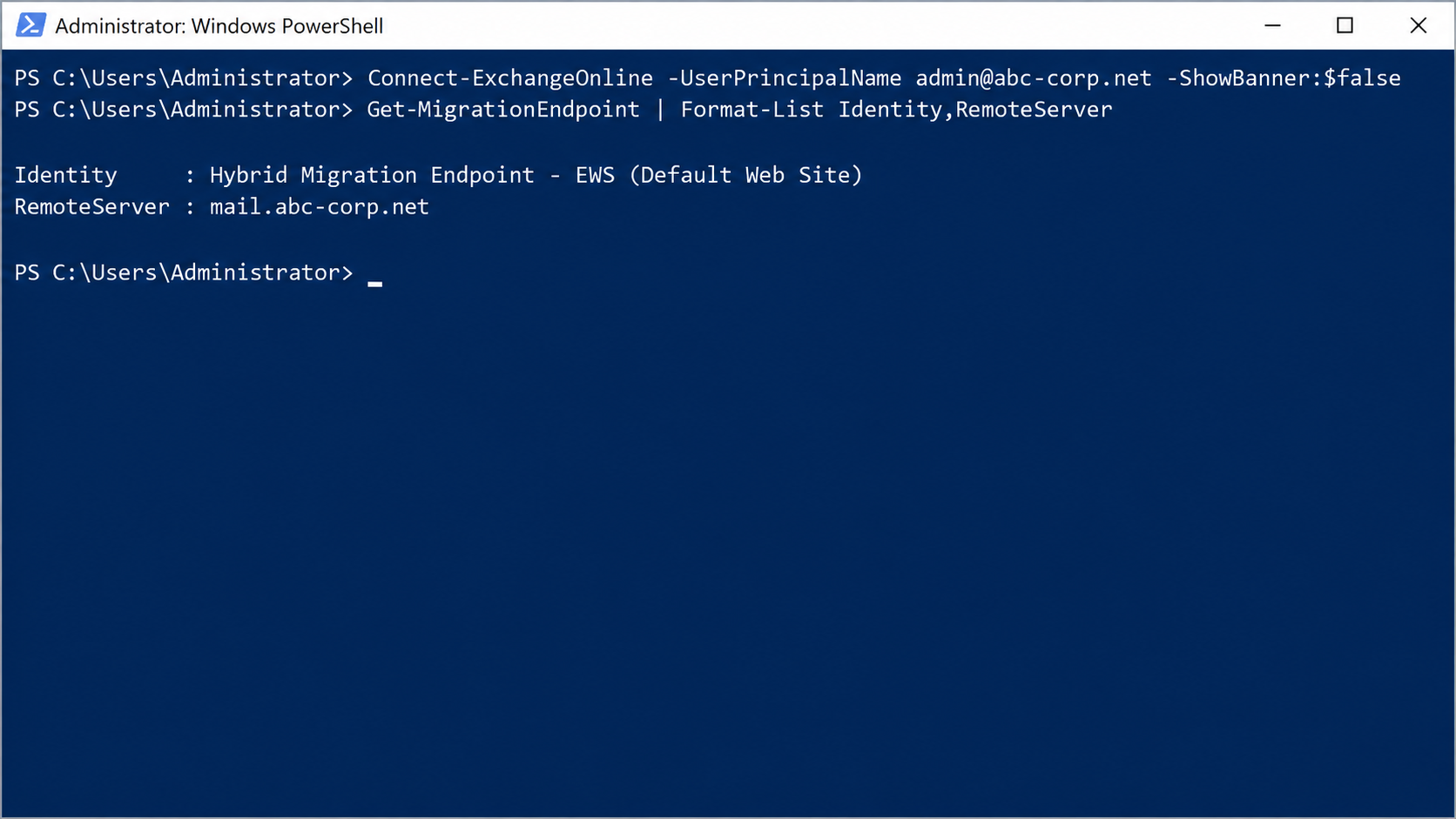
Get-MigrationEndpoint | Format-List Identity,RemoteServer
The Identity field shows Hybrid Migration Endpoint - EWS (Default Web Site), which the HCW created. The RemoteServer field shows mail.abc-corp.net, the on-premises address that Exchange Online connects to for mailbox moves.
Summary Check Table
The table below collects in one place the values that must be checked in the output of the 5 commands.
|
Command |
Field |
Expected Value |
|
Get-HybridConfiguration |
Domains |
abc-corp.net |
|
Get-HybridConfiguration |
OnPremisesSmartHost |
mail.abc-corp.net |
|
Get-HybridConfiguration |
SendingTransportServers and ReceivingTransportServers |
EXCSRV01, EXCSRV02 |
|
Test-OAuthConnectivity |
ResultType |
Success |
|
Test-OAuthConnectivity |
Detail |
The Application ID of the dedicated application |
|
Get-OutboundConnector |
SmartHosts |
mail.abc-corp.net |
|
Get-OutboundConnector |
TlsDomain |
*.abc-corp.net |
|
Get-OutboundConnector |
RouteAllMessagesViaOnPremises |
False |
|
Get-InboundConnector |
TlsSenderCertificateName |
*.abc-corp.net |
|
Get-InboundConnector |
RequireTls |
True |
|
Get-MigrationEndpoint |
RemoteServer |
mail.abc-corp.net |
5- Re-Run Scenarios
After hybrid is set up, there are situations where the HCW must be run again. The Choose Exchange Hybrid Configuration box is selected, only the required configuration is chosen, and the other settings are kept.
|
Requirement |
Configuration to Select in Step 4 |
|
Create the migration endpoint that was missed in the first setup |
Migration Endpoint only |
|
Apply the renewed transport certificate to the connectors |
Update Secure Mail Certificate for connectors only |
|
Do Organization Configuration Transfer later |
Organization Configuration Transfer only |
|
Update the other settings without changing customised connectors |
The required configurations, except the 4 connector options |
The HCW sets up the Exchange side of a Hybrid Exchange Deployment in a single flow, but the correctness of the result depends largely on the decisions made in Step 3 and Step 4. Preparing the Decision Table in advance moves these decisions from the wizard screen to the planning stage.
The dedicated Exchange Server application must no longer be seen as an optional addition. Without admin consent and the setting override, the free/busy and MailTips features of the on-premises side towards the cloud do not work. With the EWS retirement process that started in October 2026, these 2 are also not enough. For the EWS-based flow to work until April 2027, the dedicated application must be in the EwsAllowedAppIDs list, and after that date the Graph API-based flow must be enabled for the supported coexistence calls on Exchange Server SE. When all values in Step 16 give the expected result, the hybrid foundation required to start mailbox moves is ready.
I hope you find it useful...
Feel free to share your thoughts and questions about this article in the comments below. Every contribution helps the content reach more people and makes for a more useful discussion.