Traditional authentication validates a sign-in request with a password only. A password is a secret that can be shared and reused. When an attacker obtains the password, they can sign in without meeting any other barrier. Attack methods such as phishing, password spray, credential stuffing and token replay all ultimately target a single secret, the password, and once they obtain it, they bypass the entire defence. In this model, security depends on a single point that opens all access the moment it is broken.
Multi-factor authentication (MFA) exists to remove exactly this dependency on a single point. MFA validates a sign-in request with at least 2 independent factor categories. Factors fall into 3 main categories. The knowledge factor is something the user knows, and passwords and PINs belong to this category. The possession factor is something the user has, and the Authenticator app, the FIDO2 security key and the OTP token belong to this category. The biometric factor is a physical characteristic of the user, and fingerprint and facial recognition belong to this category. When a second, independent factor is involved, a compromised password is not enough on its own to sign in, and the attacker must also defeat a physical or device-bound element that cannot be obtained remotely.
The security gain comes from the factors belonging to different categories. A combination of 2 elements from the same category, for example a password and a security question, does not count as true multi-factor authentication, because both are knowledge factors. The stronger and more phishing-resistant the factor, the more effective the protection. Microsoft's data shows that MFA blocks the large majority of account compromise attacks, and for this reason MFA is regarded as one of the most fundamental controls of modern identity security.
In Microsoft Entra ID, MFA is not a single feature managed from a single place. Which users must use MFA, under which conditions and with which method is determined through different control layers that were introduced one after another over the years. Historically there are 3 MFA control layers, and a 4th enforcement layer was added to them recently. Below I cover these 4 layers one by one and explain where they are configured, how they differ and how they relate to Conditional Access.
1- Per-User MFA
Per-user MFA is the oldest MFA mechanism in Azure AD and, later, Microsoft Entra ID. Before Conditional Access and security defaults existed, it was the only way to require multi-factor authentication, and its origins go back to the early period of Azure Multi-Factor Authentication. In this model the MFA requirement is not defined through a central policy but through a state assigned directly to the user object. The requirement is stored as a property written to each account individually, and the state assigned to a user directly determines the sign-in behaviour of that account. For this reason, administration becomes account-by-account work that is harder to scale as the number of users grows. Each user can have 1 of 3 states in this scope.
|
State |
Description |
|
Disabled |
MFA is disabled for the user. |
|
Enabled |
The user is expected to register for MFA. Until registration is complete, the user is not yet required to complete MFA at every sign-in. |
|
Enforced |
The user must complete MFA at every sign-in. |
Per-user MFA works at account level and applies to all of the user's sign-ins. It contains no conditional logic. Scenarios such as requiring MFA only for sign-ins from an external network, or only when a specific application is accessed, cannot be defined. It also has no awareness of contextual signals such as location, device state or risk.
Per-User MFA Configuration
Per-user MFA management does not appear as a directly visible blade in the Microsoft Entra admin center. To start the configuration, go to the Entra ID > Users > All users screen. When the additional actions menu, shown as 3 dots at the right end of the top toolbar, is opened, the Per-user MFA option appears. The fact that this option is placed under a second menu and not in the main menu shows that Microsoft deliberately directs administrators towards Conditional Access. The path is as follows.
entra.microsoft.com > Entra ID > Users > All users > Per-user MFA |
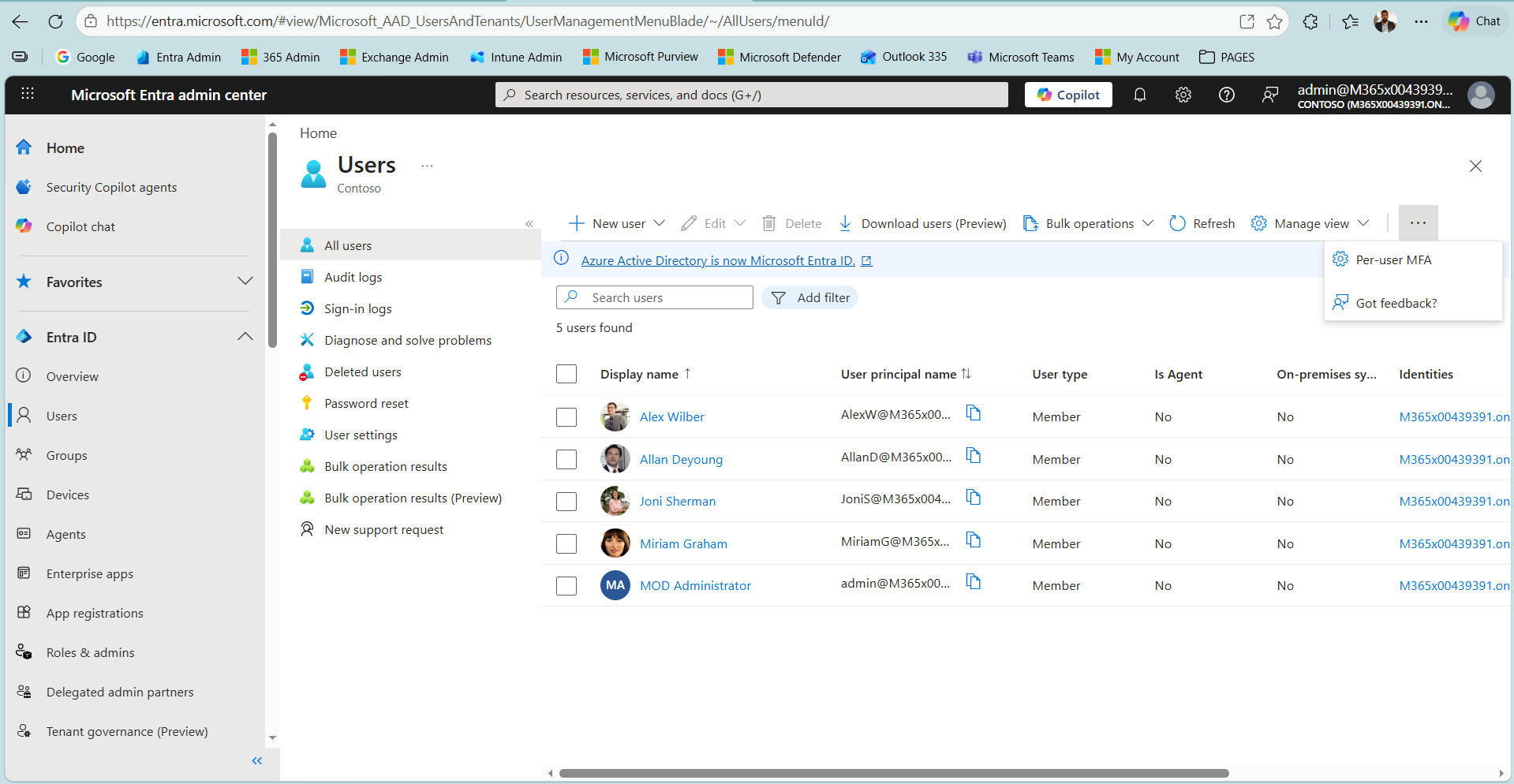
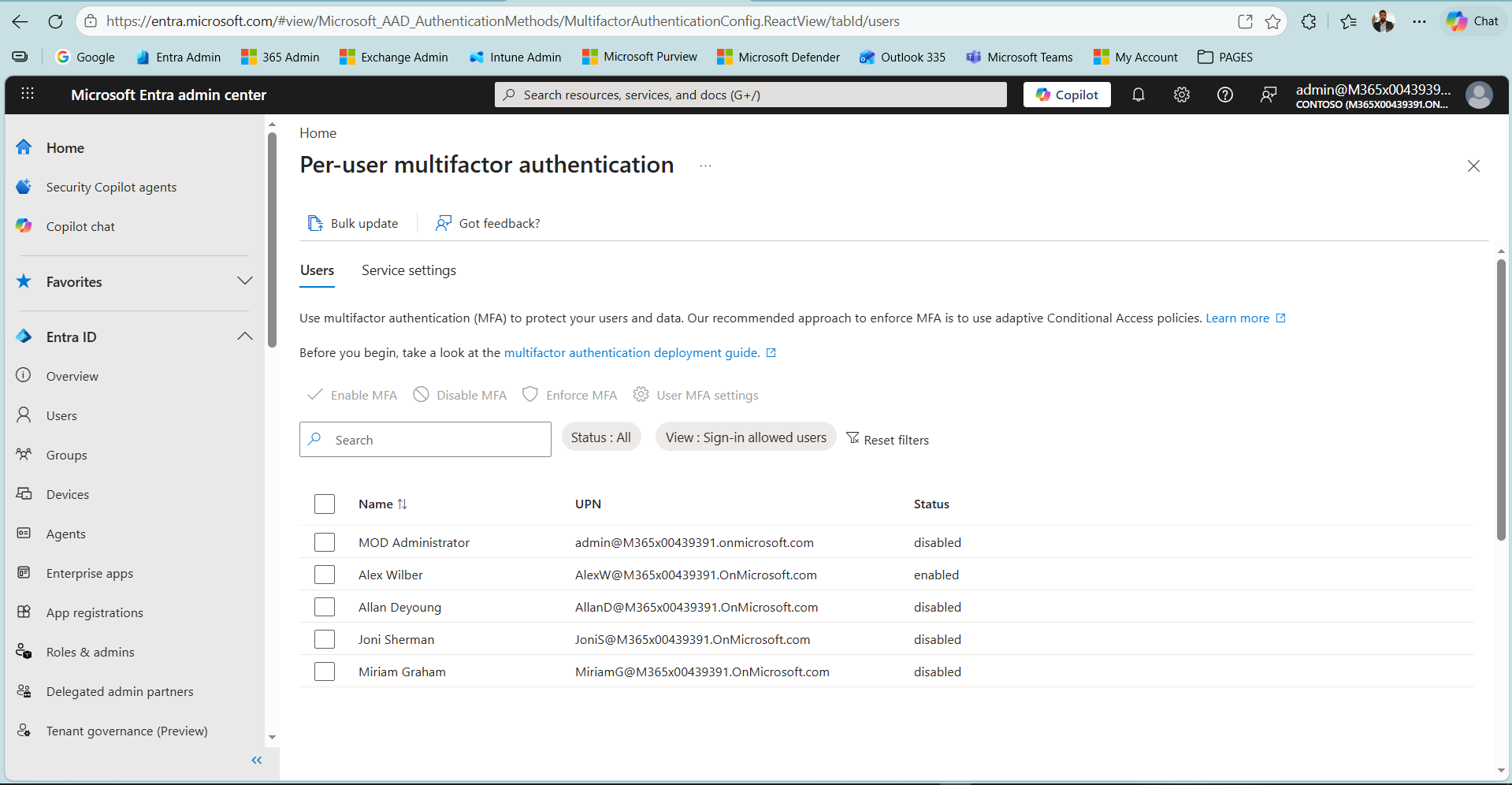
The screen that opens when Per-user MFA is selected is the classic Azure MFA management interface. In the past this interface opened as a separate portal at account.activedirectory.windowsazure.com, whereas today it is a ReactView embedded in the Microsoft Entra admin center. The page has 2 tabs. The Users tab manages the per-user MFA states of users.
The Service settings tab contains service-wide settings such as verification methods, app passwords and trusted IPs. At the top of this page, Microsoft states clearly that the recommended approach for requiring MFA is adaptive Conditional Access policies. By default, all users in the list are in the Disabled state. The top toolbar contains the Enable MFA, Disable MFA, Enforce MFA and User MFA settings actions. The first 3 actions move the user's state to Enabled, Disabled and Enforced respectively. User MFA settings is used to manage the selected user's registered methods and to require re-registration.
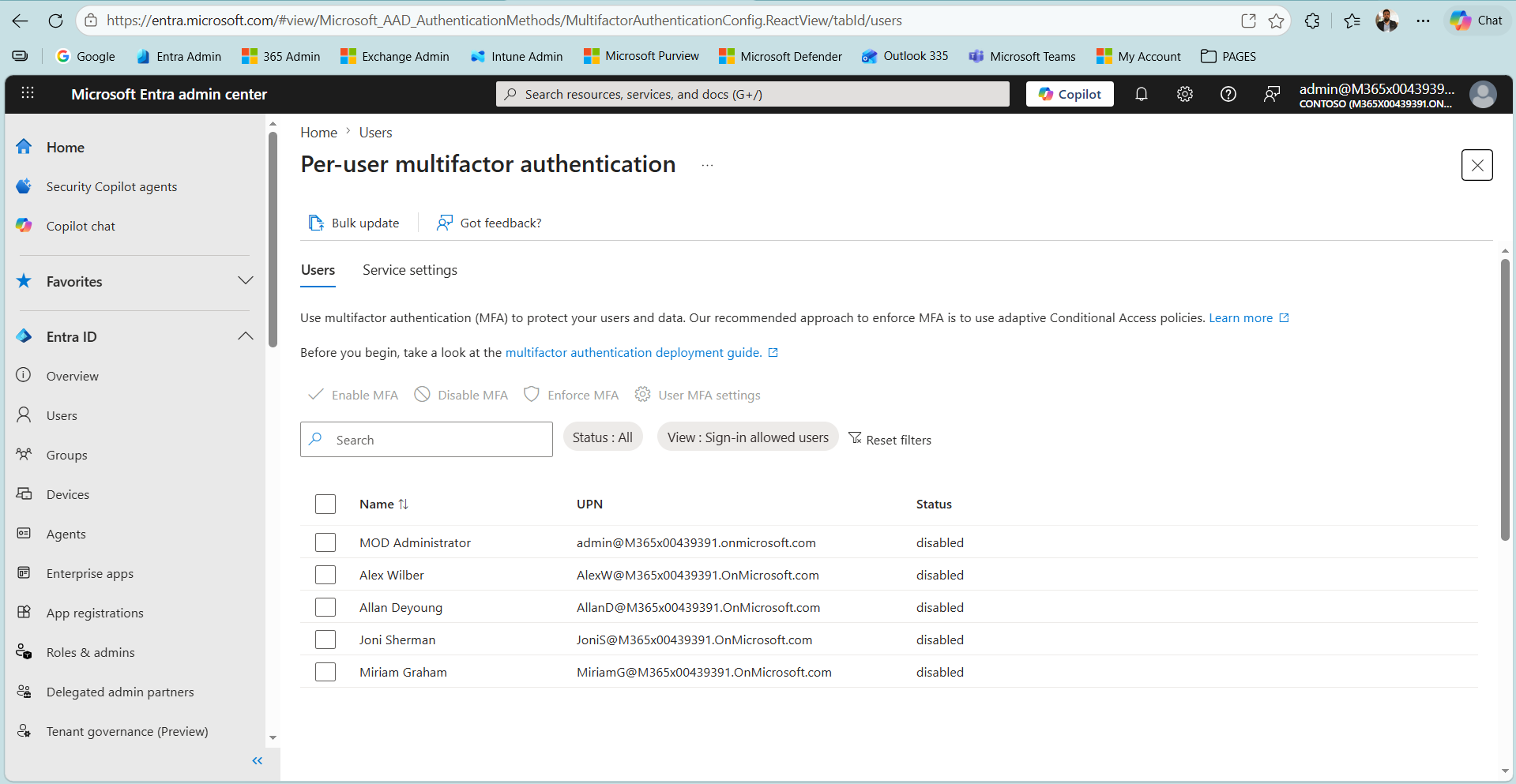
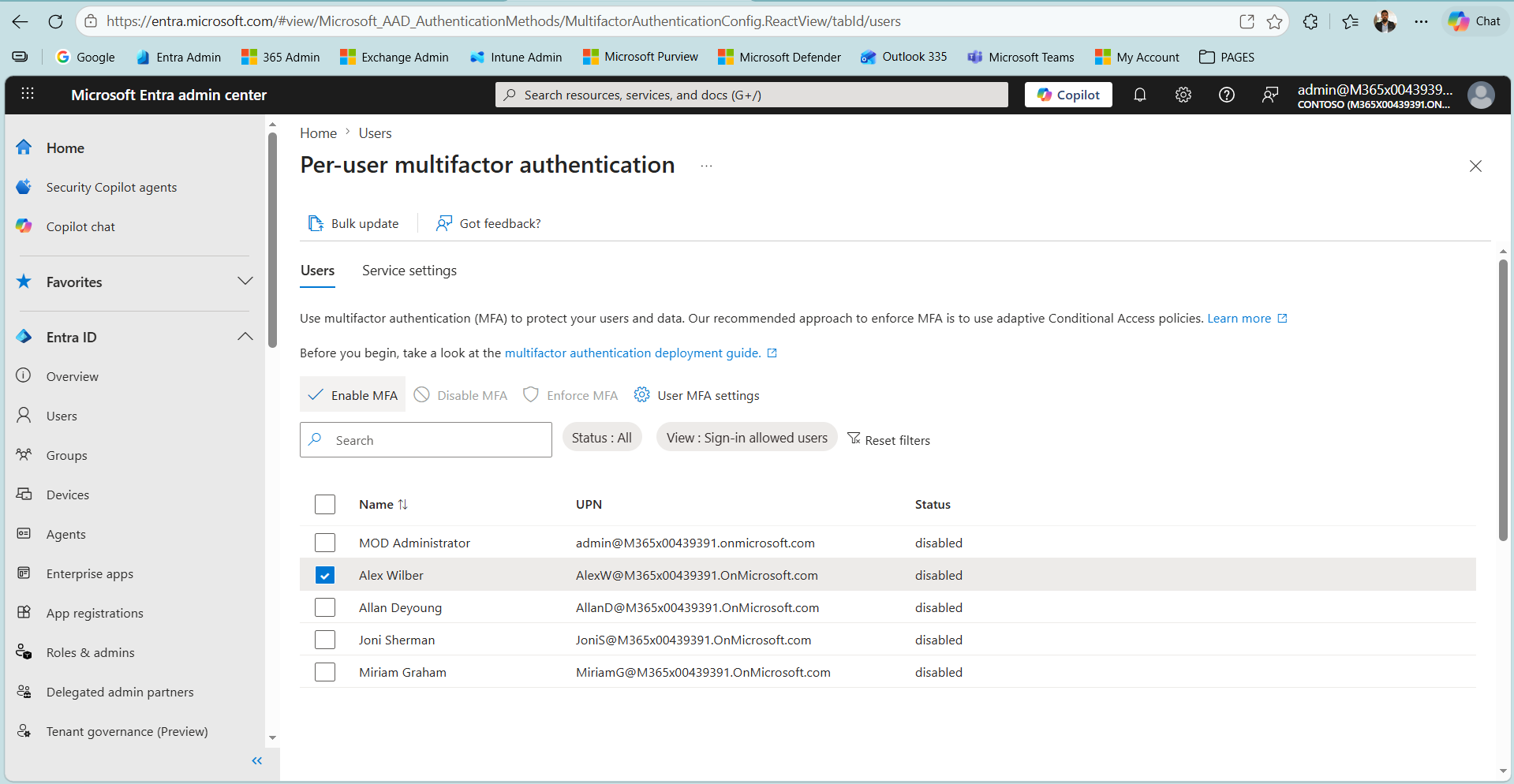
To change a user's state, first select the check box at the start of the user's row. When a user is selected, the Enable MFA action, which was inactive until then, becomes available. For a user in the Disabled state, only Enable MFA is a sensible first step. If Enforce MFA is applied directly before the user has registered for MFA, it can cause sign-in problems in non-browser and legacy clients, so going through the Enabled step first is recommended.
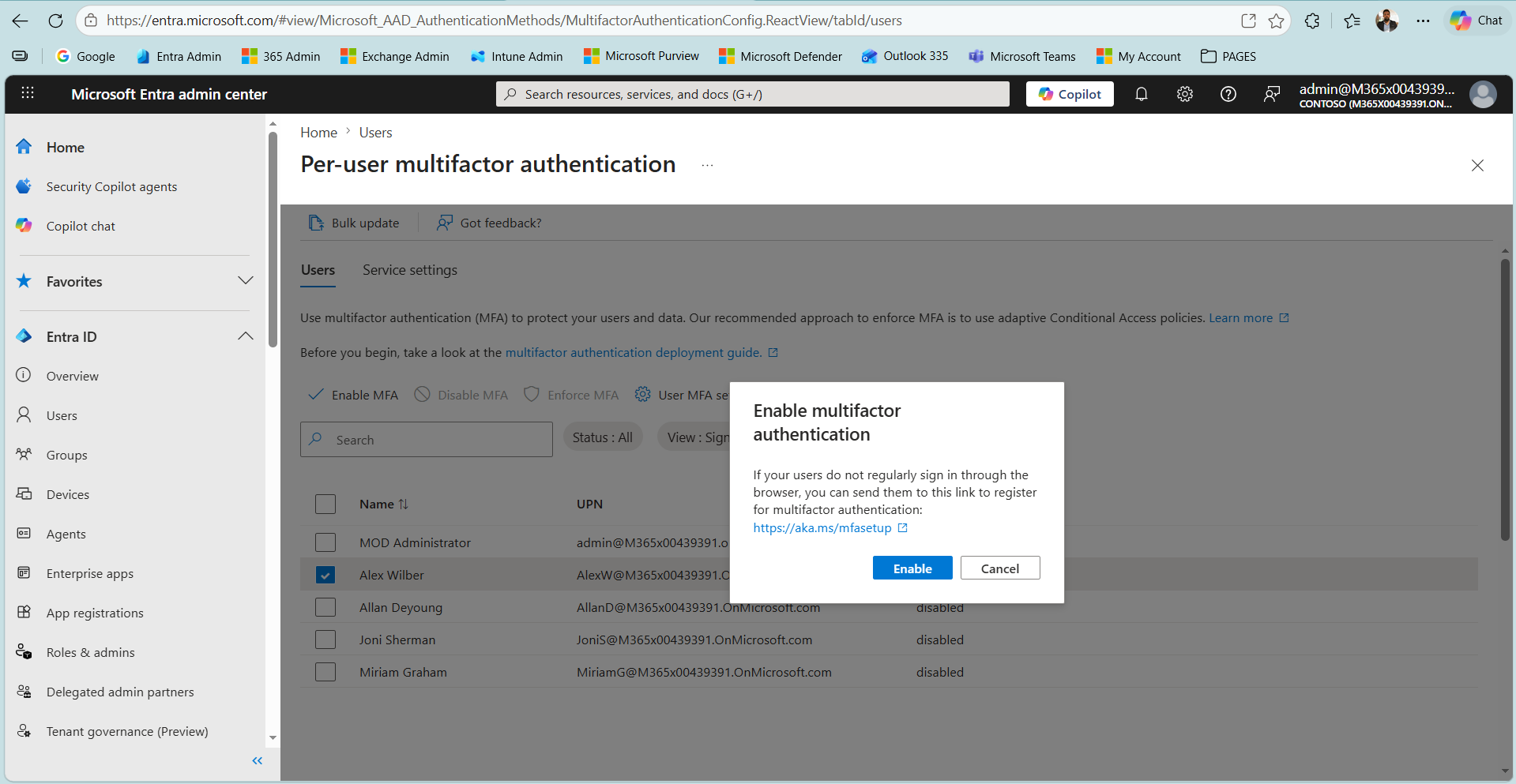
When Enable MFA is clicked, the Enable multifactor authentication confirmation window opens. This window provides the https://aka.ms/mfasetup registration link so that users who do not sign in regularly through a browser can complete MFA registration in advance. The Enabled state means that the user is directed to MFA registration at the next interactive sign-in but is not required to complete MFA at every sign-in until registration is complete. For this reason the registration link is useful, because it lets users complete registration on their own. The Enable button confirms the action.
After confirmation, the Status value of the selected user is updated to Enabled. The other users remain in the Disabled state. If the user must complete MFA at every sign-in, the user in the Enabled state is selected and the Enforce MFA action is applied, which moves the state to Enforced. The Enforce action must be applied only after the user has completed registration, otherwise users who have not registered may become unable to sign in.
Microsoft retired authentication method management through the legacy MFA and SSPR policies on 30 September 2025. Authentication method management has now moved to the Authentication methods policy. Organisations that still use the per-user MFA Enabled or Enforced states are advised to migrate to the Authentication methods policy in a way that also covers modern methods.
2- Security Defaults
Security defaults is a baseline security package that Microsoft introduced in 2019. It applies to the whole tenant and is managed by Microsoft. Instead of defining policies one by one, it delivers a set of basic identity security measures defined by Microsoft as a single package. This package cannot be customised and is turned on or off as a whole with a single toggle. The rules in it come as a fixed set maintained by Microsoft, and Microsoft updates them as the threat landscape changes.
Security defaults is designed so that organisations without a Conditional Access licence are not left unprotected. Because Conditional Access requires Entra ID P1, this package gives small organisations without a P1 licence a reasonable security baseline at no cost. Microsoft turns security defaults on by default in new tenants created after a certain date. Unlike per-user MFA, the control is tied to the tenant level and not to the user object, and it covers all users at the same time.
Security Defaults Configuration
In an organisation that does not use Conditional Access, security defaults is managed from the Properties tab on the Entra ID > Overview screen. When the tab is scrolled down, the Security defaults section appears, and the Manage security defaults link there is clicked. In the panel that opens on the right, the Security defaults value is set to Enabled and saved with Save. The path is as follows.
entra.microsoft.com > Entra ID > Overview > Properties > Manage security defaults |
In the tenant used in this article, however, the Manage security defaults link is not visible at first. The Security defaults section on the Properties tab shows only an information note and the Manage Conditional Access link. The reason is that the tenant has an enabled Conditional Access policy. Microsoft does not allow security defaults and Conditional Access to be enabled at the same time. As long as a Conditional Access policy exists, security defaults is blocked and the management control is hidden.
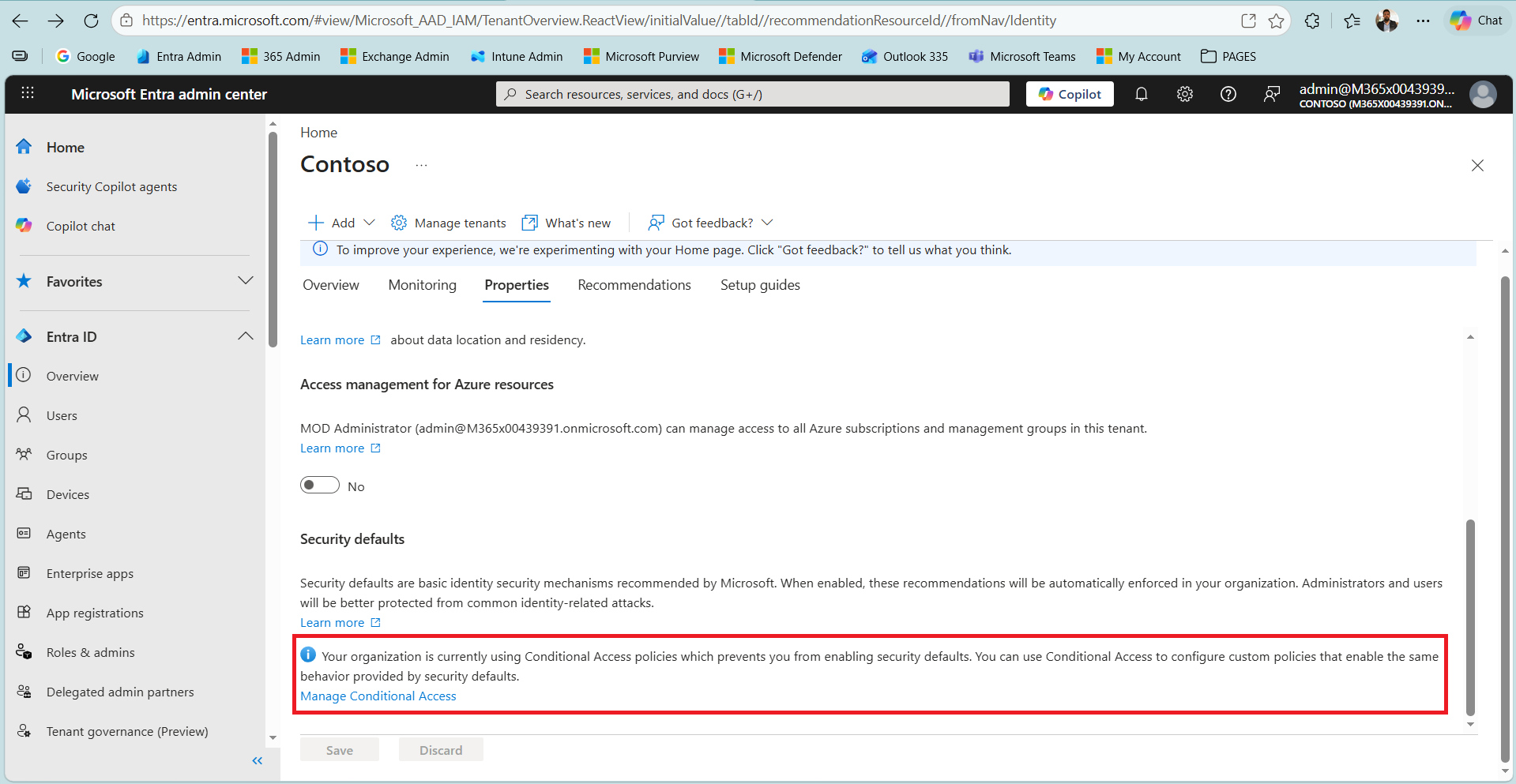
One point that comes up often needs to be made clear here. When a tenant already has a Conditional Access policy, it is not a coincidence that security defaults appears turned off and hidden. Conditional Access and security defaults serve the same basic purpose, protecting identities, but they are at different maturity levels, and Microsoft does not allow the 2 to be enabled at the same time. Modern tenants increasingly come with Conditional Access. The tenant in this example has a policy created by the user, and Microsoft also adds Microsoft-managed Conditional Access policies to many tenants by default. When even a single enabled Conditional Access policy exists, security defaults is automatically treated as disabled and the management control is hidden. So security defaults appearing turned off is not a gap. It is the natural result of the environment already being protected by a higher-level control.
For the same reason, turning off Conditional Access in order to see or use security defaults is not the right action in a real environment. Conditional Access is a granular control that can make conditional decisions based on user, group, application, location, device state and sign-in risk, and it allows specific accounts to be excluded.
Security defaults, in contrast, is a fixed baseline that works on an all-or-nothing basis and allows no exclusions. Going back from Conditional Access to security defaults reduces conditional, context-aware protection to a fixed minimum and moves security backwards.
For this reason, security defaults only makes sense for environments without a Conditional Access licence. An organisation that has an Entra ID P1 licence or higher, and can therefore use Conditional Access, does not move to security defaults. It builds its protection directly with Conditional Access policies, based on user, application, location, device and risk conditions. In short, an organisation without the licence is protected by security defaults, and an organisation with the licence stays on Conditional Access.
The steps below were performed on a demo tenant only to show the security defaults interface. In a real environment, for the reasons explained above, Conditional Access is not turned off and the organisation does not go back to security defaults.
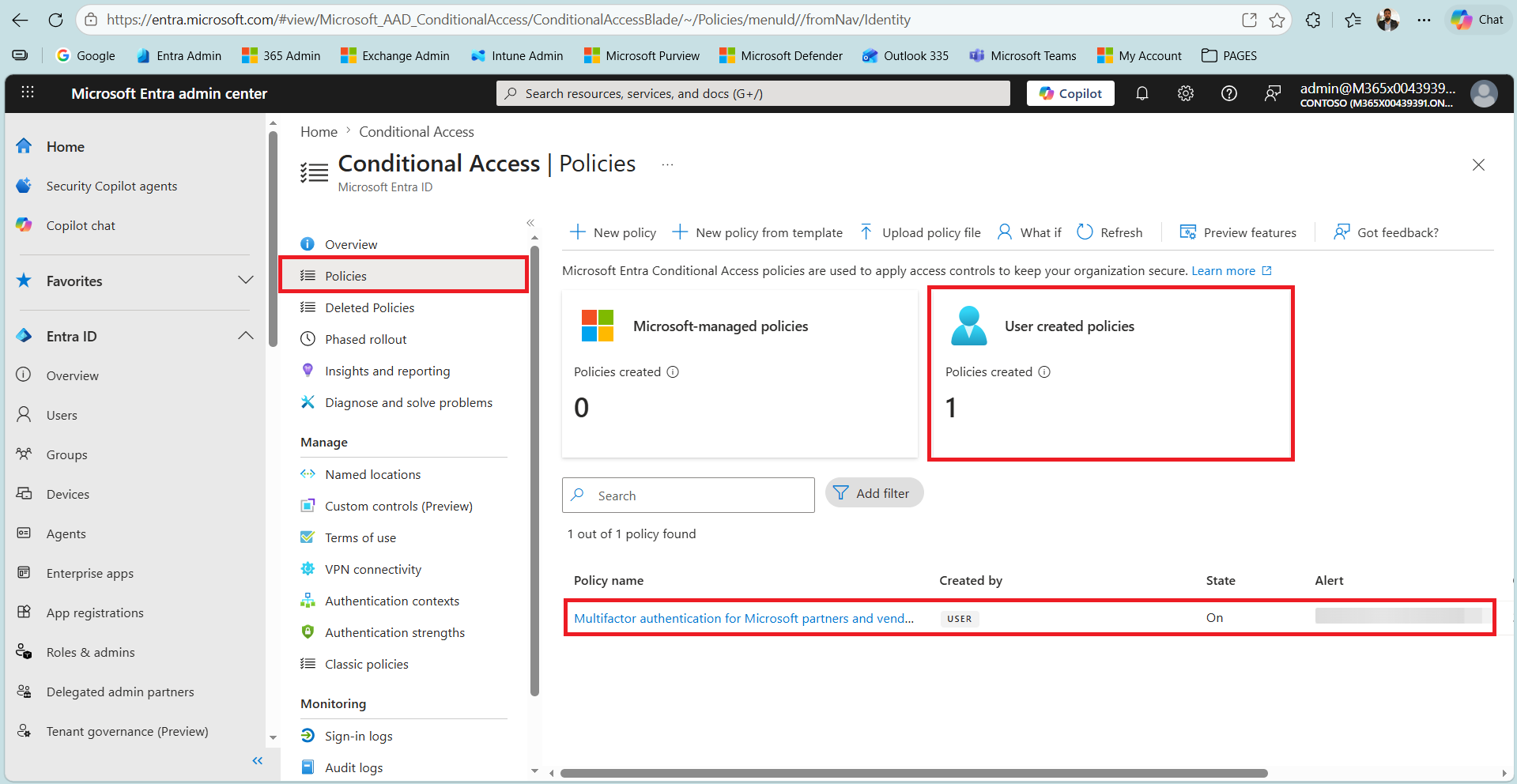
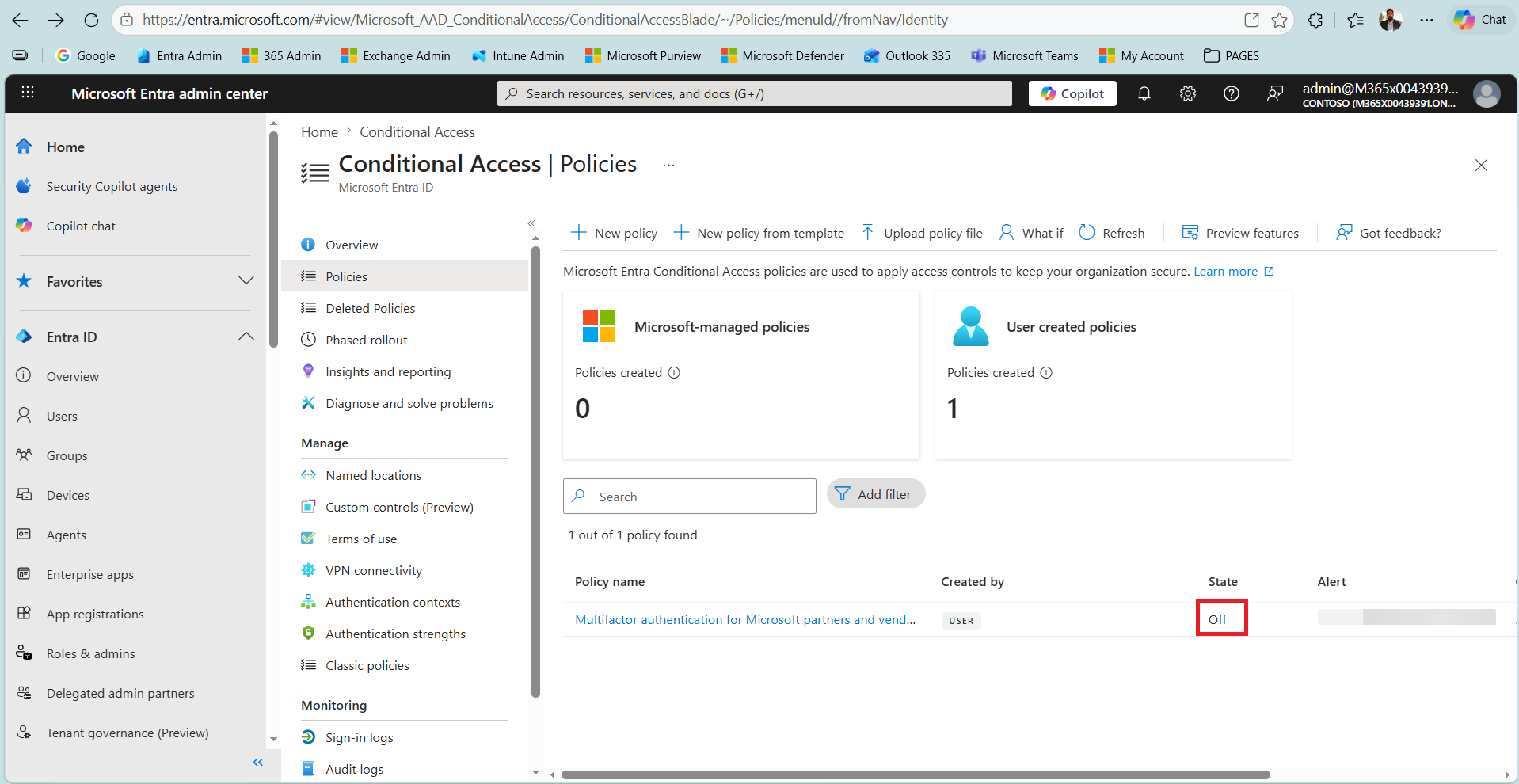
To see the security defaults control, the enabled Conditional Access policy is turned off first. Policies are listed on the Entra ID > Protection > Conditional Access > Policies screen. In this tenant the number of Microsoft-managed policies is 0 and the number of user-created policies is 1. The State value of the only policy, Multifactor authentication for Microsoft partners and vendors, is On.
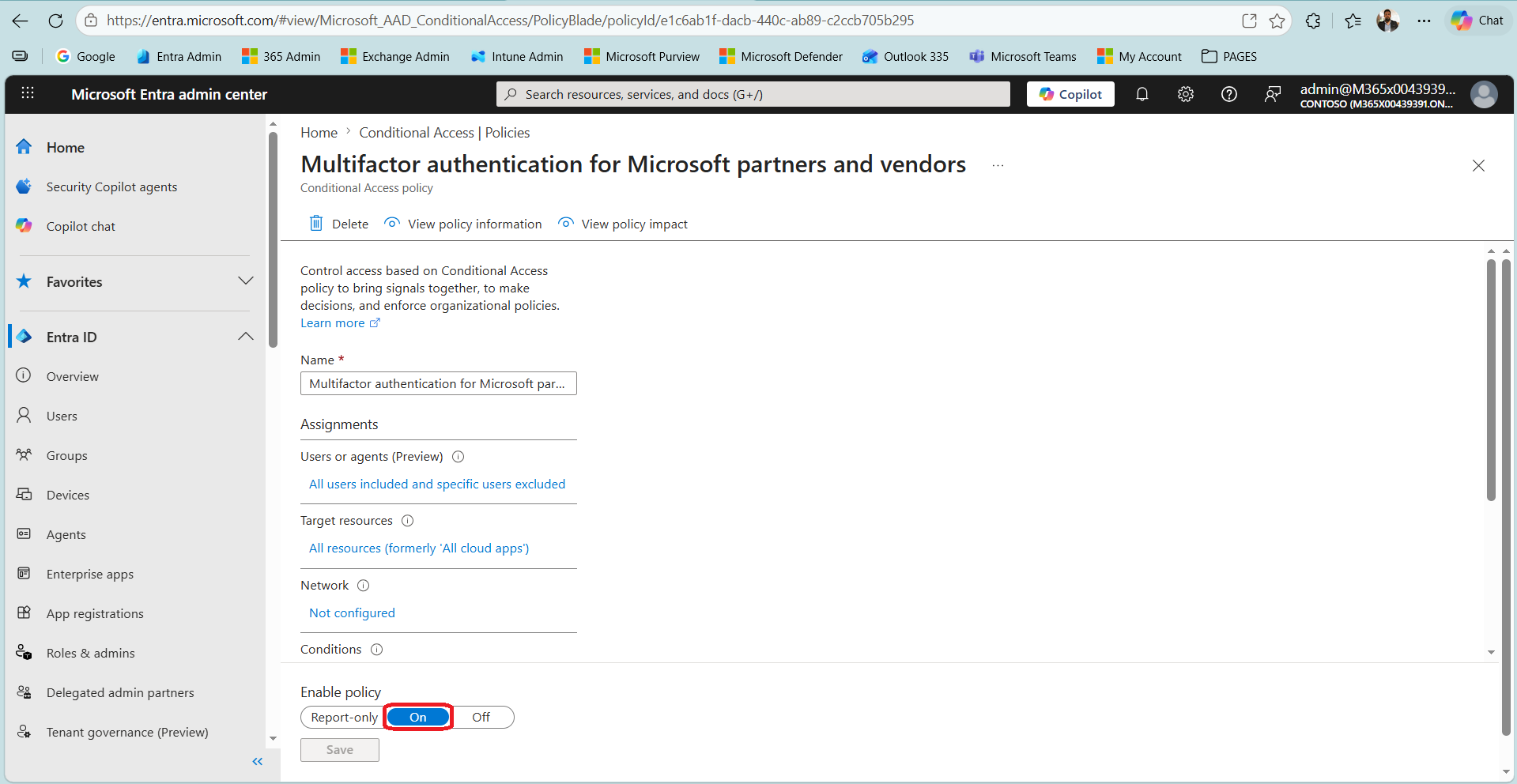
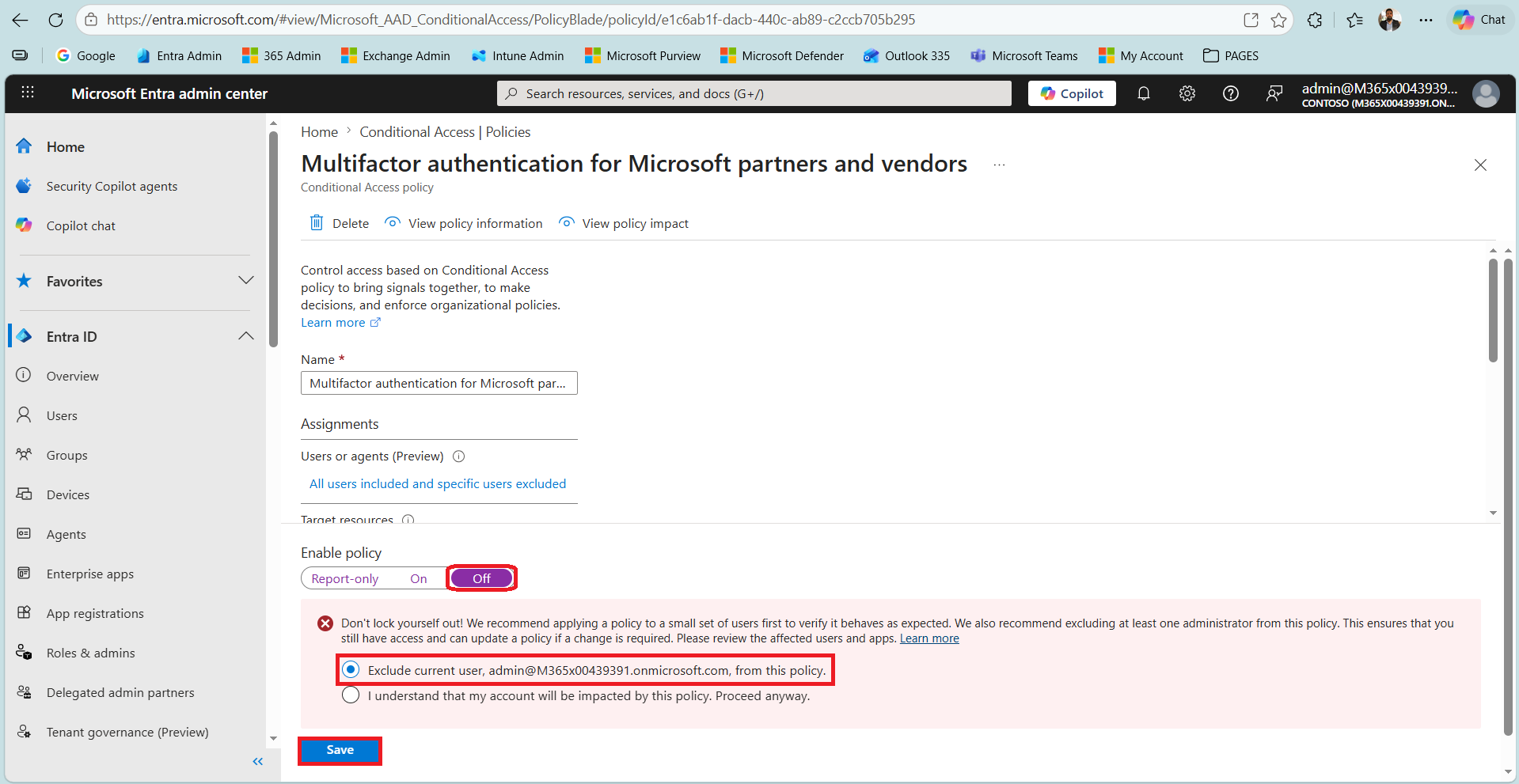
When the policy is opened, the assignments are at the top. Under Users or agents, all users are included and specific users are excluded. Target resources covers all resources, and Network is not configured. The Enable policy control at the bottom of the page offers the Report-only, On and Off options, and in this policy it is set to On.
To disable the policy, Enable policy is set to Off. At this point the portal shows a warning to prevent administrators from locking themselves out and recommends excluding at least 1 administrator from the policy. Here the Exclude current user option is selected and the change is saved with Save.
After the change is saved and the Policies list is opened again, the State value of the policy is now Off. The tenant therefore has no enabled Conditional Access policy left.
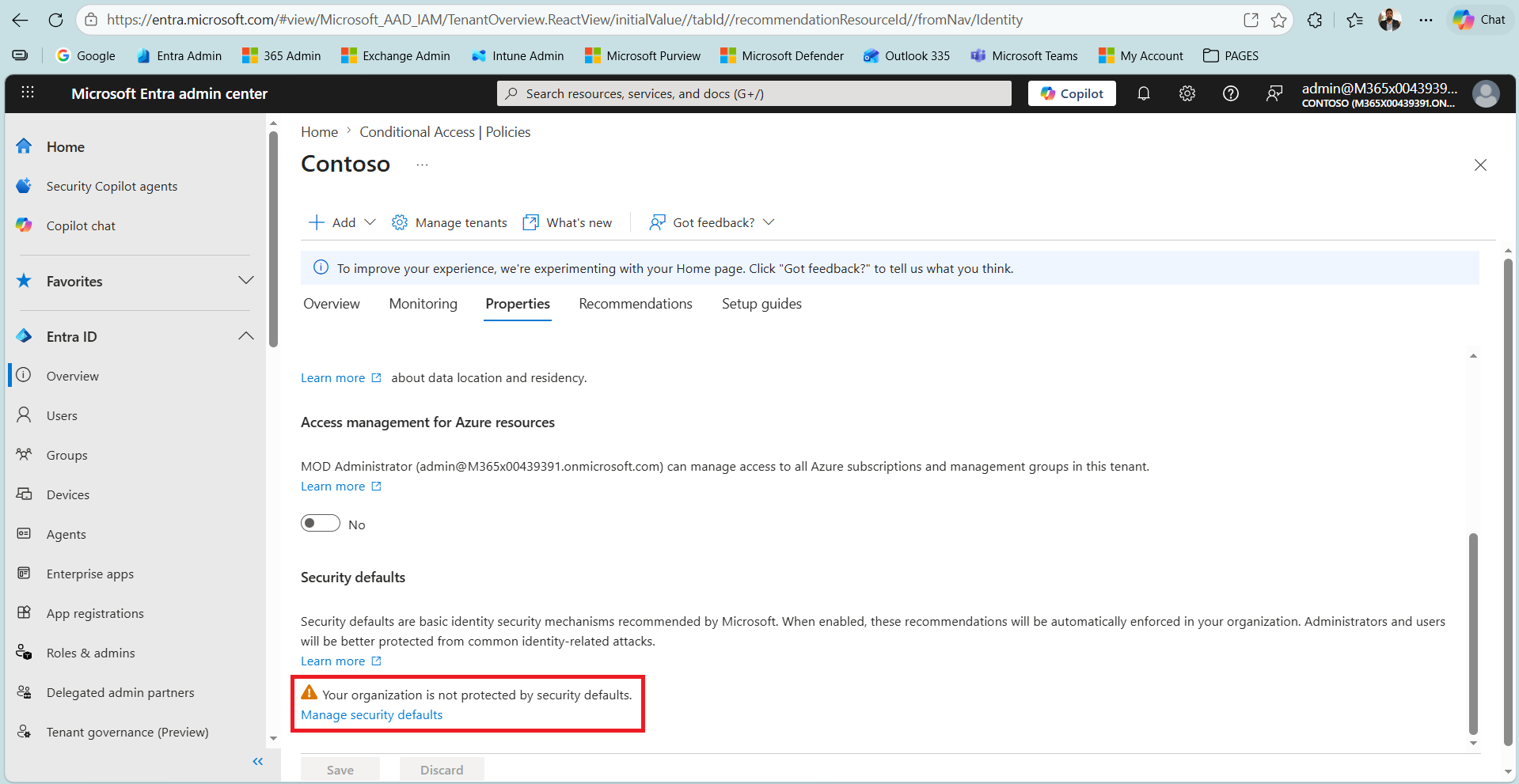
At this point, return to the Entra ID > Overview > Properties screen. The text in the Security defaults section has changed. The note saying that Conditional Access is blocking security defaults has been replaced by a warning that the organisation is not protected by security defaults, and the Manage security defaults link is now visible. In other words, when the Conditional Access policy is turned off, Manage security defaults does become available.
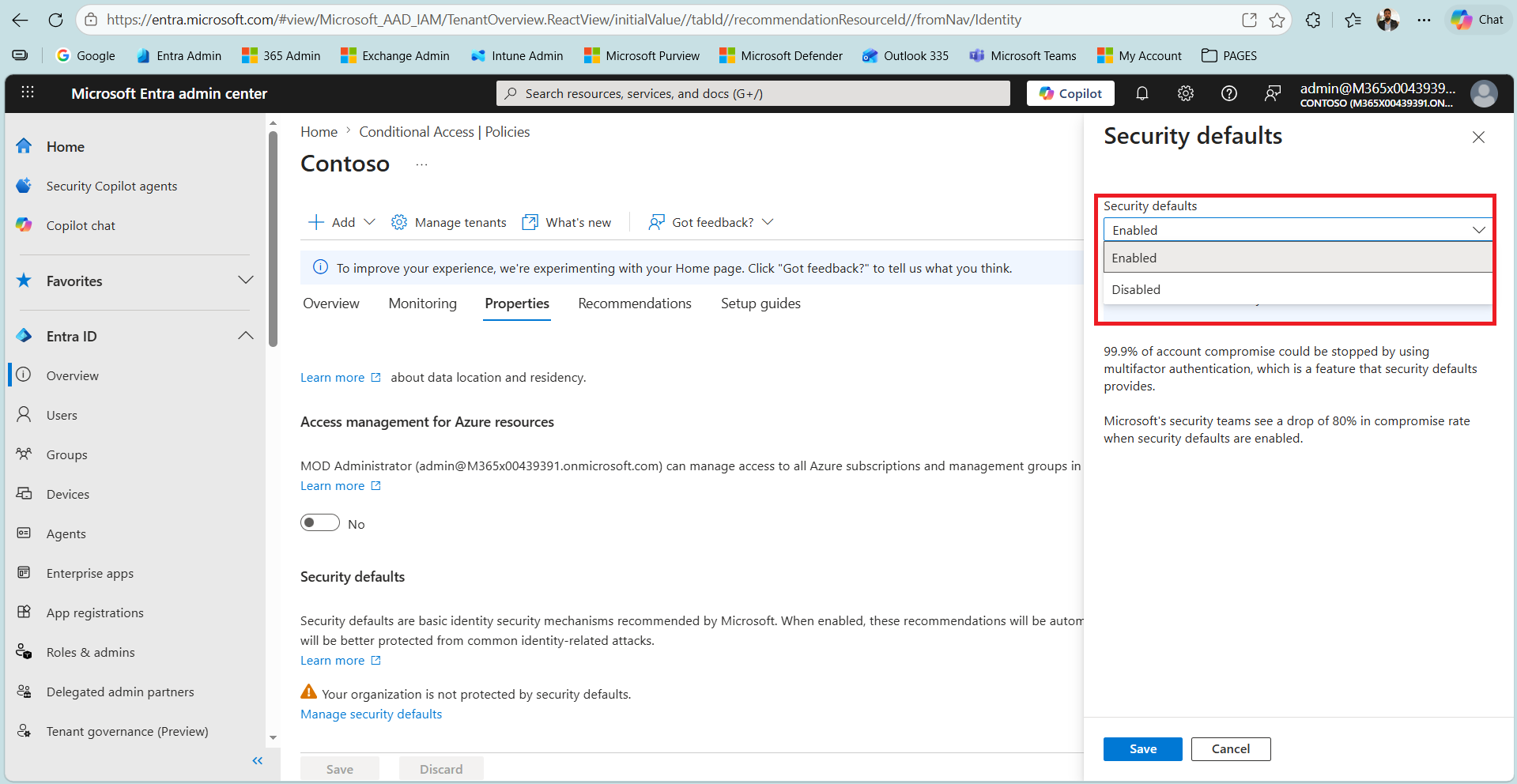
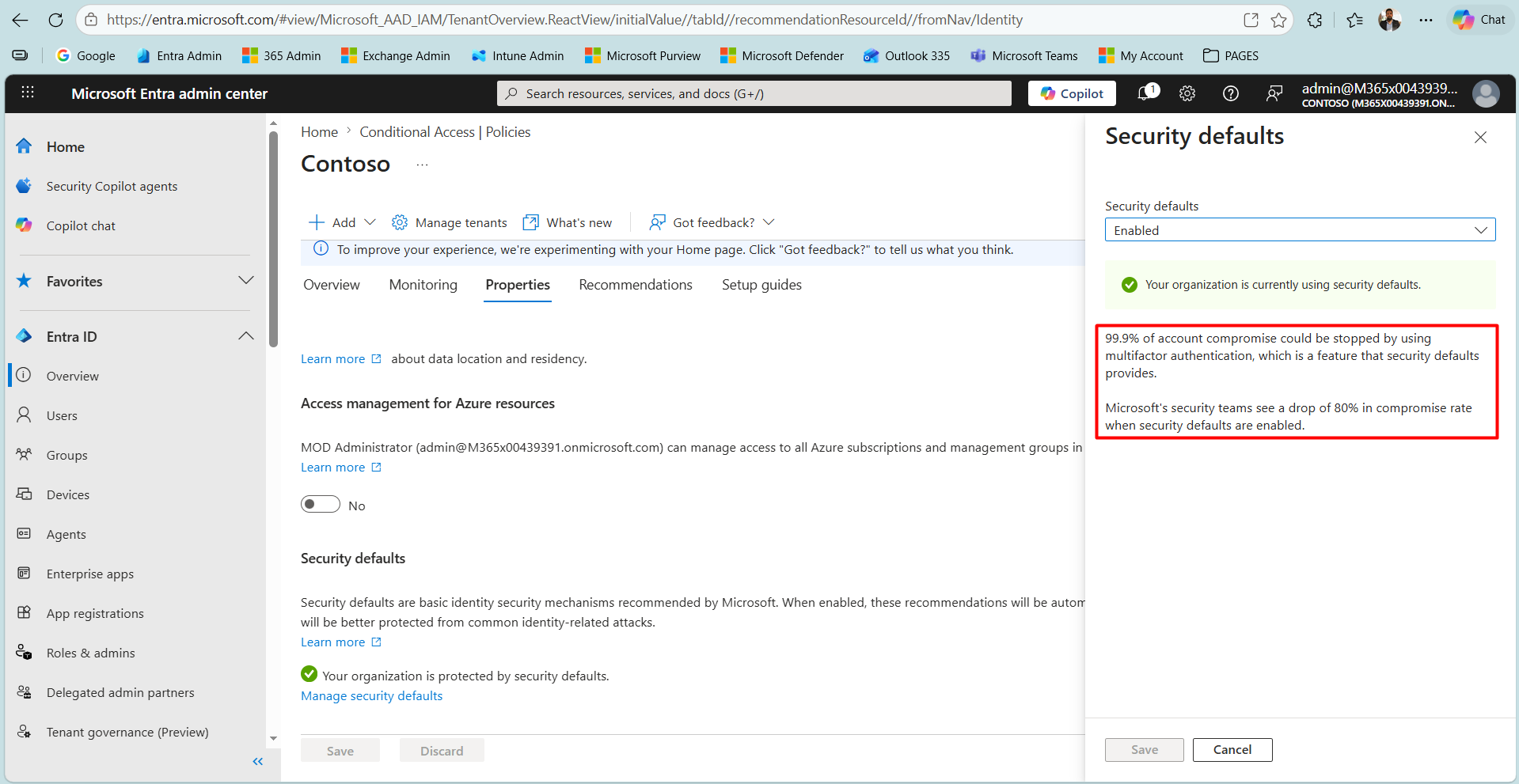
Clicking the Manage security defaults link opens a panel on the right. The panel has a list for the Security defaults value with the Enabled and Disabled options. The panel also shows Microsoft's data. It states that most account compromise incidents can be prevented with MFA and that a clear drop in the compromise rate is seen when security defaults is enabled. Enabled is selected as the Security defaults value.
When the change is saved with Save, a notification confirms that the operation succeeded. The warning in the Security defaults section disappears and is replaced by a statement that the organisation is now protected by security defaults. After the demo is complete, to return to the recommended state, security defaults is set to Disabled again and the Conditional Access policy that was turned off is set back to On.
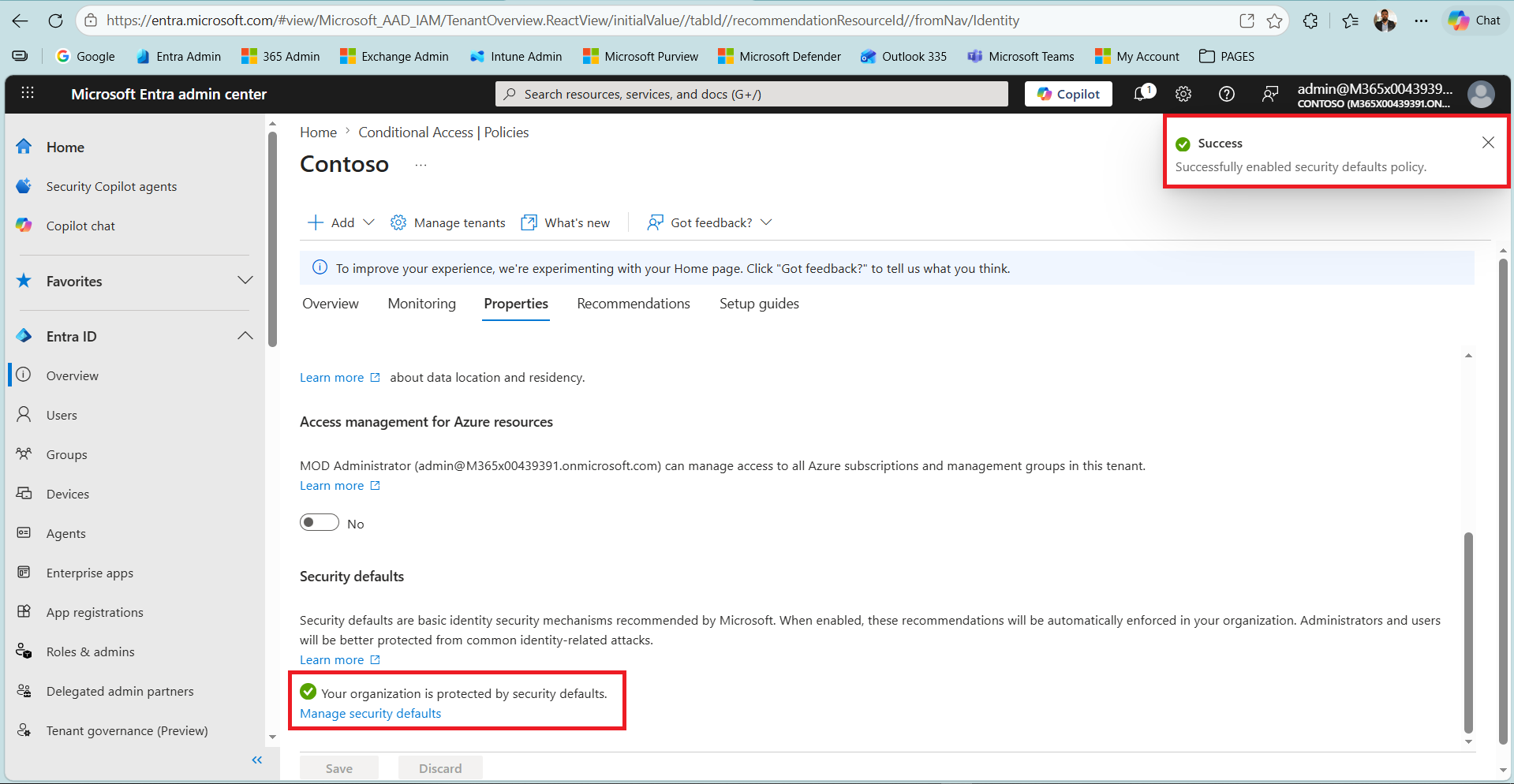
Whichever tenant security defaults is enabled in, the basic measures in the package take effect automatically and as a whole.
These measures are as follows:
✔ It requires all users to register for MFA. The 14-day grace period was removed on 29 July 2024, and registration is mandatory at the first sign-in after security defaults is turned on.
✔ It requires MFA at every sign-in for administrator accounts.
✔ It blocks legacy authentication protocols that use Basic authentication, such as IMAP, POP and SMTP.
✔ It requires MFA for sign-ins that appear risky and for privileged access such as the Azure portal.
Security defaults is a tenant-wide, all-or-nothing structure. It is either fully on or fully off. It cannot be scoped and no user can be excluded. It is free and requires no licence, but it cannot be customised.
One detail here shows the effect that security defaults aims for. According to the data Microsoft shares in the Manage security defaults panel, 99.9% of account compromise incidents can be prevented by using MFA, and Microsoft's security teams observe an 80% drop in the compromise rate when security defaults is enabled. These figures show that even in an environment without a Conditional Access licence, the most basic baseline protection contributes significantly to identity security, and they show why Microsoft gives MFA so much prominence in every layer.
3- Conditional Access
Conditional Access is the policy-based access control engine of Microsoft Entra ID and is the recommended method for requiring MFA today. Unlike the previous 2 layers, it is not a fixed state or a ready-made package. It works through conditional rules defined by the administrator. Every sign-in request is evaluated in real time, and if the request meets the conditions defined in the policy, the specified controls are applied. This logic works as an if-then structure that applies a specific control when specific conditions are met.
The strength of Conditional Access comes from basing its decision not on a single criterion but on many signals evaluated together. On the condition side there are user and group, target application and resource, location, client application, device state, and the sign-in risk and user risk that come from Identity Protection. On the control side there are the MFA requirement, blocking access completely, the compliant or hybrid joined device requirement, authentication strength, and session control features such as sign-in frequency and persistent browser session. In this way protection is not a single rule applied to everyone at once. It is tuned precisely to the access of specific users to specific applications under specific conditions.
This model forms the identity pillar of Microsoft's Zero Trust approach. No access is trusted in advance and every request is verified again according to its context. Basic use of Conditional Access requires an Entra ID P1 licence or higher. Only the risk-based signals on the condition side, such as sign-in risk and user risk, depend on Identity Protection, so using them requires an Entra ID P2 licence. Because policies can exclude specific users or groups, emergency access accounts can be exempted. A policy can also run in report-only mode to observe its behaviour without any real effect.
The diagram below summarises how Conditional Access evaluates a sign-in request from start to finish. The important point for this topic is the grant controls part in step 4. Within Conditional Access, MFA takes effect exactly here, as a grant control applied before the access decision is made. If the policy requires MFA, Entra ID directs the user to MFA within the same sign-in flow and makes the final access decision after that.
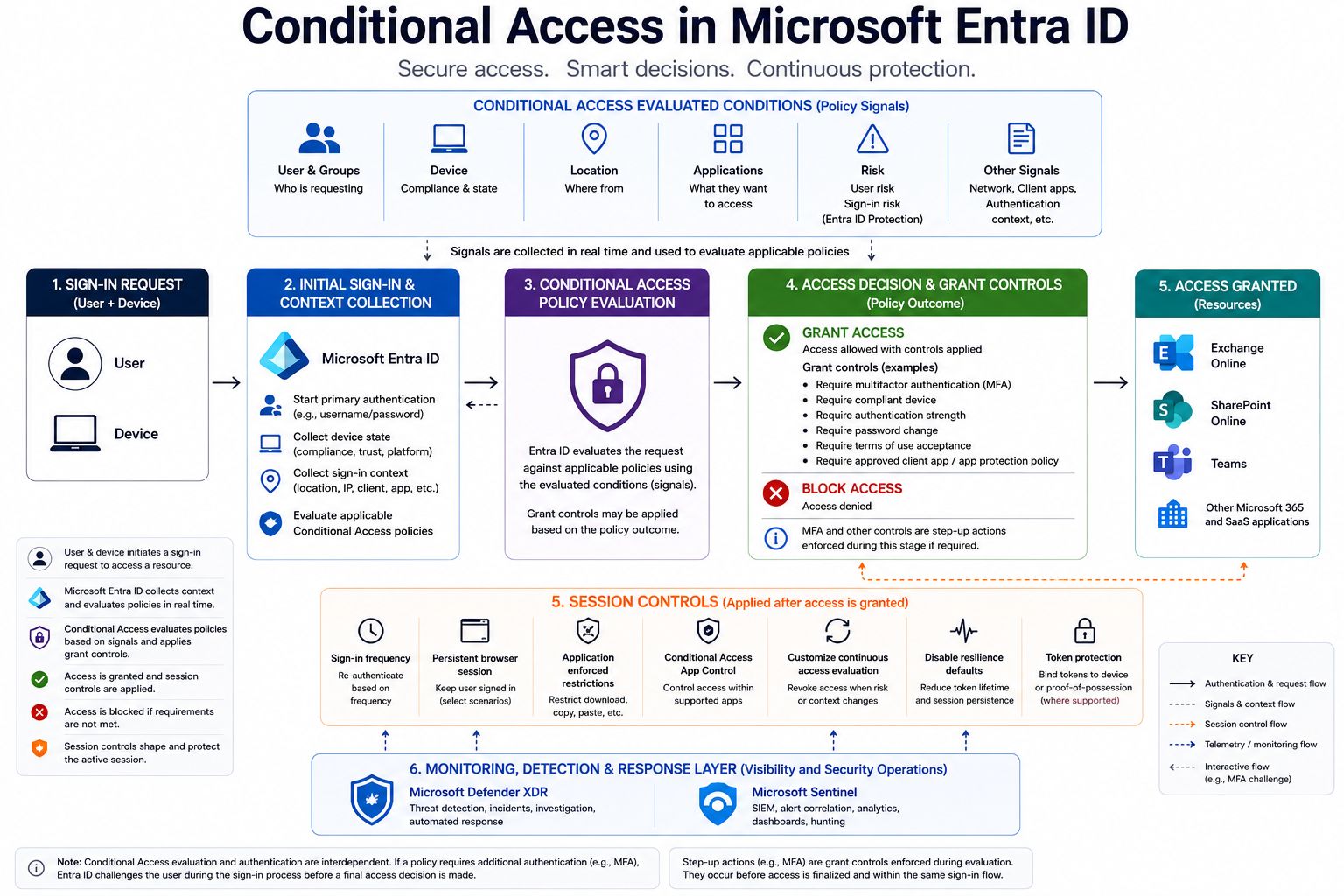
In practice, the conceptual flow in the diagram is implemented in a single management area in the Microsoft Entra admin center. The definition of conditions, the signals that are evaluated and the controls that are assigned are all configured through the policies on the Conditional Access screen. Policies are created and managed through the following path.
entra.microsoft.com > Entra ID > Protection > Conditional Access > Policies > New policy |
Conditional Access configuration starts with New policy on the Policies screen. This screen also lists the policies that already exist in the tenant.
One frequently asked point needs to be made clear here. Why create a new Conditional Access policy when a policy for security defaults already exists? The assumption in the question must be corrected first, because there is no such thing as a Conditional Access policy that belongs to security defaults. Security defaults and Conditional Access are 2 completely separate mechanisms. Security defaults is a predefined, fixed set of security settings managed by Microsoft, and it never appears as a policy in the Policies list. The policy that appears in the list is a Conditional Access policy that already exists in the tenant and is completely independent of security defaults.
There is still a system-level relationship between the 2 mechanisms. Security defaults and Conditional Access cannot be enabled at the same time. Microsoft treats the presence of at least 1 enabled Conditional Access policy as Conditional Access being in use, and in that case security defaults is blocked.
This is also why the Manage security defaults link became visible when we turned that policy off earlier. While that policy was enabled, Conditional Access counted as being in use, so security defaults was blocked and Manage security defaults stayed hidden. When we turned the policy off, no enabled Conditional Access policy remained and the control became accessible again. What causes this is not the identity of that policy but whether any enabled policy remains. Any other enabled policy would have created the same block.
The reason for creating a new policy is entirely different. The policy in the previous section was a narrowly scoped policy that already existed in the tenant, and it was used there only to show this behaviour of blocking security defaults. The purpose of this section is different. A new policy is created to show, on a clean and representative example, how Conditional Access is built from the start, beginning with New policy and then defining the assignments, conditions and controls step by step.
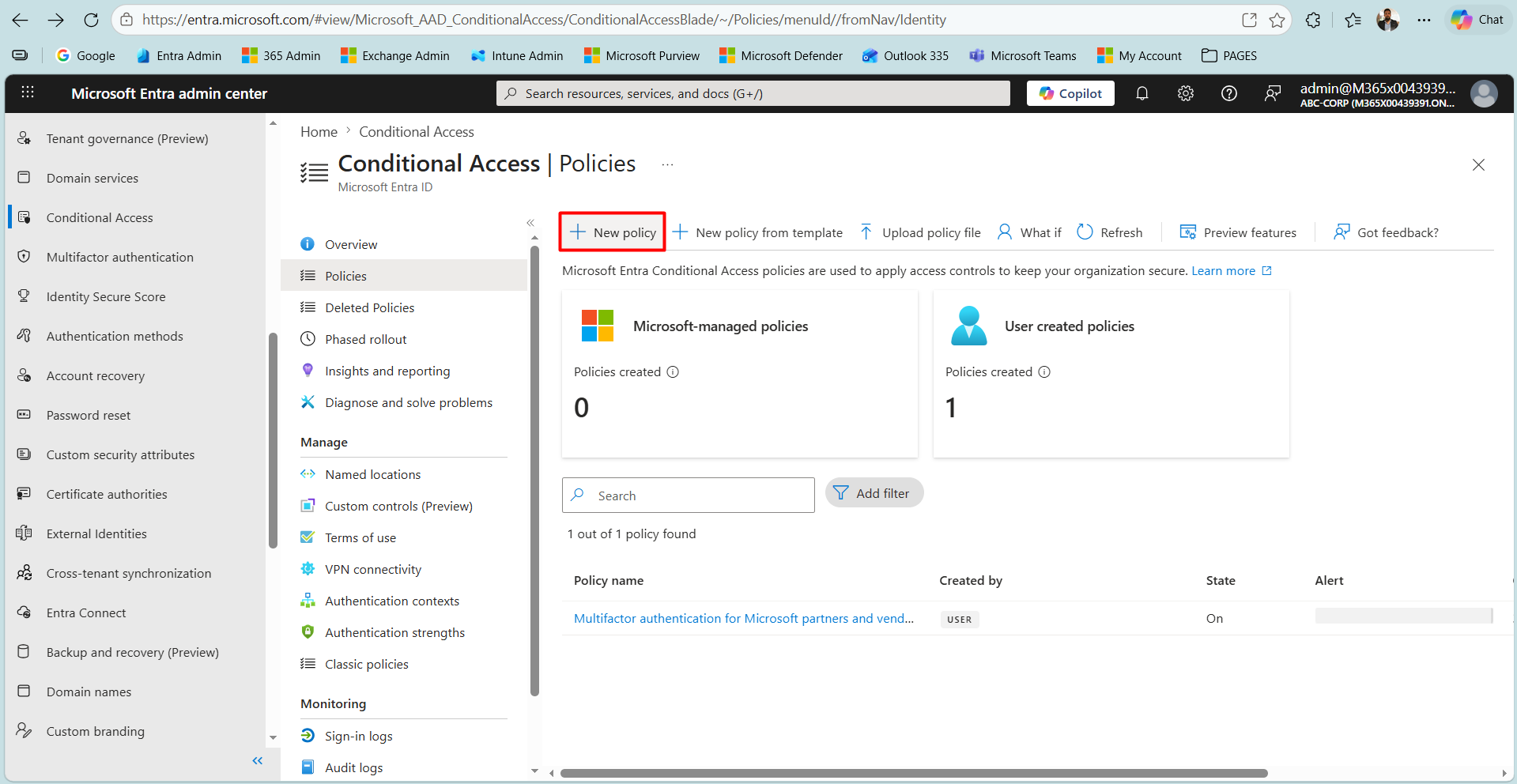
The conditions and controls of the policy are defined on the screen that opens with New policy. In a policy, conditions and controls are selected independently of each other. There is no row-by-row matching between them, and any set of conditions can trigger any set of controls.
📌 The condition side contains the following.
✔ User and group
✔ Application
✔ Location and named locations
✔ Device state
✔ Sign-in risk and user risk
📌 The control side contains the following.
✔ Require MFA
✔ Block access
✔ Require compliant device
✔ Require hybrid joined device
✔ Session controls
For example, a policy that requires users in a specific group to use MFA when they access a specific application from an external network can be defined with this structure.
4- Mandatory MFA Enforcement
Microsoft recently introduced a 4th enforcement layer that works independently of the 3 layers above. This layer requires MFA for administrative access to management surfaces such as the Azure portal, the Microsoft Entra admin center, the Microsoft Intune admin center and the Microsoft 365 admin center. This requirement is completely independent of Conditional Access and security defaults.
This enforcement is not a toggle that is turned on or off from a single place. Microsoft applies it directly in the management portals themselves, and it has been rolled out to all tenants in phases. Phase 1 started in October 2024 with an MFA requirement for all Create, Read, Update and Delete operations in sign-ins to the Azure portal, the Microsoft Entra admin center and the Microsoft Intune admin center, and it had been rolled out to all Azure tenants by March 2025.
The MFA requirement for the Microsoft 365 admin center started in February 2025, and the blocking of sign-in for accounts without MFA came fully into effect on 9 February 2026. Phase 2 covered Azure CLI, Azure PowerShell, the Azure mobile app, Infrastructure as Code tools and REST API endpoints on 1 October 2025. In this phase only Create, Update and Delete operations require MFA, and read-only operations are exempt.
A break-glass account that is excluded from Conditional Access still cannot access these management surfaces without MFA. Mandatory MFA enforcement does not take Conditional Access exclusions into account. For this reason a strong, phishing-resistant method such as FIDO2 or certificate-based authentication must be planned in advance for break-glass accounts. Otherwise the emergency access account can be locked out of the management surfaces at the moment it is needed.
Comparison Table
|
Feature |
Per-User MFA |
Security Defaults |
Conditional Access |
|
Introduced |
Oldest |
2019 |
Modern |
|
Scope |
Per user |
Whole tenant |
Granular |
|
Conditional Logic |
None |
None |
Rich |
|
Customisation |
None |
None |
Full |
|
Licence |
Free |
Free |
Requires P1 |
|
Exclusion |
Per user |
Not possible |
Per group and per user |
|
Microsoft Recommendation |
Not recommended |
Only without P1 |
Standard |
Which Layer Is Used Today
The main factor that determines which layer is used is the licence, and these 3 layers are not combined arbitrarily. For organisations with an Entra ID P1 licence or higher, the standard method is Conditional Access. Because it is granular, conditional and aligned with Zero Trust, this layer forms the basis of modern MFA management, and it is the approach Microsoft recommends today. Small businesses without a P1 licence are protected by security defaults, the free baseline. Because these 2 layers exclude each other, an organisation builds its baseline protection with either Conditional Access or security defaults and does not run both.
Per-user MFA is a legacy layer that sits outside this picture. It is not used in new deployments and is usually found only in old tenants inherited from the Azure AD MFA period. Per-user MFA can technically work at the same time as Conditional Access, because it is not a tenant baseline but a requirement that works at account level. Even so, in an environment that uses Conditional Access, per-user MFA is left Disabled so that 2 separate MFA evaluations do not conflict for the same user. In addition, Microsoft retired authentication method management through the legacy MFA and SSPR policies on 30 September 2025 and moved this management to the Authentication methods policy. For this reason, organisations that still depend on per-user MFA states are expected to move to the modern structure.
In practice the target structure is clear. An organisation with an Entra ID P1 licence or higher uses Conditional Access, keeps security defaults turned off and keeps per-user MFA Disabled. An organisation without a P1 licence leaves security defaults turned on. Newly created tenants come with security defaults turned on until Conditional Access is configured. Whichever baseline is chosen, the mandatory MFA enforcement layer applied to the management portals is in force separately, on top of all of them. I covered this topic above in the Mandatory MFA Enforcement section.
When an organisation moves from security defaults to Conditional Access, no unprotected gap must be left between the 2 steps. The moment security defaults is turned off, the tenant loses its baseline protection. For this reason the Conditional Access policies are planned first, then security defaults is turned off, and the policies are enabled immediately afterwards. Microsoft recommends enabling Conditional Access policies as soon as security defaults is turned off.
Summary and Mental Map
Per-user MFA is a legacy structure and must not be used today. In environments that use Conditional Access it is left Disabled. Security defaults is a free baseline, works tenant-wide on an all-or-nothing basis and cannot be active at the same time as Conditional Access. Conditional Access is the modern standard, requires a P1 licence, provides granular control and is the method every organisation should aim for today. For granular, condition-based MFA management, security defaults is turned off, Conditional Access is used and per-user MFA is left Disabled.
Independently of all these layers, the mandatory MFA enforcement layer applied to the management surfaces is always in force and must be taken into account, especially when break-glass accounts are designed.
I hope you find it useful...
Feel free to share your thoughts and questions about this article in the comments below. Every contribution helps the content reach more people and makes for a more useful discussion.