When the hostname of a Windows computer is changed and the device is restarted, the new name takes effect immediately on the local side. The command line, System Properties and the view on the network now use the new name.
The situation is different in Microsoft Entra ID. Entra ID identifies the device by its DeviceId, not by its name, and it does not read the display name value on the device object from the local name of the device. This value changes through an attribute update sent by the device, through Microsoft Entra Connect in a hybrid setup, or through a new registration. For this reason, the renamed device still appears with its old name in the All devices list.
The join type of the device determines how the name reaches Entra ID, and the result changes accordingly. On a Microsoft Entra joined device, the Device-Sync task under Workplace Join sends the new name to Entra ID, the same device object is updated and the DeviceId is kept. On a Microsoft Entra registered device, the Entra ID registration is created through the work account that the user adds to the device, not through a device-level join. In this environment, the work account is removed and added again so that the name is reflected, and this operation creates a new device object with a new DeviceId. This difference has a direct effect on the group memberships linked to the object and on device-based Conditional Access evaluations.
The 2 scenarios are applied one after the other on the same tenant. On the Entra joined device, the dsregcmd /status output is read, the Device-Sync task is triggered with Task Scheduler and PowerShell, and the update of the same object with the new name is verified. On the Entra registered device, the work account is disconnected and connected again, and then the removal of the old record and the creation of the new DeviceId are checked. On Microsoft Entra hybrid joined devices, the name is carried from on-premises Active Directory through synchronisation, so this case is not covered as a separate procedure and appears only in the comparison table.
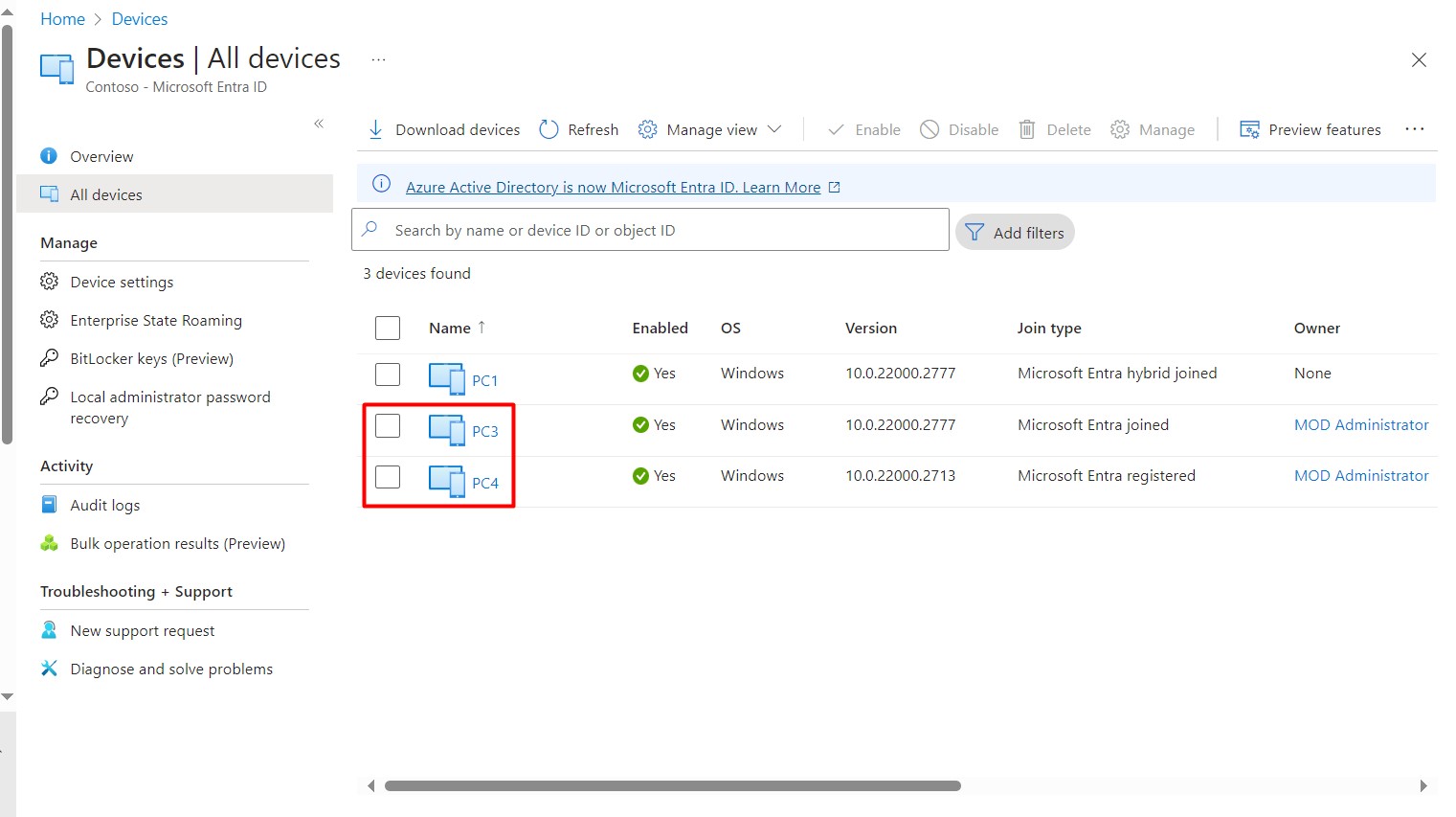
In the example environment, 2 devices were renamed. The Entra joined device PC3 is now PC2, and the Entra registered device PC4 is now PC3. The name PC3 refers to 2 different devices in the 2 scenarios. In scenario 1 it is the old name of the joined device, and in scenario 2 it is the new name of the registered device.
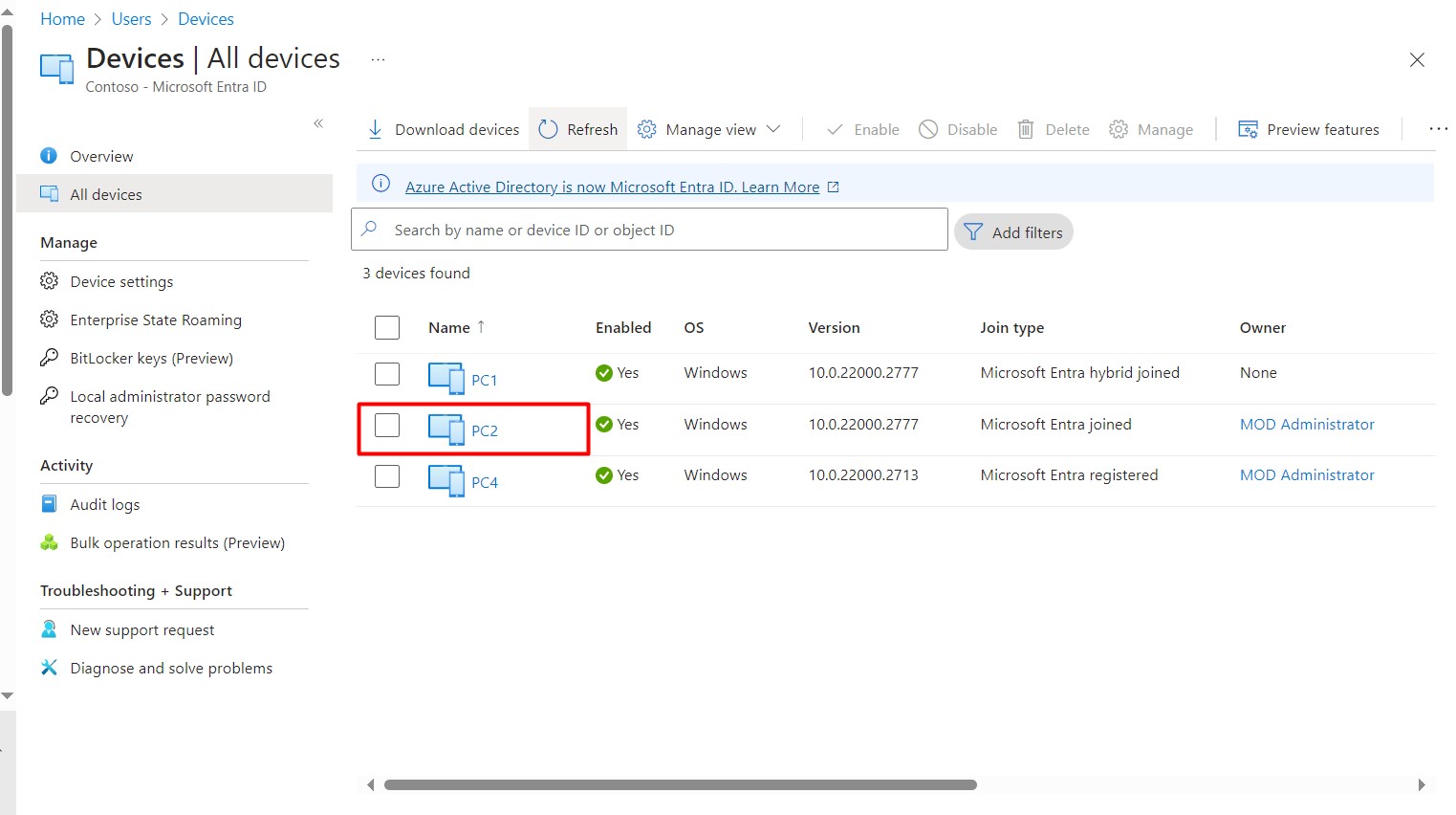
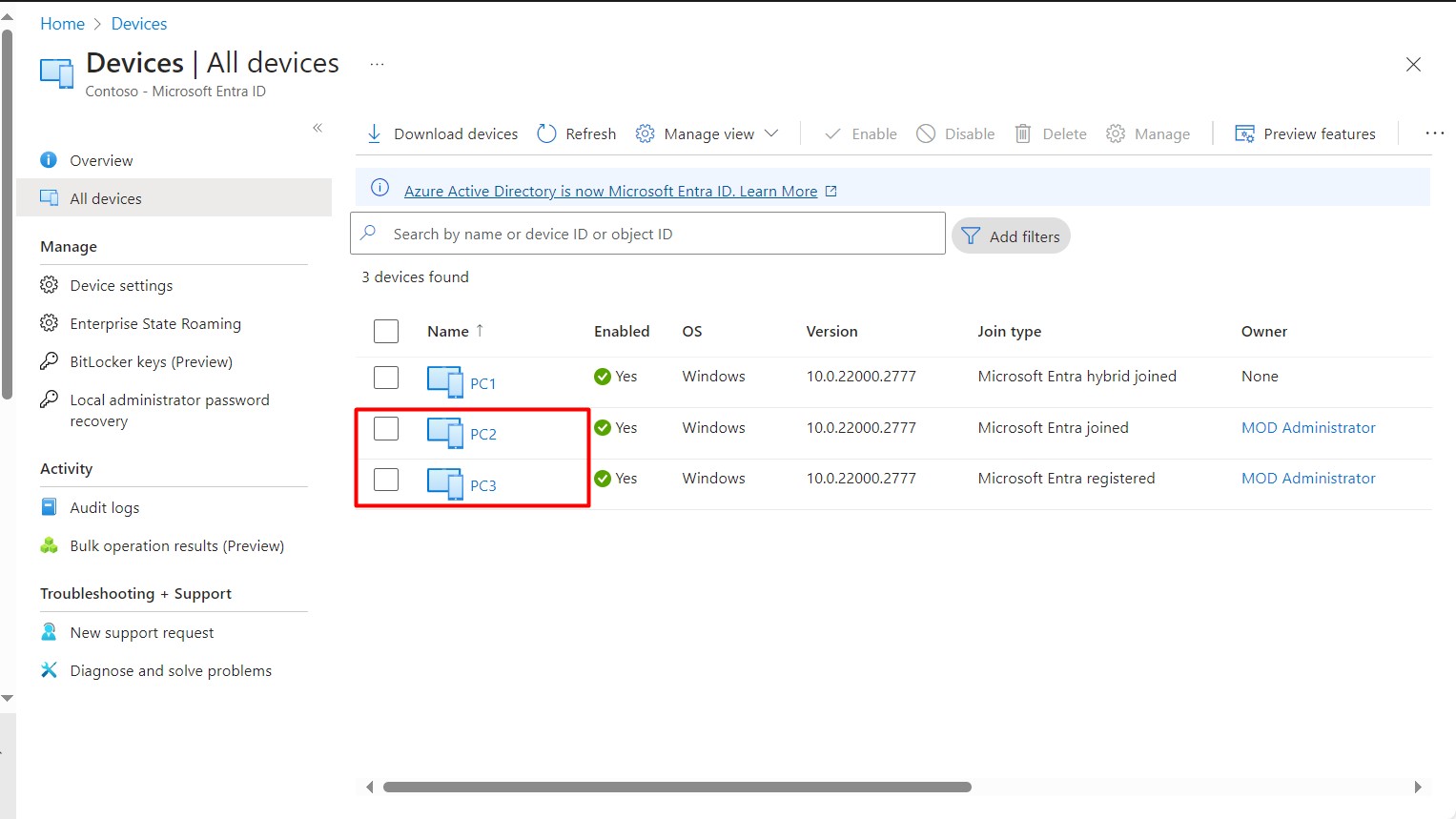
In the initial state, the Devices > All devices page lists 3 devices.
|
Name in the Portal |
Join Type |
Owner |
New Hostname |
Role in the Article |
|
PC1 |
Microsoft Entra hybrid joined |
None |
Unchanged |
Listed for comparison |
|
PC3 |
Microsoft Entra joined |
MOD Administrator |
PC2 |
Scenario 1 |
|
PC4 |
Microsoft Entra registered |
MOD Administrator |
PC3 |
Scenario 2 |
Although the hostname of the 2 marked devices has been changed on the local side, the portal still shows the old names. Entra ID does not read the local name of the device itself. The display name on the device object changes through an update sent by the device or through a new registration.
Hostname Change on a Microsoft Entra Joined Device
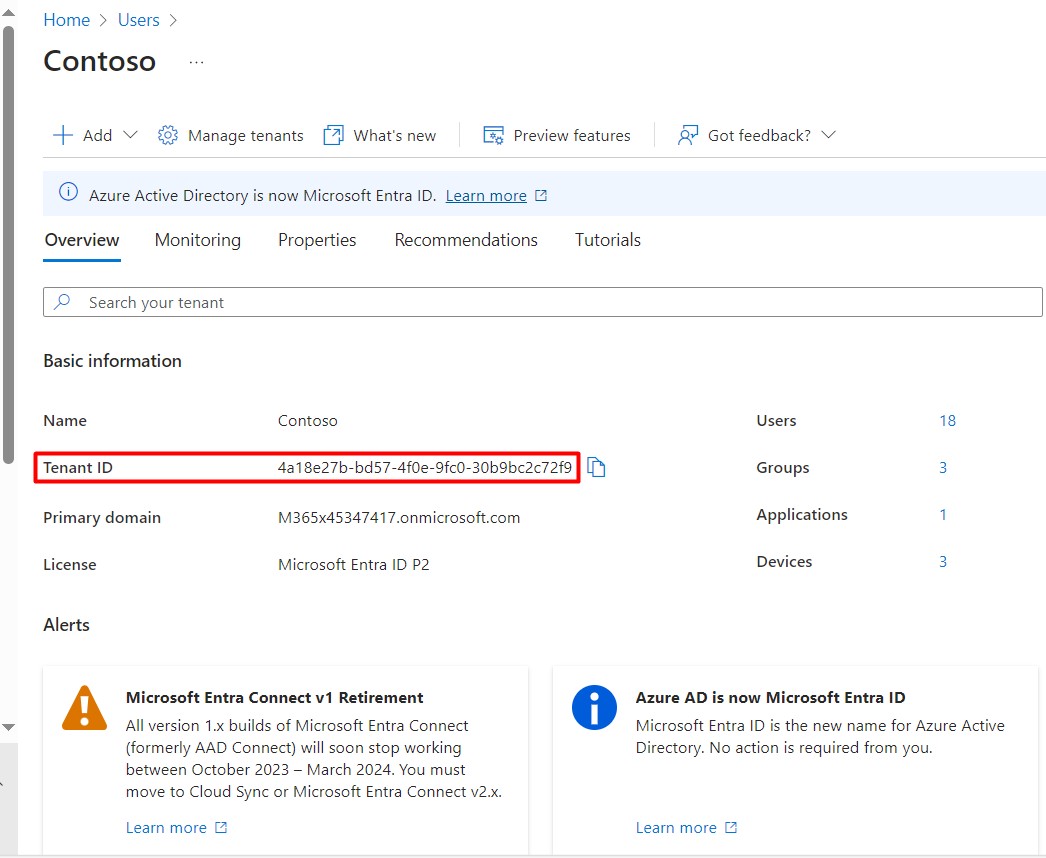
Before reading the output of the joined device, it is useful to note the Tenant ID value. The Basic information area on the Overview page of the tenant shows the Tenant ID, the Primary domain and the licence information. The licence in this environment is Microsoft Entra ID P2. You can compare which feature comes with which licence in the Microsoft 365 Licensing Guide.
The Tenant ID is used here as a reference. If the same value appears in the output on the device side, this confirms that the device is connected to the correct tenant.
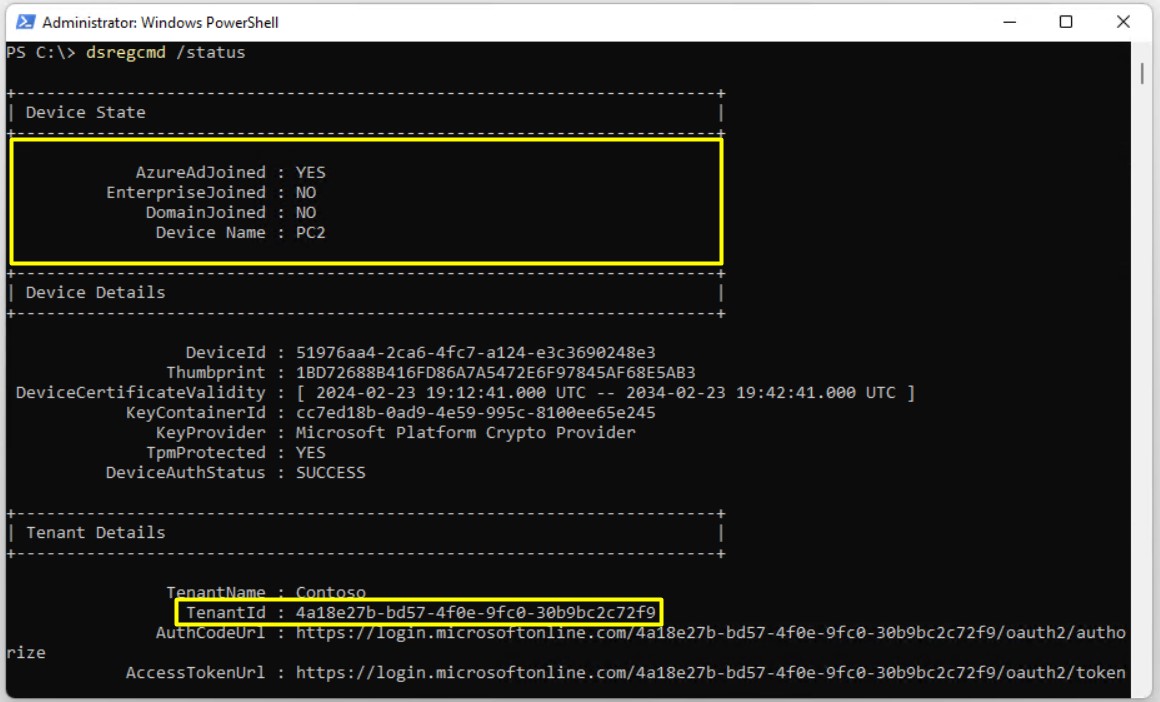
To see the state on the device side, the following command is run on PC2.
The relevant values in the output and their meanings are as follows.
|
Section |
Field |
Value |
Meaning |
|
Device State |
AzureAdJoined |
YES |
The device is joined to Microsoft Entra ID |
|
Device State |
EnterpriseJoined |
NO |
The device does not have an Enterprise Join registration |
|
Device State |
DomainJoined |
NO |
The device is not a member of an on-premises domain |
|
Device State |
Device Name |
PC2 |
The local name change is complete on the device |
|
Device Details |
TpmProtected |
YES |
The key of the device identity is protected by the TPM |
|
Device Details |
DeviceAuthStatus |
SUCCESS |
The device exists in Microsoft Entra ID and is enabled |
|
Tenant Details |
TenantId |
Same as the value in the portal |
The device is connected to the correct tenant |
The DeviceId value here is important, because Entra ID identifies the device by this ID and not by its name. The device is connected to the correct tenant, exists in Entra ID and is enabled. The only thing missing is the delivery of the new name to Entra ID.
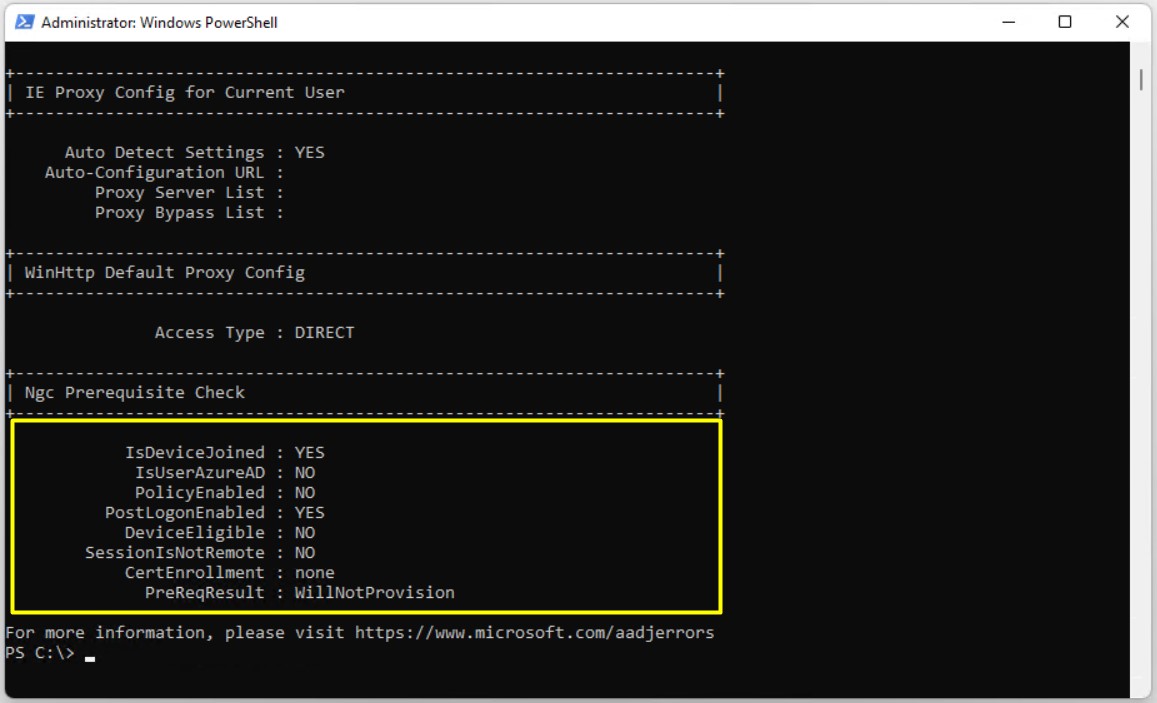
The same output continues with the proxy settings. The Access Type : DIRECT value in the WinHttp Default Proxy Config section shows that no proxy server is defined for WinHTTP. This value alone does not confirm that access to the Entra ID endpoints is successful.
The Ngc Prerequisite Check section directly below it lists the Windows Hello for Business prerequisites. The IsDeviceJoined : YES value in this section confirms the join state again. The other values are not related to Device-Sync.
|
Field |
Value |
Meaning |
IsDeviceJoined |
YES |
The device is joined to Microsoft Entra ID |
IsUserAzureAD |
NO |
The session was not opened with an Entra ID user |
PolicyEnabled |
NO |
The Windows Hello for Business policy is not enabled |
PostLogonEnabled |
YES |
Windows Hello for Business enrolment is triggered natively by the platform |
DeviceEligible |
NO |
The device does not meet the hardware requirement for Windows Hello for Business enrolment |
SessionIsNotRemote |
NO |
The session was opened over a remote connection |
CertEnrollment |
none |
Certificate trust enrolment is not configured |
PreReqResult |
WillNotProvision |
Windows Hello for Business enrolment will not start because the prerequisites are not met |
The WillNotProvision result does not affect the Device-Sync flow and must not be read as a join error.
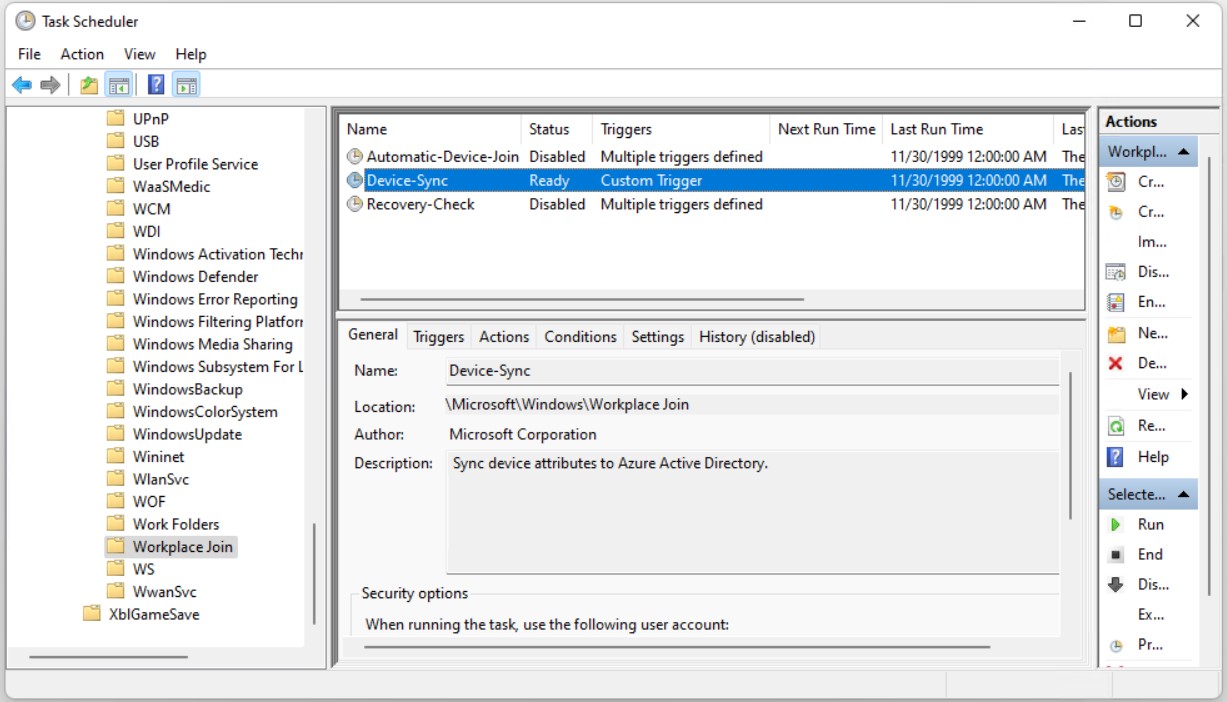
The task that sends the name to Entra ID is located under \Microsoft\Windows\Workplace Join in Task Scheduler. This folder contains 3 tasks. Automatic-Device-Join and Recovery-Check, which are used in the hybrid join process, are in the Disabled state on this device.
Device-Sync is in the Ready state and is defined with a Custom Trigger. The description of the task says that device attributes are synchronised to Azure Active Directory. Although the description uses the old name of the product, the task works with Microsoft Entra ID.
Device-Sync already runs when its own triggers occur. Starting the task manually instead of waiting for the trigger sends the update immediately.
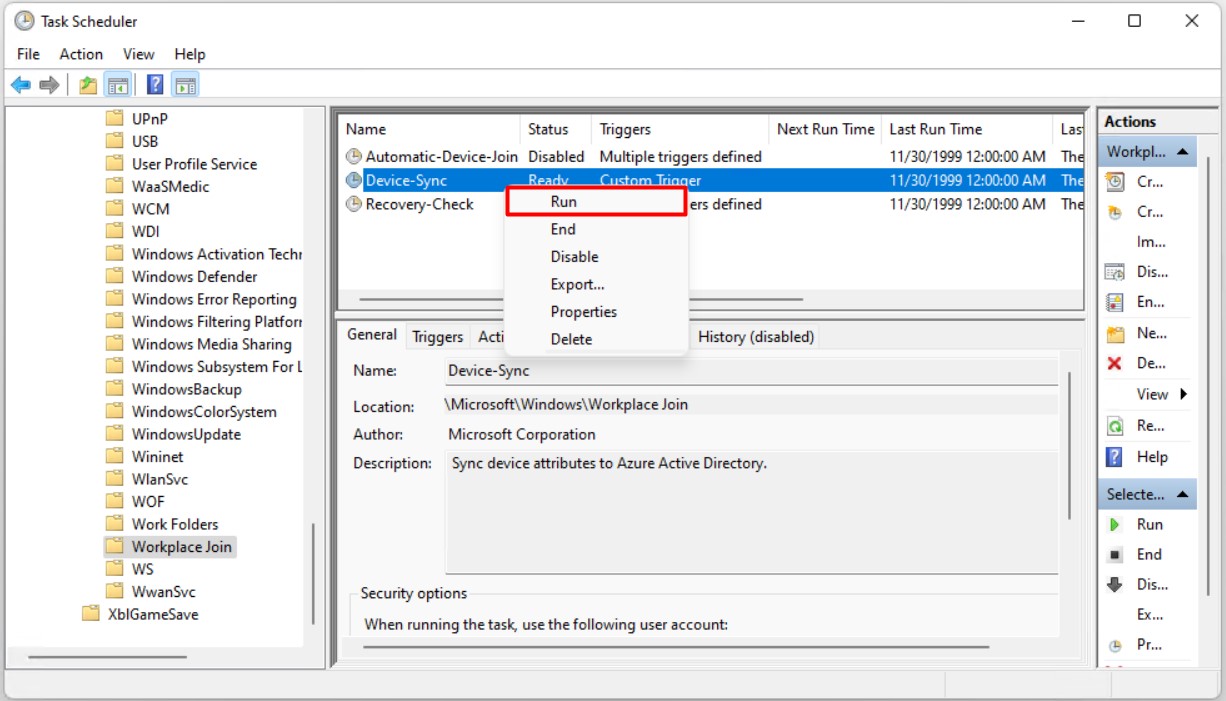
In Task Scheduler opened with administrator rights, the Device-Sync task is right-clicked and Run is selected. The task runs in the background and does not show a separate notification on the screen.
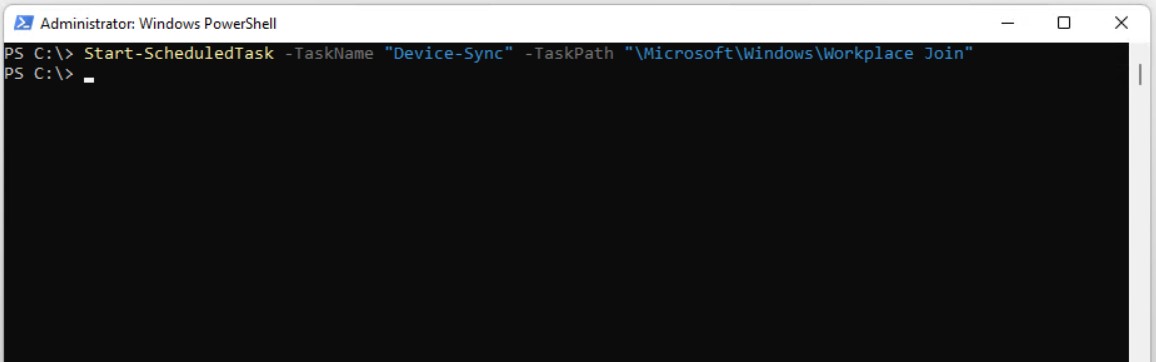
The same operation can also be done with the Start-ScheduledTask cmdlet, without using the graphical interface. The command must be run in a PowerShell session with administrator rights.
Start-ScheduledTask -TaskName "Device-Sync" -TaskPath "\Microsoft\Windows\Workplace Join"
The command produces no output when it succeeds. If no error is returned, the task has been started. When the same operation is needed on more than 1 device, this command can be placed in a script and deployed.
After the task runs and the portal is refreshed, the row that previously appeared as PC3 is updated to PC2. The Join Type, Owner and Version values remain the same.
No new record was created in this environment. The display name value of the same device object changed. Because the same directory object is kept, the static group memberships and assignments linked to the object stay in place, and the DeviceId does not change either.
If the environment has dynamic groups with rules based on the display name, the membership of these groups is re-evaluated against the new name.
On Microsoft Entra hybrid joined devices such as PC1 in the list, the displayName attribute is synchronised from the computer object in on-premises Active Directory through Microsoft Entra Connect. When the computer is renamed, the format of the displayName value in AD must be checked separately, and it must not be assumed that the name in Entra ID will be exactly the same as the new hostname.
Hostname Change on a Microsoft Entra Registered Device
The situation is different on the registered device. The link between this device and Entra ID is established through the work account added by the user, not through a device-level join.
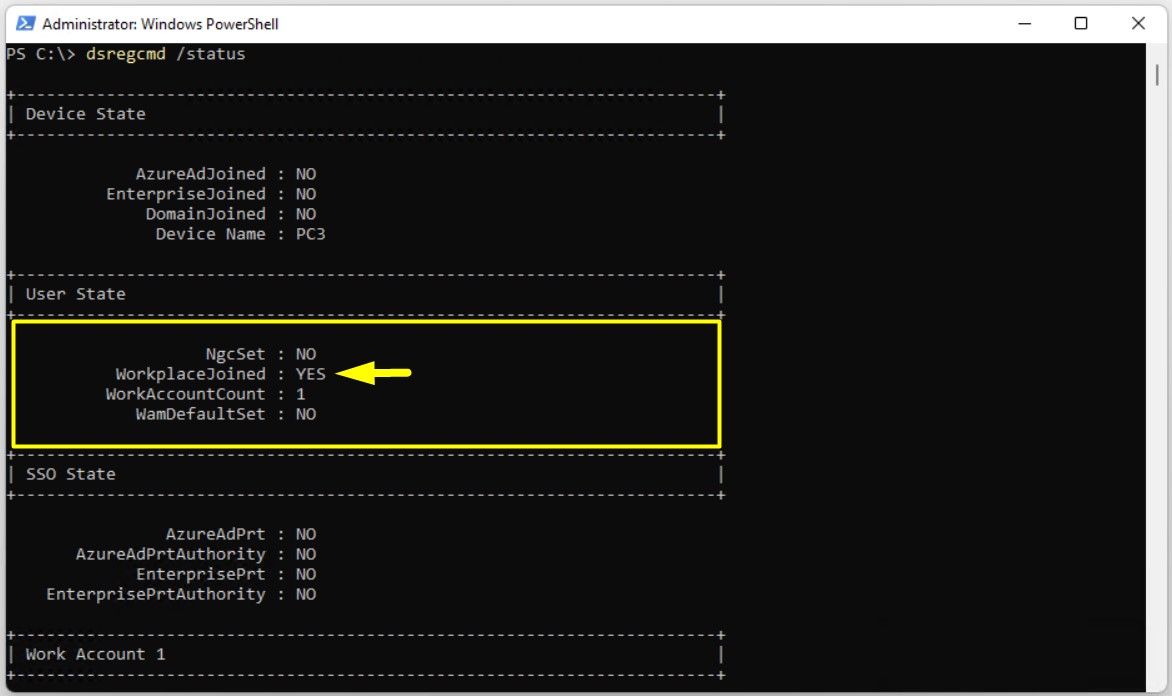
When dsregcmd /status is run on the former PC4, which is now named PC3, the Device State section shows AzureAdJoined : NO and DomainJoined : NO. The Device Name is PC3, so the local name change is complete.
The link between the device and Entra ID appears in the User State section. The WorkplaceJoined value of YES and the WorkAccountCount value of 1 show that the device is not joined and that it is registered through a work account added by the signed-in user.
In the portal, the device is still listed with the name PC4. In this scenario, the registration is renewed to reflect the new name in Entra ID, which means that the work account is removed from the device and added again.
Disconnecting the work account and connecting it again creates a new device object with a new DeviceId, and the group memberships and device-based Conditional Access evaluations linked to the old object are not carried over to the new object. If the device is enrolled in Intune, the disconnect operation also removes the device from Intune, and access can be affected until the compliance state is re-evaluated. Check the assignments linked to the device before you do this operation in a production environment.
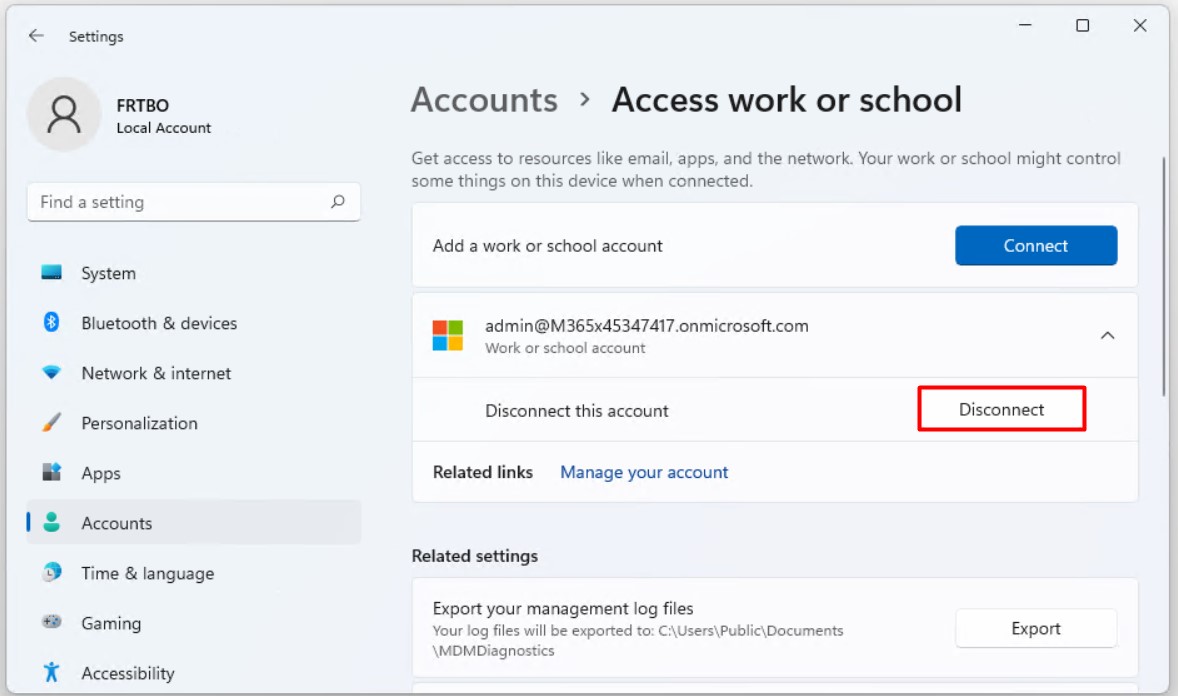
To remove the registration, the Settings > Accounts > Access work or school page is opened. The device is used with a local account named FRTBO. This is a typical registered scenario that is common on personal devices or on devices that do not belong to the organisation.
The admin@M365x45347417.onmicrosoft.com account in the list is expanded and Disconnect is selected.
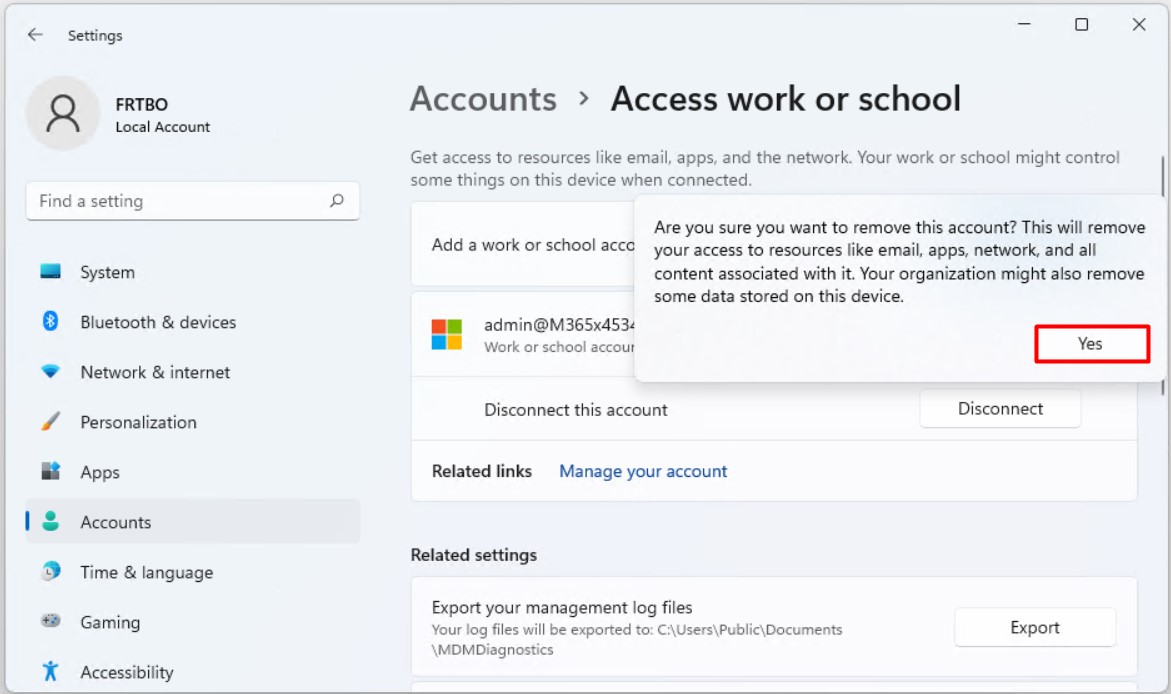
Windows shows a confirmation window at this point. When the account is removed, the access to email, apps and network resources provided through this account is removed, and the organisation can delete some data on the device. The operation is confirmed with Yes.
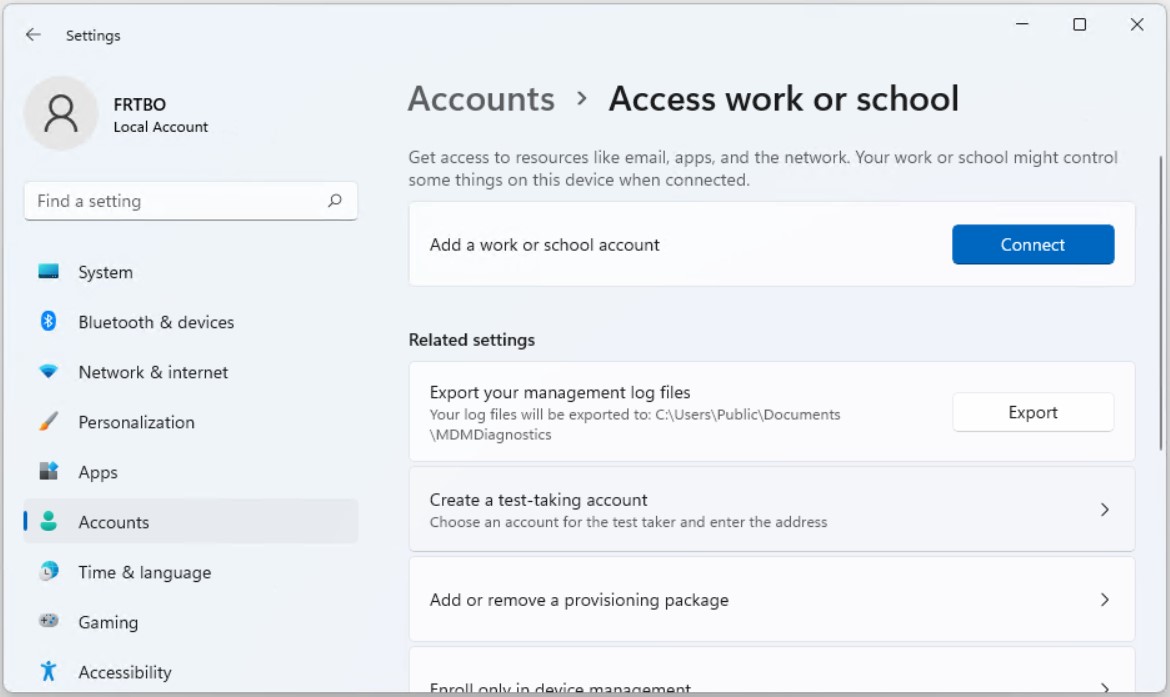
After the confirmation, no account remains on the Access work or school page apart from the Add a work or school account option. The work account has been removed from the device.
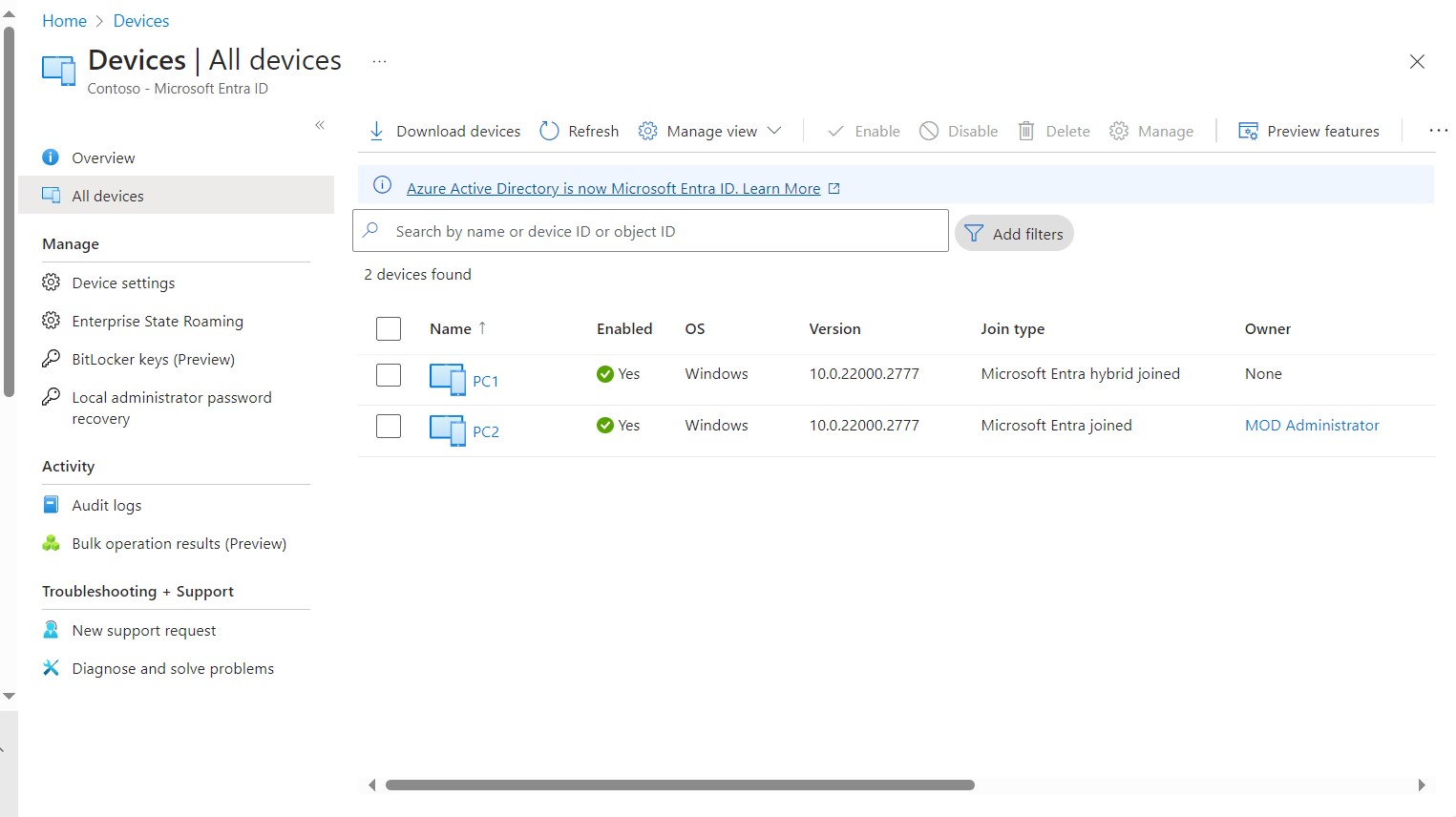
When the portal is refreshed, 2 devices remain in the list. PC1 and PC2 are in place, and PC4 no longer appears.
In this environment, the disconnect operation did not update the record. The PC4 object was removed from Entra ID. Automatic deletion of the old object is not guaranteed in every environment. If the old record remains in the list after the operation, there will be 2 objects for the same device and the old record must be cleaned up separately.
When dsregcmd /status is run again on the device, the User State section shows the WorkplaceJoined : NO value. The WorkAccountCount line has also disappeared from the output.
The registration link between the device and Entra ID is completely removed, and the environment is ready for a new registration.
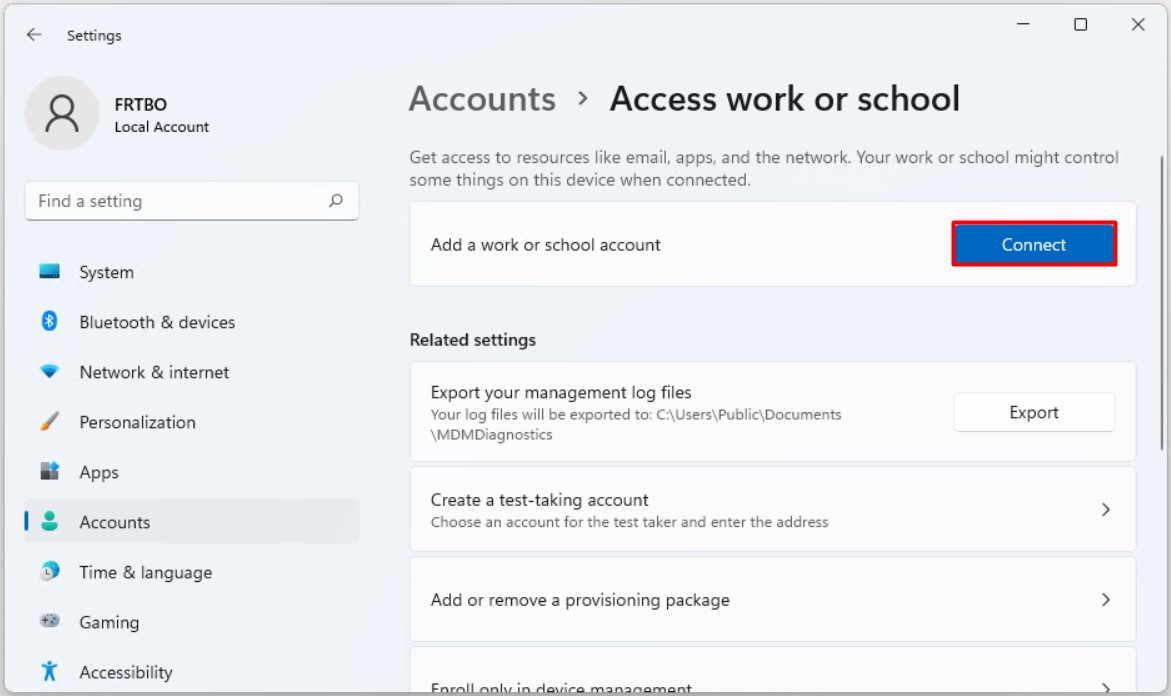
On the same page, the account is added again with Connect. When the account details are entered and the operation is complete, the device is not joined. It is registered again as Microsoft Entra registered through the work account of the user.
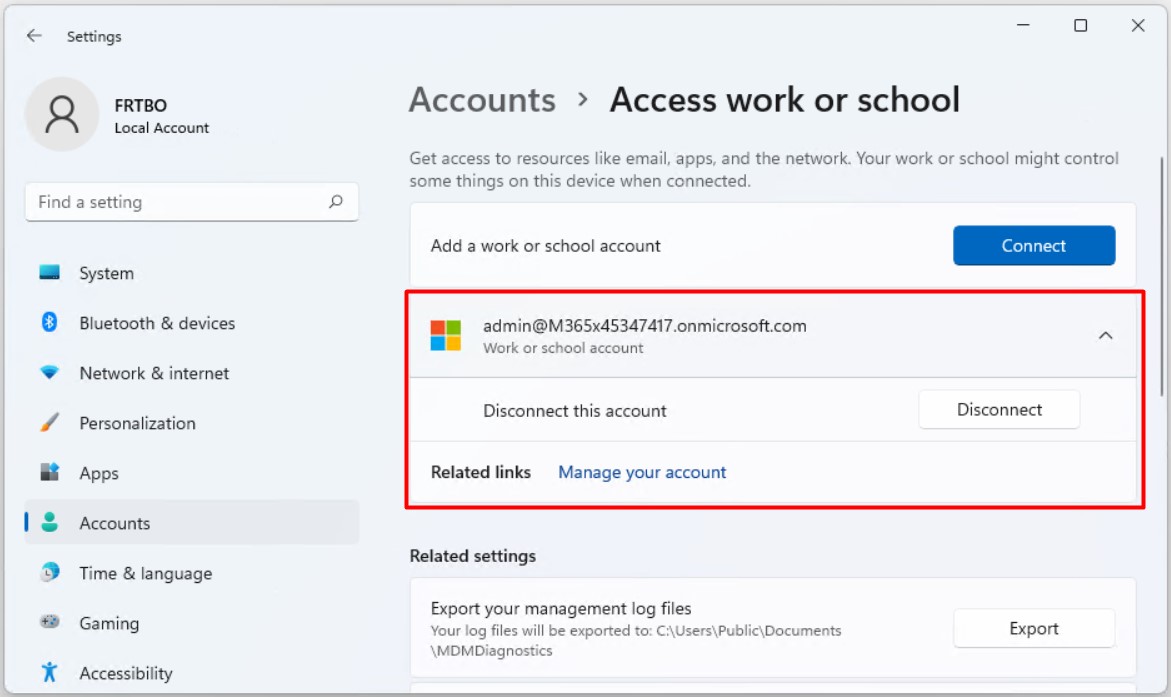
When the operation is complete, the account returns to the Access work or school list as a Work or school account.
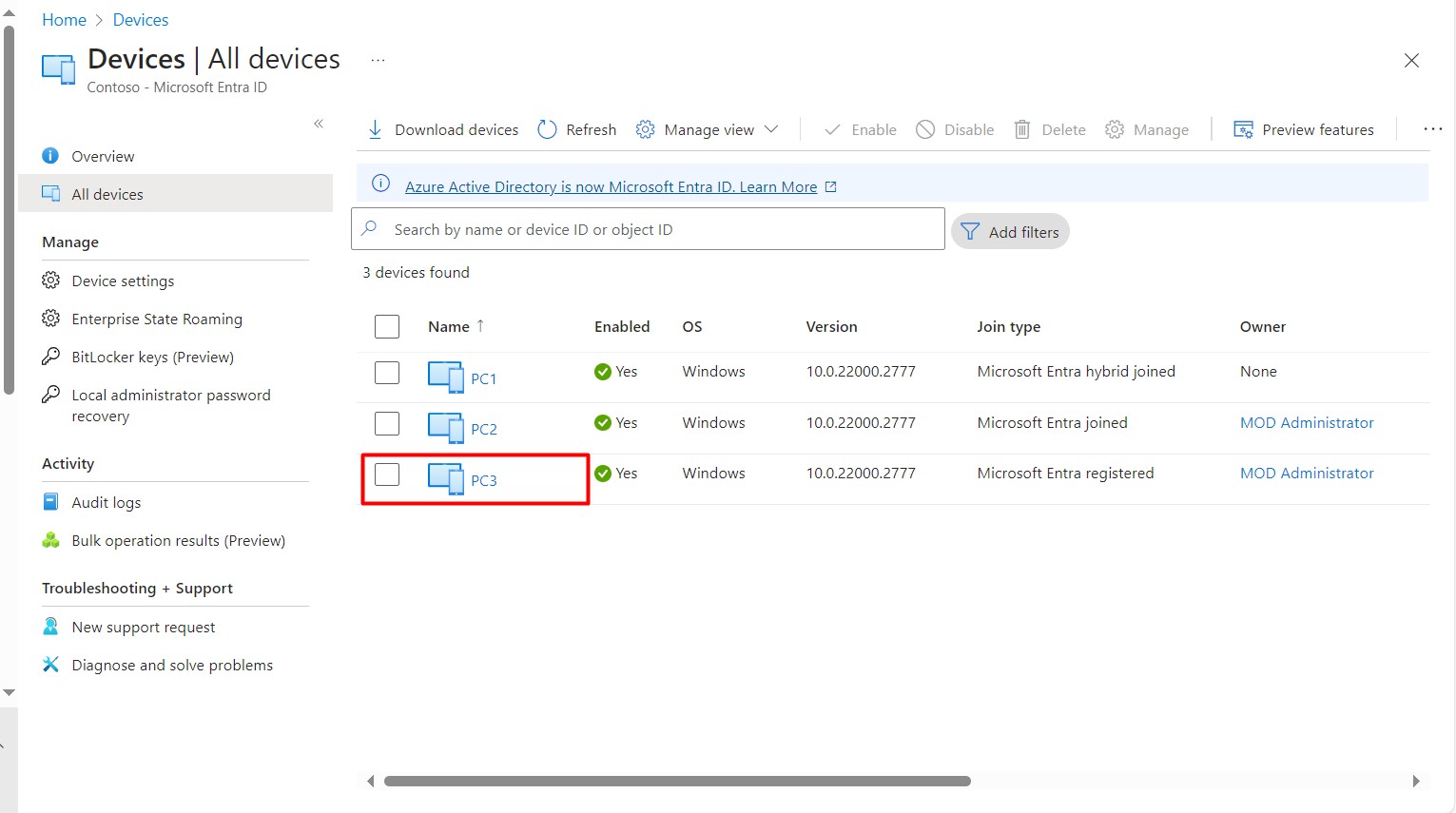
When the portal is refreshed, the device is listed with the name PC3, the Microsoft Entra registered join type and MOD Administrator as the owner.
The value in the Version column has also changed. The old PC4 record showed 10.0.22000.2713, and the new record shows 10.0.22000.2777. This difference shows that the operating system version reported by the device has been updated, and it does not prove on its own that the object is new.
The way to confirm that a new device object has been created is to check the DeviceId value. The Device ID value of the device in the portal must be different from the value of the old PC4 record.
In the final state, the name of both devices in Entra ID matches the local hostname. The difference is that PC2 continues with the same object, and PC3 arrives as a new object.
The table below shows how the 3 join types respond to a hostname change.
|
Join Type |
How the Name Reaches Entra ID |
Device Object |
DeviceId |
Assignments Linked to the Object |
|
Microsoft Entra joined |
The Device-Sync task runs |
The same object is updated |
Does not change |
Kept |
|
Microsoft Entra registered |
The work account is disconnected and connected again |
A new object is created, and the removal of the old record must be checked |
A new DeviceId is generated |
Must be applied again to the new object |
|
Microsoft Entra hybrid joined |
The displayName value of the computer object is synchronised through Microsoft Entra Connect |
The same object is updated |
Does not change |
Kept |
In practice, checking the join type of the device before a name change gives a sufficient plan. On joined devices, triggering the Device-Sync task updates the same object and the existing assignments are kept.
On registered devices, the registration is renewed. If these devices have linked group memberships or device-based policies, plan to apply them again to the new object after the new registration and to verify that the old record has been cleaned up.
This article covered how a change to the hostname of a Windows device is reflected on the device object in Microsoft Entra ID, through 2 different join types, Entra joined and Entra registered. It showed that the local name change does not update the display name automatically, and that the update depends on information sent by the device or on a new registration.
On Entra joined devices, the Device-Sync task under Workplace Join is the task that sends device attributes to Entra ID. In the lab environment, after the task was triggered, the display name value of the existing device object was updated, the DeviceId did not change because the same directory object was kept, and the assignments linked to the object stayed in place.
On Entra registered devices, the registration is established through the work account added by the user and is tracked with the WorkplaceJoined value in the dsregcmd output. Disconnecting the work account and connecting it again creates a new object with a new DeviceId. For this reason, it affects group memberships and device-based Conditional Access evaluations, and the removal of the old record from Entra ID must be verified separately.
On hybrid joined devices, the displayName attribute is synchronised from the computer object in on-premises Active Directory through Microsoft Entra Connect. Knowing the join type of a device before you rename it lets you plan in advance how the change reaches Entra ID and whether the existing assignments are kept.
I hope you find it useful...
Feel free to share your thoughts and questions about this article in the comments below. Every contribution helps the content reach more people and makes for a more useful discussion.